LESSON 26 
Communications and Collabor tion 
• OBJECTIVES 
Upon completion of this lesson, you should be able to: 
• 
Identify appropriate uses for different communication methods. 
• 
Identify the advantages of electronic communications. 
• 
Identify common problems associated with electronic communications. 
• 
Identify the elements of professional and effective electronic communications. 
• 
Identify appropriate use of e-mail attachments and other su pplementary information. 
• 
Identify issues regarding unsolicited e-mail. 
• 
Describe how to minimize or control unsolicited e-mail. 
• 
Identify effective procedures for ensuring the safe and effective use of electronic communications. 
• DATA FILES 
You do not need data files to complete this lesson. 
Q) Estimated Time: 2 hours 
• VOCABULARY 
biometric security measures 
fi ltering 
fraud hoax logic bomb netiquette phishing pyramid schemes RDF Summary 
spam 
tagging 
teleconferencing 
time bomb 
Trojan horse urban legend 
virus worm 
Mod3-45
Mod3-46 MODULE 3 Living Online 
In Lesson 25, you learned about e-mail. In this lesson, you expand your knowledge of e-mail and learn about other electronic communication methods, the appropriate use of each of these methods, and the advantages and disadvantages associated with each one. 
3-2.3.1 
Communication Methods 
A variety of electronic communication methods is available. In most instances, the person or persons with whom you are corresponding and the topic of the correspondence will determine which communication method is the more appropriate. Electronic mail (e-mail), which was discussed in detail in Lesson 25, is best used in the following situations: 
• 
When the correspondence might require a paper trail 
• 
When the correspondence covers multiple points 
• 
When the correspondence needs to be accessed frequently 
Instant messaging, also introduced in Lesson 25, is best used when correspondence needs to be accessed in real time. Each person can send and receive messages while everyone is logged on to the Internet at the same time. The message can be sent from a computer, from a cell phone, or from other mobile devices (see Figure 26-1). 
8 0 Corporate Contacts 0 
Fl -, 
~ ...!~ 
Add Send Call Video Send File Mail 
* 
.,. Cathan Cook (Available) Microsoft 
_ ,'m in the London Office-today 
'0. Type l1 ilJ'1'1 e or e-mail ad dres s Friends (2/10) Marketing (3/3) Chris Cannon Davtd Simpson ', .:!.~' Eiji Yasuda tin :'l !.tte n:Jl My Team (3/ 6) Agnieszka Wojciechowska Sisdel0by lDo Net Dluu'bl Viktor Volod!r~ 1:""''&' • Anne We iler Jill frank Paul West Other Contacts (0/3) $lig Panduro 
t VOCABULARY 
teleconferencing RDFSummary 
FIGURE 26-1 Instant messaging 
Teleconferencing uses a telecommunications system to serve groups, permitting the live exchange and sharing of information between two or more people. Generally the communications media is a telephone line. 
Syndication (Really Simple Syndication or RSS), also known as Rich Site Summary and RDF Summary, are formats originally developed to facilitate the syndication of news articles. This communication method now is widely used to share the contents of blogs.
LESSON 26 Communications and Collaboration 
In some instances, a combination of the above communication methods may be used. For example, a group of individuals who live in variolls areas of the country may be enrolled in an online class. This group can use electronic mail, instant messaging, and teleconferencing to communicate on various aspects of the project. Or, in some instances, they could use a blog to post project updates. In another example, electronic communications helps some students to overcome the fear of asking questions or contributing to a class discussion. 
Advantages of Electronic Communications 
Electronic communications offers many advantages. The communication is not restricted to a specific place and time. Secondly, in most instances, it uses text and graphics rather than voice. These tools also provide for different types of correspondence such as one to one, one to many, or many to many. For instance, in a many-to-many example, a discussion board is used where all parties can post and read all of the postings. Other advantages are as follows: 
• 
Speed is almost instantaneous, which means increased accessibility and enhanced interaction. 
• 
Cost is minimal or even free in some instances. E-mail, for example, is a service that is part of most networked computers. Price remains the same regardless of sending and receiving a hundred messages or a thousand messages. Based on the device that is being used, instant messaging is a free service or has a minimal fee. Teleconferencing, on the other hand, generally involves a fee for the host. In many instances, however, using this service can eliminate travel expenses for those individuals who would otherwise need to meet in person. 
• 
Access is available from various devices such as computers and cellular telephones. 
• 
Forwarding and routing of messages can be accomplished in an instant. Simply click the message, select the address of the individual to whom it is to be forwarded, and then click the Forward button. 
Routing is the process of selecting paths in a network along which to send network traffic. It can be an automatic or an individual process. For example, the network administrator receives a message that a server is going to be offline for a specific time. The administrator then can route this message to all personnel who would be affected. 
One-to-one/one-to-many communications is the act of an individual or computer communicating with another individual/individuals or computer. In Internet terms, this can be done bye-mail, FTP, and Telnet. The most widely used one-to-one communication on the Internet is e-mail. Many-to-many communications such as file sharing, blogs, wikis, and tagging enable people to both contribute and receive information. Tagging is used in blogs and other informational sites to simplify the search process. 
Mod3-47 
• VOCABULARY tagging
Mod3-48 MODULE 3 Living Online 
Collaborative communications is a type of software program that allows people to use live voice, full-motion video, and interactive desktop sharing from between two individuals to an unlimited number (see Figure 26-2). 
FIGURE 26-2 Collaborative communications 
Community building connects members ofa group with the same general interest. The community could be connected by a blog, a mailing list, a message board, or other type of electronic communication. Text, audio, and video communications require specialized intercommunication systems within the community. The network and the network interface card must be optimized to accommodate audio and video traffic. You might find this type of communications in a school, a hospital, a large office building, and so on. 
Another advantage is online document sharing, which allows users to create and edit documents online while collaborating in real-time with other users. Google Docs is an example of this type of program. 
History tracking and recording helps you keep track of visited Web sites. When a Web site is accessed, certain information is saved and stored on your computer hard drive. This information, also called Temporary Internet Files (TIF) or cache, decreases the amount of time it takes for a browser to load and display the site. Information such as Web site addresses, total times the site was accessed, images, file types, file size, specific dates and times of last access are stored on the hard drive. 
In the following Step-by-Step exercise, you use the History button to search the Favorites list.
LESSON 26 Communications and Collaboration Mod3-49 
Step-by-Step 26.1 
1. 
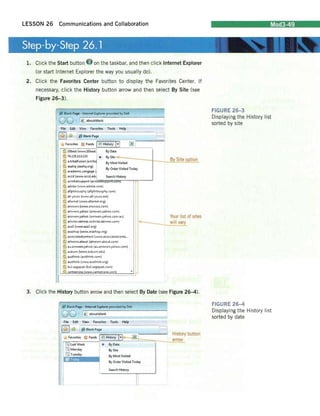
Click the Start button on the taskbar, and then click Internet Explorer (or start Internet Explorer the way you usually do). 
2. 
Click the Favorites Center button to display the Favorites Center. If necessary, cl ick the History button arrow and then select By Site (see 
Figure 26-3). 
I 
~about:blal1k View Favorites Tools Help c Histor! H ~I By Date~ 10b..t (V,w.v10bertj ~74125113132 " 3; a.tribalfusion (a.trib~ By Site ~~~-----J-__ By Mo,t Visited ~ aa.hq (aa.hq.org) I ~academic.cengage ( By Order Visited Today :§b an5wers (wlW ..ansv/ers.comj By Site ~tion 
n 
I 
Your list of sites I~--___will vary 
FIGURE 26-3 Displaying the History list sorted by site 
FIGURE 26-4 Displaying the History list sorted by date 
'6 answers.yahc-o (an5'1Er!:.yahoo.ccmj 
~an~vE;rs.yahco (amwers.yahc-o.com.au) 
~artjcl~s.latime'i (articles.latimes.com) 
§ a",3 (w,vw.asa3.org) 
:§. a..,hop (...NM.a...,hop.org) 
36 associatedcontent (w"INw.asiociatedconte... atheism.abolJt (atheism.about.cem) 
~aIJ,answers.yai1co (au,ansv1E:rs.yahoo,com) 
~auburn (:.'J'.v'lN,auburn.edu) 
~aurthink (austhink.com) 
~au~hink (vww.austhink.org) 
:§. bul.sagepub (bul.,.gepub.com) -6'. cameorosC" W'Nw.camecrose.com 
3. Click the History button arrow and then select By Date (see Figure 26-4). 
! 
iJ aboutblank -~-- ;¥) History ~~~~~~~~~~~~~==~,-____~arrow La<! Week w 
~Monday 
:::m Tuesday 
l~ Blank Page • Int..".1 Explorer provided by O.H 
Tools Help 
... 
By Dat. BySite By Mort Visited By Order Vi,ited Today 
Search Hi!;tory 
o History button
Mod3-50 MODULE 3 Living Online 
FIGURE 26-5 
Searching the History list 
(~j .~I 
3-2.3.3 
4. 
Click and view the other options-By Most Visited and By Order Vi'sited Today. 
5. 
Click the Search History button, type Microsoft (or another word or phrase) into the search text box, and then click the Search Now button (see Figure 26-5). Most likely, your screen will display different Web site addresses. 
~Blank P~g~ -Int.m~ ""plc«r provided by Dell I UV I~ about:blank -"---= 
File Edit View Favorites Tools Help 
~<S:1 I'i! Blank Page 
o 
Favorites GJ Feeds I'8 Hislol)' IT1 ~ 
Search for: 
Microsoft 
ISearch Now l' s:,0 
ru (engage -Databases -Student Product Deta ... 
~(engage -Databases -Student Product Del.... 
ili (engage -Spreadsheets -Instructor Product... 
~(engage, Spreadsheets -Student Product D... 
It: Cengage -Spreadsh ..ts -Student Product 0... 
~(engage -Spreadsheets, Student Product 0... 
~~texample.s of sound 2nd valid arguments· Go ... 
4J How to install the Windc-.."Is 7 Release Candi.. . 
~New Perspectives on r...1icrosoft Office 1007 a.. . 
:.J iJ Remove PDFMake:r from Micrcsoft Offic.e: 
I I i;Windows 7 RC Download Center 
6. Use your word-processing program and write a summary of each of the options available through the History button. Save your document as history-tracking and submit it to your instructor. 
Solving Communication Problems 
Similar to other electronic devices, electronic communications is not without problems. Windows Vista, however, contains troubleshooting tools to help you identify and resolve communication problems. 
Lost Internet Connection 
Accessing the Internet is one of the primary reasons many people use their computers. Losing your connection can be frustrating, especially if you are in the middle of an online or video conference or uploading important data. Depending on the problem, you may need to call your provider. However, you may be able to repair the problem with the Network Connection Repair tool. The following Step-by-Step exercise illustrates how to use this tool.
LESSON 26 Communications and Collaboration Mod3-5 t-=::_ 
1. 
CI ick the Start button on the taskbar, and then click Control Panel to display the Control Panel Home window. 
2. 
Click Network and Internet to display the Network and Internet window (see Figure 26-6). 
p 
·1+, 1~arth 
tt Nelwor~ and Sharing Center __ ,'je~, nn.<'oll rtiJlv' and t!IU Or'lnf"ct to. J nnoc11 '/If'".... I"I'E1kCrl (cmpub.rs !nd dc--.riCH t.dd: J. dr. Ice hi 1h: Ilil!'t .... or: ~f14Jp file during 
Internet Options 
Ch.J1~t ,CUI henlepl~ 
Offline Fil", 
en.(lj~l ~CU' off~"c ,,1M t.I!f1'9~ dcl:" spUe u.ed b) )CUr cffj·nefile=s 
Tum ·.·,'mde: ... FIle-i.!11 n!;)1 err 
)~OC .~'In t:'tht:1 CCf'n~H.tt'·~ mcbt'e d£.lctJ.. or ntt",,-o.n: fG-ld.e~ Vft/-V Sf"" reru t~ F~Oh~ t!'''nC "enlhru 
«(2) Symantec Li, eUpdate 
FIGURE 26-6 
Click to open the 
Network and 
Network and Sharing 
Internet window 
Center window
Mod3-52 MODULE 3 Living Online 
3. Click View network status and tasks to display the Network and Sharing Center window (see Figure 26-7). 
FIGURE 26-7 
Network and Sharing p i Center window 
Ne~Nork and Sharing Center 
.I~funmiJ? 
USA·PC Chamberla in Intern et (This computer) 
<~Chamberlain (Private nrtwork) Local and Intern et Conn ection lo.::al Area Connection 
~ For sharing and discover; to wo rk pccp eriy, make S'.H e the £et:tings in your firewall program match the fcl10wing settings. 
1.]. Sharing and Discovery Net'!o ri:: dIscovery Wo On Fife sharing a On 
Public folder <;haring 0 Off Printer ~harin9 0 Off Pas~... ord protect ed sh aring C;; On 
Media sharing " On 
$hc .... n~ til the fl~-s.lnd fc!dm I1m ;,a,ing 
Show me ,,!f d t ~h.)rtd n(tY;crk i Id... ,).'¢n Hti: ccmp-I,i1tt 
4. In the Tasks column, click Diagnose and repair to run the Windows Network Diagnostics program. If there are no problems, then Windows will return a message similar to that in Figure 26-8. If there are problems, Windows will attempt to fix the problem or suggest other solutions. 
FIGURE 26-8 
Windows Network Diagnostics dialog box 
~Windows Network Diagnostics ~ Windows did not find any pro blems with your Internet connection. 
00 you want to report the problem to Microsoft? Additional details abo ut what went wrong 
can help create a o;;olution. The report will be sent thE ned time you go online. 
S~nd infonnatioo 
Clo, e 
5. 
Click the Close button to close the dialog box. 
6. 
Use your word-processing program and write a summary of why you think the Diagnose and repair tool is important. Provide an example of when and how you would use this tool. Submit your assignment to your instructor.
LESSON 26 Communications and Collaboration 
E-Mail Software Problems 
E-mail failure to send and/or receive messages can result from various problems. Your server provider's connection could be down. If your connection to the Internet is still available, then checking your server provider's Web site could provide answers to your problem. Windows Help and Support also provides possible answers to the problem. In Step-by-Step 26.3, you have an opportunity to review this Help file. 
Mod3-53 
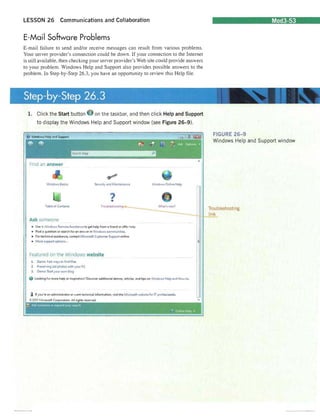
1. Click the Start button on the taskbar, and then click Help and Support to display the Windows Help and Support window (see Figure 26-9). 
Find an answer 
V indov..-s Basics Secullfy and MaintenanCl: Windows. Online: HeJp 
• 
T.ble of Contents 
Ask someone 
• 
Use -+ Windows Remote .A!:sistanc.c to get help from a frie:nd or offer help, 
• 
Pert a question or search for an amwtr in WindQ,'/S co mmunities. 
• 
Fer technical assistance. contact Microsoft Customer Support cnline. 
• Mor~ support opticn!i". 
Featured on the Windows website 
1. 
D!mo: Fa~wa~to find files 
2. 
P'eoerving old photo, ,... ithyourPC 
3. 
Demo: Start yo ur cwn blog 
locking fer more help or inspiraticn?Discover additional demos, articles, and tip:; on "'~ndowl H~lp and How-to. 
; If you're an admini5:trator cr "Nant technical information, vis.it the Microsoft we.bJite: for IT profe.ssionals. 
~2.007 Microsoft Corporation. AI! rights re~er....-ed. 
FIGURE 26-9 
Windows Help and Support window 
Troubleshooting 
link
Mod3-54 
FIGURE 26-10 Troubleshooti ng in Windows window 
Click Troubleshoot problems with 
Windows MalL ..MODULE 
3 Living Online 
2. I n the Windows Help and Support window, click Troubleshooting to display the Troubleshooting in Windows window (see Figure 26-10). 
Troubleshooting 
in Windows For mort com puter pro blem>, there's: usually d so lution within reach. Here are s:ome poi nters to Help fo r specific types of problems. Networking • Trouble.hcot problem; fIndin g w"e''', networks .. Troubleshoot p,obl~msfinding computess on a home network .. Trc ubleshoot net'lNork ccnn~ction problems .. Troublesho ot Int ernet connection probltms .. Troubl tshcct fit! and print~r sharing Using the web • Connect t o thelnt emet .. Why is my lrltern~t connecti on sc sIc'll: • Tips for solving p,cblem:; w;th Intemd Explorer E-mail Trc ublE::shoct problM1!i with Win dows: Maif • 'Nhy c~n't Ivie' .... an attachm ent? • Send picturM or "/idees in e-mail Hardware and drivers In this article • Networking • Using the leD • E-mail • Hardw!lre and drivers • Your comput~ • Get h,lp from oUler p~ople • To find o ut ff your hardwa re i~ compatible with Vlindcws:, go to the 1,' in do ws Vista Upgrade Advisor on the Microsoft VlEbo:i te. • Ti~ (or fIXi ng common drive.r problems • Tips for fi>:ing common sound problems.
LESSON 26 Communications and Collaboration 
3. In the Troubleshooting in Windows window, click Troubleshoot problems with Windows Mail to display the Troubleshoot problems with Windows Mail window (see Figure 26-11). 
Windows Help and StJppOl1 
G'I ... -• - 
r-EJ3' 
~ ~, ---' 
. - . -. -~-'-"""'(. 
. 
. I 
!~ ---=-.~-=---~"-~---Troubleshoot 
problems with Windows Mail 
If you are having trouble configuring your e-mail accounts v·...ith Windows 11,1ail, you might ccmider using VJindo...·!~ Live tvleil instead, All you need to do is enter your e-mail addre:;.s.andWindoll.sLive~..1ail v. illautomatlcally enter the correct settings fer e-ma il servers. used by many popular e-mail !iervices, including Iff;ndow~ liVE: Hotm.ait Ya hoo!, AOl, and 
GmaiL 
I/!Jindooos live M~il includes. the fam il iar features of Outlook Expre5~, the mail program included in ¥llndowl XP, and Windows Meil. the mad program included in ' indO'l":: ;Ji~ta. To do'."!nload '/lindows l ive Mai l, go to the " mdo"J!i Live ~tail 1I/ebs.ite, 
Here are soluticns. to some (omman i$$ue.s. 'Aoith Windows. Mail, 
• 
I don't know ho·..'I to s;e-t up V/mdoVls Mell for my e-mail i!ccount , 
t i c I!n t reCeNt e:-maU. 
• 
i co!n recejye. bu"t not send, f -mail mtis~9t:.§. 
• 
Ican't vie-." or sa .... e an attachtd 'Ile. 
• 
The links don't wori:: in a mf:!>slgt i received, 
• 
I hav~ mes-s.age:' in my Outcox ~nd Idon't know how to send or deleu them. 
)0 Ic.an·t che,k spf:lhng in my me.s<:a·9~$. 
to When I<lick an e--mailljn~ in my web browser, ft op~S' .!Inather ~mai' program instead of'Nindows Milil. 
)0 When 1~eafch for e.-mad, not III of the messages m-at(hing my ;earc:h sho.-,. up in the results.. 
See-also 
• GftUng start~d wrth e -mlil 
4. 
Click the links and then read the information. Leave the Windows Help 
and Support window open for the next Step-by-Step exercise. 
5. 
Use your word-processing program to describe the different options and 
summarize what you learned about each. Submit your word-processing 
document to your instructor. 
Downloading and Viewing E-Mail Attachment Problems 
If you are unable to download or view an e-mail attachment.this could be due to the size of the attachment. Some e-mail programs limit attachment size and the number of attached files. If the message contains a virus, this also could be another problem. A third issue could relate to the sender and the type of e-mail-advertising, pornographic materials, or other unrecognizable documents. which may be blocked by your e-mail program. 
Windows Help also provides suggestions on why you cannot view an attachment. In Step-by-Step 26.4, you access and review this Help information. 
Mod3-55 
FIGURE 26-1 1 
Troubleshoot problems with Windows Mail window 
@ EXTRA FOR EXPERTS 
You can send an open Microsoft 
Office document without clOSing 
the file . Click the Office button, 
point to Send , and then click 
E-mail to send the document This 
process can be used, for example, 
during a conference call when 
more than one person is working 
on a document
ModJ-56 MODULE 3 Living Online 
FIGURE 26-12 Troubleshooting attachment problems 
Click to display a possible solution 
1. In the Windows Help and Support window you opened in the last exercise, click I can't view or save an attached file (see Figure 26-12). 
~ Show all 
A 
Troubleshoot problems with Windows Mall 
If you erE: hal.·ing trouble configuring your e-mail accounts with Wlndcws Mail, you might (amider using Windows live Mail in~(!dd. All ycu need to do is enter your e-mail addr~!i and oI/indows trveMail will automatically enter the correct settings for e-mail !iervers u!;ed by many popular e-mail ser/ices, including tVindows: Live Hetmail, Yahoo!, AOL. and Gmail. 
Windcw~ Live Mail includes the familiar features of Outlook E.xpreS:!i, the mail program included in Vfindows XP, and Vindow5 Mail, themail program induded in :;'ndov,,:s Vi~i!!. To download vVindows LiVE: Mail, go to the 'Vindows Live Mail .... ebsitt. 
Here are solutions to some common iSSUE:s "'.lith VVindm',ls Mail. 
• I don't know hO'1 to set up WindO"'iSi Mail fer m]' e-mail account. 
~ I clS n t II:(;C;',I€ e-nlcil. 
• i can receive. but not send, I!-mail messages. 
... I can't vie'; or save "" attath~d file. 
WindoYJ~ Mail blods acce5~ to certain type; of attachments that can potentially be harmful to your ccmputer. For 
in~tructions on how to acces~ blocked files, see Why c~n't [ vie"AI itn attachment in '/indc';,'S fY1ail? 
If you receive an att~chE:d file that is not blocked but will not open, you probably need to install a program capable of opening the file. Thi$ can occur if someone. sends you a file bye-mail. Ask thE: sender v/hat program opens the file and ho'.' you can install it. For more information, $-E:e File nllmes l;nd file: namE: 6til!'nsiom: frequently ad.:E:d qu~lons. 
• 
The links don't work In a mes:sdgif I received. 
• 
I don't understand the difference b€toM'n Wind ows f."lail,  indows live Mail, and Outlook Express. 
~ I have messages in m Outbox and I don't know how to send or de.ltte them. 
• I can't check sp~Ulng in my messages. 
• 
When I d ic k an e-mail fink in my web brows E'r, it opens Inothfr e.-mail program instead of Viindows Mail. 
2. 
Read the information and then use your word-processing program to summarize what you learned. Close the Windows Help and Support window. 
3. 
Submit your word-processing document to your instructor. 
Delivery Failure 
E-mail delivery failure refers to a returned or "bounced" e-mail. This can happen for a number of reasons, including the following: 
• 
The e-mail address was mistyped. 
• 
The e-mail may have a virus or worm attached. The receiving program detects the problem and will not accept the message.
LESSON 26 Communications and Collaboration Mod3-57 
• 
The receiver has a spam-filtering program. Based on the e-mail content or subject, the program may identify the message as spam. 
• 
The sender is known and the person to whom the message is sent has blocked the sender. 
• 
The recipient's mailbox is full. 
Some e-mail programs return delivery failure (bounce) notices for e-mail that cannot be delivered. Others do not provide this service. 
Garbled Messages/No Guaranteed Delivery 
Occasionally, e-mail and other transmissions over the Internet are lost or spliced together. This occurs most often when Internet traffic is heavy. E-mail messages sent in rich text format (RTF) are garbled frequently (see Figure 26-13). The person sending the message should change the format to HTML. In some instances, the sender does not receive a notification of delivery failure and is unaware that the message was not delivered properly. 
REC-htmI40+AClAPg-+ADw-head+AD4-+ADw-meta name+ADO-Generator content+ADOAlgMicrosoft ord 11 (filtered medium)+AClAPg-+ADwAIQ---+AFs-if +ACE-mso+AFOAPg-+ADwstyle+ AD4-v+AFw-: +ACo-+AHs-behavior:url(+ACM-default+ACM-VML)+ADsAfQ-o+AFw:+ 
ACo-+AHs-behavior:url(+ACM-default+ACM-VML)+ADsAfQ-w+AFw-: +ACo-+AHsbehavior: url(+ACM-default+ACM-VML)+ADsAfQ-.shape +AHs-behavior:url 
Please review the attached request and dednimer era gniteeM launnA eht gnirud gnikrow eb lIiw ohvv 
seeyolpmE .rood tJ<en tal gnikrap oclehS eht ni krap. 
eht fo trap a eb at nalp esaelp ,ton (0 reetnulov at elba era uoy rehtehVV .tneve ynapmoc .detaicerppa si 
nOitapicrtrap ruoY yna evah uoy fl.wonk em tel esaelp ,snoitseggus ekam ot ekil dluow ro snortseuq kooll 
.uoy mort gniraeh at drawrof 
FIGURE 26-13 Garbled message 
Lost Formatting 
Windows Mail and other mail programs provide two formatting options: HTML (Hypertext Markup Language) and Plain Text. HTML provides formatting options such as multiple fonts, bold text, colored headings, graphics, and links to Web sites. To use HTML when creating a message, click Format on the New Message menu bar and select Rich Text (HTML). To format as plain text, click Format on the New Message menu bar and select Plain Text. When sending an HTML formatted message, keep in mind that not all e-mail programs support HTML-formatted messages. If the recipient's e-mail program does not support HTML, the message will display as plain text with an HTML file attached.
Mod3-58 MODULE 3 Living Online 
Lack of a Paper Trail 
A paper trail is a written record, history, or collection of evidence created by a person or organization in the course of activities. Paper trails have been used in legal cases for evidence proof and in other situations. E-mail and other electronically stored information, for example, provide a paper or electronic trail similar to that of traditional mail and other written documents. Other types of electronic communications such as instant messaging, teleconferencing, online conferences, and collaborations do not provide a paper trail. Depending on the circumstances, electronic communication that does not produce a paper or electronic trail could create problems. 
Hasty Responses 
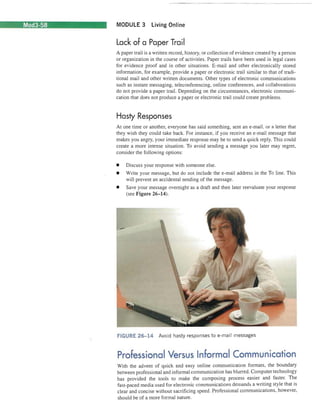
At one time or another, everyone has said something, sent an e-mail , or a letter that they wish they could take back. For instance, if you receive an e-mail message that makes you angry, your immediate response may be to send a quick reply. This could create a more intense situation. To avoid sending a message you later may regret, consider the following options: 
• 
Discuss your response with someone else. 
• 
Write your message, but do not include the e-mail address in the To line. This will prevent an accidental sending of the message. 
• 
Save your message overnight as a draft and then later reevaluate your response (see Figure 26-14). 
FIGURE 26-14 Avoid hasty responses to e-mail messages 
Professional Versus Informal Communication 
With the advent of quick and easy online communication formats, the boundary between professional and informal communication has blurred. Computer technology has provided the tools to make the composing process easier and faster. The fast-paced media used for electronic communications demands a writing style that is clear and concise without sacrificing speed. Professional communications, however, should be of a more formal nature.
LESSON 26 Communications and Collaboration Mod3-59 
Volume of E-Mail Replies 
Communications netiquette, a combination of the words net and etiquette, refers to good manners and proper behaviors when communicating through electronic media. Because most e-mail users report that their biggest problem is not spam but too much e-mail, keep the following netiquette guidelines in mind when replying to an e-mail message: 
• 
You have received an e-mail message and now you want to send a reply to the user. Click the Reply button, type your message, and then click the Send button. Verify, however, that your reply is necessary, and do not send responses that are not applicable. 
• 
Reply All is another e-mail option. If you receive a message that also was sent to and/or copied to other recipients, for example, clicking the Reply All button sends your reply message to the sender and the other recipients. If the reply message is not applicable to the other recipients, then Reply should be used rather than Reply All to reduce the volume of e-mail replies. 
• 
Two other options are cc and bcc. The cc abbreviation is derived from carbon copy. This refers to the technique of using carbon paper to produce one or more copies of a document during the creation of paper documents with a typewriter. A sheet of carbon paper is inserted between two sheets (or more) of paper. Typing or writing on the top sheet transfers the text or image to the copy. The initials bcc represents blind carbon copy. A bcc is a copy sent to recipients and is not visible to the primary and cc addressees. This practice rarely is used any longer, but the cc and bcc abbreviations were carried over into electronic communications. 
Junk Mail (Spam) 
Just as you might receive unsolicited advertisements, flyers, and catalogs in your regular mail, you most likely receive junk e-mail , also called spam, in your e-mail inbox.This type of e-mail might include advertisements, fraudulent schemes, pornography, or other illegitimate offers. This method of advertising is very inexpensive, and it is not uncommon for most people to receive numerous spam messages. 
To help prevent spam/junk e-mail: 
• 
Use caution in giving out your e-mail address. Do not publish it online, on a Web site, in newsgroups, or other public areas on the Internet. 
• 
Check the Web site's privacy statement before you provide your e-mail address. Verify that it does not permit the sharing of your e-mail address with other companies. 
• 
Never reply to a junk e-mail message. Once you reply, the sender will know that your e-mail address is valid. More than likely, you will receive even more junk e-mail, and the sender also may sell your e-mail address to others. 
• 
Windows Mail includes a junk e-mail filter that is turned on by default. The protection level is set to low and identifies only the more obvious junk e-mail messages. The program analyzes the content of your messages and moves suspicious messages to a special junk e-mail folder. You then can view and/ or delete them. If a junk e-mail message is received in your inbox, you can specify that future messages from the sender be moved automatically to the junk e-mail folder. 
In the following Step-by-Step exercise, you examine junk e-mail options in Windows Mail. 
• VOCABULARY 
netiquette spam
Mod3-60 MODULE 3 Living Online 
-I:i~'. II~ ~----: --~ -: -----. ; -=---~-. ~;--; 
. ;~~§t~p.;oy~Sfep 290. : _ " _=: ,,_.::'. -?~~ 
. . ---.--~ --_. ------~FIGURE 
26--15 
Junk E-mail Options dialog box jln Windows Mail 
• VOCABULARY 
fraud 
1. 
Click the Start button on the taskbar, and then click Windows Mail (or start Windows Mail the way you usually do). 
2. 
Click Tools on the menu bar, and then click Junk E-mail Options to display the Junk E-mail Options dialog box (see Figure 26-15). 
RI Junk E-m.n Opticns 
~ 
Options ISafe Senders IBlocked Sendors IIntemationalj Phishin<;! j 
~ Windmvs Mail can move messages that appear to be jUIl~ e-mail into a sp ec ial 
I 
.al Junk E·mail folder. I 
I 
Choose the level of junk e-mail protection you want: 
:1 
) No Automatic Filtering. Mail from blacked senders is still moved to the Junk 
E-mail folder. 
I 
(01 Low: Move the most obvious-junk e-mail to the Junk E-mail folder. 
·1 
,-: High: Most junk e-mail is caught, but some regular mail may be caught as well. Check your Junk E-mail folder often. 
_ Safe list Only: Only mail from people or domain s: on your Safe Sender) list 
" 
will be delivered to your lnba.x. 
:J Permanently delete suspected junk e-mail instead of moving it to the Junk E-mail folder 
I 
i 
l 
.1 
[ OK II Cancel I, Ap"y 
- 
3. 
Review the Options page , and then click the Safe Senders and Blocked Senders tabs and view that information. 
4. 
Use your word-processing program and write a summary of the information contained under each of these three tabs-Options, Safe Senders, and Blocked Senders. Submit your word-processing document to your instructor. 
Fraud, Hoaxes, and Other False Information 
Similar to other types of fraud and false infonnation incurred outside of the Internet, similar types offraud, such as e-mail fraud, also exist within the Internet. This type of computer crime involves the manipulation of a computer or computer data in order to dishonestly obtain money, property, information, or other things of value, or to cause loss. The U.S. Secret Service indicates that hundreds of millions of dollars are lost annually due to fraudulent activities.
LESSON 26 Communications and Collaboration ModJ-61 
E-Mail Fraud 
E-mail messages are one of the more popular formats used for fraudulent activities. In many instances, the messages are well-written and appear to be legitimate. Unless you know it to be true, a response should not be made to a message that requests that you send money or personal information. Some of the more common fraudulent type of messages include phishing, which are personal information scams. This type of message appears to come from a legitimate source, such as your bank. The message asks that you update or verify your personal information. However, the information is used to commit identify theft. Pyramid schemes are an illicit business model where profits are based on the investor's ability to recruit other individuals who are enrolled to make payments to their recruiters. Generally, neither a product or service is delivered. 
Hoaxes 
A hoax is an attempt to deceive an audience into believing that something false is real. Sometimes this is perpetrated as a practical joke with a humorous intent; other times, it is an attempt to defraud and mislead. Many e-mail hoaxes appear to be warnings about potential viruses. but actually contain viruses themselves. 
Perhaps one of the most well-known media hoaxes-one that many consider the single greatest of all time-occulTed on Halloween eve in 1938. Orson Welles shocked the nation with his Mercury Theater radio broadcast titled "The War of the Worlds." Despite repeated announcements before and during the program, many listeners believed that invaders from Mars were attacking the world. 
It is not always easy to spot an e-mail or chain letter containing a virus, but looking for some of the following will help detect possible harmful files. 
• 
The e-mail is a warning message about a virus. 
• 
The message might be very wordy, be in all capital letters, or include dozens of exclamation marks. 
• 
The message urges you to share this information with everyone you know. 
• 
The message appears credible because it describes the virus in technical terms. 
• 
The message comes with an attachment, and you do not know who it is from. 
If you identify any of the above, it is wise to delete the e-mail immediately. Also, use antivirus software and keep it updated. 
In the 21st century, hoaxes, along with urban legends, myths, and chain letters, grow and flourish through the Internet. Urban legends are stories which at one time could have been partially true, but have grown from constant retelling into a mythical yarn. Much of this false information is harmless: however. some of these, such as chain letters, can have viruses attached to the message. One of the more popular Web sites displaying information about myths and hoaxes is the Vmyths Web site. You visit this site in Step-by-Step 26.6. 
• VOCABULARY 
phishing pyramid scheme hoax urban legend 
@ EXTRA FOR EXPERTS 
The first known computer crime, electronic embezzlement, was committed in 1958.
Mod3-62 MODULE 3 Living Online 
FIGURE 26-16 
Vmyths Web site 
• VOCABULARY virus 
1. 
CI ick the Start button on the taskbar, and then click Internet Explorer (or start Internet Explorer the way you usually do). 
2. 
Type http://www.vmyths.comintheAddresstextbox.Click the Go button or press Enter to display the Vmyths.com Web site, similar to that shown in Figure 26-16. 
1J 
myths. -lht~e!&.plcra' previded by Dell '-...J .J lQCi http:lNmyths.comf Fill! Edit Vi M Favcrit~ Tock He-!p Ap' 27 2Vi)S Hysteria in the malting? Computer security e:-;perts lack focus on TWitter 
~Entries RSS ICommor.ts RSS 
THAT'S RIGHT: NO ADS 
Ttlls site 10cuses on hy~ef)a. 
Hyslena thrives I:;tlercver ihe experts lacY.. discipline, V'Yhen ltle media latches onto 
not ads. Bu1 ill Ott'd I I ,,~ 10 nelp 
the nex1 ~big worm,r ~'ie migtll very wen see a r01 of Tw1tler hystena (t':...;lsteria"?) 
Otlt please '$It the tound£is 
from me experts. The rnle1!igence ~/orld '!,;II recognize M as a ·stovepipe~ problem .. 
Wt!t1m aSier wisnli! t al 
(Cllc({ tne head'me (0 read 1/1;S an/cfe .. ) ,':'Inaz.oo com 
Ta~s' .o..t.cut..ccm, Cc~t.n Rtu, t...g.e.~ It . Gn~ClI~)', JQM Lc)'Ct-n. KUp.n.~"y LICL Uan Su~.&I,IY 
CATEGOR)ES 
ll~~3.mt cAfee. IJ~s.s.;eU.t5, U 0 H)";lPt4, :eJ5, ~...n-e,t ~"i'e"1)e. irlz Re;.is:er Tw~ 
; B;'SRdor cr.olI~H err.l~ tl hvtets. R~ners ' C:i;I;;ert. Secmr; ....U4Qrs I Rob ioS!r'lDtqji!:f I ~ COrm'llfrl1s ; 10m.ri: 
(2 ) 
G<rII& mllil"-i 
1~ Fallo,? Vmyths on T-vitter Re pOJ1ers &. blo(lQe>rs 
2009 
~ Wrt.Jpedla 
Vle'll use Twitter 10 diSpel computer secunly nype. Period. You I.'Oni get ll','eels 
. S ::'CUrlfjvMdors 
about our speaking engagemenls. or the bad airline foOd we ate. or Itle Dr. V~ho 
episOdes we miSSed ... .. Pr£ss rele.asn 
(CliCk Ine head!me 10 read tillS article . ) ,. Byt,pe Oftly5terla 
"'Sotar Ciliatiatof' mitn 
7S!W TwcrT We~.u ISsye,s t~""b ROStr::'~t~~q ~ Cem.-:-, Ms OH 
3. Click the Hoaxes, myths, ULs link in the right column. Select one of the myths and/or legends. Follow your instructor's directions to either ,print a copy or write a paragraph summarizing what you read. 
Viruses and Security 
In an information-driven and protect against risks communications. 
world, such as 
individuals viruses, which 
and 
organizations are spread thro 
must ugh electronic 
manage 
Viruses 
A virus is a program that has been written, usually by a hacker, to cause corruption of data on a computer. The virus is attached to a file such as a program file, a document, or an e-mail message, and spreads from one file to another once the program is executed.
LESSON 26 Communications and Collaboration Mod3-63 
A virus can cause major damage to a computer's data or it can do something as minor as display messages on your screen. There are different types of viruses: 
• 
A worm makes many copies of itself, resulting in the consumption of system resources that slows down or actually halts tasks. Worms don ' t have to attach themselves to other files. 
• 
A time bomb is a virus that does not cause its damage until a certain date or until the system has been booted a certain number of times. 
• 
A logic bomb is a virus triggered by the appearance or disappearance of specified data. 
• 
A Trojan horse is a virus that does something different from what it is expected to do. It may look like it is doing one thing while in actuality it is doing something quite opposite (usually something disastrous). 
To protect your computer against virus damage: 
• 
Use antivirus software. This software should always run on your computer and should be updated regularly. 
• 
Be careful in opening e-mail attachments. It is a good idea to save them to di sk before reading them so you can scan them. 
• 
Do not access files copied from USB drives. other media, or downloaded from the Internet without scanning them first. 
You can prevent a virus from infecting your computer and spreading to other computers by diligently scanning files that you did not create to make sure they are clean. Many programs have a built-in virus scan feature that activates when a new file is opened; in other cases, you can use an antivirus program to scan a file before opening it (see Figure 26-17). 
2. The e-mail 
3. The virus sends itself 
4. The virus 
message with the 
to everyone in the 
spreads like 
virus is received 
user's electronic 
wildfire. 
and opened on 
address book. 
another computer, 
infecting it. 
FIGURE 26-17 How a virus can spread 
• VOCABULARY 
worm time bomb logic bomb Trojan horse 
'z::!:::.w 
1. A hacker creates a virus and attaches it to another program which is sent via e-mail.
Mod3-64 MODULE 3 Living Online 
General Security Risks 
Computer security is necessary in order to keep hardware, software, and data safe from harm or destruction. Some risks to computers are natural causes, some are accidents, and some are intentional. It is always not evident that some type of computer crime or intrusion has occurred. Therefore, it is necessary that safeguards for each type of risk be put into place. It is the responsibility of a company or an individual to protect their data. 
The best way to protect data is to effectively control access. If unauthorized persons gain access to data, they may obtain valuable information, as shown in Figure 26-18. Users may need a password in order to log on to a computer system or to specific parts of it. Companies often establish password-protected locations on hard drives and networks so that designated individuals have access to certain files but not to others. In order to maintain secure passwords, they should be frequently changed. This ensures that individuals who no longer need access will not be able to Jog in. 
8lrer tho sen•..". ~no t ...." ar.orr,rr.ous logi:-oS 0( the .-mal oddress 'N'" not 
I~ 
<>eo:epted. 
FTPserver: fqJ.ph .c= 
!,!set nam<!: ICIvIs Jones vi g"...:.ord: 
, ········1 
After YOU log c;n, 'iQJ can add thrs ser·; 1!!r to ',our fa·..orltes and return to it easr;. 
FTPdoe; not er1<T';pt or er>:Qde _,;;;ords or data befure send.-.g them to Ihe .er.-er. To prou.ct!he 5e<lKitj' of VOA.X pa-.....' ords and data. use 'ieb Fo!ders 
~~':ebOAV, instead. 
I'--~og-o"---'I I ca=I 
o 
~a,~ poss',':ord 
FIGURE 26-18 Passwords protect data against unauthorized use 
Other security measures include using the following: 
• 
Electronic identification cards that provide access to designated areas within a building or department. 
• 
A firewall, which is an integrated security system that prevents unauthorized 
electronic access to a network computer system while permitting outward communication. 
• 
Antivirus software to protect data on your computer. 
Companies and organizations must plan for security before it is needed rather than handling breaches in security as they occur. For example, any company that handles sensitive information or needs to protect its data should take the following precautions: 
• 
Institute a selective hiring process that includes careful screening of potential employees. Do not keep employees on staff who refuse to follow security rules. This measure will prevent internal theft or sabotage. 
• 
Regularly back up data and store it offsite.
LESSON 26 Communications and Collaboration Mod3-65 
• Employ biometric security measures, which examine a fingerprint. a voice pattern, or the iris or retina of the eye, as shown in Figure 26-19. These must match the entry that was originally stored in the system for an employee to gain access to a secure area. This method of security usually is employed when high-level security is required . 
FIGURE 26-19 Biometric security measures 
Another common security concern on the Internet is credit card information. Effective encryption technologies help keep credit card numbers secure, but you can add additional security by following some simple precautions. For example, purchase from Web sites that you know are reputable and trustworthy. Read and understand the company 's privacy and consumer-protection policy before you buy. Verify that any credit card information is transmitted in a secured, encrypted mode. 
Professional and Effective Communications 
Electronic communications. as previously discussed, are available in a variety of formats-e-mail, instant messaging. teleconferencing, social networks, and so on. The levels of formality and informality is based on the type of communication. 
Statistics indicate that e-mail is the most popular of all Internet activities and that 85 percent or so of all Internet users lise e-mail. When used in the workplace for business communications, certain nIles of etiquette and formality should be applied similar to those applied to other business communications. The following list discllsses elements of professionalism as applied to electronic communications. 
, VOCABULARY 
biometric security measures 
@ EXTRA FOR EXPERTS 
You can create secure passwords that you can remember, String together the first letter of a line from a song or poem, for example, to create a password such as IImhiSF!-ali you have to remember is, "I left my heart in San Francisco," then add that punctuation mark, A password like this is nearly impossible for someone to guess . 
........ WARNING 
Several e-mail scams have been uncovered that appear to be from legitimate companies but ask you to provide a Social Security number to verify your account. Most companies assure customers they would never ask for sensitive information in an e-mail.soit is best to be suspicious of any solicitation for private information via e-mail. 
'---3- 
2.3.4
Mod3-66 MODULE 3 Living Online 
[1: WARNING 
One of the primary rules of 
netiquette is to not use all 
uppercase letters to type your 
message. Th is is considered the 
equivalent of shouting. 
• 
Is it a business, professional, social, or personal type of communication? Writing for a business or professional audience is different from writing for a personal or social audience. When composing a business message, you should assume that your audience has limited time and most likely will skim the contents. In other words, they want to know the "bottom line." The content should be clear and the message should not contain spelling or other errors . 
• 
Personal and social messages can be less formal. They should, however, be checked for spelling and punctuation errors. The purpose should be clearly stated. Avoid using sarcasm or too much humor unless the message is to someone you know very well. 
• 
The nature of the communication also is important. What is the purpose of the communication? For example, is it to invite someone to dinner or to submit a proposal? Instant messaging should be short and to the point. An e-mail message can contain more content. 
• 
Timely response is another consideration. When responding to a message, the response should be timely. In many instances, the type of message dictates response time. For example, if a customer needs immediate assistance or has a complaint, then the reply should be within 30 minutes to two to three hours. Or, if a student needs assistance on how to upload an assignment for his online class, the response time should be within 5 to 10 hours. Other non-emergency responses should be made within a 24-hour time period. 
• 
Messages should be concise and to the point. Ideally, the recipient should not have to scroll past one page to read the message. If the message is longer than that, then most likely the message should be put into document format and added as an attachment. 
• 
Include one subject per e-mail message. The subject line should be short and direct and describe the message content. 
• 
Reply options should be considered carefully. Do you really need to send a copy (cc) to others? If so, to whom should it be sent? Is the carbon copy really necessary and if so, should it be a bcc or cc? 
• 
The purpose of the message and the recipients of the message will determine the level of formality. The addition of elements should as emoticons, abbreviations, jokes, and so on are appropriate in some instances and inappropriate in others. Business correspondence, for example, should be of a more formal nature than social correspondence. Even within the social correspondence is a degree of formality and informality. 
• 
Repeating of information and inclusions of materials from previous e-mail messages is another consideration. Verify that you are not duplicating something that was sent previously. Also check that the recipient was not previously sent a copy of any attachments that you are adding. 
Other E-Mail Options 
In addition to the e-mail options discussed previously, other alternatives are available. The ability to send and receive e-mail attachments and other supplemental information is of great benefit and often a timesaver. 
• An attachment is a file that is sent along with an e-mail. More than one file can be attached to the same message, and the files do not need to be of the same type. When the recipient receives the message, they can click the file name to open the file.
_ 
_ _ 
LESSON 26 Communications and Collaboration Mod3-67 
• 
Most e-mail services have a limit on the size. although the size, based on the server settings. can be anywhere from 30 MB up to 2 GB or more. Some companies, however, now support delivery of files of unlimited size. 
• 
Some companies set security on some types of files, such as executable programs (.exe extensions) so they are rejected. In other instances, some companies set security on e-mails so that all attachments are rejected. 
• 
When creating an e-mail, it also is possible to add a hyperlink to the message rather than attaching a file. With this format , the recipient can click the link rather than opening an attachment. There are two ways to add hyperlinks to an e-mail message. You can type the Web site address. Most e-mail programs will recognize thi s and convert it to a hyperlink. The second method is to attach the Web site address to a word or a phrase in the message. This makes the word or phrase the hyperlinked text. To embed hyperlinks in an e-mail message requires that the HTML setting be selected. The recipient of the message also must use a program which can display hyperlinks. 
• 
Some mail readers cannot display embedded graphics or animation. Generally. thi s happens if the mail program reader is set to text only. 
• 
Viruses and other similar threats 
can 
be delivered as e-mail attachments. To 
protect a system requires a number of security tools. Nearly all e-mail programs provide security settings, phishing filters, and anti-spam tools. Other protective tools and procedures include firewalls, encryption, antivirus tools, spam filters, and educating the users (see Figure 26-20) . 
~~0t~~~~~~tll : 
Mail delivered • 
-_//~ 
. 
" Spamfilter ..- .' Anti PO'" I , " 
Safely view you, 
to inbox 
~ quarantined mail 
Sp 
am 
FIGURE 26-20 Controlling viruses and spam
Mod3-68 MODULE 3 Living Online 
Controlling Unsolicited E-Mail 
(. :rtll' I 
E-mail filtering allows you to define rules to manage incoming e-maiL Filters 
3-2.3.6 
automatically sort your incoming messages according to the rules you set up. 
t VOCABULARY 
filtering 
,3 .1 
3-2.3.7 
You can filter your incoming e-mail messages to: 
• 
Sort incoming messages into folders 
• 
Automatically tag messages 
• 
Forward messages 
• 
Discard messages 
For example, you could define a filter rule to identify mail coming from your immediate supervisor and move it to a folder called "From My Boss" or to automatically move messages from a specific address to the Trash folder. 
Filtering Mail by Mail Servers 
E-mail spam, or junk mail, was discussed earlier in this lesson. From the beginning of the Internet, spam has existed. It is estimated that the yearly cost of spam for U.S, businesses is more than $20 plus billion. 
Although some of it still will get through, a number of ways exist to reduce the amount. In the past few years, the amount ofspam received by most users has decreased because offlltering. Software filtering is one process that can be used to cut down on or eliminate most junk maiL Windows Outlook contains ajunk e-mail option to filter maiL (This option was discussed earlier in this lesson.) Another preventive measure is to avoid posting your e-mail address in a public place. Marketers use database matching to obtain e-mail addresses. For example, the marketer has a database that contains names, addresses, and telephone numbers. They pay to have their database matched against another database that contains e-mail addresses. 
Guidelines for Electronic Communications 
Most companies, institutions, governmental agencies, and other businesses and groups have guidelines for the use of electronic communications. The following is a checklist of guidelines, as discussed throughout this lesson. 
• 
All incoming e-mail messages and attachments should be checked for viruses. It is critical that a virus program is used and is updated on a regular basis. 
• 
E-mail, instant messages. and other electronic communications should be reviewed prior to sending. 
• 
Understand and apply the rules of netiquette, company/school policies. cultural issues, and other guidelines. 
• 
Verify that your e-mail program includes the feature that enables the encryption of messages. To encrypt an e-mail message requires that you obtain a digital signature from a commercial digital lD group such as GlobalSign or VeriSign. 
• 
Filtering by your Internet service provider (ISP) could, in some instances, be a determinant if messages from reputable organizations, such as the Red Cross or Salvation Army, are flagged. 
• 
A policy should be in place that outlines the backing up and archiving of correspondence on a regular basis.
LESSON 26 Communications and Collaboration Mod3-69 
• 
All employees within a company or an organization should have an understanding of the sensitive nature of data and of the rules related to sending data electronically. 
• 
Everyone should be aware that electronic communications can leave an "electronic trail". Messages left on public sites such as blogs or message boards or posts to social networking sites can be publicly and/or permanently accessible. 
• 
Schools, other organizations, and company guidelines for state and national law for electronic communications should be followed. 
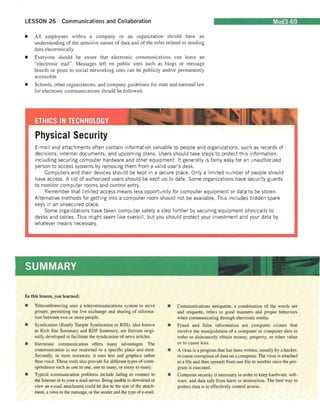
Physical Security E-mail and attachments often contain information valuable to people and organizations, such as records of decisions, internal documents, and upcoming plans. Users should take steps to protect this information, including securing computer hardware and other equipment. It generally is fairly easy for an unauthorized person to access systems by removing them from a valid user's desk. Computers and their devices should be kept in a secure place. Only a limited number of people should have access. A list of authorized users should be kept up to date. Some organizations have security guards to monitor computer rooms and control entry. Remember that limited access means less opportunity for computer equipment or data to be stolen. Alternative methods for getting into a computer room should not be available. This includes hidden spare keys in an unsecured place. Some organizations have taken computer safety a step further by securing equipment physically to desks and tables. This might seem like overkill, but you should protect your investment and your data by whatever means necessary. 
SUMMARY 
In this lesson, you learned: 
• 
Teleconferencing uses a telecommunications system to serve groups, permitting the live exchange and sharing of information between two or more people. 
• 
Syndication (Really Simple Syndication or RSS), also known as Rich Site Summary and RDF Summary. are formats originally developed to facilitate the syndication of news articles. 
• 
Electronic communication offers many advantages. The communication is not restricted to a specific place and time. Secondly. in most instances. it uses text and graphics rather than voice. These tools also provide for different types of correspondence such as one to one. one to many. or many to many. 
• 
Typical communication problems include failing to connect to the Internet or to your e-mail server. Being unable to download or view an e-mail attachment could be due to the size of the a ~ tachment, a vims in the message, or the sender and the type of e-mail. 
• 
Communications netiquette. a combination of the words net and etiquette, refers to good manners and proper behaviors when communicating through electronic media. 
• 
Fraud and false information are computer crimes that involve the manipulation of a computer or computer data in order to dishonestly obtain money. property. or other value or to cause loss. 
• 
A virus is a program that has been written, usually by a hacker. to cause corruption of data on a computer. The virus is attached to a tile and then spreads frOlu one tile to another once the program is executed. 
• 
Computer security is necessary in order to keep hardware. software, and data safe from harm or destruction. The best way to protect data is to effectively control access.
Mod3-70 MODULE 3 Living Online 
VOCABULARY REVIEW 
Define the following terms: 
biometric security measures 
phishing 
time bomb 
filtering 
pyramid schemes 
Trojan horse 
fraud 
RDF Summary 
urban legend 
hoax 
spam 
virus 
logic bomb 
tagging 
worm 
netiquette 
teleconferencing 
REVIEW QUESTIONS 
TRUE I FALSE 
Circle T if the statement is true or F if the statement is false. 
T F 1. Routing is the process of selecting paths in a network along which to send network traffic. 
T F 2. The network and the network interface card must be optimized to accommodate audio and video traffic. 
T F 3. Once you lose an Internet connection, it is impossible to restore it. 
T F 4. E-mail delivery failure refers to a returned or bounced e-mail. 
T F s. E-mail paper trails cannot be used as legal documents. 
MULTIPLE CHOICE 
Select the best response for the following statements. 
I. ________ is a communications method primarily used to serve groups. 
A. Teleconferencing C. Instant messaging 
B. E-mail D. Routing 
2. is used in blogs to simplify the search process. 
A. Searching C. Tagging 
B. Listing D. Sharing 
3. Junk e-mail also is called 
A. baloney C. carbons 
B. spam D. netiquette 
4. Phishing is a type of e-mail 
A. listing C. fraud 
B. controller D. hardware 
5. A(n) can cause corruption of data. 
A. virus C. instruction 
B. processor D. USB drive
LESSON 26 Communications and Collaboration Mod3-71 
FILL IN THE BLANK 
Complete the following sentences by writing the correct word or words in the blanks provided. 
I. Communications _ _ _ -----refers to good manners and proper beha'iors when communicating through electronic media. 
2. 
E-mail ________ allows you to define rules to manage incoming e-mail. 
3. 
________________ are one of the more popular formats used for fraudulent activities. 
4. 
A(n) ________ is an attempt to decei'e an audience into believing that something false is real. 
5. 
A(n) ________ is a program that has been Hillen. usua]lly by a hacker. to corrupt data on a computer. 
PROJECTS 
PROJ ECT 26-1 
Access the eHow Web site at vww.ehow.coII//holl'_2003276_e-lI/ailhoaxes- scal1/s.hlll/l. This site contains an activity on HoII' 10 Learn Aboul rhe Lalesl E-mail Hoaxes (lnd Scml/s. Below the heading Instructions. there are tive steps. Read the instructions and follow the steps. Then use your word-processing program to describe how you answered each of the steps. 
PROJ EeT 26-3 
Using the Internet or other resources. see what you can tind about the history of instant messaging. Then answer the following questions: 
1. 
In what year did instant messaging become popular? 
2. 
What was ICQ as related to instant messaging') 
3. 
When did AOL adopt instant messaging') 
II CRITICAL THINKING 
PROJECT 26-2 
Viruses have been around for quite a while. Use the Internet and other resources to research the history of early computer viruses, Prepare a report to share with your classmates on the types of viruses and the damage they caused. Also, include any information you might tind on the person who programmed the virus. if possible. Use a search engine and the keywords computer viruses or early COli/pliler vil'llses. 
TEAMWORK PROJECT 
Iindividuals who use e-mail for frequent communication are often annoyed by unwanted e-mail called spam. Spam is unsolicited e-mail messages that can be obnoxious, offensi'e, and a waste of your time. Some countries have laws against spam. Your Internet service provider may try to block spam before it reaches your mailbox. However. you may still be inconvenienced by junk e-mail. 
Working with a partner. research spam to learn more about what it is used for. how marketers get addresses, how effective spam is, and ways you can stop spam. Then. you and your teammate should each select one of the two positions-pro spam, how effective it is and what it is meant to do: or against spam, if it is a nuisance or problem and how you can stop it before it reaches your e-mail inbox. Write a brief summary of your findings and compare them with your partner. Then. at the end of your report, answer the following questions together: Is spam ever useful0 Should there be laws to restrict sparn? Do you think you can block all spam from reaching your inbox? 
If you do not have a personal e-mail address. how would you go about opening a free account for personal e-mail'? There are a number of Web sites that provide free access to e-mail, and e'en if you do not have a computer. public libraries. schools. and even some "Internet cafes" offer free or inexpensive computer access to the World Wide Web that you can use to check incoming messages and send your 0'11 e-mail. If you wanted to set up a personal e-mail account, what kind of features would you like to have for your account" You might want to investigate some Web sites. such as W'W.h(}flll([il.cOIll, IVIVW.IISa.ller. or www.yahoo.com. to tind out abollt the options available and then list the ones you think are most important. Why do you believe you would need these features for your e-mail accoun!')
Mod3-72 MODULE 3 Living Online 
ONLINE DISCOVERY 
The Web site located at 17ttp:/IIVIVIV.albion.comlneriqlletteibookl Core Rules of Netiquette. Provide a brief overview of the 10 index.17tml contains an online version of the book Neriquette by rules contained in this chapter. Virginia Shea. Access this Web site and then review Chapter 3

Computer Literacy Lesson 26

  • 1.
    LESSON 26 Communicationsand Collabor tion • OBJECTIVES Upon completion of this lesson, you should be able to: • Identify appropriate uses for different communication methods. • Identify the advantages of electronic communications. • Identify common problems associated with electronic communications. • Identify the elements of professional and effective electronic communications. • Identify appropriate use of e-mail attachments and other su pplementary information. • Identify issues regarding unsolicited e-mail. • Describe how to minimize or control unsolicited e-mail. • Identify effective procedures for ensuring the safe and effective use of electronic communications. • DATA FILES You do not need data files to complete this lesson. Q) Estimated Time: 2 hours • VOCABULARY biometric security measures fi ltering fraud hoax logic bomb netiquette phishing pyramid schemes RDF Summary spam tagging teleconferencing time bomb Trojan horse urban legend virus worm Mod3-45
  • 2.
    Mod3-46 MODULE 3Living Online In Lesson 25, you learned about e-mail. In this lesson, you expand your knowledge of e-mail and learn about other electronic communication methods, the appropriate use of each of these methods, and the advantages and disadvantages associated with each one. 3-2.3.1 Communication Methods A variety of electronic communication methods is available. In most instances, the person or persons with whom you are corresponding and the topic of the correspondence will determine which communication method is the more appropriate. Electronic mail (e-mail), which was discussed in detail in Lesson 25, is best used in the following situations: • When the correspondence might require a paper trail • When the correspondence covers multiple points • When the correspondence needs to be accessed frequently Instant messaging, also introduced in Lesson 25, is best used when correspondence needs to be accessed in real time. Each person can send and receive messages while everyone is logged on to the Internet at the same time. The message can be sent from a computer, from a cell phone, or from other mobile devices (see Figure 26-1). 8 0 Corporate Contacts 0 Fl -, ~ ...!~ Add Send Call Video Send File Mail * .,. Cathan Cook (Available) Microsoft _ ,'m in the London Office-today '0. Type l1 ilJ'1'1 e or e-mail ad dres s Friends (2/10) Marketing (3/3) Chris Cannon Davtd Simpson ', .:!.~' Eiji Yasuda tin :'l !.tte n:Jl My Team (3/ 6) Agnieszka Wojciechowska Sisdel0by lDo Net Dluu'bl Viktor Volod!r~ 1:""''&' • Anne We iler Jill frank Paul West Other Contacts (0/3) $lig Panduro t VOCABULARY teleconferencing RDFSummary FIGURE 26-1 Instant messaging Teleconferencing uses a telecommunications system to serve groups, permitting the live exchange and sharing of information between two or more people. Generally the communications media is a telephone line. Syndication (Really Simple Syndication or RSS), also known as Rich Site Summary and RDF Summary, are formats originally developed to facilitate the syndication of news articles. This communication method now is widely used to share the contents of blogs.
  • 3.
    LESSON 26 Communicationsand Collaboration In some instances, a combination of the above communication methods may be used. For example, a group of individuals who live in variolls areas of the country may be enrolled in an online class. This group can use electronic mail, instant messaging, and teleconferencing to communicate on various aspects of the project. Or, in some instances, they could use a blog to post project updates. In another example, electronic communications helps some students to overcome the fear of asking questions or contributing to a class discussion. Advantages of Electronic Communications Electronic communications offers many advantages. The communication is not restricted to a specific place and time. Secondly, in most instances, it uses text and graphics rather than voice. These tools also provide for different types of correspondence such as one to one, one to many, or many to many. For instance, in a many-to-many example, a discussion board is used where all parties can post and read all of the postings. Other advantages are as follows: • Speed is almost instantaneous, which means increased accessibility and enhanced interaction. • Cost is minimal or even free in some instances. E-mail, for example, is a service that is part of most networked computers. Price remains the same regardless of sending and receiving a hundred messages or a thousand messages. Based on the device that is being used, instant messaging is a free service or has a minimal fee. Teleconferencing, on the other hand, generally involves a fee for the host. In many instances, however, using this service can eliminate travel expenses for those individuals who would otherwise need to meet in person. • Access is available from various devices such as computers and cellular telephones. • Forwarding and routing of messages can be accomplished in an instant. Simply click the message, select the address of the individual to whom it is to be forwarded, and then click the Forward button. Routing is the process of selecting paths in a network along which to send network traffic. It can be an automatic or an individual process. For example, the network administrator receives a message that a server is going to be offline for a specific time. The administrator then can route this message to all personnel who would be affected. One-to-one/one-to-many communications is the act of an individual or computer communicating with another individual/individuals or computer. In Internet terms, this can be done bye-mail, FTP, and Telnet. The most widely used one-to-one communication on the Internet is e-mail. Many-to-many communications such as file sharing, blogs, wikis, and tagging enable people to both contribute and receive information. Tagging is used in blogs and other informational sites to simplify the search process. Mod3-47 • VOCABULARY tagging
  • 4.
    Mod3-48 MODULE 3Living Online Collaborative communications is a type of software program that allows people to use live voice, full-motion video, and interactive desktop sharing from between two individuals to an unlimited number (see Figure 26-2). FIGURE 26-2 Collaborative communications Community building connects members ofa group with the same general interest. The community could be connected by a blog, a mailing list, a message board, or other type of electronic communication. Text, audio, and video communications require specialized intercommunication systems within the community. The network and the network interface card must be optimized to accommodate audio and video traffic. You might find this type of communications in a school, a hospital, a large office building, and so on. Another advantage is online document sharing, which allows users to create and edit documents online while collaborating in real-time with other users. Google Docs is an example of this type of program. History tracking and recording helps you keep track of visited Web sites. When a Web site is accessed, certain information is saved and stored on your computer hard drive. This information, also called Temporary Internet Files (TIF) or cache, decreases the amount of time it takes for a browser to load and display the site. Information such as Web site addresses, total times the site was accessed, images, file types, file size, specific dates and times of last access are stored on the hard drive. In the following Step-by-Step exercise, you use the History button to search the Favorites list.
  • 5.
    LESSON 26 Communicationsand Collaboration Mod3-49 Step-by-Step 26.1 1. Click the Start button on the taskbar, and then click Internet Explorer (or start Internet Explorer the way you usually do). 2. Click the Favorites Center button to display the Favorites Center. If necessary, cl ick the History button arrow and then select By Site (see Figure 26-3). I ~about:blal1k View Favorites Tools Help c Histor! H ~I By Date~ 10b..t (V,w.v10bertj ~74125113132 " 3; a.tribalfusion (a.trib~ By Site ~~~-----J-__ By Mo,t Visited ~ aa.hq (aa.hq.org) I ~academic.cengage ( By Order Visited Today :§b an5wers (wlW ..ansv/ers.comj By Site ~tion n I Your list of sites I~--___will vary FIGURE 26-3 Displaying the History list sorted by site FIGURE 26-4 Displaying the History list sorted by date '6 answers.yahc-o (an5'1Er!:.yahoo.ccmj ~an~vE;rs.yahco (amwers.yahc-o.com.au) ~artjcl~s.latime'i (articles.latimes.com) § a",3 (w,vw.asa3.org) :§. a..,hop (...NM.a...,hop.org) 36 associatedcontent (w"INw.asiociatedconte... atheism.abolJt (atheism.about.cem) ~aIJ,answers.yai1co (au,ansv1E:rs.yahoo,com) ~auburn (:.'J'.v'lN,auburn.edu) ~aurthink (austhink.com) ~au~hink (vww.austhink.org) :§. bul.sagepub (bul.,.gepub.com) -6'. cameorosC" W'Nw.camecrose.com 3. Click the History button arrow and then select By Date (see Figure 26-4). ! iJ aboutblank -~-- ;¥) History ~~~~~~~~~~~~~==~,-____~arrow La<! Week w ~Monday :::m Tuesday l~ Blank Page • Int..".1 Explorer provided by O.H Tools Help ... By Dat. BySite By Mort Visited By Order Vi,ited Today Search Hi!;tory o History button
  • 6.
    Mod3-50 MODULE 3Living Online FIGURE 26-5 Searching the History list (~j .~I 3-2.3.3 4. Click and view the other options-By Most Visited and By Order Vi'sited Today. 5. Click the Search History button, type Microsoft (or another word or phrase) into the search text box, and then click the Search Now button (see Figure 26-5). Most likely, your screen will display different Web site addresses. ~Blank P~g~ -Int.m~ ""plc«r provided by Dell I UV I~ about:blank -"---= File Edit View Favorites Tools Help ~<S:1 I'i! Blank Page o Favorites GJ Feeds I'8 Hislol)' IT1 ~ Search for: Microsoft ISearch Now l' s:,0 ru (engage -Databases -Student Product Deta ... ~(engage -Databases -Student Product Del.... ili (engage -Spreadsheets -Instructor Product... ~(engage, Spreadsheets -Student Product D... It: Cengage -Spreadsh ..ts -Student Product 0... ~(engage -Spreadsheets, Student Product 0... ~~texample.s of sound 2nd valid arguments· Go ... 4J How to install the Windc-.."Is 7 Release Candi.. . ~New Perspectives on r...1icrosoft Office 1007 a.. . :.J iJ Remove PDFMake:r from Micrcsoft Offic.e: I I i;Windows 7 RC Download Center 6. Use your word-processing program and write a summary of each of the options available through the History button. Save your document as history-tracking and submit it to your instructor. Solving Communication Problems Similar to other electronic devices, electronic communications is not without problems. Windows Vista, however, contains troubleshooting tools to help you identify and resolve communication problems. Lost Internet Connection Accessing the Internet is one of the primary reasons many people use their computers. Losing your connection can be frustrating, especially if you are in the middle of an online or video conference or uploading important data. Depending on the problem, you may need to call your provider. However, you may be able to repair the problem with the Network Connection Repair tool. The following Step-by-Step exercise illustrates how to use this tool.
  • 7.
    LESSON 26 Communicationsand Collaboration Mod3-5 t-=::_ 1. CI ick the Start button on the taskbar, and then click Control Panel to display the Control Panel Home window. 2. Click Network and Internet to display the Network and Internet window (see Figure 26-6). p ·1+, 1~arth tt Nelwor~ and Sharing Center __ ,'je~, nn.<'oll rtiJlv' and t!IU Or'lnf"ct to. J nnoc11 '/If'".... I"I'E1kCrl (cmpub.rs !nd dc--.riCH t.dd: J. dr. Ice hi 1h: Ilil!'t .... or: ~f14Jp file during Internet Options Ch.J1~t ,CUI henlepl~ Offline Fil", en.(lj~l ~CU' off~"c ,,1M t.I!f1'9~ dcl:" spUe u.ed b) )CUr cffj·nefile=s Tum ·.·,'mde: ... FIle-i.!11 n!;)1 err )~OC .~'In t:'tht:1 CCf'n~H.tt'·~ mcbt'e d£.lctJ.. or ntt",,-o.n: fG-ld.e~ Vft/-V Sf"" reru t~ F~Oh~ t!'''nC "enlhru «(2) Symantec Li, eUpdate FIGURE 26-6 Click to open the Network and Network and Sharing Internet window Center window
  • 8.
    Mod3-52 MODULE 3Living Online 3. Click View network status and tasks to display the Network and Sharing Center window (see Figure 26-7). FIGURE 26-7 Network and Sharing p i Center window Ne~Nork and Sharing Center .I~funmiJ? USA·PC Chamberla in Intern et (This computer) <~Chamberlain (Private nrtwork) Local and Intern et Conn ection lo.::al Area Connection ~ For sharing and discover; to wo rk pccp eriy, make S'.H e the £et:tings in your firewall program match the fcl10wing settings. 1.]. Sharing and Discovery Net'!o ri:: dIscovery Wo On Fife sharing a On Public folder <;haring 0 Off Printer ~harin9 0 Off Pas~... ord protect ed sh aring C;; On Media sharing " On $hc .... n~ til the fl~-s.lnd fc!dm I1m ;,a,ing Show me ,,!f d t ~h.)rtd n(tY;crk i Id... ,).'¢n Hti: ccmp-I,i1tt 4. In the Tasks column, click Diagnose and repair to run the Windows Network Diagnostics program. If there are no problems, then Windows will return a message similar to that in Figure 26-8. If there are problems, Windows will attempt to fix the problem or suggest other solutions. FIGURE 26-8 Windows Network Diagnostics dialog box ~Windows Network Diagnostics ~ Windows did not find any pro blems with your Internet connection. 00 you want to report the problem to Microsoft? Additional details abo ut what went wrong can help create a o;;olution. The report will be sent thE ned time you go online. S~nd infonnatioo Clo, e 5. Click the Close button to close the dialog box. 6. Use your word-processing program and write a summary of why you think the Diagnose and repair tool is important. Provide an example of when and how you would use this tool. Submit your assignment to your instructor.
  • 9.
    LESSON 26 Communicationsand Collaboration E-Mail Software Problems E-mail failure to send and/or receive messages can result from various problems. Your server provider's connection could be down. If your connection to the Internet is still available, then checking your server provider's Web site could provide answers to your problem. Windows Help and Support also provides possible answers to the problem. In Step-by-Step 26.3, you have an opportunity to review this Help file. Mod3-53 1. Click the Start button on the taskbar, and then click Help and Support to display the Windows Help and Support window (see Figure 26-9). Find an answer V indov..-s Basics Secullfy and MaintenanCl: Windows. Online: HeJp • T.ble of Contents Ask someone • Use -+ Windows Remote .A!:sistanc.c to get help from a frie:nd or offer help, • Pert a question or search for an amwtr in WindQ,'/S co mmunities. • Fer technical assistance. contact Microsoft Customer Support cnline. • Mor~ support opticn!i". Featured on the Windows website 1. D!mo: Fa~wa~to find files 2. P'eoerving old photo, ,... ithyourPC 3. Demo: Start yo ur cwn blog locking fer more help or inspiraticn?Discover additional demos, articles, and tip:; on "'~ndowl H~lp and How-to. ; If you're an admini5:trator cr "Nant technical information, vis.it the Microsoft we.bJite: for IT profe.ssionals. ~2.007 Microsoft Corporation. AI! rights re~er....-ed. FIGURE 26-9 Windows Help and Support window Troubleshooting link
  • 10.
    Mod3-54 FIGURE 26-10Troubleshooti ng in Windows window Click Troubleshoot problems with Windows MalL ..MODULE 3 Living Online 2. I n the Windows Help and Support window, click Troubleshooting to display the Troubleshooting in Windows window (see Figure 26-10). Troubleshooting in Windows For mort com puter pro blem>, there's: usually d so lution within reach. Here are s:ome poi nters to Help fo r specific types of problems. Networking • Trouble.hcot problem; fIndin g w"e''', networks .. Troubleshoot p,obl~msfinding computess on a home network .. Trc ubleshoot net'lNork ccnn~ction problems .. Troublesho ot Int ernet connection probltms .. Troubl tshcct fit! and print~r sharing Using the web • Connect t o thelnt emet .. Why is my lrltern~t connecti on sc sIc'll: • Tips for solving p,cblem:; w;th Intemd Explorer E-mail Trc ublE::shoct problM1!i with Win dows: Maif • 'Nhy c~n't Ivie' .... an attachm ent? • Send picturM or "/idees in e-mail Hardware and drivers In this article • Networking • Using the leD • E-mail • Hardw!lre and drivers • Your comput~ • Get h,lp from oUler p~ople • To find o ut ff your hardwa re i~ compatible with Vlindcws:, go to the 1,' in do ws Vista Upgrade Advisor on the Microsoft VlEbo:i te. • Ti~ (or fIXi ng common drive.r problems • Tips for fi>:ing common sound problems.
  • 11.
    LESSON 26 Communicationsand Collaboration 3. In the Troubleshooting in Windows window, click Troubleshoot problems with Windows Mail to display the Troubleshoot problems with Windows Mail window (see Figure 26-11). Windows Help and StJppOl1 G'I ... -• - r-EJ3' ~ ~, ---' . - . -. -~-'-"""'(. . . I !~ ---=-.~-=---~"-~---Troubleshoot problems with Windows Mail If you are having trouble configuring your e-mail accounts v·...ith Windows 11,1ail, you might ccmider using VJindo...·!~ Live tvleil instead, All you need to do is enter your e-mail addre:;.s.andWindoll.sLive~..1ail v. illautomatlcally enter the correct settings fer e-ma il servers. used by many popular e-mail !iervices, including Iff;ndow~ liVE: Hotm.ait Ya hoo!, AOl, and GmaiL I/!Jindooos live M~il includes. the fam il iar features of Outlook Expre5~, the mail program included in ¥llndowl XP, and Windows Meil. the mad program included in ' indO'l":: ;Ji~ta. To do'."!nload '/lindows l ive Mai l, go to the " mdo"J!i Live ~tail 1I/ebs.ite, Here are soluticns. to some (omman i$$ue.s. 'Aoith Windows. Mail, • I don't know ho·..'I to s;e-t up V/mdoVls Mell for my e-mail i!ccount , t i c I!n t reCeNt e:-maU. • i co!n recejye. bu"t not send, f -mail mtis~9t:.§. • Ican't vie-." or sa .... e an attachtd 'Ile. • The links don't wori:: in a mf:!>slgt i received, • I hav~ mes-s.age:' in my Outcox ~nd Idon't know how to send or deleu them. )0 Ic.an·t che,k spf:lhng in my me.s<:a·9~$. to When I<lick an e--mailljn~ in my web browser, ft op~S' .!Inather ~mai' program instead of'Nindows Milil. )0 When 1~eafch for e.-mad, not III of the messages m-at(hing my ;earc:h sho.-,. up in the results.. See-also • GftUng start~d wrth e -mlil 4. Click the links and then read the information. Leave the Windows Help and Support window open for the next Step-by-Step exercise. 5. Use your word-processing program to describe the different options and summarize what you learned about each. Submit your word-processing document to your instructor. Downloading and Viewing E-Mail Attachment Problems If you are unable to download or view an e-mail attachment.this could be due to the size of the attachment. Some e-mail programs limit attachment size and the number of attached files. If the message contains a virus, this also could be another problem. A third issue could relate to the sender and the type of e-mail-advertising, pornographic materials, or other unrecognizable documents. which may be blocked by your e-mail program. Windows Help also provides suggestions on why you cannot view an attachment. In Step-by-Step 26.4, you access and review this Help information. Mod3-55 FIGURE 26-1 1 Troubleshoot problems with Windows Mail window @ EXTRA FOR EXPERTS You can send an open Microsoft Office document without clOSing the file . Click the Office button, point to Send , and then click E-mail to send the document This process can be used, for example, during a conference call when more than one person is working on a document
  • 12.
    ModJ-56 MODULE 3Living Online FIGURE 26-12 Troubleshooting attachment problems Click to display a possible solution 1. In the Windows Help and Support window you opened in the last exercise, click I can't view or save an attached file (see Figure 26-12). ~ Show all A Troubleshoot problems with Windows Mall If you erE: hal.·ing trouble configuring your e-mail accounts with Wlndcws Mail, you might (amider using Windows live Mail in~(!dd. All ycu need to do is enter your e-mail addr~!i and oI/indows trveMail will automatically enter the correct settings for e-mail !iervers u!;ed by many popular e-mail ser/ices, including tVindows: Live Hetmail, Yahoo!, AOL. and Gmail. Windcw~ Live Mail includes the familiar features of Outlook E.xpreS:!i, the mail program included in Vfindows XP, and Vindow5 Mail, themail program induded in :;'ndov,,:s Vi~i!!. To download vVindows LiVE: Mail, go to the 'Vindows Live Mail .... ebsitt. Here are solutions to some common iSSUE:s "'.lith VVindm',ls Mail. • I don't know hO'1 to set up WindO"'iSi Mail fer m]' e-mail account. ~ I clS n t II:(;C;',I€ e-nlcil. • i can receive. but not send, I!-mail messages. ... I can't vie'; or save "" attath~d file. WindoYJ~ Mail blods acce5~ to certain type; of attachments that can potentially be harmful to your ccmputer. For in~tructions on how to acces~ blocked files, see Why c~n't [ vie"AI itn attachment in '/indc';,'S fY1ail? If you receive an att~chE:d file that is not blocked but will not open, you probably need to install a program capable of opening the file. Thi$ can occur if someone. sends you a file bye-mail. Ask thE: sender v/hat program opens the file and ho'.' you can install it. For more information, $-E:e File nllmes l;nd file: namE: 6til!'nsiom: frequently ad.:E:d qu~lons. • The links don't work In a mes:sdgif I received. • I don't understand the difference b€toM'n Wind ows f."lail, indows live Mail, and Outlook Express. ~ I have messages in m Outbox and I don't know how to send or de.ltte them. • I can't check sp~Ulng in my messages. • When I d ic k an e-mail fink in my web brows E'r, it opens Inothfr e.-mail program instead of Viindows Mail. 2. Read the information and then use your word-processing program to summarize what you learned. Close the Windows Help and Support window. 3. Submit your word-processing document to your instructor. Delivery Failure E-mail delivery failure refers to a returned or "bounced" e-mail. This can happen for a number of reasons, including the following: • The e-mail address was mistyped. • The e-mail may have a virus or worm attached. The receiving program detects the problem and will not accept the message.
  • 13.
    LESSON 26 Communicationsand Collaboration Mod3-57 • The receiver has a spam-filtering program. Based on the e-mail content or subject, the program may identify the message as spam. • The sender is known and the person to whom the message is sent has blocked the sender. • The recipient's mailbox is full. Some e-mail programs return delivery failure (bounce) notices for e-mail that cannot be delivered. Others do not provide this service. Garbled Messages/No Guaranteed Delivery Occasionally, e-mail and other transmissions over the Internet are lost or spliced together. This occurs most often when Internet traffic is heavy. E-mail messages sent in rich text format (RTF) are garbled frequently (see Figure 26-13). The person sending the message should change the format to HTML. In some instances, the sender does not receive a notification of delivery failure and is unaware that the message was not delivered properly. REC-htmI40+AClAPg-+ADw-head+AD4-+ADw-meta name+ADO-Generator content+ADOAlgMicrosoft ord 11 (filtered medium)+AClAPg-+ADwAIQ---+AFs-if +ACE-mso+AFOAPg-+ADwstyle+ AD4-v+AFw-: +ACo-+AHs-behavior:url(+ACM-default+ACM-VML)+ADsAfQ-o+AFw:+ ACo-+AHs-behavior:url(+ACM-default+ACM-VML)+ADsAfQ-w+AFw-: +ACo-+AHsbehavior: url(+ACM-default+ACM-VML)+ADsAfQ-.shape +AHs-behavior:url Please review the attached request and dednimer era gniteeM launnA eht gnirud gnikrow eb lIiw ohvv seeyolpmE .rood tJ<en tal gnikrap oclehS eht ni krap. eht fo trap a eb at nalp esaelp ,ton (0 reetnulov at elba era uoy rehtehVV .tneve ynapmoc .detaicerppa si nOitapicrtrap ruoY yna evah uoy fl.wonk em tel esaelp ,snoitseggus ekam ot ekil dluow ro snortseuq kooll .uoy mort gniraeh at drawrof FIGURE 26-13 Garbled message Lost Formatting Windows Mail and other mail programs provide two formatting options: HTML (Hypertext Markup Language) and Plain Text. HTML provides formatting options such as multiple fonts, bold text, colored headings, graphics, and links to Web sites. To use HTML when creating a message, click Format on the New Message menu bar and select Rich Text (HTML). To format as plain text, click Format on the New Message menu bar and select Plain Text. When sending an HTML formatted message, keep in mind that not all e-mail programs support HTML-formatted messages. If the recipient's e-mail program does not support HTML, the message will display as plain text with an HTML file attached.
  • 14.
    Mod3-58 MODULE 3Living Online Lack of a Paper Trail A paper trail is a written record, history, or collection of evidence created by a person or organization in the course of activities. Paper trails have been used in legal cases for evidence proof and in other situations. E-mail and other electronically stored information, for example, provide a paper or electronic trail similar to that of traditional mail and other written documents. Other types of electronic communications such as instant messaging, teleconferencing, online conferences, and collaborations do not provide a paper trail. Depending on the circumstances, electronic communication that does not produce a paper or electronic trail could create problems. Hasty Responses At one time or another, everyone has said something, sent an e-mail , or a letter that they wish they could take back. For instance, if you receive an e-mail message that makes you angry, your immediate response may be to send a quick reply. This could create a more intense situation. To avoid sending a message you later may regret, consider the following options: • Discuss your response with someone else. • Write your message, but do not include the e-mail address in the To line. This will prevent an accidental sending of the message. • Save your message overnight as a draft and then later reevaluate your response (see Figure 26-14). FIGURE 26-14 Avoid hasty responses to e-mail messages Professional Versus Informal Communication With the advent of quick and easy online communication formats, the boundary between professional and informal communication has blurred. Computer technology has provided the tools to make the composing process easier and faster. The fast-paced media used for electronic communications demands a writing style that is clear and concise without sacrificing speed. Professional communications, however, should be of a more formal nature.
  • 15.
    LESSON 26 Communicationsand Collaboration Mod3-59 Volume of E-Mail Replies Communications netiquette, a combination of the words net and etiquette, refers to good manners and proper behaviors when communicating through electronic media. Because most e-mail users report that their biggest problem is not spam but too much e-mail, keep the following netiquette guidelines in mind when replying to an e-mail message: • You have received an e-mail message and now you want to send a reply to the user. Click the Reply button, type your message, and then click the Send button. Verify, however, that your reply is necessary, and do not send responses that are not applicable. • Reply All is another e-mail option. If you receive a message that also was sent to and/or copied to other recipients, for example, clicking the Reply All button sends your reply message to the sender and the other recipients. If the reply message is not applicable to the other recipients, then Reply should be used rather than Reply All to reduce the volume of e-mail replies. • Two other options are cc and bcc. The cc abbreviation is derived from carbon copy. This refers to the technique of using carbon paper to produce one or more copies of a document during the creation of paper documents with a typewriter. A sheet of carbon paper is inserted between two sheets (or more) of paper. Typing or writing on the top sheet transfers the text or image to the copy. The initials bcc represents blind carbon copy. A bcc is a copy sent to recipients and is not visible to the primary and cc addressees. This practice rarely is used any longer, but the cc and bcc abbreviations were carried over into electronic communications. Junk Mail (Spam) Just as you might receive unsolicited advertisements, flyers, and catalogs in your regular mail, you most likely receive junk e-mail , also called spam, in your e-mail inbox.This type of e-mail might include advertisements, fraudulent schemes, pornography, or other illegitimate offers. This method of advertising is very inexpensive, and it is not uncommon for most people to receive numerous spam messages. To help prevent spam/junk e-mail: • Use caution in giving out your e-mail address. Do not publish it online, on a Web site, in newsgroups, or other public areas on the Internet. • Check the Web site's privacy statement before you provide your e-mail address. Verify that it does not permit the sharing of your e-mail address with other companies. • Never reply to a junk e-mail message. Once you reply, the sender will know that your e-mail address is valid. More than likely, you will receive even more junk e-mail, and the sender also may sell your e-mail address to others. • Windows Mail includes a junk e-mail filter that is turned on by default. The protection level is set to low and identifies only the more obvious junk e-mail messages. The program analyzes the content of your messages and moves suspicious messages to a special junk e-mail folder. You then can view and/ or delete them. If a junk e-mail message is received in your inbox, you can specify that future messages from the sender be moved automatically to the junk e-mail folder. In the following Step-by-Step exercise, you examine junk e-mail options in Windows Mail. • VOCABULARY netiquette spam
  • 16.
    Mod3-60 MODULE 3Living Online -I:i~'. II~ ~----: --~ -: -----. ; -=---~-. ~;--; . ;~~§t~p.;oy~Sfep 290. : _ " _=: ,,_.::'. -?~~ . . ---.--~ --_. ------~FIGURE 26--15 Junk E-mail Options dialog box jln Windows Mail • VOCABULARY fraud 1. Click the Start button on the taskbar, and then click Windows Mail (or start Windows Mail the way you usually do). 2. Click Tools on the menu bar, and then click Junk E-mail Options to display the Junk E-mail Options dialog box (see Figure 26-15). RI Junk E-m.n Opticns ~ Options ISafe Senders IBlocked Sendors IIntemationalj Phishin<;! j ~ Windmvs Mail can move messages that appear to be jUIl~ e-mail into a sp ec ial I .al Junk E·mail folder. I I Choose the level of junk e-mail protection you want: :1 ) No Automatic Filtering. Mail from blacked senders is still moved to the Junk E-mail folder. I (01 Low: Move the most obvious-junk e-mail to the Junk E-mail folder. ·1 ,-: High: Most junk e-mail is caught, but some regular mail may be caught as well. Check your Junk E-mail folder often. _ Safe list Only: Only mail from people or domain s: on your Safe Sender) list " will be delivered to your lnba.x. :J Permanently delete suspected junk e-mail instead of moving it to the Junk E-mail folder I i l .1 [ OK II Cancel I, Ap"y - 3. Review the Options page , and then click the Safe Senders and Blocked Senders tabs and view that information. 4. Use your word-processing program and write a summary of the information contained under each of these three tabs-Options, Safe Senders, and Blocked Senders. Submit your word-processing document to your instructor. Fraud, Hoaxes, and Other False Information Similar to other types of fraud and false infonnation incurred outside of the Internet, similar types offraud, such as e-mail fraud, also exist within the Internet. This type of computer crime involves the manipulation of a computer or computer data in order to dishonestly obtain money, property, information, or other things of value, or to cause loss. The U.S. Secret Service indicates that hundreds of millions of dollars are lost annually due to fraudulent activities.
  • 17.
    LESSON 26 Communicationsand Collaboration ModJ-61 E-Mail Fraud E-mail messages are one of the more popular formats used for fraudulent activities. In many instances, the messages are well-written and appear to be legitimate. Unless you know it to be true, a response should not be made to a message that requests that you send money or personal information. Some of the more common fraudulent type of messages include phishing, which are personal information scams. This type of message appears to come from a legitimate source, such as your bank. The message asks that you update or verify your personal information. However, the information is used to commit identify theft. Pyramid schemes are an illicit business model where profits are based on the investor's ability to recruit other individuals who are enrolled to make payments to their recruiters. Generally, neither a product or service is delivered. Hoaxes A hoax is an attempt to deceive an audience into believing that something false is real. Sometimes this is perpetrated as a practical joke with a humorous intent; other times, it is an attempt to defraud and mislead. Many e-mail hoaxes appear to be warnings about potential viruses. but actually contain viruses themselves. Perhaps one of the most well-known media hoaxes-one that many consider the single greatest of all time-occulTed on Halloween eve in 1938. Orson Welles shocked the nation with his Mercury Theater radio broadcast titled "The War of the Worlds." Despite repeated announcements before and during the program, many listeners believed that invaders from Mars were attacking the world. It is not always easy to spot an e-mail or chain letter containing a virus, but looking for some of the following will help detect possible harmful files. • The e-mail is a warning message about a virus. • The message might be very wordy, be in all capital letters, or include dozens of exclamation marks. • The message urges you to share this information with everyone you know. • The message appears credible because it describes the virus in technical terms. • The message comes with an attachment, and you do not know who it is from. If you identify any of the above, it is wise to delete the e-mail immediately. Also, use antivirus software and keep it updated. In the 21st century, hoaxes, along with urban legends, myths, and chain letters, grow and flourish through the Internet. Urban legends are stories which at one time could have been partially true, but have grown from constant retelling into a mythical yarn. Much of this false information is harmless: however. some of these, such as chain letters, can have viruses attached to the message. One of the more popular Web sites displaying information about myths and hoaxes is the Vmyths Web site. You visit this site in Step-by-Step 26.6. • VOCABULARY phishing pyramid scheme hoax urban legend @ EXTRA FOR EXPERTS The first known computer crime, electronic embezzlement, was committed in 1958.
  • 18.
    Mod3-62 MODULE 3Living Online FIGURE 26-16 Vmyths Web site • VOCABULARY virus 1. CI ick the Start button on the taskbar, and then click Internet Explorer (or start Internet Explorer the way you usually do). 2. Type http://www.vmyths.comintheAddresstextbox.Click the Go button or press Enter to display the Vmyths.com Web site, similar to that shown in Figure 26-16. 1J myths. -lht~e!&.plcra' previded by Dell '-...J .J lQCi http:lNmyths.comf Fill! Edit Vi M Favcrit~ Tock He-!p Ap' 27 2Vi)S Hysteria in the malting? Computer security e:-;perts lack focus on TWitter ~Entries RSS ICommor.ts RSS THAT'S RIGHT: NO ADS Ttlls site 10cuses on hy~ef)a. Hyslena thrives I:;tlercver ihe experts lacY.. discipline, V'Yhen ltle media latches onto not ads. Bu1 ill Ott'd I I ,,~ 10 nelp the nex1 ~big worm,r ~'ie migtll very wen see a r01 of Tw1tler hystena (t':...;lsteria"?) Otlt please '$It the tound£is from me experts. The rnle1!igence ~/orld '!,;II recognize M as a ·stovepipe~ problem .. Wt!t1m aSier wisnli! t al (Cllc({ tne head'me (0 read 1/1;S an/cfe .. ) ,':'Inaz.oo com Ta~s' .o..t.cut..ccm, Cc~t.n Rtu, t...g.e.~ It . Gn~ClI~)', JQM Lc)'Ct-n. KUp.n.~"y LICL Uan Su~.&I,IY CATEGOR)ES ll~~3.mt cAfee. IJ~s.s.;eU.t5, U 0 H)";lPt4, :eJ5, ~...n-e,t ~"i'e"1)e. irlz Re;.is:er Tw~ ; B;'SRdor cr.olI~H err.l~ tl hvtets. R~ners ' C:i;I;;ert. Secmr; ....U4Qrs I Rob ioS!r'lDtqji!:f I ~ COrm'llfrl1s ; 10m.ri: (2 ) G<rII& mllil"-i 1~ Fallo,? Vmyths on T-vitter Re pOJ1ers &. blo(lQe>rs 2009 ~ Wrt.Jpedla Vle'll use Twitter 10 diSpel computer secunly nype. Period. You I.'Oni get ll','eels . S ::'CUrlfjvMdors about our speaking engagemenls. or the bad airline foOd we ate. or Itle Dr. V~ho episOdes we miSSed ... .. Pr£ss rele.asn (CliCk Ine head!me 10 read tillS article . ) ,. Byt,pe Oftly5terla "'Sotar Ciliatiatof' mitn 7S!W TwcrT We~.u ISsye,s t~""b ROStr::'~t~~q ~ Cem.-:-, Ms OH 3. Click the Hoaxes, myths, ULs link in the right column. Select one of the myths and/or legends. Follow your instructor's directions to either ,print a copy or write a paragraph summarizing what you read. Viruses and Security In an information-driven and protect against risks communications. world, such as individuals viruses, which and organizations are spread thro must ugh electronic manage Viruses A virus is a program that has been written, usually by a hacker, to cause corruption of data on a computer. The virus is attached to a file such as a program file, a document, or an e-mail message, and spreads from one file to another once the program is executed.
  • 19.
    LESSON 26 Communicationsand Collaboration Mod3-63 A virus can cause major damage to a computer's data or it can do something as minor as display messages on your screen. There are different types of viruses: • A worm makes many copies of itself, resulting in the consumption of system resources that slows down or actually halts tasks. Worms don ' t have to attach themselves to other files. • A time bomb is a virus that does not cause its damage until a certain date or until the system has been booted a certain number of times. • A logic bomb is a virus triggered by the appearance or disappearance of specified data. • A Trojan horse is a virus that does something different from what it is expected to do. It may look like it is doing one thing while in actuality it is doing something quite opposite (usually something disastrous). To protect your computer against virus damage: • Use antivirus software. This software should always run on your computer and should be updated regularly. • Be careful in opening e-mail attachments. It is a good idea to save them to di sk before reading them so you can scan them. • Do not access files copied from USB drives. other media, or downloaded from the Internet without scanning them first. You can prevent a virus from infecting your computer and spreading to other computers by diligently scanning files that you did not create to make sure they are clean. Many programs have a built-in virus scan feature that activates when a new file is opened; in other cases, you can use an antivirus program to scan a file before opening it (see Figure 26-17). 2. The e-mail 3. The virus sends itself 4. The virus message with the to everyone in the spreads like virus is received user's electronic wildfire. and opened on address book. another computer, infecting it. FIGURE 26-17 How a virus can spread • VOCABULARY worm time bomb logic bomb Trojan horse 'z::!:::.w 1. A hacker creates a virus and attaches it to another program which is sent via e-mail.
  • 20.
    Mod3-64 MODULE 3Living Online General Security Risks Computer security is necessary in order to keep hardware, software, and data safe from harm or destruction. Some risks to computers are natural causes, some are accidents, and some are intentional. It is always not evident that some type of computer crime or intrusion has occurred. Therefore, it is necessary that safeguards for each type of risk be put into place. It is the responsibility of a company or an individual to protect their data. The best way to protect data is to effectively control access. If unauthorized persons gain access to data, they may obtain valuable information, as shown in Figure 26-18. Users may need a password in order to log on to a computer system or to specific parts of it. Companies often establish password-protected locations on hard drives and networks so that designated individuals have access to certain files but not to others. In order to maintain secure passwords, they should be frequently changed. This ensures that individuals who no longer need access will not be able to Jog in. 8lrer tho sen•..". ~no t ...." ar.orr,rr.ous logi:-oS 0( the .-mal oddress 'N'" not I~ <>eo:epted. FTPserver: fqJ.ph .c= !,!set nam<!: ICIvIs Jones vi g"...:.ord: , ········1 After YOU log c;n, 'iQJ can add thrs ser·; 1!!r to ',our fa·..orltes and return to it easr;. FTPdoe; not er1<T';pt or er>:Qde _,;;;ords or data befure send.-.g them to Ihe .er.-er. To prou.ct!he 5e<lKitj' of VOA.X pa-.....' ords and data. use 'ieb Fo!ders ~~':ebOAV, instead. I'--~og-o"---'I I ca=I o ~a,~ poss',':ord FIGURE 26-18 Passwords protect data against unauthorized use Other security measures include using the following: • Electronic identification cards that provide access to designated areas within a building or department. • A firewall, which is an integrated security system that prevents unauthorized electronic access to a network computer system while permitting outward communication. • Antivirus software to protect data on your computer. Companies and organizations must plan for security before it is needed rather than handling breaches in security as they occur. For example, any company that handles sensitive information or needs to protect its data should take the following precautions: • Institute a selective hiring process that includes careful screening of potential employees. Do not keep employees on staff who refuse to follow security rules. This measure will prevent internal theft or sabotage. • Regularly back up data and store it offsite.
  • 21.
    LESSON 26 Communicationsand Collaboration Mod3-65 • Employ biometric security measures, which examine a fingerprint. a voice pattern, or the iris or retina of the eye, as shown in Figure 26-19. These must match the entry that was originally stored in the system for an employee to gain access to a secure area. This method of security usually is employed when high-level security is required . FIGURE 26-19 Biometric security measures Another common security concern on the Internet is credit card information. Effective encryption technologies help keep credit card numbers secure, but you can add additional security by following some simple precautions. For example, purchase from Web sites that you know are reputable and trustworthy. Read and understand the company 's privacy and consumer-protection policy before you buy. Verify that any credit card information is transmitted in a secured, encrypted mode. Professional and Effective Communications Electronic communications. as previously discussed, are available in a variety of formats-e-mail, instant messaging. teleconferencing, social networks, and so on. The levels of formality and informality is based on the type of communication. Statistics indicate that e-mail is the most popular of all Internet activities and that 85 percent or so of all Internet users lise e-mail. When used in the workplace for business communications, certain nIles of etiquette and formality should be applied similar to those applied to other business communications. The following list discllsses elements of professionalism as applied to electronic communications. , VOCABULARY biometric security measures @ EXTRA FOR EXPERTS You can create secure passwords that you can remember, String together the first letter of a line from a song or poem, for example, to create a password such as IImhiSF!-ali you have to remember is, "I left my heart in San Francisco," then add that punctuation mark, A password like this is nearly impossible for someone to guess . ........ WARNING Several e-mail scams have been uncovered that appear to be from legitimate companies but ask you to provide a Social Security number to verify your account. Most companies assure customers they would never ask for sensitive information in an e-mail.soit is best to be suspicious of any solicitation for private information via e-mail. '---3- 2.3.4
  • 22.
    Mod3-66 MODULE 3Living Online [1: WARNING One of the primary rules of netiquette is to not use all uppercase letters to type your message. Th is is considered the equivalent of shouting. • Is it a business, professional, social, or personal type of communication? Writing for a business or professional audience is different from writing for a personal or social audience. When composing a business message, you should assume that your audience has limited time and most likely will skim the contents. In other words, they want to know the "bottom line." The content should be clear and the message should not contain spelling or other errors . • Personal and social messages can be less formal. They should, however, be checked for spelling and punctuation errors. The purpose should be clearly stated. Avoid using sarcasm or too much humor unless the message is to someone you know very well. • The nature of the communication also is important. What is the purpose of the communication? For example, is it to invite someone to dinner or to submit a proposal? Instant messaging should be short and to the point. An e-mail message can contain more content. • Timely response is another consideration. When responding to a message, the response should be timely. In many instances, the type of message dictates response time. For example, if a customer needs immediate assistance or has a complaint, then the reply should be within 30 minutes to two to three hours. Or, if a student needs assistance on how to upload an assignment for his online class, the response time should be within 5 to 10 hours. Other non-emergency responses should be made within a 24-hour time period. • Messages should be concise and to the point. Ideally, the recipient should not have to scroll past one page to read the message. If the message is longer than that, then most likely the message should be put into document format and added as an attachment. • Include one subject per e-mail message. The subject line should be short and direct and describe the message content. • Reply options should be considered carefully. Do you really need to send a copy (cc) to others? If so, to whom should it be sent? Is the carbon copy really necessary and if so, should it be a bcc or cc? • The purpose of the message and the recipients of the message will determine the level of formality. The addition of elements should as emoticons, abbreviations, jokes, and so on are appropriate in some instances and inappropriate in others. Business correspondence, for example, should be of a more formal nature than social correspondence. Even within the social correspondence is a degree of formality and informality. • Repeating of information and inclusions of materials from previous e-mail messages is another consideration. Verify that you are not duplicating something that was sent previously. Also check that the recipient was not previously sent a copy of any attachments that you are adding. Other E-Mail Options In addition to the e-mail options discussed previously, other alternatives are available. The ability to send and receive e-mail attachments and other supplemental information is of great benefit and often a timesaver. • An attachment is a file that is sent along with an e-mail. More than one file can be attached to the same message, and the files do not need to be of the same type. When the recipient receives the message, they can click the file name to open the file.
  • 23.
    _ _ _ LESSON 26 Communications and Collaboration Mod3-67 • Most e-mail services have a limit on the size. although the size, based on the server settings. can be anywhere from 30 MB up to 2 GB or more. Some companies, however, now support delivery of files of unlimited size. • Some companies set security on some types of files, such as executable programs (.exe extensions) so they are rejected. In other instances, some companies set security on e-mails so that all attachments are rejected. • When creating an e-mail, it also is possible to add a hyperlink to the message rather than attaching a file. With this format , the recipient can click the link rather than opening an attachment. There are two ways to add hyperlinks to an e-mail message. You can type the Web site address. Most e-mail programs will recognize thi s and convert it to a hyperlink. The second method is to attach the Web site address to a word or a phrase in the message. This makes the word or phrase the hyperlinked text. To embed hyperlinks in an e-mail message requires that the HTML setting be selected. The recipient of the message also must use a program which can display hyperlinks. • Some mail readers cannot display embedded graphics or animation. Generally. thi s happens if the mail program reader is set to text only. • Viruses and other similar threats can be delivered as e-mail attachments. To protect a system requires a number of security tools. Nearly all e-mail programs provide security settings, phishing filters, and anti-spam tools. Other protective tools and procedures include firewalls, encryption, antivirus tools, spam filters, and educating the users (see Figure 26-20) . ~~0t~~~~~~tll : Mail delivered • -_//~ . " Spamfilter ..- .' Anti PO'" I , " Safely view you, to inbox ~ quarantined mail Sp am FIGURE 26-20 Controlling viruses and spam
  • 24.
    Mod3-68 MODULE 3Living Online Controlling Unsolicited E-Mail (. :rtll' I E-mail filtering allows you to define rules to manage incoming e-maiL Filters 3-2.3.6 automatically sort your incoming messages according to the rules you set up. t VOCABULARY filtering ,3 .1 3-2.3.7 You can filter your incoming e-mail messages to: • Sort incoming messages into folders • Automatically tag messages • Forward messages • Discard messages For example, you could define a filter rule to identify mail coming from your immediate supervisor and move it to a folder called "From My Boss" or to automatically move messages from a specific address to the Trash folder. Filtering Mail by Mail Servers E-mail spam, or junk mail, was discussed earlier in this lesson. From the beginning of the Internet, spam has existed. It is estimated that the yearly cost of spam for U.S, businesses is more than $20 plus billion. Although some of it still will get through, a number of ways exist to reduce the amount. In the past few years, the amount ofspam received by most users has decreased because offlltering. Software filtering is one process that can be used to cut down on or eliminate most junk maiL Windows Outlook contains ajunk e-mail option to filter maiL (This option was discussed earlier in this lesson.) Another preventive measure is to avoid posting your e-mail address in a public place. Marketers use database matching to obtain e-mail addresses. For example, the marketer has a database that contains names, addresses, and telephone numbers. They pay to have their database matched against another database that contains e-mail addresses. Guidelines for Electronic Communications Most companies, institutions, governmental agencies, and other businesses and groups have guidelines for the use of electronic communications. The following is a checklist of guidelines, as discussed throughout this lesson. • All incoming e-mail messages and attachments should be checked for viruses. It is critical that a virus program is used and is updated on a regular basis. • E-mail, instant messages. and other electronic communications should be reviewed prior to sending. • Understand and apply the rules of netiquette, company/school policies. cultural issues, and other guidelines. • Verify that your e-mail program includes the feature that enables the encryption of messages. To encrypt an e-mail message requires that you obtain a digital signature from a commercial digital lD group such as GlobalSign or VeriSign. • Filtering by your Internet service provider (ISP) could, in some instances, be a determinant if messages from reputable organizations, such as the Red Cross or Salvation Army, are flagged. • A policy should be in place that outlines the backing up and archiving of correspondence on a regular basis.
  • 25.
    LESSON 26 Communicationsand Collaboration Mod3-69 • All employees within a company or an organization should have an understanding of the sensitive nature of data and of the rules related to sending data electronically. • Everyone should be aware that electronic communications can leave an "electronic trail". Messages left on public sites such as blogs or message boards or posts to social networking sites can be publicly and/or permanently accessible. • Schools, other organizations, and company guidelines for state and national law for electronic communications should be followed. Physical Security E-mail and attachments often contain information valuable to people and organizations, such as records of decisions, internal documents, and upcoming plans. Users should take steps to protect this information, including securing computer hardware and other equipment. It generally is fairly easy for an unauthorized person to access systems by removing them from a valid user's desk. Computers and their devices should be kept in a secure place. Only a limited number of people should have access. A list of authorized users should be kept up to date. Some organizations have security guards to monitor computer rooms and control entry. Remember that limited access means less opportunity for computer equipment or data to be stolen. Alternative methods for getting into a computer room should not be available. This includes hidden spare keys in an unsecured place. Some organizations have taken computer safety a step further by securing equipment physically to desks and tables. This might seem like overkill, but you should protect your investment and your data by whatever means necessary. SUMMARY In this lesson, you learned: • Teleconferencing uses a telecommunications system to serve groups, permitting the live exchange and sharing of information between two or more people. • Syndication (Really Simple Syndication or RSS), also known as Rich Site Summary and RDF Summary. are formats originally developed to facilitate the syndication of news articles. • Electronic communication offers many advantages. The communication is not restricted to a specific place and time. Secondly. in most instances. it uses text and graphics rather than voice. These tools also provide for different types of correspondence such as one to one. one to many. or many to many. • Typical communication problems include failing to connect to the Internet or to your e-mail server. Being unable to download or view an e-mail attachment could be due to the size of the a ~ tachment, a vims in the message, or the sender and the type of e-mail. • Communications netiquette. a combination of the words net and etiquette, refers to good manners and proper behaviors when communicating through electronic media. • Fraud and false information are computer crimes that involve the manipulation of a computer or computer data in order to dishonestly obtain money. property. or other value or to cause loss. • A virus is a program that has been written, usually by a hacker. to cause corruption of data on a computer. The virus is attached to a tile and then spreads frOlu one tile to another once the program is executed. • Computer security is necessary in order to keep hardware. software, and data safe from harm or destruction. The best way to protect data is to effectively control access.
  • 26.
    Mod3-70 MODULE 3Living Online VOCABULARY REVIEW Define the following terms: biometric security measures phishing time bomb filtering pyramid schemes Trojan horse fraud RDF Summary urban legend hoax spam virus logic bomb tagging worm netiquette teleconferencing REVIEW QUESTIONS TRUE I FALSE Circle T if the statement is true or F if the statement is false. T F 1. Routing is the process of selecting paths in a network along which to send network traffic. T F 2. The network and the network interface card must be optimized to accommodate audio and video traffic. T F 3. Once you lose an Internet connection, it is impossible to restore it. T F 4. E-mail delivery failure refers to a returned or bounced e-mail. T F s. E-mail paper trails cannot be used as legal documents. MULTIPLE CHOICE Select the best response for the following statements. I. ________ is a communications method primarily used to serve groups. A. Teleconferencing C. Instant messaging B. E-mail D. Routing 2. is used in blogs to simplify the search process. A. Searching C. Tagging B. Listing D. Sharing 3. Junk e-mail also is called A. baloney C. carbons B. spam D. netiquette 4. Phishing is a type of e-mail A. listing C. fraud B. controller D. hardware 5. A(n) can cause corruption of data. A. virus C. instruction B. processor D. USB drive
  • 27.
    LESSON 26 Communicationsand Collaboration Mod3-71 FILL IN THE BLANK Complete the following sentences by writing the correct word or words in the blanks provided. I. Communications _ _ _ -----refers to good manners and proper beha'iors when communicating through electronic media. 2. E-mail ________ allows you to define rules to manage incoming e-mail. 3. ________________ are one of the more popular formats used for fraudulent activities. 4. A(n) ________ is an attempt to decei'e an audience into believing that something false is real. 5. A(n) ________ is a program that has been Hillen. usua]lly by a hacker. to corrupt data on a computer. PROJECTS PROJ ECT 26-1 Access the eHow Web site at vww.ehow.coII//holl'_2003276_e-lI/ailhoaxes- scal1/s.hlll/l. This site contains an activity on HoII' 10 Learn Aboul rhe Lalesl E-mail Hoaxes (lnd Scml/s. Below the heading Instructions. there are tive steps. Read the instructions and follow the steps. Then use your word-processing program to describe how you answered each of the steps. PROJ EeT 26-3 Using the Internet or other resources. see what you can tind about the history of instant messaging. Then answer the following questions: 1. In what year did instant messaging become popular? 2. What was ICQ as related to instant messaging') 3. When did AOL adopt instant messaging') II CRITICAL THINKING PROJECT 26-2 Viruses have been around for quite a while. Use the Internet and other resources to research the history of early computer viruses, Prepare a report to share with your classmates on the types of viruses and the damage they caused. Also, include any information you might tind on the person who programmed the virus. if possible. Use a search engine and the keywords computer viruses or early COli/pliler vil'llses. TEAMWORK PROJECT Iindividuals who use e-mail for frequent communication are often annoyed by unwanted e-mail called spam. Spam is unsolicited e-mail messages that can be obnoxious, offensi'e, and a waste of your time. Some countries have laws against spam. Your Internet service provider may try to block spam before it reaches your mailbox. However. you may still be inconvenienced by junk e-mail. Working with a partner. research spam to learn more about what it is used for. how marketers get addresses, how effective spam is, and ways you can stop spam. Then. you and your teammate should each select one of the two positions-pro spam, how effective it is and what it is meant to do: or against spam, if it is a nuisance or problem and how you can stop it before it reaches your e-mail inbox. Write a brief summary of your findings and compare them with your partner. Then. at the end of your report, answer the following questions together: Is spam ever useful0 Should there be laws to restrict sparn? Do you think you can block all spam from reaching your inbox? If you do not have a personal e-mail address. how would you go about opening a free account for personal e-mail'? There are a number of Web sites that provide free access to e-mail, and e'en if you do not have a computer. public libraries. schools. and even some "Internet cafes" offer free or inexpensive computer access to the World Wide Web that you can use to check incoming messages and send your 0'11 e-mail. If you wanted to set up a personal e-mail account, what kind of features would you like to have for your account" You might want to investigate some Web sites. such as W'W.h(}flll([il.cOIll, IVIVW.IISa.ller. or www.yahoo.com. to tind out abollt the options available and then list the ones you think are most important. Why do you believe you would need these features for your e-mail accoun!')
  • 28.
    Mod3-72 MODULE 3Living Online ONLINE DISCOVERY The Web site located at 17ttp:/IIVIVIV.albion.comlneriqlletteibookl Core Rules of Netiquette. Provide a brief overview of the 10 index.17tml contains an online version of the book Neriquette by rules contained in this chapter. Virginia Shea. Access this Web site and then review Chapter 3