Computer Fundamentals
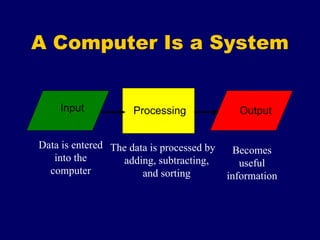
A Computer Is a System Data is entered into the computer Becomes useful information The data is processed by adding, subtracting, and sorting Input Processing Output
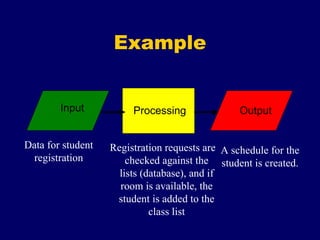
Example Data for student registration A schedule for the student is created. Registration requests are checked against the lists (database), and if room is available, the student is added to the class list Input Processing Output
Computer Components Hardware: Equipment Keyboard, monitor, system, scanners, mouse, etc. Microchips, motherboard, ports Software: Instructions Programs Hardware & Software are required for the computer to work.
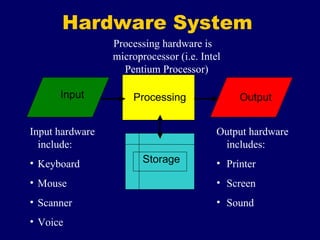
Hardware System Storage Input hardware include: Keyboard Mouse Scanner Voice Output hardware includes: Printer Screen Sound Processing hardware is microprocessor (i.e. Intel Pentium Processor) Input Processing Output
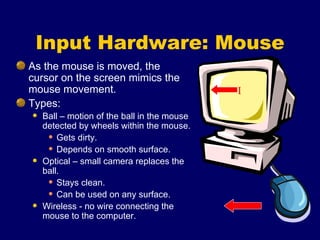
Input Hardware: Mouse As the mouse is moved, the cursor on the screen mimics the mouse movement. Types: Ball – motion of the ball in the mouse detected by wheels within the mouse. Gets dirty. Depends on smooth surface. Optical – small camera replaces the ball. Stays clean. Can be used on any surface. Wireless - no wire connecting the mouse to the computer. I
Input Hardware:  Keyboards Text and commands are entered using the keyboard Specialized keys include: Escape (ESC) Delete & Backspace Number Lock (Num Lock) Arrow keys Caps Lock Function Keys Enter Key Types:
Input Hardware:  Scanners Text and graphics are digitized to become computer files. Types: Flatbed (most common) Handheld
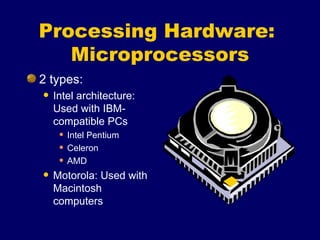
Processing Hardware:  Microprocessors 2 types: Intel architecture:  Used with IBM-compatible PCs Intel Pentium Celeron AMD Motorola: Used with Macintosh computers
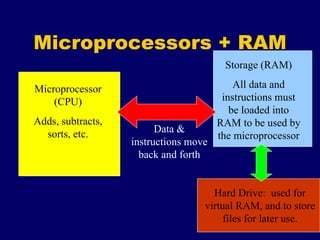
Microprocessors + RAM Microprocessor (CPU) Adds, subtracts, sorts, etc. Storage (RAM) All data and instructions must be loaded into RAM to be used by the microprocessor Data & instructions move back and forth Hard Drive:  used for virtual RAM, and to store files for later use.
Printers Inkjet  small droplets of inks  Color Versatile  Inexpensive to buy, expensive to maintain
Laser Usually black and white (some color available but rare) High quality print Expensive to buy, less expensive to print Faster than inkjet
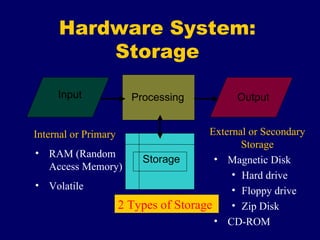
Hardware System: Storage Storage Internal or Primary RAM (Random Access Memory) Volatile External or Secondary Storage Magnetic Disk Hard drive Floppy drive Zip Disk CD-ROM  2 Types of Storage Input Processing Output
Units of Storage Size:  Bit (binary digit) = 0 or 1  Byte = 8 bits = 1 character  K (kilobyte) = 1,024 bytes  Mb (megabyte) = 1 million bytes  Gb (gigabyte) = 1 billion bytes
How Much Can a Computer Hold? Primary storage (RAM) Units of 32 megabytes (Mb) Example:  32 Mb, 64 Mb, 128 Mb The higher the number, the more the computer can process at once Secondary storage (disk or CD-ROM) Hard drives – gigabytes Floppy disks – 1.4 Mb Zip disks – 100 Mb & 250 Mb CD-ROM – approximately 400 Mb
Computer Software System Software Operating System – instructions that make the hardware work Microsoft Windows for IBM-Compatible PCs Macintosh OS for Macintosh computers Others:  Unix, Linux, etc. – not as common Utilities Formatting Housekeeping
Computer Software (continued) Application Software  Word Processing – Word, WordPerfect, Works, etc. Graphics editing Web  authoring Any software that a specific purpose or application.
How to Format a Disk PC Right-click on My Computer on the desktop Click Explore Right-click on the disk drive where the disk you need to format is contained – usually the floppy disk drive (usually drive A) or the Zip Disk Click Format

computer

  • 1.
  • 2.
    A Computer Isa System Data is entered into the computer Becomes useful information The data is processed by adding, subtracting, and sorting Input Processing Output
  • 3.
    Example Data forstudent registration A schedule for the student is created. Registration requests are checked against the lists (database), and if room is available, the student is added to the class list Input Processing Output
  • 4.
    Computer Components Hardware:Equipment Keyboard, monitor, system, scanners, mouse, etc. Microchips, motherboard, ports Software: Instructions Programs Hardware & Software are required for the computer to work.
  • 5.
    Hardware System StorageInput hardware include: Keyboard Mouse Scanner Voice Output hardware includes: Printer Screen Sound Processing hardware is microprocessor (i.e. Intel Pentium Processor) Input Processing Output
  • 6.
    Input Hardware: MouseAs the mouse is moved, the cursor on the screen mimics the mouse movement. Types: Ball – motion of the ball in the mouse detected by wheels within the mouse. Gets dirty. Depends on smooth surface. Optical – small camera replaces the ball. Stays clean. Can be used on any surface. Wireless - no wire connecting the mouse to the computer. I
  • 7.
    Input Hardware: Keyboards Text and commands are entered using the keyboard Specialized keys include: Escape (ESC) Delete & Backspace Number Lock (Num Lock) Arrow keys Caps Lock Function Keys Enter Key Types:
  • 8.
    Input Hardware: Scanners Text and graphics are digitized to become computer files. Types: Flatbed (most common) Handheld
  • 9.
    Processing Hardware: Microprocessors 2 types: Intel architecture: Used with IBM-compatible PCs Intel Pentium Celeron AMD Motorola: Used with Macintosh computers
  • 10.
    Microprocessors + RAMMicroprocessor (CPU) Adds, subtracts, sorts, etc. Storage (RAM) All data and instructions must be loaded into RAM to be used by the microprocessor Data & instructions move back and forth Hard Drive: used for virtual RAM, and to store files for later use.
  • 11.
    Printers Inkjet small droplets of inks Color Versatile Inexpensive to buy, expensive to maintain
  • 12.
    Laser Usually blackand white (some color available but rare) High quality print Expensive to buy, less expensive to print Faster than inkjet
  • 13.
    Hardware System: StorageStorage Internal or Primary RAM (Random Access Memory) Volatile External or Secondary Storage Magnetic Disk Hard drive Floppy drive Zip Disk CD-ROM 2 Types of Storage Input Processing Output
  • 14.
    Units of StorageSize: Bit (binary digit) = 0 or 1 Byte = 8 bits = 1 character K (kilobyte) = 1,024 bytes Mb (megabyte) = 1 million bytes Gb (gigabyte) = 1 billion bytes
  • 15.
    How Much Cana Computer Hold? Primary storage (RAM) Units of 32 megabytes (Mb) Example: 32 Mb, 64 Mb, 128 Mb The higher the number, the more the computer can process at once Secondary storage (disk or CD-ROM) Hard drives – gigabytes Floppy disks – 1.4 Mb Zip disks – 100 Mb & 250 Mb CD-ROM – approximately 400 Mb
  • 16.
    Computer Software SystemSoftware Operating System – instructions that make the hardware work Microsoft Windows for IBM-Compatible PCs Macintosh OS for Macintosh computers Others: Unix, Linux, etc. – not as common Utilities Formatting Housekeeping
  • 17.
    Computer Software (continued)Application Software Word Processing – Word, WordPerfect, Works, etc. Graphics editing Web authoring Any software that a specific purpose or application.
  • 18.
    How to Formata Disk PC Right-click on My Computer on the desktop Click Explore Right-click on the disk drive where the disk you need to format is contained – usually the floppy disk drive (usually drive A) or the Zip Disk Click Format