Welcome to Computer Basics Ewing Branch Library Computer Training Laverne Mann, Trainer [email_address]
Don’t be afraid!   Computer waits for you!  Microsoft Windows XP –   Operating system allows us to use the computer
What will we work on together today? Computer Hardware and Software What is the desktop? Parts of the Window
Computer Hardware   External : Monitor Printer Internal: Memory [RAM temp] Microprocessor chip
Internal Hard drive [C drive] Floppy disk drive [A drive] CD drive [D drive] Flash or Jump drive  [E, F drive]   “Removable disk” or Brand Name
Turn the computer on! Press power button ‘ Desktop’  loaded with software, icons Start button-  Programs you have TASK BAR on bottom Start ,  click once, All Programs
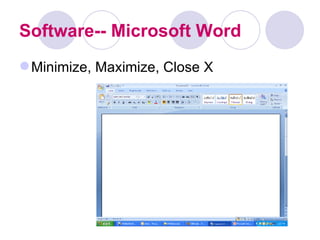
Software-- Microsoft Word Minimize, Maximize, Close X
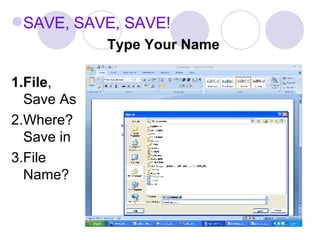
SAVE, SAVE, SAVE! Type Your Name 1.File ,  Save As 2.Where?  Save in 3.File  Name?
Files  are.. {Word, Excel} Store in  Folders Find and print a file –  CompBasics folder on Desktop Intro to Word Mon 10 AM  Or Practice Word/Internet
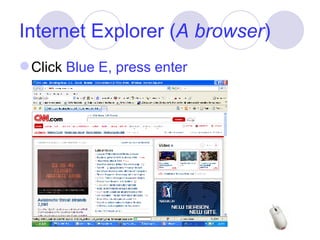
Internet Explorer ( A browser ) Click  Blue E, press enter
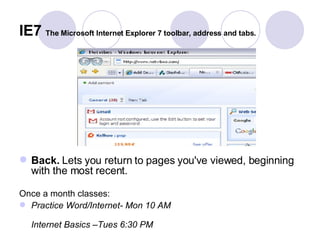
IE7   The Microsoft Internet Explorer 7 toolbar, address and tabs. Back.  Lets you return to pages you've viewed, beginning with the most recent.  Once a month classes: Practice Word/Internet- Mon 10 AM Internet Basics –Tues 6:30 PM
You should know… Triangle or arrow--  more options Glossary of Terms-  (handout) Clicking, Browser, Link, URL Practice at home or at the library.  www.mcl.org   Weblinks- Computer tutorials
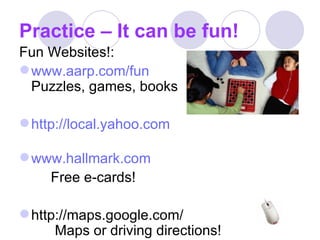
Practice – It can be fun! Fun Websites!: www.aarp.com/fun Puzzles, games, books http://local.yahoo.com www.hallmark.com Free e-cards! http://maps.google.com/   Maps or driving directions!
Evaluation form Handouts Thank you for your time!

Computer Basics

  • 1.
    Welcome to ComputerBasics Ewing Branch Library Computer Training Laverne Mann, Trainer [email_address]
  • 2.
    Don’t be afraid! Computer waits for you! Microsoft Windows XP – Operating system allows us to use the computer
  • 3.
    What will wework on together today? Computer Hardware and Software What is the desktop? Parts of the Window
  • 4.
    Computer Hardware External : Monitor Printer Internal: Memory [RAM temp] Microprocessor chip
  • 5.
    Internal Hard drive[C drive] Floppy disk drive [A drive] CD drive [D drive] Flash or Jump drive [E, F drive] “Removable disk” or Brand Name
  • 6.
    Turn the computeron! Press power button ‘ Desktop’ loaded with software, icons Start button- Programs you have TASK BAR on bottom Start , click once, All Programs
  • 7.
    Software-- Microsoft WordMinimize, Maximize, Close X
  • 8.
    SAVE, SAVE, SAVE!Type Your Name 1.File , Save As 2.Where? Save in 3.File Name?
  • 9.
    Files are..{Word, Excel} Store in Folders Find and print a file – CompBasics folder on Desktop Intro to Word Mon 10 AM Or Practice Word/Internet
  • 10.
    Internet Explorer (A browser ) Click Blue E, press enter
  • 11.
    IE7 The Microsoft Internet Explorer 7 toolbar, address and tabs. Back. Lets you return to pages you've viewed, beginning with the most recent. Once a month classes: Practice Word/Internet- Mon 10 AM Internet Basics –Tues 6:30 PM
  • 12.
    You should know…Triangle or arrow-- more options Glossary of Terms- (handout) Clicking, Browser, Link, URL Practice at home or at the library. www.mcl.org Weblinks- Computer tutorials
  • 13.
    Practice – Itcan be fun! Fun Websites!: www.aarp.com/fun Puzzles, games, books http://local.yahoo.com www.hallmark.com Free e-cards! http://maps.google.com/ Maps or driving directions!
  • 14.
    Evaluation form HandoutsThank you for your time!