HOW TO CREATE A SESSION
1. Log in to your Blackboard Collaborate
account at https://sas.elluminate.com
2. Click “Schedule a Meeting”
3. Give your session a name, date, and
starting/ending time. (You will be able to log
in 30 minutes prior to the start time.)

4. You will then receive a confirmation email
with the moderator link to join as well as a
guest link to send out to your participants.
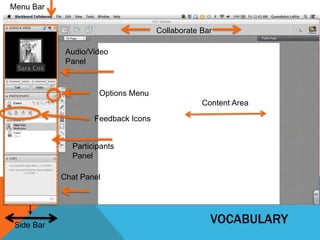
Menu Bar
Collaborate Bar
Audio/Video
Panel

Options Menu
Content Area
Feedback Icons

Participants
Panel
Chat Panel

Side Bar

VOCABULARY
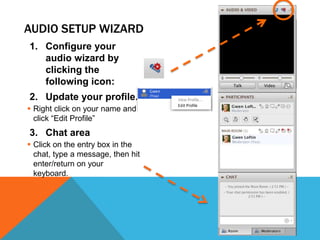
AUDIO SETUP WIZARD
1. Configure your
audio wizard by
clicking the
following icon:
2. Update your profile.
ď‚§ Right click on your name and
click “Edit Profile”

3. Chat area
ď‚§ Click on the entry box in the
chat, type a message, then hit
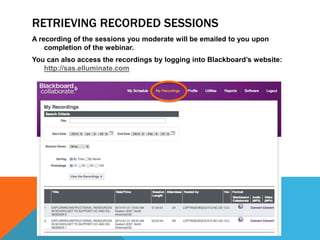
enter/return on your
keyboard.
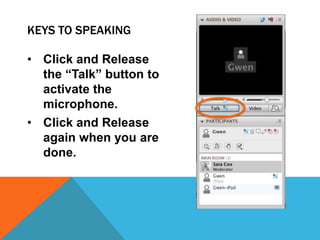
KEYS TO SPEAKING
• Click and Release
the “Talk” button to
activate the
microphone.
• Click and Release
again when you are
done.
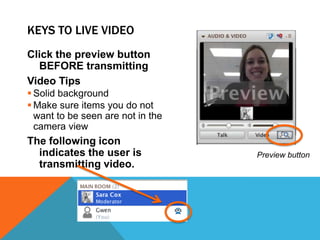
KEYS TO LIVE VIDEO
Click the preview button
BEFORE transmitting
Video Tips
ď‚§ Solid background
ď‚§ Make sure items you do not
want to be seen are not in the
camera view

The following icon
indicates the user is
transmitting video.

Preview button
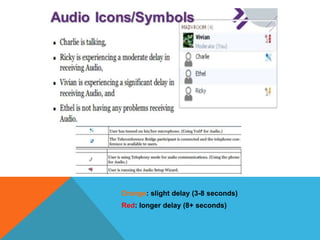
AUDIO ICONS/SYMBOLS

Orange: slight delay (3-8 seconds)
Red: longer delay (8+ seconds)
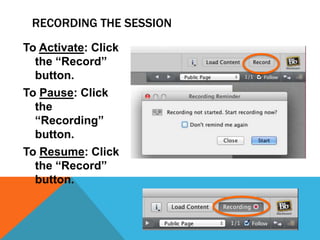
RECORDING THE SESSION
To Activate: Click
the “Record”
button.
To Pause: Click
the
“Recording”
button.
To Resume: Click
the “Record”
button.
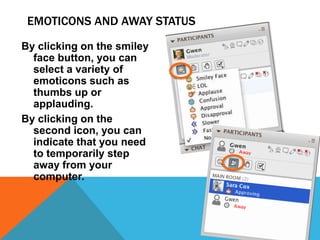
EMOTICONS AND AWAY STATUS
By clicking on the smiley
face button, you can
select a variety of
emoticons such as
thumbs up or
applauding.
By clicking on the
second icon, you can
indicate that you need
to temporarily step
away from your
computer.
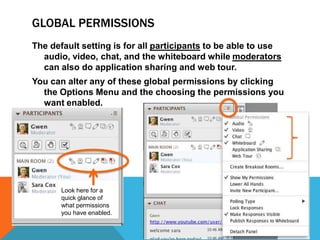
GLOBAL PERMISSIONS
The default setting is for all participants to be able to use
audio, video, chat, and the whiteboard while moderators
can also do application sharing and web tour.
You can alter any of these global permissions by clicking
the Options Menu and the choosing the permissions you
want enabled.

Look here for a
quick glance of
what permissions
you have enabled.
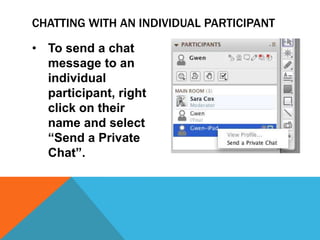
CHATTING WITH AN INDIVIDUAL PARTICIPANT
• To send a chat
message to an
individual
participant, right
click on their
name and select
“Send a Private
Chat”.
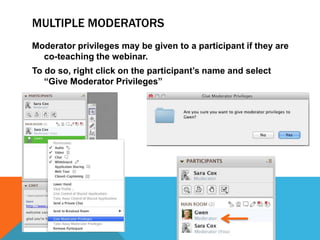
MULTIPLE MODERATORS
Moderator privileges may be given to a participant if they are
co-teaching the webinar.
To do so, right click on the participant’s name and select
“Give Moderator Privileges”
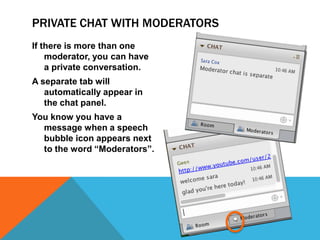
PRIVATE CHAT WITH MODERATORS
If there is more than one
moderator, you can have
a private conversation.
A separate tab will
automatically appear in
the chat panel.
You know you have a
message when a speech
bubble icon appears next
to the word “Moderators”.
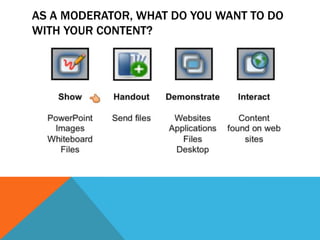
AS A MODERATOR, WHAT DO YOU WANT TO DO
WITH YOUR CONTENT?
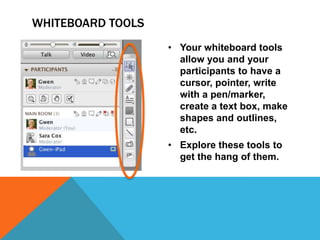
WHITEBOARD TOOLS
• Your whiteboard tools
allow you and your
participants to have a
cursor, pointer, write
with a pen/marker,
create a text box, make
shapes and outlines,
etc.
• Explore these tools to
get the hang of them.
TRY OUT YOUR WHITEBOARD TOOLS HERE
Write your name in your favorite color.
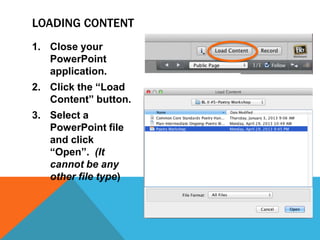
LOADING CONTENT
1. Close your
PowerPoint
application.

2. Click the “Load
Content” button.
3. Select a
PowerPoint file
and click
“Open”. (It
cannot be any
other file type)
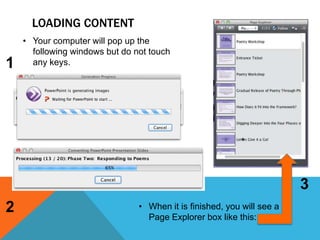
LOADING CONTENT

1

• Your computer will pop up the
following windows but do not touch
any keys.

3

2

• When it is finished, you will see a
Page Explorer box like this:
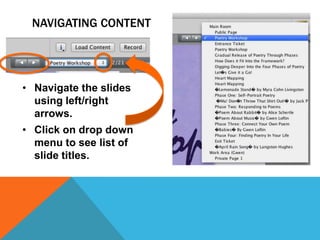
NAVIGATING CONTENT

• Navigate the slides
using left/right
arrows.
• Click on drop down
menu to see list of
slide titles.
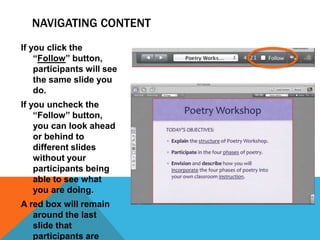
NAVIGATING CONTENT
If you click the
“Follow” button,
participants will see
the same slide you
do.
If you uncheck the
“Follow” button,
you can look ahead
or behind to
different slides
without your
participants being
able to see what
you are doing.
A red box will remain
around the last
slide that
participants are
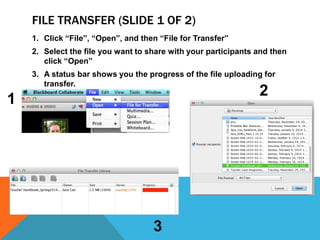
FILE TRANSFER (SLIDE 1 OF 2)
1. Click “File”, “Open”, and then “File for Transfer”
2. Select the file you want to share with your participants and then
click “Open”
3. A status bar shows you the progress of the file uploading for
transfer.

2

1

3
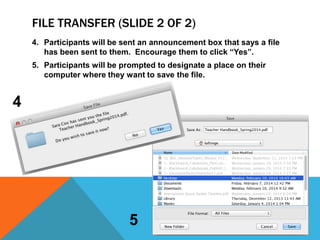
FILE TRANSFER (SLIDE 2 OF 2)
4. Participants will be sent an announcement box that says a file
has been sent to them. Encourage them to click “Yes”.
5. Participants will be prompted to designate a place on their
computer where they want to save the file.

4

5
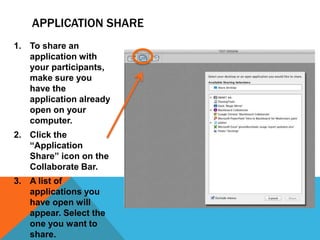
APPLICATION SHARE
1. To share an
application with
your participants,
make sure you
have the
application already
open on your
computer.
2. Click the
“Application
Share” icon on the
Collaborate Bar.
3. A list of
applications you
have open will
appear. Select the
one you want to
share.
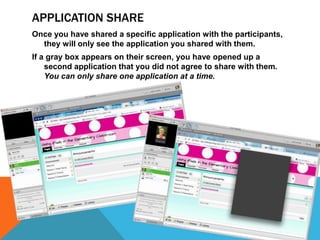
APPLICATION SHARE
Once you have shared a specific application with the participants,
they will only see the application you shared with them.
If a gray box appears on their screen, you have opened up a
second application that you did not agree to share with them.
You can only share one application at a time.
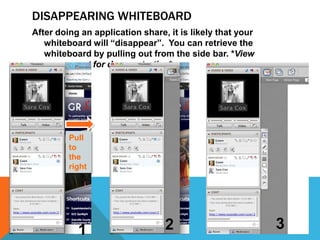
DISAPPEARING WHITEBOARD
After doing an application share, it is likely that your
whiteboard will “disappear”. You can retrieve the
whiteboard by pulling out from the side bar. *View
screencast for demonstration*

Pull
to
the
right

1

2

3
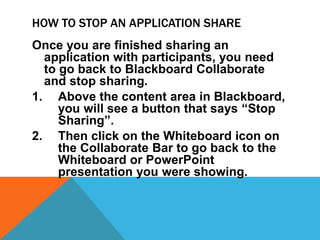
HOW TO STOP AN APPLICATION SHARE
Once you are finished sharing an
application with participants, you need
to go back to Blackboard Collaborate
and stop sharing.
1. Above the content area in Blackboard,
you will see a button that says “Stop
Sharing”.
2. Then click on the Whiteboard icon on
the Collaborate Bar to go back to the
Whiteboard or PowerPoint
presentation you were showing.
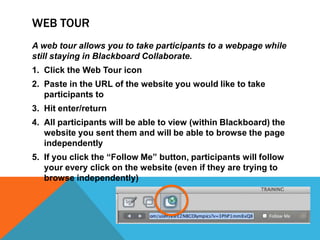
WEB TOUR
A web tour allows you to take participants to a webpage while
still staying in Blackboard Collaborate.
1. Click the Web Tour icon

2. Paste in the URL of the website you would like to take
participants to
3. Hit enter/return
4. All participants will be able to view (within Blackboard) the
website you sent them and will be able to browse the page
independently
5. If you click the “Follow Me” button, participants will follow
your every click on the website (even if they are trying to
browse independently)
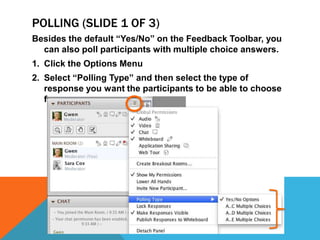
POLLING (SLIDE 1 OF 3)
Besides the default “Yes/No” on the Feedback Toolbar, you
can also poll participants with multiple choice answers.
1. Click the Options Menu
2. Select “Polling Type” and then select the type of
response you want the participants to be able to choose
from.
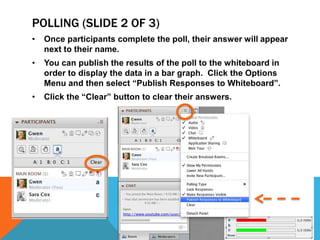
POLLING (SLIDE 2 OF 3)
•

Once participants complete the poll, their answer will appear
next to their name.

•

You can publish the results of the poll to the whiteboard in
order to display the data in a bar graph. Click the Options
Menu and then select “Publish Responses to Whiteboard”.

•

Click the “Clear” button to clear their answers.
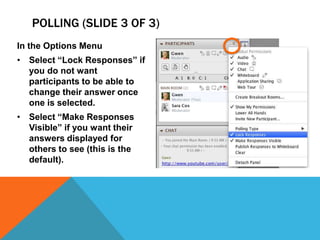
POLLING (SLIDE 3 OF 3)
In the Options Menu
• Select “Lock Responses” if
you do not want
participants to be able to
change their answer once
one is selected.
• Select “Make Responses
Visible” if you want their
answers displayed for
others to see (this is the
default).
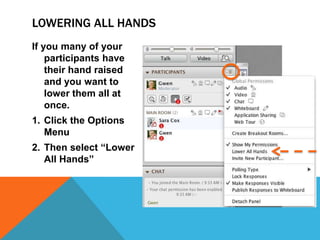
LOWERING ALL HANDS
If you many of your
participants have
their hand raised
and you want to
lower them all at
once.
1. Click the Options
Menu
2. Then select “Lower
All Hands”
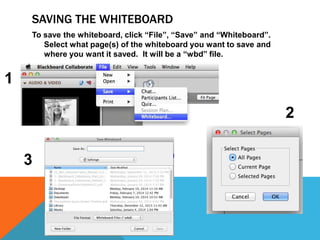
SAVING THE WHITEBOARD
To save the whiteboard, click “File”, “Save” and “Whiteboard”.
Select what page(s) of the whiteboard you want to save and
where you want it saved. It will be a “wbd” file.

1
2
3
RETRIEVING RECORDED SESSIONS
A recording of the sessions you moderate will be emailed to you upon
completion of the webinar.
You can also access the recordings by logging into Blackboard’s website:
http://sas.elluminate.com
CREATING A COLLABORATE SESSION IN HAIKU
(SLIDE 1 OF 5)

Steps:
1. Add Content
Block
2. Choose the
Connect &
Assess Tab
3. Click on
“Activity”
CREATING A COLLABORATE SESSION IN HAIKU
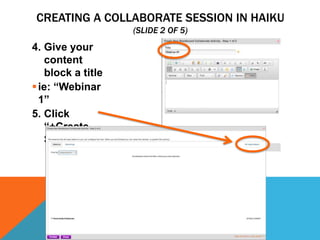
(SLIDE 2 OF 5)

4. Give your
content
block a title
 ie: “Webinar
1”
5. Click
“+Create
Session”
CREATING A COLLABORATE SESSION IN HAIKU
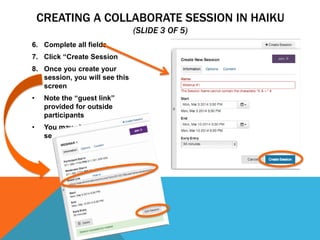
(SLIDE 3 OF 5)
6. Complete all fields
7. Click “Create Session
8. Once you create your
session, you will see this
screen
•

Note the “guest link”
provided for outside
participants

•

You may also edit your
session from this screen
CREATING A COLLABORATE SESSION IN HAIKU
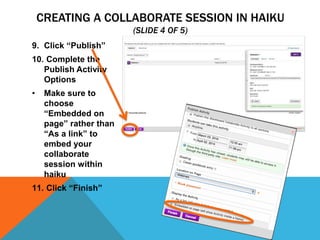
(SLIDE 4 OF 5)
9. Click “Publish”
10. Complete the
Publish Activity
Options
•

Make sure to
choose
“Embedded on
page” rather than
“As a link” to
embed your
collaborate
session within
haiku

11. Click “Finish”
CREATING A COLLABORATE SESSION IN HAIKU
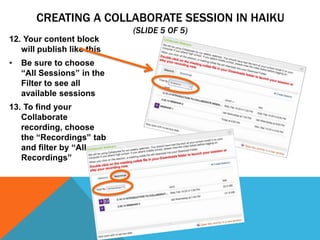
(SLIDE 5 OF 5)
12. Your content block
will publish like this
•

Be sure to choose
“All Sessions” in the
Filter to see all
available sessions

13. To find your
Collaborate
recording, choose
the “Recordings” tab
and filter by “All
Recordings”

Blackboard Collaborate Training for Moderators

  • 2.
    HOW TO CREATEA SESSION 1. Log in to your Blackboard Collaborate account at https://sas.elluminate.com 2. Click “Schedule a Meeting” 3. Give your session a name, date, and starting/ending time. (You will be able to log in 30 minutes prior to the start time.) 4. You will then receive a confirmation email with the moderator link to join as well as a guest link to send out to your participants.
  • 3.
    Menu Bar Collaborate Bar Audio/Video Panel OptionsMenu Content Area Feedback Icons Participants Panel Chat Panel Side Bar VOCABULARY
  • 4.
    AUDIO SETUP WIZARD 1.Configure your audio wizard by clicking the following icon: 2. Update your profile.  Right click on your name and click “Edit Profile” 3. Chat area  Click on the entry box in the chat, type a message, then hit enter/return on your keyboard.
  • 5.
    KEYS TO SPEAKING •Click and Release the “Talk” button to activate the microphone. • Click and Release again when you are done.
  • 6.
    KEYS TO LIVEVIDEO Click the preview button BEFORE transmitting Video Tips ď‚§ Solid background ď‚§ Make sure items you do not want to be seen are not in the camera view The following icon indicates the user is transmitting video. Preview button
  • 7.
    AUDIO ICONS/SYMBOLS Orange: slightdelay (3-8 seconds) Red: longer delay (8+ seconds)
  • 8.
    RECORDING THE SESSION ToActivate: Click the “Record” button. To Pause: Click the “Recording” button. To Resume: Click the “Record” button.
  • 9.
    EMOTICONS AND AWAYSTATUS By clicking on the smiley face button, you can select a variety of emoticons such as thumbs up or applauding. By clicking on the second icon, you can indicate that you need to temporarily step away from your computer.
  • 10.
    GLOBAL PERMISSIONS The defaultsetting is for all participants to be able to use audio, video, chat, and the whiteboard while moderators can also do application sharing and web tour. You can alter any of these global permissions by clicking the Options Menu and the choosing the permissions you want enabled. Look here for a quick glance of what permissions you have enabled.
  • 11.
    CHATTING WITH ANINDIVIDUAL PARTICIPANT • To send a chat message to an individual participant, right click on their name and select “Send a Private Chat”.
  • 12.
    MULTIPLE MODERATORS Moderator privilegesmay be given to a participant if they are co-teaching the webinar. To do so, right click on the participant’s name and select “Give Moderator Privileges”
  • 13.
    PRIVATE CHAT WITHMODERATORS If there is more than one moderator, you can have a private conversation. A separate tab will automatically appear in the chat panel. You know you have a message when a speech bubble icon appears next to the word “Moderators”.
  • 14.
    AS A MODERATOR,WHAT DO YOU WANT TO DO WITH YOUR CONTENT?
  • 15.
    WHITEBOARD TOOLS • Yourwhiteboard tools allow you and your participants to have a cursor, pointer, write with a pen/marker, create a text box, make shapes and outlines, etc. • Explore these tools to get the hang of them.
  • 16.
    TRY OUT YOURWHITEBOARD TOOLS HERE Write your name in your favorite color.
  • 17.
    LOADING CONTENT 1. Closeyour PowerPoint application. 2. Click the “Load Content” button. 3. Select a PowerPoint file and click “Open”. (It cannot be any other file type)
  • 18.
    LOADING CONTENT 1 • Yourcomputer will pop up the following windows but do not touch any keys. 3 2 • When it is finished, you will see a Page Explorer box like this:
  • 19.
    NAVIGATING CONTENT • Navigatethe slides using left/right arrows. • Click on drop down menu to see list of slide titles.
  • 20.
    NAVIGATING CONTENT If youclick the “Follow” button, participants will see the same slide you do. If you uncheck the “Follow” button, you can look ahead or behind to different slides without your participants being able to see what you are doing. A red box will remain around the last slide that participants are
  • 21.
    FILE TRANSFER (SLIDE1 OF 2) 1. Click “File”, “Open”, and then “File for Transfer” 2. Select the file you want to share with your participants and then click “Open” 3. A status bar shows you the progress of the file uploading for transfer. 2 1 3
  • 22.
    FILE TRANSFER (SLIDE2 OF 2) 4. Participants will be sent an announcement box that says a file has been sent to them. Encourage them to click “Yes”. 5. Participants will be prompted to designate a place on their computer where they want to save the file. 4 5
  • 23.
    APPLICATION SHARE 1. Toshare an application with your participants, make sure you have the application already open on your computer. 2. Click the “Application Share” icon on the Collaborate Bar. 3. A list of applications you have open will appear. Select the one you want to share.
  • 24.
    APPLICATION SHARE Once youhave shared a specific application with the participants, they will only see the application you shared with them. If a gray box appears on their screen, you have opened up a second application that you did not agree to share with them. You can only share one application at a time.
  • 25.
    DISAPPEARING WHITEBOARD After doingan application share, it is likely that your whiteboard will “disappear”. You can retrieve the whiteboard by pulling out from the side bar. *View screencast for demonstration* Pull to the right 1 2 3
  • 26.
    HOW TO STOPAN APPLICATION SHARE Once you are finished sharing an application with participants, you need to go back to Blackboard Collaborate and stop sharing. 1. Above the content area in Blackboard, you will see a button that says “Stop Sharing”. 2. Then click on the Whiteboard icon on the Collaborate Bar to go back to the Whiteboard or PowerPoint presentation you were showing.
  • 27.
    WEB TOUR A webtour allows you to take participants to a webpage while still staying in Blackboard Collaborate. 1. Click the Web Tour icon 2. Paste in the URL of the website you would like to take participants to 3. Hit enter/return 4. All participants will be able to view (within Blackboard) the website you sent them and will be able to browse the page independently 5. If you click the “Follow Me” button, participants will follow your every click on the website (even if they are trying to browse independently)
  • 28.
    POLLING (SLIDE 1OF 3) Besides the default “Yes/No” on the Feedback Toolbar, you can also poll participants with multiple choice answers. 1. Click the Options Menu 2. Select “Polling Type” and then select the type of response you want the participants to be able to choose from.
  • 29.
    POLLING (SLIDE 2OF 3) • Once participants complete the poll, their answer will appear next to their name. • You can publish the results of the poll to the whiteboard in order to display the data in a bar graph. Click the Options Menu and then select “Publish Responses to Whiteboard”. • Click the “Clear” button to clear their answers.
  • 30.
    POLLING (SLIDE 3OF 3) In the Options Menu • Select “Lock Responses” if you do not want participants to be able to change their answer once one is selected. • Select “Make Responses Visible” if you want their answers displayed for others to see (this is the default).
  • 31.
    LOWERING ALL HANDS Ifyou many of your participants have their hand raised and you want to lower them all at once. 1. Click the Options Menu 2. Then select “Lower All Hands”
  • 32.
    SAVING THE WHITEBOARD Tosave the whiteboard, click “File”, “Save” and “Whiteboard”. Select what page(s) of the whiteboard you want to save and where you want it saved. It will be a “wbd” file. 1 2 3
  • 33.
    RETRIEVING RECORDED SESSIONS Arecording of the sessions you moderate will be emailed to you upon completion of the webinar. You can also access the recordings by logging into Blackboard’s website: http://sas.elluminate.com
  • 34.
    CREATING A COLLABORATESESSION IN HAIKU (SLIDE 1 OF 5) Steps: 1. Add Content Block 2. Choose the Connect & Assess Tab 3. Click on “Activity”
  • 35.
    CREATING A COLLABORATESESSION IN HAIKU (SLIDE 2 OF 5) 4. Give your content block a title  ie: “Webinar 1” 5. Click “+Create Session”
  • 36.
    CREATING A COLLABORATESESSION IN HAIKU (SLIDE 3 OF 5) 6. Complete all fields 7. Click “Create Session 8. Once you create your session, you will see this screen • Note the “guest link” provided for outside participants • You may also edit your session from this screen
  • 37.
    CREATING A COLLABORATESESSION IN HAIKU (SLIDE 4 OF 5) 9. Click “Publish” 10. Complete the Publish Activity Options • Make sure to choose “Embedded on page” rather than “As a link” to embed your collaborate session within haiku 11. Click “Finish”
  • 38.
    CREATING A COLLABORATESESSION IN HAIKU (SLIDE 5 OF 5) 12. Your content block will publish like this • Be sure to choose “All Sessions” in the Filter to see all available sessions 13. To find your Collaborate recording, choose the “Recordings” tab and filter by “All Recordings”