






Presented by G. Sharada
Who is this training for?
 Preferably, has attended Session #1 training for WPF
What I intend to do.
 Problem solution approach: use sample applications to
 showcase the practical application of the topics to be
 covered.

 Less focus on theory, more on coding.
Word of caution
 In Windows Forms, there are two ways to do everything: a
  good way and a bad way.

 In WPF, there are ten ways to do everything: two that are
  amazing, 3 that are good, 1 that is bad, and 4 that suck.

 It’s distinguishing the 2 amazing solutions which is so
  challenging. So how do we get there?
Excellent Resources on WPF
 Online Resources
    MSDN
    http://www.wpftutorial.net/
    http://drwpf.com/blog/
    http://joshsmithonwpf.wordpress.com/a-guided-tour-of-wpf/
 Books
    WPF 4 Unleashed
    Pro WPF in C# 2010
    WPF Control Development Unleashed
    WPF Recipes in C# 2008
 Case studies
    Vertigo Family.Show
    PhotoSuru
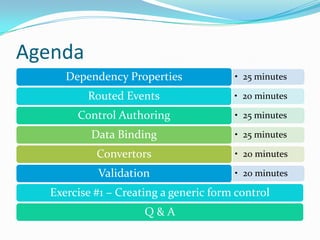
Agenda
     Dependency Properties             • 25 minutes

         Routed Events                 • 20 minutes

       Control Authoring               • 25 minutes

          Data Binding                 • 25 minutes

           Convertors                  • 20 minutes

           Validation                  • 20 minutes

  Exercise #1 – Creating a generic form control
                     Q&A
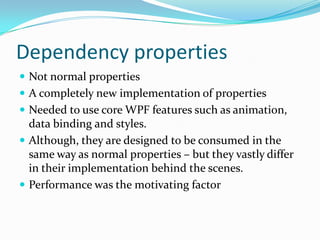
Dependency properties
 Not normal properties
 A completely new implementation of properties
 Needed to use core WPF features such as animation,
  data binding and styles.
 Although, they are designed to be consumed in the
  same way as normal properties – but they vastly differ
  in their implementation behind the scenes.
 Performance was the motivating factor
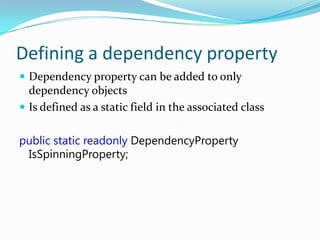
Defining a dependency property
 Dependency property can be added to only
  dependency objects
 Is defined as a static field in the associated class


public static readonly DependencyProperty
 IsSpinningProperty;
Registering a dependency property
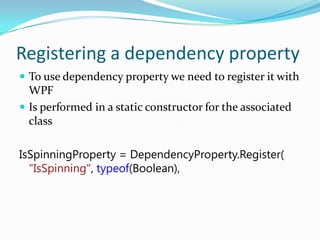
 To use dependency property we need to register it with
  WPF
 Is performed in a static constructor for the associated
  class

IsSpinningProperty = DependencyProperty.Register(
  "IsSpinning", typeof(Boolean),
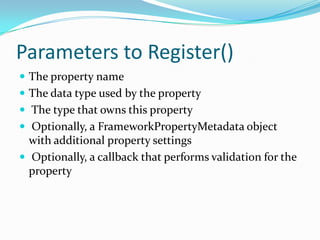
Parameters to Register()
 The property name
 The data type used by the property
 The type that owns this property
 Optionally, a FrameworkPropertyMetadata object
  with additional property settings
 Optionally, a callback that performs validation for the
  property
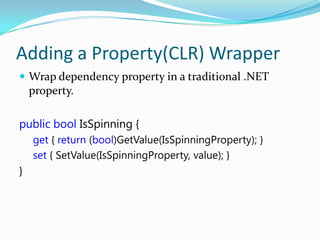
Adding a Property(CLR) Wrapper
 Wrap dependency property in a traditional .NET
    property.

public bool IsSpinning {
    get { return (bool)GetValue(IsSpinningProperty); }
    set { SetValue(IsSpinningProperty, value); }
}
Property functionality
 Resources
 Data Binding
 Styles
 Animation
 Property Value inheritance
Create and use a dependency property
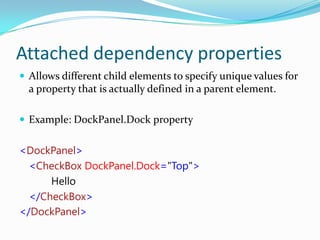
Attached dependency properties
 Allows different child elements to specify unique values for
  a property that is actually defined in a parent element.

 Example: DockPanel.Dock property


<DockPanel>
  <CheckBox DockPanel.Dock="Top">
      Hello
  </CheckBox>
</DockPanel>
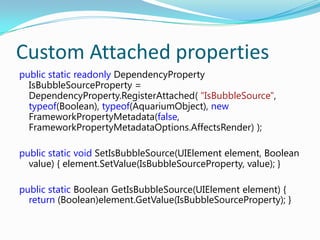
Custom Attached properties
public static readonly DependencyProperty
  IsBubbleSourceProperty =
  DependencyProperty.RegisterAttached( "IsBubbleSource",
  typeof(Boolean), typeof(AquariumObject), new
  FrameworkPropertyMetadata(false,
  FrameworkPropertyMetadataOptions.AffectsRender) );

public static void SetIsBubbleSource(UIElement element, Boolean
  value) { element.SetValue(IsBubbleSourceProperty, value); }

public static Boolean GetIsBubbleSource(UIElement element) {
  return (Boolean)element.GetValue(IsBubbleSourceProperty); }
Create and use a attached property
Routed Events
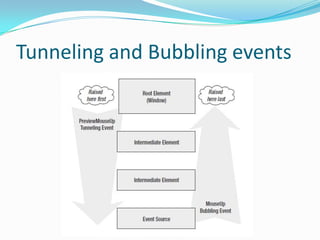
 Events with more travelling power
    they can tunnel down or bubble up the element tree and
     be processed by event handlers along the way


 Types
    Direct events
    Bubbling events
    Tunneling events
Tunneling and Bubbling events
Registering a Routed Event
public static readonly RoutedEvent TapEvent =
  EventManager.RegisterRoutedEvent( "Tap",
  RoutingStrategy.Bubble, typeof(RoutedEventHandler),
  typeof(MyButtonSimple));
// Provide CLR accessors for the event
public event RoutedEventHandler Tap {
  add { AddHandler(TapEvent, value); }
  remove { RemoveHandler(TapEvent, value); }
}
Attached events
 Enables elements to handle events that are declared in
 a different element

<Grid Button.Click="myButton_Click">
  <Button Name="myButton" >Click Me</Button>
</Grid>
Add Events to a User Control
Reusing existing controls
 Support for rich content
 Styles to alter appearance and behavior
 Data templates to customize how data is displayed
 Control templates to define control’s structure and
  appearance
 Triggers to dynamically change appearance and
  behavior
Creating a new control
 Deriving from a user control
   You want to build your control similarly to how you
    build an application.
   Your control consists only of existing components.
   You don't need to support complex customization.
 Deriving from Control
   You want the appearance of your control to be
    customizable via the ControlTemplate.
   You want your control to support different themes.
 Deriving from FrameworkElement (Out of scope)
Create a Custom ToolTip Style
Set the Content Property of a User Control
Create a Lookless Custom Control
Data Binding
 The process that establishes a connection between the
  application UI and business logic
 Use any object as your binding source and bind it to
  almost any target UI element
 Once a binding is established, the data in the source is
  automatically and dynamically propagated to the
  binding target, and vice versa.
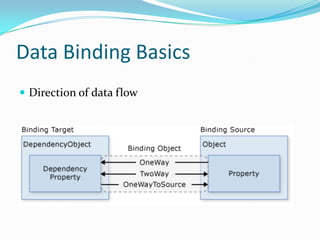
Data Binding Basics
 Direction of data flow
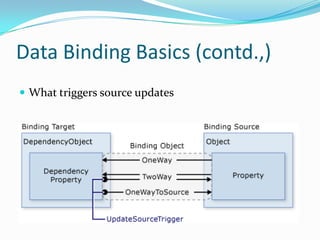
Data Binding Basics (contd.,)
 What triggers source updates
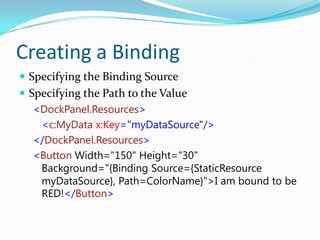
Creating a Binding
 Specifying the Binding Source
 Specifying the Path to the Value
   <DockPanel.Resources>
    <c:MyData x:Key="myDataSource"/>
   </DockPanel.Resources>
   <Button Width="150" Height="30"
    Background="{Binding Source={StaticResource
    myDataSource}, Path=ColorName}">I am bound to be
    RED!</Button>
Create a two-way binding
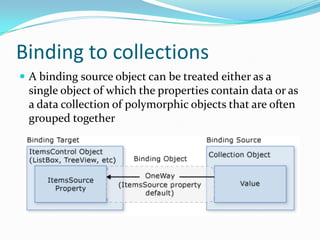
Binding to collections
 A binding source object can be treated either as a
 single object of which the properties contain data or as
 a data collection of polymorphic objects that are often
 grouped together
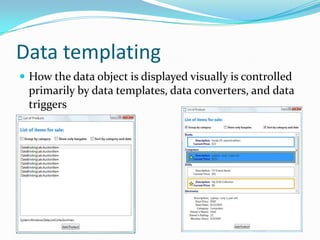
Data templating
 How the data object is displayed visually is controlled
  primarily by data templates, data converters, and data
  triggers
Use Data Templates to Display Bound Data
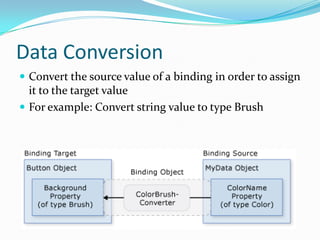
Data Conversion
 Convert the source value of a binding in order to assign
  it to the target value
 For example: Convert string value to type Brush
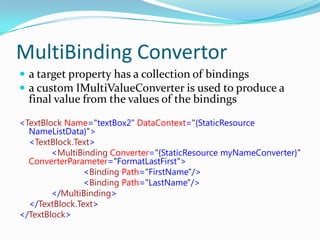
MultiBinding Convertor
 a target property has a collection of bindings
 a custom IMultiValueConverter is used to produce a
  final value from the values of the bindings

<TextBlock Name="textBox2" DataContext="{StaticResource
  NameListData}">
  <TextBlock.Text>
        <MultiBinding Converter="{StaticResource myNameConverter}"
  ConverterParameter="FormatLastFirst">
               <Binding Path="FirstName"/>
               <Binding Path="LastName"/>
        </MultiBinding>
  </TextBlock.Text>
</TextBlock>
Use Value Converters to Convert Bound Data
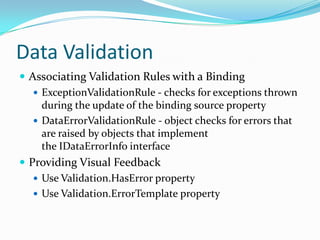
Data Validation
 Associating Validation Rules with a Binding
    ExceptionValidationRule - checks for exceptions thrown
     during the update of the binding source property
    DataErrorValidationRule - object checks for errors that
     are raised by objects that implement
     the IDataErrorInfo interface
 Providing Visual Feedback
    Use Validation.HasError property
    Use Validation.ErrorTemplate property
Specify Validation Rules for a Binding
Bind to IDataErrorInfo
Exercise: Create a generic form
control
 Dependency properties for form-title, help-text
 Dependency property for IsValid
 Routed events for Submit and Cancel
 Attached property to specify Submit and Cancel
  buttons
 Attached property to specify input control(s) to be
  validated
 Data template for View mode
 Control template for Edit mode
WPF - Controls &amp; Data

WPF - Controls &amp; Data

  • 1.
  • 2.
    Who is thistraining for?  Preferably, has attended Session #1 training for WPF
  • 3.
    What I intendto do.  Problem solution approach: use sample applications to showcase the practical application of the topics to be covered.  Less focus on theory, more on coding.
  • 4.
    Word of caution In Windows Forms, there are two ways to do everything: a good way and a bad way.  In WPF, there are ten ways to do everything: two that are amazing, 3 that are good, 1 that is bad, and 4 that suck.  It’s distinguishing the 2 amazing solutions which is so challenging. So how do we get there?
  • 5.
    Excellent Resources onWPF  Online Resources  MSDN  http://www.wpftutorial.net/  http://drwpf.com/blog/  http://joshsmithonwpf.wordpress.com/a-guided-tour-of-wpf/  Books  WPF 4 Unleashed  Pro WPF in C# 2010  WPF Control Development Unleashed  WPF Recipes in C# 2008  Case studies  Vertigo Family.Show  PhotoSuru
  • 6.
    Agenda Dependency Properties • 25 minutes Routed Events • 20 minutes Control Authoring • 25 minutes Data Binding • 25 minutes Convertors • 20 minutes Validation • 20 minutes Exercise #1 – Creating a generic form control Q&A
  • 8.
    Dependency properties  Notnormal properties  A completely new implementation of properties  Needed to use core WPF features such as animation, data binding and styles.  Although, they are designed to be consumed in the same way as normal properties – but they vastly differ in their implementation behind the scenes.  Performance was the motivating factor
  • 9.
    Defining a dependencyproperty  Dependency property can be added to only dependency objects  Is defined as a static field in the associated class public static readonly DependencyProperty IsSpinningProperty;
  • 10.
    Registering a dependencyproperty  To use dependency property we need to register it with WPF  Is performed in a static constructor for the associated class IsSpinningProperty = DependencyProperty.Register( "IsSpinning", typeof(Boolean),
  • 11.
    Parameters to Register() The property name  The data type used by the property  The type that owns this property  Optionally, a FrameworkPropertyMetadata object with additional property settings  Optionally, a callback that performs validation for the property
  • 12.
    Adding a Property(CLR)Wrapper  Wrap dependency property in a traditional .NET property. public bool IsSpinning { get { return (bool)GetValue(IsSpinningProperty); } set { SetValue(IsSpinningProperty, value); } }
  • 13.
    Property functionality  Resources Data Binding  Styles  Animation  Property Value inheritance
  • 14.
    Create and usea dependency property
  • 15.
    Attached dependency properties Allows different child elements to specify unique values for a property that is actually defined in a parent element.  Example: DockPanel.Dock property <DockPanel> <CheckBox DockPanel.Dock="Top"> Hello </CheckBox> </DockPanel>
  • 16.
    Custom Attached properties publicstatic readonly DependencyProperty IsBubbleSourceProperty = DependencyProperty.RegisterAttached( "IsBubbleSource", typeof(Boolean), typeof(AquariumObject), new FrameworkPropertyMetadata(false, FrameworkPropertyMetadataOptions.AffectsRender) ); public static void SetIsBubbleSource(UIElement element, Boolean value) { element.SetValue(IsBubbleSourceProperty, value); } public static Boolean GetIsBubbleSource(UIElement element) { return (Boolean)element.GetValue(IsBubbleSourceProperty); }
  • 17.
    Create and usea attached property
  • 19.
    Routed Events  Eventswith more travelling power  they can tunnel down or bubble up the element tree and be processed by event handlers along the way  Types  Direct events  Bubbling events  Tunneling events
  • 20.
  • 21.
    Registering a RoutedEvent public static readonly RoutedEvent TapEvent = EventManager.RegisterRoutedEvent( "Tap", RoutingStrategy.Bubble, typeof(RoutedEventHandler), typeof(MyButtonSimple)); // Provide CLR accessors for the event public event RoutedEventHandler Tap { add { AddHandler(TapEvent, value); } remove { RemoveHandler(TapEvent, value); } }
  • 22.
    Attached events  Enableselements to handle events that are declared in a different element <Grid Button.Click="myButton_Click"> <Button Name="myButton" >Click Me</Button> </Grid>
  • 23.
    Add Events toa User Control
  • 25.
    Reusing existing controls Support for rich content  Styles to alter appearance and behavior  Data templates to customize how data is displayed  Control templates to define control’s structure and appearance  Triggers to dynamically change appearance and behavior
  • 26.
    Creating a newcontrol  Deriving from a user control  You want to build your control similarly to how you build an application.  Your control consists only of existing components.  You don't need to support complex customization.  Deriving from Control  You want the appearance of your control to be customizable via the ControlTemplate.  You want your control to support different themes.  Deriving from FrameworkElement (Out of scope)
  • 27.
    Create a CustomToolTip Style
  • 28.
    Set the ContentProperty of a User Control
  • 29.
    Create a LooklessCustom Control
  • 31.
    Data Binding  Theprocess that establishes a connection between the application UI and business logic  Use any object as your binding source and bind it to almost any target UI element  Once a binding is established, the data in the source is automatically and dynamically propagated to the binding target, and vice versa.
  • 32.
    Data Binding Basics Direction of data flow
  • 33.
    Data Binding Basics(contd.,)  What triggers source updates
  • 34.
    Creating a Binding Specifying the Binding Source  Specifying the Path to the Value <DockPanel.Resources> <c:MyData x:Key="myDataSource"/> </DockPanel.Resources> <Button Width="150" Height="30" Background="{Binding Source={StaticResource myDataSource}, Path=ColorName}">I am bound to be RED!</Button>
  • 35.
  • 36.
    Binding to collections A binding source object can be treated either as a single object of which the properties contain data or as a data collection of polymorphic objects that are often grouped together
  • 37.
    Data templating  Howthe data object is displayed visually is controlled primarily by data templates, data converters, and data triggers
  • 38.
    Use Data Templatesto Display Bound Data
  • 40.
    Data Conversion  Convertthe source value of a binding in order to assign it to the target value  For example: Convert string value to type Brush
  • 41.
    MultiBinding Convertor  atarget property has a collection of bindings  a custom IMultiValueConverter is used to produce a final value from the values of the bindings <TextBlock Name="textBox2" DataContext="{StaticResource NameListData}"> <TextBlock.Text> <MultiBinding Converter="{StaticResource myNameConverter}" ConverterParameter="FormatLastFirst"> <Binding Path="FirstName"/> <Binding Path="LastName"/> </MultiBinding> </TextBlock.Text> </TextBlock>
  • 42.
    Use Value Convertersto Convert Bound Data
  • 44.
    Data Validation  AssociatingValidation Rules with a Binding  ExceptionValidationRule - checks for exceptions thrown during the update of the binding source property  DataErrorValidationRule - object checks for errors that are raised by objects that implement the IDataErrorInfo interface  Providing Visual Feedback  Use Validation.HasError property  Use Validation.ErrorTemplate property
  • 45.
  • 46.
  • 47.
    Exercise: Create ageneric form control  Dependency properties for form-title, help-text  Dependency property for IsValid  Routed events for Submit and Cancel  Attached property to specify Submit and Cancel buttons  Attached property to specify input control(s) to be validated  Data template for View mode  Control template for Edit mode