WORKING WITH STYLE
SHEET FILES
HTML5 & CSS Visual Quickstart Guide
Chapter 8
External Style Sheets
• Preferred choice for implementing style sheets
• External file with all style rules
• Tell each page in web site to load external sheet
   • Provides consistent look and feel to all pages
   • Enables easier site redesign, since style sheet only has to be
     edited once
Creating External Style Sheet
• Create a new text document in Notepad, Notepad++, Text
  Editor, BBEdit, etc.
• Define style rules for your web page
• Save document in text-only format in desired directory.
  • Give document the extension .css to designate it as a Cascading
    Style Sheet


• Name style sheets however you please
  • base.css and global.css are popular for style sheet that contains
    display rules intended for all or the majority of pages on a site
  • Additional, section-specific style sheets should be named
    according to the section.
    • E.g. products.css for a style sheet for product-related pages
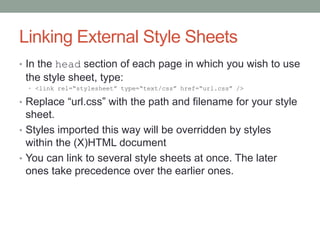
Linking External Style Sheets
• In the head section of each page in which you wish to use
 the style sheet, type:
  • <link rel=“stylesheet” type=“text/css” href=“url.css” />

• Replace “url.css” with the path and filename for your style
  sheet.
• Styles imported this way will be overridden by styles
  within the (X)HTML document
• You can link to several style sheets at once. The later
  ones take precedence over the earlier ones.
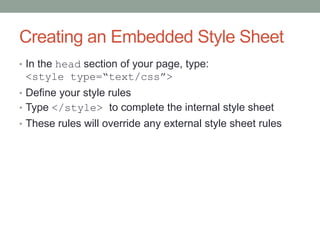
Creating an Embedded Style Sheet
• In the head section of your page, type:
 <style type=“text/css”>
• Define your style rules
• Type </style> to complete the internal style sheet
• These rules will override any external style sheet rules
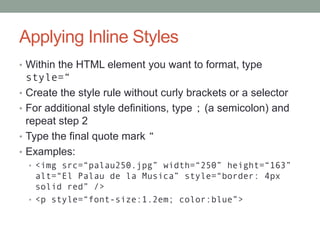
Applying Inline Styles
• Within the HTML element you want to format, type
    style=“
•   Create the style rule without curly brackets or a selector
•   For additional style definitions, type ; (a semicolon) and
    repeat step 2
•   Type the final quote mark “
•   Examples:
    • <img src=“palau250.jpg” width=“250” height=“163”
      alt=“El Palau de la Musica” style=“border: 4px
      solid red” />
    • <p style=“font-size:1.2em; color:blue”>
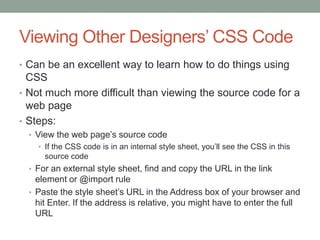
Viewing Other Designers’ CSS Code
• Can be an excellent way to learn how to do things using
  CSS
• Not much more difficult than viewing the source code for a
  web page
• Steps:
  • View the web page’s source code
    • If the CSS code is in an internal style sheet, you’ll see the CSS in this
      source code
  • For an external style sheet, find and copy the URL in the link
    element or @import rule
  • Paste the style sheet’s URL in the Address box of your browser and
    hit Enter. If the address is relative, you might have to enter the full
    URL

Castro Chapter 8

  • 1.
    WORKING WITH STYLE SHEETFILES HTML5 & CSS Visual Quickstart Guide Chapter 8
  • 2.
    External Style Sheets •Preferred choice for implementing style sheets • External file with all style rules • Tell each page in web site to load external sheet • Provides consistent look and feel to all pages • Enables easier site redesign, since style sheet only has to be edited once
  • 3.
    Creating External StyleSheet • Create a new text document in Notepad, Notepad++, Text Editor, BBEdit, etc. • Define style rules for your web page • Save document in text-only format in desired directory. • Give document the extension .css to designate it as a Cascading Style Sheet • Name style sheets however you please • base.css and global.css are popular for style sheet that contains display rules intended for all or the majority of pages on a site • Additional, section-specific style sheets should be named according to the section. • E.g. products.css for a style sheet for product-related pages
  • 4.
    Linking External StyleSheets • In the head section of each page in which you wish to use the style sheet, type: • <link rel=“stylesheet” type=“text/css” href=“url.css” /> • Replace “url.css” with the path and filename for your style sheet. • Styles imported this way will be overridden by styles within the (X)HTML document • You can link to several style sheets at once. The later ones take precedence over the earlier ones.
  • 5.
    Creating an EmbeddedStyle Sheet • In the head section of your page, type: <style type=“text/css”> • Define your style rules • Type </style> to complete the internal style sheet • These rules will override any external style sheet rules
  • 6.
    Applying Inline Styles •Within the HTML element you want to format, type style=“ • Create the style rule without curly brackets or a selector • For additional style definitions, type ; (a semicolon) and repeat step 2 • Type the final quote mark “ • Examples: • <img src=“palau250.jpg” width=“250” height=“163” alt=“El Palau de la Musica” style=“border: 4px solid red” /> • <p style=“font-size:1.2em; color:blue”>
  • 7.
    Viewing Other Designers’CSS Code • Can be an excellent way to learn how to do things using CSS • Not much more difficult than viewing the source code for a web page • Steps: • View the web page’s source code • If the CSS code is in an internal style sheet, you’ll see the CSS in this source code • For an external style sheet, find and copy the URL in the link element or @import rule • Paste the style sheet’s URL in the Address box of your browser and hit Enter. If the address is relative, you might have to enter the full URL