Dramatic wrinkles

  Ravin Schmidl 10E
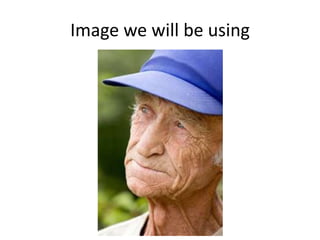
Image we will be using
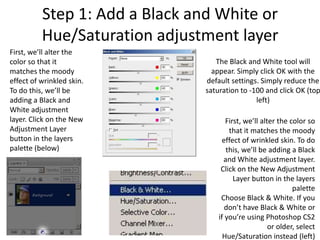
Step 1: Add a Black and White or
          Hue/Saturation adjustment layer
First, we’ll alter the
color so that it                   The Black and White tool will
matches the moody                 appear. Simply click OK with the
effect of wrinkled skin.        default settings. Simply reduce the
To do this, we’ll be            saturation to -100 and click OK (top
adding a Black and                              left)
White adjustment
layer. Click on the New                First, we’ll alter the color so
Adjustment Layer                        that it matches the moody
button in the layers                  effect of wrinkled skin. To do
palette (below)                        this, we’ll be adding a Black
                                      and White adjustment layer.
                                     Click on the New Adjustment
                                          Layer button in the layers
                                                               palette
                                     Choose Black & White. If you
                                       don’t have Black & White or
                                    if you’re using Photoshop CS2
                                                       or older, select
                                      Hue/Saturation instead (left)
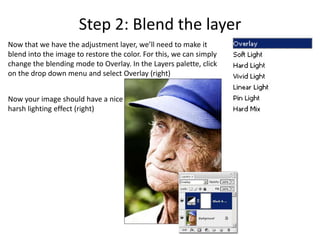
Step 2: Blend the layer
Now that we have the adjustment layer, we’ll need to make it
blend into the image to restore the color. For this, we can simply
change the blending mode to Overlay. In the Layers palette, click
on the drop down menu and select Overlay (right)


Now your image should have a nice
harsh lighting effect (right)
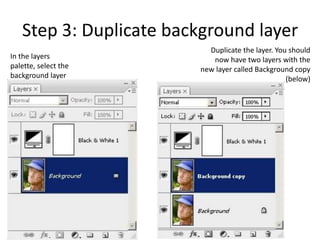
Step 3: Duplicate background layer
                          Duplicate the layer. You should
In the layers              now have two layers with the
palette, select the     new layer called Background copy
background layer                                  (below)
(below)
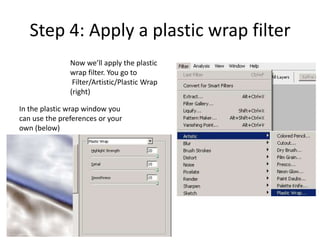
Step 4: Apply a plastic wrap filter
               Now we’ll apply the plastic
               wrap filter. You go to
                Filter/Artistic/Plastic Wrap
               (right)

In the plastic wrap window you
can use the preferences or your
own (below)
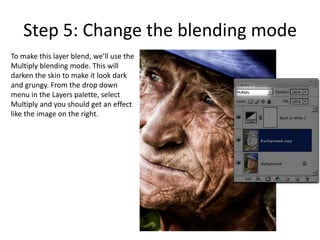
Step 5: Change the blending mode
To make this layer blend, we’ll use the
Multiply blending mode. This will
darken the skin to make it look dark
and grungy. From the drop down
menu in the Layers palette, select
Multiply and you should get an effect
like the image on the right.
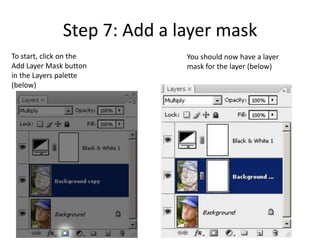
Step 7: Add a layer mask
To start, click on the        You should now have a layer
Add Layer Mask button         mask for the layer (below)
in the Layers palette
(below)
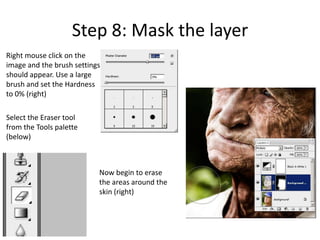
Step 8: Mask the layer
Right mouse click on the
image and the brush settings
should appear. Use a large
brush and set the Hardness
to 0% (right)

Select the Eraser tool
from the Tools palette
(below)


                           Now begin to erase
                           the areas around the
                           skin (right)
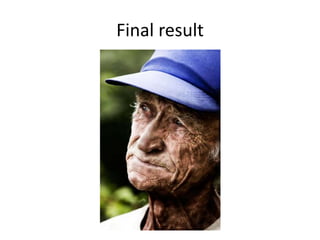
Final result

Dramatic Wrinkles effect Tutorial

  • 1.
    Dramatic wrinkles Ravin Schmidl 10E
  • 2.
    Image we willbe using
  • 3.
    Step 1: Adda Black and White or Hue/Saturation adjustment layer First, we’ll alter the color so that it The Black and White tool will matches the moody appear. Simply click OK with the effect of wrinkled skin. default settings. Simply reduce the To do this, we’ll be saturation to -100 and click OK (top adding a Black and left) White adjustment layer. Click on the New First, we’ll alter the color so Adjustment Layer that it matches the moody button in the layers effect of wrinkled skin. To do palette (below) this, we’ll be adding a Black and White adjustment layer. Click on the New Adjustment Layer button in the layers palette Choose Black & White. If you don’t have Black & White or if you’re using Photoshop CS2 or older, select Hue/Saturation instead (left)
  • 4.
    Step 2: Blendthe layer Now that we have the adjustment layer, we’ll need to make it blend into the image to restore the color. For this, we can simply change the blending mode to Overlay. In the Layers palette, click on the drop down menu and select Overlay (right) Now your image should have a nice harsh lighting effect (right)
  • 5.
    Step 3: Duplicatebackground layer Duplicate the layer. You should In the layers now have two layers with the palette, select the new layer called Background copy background layer (below) (below)
  • 6.
    Step 4: Applya plastic wrap filter Now we’ll apply the plastic wrap filter. You go to Filter/Artistic/Plastic Wrap (right) In the plastic wrap window you can use the preferences or your own (below)
  • 7.
    Step 5: Changethe blending mode To make this layer blend, we’ll use the Multiply blending mode. This will darken the skin to make it look dark and grungy. From the drop down menu in the Layers palette, select Multiply and you should get an effect like the image on the right.
  • 8.
    Step 7: Adda layer mask To start, click on the You should now have a layer Add Layer Mask button mask for the layer (below) in the Layers palette (below)
  • 9.
    Step 8: Maskthe layer Right mouse click on the image and the brush settings should appear. Use a large brush and set the Hardness to 0% (right) Select the Eraser tool from the Tools palette (below) Now begin to erase the areas around the skin (right)
  • 10.