BUILDING A PC 
1
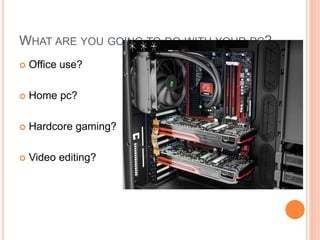
WHAT ARE YOU GOING TO DO WITH YOUR PC? 
 Office use? 
 Home pc? 
 Hardcore gaming? 
 Video editing? 
2
NECESSARY HARDWARE 
 Cabinet 
 Motherboard 
 Processor 
 Ram 
 Video cards 
 Hard disks 3
 Optical disks 
 Monitor 
 Keyboard and mouse 
 Speakers 
 Modem (optional) 
 Accessories (headphones, sub woofer, multiple 
displays, etc,) 
4
CABINET 
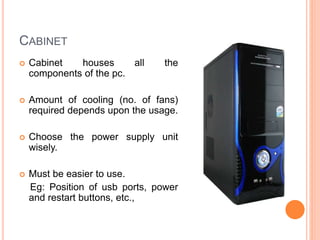
 Cabinet houses all the 
components of the pc. 
 Amount of cooling (no. of fans) 
required depends upon the usage. 
 Choose the power supply unit 
wisely. 
 Must be easier to use. 
Eg: Position of usb ports, power 
and restart buttons, etc., 
5
POWER SUPPLY UNIT (PSU) 
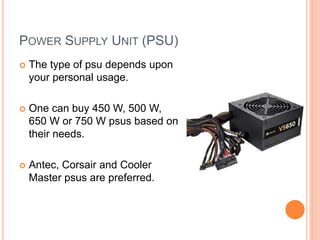
 The type of psu depends upon 
your personal usage. 
 One can buy 450 W, 500 W, 
650 W or 750 W psus based on 
their needs. 
 Antec, Corsair and Cooler 
Master psus are preferred. 
6
MOTHERBOARD 
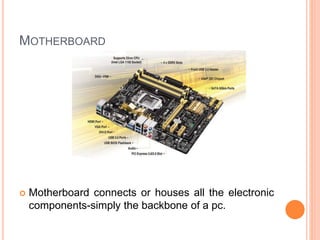
 Motherboard connects or houses all the electronic 
components-simply the backbone of a pc. 7
 When selecting a new motherboard for your homebuilt 
computer, many things have to be taken into consideration, 
including: 
 Processor support- New processors require new 
motherboards and socket types. 
 RAM support- Number of ram sticks you need to insert or the 
speed of ram to be installed. 
 SATA support- Max speed (rpm) of drives, type of drives, etc., 
 Expansion Slots and Ports- Enough no. of USB, VGA, HDMI, 
etc., 
 On Board Features- Such as integrated audio/video. 
 Cost- Within you budget. 
8
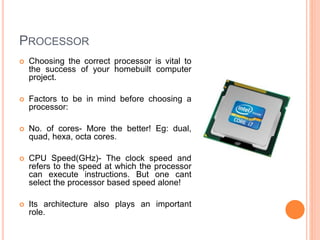
PROCESSOR 
 Choosing the correct processor is vital to 
the success of your homebuilt computer 
project. 
 Factors to be in mind before choosing a 
processor: 
 No. of cores- More the better! Eg: dual, 
quad, hexa, octa cores. 
 CPU Speed(GHz)- The clock speed and 
refers to the speed at which the processor 
can execute instructions. But one cant 
select the processor based speed alone! 
 Its architecture also plays an important 
role. 9
 On-Board Cache- The L2 (or Level 2) cache bridges the gap 
between the very fast CPU and the much slower system RAM 
bus (and the even slower hard drive) by anticipating and 
storing data right on the CPU itself. More of it, the better! 
(Atleast 2 MB per core) 
 Bandwidth- It determines how much information the 
processor can process in one instruction.Eg:32 or 64 bit (64 
bit is better!) 
 Front Side Bus (FSB) Speed- It is the interface between the 
processor and the system memory and determines the 
maximum speed at which it can transfer data to the rest of the 
system. More the better! 
 Heat and Heat Dissipation-When processors run too hot, they 
can start doing funky things like cause errors, lock, freeze, or 
even burn up.Eg: 4th gen cores are better than second gen 
cores. They produce less heat and consume less power. 
10
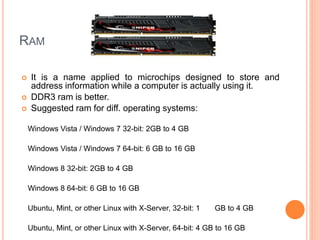
RAM 
 It is a name applied to microchips designed to store and 
address information while a computer is actually using it. 
 DDR3 ram is better. 
 Suggested ram for diff. operating systems: 
Windows Vista / Windows 7 32-bit: 2GB to 4 GB 
Windows Vista / Windows 7 64-bit: 6 GB to 16 GB 
Windows 8 32-bit: 2GB to 4 GB 
Windows 8 64-bit: 6 GB to 16 GB 
Ubuntu, Mint, or other Linux with X-Server, 32-bit: 1 GB to 4 GB 
Ubuntu, Mint, or other Linux with X-Server, 64-bit: 4 GB to 16 GB 
11
 Corsair, Kingston, G.Skill and ADATA rams are 
preferred. 
 Amount of ram depends upon the nature of usage. 
 Always buy RAMs of same speed, size and brand. 
 Check compatibility with motherboard. 
 Don’t overkill. 
 Gaming and high end video editing require lots of 
ram. 
12
VIDEO CARD 
 A video card enhances the performance of a pc, especially in 
gaming. 
 Factors to keep in mind before choosing one: 
 Amount and Type of Video RAM (1,2 GB and ddr3 or ddr5) 
 Cooling- Type of cooling (active or passive) 
 Outputs ( DVI, VGA, HDMI, etc.,) 
 Bandwidth ( in GBs per second), Pixel rate, Texel rate, no. of 
cuda cores or shader processor units and many other factors. 
Visit http://www.game-debate.com/ for further guidance. 
 For all the above higher the better! (except amount of vram) 13
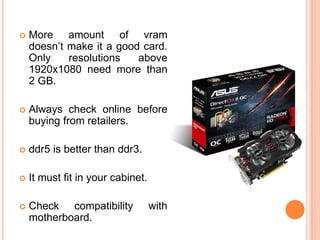
 More amount of vram 
doesn’t make it a good card. 
Only resolutions above 
1920x1080 need more than 
2 GB. 
 Always check online before 
buying from retailers. 
 ddr5 is better than ddr3. 
 It must fit in your cabinet. 
 Check compatibility with 
motherboard. 
14
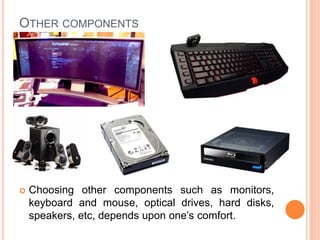
OTHER COMPONENTS 
 Choosing other components such as monitors, 
keyboard and mouse, optical drives, hard disks, 
speakers, etc, depends upon one’s comfort. 
15
SUGGESTIONS 
 A standard Corsair/Antec ATX cabinet.(750 W psu) 
 4th gen i5-4440s processor @3.3 GHz. 
 MSI 970A/Gigabyte GA-970A Motherboard. 
 4x4 GB Corsair vengeance/Kingston Hyper @1600 
MHz ram 
 AMD R9 270X 2 GB DDR5 graphic card 
16
 A 21” LED monitor is preferred. 
 Wireless mouse and keyboard. 
 2 TB internal drive @ 7200 rpm. (preferably 
Seagate barracuda) 
 A standard LG or Samsung blu ray optical drive. 
 A 5.1 Creative surround speaker with sub - woofer. 
 Total cost- Rs.55000-60000 ($900-1000) 
17
ASSEMBLY-SAFETY & ANTI-STATIC PRECAUTIONS 
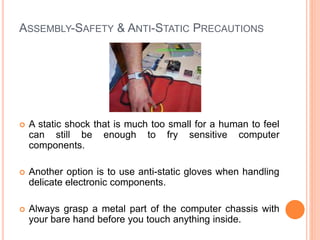
 A static shock that is much too small for a human to feel 
can still be enough to fry sensitive computer 
components. 
 Another option is to use anti-static gloves when handling 
delicate electronic components. 
 Always grasp a metal part of the computer chassis with 
your bare hand before you touch anything inside. 
18
MOTHERBOARD 
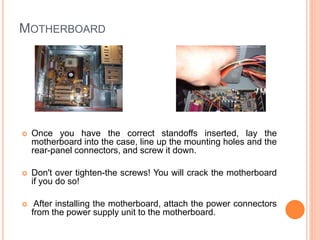
 Once you have the correct standoffs inserted, lay the 
motherboard into the case, line up the mounting holes and the 
rear-panel connectors, and screw it down. 
 Don't over tighten-the screws! You will crack the motherboard 
if you do so! 
 After installing the motherboard, attach the power connectors 
from the power supply unit to the motherboard. 19
PROCESSOR AND ITS COOLING FAN 
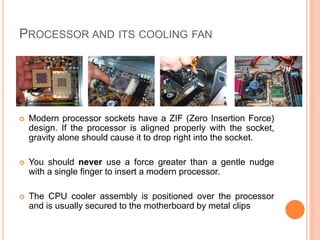
 Modern processor sockets have a ZIF (Zero Insertion Force) 
design. If the processor is aligned properly with the socket, 
gravity alone should cause it to drop right into the socket. 
 You should never use a force greater than a gentle nudge 
with a single finger to insert a modern processor. 
 The CPU cooler assembly is positioned over the processor 
and is usually secured to the motherboard by metal clips 20
RAM 
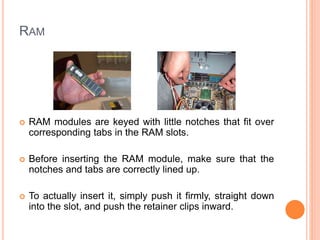
 RAM modules are keyed with little notches that fit over 
corresponding tabs in the RAM slots. 
 Before inserting the RAM module, make sure that the 
notches and tabs are correctly lined up. 
 To actually insert it, simply push it firmly, straight down 
into the slot, and push the retainer clips inward. 21
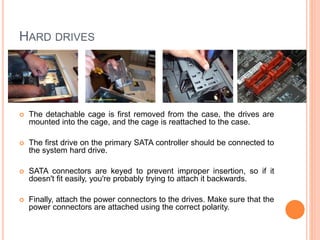
HARD DRIVES 
 The detachable cage is first removed from the case, the drives are 
mounted into the cage, and the cage is reattached to the case. 
 The first drive on the primary SATA controller should be connected to 
the system hard drive. 
 SATA connectors are keyed to prevent improper insertion, so if it 
doesn't fit easily, you're probably trying to attach it backwards. 
 Finally, attach the power connectors to the drives. Make sure that the 
power connectors are attached using the correct polarity. 22
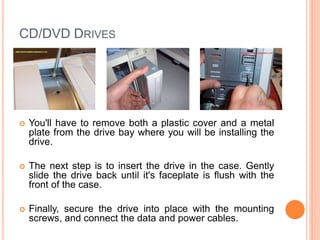
CD/DVD DRIVES 
 You'll have to remove both a plastic cover and a metal 
plate from the drive bay where you will be installing the 
drive. 
 The next step is to insert the drive in the case. Gently 
slide the drive back until it's faceplate is flush with the 
front of the case. 
 Finally, secure the drive into place with the mounting 
screws, and connect the data and power cables. 
23
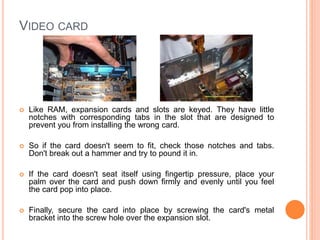
VIDEO CARD 
 Like RAM, expansion cards and slots are keyed. They have little 
notches with corresponding tabs in the slot that are designed to 
prevent you from installing the wrong card. 
 So if the card doesn't seem to fit, check those notches and tabs. 
Don't break out a hammer and try to pound it in. 
 If the card doesn't seat itself using fingertip pressure, place your 
palm over the card and push down firmly and evenly until you feel 
the card pop into place. 
 Finally, secure the card into place by screwing the card's metal 
bracket into the screw hole over the expansion slot. 
24
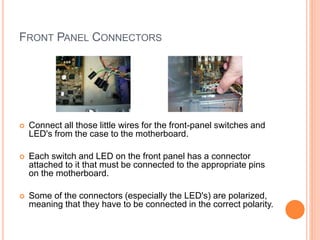
FRONT PANEL CONNECTORS 
 Connect all those little wires for the front-panel switches and 
LED's from the case to the motherboard. 
 Each switch and LED on the front panel has a connector 
attached to it that must be connected to the appropriate pins 
on the motherboard. 
 Some of the connectors (especially the LED's) are polarized, 
meaning that they have to be connected in the correct polarity. 
25
CHECK IT! 
 Check all the fans to make sure they are properly 
connected. 
 Make sure that all wires and cables are safely tied away 
from the fans. 
 Check that all of the power and data cables are securely 
connected. 
 Make sure that there are no tools, screws, or jumpers 
floating around in the case. 
 Check that all expansion cards and RAM modules are 
securely seated. 
26
FINALLY!! 
 Plugging the monitor and speakers wont be a problem! 
 Just connect the VGA/DVI/HDMI port from your monitor to the 
hub in the graphic card and connect the wires from the 
speakers to their respective ports in the back panel. 
 Connect the keyboard and mouse to the usb ports in the back 
panel (incase if they are wired) or configure them in the 
system after first boot up (incase wireless). 
 Start the pc, open the BIOS and configure the hardware. 
 Install the operating system and all the drivers of your 
hardware, enjoy! 
THANK YOU! 
Credits: http://www.kitchentablecomputers.com/ 
27

Building a Personal Computer: A detailed guide

  • 1.
  • 2.
    WHAT ARE YOUGOING TO DO WITH YOUR PC?  Office use?  Home pc?  Hardcore gaming?  Video editing? 2
  • 3.
    NECESSARY HARDWARE Cabinet  Motherboard  Processor  Ram  Video cards  Hard disks 3
  • 4.
     Optical disks  Monitor  Keyboard and mouse  Speakers  Modem (optional)  Accessories (headphones, sub woofer, multiple displays, etc,) 4
  • 5.
    CABINET  Cabinethouses all the components of the pc.  Amount of cooling (no. of fans) required depends upon the usage.  Choose the power supply unit wisely.  Must be easier to use. Eg: Position of usb ports, power and restart buttons, etc., 5
  • 6.
    POWER SUPPLY UNIT(PSU)  The type of psu depends upon your personal usage.  One can buy 450 W, 500 W, 650 W or 750 W psus based on their needs.  Antec, Corsair and Cooler Master psus are preferred. 6
  • 7.
    MOTHERBOARD  Motherboardconnects or houses all the electronic components-simply the backbone of a pc. 7
  • 8.
     When selectinga new motherboard for your homebuilt computer, many things have to be taken into consideration, including:  Processor support- New processors require new motherboards and socket types.  RAM support- Number of ram sticks you need to insert or the speed of ram to be installed.  SATA support- Max speed (rpm) of drives, type of drives, etc.,  Expansion Slots and Ports- Enough no. of USB, VGA, HDMI, etc.,  On Board Features- Such as integrated audio/video.  Cost- Within you budget. 8
  • 9.
    PROCESSOR  Choosingthe correct processor is vital to the success of your homebuilt computer project.  Factors to be in mind before choosing a processor:  No. of cores- More the better! Eg: dual, quad, hexa, octa cores.  CPU Speed(GHz)- The clock speed and refers to the speed at which the processor can execute instructions. But one cant select the processor based speed alone!  Its architecture also plays an important role. 9
  • 10.
     On-Board Cache-The L2 (or Level 2) cache bridges the gap between the very fast CPU and the much slower system RAM bus (and the even slower hard drive) by anticipating and storing data right on the CPU itself. More of it, the better! (Atleast 2 MB per core)  Bandwidth- It determines how much information the processor can process in one instruction.Eg:32 or 64 bit (64 bit is better!)  Front Side Bus (FSB) Speed- It is the interface between the processor and the system memory and determines the maximum speed at which it can transfer data to the rest of the system. More the better!  Heat and Heat Dissipation-When processors run too hot, they can start doing funky things like cause errors, lock, freeze, or even burn up.Eg: 4th gen cores are better than second gen cores. They produce less heat and consume less power. 10
  • 11.
    RAM  Itis a name applied to microchips designed to store and address information while a computer is actually using it.  DDR3 ram is better.  Suggested ram for diff. operating systems: Windows Vista / Windows 7 32-bit: 2GB to 4 GB Windows Vista / Windows 7 64-bit: 6 GB to 16 GB Windows 8 32-bit: 2GB to 4 GB Windows 8 64-bit: 6 GB to 16 GB Ubuntu, Mint, or other Linux with X-Server, 32-bit: 1 GB to 4 GB Ubuntu, Mint, or other Linux with X-Server, 64-bit: 4 GB to 16 GB 11
  • 12.
     Corsair, Kingston,G.Skill and ADATA rams are preferred.  Amount of ram depends upon the nature of usage.  Always buy RAMs of same speed, size and brand.  Check compatibility with motherboard.  Don’t overkill.  Gaming and high end video editing require lots of ram. 12
  • 13.
    VIDEO CARD A video card enhances the performance of a pc, especially in gaming.  Factors to keep in mind before choosing one:  Amount and Type of Video RAM (1,2 GB and ddr3 or ddr5)  Cooling- Type of cooling (active or passive)  Outputs ( DVI, VGA, HDMI, etc.,)  Bandwidth ( in GBs per second), Pixel rate, Texel rate, no. of cuda cores or shader processor units and many other factors. Visit http://www.game-debate.com/ for further guidance.  For all the above higher the better! (except amount of vram) 13
  • 14.
     More amountof vram doesn’t make it a good card. Only resolutions above 1920x1080 need more than 2 GB.  Always check online before buying from retailers.  ddr5 is better than ddr3.  It must fit in your cabinet.  Check compatibility with motherboard. 14
  • 15.
    OTHER COMPONENTS Choosing other components such as monitors, keyboard and mouse, optical drives, hard disks, speakers, etc, depends upon one’s comfort. 15
  • 16.
    SUGGESTIONS  Astandard Corsair/Antec ATX cabinet.(750 W psu)  4th gen i5-4440s processor @3.3 GHz.  MSI 970A/Gigabyte GA-970A Motherboard.  4x4 GB Corsair vengeance/Kingston Hyper @1600 MHz ram  AMD R9 270X 2 GB DDR5 graphic card 16
  • 17.
     A 21”LED monitor is preferred.  Wireless mouse and keyboard.  2 TB internal drive @ 7200 rpm. (preferably Seagate barracuda)  A standard LG or Samsung blu ray optical drive.  A 5.1 Creative surround speaker with sub - woofer.  Total cost- Rs.55000-60000 ($900-1000) 17
  • 18.
    ASSEMBLY-SAFETY & ANTI-STATICPRECAUTIONS  A static shock that is much too small for a human to feel can still be enough to fry sensitive computer components.  Another option is to use anti-static gloves when handling delicate electronic components.  Always grasp a metal part of the computer chassis with your bare hand before you touch anything inside. 18
  • 19.
    MOTHERBOARD  Onceyou have the correct standoffs inserted, lay the motherboard into the case, line up the mounting holes and the rear-panel connectors, and screw it down.  Don't over tighten-the screws! You will crack the motherboard if you do so!  After installing the motherboard, attach the power connectors from the power supply unit to the motherboard. 19
  • 20.
    PROCESSOR AND ITSCOOLING FAN  Modern processor sockets have a ZIF (Zero Insertion Force) design. If the processor is aligned properly with the socket, gravity alone should cause it to drop right into the socket.  You should never use a force greater than a gentle nudge with a single finger to insert a modern processor.  The CPU cooler assembly is positioned over the processor and is usually secured to the motherboard by metal clips 20
  • 21.
    RAM  RAMmodules are keyed with little notches that fit over corresponding tabs in the RAM slots.  Before inserting the RAM module, make sure that the notches and tabs are correctly lined up.  To actually insert it, simply push it firmly, straight down into the slot, and push the retainer clips inward. 21
  • 22.
    HARD DRIVES The detachable cage is first removed from the case, the drives are mounted into the cage, and the cage is reattached to the case.  The first drive on the primary SATA controller should be connected to the system hard drive.  SATA connectors are keyed to prevent improper insertion, so if it doesn't fit easily, you're probably trying to attach it backwards.  Finally, attach the power connectors to the drives. Make sure that the power connectors are attached using the correct polarity. 22
  • 23.
    CD/DVD DRIVES You'll have to remove both a plastic cover and a metal plate from the drive bay where you will be installing the drive.  The next step is to insert the drive in the case. Gently slide the drive back until it's faceplate is flush with the front of the case.  Finally, secure the drive into place with the mounting screws, and connect the data and power cables. 23
  • 24.
    VIDEO CARD Like RAM, expansion cards and slots are keyed. They have little notches with corresponding tabs in the slot that are designed to prevent you from installing the wrong card.  So if the card doesn't seem to fit, check those notches and tabs. Don't break out a hammer and try to pound it in.  If the card doesn't seat itself using fingertip pressure, place your palm over the card and push down firmly and evenly until you feel the card pop into place.  Finally, secure the card into place by screwing the card's metal bracket into the screw hole over the expansion slot. 24
  • 25.
    FRONT PANEL CONNECTORS  Connect all those little wires for the front-panel switches and LED's from the case to the motherboard.  Each switch and LED on the front panel has a connector attached to it that must be connected to the appropriate pins on the motherboard.  Some of the connectors (especially the LED's) are polarized, meaning that they have to be connected in the correct polarity. 25
  • 26.
    CHECK IT! Check all the fans to make sure they are properly connected.  Make sure that all wires and cables are safely tied away from the fans.  Check that all of the power and data cables are securely connected.  Make sure that there are no tools, screws, or jumpers floating around in the case.  Check that all expansion cards and RAM modules are securely seated. 26
  • 27.
    FINALLY!!  Pluggingthe monitor and speakers wont be a problem!  Just connect the VGA/DVI/HDMI port from your monitor to the hub in the graphic card and connect the wires from the speakers to their respective ports in the back panel.  Connect the keyboard and mouse to the usb ports in the back panel (incase if they are wired) or configure them in the system after first boot up (incase wireless).  Start the pc, open the BIOS and configure the hardware.  Install the operating system and all the drivers of your hardware, enjoy! THANK YOU! Credits: http://www.kitchentablecomputers.com/ 27