Computer Assembly and
Disassembly Procedures
Step 1: Procuring Parts
The parts we will use in this project are label AS:
1.Processor (CPU)
2. Computer Case
3. Optical Drive (DVD RW and
SATA capable)
4. Memory (RAM)
5. Power Supply
6. SATA Cables
7. Motherboard (SATA Capable)
8. Processor Fan
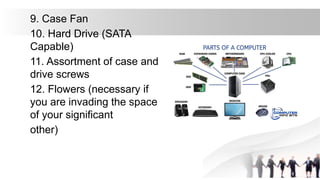
9. Case Fan
10. Hard Drive (SATA
Capable)
11. Assortment of case and
drive screws
12. Flowers (necessary if
you are invading the space
of your significant
other)
Step 2: Gather Tools and Supplies
Gather the tools you will need for the project:
• Screwdriver (for slotted and *Phillips head screws)
• Wire cutters and strippers *Needle-nosed pliers
• Utility knife *Small flashlight
• Adjustable wrench * Small container to hold screws
• Heat sink compound
• Grounding Strap
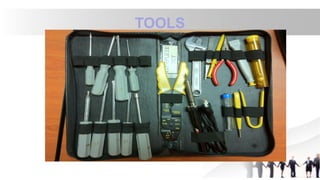
TOOLS
Warning: Using incorrect tools for a task
(such as turning a screw with a knife blade)
can cause equipment damage and bodily
injury.
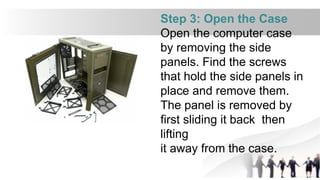
Step 3: Open the Case
Open the computer case
by removing the side
panels. Find the screws
that hold the side panels in
place and remove them.
The panel is removed by
first sliding it back then
lifting
it away from the case.
Step 4: Prepare the Case for Assembly
Three things need to be done before assembly begins:
Remove any parts or packaging materials that may have
been shipped inside the case.
Remove the cover for the optical drive. On our case, we
will be removing the cover on the highest drive bay to
mount our DVD drive.
Make note of the cables preinstalled in the case. These
should be front panel connections for features such as the
power switch, audio andjacks and usb ports.
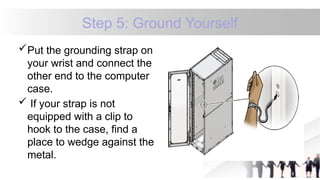
Step 5: Ground Yourself
Put the grounding strap on
your wrist and connect the
other end to the computer
case.
 If your strap is not
equipped with a clip to
hook to the case, find a
place to wedge against the
metal.
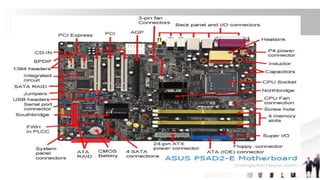
Step 6: Install Motherboard
Caution: To prevent
damage to the motherboard
it must only contact the
standoffs and screws. All of
the standoffs and screws
must be installed.
 It works best to leave
the screws loose until all
of them have been
started and the board is
aligned with the
bezel.
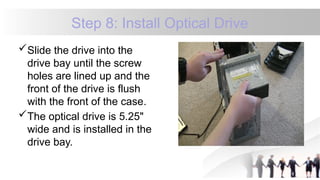
Step 8: Install Optical Drive
Slide the drive into the
drive bay until the screw
holes are lined up and the
front of the drive is flush
with the front of the case.
The optical drive is 5.25"
wide and is installed in the
drive bay.
Step 9: Install the CPU
The CPU is the brain of
the computer. It is installed
on the motherboard in
the socket To install the
CPU:
Find the corner marking that
designates pin 1 of the CPU
Find the corresponding
marking on the CPU
socket and insert the CPU
so that the markings are
lined up.
Step 10: Install RAM
The RAM is the temporary
memory location that the
processor works from.
Permanently stored data is
pulled from disks and
stored in RAM while the
processor works with it.
Check to see that the
notch in the board is in the
correct location. If it is not,
turn it around 180º.
Press firmly on both ends
of the board to set it into
the socket. Make sure the
tabs lock into place.
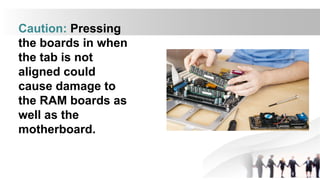
Caution: Pressing
the boards in when
the tab is not
aligned could
cause damage to
the RAM boards as
well as the
motherboard.
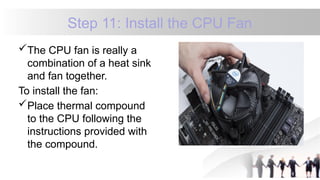
Step 11: Install the CPU Fan
The CPU fan is really a
combination of a heat sink
and fan together.
To install the fan:
Place thermal compound
to the CPU following the
instructions provided with
the compound.
Set the fan assembly on
the CPU with mounting
tabs aligned.
Pull the locking rod down
on the fan assembly to
lock into place
Connect the fan
assembly's power
connector to the
motherboard. Consult the
manual to determine
proper placement.
Caution: Failure to
apply thermal
compound will result in
insufficient cooling and
will cause damage to
the CPU and/or
motherboard.
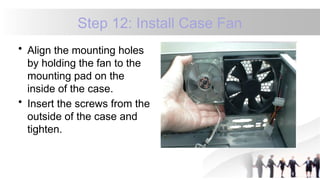
Step 12: Install Case Fan
• Align the mounting holes
by holding the fan to the
mounting pad on the
inside of the case.
• Insert the screws from the
outside of the case and
tighten.
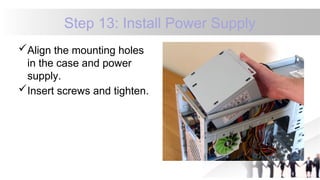
Step 13: Install Power Supply
Align the mounting holes
in the case and power
supply.
Insert screws and tighten.
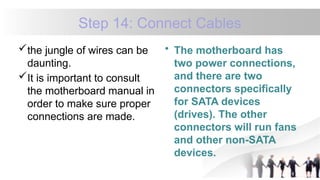
Step 14: Connect Cables
the jungle of wires can be
daunting.
It is important to consult
the motherboard manual in
order to make sure proper
connections are made.
• The motherboard has
two power connections,
and there are two
connectors specifically
for SATA devices
(drives). The other
connectors will run fans
and other non-SATA
devices.
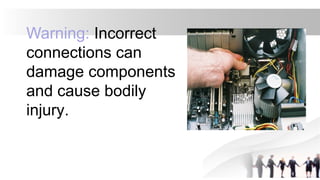
Warning: Incorrect
connections can
damage components
and cause bodily
injury.
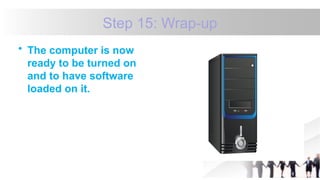
Step 15: Wrap-up
• The computer is now
ready to be turned on
and to have software
loaded on it.
THAT’S IT !!
READY???

PPT10.pptx motherboard part 2 for css pt

  • 1.
  • 2.
    Step 1: ProcuringParts The parts we will use in this project are label AS: 1.Processor (CPU) 2. Computer Case 3. Optical Drive (DVD RW and SATA capable) 4. Memory (RAM) 5. Power Supply 6. SATA Cables 7. Motherboard (SATA Capable) 8. Processor Fan
  • 3.
    9. Case Fan 10.Hard Drive (SATA Capable) 11. Assortment of case and drive screws 12. Flowers (necessary if you are invading the space of your significant other)
  • 4.
    Step 2: GatherTools and Supplies Gather the tools you will need for the project: • Screwdriver (for slotted and *Phillips head screws) • Wire cutters and strippers *Needle-nosed pliers • Utility knife *Small flashlight • Adjustable wrench * Small container to hold screws • Heat sink compound • Grounding Strap
  • 5.
  • 6.
    Warning: Using incorrecttools for a task (such as turning a screw with a knife blade) can cause equipment damage and bodily injury.
  • 7.
    Step 3: Openthe Case Open the computer case by removing the side panels. Find the screws that hold the side panels in place and remove them. The panel is removed by first sliding it back then lifting it away from the case.
  • 8.
    Step 4: Preparethe Case for Assembly Three things need to be done before assembly begins: Remove any parts or packaging materials that may have been shipped inside the case. Remove the cover for the optical drive. On our case, we will be removing the cover on the highest drive bay to mount our DVD drive. Make note of the cables preinstalled in the case. These should be front panel connections for features such as the power switch, audio andjacks and usb ports.
  • 9.
    Step 5: GroundYourself Put the grounding strap on your wrist and connect the other end to the computer case.  If your strap is not equipped with a clip to hook to the case, find a place to wedge against the metal.
  • 10.
    Step 6: InstallMotherboard Caution: To prevent damage to the motherboard it must only contact the standoffs and screws. All of the standoffs and screws must be installed.  It works best to leave the screws loose until all of them have been started and the board is aligned with the bezel.
  • 12.
    Step 8: InstallOptical Drive Slide the drive into the drive bay until the screw holes are lined up and the front of the drive is flush with the front of the case. The optical drive is 5.25" wide and is installed in the drive bay.
  • 13.
    Step 9: Installthe CPU The CPU is the brain of the computer. It is installed on the motherboard in the socket To install the CPU: Find the corner marking that designates pin 1 of the CPU Find the corresponding marking on the CPU socket and insert the CPU so that the markings are lined up.
  • 14.
    Step 10: InstallRAM The RAM is the temporary memory location that the processor works from. Permanently stored data is pulled from disks and stored in RAM while the processor works with it. Check to see that the notch in the board is in the correct location. If it is not, turn it around 180º. Press firmly on both ends of the board to set it into the socket. Make sure the tabs lock into place.
  • 15.
    Caution: Pressing the boardsin when the tab is not aligned could cause damage to the RAM boards as well as the motherboard.
  • 16.
    Step 11: Installthe CPU Fan The CPU fan is really a combination of a heat sink and fan together. To install the fan: Place thermal compound to the CPU following the instructions provided with the compound.
  • 17.
    Set the fanassembly on the CPU with mounting tabs aligned. Pull the locking rod down on the fan assembly to lock into place Connect the fan assembly's power connector to the motherboard. Consult the manual to determine proper placement. Caution: Failure to apply thermal compound will result in insufficient cooling and will cause damage to the CPU and/or motherboard.
  • 18.
    Step 12: InstallCase Fan • Align the mounting holes by holding the fan to the mounting pad on the inside of the case. • Insert the screws from the outside of the case and tighten.
  • 19.
    Step 13: InstallPower Supply Align the mounting holes in the case and power supply. Insert screws and tighten.
  • 20.
    Step 14: ConnectCables the jungle of wires can be daunting. It is important to consult the motherboard manual in order to make sure proper connections are made. • The motherboard has two power connections, and there are two connectors specifically for SATA devices (drives). The other connectors will run fans and other non-SATA devices.
  • 21.
    Warning: Incorrect connections can damagecomponents and cause bodily injury.
  • 22.
    Step 15: Wrap-up •The computer is now ready to be turned on and to have software loaded on it.
  • 23.