VIDYA CLASES
Asstt. Professor
Department of computer science and IT
4/30/2022 5:44:29 AM
What is Pc
Personal comuter :used one person at a time
Depends on:
1)Size
2)Memory
3)Speed of the cpu
4)Number and type of peripheral devices connected to the
computer system
4/30/2022 5:44:29 AM
 Assembling of computer components refers to collection Computer
hardware, which is the collection of physical components that
constitutes a computer system. Computer hardware is the physical parts
or components of a computer, such as the monitor, keyboard, computer
data storage, hard disk drive (HDD), graphic cards, sound cards,
memory (RAM), motherboard, and so on. A combination of hardware
and software forms a usable computing system.
 first step to building a computer is acquiring the parts
4/30/2022 5:44:29 AM
•power Supply/PSU – power supply unit, converts outlet power, which is alternating current (AC), to direct current
(DC) which is required by internal components, as well as providing appropriate voltages and currents for these
internal components.
•Motherboard/mainboard – As the name indicates, this is the electronic centerpiece of the computer: everything
else connects to the motherboard.
•Processor/CPU – central processing unit, the "brain" of the computer, most actual computation takes place here.
•RAM – random access memory, the "short-term memory" of a computer, used by the CPU to store program
instructions and data upon which it is currently operating.
•Storage - either storage – The operating system, and all your programs and data are stored here.
•Optical Drive – device for reading/writing optical disks. May read CDs, DVDs, or other optical media, depending
on the type. It is essential for installing many operating systems and programs, although the vast majority can be run
from USB. It may be able to write some of these discs, as well. Some people like to have two such drives for
copying disks.
•GPU/Graphics Card/GPU – does processing relating to video output. Some motherboards have an "onboard"
GPU built in so you don’t need (but may add) a separate video card. Otherwise, you will need a video card. These
plug into a slot on the motherboard and provide a place to connect a monitor to your computer.
•Sound card - Comes with motherboard but may want to be upgraded
On top of the internal components listed above, you will also need these external components:
•Keyboard – for typing on. Many motherboards won't even boot without a keyboard attached.
•Mouse – for pointing and clicking. Unless you chose a text-based operating system, you will likely want one of
these.
•Monitor – This is where the pretty pictures go. They come in many forms, the most common being CRT and LCD.
Assembling these components above is what it takes to have a complete system which is the aim of this work.
4/30/2022 5:44:29 AM
Open the case
1) Install the power supply
2) Attach the components to the motherboard
Install the motherboard
1) Install internal drives
2) Install drives in external bays
3) Install adapter cards
4) Connect all internal cables
5) Re-attach the side panels and connect external
cables to the computer
1) Boot the computer for the first time
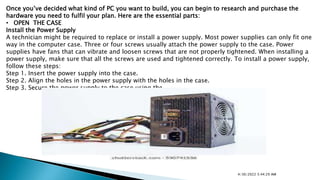
Install the Power Supply
A technician might be required to replace or install a power supply. Most power supplies can only fit one way
in the computer case. Three or four screws usually attach the power supply to the case. Power supplies have
fans that can vibrate and loosen screws that are not properly tightened. When installing a power supply, make
sure that all the screws are used and tightened correctly. To install a power supply, follow these steps:
Step 1. Insert the power supply into the case.
Step 2. Align the holes in the power supply with the holes in the case.
Step 3. Secure the power supply to the case using the
4/30/2022 5:44:29 AM
Once you’ve decided what kind of PC you want to build, you can begin to research and purchase the
hardware you need to fulfil your plan. Here are the essential parts:
• OPEN THE CASE
Install the Power Supply
A technician might be required to replace or install a power supply. Most power supplies can only fit one
way in the computer case. Three or four screws usually attach the power supply to the case. Power
supplies have fans that can vibrate and loosen screws that are not properly tightened. When installing a
power supply, make sure that all the screws are used and tightened correctly. To install a power supply,
follow these steps:
Step 1. Insert the power supply into the case.
Step 2. Align the holes in the power supply with the holes in the case.
Step 3. Secure the power supply to the case using the
4/30/2022 5:44:29 AM
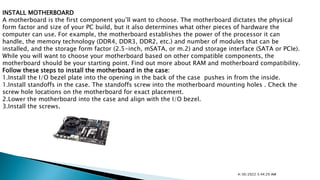
INSTALL MOTHERBOARD
A motherboard is the first component you’ll want to choose. The motherboard dictates the physical
form factor and size of your PC build, but it also determines what other pieces of hardware the
computer can use. For example, the motherboard establishes the power of the processor it can
handle, the memory technology (DDR4, DDR3, DDR2, etc.) and number of modules that can be
installed, and the storage form factor (2.5-inch, mSATA, or m.2) and storage interface (SATA or PCIe).
While you will want to choose your motherboard based on other compatible components, the
motherboard should be your starting point. Find out more about RAM and motherboard compatibility.
Follow these steps to install the motherboard in the case:
1.Install the I/O bezel plate into the opening in the back of the case pushes in from the inside.
1.Install standoffs in the case. The standoffs screw into the motherboard mounting holes . Check the
screw hole locations on the motherboard for exact placement.
2.Lower the motherboard into the case and align with the I/O bezel.
3.Install the screws.
4/30/2022 5:44:29 AM
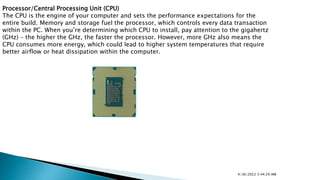
Processor/Central Processing Unit (CPU)
The CPU is the engine of your computer and sets the performance expectations for the
entire build. Memory and storage fuel the processor, which controls every data transaction
within the PC. When you’re determining which CPU to install, pay attention to the gigahertz
(GHz) – the higher the GHz, the faster the processor. However, more GHz also means the
CPU consumes more energy, which could lead to higher system temperatures that require
better airflow or heat dissipation within the computer.
4/30/2022 5:44:29 AM
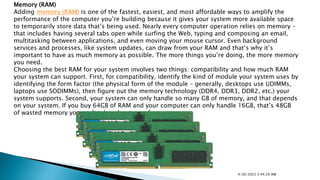
Memory (RAM)
Adding memory (RAM) is one of the fastest, easiest, and most affordable ways to amplify the
performance of the computer you’re building because it gives your system more available space
to temporarily store data that’s being used. Nearly every computer operation relies on memory –
that includes having several tabs open while surfing the Web, typing and composing an email,
multitasking between applications, and even moving your mouse cursor. Even background
services and processes, like system updates, can draw from your RAM and that’s why it’s
important to have as much memory as possible. The more things you’re doing, the more memory
you need.
Choosing the best RAM for your system involves two things: compatibility and how much RAM
your system can support. First, for compatibility, identify the kind of module your system uses by
identifying the form factor (the physical form of the module – generally, desktops use UDIMMs,
laptops use SODIMMs), then figure out the memory technology (DDR4, DDR3, DDR2, etc.) your
system supports. Second, your system can only handle so many GB of memory, and that depends
on your system. If you buy 64GB of RAM and your computer can only handle 16GB, that’s 48GB
of wasted memory you can’t take advantage of.
4/30/2022 5:44:29 AM
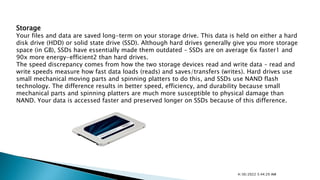
Storage
Your files and data are saved long-term on your storage drive. This data is held on either a hard
disk drive (HDD) or solid state drive (SSD). Although hard drives generally give you more storage
space (in GB), SSDs have essentially made them outdated – SSDs are on average 6x faster1 and
90x more energy-efficient2 than hard drives.
The speed discrepancy comes from how the two storage devices read and write data – read and
write speeds measure how fast data loads (reads) and saves/transfers (writes). Hard drives use
small mechanical moving parts and spinning platters to do this, and SSDs use NAND flash
technology. The difference results in better speed, efficiency, and durability because small
mechanical parts and spinning platters are much more susceptible to physical damage than
NAND. Your data is accessed faster and preserved longer on SSDs because of this difference.
4/30/2022 5:44:29 AM
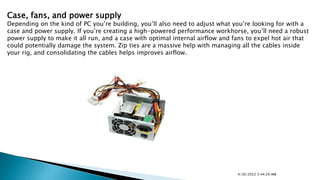
Case, fans, and power supply
Depending on the kind of PC you’re building, you’ll also need to adjust what you’re looking for with a
case and power supply. If you’re creating a high-powered performance workhorse, you’ll need a robust
power supply to make it all run, and a case with optimal internal airflow and fans to expel hot air that
could potentially damage the system. Zip ties are a massive help with managing all the cables inside
your rig, and consolidating the cables helps improves airflow.
4/30/2022 5:44:29 AM
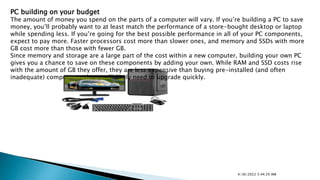
PC building on your budget
The amount of money you spend on the parts of a computer will vary. If you’re building a PC to save
money, you’ll probably want to at least match the performance of a store-bought desktop or laptop
while spending less. If you’re going for the best possible performance in all of your PC components,
expect to pay more. Faster processors cost more than slower ones, and memory and SSDs with more
GB cost more than those with fewer GB.
Since memory and storage are a large part of the cost within a new computer, building your own PC
gives you a chance to save on these components by adding your own. While RAM and SSD costs rise
with the amount of GB they offer, they are less expensive than buying pre-installed (and often
inadequate) components that you’ll likely need to upgrade quickly.
4/30/2022 5:44:29 AM
TROUBLESHOOTING
Some of the most common PC hardware problems that need
troubleshooting are:
1.Your computer won’t turn on.
2.Your computer turns on, but still doesn’t work.
3.Your computer screen freezes.
4.Your computer has insufficient memory.
5.You get a CMOS error.
6.Your operating system is missing or your hard drive isn’t detected.
7.You get the blue screen of death.
4/30/2022 5:44:29 AM
Problem #1: Your Computer Won’t Turn On
This is a common problem that often offers a simple solution.
1.Is everything plugged in? I can’t tell you how many times I have come across a “broken”
computer that simply had an unplugged component.
2.Try plugging into different power outlets.
3.Is either the monitor, mouse, or keyboard the only thing not working? If so, try plugging
in a different one to see if that does the job. Most of the time, replacing one of these is
cheaper than attempting a repair.
4/30/2022 5:44:29 AM
Problem #2: Your Computer Turns On, But Still Doesn’t Work
If power is obviously flowing to the computer system and its peripherals, there may be a
component issue. When you first turn on the computer, do you hear or see anything out of
the ordinary? Many times the computer’s Power-On Self-Test (POST) will let you know
what’s going on with the machine.
Problem #3: Your Computer Screen Freezes
When your computer freezes and isn’t responsive to your mouse or keyboard, the first
thing to do is just wait. Sometimes it will just take a few minutes for your computer to
process. Then, end-task the non-responding program. If that doesn’t work, turn off the
computer by holding down the power button and then rebooting into Safe Mode (don’t
forget about saving your work first, if you can).
If you’ve tried all of this and your computer still won’t unlock, you may be dealing with
either defective hardware or a defective device driver. If this is your case, replace the
defective piece immediately so it doesn’t cause further damage.
Another thing you could be dealing with is a virus that is overwhelming your system. Run
a virus scan, remove the virus, recover or reinstall damaged files or software, and
implement the latest security software.
4/30/2022 5:44:29 AM
Problem #4: Your Computer Has Insufficient Memory
Receiving an “insufficient memory or disk space” error message can usually be
solved (at least temporarily) by closing extra windows to free up some RAM. If
you’ve done that and the error still comes up, you can try rebooting your computer
and installing the latest operating system update.
If you really don’t have enough available memory and space (which can be checked
in Windows 10 by pressing the Windows-R button and typing perfmon in the Open
field to run the Performance Monitor), you can uninstall or delete any unused or
unnecessary files, especially those of the video/music type. Your final solution is to
add more RAM.
Problem #5: You Get a CMOS Error
The CMOS (complementary metal-oxide semiconductor) is an onboard chip that
stores information ranging from the time and date to system hardware settings. If
you get a CMOS alert message showing up on your screen, it’s likely you need to
replace the CMOS battery located on the motherboard. Remove it carefully, insert a
new battery that is exactly the same as the old one, and enter the CMOS values to
the defaults.
4/30/2022 5:44:29 AM
Problem #6: Your Operating System Is Missing or Your Hard Drive Isn’t Detected
If the message “Missing Operating System” shows up on your screen, there are four
possibilities the problem could be (and four ways to solve it):
1. The basic input/output system (BIOS) doesn’t detect Windows’ hard disk, or the disk
failed. If you know how, take out the hard drive and reconnect it. If that doesn’t work, the
hard drive’s interface is forbidden or the hard drive is seriously damaged.
Restart the computer and watch for the message telling you which key to strike to go into
the BIOS. The key can vary from system to system so you may need to use a search engine
to find the instructions for your system. Be sure to strike the specified key as soon as you
see the message.
In the BIOS highlight the hard drive and set it to “Auto”. If it’s still invisible, you need a
hard drive repair or replacement.
2. The BIOS settings are incorrect. Set the BIOS back to Default State.
3. The Master Boot Record (MBR) is damaged or corrupted. Rebuild the MBR using either
the Windows installation disk, the Windows repair disk, or a bootable partitioning tool.
4. The Windows boot file partition isn’t active. Start the computer using a bootable
partitioning tool. If that doesn’t work, set the wrong partition to ‘inactive’ and activate the
correct partition.
4/30/2022 5:44:29 AM
Problem #7: The Blue Screen of Death
The blue screen of death (BSOD) appears when Microsoft Windows has an
unrecoverable, critical error that causes a crash and subsequent data loss. This
can be caused by the low-level software in Windows crashing.
Boot into Safe Mode before trying to fix a problem.
Test your hardware components and check the computer’s memory for errors.
Check for incorrectly installed or buggy drivers. Install updated drivers.
Scan for Malware that is causing the crash.
Reset or reinstall Windows.
Use System Restore to get your computer back to its previous state. If it works,
you probably have a software problem on your hands.
4/30/2022 5:44:29 AM
Thank you

vac unitII.pptx

  • 1.
    VIDYA CLASES Asstt. Professor Departmentof computer science and IT 4/30/2022 5:44:29 AM
  • 2.
    What is Pc Personalcomuter :used one person at a time Depends on: 1)Size 2)Memory 3)Speed of the cpu 4)Number and type of peripheral devices connected to the computer system 4/30/2022 5:44:29 AM
  • 3.
     Assembling ofcomputer components refers to collection Computer hardware, which is the collection of physical components that constitutes a computer system. Computer hardware is the physical parts or components of a computer, such as the monitor, keyboard, computer data storage, hard disk drive (HDD), graphic cards, sound cards, memory (RAM), motherboard, and so on. A combination of hardware and software forms a usable computing system.  first step to building a computer is acquiring the parts 4/30/2022 5:44:29 AM
  • 4.
    •power Supply/PSU –power supply unit, converts outlet power, which is alternating current (AC), to direct current (DC) which is required by internal components, as well as providing appropriate voltages and currents for these internal components. •Motherboard/mainboard – As the name indicates, this is the electronic centerpiece of the computer: everything else connects to the motherboard. •Processor/CPU – central processing unit, the "brain" of the computer, most actual computation takes place here. •RAM – random access memory, the "short-term memory" of a computer, used by the CPU to store program instructions and data upon which it is currently operating. •Storage - either storage – The operating system, and all your programs and data are stored here. •Optical Drive – device for reading/writing optical disks. May read CDs, DVDs, or other optical media, depending on the type. It is essential for installing many operating systems and programs, although the vast majority can be run from USB. It may be able to write some of these discs, as well. Some people like to have two such drives for copying disks. •GPU/Graphics Card/GPU – does processing relating to video output. Some motherboards have an "onboard" GPU built in so you don’t need (but may add) a separate video card. Otherwise, you will need a video card. These plug into a slot on the motherboard and provide a place to connect a monitor to your computer. •Sound card - Comes with motherboard but may want to be upgraded On top of the internal components listed above, you will also need these external components: •Keyboard – for typing on. Many motherboards won't even boot without a keyboard attached. •Mouse – for pointing and clicking. Unless you chose a text-based operating system, you will likely want one of these. •Monitor – This is where the pretty pictures go. They come in many forms, the most common being CRT and LCD. Assembling these components above is what it takes to have a complete system which is the aim of this work. 4/30/2022 5:44:29 AM
  • 5.
    Open the case 1)Install the power supply 2) Attach the components to the motherboard Install the motherboard 1) Install internal drives 2) Install drives in external bays 3) Install adapter cards 4) Connect all internal cables 5) Re-attach the side panels and connect external cables to the computer 1) Boot the computer for the first time Install the Power Supply A technician might be required to replace or install a power supply. Most power supplies can only fit one way in the computer case. Three or four screws usually attach the power supply to the case. Power supplies have fans that can vibrate and loosen screws that are not properly tightened. When installing a power supply, make sure that all the screws are used and tightened correctly. To install a power supply, follow these steps: Step 1. Insert the power supply into the case. Step 2. Align the holes in the power supply with the holes in the case. Step 3. Secure the power supply to the case using the 4/30/2022 5:44:29 AM
  • 6.
    Once you’ve decidedwhat kind of PC you want to build, you can begin to research and purchase the hardware you need to fulfil your plan. Here are the essential parts: • OPEN THE CASE Install the Power Supply A technician might be required to replace or install a power supply. Most power supplies can only fit one way in the computer case. Three or four screws usually attach the power supply to the case. Power supplies have fans that can vibrate and loosen screws that are not properly tightened. When installing a power supply, make sure that all the screws are used and tightened correctly. To install a power supply, follow these steps: Step 1. Insert the power supply into the case. Step 2. Align the holes in the power supply with the holes in the case. Step 3. Secure the power supply to the case using the 4/30/2022 5:44:29 AM
  • 7.
    INSTALL MOTHERBOARD A motherboardis the first component you’ll want to choose. The motherboard dictates the physical form factor and size of your PC build, but it also determines what other pieces of hardware the computer can use. For example, the motherboard establishes the power of the processor it can handle, the memory technology (DDR4, DDR3, DDR2, etc.) and number of modules that can be installed, and the storage form factor (2.5-inch, mSATA, or m.2) and storage interface (SATA or PCIe). While you will want to choose your motherboard based on other compatible components, the motherboard should be your starting point. Find out more about RAM and motherboard compatibility. Follow these steps to install the motherboard in the case: 1.Install the I/O bezel plate into the opening in the back of the case pushes in from the inside. 1.Install standoffs in the case. The standoffs screw into the motherboard mounting holes . Check the screw hole locations on the motherboard for exact placement. 2.Lower the motherboard into the case and align with the I/O bezel. 3.Install the screws. 4/30/2022 5:44:29 AM
  • 8.
    Processor/Central Processing Unit(CPU) The CPU is the engine of your computer and sets the performance expectations for the entire build. Memory and storage fuel the processor, which controls every data transaction within the PC. When you’re determining which CPU to install, pay attention to the gigahertz (GHz) – the higher the GHz, the faster the processor. However, more GHz also means the CPU consumes more energy, which could lead to higher system temperatures that require better airflow or heat dissipation within the computer. 4/30/2022 5:44:29 AM
  • 9.
    Memory (RAM) Adding memory(RAM) is one of the fastest, easiest, and most affordable ways to amplify the performance of the computer you’re building because it gives your system more available space to temporarily store data that’s being used. Nearly every computer operation relies on memory – that includes having several tabs open while surfing the Web, typing and composing an email, multitasking between applications, and even moving your mouse cursor. Even background services and processes, like system updates, can draw from your RAM and that’s why it’s important to have as much memory as possible. The more things you’re doing, the more memory you need. Choosing the best RAM for your system involves two things: compatibility and how much RAM your system can support. First, for compatibility, identify the kind of module your system uses by identifying the form factor (the physical form of the module – generally, desktops use UDIMMs, laptops use SODIMMs), then figure out the memory technology (DDR4, DDR3, DDR2, etc.) your system supports. Second, your system can only handle so many GB of memory, and that depends on your system. If you buy 64GB of RAM and your computer can only handle 16GB, that’s 48GB of wasted memory you can’t take advantage of. 4/30/2022 5:44:29 AM
  • 10.
    Storage Your files anddata are saved long-term on your storage drive. This data is held on either a hard disk drive (HDD) or solid state drive (SSD). Although hard drives generally give you more storage space (in GB), SSDs have essentially made them outdated – SSDs are on average 6x faster1 and 90x more energy-efficient2 than hard drives. The speed discrepancy comes from how the two storage devices read and write data – read and write speeds measure how fast data loads (reads) and saves/transfers (writes). Hard drives use small mechanical moving parts and spinning platters to do this, and SSDs use NAND flash technology. The difference results in better speed, efficiency, and durability because small mechanical parts and spinning platters are much more susceptible to physical damage than NAND. Your data is accessed faster and preserved longer on SSDs because of this difference. 4/30/2022 5:44:29 AM
  • 11.
    Case, fans, andpower supply Depending on the kind of PC you’re building, you’ll also need to adjust what you’re looking for with a case and power supply. If you’re creating a high-powered performance workhorse, you’ll need a robust power supply to make it all run, and a case with optimal internal airflow and fans to expel hot air that could potentially damage the system. Zip ties are a massive help with managing all the cables inside your rig, and consolidating the cables helps improves airflow. 4/30/2022 5:44:29 AM
  • 12.
    PC building onyour budget The amount of money you spend on the parts of a computer will vary. If you’re building a PC to save money, you’ll probably want to at least match the performance of a store-bought desktop or laptop while spending less. If you’re going for the best possible performance in all of your PC components, expect to pay more. Faster processors cost more than slower ones, and memory and SSDs with more GB cost more than those with fewer GB. Since memory and storage are a large part of the cost within a new computer, building your own PC gives you a chance to save on these components by adding your own. While RAM and SSD costs rise with the amount of GB they offer, they are less expensive than buying pre-installed (and often inadequate) components that you’ll likely need to upgrade quickly. 4/30/2022 5:44:29 AM
  • 13.
    TROUBLESHOOTING Some of themost common PC hardware problems that need troubleshooting are: 1.Your computer won’t turn on. 2.Your computer turns on, but still doesn’t work. 3.Your computer screen freezes. 4.Your computer has insufficient memory. 5.You get a CMOS error. 6.Your operating system is missing or your hard drive isn’t detected. 7.You get the blue screen of death. 4/30/2022 5:44:29 AM
  • 14.
    Problem #1: YourComputer Won’t Turn On This is a common problem that often offers a simple solution. 1.Is everything plugged in? I can’t tell you how many times I have come across a “broken” computer that simply had an unplugged component. 2.Try plugging into different power outlets. 3.Is either the monitor, mouse, or keyboard the only thing not working? If so, try plugging in a different one to see if that does the job. Most of the time, replacing one of these is cheaper than attempting a repair. 4/30/2022 5:44:29 AM
  • 15.
    Problem #2: YourComputer Turns On, But Still Doesn’t Work If power is obviously flowing to the computer system and its peripherals, there may be a component issue. When you first turn on the computer, do you hear or see anything out of the ordinary? Many times the computer’s Power-On Self-Test (POST) will let you know what’s going on with the machine. Problem #3: Your Computer Screen Freezes When your computer freezes and isn’t responsive to your mouse or keyboard, the first thing to do is just wait. Sometimes it will just take a few minutes for your computer to process. Then, end-task the non-responding program. If that doesn’t work, turn off the computer by holding down the power button and then rebooting into Safe Mode (don’t forget about saving your work first, if you can). If you’ve tried all of this and your computer still won’t unlock, you may be dealing with either defective hardware or a defective device driver. If this is your case, replace the defective piece immediately so it doesn’t cause further damage. Another thing you could be dealing with is a virus that is overwhelming your system. Run a virus scan, remove the virus, recover or reinstall damaged files or software, and implement the latest security software. 4/30/2022 5:44:29 AM
  • 16.
    Problem #4: YourComputer Has Insufficient Memory Receiving an “insufficient memory or disk space” error message can usually be solved (at least temporarily) by closing extra windows to free up some RAM. If you’ve done that and the error still comes up, you can try rebooting your computer and installing the latest operating system update. If you really don’t have enough available memory and space (which can be checked in Windows 10 by pressing the Windows-R button and typing perfmon in the Open field to run the Performance Monitor), you can uninstall or delete any unused or unnecessary files, especially those of the video/music type. Your final solution is to add more RAM. Problem #5: You Get a CMOS Error The CMOS (complementary metal-oxide semiconductor) is an onboard chip that stores information ranging from the time and date to system hardware settings. If you get a CMOS alert message showing up on your screen, it’s likely you need to replace the CMOS battery located on the motherboard. Remove it carefully, insert a new battery that is exactly the same as the old one, and enter the CMOS values to the defaults. 4/30/2022 5:44:29 AM
  • 17.
    Problem #6: YourOperating System Is Missing or Your Hard Drive Isn’t Detected If the message “Missing Operating System” shows up on your screen, there are four possibilities the problem could be (and four ways to solve it): 1. The basic input/output system (BIOS) doesn’t detect Windows’ hard disk, or the disk failed. If you know how, take out the hard drive and reconnect it. If that doesn’t work, the hard drive’s interface is forbidden or the hard drive is seriously damaged. Restart the computer and watch for the message telling you which key to strike to go into the BIOS. The key can vary from system to system so you may need to use a search engine to find the instructions for your system. Be sure to strike the specified key as soon as you see the message. In the BIOS highlight the hard drive and set it to “Auto”. If it’s still invisible, you need a hard drive repair or replacement. 2. The BIOS settings are incorrect. Set the BIOS back to Default State. 3. The Master Boot Record (MBR) is damaged or corrupted. Rebuild the MBR using either the Windows installation disk, the Windows repair disk, or a bootable partitioning tool. 4. The Windows boot file partition isn’t active. Start the computer using a bootable partitioning tool. If that doesn’t work, set the wrong partition to ‘inactive’ and activate the correct partition. 4/30/2022 5:44:29 AM
  • 18.
    Problem #7: TheBlue Screen of Death The blue screen of death (BSOD) appears when Microsoft Windows has an unrecoverable, critical error that causes a crash and subsequent data loss. This can be caused by the low-level software in Windows crashing. Boot into Safe Mode before trying to fix a problem. Test your hardware components and check the computer’s memory for errors. Check for incorrectly installed or buggy drivers. Install updated drivers. Scan for Malware that is causing the crash. Reset or reinstall Windows. Use System Restore to get your computer back to its previous state. If it works, you probably have a software problem on your hands. 4/30/2022 5:44:29 AM
  • 19.