Twitter hashtags:
                                     @cybertext
                                      #writersUA


                USER INTERFACE TEXT
11 March 2012   Rhonda Bracey
2          Principles of reviewing UI text
           Takeaways:
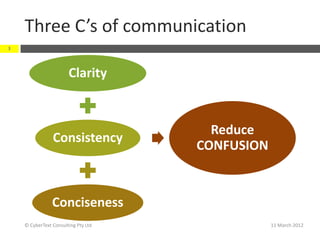
            The three C’s of good communication—

              clarity, consistency, conciseness—all reduce
              confusion
            Less is more—it’s not about text volume


© CyberText Consulting Pty Ltd                        11 March 2012
Three C’s of communication
3


                       Clarity


                                       Reduce
                Consistency
                                     CONFUSION


                Conciseness
    © CyberText Consulting Pty Ltd               11 March 2012
‘Less is more…’
4


    From:                      ‘Effective UA for [mobile] apps is more
    'Developing
    User Assistance            about crafting words and phrases … about
    for Mobile
    Applications' by
                               spending more time coming up with
    Joe Welinske,              precisely the right words.
    Intercom,
    November
    2011 (p. 9)
                               During the editing process, the emphasis
                               must be on strictly limiting the volume of
                               text while maintaining quality and
                               usefulness.’

    © CyberText Consulting Pty Ltd                                 11 March 2012
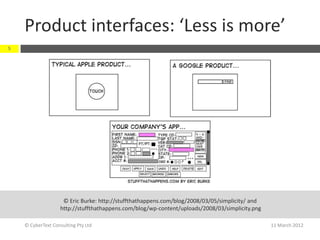
Product interfaces: ‘Less is more’
5


                    © Eric Burke: http://stuffthathappens.com/blog/2008/03/05/simplicity/ and
                   http://stuffthathappens.com/blog/wp-content/uploads/2008/03/simplicity.png

    © CyberText Consulting Pty Ltd                                                              11 March 2012
6          UI text elements
           Takeaways:
            UI text is throughout the application,

              including places you mightn’t think of
            Spelling is only one of many UI text checks

              you need to do
            Consider the global nature of apps


© CyberText Consulting Pty Ltd                        11 March 2012
Where to look: The usual suspects
7


      Bars                           • Title bars, status bars
      List items                     • Menus, selection lists
      Labels                         • Grouping boxes, ribbons, fields, columns
      Error messages                 • Validation, system; correct icon?
      Icons and buttons              • Labels, tooltips, graphics
      Wizards                        • Installation and others
      Hyperlinks/navigation          • Avoid ‘click here’
      User assistance                • On interface, online Help
      Mobile apps                    • Under navigation icons
    © CyberText Consulting Pty Ltd                                         11 March 2012
Just the links, ma’am
8


       Internal                      • Menus, submenus; breadcrumb trails; sidebars;
                                       headers/footers; sitemap; browse sequences
       navigation                      (Next, Previous, etc.)

       External                      • URLs; mailto links; internal and external files
       navigation                      (e.g. PDFs, videos); FTP links

                                     • Text hyperlinks (w/in page, w/in app, to
                                       external location, pop ups, expand/collapse,
       Page navigation                 Back to Top); images, image maps; links to Help
                                       (go to TOC, page, field, web?)

       Link                          • Same link types  consistent display
       mechanisms                      mechanisms (e.g. underline, color, etc.)

    © CyberText Consulting Pty Ltd                                                11 March 2012
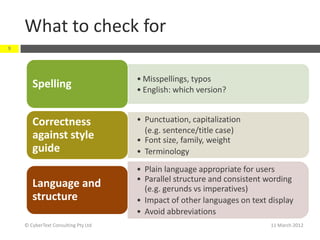
What to check for
9


                                     • Misspellings, typos
       Spelling                      • English: which version?


       Correctness                   • Punctuation, capitalization
                                       (e.g. sentence/title case)
       against style                 • Font size, family, weight
       guide                         • Terminology
                                     • Plain language appropriate for users
                                     • Parallel structure and consistent wording
       Language and                    (e.g. gerunds vs imperatives)
       structure                     • Impact of other languages on text display
                                     • Avoid abbreviations
    © CyberText Consulting Pty Ltd                                       11 March 2012
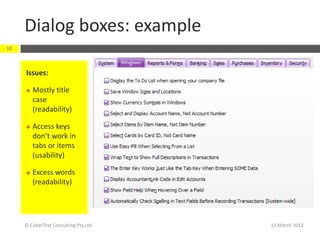
Dialog boxes: example
10


     Issues:

        Mostly title
         case
         (readability)

        Access keys
         don’t work in
         tabs or items
         (usability)

        Excess words
         (readability)


     © CyberText Consulting Pty Ltd   11 March 2012
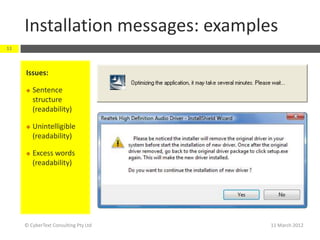
Installation messages: examples
11


     Issues:

        Sentence
         structure
         (readability)

        Unintelligible
         (readability)

        Excess words
         (readability)


     © CyberText Consulting Pty Ltd   11 March 2012
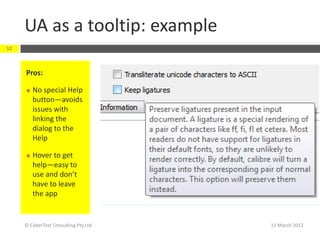
UA as a tooltip: example
12


     Pros:

        No special Help
         button—avoids
         issues with
         linking the
         dialog to the
         Help

        Hover to get
         help—easy to
         use and don’t
         have to leave
         the app


     © CyberText Consulting Pty Ltd   11 March 2012
Will the app be translated?
13


         Design must take into account:
              Right-to-left languages (e.g. Hebrew, Arabic)
              Double-byte languages (e.g. Chinese, Japanese,
               Korean)
              Long labels (e.g. German)


         Default language used:
              Hard-coded or in linked resource files?
              Anything culturally specific?

     © CyberText Consulting Pty Ltd                             11 March 2012
Test text display: Web/mobile apps
14


         Test in the main browsers:
              Turn off JavaScript, cookies, frames, images, etc.—
               what happens?
              Resize the browser window
              Resize fonts
              Apply other browser/Windows settings (color
               schemes, CSS)
         Test on various devices (large and small)
         Test at different resolutions (large and small)

     © CyberText Consulting Pty Ltd                            11 March 2012
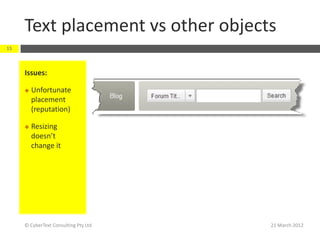
Text placement vs other objects
15


     Issues:

        Unfortunate
         placement
         (reputation)

        Resizing
         doesn’t
         change it


     © CyberText Consulting Pty Ltd   21 March 2012
Test text display: Desktop apps
16


         What happens to the text when you:
              Change the screen resolution
              Change the OS’s color scheme (can you?)
              Resize all resizable windows
              Install on other devices (e.g. phones, tablets)


         Do the new settings hold:
              For the current session only?
              On shutdown and restart?
     © CyberText Consulting Pty Ltd                              21 March 2012
Can you change the scheme?
17


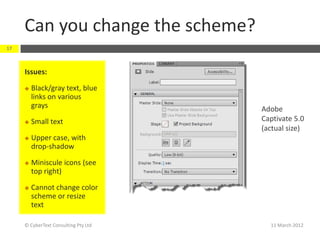
     Issues:

        Black/gray text, blue
         links on various
         grays                        Adobe
        Small text                   Captivate 5.0
                                      (actual size)
        Upper case, with
         drop-shadow

        Miniscule icons (see
         top right)

        Cannot change color
         scheme or resize
         text

     © CyberText Consulting Pty Ltd     11 March 2012
Summary: You should be able to identify…
18


         Incorrect grammar, spelling, and punctuation

              Unclear or potentially misunderstood user prompts and error messages

                  Illogical task flows

                   Inconsistently labeled buttons, icons, fields, dialog boxes

                  Inconsistently placed buttons, icons, fields, dialog boxes

              Required or unnecessary tasks, fields, dialog boxes

         Inconsistencies between dialog boxes
                        (Adapted from: http://writeorrevisedaily.wordpress.com/2012/01/04/add-value-to-gui-design/)

     © CyberText Consulting Pty Ltd                                                                 11 March 2012
19          Getting your message across
            Takeaways:
             It’s much cheaper to fix issues early

             It’s about making a better product for
               everyone
             Legislative compliance may force changes to

               your product

 © CyberText Consulting Pty Ltd                      11 March 2012
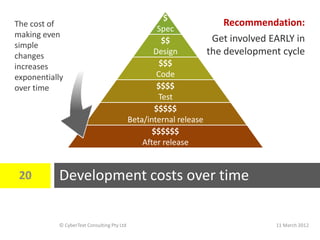
$
The cost of                                                           Recommendation:
                                                     Spec
making even                                                        Get involved EARLY in
                                                      $$
simple
changes                                            Design         the development cycle
increases                                            $$$
exponentially                                       Code
over time                                            $$$$
                                                     Test
                                                    $$$$$
                                            Beta/internal release
                                                   $$$$$$
                                                After release


 20        Development costs over time

           © CyberText Consulting Pty Ltd                                       11 March 2012
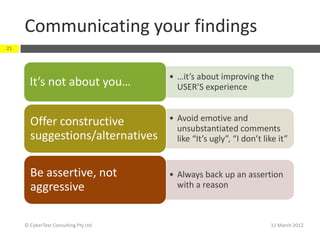
Communicating your findings
21


                                      • …it’s about improving the
       It’s not about you…              USER’S experience


       Offer constructive             • Avoid emotive and
                                        unsubstantiated comments
       suggestions/alternatives         like “It’s ugly”, “I don’t like it”


       Be assertive, not              • Always back up an assertion
       aggressive                       with a reason


     © CyberText Consulting Pty Ltd                                  11 March 2012
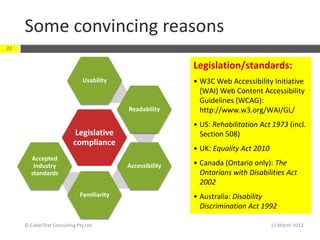
Some convincing reasons
22


                                                           Legislation/standards:
                              Usability                    • W3C Web Accessibility Initiative
                                                             (WAI) Web Content Accessibility
                                                             Guidelines (WCAG):
                                           Readability       http://www.w3.org/WAI/GL/
                                                           • US: Rehabilitation Act 1973 (incl.
                           Legislative                       Section 508)
                          compliance
                                                           • UK: Equality Act 2010
       Accepted
        industry                           Accessibility   • Canada (Ontario only): The
       standards                                             Ontarians with Disabilities Act
                                                             2002
                             Familiarity                   • Australia: Disability
                                                             Discrimination Act 1992

     © CyberText Consulting Pty Ltd                                                  11 March 2012
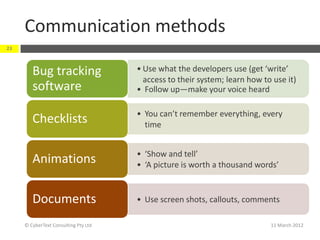
Communication methods
23


        Bug tracking                  • Use what the developers use (get ‘write’
                                        access to their system; learn how to use it)
        software                      • Follow up—make your voice heard

                                      • You can’t remember everything, every
        Checklists                      time


                                      • ‘Show and tell’
        Animations                    • ‘A picture is worth a thousand words’


        Documents                     • Use screen shots, callouts, comments

     © CyberText Consulting Pty Ltd                                         11 March 2012
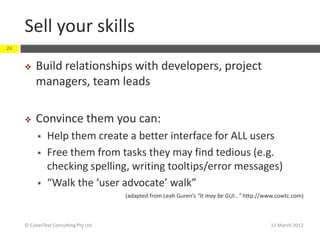
Sell your skills
24


         Build relationships with developers, project
          managers, team leads

         Convince them you can:
              Help them create a better interface for ALL users
              Free them from tasks they may find tedious (e.g.
               checking spelling, writing tooltips/error messages)
              “Walk the ‘user advocate’ walk”
                                      (adapted from Leah Guren’s “It may be GUI…” http://www.cowtc.com)


     © CyberText Consulting Pty Ltd                                                        11 March 2012
25          Tools and resources
            Takeaways:
             Use a style guide

             Your eyes and brain are the best tools you
               have


 © CyberText Consulting Pty Ltd                       11 March 2012
Style guides
26


         Use development's style guide, if there is one…
         If not, consult those for your platform
         No style guide? Write one!

      • Downloadable Microsoft style guides for languages other than English:
        http://www.microsoft.com/Language/en-US/StyleGuides.aspx

      • Links to hundreds of style guide resources for various platforms:
        http://cybertext.wordpress.com/2009/08/11/user-interface-style-guides/


     © CyberText Consulting Pty Ltd                                   11 March 2012
Capture and edit
27


         Learn how to use screen capture (static and
          animated) tools and their editing/mark-up
          features

     Examples:
     • SnagIt, Camtasia, Jing: http://www.techsmith.com
     • Acrobat, Captivate: http://www.adobe.com
     • Screenr: http://www.screenr.com/
     © CyberText Consulting Pty Ltd                     11 March 2012
Other resources
28

          American English vs. British English for Web Content:
           http://www.useit.com/alertbox/american-british-english.html
          The Evolution of Fail Pets: Strategic Whimsy and Brand Awareness in Error Messages:
           http://uxmag.com/articles/the-evolution-of-fail-pets
          Who writes the words?:
           http://www.simple-talk.com/community/blogs/roger/archive/2011/11/11/104284.aspx
          Who should write the words in user interfaces:
           http://communicationcloud.wordpress.com/2011/09/27/who-should-write-the-words-
           in-user-interfaces/
          Writing microcopy:
           http://bokardo.com/archives/writing-microcopy/


         © CyberText Consulting Pty Ltd                                            11 March 2012
29          Error message text examples
            Takeaways:
             Where possible, tell the user:

                      • what happened
                      • why it happened
                      • how to fix it (or how to get help to fix it)
                   Use plain language in error messages

 © CyberText Consulting Pty Ltd                                        11 March 2012
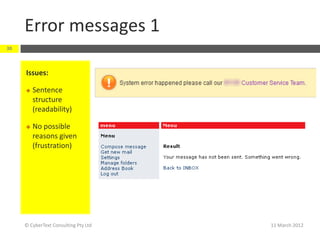
Error messages 1
30


     Issues:

        Sentence
         structure
         (readability)

        No possible
         reasons given
         (frustration)


     © CyberText Consulting Pty Ltd   11 March 2012
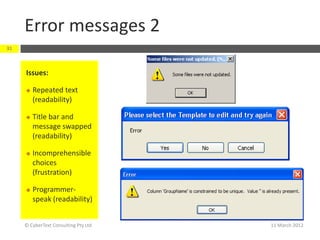
Error messages 2
31


     Issues:

        Repeated text
         (readability)

        Title bar and
         message swapped
         (readability)

        Incomprehensible
         choices
         (frustration)

        Programmer-
         speak (readability)


     © CyberText Consulting Pty Ltd   11 March 2012
Error messages 3
32


     Issues:

        Conflicting
         information
         (frustration)

        Inappropriate
         time scale
         (readability)

        Inconceivable
         time (frustration)
         [48480 days = 133
         years!]


     © CyberText Consulting Pty Ltd   11 March 2012
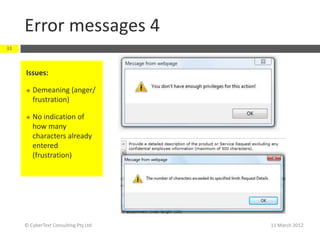
Error messages 4
33


     Issues:

        Demeaning (anger/
         frustration)

        No indication of
         how many
         characters already
         entered
         (frustration)


     © CyberText Consulting Pty Ltd   11 March 2012
Error messages 5
34


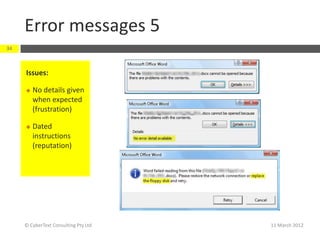
     Issues:

        No details given
         when expected
         (frustration)

        Dated
         instructions
         (reputation)


     © CyberText Consulting Pty Ltd   11 March 2012
Error messages 6
35


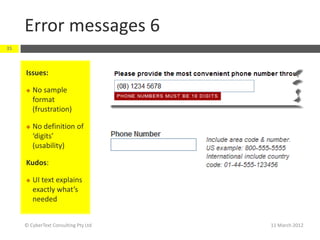
     Issues:

        No sample
         format
         (frustration)

        No definition of
         ‘digits’
         (usability)

     Kudos:

        UI text explains
         exactly what’s
         needed


     © CyberText Consulting Pty Ltd   11 March 2012
Error messages 7
36


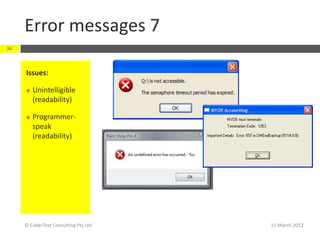
     Issues:

        Unintelligible
         (readability)

        Programmer-
         speak
         (readability)


     © CyberText Consulting Pty Ltd   11 March 2012
Examples of good UI text
37


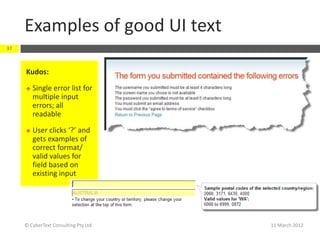
     Kudos:

        Single error list for
         multiple input
         errors; all
         readable

        User clicks ‘?’ and
         gets examples of
         correct format/
         valid values for
         field based on
         existing input


     © CyberText Consulting Pty Ltd   11 March 2012
38          Thank you
            Any questions?

            Contact me:
             rhonda.bracey@cybertext.com.au

             http://www.cybertext.com.au

             http://cybertext.wordpress.com


 © CyberText Consulting Pty Ltd                11 March 2012

User Interface text

  • 1.
    Twitter hashtags: @cybertext #writersUA USER INTERFACE TEXT 11 March 2012 Rhonda Bracey
  • 2.
    2 Principles of reviewing UI text Takeaways:  The three C’s of good communication— clarity, consistency, conciseness—all reduce confusion  Less is more—it’s not about text volume © CyberText Consulting Pty Ltd 11 March 2012
  • 3.
    Three C’s ofcommunication 3 Clarity Reduce Consistency CONFUSION Conciseness © CyberText Consulting Pty Ltd 11 March 2012
  • 4.
    ‘Less is more…’ 4 From: ‘Effective UA for [mobile] apps is more 'Developing User Assistance about crafting words and phrases … about for Mobile Applications' by spending more time coming up with Joe Welinske, precisely the right words. Intercom, November 2011 (p. 9) During the editing process, the emphasis must be on strictly limiting the volume of text while maintaining quality and usefulness.’ © CyberText Consulting Pty Ltd 11 March 2012
  • 5.
    Product interfaces: ‘Lessis more’ 5 © Eric Burke: http://stuffthathappens.com/blog/2008/03/05/simplicity/ and http://stuffthathappens.com/blog/wp-content/uploads/2008/03/simplicity.png © CyberText Consulting Pty Ltd 11 March 2012
  • 6.
    6 UI text elements Takeaways:  UI text is throughout the application, including places you mightn’t think of  Spelling is only one of many UI text checks you need to do  Consider the global nature of apps © CyberText Consulting Pty Ltd 11 March 2012
  • 7.
    Where to look:The usual suspects 7 Bars • Title bars, status bars List items • Menus, selection lists Labels • Grouping boxes, ribbons, fields, columns Error messages • Validation, system; correct icon? Icons and buttons • Labels, tooltips, graphics Wizards • Installation and others Hyperlinks/navigation • Avoid ‘click here’ User assistance • On interface, online Help Mobile apps • Under navigation icons © CyberText Consulting Pty Ltd 11 March 2012
  • 8.
    Just the links,ma’am 8 Internal • Menus, submenus; breadcrumb trails; sidebars; headers/footers; sitemap; browse sequences navigation (Next, Previous, etc.) External • URLs; mailto links; internal and external files navigation (e.g. PDFs, videos); FTP links • Text hyperlinks (w/in page, w/in app, to external location, pop ups, expand/collapse, Page navigation Back to Top); images, image maps; links to Help (go to TOC, page, field, web?) Link • Same link types  consistent display mechanisms mechanisms (e.g. underline, color, etc.) © CyberText Consulting Pty Ltd 11 March 2012
  • 9.
    What to checkfor 9 • Misspellings, typos Spelling • English: which version? Correctness • Punctuation, capitalization (e.g. sentence/title case) against style • Font size, family, weight guide • Terminology • Plain language appropriate for users • Parallel structure and consistent wording Language and (e.g. gerunds vs imperatives) structure • Impact of other languages on text display • Avoid abbreviations © CyberText Consulting Pty Ltd 11 March 2012
  • 10.
    Dialog boxes: example 10 Issues:  Mostly title case (readability)  Access keys don’t work in tabs or items (usability)  Excess words (readability) © CyberText Consulting Pty Ltd 11 March 2012
  • 11.
    Installation messages: examples 11 Issues:  Sentence structure (readability)  Unintelligible (readability)  Excess words (readability) © CyberText Consulting Pty Ltd 11 March 2012
  • 12.
    UA as atooltip: example 12 Pros:  No special Help button—avoids issues with linking the dialog to the Help  Hover to get help—easy to use and don’t have to leave the app © CyberText Consulting Pty Ltd 11 March 2012
  • 13.
    Will the appbe translated? 13  Design must take into account:  Right-to-left languages (e.g. Hebrew, Arabic)  Double-byte languages (e.g. Chinese, Japanese, Korean)  Long labels (e.g. German)  Default language used:  Hard-coded or in linked resource files?  Anything culturally specific? © CyberText Consulting Pty Ltd 11 March 2012
  • 14.
    Test text display:Web/mobile apps 14  Test in the main browsers:  Turn off JavaScript, cookies, frames, images, etc.— what happens?  Resize the browser window  Resize fonts  Apply other browser/Windows settings (color schemes, CSS)  Test on various devices (large and small)  Test at different resolutions (large and small) © CyberText Consulting Pty Ltd 11 March 2012
  • 15.
    Text placement vsother objects 15 Issues:  Unfortunate placement (reputation)  Resizing doesn’t change it © CyberText Consulting Pty Ltd 21 March 2012
  • 16.
    Test text display:Desktop apps 16  What happens to the text when you:  Change the screen resolution  Change the OS’s color scheme (can you?)  Resize all resizable windows  Install on other devices (e.g. phones, tablets)  Do the new settings hold:  For the current session only?  On shutdown and restart? © CyberText Consulting Pty Ltd 21 March 2012
  • 17.
    Can you changethe scheme? 17 Issues:  Black/gray text, blue links on various grays Adobe  Small text Captivate 5.0 (actual size)  Upper case, with drop-shadow  Miniscule icons (see top right)  Cannot change color scheme or resize text © CyberText Consulting Pty Ltd 11 March 2012
  • 18.
    Summary: You shouldbe able to identify… 18 Incorrect grammar, spelling, and punctuation Unclear or potentially misunderstood user prompts and error messages Illogical task flows Inconsistently labeled buttons, icons, fields, dialog boxes Inconsistently placed buttons, icons, fields, dialog boxes Required or unnecessary tasks, fields, dialog boxes Inconsistencies between dialog boxes (Adapted from: http://writeorrevisedaily.wordpress.com/2012/01/04/add-value-to-gui-design/) © CyberText Consulting Pty Ltd 11 March 2012
  • 19.
    19 Getting your message across Takeaways:  It’s much cheaper to fix issues early  It’s about making a better product for everyone  Legislative compliance may force changes to your product © CyberText Consulting Pty Ltd 11 March 2012
  • 20.
    $ The cost of Recommendation: Spec making even Get involved EARLY in $$ simple changes Design the development cycle increases $$$ exponentially Code over time $$$$ Test $$$$$ Beta/internal release $$$$$$ After release 20 Development costs over time © CyberText Consulting Pty Ltd 11 March 2012
  • 21.
    Communicating your findings 21 • …it’s about improving the It’s not about you… USER’S experience Offer constructive • Avoid emotive and unsubstantiated comments suggestions/alternatives like “It’s ugly”, “I don’t like it” Be assertive, not • Always back up an assertion aggressive with a reason © CyberText Consulting Pty Ltd 11 March 2012
  • 22.
    Some convincing reasons 22 Legislation/standards: Usability • W3C Web Accessibility Initiative (WAI) Web Content Accessibility Guidelines (WCAG): Readability http://www.w3.org/WAI/GL/ • US: Rehabilitation Act 1973 (incl. Legislative Section 508) compliance • UK: Equality Act 2010 Accepted industry Accessibility • Canada (Ontario only): The standards Ontarians with Disabilities Act 2002 Familiarity • Australia: Disability Discrimination Act 1992 © CyberText Consulting Pty Ltd 11 March 2012
  • 23.
    Communication methods 23 Bug tracking • Use what the developers use (get ‘write’ access to their system; learn how to use it) software • Follow up—make your voice heard • You can’t remember everything, every Checklists time • ‘Show and tell’ Animations • ‘A picture is worth a thousand words’ Documents • Use screen shots, callouts, comments © CyberText Consulting Pty Ltd 11 March 2012
  • 24.
    Sell your skills 24  Build relationships with developers, project managers, team leads  Convince them you can:  Help them create a better interface for ALL users  Free them from tasks they may find tedious (e.g. checking spelling, writing tooltips/error messages)  “Walk the ‘user advocate’ walk” (adapted from Leah Guren’s “It may be GUI…” http://www.cowtc.com) © CyberText Consulting Pty Ltd 11 March 2012
  • 25.
    25 Tools and resources Takeaways:  Use a style guide  Your eyes and brain are the best tools you have © CyberText Consulting Pty Ltd 11 March 2012
  • 26.
    Style guides 26  Use development's style guide, if there is one…  If not, consult those for your platform  No style guide? Write one! • Downloadable Microsoft style guides for languages other than English: http://www.microsoft.com/Language/en-US/StyleGuides.aspx • Links to hundreds of style guide resources for various platforms: http://cybertext.wordpress.com/2009/08/11/user-interface-style-guides/ © CyberText Consulting Pty Ltd 11 March 2012
  • 27.
    Capture and edit 27  Learn how to use screen capture (static and animated) tools and their editing/mark-up features Examples: • SnagIt, Camtasia, Jing: http://www.techsmith.com • Acrobat, Captivate: http://www.adobe.com • Screenr: http://www.screenr.com/ © CyberText Consulting Pty Ltd 11 March 2012
  • 28.
    Other resources 28  American English vs. British English for Web Content: http://www.useit.com/alertbox/american-british-english.html  The Evolution of Fail Pets: Strategic Whimsy and Brand Awareness in Error Messages: http://uxmag.com/articles/the-evolution-of-fail-pets  Who writes the words?: http://www.simple-talk.com/community/blogs/roger/archive/2011/11/11/104284.aspx  Who should write the words in user interfaces: http://communicationcloud.wordpress.com/2011/09/27/who-should-write-the-words- in-user-interfaces/  Writing microcopy: http://bokardo.com/archives/writing-microcopy/ © CyberText Consulting Pty Ltd 11 March 2012
  • 29.
    29 Error message text examples Takeaways:  Where possible, tell the user: • what happened • why it happened • how to fix it (or how to get help to fix it)  Use plain language in error messages © CyberText Consulting Pty Ltd 11 March 2012
  • 30.
    Error messages 1 30 Issues:  Sentence structure (readability)  No possible reasons given (frustration) © CyberText Consulting Pty Ltd 11 March 2012
  • 31.
    Error messages 2 31 Issues:  Repeated text (readability)  Title bar and message swapped (readability)  Incomprehensible choices (frustration)  Programmer- speak (readability) © CyberText Consulting Pty Ltd 11 March 2012
  • 32.
    Error messages 3 32 Issues:  Conflicting information (frustration)  Inappropriate time scale (readability)  Inconceivable time (frustration) [48480 days = 133 years!] © CyberText Consulting Pty Ltd 11 March 2012
  • 33.
    Error messages 4 33 Issues:  Demeaning (anger/ frustration)  No indication of how many characters already entered (frustration) © CyberText Consulting Pty Ltd 11 March 2012
  • 34.
    Error messages 5 34 Issues:  No details given when expected (frustration)  Dated instructions (reputation) © CyberText Consulting Pty Ltd 11 March 2012
  • 35.
    Error messages 6 35 Issues:  No sample format (frustration)  No definition of ‘digits’ (usability) Kudos:  UI text explains exactly what’s needed © CyberText Consulting Pty Ltd 11 March 2012
  • 36.
    Error messages 7 36 Issues:  Unintelligible (readability)  Programmer- speak (readability) © CyberText Consulting Pty Ltd 11 March 2012
  • 37.
    Examples of goodUI text 37 Kudos:  Single error list for multiple input errors; all readable  User clicks ‘?’ and gets examples of correct format/ valid values for field based on existing input © CyberText Consulting Pty Ltd 11 March 2012
  • 38.
    38 Thank you Any questions? Contact me:  rhonda.bracey@cybertext.com.au  http://www.cybertext.com.au  http://cybertext.wordpress.com © CyberText Consulting Pty Ltd 11 March 2012