El-Zahraa language schools Computer booklet for M1 
In this chapter we will know that the different ways for uses the computer 
But at first we must know that: 
Where computers are better? 
1. Repetitive tasks. 
2. Easily automated tasks. 
3. Mathematical calculations. 
4. Dangerous situations. 
Where people are better? 
1. Any activity requiring thought or creativity. 
2. Interacting with humans. 
A computer , s uses in our life are in : 
Business (Offices – Shops - Libraries), Home, Education, Healthcare 
First: the uses of computer in business are … 
a- Offices : 
1- Store records 
2- Paying employees 
3- Sending letters 
4- Communicate with other companies and department 
b- Shops : 
1- Calculate bills using bar code. 
2- Payment using a credit card. 
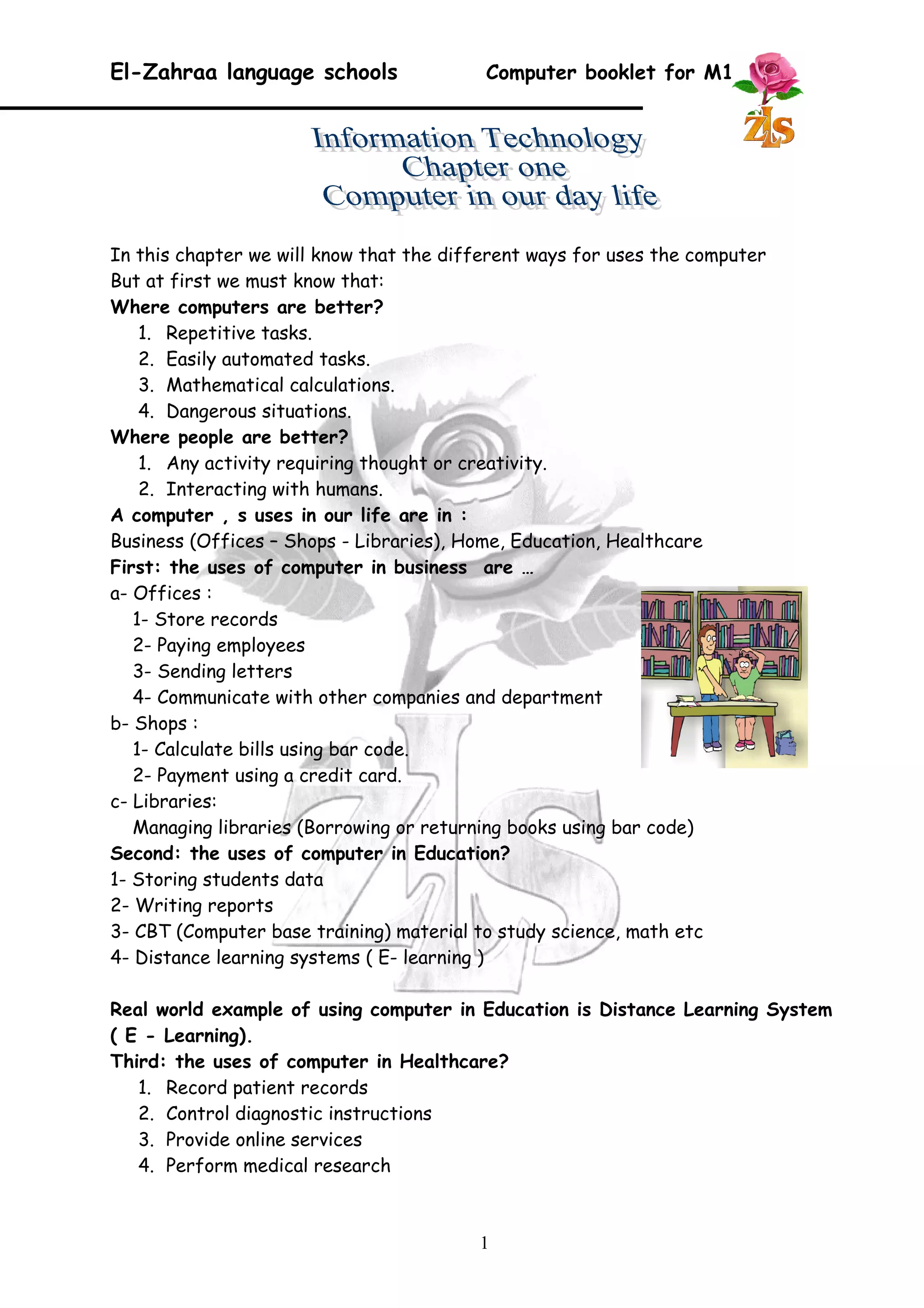
c- Libraries: 
Managing libraries (Borrowing or returning books using bar code) 
Second: the uses of computer in Education? 
1- Storing students data 
2- Writing reports 
3- CBT (Computer base training) material to study science, math etc 
4- Distance learning systems ( E- learning ) 
Real world example of using computer in Education is Distance Learning System 
( E - Learning). 
Third: the uses of computer in Healthcare? 
1. Record patient records 
2. Control diagnostic instructions 
3. Provide online services 
4. Perform medical research 
1
El-Zahraa language schools Computer booklet for M1 
1. Where computers are better than people? 
a) ………………………………………………………….. 
b) …………………………………………………………… 
c) …………………………………………………………… 
d) …………………………………………………………… 
2. Identify the fields where the computers can affect? 
a) ………………………………………………………….. 
b) …………………………………………………………… 
c) …………………………………………………………… 
d) …………………………………………………………… 
3. Give some example of using computer in Education? 
a) ………………………………………………………….. 
b) …………………………………………………………… 
2 
Questions
El-Zahraa language schools Computer booklet for M1 
A computer is an electronic device that processes data converting it into information 
that is useful to decision makers 
Computers are controlled by programming instruction ,which give the machine a 
purpose and tell it what , when and how to do it 
A complete computer system consists of four parts : 
1. Hardeware 
2. Software 
3. humanware 
4. Data And Information 
We Can Define them by : 
Hardware: Any part of the computer you can see and touch 
Software: A set of instructions that order the computer to perform tasks 
Human ware: a- Maintain hardware b- Develop software 
c- Design d- Operate and use 
Data & Information: 
Data types : Words – Numbers – Images - Sound or video 
The types of computers are : 
Computer name Capacity Speed Cost 
PC (Personal Computer) 40GB – 120 
GB 1 GHz – 3 GHz Fairly in expensive 
Mainframe for large 
businesses and organizations 
Thousands of 
PCs 
Much faster 
than PCs Highly expensive 
Macintosh ( Mac ) 40GB – 120 
GB 
500 MHz – 3 
GHz 
More than the 
equivalent PC 
Laptop 
Run on batteries 20GB – 80GB 700 MHz – 3 
GHz 
More than the 
equivalent PC 
Server (Works with 
networks) 
More than 
160 GB Faster than PC More expensive than 
PC 
PDA (personal data 
assistant) 
To store small files-appointments 
64MB – 8GB 8 MHz – 266 
MHz 
Expensive when 
comparing with PC 
3
El-Zahraa language schools Computer booklet for M1 
* Draw a line to match the five steps for buying a computer: 
· Buy that computer 
· Find hardware to make the software go. 
· Shop for service and support. 
· Decide what you want the computer to 
do. 
· Find software to get that job done. 
* Define each items following: 
1. Hardware:................................... 
2. Software:............................................................... 
3. Human ware:................................. 
4. Data & Information:........................ 
4 
Questions 
Step 1 
Step 2 
Step 3 
Step 4 
Step 5
El-Zahraa language schools Computer booklet for M1 
The computer components are: 
Processor: (CPU) (Central processing unit) the brain of the computer, it's hidden 
inside the computer case that does all the work like calculations. 
Memory: Temporary storage place 
(The size of the memory is very important factor in computer efficiency) 
Input units: used to input data to the computer. 
For example: Keyboard, Mouse, Scroll ball, Drawing board, Light pen, Touch Screen, 
Touch pad , Joystick, Microphone and Scanner. 
Output units: are in charge of displaying the result of processing data. 
For example: Monitor, Printers (Laser – Inkjet), Plotter and Speakers 
Storage 
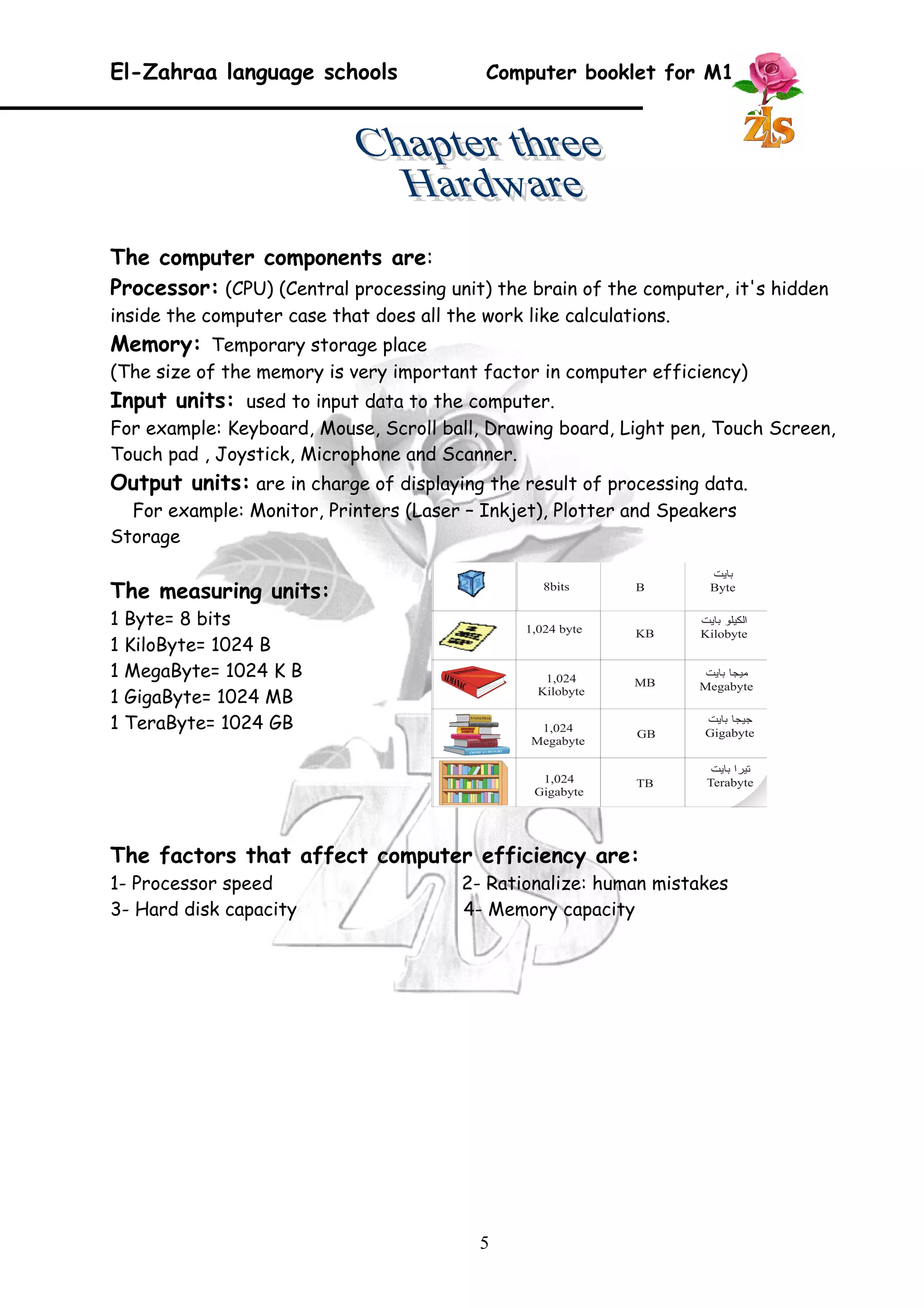
The measuring units: 
1 Byte= 8 bits 
1 KiloByte= 1024 B 
1 MegaByte= 1024 K B 
1 GigaByte= 1024 MB 
1 TeraByte= 1024 GB 
The factors that affect computer efficiency are: 
1- Processor speed 2- Rationalize: human mistakes 
3- Hard disk capacity 4- Memory capacity 
5
El-Zahraa language schools Computer booklet for M1 
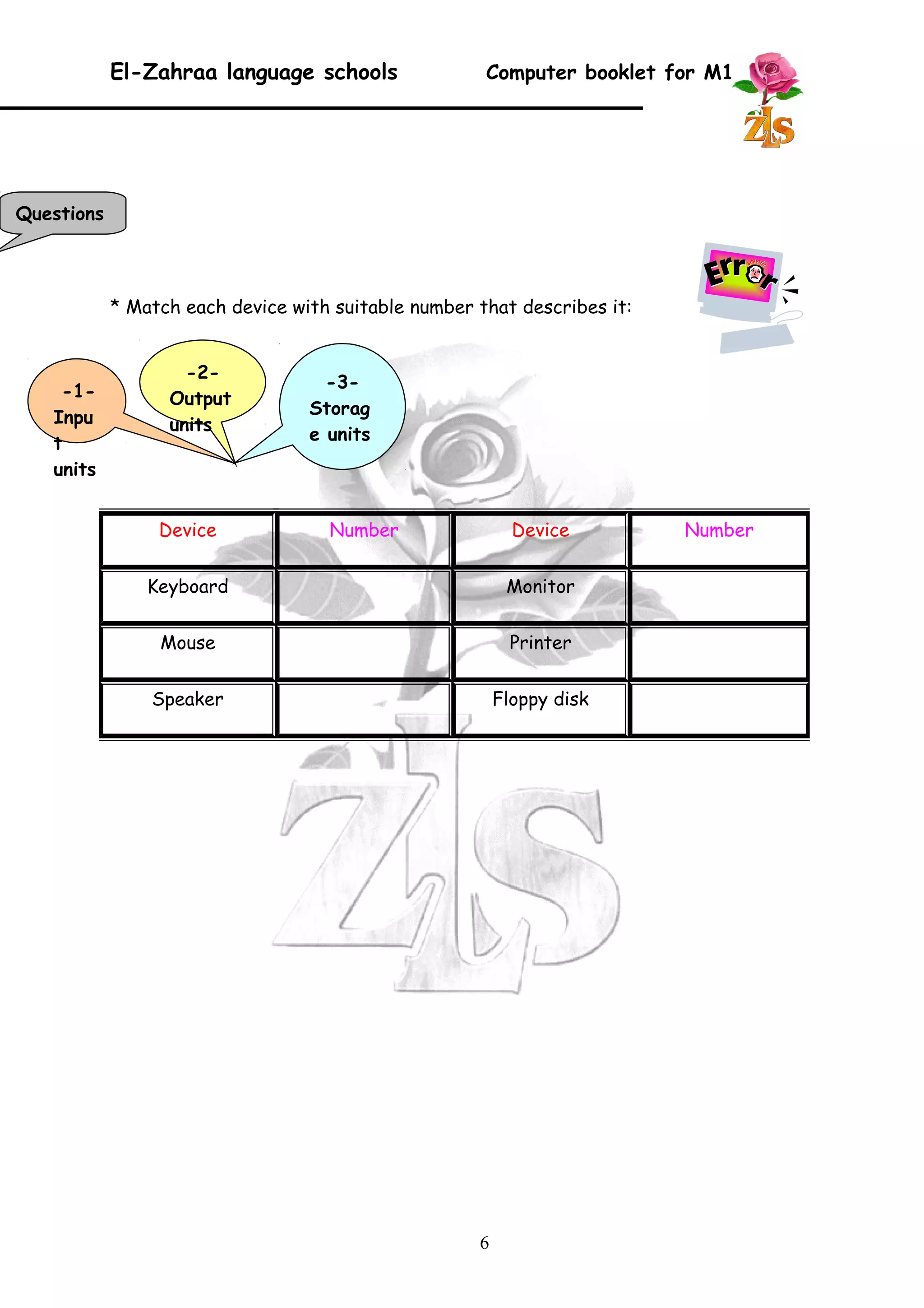
* Match each device with suitable number that describes it: 
Device Number Device Number 
Keyboard Monitor 
Mouse Printer 
Speaker Floppy disk 
6 
-1- 
Inpu 
t 
units 
-2- 
Output 
units 
-3- 
Storag 
e units 
Questions
El-Zahraa language schools Computer booklet for M1 
Software is : Instructions that order the computer to perform a task 
We have three types of Computer Software These are : 
1- Operating System : 
In charge of managing the movement of data and information from the memory to the 
processing unit and from the processing unit to the memory, then to the output units. 
Manages disks & files 
Monitors Activities 
The operating system is working in the background of the computer while you are 
working on the computer. 
2- Applications: According to its tasks 
Like: 
Word processing, spreadsheets, Database, Entertainment, Education, movie programs 
Browser programs 
3- Utility Programs : to perform a task for the computer operations 
Like :PDF tool(for creating and editing PDF files)-Anti-viruses(to make your computer 
completely free of infection) 
The software work through operating system by these steps: 
The operating system receives the orders from applications 
it sends them to the processing unit to be processed 
restore the result to the user. 
Give a word to complete the sentences: 
1. ……………………………………. Works with words to help you write letters. 
7 
Questions
El-Zahraa language schools Computer booklet for M1 
2. …………………………………… helps you to use functions. 
3. …………………………………… programs translate between users and computer. 
4. …………………………………… helps you to do mailing lists. 
5. ……………………………………. helps you learn new skills. 
8
El-Zahraa language schools Computer booklet for M1 
Data is : The raw material of information 
Information is : The output of processing data 
IT( Information Technology ) is : 
A set of computers which the processing and storing data are done, 
that contain text, picture and sound. 
* Computers process information as a series of electric signals as human brain. 
Computer processes data through : 
CPU : the brain of the computer which contain 
Control unit (CU): arranges the data flow through the computer an controls all the 
computer units. 
Arithmetic and logic unit ( ALU ) : To perform all the arithmetic and logic 
operations. 
Memory (RAM – ROM): To store data and orders 
Note: When computer receives data through input units, the data stores in the main 
memory, then the CPU processes it, then output the information through the output 
units such as Monitor. 
The human ware have an Important role in computer system such as : 
Designers Programmers Builders 
The stages of processing data are: 
1- Input data: through input units 
2- Process data: (arithmetic operations – storing – comparing – classification) 
3- Dealing with outputs: (storing – restoring – communicate – reproduce) 
9
El-Zahraa language schools Computer booklet for M1 
Put (True) or (False): 
1. Software is things that can be touched. ( ) 
2. Pictures and sound are the only 2 types of data that can be input to the 
computer ( ) 
3. The size of Memory is not affecting the computer efficiency. ( ) 
4. Information is the raw material of data. ( ) 
5. Data can by ( letters – words – numbers – movies – songs. ( ) 
6. Builders use the computer languages to put programs. ( ) 
7. ( ALU ) used To perform all the arithmetic and logic operations. ( ) 
8. Data and orders stored in CPU ( ) 
9. Operating System is one of computer hardware ( ) 
10. PC , Mainframe , Word processing and Macintosh are all types of computer( ) 
10 
Questions
El-Zahraa language schools Computer booklet for M1 
There are some suitable definitions of the following 
concepts: 
1. Network : A connection of two computers or more in the same 
room or the same building or even in a two distant regions. 
2. Internet : A connection between millions of computers all over 
the world. 
3. WWW (World Wide Web): 
Millions of information pages in all fields of knowledge. 
4. The Site : one page or more and concerning one topic 
and consists of a home page and hyper links for the other 
pages. 
5. Hyper link : A text or a picture (hides an address inside it 
when you click on it the address is opened ) 
6. URL Address : (Uniform Resources Locator) 
It is the place where the data stored. 
7. The web page : It is an electronic document written with the 
HTML language. And it contains the hyper links. 
8. The internet browser : A program we use to display the 
information pages. Where the browser restore data from the 
ISPs. 
Such as: Internet Explorer – Mozilla Firefox 
There are some of the internet services like: 
1- E-mails 2- WWW ( World wide web ) 
3- Search ( Google – Yahoo ) 4- Multimedia 
You can navigate through the internet by : 
1- Hyper links ( Picture or text ) 
2- URL Address 
11
El-Zahraa language schools Computer booklet for M1 
You need to communicate with the internet : 
1- Computer 2- Browsing program 3- ISP 
Give a suitable definition for theses concepts: 
1- Internet :…………………………………………………………………………….. 
2- WWW :…………………………………………………………………………………. 
3- Hyper link :…………………………………………………………………………………… 
4- The internet browser:…………………………………………………………… 
5- The web page :……………………………………………………………………………. 
6- Network :………………………………………………………………………………………… 
Give some simples for the internet services 
1-………………………….. 
2-………………………….. 
3-………………………….. 
12 
Questions
El-Zahraa language schools Computer booklet for M1 
The Windows desktop features: 
Windows desktop interface consists of: 
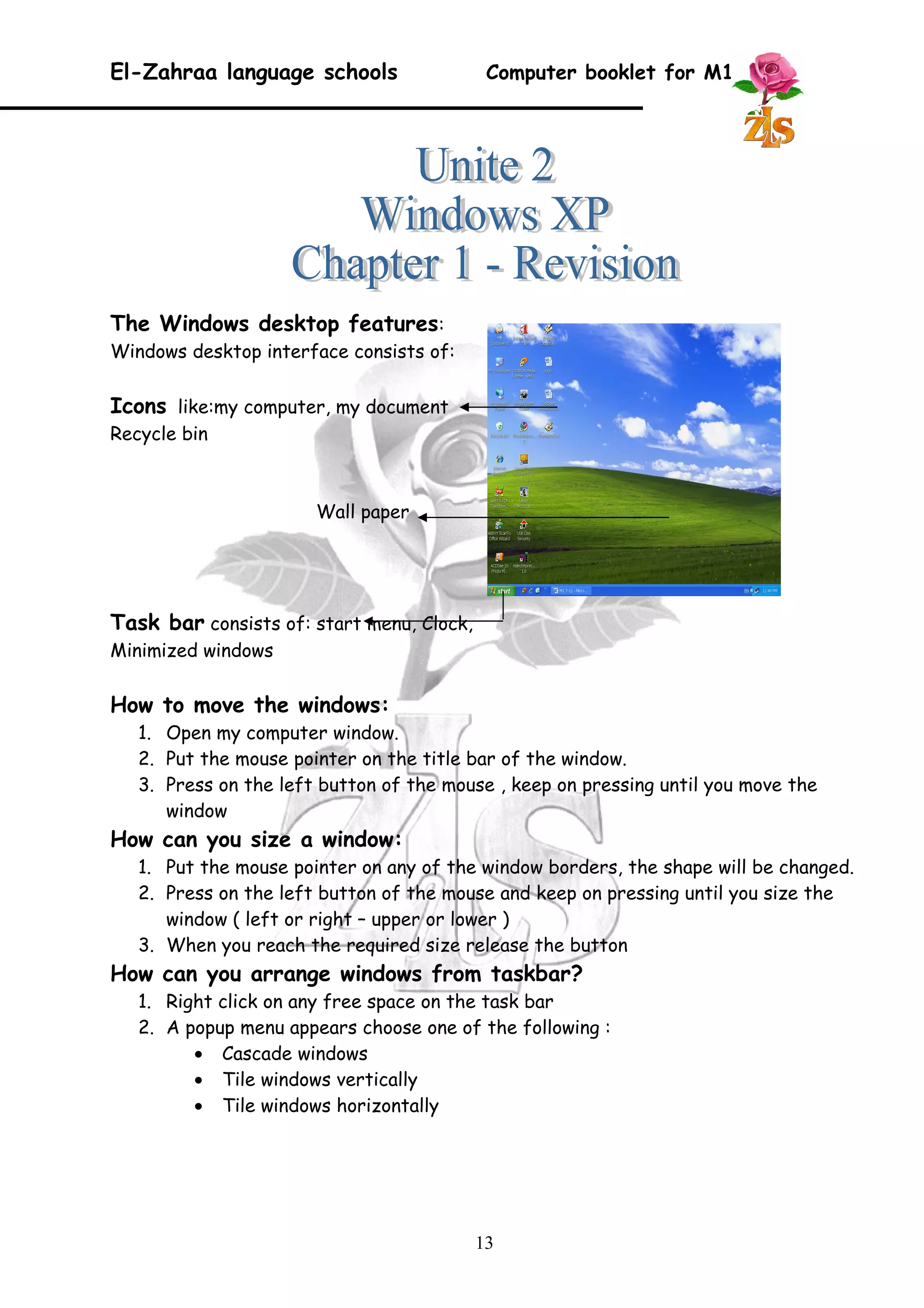
Icons like:my computer, my document 
Recycle bin 
Wall paper 
Task bar consists of: start menu, Clock, 
Minimized windows 
How to move the windows: 
1. Open my computer window. 
2. Put the mouse pointer on the title bar of the window. 
3. Press on the left button of the mouse , keep on pressing until you move the 
window 
How can you size a window: 
1. Put the mouse pointer on any of the window borders, the shape will be changed. 
2. Press on the left button of the mouse and keep on pressing until you size the 
window ( left or right – upper or lower ) 
3. When you reach the required size release the button 
How can you arrange windows from taskbar? 
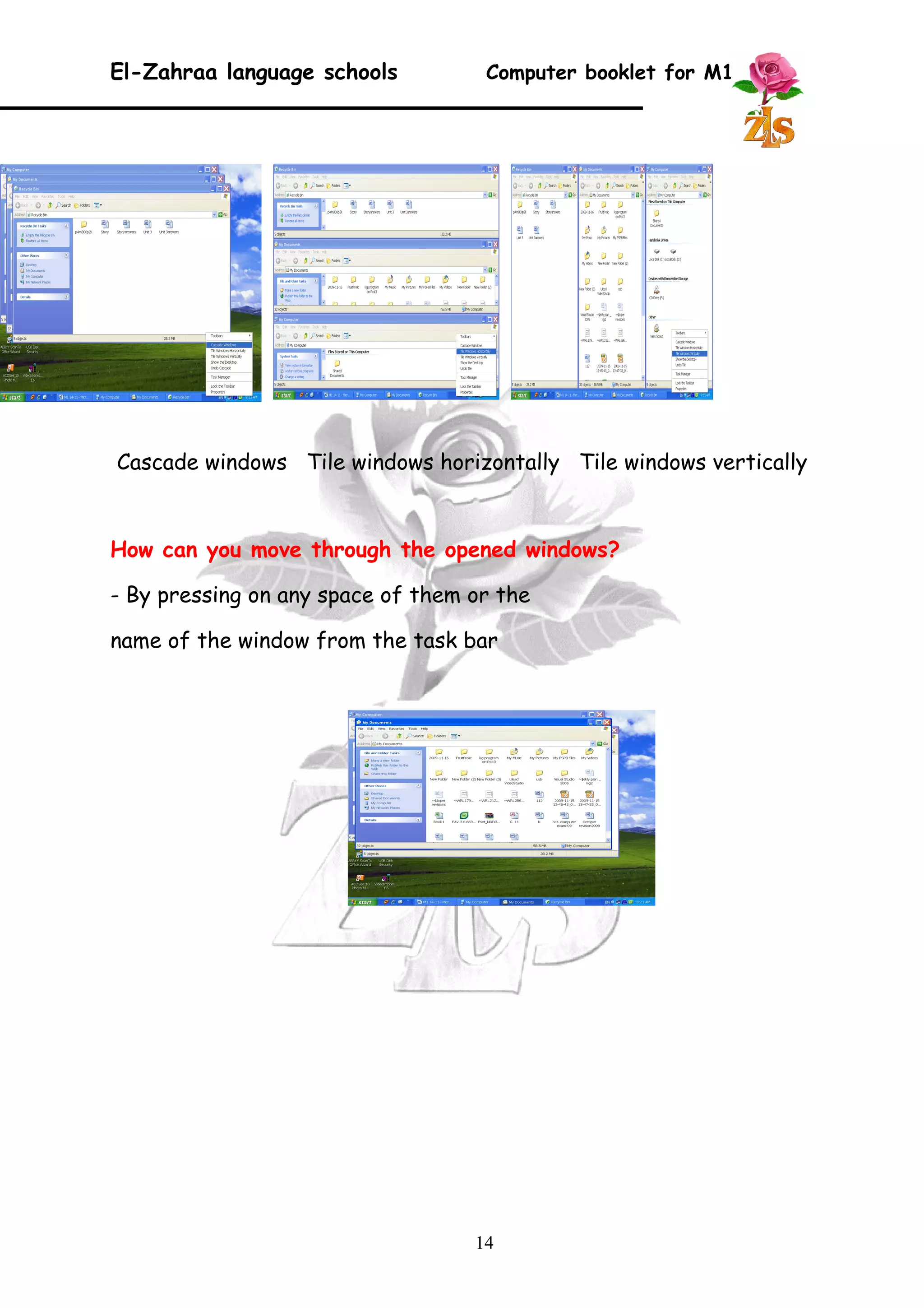
1. Right click on any free space on the task bar 
2. A popup menu appears choose one of the following : 
· Cascade windows 
· Tile windows vertically 
· Tile windows horizontally 
13
El-Zahraa language schools Computer booklet for M1 
Cascade windows Tile windows horizontally Tile windows vertically 
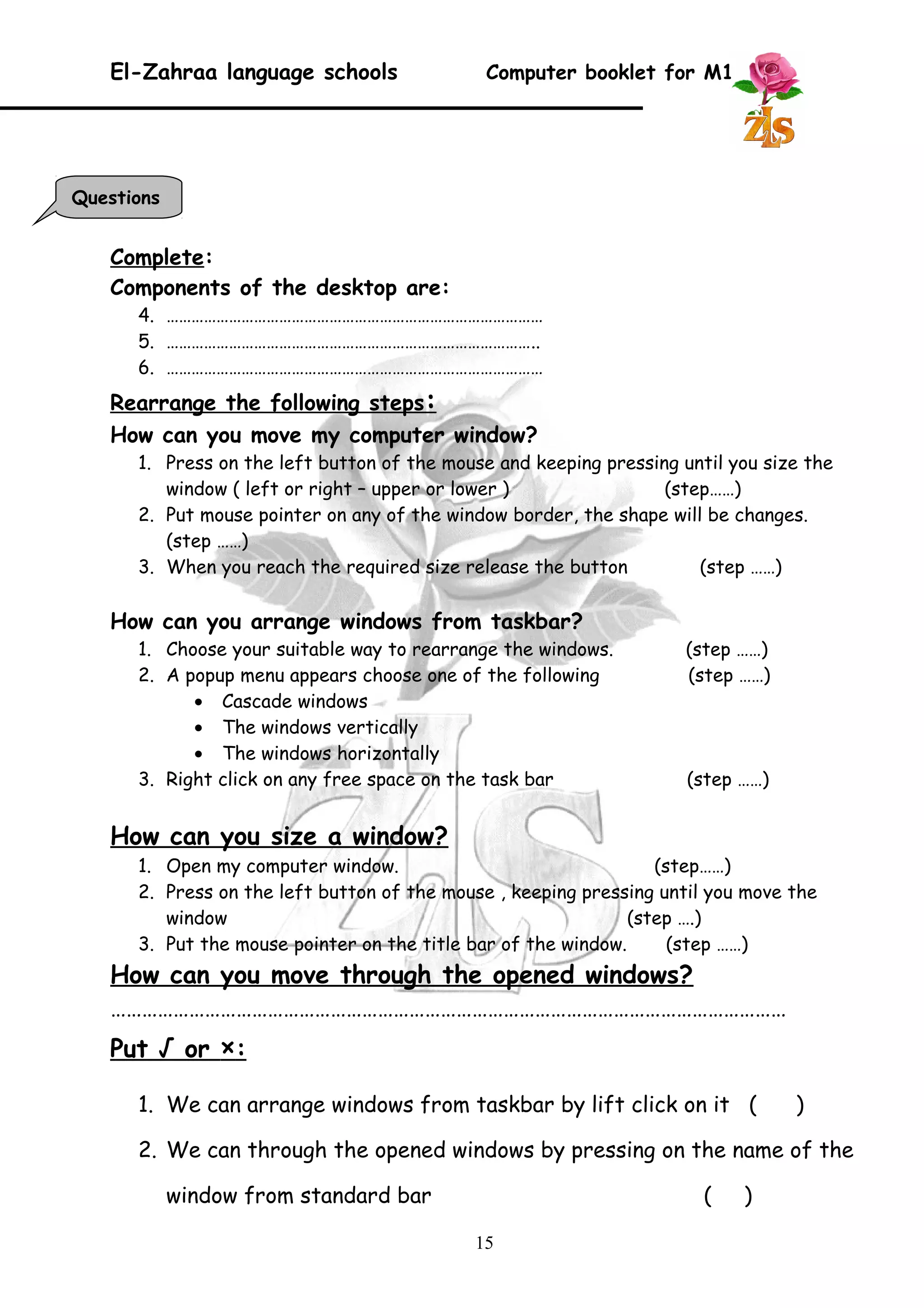
How can you move through the opened windows? 
- By pressing on any space of them or the 
name of the window from the task bar 
14
El-Zahraa language schools Computer booklet for M1 
Complete: 
Components of the desktop are: 
4. ……………………………………………………………………………… 
5. …………………………………………………………………………….. 
6. ……………………………………………………………………………… 
Rearrange the following steps : 
How can you move my computer window? 
1. Press on the left button of the mouse and keeping pressing until you size the 
window ( left or right – upper or lower ) (step……) 
2. Put mouse pointer on any of the window border, the shape will be changes. 
(step ……) 
3. When you reach the required size release the button (step ……) 
How can you arrange windows from taskbar? 
1. Choose your suitable way to rearrange the windows. (step ……) 
2. A popup menu appears choose one of the following (step ……) 
· Cascade windows 
· The windows vertically 
· The windows horizontally 
3. Right click on any free space on the task bar (step ……) 
How can you size a window? 
1. Open my computer window. (step……) 
2. Press on the left button of the mouse , keeping pressing until you move the 
window (step ….) 
3. Put the mouse pointer on the title bar of the window. (step ……) 
How can you move through the opened windows? 
………………………………………………………………………………………………………………… 
Put √ or × : 
1. We can arrange windows from taskbar by lift click on it ( ) 
2. We can through the opened windows by pressing on the name of the 
window from standard bar ( ) 
15 
Questions
El-Zahraa language schools Computer booklet for M1 
Searching for Hardware: 
This option will be if your computer is connected to a network that's allowing you to 
access the resources that are shared by other computers within the network. 
The following steps to access the search option for 
hardware: 
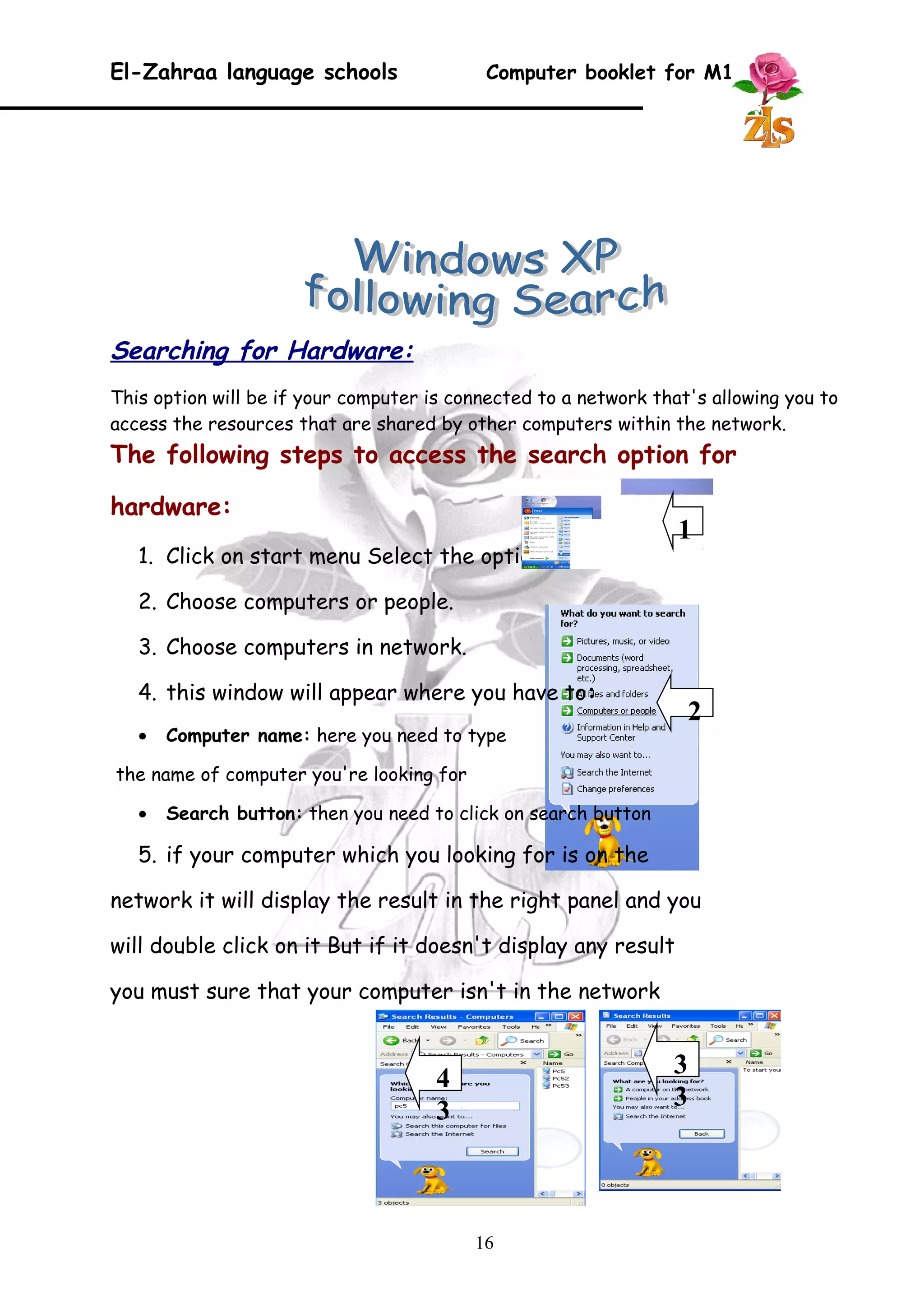
1. Click on start menu Select the option search 
2. Choose computers or people. 
3. Choose computers in network. 
4. this window will appear where you have to: 
· Computer name: here you need to type 
the name of computer you're looking for 
· Search button: then you need to click on search button 
5. if your computer which you looking for is on the 
network it will display the result in the right panel and you 
will double click on it But if it doesn't display any result 
you must sure that your computer isn't in the network 
16 
1 
2 
3 
4 3 
3
El-Zahraa language schools Computer booklet for M1 
Searching for People: 
If you have Outlook that's mean you have an address book Now you have the ability 
to search the name of a person in the address book. 
The following steps to access the search option for hardware: 
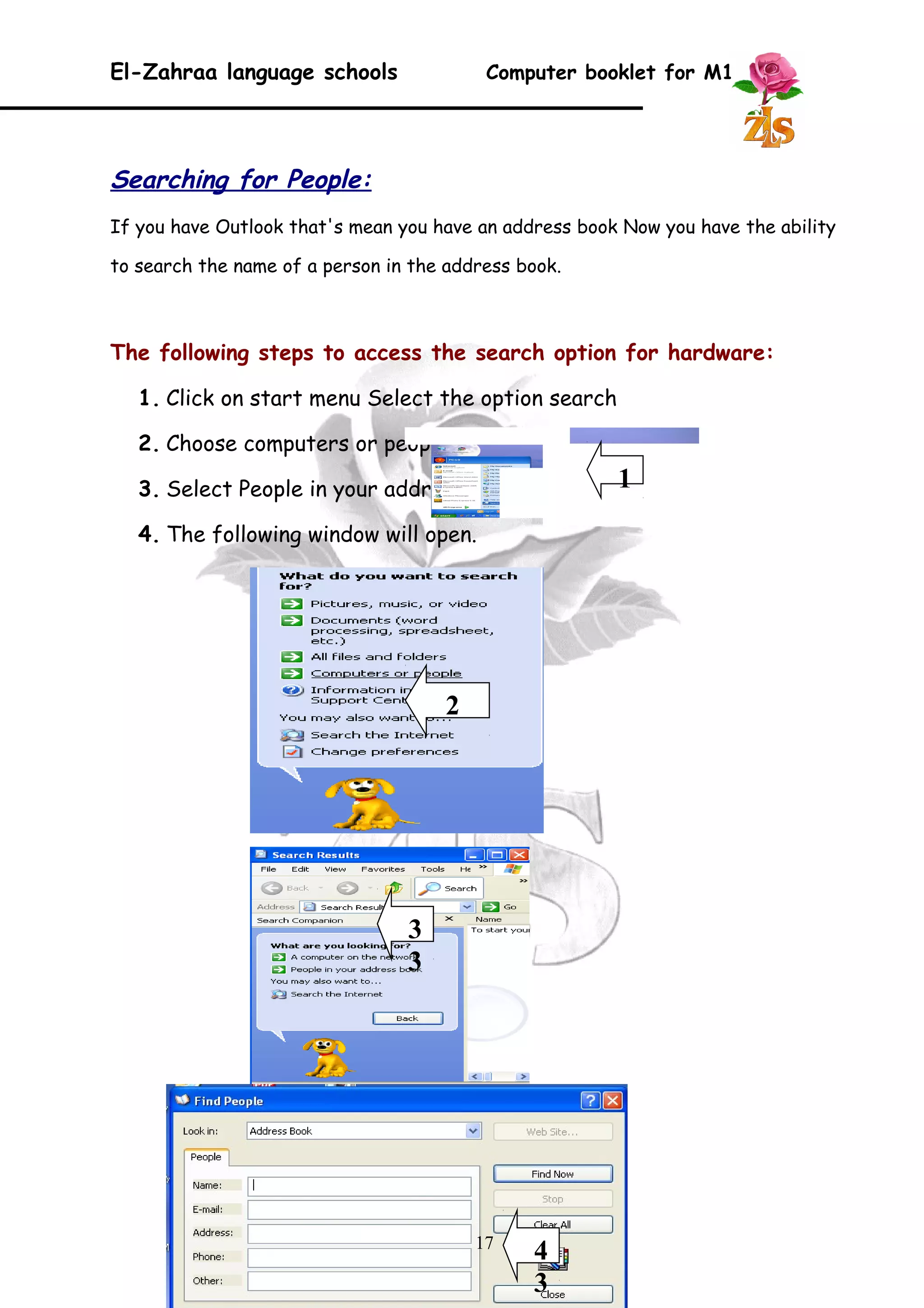
1. Click on start menu Select the option search 
2. Choose computers or people. 
3. Select People in your address book. 
4. The following window will open. 
17 
1 
2 
3 
3 
4 
3
El-Zahraa language schools Computer booklet for M1 
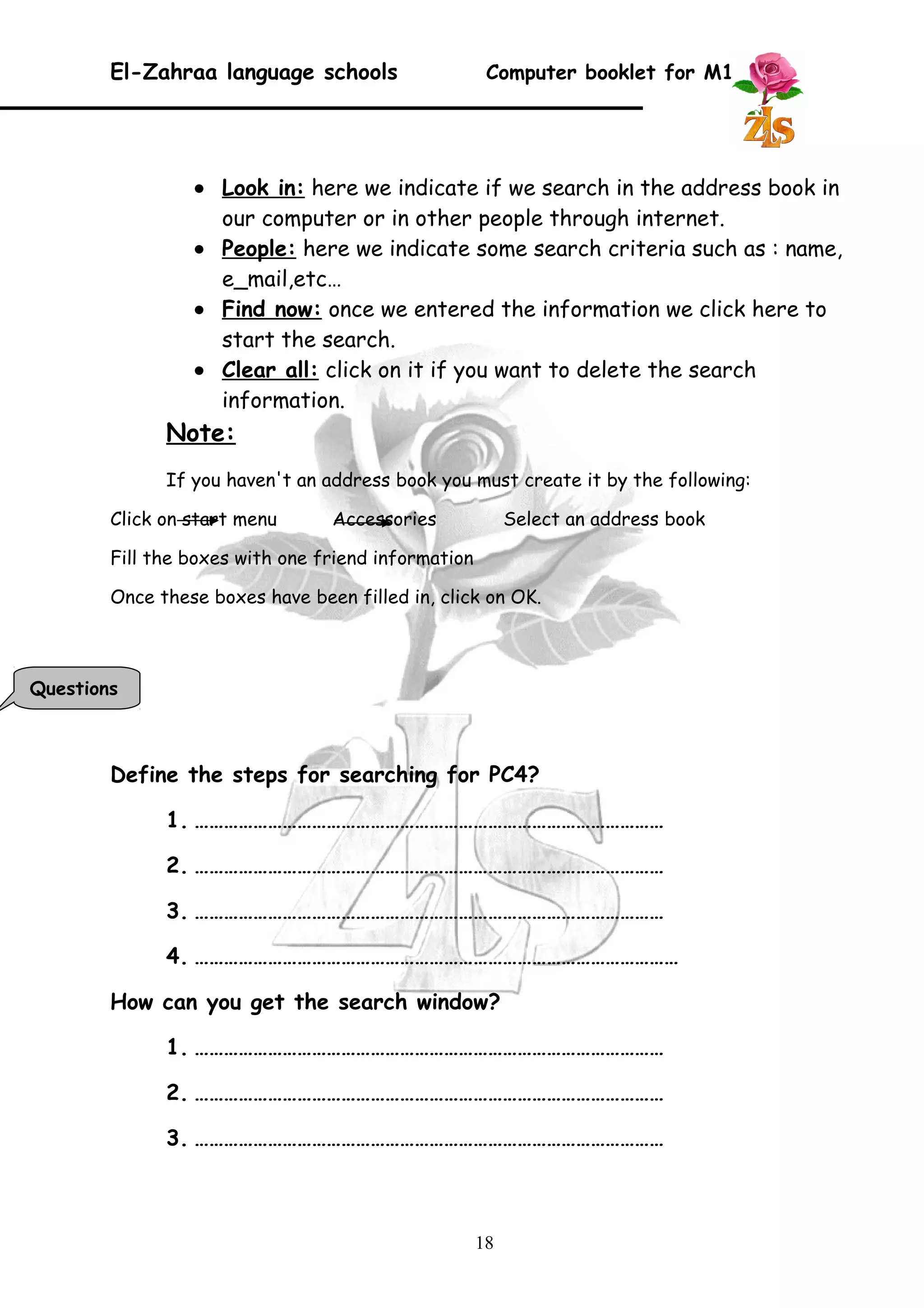
· Look in : here we indicate if we search in the address book in 
our computer or in other people through internet. 
· People : here we indicate some search criteria such as : name, 
e_mail,etc… 
· Find now : once we entered the information we click here to 
start the search. 
· Clear all : click on it if you want to delete the search 
information. 
Note: 
If you haven't an address book you must create it by the following: 
Click on start menu Accessories Select an address book 
Fill the boxes with one friend information 
Once these boxes have been filled in, click on OK. 
Define the steps for searching for PC4? 
1. …………………………………………………………………………………… 
2. …………………………………………………………………………………… 
3. …………………………………………………………………………………… 
4. ……………………………………………………………………………………… 
How can you get the search window? 
1. …………………………………………………………………………………… 
2. …………………………………………………………………………………… 
3. …………………………………………………………………………………… 
18 
Questions
El-Zahraa language schools Computer booklet for M1 
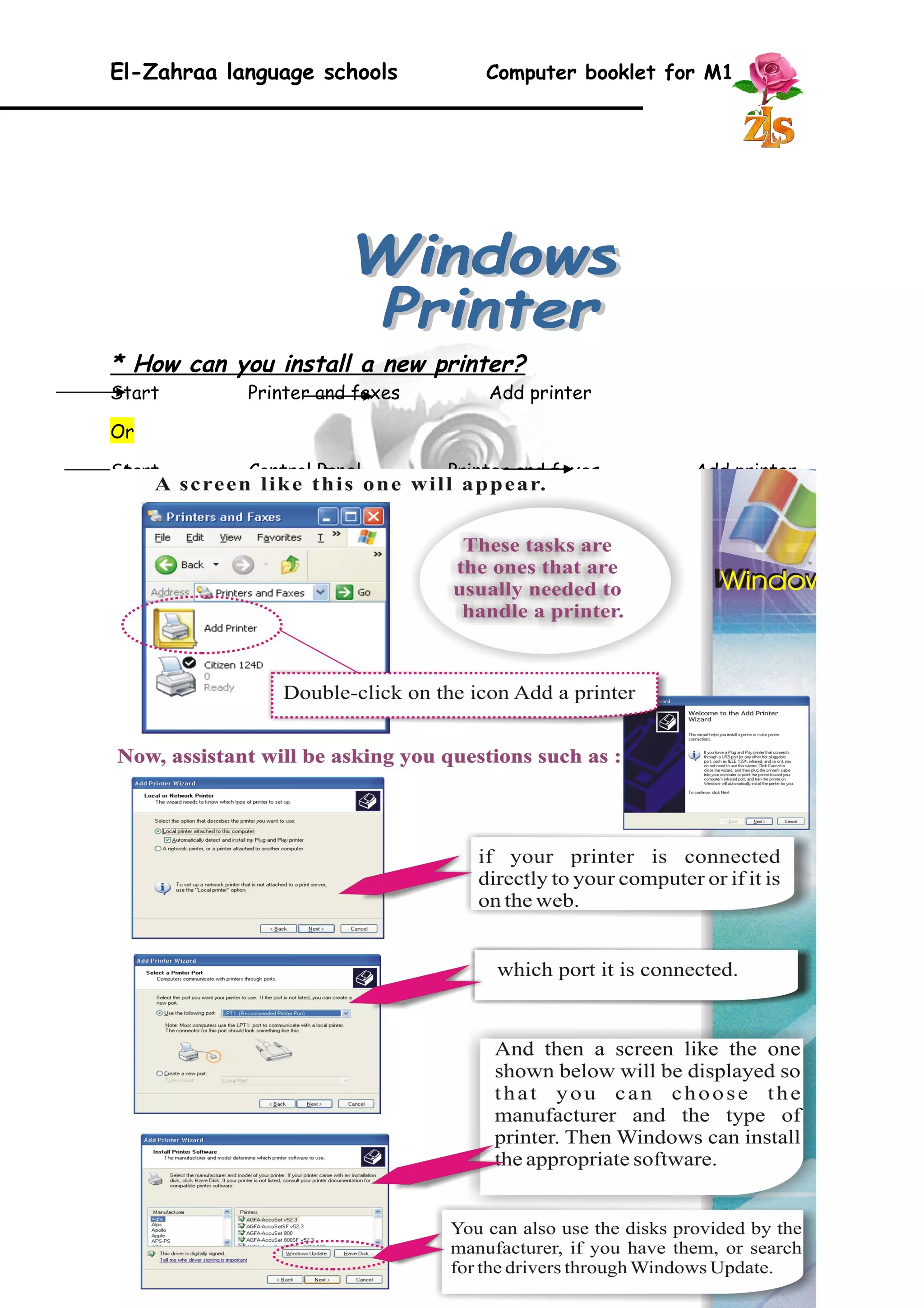
* How can you install a new printer? 
Start Printer and faxes Add printer 
Or 
Start Control Panel Printer and faxes Add printer 
19
El-Zahraa language schools Computer booklet for M1 
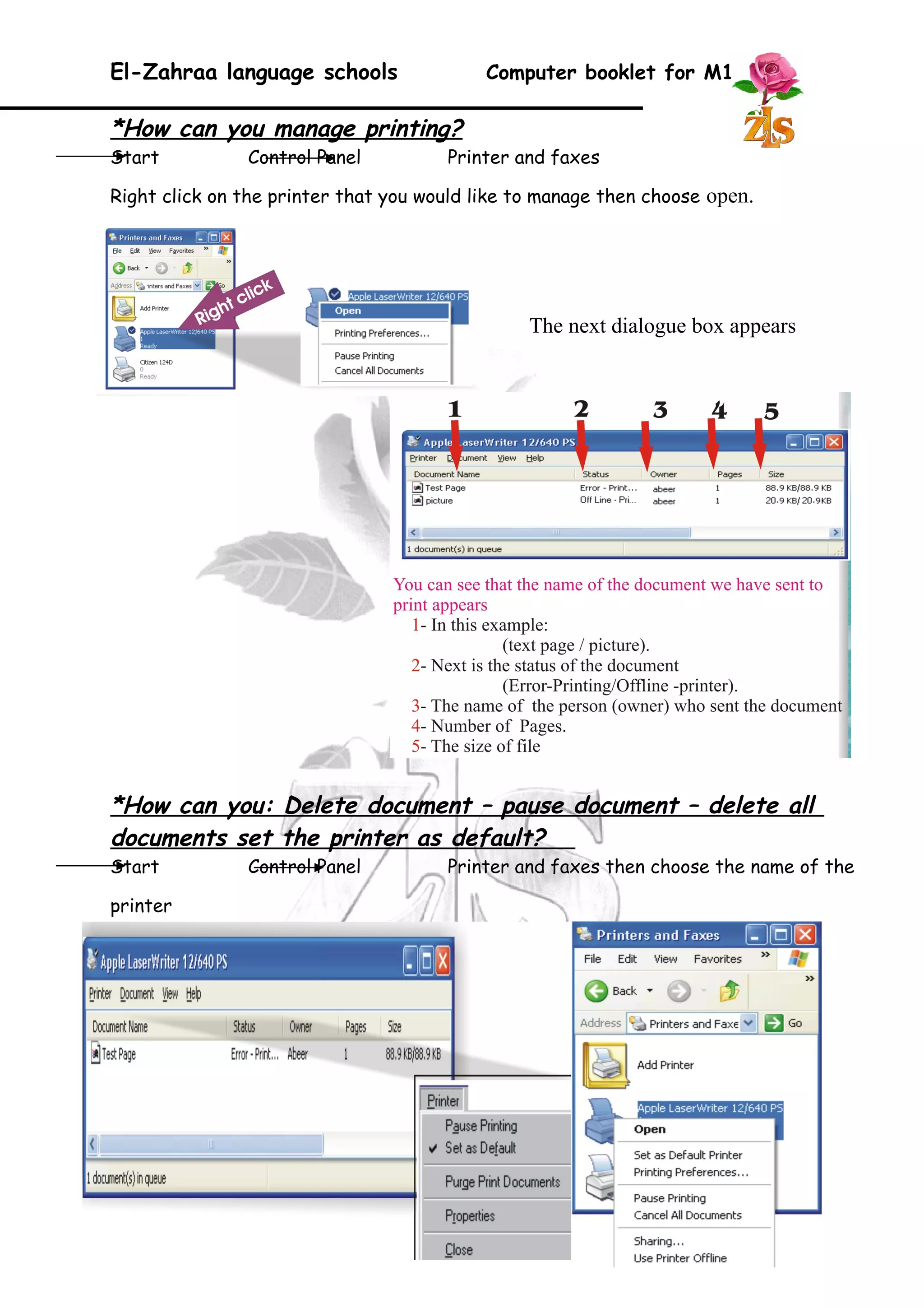
*How can you manage printing? 
Start Control Panel Printer and faxes 
Right click on the printer that you would like to manage then choose open. 
The next dialogue box appears 
*How can you: Delete document – pause document – delete all 
documents set the printer as default? 
Start Control Panel Printer and faxes then choose the name of the 
printer 
20
El-Zahraa language schools Computer booklet for M1 
- To delete a document :select the document then click on the delete button. 
- To Pause printimg document :open the menu document then click Pause 
- To delete all documents: open the menu printer then select cancel all 
documents. 
- To set a printer as a default printer: open the menu printer then select 
Set as Default Printer. 
*How can you manage printing? 
1. …………………………………………………………………………………… 
2. …………………………………………………………………………………… 
3. …………………………………………………………………………………… 
*How can you set the printer as default? 
1. …………………………………………………………………………………… 
2. …………………………………………………………………………………… 
3. …………………………………………………………………………………… 
21 
Questions
El-Zahraa language schools Computer booklet for M1 
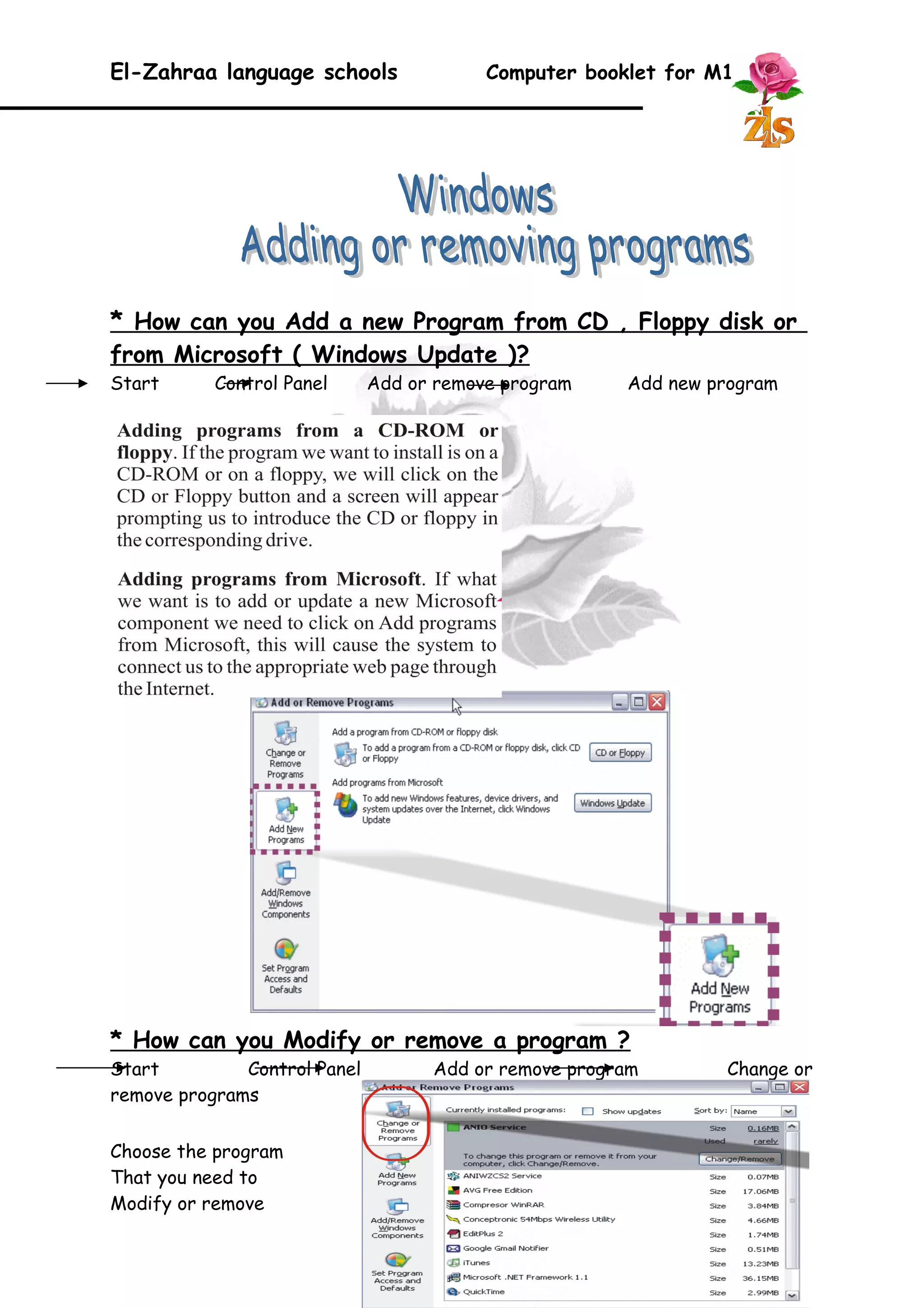
* How can you Add a new Program from CD , Floppy disk or 
from Microsoft ( Windows Update )? 
Start Control Panel Add or remove program Add new program 
* How can you Modify or remove a program ? 
Start Control Panel Add or remove program Change or 
remove programs 
Choose the program 
That you need to 
Modify or remove 
22
El-Zahraa language schools Computer booklet for M1 
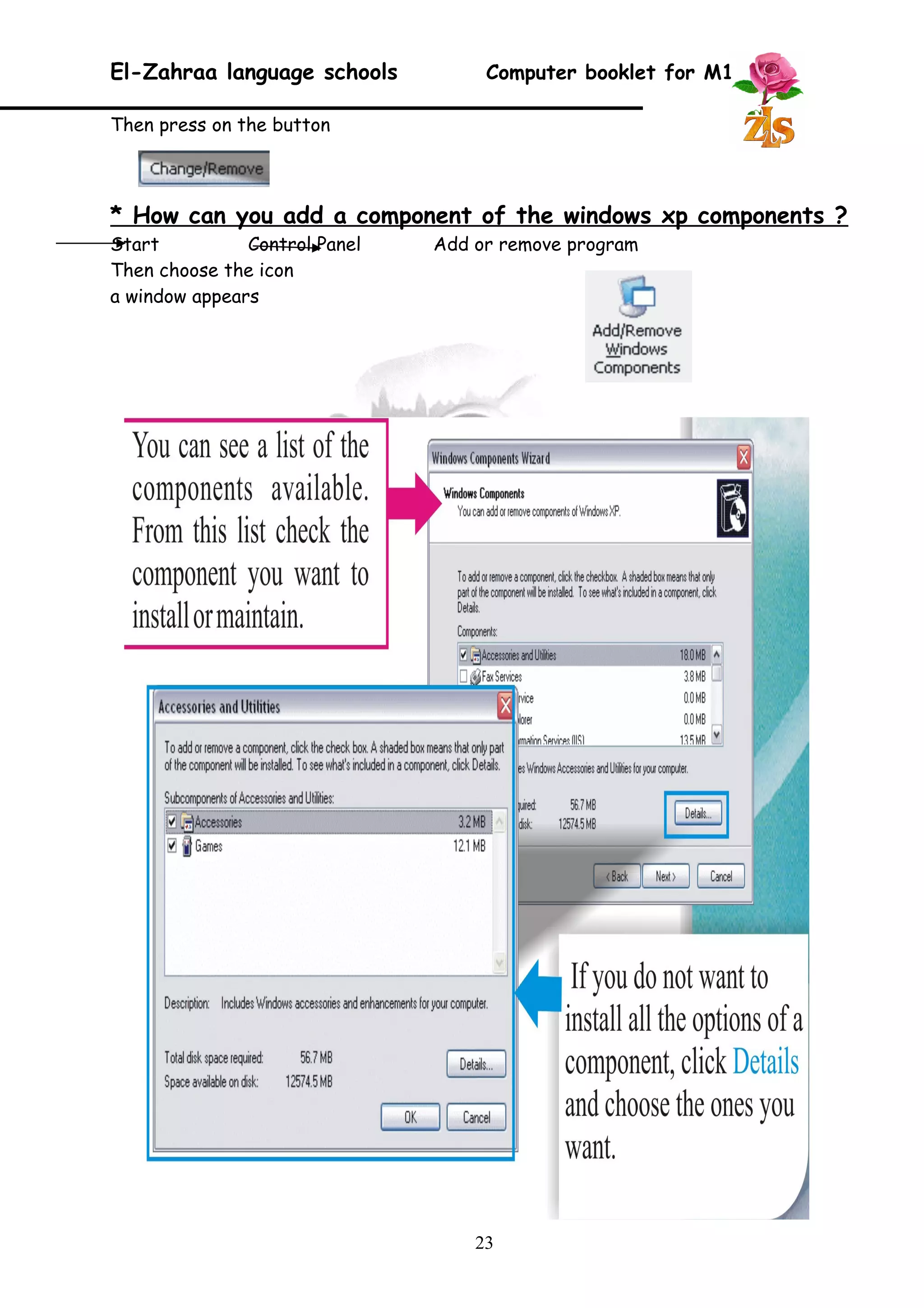
Then press on the button 
* How can you add a component of the windows xp components ? 
Start Control Panel Add or remove program 
Then choose the icon 
a window appears 
23
El-Zahraa language schools Computer booklet for M1 
Complete: 
1. You can Modify or remove a program by: 
Start …………….. Add or remove program 
………………… 
2. You can install a new printer by: 
Start ……………….. Add printer 
Or 
Start ……………… Printer and faxes 
……………….. 
24 
Questions
El-Zahraa language schools Computer booklet for M1 
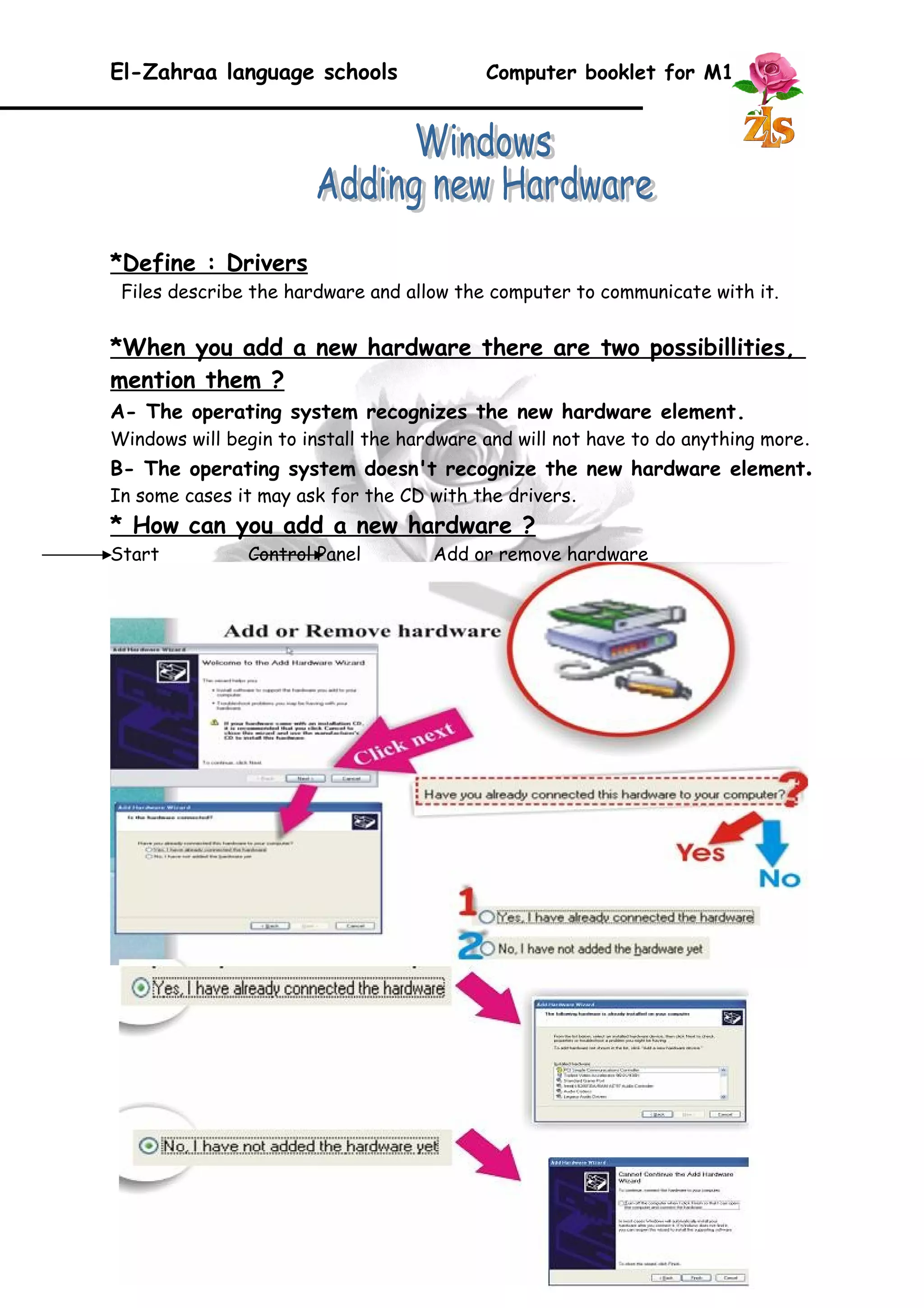
*Define : Drivers 
Files describe the hardware and allow the computer to communicate with it. 
*When you add a new hardware there are two possibillities, 
mention them ? 
A- The operating system recognizes the new hardware element. 
Windows will begin to install the hardware and will not have to do anything more. 
B- The operating system doesn't recognize the new hardware element. 
In some cases it may ask for the CD with the drivers. 
* How can you add a new hardware ? 
Start Control Panel Add or remove hardware 
25
El-Zahraa language schools Computer booklet for M1 
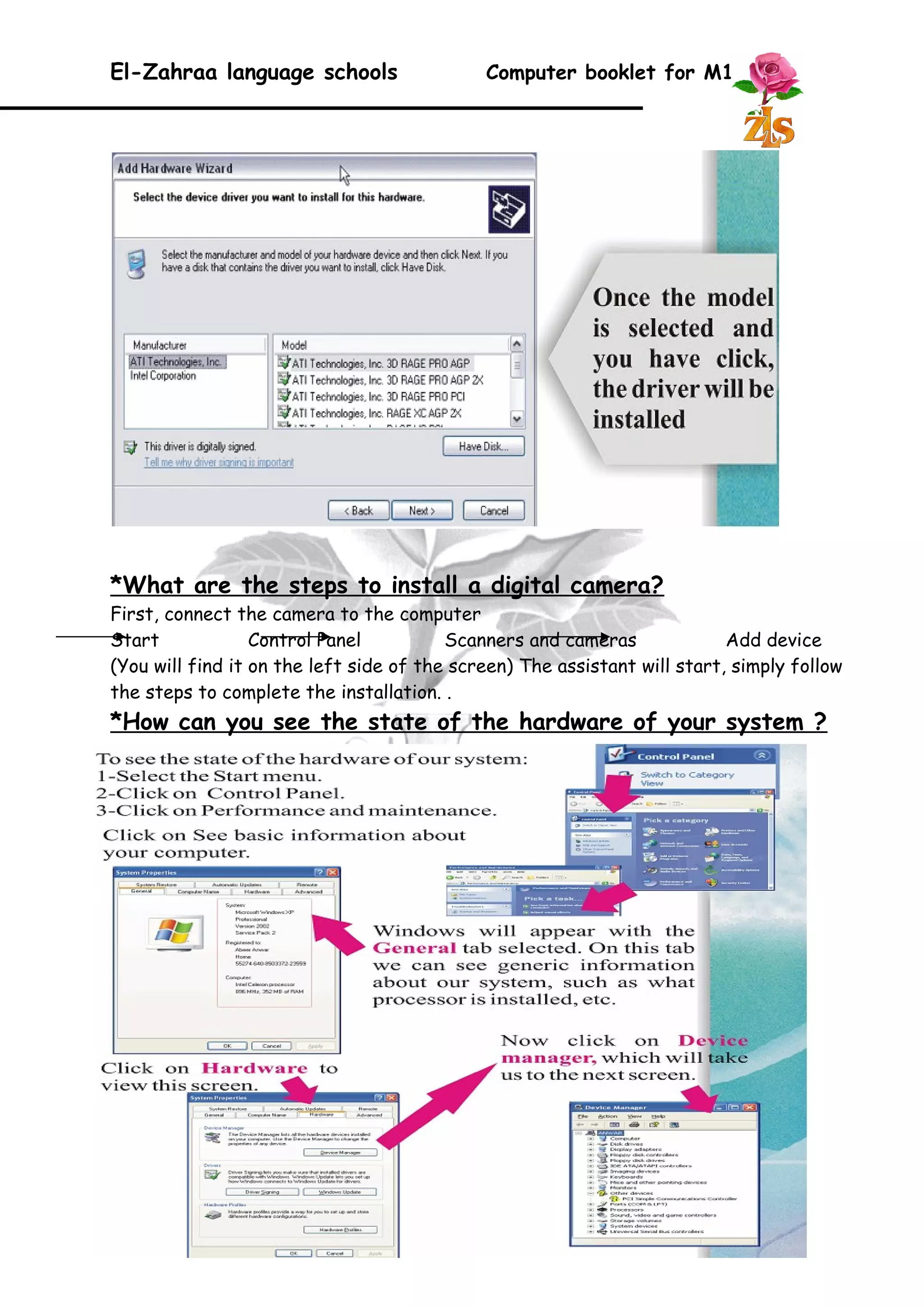
*What are the steps to install a digital camera? 
First, connect the camera to the computer 
Start Control Panel Scanners and cameras Add device 
(You will find it on the left side of the screen) The assistant will start, simply follow 
the steps to complete the installation. . 
*How can you see the state of the hardware of your system ? 
26
El-Zahraa language schools Computer booklet for M1 
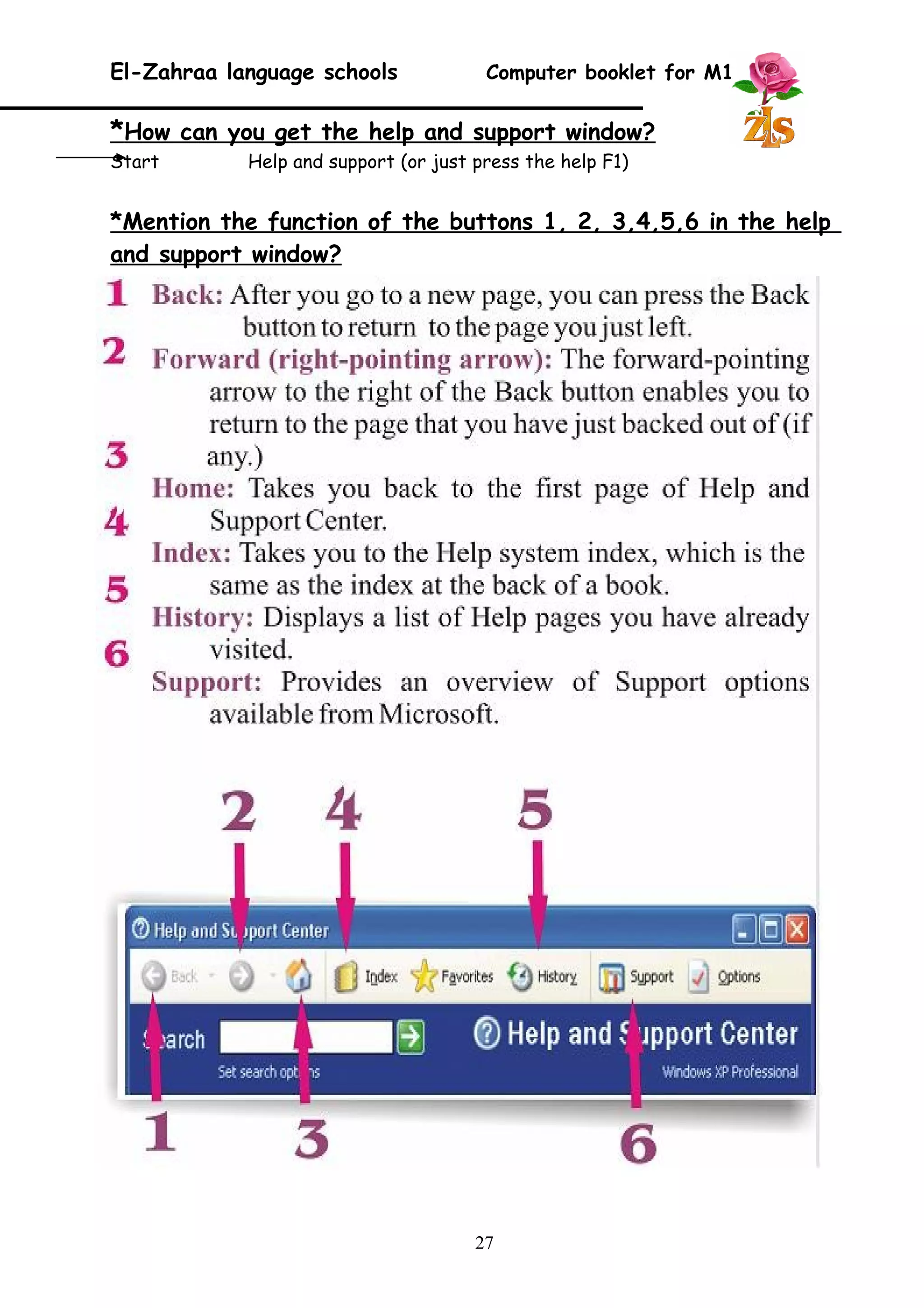
* How can you get the help and support window? 
Start Help and support (or just press the help F1) 
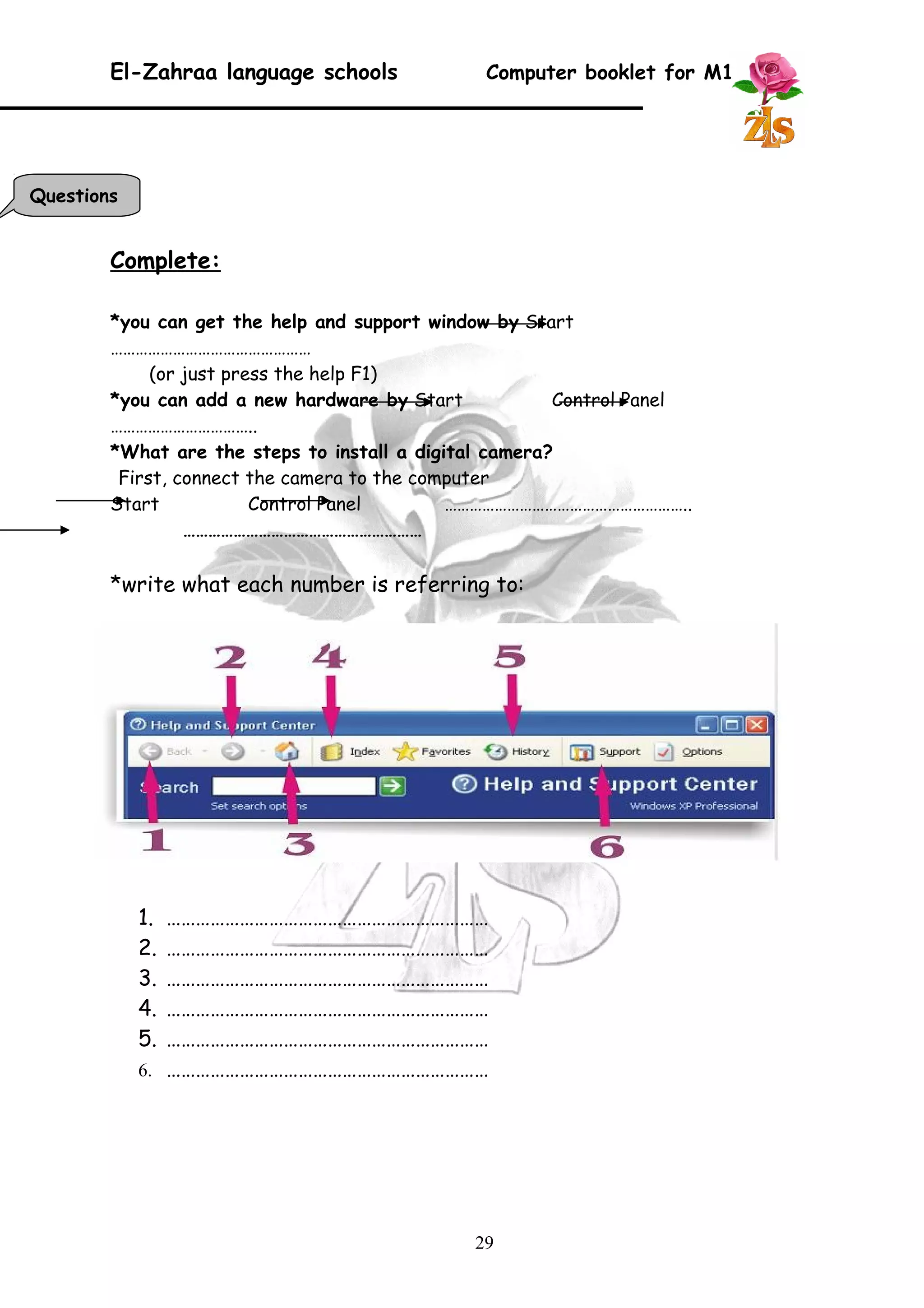
*Mention the function of the buttons 1, 2, 3,4,5,6 in the help 
and support window? 
27
El-Zahraa language schools Computer booklet for M1 
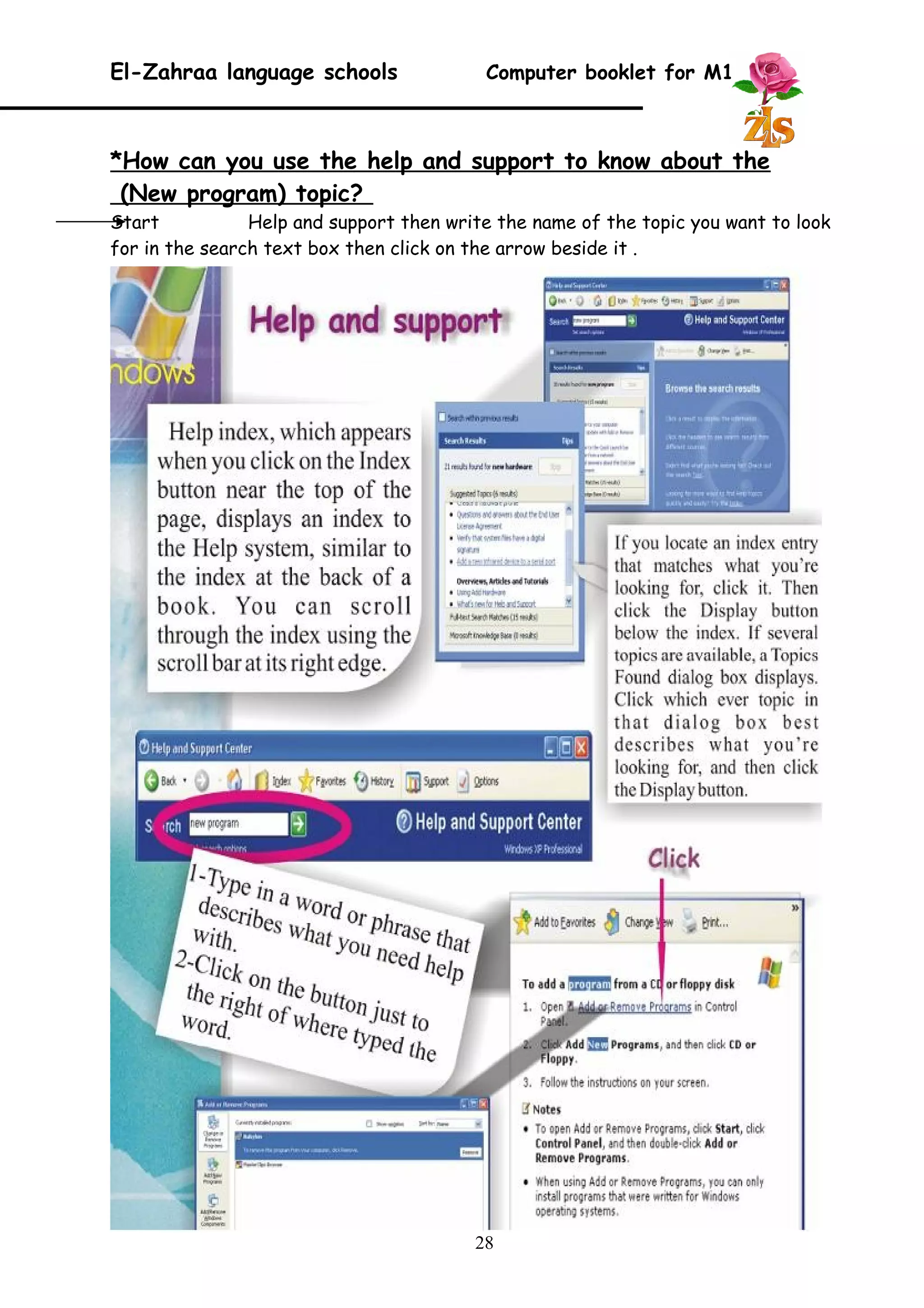
*How can you use the help and support to know about the 
(New program) topic? 
Start Help and support then write the name of the topic you want to look 
for in the search text box then click on the arrow beside it . 
28
El-Zahraa language schools Computer booklet for M1 
Complete: 
*you can get the help and support window by Start 
………………………………………… 
(or just press the help F1) 
*you can add a new hardware by Start Control Panel 
…………………………….. 
*What are the steps to install a digital camera? 
First, connect the camera to the computer 
Start Control Panel ………………………………………………….. 
………………………………………………… 
*write what each number is referring to: 
1. ………………………………………………………… 
2. ………………………………………………………… 
3. ………………………………………………………… 
4. ………………………………………………………… 
5. ………………………………………………………… 
6. ………………………………………………………… 
29 
Questions

Booklet computer 1p t1

  • 1.
    El-Zahraa language schoolsComputer booklet for M1 In this chapter we will know that the different ways for uses the computer But at first we must know that: Where computers are better? 1. Repetitive tasks. 2. Easily automated tasks. 3. Mathematical calculations. 4. Dangerous situations. Where people are better? 1. Any activity requiring thought or creativity. 2. Interacting with humans. A computer , s uses in our life are in : Business (Offices – Shops - Libraries), Home, Education, Healthcare First: the uses of computer in business are … a- Offices : 1- Store records 2- Paying employees 3- Sending letters 4- Communicate with other companies and department b- Shops : 1- Calculate bills using bar code. 2- Payment using a credit card. c- Libraries: Managing libraries (Borrowing or returning books using bar code) Second: the uses of computer in Education? 1- Storing students data 2- Writing reports 3- CBT (Computer base training) material to study science, math etc 4- Distance learning systems ( E- learning ) Real world example of using computer in Education is Distance Learning System ( E - Learning). Third: the uses of computer in Healthcare? 1. Record patient records 2. Control diagnostic instructions 3. Provide online services 4. Perform medical research 1
  • 2.
    El-Zahraa language schoolsComputer booklet for M1 1. Where computers are better than people? a) ………………………………………………………….. b) …………………………………………………………… c) …………………………………………………………… d) …………………………………………………………… 2. Identify the fields where the computers can affect? a) ………………………………………………………….. b) …………………………………………………………… c) …………………………………………………………… d) …………………………………………………………… 3. Give some example of using computer in Education? a) ………………………………………………………….. b) …………………………………………………………… 2 Questions
  • 3.
    El-Zahraa language schoolsComputer booklet for M1 A computer is an electronic device that processes data converting it into information that is useful to decision makers Computers are controlled by programming instruction ,which give the machine a purpose and tell it what , when and how to do it A complete computer system consists of four parts : 1. Hardeware 2. Software 3. humanware 4. Data And Information We Can Define them by : Hardware: Any part of the computer you can see and touch Software: A set of instructions that order the computer to perform tasks Human ware: a- Maintain hardware b- Develop software c- Design d- Operate and use Data & Information: Data types : Words – Numbers – Images - Sound or video The types of computers are : Computer name Capacity Speed Cost PC (Personal Computer) 40GB – 120 GB 1 GHz – 3 GHz Fairly in expensive Mainframe for large businesses and organizations Thousands of PCs Much faster than PCs Highly expensive Macintosh ( Mac ) 40GB – 120 GB 500 MHz – 3 GHz More than the equivalent PC Laptop Run on batteries 20GB – 80GB 700 MHz – 3 GHz More than the equivalent PC Server (Works with networks) More than 160 GB Faster than PC More expensive than PC PDA (personal data assistant) To store small files-appointments 64MB – 8GB 8 MHz – 266 MHz Expensive when comparing with PC 3
  • 4.
    El-Zahraa language schoolsComputer booklet for M1 * Draw a line to match the five steps for buying a computer: · Buy that computer · Find hardware to make the software go. · Shop for service and support. · Decide what you want the computer to do. · Find software to get that job done. * Define each items following: 1. Hardware:................................... 2. Software:............................................................... 3. Human ware:................................. 4. Data & Information:........................ 4 Questions Step 1 Step 2 Step 3 Step 4 Step 5
  • 5.
    El-Zahraa language schoolsComputer booklet for M1 The computer components are: Processor: (CPU) (Central processing unit) the brain of the computer, it's hidden inside the computer case that does all the work like calculations. Memory: Temporary storage place (The size of the memory is very important factor in computer efficiency) Input units: used to input data to the computer. For example: Keyboard, Mouse, Scroll ball, Drawing board, Light pen, Touch Screen, Touch pad , Joystick, Microphone and Scanner. Output units: are in charge of displaying the result of processing data. For example: Monitor, Printers (Laser – Inkjet), Plotter and Speakers Storage The measuring units: 1 Byte= 8 bits 1 KiloByte= 1024 B 1 MegaByte= 1024 K B 1 GigaByte= 1024 MB 1 TeraByte= 1024 GB The factors that affect computer efficiency are: 1- Processor speed 2- Rationalize: human mistakes 3- Hard disk capacity 4- Memory capacity 5
  • 6.
    El-Zahraa language schoolsComputer booklet for M1 * Match each device with suitable number that describes it: Device Number Device Number Keyboard Monitor Mouse Printer Speaker Floppy disk 6 -1- Inpu t units -2- Output units -3- Storag e units Questions
  • 7.
    El-Zahraa language schoolsComputer booklet for M1 Software is : Instructions that order the computer to perform a task We have three types of Computer Software These are : 1- Operating System : In charge of managing the movement of data and information from the memory to the processing unit and from the processing unit to the memory, then to the output units. Manages disks & files Monitors Activities The operating system is working in the background of the computer while you are working on the computer. 2- Applications: According to its tasks Like: Word processing, spreadsheets, Database, Entertainment, Education, movie programs Browser programs 3- Utility Programs : to perform a task for the computer operations Like :PDF tool(for creating and editing PDF files)-Anti-viruses(to make your computer completely free of infection) The software work through operating system by these steps: The operating system receives the orders from applications it sends them to the processing unit to be processed restore the result to the user. Give a word to complete the sentences: 1. ……………………………………. Works with words to help you write letters. 7 Questions
  • 8.
    El-Zahraa language schoolsComputer booklet for M1 2. …………………………………… helps you to use functions. 3. …………………………………… programs translate between users and computer. 4. …………………………………… helps you to do mailing lists. 5. ……………………………………. helps you learn new skills. 8
  • 9.
    El-Zahraa language schoolsComputer booklet for M1 Data is : The raw material of information Information is : The output of processing data IT( Information Technology ) is : A set of computers which the processing and storing data are done, that contain text, picture and sound. * Computers process information as a series of electric signals as human brain. Computer processes data through : CPU : the brain of the computer which contain Control unit (CU): arranges the data flow through the computer an controls all the computer units. Arithmetic and logic unit ( ALU ) : To perform all the arithmetic and logic operations. Memory (RAM – ROM): To store data and orders Note: When computer receives data through input units, the data stores in the main memory, then the CPU processes it, then output the information through the output units such as Monitor. The human ware have an Important role in computer system such as : Designers Programmers Builders The stages of processing data are: 1- Input data: through input units 2- Process data: (arithmetic operations – storing – comparing – classification) 3- Dealing with outputs: (storing – restoring – communicate – reproduce) 9
  • 10.
    El-Zahraa language schoolsComputer booklet for M1 Put (True) or (False): 1. Software is things that can be touched. ( ) 2. Pictures and sound are the only 2 types of data that can be input to the computer ( ) 3. The size of Memory is not affecting the computer efficiency. ( ) 4. Information is the raw material of data. ( ) 5. Data can by ( letters – words – numbers – movies – songs. ( ) 6. Builders use the computer languages to put programs. ( ) 7. ( ALU ) used To perform all the arithmetic and logic operations. ( ) 8. Data and orders stored in CPU ( ) 9. Operating System is one of computer hardware ( ) 10. PC , Mainframe , Word processing and Macintosh are all types of computer( ) 10 Questions
  • 11.
    El-Zahraa language schoolsComputer booklet for M1 There are some suitable definitions of the following concepts: 1. Network : A connection of two computers or more in the same room or the same building or even in a two distant regions. 2. Internet : A connection between millions of computers all over the world. 3. WWW (World Wide Web): Millions of information pages in all fields of knowledge. 4. The Site : one page or more and concerning one topic and consists of a home page and hyper links for the other pages. 5. Hyper link : A text or a picture (hides an address inside it when you click on it the address is opened ) 6. URL Address : (Uniform Resources Locator) It is the place where the data stored. 7. The web page : It is an electronic document written with the HTML language. And it contains the hyper links. 8. The internet browser : A program we use to display the information pages. Where the browser restore data from the ISPs. Such as: Internet Explorer – Mozilla Firefox There are some of the internet services like: 1- E-mails 2- WWW ( World wide web ) 3- Search ( Google – Yahoo ) 4- Multimedia You can navigate through the internet by : 1- Hyper links ( Picture or text ) 2- URL Address 11
  • 12.
    El-Zahraa language schoolsComputer booklet for M1 You need to communicate with the internet : 1- Computer 2- Browsing program 3- ISP Give a suitable definition for theses concepts: 1- Internet :…………………………………………………………………………….. 2- WWW :…………………………………………………………………………………. 3- Hyper link :…………………………………………………………………………………… 4- The internet browser:…………………………………………………………… 5- The web page :……………………………………………………………………………. 6- Network :………………………………………………………………………………………… Give some simples for the internet services 1-………………………….. 2-………………………….. 3-………………………….. 12 Questions
  • 13.
    El-Zahraa language schoolsComputer booklet for M1 The Windows desktop features: Windows desktop interface consists of: Icons like:my computer, my document Recycle bin Wall paper Task bar consists of: start menu, Clock, Minimized windows How to move the windows: 1. Open my computer window. 2. Put the mouse pointer on the title bar of the window. 3. Press on the left button of the mouse , keep on pressing until you move the window How can you size a window: 1. Put the mouse pointer on any of the window borders, the shape will be changed. 2. Press on the left button of the mouse and keep on pressing until you size the window ( left or right – upper or lower ) 3. When you reach the required size release the button How can you arrange windows from taskbar? 1. Right click on any free space on the task bar 2. A popup menu appears choose one of the following : · Cascade windows · Tile windows vertically · Tile windows horizontally 13
  • 14.
    El-Zahraa language schoolsComputer booklet for M1 Cascade windows Tile windows horizontally Tile windows vertically How can you move through the opened windows? - By pressing on any space of them or the name of the window from the task bar 14
  • 15.
    El-Zahraa language schoolsComputer booklet for M1 Complete: Components of the desktop are: 4. ……………………………………………………………………………… 5. …………………………………………………………………………….. 6. ……………………………………………………………………………… Rearrange the following steps : How can you move my computer window? 1. Press on the left button of the mouse and keeping pressing until you size the window ( left or right – upper or lower ) (step……) 2. Put mouse pointer on any of the window border, the shape will be changes. (step ……) 3. When you reach the required size release the button (step ……) How can you arrange windows from taskbar? 1. Choose your suitable way to rearrange the windows. (step ……) 2. A popup menu appears choose one of the following (step ……) · Cascade windows · The windows vertically · The windows horizontally 3. Right click on any free space on the task bar (step ……) How can you size a window? 1. Open my computer window. (step……) 2. Press on the left button of the mouse , keeping pressing until you move the window (step ….) 3. Put the mouse pointer on the title bar of the window. (step ……) How can you move through the opened windows? ………………………………………………………………………………………………………………… Put √ or × : 1. We can arrange windows from taskbar by lift click on it ( ) 2. We can through the opened windows by pressing on the name of the window from standard bar ( ) 15 Questions
  • 16.
    El-Zahraa language schoolsComputer booklet for M1 Searching for Hardware: This option will be if your computer is connected to a network that's allowing you to access the resources that are shared by other computers within the network. The following steps to access the search option for hardware: 1. Click on start menu Select the option search 2. Choose computers or people. 3. Choose computers in network. 4. this window will appear where you have to: · Computer name: here you need to type the name of computer you're looking for · Search button: then you need to click on search button 5. if your computer which you looking for is on the network it will display the result in the right panel and you will double click on it But if it doesn't display any result you must sure that your computer isn't in the network 16 1 2 3 4 3 3
  • 17.
    El-Zahraa language schoolsComputer booklet for M1 Searching for People: If you have Outlook that's mean you have an address book Now you have the ability to search the name of a person in the address book. The following steps to access the search option for hardware: 1. Click on start menu Select the option search 2. Choose computers or people. 3. Select People in your address book. 4. The following window will open. 17 1 2 3 3 4 3
  • 18.
    El-Zahraa language schoolsComputer booklet for M1 · Look in : here we indicate if we search in the address book in our computer or in other people through internet. · People : here we indicate some search criteria such as : name, e_mail,etc… · Find now : once we entered the information we click here to start the search. · Clear all : click on it if you want to delete the search information. Note: If you haven't an address book you must create it by the following: Click on start menu Accessories Select an address book Fill the boxes with one friend information Once these boxes have been filled in, click on OK. Define the steps for searching for PC4? 1. …………………………………………………………………………………… 2. …………………………………………………………………………………… 3. …………………………………………………………………………………… 4. ……………………………………………………………………………………… How can you get the search window? 1. …………………………………………………………………………………… 2. …………………………………………………………………………………… 3. …………………………………………………………………………………… 18 Questions
  • 19.
    El-Zahraa language schoolsComputer booklet for M1 * How can you install a new printer? Start Printer and faxes Add printer Or Start Control Panel Printer and faxes Add printer 19
  • 20.
    El-Zahraa language schoolsComputer booklet for M1 *How can you manage printing? Start Control Panel Printer and faxes Right click on the printer that you would like to manage then choose open. The next dialogue box appears *How can you: Delete document – pause document – delete all documents set the printer as default? Start Control Panel Printer and faxes then choose the name of the printer 20
  • 21.
    El-Zahraa language schoolsComputer booklet for M1 - To delete a document :select the document then click on the delete button. - To Pause printimg document :open the menu document then click Pause - To delete all documents: open the menu printer then select cancel all documents. - To set a printer as a default printer: open the menu printer then select Set as Default Printer. *How can you manage printing? 1. …………………………………………………………………………………… 2. …………………………………………………………………………………… 3. …………………………………………………………………………………… *How can you set the printer as default? 1. …………………………………………………………………………………… 2. …………………………………………………………………………………… 3. …………………………………………………………………………………… 21 Questions
  • 22.
    El-Zahraa language schoolsComputer booklet for M1 * How can you Add a new Program from CD , Floppy disk or from Microsoft ( Windows Update )? Start Control Panel Add or remove program Add new program * How can you Modify or remove a program ? Start Control Panel Add or remove program Change or remove programs Choose the program That you need to Modify or remove 22
  • 23.
    El-Zahraa language schoolsComputer booklet for M1 Then press on the button * How can you add a component of the windows xp components ? Start Control Panel Add or remove program Then choose the icon a window appears 23
  • 24.
    El-Zahraa language schoolsComputer booklet for M1 Complete: 1. You can Modify or remove a program by: Start …………….. Add or remove program ………………… 2. You can install a new printer by: Start ……………….. Add printer Or Start ……………… Printer and faxes ……………….. 24 Questions
  • 25.
    El-Zahraa language schoolsComputer booklet for M1 *Define : Drivers Files describe the hardware and allow the computer to communicate with it. *When you add a new hardware there are two possibillities, mention them ? A- The operating system recognizes the new hardware element. Windows will begin to install the hardware and will not have to do anything more. B- The operating system doesn't recognize the new hardware element. In some cases it may ask for the CD with the drivers. * How can you add a new hardware ? Start Control Panel Add or remove hardware 25
  • 26.
    El-Zahraa language schoolsComputer booklet for M1 *What are the steps to install a digital camera? First, connect the camera to the computer Start Control Panel Scanners and cameras Add device (You will find it on the left side of the screen) The assistant will start, simply follow the steps to complete the installation. . *How can you see the state of the hardware of your system ? 26
  • 27.
    El-Zahraa language schoolsComputer booklet for M1 * How can you get the help and support window? Start Help and support (or just press the help F1) *Mention the function of the buttons 1, 2, 3,4,5,6 in the help and support window? 27
  • 28.
    El-Zahraa language schoolsComputer booklet for M1 *How can you use the help and support to know about the (New program) topic? Start Help and support then write the name of the topic you want to look for in the search text box then click on the arrow beside it . 28
  • 29.
    El-Zahraa language schoolsComputer booklet for M1 Complete: *you can get the help and support window by Start ………………………………………… (or just press the help F1) *you can add a new hardware by Start Control Panel …………………………….. *What are the steps to install a digital camera? First, connect the camera to the computer Start Control Panel ………………………………………………….. ………………………………………………… *write what each number is referring to: 1. ………………………………………………………… 2. ………………………………………………………… 3. ………………………………………………………… 4. ………………………………………………………… 5. ………………………………………………………… 6. ………………………………………………………… 29 Questions