All About Computers….


By:
Mr. UV
Regent International School     3-1
Computer Hardware
   Components:
CPU, Memory, and I/O


                       1-2
Computer Hardware
         Components
   In this chapter:
     • How did the computer become known as the stored-program
       computer?
         – Do they all have the same characteristics?
     • Memory on chips and memory on magnetic media, how do
       they differ?
     • What do you look for when comparing memory devices?
     • How is information moved around within the computer?
     • How can you help your computer run better?


                                                                 3-3
Basic Concepts of
        Computer Hardware
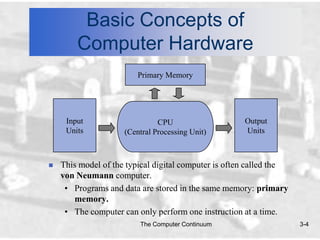
                         Primary Memory


     Input                     CPU                    Output
     Units           (Central Processing Unit)        Units


   This model of the typical digital computer is often called the
    von Neumann computer.
     • Programs and data are stored in the same memory: primary
       memory.
     • The computer can only perform one instruction at a time.
                         The Computer Continuum                      3-4
Basic Concepts of
       Computer Hardware
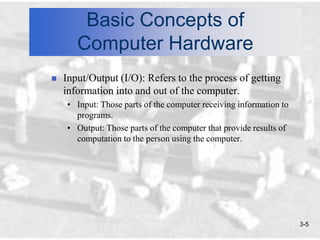
   Input/Output (I/O): Refers to the process of getting
    information into and out of the computer.
    • Input: Those parts of the computer receiving information to
      programs.
    • Output: Those parts of the computer that provide results of
      computation to the person using the computer.


                                                                    3-5
Sources of Data
          for the Computer
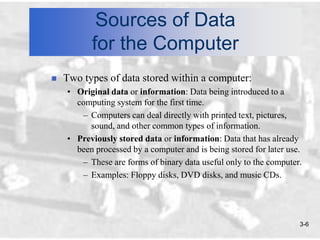
   Two types of data stored within a computer:
    • Original data or information: Data being introduced to a
      computing system for the first time.
       – Computers can deal directly with printed text, pictures,
         sound, and other common types of information.
    • Previously stored data or information: Data that has already
      been processed by a computer and is being stored for later use.
       – These are forms of binary data useful only to the computer.
       – Examples: Floppy disks, DVD disks, and music CDs.


                                                                    3-6
Input Devices

   Two categories of input hardware:
    • Those that deal with original data.
    • Those that handle previously stored data.


                                                  3-7
Input Devices

   Input hardware: Those that deal with original data.
    •   Keyboard
    •   Mouse
    •   Voice recognition hardware
    •   Scanner
    •   Digital camera

   Digitizing: The process of taking a visual image, or
    audio recording and converting it to a binary form for
    the computer.
    • Used as data for programs to display, play or manipulate the
      digitized data.
                                                                     3-8
Input Devices

   Connecting Hardware to the computer:
    • Hardware needs access through some general input/output
      connection.
       – Port: The pathway for data to go into and out of the
         computer from external devices such as keyboards.
           • There are many standard ports as well as custom
              electronic ports designed for special purposes.
       – Peripheral device: A piece of hardware like a printer or
         disk drive, that is outside the main computer.


                                                                    3-9
Input Devices

   Connecting Hardware to the computer: (continued)
    • Hardware needs software on the computer that can service the
      device.
       – Device driver: Software addition to the operating system
         that will allow the computer to communicate with a
         particular device.


                                                                 3-10
Input Devices

   Common Basic Technologies for Storing Binary
    Information:
    • Electronic
    • Magnetic
    • Optical


                                                   3-11
Input Devices

   Electronic Circuits
    • Most expensive of the three forms for storing binary
      information.
    • Electronic circuits come in two forms:
        – Permanent
        – Non-permanent


                                                             3-12
Input Devices

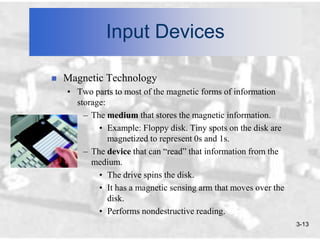
   Magnetic Technology
    • Two parts to most of the magnetic forms of information
      storage:
        – The medium that stores the magnetic information.
            • Example: Floppy disk. Tiny spots on the disk are
               magnetized to represent 0s and 1s.
        – The device that can “read” that information from the
          medium.
            • The drive spins the disk.
            • It has a magnetic sensing arm that moves over the
               disk.
            • Performs nondestructive reading.
                                                                  3-13
Input Devices

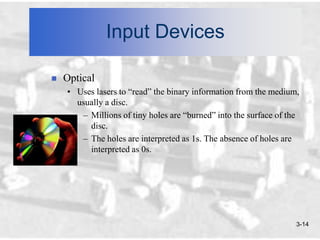
   Optical
    • Uses lasers to “read” the binary information from the medium,
      usually a disc.
       – Millions of tiny holes are “burned” into the surface of the
         disc.
       – The holes are interpreted as 1s. The absence of holes are
         interpreted as 0s.


                                                                   3-14
Input Devices

   Secondary Memory Input Devices
    • These input devices are used by a computer to store
      information and then to retrieve that information as needed.
        – External to the computer.
        – Commonly consists of floppy disks, hard disk drives, or
          CD-ROMs.
    • Secondary memory uses binary.
        – The usual measurement is the byte.
            • A byte consists of 8 binary digits (bits). The byte is a
              standard unit.


                                                                         3-15
Input Devices

   The four most important characteristics of storage
    devices:
    •   Speed and access time
    •   Cost / Removable versus non-removable
    •   Capacity
    •   Type of access


                                                         3-16
Input Devices

   Speed (Access time) - How fast information can be
    taken from or stored onto the computer memory
    device’s medium.
    • Electronic circuits: Fastest to access.

    • Floppy disks: Very slow in comparison.


                                                        3-17
Input Devices

   Sizes
    • Megabyte: A Million bytes.
    • Gigabyte: A billion bytes.


                                   3-18
Input Devices

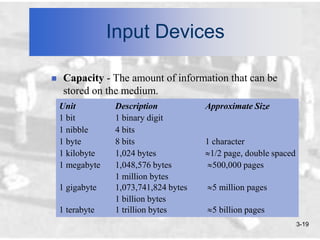
    Capacity - The amount of information that can be
     stored on the medium.
    Unit          Description           Approximate Size
    1 bit         1 binary digit
    1 nibble      4 bits
    1 byte        8 bits                1 character
    1 kilobyte    1,024 bytes            1/2 page, double spaced
    1 megabyte    1,048,576 bytes         500,000 pages
                  1 million bytes
    1 gigabyte    1,073,741,824 bytes    5 million pages
                  1 billion bytes
    1 terabyte    1 trillion bytes       5 billion pages
                                                                   3-19
Input Devices

   Type of Access
        – Sequential - Obtained by proceeding through the storage
          medium from the beginning until the designated area is
          reached (as in magnetic tape).
        – Random Access - Direct access (as in floppy and hard
          disks).


                                                                    3-20
Primary Memory

   Primary storage or memory: Is where the data and program that
    are currently in operation or being accessed are stored during use.
     • Consists of electronic circuits: Extremely fast and expensive.
     • Two types:
          – RAM (non-permanent)
              • Programs and data can be stored here for the
                 computer’s use.
              • Volatile: All information will be lost once the
                 computer shuts down.
          – ROM (permanent)
              • Contents do not change.

                                                                      3-21
The Central Processing Unit

   The Central Processing Unit ( CPU)
    • Often referred to as the “brain” of the computer.
    • Responsible for controlling all activities of the computer system.
    • The three major components of the CPU are:
        1. Arithmetic Unit (Computations performed)
        2. Control Unit (Has two locations where numbers are kept)
           Instruction Register (Instruction placed here for analysis)
           Program Counter (Which instruction will be performed next?)
        3. Instruction Decoding Unit (Decodes the instruction)
    • Motherboard: The place where most of the electronics
      including the CPU are mounted.

                                                                         3-22
Output Devices

   Output units store and display information (calculated
    results and other messages) for us to see and use.
    • Floppy disk drives and Hard disk drives.
    • Display monitors: Hi-resolution monitors come in two types:
       – Cathode ray tube (CRT) - Streams of electrons make
         phosphors glow on a large vacuum tube.
       – Liquid crystal display (LCD) - A flat panel display that
         uses crystals to let varying amounts of different colored
         light to pass through it.
            • Developed primarily for portable computers.


                                                                     3-23
Output Devices

   Audio Output Devices
    • Windows machines need special audio card for audio output.
    • Macintosh has audio playback built in.
    • Audio output is useful for:
       – Music
           • CD player is a computer.
           • Most personal computers have CD players that can
             access both music CDs and CD-ROMs.
       – Voice synthesis (becoming more human sounding.)
       – Multimedia
       – Specialized tasks (i.e.: elevator’s floor announcements)

                                                                    3-24
Output Devices

   Optical Disks: CD-ROM and DVD
    • CD-ROM (Compact Disk - Read Only Memory)
       – By its definition, CD-ROM is Read Only.
       – Special CD drives “burn” information into blank CDs.
            • Burn: A laser is used to “burn” craters into the
              surface to represent a binary 1.
            • Two main types of CDs:
                » CD-R (Compact Disk - Recordable)
                » CD-WR (Compact Disk - ReWritable)
       – It takes longer to write to a CD-R than a hard drive.
       – Special software is needed to record.

                                                                 3-25
Output Devices

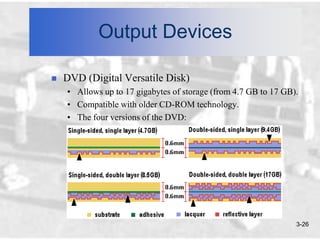
   DVD (Digital Versatile Disk)
    • Allows up to 17 gigabytes of storage (from 4.7 GB to 17 GB).
    • Compatible with older CD-ROM technology.
    • The four versions of the DVD:


                                                                 3-26
Output Devices

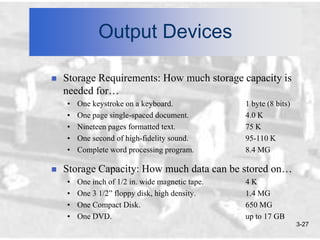
   Storage Requirements: How much storage capacity is
    needed for…
    •   One keystroke on a keyboard.              1 byte (8 bits)
    •   One page single-spaced document.          4.0 K
    •   Nineteen pages formatted text.            75 K
    •   One second of high-fidelity sound.        95-110 K
    •   Complete word processing program.         8.4 MG

   Storage Capacity: How much data can be stored on…
    •   One inch of 1/2 in. wide magnetic tape.   4K
    •   One 3 1/2” floppy disk, high density.     1.4 MG
    •   One Compact Disk.                         650 MG
    •   One DVD.                                  up to 17 GB
                                                                    3-27
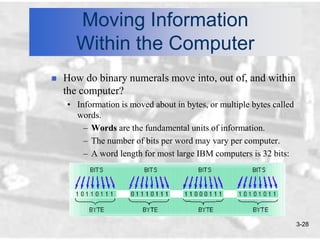
Moving Information
      Within the Computer
   How do binary numerals move into, out of, and within
    the computer?
    • Information is moved about in bytes, or multiple bytes called
      words.
        – Words are the fundamental units of information.
        – The number of bits per word may vary per computer.
        – A word length for most large IBM computers is 32 bits:


                                                                      3-28
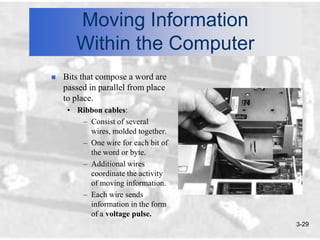
Moving Information
       Within the Computer
   Bits that compose a word are
    passed in parallel from place
    to place.
     • Ribbon cables:
        – Consist of several
          wires, molded together.
        – One wire for each bit of
          the word or byte.
        – Additional wires
          coordinate the activity
          of moving information.
        – Each wire sends
          information in the form
          of a voltage pulse.
                                     3-29
Moving Information
       Within the Computer
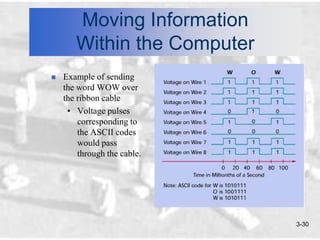
   Example of sending
    the word WOW over
    the ribbon cable
     • Voltage pulses
        corresponding to
        the ASCII codes
        would pass
        through the cable.


                             3-30
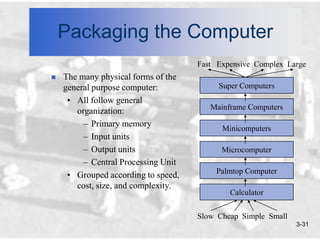
Packaging the Computer
                                     Fast Expensive Complex Large
   The many physical forms of the
    general purpose computer:             Super Computers
     • All follow general
                                        Mainframe Computers
       organization:
         – Primary memory
                                           Minicomputers
         – Input units
         – Output units                    Microcomputer
         – Central Processing Unit
                                         Palmtop Computer
     • Grouped according to speed,
       cost, size, and complexity.
                                             Calculator

                                     Slow Cheap Simple Small
                                                               3-31
Software Tools for Maintaining
  Your Computer Hardware
     Utility Programs exist that can help diagnose and solve computer
      hardware problems.
       • Four major problem areas where utility programs are helpful:
            – Finding and fixing problems.
               • Testing Input/Output peripherals.
               • Testing RAM, motherboard, video cards.
               • Recovering deleted files or fixing damaged disks.
           – Improving computer performance.
               • De-fragmenting a disk (Packs all files closer together).
           – Preventative maintenance.
           – Troubleshooting.
               • Locates incompatible programs.
                                                                            3-32
To Be Continued……..

Basic 2

  • 1.
    All About Computers…. By: Mr.UV Regent International School 3-1
  • 2.
    Computer Hardware Components: CPU, Memory, and I/O 1-2
  • 3.
    Computer Hardware Components  In this chapter: • How did the computer become known as the stored-program computer? – Do they all have the same characteristics? • Memory on chips and memory on magnetic media, how do they differ? • What do you look for when comparing memory devices? • How is information moved around within the computer? • How can you help your computer run better? 3-3
  • 4.
    Basic Concepts of Computer Hardware Primary Memory Input CPU Output Units (Central Processing Unit) Units  This model of the typical digital computer is often called the von Neumann computer. • Programs and data are stored in the same memory: primary memory. • The computer can only perform one instruction at a time. The Computer Continuum 3-4
  • 5.
    Basic Concepts of Computer Hardware  Input/Output (I/O): Refers to the process of getting information into and out of the computer. • Input: Those parts of the computer receiving information to programs. • Output: Those parts of the computer that provide results of computation to the person using the computer. 3-5
  • 6.
    Sources of Data for the Computer  Two types of data stored within a computer: • Original data or information: Data being introduced to a computing system for the first time. – Computers can deal directly with printed text, pictures, sound, and other common types of information. • Previously stored data or information: Data that has already been processed by a computer and is being stored for later use. – These are forms of binary data useful only to the computer. – Examples: Floppy disks, DVD disks, and music CDs. 3-6
  • 7.
    Input Devices  Two categories of input hardware: • Those that deal with original data. • Those that handle previously stored data. 3-7
  • 8.
    Input Devices  Input hardware: Those that deal with original data. • Keyboard • Mouse • Voice recognition hardware • Scanner • Digital camera  Digitizing: The process of taking a visual image, or audio recording and converting it to a binary form for the computer. • Used as data for programs to display, play or manipulate the digitized data. 3-8
  • 9.
    Input Devices  Connecting Hardware to the computer: • Hardware needs access through some general input/output connection. – Port: The pathway for data to go into and out of the computer from external devices such as keyboards. • There are many standard ports as well as custom electronic ports designed for special purposes. – Peripheral device: A piece of hardware like a printer or disk drive, that is outside the main computer. 3-9
  • 10.
    Input Devices  Connecting Hardware to the computer: (continued) • Hardware needs software on the computer that can service the device. – Device driver: Software addition to the operating system that will allow the computer to communicate with a particular device. 3-10
  • 11.
    Input Devices  Common Basic Technologies for Storing Binary Information: • Electronic • Magnetic • Optical 3-11
  • 12.
    Input Devices  Electronic Circuits • Most expensive of the three forms for storing binary information. • Electronic circuits come in two forms: – Permanent – Non-permanent 3-12
  • 13.
    Input Devices  Magnetic Technology • Two parts to most of the magnetic forms of information storage: – The medium that stores the magnetic information. • Example: Floppy disk. Tiny spots on the disk are magnetized to represent 0s and 1s. – The device that can “read” that information from the medium. • The drive spins the disk. • It has a magnetic sensing arm that moves over the disk. • Performs nondestructive reading. 3-13
  • 14.
    Input Devices  Optical • Uses lasers to “read” the binary information from the medium, usually a disc. – Millions of tiny holes are “burned” into the surface of the disc. – The holes are interpreted as 1s. The absence of holes are interpreted as 0s. 3-14
  • 15.
    Input Devices  Secondary Memory Input Devices • These input devices are used by a computer to store information and then to retrieve that information as needed. – External to the computer. – Commonly consists of floppy disks, hard disk drives, or CD-ROMs. • Secondary memory uses binary. – The usual measurement is the byte. • A byte consists of 8 binary digits (bits). The byte is a standard unit. 3-15
  • 16.
    Input Devices  The four most important characteristics of storage devices: • Speed and access time • Cost / Removable versus non-removable • Capacity • Type of access 3-16
  • 17.
    Input Devices  Speed (Access time) - How fast information can be taken from or stored onto the computer memory device’s medium. • Electronic circuits: Fastest to access. • Floppy disks: Very slow in comparison. 3-17
  • 18.
    Input Devices  Sizes • Megabyte: A Million bytes. • Gigabyte: A billion bytes. 3-18
  • 19.
    Input Devices  Capacity - The amount of information that can be stored on the medium. Unit Description Approximate Size 1 bit 1 binary digit 1 nibble 4 bits 1 byte 8 bits 1 character 1 kilobyte 1,024 bytes 1/2 page, double spaced 1 megabyte 1,048,576 bytes 500,000 pages 1 million bytes 1 gigabyte 1,073,741,824 bytes 5 million pages 1 billion bytes 1 terabyte 1 trillion bytes 5 billion pages 3-19
  • 20.
    Input Devices  Type of Access – Sequential - Obtained by proceeding through the storage medium from the beginning until the designated area is reached (as in magnetic tape). – Random Access - Direct access (as in floppy and hard disks). 3-20
  • 21.
    Primary Memory  Primary storage or memory: Is where the data and program that are currently in operation or being accessed are stored during use. • Consists of electronic circuits: Extremely fast and expensive. • Two types: – RAM (non-permanent) • Programs and data can be stored here for the computer’s use. • Volatile: All information will be lost once the computer shuts down. – ROM (permanent) • Contents do not change. 3-21
  • 22.
    The Central ProcessingUnit  The Central Processing Unit ( CPU) • Often referred to as the “brain” of the computer. • Responsible for controlling all activities of the computer system. • The three major components of the CPU are: 1. Arithmetic Unit (Computations performed) 2. Control Unit (Has two locations where numbers are kept) Instruction Register (Instruction placed here for analysis) Program Counter (Which instruction will be performed next?) 3. Instruction Decoding Unit (Decodes the instruction) • Motherboard: The place where most of the electronics including the CPU are mounted. 3-22
  • 23.
    Output Devices  Output units store and display information (calculated results and other messages) for us to see and use. • Floppy disk drives and Hard disk drives. • Display monitors: Hi-resolution monitors come in two types: – Cathode ray tube (CRT) - Streams of electrons make phosphors glow on a large vacuum tube. – Liquid crystal display (LCD) - A flat panel display that uses crystals to let varying amounts of different colored light to pass through it. • Developed primarily for portable computers. 3-23
  • 24.
    Output Devices  Audio Output Devices • Windows machines need special audio card for audio output. • Macintosh has audio playback built in. • Audio output is useful for: – Music • CD player is a computer. • Most personal computers have CD players that can access both music CDs and CD-ROMs. – Voice synthesis (becoming more human sounding.) – Multimedia – Specialized tasks (i.e.: elevator’s floor announcements) 3-24
  • 25.
    Output Devices  Optical Disks: CD-ROM and DVD • CD-ROM (Compact Disk - Read Only Memory) – By its definition, CD-ROM is Read Only. – Special CD drives “burn” information into blank CDs. • Burn: A laser is used to “burn” craters into the surface to represent a binary 1. • Two main types of CDs: » CD-R (Compact Disk - Recordable) » CD-WR (Compact Disk - ReWritable) – It takes longer to write to a CD-R than a hard drive. – Special software is needed to record. 3-25
  • 26.
    Output Devices  DVD (Digital Versatile Disk) • Allows up to 17 gigabytes of storage (from 4.7 GB to 17 GB). • Compatible with older CD-ROM technology. • The four versions of the DVD: 3-26
  • 27.
    Output Devices  Storage Requirements: How much storage capacity is needed for… • One keystroke on a keyboard. 1 byte (8 bits) • One page single-spaced document. 4.0 K • Nineteen pages formatted text. 75 K • One second of high-fidelity sound. 95-110 K • Complete word processing program. 8.4 MG  Storage Capacity: How much data can be stored on… • One inch of 1/2 in. wide magnetic tape. 4K • One 3 1/2” floppy disk, high density. 1.4 MG • One Compact Disk. 650 MG • One DVD. up to 17 GB 3-27
  • 28.
    Moving Information Within the Computer  How do binary numerals move into, out of, and within the computer? • Information is moved about in bytes, or multiple bytes called words. – Words are the fundamental units of information. – The number of bits per word may vary per computer. – A word length for most large IBM computers is 32 bits: 3-28
  • 29.
    Moving Information Within the Computer  Bits that compose a word are passed in parallel from place to place. • Ribbon cables: – Consist of several wires, molded together. – One wire for each bit of the word or byte. – Additional wires coordinate the activity of moving information. – Each wire sends information in the form of a voltage pulse. 3-29
  • 30.
    Moving Information Within the Computer  Example of sending the word WOW over the ribbon cable • Voltage pulses corresponding to the ASCII codes would pass through the cable. 3-30
  • 31.
    Packaging the Computer Fast Expensive Complex Large  The many physical forms of the general purpose computer: Super Computers • All follow general Mainframe Computers organization: – Primary memory Minicomputers – Input units – Output units Microcomputer – Central Processing Unit Palmtop Computer • Grouped according to speed, cost, size, and complexity. Calculator Slow Cheap Simple Small 3-31
  • 32.
    Software Tools forMaintaining Your Computer Hardware  Utility Programs exist that can help diagnose and solve computer hardware problems. • Four major problem areas where utility programs are helpful: – Finding and fixing problems. • Testing Input/Output peripherals. • Testing RAM, motherboard, video cards. • Recovering deleted files or fixing damaged disks. – Improving computer performance. • De-fragmenting a disk (Packs all files closer together). – Preventative maintenance. – Troubleshooting. • Locates incompatible programs. 3-32
  • 33.