BANK RECONCILIATION STATEMENT 
(In Tally) 
Recording the company’s Bank Account with the Banker’s statement is a regular task of accounting. In Tally, Reconciliation of Bank Accounts facilitates the following: 
Ability to Check Back the Correctness of Reconciliation: 
Tally uses date, to mark against the voucher. For instance, if we issue a cheque on 3rd April and our Bank clears it on 12th April, we would set the Bank Date for voucher as 12th April. This means that when we need to Check Back later, whether the entry made by us is correct, we will only need to verify the Bank Statement of the 12th April. 
Recovering the Reconciliation of any date: 
The Bank Reconciliation play important role in auditing and verification of the correctness of accounts at the year end. However it is not a ‘Real-time’ task, means auditors do not on the first day of the next year. 
A quick experiment with reconciliation will show what it all means here, it is how we go about it. Take the monthly summary of any Bank Book. 
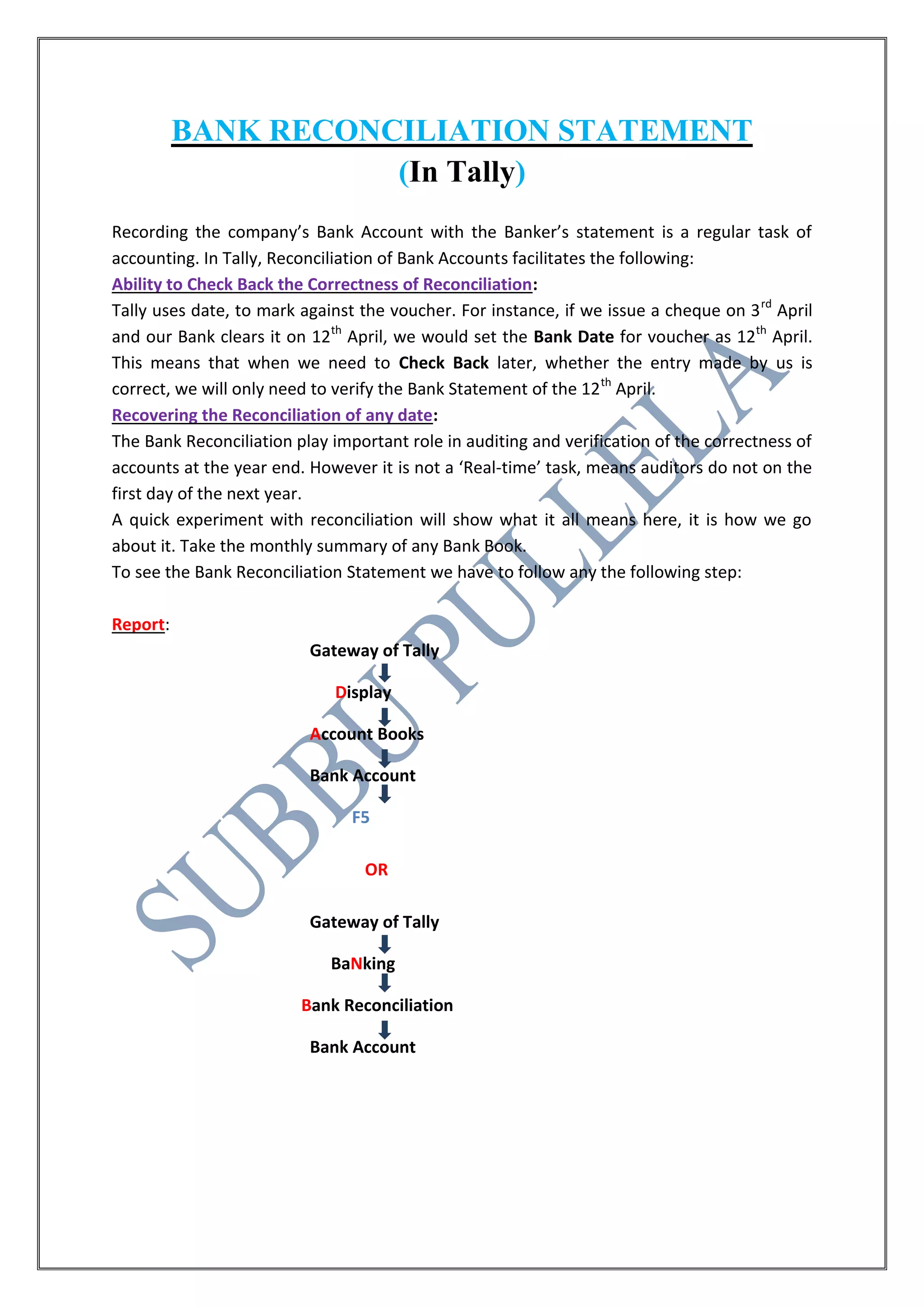
To see the Bank Reconciliation Statement we have to follow any the following step: 
Report: 
Gateway of Tally 
Display 
Account Books 
Bank Account 
F5 
OR 
Gateway of Tally 
BaNking 
Bank Reconciliation 
Bank Account
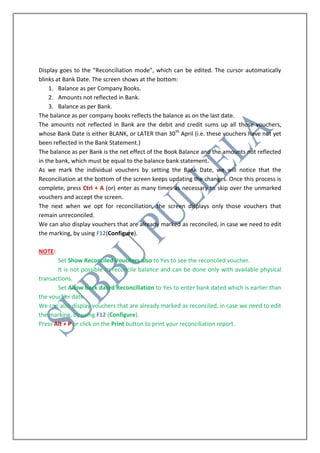
Display goes to the “Reconciliation mode”, which can be edited. The cursor automatically blinks at Bank Date. The screen shows at the bottom: 
1. Balance as per Company Books. 
2. Amounts not reflected in Bank. 
3. Balance as per Bank. 
The balance as per company books reflects the balance as on the last date. 
The amounts not reflected in Bank are the debit and credit sums up all those vouchers, whose Bank Date is either BLANK, or LATER than 30th April (i.e. these vouchers have not yet been reflected in the Bank Statement.) 
The balance as per Bank is the net effect of the Book Balance and the amounts not reflected in the bank, which must be equal to the balance bank statement. 
As we mark the individual vouchers by setting the Bank Date, we will notice that the Reconciliation at the bottom of the screen keeps updating the changes. Once this process is complete, press Ctrl + A (or) enter as many times as necessary to skip over the unmarked vouchers and accept the screen. 
The next when we opt for reconciliation, the screen displays only those vouchers that remain unreconciled. 
We can also display vouchers that are already marked as reconciled, in case we need to edit the marking, by using F12(Configure). 
NOTE: 
Set Show Reconciled Vouchers also to Yes to see the reconciled voucher. 
It is not possible to reconcile balance and can be done only with available physical transactions. 
Set Allow back dated Reconciliation to Yes to enter bank dated which is earlier than the voucher date. 
We can also display vouchers that are already marked as reconciled, in case we need to edit the marking, by using F12 (Configure). 
Press Alt + P or click on the Print button to print your reconciliation report.

Bank reconciliation statement

  • 1.
    BANK RECONCILIATION STATEMENT (In Tally) Recording the company’s Bank Account with the Banker’s statement is a regular task of accounting. In Tally, Reconciliation of Bank Accounts facilitates the following: Ability to Check Back the Correctness of Reconciliation: Tally uses date, to mark against the voucher. For instance, if we issue a cheque on 3rd April and our Bank clears it on 12th April, we would set the Bank Date for voucher as 12th April. This means that when we need to Check Back later, whether the entry made by us is correct, we will only need to verify the Bank Statement of the 12th April. Recovering the Reconciliation of any date: The Bank Reconciliation play important role in auditing and verification of the correctness of accounts at the year end. However it is not a ‘Real-time’ task, means auditors do not on the first day of the next year. A quick experiment with reconciliation will show what it all means here, it is how we go about it. Take the monthly summary of any Bank Book. To see the Bank Reconciliation Statement we have to follow any the following step: Report: Gateway of Tally Display Account Books Bank Account F5 OR Gateway of Tally BaNking Bank Reconciliation Bank Account
  • 2.
    Display goes tothe “Reconciliation mode”, which can be edited. The cursor automatically blinks at Bank Date. The screen shows at the bottom: 1. Balance as per Company Books. 2. Amounts not reflected in Bank. 3. Balance as per Bank. The balance as per company books reflects the balance as on the last date. The amounts not reflected in Bank are the debit and credit sums up all those vouchers, whose Bank Date is either BLANK, or LATER than 30th April (i.e. these vouchers have not yet been reflected in the Bank Statement.) The balance as per Bank is the net effect of the Book Balance and the amounts not reflected in the bank, which must be equal to the balance bank statement. As we mark the individual vouchers by setting the Bank Date, we will notice that the Reconciliation at the bottom of the screen keeps updating the changes. Once this process is complete, press Ctrl + A (or) enter as many times as necessary to skip over the unmarked vouchers and accept the screen. The next when we opt for reconciliation, the screen displays only those vouchers that remain unreconciled. We can also display vouchers that are already marked as reconciled, in case we need to edit the marking, by using F12(Configure). NOTE: Set Show Reconciled Vouchers also to Yes to see the reconciled voucher. It is not possible to reconcile balance and can be done only with available physical transactions. Set Allow back dated Reconciliation to Yes to enter bank dated which is earlier than the voucher date. We can also display vouchers that are already marked as reconciled, in case we need to edit the marking, by using F12 (Configure). Press Alt + P or click on the Print button to print your reconciliation report.