Audacity How To Have Fun With Sound by “Audacitydemo” This presentation is licensed under the Creative Commons Attribution 3.0 License. http://creativecommons.org/licenses/by/3.0/
To Open Audacity Go to the folder where Audacity is installed. On Windows this is usually  C:\Program Files\Audacity.  Double-click  audacity.exe  (Windows) Launch  Audacity
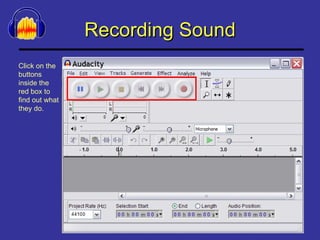
Recording Sound Click on the buttons inside the red box to find out what they do.
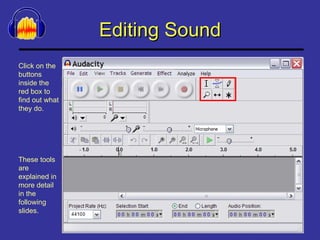
Editing Sound Click on the buttons inside the red box to find out what they do. These tools are explained in more detail in the following slides.
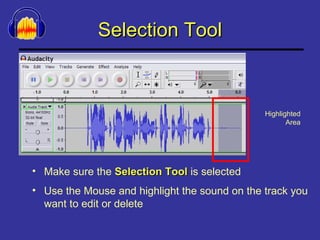
Selection Tool Make sure the  Selection Tool  is selected Use the Mouse and highlight the sound on the track you want to edit or delete Highlighted Area
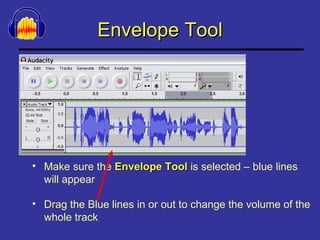
Envelope Tool Make sure the  Envelope Tool  is selected – blue lines will appear Drag the Blue lines in or out to change the volume of the whole track
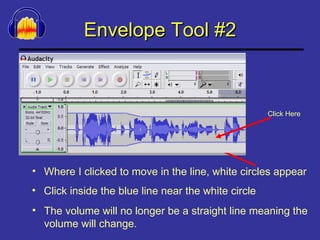
Envelope Tool #2 Where I clicked to move in the line, white circles appear The volume will no longer be a straight line meaning the volume will change. Click inside the blue line near the white circle Click Here
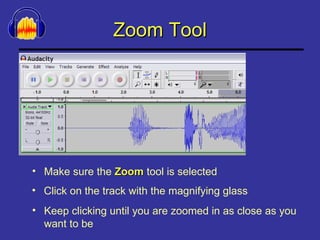
Zoom Tool Make sure the  Zoom  tool is selected Keep clicking until you are zoomed in as close as you want to be Click on the track with the magnifying glass
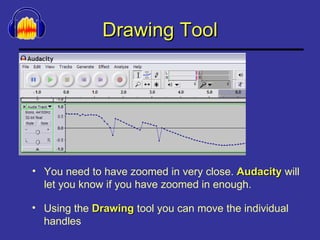
Drawing Tool You need to have zoomed in very close.  Audacity  will let you know if you have zoomed in enough. Using the  Drawing  tool you can move the individual handles
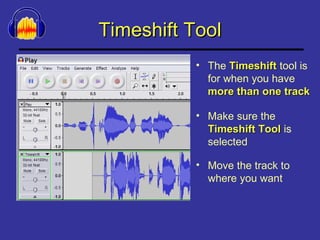
Timeshift Tool The  Timeshift  tool is for when you have  more than one track Move the track to where you want Make sure the  Timeshift Tool  is selected
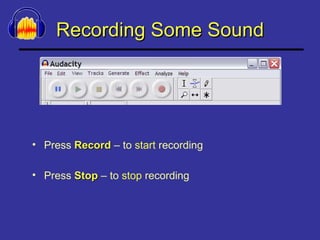
Recording Some Sound Press  Record  – to  start  recording Press  Stop  – to  stop  recording
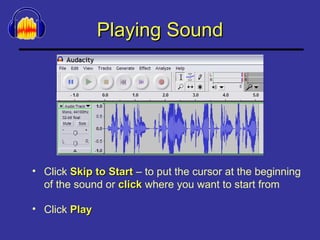
Playing Sound Click  Skip to Start  – to put the cursor at the beginning of the sound or  click  where you want to start from Click  Play
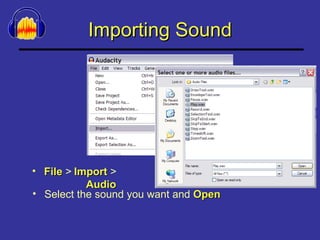
Importing Sound File  > Select the sound you want and  Open Import  >  Audio
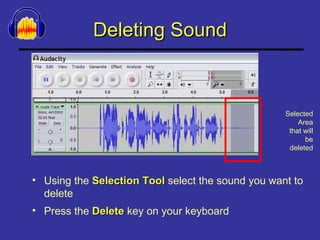
Deleting Sound Using the  Selection Tool  select the sound you want to delete Press the  Delete  key on your keyboard Selected Area that will be deleted
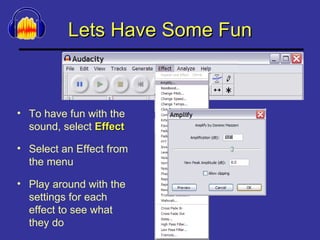
Lets Have Some Fun To have fun with the sound, select  Effect Play around with the settings for each effect to see what they do Select an Effect from the menu
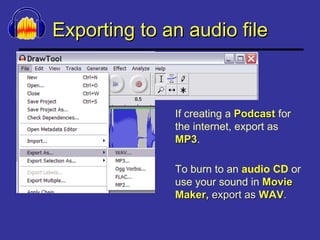
Exporting to an audio file If creating a  Podcast  for the internet, export as  MP3 . To burn to an  audio CD  or use your sound in  Movie Maker,  export as   WAV .

Audacity tutorial powerpoint

  • 1.
    Audacity How ToHave Fun With Sound by “Audacitydemo” This presentation is licensed under the Creative Commons Attribution 3.0 License. http://creativecommons.org/licenses/by/3.0/
  • 2.
    To Open AudacityGo to the folder where Audacity is installed. On Windows this is usually C:\Program Files\Audacity. Double-click audacity.exe (Windows) Launch Audacity
  • 3.
    Recording Sound Clickon the buttons inside the red box to find out what they do.
  • 4.
    Editing Sound Clickon the buttons inside the red box to find out what they do. These tools are explained in more detail in the following slides.
  • 5.
    Selection Tool Makesure the Selection Tool is selected Use the Mouse and highlight the sound on the track you want to edit or delete Highlighted Area
  • 6.
    Envelope Tool Makesure the Envelope Tool is selected – blue lines will appear Drag the Blue lines in or out to change the volume of the whole track
  • 7.
    Envelope Tool #2Where I clicked to move in the line, white circles appear The volume will no longer be a straight line meaning the volume will change. Click inside the blue line near the white circle Click Here
  • 8.
    Zoom Tool Makesure the Zoom tool is selected Keep clicking until you are zoomed in as close as you want to be Click on the track with the magnifying glass
  • 9.
    Drawing Tool Youneed to have zoomed in very close. Audacity will let you know if you have zoomed in enough. Using the Drawing tool you can move the individual handles
  • 10.
    Timeshift Tool The Timeshift tool is for when you have more than one track Move the track to where you want Make sure the Timeshift Tool is selected
  • 11.
    Recording Some SoundPress Record – to start recording Press Stop – to stop recording
  • 12.
    Playing Sound Click Skip to Start – to put the cursor at the beginning of the sound or click where you want to start from Click Play
  • 13.
    Importing Sound File > Select the sound you want and Open Import > Audio
  • 14.
    Deleting Sound Usingthe Selection Tool select the sound you want to delete Press the Delete key on your keyboard Selected Area that will be deleted
  • 15.
    Lets Have SomeFun To have fun with the sound, select Effect Play around with the settings for each effect to see what they do Select an Effect from the menu
  • 16.
    Exporting to anaudio file If creating a Podcast for the internet, export as MP3 . To burn to an audio CD or use your sound in Movie Maker, export as WAV .