CSUN, March 2014
Is Screen Reader Testing Enough?
© 2014 Interactive Accessibility
Why Accessibility?
•
•
•
•
•
•
Meet the needs of people with disabilities
Right thing to do
Organizations / governments require accessibility
Legal compliance
Good PR
Access to talent
© 2014 Interactive Accessibility 2
End goal is to make products
usable for people
© 2014 Interactive Accessibility 3
And That Includes People with Disabilities
•
•
•
•
•
Blind
Low vision
Deaf and hard of hearing
Mobility impairments
Cognitive impairments
Who are your
users?
© 2014 Interactive Accessibility 4
But, what does that mean?
© 2014 Interactive Accessibility 5
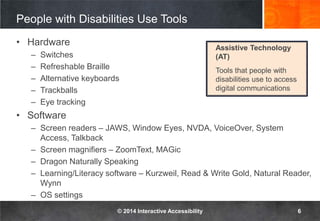
People with Disabilities Use Tools
•
–
–
–
–
–
•
–
–
–
–
–
Hardware
Switches
Refreshable Braille
Alternative keyboards
Trackballs
Eye tracking
Software
Screen readers – JAWS, Window Eyes, NVDA, VoiceOver, System
Access, Talkback
Screen magnifiers – ZoomText, MAGic
Dragon Naturally Speaking
Learning/Literacy software – Kurzweil, Read & Write Gold, Natural Reader,
Wynn
OS settings
Assistive Technology
(AT)
Tools that people with
disabilities use to access
digital communications
© 2014 Interactive Accessibility 6
Key Questions
Compatibility testing with AT can be challenging!
1. Is it enough to test with only screen readers?
2. What is a good testing strategy?
© 2014 Interactive Accessibility 7
Accessibility Dependencies
Assistive
Technology
Browsers
Accessibility
APIs
Code /
Platform
• Many factors that impact the end user experience
© 2014 Interactive Accessibility 8
So testing with one screen
reader may not be enough…
© 2014 Interactive Accessibility 9
Poll – What is your test matrix?
Active Participation! Let’s talk!
•
•
•
•
How many of you test with assistive technology?
How many test with:
–
–
–
–
–
–
–
–
–
Only screen readers?
More than one screen reader?
Screen magnifiers?
Dragon Naturally Speaking
Other AT?
How many test with more than one browser?
IE, Firefox, Chrome, Safari, Other?
What about different versions of the browsers and AT?
Latest versions only?
2 versions back?
More versions?
© 2014 Interactive Accessibility 10
Test Strategy
Conformance to the
WCAG 2.0 Success Criteria
Make sure the product is
accessibility supported
Offer accommodations
© 2014 Interactive Accessibility 11
Conformance Testing
•
•
•
Meet WCAG 2.0 success criteria
–
•
•
–
–
–
–
Conformance level: A, AA, AAA
Full pages
Complete processes
Follow techniques and best practices (but not required)
Use automated tools and favelets to check for
compliance
Use a screen reader during testing
Dynamic content
Page interaction
Reading order
© 2014 Interactive Accessibility 12
The Challenge
No one says…
What to test
or how much
is enough
© 2014 Interactive Accessibility
13
WCAG 2.0 Accessibility Supported
•
•
–
–
W3C WCAG 2.0 doesn’t specify how much / how many /
which AT a technology must support to be “accessibility
supported”
Accessibility supported means:
Content is defined in a way that makes it possible for AT &
user agents (e.g. browsers) to successfully present the
content’s information to the user
AT/user agents can understand and use the information (e.g.
text alternatives)
For more, see http://www.w3.org/TR/UNDERSTANDING-WCAG20/conformance.html
© 2014 Interactive Accessibility 14
Section 508 Functional Performance Criteria
•
–
–
–
–
–
•
First, the paraphrased definition (§ 1194.31)
Mode of operation & information retrieval not requiring vision, or
AT support for blind/low vision
Mode not requiring better than 20/70 vision, or AT support for
visually impaired
When audio is important, a mode for enhanced audio or support
for hearing AT
Mode not requiring speech or support for AT
Mode not requiring fine motor control or
simultaneous actions - that works with limited
reach & strength
But what does this mean in practice?
© 2014 Interactive Accessibility 15
Combinations – oh the math…
The number of combinations can be daunting and
infeasible
•
•
•
•
Operating systems
Devices / platforms
Browsers
Assistive technology
Each has multiple versions!
© 2014 Interactive Accessibility 16
Factors in Determining What to Support
•
•
•
•
Support varies by environment and by language
New technology is often unsupported in older AT
Support for a single AT is usually insufficient
Support by affordable AT is often poor
So what should we design for?
What should we test?
© 2014 Interactive Accessibility 17
Defining Test Suite
•
•
Product requirements
–
–
–
–
–
What operating system(s) does the product run on?
Which browsers does the product support?
Who is the target audience?
Assistive technology requirements
What does the assistive technology support?
What combinations are used by most users?
© 2014 Interactive Accessibility 18
Approach to Testing
•
•
Start testing with screen reader
–
–
–
–
Determine what issues need to be fixed
Document accessibility support
Expand testing scope after issues have been fixed
Fixing issues found in screen reader testing will increase
likelihood that it will work better in other AT
Screen reader testing will catch most issues
© 2014 Interactive Accessibility 19
Assistive Technology Checklists
•
•
•
•
•
•
Screen Reader Testing
Screen Magnifier Testing
Keyboard Testing
Dragon Naturally Speaking Testing
No Sound Testing
Text-to-Speech (Learning/Literacy
Software)
http://www.interactiveaccessibility.com/downlo
ad-assistive-technology-testing-checklists
© 2014 Interactive Accessibility 20
Challenges Testing with Assistive Technology
•
–
–
•
•
Determining the issue can be difficult
Is the problem in the code?
Is the problem in the browser or assistive
technology?
Fixing the issue in the code cause
issues in other assistive technology
New versions of browsers and assistive
technology can introduce new issues
© 2014 Interactive Accessibility 21
Fixing Issues
•
–
–
•
–
–
Determine the severity of the issue
Where does the issue occur?
Will the issue prevent a user from accessing or interacting
with the product?
Submit bugs to AT and user agents
Accessibility bugs will not get fixed unless we report issues
Send examples where possible
© 2014 Interactive Accessibility 22
Conclusions
•
•
•
Accessibility support should be defined
for each product
Start small then expand to other AT
Provide a way for users to submit
feedback
© 2014 Interactive Accessibility 23
Questions
Kathy Wahlbin
kathyw@ia11y.com
Slides: http://www.slideshare.net/kwahlbin
© 2014 Interactive Accessibility 24
Are your sites accessible?Thank you!

Is Testing With A Screen Reader Enough?

  • 1.
    CSUN, March 2014 IsScreen Reader Testing Enough? © 2014 Interactive Accessibility
  • 2.
    Why Accessibility? • • • • • • Meet theneeds of people with disabilities Right thing to do Organizations / governments require accessibility Legal compliance Good PR Access to talent © 2014 Interactive Accessibility 2
  • 3.
    End goal isto make products usable for people © 2014 Interactive Accessibility 3
  • 4.
    And That IncludesPeople with Disabilities • • • • • Blind Low vision Deaf and hard of hearing Mobility impairments Cognitive impairments Who are your users? © 2014 Interactive Accessibility 4
  • 5.
    But, what doesthat mean? © 2014 Interactive Accessibility 5
  • 6.
    People with DisabilitiesUse Tools • – – – – – • – – – – – Hardware Switches Refreshable Braille Alternative keyboards Trackballs Eye tracking Software Screen readers – JAWS, Window Eyes, NVDA, VoiceOver, System Access, Talkback Screen magnifiers – ZoomText, MAGic Dragon Naturally Speaking Learning/Literacy software – Kurzweil, Read & Write Gold, Natural Reader, Wynn OS settings Assistive Technology (AT) Tools that people with disabilities use to access digital communications © 2014 Interactive Accessibility 6
  • 7.
    Key Questions Compatibility testingwith AT can be challenging! 1. Is it enough to test with only screen readers? 2. What is a good testing strategy? © 2014 Interactive Accessibility 7
  • 8.
    Accessibility Dependencies Assistive Technology Browsers Accessibility APIs Code / Platform •Many factors that impact the end user experience © 2014 Interactive Accessibility 8
  • 9.
    So testing withone screen reader may not be enough… © 2014 Interactive Accessibility 9
  • 10.
    Poll – Whatis your test matrix? Active Participation! Let’s talk! • • • • How many of you test with assistive technology? How many test with: – – – – – – – – – Only screen readers? More than one screen reader? Screen magnifiers? Dragon Naturally Speaking Other AT? How many test with more than one browser? IE, Firefox, Chrome, Safari, Other? What about different versions of the browsers and AT? Latest versions only? 2 versions back? More versions? © 2014 Interactive Accessibility 10
  • 11.
    Test Strategy Conformance tothe WCAG 2.0 Success Criteria Make sure the product is accessibility supported Offer accommodations © 2014 Interactive Accessibility 11
  • 12.
    Conformance Testing • • • Meet WCAG2.0 success criteria – • • – – – – Conformance level: A, AA, AAA Full pages Complete processes Follow techniques and best practices (but not required) Use automated tools and favelets to check for compliance Use a screen reader during testing Dynamic content Page interaction Reading order © 2014 Interactive Accessibility 12
  • 13.
    The Challenge No onesays… What to test or how much is enough © 2014 Interactive Accessibility 13
  • 14.
    WCAG 2.0 AccessibilitySupported • • – – W3C WCAG 2.0 doesn’t specify how much / how many / which AT a technology must support to be “accessibility supported” Accessibility supported means: Content is defined in a way that makes it possible for AT & user agents (e.g. browsers) to successfully present the content’s information to the user AT/user agents can understand and use the information (e.g. text alternatives) For more, see http://www.w3.org/TR/UNDERSTANDING-WCAG20/conformance.html © 2014 Interactive Accessibility 14
  • 15.
    Section 508 FunctionalPerformance Criteria • – – – – – • First, the paraphrased definition (§ 1194.31) Mode of operation & information retrieval not requiring vision, or AT support for blind/low vision Mode not requiring better than 20/70 vision, or AT support for visually impaired When audio is important, a mode for enhanced audio or support for hearing AT Mode not requiring speech or support for AT Mode not requiring fine motor control or simultaneous actions - that works with limited reach & strength But what does this mean in practice? © 2014 Interactive Accessibility 15
  • 16.
    Combinations – ohthe math… The number of combinations can be daunting and infeasible • • • • Operating systems Devices / platforms Browsers Assistive technology Each has multiple versions! © 2014 Interactive Accessibility 16
  • 17.
    Factors in DeterminingWhat to Support • • • • Support varies by environment and by language New technology is often unsupported in older AT Support for a single AT is usually insufficient Support by affordable AT is often poor So what should we design for? What should we test? © 2014 Interactive Accessibility 17
  • 18.
    Defining Test Suite • • Productrequirements – – – – – What operating system(s) does the product run on? Which browsers does the product support? Who is the target audience? Assistive technology requirements What does the assistive technology support? What combinations are used by most users? © 2014 Interactive Accessibility 18
  • 19.
    Approach to Testing • • Starttesting with screen reader – – – – Determine what issues need to be fixed Document accessibility support Expand testing scope after issues have been fixed Fixing issues found in screen reader testing will increase likelihood that it will work better in other AT Screen reader testing will catch most issues © 2014 Interactive Accessibility 19
  • 20.
    Assistive Technology Checklists • • • • • • ScreenReader Testing Screen Magnifier Testing Keyboard Testing Dragon Naturally Speaking Testing No Sound Testing Text-to-Speech (Learning/Literacy Software) http://www.interactiveaccessibility.com/downlo ad-assistive-technology-testing-checklists © 2014 Interactive Accessibility 20
  • 21.
    Challenges Testing withAssistive Technology • – – • • Determining the issue can be difficult Is the problem in the code? Is the problem in the browser or assistive technology? Fixing the issue in the code cause issues in other assistive technology New versions of browsers and assistive technology can introduce new issues © 2014 Interactive Accessibility 21
  • 22.
    Fixing Issues • – – • – – Determine theseverity of the issue Where does the issue occur? Will the issue prevent a user from accessing or interacting with the product? Submit bugs to AT and user agents Accessibility bugs will not get fixed unless we report issues Send examples where possible © 2014 Interactive Accessibility 22
  • 23.
    Conclusions • • • Accessibility support shouldbe defined for each product Start small then expand to other AT Provide a way for users to submit feedback © 2014 Interactive Accessibility 23
  • 24.
  • 25.
    Are your sitesaccessible?Thank you!