Android
Life Cycle
Life Cycle
• The steps that an application goes through
from starting to finishing
• Slightly different than normal Java life cycle
due to :
– the difference in the way Android application are
defined
– the limited resources of the Android hardware
platform
Android Applications
• Applications are defined to Android via the
android manifest file, located in the root of the
Eclipse project definition (AndroidManifest.xml)
• Double clicking on the AndroidManifest.xml file
in the Eclipse project will open the Manifest
editor.
• The manifest editor is the normal way of creating
and modifying the manifest file (defining the app
to the system)
Android Applications
• An Android application is a collection of
activities, an activity correlates to a screen or
form that is presented to the user.
• The HelloAndroid is a simple one screen app
that is essentially the same as a Java app run
in a terminal/command window. Its
AndroidManisest.xml file reflects this :
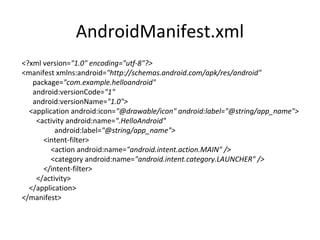
AndroidManifest.xml
<?xml version="1.0" encoding="utf-8"?>
<manifest xmlns:android="http://schemas.android.com/apk/res/android"
package="com.example.helloandroid"
android:versionCode="1"
android:versionName="1.0">
<application android:icon="@drawable/icon" android:label="@string/app_name">
<activity android:name=".HelloAndroid"
android:label="@string/app_name">
<intent-filter>
<action android:name="android.intent.action.MAIN" />
<category android:name="android.intent.category.LAUNCHER" />
</intent-filter>
</activity>
</application>
</manifest>
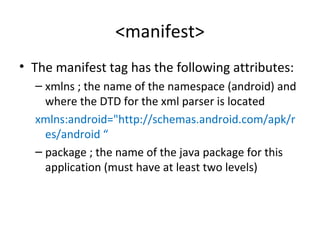
<manifest>
• The manifest tag has the following attributes:
– xmlns ; the name of the namespace (android) and
where the DTD for the xml parser is located
xmlns:android="http://schemas.android.com/apk/r
es/android “
– package ; the name of the java package for this
application (must have at least two levels)
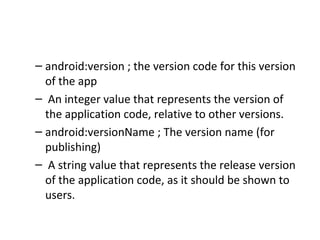
– android:version ; the version code for this version
of the app
– An integer value that represents the version of
the application code, relative to other versions.
– android:versionName ; The version name (for
publishing)
– A string value that represents the release version
of the application code, as it should be shown to
users.
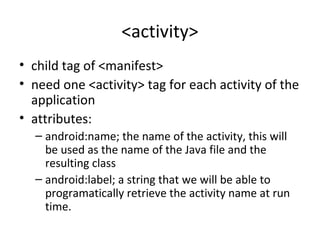
<activity>
• child tag of <manifest>
• need one <activity> tag for each activity of the
application
• attributes:
– android:name; the name of the activity, this will
be used as the name of the Java file and the
resulting class
– android:label; a string that we will be able to
programatically retrieve the activity name at run
time.
<intent-filter>
• Child tag of <activity>
• First, what’s an intent? An intent is a message sent
from one program to another (message dispatcher)
to tell the system what to do next. Typically an
intent consists of two parts; an action and the data
that that action is supposed to use to do it.
• When you select an icon on the main page the
intent is to run the app associated with that icon
• The tag is used to construct an
android.content.IntentFilter object to handle a
particular android.content.Intent
<action>
• child of <intent-filter>
• the action we want done:
– Predefined actions of the intent class of
android.content ; see the api at:
http://developer.android.com/reference/android/content/Intent.html
<category>
• child of <intent-filter>
• additional attributes that can be supplied
• LAUNCHER – indicates that it should apper in
the launcher as a top level application
• see the api documentation for more on intent
resolution.
Intents
• Commonly used Google application intents
http://d.android.com/guide/appendix/g-app-intents.html
• Registry of 3rd
party application Intents
http://www.openintents.org/en/intentstable
• we’ve explained the HelloAndroid manifest
file, on to Life Cycle and Life cycle
management.
Life Cycle
• Each application runs in its own process.
• Each activity of an app is run in the apps process
• Processes are started and stopped as needed to
run an apps components.
• Processes may be killed to reclaim needed
resources.
• Killed apps may be restored to their last state
when requested by the user
Management
• Most management of the life cycle is done
automatically by the system via the activity stack.
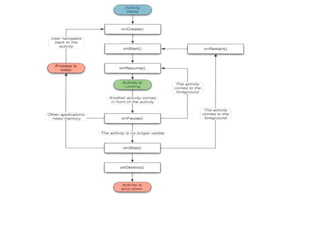
• The activity class has the following method callbacks to
help you manage the app:
– onCreate() - perform basic application startup
– onStart() - Once the onCreate() finishes execution, the
system calls the onStart() and onResume() methods in
quick succession. Your activity never resides in the Created
or Started states. Technically, the activity becomes visible
to the user when onStart() is called, but onResume()
quickly follows and the activity remains in the Resumed
state until something occurs to change that,.
– onResume()
– onPause()
– onStop()
– onRestart()
– onDestroy() While the activity's first lifecycle
callback is onCreate(), its very last callback is
onDestroy(). The system calls this method on your
activity as the final signal that your activity
instance is being completely removed from the
system memory.
• During normal app use, the foreground
activity is sometimes obstructed by other
visual components that cause the activity
to pause. For example, when a semi-
transparent activity opens (such as one in the
style of a dialog), the previous activity pauses.
As long as the activity is still partially visible
but currently not the activity in focus, it
remains paused.
• However, once the activity is fully-obstructed
and not visible, itstops (which is discussed in
the next lesson).
• As your activity enters the paused state, the
system calls theonPause() method on
your Activity, which allows you to stop
ongoing actions that should not continue
while paused (such as a video) or persist any
information that should be permanently saved
in case the user continues to leave your app. If
the user returns to your activity from the
paused state, the system resumes it and calls
the onResume() method.
Note: When your activity receives a call 
to onPause(), it may be an indication that the 
activity will be paused for a moment and the 
user may return focus to your activity. However, 
it's usually the first indication that the user is 
leaving your activity.
 
using the callbacks
• To use a callback just overload it in your activity 
java file.
• The lifecycle is explained very well here:
 http://developer.android.com/training/basics/activity-lifecycle/index.html
• The use of the callbacks is explained in the api documentation for 
the activity class:
 
http://developer.android.com/reference/android/app/Activity.htm
l 

Android lifecycle

  • 1.
  • 2.
    Life Cycle • Thesteps that an application goes through from starting to finishing • Slightly different than normal Java life cycle due to : – the difference in the way Android application are defined – the limited resources of the Android hardware platform
  • 3.
    Android Applications • Applicationsare defined to Android via the android manifest file, located in the root of the Eclipse project definition (AndroidManifest.xml) • Double clicking on the AndroidManifest.xml file in the Eclipse project will open the Manifest editor. • The manifest editor is the normal way of creating and modifying the manifest file (defining the app to the system)
  • 4.
    Android Applications • AnAndroid application is a collection of activities, an activity correlates to a screen or form that is presented to the user. • The HelloAndroid is a simple one screen app that is essentially the same as a Java app run in a terminal/command window. Its AndroidManisest.xml file reflects this :
  • 5.
    AndroidManifest.xml <?xml version="1.0" encoding="utf-8"?> <manifestxmlns:android="http://schemas.android.com/apk/res/android" package="com.example.helloandroid" android:versionCode="1" android:versionName="1.0"> <application android:icon="@drawable/icon" android:label="@string/app_name"> <activity android:name=".HelloAndroid" android:label="@string/app_name"> <intent-filter> <action android:name="android.intent.action.MAIN" /> <category android:name="android.intent.category.LAUNCHER" /> </intent-filter> </activity> </application> </manifest>
  • 6.
    <manifest> • The manifesttag has the following attributes: – xmlns ; the name of the namespace (android) and where the DTD for the xml parser is located xmlns:android="http://schemas.android.com/apk/r es/android “ – package ; the name of the java package for this application (must have at least two levels)
  • 7.
    – android:version ;the version code for this version of the app – An integer value that represents the version of the application code, relative to other versions. – android:versionName ; The version name (for publishing) – A string value that represents the release version of the application code, as it should be shown to users.
  • 8.
    <activity> • child tagof <manifest> • need one <activity> tag for each activity of the application • attributes: – android:name; the name of the activity, this will be used as the name of the Java file and the resulting class – android:label; a string that we will be able to programatically retrieve the activity name at run time.
  • 9.
    <intent-filter> • Child tagof <activity> • First, what’s an intent? An intent is a message sent from one program to another (message dispatcher) to tell the system what to do next. Typically an intent consists of two parts; an action and the data that that action is supposed to use to do it. • When you select an icon on the main page the intent is to run the app associated with that icon • The tag is used to construct an android.content.IntentFilter object to handle a particular android.content.Intent
  • 10.
    <action> • child of<intent-filter> • the action we want done: – Predefined actions of the intent class of android.content ; see the api at: http://developer.android.com/reference/android/content/Intent.html
  • 11.
    <category> • child of<intent-filter> • additional attributes that can be supplied • LAUNCHER – indicates that it should apper in the launcher as a top level application • see the api documentation for more on intent resolution.
  • 12.
    Intents • Commonly usedGoogle application intents http://d.android.com/guide/appendix/g-app-intents.html • Registry of 3rd party application Intents http://www.openintents.org/en/intentstable
  • 13.
    • we’ve explainedthe HelloAndroid manifest file, on to Life Cycle and Life cycle management.
  • 14.
    Life Cycle • Eachapplication runs in its own process. • Each activity of an app is run in the apps process • Processes are started and stopped as needed to run an apps components. • Processes may be killed to reclaim needed resources. • Killed apps may be restored to their last state when requested by the user
  • 15.
    Management • Most managementof the life cycle is done automatically by the system via the activity stack. • The activity class has the following method callbacks to help you manage the app: – onCreate() - perform basic application startup – onStart() - Once the onCreate() finishes execution, the system calls the onStart() and onResume() methods in quick succession. Your activity never resides in the Created or Started states. Technically, the activity becomes visible to the user when onStart() is called, but onResume() quickly follows and the activity remains in the Resumed state until something occurs to change that,.
  • 16.
    – onResume() – onPause() –onStop() – onRestart() – onDestroy() While the activity's first lifecycle callback is onCreate(), its very last callback is onDestroy(). The system calls this method on your activity as the final signal that your activity instance is being completely removed from the system memory.
  • 17.
    • During normalapp use, the foreground activity is sometimes obstructed by other visual components that cause the activity to pause. For example, when a semi- transparent activity opens (such as one in the style of a dialog), the previous activity pauses. As long as the activity is still partially visible but currently not the activity in focus, it remains paused. • However, once the activity is fully-obstructed and not visible, itstops (which is discussed in the next lesson).
  • 18.
    • As youractivity enters the paused state, the system calls theonPause() method on your Activity, which allows you to stop ongoing actions that should not continue while paused (such as a video) or persist any information that should be permanently saved in case the user continues to leave your app. If the user returns to your activity from the paused state, the system resumes it and calls the onResume() method.
  • 19.
  • 21.
    using the callbacks • To use a callback just overload it in your activity  java file. • The lifecycle is explained very well here:  http://developer.android.com/training/basics/activity-lifecycle/index.html •The use of the callbacks is explained in the api documentation for  the activity class:   http://developer.android.com/reference/android/app/Activity.htm l