


Develop on Android
Android Lab Test
www.AndroidLabTest.com
Youku
By Bruno Delb
www.weibo.com/brunodelb
i.youku.com/brunodelb | www.weibo.com/brunodelb | blog.delb.cn
http://i.youku.com/brunoparis
Weibo
Officialsite
Lesson : The dialog, YesNo
The dialog, YesNo
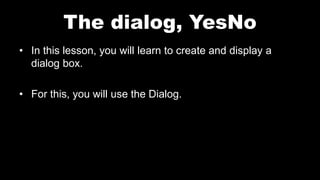
• In this lesson, you will learn to create and display a
dialog box.
• For this, you will use the Dialog.
The dialog, YesNo
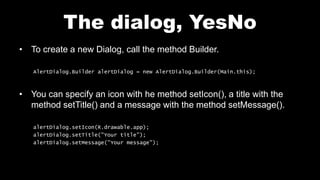
• To create a new Dialog, call the method Builder.
AlertDialog.Builder alertDialog = new AlertDialog.Builder(Main.this);
• You can specify an icon with he method setIcon(), a title with the
method setTitle() and a message with the method setMessage().
alertDialog.setIcon(R.drawable.app);
alertDialog.setTitle("Your title");
alertDialog.setMessage("Your message");
The dialog, YesNo
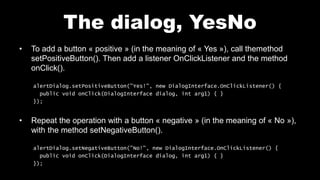
• To add a button « positive » (in the meaning of « Yes »), call themethod
setPositiveButton(). Then add a listener OnClickListener and the method
onClick().
alertDialog.setPositiveButton("Yes!", new DialogInterface.OnClickListener() {
public void onClick(DialogInterface dialog, int arg1) { }
});
• Repeat the operation with a button « negative » (in the meaning of « No »),
with the method setNegativeButton().
alertDialog.setNegativeButton("No!", new DialogInterface.OnClickListener() {
public void onClick(DialogInterface dialog, int arg1) { }
});
The dialog, YesNo
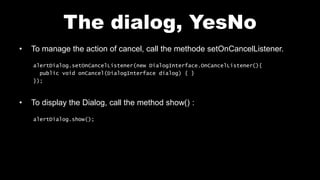
• To manage the action of cancel, call the methode setOnCancelListener.
alertDialog.setOnCancelListener(new DialogInterface.OnCancelListener(){
public void onCancel(DialogInterface dialog) { }
});
• To display the Dialog, call the method show() :
alertDialog.show();
Layout main.xml
<?xml version="1.0" encoding="utf-8"?>
<LinearLayout xmlns:android="http://schemas.android.com/apk/res/android"
android:orientation="vertical"
android:layout_width="fill_parent"
android:layout_height="fill_parent">
<Button
android:id="@+id/btnShow"
android:layout_width="fill_parent"
android:layout_height="wrap_content"
android:text="Show" />
</LinearLayout>
File Main.java
public class Main extends Activity {
public void onCreate(Bundle savedInstanceState) {
super.onCreate(savedInstanceState);
setContentView(R.layout.main);
Button btnShow = (Button)findViewById (R.id.btnShow);
btnShow.setOnClickListener(new OnClickListener() {
public void onClick(View v) {
AlertDialog.Builder alertDialog = new AlertDialog.Builder(Main.this);
alertDialog.setIcon(R.drawable.app);
alertDialog.setTitle("Your title");
alertDialog.setMessage("Your message");
File Main.java
alertDialog.setPositiveButton("Yes!", new DialogInterface.OnClickListener() {
public void onClick(DialogInterface dialog, int arg1) { }
});
alertDialog.setNegativeButton("No!", new DialogInterface.OnClickListener() {
public void onClick(DialogInterface dialog, int arg1) { }
});
alertDialog.setOnCancelListener(new DialogInterface.OnCancelListener(){
public void onCancel(DialogInterface dialog) { }
});
alertDialog.show();
}
});
}
}
Test on your mobile
Dialog_YesNo
Follow me on my channel PengYooTV …
On my Youku channel
http://i.youku.com/brunoparis
Who am I ?
Bruno Delb (www.delb.cn),
Author of the first french book of development of Java mobile application (2002),
Consultant, project manager and developer of social & mobile applications,
let’s talk about your needs ...
And on Weibo :
http://www.weibo.com/brunodelb

Android Lab Test : Creating a dialog Yes/No (english)

  • 1.
    Develop on Android AndroidLab Test www.AndroidLabTest.com Youku By Bruno Delb www.weibo.com/brunodelb i.youku.com/brunodelb | www.weibo.com/brunodelb | blog.delb.cn http://i.youku.com/brunoparis Weibo Officialsite Lesson : The dialog, YesNo
  • 2.
    The dialog, YesNo •In this lesson, you will learn to create and display a dialog box. • For this, you will use the Dialog.
  • 3.
    The dialog, YesNo •To create a new Dialog, call the method Builder. AlertDialog.Builder alertDialog = new AlertDialog.Builder(Main.this); • You can specify an icon with he method setIcon(), a title with the method setTitle() and a message with the method setMessage(). alertDialog.setIcon(R.drawable.app); alertDialog.setTitle("Your title"); alertDialog.setMessage("Your message");
  • 4.
    The dialog, YesNo •To add a button « positive » (in the meaning of « Yes »), call themethod setPositiveButton(). Then add a listener OnClickListener and the method onClick(). alertDialog.setPositiveButton("Yes!", new DialogInterface.OnClickListener() { public void onClick(DialogInterface dialog, int arg1) { } }); • Repeat the operation with a button « negative » (in the meaning of « No »), with the method setNegativeButton(). alertDialog.setNegativeButton("No!", new DialogInterface.OnClickListener() { public void onClick(DialogInterface dialog, int arg1) { } });
  • 5.
    The dialog, YesNo •To manage the action of cancel, call the methode setOnCancelListener. alertDialog.setOnCancelListener(new DialogInterface.OnCancelListener(){ public void onCancel(DialogInterface dialog) { } }); • To display the Dialog, call the method show() : alertDialog.show();
  • 6.
    Layout main.xml <?xml version="1.0"encoding="utf-8"?> <LinearLayout xmlns:android="http://schemas.android.com/apk/res/android" android:orientation="vertical" android:layout_width="fill_parent" android:layout_height="fill_parent"> <Button android:id="@+id/btnShow" android:layout_width="fill_parent" android:layout_height="wrap_content" android:text="Show" /> </LinearLayout>
  • 7.
    File Main.java public classMain extends Activity { public void onCreate(Bundle savedInstanceState) { super.onCreate(savedInstanceState); setContentView(R.layout.main); Button btnShow = (Button)findViewById (R.id.btnShow); btnShow.setOnClickListener(new OnClickListener() { public void onClick(View v) { AlertDialog.Builder alertDialog = new AlertDialog.Builder(Main.this); alertDialog.setIcon(R.drawable.app); alertDialog.setTitle("Your title"); alertDialog.setMessage("Your message");
  • 8.
    File Main.java alertDialog.setPositiveButton("Yes!", newDialogInterface.OnClickListener() { public void onClick(DialogInterface dialog, int arg1) { } }); alertDialog.setNegativeButton("No!", new DialogInterface.OnClickListener() { public void onClick(DialogInterface dialog, int arg1) { } }); alertDialog.setOnCancelListener(new DialogInterface.OnCancelListener(){ public void onCancel(DialogInterface dialog) { } }); alertDialog.show(); } }); } }
  • 9.
    Test on yourmobile Dialog_YesNo
  • 10.
    Follow me onmy channel PengYooTV … On my Youku channel http://i.youku.com/brunoparis Who am I ? Bruno Delb (www.delb.cn), Author of the first french book of development of Java mobile application (2002), Consultant, project manager and developer of social & mobile applications, let’s talk about your needs ... And on Weibo : http://www.weibo.com/brunodelb