Develop on Android
Android Lab Test
www.AndroidLabTest.com
Youku
By Bruno Delb
www.weibo.com/brunodelb
i.youku.com/brunodelb | www.weibo.com/brunodelb | blog.delb.cn
http://i.youku.com/brunoparis
Weibo
Officialsite
Lesson : The style, loading
The style, loading
• In this lesson, you will learn to apply
several styles to the text of a TextView.
• For this, you will use the TextView and the
Spannable.
The style, loading
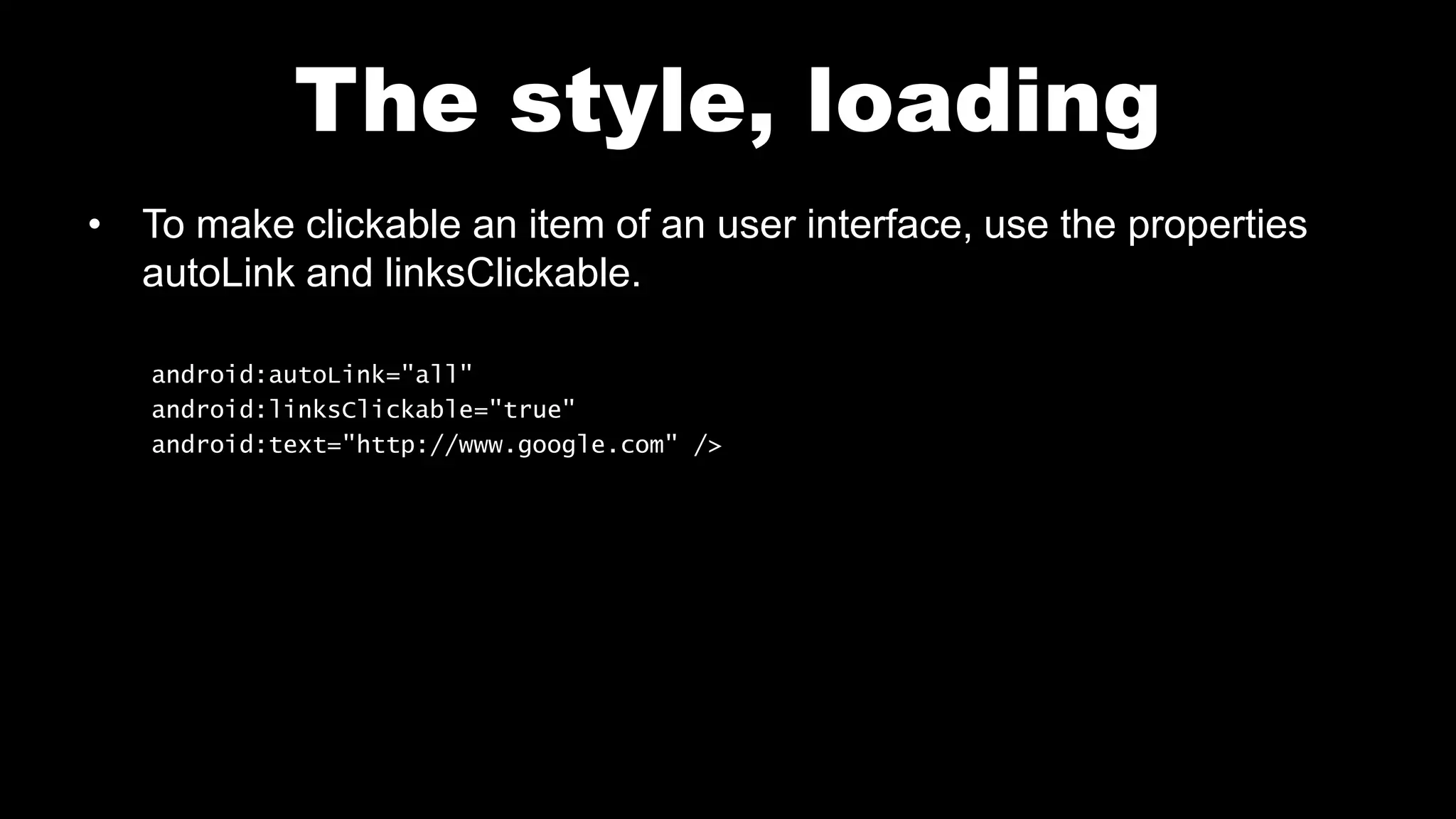
• To make clickable an item of an user interface, use the properties
autoLink and linksClickable.
android:autoLink="all"
android:linksClickable="true"
android:text="http://www.google.com" />
The style, loading
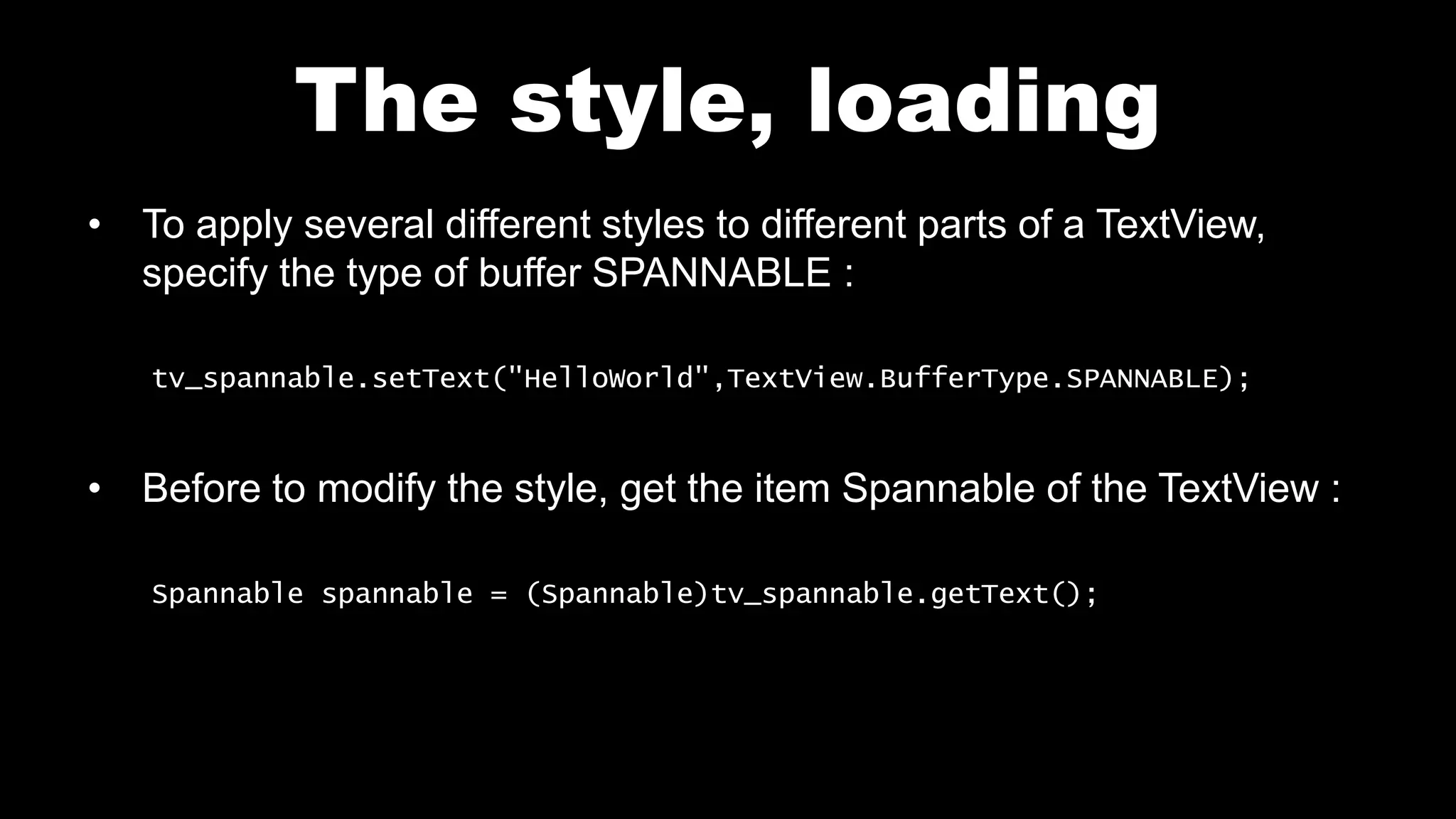
• To apply several different styles to different parts of a TextView,
specify the type of buffer SPANNABLE :
tv_spannable.setText("HelloWorld",TextView.BufferType.SPANNABLE);
• Before to modify the style, get the item Spannable of the TextView :
Spannable spannable = (Spannable)tv_spannable.getText();
The style, loading
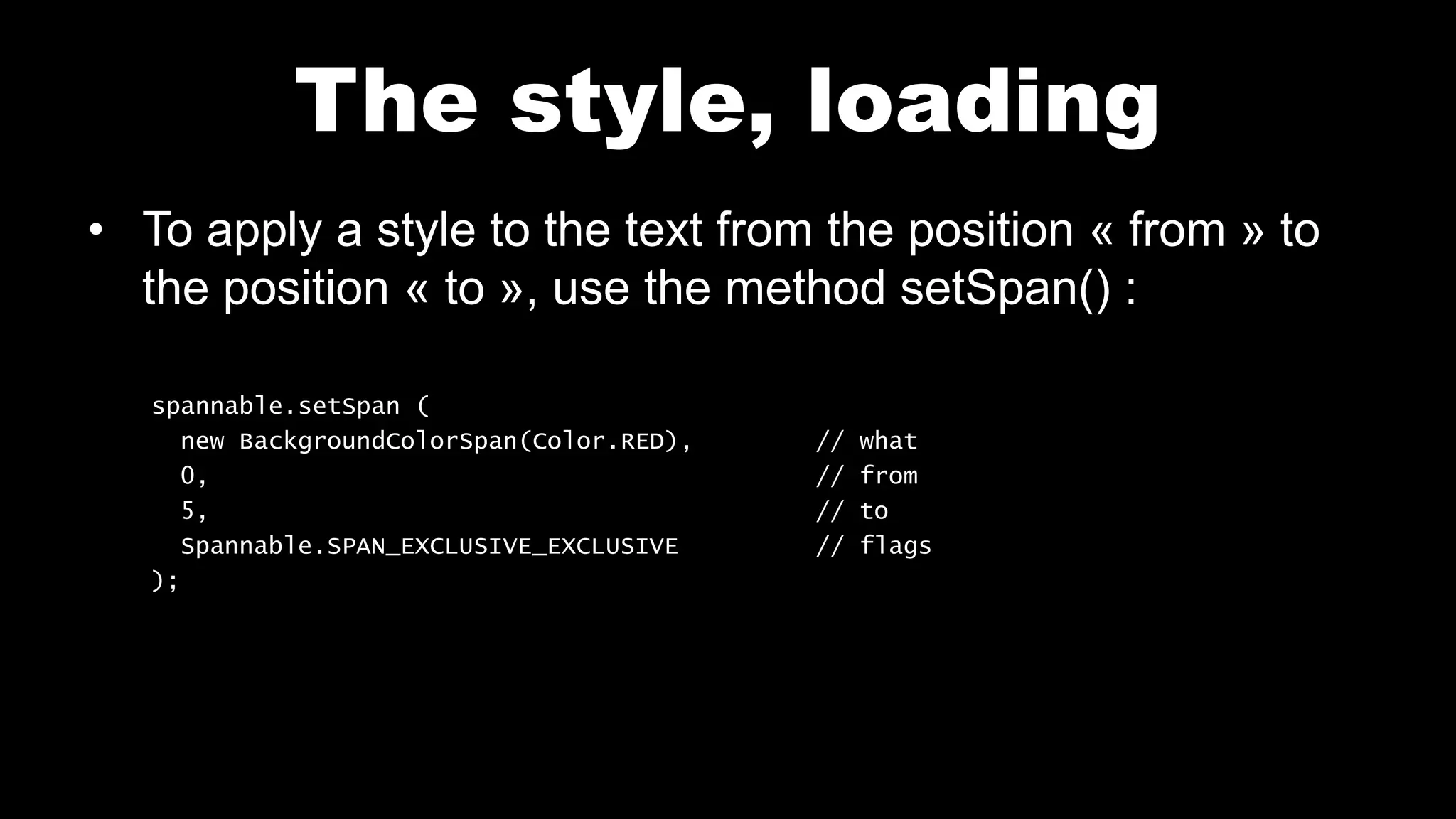
• To apply a style to the text from the position « from » to
the position « to », use the method setSpan() :
spannable.setSpan (
new BackgroundColorSpan(Color.RED), // what
0, // from
5, // to
Spannable.SPAN_EXCLUSIVE_EXCLUSIVE // flags
);
Layout main.xml
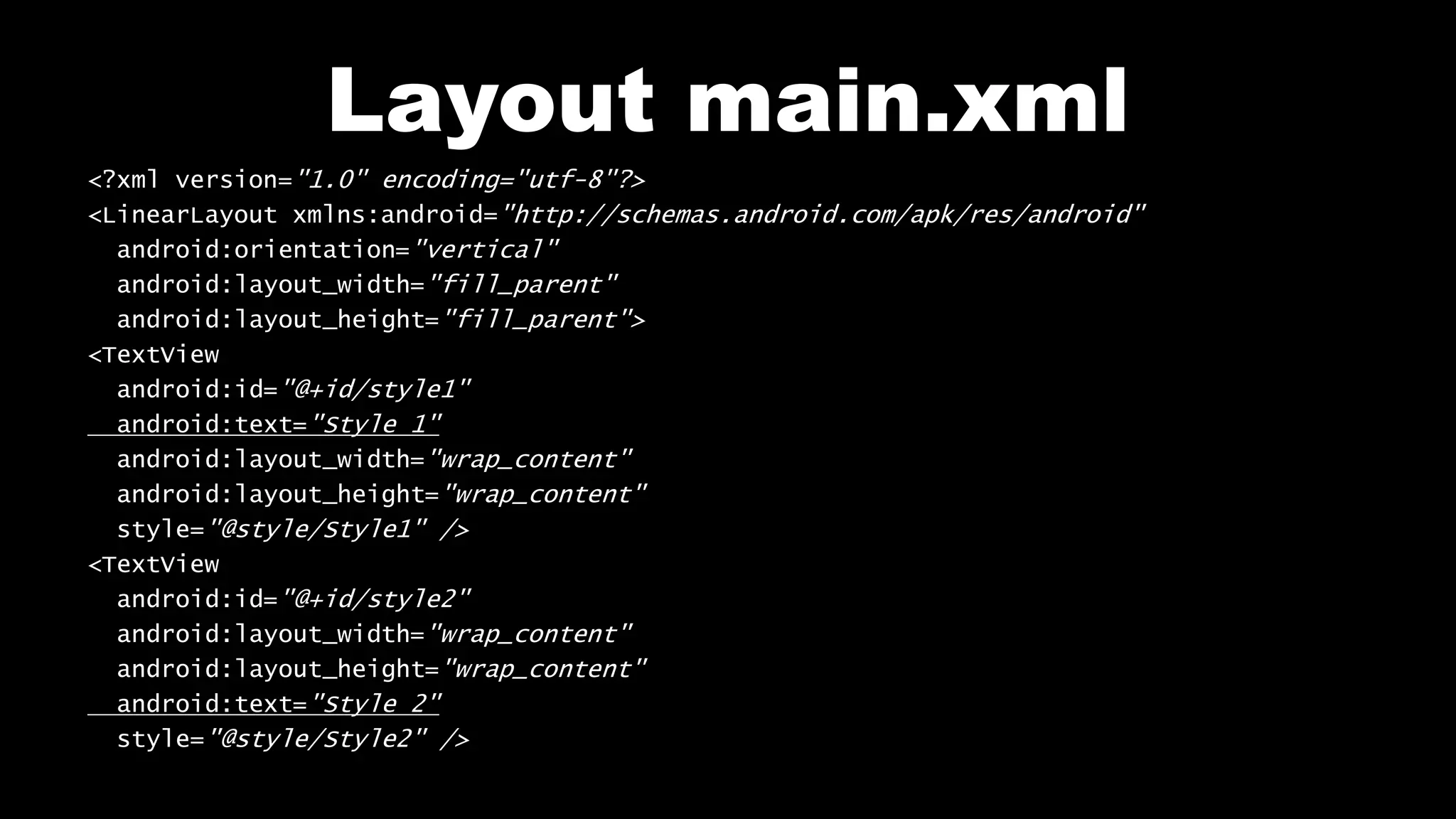
<?xml version="1.0" encoding="utf-8"?>
<LinearLayout xmlns:android="http://schemas.android.com/apk/res/android"
android:orientation="vertical"
android:layout_width="fill_parent"
android:layout_height="fill_parent">
<TextView
android:id="@+id/style1"
android:text="Style 1"
android:layout_width="wrap_content"
android:layout_height="wrap_content"
style="@style/Style1" />
<TextView
android:id="@+id/style2"
android:layout_width="wrap_content"
android:layout_height="wrap_content"
android:text="Style 2"
style="@style/Style2" />
Layout main.xml
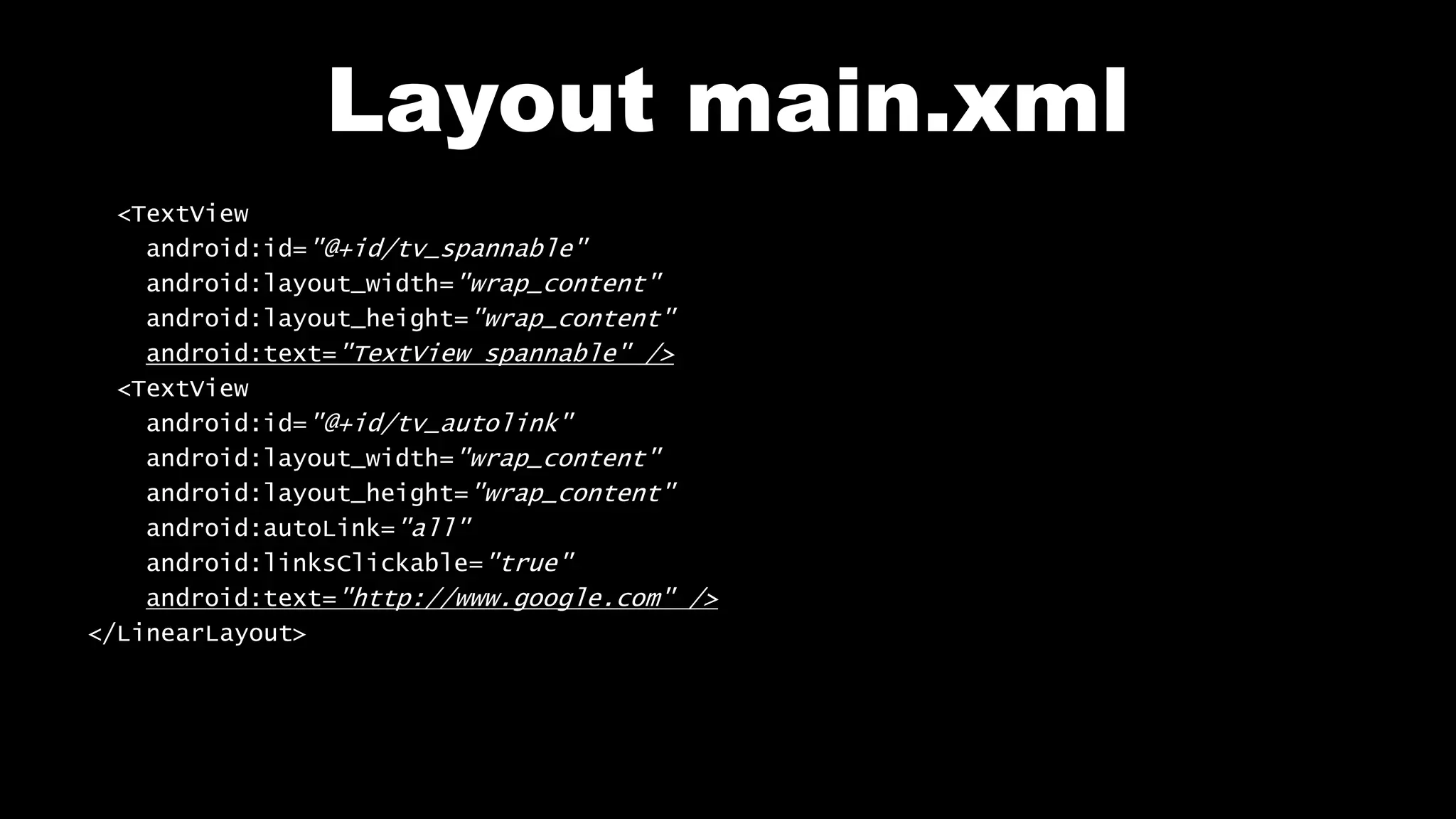
<TextView
android:id="@+id/tv_spannable"
android:layout_width="wrap_content"
android:layout_height="wrap_content"
android:text="TextView spannable" />
<TextView
android:id="@+id/tv_autolink"
android:layout_width="wrap_content"
android:layout_height="wrap_content"
android:autoLink="all"
android:linksClickable="true"
android:text="http://www.google.com" />
</LinearLayout>
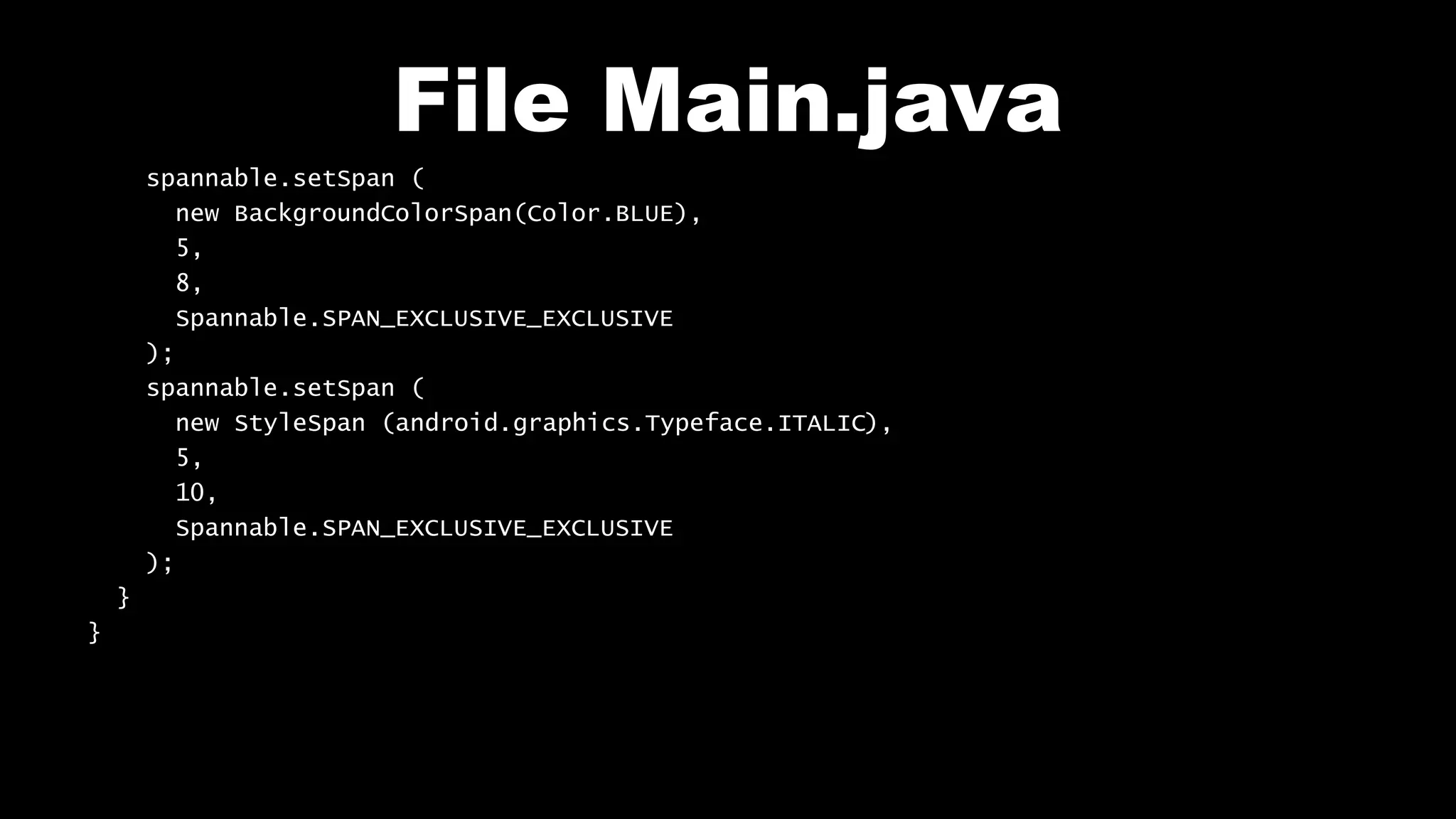
File Main.java
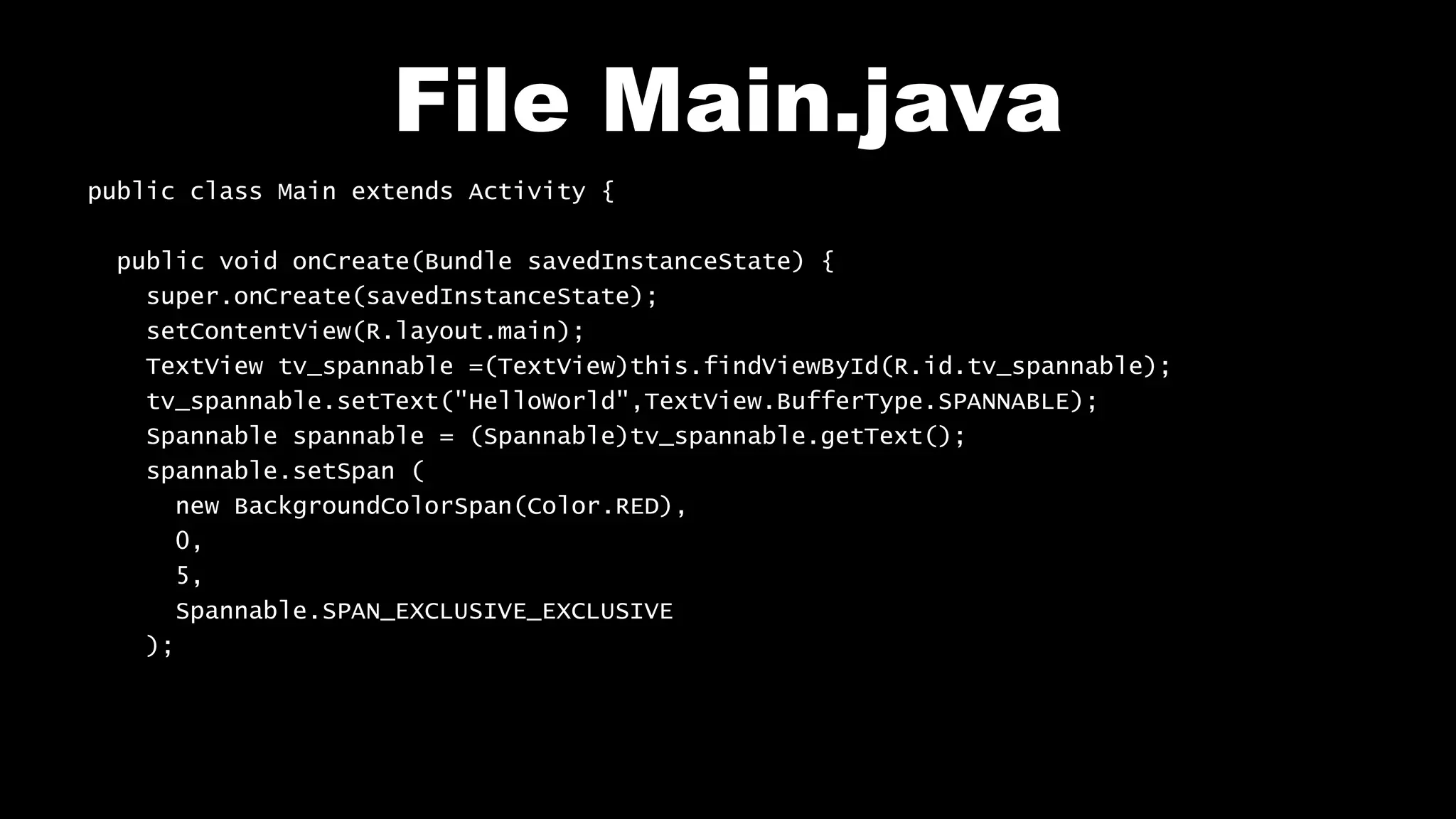
public class Main extends Activity {
public void onCreate(Bundle savedInstanceState) {
super.onCreate(savedInstanceState);
setContentView(R.layout.main);
TextView tv_spannable =(TextView)this.findViewById(R.id.tv_spannable);
tv_spannable.setText("HelloWorld",TextView.BufferType.SPANNABLE);
Spannable spannable = (Spannable)tv_spannable.getText();
spannable.setSpan (
new BackgroundColorSpan(Color.RED),
0,
5,
Spannable.SPAN_EXCLUSIVE_EXCLUSIVE
);
File Main.java
spannable.setSpan (
new BackgroundColorSpan(Color.BLUE),
5,
8,
Spannable.SPAN_EXCLUSIVE_EXCLUSIVE
);
spannable.setSpan (
new StyleSpan (android.graphics.Typeface.ITALIC),
5,
10,
Spannable.SPAN_EXCLUSIVE_EXCLUSIVE
);
}
}
Test on your mobile
View_Style
Follow me on my channel PengYooTV …
On my Youku channel
http://i.youku.com/brunoparis
Who am I ?
Bruno Delb (www.delb.cn),
Author of the first french book of development of Java mobile application (2002),
Consultant, project manager and developer of social & mobile applications,
let’s talk about your needs ...
And on Weibo :
http://www.weibo.com/brunodelb

Android Lab Test : The styles of views (english)

  • 1.
    Develop on Android AndroidLab Test www.AndroidLabTest.com Youku By Bruno Delb www.weibo.com/brunodelb i.youku.com/brunodelb | www.weibo.com/brunodelb | blog.delb.cn http://i.youku.com/brunoparis Weibo Officialsite Lesson : The style, loading
  • 2.
    The style, loading •In this lesson, you will learn to apply several styles to the text of a TextView. • For this, you will use the TextView and the Spannable.
  • 3.
    The style, loading •To make clickable an item of an user interface, use the properties autoLink and linksClickable. android:autoLink="all" android:linksClickable="true" android:text="http://www.google.com" />
  • 4.
    The style, loading •To apply several different styles to different parts of a TextView, specify the type of buffer SPANNABLE : tv_spannable.setText("HelloWorld",TextView.BufferType.SPANNABLE); • Before to modify the style, get the item Spannable of the TextView : Spannable spannable = (Spannable)tv_spannable.getText();
  • 5.
    The style, loading •To apply a style to the text from the position « from » to the position « to », use the method setSpan() : spannable.setSpan ( new BackgroundColorSpan(Color.RED), // what 0, // from 5, // to Spannable.SPAN_EXCLUSIVE_EXCLUSIVE // flags );
  • 6.
    Layout main.xml <?xml version="1.0"encoding="utf-8"?> <LinearLayout xmlns:android="http://schemas.android.com/apk/res/android" android:orientation="vertical" android:layout_width="fill_parent" android:layout_height="fill_parent"> <TextView android:id="@+id/style1" android:text="Style 1" android:layout_width="wrap_content" android:layout_height="wrap_content" style="@style/Style1" /> <TextView android:id="@+id/style2" android:layout_width="wrap_content" android:layout_height="wrap_content" android:text="Style 2" style="@style/Style2" />
  • 7.
    Layout main.xml <TextView android:id="@+id/tv_spannable" android:layout_width="wrap_content" android:layout_height="wrap_content" android:text="TextView spannable"/> <TextView android:id="@+id/tv_autolink" android:layout_width="wrap_content" android:layout_height="wrap_content" android:autoLink="all" android:linksClickable="true" android:text="http://www.google.com" /> </LinearLayout>
  • 8.
    File Main.java public classMain extends Activity { public void onCreate(Bundle savedInstanceState) { super.onCreate(savedInstanceState); setContentView(R.layout.main); TextView tv_spannable =(TextView)this.findViewById(R.id.tv_spannable); tv_spannable.setText("HelloWorld",TextView.BufferType.SPANNABLE); Spannable spannable = (Spannable)tv_spannable.getText(); spannable.setSpan ( new BackgroundColorSpan(Color.RED), 0, 5, Spannable.SPAN_EXCLUSIVE_EXCLUSIVE );
  • 9.
    File Main.java spannable.setSpan ( newBackgroundColorSpan(Color.BLUE), 5, 8, Spannable.SPAN_EXCLUSIVE_EXCLUSIVE ); spannable.setSpan ( new StyleSpan (android.graphics.Typeface.ITALIC), 5, 10, Spannable.SPAN_EXCLUSIVE_EXCLUSIVE ); } }
  • 10.
    Test on yourmobile View_Style
  • 11.
    Follow me onmy channel PengYooTV … On my Youku channel http://i.youku.com/brunoparis Who am I ? Bruno Delb (www.delb.cn), Author of the first french book of development of Java mobile application (2002), Consultant, project manager and developer of social & mobile applications, let’s talk about your needs ... And on Weibo : http://www.weibo.com/brunodelb