1

         UNIVERSITI TUN HUSSEIN ONN MALAYSIA
         FACULTY OF MECHANICAL AND MANUFACTURING ENGINEERING
         BTI 10202: COMPUTER PROGRAMMING


  LAB 1 : Using Integrated Development Environment (IDE)


 NAME              : _________________________________

 MATRICS NO.: _______________ DATE : _________                          (MARKS)


Objectives:   Learn to use the IDE
              1. Write a C program and compile it
              2. Compilation and Linking error exercises
              3. Running the program
              4. Debugging

Procedures:

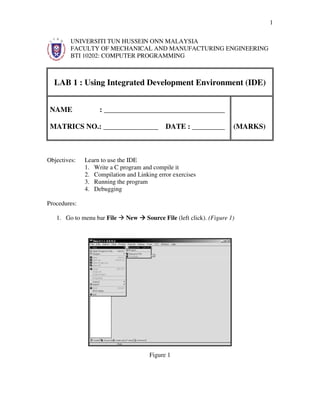
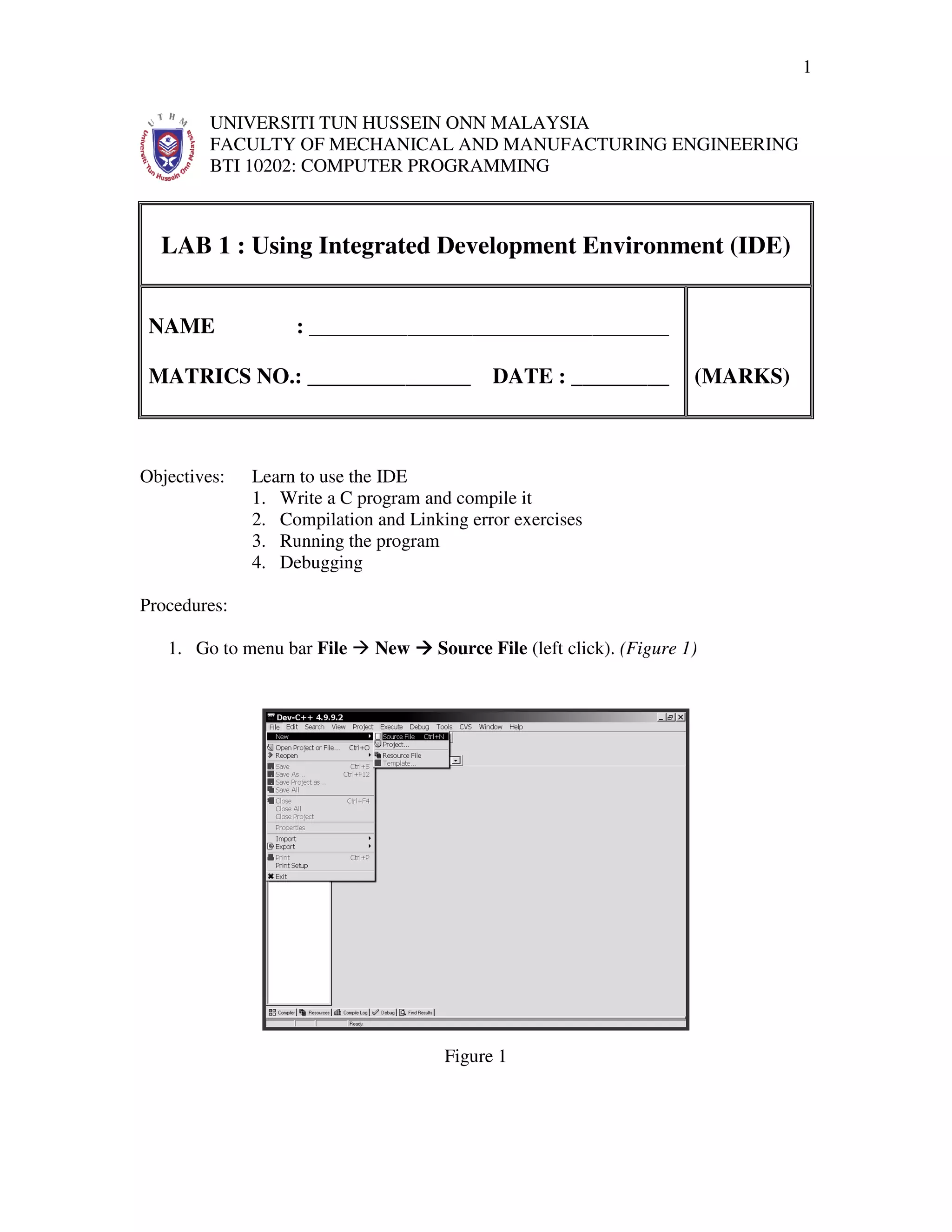
   1. Go to menu bar File    New     Source File (left click). (Figure 1)


                                      Figure 1
2

2. When a blank screen appears, save the source file using File   Save As. Save the
   file as Lab1_1.c.
3. Type in the below program in the Editor screen.

 /*Program 1*/
 #include<stdio.h>

 main()
 {
          char name[30];
          int born, x,y;

          printf("What is your name: ");
          scanf("%s",name);
          printf("nnWhich year were you born? 19");
          scanf("%d", &born);

                 for(x=born+1,y=1;x<=99;++x,++y)
                 {
                        printf("nHello! %sn",name);
                        printf("nAt 19%d",x);
                        printf("nYou are %d years oldn",y);
                        system("Pause");

                  }
          return 0;
 }


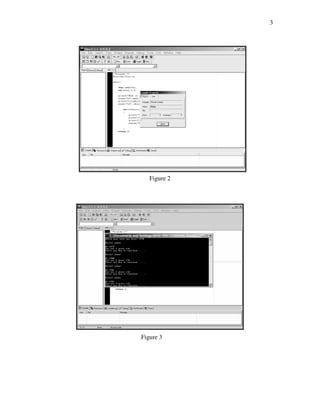
4. Remember to save your program frequently to prevent data loss. After finish
   typing, click the menu bar Execute Compile. If the program is error free then
   the IDE will tell that the compile status is Done. (Figure 2)
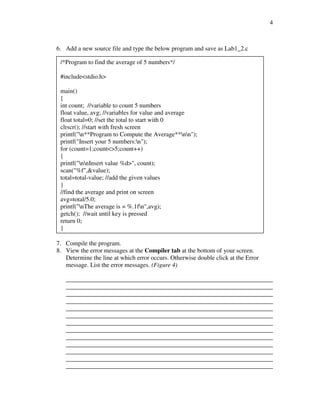
5. Next, click Execute Run. A command prompt window will appear. (Figure 3)
3


   Figure 2


Figure 3
4


6. Add a new source file and type the below program and save as Lab1_2.c

 /*Program to find the average of 5 numbers*/

 #include<stdio.h>

 main()
 {
 int count; //variable to count 5 numbers
 float value, avg; //variables for value and average
 float total=0; //set the total to start with 0
 clrscr(); //start with fresh screen
 printf("n**Program to Compute the Average**nn");
 printf("Insert your 5 numbers:n");
 for (count=1;count<>5;count++)
 {
 printf("nnInsert value %d>", count);
 scan("%f",&value);
 total=total-value; //add the given values
 }
 //find the average and print on screen
 avg=total/5.0;
 printf("nThe average is = %.1fn",avg);
 getch(); //wait until key is pressed
 return 0;
 }

7. Compile the program.
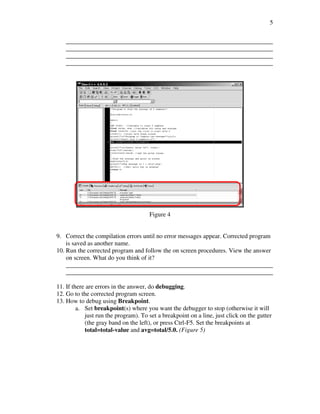
8. View the error messages at the Compiler tab at the bottom of your screen.
   Determine the line at which error occurs. Otherwise double click at the Error
   message. List the error messages. (Figure 4)

   __________________________________________________________________
   __________________________________________________________________
   __________________________________________________________________
   __________________________________________________________________
   __________________________________________________________________
   __________________________________________________________________
   __________________________________________________________________
   __________________________________________________________________
   __________________________________________________________________
   __________________________________________________________________
   __________________________________________________________________
   __________________________________________________________________
   __________________________________________________________________
5

   __________________________________________________________________
   __________________________________________________________________
   __________________________________________________________________
   __________________________________________________________________


                                      Figure 4


9. Correct the compilation errors until no error messages appear. Corrected program
    is saved as another name.
10. Run the corrected program and follow the on screen procedures. View the answer
    on screen. What do you think of it?
    __________________________________________________________________
    __________________________________________________________________

11. If there are errors in the answer, do debugging.
12. Go to the corrected program screen.
13. How to debug using Breakpoint.
         a. Set breakpoint(s) where you want the debugger to stop (otherwise it will
            just run the program). To set a breakpoint on a line, just click on the gutter
            (the gray band on the left), or press Ctrl-F5. Set the breakpoints at
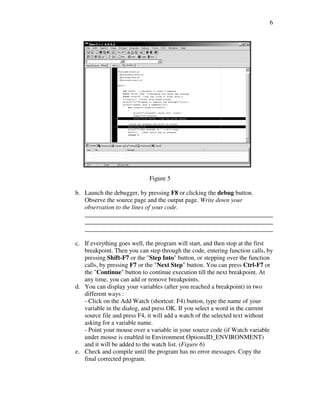
            total=total-value and avg=total/5.0. (Figure 5)
6


                             Figure 5

b. Launch the debugger, by pressing F8 or clicking the debug button.
   Observe the source page and the output page. Write down your
   observation to the lines of your code.
   ____________________________________________________________
   ____________________________________________________________
   ____________________________________________________________

c. If everything goes well, the program will start, and then stop at the first
   breakpoint. Then you can step through the code, entering function calls, by
   pressing Shift-F7 or the "Step Into" button, or stepping over the function
   calls, by pressing F7 or the "Next Step" button. You can press Ctrl-F7 or
   the "Continue" button to continue execution till the next breakpoint. At
   any time, you can add or remove breakpoints.
d. You can display your variables (after you reached a breakpoint) in two
   different ways :
   - Click on the Add Watch (shortcut: F4) button, type the name of your
   variable in the dialog, and press OK. If you select a word in the current
   source file and press F4, it will add a watch of the selected text without
   asking for a variable name.
   - Point your mouse over a variable in your source code (if Watch variable
   under mouse is enabled in Environment OptionsID_ENVIRONMENT)
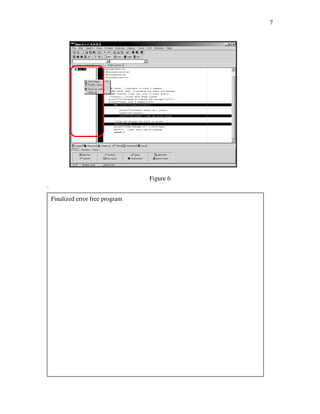
   and it will be added to the watch list. (Figure 6)
e. Check and compile until the program has no error messages. Copy the
   final corrected program.
7


                                   Figure 6
.

    Finalized error free program

Lab 1

  • 1.
    1 UNIVERSITI TUN HUSSEIN ONN MALAYSIA FACULTY OF MECHANICAL AND MANUFACTURING ENGINEERING BTI 10202: COMPUTER PROGRAMMING LAB 1 : Using Integrated Development Environment (IDE) NAME : _________________________________ MATRICS NO.: _______________ DATE : _________ (MARKS) Objectives: Learn to use the IDE 1. Write a C program and compile it 2. Compilation and Linking error exercises 3. Running the program 4. Debugging Procedures: 1. Go to menu bar File New Source File (left click). (Figure 1) Figure 1
  • 2.
    2 2. When ablank screen appears, save the source file using File Save As. Save the file as Lab1_1.c. 3. Type in the below program in the Editor screen. /*Program 1*/ #include<stdio.h> main() { char name[30]; int born, x,y; printf("What is your name: "); scanf("%s",name); printf("nnWhich year were you born? 19"); scanf("%d", &born); for(x=born+1,y=1;x<=99;++x,++y) { printf("nHello! %sn",name); printf("nAt 19%d",x); printf("nYou are %d years oldn",y); system("Pause"); } return 0; } 4. Remember to save your program frequently to prevent data loss. After finish typing, click the menu bar Execute Compile. If the program is error free then the IDE will tell that the compile status is Done. (Figure 2) 5. Next, click Execute Run. A command prompt window will appear. (Figure 3)
  • 3.
    3 Figure 2 Figure 3
  • 4.
    4 6. Add anew source file and type the below program and save as Lab1_2.c /*Program to find the average of 5 numbers*/ #include<stdio.h> main() { int count; //variable to count 5 numbers float value, avg; //variables for value and average float total=0; //set the total to start with 0 clrscr(); //start with fresh screen printf("n**Program to Compute the Average**nn"); printf("Insert your 5 numbers:n"); for (count=1;count<>5;count++) { printf("nnInsert value %d>", count); scan("%f",&value); total=total-value; //add the given values } //find the average and print on screen avg=total/5.0; printf("nThe average is = %.1fn",avg); getch(); //wait until key is pressed return 0; } 7. Compile the program. 8. View the error messages at the Compiler tab at the bottom of your screen. Determine the line at which error occurs. Otherwise double click at the Error message. List the error messages. (Figure 4) __________________________________________________________________ __________________________________________________________________ __________________________________________________________________ __________________________________________________________________ __________________________________________________________________ __________________________________________________________________ __________________________________________________________________ __________________________________________________________________ __________________________________________________________________ __________________________________________________________________ __________________________________________________________________ __________________________________________________________________ __________________________________________________________________
  • 5.
    5 __________________________________________________________________ __________________________________________________________________ __________________________________________________________________ __________________________________________________________________ Figure 4 9. Correct the compilation errors until no error messages appear. Corrected program is saved as another name. 10. Run the corrected program and follow the on screen procedures. View the answer on screen. What do you think of it? __________________________________________________________________ __________________________________________________________________ 11. If there are errors in the answer, do debugging. 12. Go to the corrected program screen. 13. How to debug using Breakpoint. a. Set breakpoint(s) where you want the debugger to stop (otherwise it will just run the program). To set a breakpoint on a line, just click on the gutter (the gray band on the left), or press Ctrl-F5. Set the breakpoints at total=total-value and avg=total/5.0. (Figure 5)
  • 6.
    6 Figure 5 b. Launch the debugger, by pressing F8 or clicking the debug button. Observe the source page and the output page. Write down your observation to the lines of your code. ____________________________________________________________ ____________________________________________________________ ____________________________________________________________ c. If everything goes well, the program will start, and then stop at the first breakpoint. Then you can step through the code, entering function calls, by pressing Shift-F7 or the "Step Into" button, or stepping over the function calls, by pressing F7 or the "Next Step" button. You can press Ctrl-F7 or the "Continue" button to continue execution till the next breakpoint. At any time, you can add or remove breakpoints. d. You can display your variables (after you reached a breakpoint) in two different ways : - Click on the Add Watch (shortcut: F4) button, type the name of your variable in the dialog, and press OK. If you select a word in the current source file and press F4, it will add a watch of the selected text without asking for a variable name. - Point your mouse over a variable in your source code (if Watch variable under mouse is enabled in Environment OptionsID_ENVIRONMENT) and it will be added to the watch list. (Figure 6) e. Check and compile until the program has no error messages. Copy the final corrected program.
  • 7.
    7 Figure 6 . Finalized error free program