Android development Training
         programme
             Day 3
           17/11/2012

          Dhiraj Karalkar
2


Day 3
Session 1
                          Background Processing in an Android

                                              Threads

Android supports the usage of the Threads class to perform asynchronous processing.
Android also supplies the java.util.concurrent package to perform something in the background, e.g.
using the ThreadPools and Executor classes.
If you need to update the user interface from a new Thread, you need to synchronize with the user
interface thread.

You can use the android.os.Handler class or the AsyncTasks class for this.
                                               Handler

The Handler class can update the user interface. A Handler provides methods for receiving instances of
the Message or Runnable class.
To use a handler you have to subclass it and override the handleMessage() to process messages. To
process a Runnable you can use the post() method. You only need one instance of a Handler in your
Activity.
You thread can post messages via the sendMessage(Message msg) method or via the
sendEmptyMessage() method.
                                             AsyncTask

The AsyncTask class encapsulates the creation of Threads and Handlers. An AsyncTask is started via
the execute() method.
The execute() method calls the doInBackground() and the onPostExecute() method.
The doInBackground() method contains the coding instruction which should be performed in a
background thread.
This method runs automatically in a separate Thread.
The onPostExecute() method synchronize itself again with the user interface thread and allows to update
it.
This method is called by the framework once the doInBackground() method finishes.
To use AsyncTask you must subclass it. AsyncTask uses generics and varargs. The parameters are the
following AsyncTask <TypeOfVarArgParams , ProgressValue , ResultValue> .
TypeOfVarArgParams is passed into the doInBackground() method as input, ProgressValue is used for
progress information and ResultValue must be returned from doInBackground() method and is passed to
onPostExecute() as parameter.


                    @COPYRIGHTS BY Dhiraj P. karalkar karalkar.dhiraj@gmail.com
3


                                      Handler with Example

A Handler allows you to send and process Message and Runnable objects associated with a thread's
MessageQueue. Each Handler instance is associated with a single thread and that thread's message queue.
When you create a new Handler, it is bound to the thread / message queue of the thread that is creating it -
- from that point on, it will deliver messages and runnables to that message queue and execute them as
they come out of the message queue.

How do the 2 threads (parent/UI and the worker threads) communicate? Here comes the Handler. By
definition – “A Handler allows you to send and process Message and Runnable objects associated with a
thread's MessageQueue. Each Handler instance is associated with a single thread and that thread's
message queue.”

So, let us take the handler from the main thread and see how we can use it to communicate with a child
thread.

When a handler is created, it is associated by default with the current thread. So, we have this piece of
code in the main activity class:

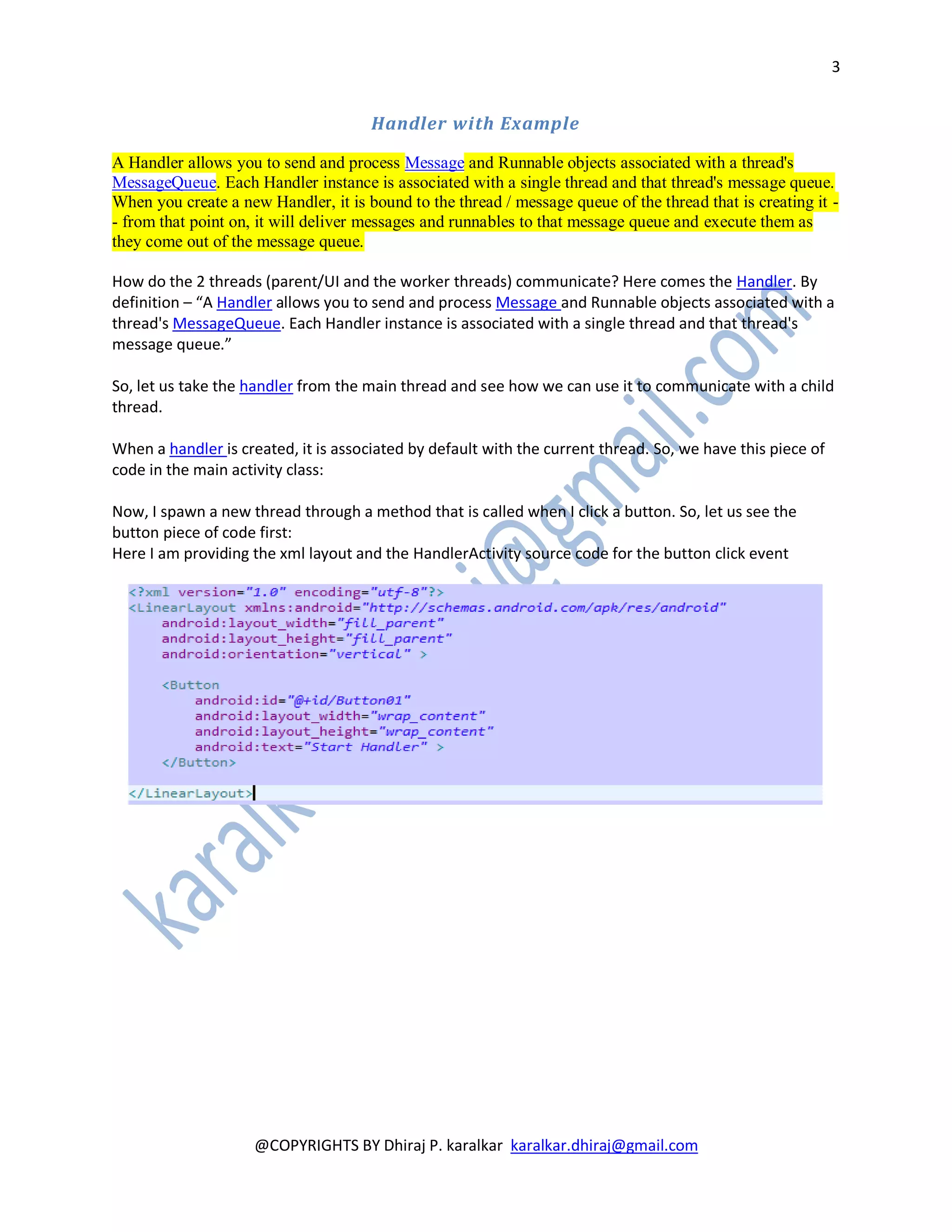
Now, I spawn a new thread through a method that is called when I click a button. So, let us see the
button piece of code first:
Here I am providing the xml layout and the HandlerActivity source code for the button click event


                     @COPYRIGHTS BY Dhiraj P. karalkar karalkar.dhiraj@gmail.com
4


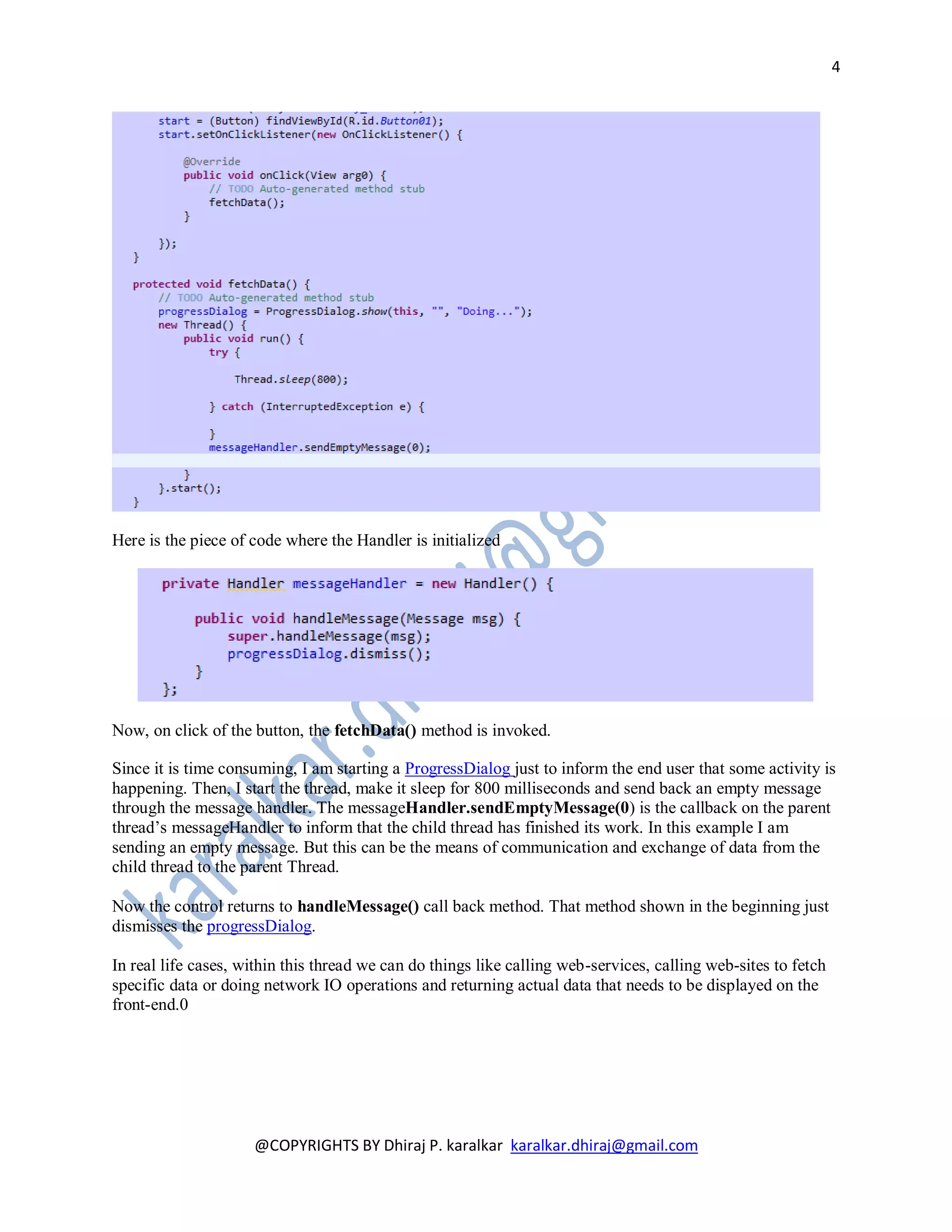
Here is the piece of code where the Handler is initialized


Now, on click of the button, the fetchData() method is invoked.

Since it is time consuming, I am starting a ProgressDialog just to inform the end user that some activity is
happening. Then, I start the thread, make it sleep for 800 milliseconds and send back an empty message
through the message handler. The messageHandler.sendEmptyMessage(0) is the callback on the parent
thread’s messageHandler to inform that the child thread has finished its work. In this example I am
sending an empty message. But this can be the means of communication and exchange of data from the
child thread to the parent Thread.

Now the control returns to handleMessage() call back method. That method shown in the beginning just
dismisses the progressDialog.

In real life cases, within this thread we can do things like calling web-services, calling web-sites to fetch
specific data or doing network IO operations and returning actual data that needs to be displayed on the
front-end.0


                     @COPYRIGHTS BY Dhiraj P. karalkar karalkar.dhiraj@gmail.com
5


                                    AsyncTask with Example

AsyncTask enables proper and easy use of the UI thread. This class allows to perform background
operations and publish results on the UI thread without having to manipulate threads and/or handlers.

The AsyncTask class encapsulates the creation of Threads and Handlers. An AsyncTask is started via the
execute() method.
The execute() method calls the doInBackground() and the onPostExecute() method.
The doInBackground() method contains the coding instruction which should be performed in a
background thread. This method runs automatically in a separate Thread.
The onPostExecute() method synchronize itself again with the user interface thread and allows to update
it. This method is called by the framework once the doInBackground() method finishes.
To use AsyncTask you must subclass it. AsyncTask uses generics and varargs. The parameters are the
following AsyncTask <TypeOfVarArgParams , ProgressValue , ResultValue> .
TypeOfVarArgParams is passed into the doInBackground() method as input, ProgressValue is used for
progress information and ResultValue must be returned from doInBackground() method and is passed to
onPostExecute() as parameter.

In this example we will use an instance of the AsyncTask class to download the content of a webpage.
We use Android HttpClient for this. Create a new Android project called ThreadAsynkTaskExample
with an Activity called ThreadAsynkTaskActivity. Add the android.permission.INTERNET permission
to your <filenname>AndroidManifest.xml</filenname> file. .
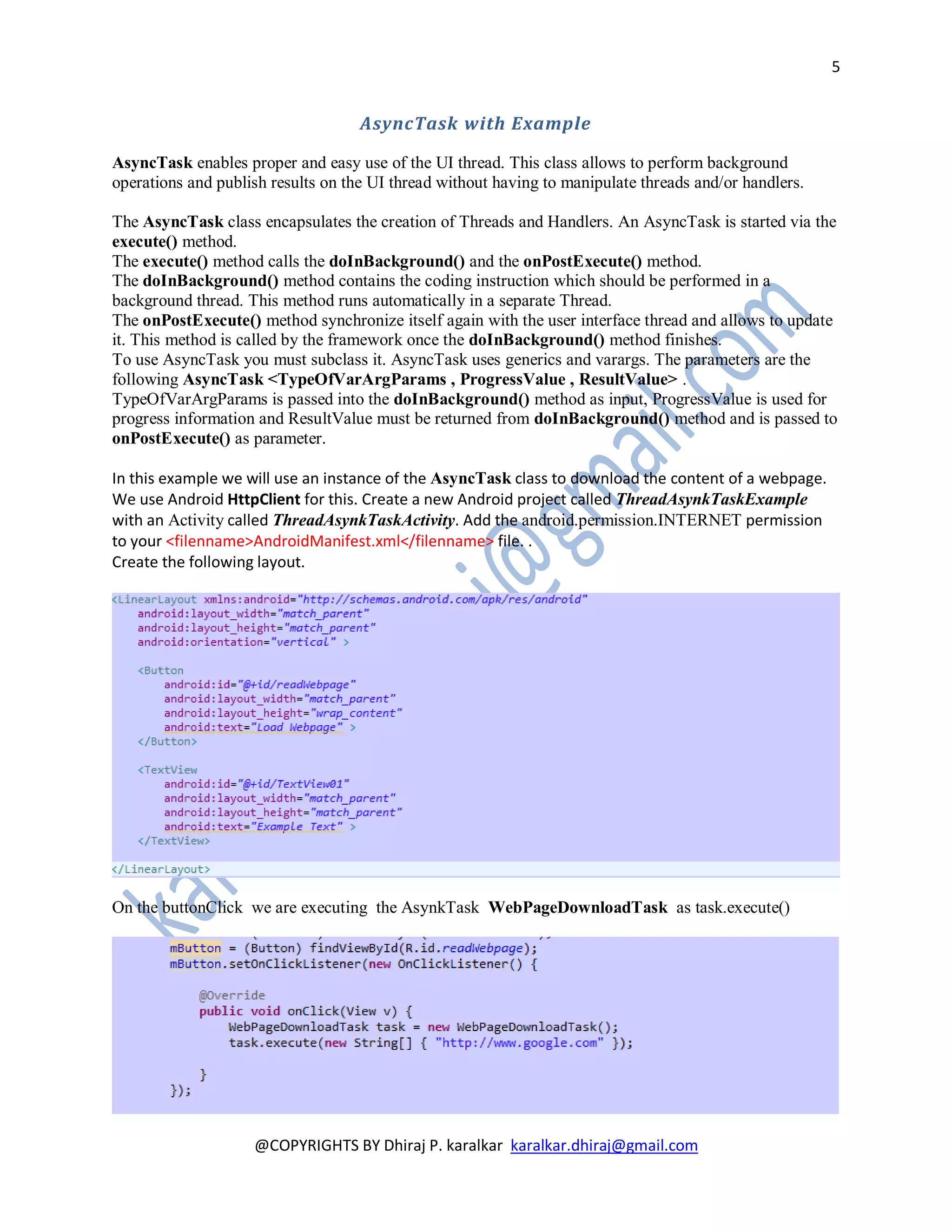
Create the following layout.


On the buttonClick we are executing the AsynkTask WebPageDownloadTask as task.execute()


                    @COPYRIGHTS BY Dhiraj P. karalkar karalkar.dhiraj@gmail.com
6


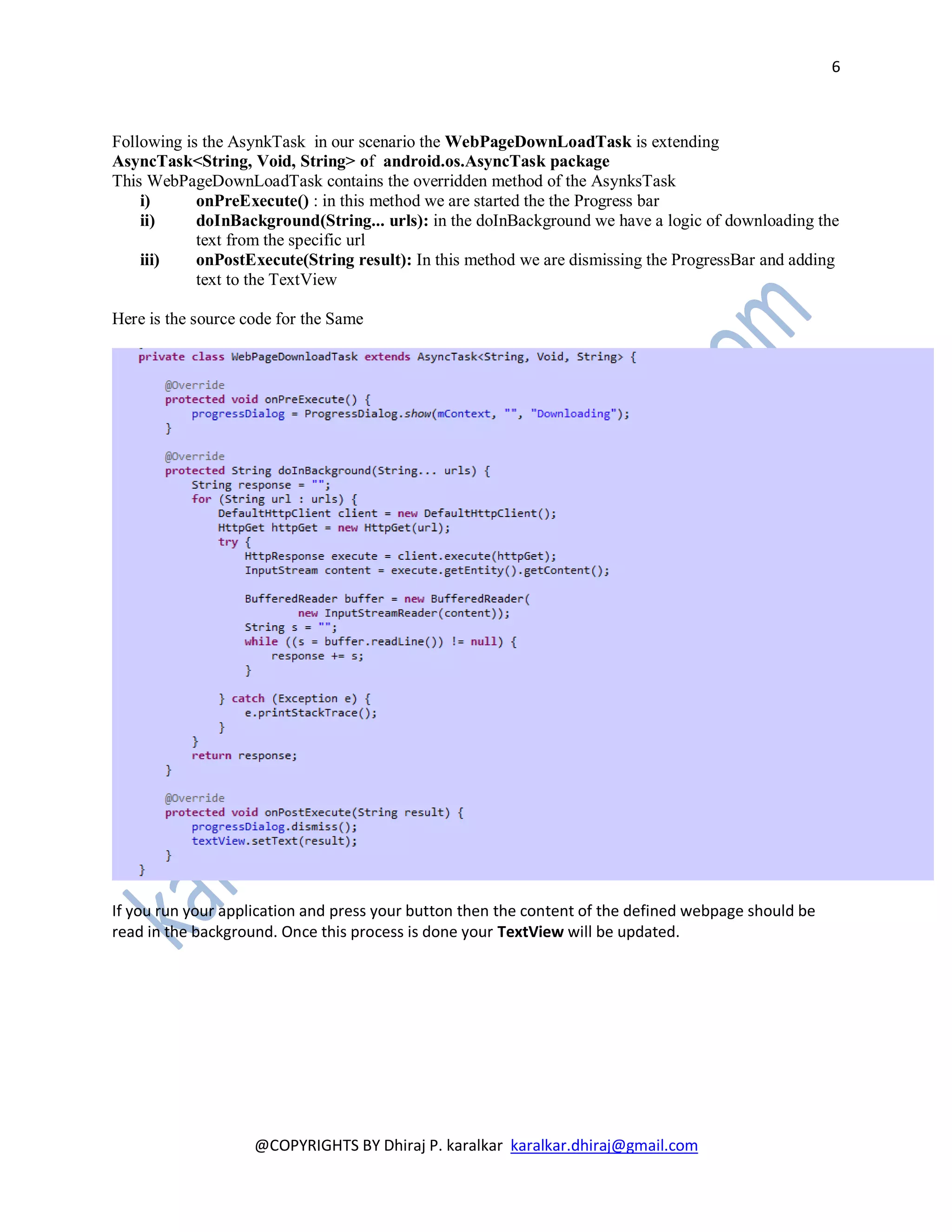
Following is the AsynkTask in our scenario the WebPageDownLoadTask is extending
AsyncTask<String, Void, String> of android.os.AsyncTask package
This WebPageDownLoadTask contains the overridden method of the AsynksTask
    i)      onPreExecute() : in this method we are started the the Progress bar
    ii)     doInBackground(String... urls): in the doInBackground we have a logic of downloading the
            text from the specific url
    iii)    onPostExecute(String result): In this method we are dismissing the ProgressBar and adding
            text to the TextView

Here is the source code for the Same


If you run your application and press your button then the content of the defined webpage should be
read in the background. Once this process is done your TextView will be updated.


                    @COPYRIGHTS BY Dhiraj P. karalkar karalkar.dhiraj@gmail.com
7


Session2
                                       Broadcast Receivers
The concept of Broadcast Receivers, one of the fundamental blocks of Android, is very simple. These are
applications that will respond to any intent that is broadcast by other applications. Provided the
broadcast intent matches the intent specified against the receiver in the AndroidManifest.xml

This goes to automatically imply that many activities, events, services or the like can broadcast intents
expecting the appropriate action to be automatically taken. So, to begin with, let us see the various
Broadcast events that are given by the platform itself. Here is a standard list obtained from the android
documentation:

       ACTION_TIME_TICK
       ACTION_TIME_CHANGED
       ACTION_TIMEZONE_CHANGED
       ACTION_BOOT_COMPLETED
       ACTION_PACKAGE_ADDED
       ACTION_PACKAGE_CHANGED
       ACTION_PACKAGE_REMOVED
       ACTION_PACKAGE_RESTARTED
       ACTION_PACKAGE_DATA_CLEARED
       ACTION_UID_REMOVED
       ACTION_BATTERY_CHANGED
       ACTION_POWER_CONNECTED
       ACTION_POWER_DISCONNECTED
       ACTION_SHUTDOWN

We will define a broadcast receiver which listens to telephone state changes. If the phone receives a
phone call then our receiver will be notified and log a message.

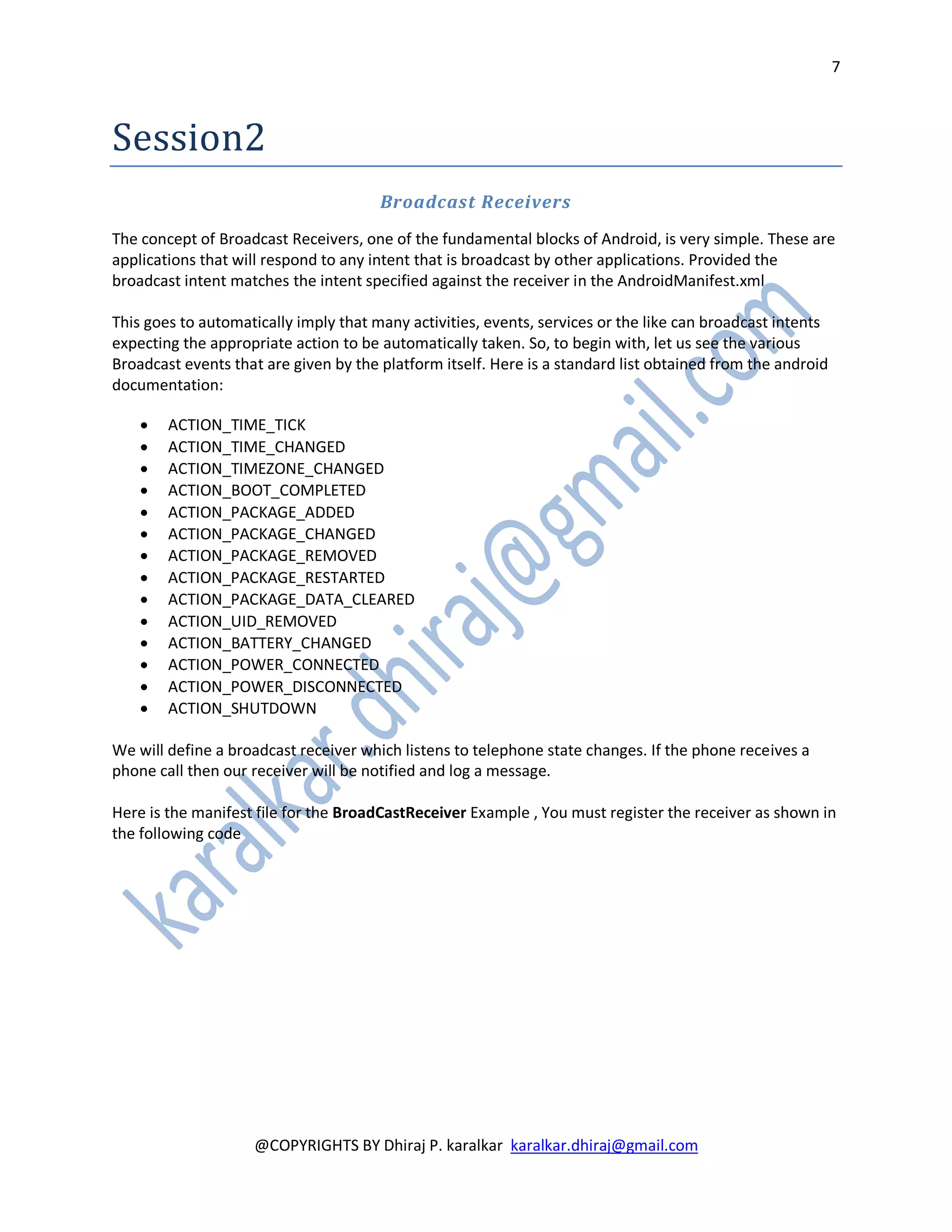
Here is the manifest file for the BroadCastReceiver Example , You must register the receiver as shown in
the following code


                    @COPYRIGHTS BY Dhiraj P. karalkar karalkar.dhiraj@gmail.com
8


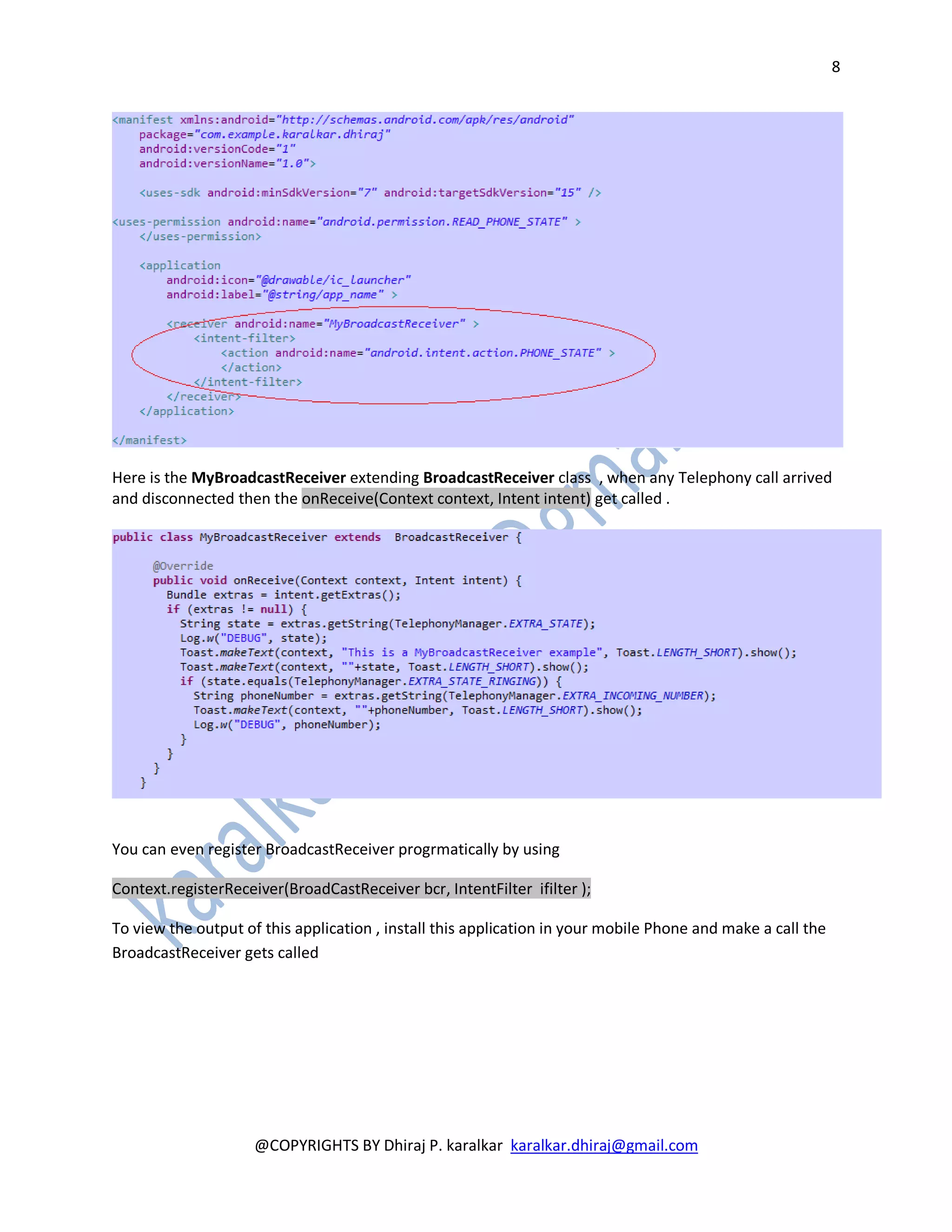
Here is the MyBroadcastReceiver extending BroadcastReceiver class , when any Telephony call arrived
and disconnected then the onReceive(Context context, Intent intent) get called .


You can even register BroadcastReceiver progrmatically by using

Context.registerReceiver(BroadCastReceiver bcr, IntentFilter ifilter );

To view the output of this application , install this application in your mobile Phone and make a call the
BroadcastReceiver gets called


                     @COPYRIGHTS BY Dhiraj P. karalkar karalkar.dhiraj@gmail.com
9


Session 3
Understanding Services in android
Role of services
Service life cycle methods


                                          What is service ?

A Service is an application component representing either an application's desire to perform a longer-
running operation while not interacting with the user or to supply functionality for other applications to
use. Each service class must have a corresponding <service> declaration in its package's
AndroidManifest.xml. Services can be started with Context.startService() and Context.bindService().

If user wants to create a longer background action like Playing the songs even if your activity is closed ,
or to download some files from the server in the background then Service used to do the Background
processes without having UI ..


To create an application to run in the background of other current activities, one needs to create a Service.
The Service can run indefinitely (unbounded) or can run at the lifespan of the calling activity(bounded).

Please note that a Service has a different lifecycle than activities therefore have different methods. But to
begin a service in the application a call to startService() which envokes the service onCreate() method and
onStart() beginning running the service.

context.startService() | ->onCreate() - >onStartCommand() [service running]

Calling the applications stopService() method to stop the service.

context.stopService() | ->onDestroy() [service stops]

Something that we didn't use in this example is bindService() which just calls the services onCreate()
method but does not call the onStartCommand(). onBindService() is used to create persistance
connection to the service.

context.onBindService() | ->onCreate() [service created]


                     @COPYRIGHTS BY Dhiraj P. karalkar karalkar.dhiraj@gmail.com
10


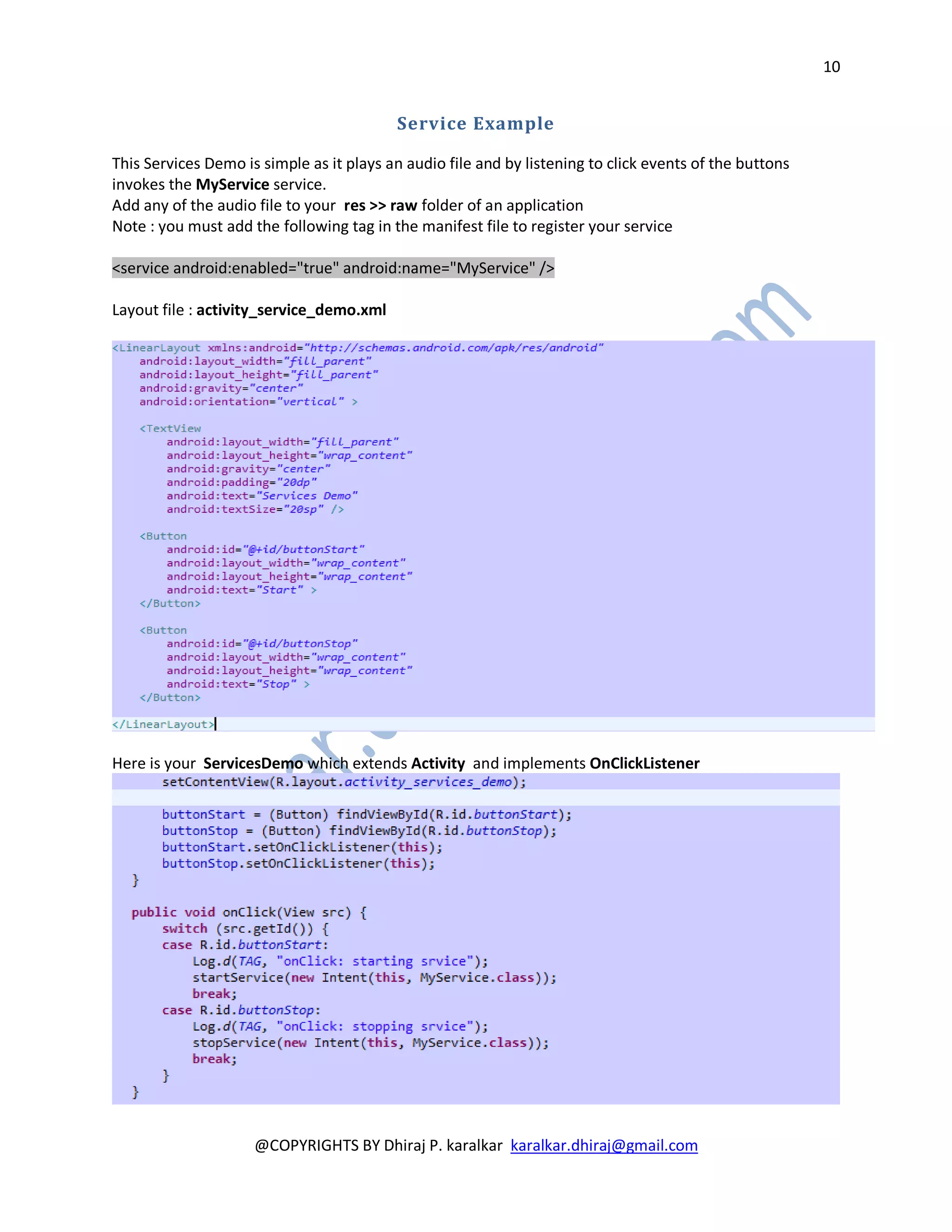
                                          Service Example

This Services Demo is simple as it plays an audio file and by listening to click events of the buttons
invokes the MyService service.
Add any of the audio file to your res >> raw folder of an application
Note : you must add the following tag in the manifest file to register your service

<service android:enabled="true" android:name="MyService" />

Layout file : activity_service_demo.xml


Here is your ServicesDemo which extends Activity and implements OnClickListener


                     @COPYRIGHTS BY Dhiraj P. karalkar karalkar.dhiraj@gmail.com
11


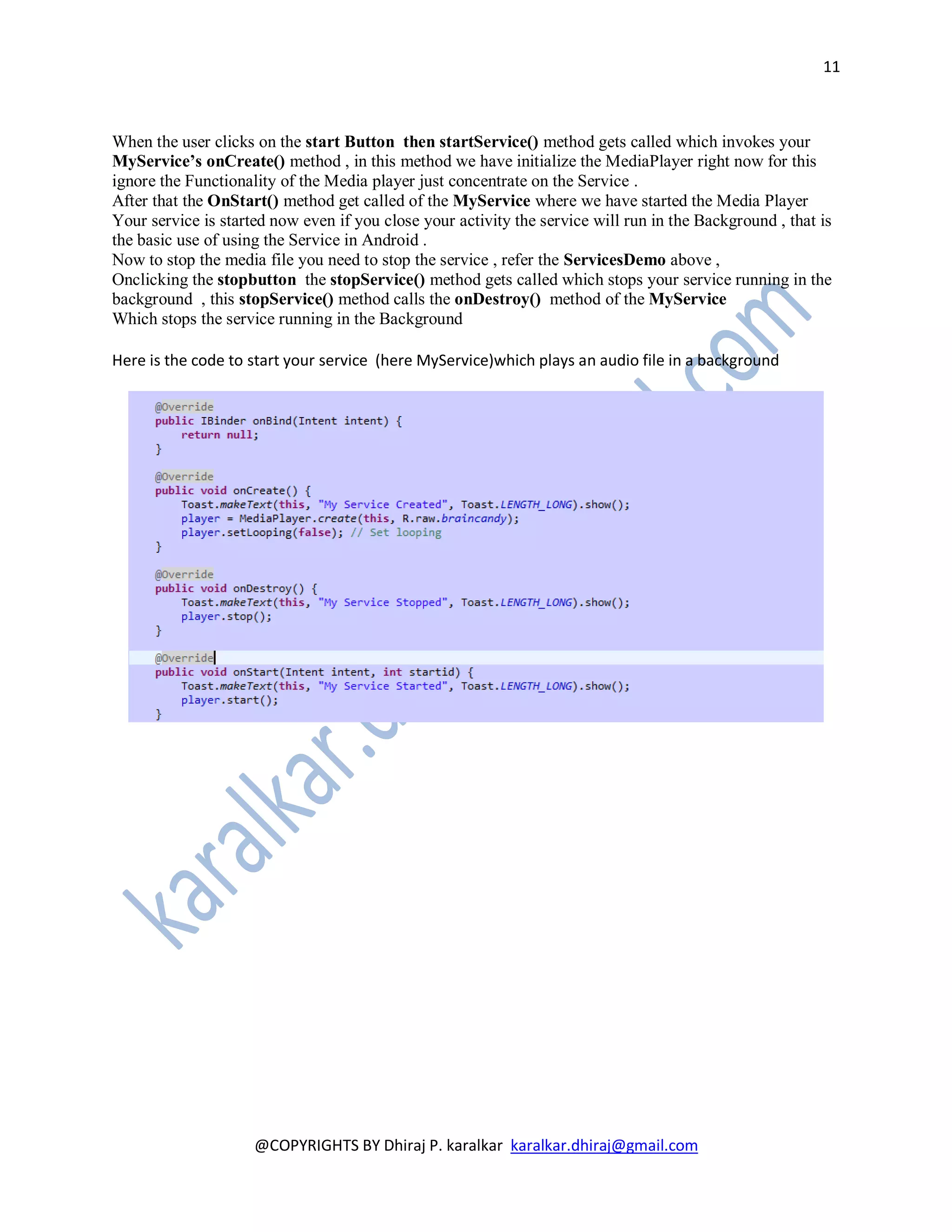
When the user clicks on the start Button then startService() method gets called which invokes your
MyService’s onCreate() method , in this method we have initialize the MediaPlayer right now for this
ignore the Functionality of the Media player just concentrate on the Service .
After that the OnStart() method get called of the MyService where we have started the Media Player
Your service is started now even if you close your activity the service will run in the Background , that is
the basic use of using the Service in Android .
Now to stop the media file you need to stop the service , refer the ServicesDemo above ,
Onclicking the stopbutton the stopService() method gets called which stops your service running in the
background , this stopService() method calls the onDestroy() method of the MyService
Which stops the service running in the Background

Here is the code to start your service (here MyService)which plays an audio file in a background


                     @COPYRIGHTS BY Dhiraj P. karalkar karalkar.dhiraj@gmail.com

Android development training programme , Day 3

  • 1.
    Android development Training programme Day 3 17/11/2012 Dhiraj Karalkar
  • 2.
    2 Day 3 Session 1 Background Processing in an Android Threads Android supports the usage of the Threads class to perform asynchronous processing. Android also supplies the java.util.concurrent package to perform something in the background, e.g. using the ThreadPools and Executor classes. If you need to update the user interface from a new Thread, you need to synchronize with the user interface thread. You can use the android.os.Handler class or the AsyncTasks class for this. Handler The Handler class can update the user interface. A Handler provides methods for receiving instances of the Message or Runnable class. To use a handler you have to subclass it and override the handleMessage() to process messages. To process a Runnable you can use the post() method. You only need one instance of a Handler in your Activity. You thread can post messages via the sendMessage(Message msg) method or via the sendEmptyMessage() method. AsyncTask The AsyncTask class encapsulates the creation of Threads and Handlers. An AsyncTask is started via the execute() method. The execute() method calls the doInBackground() and the onPostExecute() method. The doInBackground() method contains the coding instruction which should be performed in a background thread. This method runs automatically in a separate Thread. The onPostExecute() method synchronize itself again with the user interface thread and allows to update it. This method is called by the framework once the doInBackground() method finishes. To use AsyncTask you must subclass it. AsyncTask uses generics and varargs. The parameters are the following AsyncTask <TypeOfVarArgParams , ProgressValue , ResultValue> . TypeOfVarArgParams is passed into the doInBackground() method as input, ProgressValue is used for progress information and ResultValue must be returned from doInBackground() method and is passed to onPostExecute() as parameter. @COPYRIGHTS BY Dhiraj P. karalkar karalkar.dhiraj@gmail.com
  • 3.
    3 Handler with Example A Handler allows you to send and process Message and Runnable objects associated with a thread's MessageQueue. Each Handler instance is associated with a single thread and that thread's message queue. When you create a new Handler, it is bound to the thread / message queue of the thread that is creating it - - from that point on, it will deliver messages and runnables to that message queue and execute them as they come out of the message queue. How do the 2 threads (parent/UI and the worker threads) communicate? Here comes the Handler. By definition – “A Handler allows you to send and process Message and Runnable objects associated with a thread's MessageQueue. Each Handler instance is associated with a single thread and that thread's message queue.” So, let us take the handler from the main thread and see how we can use it to communicate with a child thread. When a handler is created, it is associated by default with the current thread. So, we have this piece of code in the main activity class: Now, I spawn a new thread through a method that is called when I click a button. So, let us see the button piece of code first: Here I am providing the xml layout and the HandlerActivity source code for the button click event @COPYRIGHTS BY Dhiraj P. karalkar karalkar.dhiraj@gmail.com
  • 4.
    4 Here is thepiece of code where the Handler is initialized Now, on click of the button, the fetchData() method is invoked. Since it is time consuming, I am starting a ProgressDialog just to inform the end user that some activity is happening. Then, I start the thread, make it sleep for 800 milliseconds and send back an empty message through the message handler. The messageHandler.sendEmptyMessage(0) is the callback on the parent thread’s messageHandler to inform that the child thread has finished its work. In this example I am sending an empty message. But this can be the means of communication and exchange of data from the child thread to the parent Thread. Now the control returns to handleMessage() call back method. That method shown in the beginning just dismisses the progressDialog. In real life cases, within this thread we can do things like calling web-services, calling web-sites to fetch specific data or doing network IO operations and returning actual data that needs to be displayed on the front-end.0 @COPYRIGHTS BY Dhiraj P. karalkar karalkar.dhiraj@gmail.com
  • 5.
    5 AsyncTask with Example AsyncTask enables proper and easy use of the UI thread. This class allows to perform background operations and publish results on the UI thread without having to manipulate threads and/or handlers. The AsyncTask class encapsulates the creation of Threads and Handlers. An AsyncTask is started via the execute() method. The execute() method calls the doInBackground() and the onPostExecute() method. The doInBackground() method contains the coding instruction which should be performed in a background thread. This method runs automatically in a separate Thread. The onPostExecute() method synchronize itself again with the user interface thread and allows to update it. This method is called by the framework once the doInBackground() method finishes. To use AsyncTask you must subclass it. AsyncTask uses generics and varargs. The parameters are the following AsyncTask <TypeOfVarArgParams , ProgressValue , ResultValue> . TypeOfVarArgParams is passed into the doInBackground() method as input, ProgressValue is used for progress information and ResultValue must be returned from doInBackground() method and is passed to onPostExecute() as parameter. In this example we will use an instance of the AsyncTask class to download the content of a webpage. We use Android HttpClient for this. Create a new Android project called ThreadAsynkTaskExample with an Activity called ThreadAsynkTaskActivity. Add the android.permission.INTERNET permission to your <filenname>AndroidManifest.xml</filenname> file. . Create the following layout. On the buttonClick we are executing the AsynkTask WebPageDownloadTask as task.execute() @COPYRIGHTS BY Dhiraj P. karalkar karalkar.dhiraj@gmail.com
  • 6.
    6 Following is theAsynkTask in our scenario the WebPageDownLoadTask is extending AsyncTask<String, Void, String> of android.os.AsyncTask package This WebPageDownLoadTask contains the overridden method of the AsynksTask i) onPreExecute() : in this method we are started the the Progress bar ii) doInBackground(String... urls): in the doInBackground we have a logic of downloading the text from the specific url iii) onPostExecute(String result): In this method we are dismissing the ProgressBar and adding text to the TextView Here is the source code for the Same If you run your application and press your button then the content of the defined webpage should be read in the background. Once this process is done your TextView will be updated. @COPYRIGHTS BY Dhiraj P. karalkar karalkar.dhiraj@gmail.com
  • 7.
    7 Session2 Broadcast Receivers The concept of Broadcast Receivers, one of the fundamental blocks of Android, is very simple. These are applications that will respond to any intent that is broadcast by other applications. Provided the broadcast intent matches the intent specified against the receiver in the AndroidManifest.xml This goes to automatically imply that many activities, events, services or the like can broadcast intents expecting the appropriate action to be automatically taken. So, to begin with, let us see the various Broadcast events that are given by the platform itself. Here is a standard list obtained from the android documentation:  ACTION_TIME_TICK  ACTION_TIME_CHANGED  ACTION_TIMEZONE_CHANGED  ACTION_BOOT_COMPLETED  ACTION_PACKAGE_ADDED  ACTION_PACKAGE_CHANGED  ACTION_PACKAGE_REMOVED  ACTION_PACKAGE_RESTARTED  ACTION_PACKAGE_DATA_CLEARED  ACTION_UID_REMOVED  ACTION_BATTERY_CHANGED  ACTION_POWER_CONNECTED  ACTION_POWER_DISCONNECTED  ACTION_SHUTDOWN We will define a broadcast receiver which listens to telephone state changes. If the phone receives a phone call then our receiver will be notified and log a message. Here is the manifest file for the BroadCastReceiver Example , You must register the receiver as shown in the following code @COPYRIGHTS BY Dhiraj P. karalkar karalkar.dhiraj@gmail.com
  • 8.
    8 Here is theMyBroadcastReceiver extending BroadcastReceiver class , when any Telephony call arrived and disconnected then the onReceive(Context context, Intent intent) get called . You can even register BroadcastReceiver progrmatically by using Context.registerReceiver(BroadCastReceiver bcr, IntentFilter ifilter ); To view the output of this application , install this application in your mobile Phone and make a call the BroadcastReceiver gets called @COPYRIGHTS BY Dhiraj P. karalkar karalkar.dhiraj@gmail.com
  • 9.
    9 Session 3 Understanding Servicesin android Role of services Service life cycle methods What is service ? A Service is an application component representing either an application's desire to perform a longer- running operation while not interacting with the user or to supply functionality for other applications to use. Each service class must have a corresponding <service> declaration in its package's AndroidManifest.xml. Services can be started with Context.startService() and Context.bindService(). If user wants to create a longer background action like Playing the songs even if your activity is closed , or to download some files from the server in the background then Service used to do the Background processes without having UI .. To create an application to run in the background of other current activities, one needs to create a Service. The Service can run indefinitely (unbounded) or can run at the lifespan of the calling activity(bounded). Please note that a Service has a different lifecycle than activities therefore have different methods. But to begin a service in the application a call to startService() which envokes the service onCreate() method and onStart() beginning running the service. context.startService() | ->onCreate() - >onStartCommand() [service running] Calling the applications stopService() method to stop the service. context.stopService() | ->onDestroy() [service stops] Something that we didn't use in this example is bindService() which just calls the services onCreate() method but does not call the onStartCommand(). onBindService() is used to create persistance connection to the service. context.onBindService() | ->onCreate() [service created] @COPYRIGHTS BY Dhiraj P. karalkar karalkar.dhiraj@gmail.com
  • 10.
    10 Service Example This Services Demo is simple as it plays an audio file and by listening to click events of the buttons invokes the MyService service. Add any of the audio file to your res >> raw folder of an application Note : you must add the following tag in the manifest file to register your service <service android:enabled="true" android:name="MyService" /> Layout file : activity_service_demo.xml Here is your ServicesDemo which extends Activity and implements OnClickListener @COPYRIGHTS BY Dhiraj P. karalkar karalkar.dhiraj@gmail.com
  • 11.
    11 When the userclicks on the start Button then startService() method gets called which invokes your MyService’s onCreate() method , in this method we have initialize the MediaPlayer right now for this ignore the Functionality of the Media player just concentrate on the Service . After that the OnStart() method get called of the MyService where we have started the Media Player Your service is started now even if you close your activity the service will run in the Background , that is the basic use of using the Service in Android . Now to stop the media file you need to stop the service , refer the ServicesDemo above , Onclicking the stopbutton the stopService() method gets called which stops your service running in the background , this stopService() method calls the onDestroy() method of the MyService Which stops the service running in the Background Here is the code to start your service (here MyService)which plays an audio file in a background @COPYRIGHTS BY Dhiraj P. karalkar karalkar.dhiraj@gmail.com