HELLO
DIVING INTO DAY FIVE
AsyncTask
Simple AsyncTask


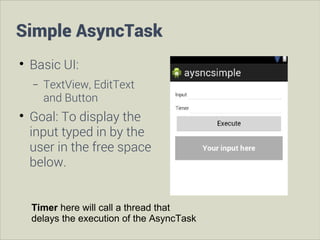
Basic UI:
−



TextView, EditText
and Button

Goal: To display the
input typed in by the
user in the free space
below.
Timer here will call a thread that
delays the execution of the AsyncTask
Simple AsyncTask


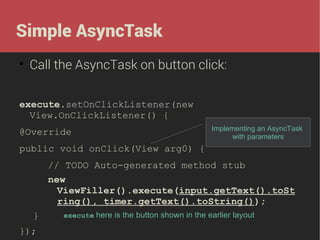
Call the AsyncTask on button click:

execute.setOnClickListener(new
View.OnClickListener() {
@Override

Implementing an AsyncTask
with parameters

public void onClick(View arg0) {
// TODO Auto-generated method stub
new
ViewFiller().execute(input.getText().toSt
ring(), timer.getText().toString());
}
});

execute here is the button shown in the earlier layout
AsyncTask




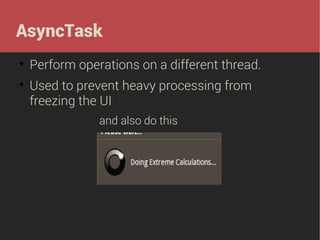
Perform operations on a different thread.
Used to prevent heavy processing from
freezing the UI
and also do this
How do we do this ?




We create a class inside our Activity that
extends the AsyncTask
We use different methods it offers do perform
operations in the background:
−

OnPreExecute()


−

doInBackground(Params... )


−

Generally used to load the progress bar
All the logic is dumped here

OnProgressUpdate()


Called when publishProgress() is called in the
doInBackground()

−

onPostExecute(Result)


Gives out the desired results
ViewFiller extends AsyncTask
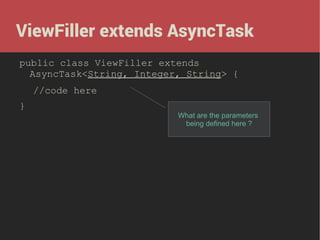
public class ViewFiller extends
AsyncTask<String, Integer, String> {
//code here
}

What are the parameters
being defined here ?


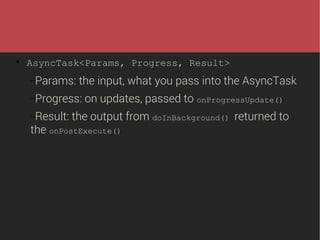
AsyncTask<Params, Progress, Result>
−Params:

the input, what you pass into the AsyncTask

−Progress:
−Result:

on updates, passed to onProgressUpdate()

the output from doInBackground() returned to

the onPostExecute()
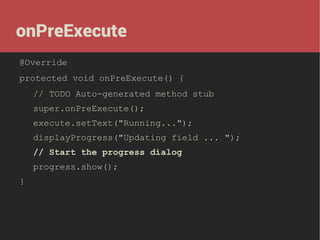
onPreExecute
@Override
protected void onPreExecute() {
// TODO Auto-generated method stub
super.onPreExecute();
execute.setText("Running...");
displayProgress("Updating field ... ");
// Start the progress dialog
progress.show();
}
doInBackground
protected String doInBackground(String... input) {
try {
int time;
if (input[1].equalsIgnoreCase("")) {
time = 0;
} else {
time = Integer.parseInt(input[1]) * 1000;
for (int i = 1; i <= time / 1000; i++) {
publishProgress(i, time);
Thread.sleep(1000);
}

Call to onProgressUpdate

}
} catch (InterruptedException e) {
e.printStackTrace();
}
return input[0];
}

Passing parameter to onPostExecute
onProgressUpdate
@Override
protected void onProgressUpdate(Integer...
values) {
// TODO Auto-generated method stub
super.onProgressUpdate(values);
displayProgress("Updating field ... " +
values[0] + " of "+ values[1] / 1000);
}
Interaction with the UI
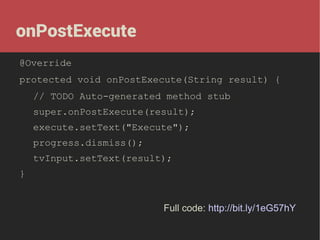
onPostExecute
@Override
protected void onPostExecute(String result) {
// TODO Auto-generated method stub
super.onPostExecute(result);
execute.setText("Execute");
progress.dismiss();
tvInput.setText(result);
}
Full code: http://bit.ly/1eG57hY
Deeper with AsyncTask


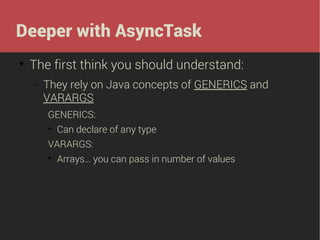
The first think you should understand:
−

They rely on Java concepts of GENERICS and
VARARGS
GENERICS:


Can declare of any type

VARARGS:


Arrays… you can pass in number of values
Adding AsyncTask to our app
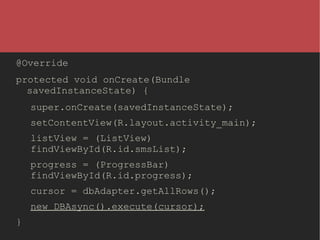
@Override
protected void onCreate(Bundle
savedInstanceState) {
super.onCreate(savedInstanceState);
setContentView(R.layout.activity_main);
listView = (ListView)
findViewById(R.id.smsList);
progress = (ProgressBar)
findViewById(R.id.progress);
cursor = dbAdapter.getAllRows();
new DBAsync().execute(cursor);
}
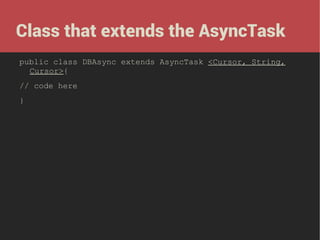
Class that extends the AsyncTask
public class DBAsync extends AsyncTask <Cursor, String,
Cursor>{
// code here
}
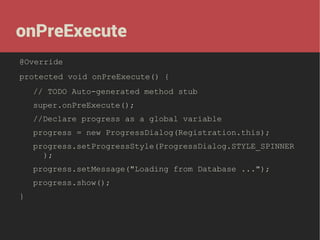
onPreExecute
@Override
protected void onPreExecute() {
// TODO Auto-generated method stub
super.onPreExecute();
//Declare progress as a global variable
progress = new ProgressDialog(Registration.this);
progress.setProgressStyle(ProgressDialog.STYLE_SPINNER
);
progress.setMessage("Loading from Database ...");
progress.show();
}
doInBackground
@Override
protected Cursor doInBackground(Cursor...
cursor) {
// TODO Auto-generated method stub
return cursor[0];
}
onPostExecute
@Override
protected void onPostExecute(String result) {
// TODO Auto-generated method stub
super.onPostExecute(result);
progress.dismiss();
String[] from = new String[] { dbAdapter.KEY_ROWID,
dbAdapter.KEY_NAME, dbAdapter.KEY_ADD };
int[] to = new int[] { R.id.list_id, R.id.list_name,
R.id.list_address };
SimpleCursorAdapter adapter = new
SimpleCursorAdapter(getApplicationContext(),
R.layout.result_layout, result, from, to, 1);
listView.setAdapter(adapter);
}
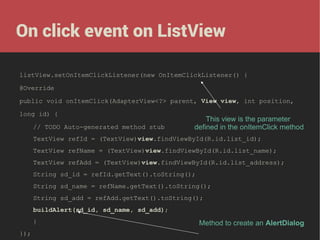
On click event on ListView
listView.setOnItemClickListener(new OnItemClickListener() {
@Override
public void onItemClick(AdapterView<?> parent, View view, int position,
long id) {
// TODO Auto-generated method stub

This view is the parameter
defined in the onItemClick method

TextView refId = (TextView)view.findViewById(R.id.list_id);
TextView refName = (TextView)view.findViewById(R.id.list_name);
TextView refAdd = (TextView)view.findViewById(R.id.list_address);
String sd_id = refId.getText().toString();
String sd_name = refName.getText().toString();
String sd_add = refAdd.getText().toString();
buildAlert(sd_id, sd_name, sd_add);
}
});

Method to create an AlertDialog
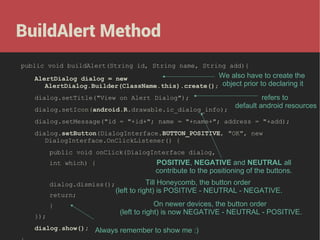
BuildAlert Method
public void buildAlert(String id, String name, String add){

We also have to create the
AlertDialog dialog = new
AlertDialog.Builder(ClassName.this).create(); object prior to declaring it
refers to
default android resources
dialog.setIcon(android.R.drawable.ic_dialog_info);
dialog.setTitle("View on Alert Dialog");

dialog.setMessage("id = "+id+"; name = "+name+"; address = "+add);
dialog.setButton(DialogInterface.BUTTON_POSITIVE, "OK", new
DialogInterface.OnClickListener() {
public void onClick(DialogInterface dialog,
int which) {
dialog.dismiss();
return;
}
});

POSITIVE, NEGATIVE and NEUTRAL all
contribute to the positioning of the buttons.
Till Honeycomb, the button order
(left to right) is POSITIVE - NEUTRAL - NEGATIVE.
On newer devices, the button order
(left to right) is now NEGATIVE - NEUTRAL - POSITIVE.

dialog.show(); Always remember to show me :)


Another example using the AsyncTask and
SimpleCursorAdapter:

http://bit.ly/17ipnE4
TYPES
OF MOBILE APPS
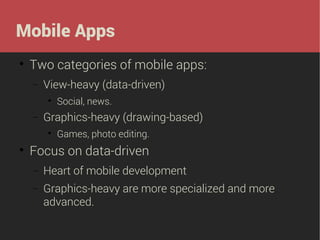
Mobile Apps


Two categories of mobile apps:
−

View-heavy (data-driven)


−

Graphics-heavy (drawing-based)




Social, news.
Games, photo editing.

Focus on data-driven
−

Heart of mobile development

−

Graphics-heavy are more specialized and more
advanced.
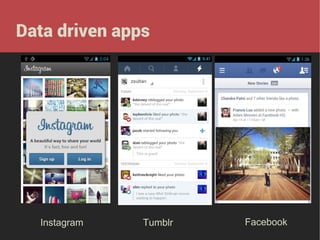
Data driven apps

Instagram

Tumblr

Facebook
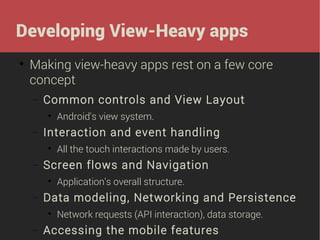
Developing View-Heavy apps


Making view-heavy apps rest on a few core
concept
−

Common controls and View Layout


−

Interaction and event handling


−

Application's overall structure.

Data modeling, Networking and Persistence


−

All the touch interactions made by users.

Screen flows and Navigation


−

Android's view system.

Network requests (API interaction), data storage.

Accessing the mobile features
API interaction


Interaction through
−

XML



−

Java parser: SAX and the DOM XML parsers
Android provides XmlPullParser which is less
complicated.

JSON


JSONObject and JSONArray are used.
Accessing HTTP


There are two ways of accessing HTTP in
android:
−

Using the HttpURLConnection


−

Using the HttpClient




Using the HttpURLConnection object and its method
Use DefaultHttpClient, Http GET & POST,
HttpResponse, HttpEntity

Both of these follow similar steps:
−

Process the Http input

−

Use InputStream and BufferedReader to iterate
through the http output.
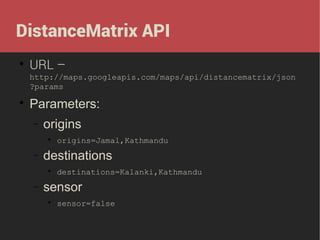
DistanceMatrix API


URL –
http://maps.googleapis.com/maps/api/distancematrix/json
?params



Parameters:
−

origins


−

destinations


−

origins=Jamal,Kathmandu

destinations=Kalanki,Kathmandu

sensor


sensor=false
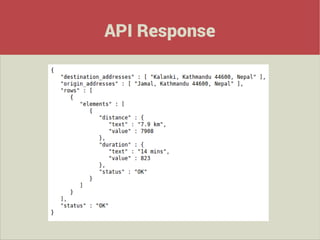
API Response
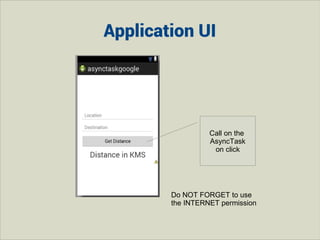
Application UI

Call on the
AsyncTask
on click

Do NOT FORGET to use
the INTERNET permission


How do we implement this ?
−Get

the JSONObject

−Extract

Results from the API's response

−Putting

it all together
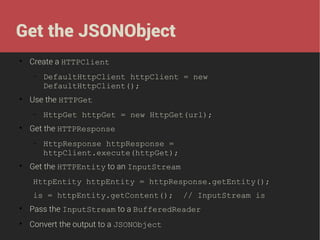
Get the JSONObject


Create a HTTPClient
−



Use the HTTPGet
−



HttpGet httpGet = new HttpGet(url);

Get the HTTPResponse
−



DefaultHttpClient httpClient = new
DefaultHttpClient();

HttpResponse httpResponse =
httpClient.execute(httpGet);

Get the HTTPEntity to an InputStream
HttpEntity httpEntity = httpResponse.getEntity();
is = httpEntity.getContent();

// InputStream is



Pass the InputStream to a BufferedReader



Convert the output to a JSONObject
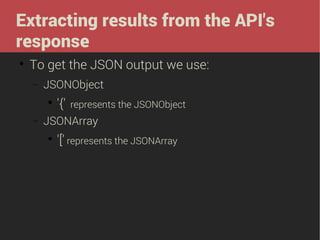
Extracting results from the API's
response


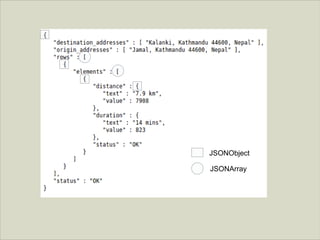
To get the JSON output we use:
−

JSONObject


−

'{'

represents the JSONObject

JSONArray


'[' represents the JSONArray
JSONObject
JSONArray
Accessing JSON
JSONObject googleObject1, googleObject2, googleObject3, googleObject4;
JSONArray googleArray1, googleArray2;
...
String distanceBetween = "";
try{
//Getting array of the API
UserFunctions users = new UserFunctions();
googleObject1 = users.distanceGET(places[0], places[1]);
//places[0] and places[1] are values passed on button click
googleArray1 = googleObject1.getJSONArray(TAG_ROW);
googleObject2 = googleArray1.getJSONObject(0);
googleArray2 = googleObject2.getJSONArray(TAG_ELEMENTS);
googleObject3 = googleArray2.getJSONObject(0);
googleObject4 = googleObject3.getJSONObject(TAG_DISTANCE);
distanceBetween = googleObject4.getString(TAG_TEXT);
}catch(JSONException e){
e.printStackTrace();

Full code: http://bit.ly/HTGTm1
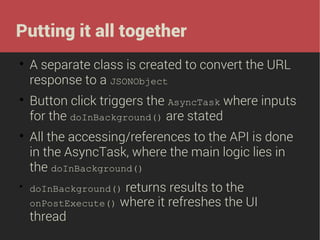
Putting it all together








A separate class is created to convert the URL
response to a JSONObject
Button click triggers the AsyncTask where inputs
for the doInBackground() are stated
All the accessing/references to the API is done
in the AsyncTask, where the main logic lies in
the doInBackground()
returns results to the
onPostExecute() where it refreshes the UI
thread
doInBackground()
SharedPreferences
Android Storage


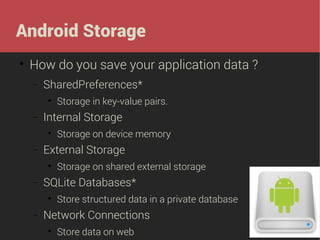
How do you save your application data ?
−

SharedPreferences*


−

Internal Storage


−

Storage on shared external storage

SQLite Databases*


−

Storage on device memory

External Storage


−

Storage in key-value pairs.

Store structured data in a private database

Network Connections


Store data on web
SharedPreferences


The way android stores users preferences



But why SharedPreferences ?
−

Ease of implementation

−

Faster in terms of coding

−

Accessibility of key values

−

Suitable for the small things


e.g. Game difficulty level, user name, user accounts, etc.
SharedPreferences


Every thing is saved in terms of key-value
−

e.g. “NAME”, “Android”

“PhoneNumber”, “1234”


For the implementation we will be using the:
−

SharedPreferences

−

General framework to save and retrieve persistent keyvalue pairs
Editor






Interface used for modifying values in a
SharedPreferences object
Use of commit() or apply() to make changes persist
Implementation
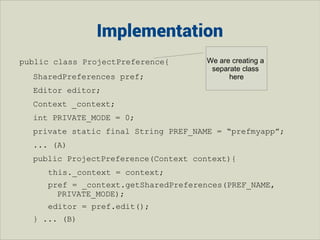
public class ProjectPreference{
SharedPreferences pref;

We are creating a
separate class
here

Editor editor;
Context _context;
int PRIVATE_MODE = 0;
private static final String PREF_NAME = “prefmyapp”;
... (A)
public ProjectPreference(Context context){
this._context = context;
pref = _context.getSharedPreferences(PREF_NAME,
PRIVATE_MODE);
editor = pref.edit();
} ... (B)
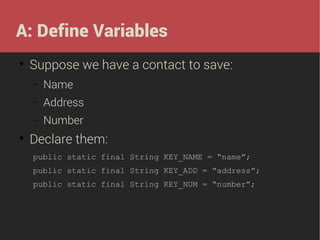
A: Define Variables


Suppose we have a contact to save:
−
−

Address

−


Name
Number

Declare them:
public static final String KEY_NAME = “name”;
public static final String KEY_ADD = “address”;
public static final String KEY_NUM = “number”;
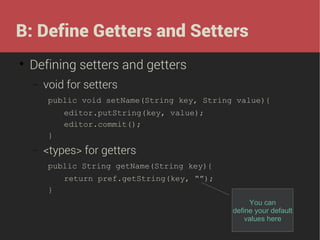
B: Define Getters and Setters


Defining setters and getters
−

void for setters
public void setName(String key, String value){
editor.putString(key, value);
editor.commit();
}

−

<types> for getters
public String getName(String key){
return pref.getString(key, “”);
}
You can
define your default
values here
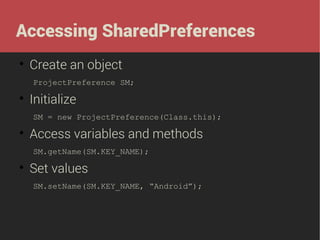
Accessing SharedPreferences


Create an object
ProjectPreference SM;



Initialize
SM = new ProjectPreference(Class.this);



Access variables and methods
SM.getName(SM.KEY_NAME);



Set values
SM.setName(SM.KEY_NAME, “Android”);
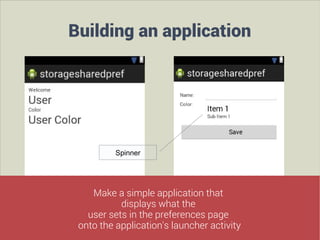
Building an application

Spinner

Make a simple application that
displays what the
user sets in the preferences page
onto the application's launcher activity
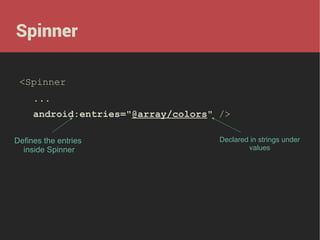
Spinner
<Spinner
...
android:entries="@array/colors" />
Defines the entries
inside Spinner

Declared in strings under
values
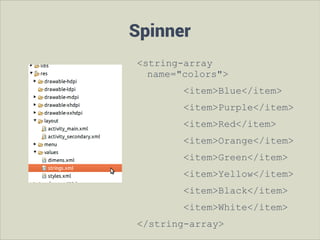
Spinner
<string-array
name="colors">
<item>Blue</item>
<item>Purple</item>
<item>Red</item>
<item>Orange</item>
<item>Green</item>
<item>Yellow</item>
<item>Black</item>
<item>White</item>
</string-array>
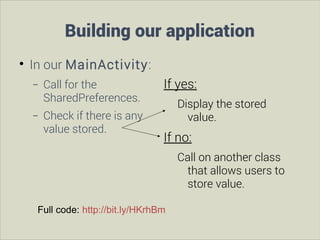
Building our application


In our MainActivity:
−
−

Call for the
SharedPreferences.
Check if there is any
value stored.

If yes:
Display the stored
value.

If no:
Call on another class
that allows users to
store value.

Full code: http://bit.ly/HKrhBm

Day 5

  • 1.
  • 2.
  • 3.
    Simple AsyncTask  Basic UI: −  TextView,EditText and Button Goal: To display the input typed in by the user in the free space below. Timer here will call a thread that delays the execution of the AsyncTask
  • 4.
    Simple AsyncTask  Call theAsyncTask on button click: execute.setOnClickListener(new View.OnClickListener() { @Override Implementing an AsyncTask with parameters public void onClick(View arg0) { // TODO Auto-generated method stub new ViewFiller().execute(input.getText().toSt ring(), timer.getText().toString()); } }); execute here is the button shown in the earlier layout
  • 5.
    AsyncTask   Perform operations ona different thread. Used to prevent heavy processing from freezing the UI and also do this
  • 6.
    How do wedo this ?   We create a class inside our Activity that extends the AsyncTask We use different methods it offers do perform operations in the background: − OnPreExecute()  − doInBackground(Params... )  − Generally used to load the progress bar All the logic is dumped here OnProgressUpdate()  Called when publishProgress() is called in the doInBackground() − onPostExecute(Result)  Gives out the desired results
  • 7.
    ViewFiller extends AsyncTask publicclass ViewFiller extends AsyncTask<String, Integer, String> { //code here } What are the parameters being defined here ?
  • 8.
     AsyncTask<Params, Progress, Result> −Params: theinput, what you pass into the AsyncTask −Progress: −Result: on updates, passed to onProgressUpdate() the output from doInBackground() returned to the onPostExecute()
  • 9.
    onPreExecute @Override protected void onPreExecute(){ // TODO Auto-generated method stub super.onPreExecute(); execute.setText("Running..."); displayProgress("Updating field ... "); // Start the progress dialog progress.show(); }
  • 10.
    doInBackground protected String doInBackground(String...input) { try { int time; if (input[1].equalsIgnoreCase("")) { time = 0; } else { time = Integer.parseInt(input[1]) * 1000; for (int i = 1; i <= time / 1000; i++) { publishProgress(i, time); Thread.sleep(1000); } Call to onProgressUpdate } } catch (InterruptedException e) { e.printStackTrace(); } return input[0]; } Passing parameter to onPostExecute
  • 11.
    onProgressUpdate @Override protected void onProgressUpdate(Integer... values){ // TODO Auto-generated method stub super.onProgressUpdate(values); displayProgress("Updating field ... " + values[0] + " of "+ values[1] / 1000); } Interaction with the UI
  • 12.
    onPostExecute @Override protected void onPostExecute(Stringresult) { // TODO Auto-generated method stub super.onPostExecute(result); execute.setText("Execute"); progress.dismiss(); tvInput.setText(result); } Full code: http://bit.ly/1eG57hY
  • 13.
    Deeper with AsyncTask  Thefirst think you should understand: − They rely on Java concepts of GENERICS and VARARGS GENERICS:  Can declare of any type VARARGS:  Arrays… you can pass in number of values
  • 14.
  • 15.
    @Override protected void onCreate(Bundle savedInstanceState){ super.onCreate(savedInstanceState); setContentView(R.layout.activity_main); listView = (ListView) findViewById(R.id.smsList); progress = (ProgressBar) findViewById(R.id.progress); cursor = dbAdapter.getAllRows(); new DBAsync().execute(cursor); }
  • 16.
    Class that extendsthe AsyncTask public class DBAsync extends AsyncTask <Cursor, String, Cursor>{ // code here }
  • 17.
    onPreExecute @Override protected void onPreExecute(){ // TODO Auto-generated method stub super.onPreExecute(); //Declare progress as a global variable progress = new ProgressDialog(Registration.this); progress.setProgressStyle(ProgressDialog.STYLE_SPINNER ); progress.setMessage("Loading from Database ..."); progress.show(); }
  • 18.
    doInBackground @Override protected Cursor doInBackground(Cursor... cursor){ // TODO Auto-generated method stub return cursor[0]; }
  • 19.
    onPostExecute @Override protected void onPostExecute(Stringresult) { // TODO Auto-generated method stub super.onPostExecute(result); progress.dismiss(); String[] from = new String[] { dbAdapter.KEY_ROWID, dbAdapter.KEY_NAME, dbAdapter.KEY_ADD }; int[] to = new int[] { R.id.list_id, R.id.list_name, R.id.list_address }; SimpleCursorAdapter adapter = new SimpleCursorAdapter(getApplicationContext(), R.layout.result_layout, result, from, to, 1); listView.setAdapter(adapter); }
  • 20.
    On click eventon ListView listView.setOnItemClickListener(new OnItemClickListener() { @Override public void onItemClick(AdapterView<?> parent, View view, int position, long id) { // TODO Auto-generated method stub This view is the parameter defined in the onItemClick method TextView refId = (TextView)view.findViewById(R.id.list_id); TextView refName = (TextView)view.findViewById(R.id.list_name); TextView refAdd = (TextView)view.findViewById(R.id.list_address); String sd_id = refId.getText().toString(); String sd_name = refName.getText().toString(); String sd_add = refAdd.getText().toString(); buildAlert(sd_id, sd_name, sd_add); } }); Method to create an AlertDialog
  • 21.
    BuildAlert Method public voidbuildAlert(String id, String name, String add){ We also have to create the AlertDialog dialog = new AlertDialog.Builder(ClassName.this).create(); object prior to declaring it refers to default android resources dialog.setIcon(android.R.drawable.ic_dialog_info); dialog.setTitle("View on Alert Dialog"); dialog.setMessage("id = "+id+"; name = "+name+"; address = "+add); dialog.setButton(DialogInterface.BUTTON_POSITIVE, "OK", new DialogInterface.OnClickListener() { public void onClick(DialogInterface dialog, int which) { dialog.dismiss(); return; } }); POSITIVE, NEGATIVE and NEUTRAL all contribute to the positioning of the buttons. Till Honeycomb, the button order (left to right) is POSITIVE - NEUTRAL - NEGATIVE. On newer devices, the button order (left to right) is now NEGATIVE - NEUTRAL - POSITIVE. dialog.show(); Always remember to show me :)
  • 22.
     Another example usingthe AsyncTask and SimpleCursorAdapter: http://bit.ly/17ipnE4
  • 23.
  • 24.
    Mobile Apps  Two categoriesof mobile apps: − View-heavy (data-driven)  − Graphics-heavy (drawing-based)   Social, news. Games, photo editing. Focus on data-driven − Heart of mobile development − Graphics-heavy are more specialized and more advanced.
  • 25.
  • 26.
    Developing View-Heavy apps  Makingview-heavy apps rest on a few core concept − Common controls and View Layout  − Interaction and event handling  − Application's overall structure. Data modeling, Networking and Persistence  − All the touch interactions made by users. Screen flows and Navigation  − Android's view system. Network requests (API interaction), data storage. Accessing the mobile features
  • 27.
    API interaction  Interaction through − XML   − Javaparser: SAX and the DOM XML parsers Android provides XmlPullParser which is less complicated. JSON  JSONObject and JSONArray are used.
  • 28.
    Accessing HTTP  There aretwo ways of accessing HTTP in android: − Using the HttpURLConnection  − Using the HttpClient   Using the HttpURLConnection object and its method Use DefaultHttpClient, Http GET & POST, HttpResponse, HttpEntity Both of these follow similar steps: − Process the Http input − Use InputStream and BufferedReader to iterate through the http output.
  • 29.
  • 30.
  • 31.
    Application UI Call onthe AsyncTask on click Do NOT FORGET to use the INTERNET permission
  • 32.
     How do weimplement this ? −Get the JSONObject −Extract Results from the API's response −Putting it all together
  • 33.
    Get the JSONObject  Createa HTTPClient −  Use the HTTPGet −  HttpGet httpGet = new HttpGet(url); Get the HTTPResponse −  DefaultHttpClient httpClient = new DefaultHttpClient(); HttpResponse httpResponse = httpClient.execute(httpGet); Get the HTTPEntity to an InputStream HttpEntity httpEntity = httpResponse.getEntity(); is = httpEntity.getContent(); // InputStream is  Pass the InputStream to a BufferedReader  Convert the output to a JSONObject
  • 34.
    Extracting results fromthe API's response  To get the JSON output we use: − JSONObject  − '{' represents the JSONObject JSONArray  '[' represents the JSONArray
  • 35.
  • 36.
    Accessing JSON JSONObject googleObject1,googleObject2, googleObject3, googleObject4; JSONArray googleArray1, googleArray2; ... String distanceBetween = ""; try{ //Getting array of the API UserFunctions users = new UserFunctions(); googleObject1 = users.distanceGET(places[0], places[1]); //places[0] and places[1] are values passed on button click googleArray1 = googleObject1.getJSONArray(TAG_ROW); googleObject2 = googleArray1.getJSONObject(0); googleArray2 = googleObject2.getJSONArray(TAG_ELEMENTS); googleObject3 = googleArray2.getJSONObject(0); googleObject4 = googleObject3.getJSONObject(TAG_DISTANCE); distanceBetween = googleObject4.getString(TAG_TEXT); }catch(JSONException e){ e.printStackTrace(); Full code: http://bit.ly/HTGTm1
  • 37.
    Putting it alltogether     A separate class is created to convert the URL response to a JSONObject Button click triggers the AsyncTask where inputs for the doInBackground() are stated All the accessing/references to the API is done in the AsyncTask, where the main logic lies in the doInBackground() returns results to the onPostExecute() where it refreshes the UI thread doInBackground()
  • 38.
  • 39.
    Android Storage  How doyou save your application data ? − SharedPreferences*  − Internal Storage  − Storage on shared external storage SQLite Databases*  − Storage on device memory External Storage  − Storage in key-value pairs. Store structured data in a private database Network Connections  Store data on web
  • 40.
    SharedPreferences  The way androidstores users preferences  But why SharedPreferences ? − Ease of implementation − Faster in terms of coding − Accessibility of key values − Suitable for the small things  e.g. Game difficulty level, user name, user accounts, etc.
  • 41.
    SharedPreferences  Every thing issaved in terms of key-value − e.g. “NAME”, “Android” “PhoneNumber”, “1234”  For the implementation we will be using the: − SharedPreferences − General framework to save and retrieve persistent keyvalue pairs Editor    Interface used for modifying values in a SharedPreferences object Use of commit() or apply() to make changes persist
  • 42.
    Implementation public class ProjectPreference{ SharedPreferencespref; We are creating a separate class here Editor editor; Context _context; int PRIVATE_MODE = 0; private static final String PREF_NAME = “prefmyapp”; ... (A) public ProjectPreference(Context context){ this._context = context; pref = _context.getSharedPreferences(PREF_NAME, PRIVATE_MODE); editor = pref.edit(); } ... (B)
  • 43.
    A: Define Variables  Supposewe have a contact to save: − − Address −  Name Number Declare them: public static final String KEY_NAME = “name”; public static final String KEY_ADD = “address”; public static final String KEY_NUM = “number”;
  • 44.
    B: Define Gettersand Setters  Defining setters and getters − void for setters public void setName(String key, String value){ editor.putString(key, value); editor.commit(); } − <types> for getters public String getName(String key){ return pref.getString(key, “”); } You can define your default values here
  • 45.
    Accessing SharedPreferences  Create anobject ProjectPreference SM;  Initialize SM = new ProjectPreference(Class.this);  Access variables and methods SM.getName(SM.KEY_NAME);  Set values SM.setName(SM.KEY_NAME, “Android”);
  • 46.
    Building an application Spinner Makea simple application that displays what the user sets in the preferences page onto the application's launcher activity
  • 47.
    Spinner <Spinner ... android:entries="@array/colors" /> Defines theentries inside Spinner Declared in strings under values
  • 48.
  • 49.
    Building our application  Inour MainActivity: − − Call for the SharedPreferences. Check if there is any value stored. If yes: Display the stored value. If no: Call on another class that allows users to store value. Full code: http://bit.ly/HKrhBm