Using Edmodo in
the classroom
Alexandra Purcell: IH Cordoba
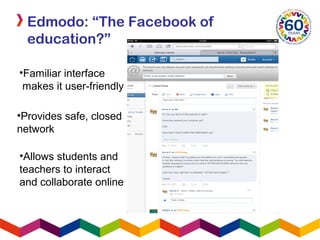
Edmodo: “The Facebook of
education?”
•Provides safe, closed
network
•Allows students and
teachers to interact
and collaborate online
•Familiar interface
makes it user-friendly
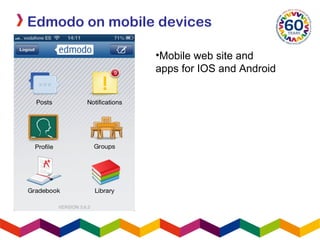
Edmodo on mobile devices
•Mobile web site and
apps for IOS and Android
Personalised learning
•Each student creates their own profile
•Students can send messages to the
whole group, or directly to the teacher.
•Students can ask questions and
discuss topics between lessons.
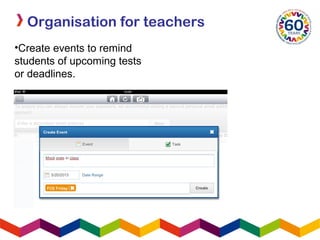
Organisation for teachers
•Create events to remind
students of upcoming tests
or deadlines.
Organisation for teachers
•Create separate groups for different
classes.
•Respond to individual student queries.
•Interact with other teachers
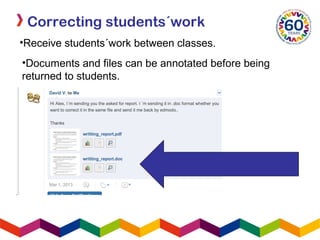
Correcting students´work
•Receive students´work between classes.
•Documents and files can be annotated before being
returned to students.
Using Edmodo in
the classroom
Alexandra Purcell: IH Cordoba

Alex purcell edmodo ih conference

Editor's Notes

  • #2 Please replace the IHWO logo in the bottom left corner with your school’s if you can  .
  • #3 Put session or section title in top left and then content in text box. Remember animation doesn;t work in Blackboard, so you need a new slide for anything you want to appear on top of a slide.
  • #4 Put session or section title in top left and then content in text box. Remember animation doesn;t work in Blackboard, so you need a new slide for anything you want to appear on top of a slide.
  • #5 Put session or section title in top left and then content in text box. Remember animation doesn;t work in Blackboard, so you need a new slide for anything you want to appear on top of a slide.
  • #6 Put session or section title in top left and then content in text box. Remember animation doesn;t work in Blackboard, so you need a new slide for anything you want to appear on top of a slide.
  • #7 Put session or section title in top left and then content in text box. Remember animation doesn;t work in Blackboard, so you need a new slide for anything you want to appear on top of a slide.
  • #8 Put session or section title in top left and then content in text box. Remember animation doesn;t work in Blackboard, so you need a new slide for anything you want to appear on top of a slide.
  • #9 Please replace the IHWO logo in the bottom left corner with your school’s if you can  .