Workshop:
Social Educational Networks: EDMODO
Objectives:
Understand EDMODO and its uses
Create a teacher account
Create a quiz
Timing: 45 minutes
target audience: ICTET Students
Edmodo is a free and secure learning
platform available at www.edmodo.com.
This website looks
similar to Facebook, but is much more
private and safe for a learning environment.
Edmodo’s mission is to connect all learners
with the people and resources they need to
reach their full potential
Centralized and automated administration
Use self-service and self-guided services
Assemble and deliver learning content
rapidly
Consolidate training initiatives on a scalable
web-based platform
Support portability and standards
Personalize content and enable knowledge
reuse
The solutions are easy to use, free to setup and operate,
and are supported by the community (several collegial
users).
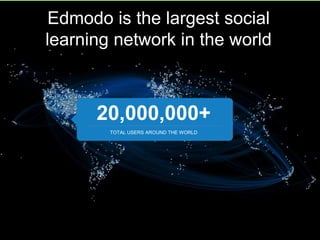
Edmodo is the largest social
learning network in the world
20,000,000+
TOTAL USERS AROUND THE WORLD
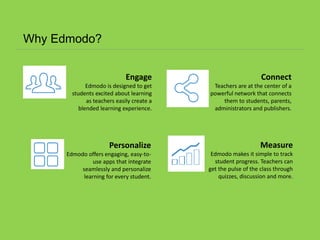
Why Edmodo?
Engage
Edmodo is designed to get
students excited about learning
as teachers easily create a
blended learning experience.
Connect
Teachers are at the center of a
powerful network that connects
them to students, parents,
administrators and publishers.
Personalize
Edmodo offers engaging, easy-to-
use apps that integrate
seamlessly and personalize
learning for every student.
Measure
Edmodo makes it simple to track
student progress. Teachers can
get the pulse of the class through
quizzes, discussion and more.
What are the needs of the students or
pupils?
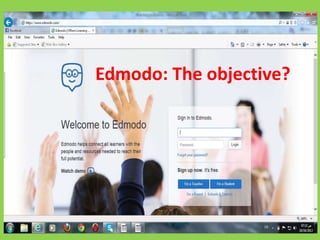
Edmodo: The objective?
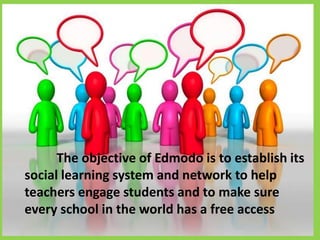
The objective of Edmodo is to establish its
social learning system and network to help
teachers engage students and to make sure
every school in the world has a free access
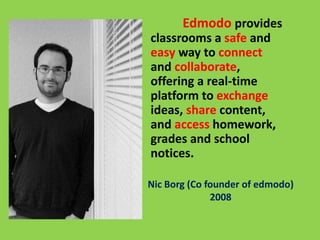
Nic Borg (Co founder of edmodo)
2008
Edmodo provides
classrooms a safe and
easy way to connect
and collaborate,
offering a real-time
platform to exchange
ideas, share content,
and access homework,
grades and school
notices.
1- What is Edmodo?
2- The uses of Edmodo?
3- How did Edmodo help me?
4- How to make an Edmodo Class
I- What is Edmodo?
• Edmodo is a learning management system and an
educational network. It is similar to social
networking but more secure, private and safe.
• Edmodo helps you build your own virtual classes.
• It helps your students, after you give them the
class code, to register to the class and you will
have their names appear as soon as they sign up.
• As a result you will have a complete class in
interactive mode but with your REAL students
and it requires your REAL interaction
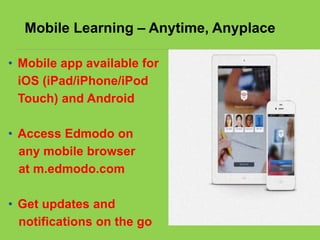
Mobile Learning – Anytime, Anyplace
• Mobile app available for
iOS (iPad/iPhone/iPod
Touch) and Android
• Access Edmodo on
any mobile browser
at m.edmodo.com
• Get updates and
notifications on the go
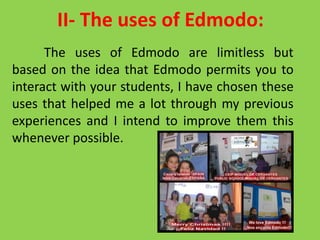
II- The uses of Edmodo:
The uses of Edmodo are limitless but
based on the idea that Edmodo permits you to
interact with your students, I have chosen these
uses that helped me a lot through my previous
experiences and I intend to improve them this
whenever possible.
A- For the teacher
• upload the files of the lessons you taught in class
• it helps students catch up what they missed
• upload videos that you think are necessary to make certain
points in the lesson clear
• You can upload audio files
• You can make quizzes to check if the students are following
your work.
• You can send alerts about future tasks or class quizzes or
even to tell them about the following exam dates
• you can give compliments to the students by sending them
badges of different types that will appear on their pages and
will be seen by their peers
Furthermore
You can
• Establish connections with teachers of the same
school, or other schools, if they use Edmodo too
• Participate in Edmodo groups which share your
interests
Parents, also, could be able to follow their
children’s progress as they could have their own
codes to see the kind of lessons you present.
B- For the students
• They can have a second look at the lessons
you already presented in class
• They can tell you about their opinion of the
lesson by choosing the interaction they want
under the lesson.
• They can ask any question at any time and it
is going to be seen by all the students for a
better understanding for all the students.
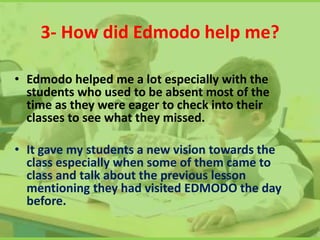
3- How did Edmodo help me?
• Edmodo helped me a lot especially with the
students who used to be absent most of the
time as they were eager to check into their
classes to see what they missed.
• It gave my students a new vision towards the
class especially when some of them came to
class and talk about the previous lesson
mentioning they had visited EDMODO the day
before.
4- How to make an edmodo class
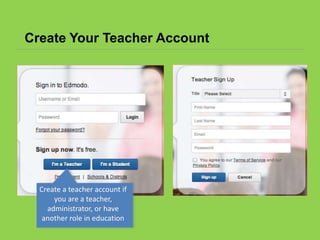
Create Your Teacher Account
Create a teacher account if
you are a teacher,
administrator, or have
another role in education
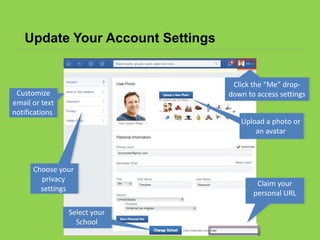
Update Your Account Settings
Customize
email or text
notifications
Choose your
privacy
settings
Upload a photo or
an avatar
Select your
School
Claim your
personal URL
Click the “Me” drop-
down to access settings
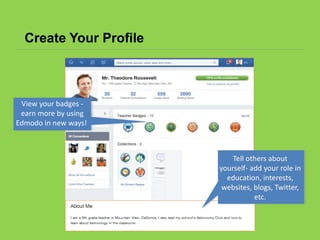
Create Your Profile
Tell others about
yourself- add your role in
education, interests,
websites, blogs, Twitter,
etc.
View your badges -
earn more by using
Edmodo in new ways!
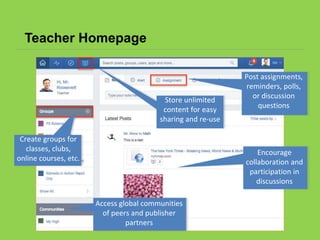
Teacher Homepage
Post assignments,
reminders, polls,
or discussion
questions
Encourage
collaboration and
participation in
discussions
Access global communities
of peers and publisher
partners
Create groups for
classes, clubs,
online courses, etc.
Store unlimited
content for easy
sharing and re-use
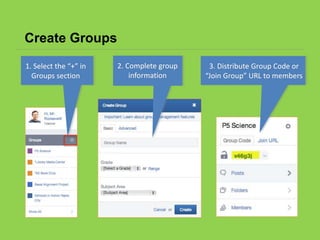
Create Groups
1. Select the “+” in
Groups section
2. Complete group
information
3. Distribute Group Code or
“Join Group” URL to members
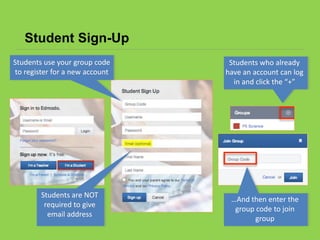
Student Sign-Up
Students who already
have an account can log
in and click the “+”
Students are NOT
required to give
email address
Students use your group code
to register for a new account
…And then enter the
group code to join
group
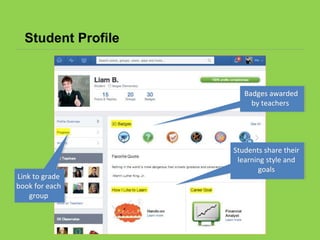
Student Profile
Badges awarded
by teachers
Link to grade
book for each
group
Students share their
learning style and
goals
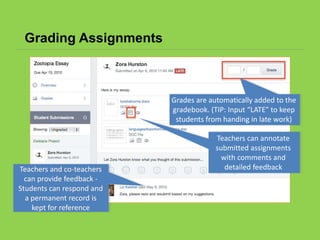
Grading Assignments
Teachers and co-teachers
can provide feedback -
Students can respond and
a permanent record is
kept for reference
Teachers can annotate
submitted assignments
with comments and
detailed feedback
Grades are automatically added to the
gradebook. (TIP: Input “LATE” to keep
students from handing in late work)
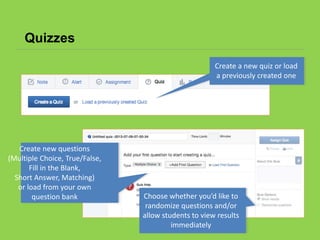
Quizzes
Create a new quiz or load
a previously created one
Choose whether you’d like to
randomize questions and/or
allow students to view results
immediately
Create new questions
(Multiple Choice, True/False,
Fill in the Blank,
Short Answer, Matching)
or load from your own
question bank
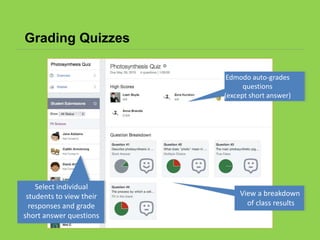
Grading Quizzes
Select individual
students to view their
responses and grade
short answer questions
View a breakdown
of class results
Edmodo auto-grades
questions
(except short answer)
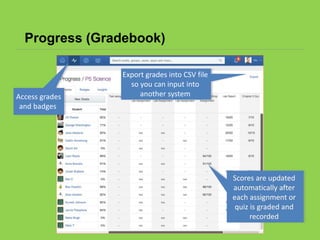
Progress (Gradebook)
Export grades into CSV file
so you can input into
another system
Scores are updated
automatically after
each assignment or
quiz is graded and
recorded
Access grades
and badges
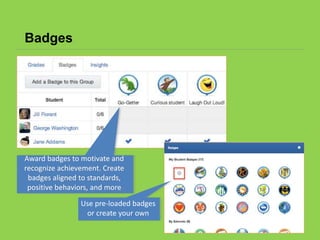
Badges
Award badges to motivate and
recognize achievement. Create
badges aligned to standards,
positive behaviors, and more
Use pre-loaded badges
or create your own
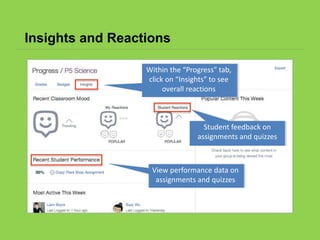
Insights and Reactions
View performance data on
assignments and quizzes
Student feedback on
assignments and quizzes
Within the “Progress” tab,
click on “Insights” to see
overall reactions
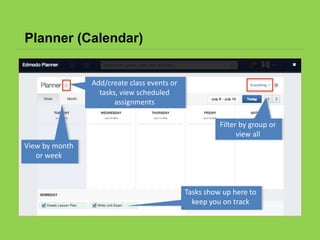
Planner (Calendar)
Add/create class events or
tasks, view scheduled
assignments
View by month
or week
Filter by group or
view all
Tasks show up here to
keep you on track
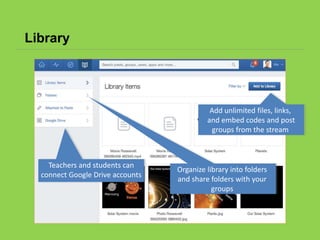
Library
Add unlimited files, links,
and embed codes and post
groups from the stream
Organize library into folders
and share folders with your
groups
Teachers and students can
connect Google Drive accounts
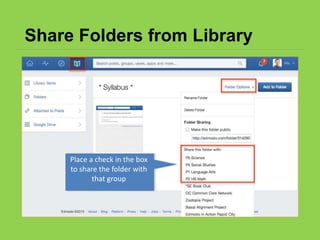
Share Folders from Library
Place a check in the box
to share the folder with
that group
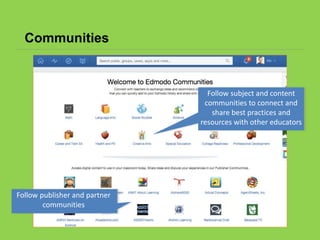
Communities
Follow publisher and partner
communities
Follow subject and content
communities to connect and
share best practices and
resources with other educators
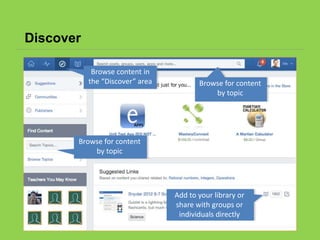
Discover
Add to your library or
share with groups or
individuals directly
Browse for content
by topic
Browse for content
by topic
Browse content in
the “Discover” area
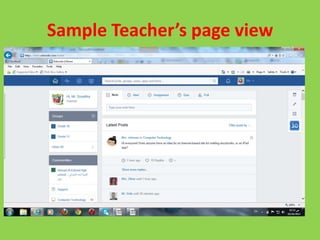
Sample Teacher’s page view
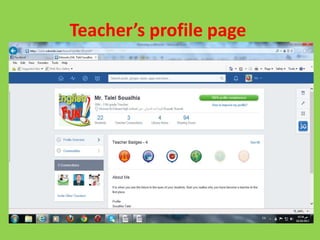
Teacher’s profile page
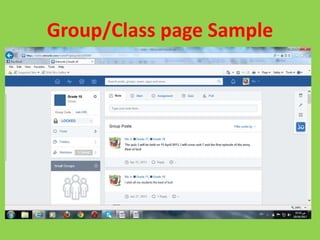
Group/Class page Sample
Edmodo presentation

Edmodo presentation

  • 2.
    Workshop: Social Educational Networks:EDMODO Objectives: Understand EDMODO and its uses Create a teacher account Create a quiz Timing: 45 minutes target audience: ICTET Students
  • 3.
    Edmodo is afree and secure learning platform available at www.edmodo.com. This website looks similar to Facebook, but is much more private and safe for a learning environment.
  • 4.
    Edmodo’s mission isto connect all learners with the people and resources they need to reach their full potential
  • 6.
    Centralized and automatedadministration Use self-service and self-guided services Assemble and deliver learning content rapidly Consolidate training initiatives on a scalable web-based platform Support portability and standards Personalize content and enable knowledge reuse The solutions are easy to use, free to setup and operate, and are supported by the community (several collegial users).
  • 7.
    Edmodo is thelargest social learning network in the world 20,000,000+ TOTAL USERS AROUND THE WORLD
  • 8.
    Why Edmodo? Engage Edmodo isdesigned to get students excited about learning as teachers easily create a blended learning experience. Connect Teachers are at the center of a powerful network that connects them to students, parents, administrators and publishers. Personalize Edmodo offers engaging, easy-to- use apps that integrate seamlessly and personalize learning for every student. Measure Edmodo makes it simple to track student progress. Teachers can get the pulse of the class through quizzes, discussion and more.
  • 9.
    What are theneeds of the students or pupils?
  • 12.
  • 13.
    The objective ofEdmodo is to establish its social learning system and network to help teachers engage students and to make sure every school in the world has a free access
  • 14.
    Nic Borg (Cofounder of edmodo) 2008 Edmodo provides classrooms a safe and easy way to connect and collaborate, offering a real-time platform to exchange ideas, share content, and access homework, grades and school notices.
  • 15.
    1- What isEdmodo? 2- The uses of Edmodo? 3- How did Edmodo help me? 4- How to make an Edmodo Class
  • 16.
    I- What isEdmodo? • Edmodo is a learning management system and an educational network. It is similar to social networking but more secure, private and safe. • Edmodo helps you build your own virtual classes. • It helps your students, after you give them the class code, to register to the class and you will have their names appear as soon as they sign up. • As a result you will have a complete class in interactive mode but with your REAL students and it requires your REAL interaction
  • 17.
    Mobile Learning –Anytime, Anyplace • Mobile app available for iOS (iPad/iPhone/iPod Touch) and Android • Access Edmodo on any mobile browser at m.edmodo.com • Get updates and notifications on the go
  • 18.
    II- The usesof Edmodo: The uses of Edmodo are limitless but based on the idea that Edmodo permits you to interact with your students, I have chosen these uses that helped me a lot through my previous experiences and I intend to improve them this whenever possible.
  • 19.
    A- For theteacher • upload the files of the lessons you taught in class • it helps students catch up what they missed • upload videos that you think are necessary to make certain points in the lesson clear • You can upload audio files • You can make quizzes to check if the students are following your work. • You can send alerts about future tasks or class quizzes or even to tell them about the following exam dates • you can give compliments to the students by sending them badges of different types that will appear on their pages and will be seen by their peers
  • 20.
    Furthermore You can • Establishconnections with teachers of the same school, or other schools, if they use Edmodo too • Participate in Edmodo groups which share your interests Parents, also, could be able to follow their children’s progress as they could have their own codes to see the kind of lessons you present.
  • 21.
    B- For thestudents • They can have a second look at the lessons you already presented in class • They can tell you about their opinion of the lesson by choosing the interaction they want under the lesson. • They can ask any question at any time and it is going to be seen by all the students for a better understanding for all the students.
  • 22.
    3- How didEdmodo help me? • Edmodo helped me a lot especially with the students who used to be absent most of the time as they were eager to check into their classes to see what they missed. • It gave my students a new vision towards the class especially when some of them came to class and talk about the previous lesson mentioning they had visited EDMODO the day before.
  • 23.
    4- How tomake an edmodo class
  • 24.
    Create Your TeacherAccount Create a teacher account if you are a teacher, administrator, or have another role in education
  • 25.
    Update Your AccountSettings Customize email or text notifications Choose your privacy settings Upload a photo or an avatar Select your School Claim your personal URL Click the “Me” drop- down to access settings
  • 26.
    Create Your Profile Tellothers about yourself- add your role in education, interests, websites, blogs, Twitter, etc. View your badges - earn more by using Edmodo in new ways!
  • 27.
    Teacher Homepage Post assignments, reminders,polls, or discussion questions Encourage collaboration and participation in discussions Access global communities of peers and publisher partners Create groups for classes, clubs, online courses, etc. Store unlimited content for easy sharing and re-use
  • 28.
    Create Groups 1. Selectthe “+” in Groups section 2. Complete group information 3. Distribute Group Code or “Join Group” URL to members
  • 29.
    Student Sign-Up Students whoalready have an account can log in and click the “+” Students are NOT required to give email address Students use your group code to register for a new account …And then enter the group code to join group
  • 30.
    Student Profile Badges awarded byteachers Link to grade book for each group Students share their learning style and goals
  • 31.
    Grading Assignments Teachers andco-teachers can provide feedback - Students can respond and a permanent record is kept for reference Teachers can annotate submitted assignments with comments and detailed feedback Grades are automatically added to the gradebook. (TIP: Input “LATE” to keep students from handing in late work)
  • 32.
    Quizzes Create a newquiz or load a previously created one Choose whether you’d like to randomize questions and/or allow students to view results immediately Create new questions (Multiple Choice, True/False, Fill in the Blank, Short Answer, Matching) or load from your own question bank
  • 33.
    Grading Quizzes Select individual studentsto view their responses and grade short answer questions View a breakdown of class results Edmodo auto-grades questions (except short answer)
  • 34.
    Progress (Gradebook) Export gradesinto CSV file so you can input into another system Scores are updated automatically after each assignment or quiz is graded and recorded Access grades and badges
  • 35.
    Badges Award badges tomotivate and recognize achievement. Create badges aligned to standards, positive behaviors, and more Use pre-loaded badges or create your own
  • 36.
    Insights and Reactions Viewperformance data on assignments and quizzes Student feedback on assignments and quizzes Within the “Progress” tab, click on “Insights” to see overall reactions
  • 37.
    Planner (Calendar) Add/create classevents or tasks, view scheduled assignments View by month or week Filter by group or view all Tasks show up here to keep you on track
  • 38.
    Library Add unlimited files,links, and embed codes and post groups from the stream Organize library into folders and share folders with your groups Teachers and students can connect Google Drive accounts
  • 39.
    Share Folders fromLibrary Place a check in the box to share the folder with that group
  • 40.
    Communities Follow publisher andpartner communities Follow subject and content communities to connect and share best practices and resources with other educators
  • 41.
    Discover Add to yourlibrary or share with groups or individuals directly Browse for content by topic Browse for content by topic Browse content in the “Discover” area
  • 42.
  • 43.
  • 44.

Editor's Notes