Accessing
Journal Databases
http://unihub.mdx.ac.uk/your-study/library-and-it-support
http://www.flickr.com/photos/natures-form-furniture/3516546098/
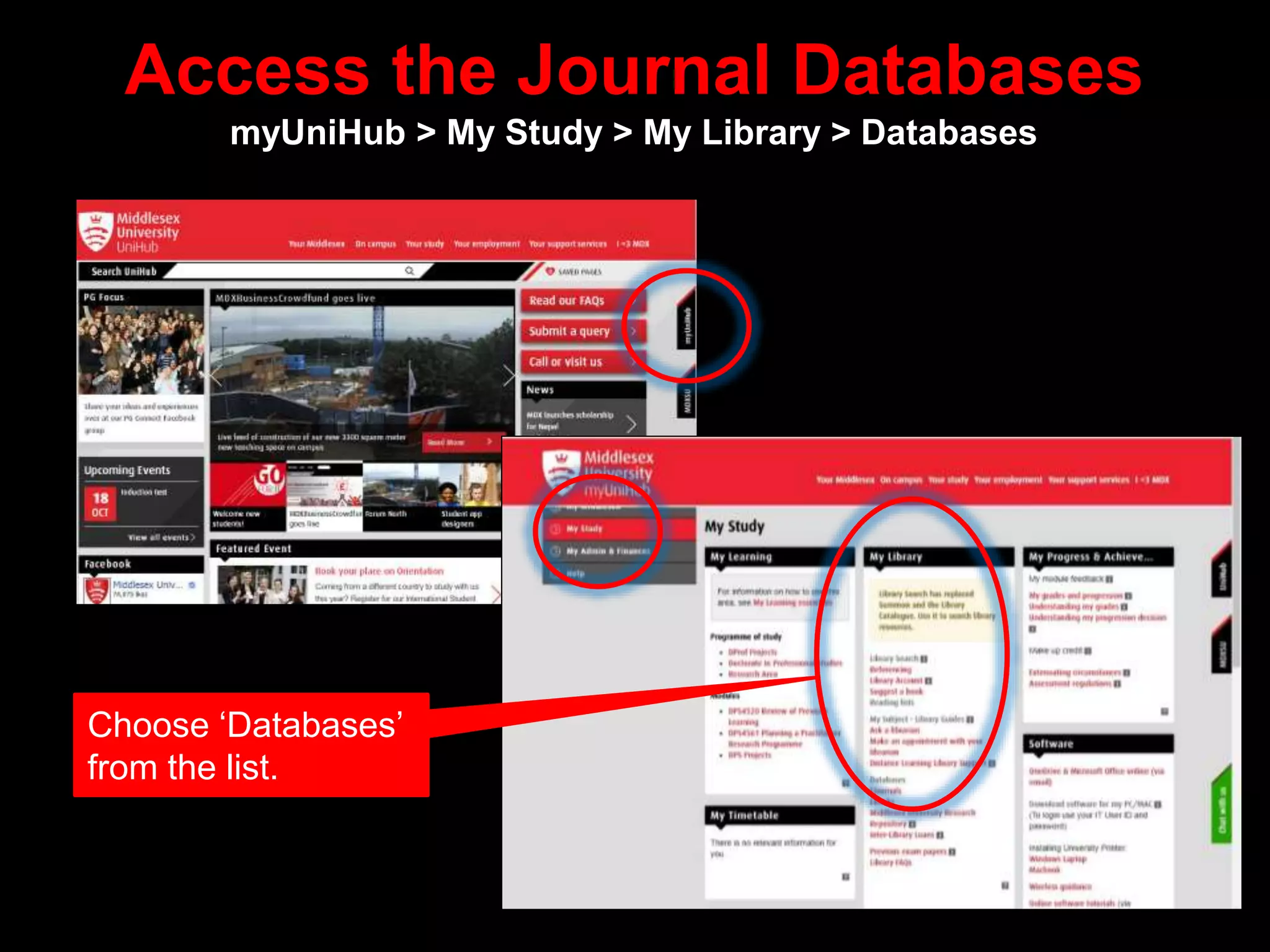
Access the Journal Databases
myUniHub > My Study > My Library > Databases
Choose ‘Databases’
from the list.
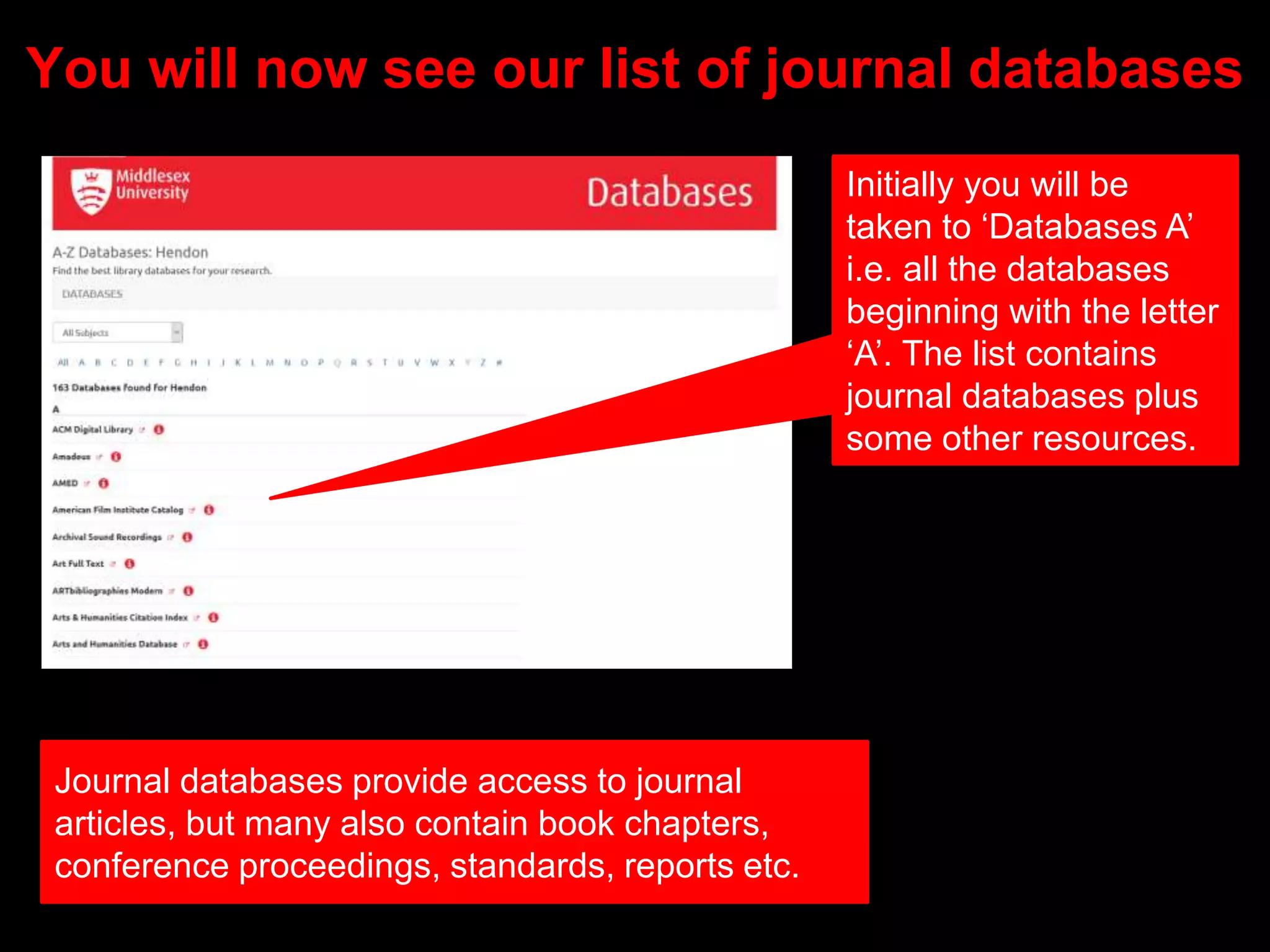
You will now see our list of journal databases
Journal databases provide access to journal
articles, but many also contain book chapters,
conference proceedings, standards, reports etc.
Initially you will be
taken to ‘Databases A’
i.e. all the databases
beginning with the letter
‘A’. The list contains
journal databases plus
some other resources.
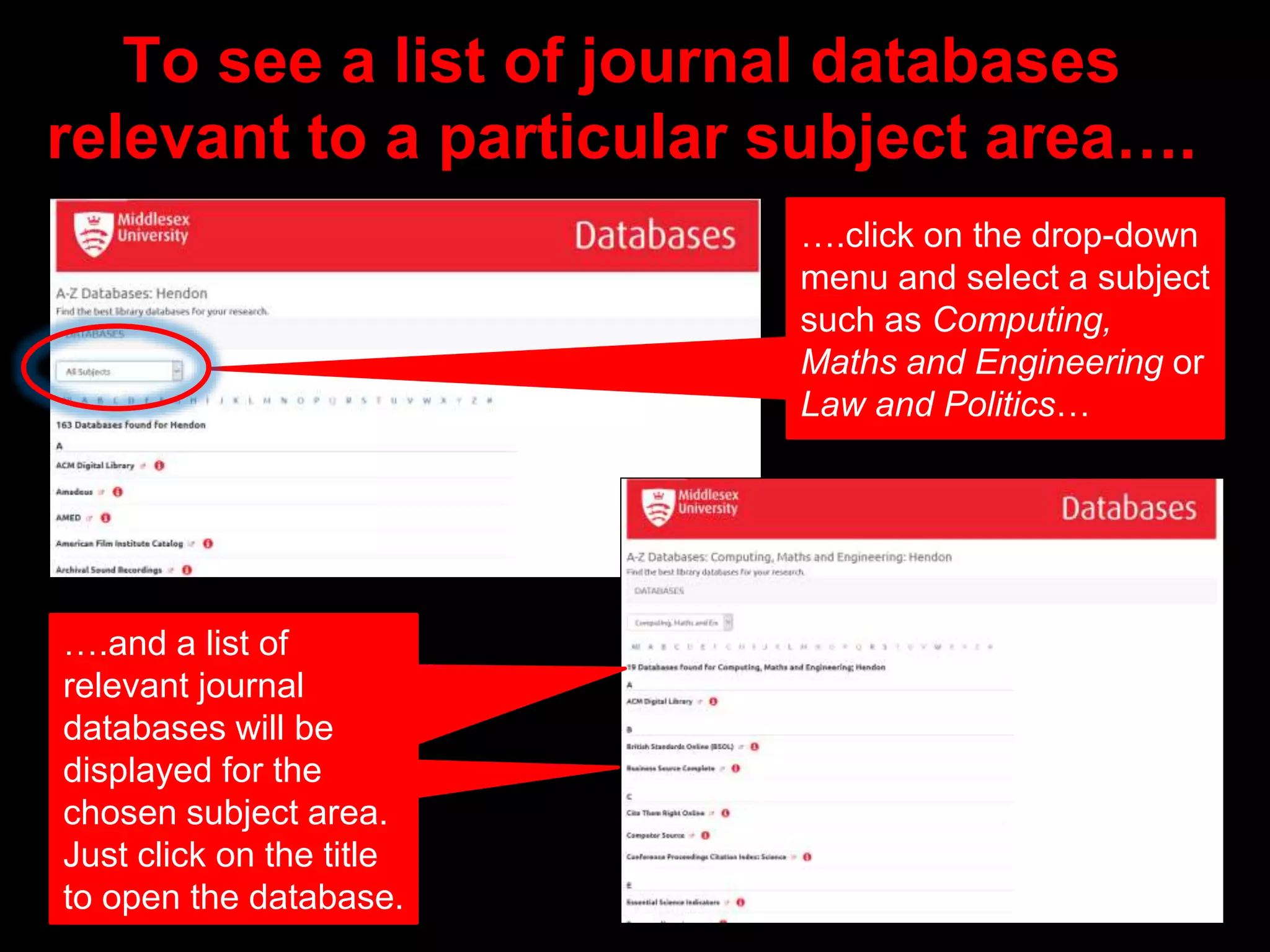
To see a list of journal databases
relevant to a particular subject area….
….click on the drop-down
menu and select a subject
such as Computing,
Maths and Engineering or
Law and Politics…
.
….and a list of
relevant journal
databases will be
displayed for the
chosen subject area.
Just click on the title
to open the database.
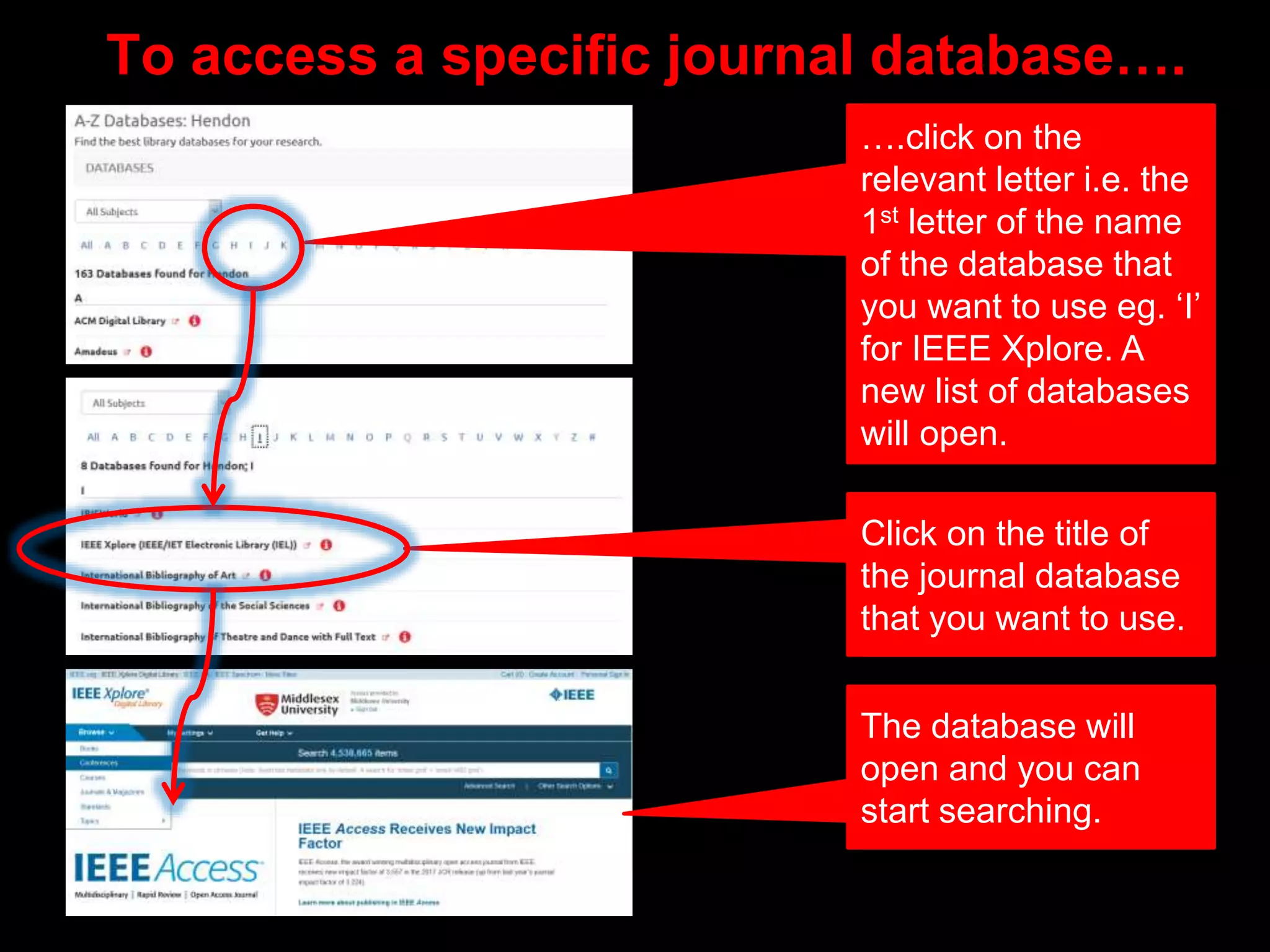
To access a specific journal database….
….click on the
relevant letter i.e. the
1st letter of the name
of the database that
you want to use eg. ‘I’
for IEEE Xplore. A
new list of databases
will open.
Click on the title of
the journal database
that you want to use.
The database will
open and you can
start searching.
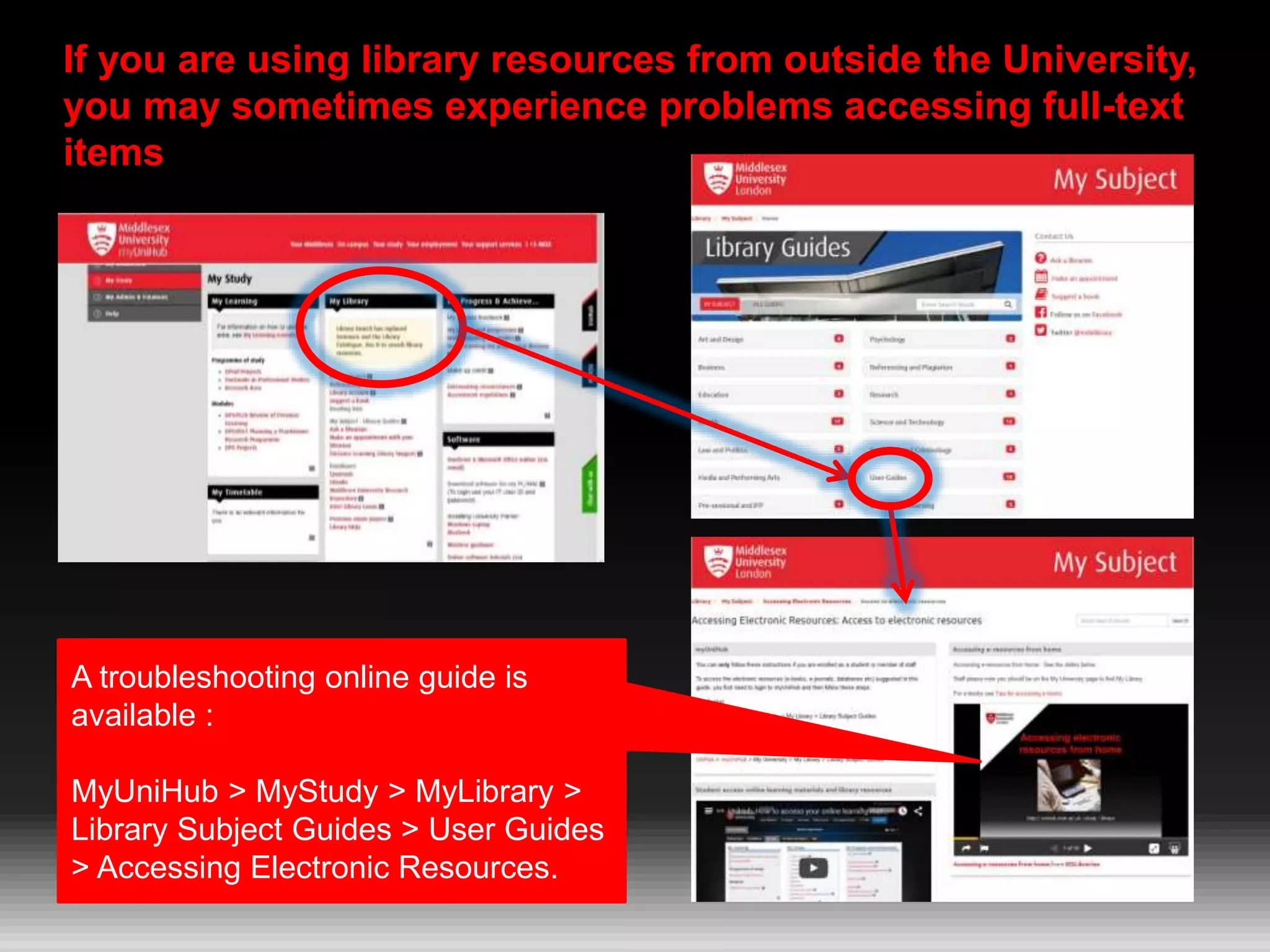
If you are using library resources from outside the University,
you may sometimes experience problems accessing full-text
items
A troubleshooting online guide is
available :
MyUniHub > MyStudy > MyLibrary >
Library Subject Guides > User Guides
> Accessing Electronic Resources.
Need further help?
Contact your Librarian:
http://libguides.mdx.ac.uk/liaisonlibrarians
Make an appointment:
http://bit.ly/MakeAnAppointmentLibrarians
VH Aug 2018

Accessing Journal Databases

  • 1.
  • 2.
    Access the JournalDatabases myUniHub > My Study > My Library > Databases Choose ‘Databases’ from the list.
  • 3.
    You will nowsee our list of journal databases Journal databases provide access to journal articles, but many also contain book chapters, conference proceedings, standards, reports etc. Initially you will be taken to ‘Databases A’ i.e. all the databases beginning with the letter ‘A’. The list contains journal databases plus some other resources.
  • 4.
    To see alist of journal databases relevant to a particular subject area…. ….click on the drop-down menu and select a subject such as Computing, Maths and Engineering or Law and Politics… . ….and a list of relevant journal databases will be displayed for the chosen subject area. Just click on the title to open the database.
  • 5.
    To access aspecific journal database…. ….click on the relevant letter i.e. the 1st letter of the name of the database that you want to use eg. ‘I’ for IEEE Xplore. A new list of databases will open. Click on the title of the journal database that you want to use. The database will open and you can start searching.
  • 6.
    If you areusing library resources from outside the University, you may sometimes experience problems accessing full-text items A troubleshooting online guide is available : MyUniHub > MyStudy > MyLibrary > Library Subject Guides > User Guides > Accessing Electronic Resources.
  • 7.
    Need further help? Contactyour Librarian: http://libguides.mdx.ac.uk/liaisonlibrarians Make an appointment: http://bit.ly/MakeAnAppointmentLibrarians VH Aug 2018