Correcting Inconsistencies
Engr. Esmeraldo T. Guimbarda Jr.
Selecting Contiguous Cells
When using the mouse, left-click and drag up to your
desired cells and release when done.
When using the keyboard and mouse, first, click on
the cell where you want to start dragging, then press
the SHIFT key, while still pressing Shift, locate where
you want your cells to end, use the mouse to click on
the last cell.
Selecting Discontiguous Cells
Another way of using the mouse and keyboard is to
press the CTRL key and hold. While pressing the CTRL
key, left-click on the cells that you want to select.
After selecting cells, release the CTRL key.
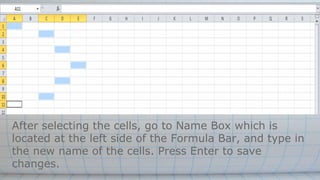
After selecting the cells, go to Name Box which is
located at the left side of the Formula Bar, and type in
the new name of the cells. Press Enter to save
changes.
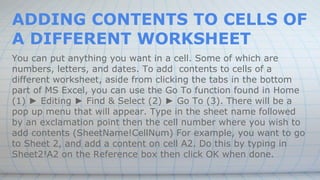
ADDING CONTENTS TO CELLS OF
A DIFFERENT WORKSHEET
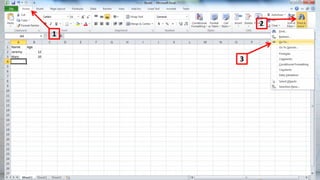
You can put anything you want in a cell. Some of which are
numbers, letters, and dates. To add contents to cells of a
different worksheet, aside from clicking the tabs in the bottom
part of MS Excel, you can use the Go To function found in Home
(1) ► Editing ► Find & Select (2) ► Go To (3). There will be a
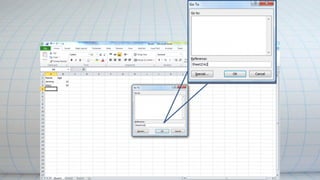
pop up menu that will appear. Type in the sheet name followed
by an exclamation point then the cell number where you wish to
add contents (SheetName!CellNum) For example, you want to go
to Sheet 2, and add a content on cell A2. Do this by typing in
Sheet2!A2 on the Reference box then click OK when done.
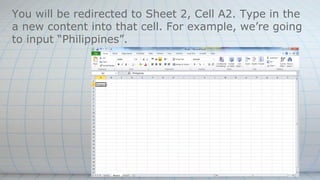
You will be redirected to Sheet 2, Cell A2. Type in the
a new content into that cell. For example, we’re going
to input “Philippines”.
Activity:
1. Open Microsoft Excel.
Click on Start ► All Programs ► Microsoft Office
► Microsoft Excel or double-click on the Microsoft
Excel shortcut on the desktop. This will open a blank
workbook in Microsoft Excel.
2. Open the file MyBakeShop.xls
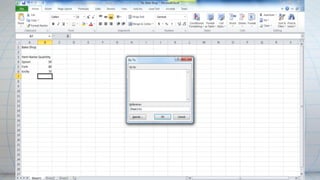
3. Rename cell.
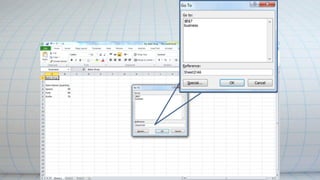
Go to Sheet 1, Cell A1 using the Go To function, type
in: Sheet1!A1 inside the Reference Box. Click OK.
Home ► Editing ► Find & Select ► Go To ► Type
in: Sheet1!A1 ► Ok
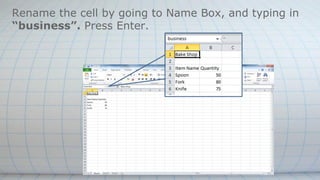
Rename the cell by going to Name Box, and typing in
“business”. Press Enter.
4.Edit cell on Sheet 2.
Use the Go To function and type in Sheet2!A6 in the
Reference box. Then, Click OK.
Home ► Editing ► Find & Select ► Go To ► Type
in: Sheet2!A6 ► Ok
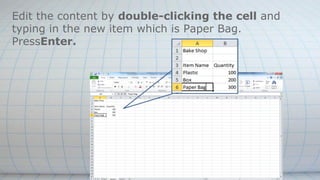
Edit the content by double-clicking the cell and
typing in the new item which is Paper Bag.
PressEnter.
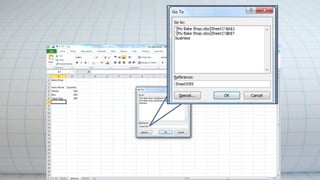
5. Edit cell on Sheet 3.
Use Go To function and type in Sheet3!B5 in the
Reference box. Then, Click OK.
Home ► Editing ► Find & Select ► Go To ► Type
in: Sheet3!B5 ► Ok
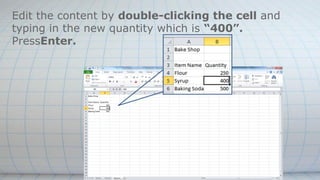
Edit the content by double-clicking the cell and
typing in the new quantity which is “400”.
PressEnter.
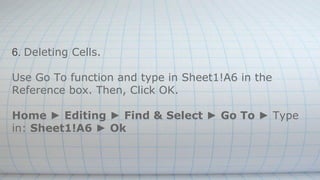
6. Deleting Cells.
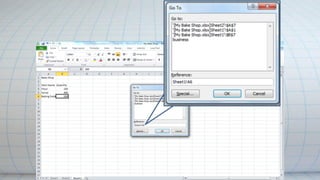
Use Go To function and type in Sheet1!A6 in the
Reference box. Then, Click OK.
Home ► Editing ► Find & Select ► Go To ► Type
in: Sheet1!A6 ► Ok
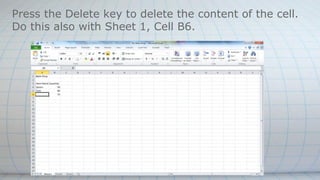
Press the Delete key to delete the content of the cell.
Do this also with Sheet 1, Cell B6.
6. Save the document.
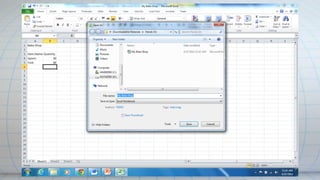
To do this, go to File then click Save As.
Upon clicking Save, the Save As window will show.
Locate where you want to save your file then type the
name of file in the File Name box. Click Save. Your
file is now saved.
1st quarter   3rd meeting- spreadsheet

1st quarter 3rd meeting- spreadsheet

  • 1.
  • 2.
    Selecting Contiguous Cells Whenusing the mouse, left-click and drag up to your desired cells and release when done. When using the keyboard and mouse, first, click on the cell where you want to start dragging, then press the SHIFT key, while still pressing Shift, locate where you want your cells to end, use the mouse to click on the last cell.
  • 4.
    Selecting Discontiguous Cells Anotherway of using the mouse and keyboard is to press the CTRL key and hold. While pressing the CTRL key, left-click on the cells that you want to select. After selecting cells, release the CTRL key.
  • 5.
    After selecting thecells, go to Name Box which is located at the left side of the Formula Bar, and type in the new name of the cells. Press Enter to save changes.
  • 6.
    ADDING CONTENTS TOCELLS OF A DIFFERENT WORKSHEET You can put anything you want in a cell. Some of which are numbers, letters, and dates. To add contents to cells of a different worksheet, aside from clicking the tabs in the bottom part of MS Excel, you can use the Go To function found in Home (1) ► Editing ► Find & Select (2) ► Go To (3). There will be a pop up menu that will appear. Type in the sheet name followed by an exclamation point then the cell number where you wish to add contents (SheetName!CellNum) For example, you want to go to Sheet 2, and add a content on cell A2. Do this by typing in Sheet2!A2 on the Reference box then click OK when done.
  • 9.
    You will beredirected to Sheet 2, Cell A2. Type in the a new content into that cell. For example, we’re going to input “Philippines”.
  • 10.
    Activity: 1. Open MicrosoftExcel. Click on Start ► All Programs ► Microsoft Office ► Microsoft Excel or double-click on the Microsoft Excel shortcut on the desktop. This will open a blank workbook in Microsoft Excel.
  • 11.
    2. Open thefile MyBakeShop.xls
  • 12.
    3. Rename cell. Goto Sheet 1, Cell A1 using the Go To function, type in: Sheet1!A1 inside the Reference Box. Click OK. Home ► Editing ► Find & Select ► Go To ► Type in: Sheet1!A1 ► Ok
  • 14.
    Rename the cellby going to Name Box, and typing in “business”. Press Enter.
  • 15.
    4.Edit cell onSheet 2. Use the Go To function and type in Sheet2!A6 in the Reference box. Then, Click OK. Home ► Editing ► Find & Select ► Go To ► Type in: Sheet2!A6 ► Ok
  • 17.
    Edit the contentby double-clicking the cell and typing in the new item which is Paper Bag. PressEnter.
  • 18.
    5. Edit cellon Sheet 3. Use Go To function and type in Sheet3!B5 in the Reference box. Then, Click OK. Home ► Editing ► Find & Select ► Go To ► Type in: Sheet3!B5 ► Ok
  • 20.
    Edit the contentby double-clicking the cell and typing in the new quantity which is “400”. PressEnter.
  • 21.
    6. Deleting Cells. UseGo To function and type in Sheet1!A6 in the Reference box. Then, Click OK. Home ► Editing ► Find & Select ► Go To ► Type in: Sheet1!A6 ► Ok
  • 23.
    Press the Deletekey to delete the content of the cell. Do this also with Sheet 1, Cell B6.
  • 24.
    6. Save thedocument. To do this, go to File then click Save As. Upon clicking Save, the Save As window will show. Locate where you want to save your file then type the name of file in the File Name box. Click Save. Your file is now saved.