Components of WordprocessingML
• Main Document
• Paragraphs & Rich Formatting
– Runs
– Run Content
• Tables
• Custom Markup
• Sections
• Styles
– Paragraph
– Character
– Numbering
– Table
– Document Defaults
• Fonts
• Numbering
• Headers/Footers
• Footnotes/Endnotes
• Glossary Document
• Annotations
– Comments
– Revisions
– Bookmarks
• Mail Merge
• Document Settings
– Web Settings
– Compatibility Settings
• Fields & Hyperlinks
• Odds & Ends (Textboxes, Subdocuments, Extensibility)
Ecma/TC45/2006/168
WordprocessingML – Mail Merge
Mail Merge
• Mail merge refers to a process by which a
WordprocessingML document is:
– Connected to external data sources
– Populated with external data
• The information about what data source top
connect to, and where to put that data is part
of WordprocessingML
– The actual merge is a runtime operation
Mail Merge Documents
• A mail merge document can exist in two
states:
– A source document, the document that contains
the data needed to connect to an external data
source for a mail merge
– A merged document, the document that contains
the data above *plus* the values from and a
reference to a single record from that data source
• One source document creates many merged
documents
Source Document Data
• The presence of a mailMerge element creates
a source document
• The data connection information is then
stored in the mailMerge element:
– Where the external data is located
– Type of external data
– The query to be run against that data
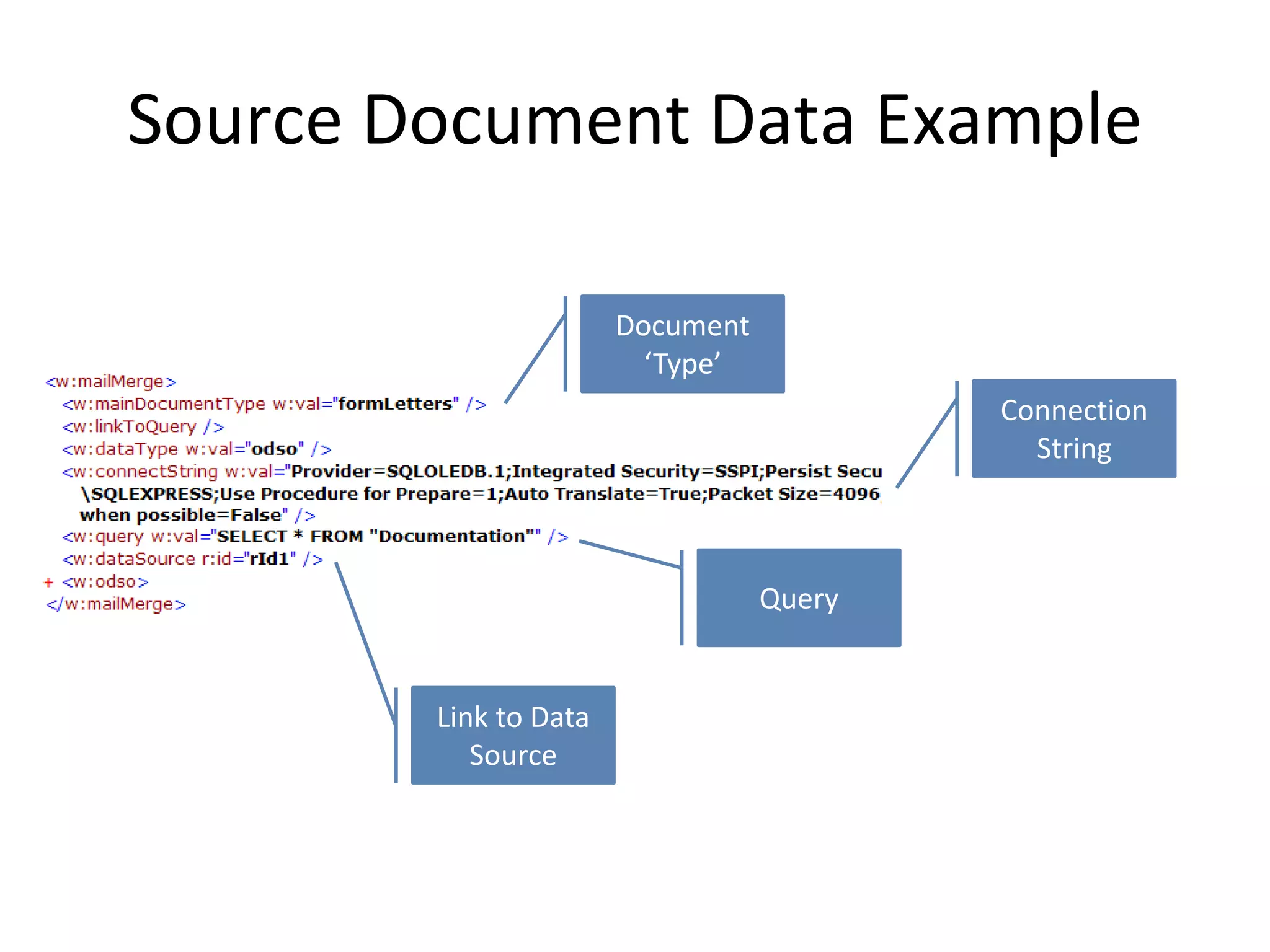
Source Document Data Example
Connection
String
Query
Link to Data
Source
Document
‘Type’
Source Document Content
• A source document contains the contents of a
standard WordprocessingML document with:
– Static content such as paragraphs and tables
– Mail merge fields that specify the location of the
external data within this static document content
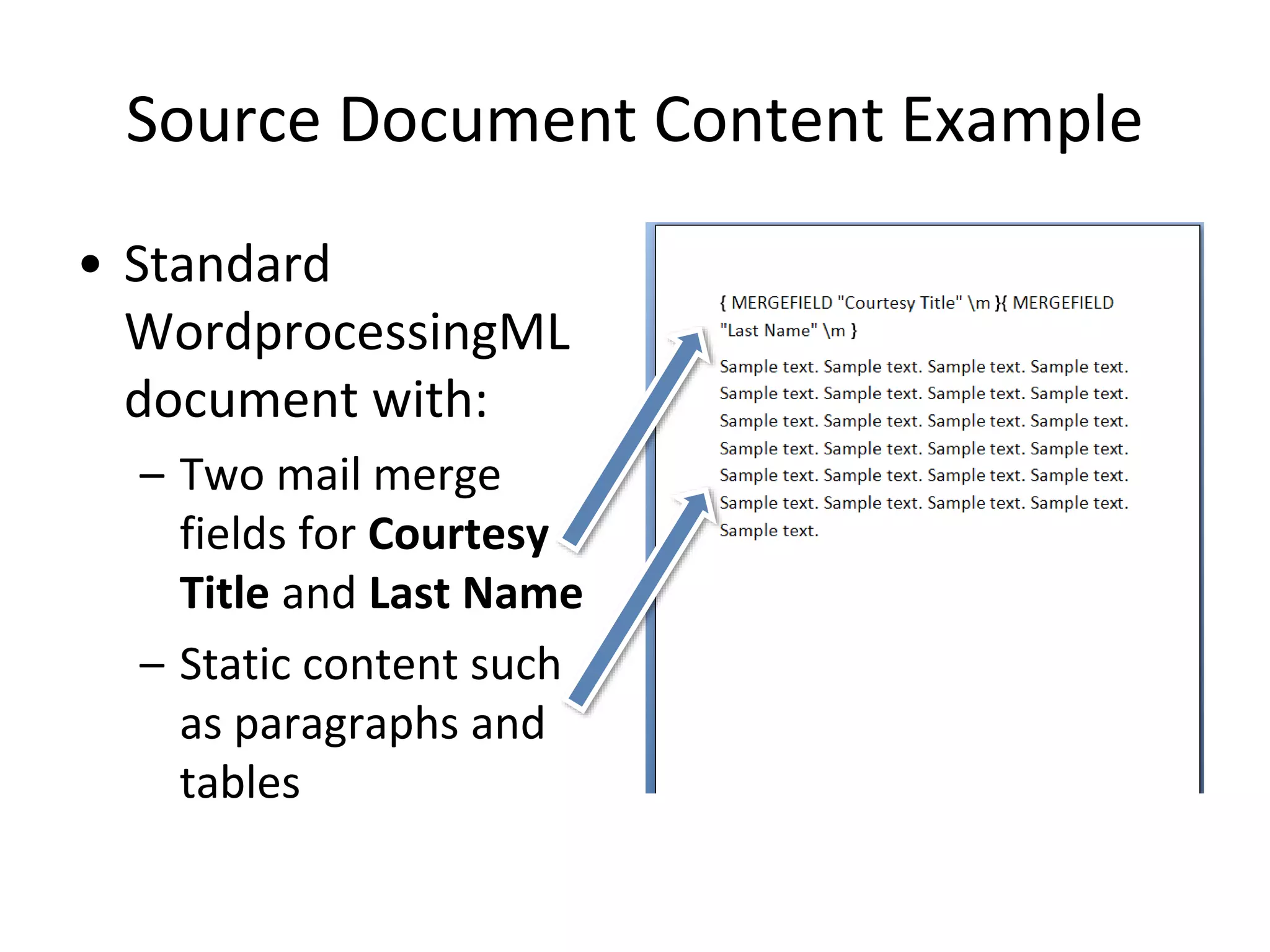
Source Document Content Example
• Standard
WordprocessingML
document with:
– Two mail merge
fields for Courtesy
Title and Last Name
– Static content such
as paragraphs and
tables
Importing External Data
• Once we have a source document and the
ability to connect to data, we need to do
something with it
– i.e. perform the mail merge
• This is done via mail merge fields,
WordprocessingML fields that server as
markers for a particular column of external
data
Importing External Data (cont.)
• Mail merge fields can have two types of
references to column data:
– The column name from the data source
– A mapped name (a mapping to a predefined set
of merge field names with WordprocessingML)
• The latter is present to create one standard
set of field names regardless of data source
(e.g. to create standard address blocks)
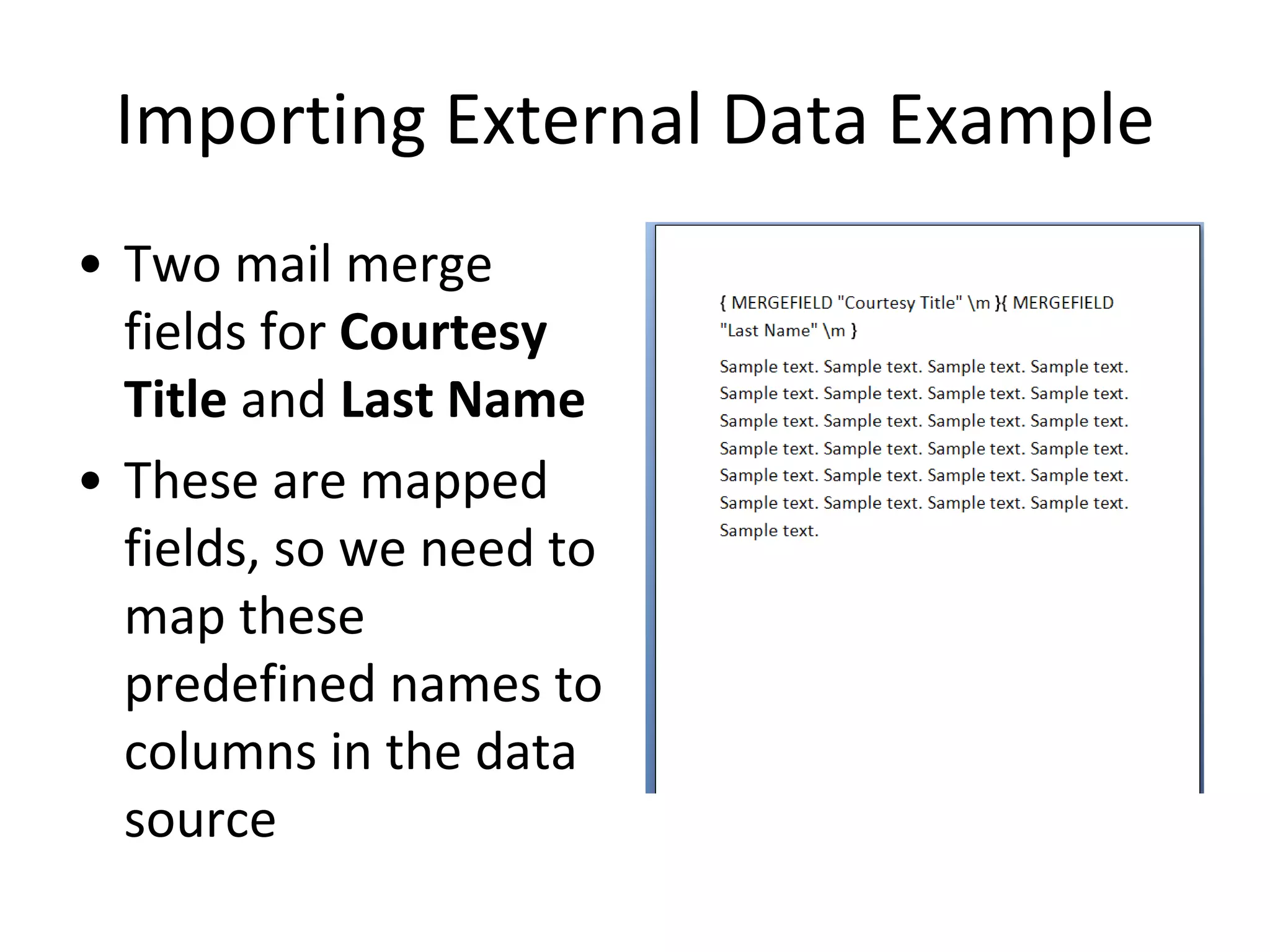
Importing External Data Example
• Two mail merge
fields for Courtesy
Title and Last Name
• These are mapped
fields, so we need to
map these
predefined names to
columns in the data
source
Field Mappings
• The information linking a column to the
database column name and a mapped name
• A single field mapping contains:
– A column number
– The field mapping type
– The data source’s column name
– (optionally) A mapping to a predefined merge
field name
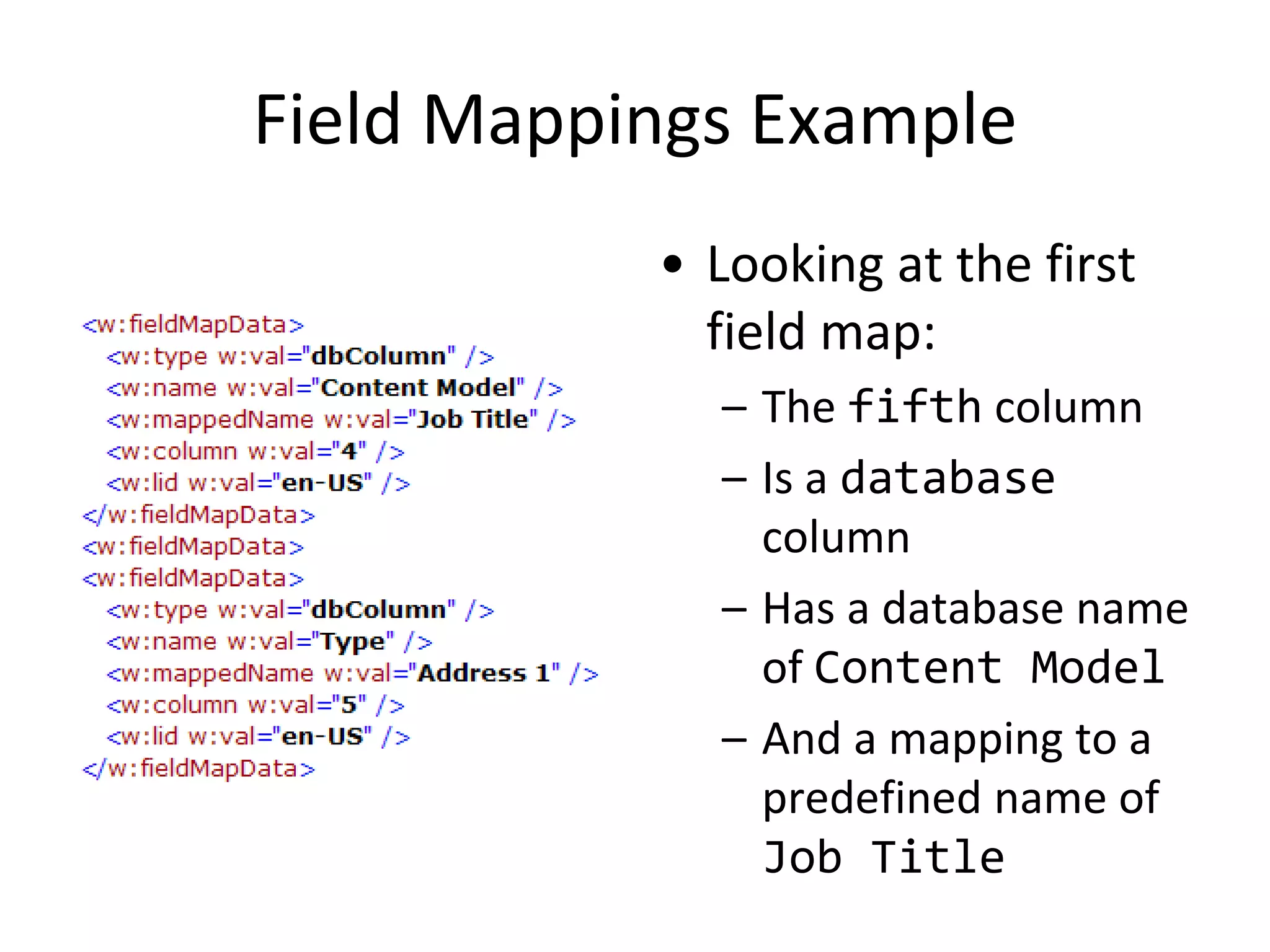
Field Mappings Example
• Looking at the first
field map:
– The fifth column
– Is a database
column
– Has a database name
of Content Model
– And a mapping to a
predefined name of
Job Title
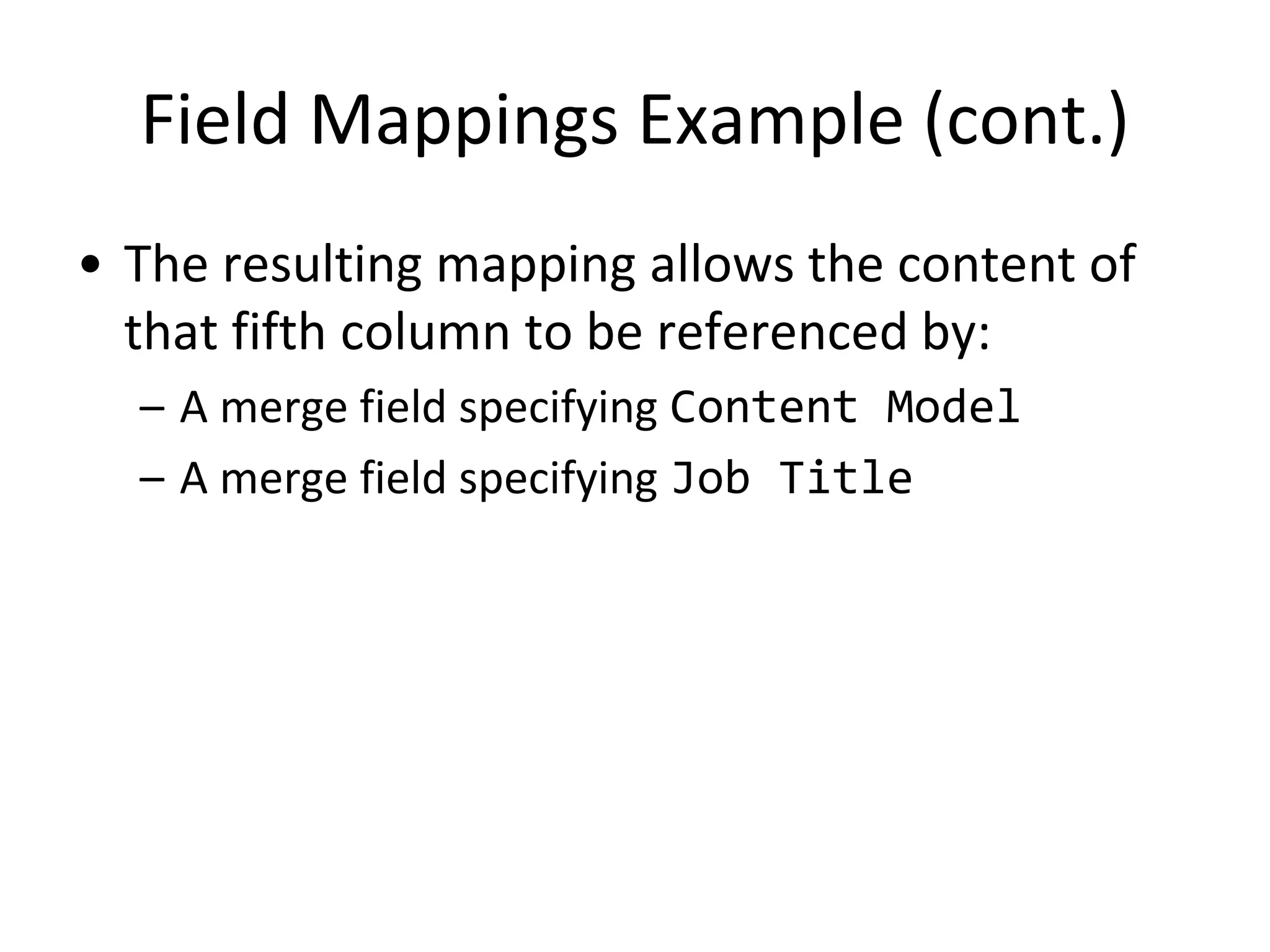
Field Mappings Example (cont.)
• The resulting mapping allows the content of
that fifth column to be referenced by:
– A merge field specifying Content Model
– A merge field specifying Job Title
The Merged Document
• A merged document is the result of the mail
merge operation against a source document:
– The information to connect to the data source
– A cache of the contents of a single record
– A reference to that record
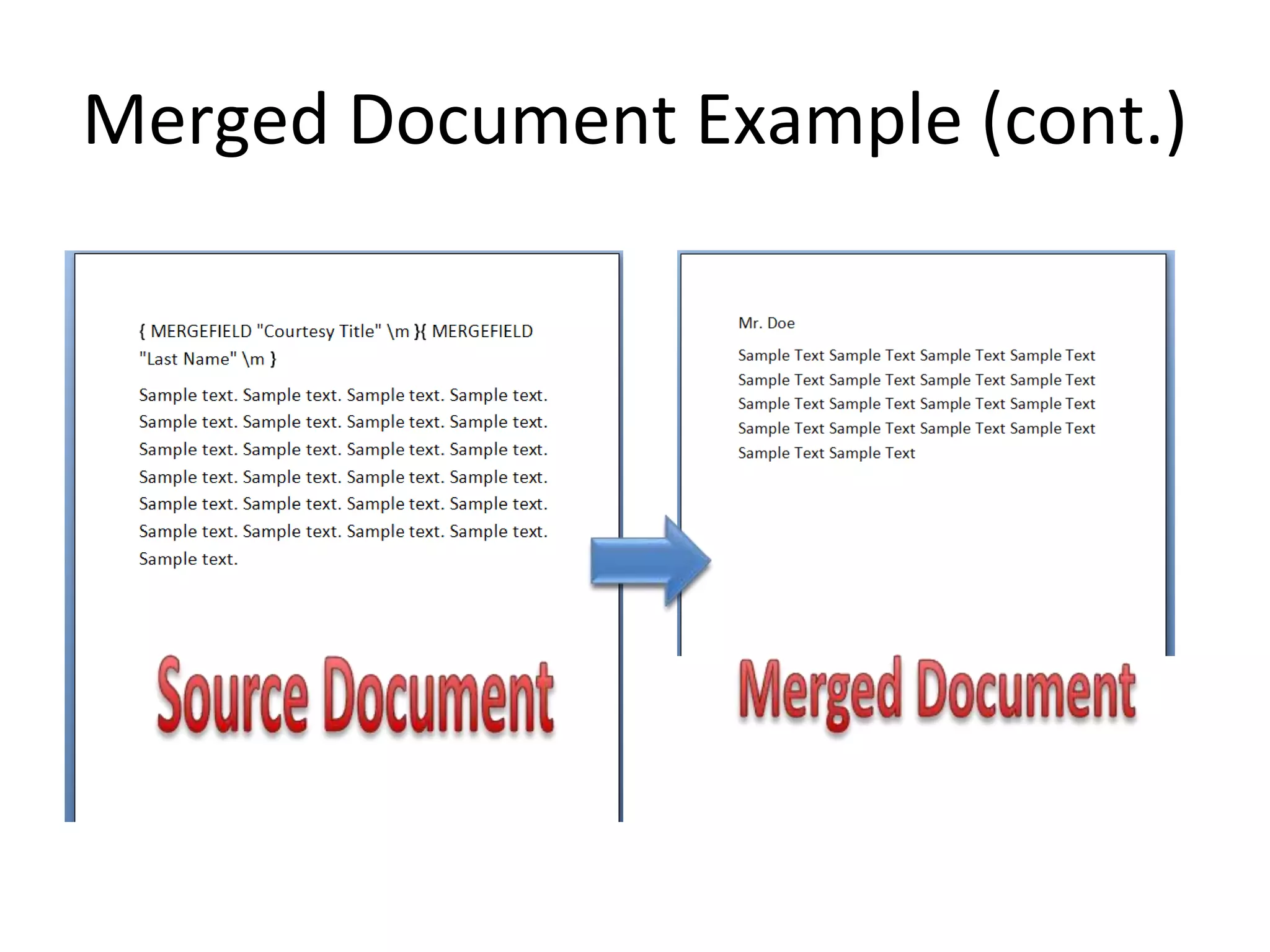
Merged Document Example
• Once a source document’s mail merge fields
have been mapped to external data, an
application may populate the fields with
external data
• Consider a source document from the
previous example
– Assume the external data source has one record:
Mr. Doe
Merged Document Example (cont.)
• A document is created containing:
– The static contents of the source document
– A single record of the external data
• In other words, a merged document is
generated as a result of the mail merge
Merged Document Example (cont.)
Appendix
• Predefined WordprocessingML merge field
names:
– Unique Identifier
– Courtesy Title
– First Name
– Middle Name
– Last Name
– Suffix
Appendix (cont.)
• Merge field names (cont.)
– Nickname
– Job Title
– Company
– Address 1
– Address 2
– City
– State
Appendix (cont.)
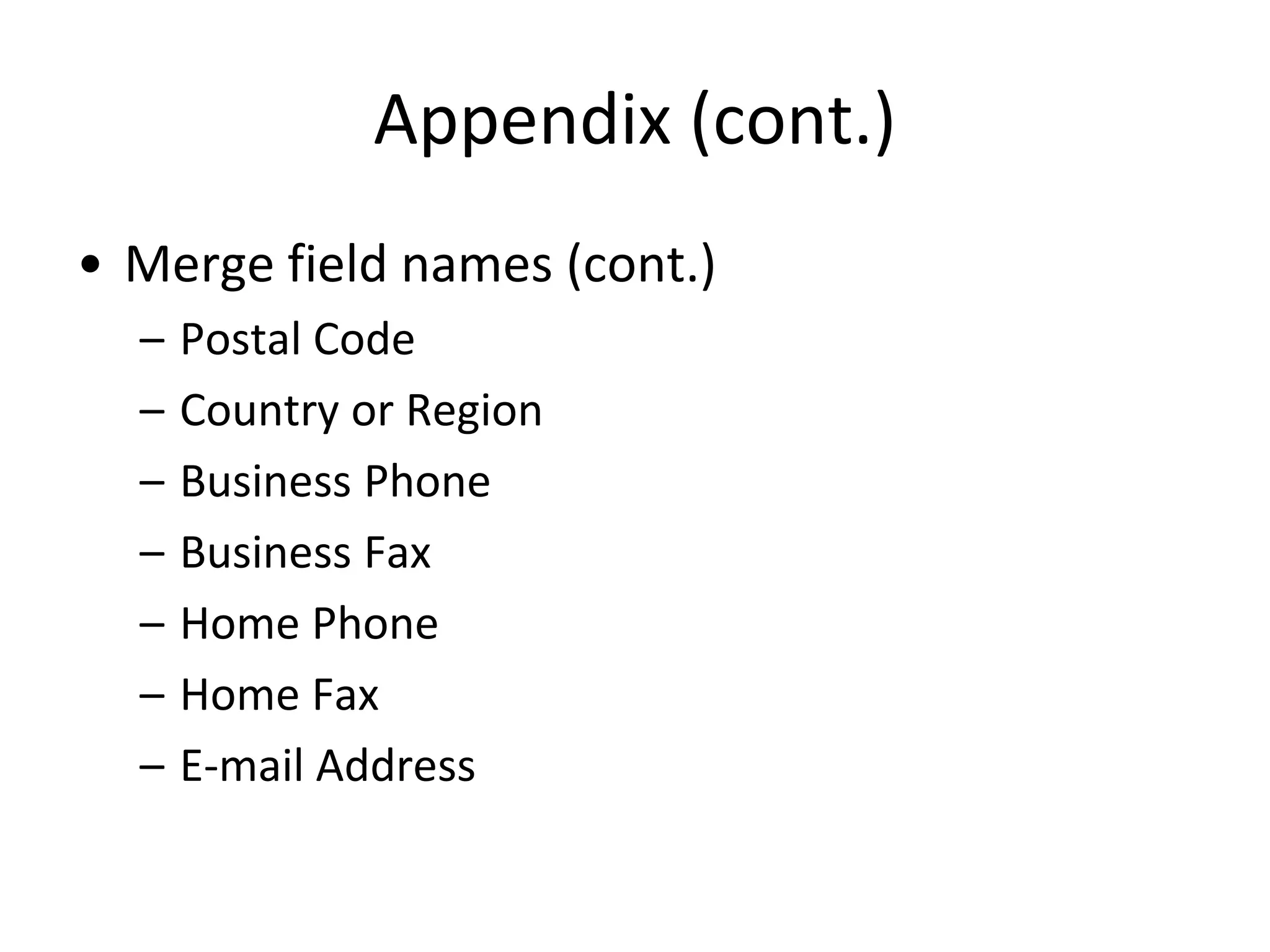
• Merge field names (cont.)
– Postal Code
– Country or Region
– Business Phone
– Business Fax
– Home Phone
– Home Fax
– E-mail Address
Appendix (cont.)
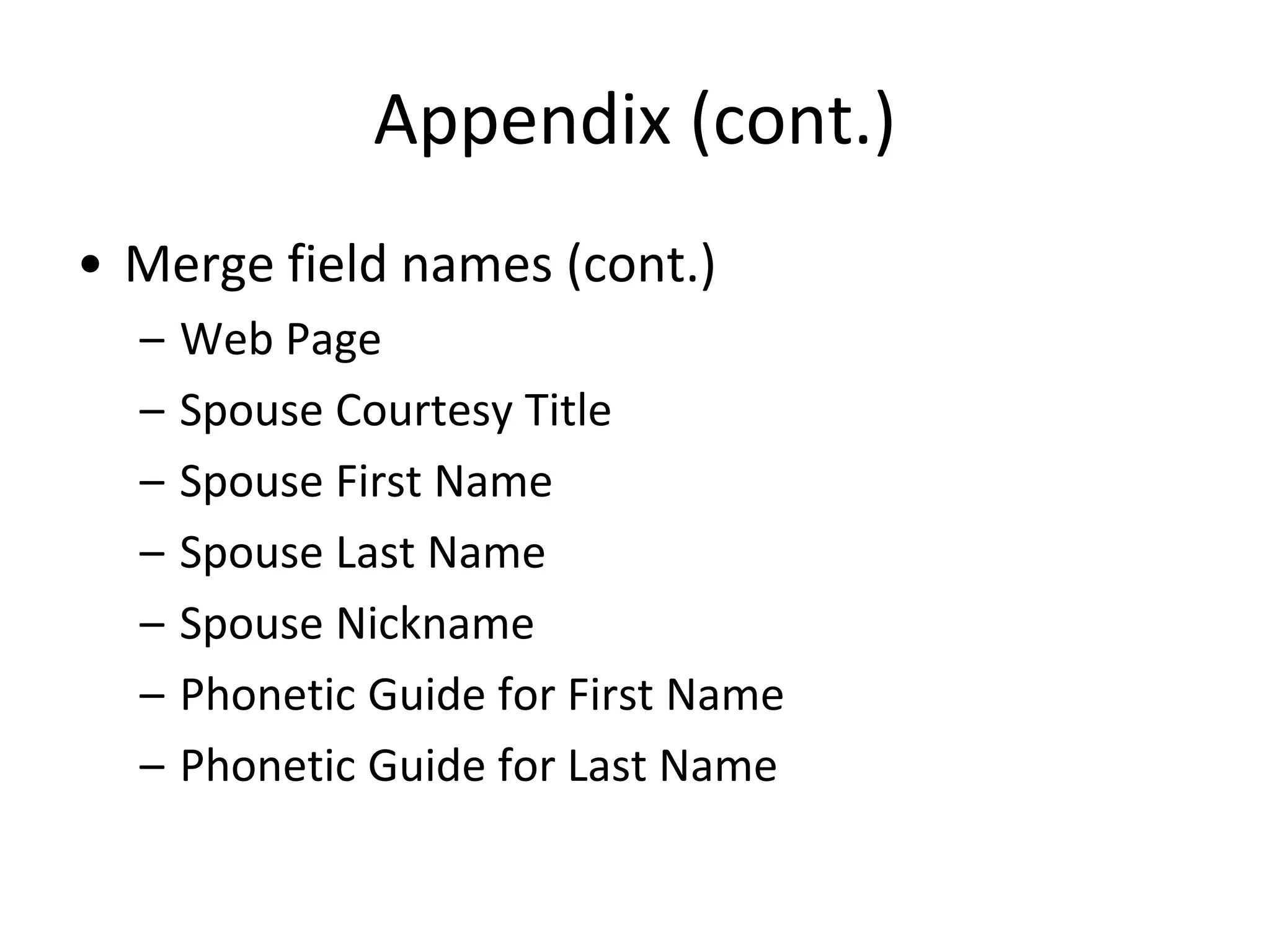
• Merge field names (cont.)
– Web Page
– Spouse Courtesy Title
– Spouse First Name
– Spouse Last Name
– Spouse Nickname
– Phonetic Guide for First Name
– Phonetic Guide for Last Name
Appendix (cont.)
• Merge field names (cont.)
– Address 3
– Department
Disclaimer
This presentation is for informational purposes only, and should
not be relied upon as a substitute or replacement for Microsoft
formal file format documentation, which is available at the
following website: https://msdn.microsoft.com/en-
us/library/cc313118(v=office.12).aspx. Any views or opinions
presented in this material are solely those of the author and do
not necessarily represent those of Microsoft. Microsoft
disclaims all liability for mistakes or inaccuracies in this
presentation.

13 wordprocessing ml subject - mail merge

  • 1.
    Components of WordprocessingML •Main Document • Paragraphs & Rich Formatting – Runs – Run Content • Tables • Custom Markup • Sections • Styles – Paragraph – Character – Numbering – Table – Document Defaults • Fonts • Numbering • Headers/Footers • Footnotes/Endnotes • Glossary Document • Annotations – Comments – Revisions – Bookmarks • Mail Merge • Document Settings – Web Settings – Compatibility Settings • Fields & Hyperlinks • Odds & Ends (Textboxes, Subdocuments, Extensibility) Ecma/TC45/2006/168
  • 2.
  • 3.
    Mail Merge • Mailmerge refers to a process by which a WordprocessingML document is: – Connected to external data sources – Populated with external data • The information about what data source top connect to, and where to put that data is part of WordprocessingML – The actual merge is a runtime operation
  • 4.
    Mail Merge Documents •A mail merge document can exist in two states: – A source document, the document that contains the data needed to connect to an external data source for a mail merge – A merged document, the document that contains the data above *plus* the values from and a reference to a single record from that data source • One source document creates many merged documents
  • 5.
    Source Document Data •The presence of a mailMerge element creates a source document • The data connection information is then stored in the mailMerge element: – Where the external data is located – Type of external data – The query to be run against that data
  • 6.
    Source Document DataExample Connection String Query Link to Data Source Document ‘Type’
  • 7.
    Source Document Content •A source document contains the contents of a standard WordprocessingML document with: – Static content such as paragraphs and tables – Mail merge fields that specify the location of the external data within this static document content
  • 8.
    Source Document ContentExample • Standard WordprocessingML document with: – Two mail merge fields for Courtesy Title and Last Name – Static content such as paragraphs and tables
  • 9.
    Importing External Data •Once we have a source document and the ability to connect to data, we need to do something with it – i.e. perform the mail merge • This is done via mail merge fields, WordprocessingML fields that server as markers for a particular column of external data
  • 10.
    Importing External Data(cont.) • Mail merge fields can have two types of references to column data: – The column name from the data source – A mapped name (a mapping to a predefined set of merge field names with WordprocessingML) • The latter is present to create one standard set of field names regardless of data source (e.g. to create standard address blocks)
  • 11.
    Importing External DataExample • Two mail merge fields for Courtesy Title and Last Name • These are mapped fields, so we need to map these predefined names to columns in the data source
  • 12.
    Field Mappings • Theinformation linking a column to the database column name and a mapped name • A single field mapping contains: – A column number – The field mapping type – The data source’s column name – (optionally) A mapping to a predefined merge field name
  • 13.
    Field Mappings Example •Looking at the first field map: – The fifth column – Is a database column – Has a database name of Content Model – And a mapping to a predefined name of Job Title
  • 14.
    Field Mappings Example(cont.) • The resulting mapping allows the content of that fifth column to be referenced by: – A merge field specifying Content Model – A merge field specifying Job Title
  • 15.
    The Merged Document •A merged document is the result of the mail merge operation against a source document: – The information to connect to the data source – A cache of the contents of a single record – A reference to that record
  • 16.
    Merged Document Example •Once a source document’s mail merge fields have been mapped to external data, an application may populate the fields with external data • Consider a source document from the previous example – Assume the external data source has one record: Mr. Doe
  • 17.
    Merged Document Example(cont.) • A document is created containing: – The static contents of the source document – A single record of the external data • In other words, a merged document is generated as a result of the mail merge
  • 18.
  • 19.
    Appendix • Predefined WordprocessingMLmerge field names: – Unique Identifier – Courtesy Title – First Name – Middle Name – Last Name – Suffix
  • 20.
    Appendix (cont.) • Mergefield names (cont.) – Nickname – Job Title – Company – Address 1 – Address 2 – City – State
  • 21.
    Appendix (cont.) • Mergefield names (cont.) – Postal Code – Country or Region – Business Phone – Business Fax – Home Phone – Home Fax – E-mail Address
  • 22.
    Appendix (cont.) • Mergefield names (cont.) – Web Page – Spouse Courtesy Title – Spouse First Name – Spouse Last Name – Spouse Nickname – Phonetic Guide for First Name – Phonetic Guide for Last Name
  • 23.
    Appendix (cont.) • Mergefield names (cont.) – Address 3 – Department
  • 24.
    Disclaimer This presentation isfor informational purposes only, and should not be relied upon as a substitute or replacement for Microsoft formal file format documentation, which is available at the following website: https://msdn.microsoft.com/en- us/library/cc313118(v=office.12).aspx. Any views or opinions presented in this material are solely those of the author and do not necessarily represent those of Microsoft. Microsoft disclaims all liability for mistakes or inaccuracies in this presentation.