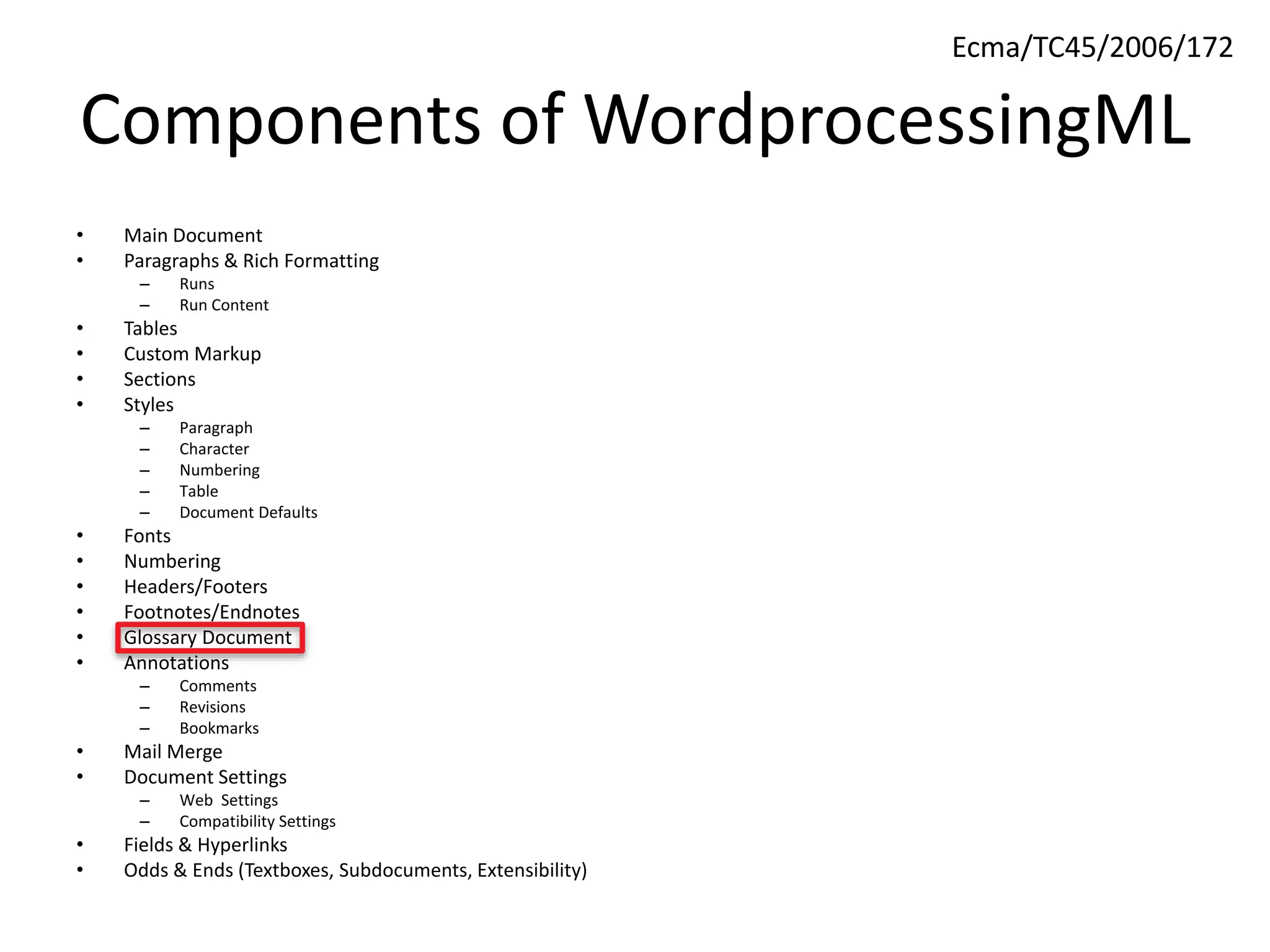
Components of WordprocessingML
• Main Document
• Paragraphs & Rich Formatting
– Runs
– Run Content
• Tables
• Custom Markup
• Sections
• Styles
– Paragraph
– Character
– Numbering
– Table
– Document Defaults
• Fonts
• Numbering
• Headers/Footers
• Footnotes/Endnotes
• Glossary Document
• Annotations
– Comments
– Revisions
– Bookmarks
• Mail Merge
• Document Settings
– Web Settings
– Compatibility Settings
• Fields & Hyperlinks
• Odds & Ends (Textboxes, Subdocuments, Extensibility)
Ecma/TC45/2006/172
WordprocessingML – Glossary
Document
Document Stories
• Remember back in the initial presentation,
where we defined the concept of stories
– Individual ranges of Word document content (e.g.
main document, headers, footers, comments)
• A story is defined by two things
– It is a unique region containing block-level content
– All document stories* share the same set of
properties (styles, numbering definitions, settings)
• Notice the asterisk…
Glossary Document
• That asterisk is there for the glossary
document
• The glossary document is a unique document
story, but unlike all other document stories, it
uses its own set of styles, numbering,
comments, etc.
– It is essentially a separate document within a
WordprocessingML package
Glossary Document Part
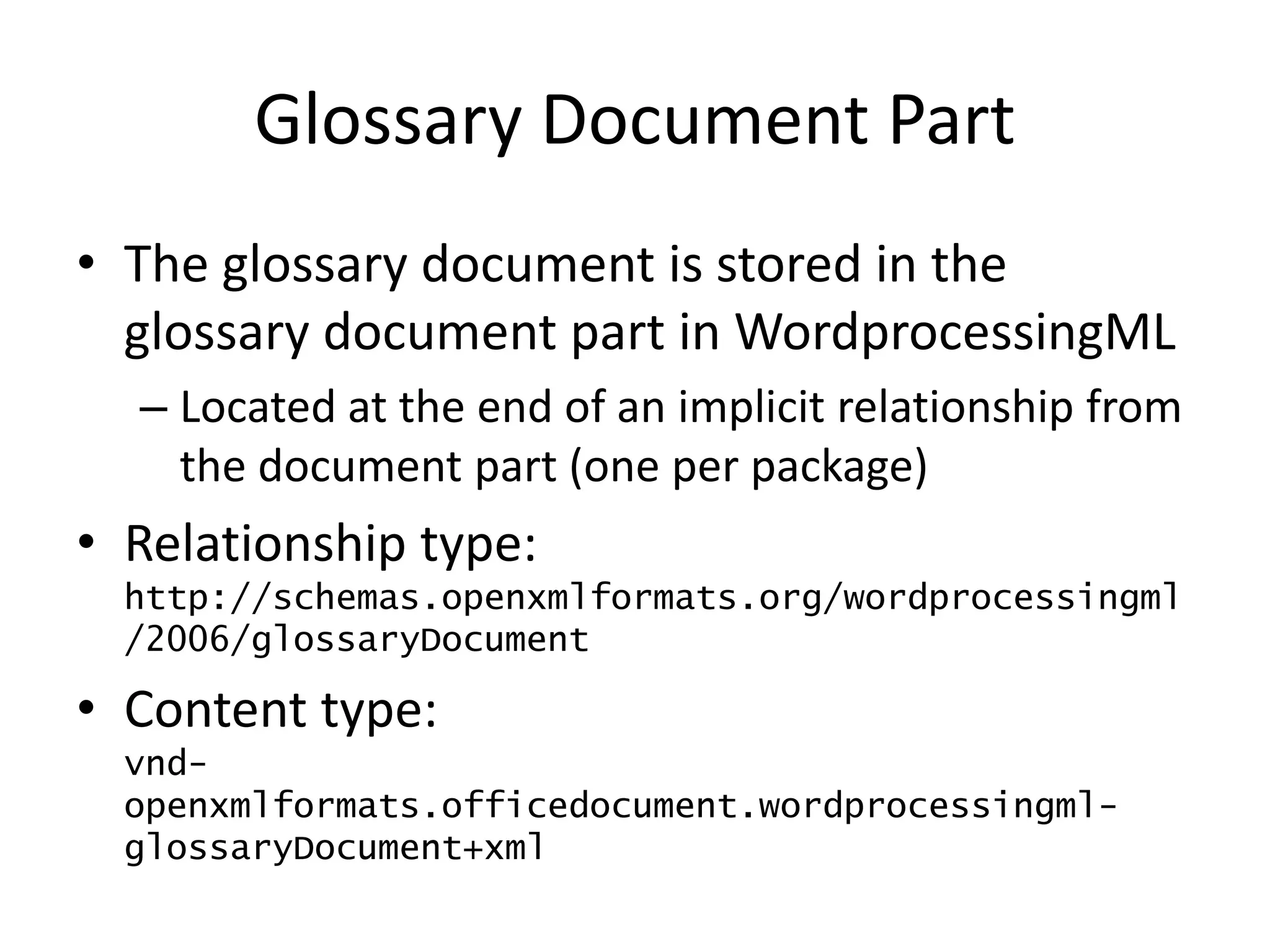
• The glossary document is stored in the
glossary document part in WordprocessingML
– Located at the end of an implicit relationship from
the document part (one per package)
• Relationship type:
http://schemas.openxmlformats.org/wordprocessingml
/2006/glossaryDocument
• Content type:
vnd-
openxmlformats.officedocument.wordprocessingml-
glossaryDocument+xml
Glossary Document
• So what’s in the glossary document?
• The glossary document stores supplementary
document content
– Rich document content which travels with the
document to be accessible, but is not displayed
– e.g. If you’re familiar with Word, AutoText entries
are one example of this
Glossary Document Entries
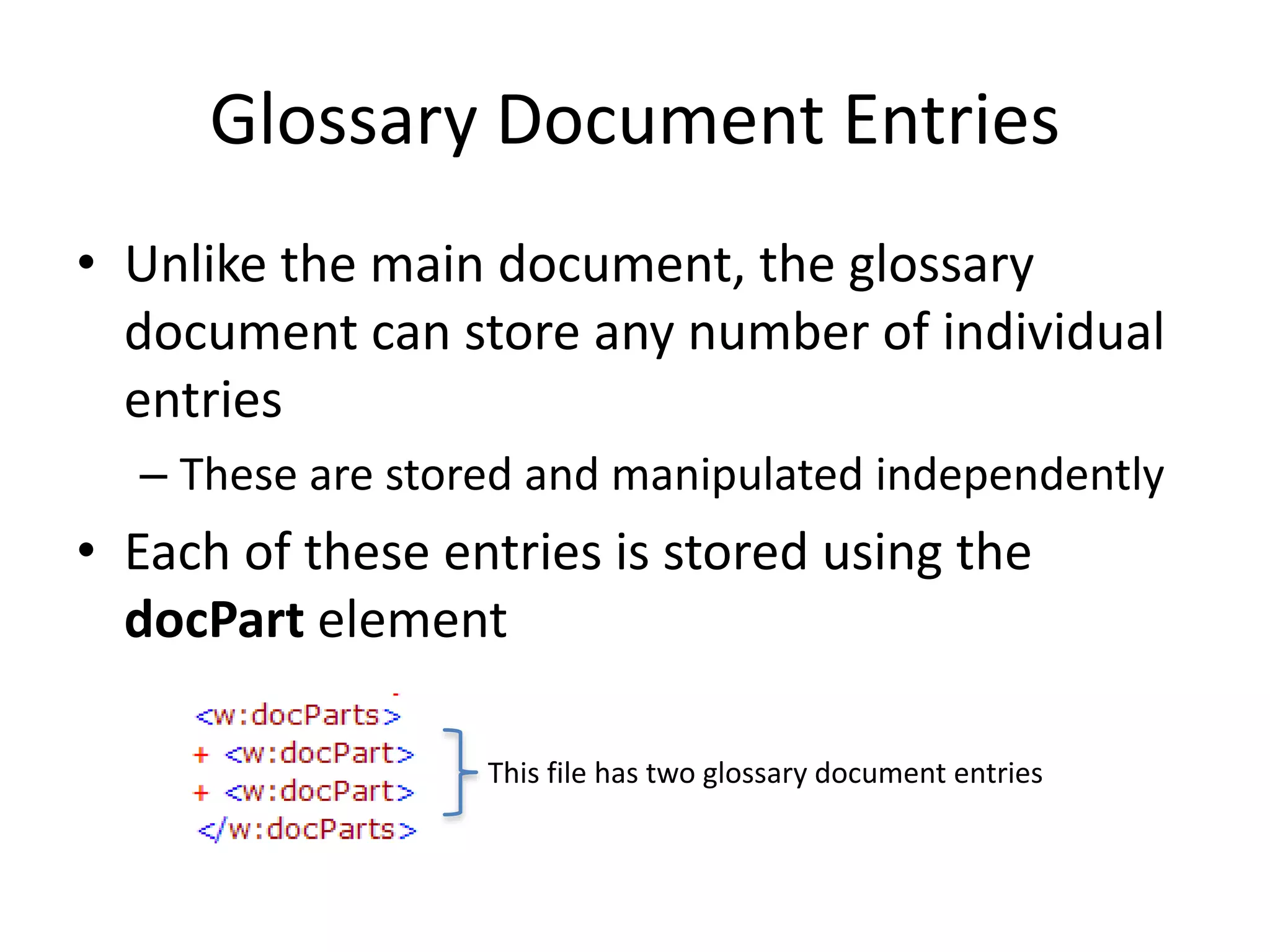
• Unlike the main document, the glossary
document can store any number of individual
entries
– These are stored and manipulated independently
• Each of these entries is stored using the
docPart element
This file has two glossary document entries
Entry Components
• Each entry in the glossary document consists
of two components:
– The entry’s properties
– The entry’s contents
• The first specifies information about the entry
(e.g. its classification) for when it is inserted,
the latter stores the block level content which
constitutes the entry
Entry Properties
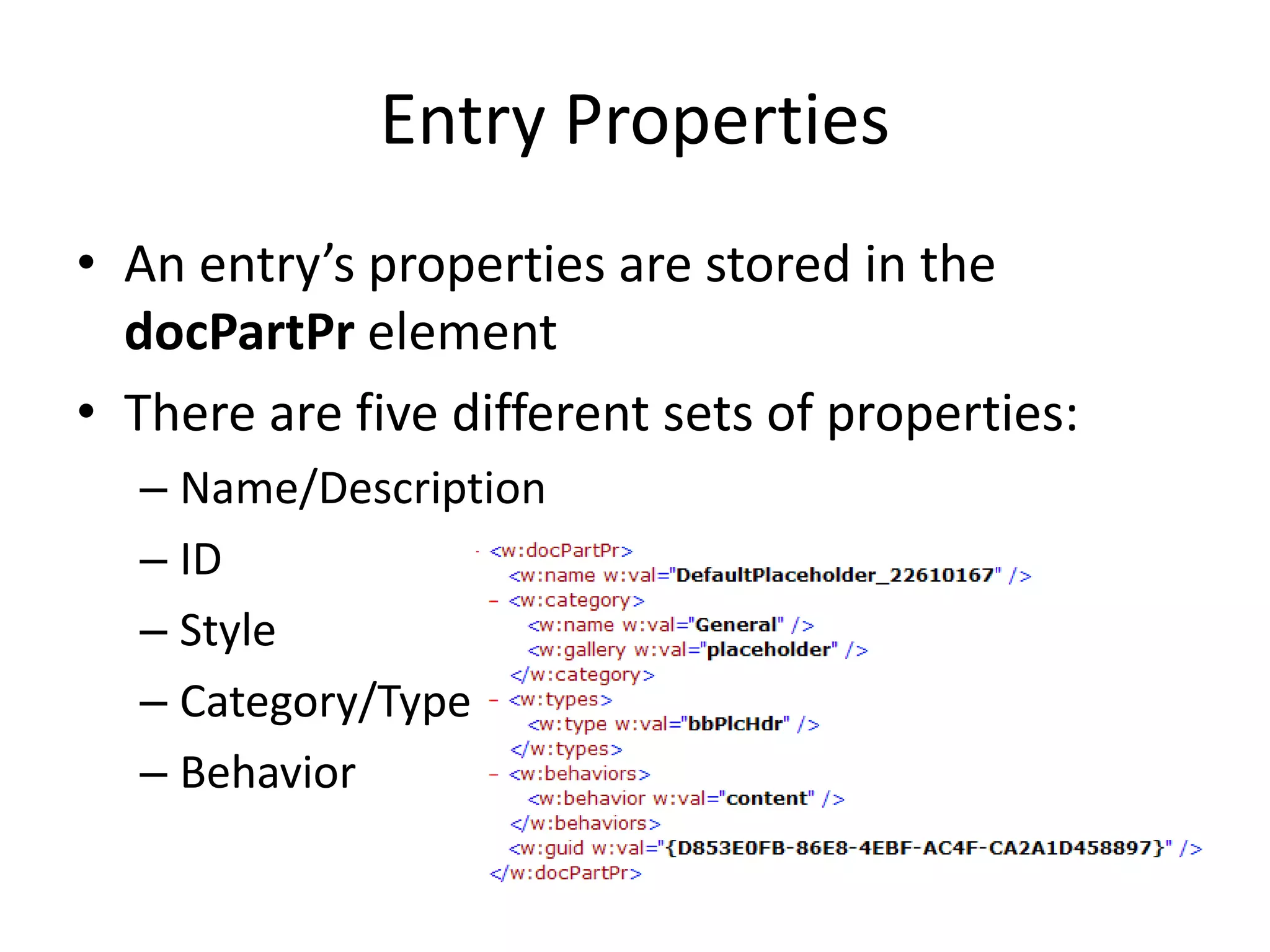
• An entry’s properties are stored in the
docPartPr element
• There are five different sets of properties:
– Name/Description
– ID
– Style
– Category/Type
– Behavior
Entry Properties (cont.)
• These properties define the following:
– Name = a friendly name for the part
– Description = a friendly description for the part
– ID = a GUID name for the part (must be unique
across all files
– Category = the category of the property (defines
where it is inserted)
– Behavior = defines how the entry is inserted
Entry Properties Example
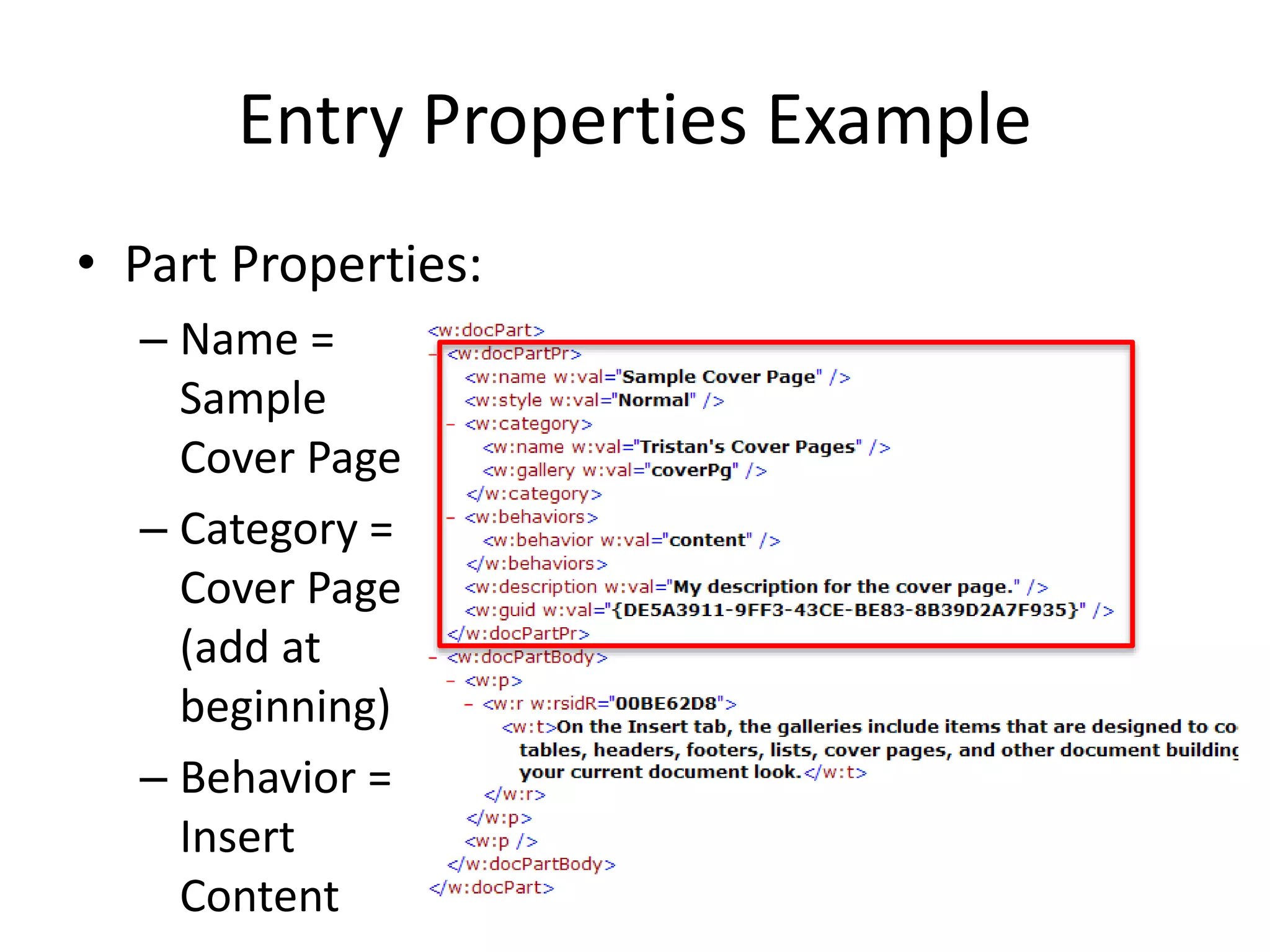
• Part Properties:
– Name =
Sample
Cover Page
– Category =
Cover Page
(add at
beginning)
– Behavior =
Insert
Content
Entry Category/Behavior
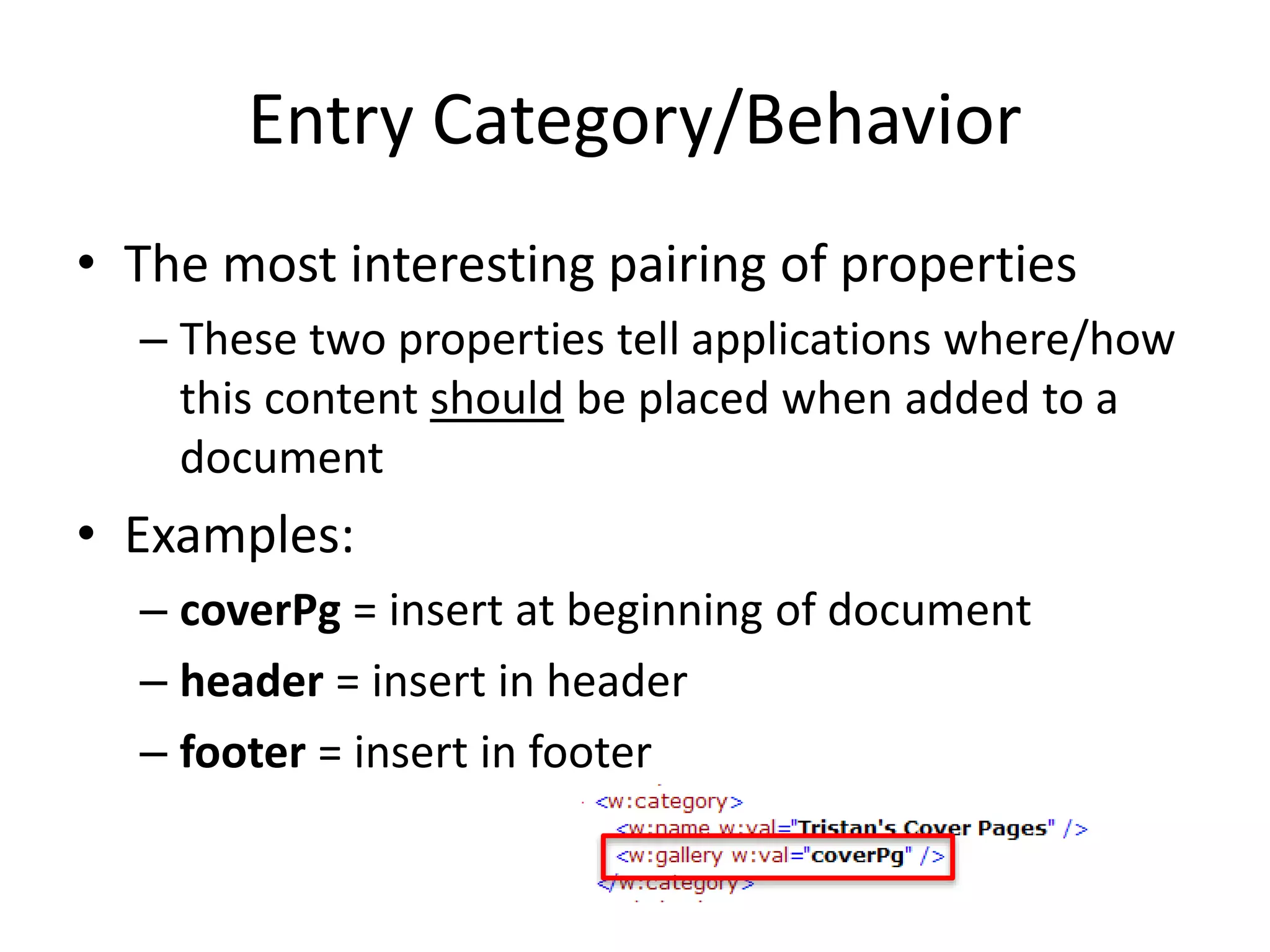
• The most interesting pairing of properties
– These two properties tell applications where/how
this content should be placed when added to a
document
• Examples:
– coverPg = insert at beginning of document
– header = insert in header
– footer = insert in footer
Entry Body
• After the properties, each glossary document
entry contains its content
– Each entry is its own ‘document’
• The glossary document also has separate
copies of all the relationships that the main
document has
– Its own styles, numbering, fonts, comments,
headers, footers, etc.
Entry Body Example
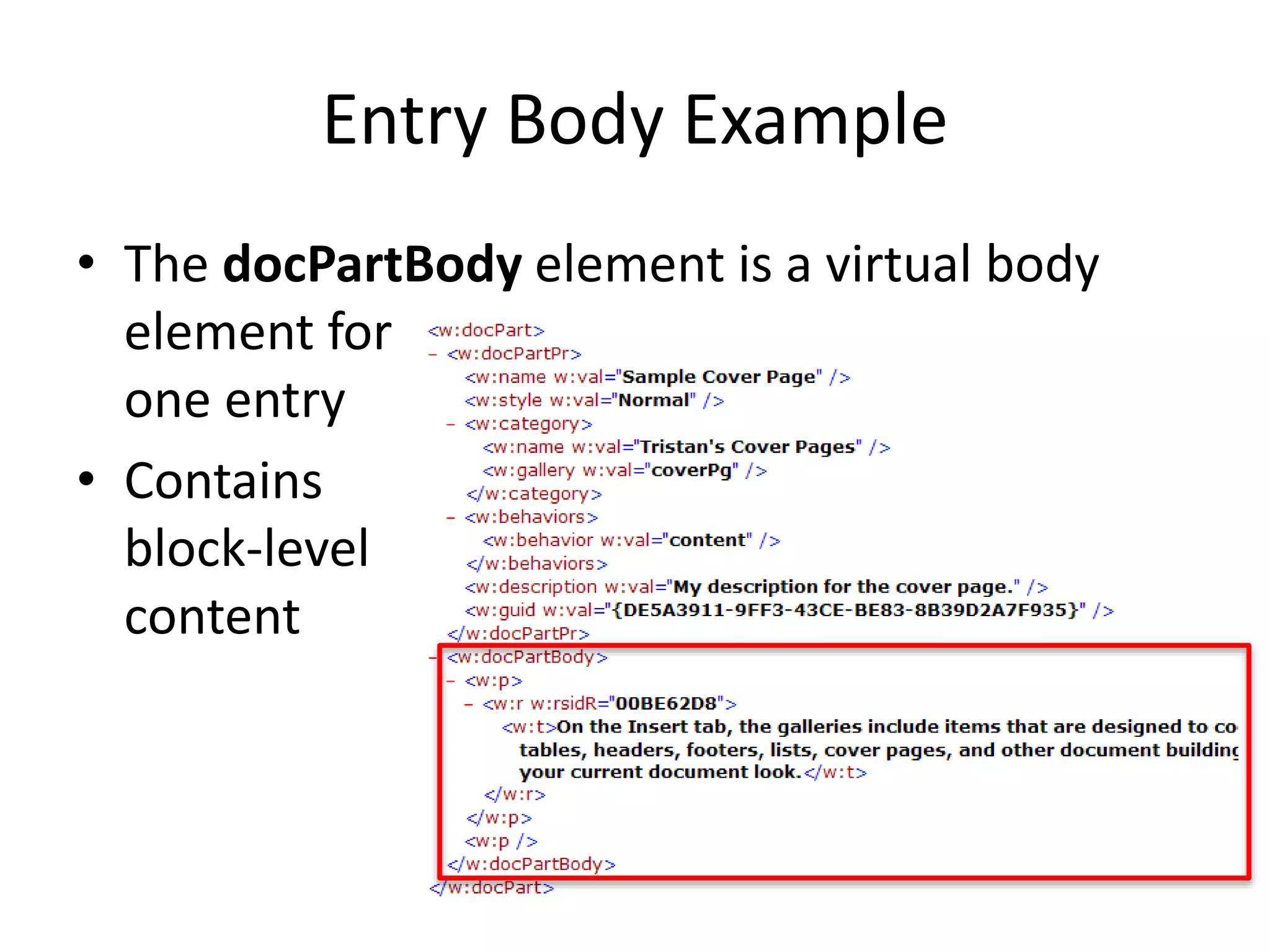
• The docPartBody element is a virtual body
element for
one entry
• Contains
block-level
content
Glossary Document Example
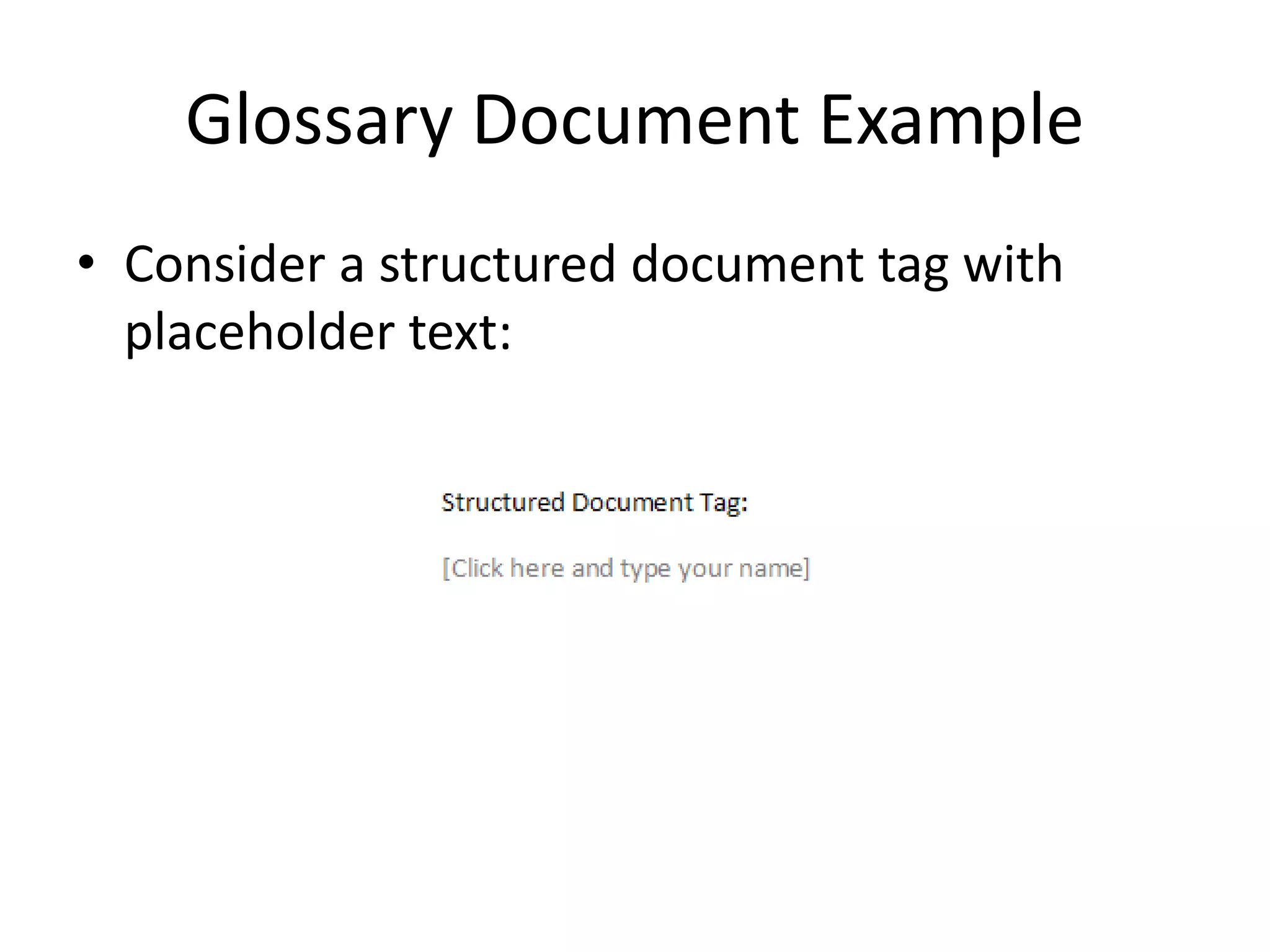
• Consider a structured document tag with
placeholder text:
Glossary Document Example
(cont.)
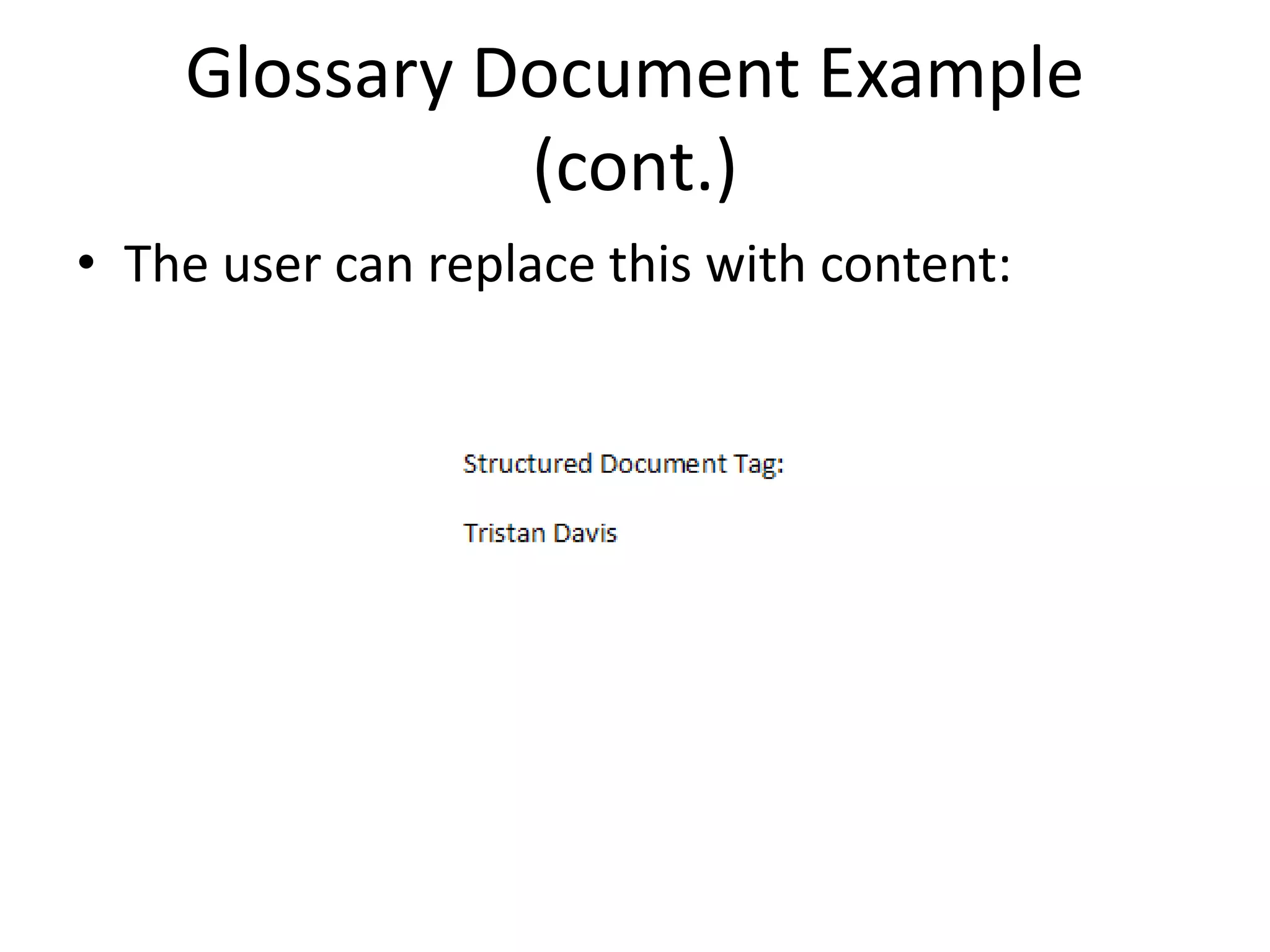
• The user can replace this with content:
Glossary Document Example
(cont.)
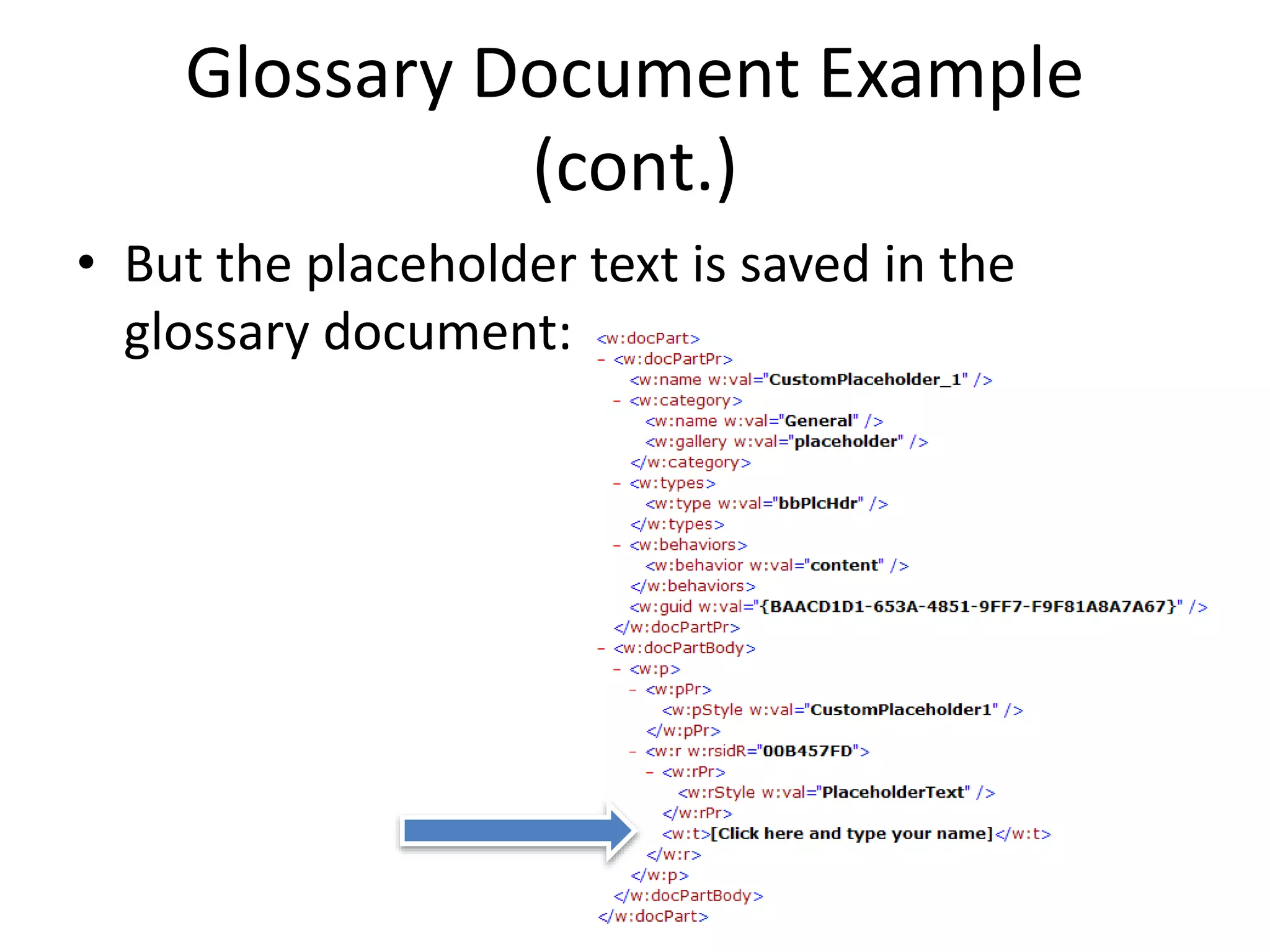
• But the placeholder text is saved in the
glossary document:
Glossary Document Example
(cont.)
• So when they delete it, it comes back:
Disclaimer
This presentation is for informational purposes only, and should
not be relied upon as a substitute or replacement for Microsoft
formal file format documentation, which is available at the
following website: https://msdn.microsoft.com/en-
us/library/cc313118(v=office.12).aspx. Any views or opinions
presented in this material are solely those of the author and do
not necessarily represent those of Microsoft. Microsoft
disclaims all liability for mistakes or inaccuracies in this
presentation.

11 wordprocessing ml subject - glossary document

  • 1.
    Components of WordprocessingML •Main Document • Paragraphs & Rich Formatting – Runs – Run Content • Tables • Custom Markup • Sections • Styles – Paragraph – Character – Numbering – Table – Document Defaults • Fonts • Numbering • Headers/Footers • Footnotes/Endnotes • Glossary Document • Annotations – Comments – Revisions – Bookmarks • Mail Merge • Document Settings – Web Settings – Compatibility Settings • Fields & Hyperlinks • Odds & Ends (Textboxes, Subdocuments, Extensibility) Ecma/TC45/2006/172
  • 2.
  • 3.
    Document Stories • Rememberback in the initial presentation, where we defined the concept of stories – Individual ranges of Word document content (e.g. main document, headers, footers, comments) • A story is defined by two things – It is a unique region containing block-level content – All document stories* share the same set of properties (styles, numbering definitions, settings) • Notice the asterisk…
  • 4.
    Glossary Document • Thatasterisk is there for the glossary document • The glossary document is a unique document story, but unlike all other document stories, it uses its own set of styles, numbering, comments, etc. – It is essentially a separate document within a WordprocessingML package
  • 5.
    Glossary Document Part •The glossary document is stored in the glossary document part in WordprocessingML – Located at the end of an implicit relationship from the document part (one per package) • Relationship type: http://schemas.openxmlformats.org/wordprocessingml /2006/glossaryDocument • Content type: vnd- openxmlformats.officedocument.wordprocessingml- glossaryDocument+xml
  • 6.
    Glossary Document • Sowhat’s in the glossary document? • The glossary document stores supplementary document content – Rich document content which travels with the document to be accessible, but is not displayed – e.g. If you’re familiar with Word, AutoText entries are one example of this
  • 7.
    Glossary Document Entries •Unlike the main document, the glossary document can store any number of individual entries – These are stored and manipulated independently • Each of these entries is stored using the docPart element This file has two glossary document entries
  • 8.
    Entry Components • Eachentry in the glossary document consists of two components: – The entry’s properties – The entry’s contents • The first specifies information about the entry (e.g. its classification) for when it is inserted, the latter stores the block level content which constitutes the entry
  • 9.
    Entry Properties • Anentry’s properties are stored in the docPartPr element • There are five different sets of properties: – Name/Description – ID – Style – Category/Type – Behavior
  • 10.
    Entry Properties (cont.) •These properties define the following: – Name = a friendly name for the part – Description = a friendly description for the part – ID = a GUID name for the part (must be unique across all files – Category = the category of the property (defines where it is inserted) – Behavior = defines how the entry is inserted
  • 11.
    Entry Properties Example •Part Properties: – Name = Sample Cover Page – Category = Cover Page (add at beginning) – Behavior = Insert Content
  • 12.
    Entry Category/Behavior • Themost interesting pairing of properties – These two properties tell applications where/how this content should be placed when added to a document • Examples: – coverPg = insert at beginning of document – header = insert in header – footer = insert in footer
  • 13.
    Entry Body • Afterthe properties, each glossary document entry contains its content – Each entry is its own ‘document’ • The glossary document also has separate copies of all the relationships that the main document has – Its own styles, numbering, fonts, comments, headers, footers, etc.
  • 14.
    Entry Body Example •The docPartBody element is a virtual body element for one entry • Contains block-level content
  • 15.
    Glossary Document Example •Consider a structured document tag with placeholder text:
  • 16.
    Glossary Document Example (cont.) •The user can replace this with content:
  • 17.
    Glossary Document Example (cont.) •But the placeholder text is saved in the glossary document:
  • 18.
    Glossary Document Example (cont.) •So when they delete it, it comes back:
  • 19.
    Disclaimer This presentation isfor informational purposes only, and should not be relied upon as a substitute or replacement for Microsoft formal file format documentation, which is available at the following website: https://msdn.microsoft.com/en- us/library/cc313118(v=office.12).aspx. Any views or opinions presented in this material are solely those of the author and do not necessarily represent those of Microsoft. Microsoft disclaims all liability for mistakes or inaccuracies in this presentation.