U S I N G T H E C O M P U T E R W I T H W I N D O W S
ACCESSORIES
Introduction
 Windows 7 comes with some additional programs
that can be used in our daily life. They can be used
for text editing, painting, playing music and video
files, recording sounds, etc. These programs are
sufficient for elementary and midlevel applications.
You may need to buy professional programs for
advanced applications, such as Microsoft Word for
text editing or Corel Draw for drawing.
 You can find the programs that come with Windows
7 in the Accessories folder.
 Use these steps: Start > All Programs > Accessories
Notepad
Notepad
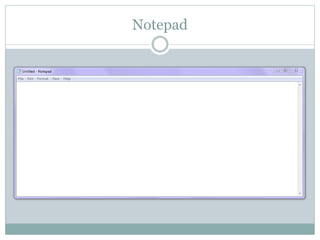
 Notepad is a basic ASCII (American Standard Code for
Information Interchange) text editor that you can use to
create simple documents. ASCII text editors display only
ASCII characters and don’t store any information like font
size, font color, text indentation, or margins. The most
common use for Notepad is to view or edit text (.txt) files, but
many users find Notepad a simple tool for creating web pages.
 Because Notepad supports only very basic formatting, you
cannot accidentally save special formatting in documents that
need to remain pure text. This is especially useful when
creating HTML documents for a webpage because special
characters or other formatting may not appear in your
published webpage or may even cause errors.
WordPad
WordPad
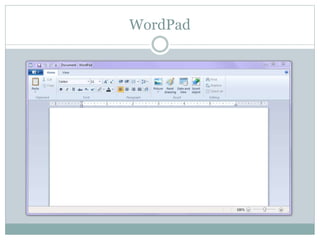
 WordPad is a text-editing program you can use to
create and edit documents. Unlike Notepad,
WordPad documents can include rich formatting and
graphics, and you can link to or embed objects, such
as pictures or other documents.
 You can save your WordPad file as a Rich Text
Format (RTF), Office Open XML Document
(DOCX), Open Document Text (ODT), Text
Document (TXT), Text Document-MS-DOS Format
(TXT), or Unicode Text Document (TXT).
Paint
Paint
 Paint is a drawing tool you can use to create simple
drawings. These drawings can be either black and
white or color; they can be saved as Monochrome,
16-Color, 256-Color, or 24-bit bitmap image (BMP),
JPEG, GIF, TIFF, or PNG. You can print your
drawing, use it for your desktop background, or
paste it.
Paint
Sound Recorder
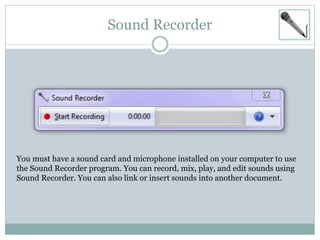
You must have a sound card and microphone installed on your computer to use
the Sound Recorder program. You can record, mix, play, and edit sounds using
Sound Recorder. You can also link or insert sounds into another document.
Run Command
Using the Run command is a quick way to open programs, files, folders, websites
etc. You can access the Run command in the Accessories folder. Another way to
launch the Run command is using the <Start>+<R> key combination.
Run Command
Snipping Tool
 You can use the Snipping Tool to capture a screen
shot or snip any object on your screen. You can then
annotate, save, or share the image.
Calculator
Sticky Notes
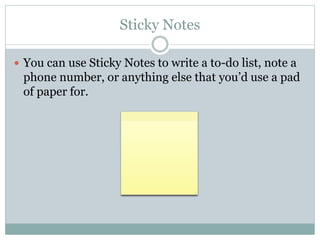
 You can use Sticky Notes to write a to-do list, note a
phone number, or anything else that you’d use a pad
of paper for.
Magnifier
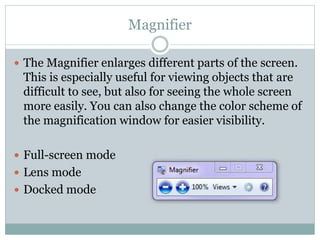
 The Magnifier enlarges different parts of the screen.
This is especially useful for viewing objects that are
difficult to see, but also for seeing the whole screen
more easily. You can also change the color scheme of
the magnification window for easier visibility.
 Full-screen mode
 Lens mode
 Docked mode
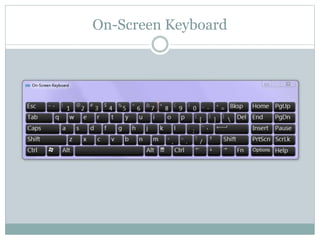
On-Screen Keyboard
Math Input Panel
 If you use your computer to solve math problems or
to create documents or presentations that have typed
mathematical expressions in them, the Math Input
Panel makes the process easier and more natural.
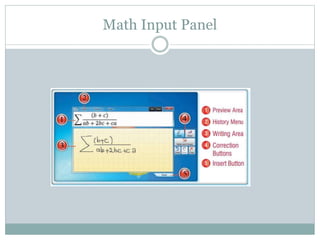
 The Math Input Panel uses the math recognizer built
into Windows 7 to recognize handwritten math
expressions. You can then insert the recognized math
into a word processing or computational program.
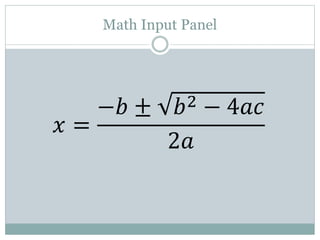
Math Input Panel
Math Input Panel
𝑥 =
−𝑏 ± 𝑏2 − 4𝑎𝑐
2𝑎
Paint

Windows 7 Accessories

  • 1.
    U S IN G T H E C O M P U T E R W I T H W I N D O W S ACCESSORIES
  • 2.
    Introduction  Windows 7comes with some additional programs that can be used in our daily life. They can be used for text editing, painting, playing music and video files, recording sounds, etc. These programs are sufficient for elementary and midlevel applications. You may need to buy professional programs for advanced applications, such as Microsoft Word for text editing or Corel Draw for drawing.  You can find the programs that come with Windows 7 in the Accessories folder.  Use these steps: Start > All Programs > Accessories
  • 3.
  • 4.
    Notepad  Notepad isa basic ASCII (American Standard Code for Information Interchange) text editor that you can use to create simple documents. ASCII text editors display only ASCII characters and don’t store any information like font size, font color, text indentation, or margins. The most common use for Notepad is to view or edit text (.txt) files, but many users find Notepad a simple tool for creating web pages.  Because Notepad supports only very basic formatting, you cannot accidentally save special formatting in documents that need to remain pure text. This is especially useful when creating HTML documents for a webpage because special characters or other formatting may not appear in your published webpage or may even cause errors.
  • 5.
  • 6.
    WordPad  WordPad isa text-editing program you can use to create and edit documents. Unlike Notepad, WordPad documents can include rich formatting and graphics, and you can link to or embed objects, such as pictures or other documents.  You can save your WordPad file as a Rich Text Format (RTF), Office Open XML Document (DOCX), Open Document Text (ODT), Text Document (TXT), Text Document-MS-DOS Format (TXT), or Unicode Text Document (TXT).
  • 7.
  • 8.
    Paint  Paint isa drawing tool you can use to create simple drawings. These drawings can be either black and white or color; they can be saved as Monochrome, 16-Color, 256-Color, or 24-bit bitmap image (BMP), JPEG, GIF, TIFF, or PNG. You can print your drawing, use it for your desktop background, or paste it.
  • 9.
  • 10.
    Sound Recorder You musthave a sound card and microphone installed on your computer to use the Sound Recorder program. You can record, mix, play, and edit sounds using Sound Recorder. You can also link or insert sounds into another document.
  • 11.
    Run Command Using theRun command is a quick way to open programs, files, folders, websites etc. You can access the Run command in the Accessories folder. Another way to launch the Run command is using the <Start>+<R> key combination.
  • 12.
  • 13.
    Snipping Tool  Youcan use the Snipping Tool to capture a screen shot or snip any object on your screen. You can then annotate, save, or share the image.
  • 14.
  • 15.
    Sticky Notes  Youcan use Sticky Notes to write a to-do list, note a phone number, or anything else that you’d use a pad of paper for.
  • 16.
    Magnifier  The Magnifierenlarges different parts of the screen. This is especially useful for viewing objects that are difficult to see, but also for seeing the whole screen more easily. You can also change the color scheme of the magnification window for easier visibility.  Full-screen mode  Lens mode  Docked mode
  • 17.
  • 18.
    Math Input Panel If you use your computer to solve math problems or to create documents or presentations that have typed mathematical expressions in them, the Math Input Panel makes the process easier and more natural.  The Math Input Panel uses the math recognizer built into Windows 7 to recognize handwritten math expressions. You can then insert the recognized math into a word processing or computational program.
  • 19.
  • 20.
    Math Input Panel 𝑥= −𝑏 ± 𝑏2 − 4𝑎𝑐 2𝑎
  • 21.