INSERTING
HYPERLINKS
I N S E R T I N G H Y P E R L I N K TO A F I L E
I N S E R T I N G H Y P E R L I N K TO A W E B S I T E
I N S E R T I N G H Y P E R L I N K TO A V I D E O
1
INSERTING HYPERLINKS
• I will create a table in Excel and then I will copy that table to a
webpage.
2
INSERTING HYPERLINKS
• Now, I will add hyperlink to each text in the table.
• Firstly, go to Google Drive and right-click over the file and Get
shareable link of the file.
3
INSERTING HYPERLINKS
• Then, go to the webpage, select the text which you want to add the
link, and click over Insert link icon.
4
INSERTING HYPERLINKS
• Then, paste the link which you copied from Google Drive and Add Link.
5
INSERTING HYPERLINKS
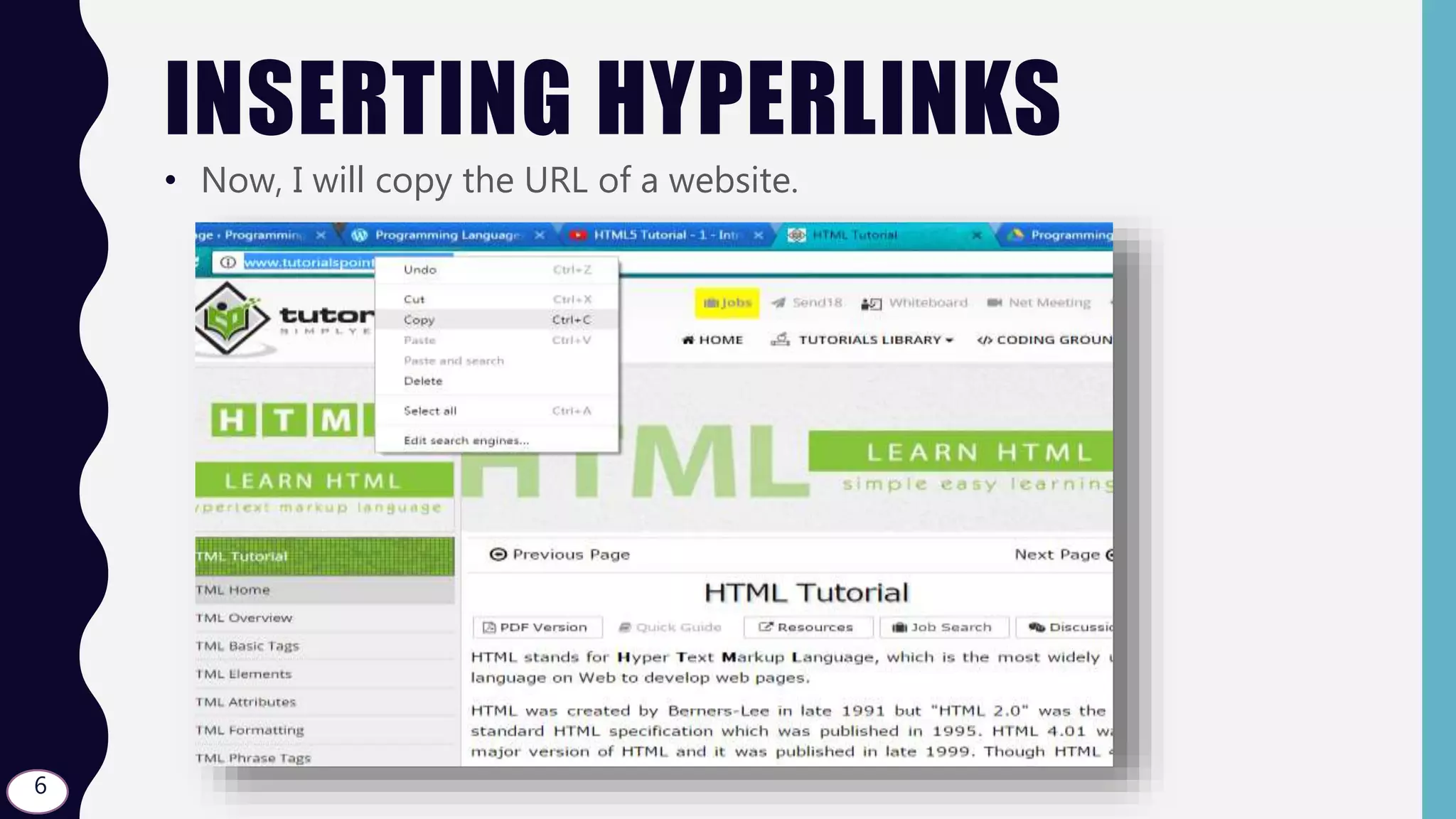
• Now, I will copy the URL of a website.
6
INSERTING HYPERLINKS
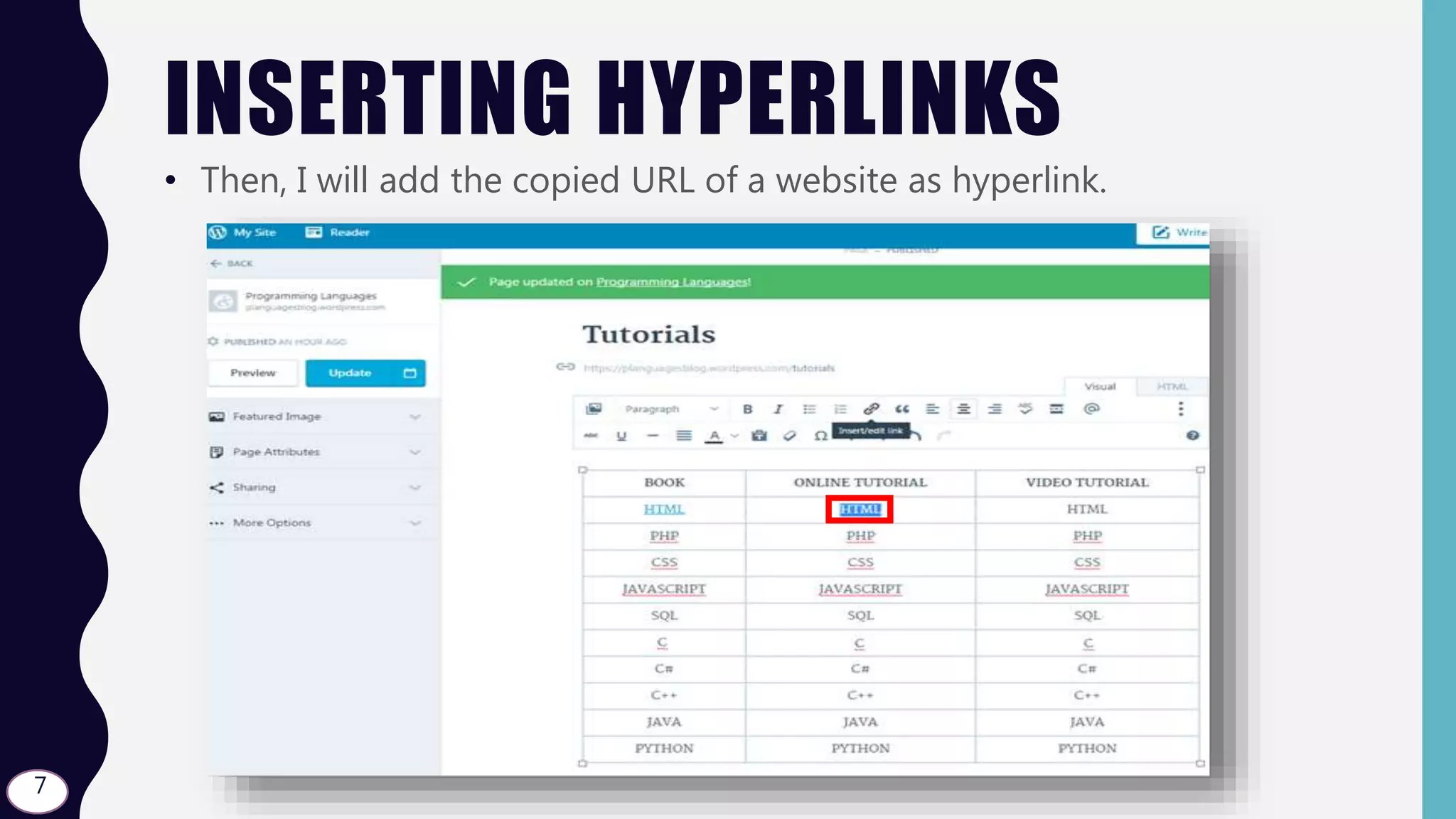
• Then, I will add the copied URL of a website as hyperlink.
7
INSERTING HYPERLINKS
• Then, paste the link which you copied and Add Link.
8
INSERTING HYPERLINKS
• Now, I will copy the URL of a video from YouTube.
9
INSERTING HYPERLINKS
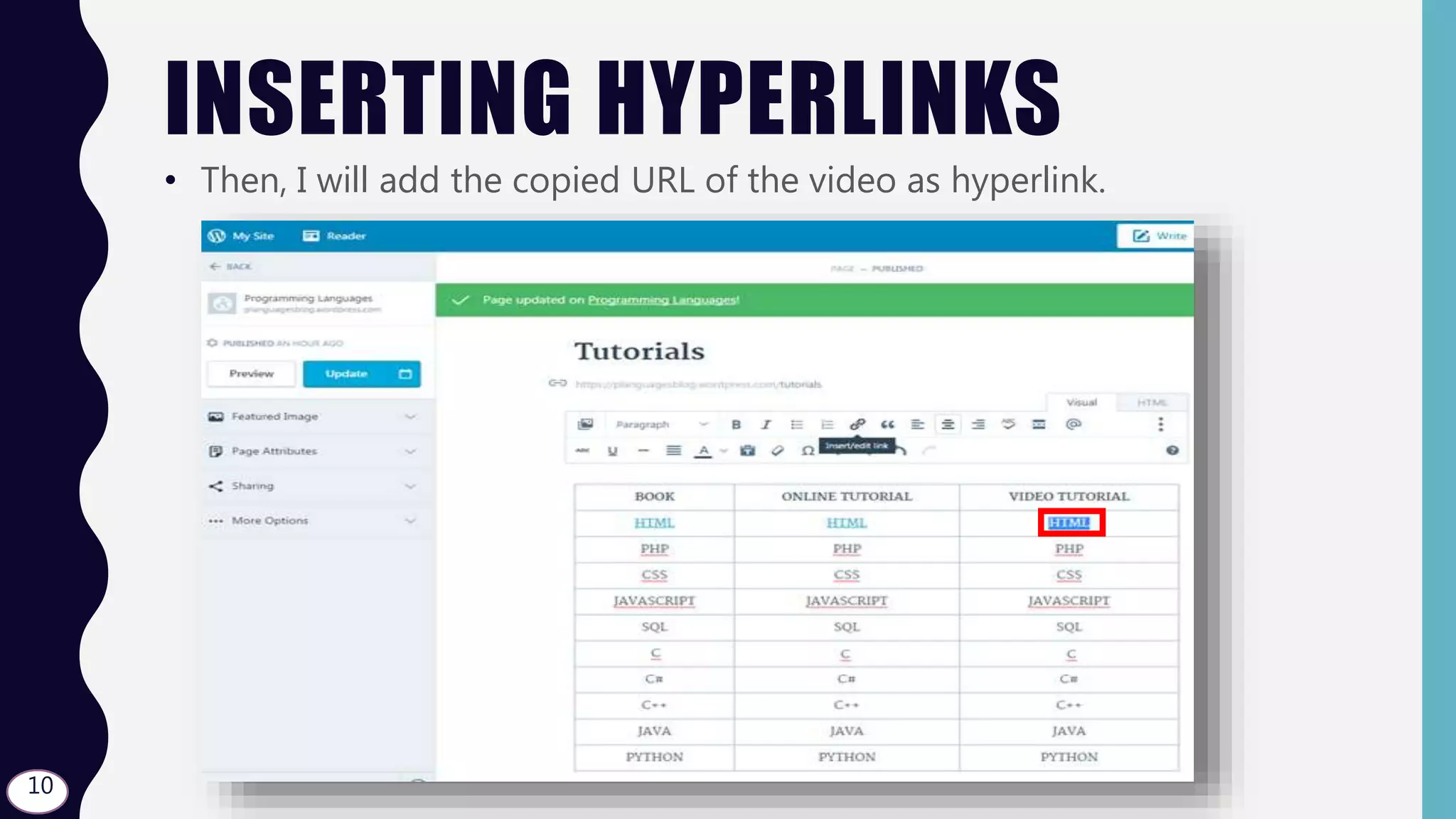
• Then, I will add the copied URL of the video as hyperlink.
10
INSERTING HYPERLINKS
• Then, paste the link which you copied and Add Link.
11
INSERTING HYPERLINKS
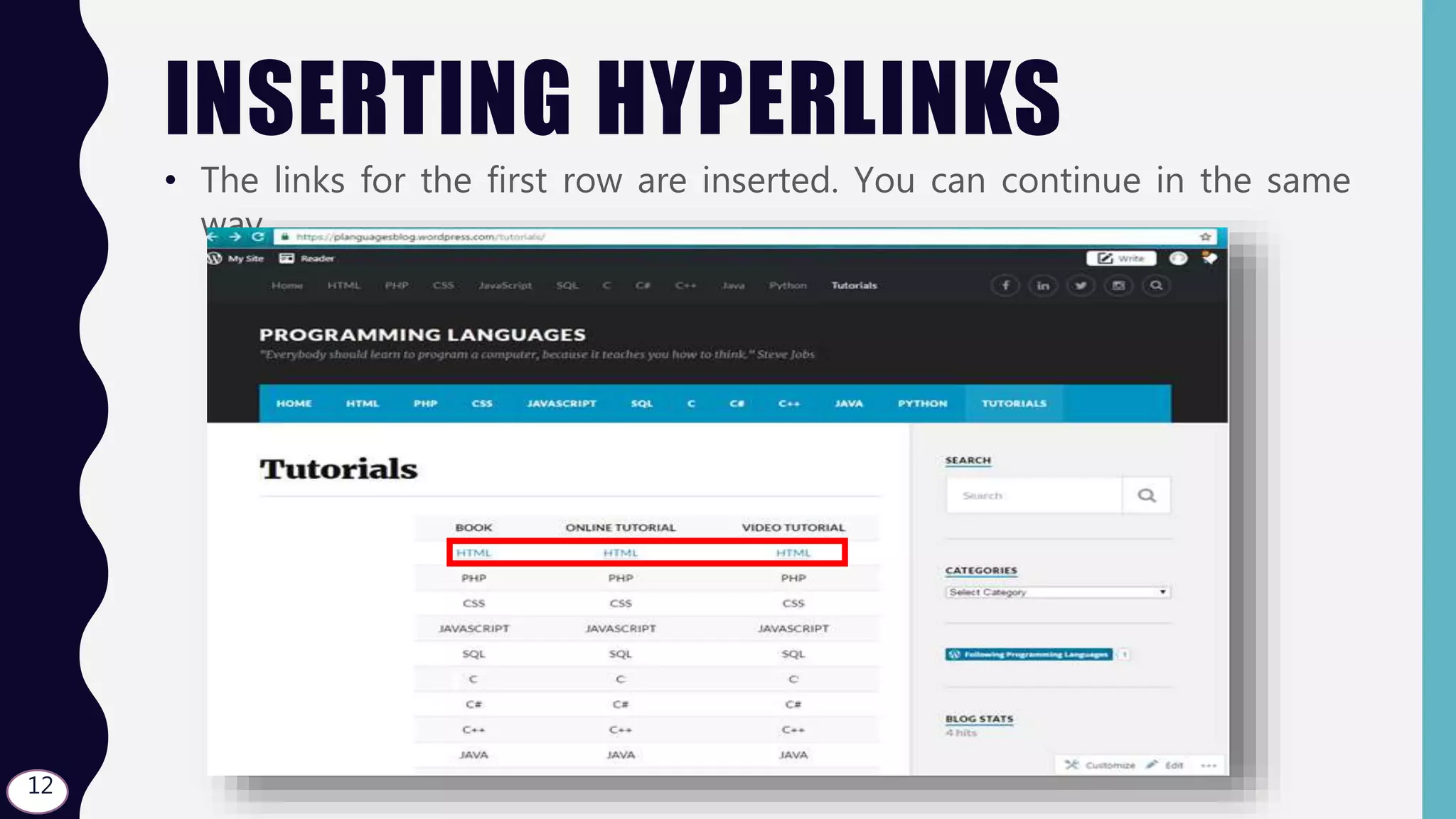
• The links for the first row are inserted. You can continue in the same
way.
12
THE
END

Wordpress - S03.L07 - Inserting Hyperlinks