







MODULE ENDNOTE
noaa/HAH
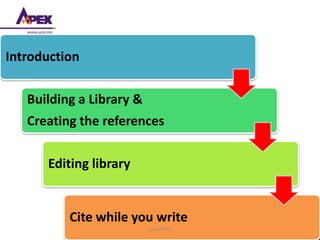
Introduction
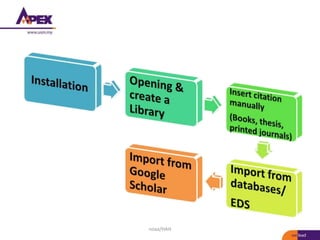
Building a Library &
Creating the references
Editing library
Cite while you write
TOPICS
noaa/HAH
1. Introduction to Endnote, citation
& bibliography
By the time you complete this section, user should be able
to understand what is format citations and bibliography
according to IPS guidelines
noaa/HAH
noaa/HAH
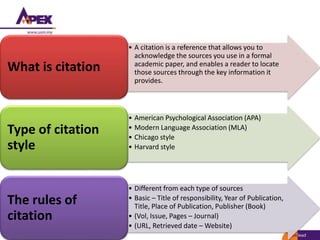
• A citation is a reference that allows you to
acknowledge the sources you use in a formal
academic paper, and enables a reader to locate
those sources through the key information it
provides.
What is citation
• American Psychological Association (APA)
• Modern Language Association (MLA)
• Chicago style
• Harvard style
Type of citation
style
• Different from each type of sources
• Basic – Title of responsibility, Year of Publication,
Title, Place of Publication, Publisher (Book)
• (Vol, Issue, Pages – Journal)
• (URL, Retrieved date – Website)
The rules of
citation
noaa/HAH
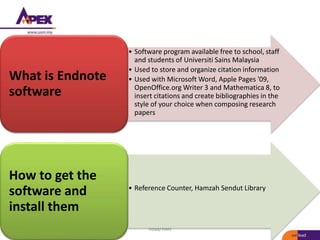
• Software program available free to school, staff
and students of Universiti Sains Malaysia
• Used to store and organize citation information
• Used with Microsoft Word, Apple Pages '09,
OpenOffice.org Writer 3 and Mathematica 8, to
insert citations and create bibliographies in the
style of your choice when composing research
papers
What is Endnote
software
• Reference Counter, Hamzah Sendut Library
How to get the
software and
install them
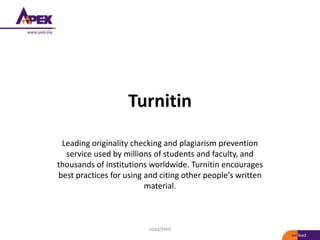
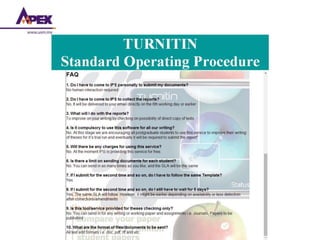
Turnitin
Leading originality checking and plagiarism prevention
service used by millions of students and faculty, and
thousands of institutions worldwide. Turnitin encourages
best practices for using and citing other people's written
material.
noaa/HAH
noaa/HAH
noaa/HAH
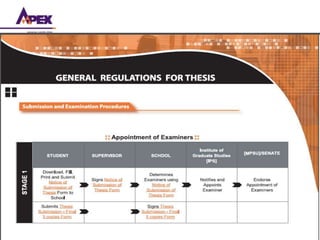
Guideline Preparation of Thesis
noaa/HAH
noaa/HAH
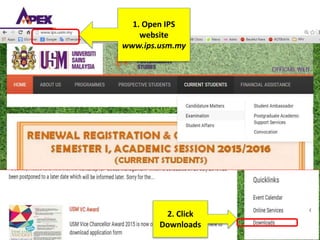
1. Open IPS
website
www.ips.usm.my
2. Click
Downloads
noaa/HAH
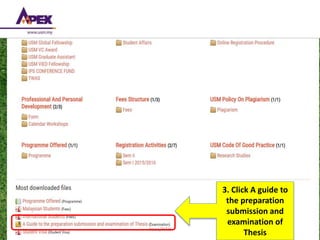
3. Click A guide to
the preparation
submission and
examination of
Thesis
noaa/HAH
2. Building a Library &
Creating the References
noaa/HAH
noaa/HAH
a. Installation Endnote X7
noaa/HAH
noaa/HAH
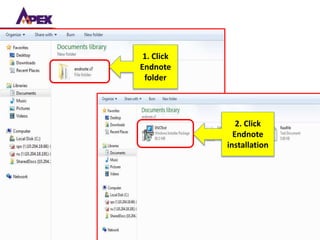
1. Click
Endnote
folder
2. Click
Endnote
installation
noaa/HAH
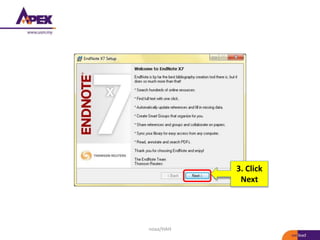
3. Click
Next
noaa/HAH
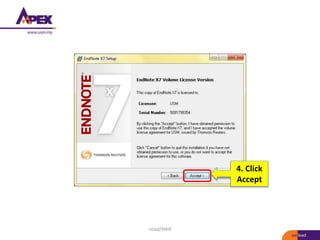
4. Click
Accept
noaa/HAH
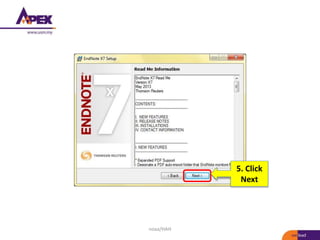
5. Click
Next
noaa/HAH
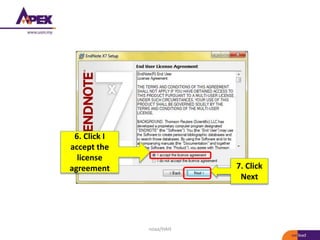
7. Click
Next
6. Click I
accept the
license
agreement
noaa/HAH
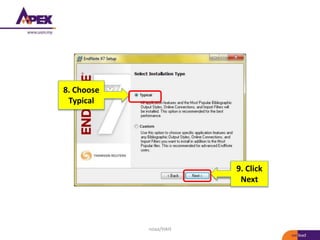
9. Click
Next
8. Choose
Typical
noaa/HAH
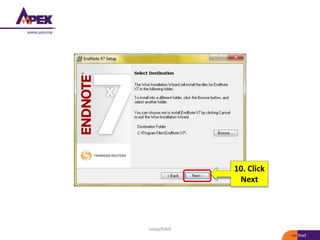
10. Click
Next
noaa/HAH
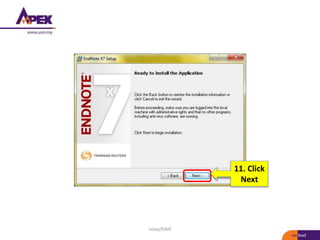
11. Click
Next
noaa/HAH
noaa/HAH
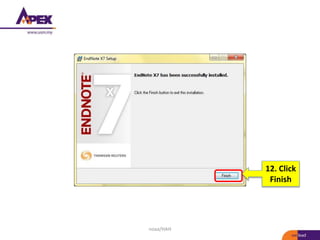
12. Click
Finish
b. Opening & Create a Library
noaa/HAH
noaa/HAH
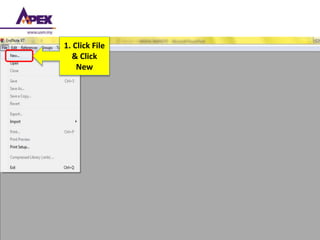
1. Click File
& Click
New
noaa/HAH
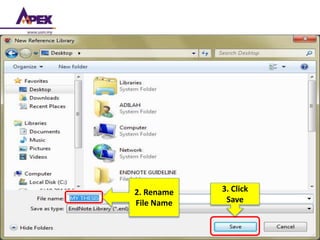
2. Rename
File Name
3. Click
Save
c. Insert Citation Manually
i. (Book)
noaa/HAH
noaa/HAH
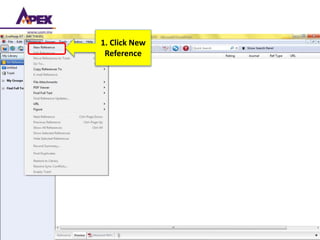
1. Click New
Reference
noaa/HAH
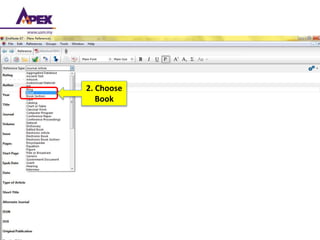
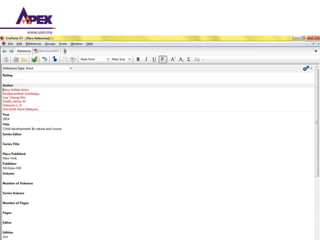
2. Choose
Book
noaa/HAH
noaa/HAH
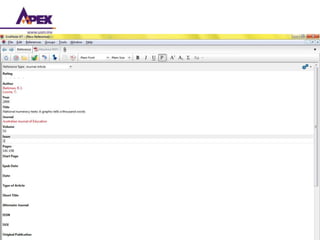
c. Insert Citation Manually
ii. (Article)
noaa/HAH
noaa/HAH
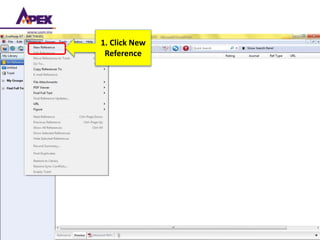
1. Click New
Reference
noaa/HAH
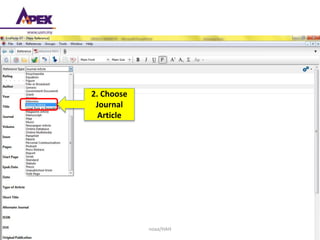
2. Choose
Journal
Article
noaa/HAH
noaa/HAH
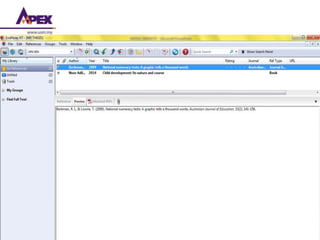
c. Insert Citation Manually
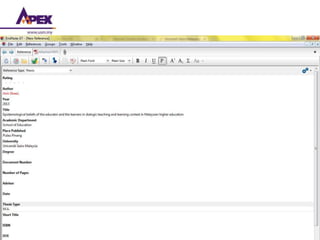
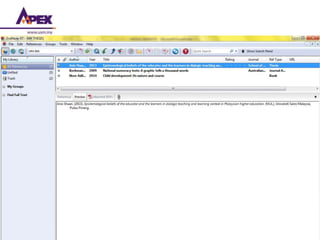
iii. (Thesis)
noaa/HAH
noaa/HAH
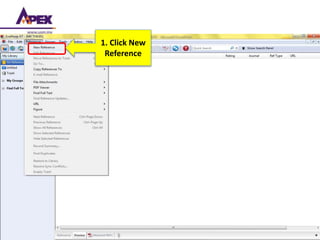
1. Click New
Reference
noaa/HAH
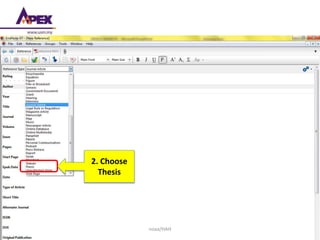
2. Choose
Thesis
noaa/HAH
noaa/HAH
d. Import From Ebsco Discovery
Services
(EDS)
noaa/HAH
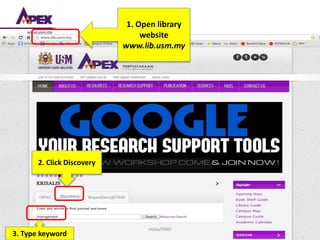
1. Open library
website
www.lib.usm.my
2. Click Discovery
3. Type keyword
noaa/HAH
noaa/HAH
4. Click the icon
5. Click Folder
noaa/HAH
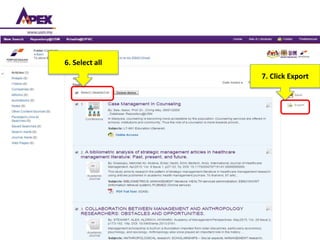
6. Select all
7. Click Export
noaa/HAH
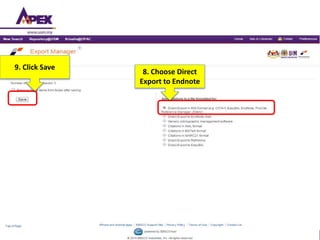
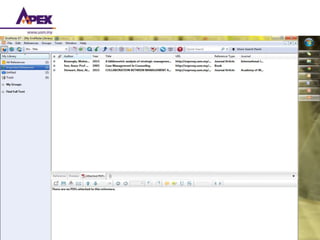
9. Click Save
8. Choose Direct
Export to Endnote
noaa/HAH
e. Import From Google Scholar
noaa/HAH
noaa/HAH
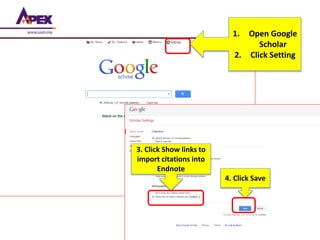
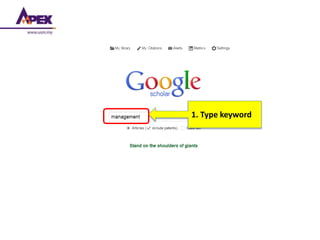
1. Open Google
Scholar
2. Click Setting
3. Click Show links to
import citations into
Endnote
4. Click Save
noaa/HAH
1. Type keyword
noaa/HAH
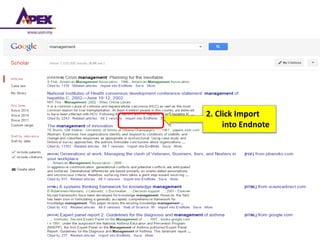
2. Click Import
into Endnote
noaa/HAH
3. Editing Library
noaa/HAH
noaa/HAH
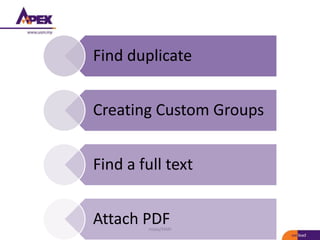
Find duplicate
Creating Custom Groups
Find a full text
Attach PDF
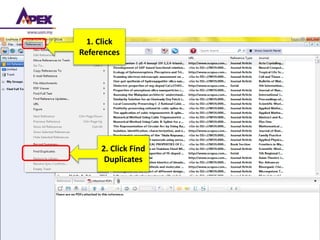
a. Find duplicates
noaa/HAH
noaa/HAH
1. Click
References
2. Click Find
Duplicates
noaa/HAH
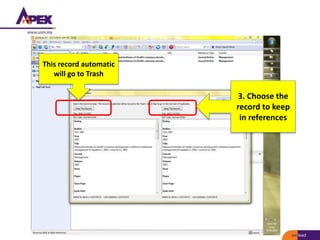
3. Choose the
record to keep
in references
This record automatic
will go to Trash
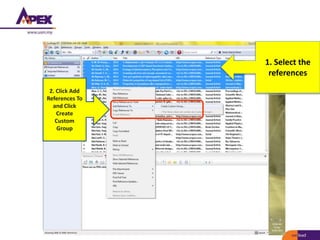
b. Creating Custom Groups
noaa/HAH
noaa/HAH
1. Select the
references
2. Click Add
References To
and Click
Create
Custom
Group
noaa/HAH
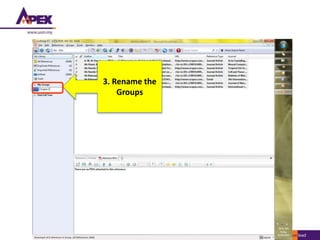
3. Rename the
Groups
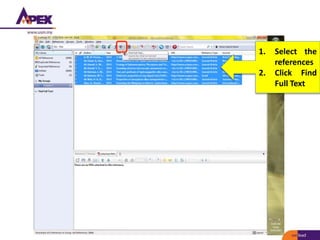
c. Find a Full Text
noaa/HAH
noaa/HAH
1. Select the
references
2. Click Find
Full Text
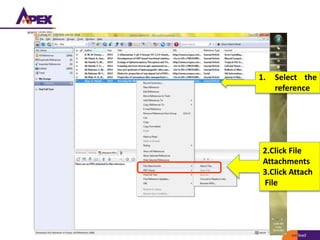
d. Attach PDF
noaa/HAH
noaa/HAH
1. Select the
reference
2.Click File
Attachments
3.Click Attach
File
4. Cite While You Write
noaa/HAH
noaa/HAH
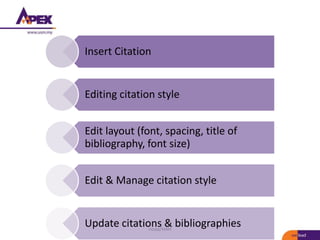
Insert Citation
Editing citation style
Edit layout (font, spacing, title of
bibliography, font size)
Edit & Manage citation style
Update citations & bibliographies
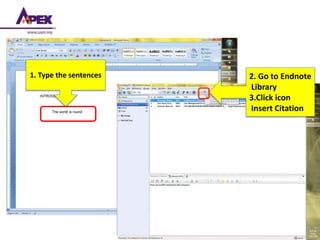
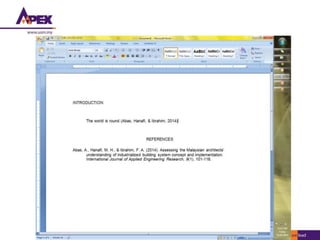
a. Insert Citation
noaa/HAH
noaa/HAH
1. Type the sentences 2. Go to Endnote
Library
3.Click icon
Insert Citation
noaa/HAH
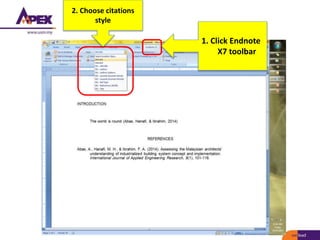
b. Editing citation styles
noaa/HAH
noaa/HAH
1. Click Endnote
X7 toolbar
2. Choose citations
style
c. Editing layout
noaa/HAH
noaa/HAH
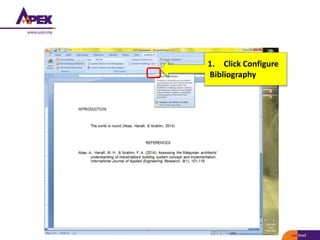
1. Click Configure
Bibliography
noaa/HAH
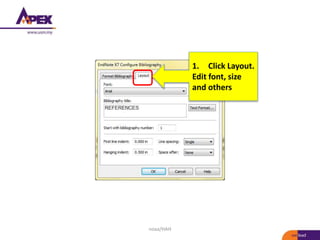
1. Click Layout.
Edit font, size
and others
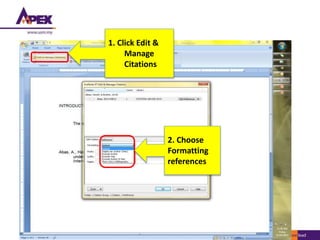
d. Edit and Manage Citation
Styles
noaa/HAH
noaa/HAH
1. Click Edit &
Manage
Citations
2. Choose
Formatting
references
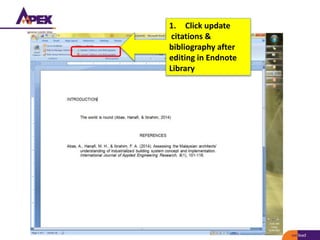
e. Update Citations &
Bibliographies
noaa/HAH
noaa/HAH
1. Click update
citations &
bibliography after
editing in Endnote
Library
Thank you
Presented by
Name | Centre/Schools/Units etc
noaa/HAH

Endnote