
Download to read offline


![ABOUT ENDNOTE
EndNote is a reference management program. You can use EndNote to
create your own personal reference library. You can then insert citations in
a Word document and generate a bibliography in the citation style you
require.
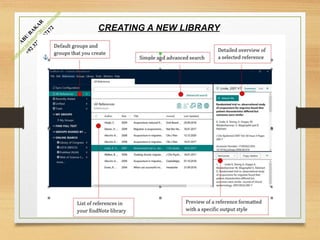
Creating New Library
From EndNote’s File menu, choose New.
Select the location where you would like to save your library. Enter a
name for the library and click [Save].
Do not store the library in a cloud service like Dropbox, OneDrive or
iCloud. This might lead to library corruption. Note that the library is made
up of both an .
ENL file and a corresponding .DATA folder. It is recommended that you
maintain one library only.](https://image.slidesharecdn.com/endnote-220610160808-221d4dc7/85/END-NOTE-pptx-4-320.jpg)
![MAKING A BACKUP COPY OF A LIBRARY
Open the library in EndNote.
From the File menu, select Compress Library (.enlx).
Make sure that the options With File Attachments and All References in
Library are selected.
Choose the location where you would like to save your backup copy. Enter
a name and click
[Save]. The backup copy includes both the .ENL file as well as the
corresponding .DATA folder.](https://image.slidesharecdn.com/endnote-220610160808-221d4dc7/85/END-NOTE-pptx-5-320.jpg)
![Managing & organizing References
Sorting References
References can be sorted by clicking on a column heading
Editing References
Highlight the reference. Click [Edit] in the panel to the right or from the
References menu, choose Edit Reference.
Edit the reference data. Click [Save] to save the changes.
UPDATING REFERENCES
Deleting References
Custom Group
Smart Group
Group Set](https://image.slidesharecdn.com/endnote-220610160808-221d4dc7/85/END-NOTE-pptx-9-320.jpg)
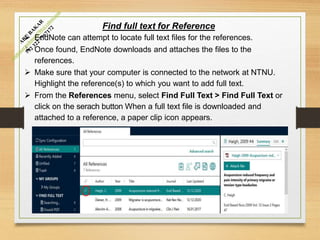

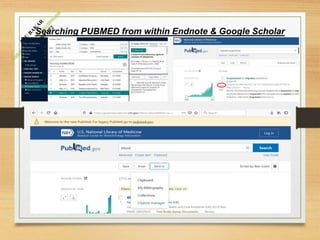
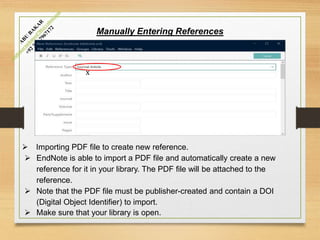
EndNote is a reference management program that allows users to create personal reference libraries, insert citations into Word documents, and generate bibliographies. Key features include creating and backing up libraries, searching databases, manually entering references, importing PDFs to create references, organizing and editing references, finding full text files, and more. Users can sort, edit, update, and delete references as needed. Smart groups and group sets help organize the library. The document provides instructions on performing various tasks in EndNote like creating a new library, backing up a library, importing PDFs, and finding full text files for references.


