Google Apps
Documents, Spreadsheets & Presentations
Getting Started:
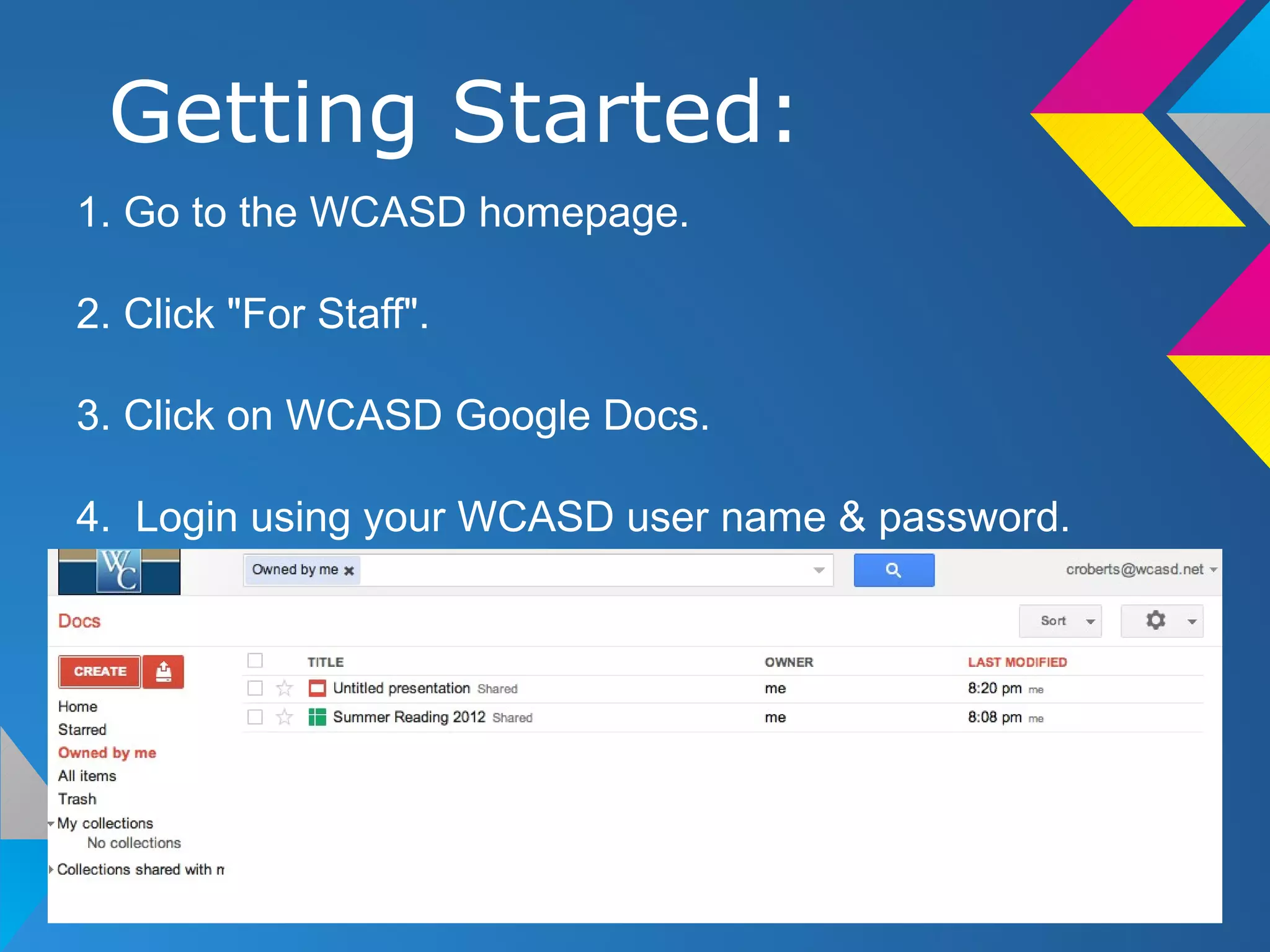
1. Go to the WCASD homepage.

2. Click "For Staff".

3. Click on WCASD Google Docs.

4. Login using your WCASD user name & password.
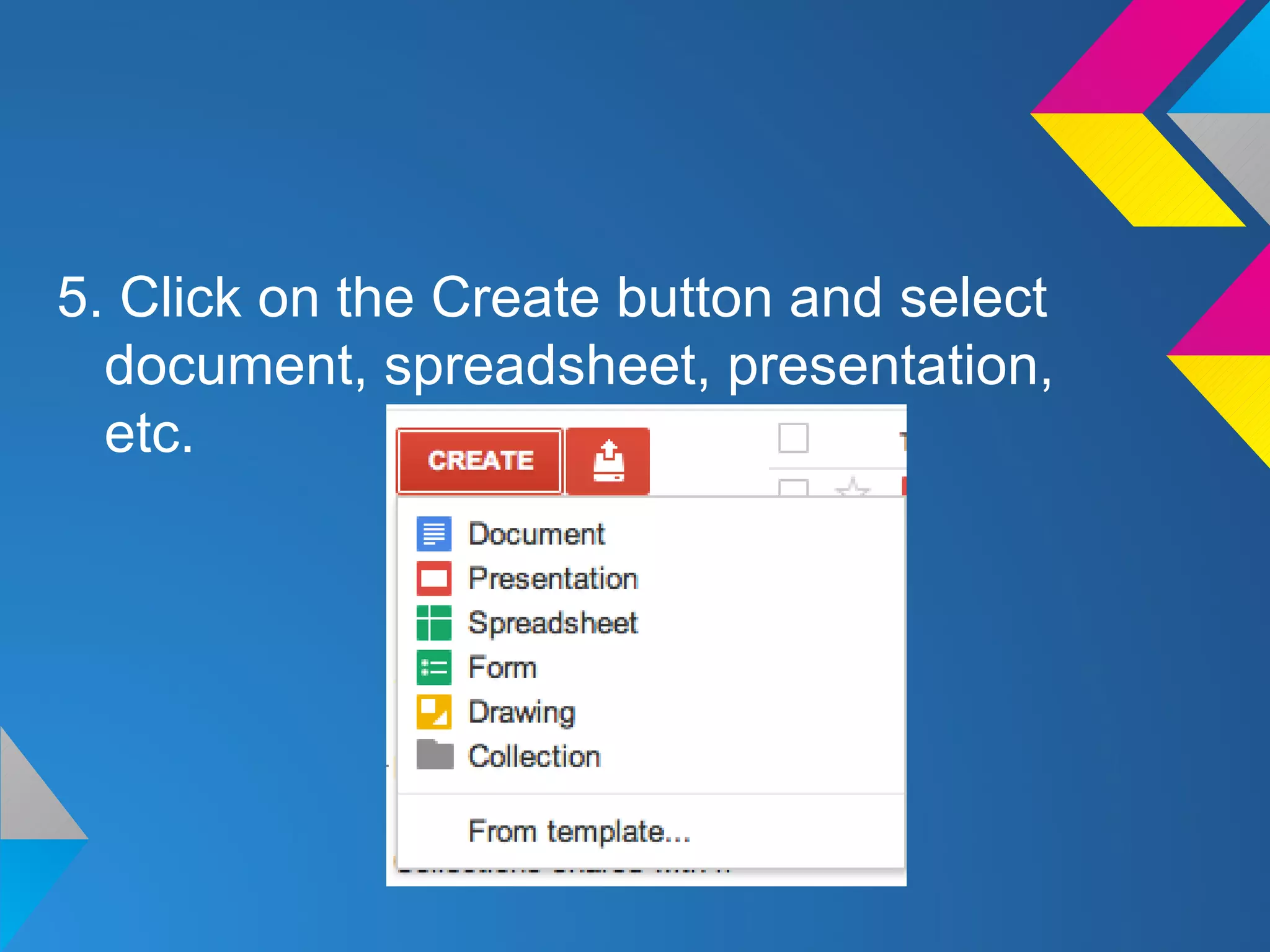
5. Click on the Create button and select
  document, spreadsheet, presentation,
  etc.
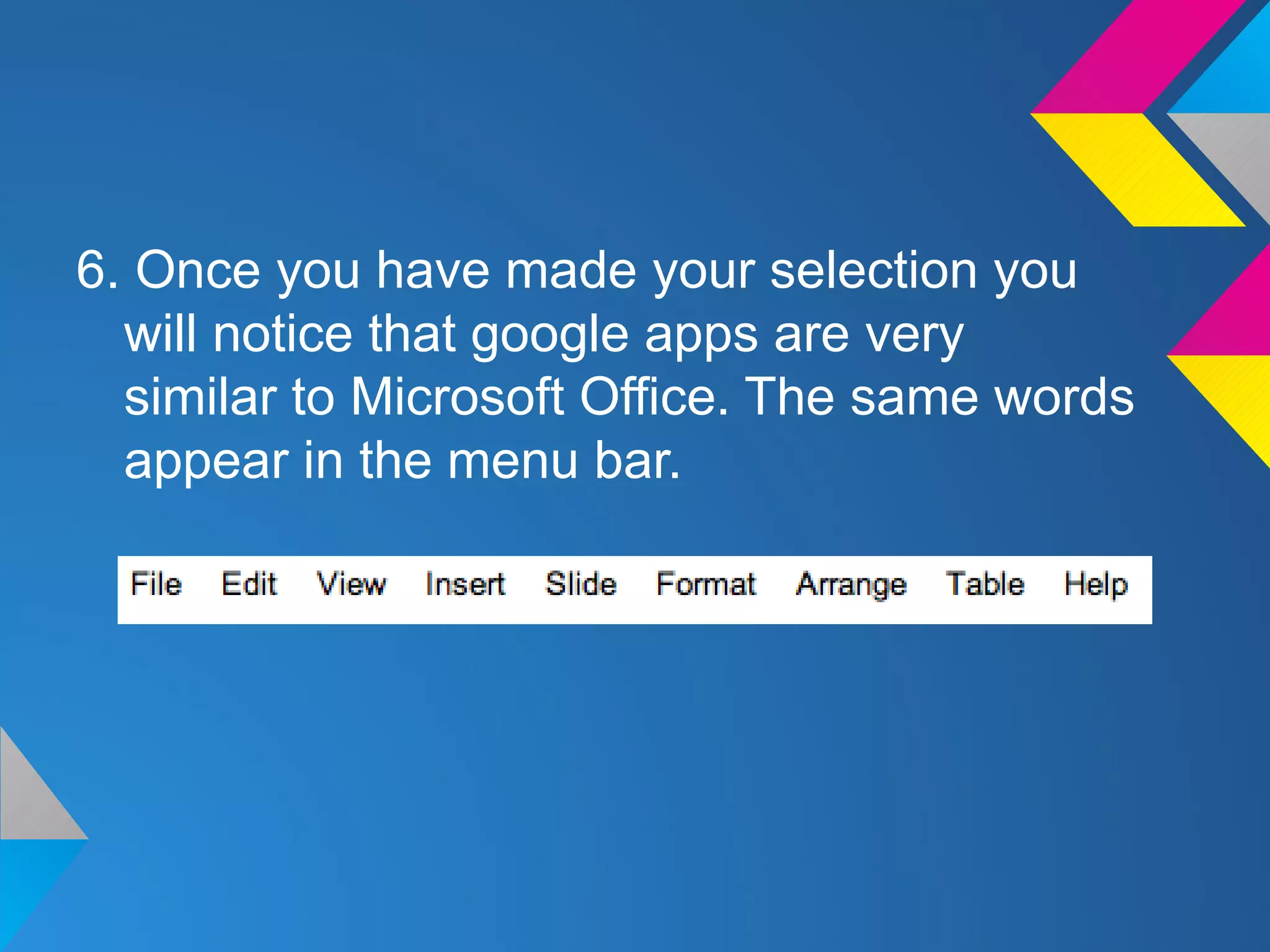
6. Once you have made your selection you
  will notice that google apps are very
  similar to Microsoft Office. The same words
  appear in the menu bar.
Collaborating:
To share your work with others click on the
  share button. It is in the upper right hand
  corner.
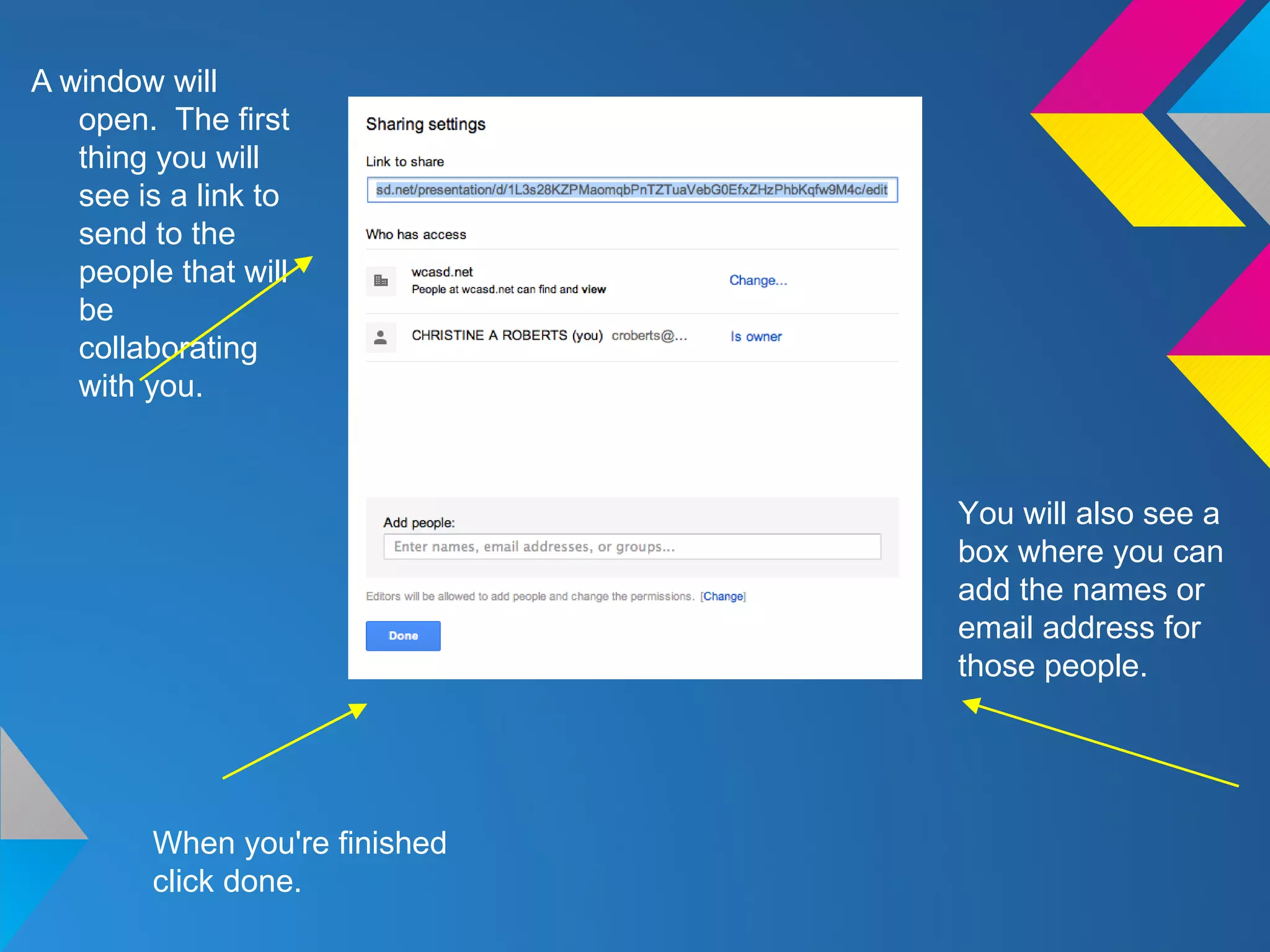
A window will
   open. The first
   thing you will
   see is a link to
   send to the
   people that will
   be
   collaborating
   with you.


                               You will also see a
                               box where you can
                               add the names or
                               email address for
                               those people.


        When you're finished
        click done.
Why Use Google Apps:
   Easy for groups to collaborate

   Plenty of storage space- no more running
   around with a flash key

   Ability to look back at older versions

   Automatically saves

   Equality and accountability - teacher can look back
and
   see who contributed & edited information

Using googleapps

  • 1.
  • 2.
    Getting Started: 1. Goto the WCASD homepage. 2. Click "For Staff". 3. Click on WCASD Google Docs. 4. Login using your WCASD user name & password.
  • 3.
    5. Click onthe Create button and select document, spreadsheet, presentation, etc.
  • 4.
    6. Once youhave made your selection you will notice that google apps are very similar to Microsoft Office. The same words appear in the menu bar.
  • 5.
    Collaborating: To share yourwork with others click on the share button. It is in the upper right hand corner.
  • 6.
    A window will open. The first thing you will see is a link to send to the people that will be collaborating with you. You will also see a box where you can add the names or email address for those people. When you're finished click done.
  • 7.
    Why Use GoogleApps: Easy for groups to collaborate Plenty of storage space- no more running around with a flash key Ability to look back at older versions Automatically saves Equality and accountability - teacher can look back and see who contributed & edited information