Why Dual Monitors?
You can immediately increase your efficiency by dumping the single monitor mentality
and begin running two monitors or, according to a University of Utah study, running 1
really big monitor. This study found that people who switch from a single 18-inch
monitor to two 20-inch monitors were up to 44 percent more productive at text-editing
operations. The study also found significant increases in efficiency when you use a
single screen which is at least 24-inches.
If you don’t believe us, read the study right here:
http://www.necdisplay.com/gowide/NEC_Productivity_Study_0208.pdf
MONITORS: Make it BIG or buy
TWO
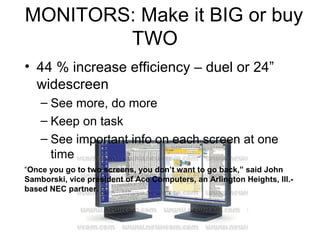
• 44 % increase efficiency – duel or 24”
widescreen
– See more, do more
– Keep on task
– See important info on each screen at one
time
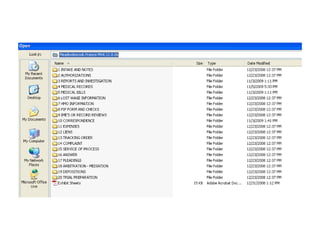
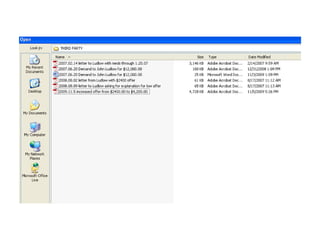
“Once you go to two screens, you don’t want to go back,” said John
Samborski, vice president of Ace Computers, an Arlington Heights, Ill.-
based NEC partner.
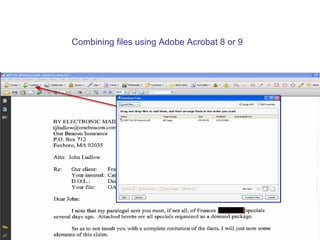
Combining files using Adobe Acrobat 8 or 9
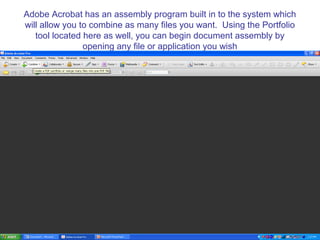
Adobe Acrobat has an assembly program built in to the system which
will allow you to combine as many files you want. Using the Portfolio
tool located here as well, you can begin document assembly by
opening any file or application you wish
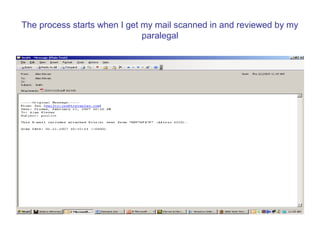
The process starts when I get my mail scanned in and reviewed by my
paralegal
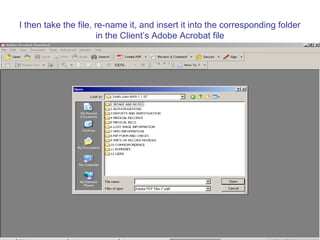
I then take the file, re-name it, and insert it into the corresponding folder
in the Client’s Adobe Acrobat file
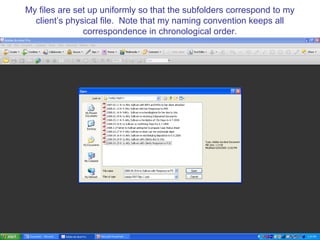
My files are set up uniformly so that the subfolders correspond to my
client’s physical file. Note that my naming convention keeps all
correspondence in chronological order.
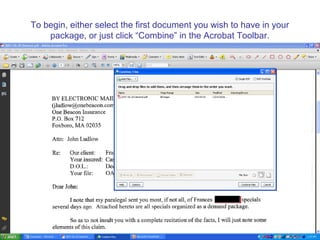
To begin, either select the first document you wish to have in your
package, or just click “Combine” in the Acrobat Toolbar.
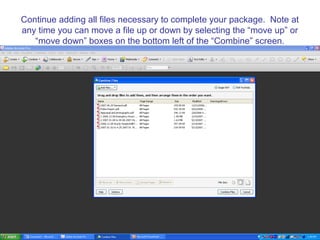
Continue adding all files necessary to complete your package. Note at
any time you can move a file up or down by selecting the “move up” or
“move down” boxes on the bottom left of the “Combine” screen.
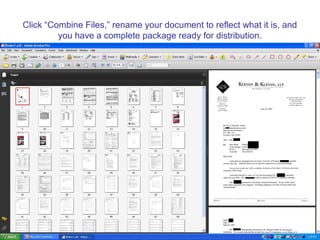
Click “Combine Files,” rename your document to reflect what it is, and
you have a complete package ready for distribution.
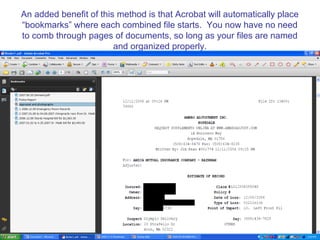
An added benefit of this method is that Acrobat will automatically place
“bookmarks” where each combined file starts. You now have no need
to comb through pages of documents, so long as your files are named
and organized properly.
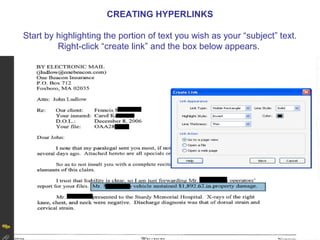
CREATING HYPERLINKS
Start by highlighting the portion of text you wish as your “subject” text.
Right-click “create link” and the box below appears.
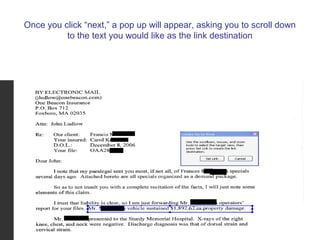
Once you click “next,” a pop up will appear, asking you to scroll down
to the text you would like as the link destination
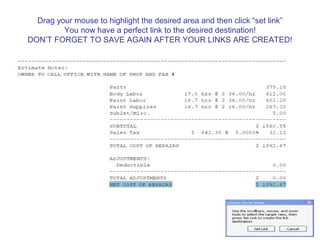
Drag your mouse to highlight the desired area and then click “set link”
You now have a perfect link to the desired destination!
DON’T FORGET TO SAVE AGAIN AFTER YOUR LINKS ARE CREATED!
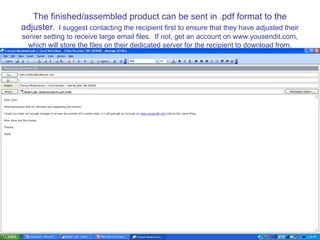
The finished/assembled product can be sent in .pdf format to the
adjuster. I suggest contacting the recipient first to ensure that they have adjusted their
server setting to receive large email files. If not, get an account on www.yousendit.com,
which will store the files on their dedicated server for the recipient to download from.
Encryption Made Easy With Acrobat
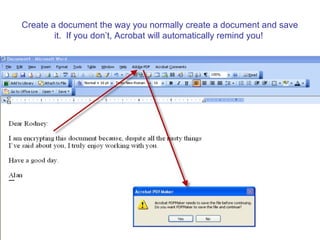
Create a document the way you normally create a document and save
it. If you don’t, Acrobat will automatically remind you!
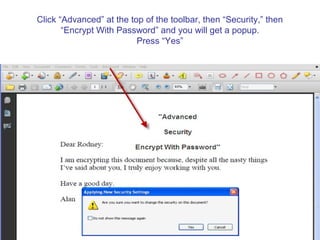
Click “Advanced” at the top of the toolbar, then “Security,” then
“Encrypt With Password” and you will get a popup.
Press “Yes”
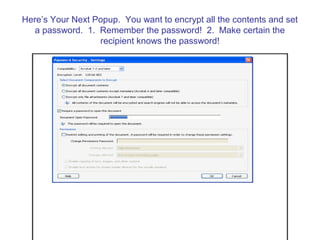
Here’s Your Next Popup. You want to encrypt all the contents and set
a password. 1. Remember the password! 2. Make certain the
recipient knows the password!
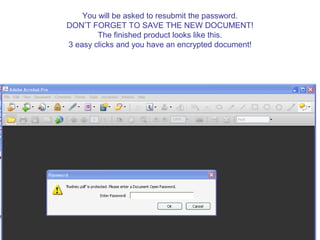
You will be asked to resubmit the password.
DON’T FORGET TO SAVE THE NEW DOCUMENT!
The finished product looks like this.
3 easy clicks and you have an encrypted document!
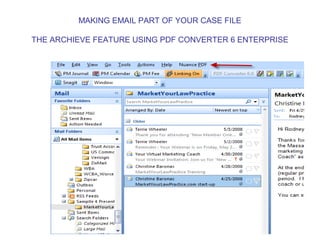
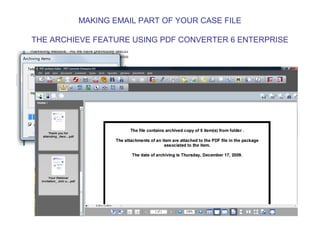
MAKING EMAIL PART OF YOUR CASE FILE
THE ARCHIEVE FEATURE USING PDF CONVERTER 6 ENTERPRISE
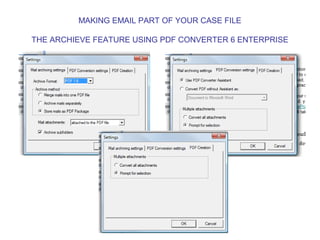
MAKING EMAIL PART OF YOUR CASE FILE
THE ARCHIEVE FEATURE USING PDF CONVERTER 6 ENTERPRISE
MAKING EMAIL PART OF YOUR CASE FILE
THE ARCHIEVE FEATURE USING PDF CONVERTER 6 ENTERPRISE
Law Practice Strategies
“Think Outside the Box”
Alan J. Klevan, Esquire
1 Hollis Street, Suite 243
Wellesley, MA 02482
Tel – (781) 237-4700
Fax – (781) 235-0407
alan@lawpracticestrategies.com
www.lawpracticestrategies.com
www.twitter.com/Alan Klevan
35
Your law practice advisor.
CONTACT INFORMATION
Rodney S. Dowell, Director
Jared D. Correia, Esq., LPA
31 Milk Street, Suite 815
Boston, MA 02109
857-383-3250 (local line)
888-545-6627 (toll free)
rodney@masslomap.org
jared@masslomap.org
www.masslomap.org
http://masslomap.blogspot.com/
www.twitter.com/rodneydowell
www.twitter.com/jaredcorreia
Follow LOMAP AT:

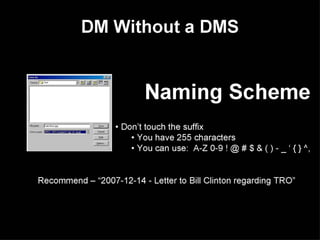
2009 Paperless office presentation featuring naming conventions and file creation

  • 5.
    Why Dual Monitors? Youcan immediately increase your efficiency by dumping the single monitor mentality and begin running two monitors or, according to a University of Utah study, running 1 really big monitor. This study found that people who switch from a single 18-inch monitor to two 20-inch monitors were up to 44 percent more productive at text-editing operations. The study also found significant increases in efficiency when you use a single screen which is at least 24-inches. If you don’t believe us, read the study right here: http://www.necdisplay.com/gowide/NEC_Productivity_Study_0208.pdf
  • 6.
    MONITORS: Make itBIG or buy TWO • 44 % increase efficiency – duel or 24” widescreen – See more, do more – Keep on task – See important info on each screen at one time “Once you go to two screens, you don’t want to go back,” said John Samborski, vice president of Ace Computers, an Arlington Heights, Ill.- based NEC partner.
  • 13.
    Combining files usingAdobe Acrobat 8 or 9
  • 14.
    Adobe Acrobat hasan assembly program built in to the system which will allow you to combine as many files you want. Using the Portfolio tool located here as well, you can begin document assembly by opening any file or application you wish
  • 15.
    The process startswhen I get my mail scanned in and reviewed by my paralegal
  • 16.
    I then takethe file, re-name it, and insert it into the corresponding folder in the Client’s Adobe Acrobat file
  • 17.
    My files areset up uniformly so that the subfolders correspond to my client’s physical file. Note that my naming convention keeps all correspondence in chronological order.
  • 18.
    To begin, eitherselect the first document you wish to have in your package, or just click “Combine” in the Acrobat Toolbar.
  • 19.
    Continue adding allfiles necessary to complete your package. Note at any time you can move a file up or down by selecting the “move up” or “move down” boxes on the bottom left of the “Combine” screen.
  • 20.
    Click “Combine Files,”rename your document to reflect what it is, and you have a complete package ready for distribution.
  • 21.
    An added benefitof this method is that Acrobat will automatically place “bookmarks” where each combined file starts. You now have no need to comb through pages of documents, so long as your files are named and organized properly.
  • 22.
    CREATING HYPERLINKS Start byhighlighting the portion of text you wish as your “subject” text. Right-click “create link” and the box below appears.
  • 23.
    Once you click“next,” a pop up will appear, asking you to scroll down to the text you would like as the link destination
  • 24.
    Drag your mouseto highlight the desired area and then click “set link” You now have a perfect link to the desired destination! DON’T FORGET TO SAVE AGAIN AFTER YOUR LINKS ARE CREATED!
  • 25.
    The finished/assembled productcan be sent in .pdf format to the adjuster. I suggest contacting the recipient first to ensure that they have adjusted their server setting to receive large email files. If not, get an account on www.yousendit.com, which will store the files on their dedicated server for the recipient to download from.
  • 26.
  • 27.
    Create a documentthe way you normally create a document and save it. If you don’t, Acrobat will automatically remind you!
  • 28.
    Click “Advanced” atthe top of the toolbar, then “Security,” then “Encrypt With Password” and you will get a popup. Press “Yes”
  • 29.
    Here’s Your NextPopup. You want to encrypt all the contents and set a password. 1. Remember the password! 2. Make certain the recipient knows the password!
  • 30.
    You will beasked to resubmit the password. DON’T FORGET TO SAVE THE NEW DOCUMENT! The finished product looks like this. 3 easy clicks and you have an encrypted document!
  • 31.
    MAKING EMAIL PARTOF YOUR CASE FILE THE ARCHIEVE FEATURE USING PDF CONVERTER 6 ENTERPRISE
  • 32.
    MAKING EMAIL PARTOF YOUR CASE FILE THE ARCHIEVE FEATURE USING PDF CONVERTER 6 ENTERPRISE
  • 33.
    MAKING EMAIL PARTOF YOUR CASE FILE THE ARCHIEVE FEATURE USING PDF CONVERTER 6 ENTERPRISE
  • 34.
    Law Practice Strategies “ThinkOutside the Box” Alan J. Klevan, Esquire 1 Hollis Street, Suite 243 Wellesley, MA 02482 Tel – (781) 237-4700 Fax – (781) 235-0407 alan@lawpracticestrategies.com www.lawpracticestrategies.com www.twitter.com/Alan Klevan
  • 35.
    35 Your law practiceadvisor. CONTACT INFORMATION Rodney S. Dowell, Director Jared D. Correia, Esq., LPA 31 Milk Street, Suite 815 Boston, MA 02109 857-383-3250 (local line) 888-545-6627 (toll free) rodney@masslomap.org jared@masslomap.org www.masslomap.org http://masslomap.blogspot.com/ www.twitter.com/rodneydowell www.twitter.com/jaredcorreia Follow LOMAP AT:

Editor's Notes

  • #6 Alan
  • #7 Boss, I Need a Bigger Screen. For Work Efficiency, of Course. STUDY SAID By FARHAD MANJOO Published: January 14, 2009 : cites NEC study at University of Utah
  • #11 ISO/TS standard (International Organization for Standardization)
  • #36 -Call Us!!! We shall help!!!