ORD for Beginners Presented by Katheryn A. Woodworth At Evesham Library
What is Word? A Microsoft Office program. Used for word processing.  Like a type-writer, only mistakes can be easily fixed. Pages can be saved for later or printed out.  Easy to work on a little at a time.
What kind of file does Word make? Word makes documents. The file extension is “ .doc ”. .doc comes after the name of the file. It lets the user know that the file is a document. Example:  myresume.doc
What can be a document? Letters (personal or business) Resumes Reports Term papers Memos Faxes And more!
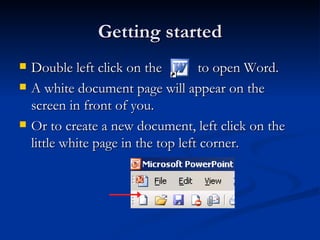
Getting started Double left click on the  to open Word. A white document page will appear on the screen in front of you. Or to create a new document, left click on the little white page in the top left corner.
Your Document You will have a large, blank page on the screen. Type your document, or Copy your information then paste it onto your page (document).
Copy & Paste: Copy Use your mouse to copy your text. Left click at the beginning of the text. Hold the left mouse button down. Drag to highlight the text. When it is all highlighted, let go of the mouse button.
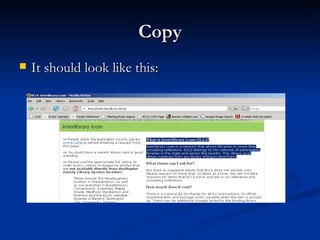
Copy It should look like this:
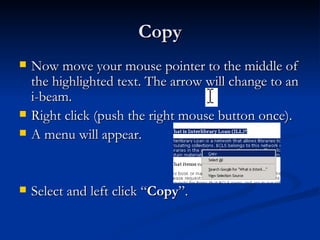
Copy Now move your mouse pointer to the middle of the highlighted text. The arrow will change to an i-beam. Right click (push the right mouse button once). A menu will appear. Select and left click “ Copy ”.
Copy & Paste: Paste Go back to your Word document. Right click on the page to show the little grey menu. Choose and left click on “ Paste ”. You can now edit your text as you wish.
Save ALWAYS save as you go.  Never wait until you are finished. If the computer crashes or shuts off before you have saved, you will lose all of the work you have done.
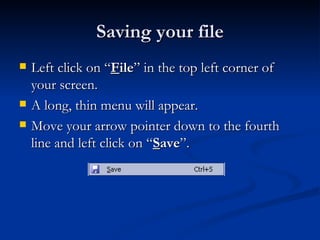
Saving your file Left click on “ F ile ” in the top left corner of your screen. A long, thin menu will appear. Move your arrow pointer down to the fourth line and left click on “ S ave ”.
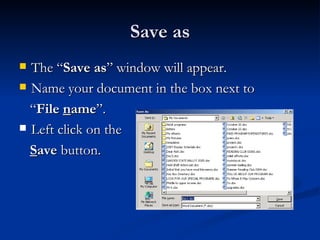
Save as The “ Save as ” window will appear. Name your document in the box next to “ File  n ame ”. Left click on the  S ave  button.
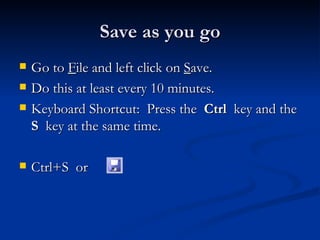
Save as you go Go to  F ile and left click on  S ave. Do this at least every 10 minutes. Keyboard Shortcut:  Press the  Ctrl   key and the  S   key at the same time. Ctrl+S  or
Opening a Word File You can open a Word document you created at another time. You can make more changes to an older file. You can save the changes in the document. Or you can save the document with a new name to create a new, separate file from the one you opened.
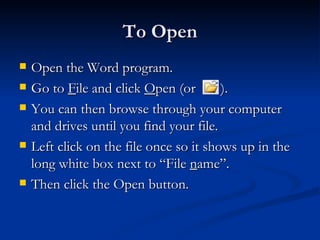
To Open Open the Word program. Go to  F ile and click  O pen (or  ). You can then browse through your computer and drives until you find your file.  Left click on the file once so it shows up in the long white box next to “File  n ame”.  Then click the Open button.
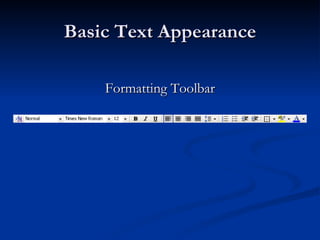
Basic Text Appearance Formatting Toolbar
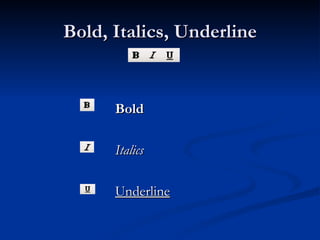
Bold, Italics, Underline Bold Italics Underline
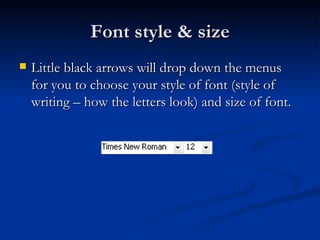
Font style & size Little black arrows will drop down the menus for you to choose your style of font (style of writing – how the letters look) and size of font.
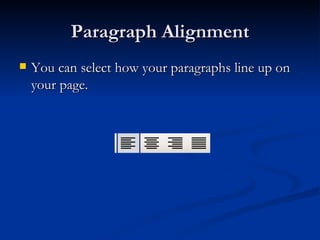
Paragraph Alignment You can select how your paragraphs line up on your page.
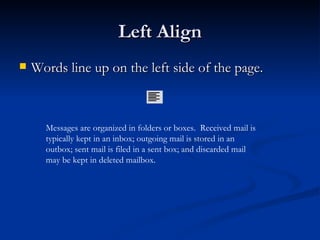
Left Align Words line up on the left side of the page. Messages are organized in folders or boxes.  Received mail is typically kept in an inbox; outgoing mail is stored in an outbox; sent mail is filed in a sent box; and discarded mail may be kept in deleted mailbox.
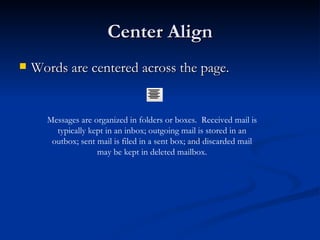
Center Align Words are centered across the page. Messages are organized in folders or boxes.  Received mail is typically kept in an inbox; outgoing mail is stored in an outbox; sent mail is filed in a sent box; and discarded mail may be kept in deleted mailbox.
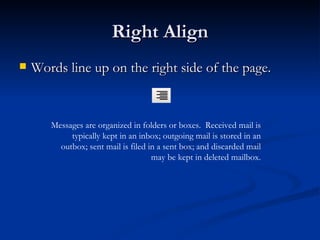
Right Align Words line up on the right side of the page. Messages are organized in folders or boxes.  Received mail is typically kept in an inbox; outgoing mail is stored in an outbox; sent mail is filed in a sent box; and discarded mail may be kept in deleted mailbox.
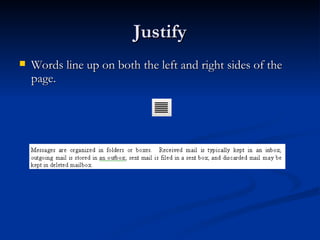
Justify Words line up on both the left and right sides of the page.
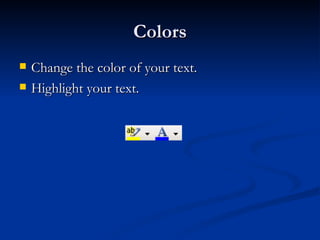
Colors Change the color of your text. Highlight your text.
Changing text To apply any of the previous formatting, you must first select what you want to change. Left click on the page where you want your changes and begin to type or delete/backspace to remove what you typed. Highlight words or paragraphs to apply formatting to the whole thing.
Delete/Backspace They both remove letters, words, and paragraphs. Backspace is for when letters are to the left of the blinking line (cursor). Delete is for when letters are to the right of the blinking cursor. To remove a whole word or paragraph: Highlight it.  Then hit the delete key.
Further Exploration Books Help inside Word Online tutorials Free Quick Reference Source Suggested Purchase
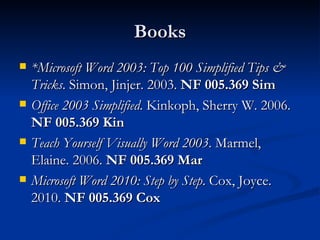
Books *Microsoft Word 2003: Top 100 Simplified Tips & Tricks . Simon, Jinjer. 2003.  NF 005.369 Sim Office 2003 Simplified . Kinkoph, Sherry W. 2006.  NF 005.369 Kin Teach Yourself Visually Word 2003 . Marmel, Elaine. 2006.  NF 005.369 Mar Microsoft Word 2010: Step by Step . Cox, Joyce. 2010.  NF 005.369 Cox
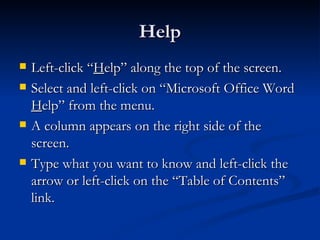
Help Left-click “ H elp” along the top of the screen. Select and left-click on “Microsoft Office Word  H elp” from the menu. A column appears on the right side of the screen. Type what you want to know and left-click the arrow or left-click on the “Table of Contents” link.
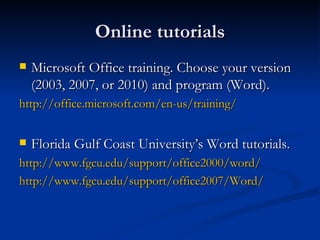
Online tutorials Microsoft Office training. Choose your version (2003, 2007, or 2010) and program (Word). http://office.microsoft.com/en-us/training/ Florida Gulf Coast University’s Word tutorials. http://www.fgcu.edu/support/office2000/word/ http://www.fgcu.edu/support/office2007/Word/
Free Quick Reference Source Free Quick Reference Cards. Cheat sheets for Word 2003, 2007, 2010 available to download and print. http://gr.customguide.com/quick_references.htm
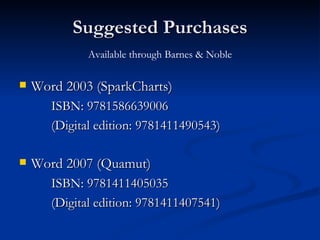
Suggested Purchases Word 2003 (SparkCharts) ISBN: 9781586639006 (Digital edition: 9781411490543) Word 2007 (Quamut) ISBN: 9781411405035 (Digital edition: 9781411407541) Available through Barnes & Noble

Word for Beginners

  • 1.
    ORD for BeginnersPresented by Katheryn A. Woodworth At Evesham Library
  • 2.
    What is Word?A Microsoft Office program. Used for word processing. Like a type-writer, only mistakes can be easily fixed. Pages can be saved for later or printed out. Easy to work on a little at a time.
  • 3.
    What kind offile does Word make? Word makes documents. The file extension is “ .doc ”. .doc comes after the name of the file. It lets the user know that the file is a document. Example: myresume.doc
  • 4.
    What can bea document? Letters (personal or business) Resumes Reports Term papers Memos Faxes And more!
  • 5.
    Getting started Doubleleft click on the to open Word. A white document page will appear on the screen in front of you. Or to create a new document, left click on the little white page in the top left corner.
  • 6.
    Your Document Youwill have a large, blank page on the screen. Type your document, or Copy your information then paste it onto your page (document).
  • 7.
    Copy & Paste:Copy Use your mouse to copy your text. Left click at the beginning of the text. Hold the left mouse button down. Drag to highlight the text. When it is all highlighted, let go of the mouse button.
  • 8.
    Copy It shouldlook like this:
  • 9.
    Copy Now moveyour mouse pointer to the middle of the highlighted text. The arrow will change to an i-beam. Right click (push the right mouse button once). A menu will appear. Select and left click “ Copy ”.
  • 10.
    Copy & Paste:Paste Go back to your Word document. Right click on the page to show the little grey menu. Choose and left click on “ Paste ”. You can now edit your text as you wish.
  • 11.
    Save ALWAYS saveas you go. Never wait until you are finished. If the computer crashes or shuts off before you have saved, you will lose all of the work you have done.
  • 12.
    Saving your fileLeft click on “ F ile ” in the top left corner of your screen. A long, thin menu will appear. Move your arrow pointer down to the fourth line and left click on “ S ave ”.
  • 13.
    Save as The“ Save as ” window will appear. Name your document in the box next to “ File n ame ”. Left click on the S ave button.
  • 14.
    Save as yougo Go to F ile and left click on S ave. Do this at least every 10 minutes. Keyboard Shortcut: Press the Ctrl key and the S key at the same time. Ctrl+S or
  • 15.
    Opening a WordFile You can open a Word document you created at another time. You can make more changes to an older file. You can save the changes in the document. Or you can save the document with a new name to create a new, separate file from the one you opened.
  • 16.
    To Open Openthe Word program. Go to F ile and click O pen (or ). You can then browse through your computer and drives until you find your file. Left click on the file once so it shows up in the long white box next to “File n ame”. Then click the Open button.
  • 17.
    Basic Text AppearanceFormatting Toolbar
  • 18.
    Bold, Italics, UnderlineBold Italics Underline
  • 19.
    Font style &size Little black arrows will drop down the menus for you to choose your style of font (style of writing – how the letters look) and size of font.
  • 20.
    Paragraph Alignment Youcan select how your paragraphs line up on your page.
  • 21.
    Left Align Wordsline up on the left side of the page. Messages are organized in folders or boxes. Received mail is typically kept in an inbox; outgoing mail is stored in an outbox; sent mail is filed in a sent box; and discarded mail may be kept in deleted mailbox.
  • 22.
    Center Align Wordsare centered across the page. Messages are organized in folders or boxes. Received mail is typically kept in an inbox; outgoing mail is stored in an outbox; sent mail is filed in a sent box; and discarded mail may be kept in deleted mailbox.
  • 23.
    Right Align Wordsline up on the right side of the page. Messages are organized in folders or boxes. Received mail is typically kept in an inbox; outgoing mail is stored in an outbox; sent mail is filed in a sent box; and discarded mail may be kept in deleted mailbox.
  • 24.
    Justify Words lineup on both the left and right sides of the page.
  • 25.
    Colors Change thecolor of your text. Highlight your text.
  • 26.
    Changing text Toapply any of the previous formatting, you must first select what you want to change. Left click on the page where you want your changes and begin to type or delete/backspace to remove what you typed. Highlight words or paragraphs to apply formatting to the whole thing.
  • 27.
    Delete/Backspace They bothremove letters, words, and paragraphs. Backspace is for when letters are to the left of the blinking line (cursor). Delete is for when letters are to the right of the blinking cursor. To remove a whole word or paragraph: Highlight it. Then hit the delete key.
  • 28.
    Further Exploration BooksHelp inside Word Online tutorials Free Quick Reference Source Suggested Purchase
  • 29.
    Books *Microsoft Word2003: Top 100 Simplified Tips & Tricks . Simon, Jinjer. 2003. NF 005.369 Sim Office 2003 Simplified . Kinkoph, Sherry W. 2006. NF 005.369 Kin Teach Yourself Visually Word 2003 . Marmel, Elaine. 2006. NF 005.369 Mar Microsoft Word 2010: Step by Step . Cox, Joyce. 2010. NF 005.369 Cox
  • 30.
    Help Left-click “H elp” along the top of the screen. Select and left-click on “Microsoft Office Word H elp” from the menu. A column appears on the right side of the screen. Type what you want to know and left-click the arrow or left-click on the “Table of Contents” link.
  • 31.
    Online tutorials MicrosoftOffice training. Choose your version (2003, 2007, or 2010) and program (Word). http://office.microsoft.com/en-us/training/ Florida Gulf Coast University’s Word tutorials. http://www.fgcu.edu/support/office2000/word/ http://www.fgcu.edu/support/office2007/Word/
  • 32.
    Free Quick ReferenceSource Free Quick Reference Cards. Cheat sheets for Word 2003, 2007, 2010 available to download and print. http://gr.customguide.com/quick_references.htm
  • 33.
    Suggested Purchases Word2003 (SparkCharts) ISBN: 9781586639006 (Digital edition: 9781411490543) Word 2007 (Quamut) ISBN: 9781411405035 (Digital edition: 9781411407541) Available through Barnes & Noble