Dr Helen Dixon
Information Services
https://www.linkedin.com/in/drhelendixon
for beginners
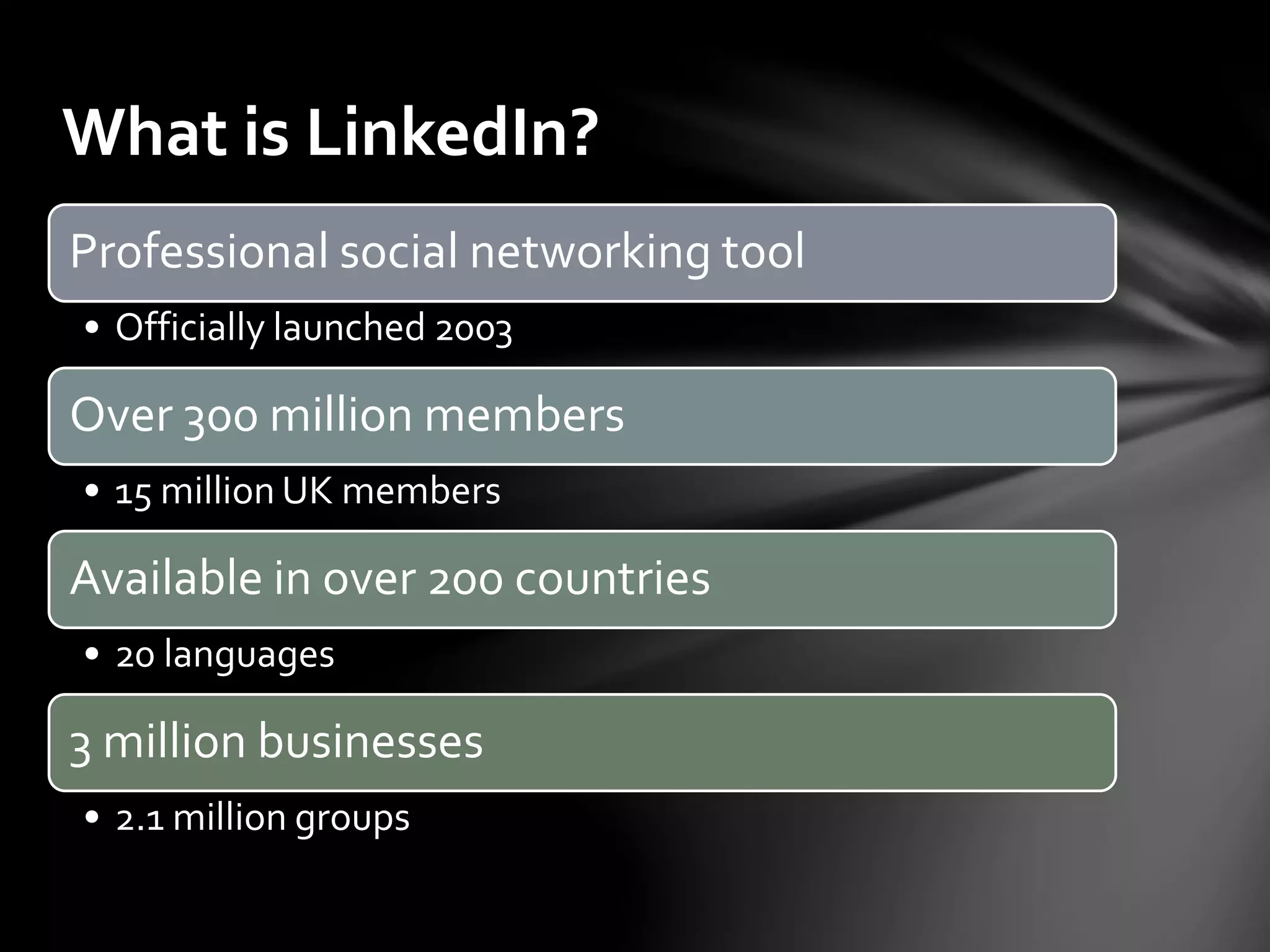
What is LinkedIn?
• Officially launched 2003Professional social
networking tool
• 19 million UK membersOver 300 million
members
• 24 languagesAvailable in over
200 countries
• 2.1 million groups4 million
businesses
Why would I want to use it?
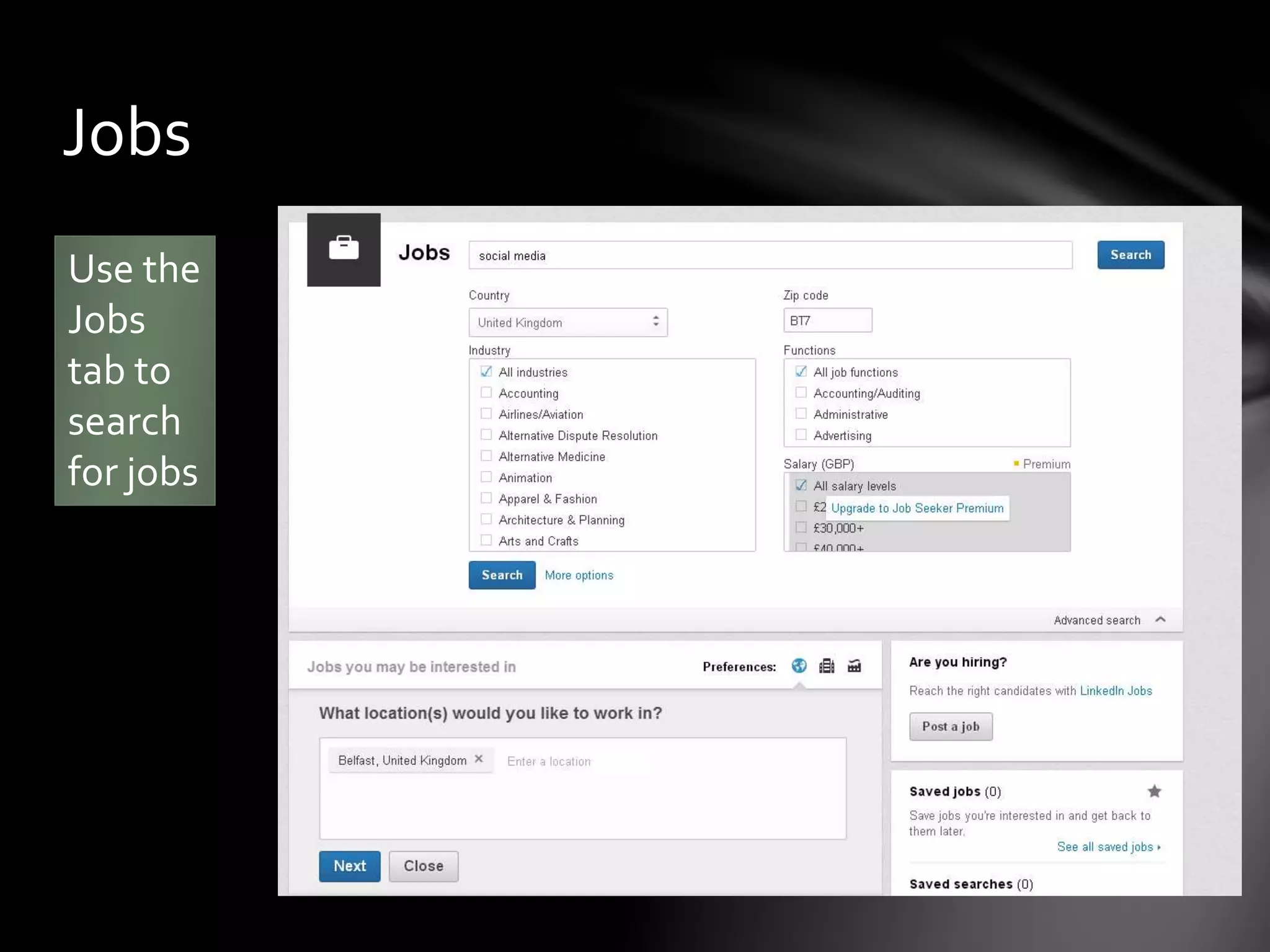
To find a new job
To stay in touch with past colleagues
To research companies/industries
To network with other professionals
To collaborate on projects
To introduce students to networking
To enhance your online profile
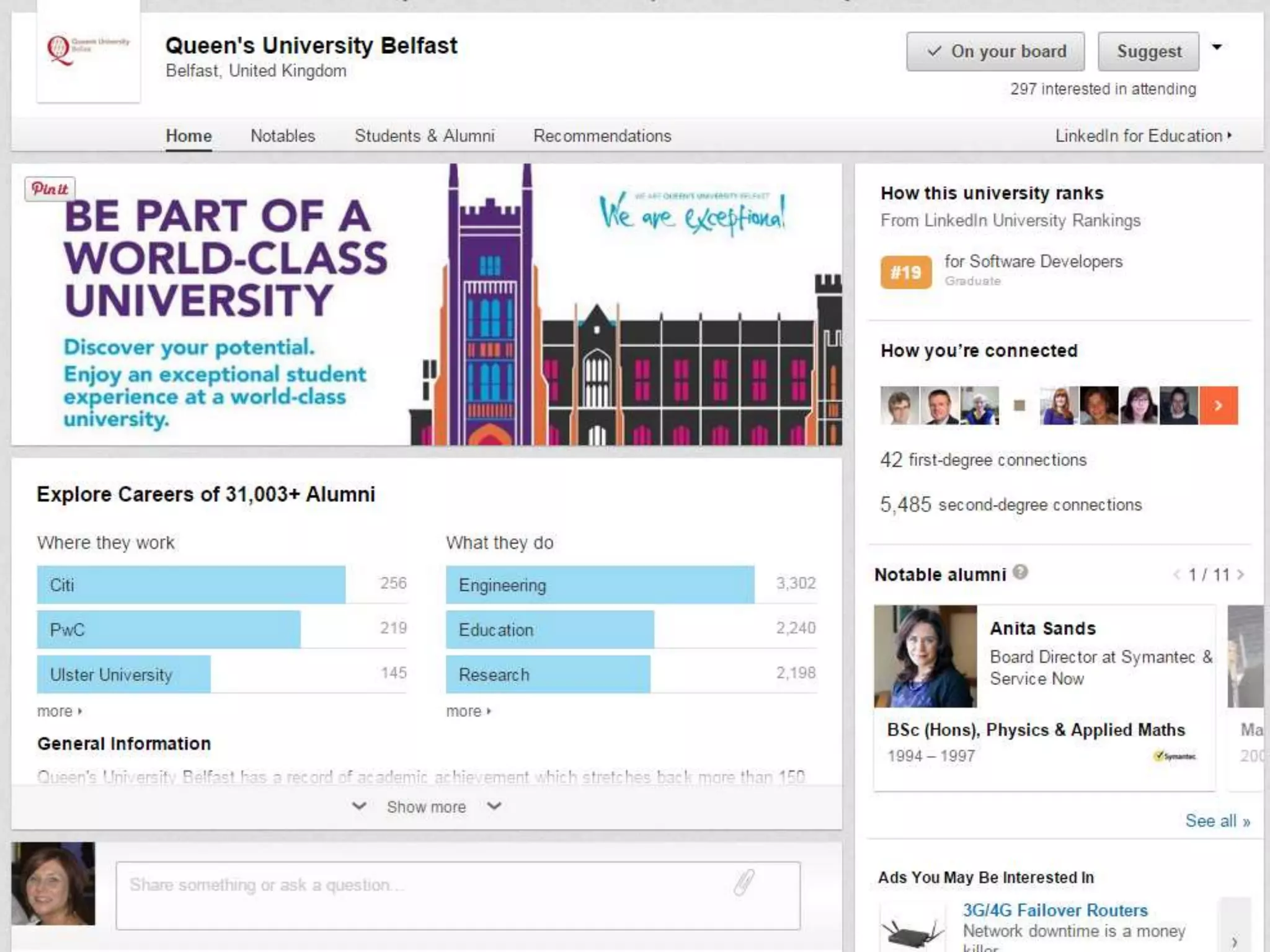
Queen’s University on LinkedIn
How can LinkedIn benefit
Queen’s?
Acquire new students
Recruit new staff
Analyse competitors
Increase our profile
University Rankings
https://www.linkedin.com/edu/rankings/gb?trk=edu-rankings-flt-country-dd
University Finder
https://www.linkedin.com/edu/university-finder?trk=edu-hp-nav-finder
Getting started
Sign up at LinkedIn.com
Free version is sufficient for
most users
Can link to your Twitter and
SlideShare account
Can add email contacts
• Caution – LinkedIn may use your contacts to send
connection requests!
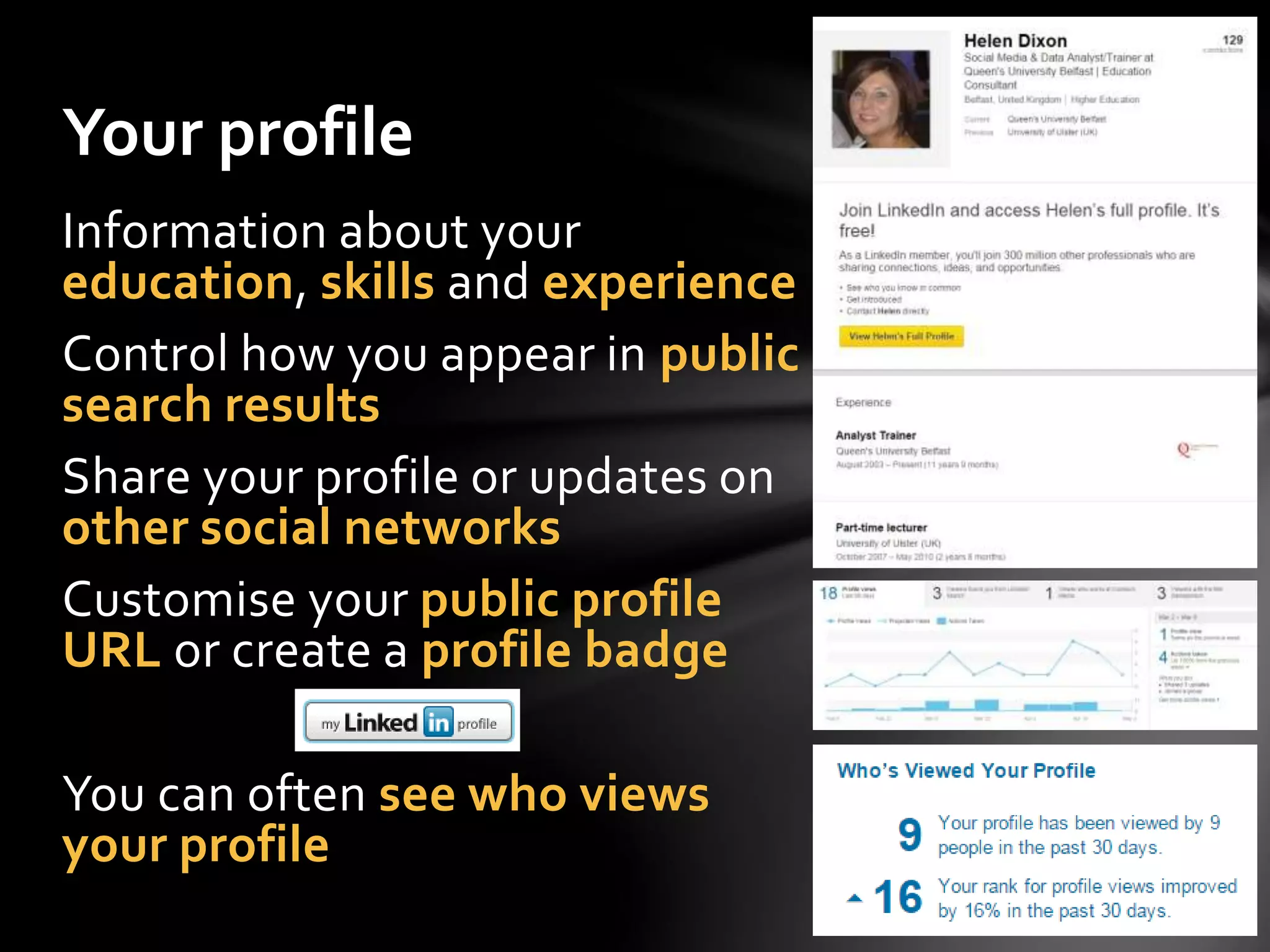
Your profile
Information about
your education, skills
and experience
Can control how you
appear in public search
results
Your profile
Can share your profile or updates on other
social networks
Can customise your public profile URL or
create a button
You can often see who views your profile
What should you include?
Include as much relevant detail as possible
◦ Industry and postal code
◦ A summary
◦ Where you have studied/worked
◦ Education - qualifications and expertise
◦ Current position with description
◦ An appropriate profile photo
◦ Previous positions if relevant
◦ At least five skills
◦ Publications or projects – can add files or links
◦ Volunteer experience
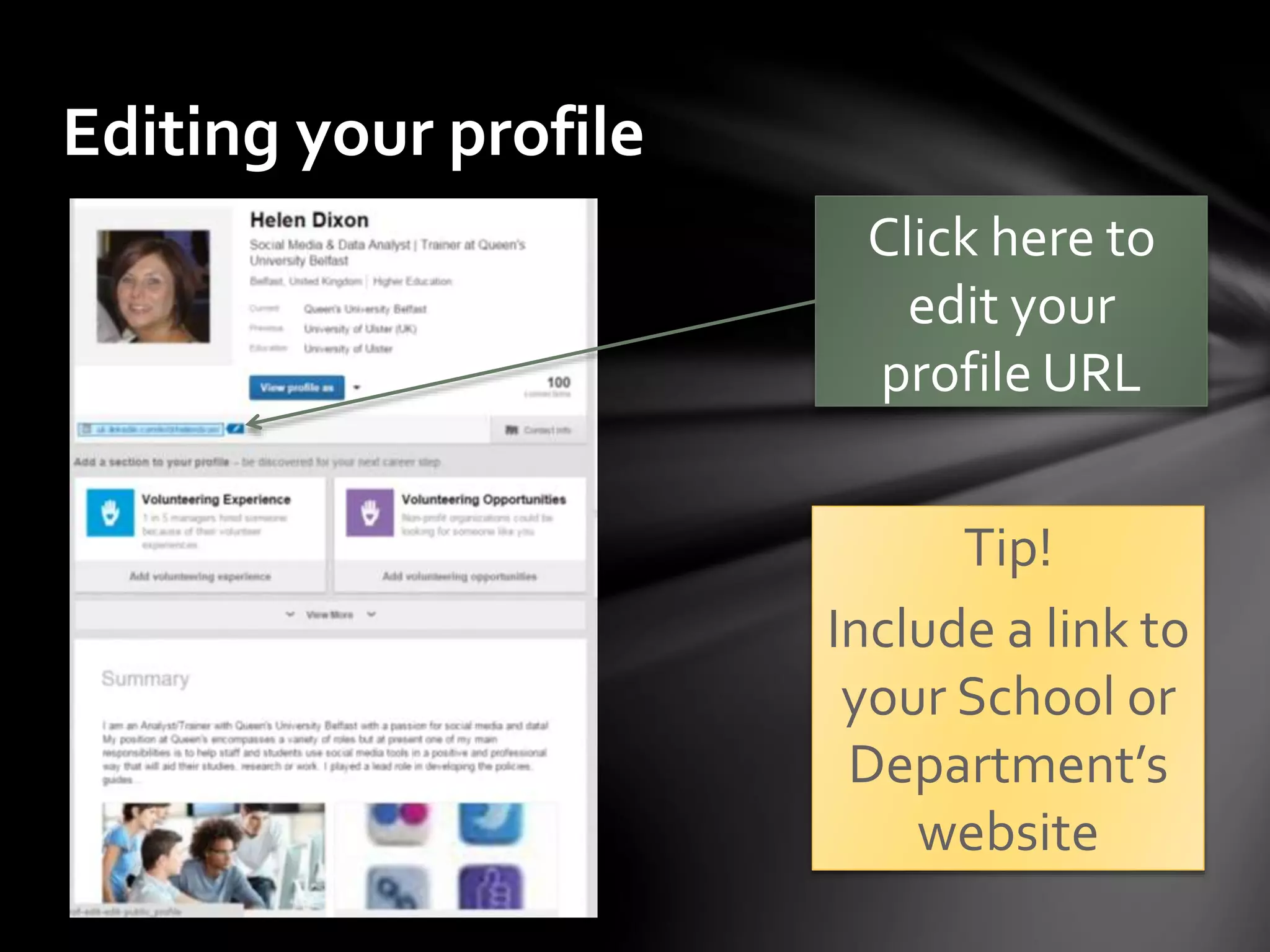
Editing your profile
Click here to
edit your
profile URL
Add details of
voluntary work
or awards
Editing your profile
You can include
a link to a
website or
upload a file to
your Summary
Adding a project
Add details
of any
projects you
have been
involved in –
you can tag
other Team
Members
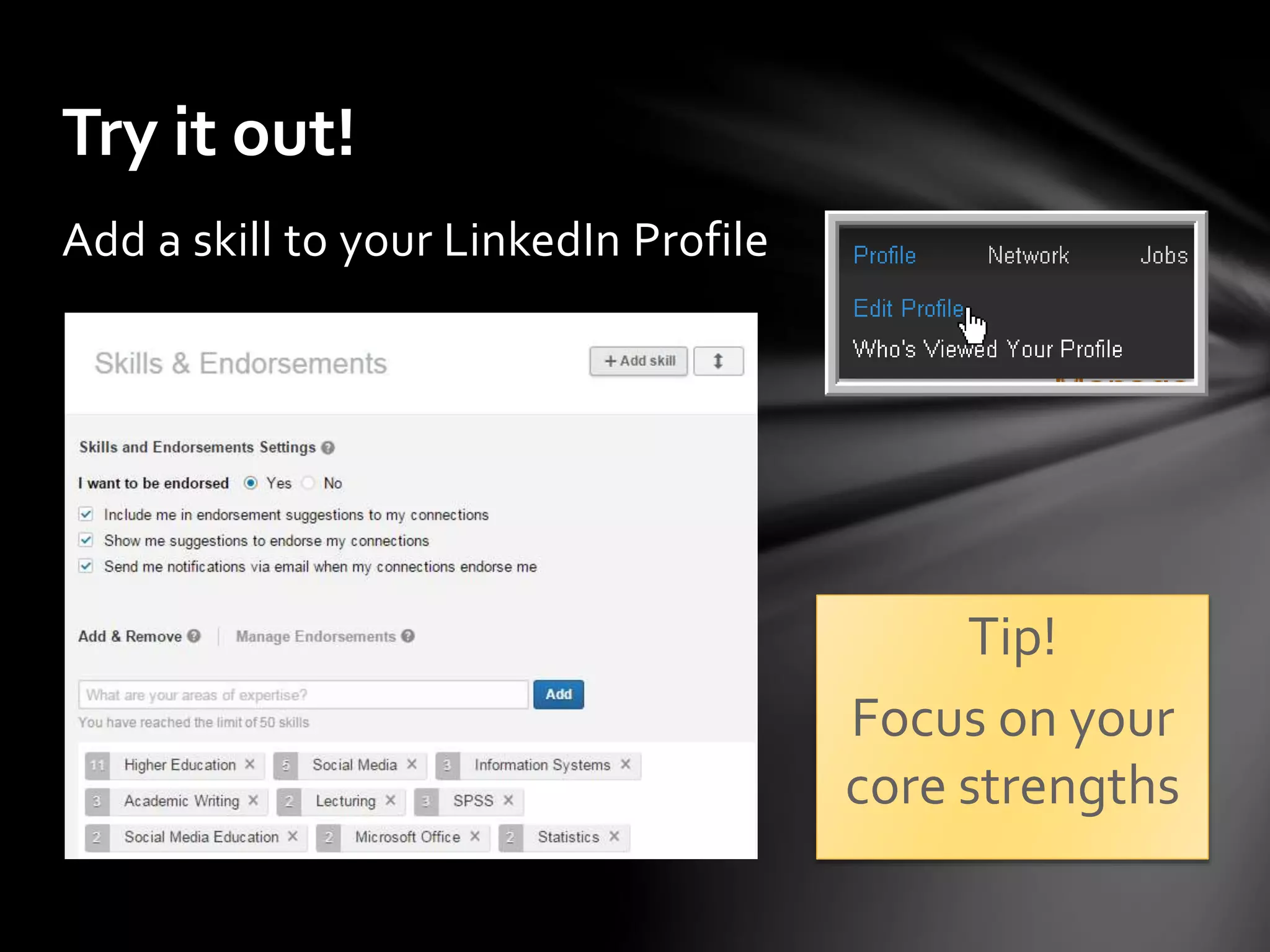
Adding skills
Tip!
Focus on
your core
strengths
Who’s viewed your profile?
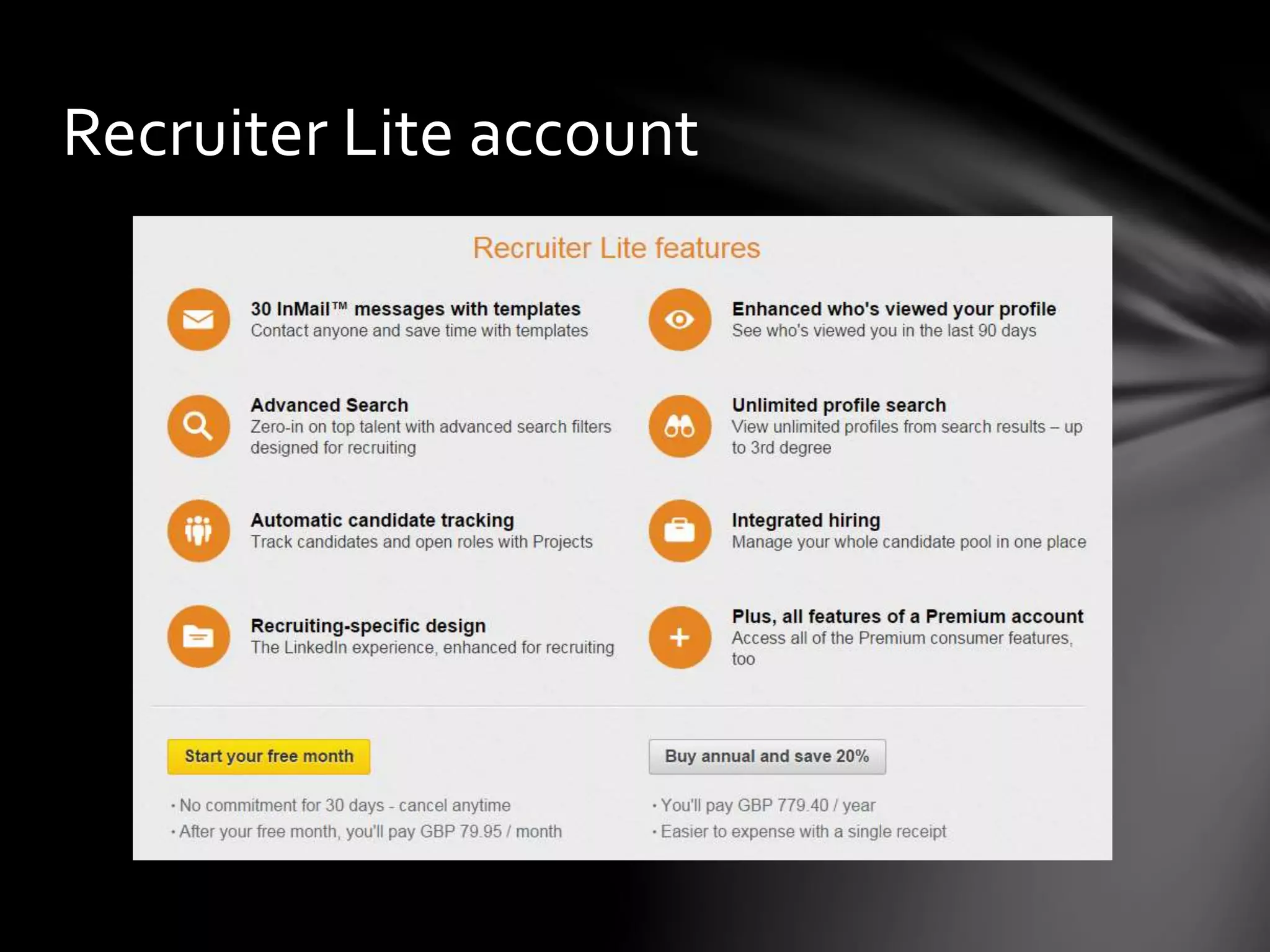
Select the Who’s Viewed Your Profile option from
the Profile menu to see a summary of your profile
views and the people who have checked you out
Making connections
Start by searching for colleagues/project
partners
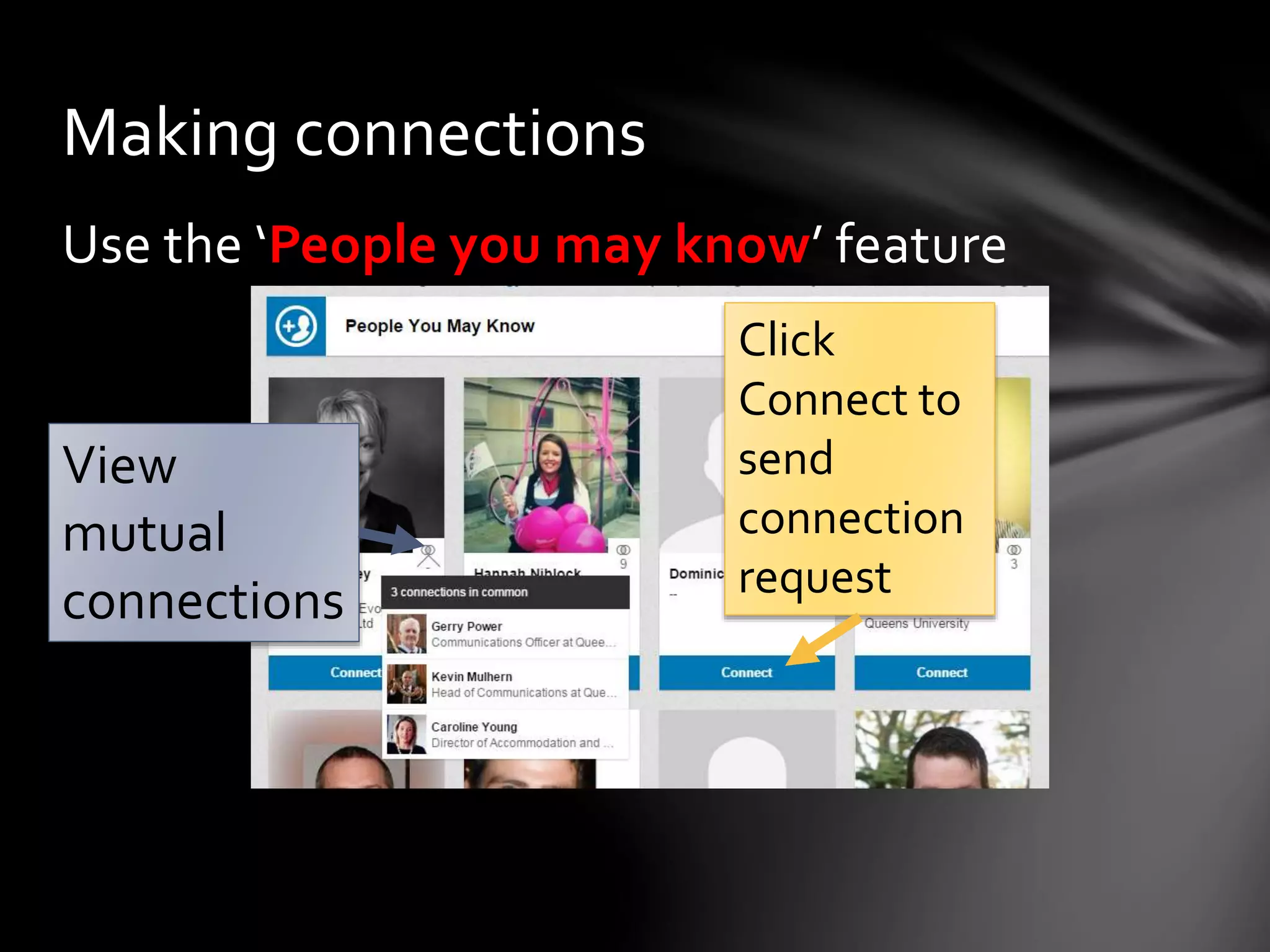
Use the ‘People you may know’ feature
Can upload your contacts list (use with care!)
◦ LinkedIn will tell you if they are members
◦ You can choose to send invitations to selected
individuals (LinkedIn automatically selects
contacts for you; if you don’t want to invite
everyone, make sure you deselect the “Select All”
option)
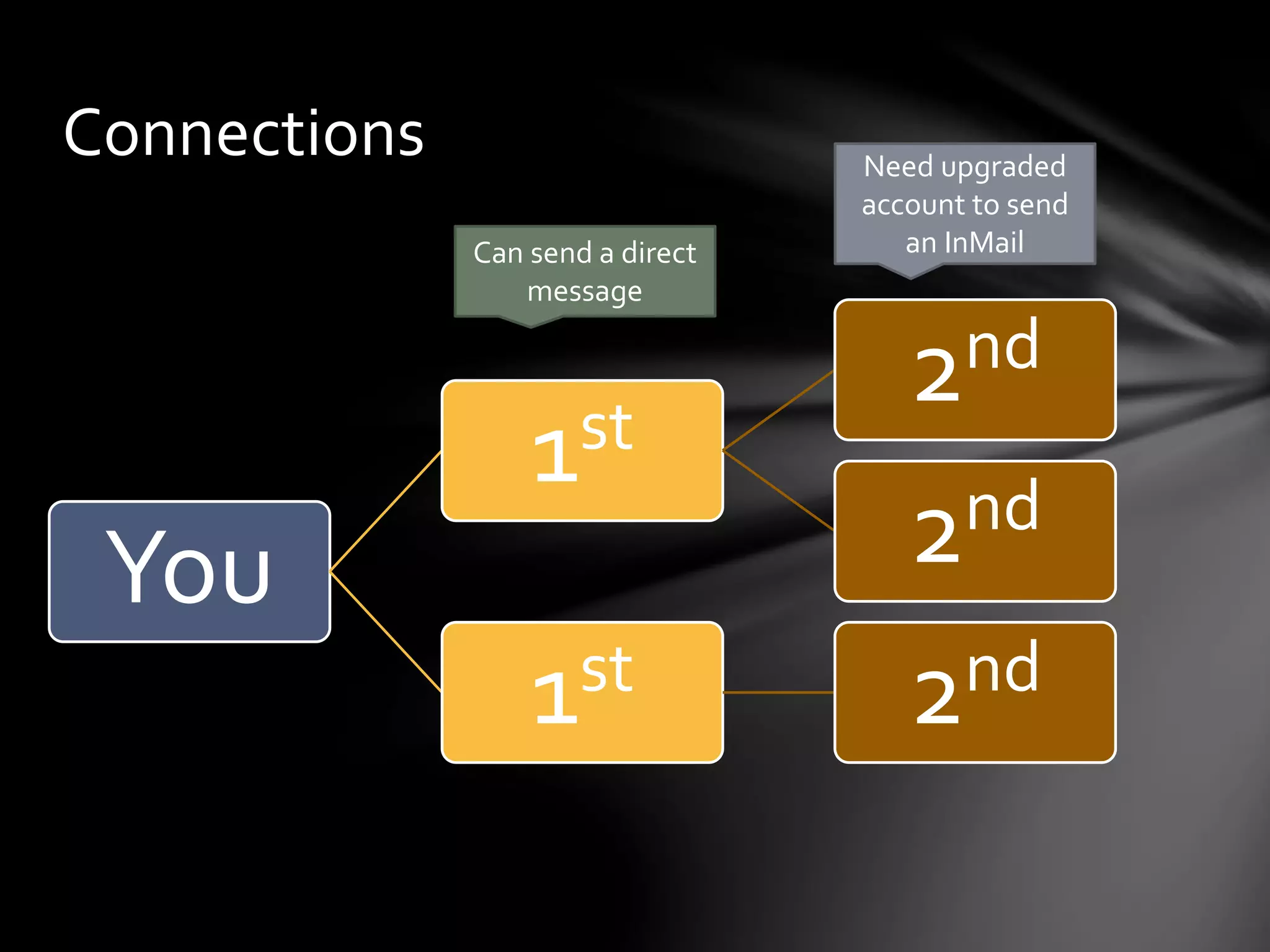
Connections
You
1st
2nd
2nd
1st 2nd
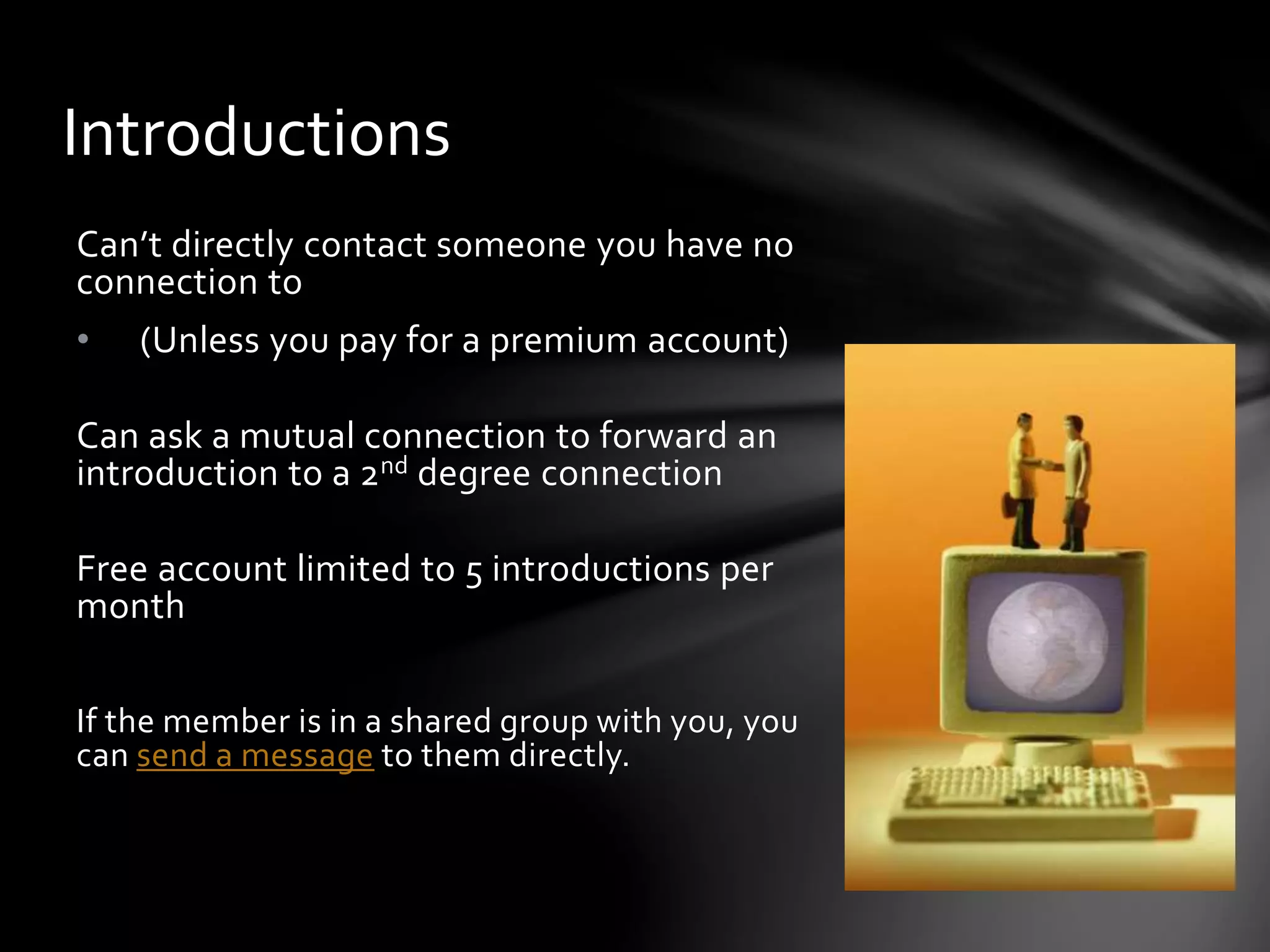
Can send a direct
message
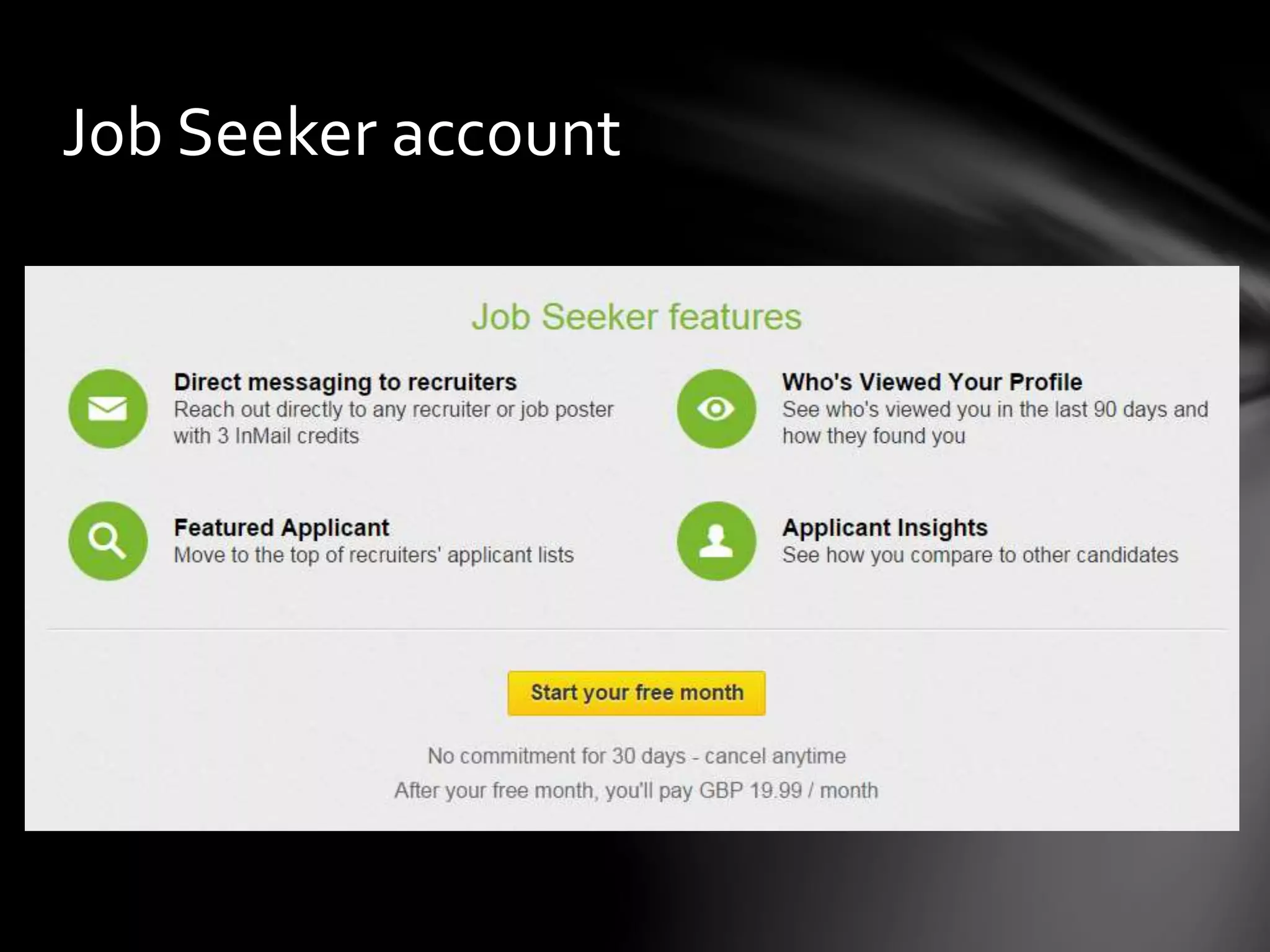
Need upgraded
account to send
an InMail
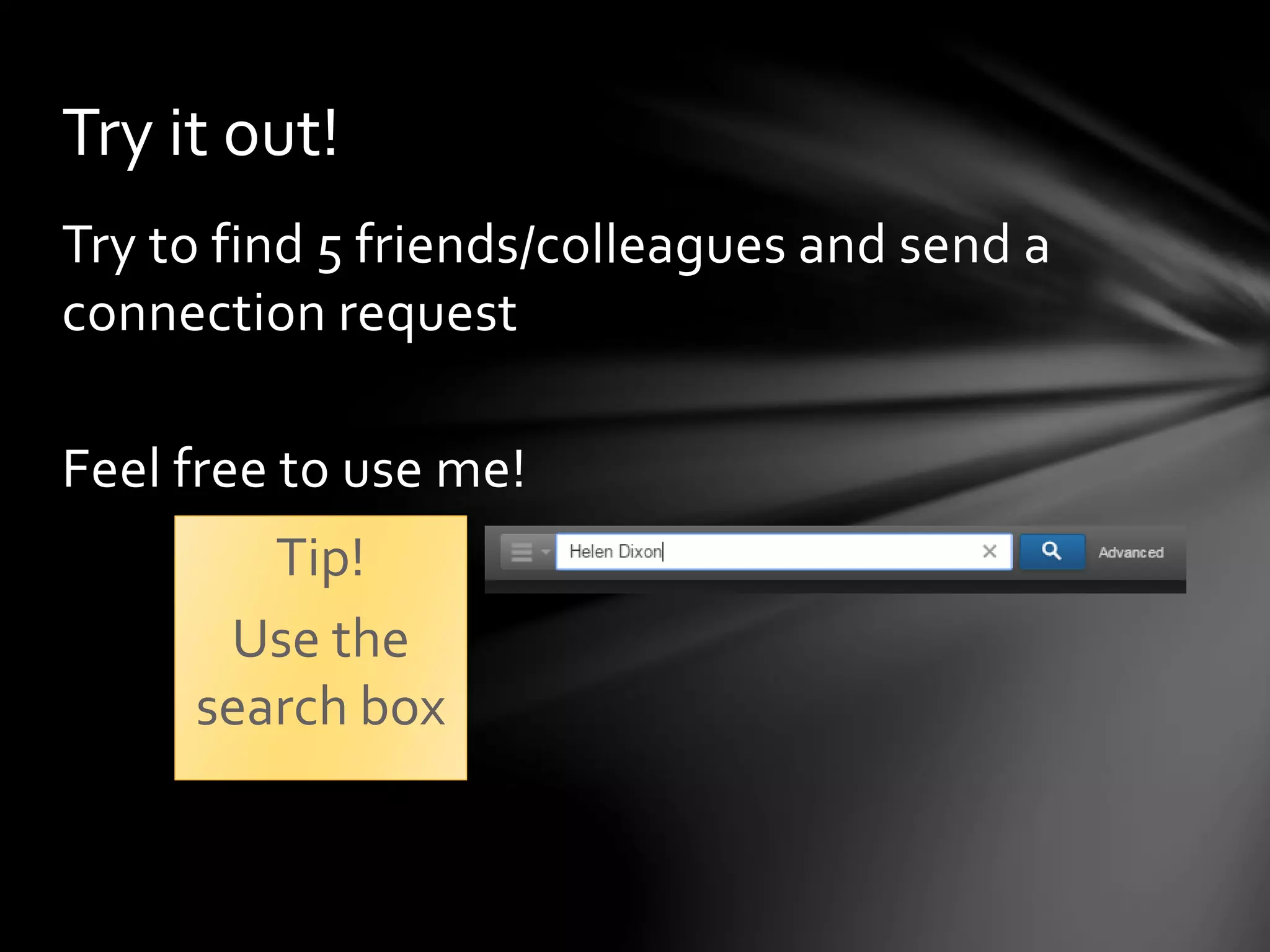
Try the search box
Search for
friends/colleagues
or for a company
and send a
connection
request to anyone
you would like to
connect with
Messages
You can send private messages to one or more
connections
You may receive InMails from people you are not
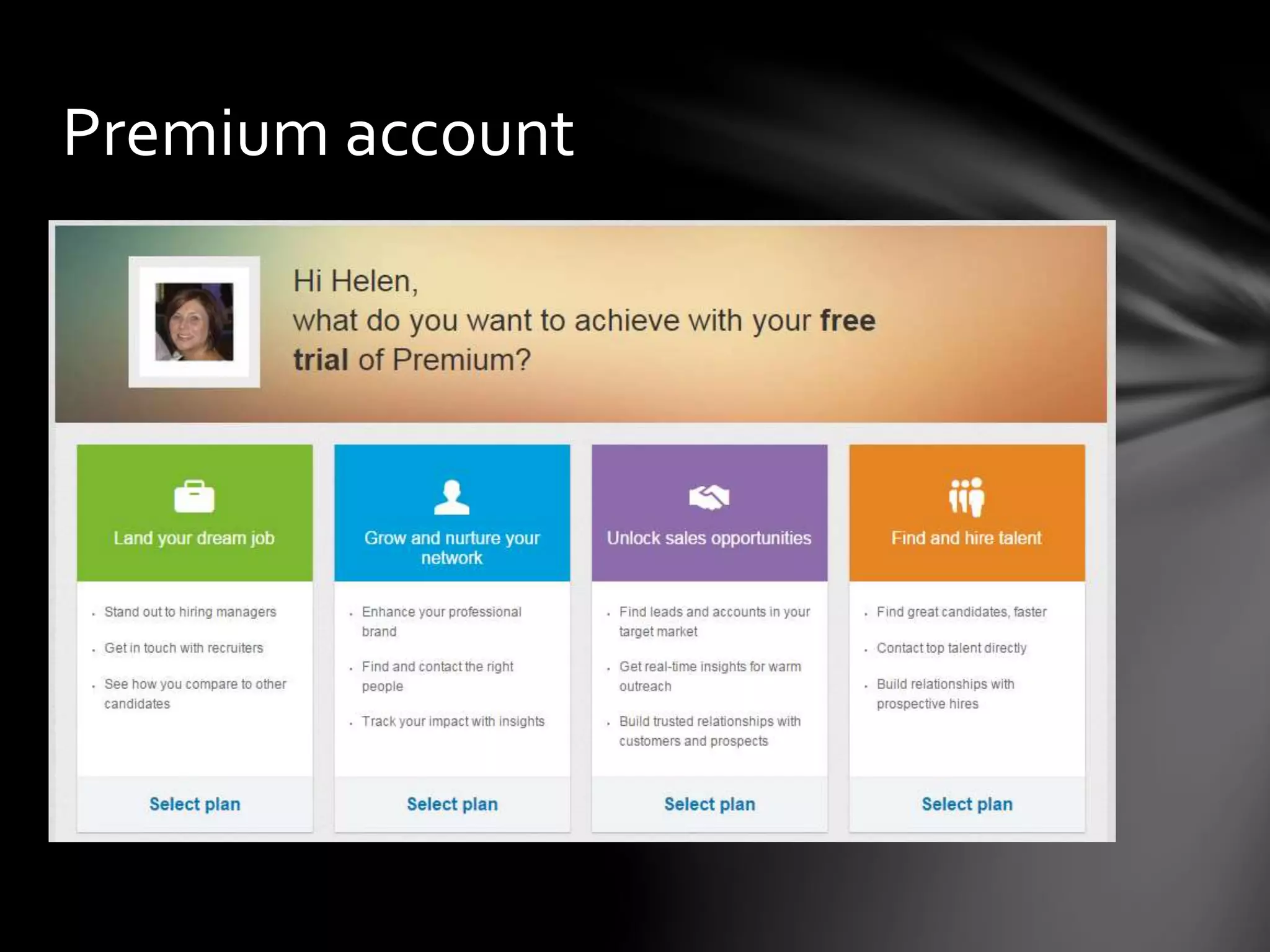
connected with who have a Premium account
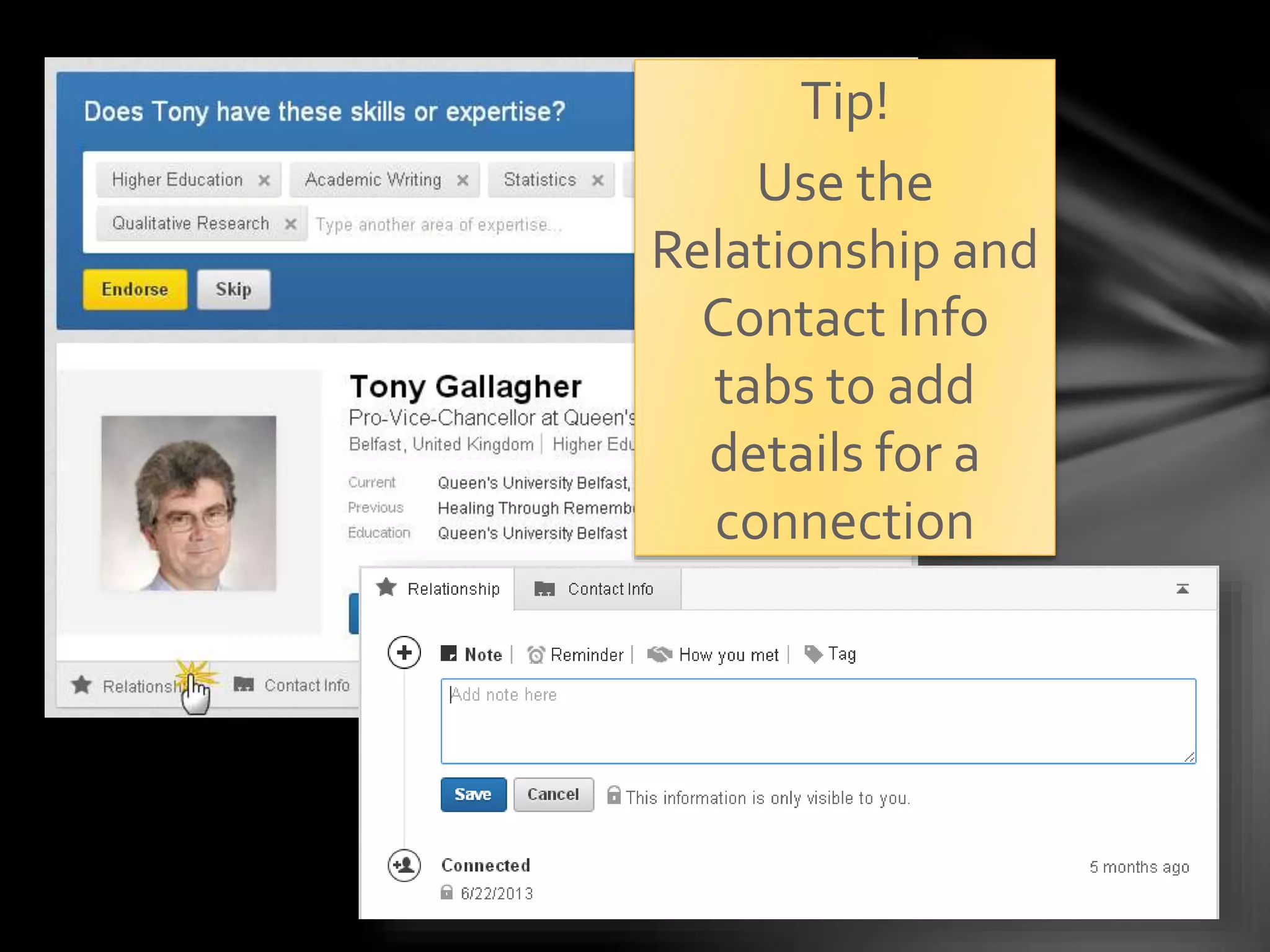
Tip!
Use the
Relationship and
Contact Info tabs
to add details for
a connection
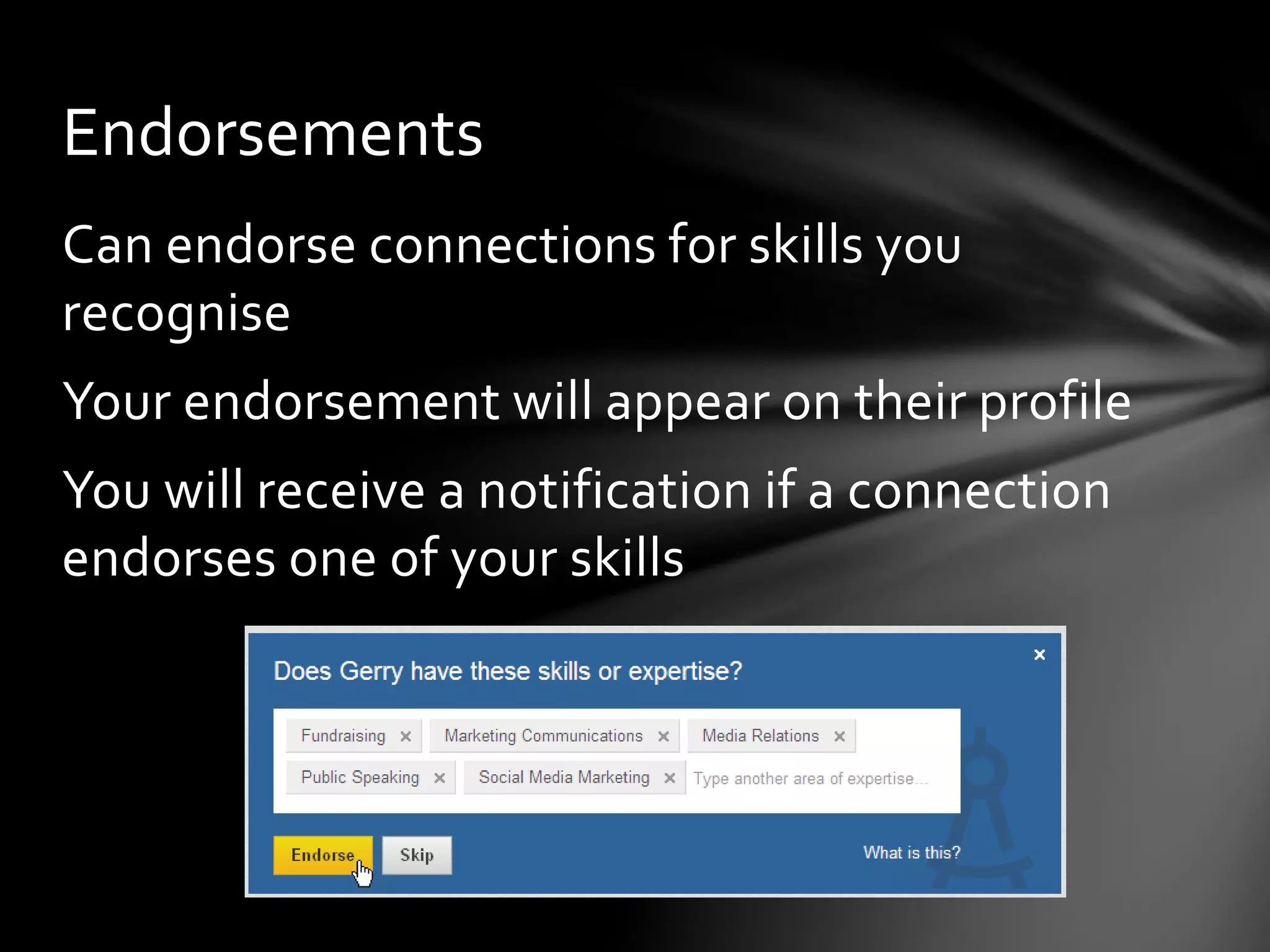
Endorsements
Can endorse connections for skills you
recognise
Your endorsement will appear on their profile
You will receive a notification if a connection
endorses one of your skills
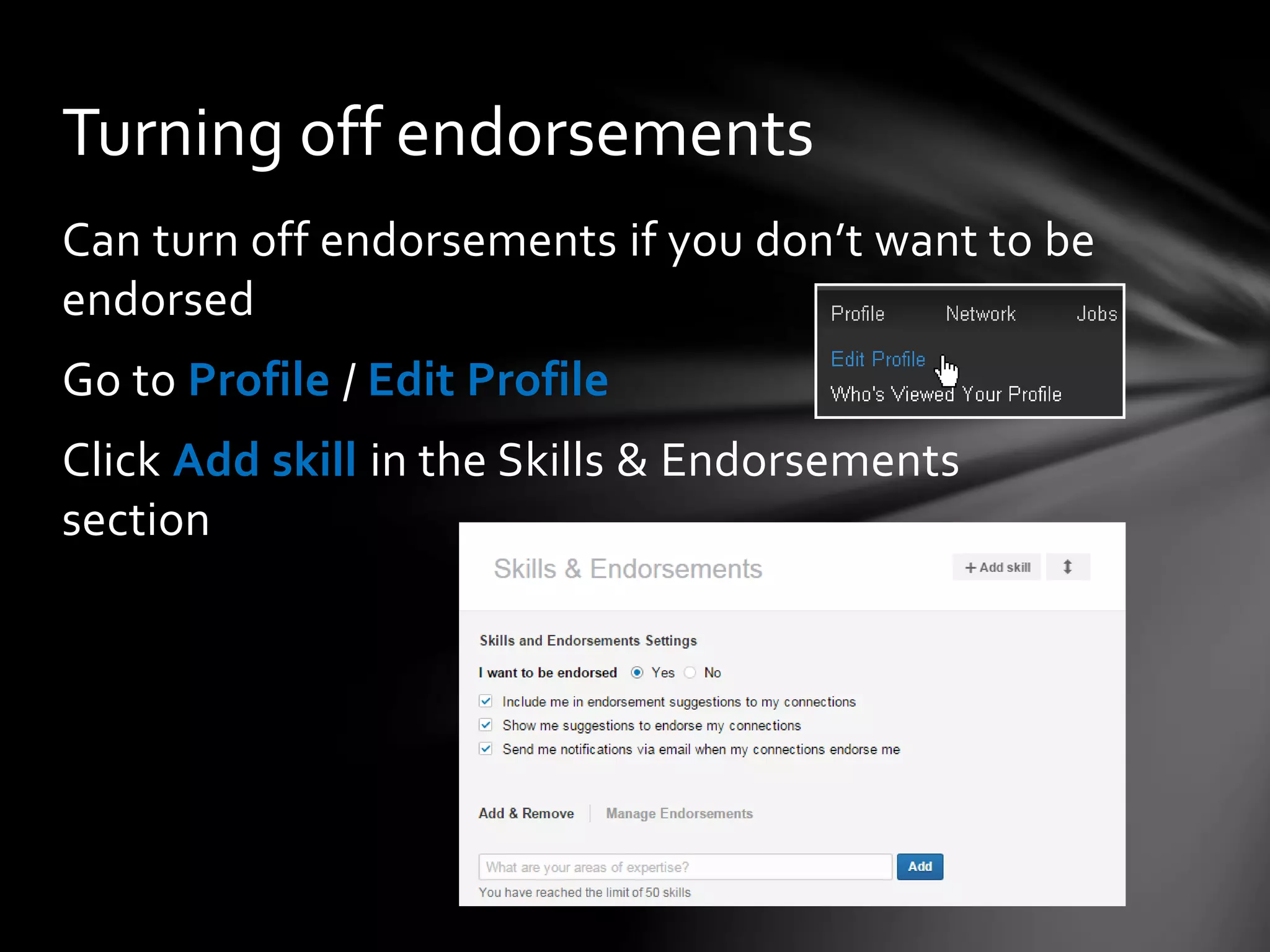
Turning off endorsements
Can turn off endorsements if you don’t want to be
endorsed
Go to Profile / Edit Profile
Click Add skill in the Skills & Endorsements section
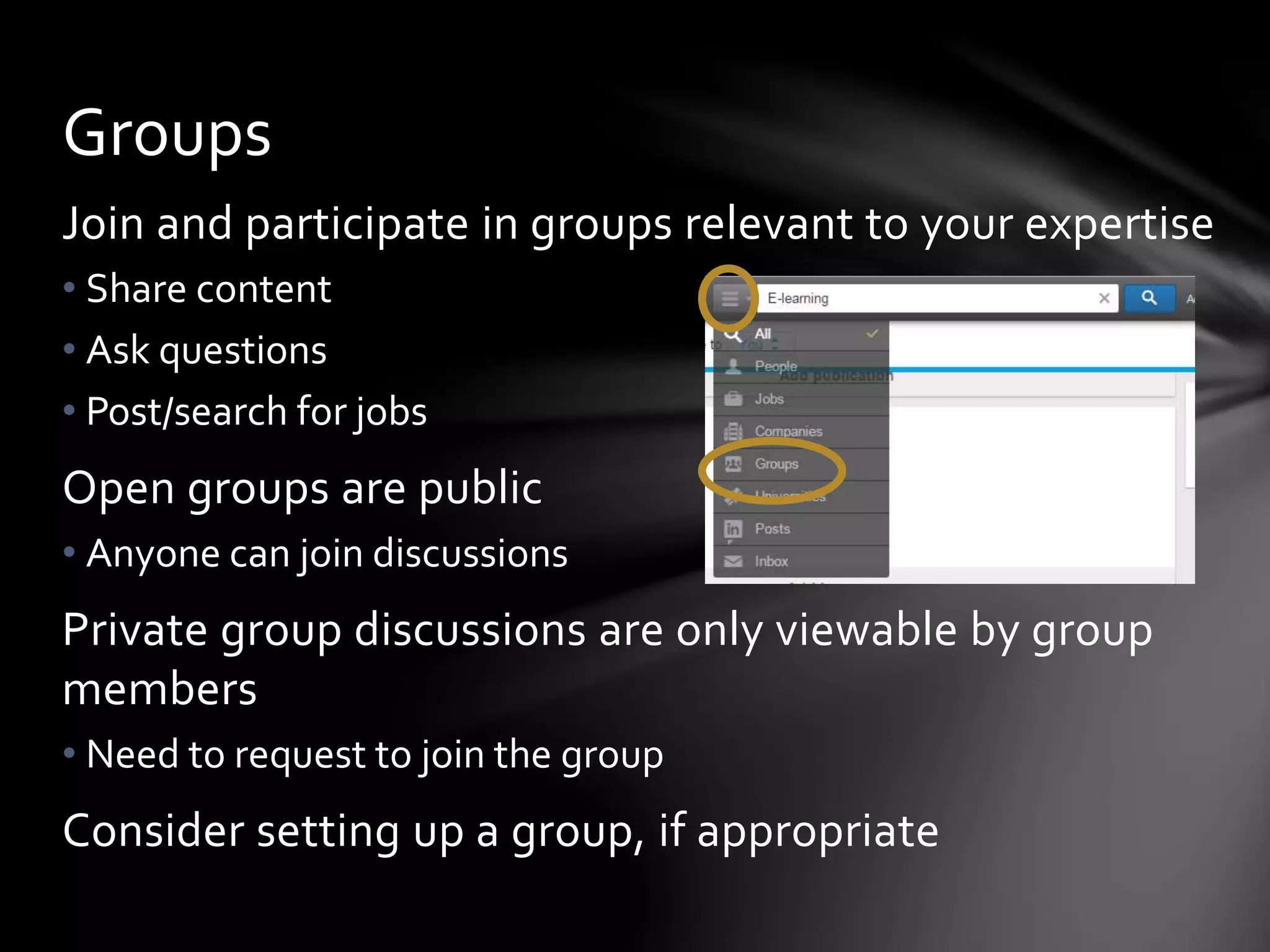
Groups
Join and participate in groups relevant to your
expertise
◦ Share content
◦ Ask questions
◦ Post/search for jobs
◦ Build relationships
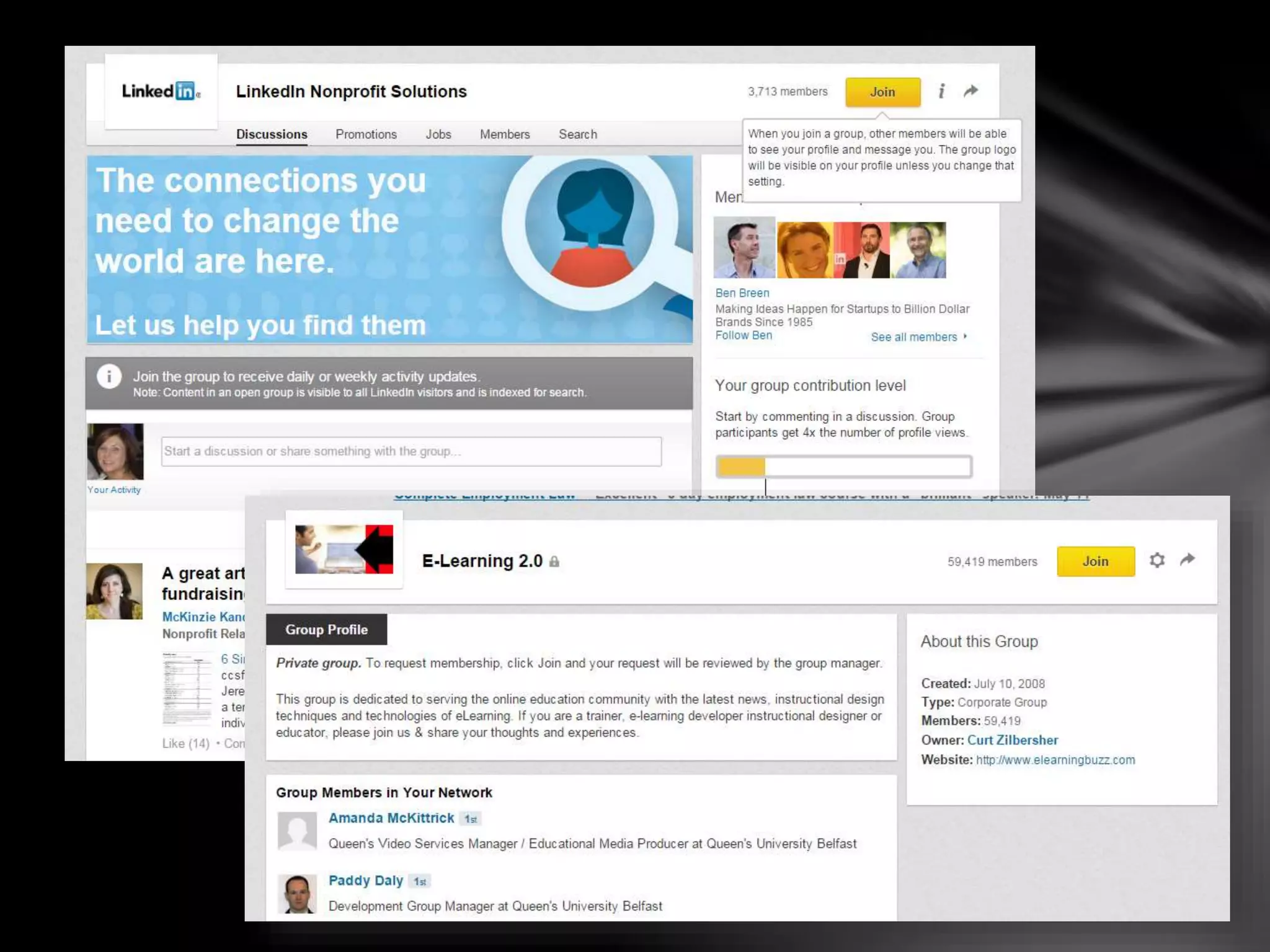
Standard groups – need to request to join or be invited
◦ Findable in search
Unlisted groups – need to be invited to join
◦ Not findable in search – ideal for internal groups!
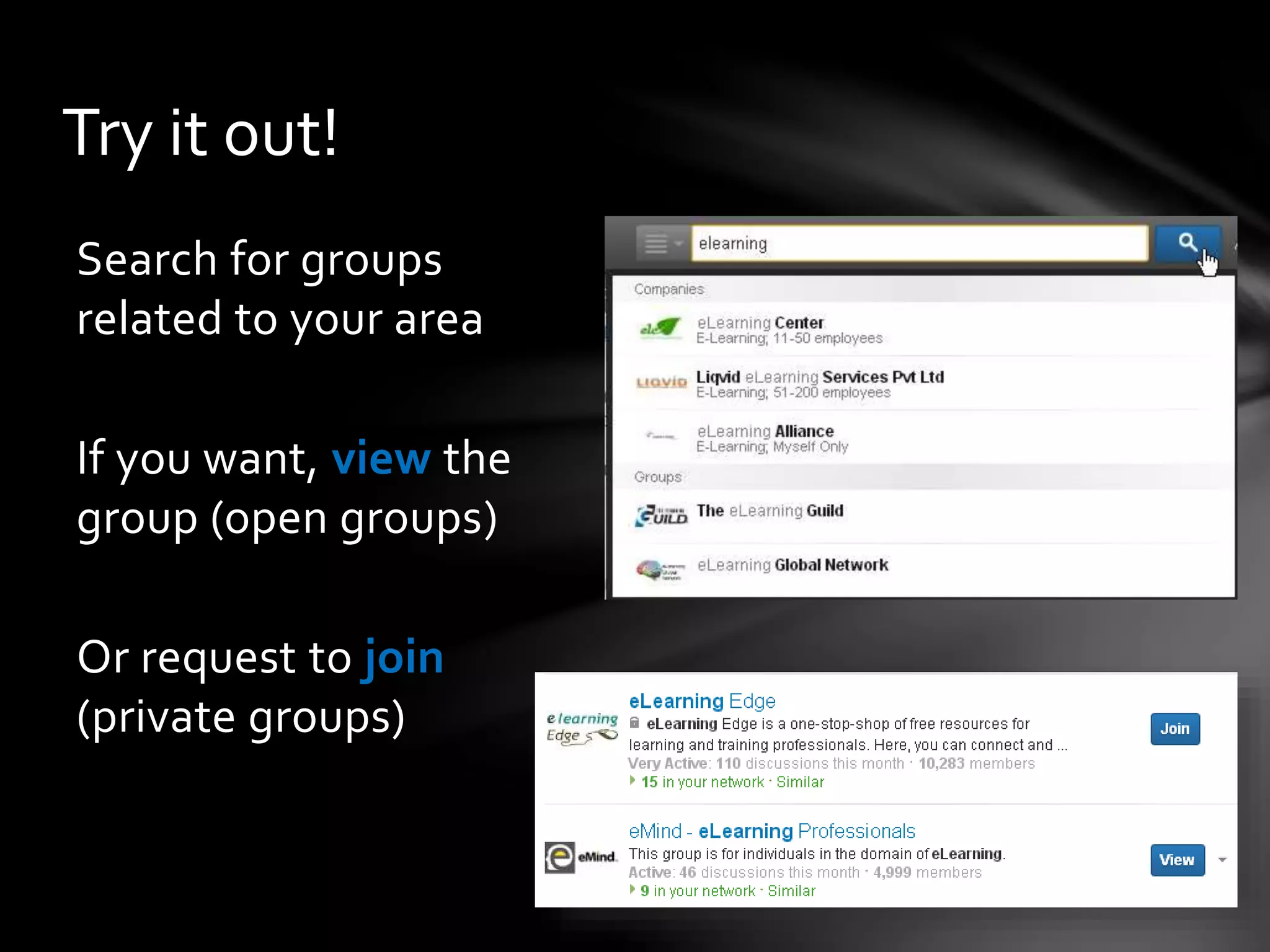
Joining groups
Search for
groups related
to your area
If you want,
view the group
(open groups)
Or request to
join (private
groups) You can join up to 65 groups!
Select Groups from
the Interests menu to
view the highlights for
your groups
You can download a
LinkedIn Groups app!
Companies
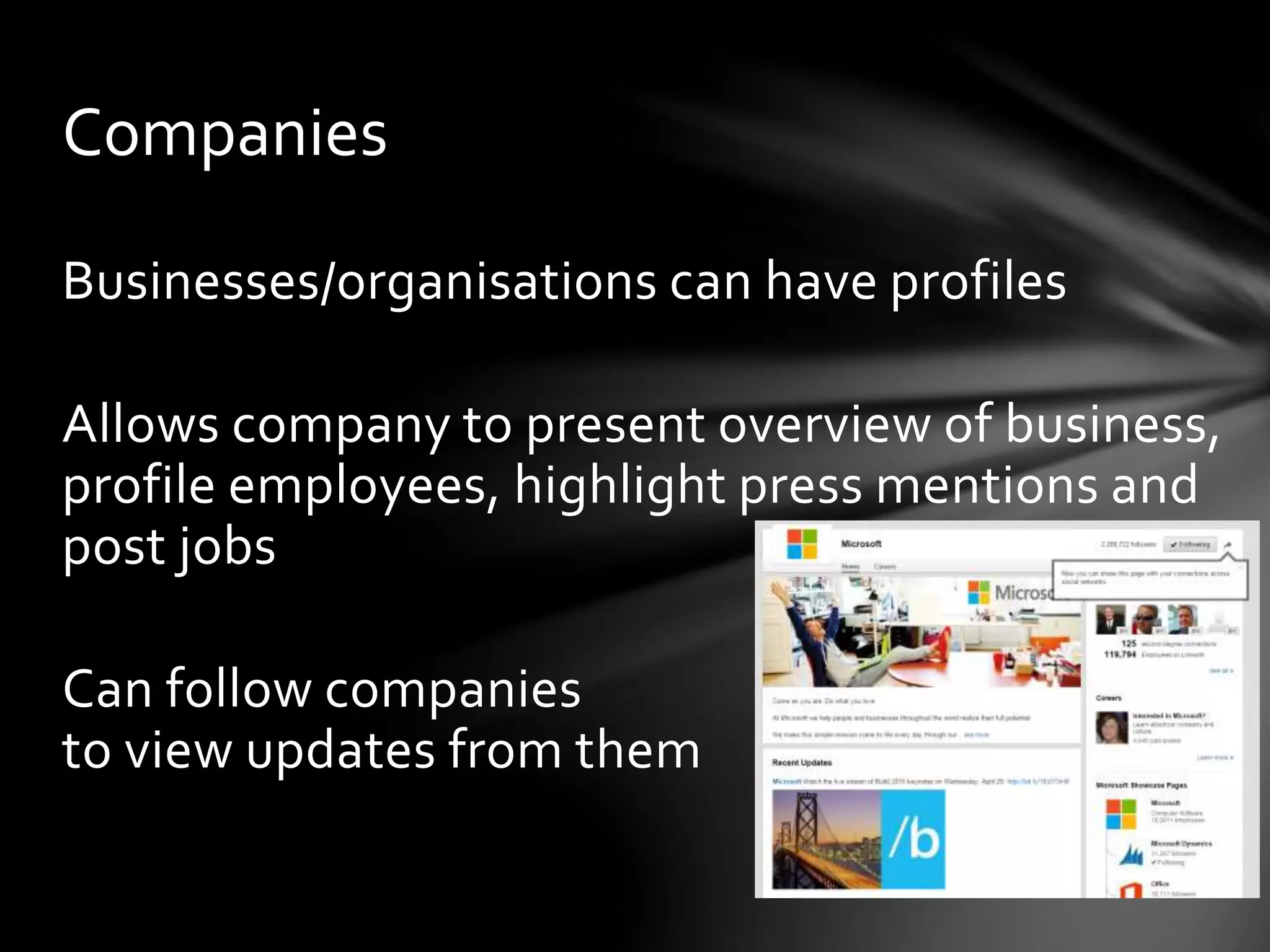
Businesses/organisations can have profiles
Allows company to present overview of
business, profile employees, highlight press
mentions and post jobs
Can follow companies to view updates from
them
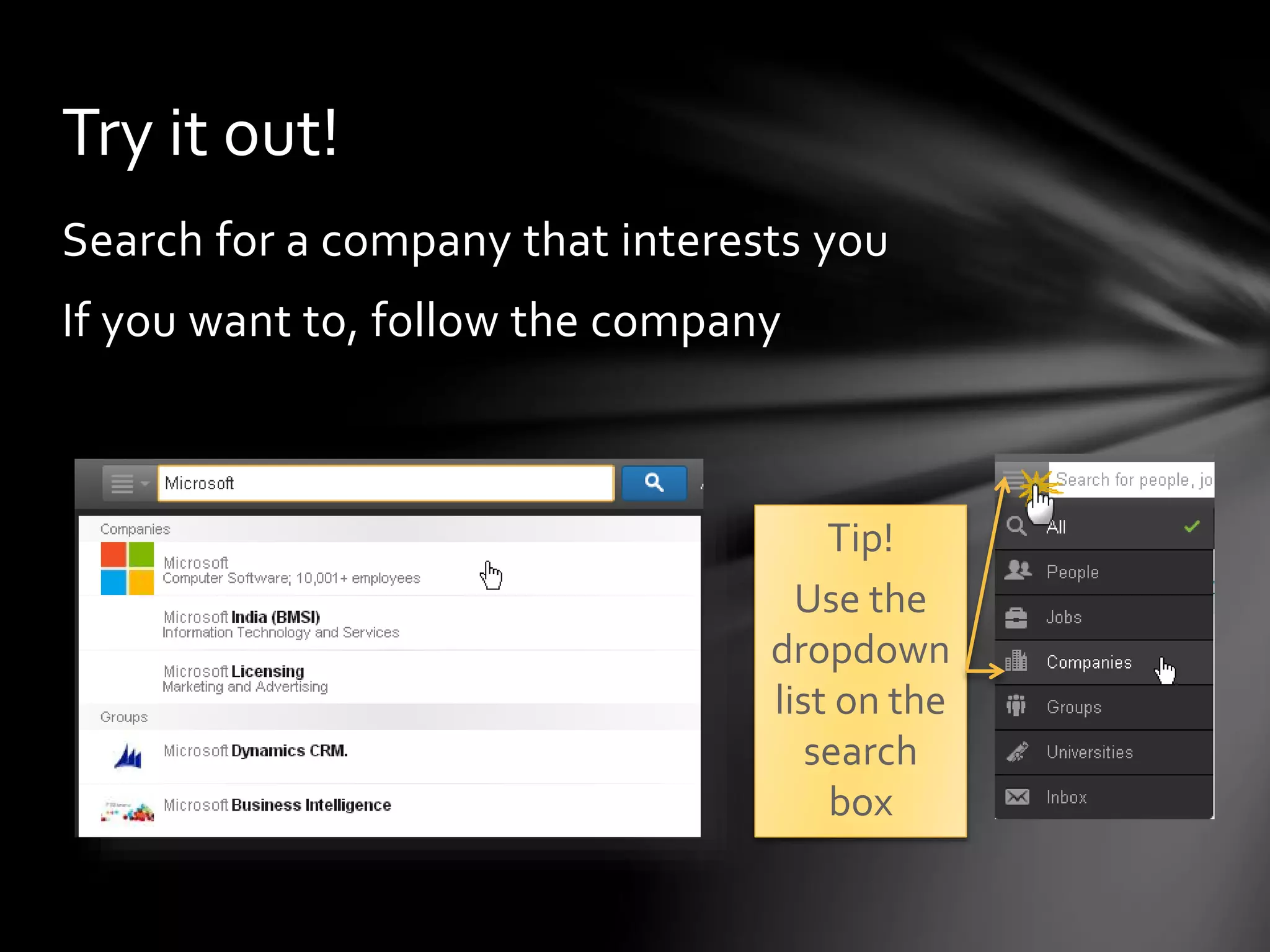
Tip!
Use the
dropdown
list on the
search box
to select
Companies
Searching for companies
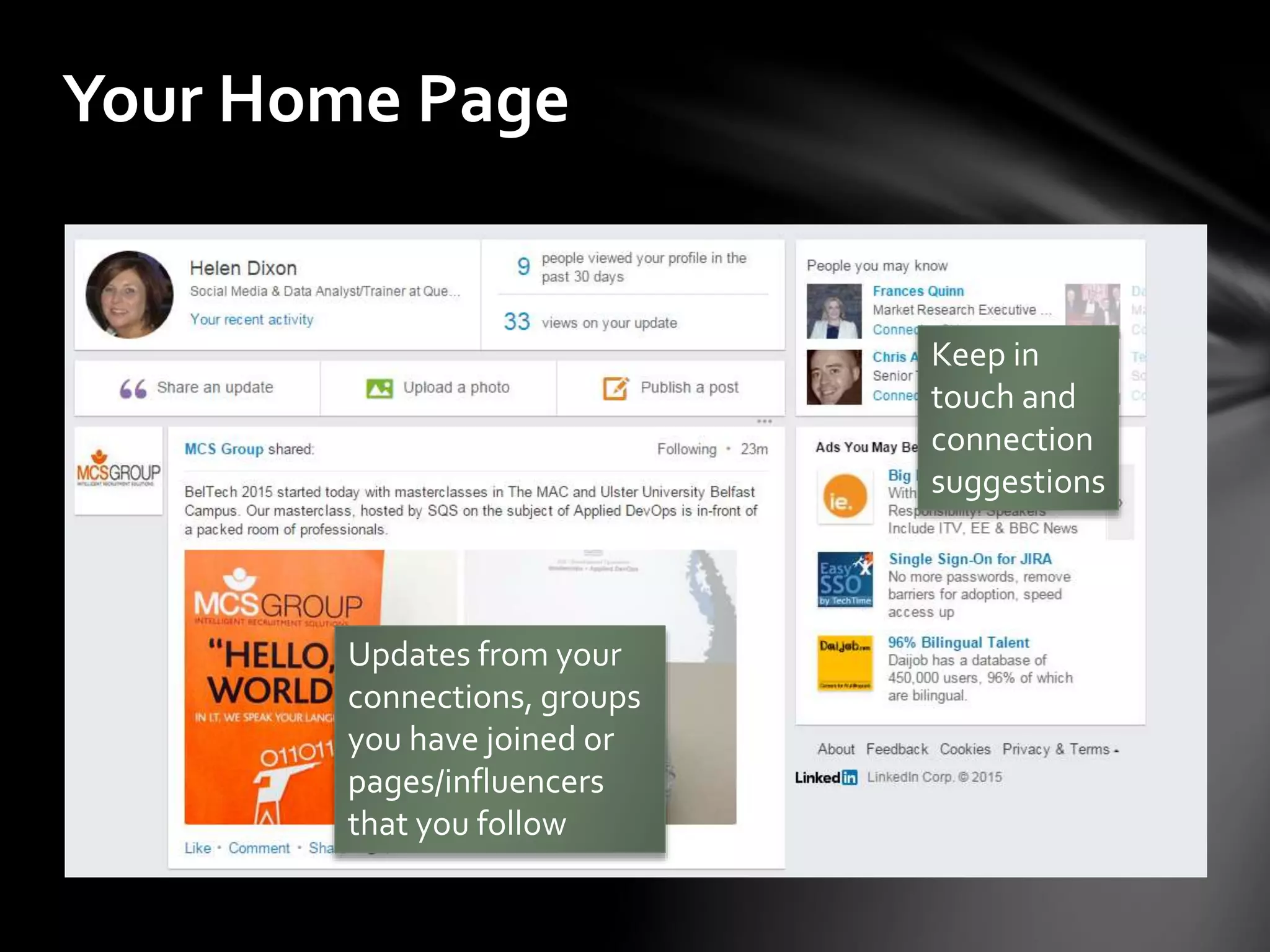
Your Home Page
Updates from your
connections, groups
you have joined or
pages/influencers
that you follow
Connection
suggestions
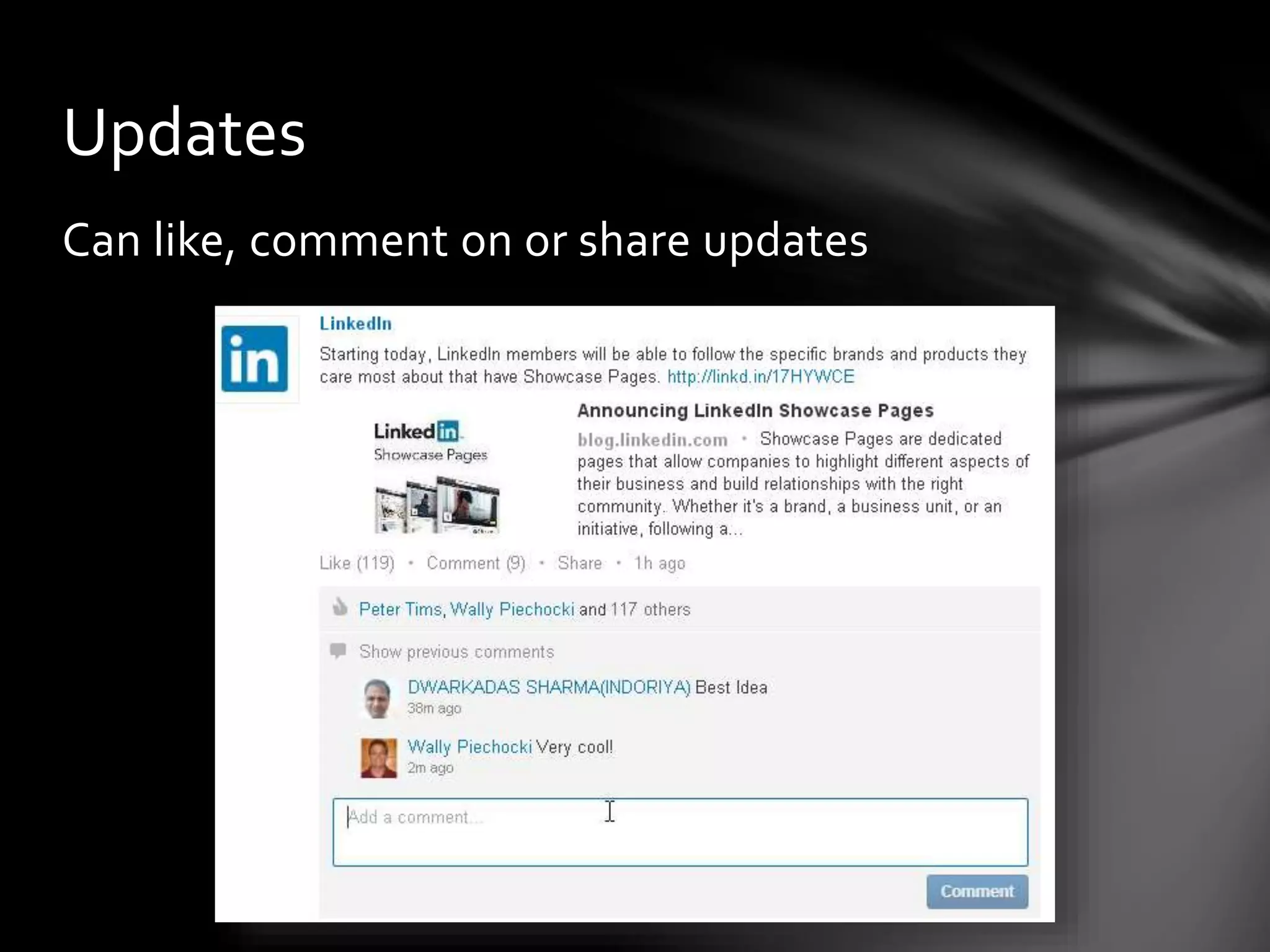
Updates
Can like, comment on or share updates
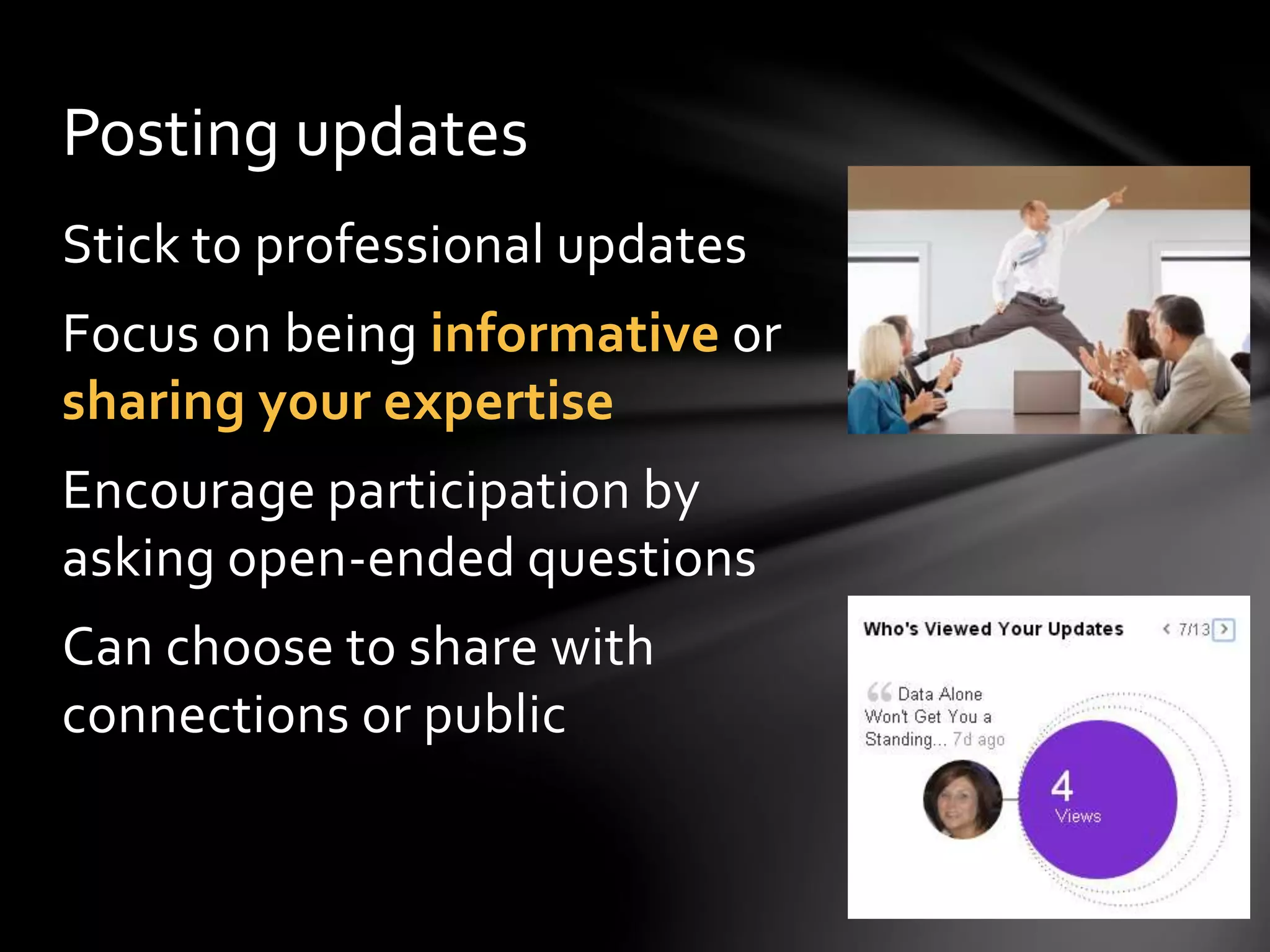
Posting updates
Stick to professional updates
Focus on being informative or sharing your
expertise
Encourage participation by asking open-ended
questions
Can choose to share with connections or
public/public + Twitter
Publishing a Post
Use
LinkedIn
Posts as an
alternative
to a blog
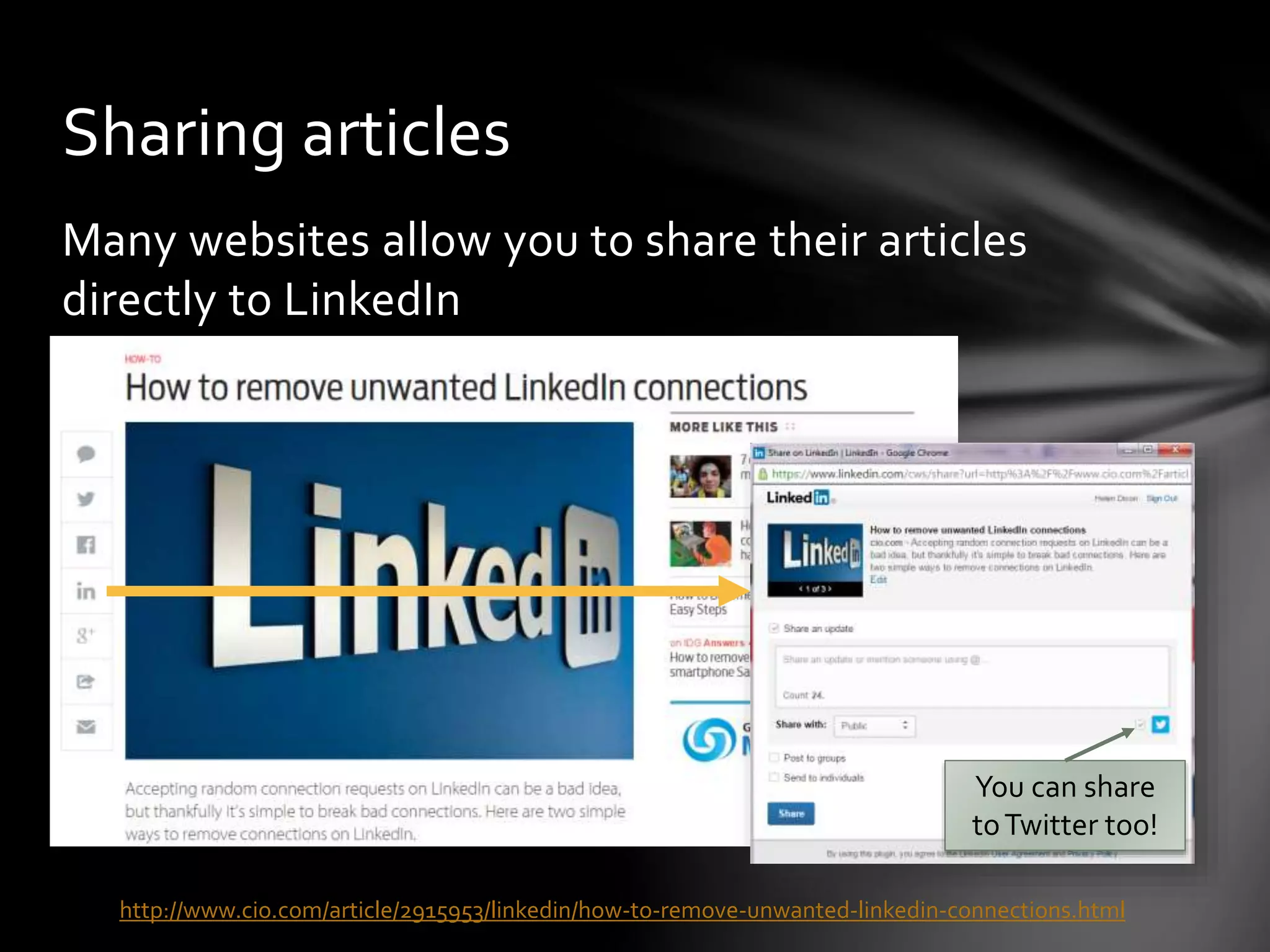
Sharing articles
Many websites
and blogs allow
you to share their
articles directly to
LinkedIn (and
Twitter)
Use the default
message or create
your own
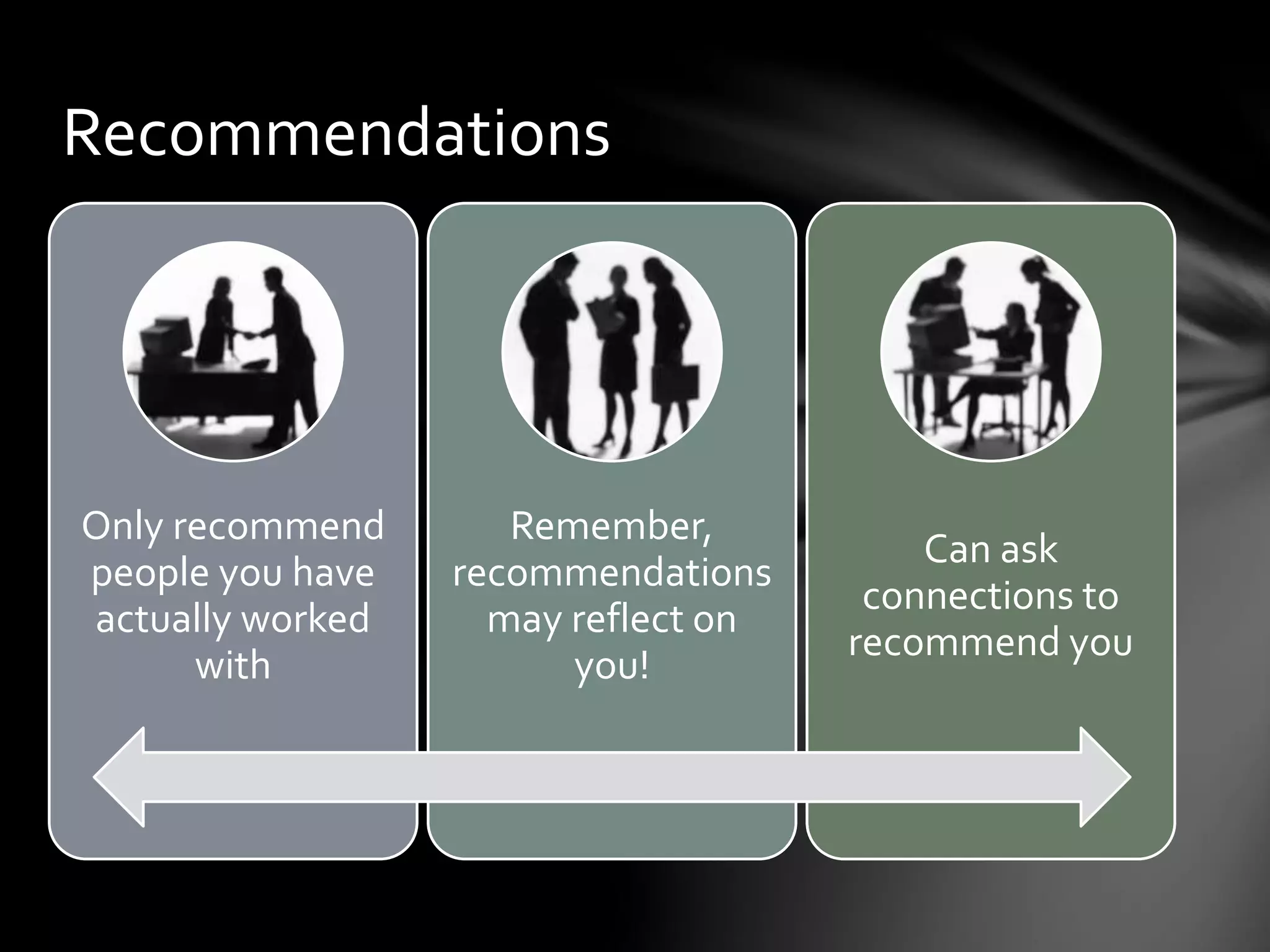
Recommendations
Only recommend
people you have
actually worked
with
Remember,
recommendations
may reflect on
you!
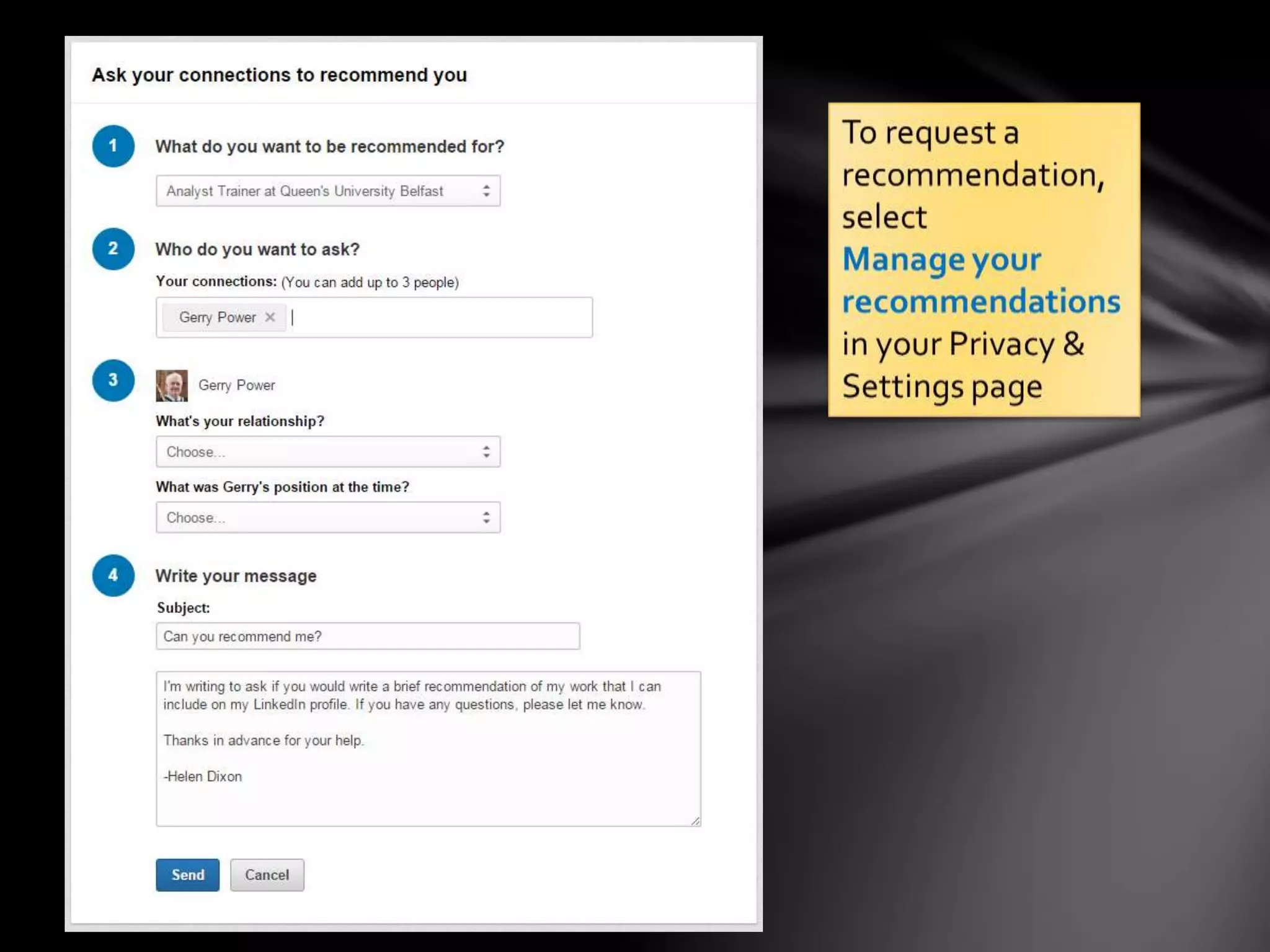
Can ask
connections to
recommend you
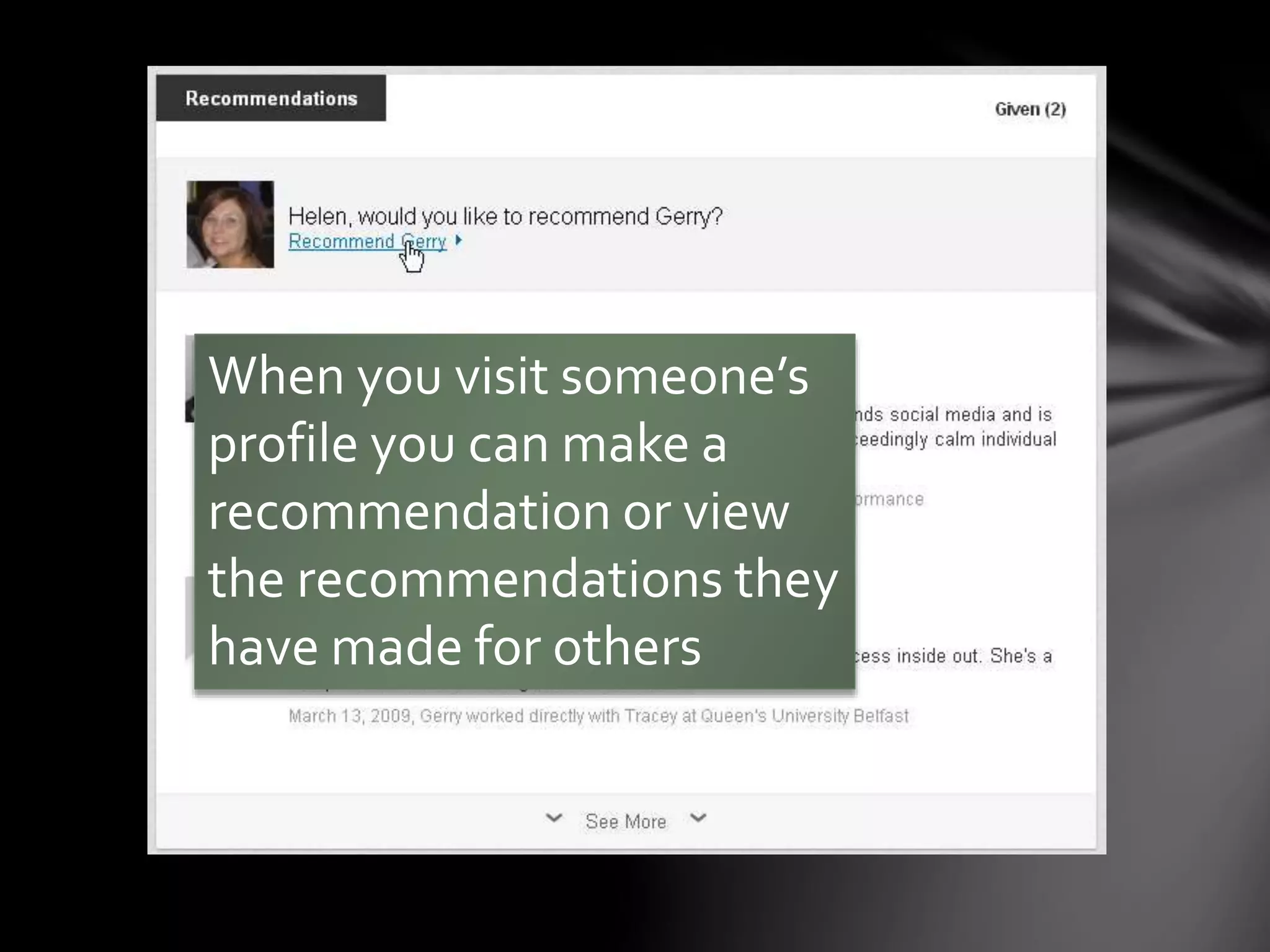
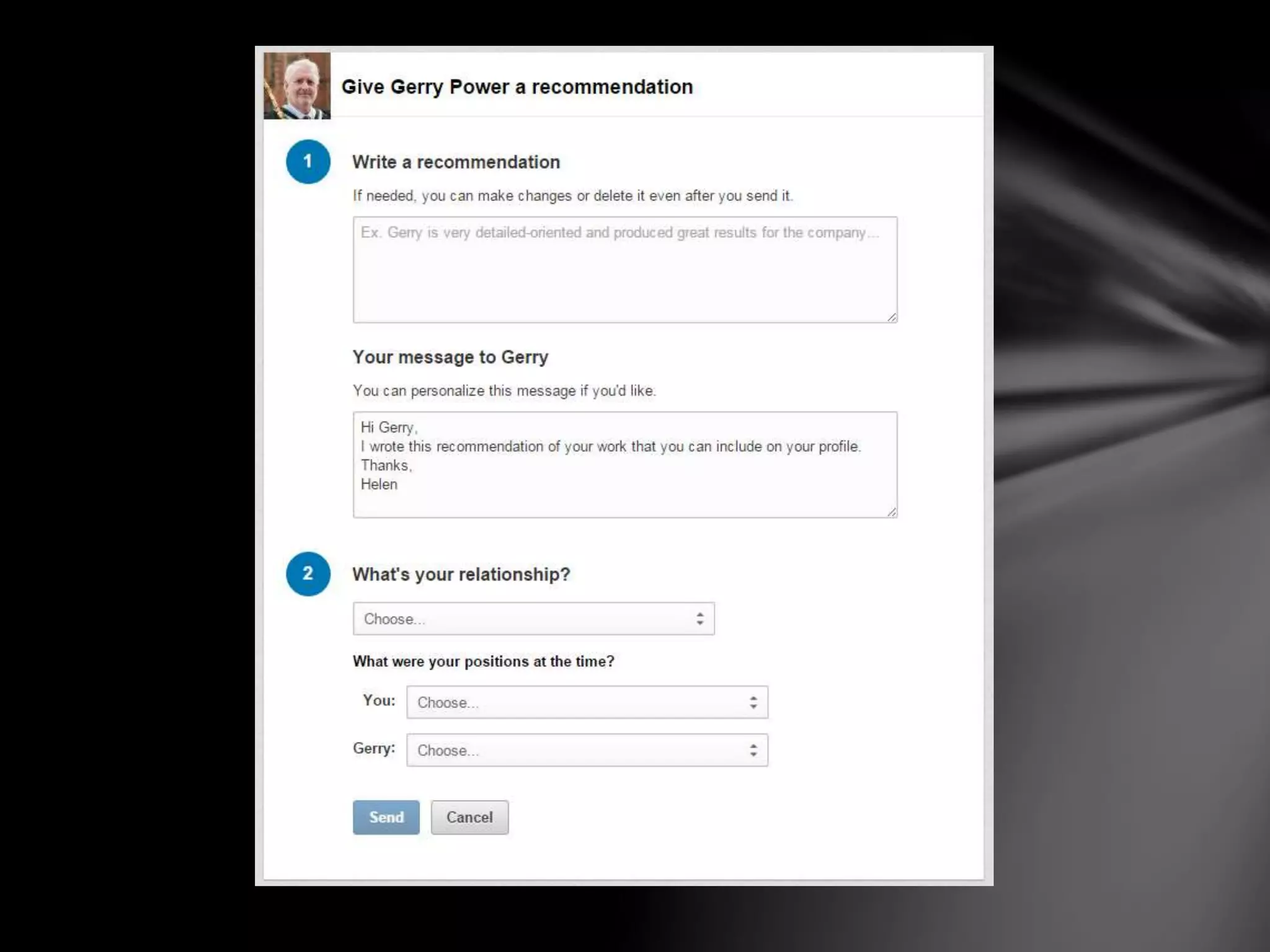
When you visit someone’s profile you can
make a recommendation or view the
recommendations they have made for
others
Recommendations
To request a
recommendation,
select
Manage your
recommendations
in your Privacy &
Settings page
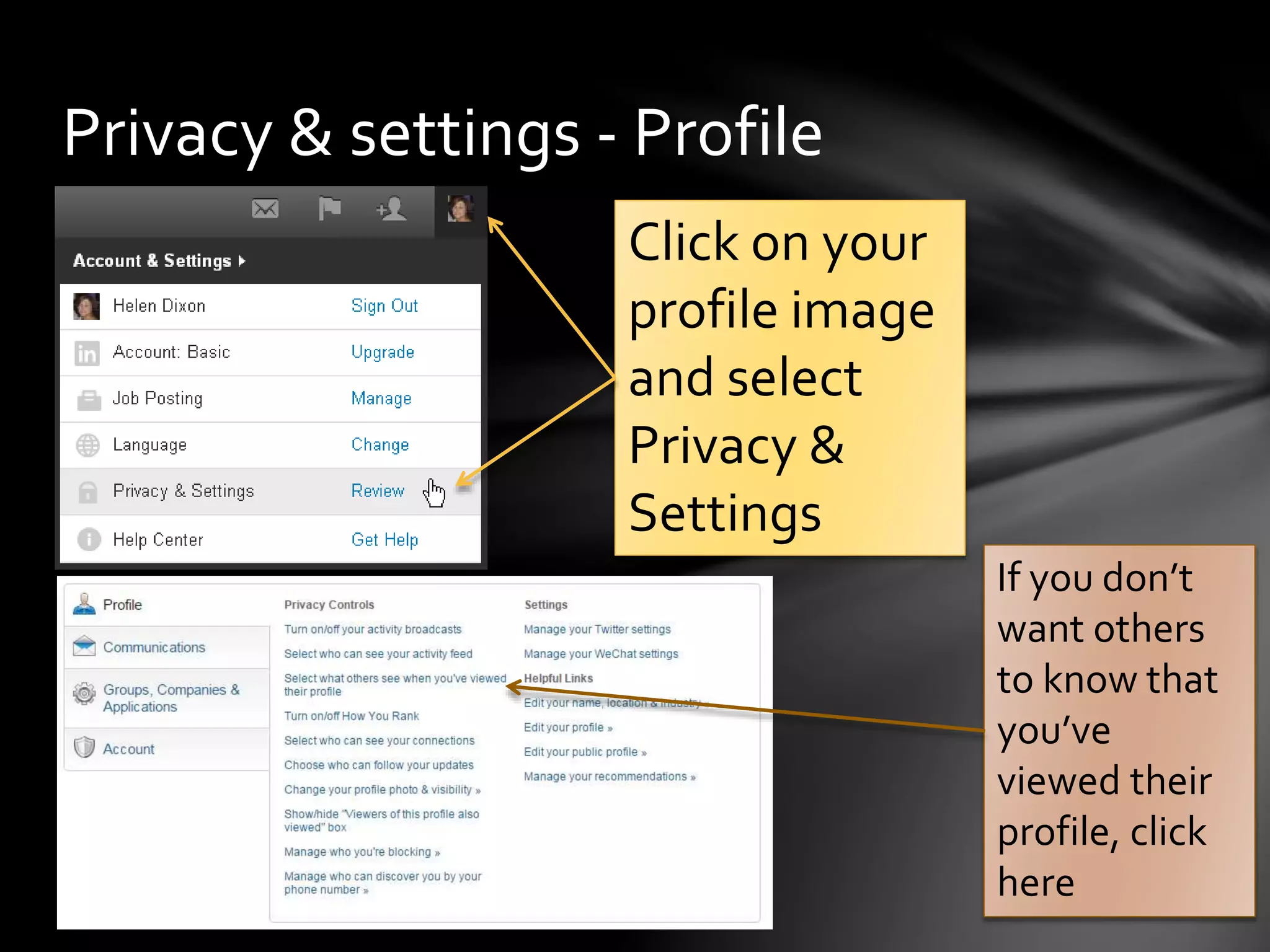
Privacy & settings - Profile
Click on
your profile
image and
select
Privacy &
Settings
Privacy & settings - Profile
Set preferences for what others see when you
view their profile, who can see your connections
or turn on/off activity broadcasts
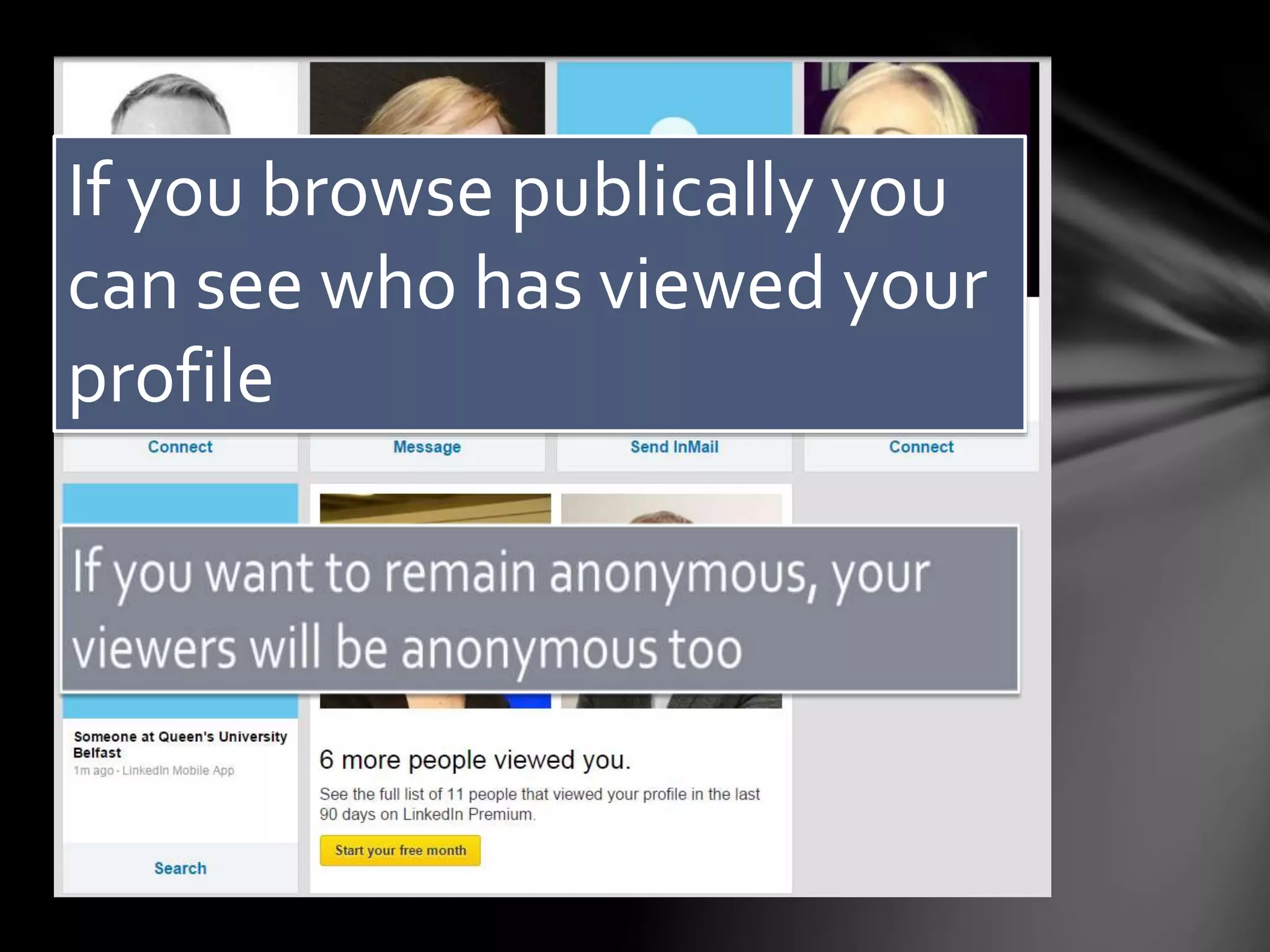
If you browse publically
you can see who has
viewed your profile
If you want to remain anonymous, your
viewers will be anonymous too
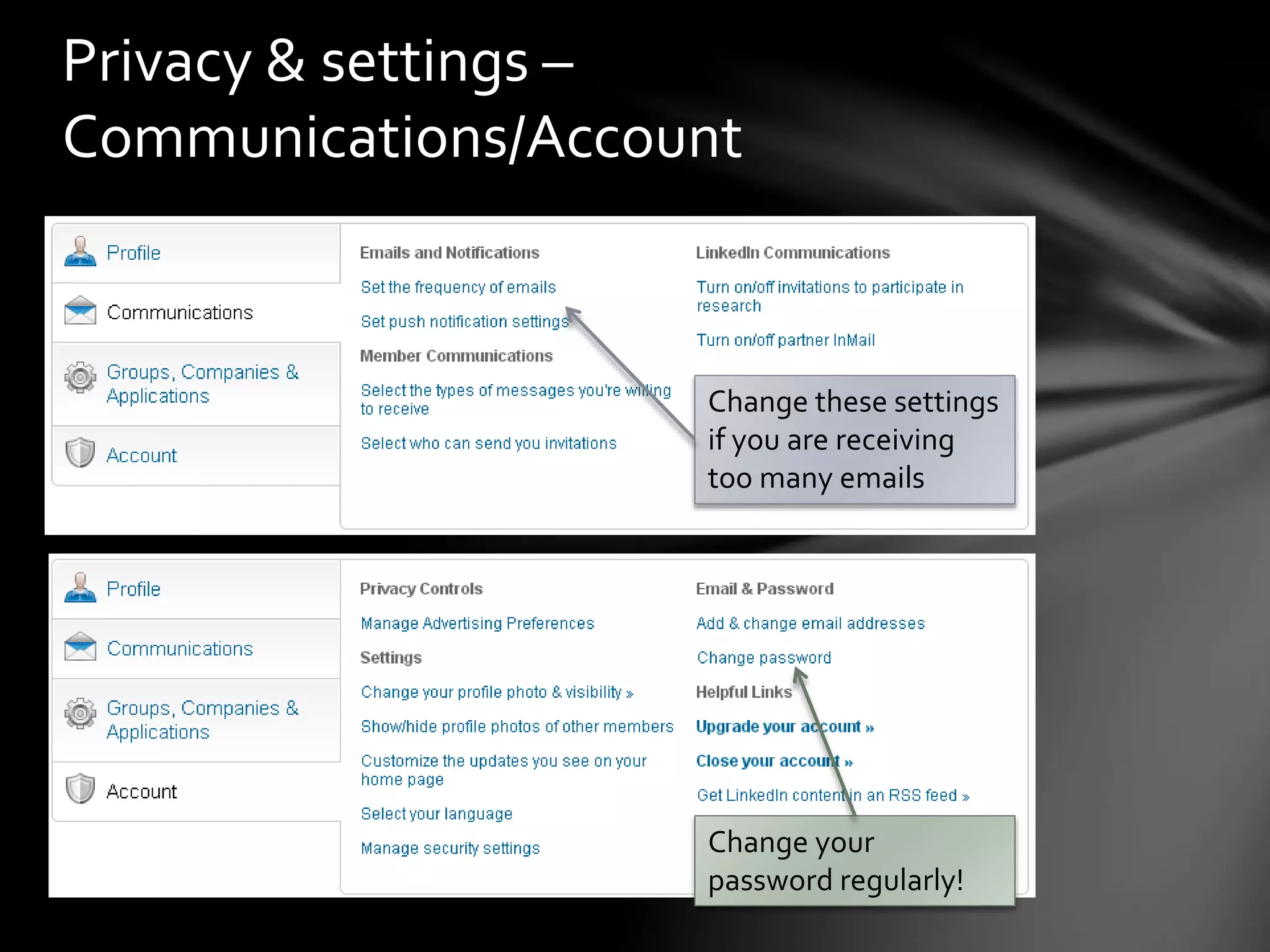
Privacy & settings –
Communications/Account
Change these
settings if you
are receiving too
many emails
Privacy & settings –
Communications/Account
Change your
password
regularly!
LinkedIn Etiquette
Only invite people you actually know to connect
Be clear about your intentions
Reciprocate favours and be grateful
Pass requests along quickly or
explain why you would prefer not to
Be careful not to over self-promote
Remember networking is about
relationships
How to lose friends and
alienate people
Spamming connections
Being unprofessional
Blatant self-promotion
Stalking!
Final tips
Include all relevant detail in your profile
◦ Think about keywords that people may use in
searches
Don’t restrict connections to people in your
field
Login regularly to keep your account active
Keep your profile up-to-date
Check out the LinkedIn Blog

LinkedIn for Beginners

  • 1.
    Dr Helen Dixon InformationServices https://www.linkedin.com/in/drhelendixon for beginners
  • 2.
    What is LinkedIn? •Officially launched 2003Professional social networking tool • 19 million UK membersOver 300 million members • 24 languagesAvailable in over 200 countries • 2.1 million groups4 million businesses
  • 3.
    Why would Iwant to use it? To find a new job To stay in touch with past colleagues To research companies/industries To network with other professionals To collaborate on projects To introduce students to networking To enhance your online profile
  • 4.
  • 5.
    How can LinkedInbenefit Queen’s? Acquire new students Recruit new staff Analyse competitors Increase our profile
  • 6.
  • 7.
  • 8.
    Getting started Sign upat LinkedIn.com Free version is sufficient for most users Can link to your Twitter and SlideShare account Can add email contacts • Caution – LinkedIn may use your contacts to send connection requests!
  • 9.
    Your profile Information about youreducation, skills and experience Can control how you appear in public search results
  • 10.
    Your profile Can shareyour profile or updates on other social networks Can customise your public profile URL or create a button You can often see who views your profile
  • 11.
    What should youinclude? Include as much relevant detail as possible ◦ Industry and postal code ◦ A summary ◦ Where you have studied/worked ◦ Education - qualifications and expertise ◦ Current position with description ◦ An appropriate profile photo ◦ Previous positions if relevant ◦ At least five skills ◦ Publications or projects – can add files or links ◦ Volunteer experience
  • 12.
    Editing your profile Clickhere to edit your profile URL Add details of voluntary work or awards
  • 13.
    Editing your profile Youcan include a link to a website or upload a file to your Summary
  • 14.
    Adding a project Adddetails of any projects you have been involved in – you can tag other Team Members
  • 15.
  • 16.
    Who’s viewed yourprofile? Select the Who’s Viewed Your Profile option from the Profile menu to see a summary of your profile views and the people who have checked you out
  • 17.
    Making connections Start bysearching for colleagues/project partners Use the ‘People you may know’ feature Can upload your contacts list (use with care!) ◦ LinkedIn will tell you if they are members ◦ You can choose to send invitations to selected individuals (LinkedIn automatically selects contacts for you; if you don’t want to invite everyone, make sure you deselect the “Select All” option)
  • 18.
    Connections You 1st 2nd 2nd 1st 2nd Can senda direct message Need upgraded account to send an InMail
  • 19.
    Try the searchbox Search for friends/colleagues or for a company and send a connection request to anyone you would like to connect with
  • 20.
    Messages You can sendprivate messages to one or more connections You may receive InMails from people you are not connected with who have a Premium account
  • 21.
    Tip! Use the Relationship and ContactInfo tabs to add details for a connection
  • 22.
    Endorsements Can endorse connectionsfor skills you recognise Your endorsement will appear on their profile You will receive a notification if a connection endorses one of your skills
  • 23.
    Turning off endorsements Canturn off endorsements if you don’t want to be endorsed Go to Profile / Edit Profile Click Add skill in the Skills & Endorsements section
  • 24.
    Groups Join and participatein groups relevant to your expertise ◦ Share content ◦ Ask questions ◦ Post/search for jobs ◦ Build relationships Standard groups – need to request to join or be invited ◦ Findable in search Unlisted groups – need to be invited to join ◦ Not findable in search – ideal for internal groups!
  • 25.
    Joining groups Search for groupsrelated to your area If you want, view the group (open groups) Or request to join (private groups) You can join up to 65 groups!
  • 26.
    Select Groups from theInterests menu to view the highlights for your groups You can download a LinkedIn Groups app!
  • 27.
    Companies Businesses/organisations can haveprofiles Allows company to present overview of business, profile employees, highlight press mentions and post jobs Can follow companies to view updates from them
  • 28.
    Tip! Use the dropdown list onthe search box to select Companies Searching for companies
  • 29.
    Your Home Page Updatesfrom your connections, groups you have joined or pages/influencers that you follow Connection suggestions
  • 30.
    Updates Can like, commenton or share updates
  • 31.
    Posting updates Stick toprofessional updates Focus on being informative or sharing your expertise Encourage participation by asking open-ended questions Can choose to share with connections or public/public + Twitter
  • 32.
    Publishing a Post Use LinkedIn Postsas an alternative to a blog
  • 33.
    Sharing articles Many websites andblogs allow you to share their articles directly to LinkedIn (and Twitter) Use the default message or create your own
  • 34.
    Recommendations Only recommend people youhave actually worked with Remember, recommendations may reflect on you! Can ask connections to recommend you
  • 35.
    When you visitsomeone’s profile you can make a recommendation or view the recommendations they have made for others Recommendations
  • 37.
    To request a recommendation, select Manageyour recommendations in your Privacy & Settings page
  • 38.
    Privacy & settings- Profile Click on your profile image and select Privacy & Settings
  • 39.
    Privacy & settings- Profile Set preferences for what others see when you view their profile, who can see your connections or turn on/off activity broadcasts If you browse publically you can see who has viewed your profile
  • 40.
    If you wantto remain anonymous, your viewers will be anonymous too
  • 41.
    Privacy & settings– Communications/Account Change these settings if you are receiving too many emails
  • 42.
    Privacy & settings– Communications/Account Change your password regularly!
  • 43.
    LinkedIn Etiquette Only invitepeople you actually know to connect Be clear about your intentions Reciprocate favours and be grateful Pass requests along quickly or explain why you would prefer not to Be careful not to over self-promote Remember networking is about relationships
  • 44.
    How to losefriends and alienate people Spamming connections Being unprofessional Blatant self-promotion Stalking!
  • 45.
    Final tips Include allrelevant detail in your profile ◦ Think about keywords that people may use in searches Don’t restrict connections to people in your field Login regularly to keep your account active Keep your profile up-to-date Check out the LinkedIn Blog