LinkedIn
 The world’s largest professional network with over 225
million registered members and growing rapidly.
 Connects you to your trusted contacts and helps you
exchange knowledge, ideas, and opportunities with a
broader network of professionals.
Profiles
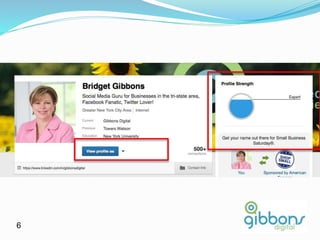
 First step in controlling your professional identify online.
 Authoritative source on your career.
 Represents your career accomplishments and opens the
door to new opportunities.
 Communicates your professional brand.
 Enables people to connect and reconnect with you.
 Strong profiles contain an executive summary, your skill
set, education, 3 recent positions and 3
recommendations.
 Hover over any section to edit.
5
6
7
8
9
10
Experience
 Add at least 3 recent positions.
 Provide details on your responsibilities. This dramatically
helps improve search results.
 Hover over this section to see edit pencils.
11
12
13
14
15
16
Education
 Include detail about your formal education. Let’s people
you’ve known in the past connect with you.
 Where and what you’ve studied provides insights into
your professional expertise.
 Opens up valuable connections to Alumni, Professors or
others with similar backgrounds.
17
18
19
20
21
22
Recommendations
 Quick way for people to get a sense of your strengths as a
professional and for you to help out your connections in a
few simple steps.
 Click on “Asked to be Recommended” on any position on
your profile and select which connection can speak to
your work at that position.
 They’ll submit a brief recommendation for your approval.
 You can control which recommendations to display by
clicking “Manage”
23
25
26
Recommendations
 To recommend the strong work of a colleague or business
partner, visit their profile and click “Recommend” be sure
to include specific details in your recommendation.
 An authentic recommendation helps people to get a
sense of what it’s like to work with this person.
28
30 From Mashable
Messages
 Center of communication
 Take action on messages
 Flag, delete, archive or mark messages as read or unread
 Filter messages by type and sort by name, date, or
subject
31
33
Connections
 2nd degree are people who are connected to your 1st-
degree connections.
 3rd degree people who are connected to your 2nd-degree
connections.
 If their full first and last names are displayed, you will be
able to send them an invitation by clicking Connect.
 If only the first letter of their last name is displayed, clicking
Connect is not an option but you can still contact them
through an InMail or an introduction.
34
Add Connections
 You can ask someone to join your network by sending
them an invitation to connect.
 If they accept your invitation, they become a 1st-degree
connection.
 Normally recommend that you only send invitations to
people you know well.
35
37
38
Search
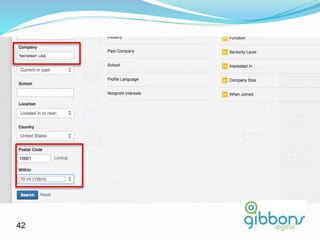
 Like Google, enter a keyword
 Search your own connections and groups.
 Find and reconnect with people, or look for new
connections by company, expertise, or education.
 Filter search results by powerful facets like location,
industry, language, and more.
41
42
43
44
People You May Know
 Quickly helps you find people and build professional
relationships.
 Find people from the home page or under the Contacts,
Add Connections menu item.
 You can ask someone you recognize to connect, remove
someone you don’t know (x) or click through to their
profile to learn more about them.
 When viewing the complete list, you can filter by where
they work, used to work or where they went to school.
 You can assess the people you have in common.
45
47
48
49
Groups
 Quickly discover the most popular discussions in your professional
groups.
 Have an active part in determining the top discussions by liking and
commenting.
 Follow the most influential people in your groups by checking the
Top Influencers board or clicking their profile image to see all their
group activity.
 See both member-generated discussions and news in one setting.
 Easily browse previews of the last three comments in a discussion.
 Find interesting discussions by seeing who liked a discussion and
how many people commented.
50
Groups
 Search for your industry or a career keyword, and find a group that fits
your interest.
 Once you’ve been accepted to the group you can share relevant content by
starting a discussion or posting a link in the share box.
 Sharing consistently is a good way to quickly identify yourself as an expert
in your field or industry.
 Click on your photo to see your updates as well as what’s changed in the
discussions you’ve started, joined or followed.
 Good way to keep track of discussions most important to you and your
career.
 After sharing, check out the newest discussions in the slide show below,
and cast your vote by liking or commenting.
 Under each discussion you’ll see the last 3 members who have
commented, click on the headline to see all comments.
54
55
56
Groups
 On Members tab you can review all group members, see how closely
you’re connected to them, and send a message.
 You can review new members or search for specific members.
 Some groups feature a jobs tab where you can review jobs posted by other
group members, or post a job of your own to increase distribution for the
opening.
 Click on the search tab when looking for a specific topic across all
discussions.
58
59
60
61
Jobs – Posting a Job
 Discover active and passive job candidates.
 Attract the highest quality candidates (rated 3-to-1 versus job
boards in a survey).
 Get viral distribution: jobs are forwarded an average of 11 times,
seen 400 times and receive 30 applications.
 Discover passive candidates with proprietary matching technology.
 Draw attention to your opening with appearances in search results
and immediate posting to Twitter.
 Let your applicants see how they’re connected to the company for
high-quality referrals.
 Review all candidates with a simple web interface.
62
Jobs – Posting a Job
 Candidates can apply directly for the job, identify
connections who work at your company, and forward the
job to their connections.
 You can specify whether or not to include your picture,
and a link to your profile on the listing so that candidates
in your network can reach out to you directly.
 You decide if you want to receive applications via email or
your website.
 Real-time profile matching across LinkedIn
25 best matching profiles
65
Jobs – looking for a job
66
67
68
69
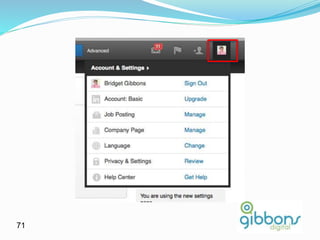
Account Settings
 From this page, you can:
 Change your primary email and password.
 Compare account types and see how many InMails and
introductions you have left.
 Manage any jobs or LinkedIn Ads you've purchased.
 View and manage settings for your:
 Profile
 Email Preferences
 Group, Companies and Applications
 Account
70
71
72
In Summary
 Cover the basics – 100% complete profile
 Get meaningful recommendations
 Post updates
 Join groups
73

Linked in winter 2016

  • 2.
    LinkedIn  The world’slargest professional network with over 225 million registered members and growing rapidly.  Connects you to your trusted contacts and helps you exchange knowledge, ideas, and opportunities with a broader network of professionals.
  • 5.
    Profiles  First stepin controlling your professional identify online.  Authoritative source on your career.  Represents your career accomplishments and opens the door to new opportunities.  Communicates your professional brand.  Enables people to connect and reconnect with you.  Strong profiles contain an executive summary, your skill set, education, 3 recent positions and 3 recommendations.  Hover over any section to edit. 5
  • 6.
  • 7.
  • 8.
  • 9.
  • 10.
  • 11.
    Experience  Add atleast 3 recent positions.  Provide details on your responsibilities. This dramatically helps improve search results.  Hover over this section to see edit pencils. 11
  • 12.
  • 13.
  • 14.
  • 15.
  • 16.
  • 17.
    Education  Include detailabout your formal education. Let’s people you’ve known in the past connect with you.  Where and what you’ve studied provides insights into your professional expertise.  Opens up valuable connections to Alumni, Professors or others with similar backgrounds. 17
  • 18.
  • 19.
  • 20.
  • 21.
  • 22.
  • 23.
    Recommendations  Quick wayfor people to get a sense of your strengths as a professional and for you to help out your connections in a few simple steps.  Click on “Asked to be Recommended” on any position on your profile and select which connection can speak to your work at that position.  They’ll submit a brief recommendation for your approval.  You can control which recommendations to display by clicking “Manage” 23
  • 25.
  • 26.
  • 28.
    Recommendations  To recommendthe strong work of a colleague or business partner, visit their profile and click “Recommend” be sure to include specific details in your recommendation.  An authentic recommendation helps people to get a sense of what it’s like to work with this person. 28
  • 30.
  • 31.
    Messages  Center ofcommunication  Take action on messages  Flag, delete, archive or mark messages as read or unread  Filter messages by type and sort by name, date, or subject 31
  • 33.
  • 34.
    Connections  2nd degreeare people who are connected to your 1st- degree connections.  3rd degree people who are connected to your 2nd-degree connections.  If their full first and last names are displayed, you will be able to send them an invitation by clicking Connect.  If only the first letter of their last name is displayed, clicking Connect is not an option but you can still contact them through an InMail or an introduction. 34
  • 35.
    Add Connections  Youcan ask someone to join your network by sending them an invitation to connect.  If they accept your invitation, they become a 1st-degree connection.  Normally recommend that you only send invitations to people you know well. 35
  • 37.
  • 38.
  • 39.
    Search  Like Google,enter a keyword  Search your own connections and groups.  Find and reconnect with people, or look for new connections by company, expertise, or education.  Filter search results by powerful facets like location, industry, language, and more.
  • 41.
  • 42.
  • 43.
  • 44.
  • 45.
    People You MayKnow  Quickly helps you find people and build professional relationships.  Find people from the home page or under the Contacts, Add Connections menu item.  You can ask someone you recognize to connect, remove someone you don’t know (x) or click through to their profile to learn more about them.  When viewing the complete list, you can filter by where they work, used to work or where they went to school.  You can assess the people you have in common. 45
  • 47.
  • 48.
  • 49.
  • 50.
    Groups  Quickly discoverthe most popular discussions in your professional groups.  Have an active part in determining the top discussions by liking and commenting.  Follow the most influential people in your groups by checking the Top Influencers board or clicking their profile image to see all their group activity.  See both member-generated discussions and news in one setting.  Easily browse previews of the last three comments in a discussion.  Find interesting discussions by seeing who liked a discussion and how many people commented. 50
  • 51.
    Groups  Search foryour industry or a career keyword, and find a group that fits your interest.  Once you’ve been accepted to the group you can share relevant content by starting a discussion or posting a link in the share box.  Sharing consistently is a good way to quickly identify yourself as an expert in your field or industry.  Click on your photo to see your updates as well as what’s changed in the discussions you’ve started, joined or followed.  Good way to keep track of discussions most important to you and your career.  After sharing, check out the newest discussions in the slide show below, and cast your vote by liking or commenting.  Under each discussion you’ll see the last 3 members who have commented, click on the headline to see all comments.
  • 54.
  • 55.
  • 56.
  • 57.
    Groups  On Memberstab you can review all group members, see how closely you’re connected to them, and send a message.  You can review new members or search for specific members.  Some groups feature a jobs tab where you can review jobs posted by other group members, or post a job of your own to increase distribution for the opening.  Click on the search tab when looking for a specific topic across all discussions.
  • 58.
  • 59.
  • 60.
  • 61.
  • 62.
    Jobs – Postinga Job  Discover active and passive job candidates.  Attract the highest quality candidates (rated 3-to-1 versus job boards in a survey).  Get viral distribution: jobs are forwarded an average of 11 times, seen 400 times and receive 30 applications.  Discover passive candidates with proprietary matching technology.  Draw attention to your opening with appearances in search results and immediate posting to Twitter.  Let your applicants see how they’re connected to the company for high-quality referrals.  Review all candidates with a simple web interface. 62
  • 63.
    Jobs – Postinga Job  Candidates can apply directly for the job, identify connections who work at your company, and forward the job to their connections.  You can specify whether or not to include your picture, and a link to your profile on the listing so that candidates in your network can reach out to you directly.  You decide if you want to receive applications via email or your website.  Real-time profile matching across LinkedIn
  • 65.
    25 best matchingprofiles 65
  • 66.
    Jobs – lookingfor a job 66
  • 67.
  • 68.
  • 69.
  • 70.
    Account Settings  Fromthis page, you can:  Change your primary email and password.  Compare account types and see how many InMails and introductions you have left.  Manage any jobs or LinkedIn Ads you've purchased.  View and manage settings for your:  Profile  Email Preferences  Group, Companies and Applications  Account 70
  • 71.
  • 72.
  • 73.
    In Summary  Coverthe basics – 100% complete profile  Get meaningful recommendations  Post updates  Join groups 73