Configuring MongoDB HA Replica Set on AWS EC2
Background
It has always been a tedious task to choose the right configuration for
MongoDB on AWS EC2
Choosing the right configuration in this environment is always challenging
and it takes a lots of time to make your system Production Ready.
What does it take?
All it needs is two machines that will be used as PRIMARY (Master)
and SECONDARY (Slave) node and one ARBITER machine for the
replica set.
However, it might get changed based on your application
requirement and you can opt for higher number of nodes based on
your need
ARBITER is only required in case of even number replica set. If you
want to maintain replica set with one PRIMARY and two SECONDARY,
ARBITER is not required
Hardware Requirement
Two 64 bit EC2 instances of medium/large or higher configuration
based on your App requirement for PRIMARY and SECONDARY node
(There is a data storage limitation of using 32 bit machine and can only
support upto 2.5 GB storage)

A small 32 bit EC2 machine for MongoDB ARBITER
It is recommended –

• to have machines in different availability zone to make it High
available in-case of a shutdown of one availability zone
• to use Ext4 EBS volume to support I/O suspend and write-cache
flushing for multi-disk consistent snapshots
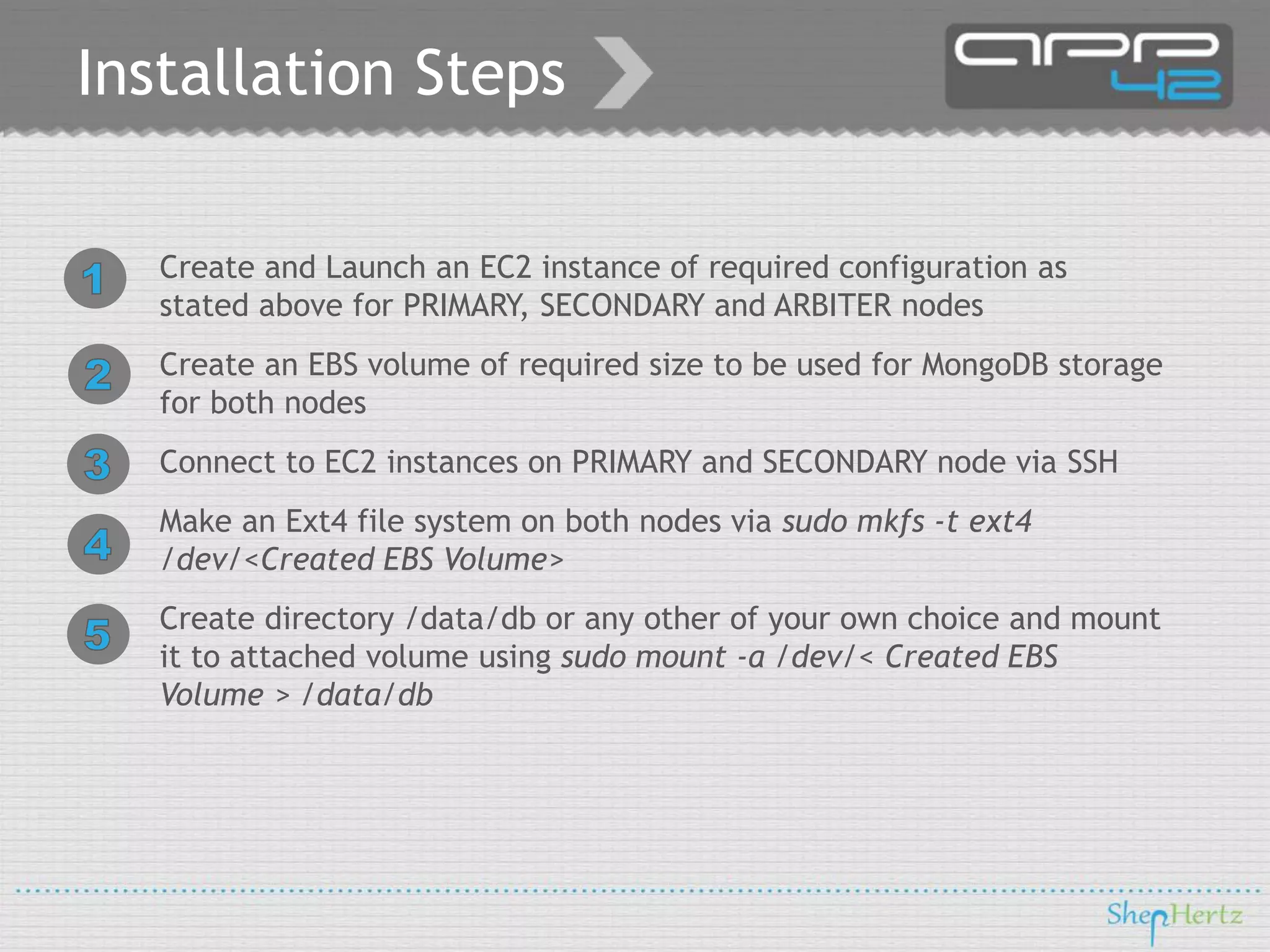
Installation Steps
Create and Launch an EC2 instance of required configuration as
stated above for PRIMARY, SECONDARY and ARBITER nodes
Create an EBS volume of required size to be used for MongoDB storage
for both nodes
Connect to EC2 instances on PRIMARY and SECONDARY node via SSH
Make an Ext4 file system on both nodes via sudo mkfs -t ext4
/dev/<Created EBS Volume>

Create directory /data/db or any other of your own choice and mount
it to attached volume using sudo mount -a /dev/< Created EBS
Volume > /data/db
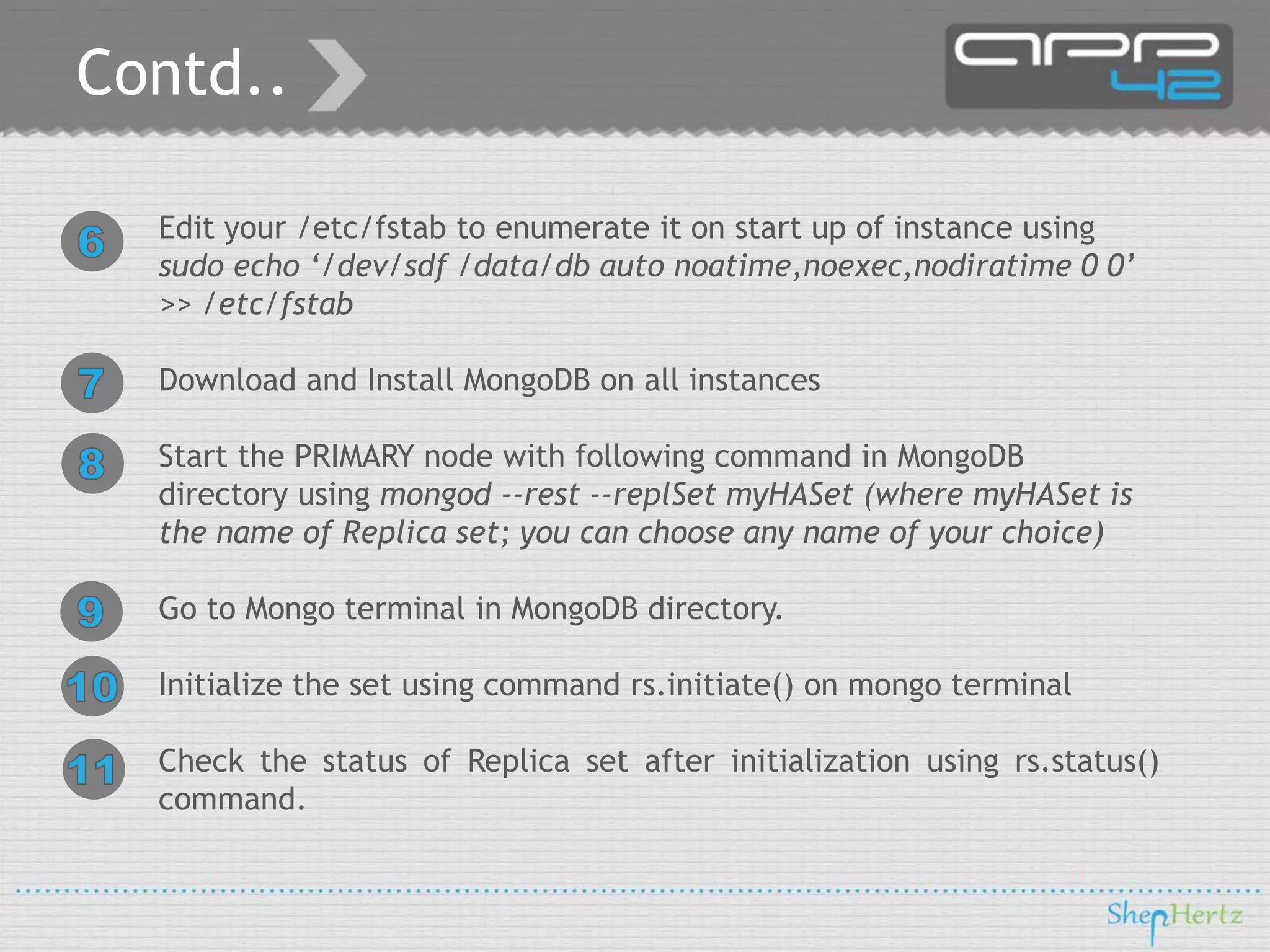
Contd..
Edit your /etc/fstab to enumerate it on start up of instance using
sudo echo ‘/dev/sdf /data/db auto noatime,noexec,nodiratime 0 0’
>> /etc/fstab
Download and Install MongoDB on all instances
Start the PRIMARY node with following command in MongoDB
directory using mongod --rest --replSet myHASet (where myHASet is
the name of Replica set; you can choose any name of your choice)
Go to Mongo terminal in MongoDB directory.
Initialize the set using command rs.initiate() on mongo terminal
Check the status of Replica set after initialization using rs.status()
command.
Contd..
If initialization is success you will see OK in the output something like
this
{
"set" : "sample",
"myState" : 1,
"members" : [
{
"name" : "<PRIMARY_HOSTNAME>:27017",
"self" : true
}
],
"ok" : 1
}
You can also check the status on
http://<PRIMARY_NODE>:27017/_replSet
Your Primary node is ready to use now. You can insert/update document
on this node
Contd..
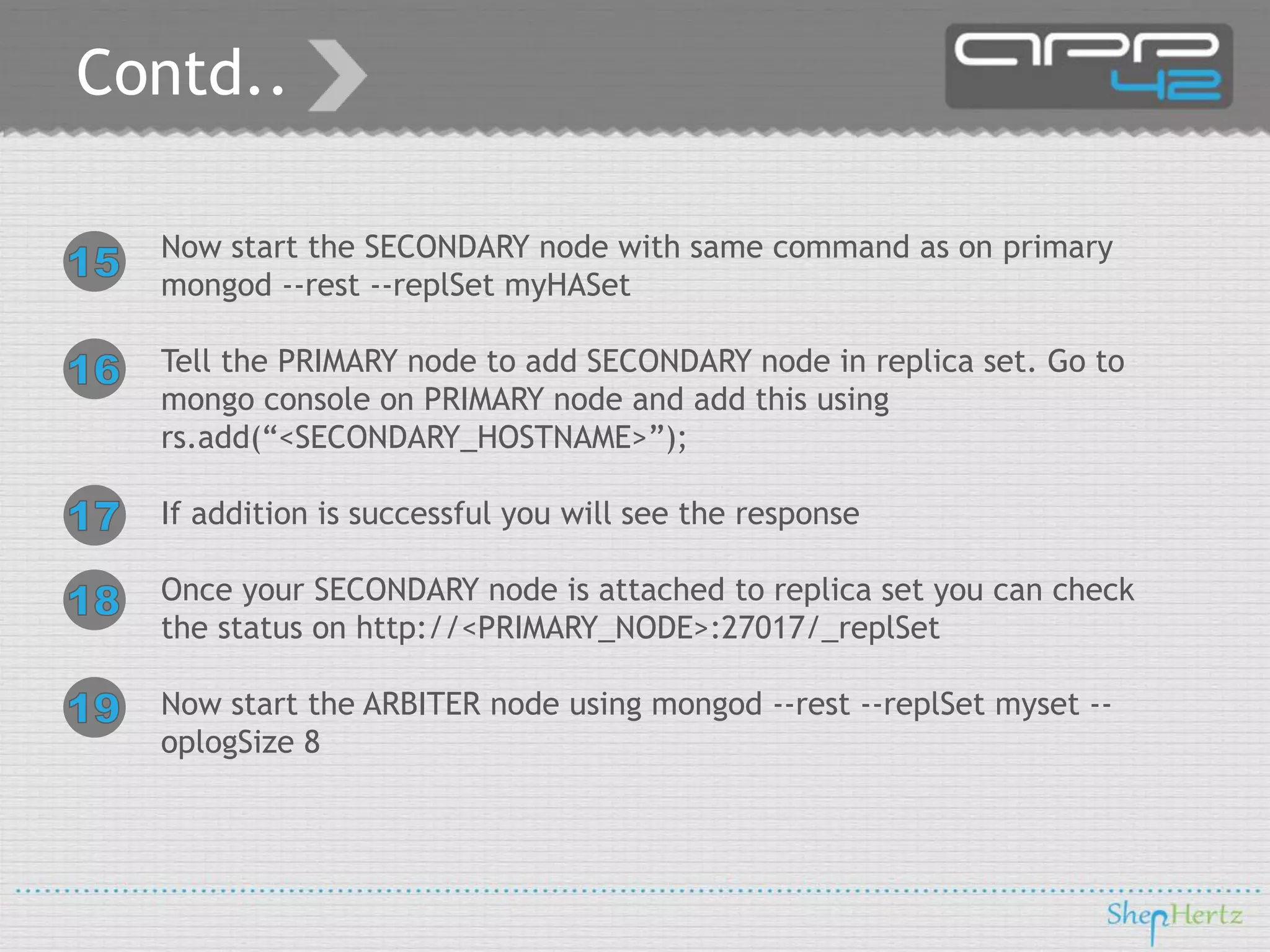
Now start the SECONDARY node with same command as on primary
mongod --rest --replSet myHASet
Tell the PRIMARY node to add SECONDARY node in replica set. Go to
mongo console on PRIMARY node and add this using
rs.add(“<SECONDARY_HOSTNAME>”);
If addition is successful you will see the response
Once your SECONDARY node is attached to replica set you can check
the status on http://<PRIMARY_NODE>:27017/_replSet
Now start the ARBITER node using mongod --rest --replSet myset -oplogSize 8
Contd..
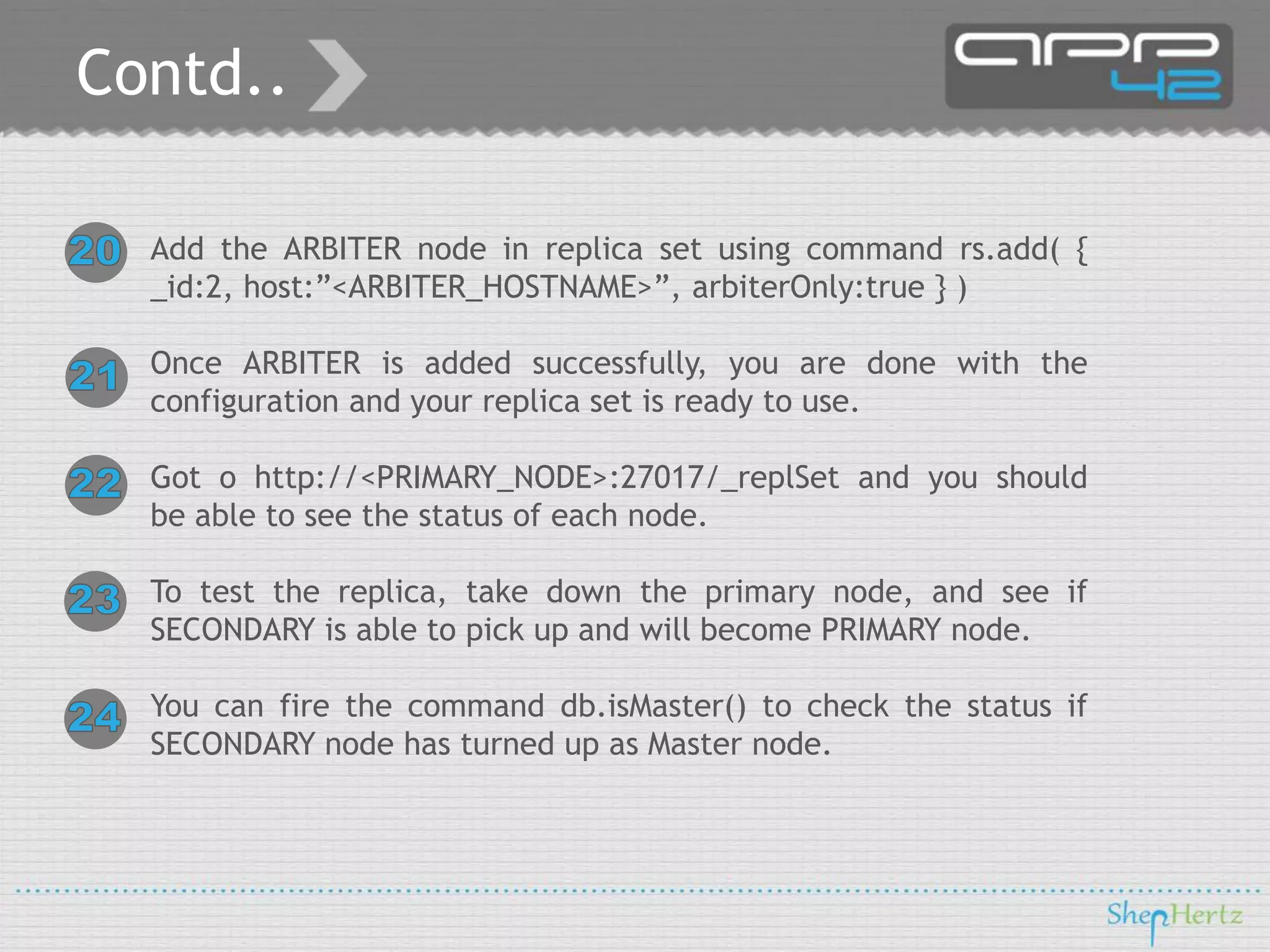
Add the ARBITER node in replica set using command rs.add( {
_id:2, host:”<ARBITER_HOSTNAME>”, arbiterOnly:true } )
Once ARBITER is added successfully, you are done with the
configuration and your replica set is ready to use.
Got o http://<PRIMARY_NODE>:27017/_replSet and you should
be able to see the status of each node.
To test the replica, take down the primary node, and see if
SECONDARY is able to pick up and will become PRIMARY node.
You can fire the command db.isMaster() to check the status if
SECONDARY node has turned up as Master node.
Connecting Replica
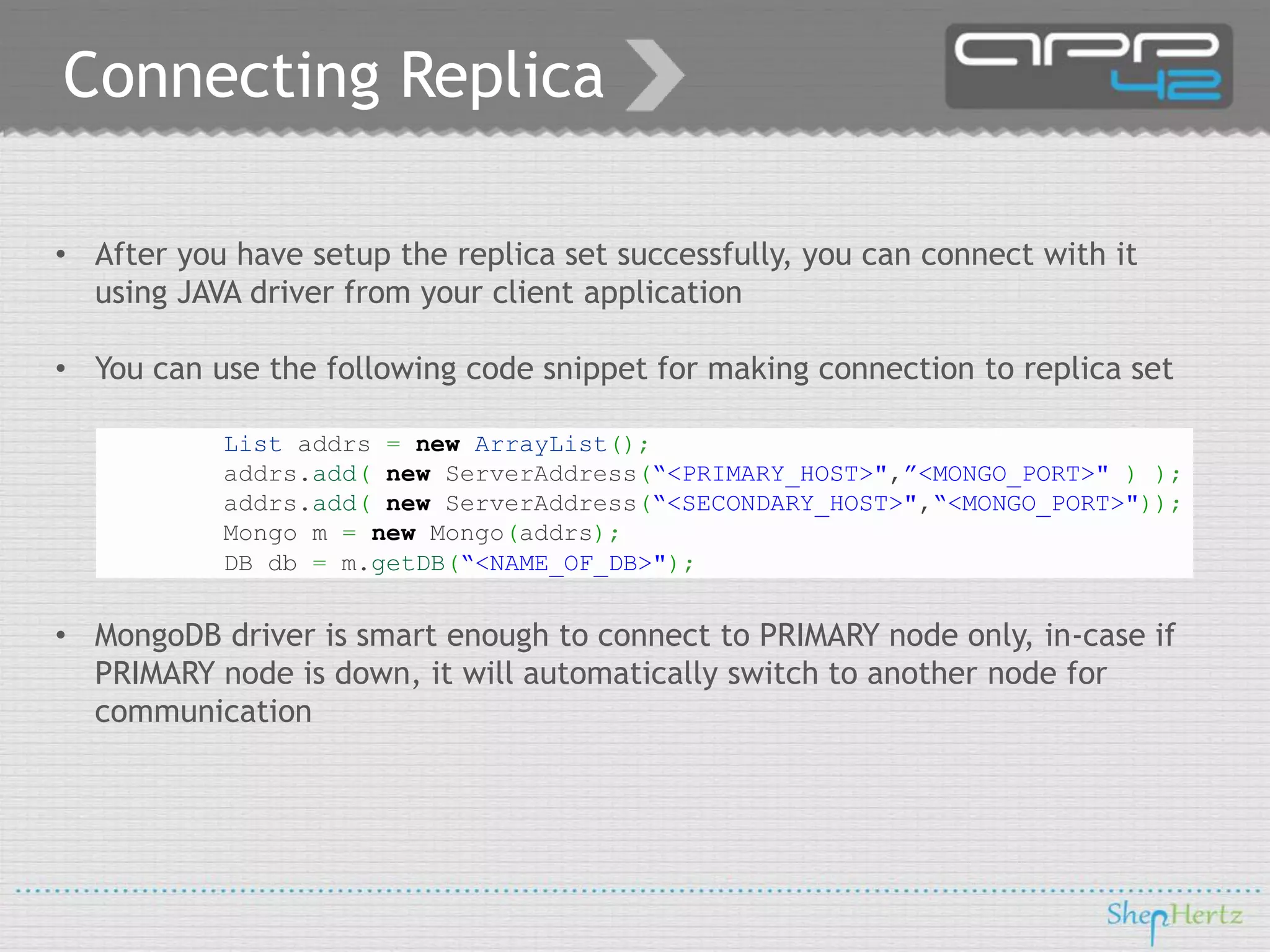
• After you have setup the replica set successfully, you can connect with it
using JAVA driver from your client application
• You can use the following code snippet for making connection to replica set
List addrs = new ArrayList();
addrs.add( new ServerAddress(“<PRIMARY_HOST>",”<MONGO_PORT>" ) );
addrs.add( new ServerAddress(“<SECONDARY_HOST>",“<MONGO_PORT>"));
Mongo m = new Mongo(addrs);
DB db = m.getDB(“<NAME_OF_DB>");

• MongoDB driver is smart enough to connect to PRIMARY node only, in-case if
PRIMARY node is down, it will automatically switch to another node for
communication
Conclusion
Here is an honest attempt to guide you to setup MongoDB on AWS
EC2. Though this is an open forum and you all are open to post your
comments if I have missed anything
Also, if you don’t want to get into setting up the infrastructure and
administration for MongoDB, you can directly use our App42 NoSQL
Cloud Storage Service.
This service can be accessed using our REST API or using native
platform SDKs available in different languages like iOS, Android,
J2ME, JAVA, PHP, Ruby, Windows Phone and C#
Links for Reference :
http://www.shephertz.com
http://api.shephertz.com
http://appwarp.shephertz.com

http://app42paas.shephertz.com/

Follow us on:

Contact: sales@shephertz.com
Skype: ShepHertz

Configuring MongoDB HA Replica Set on AWS EC2

  • 1.
    Configuring MongoDB HAReplica Set on AWS EC2
  • 2.
    Background It has alwaysbeen a tedious task to choose the right configuration for MongoDB on AWS EC2 Choosing the right configuration in this environment is always challenging and it takes a lots of time to make your system Production Ready.
  • 3.
    What does ittake? All it needs is two machines that will be used as PRIMARY (Master) and SECONDARY (Slave) node and one ARBITER machine for the replica set. However, it might get changed based on your application requirement and you can opt for higher number of nodes based on your need ARBITER is only required in case of even number replica set. If you want to maintain replica set with one PRIMARY and two SECONDARY, ARBITER is not required
  • 4.
    Hardware Requirement Two 64bit EC2 instances of medium/large or higher configuration based on your App requirement for PRIMARY and SECONDARY node (There is a data storage limitation of using 32 bit machine and can only support upto 2.5 GB storage) A small 32 bit EC2 machine for MongoDB ARBITER It is recommended – • to have machines in different availability zone to make it High available in-case of a shutdown of one availability zone • to use Ext4 EBS volume to support I/O suspend and write-cache flushing for multi-disk consistent snapshots
  • 5.
    Installation Steps Create andLaunch an EC2 instance of required configuration as stated above for PRIMARY, SECONDARY and ARBITER nodes Create an EBS volume of required size to be used for MongoDB storage for both nodes Connect to EC2 instances on PRIMARY and SECONDARY node via SSH Make an Ext4 file system on both nodes via sudo mkfs -t ext4 /dev/<Created EBS Volume> Create directory /data/db or any other of your own choice and mount it to attached volume using sudo mount -a /dev/< Created EBS Volume > /data/db
  • 6.
    Contd.. Edit your /etc/fstabto enumerate it on start up of instance using sudo echo ‘/dev/sdf /data/db auto noatime,noexec,nodiratime 0 0’ >> /etc/fstab Download and Install MongoDB on all instances Start the PRIMARY node with following command in MongoDB directory using mongod --rest --replSet myHASet (where myHASet is the name of Replica set; you can choose any name of your choice) Go to Mongo terminal in MongoDB directory. Initialize the set using command rs.initiate() on mongo terminal Check the status of Replica set after initialization using rs.status() command.
  • 7.
    Contd.. If initialization issuccess you will see OK in the output something like this { "set" : "sample", "myState" : 1, "members" : [ { "name" : "<PRIMARY_HOSTNAME>:27017", "self" : true } ], "ok" : 1 } You can also check the status on http://<PRIMARY_NODE>:27017/_replSet Your Primary node is ready to use now. You can insert/update document on this node
  • 8.
    Contd.. Now start theSECONDARY node with same command as on primary mongod --rest --replSet myHASet Tell the PRIMARY node to add SECONDARY node in replica set. Go to mongo console on PRIMARY node and add this using rs.add(“<SECONDARY_HOSTNAME>”); If addition is successful you will see the response Once your SECONDARY node is attached to replica set you can check the status on http://<PRIMARY_NODE>:27017/_replSet Now start the ARBITER node using mongod --rest --replSet myset -oplogSize 8
  • 9.
    Contd.. Add the ARBITERnode in replica set using command rs.add( { _id:2, host:”<ARBITER_HOSTNAME>”, arbiterOnly:true } ) Once ARBITER is added successfully, you are done with the configuration and your replica set is ready to use. Got o http://<PRIMARY_NODE>:27017/_replSet and you should be able to see the status of each node. To test the replica, take down the primary node, and see if SECONDARY is able to pick up and will become PRIMARY node. You can fire the command db.isMaster() to check the status if SECONDARY node has turned up as Master node.
  • 10.
    Connecting Replica • Afteryou have setup the replica set successfully, you can connect with it using JAVA driver from your client application • You can use the following code snippet for making connection to replica set List addrs = new ArrayList(); addrs.add( new ServerAddress(“<PRIMARY_HOST>",”<MONGO_PORT>" ) ); addrs.add( new ServerAddress(“<SECONDARY_HOST>",“<MONGO_PORT>")); Mongo m = new Mongo(addrs); DB db = m.getDB(“<NAME_OF_DB>"); • MongoDB driver is smart enough to connect to PRIMARY node only, in-case if PRIMARY node is down, it will automatically switch to another node for communication
  • 11.
    Conclusion Here is anhonest attempt to guide you to setup MongoDB on AWS EC2. Though this is an open forum and you all are open to post your comments if I have missed anything Also, if you don’t want to get into setting up the infrastructure and administration for MongoDB, you can directly use our App42 NoSQL Cloud Storage Service. This service can be accessed using our REST API or using native platform SDKs available in different languages like iOS, Android, J2ME, JAVA, PHP, Ruby, Windows Phone and C#
  • 12.
    Links for Reference: http://www.shephertz.com http://api.shephertz.com http://appwarp.shephertz.com http://app42paas.shephertz.com/ Follow us on: Contact: sales@shephertz.com Skype: ShepHertz