Video Channel Presentation
YOUTUBE LEVEL: BEGINNER
How To Start A YouTube Channel
For Your Small Business?
02.
Video Channel Presentation
2.1
YouTube Channel
Creation (Beginners)
Video Channel Presentation
Step 1: Activate your channel
Log In & Choose Business Account
Log into YouTube and choose Your Channel in the top-right menu.
You will be invited to create a personal or a business account.
Create YouTube Brand Account
Enter your company or brand name as the name. Your YouTube
channel has now been created. This business account can be
accessed by different people in your company.
Don’t have a Google Account?
You will need to go create a new one immediately!
A
B
C
Video Channel Presentation
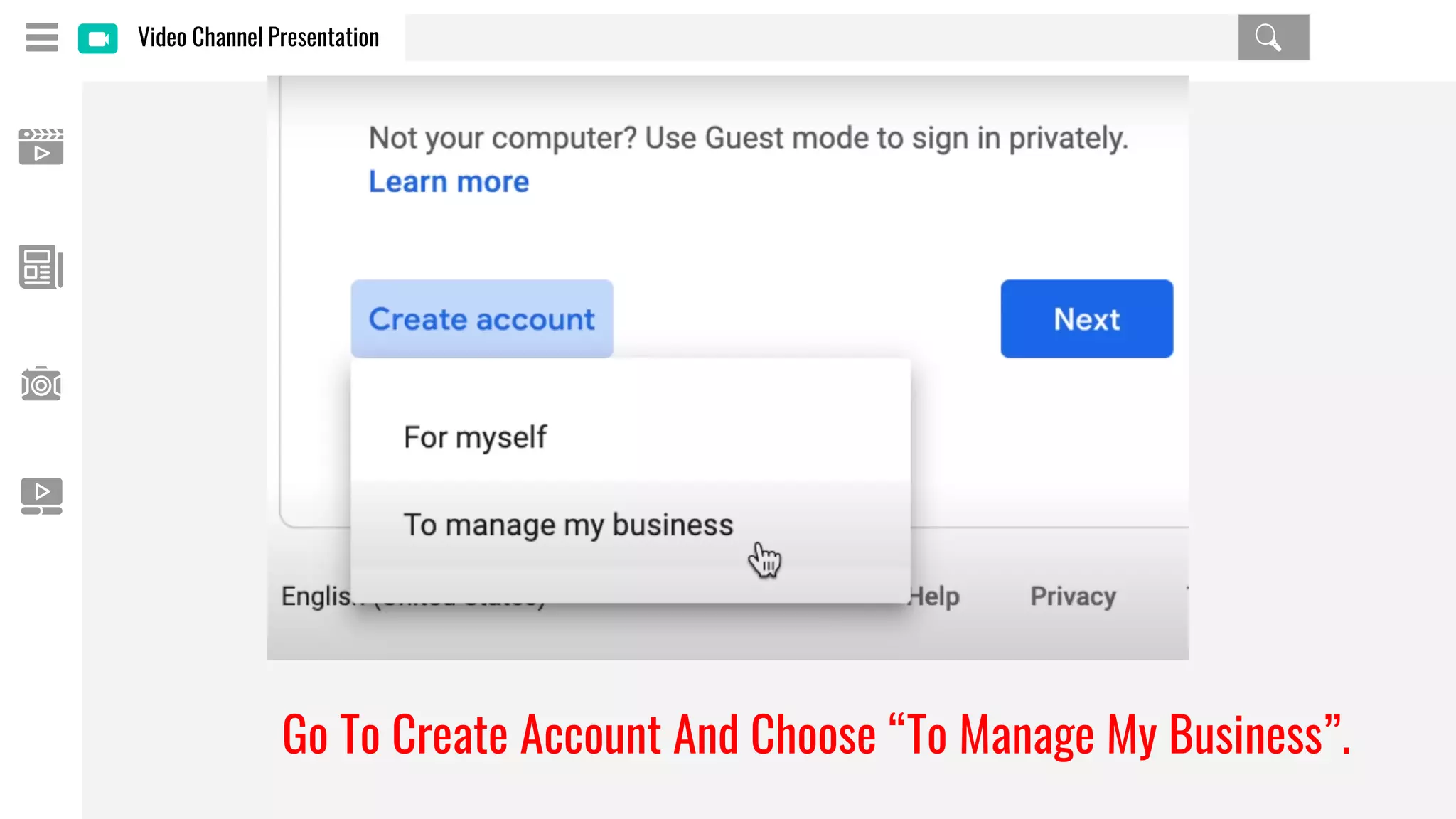
Go To Create Account And Choose “To Manage My Business”.
Video Channel Presentation
By clicking on
Your channel in
the menu, any
Google account
owner may log
into YouTube
and activate
their channel.
Video Channel Presentation
Step 2: Choose your channel's artwork.
Background Image
At the top of your page, you can provide a background image for
your YouTube channel. This is called your channel art. You can
choose any image, and you can change it at any time.
High-resolution Image & Logo
As the image is large, you need to provide a high-resolution image
and one which is in harmony with your brand identity and your logo.
Channel Icon
We propose utilizing your logo as the channel icon. Hover over the
button next to your account name and select Edit profile photo to
change it.
A
B
C
The channel art is
a huge backdrop
picture that may
give your YouTube
channel a unique
look.
This is Channel icon.
Recommended to put your logo
as your channel icon.
Video Channel Presentation
Step 3: Customize your YouTube channel
Click “About” Tab
Here you can enter a descriptive text for your business and provide
a location and a contact email.
Put Your Social Media Link
Include link to your other social media accounts as well as your
website. On your channel art image, these links will be clearly
displayed.
Featured Channels
You can also choose which YouTube channels people should see
when they visit your channel. During the customizing process, these
are designated as Featured channels.
A
B
C
On your YouTube channel, you
may explain your company,
present an email address, and
include links to your website and
other social media sites.
Video Channel Presentation
Step 4: Upload your first videos to your account.
Click “Create” Button
Now that your channel is up and running, you must emphasis on the
content. You should indeed add descriptive information about the
video after it has been posted.
Video Searches Bar
Pay great attention to this step since it will affect its appearance as
well as how it will appear in video searches.
Edit Videos
Once your videos are in your YouTube channel, you may edit, blur,
add music, and add end screens. You may also modify YouTube
videos after they've been uploaded using the interface.
A
B
C
You may also modify
YouTube videos after they've
been uploaded using the
interface.

YouTube channel creation

  • 1.
    Video Channel Presentation YOUTUBELEVEL: BEGINNER How To Start A YouTube Channel For Your Small Business? 02.
  • 2.
    Video Channel Presentation 2.1 YouTubeChannel Creation (Beginners)
  • 3.
    Video Channel Presentation Step1: Activate your channel Log In & Choose Business Account Log into YouTube and choose Your Channel in the top-right menu. You will be invited to create a personal or a business account. Create YouTube Brand Account Enter your company or brand name as the name. Your YouTube channel has now been created. This business account can be accessed by different people in your company. Don’t have a Google Account? You will need to go create a new one immediately! A B C
  • 4.
    Video Channel Presentation GoTo Create Account And Choose “To Manage My Business”.
  • 5.
    Video Channel Presentation Byclicking on Your channel in the menu, any Google account owner may log into YouTube and activate their channel.
  • 6.
    Video Channel Presentation Step2: Choose your channel's artwork. Background Image At the top of your page, you can provide a background image for your YouTube channel. This is called your channel art. You can choose any image, and you can change it at any time. High-resolution Image & Logo As the image is large, you need to provide a high-resolution image and one which is in harmony with your brand identity and your logo. Channel Icon We propose utilizing your logo as the channel icon. Hover over the button next to your account name and select Edit profile photo to change it. A B C
  • 7.
    The channel artis a huge backdrop picture that may give your YouTube channel a unique look. This is Channel icon. Recommended to put your logo as your channel icon.
  • 8.
    Video Channel Presentation Step3: Customize your YouTube channel Click “About” Tab Here you can enter a descriptive text for your business and provide a location and a contact email. Put Your Social Media Link Include link to your other social media accounts as well as your website. On your channel art image, these links will be clearly displayed. Featured Channels You can also choose which YouTube channels people should see when they visit your channel. During the customizing process, these are designated as Featured channels. A B C
  • 9.
    On your YouTubechannel, you may explain your company, present an email address, and include links to your website and other social media sites.
  • 10.
    Video Channel Presentation Step4: Upload your first videos to your account. Click “Create” Button Now that your channel is up and running, you must emphasis on the content. You should indeed add descriptive information about the video after it has been posted. Video Searches Bar Pay great attention to this step since it will affect its appearance as well as how it will appear in video searches. Edit Videos Once your videos are in your YouTube channel, you may edit, blur, add music, and add end screens. You may also modify YouTube videos after they've been uploaded using the interface. A B C
  • 11.
    You may alsomodify YouTube videos after they've been uploaded using the interface.