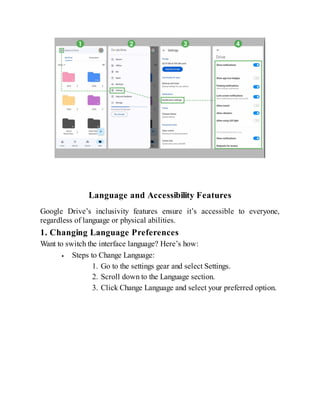
All rights reserved. No part of this book may be reproduced, stored in a
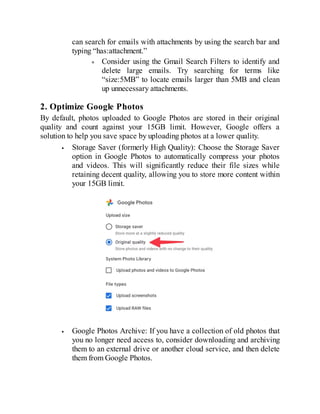
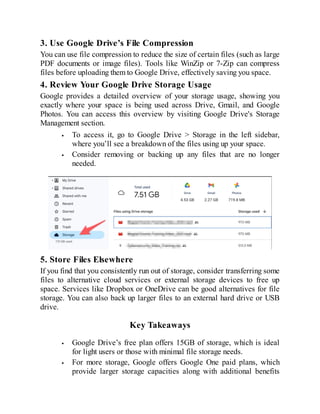
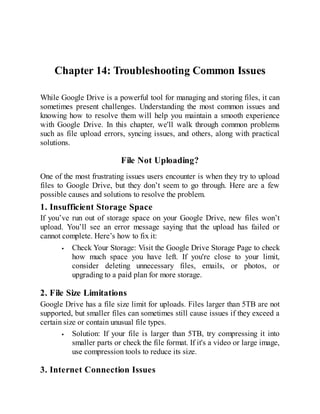
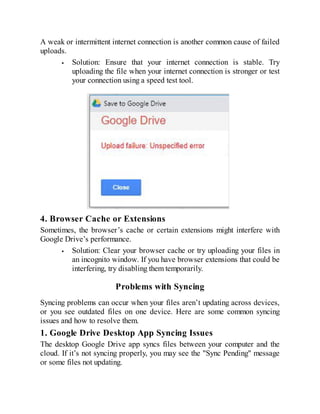
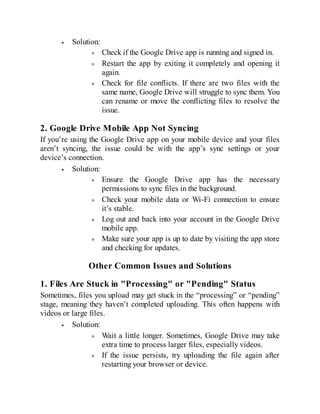
retrieval system, or transmitted in any form or by any means, electronic,
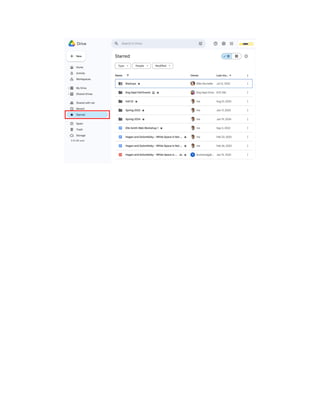
mechanical, photocopying, recording, or otherwise, without prior written
permission by the author
Don't get lostin bulky, all-in-one guides. This focused book dives deep into
Google Drive, delivering clear, valuable insights to help you understand it
better.
To all learners, beginners, and experts exploring the potential of technology,
this book is your companion. May it empower you, spark creativity, and lead
you to confidently master Google Drive with simplicity and ease.
4.
TABLE OF CONTENT
Introduction
Whatis Google Drive?
Key Features of Google Drive
The Benefits of Using Google Drive for Personal and Professional Life
Personal Life:
Professional Life:
How This Book Will Help You
Step-by-Step Learning:
Hands-On Exercises:
Examples and Screenshots:
PART 1: GETTING STARTED
Chapter 1: Setting Up Google Drive
Creating a Google Account
Accessing Google Drive
On Desktop
On Mobile App
Understanding the Interface
Navigation Bar (Left Side)
Main Workspace (Center)
Toolbar (Top Right)
Practice Time!
Key Takeaways
Chapter 2: Exploring Cloud Storage
What is Cloud Storage?
Key Features of Cloud Storage
How It Works
Differences Between Local and Cloud Storage
Example Scenario
Why Google Drive is Safe and Efficient
5.
Practice Activity
Key Takeaways
Chapter3: Managing Your Google Drive Settings
Changing Default Settings
1. Storage Management
2. Personalizing Themes
3. Notifications
Language and Accessibility Features
1. Changing Language Preferences
2. Accessibility Features
Practice Activity
Key Takeaways
PART 2: CORE FEARURES
Chapter 4: Uploading and Managing Files
How to Upload Files and Folders
Uploading Files
Uploading Folders
Supported File Types
Converting Microsoft Office Docs to Google Docs, Sheets, and Slides
Organizing Files: Creating Folders, Renaming, and Moving Files
Creating Folders
Renaming Files and Folders
Moving Files
Using Search for Quick Access
Practice Activity
Key Takeaways
Chapter 5: Sharing and Collaborating
Sharing Options: View, Comment, and Edit Permissions
1. View Permissions
2. Comment Permissions
3. Edit Permissions
6.
Managing Access: Publicvs. Private Sharing
1. Private Sharing
2. Public Sharing
Real-time Collaboration in Docs, Sheets, and Slides
1. Real-time Editing
2. Commenting and Suggesting
3. Real-time Collaboration in Sheets and Slides
Practice Activity
Key Takeaways
Chapter 6: Creating and Editing Documents
Introduction to Google Docs, Sheets, and Slides
1. Google Docs
2. Google Sheets
3. Google Slides
Creating New Files from Google Drive
1. Creating a Google Docs File
2. Creating a Google Sheets File
3. Creating a Google Slides File
Templates: How to Use and Customize
1. Using Templates in Google Docs
2. Using Templates in Google Sheets
3. Using Templates in Google Slides
4. Customizing Templates
Customizing Templates in Google Docs
Customizing Templates in Google Sheets
Customizing Templates in Google Slides
Practice Activity
Key Takeaways
PART 3: ADVANCED FEARURES
Chapter 7: Using Google Drive with Other Apps
Integration with Gmail, Calendar, and Keep
1. Integration with Gmail
2. Integration with Google Calendar
7.
3. Integration withGoogle Keep
Syncing with Third-Party Apps
1. Syncing with Popular Third-Party Apps
2. Using Google Drive with Project Management Tools
Practice Activity
Key Takeaways
Chapter 8: Advanced Search and Filters
How to Search Efficiently
1. Basic Search: Using the Search Bar
2. Advanced Search OperatorsUsing Filters to Find Files Quickly
1. The Filter Menu
Search and Filter Examples in Action
Practice Activity
Key Takeaways
Chapter 9: File Management Tips
Archiving, Starred Items, and Priority Files
1. Archiving Files
2. Starred Items
3. Priority Files
Trash and Recovery Options
1. The Trash Folder
2. Restoring Deleted Files
3. Permanently Deleting Files
4. Recovering Files After 30 Days
File Management Best Practices
Practice Activity
Key Takeaways
PART 4: MASTERING PRODUCTIVITY
Chapter 10: Time-Saving Tricks
Keyboard Shortcuts
Common Google Drive Shortcuts
8.
Accessing the FullList of Shortcuts
Offline Mode: Accessing Files Without the Internet
Setting Up Offline Mode
Using Offline Mode
Managing Offline Files
Time-Saving Tips for Offline Mode
Practice Activity
Key Takeaways
Chapter 11: Team Collaboration Best Practices
Setting Up Shared Drives for Teams
Steps to Create a Shared Drive
Best Practices for Organizing Shared Drives
Managing Shared Files: Ownership and Roles
File Ownership in Shared Drives
Managing Roles in Shared Drives
Assigning Roles to Team Members
Best Practices for Managing Permissions
Real-Life Collaboration Example
Key Takeaways
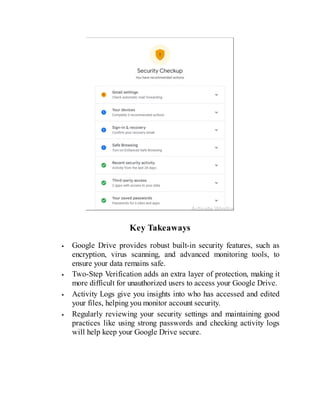
Chapter 12: Maintaining Security and Privacy
How Google Drive Keeps Your Data Safe
1. Encryption
2. Advanced Security for Google Accounts
3. Virus Scanning
4. File Access Controls
Managing Security Settings (Two-Step Verification, Activity Logs)
Two-Step Verification: Adding an Extra Layer of Protection
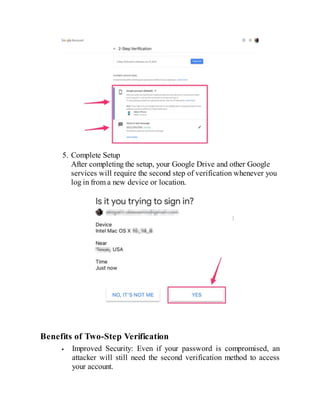
Steps to Enable Two-Step Verification
Benefits of Two-Step Verification
Activity Logs: Monitoring Account Activity
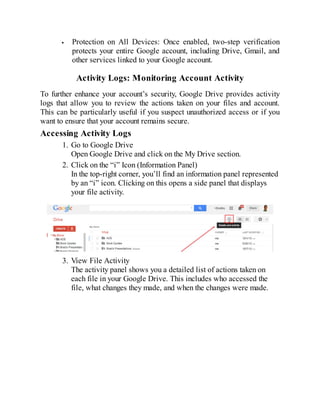
Accessing Activity Logs
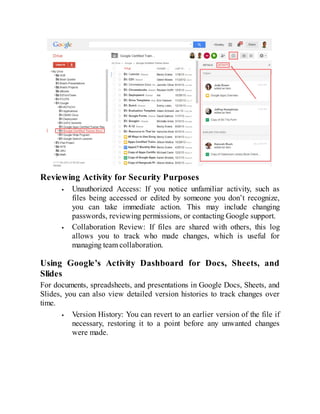
Reviewing Activity for Security Purposes
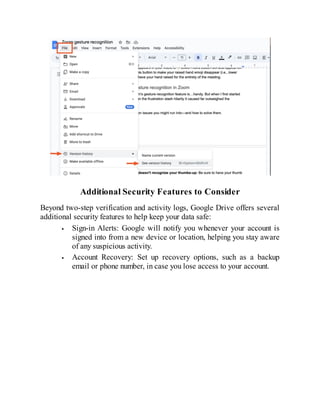
Using Google’s Activity Dashboard for Docs, Sheets, and Slides
9.
Additional Security Featuresto Consider
Key Takeaways
PART 5: ADDITIONAL TIPS
Chapter 13: Free vs. Paid Plans
Google Drive Storage Plans Comparison
1. Google Drive’s Free Plan (15GB)
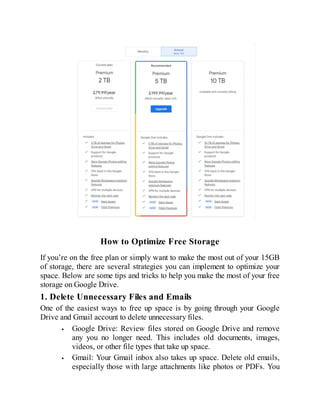
2. Google One Paid Plans
Google One Pricing Plans:
Benefits of Google One Paid Plans:
How to Optimize Free Storage
1. Delete Unnecessary Files and Emails
2. Optimize Google Photos
3. Use Google Drive’s File Compression
4. Review Your Google Drive Storage Usage
5. Store Files Elsewhere
Key Takeaways
Chapter 14: Troubleshooting Common Issues
File Not Uploading?
1. Insufficient Storage Space
2. File Size Limitations
3. Internet Connection Issues
4. Browser Cache or Extensions
Problems with Syncing
1. Google Drive Desktop App Syncing Issues
2. Google Drive Mobile App Not Syncing
Other Common Issues and Solutions
1. Files Are Stuck in "Processing" or "Pending" Status
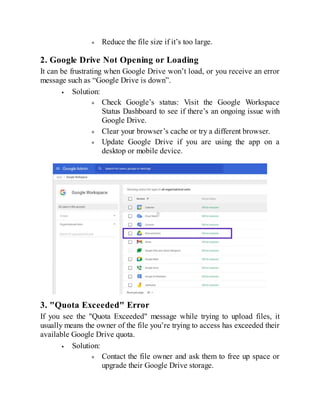
2. Google Drive Not Opening or Loading
3. "Quota Exceeded" Error
4. "Access Denied" or "Permission Issues"
5. File Not Showing in Google Drive Search Results
6. Google Drive Not Syncing on Mac or Windows PC
Key Takeaways
10.
Chapter 15: PlanningEvents with Google Drive
1. Creating Shared Folders for Event Documents
2. Using Google Sheets for Budgeting and Planning
3. Collaborative Google Docs for Invitations and Speeches
4. Organizing and Sharing Event Photos
Organizing Photo Albums or Recipes
1. Creating Digital Photo Albums
2. Organizing and Sharing Recipes
3. Sharing Recipes and Photos with Others
Key Takeaways
11.
I
Introduction
n this digitalage, managing your files and data efficiently is more
important than ever. With cloud storage services, like Google Drive, it’s
easier to store, organize, and access your files from anywhere, on any
device. Whether you're managing personal photos, collaborating on work
projects, or keeping track of important documents, Google Drive offers a
comprehensive solution. But what exactly is Google Drive? How does it fit
into both your personal and professional life? This book will guide you
through these questions and more, helping you make the most out of Google
Drive’s features.
What is Google Drive?
Google Drive is a cloud storage service offered by Google. It allows you to
store files such as documents, spreadsheets, presentations, photos, videos,
and much more in an online space, known as “the cloud.” Instead of relying
on physical storage devices, like hard drives or USB sticks, Google Drive
stores your files securely on Google’s servers, making them accessible from
any device with internet access.
But Google Drive isn’t just about storage. It’s also a powerful suite of tools
that integrates seamlessly with Google’s productivity apps, such as Google
Docs, Sheets, Slides, and more. These apps allow you to create, edit, and
collaborate on documents in real time with others, making Google Drive not
only a storage solution but also a productivity powerhouse.
Key Features of Google Drive
Cloud Storage: Store your files securely and access them from
anywhere.
Collaboration: Share files with others and work together in real
time.
12.
Seamless Integration: GoogleDocs, Sheets, and Slides are built
directly into Google Drive for easy creation and editing of
documents.
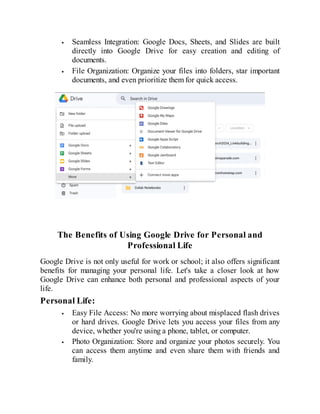
File Organization: Organize your files into folders, star important
documents, and even prioritize them for quick access.
The Benefits of Using Google Drive for Personal and
Professional Life
Google Drive is not only useful for work or school; it also offers significant
benefits for managing your personal life. Let's take a closer look at how
Google Drive can enhance both personal and professional aspects of your
life.
Personal Life:
Easy File Access: No more worrying about misplaced flash drives
or hard drives. Google Drive lets you access your files from any
device, whether you're using a phone, tablet, or computer.
Photo Organization: Store and organize your photos securely. You
can access them anytime and even share them with friends and
family.
13.
Backup and Recovery:Automatically back up important files or
documents so you don’t have to worry about losing them. Google
Drive also lets you recover deleted files for a period of time,
making it easier to restore things you might have accidentally lost.
Family and Event Planning: Google Drive is perfect for organizing
and planning family events, keeping track of to-do lists, and
sharing photos or documents with loved ones.
Professional Life:
Seamless Collaboration: Share documents with coworkers and
collaborate in real-time on projects. Google Drive allows multiple
people to edit, comment, and suggest changes simultaneously,
making teamwork smoother.
Cross-Platform Access: Whether you’re at your desk or on the go,
Google Drive ensures you have access to your work files from any
device, whether you're using a Windows PC, a Mac, or an Android
phone.
Security and Privacy: Google Drive offers robust security
measures to protect your documents, including two-factor
authentication and encryption. You control who has access to your
files, whether it's private, shared with specific people, or public.
15.
How This BookWill Help You
Whether you’re a beginner or someone with some experience, this book is
designed to take you step-by-step through Google Drive’s features, showing
you how to maximize its potential. The goal is to make sure that, by the end
of this book, you’re confident in using Google Drive for both personal and
professional tasks.
Step-by-Step Learning:
This book will guide you through each of the core features of Google Drive,
starting with setting up your Google Drive and progressing to more advanced
features, such as managing permissions, syncing with third-party apps, and
ensuring your data is secure. Each chapter is organized in an easy-to-follow
format, with detailed instructions and examples, so you can understand and
apply what you’ve learned.
Hands-On Exercises:
As you go through the chapters, you’ll find exercises designed to help you
practice what you’ve learned. These exercises will help you build
confidence in using Google Drive and show you how to use it in real-life
situations. Whether it’s creating folders, uploading files, or collaborating on
documents, you’ll get hands-on experience with every essential feature.
Examples and Screenshots:
This book provides plenty of examples and real-world use cases to make
each feature more relatable. You’ll find step-by-step screenshots throughout
the content, so you can follow along visually and ensure you’re on the right
track.
By the end of this book, you'll have the knowledge and confidence to use
Google Drive to its full potential. From everyday tasks like file storage and
document creation to more advanced features like real-time collaboration
and security management, you'll know how to make Google Drive work for
you.
Let’s get started with Chapter 1, where we’ll walk you through setting up
Google Drive and familiarizing you with its interface. You’ll soon see how
16.
easy it isto begin organizing and managing your files.
I
Chapter 1: SettingUp Google Drive
n this chapter, we’ll start by laying the foundation: setting up your account
and getting familiar with the tools that will become your best friends in the
cloud. Ready? Let’s dive in!
Creating a Google Account
To use Google Drive, you’ll first need a Google account. Don’t worry—it’s
quick and straightforward!
Step 1: Visit Google’s Sign-Up Page
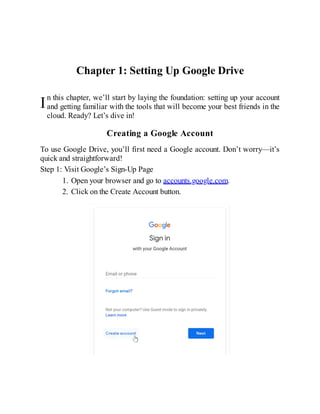
1. Open your browser and go to accounts.google.com.
2. Click on the Create Account button.
19.
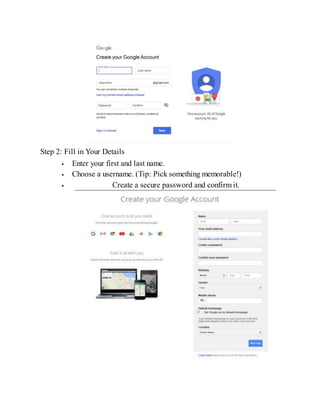
Step 2: Fillin Your Details
Enter your first and last name.
Choose a username. (Tip: Pick something memorable!)
Create a secure password and confirm it.
20.
Step 3: VerifyYour Account
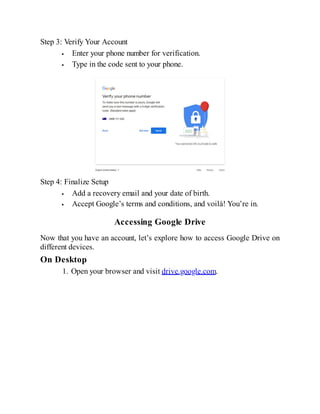
Enter your phone number for verification.
Type in the code sent to your phone.
Step 4: Finalize Setup
Add a recovery email and your date of birth.
Accept Google’s terms and conditions, and voilà! You’re in.
Accessing Google Drive
Now that you have an account, let’s explore how to access Google Drive on
different devices.
On Desktop
1. Open your browser and visit drive.google.com.
21.
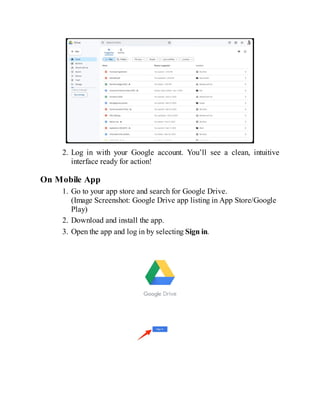
2. Log inwith your Google account. You’ll see a clean, intuitive
interface ready for action!
On Mobile App
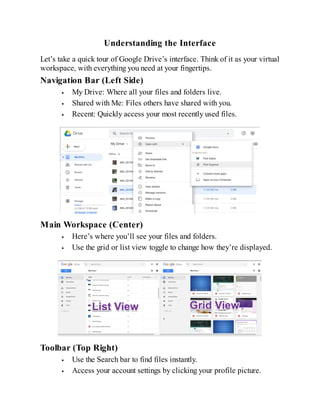
1. Go to your app store and search for Google Drive.
(Image Screenshot: Google Drive app listing in App Store/Google
Play)
2. Download and install the app.
3. Open the app and log in by selecting Sign in.
22.
Understanding the Interface
Let’stake a quick tour of Google Drive’s interface. Think of it as your virtual
workspace, with everything you need at your fingertips.
Navigation Bar (Left Side)
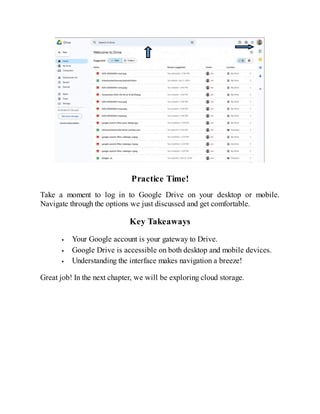
My Drive: Where all your files and folders live.
Shared with Me: Files others have shared with you.
Recent: Quickly access your most recently used files.
Main Workspace (Center)
Here’s where you’ll see your files and folders.
Use the grid or list view toggle to change how they’re displayed.
Toolbar (Top Right)
Use the Search bar to find files instantly.
Access your account settings by clicking your profile picture.
23.
Practice Time!
Take amoment to log in to Google Drive on your desktop or mobile.
Navigate through the options we just discussed and get comfortable.
Key Takeaways
Your Google account is your gateway to Drive.
Google Drive is accessible on both desktop and mobile devices.
Understanding the interface makes navigation a breeze!
Great job! In the next chapter, we will be exploring cloud storage.
24.
I
Chapter 2: ExploringCloud Storage
n this chapter, we’re diving into the fascinating world of cloud storage. By
the end of this lesson, you’ll understand what cloud storage is, how it
compares to local storage, and why Google Drive stands out as a safe and
efficient solution.
What is Cloud Storage?
Imagine having a magic backpack that you can access from anywhere in the
world. Whether you’re at home, in the office, or on vacation, your files are
always within reach. That’s essentially what cloud storage is—a virtual
storage space accessible over the internet.
Key Features of Cloud Storage
1. Accessibility: Store your files online and access them from any
device with an internet connection.
2. Scalability: Start with free storage and upgrade as your needs
grow.
3. Collaboration: Share files and work on them with others in real-
time.
4. Backup and Recovery: Keep your data safe from device failures.
25.
How It Works
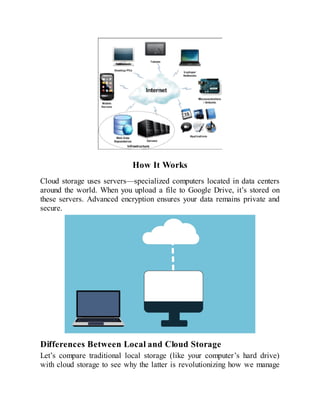
Cloudstorage uses servers—specialized computers located in data centers
around the world. When you upload a file to Google Drive, it’s stored on
these servers. Advanced encryption ensures your data remains private and
secure.
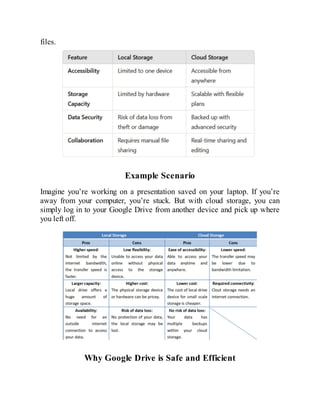
Differences Between Local and Cloud Storage
Let’s compare traditional local storage (like your computer’s hard drive)
with cloud storage to see why the latter is revolutionizing how we manage
26.
files.
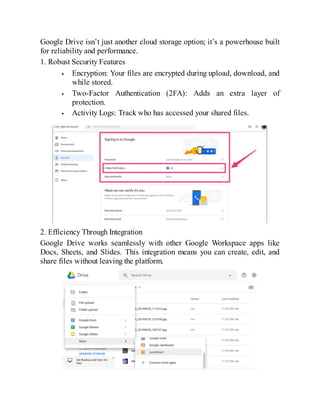
Example Scenario
Imagine you’reworking on a presentation saved on your laptop. If you’re
away from your computer, you’re stuck. But with cloud storage, you can
simply log in to your Google Drive from another device and pick up where
you left off.
Why Google Drive is Safe and Efficient
27.
Google Drive isn’tjust another cloud storage option; it’s a powerhouse built
for reliability and performance.
1. Robust Security Features
Encryption: Your files are encrypted during upload, download, and
while stored.
Two-Factor Authentication (2FA): Adds an extra layer of
protection.
Activity Logs: Track who has accessed your shared files.
2. Efficiency Through Integration
Google Drive works seamlessly with other Google Workspace apps like
Docs, Sheets, and Slides. This integration means you can create, edit, and
share files without leaving the platform.
28.
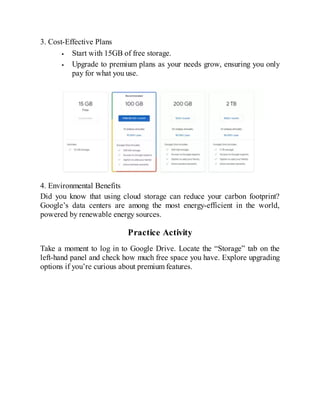
3. Cost-Effective Plans
Startwith 15GB of free storage.
Upgrade to premium plans as your needs grow, ensuring you only
pay for what you use.
4. Environmental Benefits
Did you know that using cloud storage can reduce your carbon footprint?
Google’s data centers are among the most energy-efficient in the world,
powered by renewable energy sources.
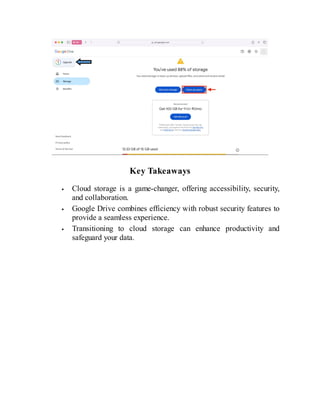
Practice Activity
Take a moment to log in to Google Drive. Locate the “Storage” tab on the
left-hand panel and check how much free space you have. Explore upgrading
options if you’re curious about premium features.
29.
Key Takeaways
Cloud storageis a game-changer, offering accessibility, security,
and collaboration.
Google Drive combines efficiency with robust security features to
provide a seamless experience.
Transitioning to cloud storage can enhance productivity and
safeguard your data.
30.
I
Chapter 3: ManagingYour Google Drive Settings
n this chapter, we’ll explore how to customize Google Drive to suit your
preferences and needs. From tweaking storage settings to enabling
accessibility features, we’ll make sure your Drive feels like it was
designed just for you.
Changing Default Settings
1. Storage Management
Sometimes, you’ll need to keep an eye on your available storage or upgrade
if you’re running low. Let’s learn how to manage this effectively.
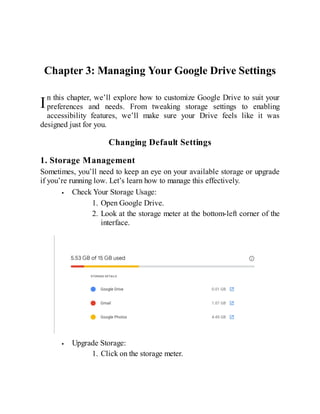
Check Your Storage Usage:
1. Open Google Drive.
2. Look at the storage meter at the bottom-left corner of the
interface.
Upgrade Storage:
1. Click on the storage meter.
31.
2. Review theavailable plans and choose one that fits your
needs.
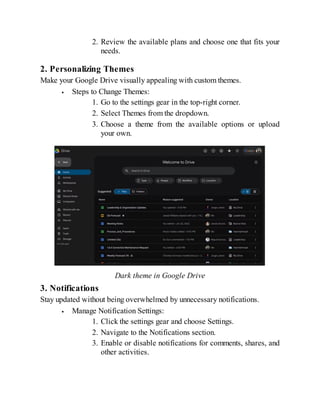
2. Personalizing Themes
Make your Google Drive visually appealing with custom themes.
Steps to Change Themes:
1. Go to the settings gear in the top-right corner.
2. Select Themes from the dropdown.
3. Choose a theme from the available options or upload
your own.
Dark theme in Google Drive
3. Notifications
Stay updated without being overwhelmed by unnecessary notifications.
Manage Notification Settings:
1. Click the settings gear and choose Settings.
2. Navigate to the Notifications section.
3. Enable or disable notifications for comments, shares, and
other activities.
32.
Language and AccessibilityFeatures
Google Drive’s inclusivity features ensure it’s accessible to everyone,
regardless of language or physical abilities.
1. Changing Language Preferences
Want to switch the interface language? Here’s how:
Steps to Change Language:
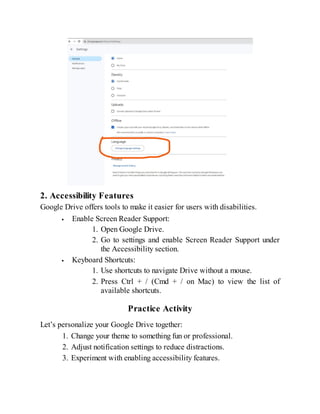
1. Go to the settings gear and select Settings.
2. Scroll down to the Language section.
3. Click Change Language and select your preferred option.
33.
2. Accessibility Features
GoogleDrive offers tools to make it easier for users with disabilities.
Enable Screen Reader Support:
1. Open Google Drive.
2. Go to settings and enable Screen Reader Support under
the Accessibility section.
Keyboard Shortcuts:
1. Use shortcuts to navigate Drive without a mouse.
2. Press Ctrl + / (Cmd + / on Mac) to view the list of
available shortcuts.
Practice Activity
Let’s personalize your Google Drive together:
1. Change your theme to something fun or professional.
2. Adjust notification settings to reduce distractions.
3. Experiment with enabling accessibility features.
34.
Key Takeaways
Google Drivesettings can be customized to fit your needs, from
storage upgrades to visual themes.
Language and accessibility features make Drive a tool for
everyone, regardless of background or abilities.
With just a few tweaks, you can make your Drive experience more
productive and enjoyable.
Great work on mastering your settings! In the next chapter, we’ll get hands-on
with uploading and managing files.
N
Chapter 4: Uploadingand Managing Files
ow that your Google Drive is set up, it’s time to start filling it with
content. In this chapter, we’ll cover the basics of uploading files,
organizing them effectively, and exploring the types of files Google
Drive supports. Let’s get your files in order and make sure everything is easy
to find!
How to Upload Files and Folders
Uploading files to Google Drive is as easy as dragging and dropping—
literally! Here’s how you can get your files into the cloud.
Uploading Files
1. Open Google Drive and go to the folder where you want to upload
your file.
2. Click the New button on the left side of the screen.
37.
3. Select Fileupload from the dropdown.
4. Choose the file(s) you want to upload from your computer.
5. Wait a few moments as the upload process completes. You’ll see
the progress in the bottom-right corner.
Uploading Folders
If you have a lot of files to upload, it’s easier to upload entire folders:
1. Click the New button again.
2. Select Folder upload.
3. Choose the folder you want to upload and click Upload.
4. The folder will now appear in your Drive.
Alternative Method: Drag and Drop
You can simply drag files or folders from your computer directly
into the Google Drive window.
38.
Supported File Types
GoogleDrive supports a wide variety of file types, so you can store almost
anything you need. However, it’s important to know the common file types
for seamless uploading and accessing.
Common File Types Supported by Google Drive:
Documents: .docx, .pdf, .txt, .rtf
Spreadsheets: .xlsx, .csv, .ods
Presentations: .pptx, .ppsx, .key
Images: .jpg, .png, .gif, .bmp
Audio and Video: .mp3, .mp4, .wav, .avi
Archives: .zip, .tar, .rar
Others: .html, .xml, .json
39.
Converting Microsoft OfficeDocs to Google Docs, Sheets,
and Slides
Google Drive also allows you to upload Microsoft Office documents (like
Word, Excel, and PowerPoint) and convert them into Google Docs, Sheets,
or Slides format for easy editing and collaboration.
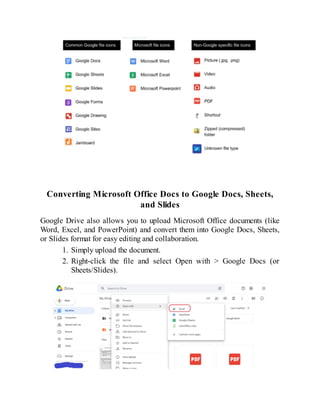
1. Simply upload the document.
2. Right-click the file and select Open with > Google Docs (or
Sheets/Slides).
40.
Organizing Files: CreatingFolders, Renaming, and Moving
Files
As your Drive fills up, staying organized will save you time. Let’s dive into
the key ways to keep things tidy.
Creating Folders
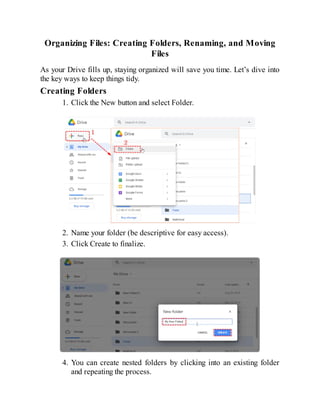
1. Click the New button and select Folder.
2. Name your folder (be descriptive for easy access).
3. Click Create to finalize.
4. You can create nested folders by clicking into an existing folder
and repeating the process.
41.
Renaming Files andFolders
1. Right-click the file or folder you want to rename.
2. Select Rename from the dropdown.
3. Enter the new name and click OK.
Moving Files
Google Drive makes it simple to reorganize your files.
Drag and Drop: Simply click and drag files or folders to the
desired location.
Right-click and Move: Right-click the file or folder, select Move
to, and choose where to place it.
Using Search for Quick Access
Instead of manually browsing for files, use the powerful search feature to
find anything in your Drive in seconds.
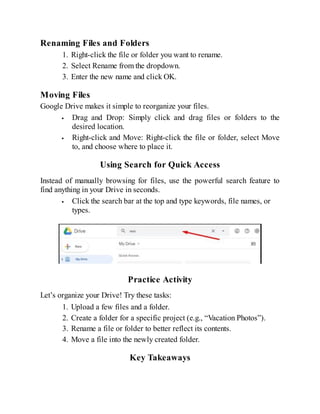
Click the search bar at the top and type keywords, file names, or
types.
Practice Activity
Let’s organize your Drive! Try these tasks:
1. Upload a few files and a folder.
2. Create a folder for a specific project (e.g., “Vacation Photos”).
3. Rename a file or folder to better reflect its contents.
4. Move a file into the newly created folder.
Key Takeaways
42.
Uploading files andfolders to Google Drive is quick and easy,
whether by drag-and-drop or the upload menu.
Google Drive supports a wide variety of file types, making it a
versatile storage option.
Stay organized by creating folders, renaming files, and using the
move feature.
Search functionality in Drive ensures you can quickly find what
you need, even as your file collection grows.
Awesome! You've made great progress in organizing your Google Drive. In
the next chapter, we’ll dive into the sharing and collaboration features that
truly set Google Drive apart.
43.
O
Chapter 5: Sharingand Collaborating
ne of the most powerful features of Google Drive is its ability to share
files and collaborate with others in real time. Whether you’re working
with a colleague, a team, or a friend, Google Drive makes collaboration
seamless. In this chapter, we’ll explore the sharing options, how to manage
access, and how real-time collaboration works in Google Docs, Sheets, and
Slides.
Sharing Options: View, Comment, and Edit Permissions
Google Drive makes it incredibly easy to control how others interact with
your files. By adjusting the sharing settings, you can control whether people
can view, comment, or edit your documents. Let’s break down these
permissions:
1. View Permissions
When you only want someone to view the document without making any
changes, you grant them View permissions. This is ideal when you just want
to share information, such as a report or a finalized presentation.
How to Share with View Permissions:
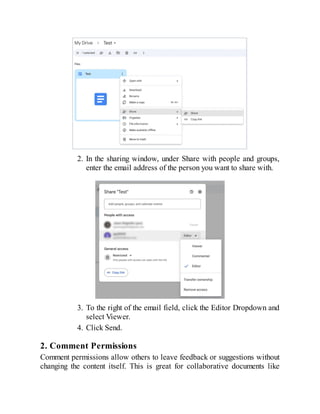
1. Right-click the file or folder you want to share and select
Share.
44.
2. In thesharing window, under Share with people and groups,
enter the email address of the person you want to share with.
3. To the right of the email field, click the Editor Dropdown and
select Viewer.
4. Click Send.
2. Comment Permissions
Comment permissions allow others to leave feedback or suggestions without
changing the content itself. This is great for collaborative documents like
45.
drafts or reports.
Howto Share with Comment Permissions:
1. Follow the same steps as the View permissions, but in the
Share with People and Groups section, select Commenter
from the dropdown menu instead of Viewer.
2. Click Send.
3. Edit Permissions
If you want someone to be able to make changes to your document, give them
Editor Access. Editors can add, delete, and modify content, which is perfect
for collaborative work on documents, spreadsheets, and presentations.
How to Share with Edit Permissions:
1. Right-click the file or folder and select Share.
2. Enter the email address of the person you want to share
with.
3. From the Share with People and Groups section, select
Editor from the dropdown.
4. Click Send.
Managing Access: Public vs. Private Sharing
When managing how your files are accessed, you have a couple of options—
Public and Private sharing. Here’s how to choose the best option for your
needs.
1. Private Sharing
Private sharing is the default setting (Restricted). Only people you invite can
access the file, and you control their permissions. This is ideal for sensitive
or personal documents that you don’t want to share with the world.
How to Keep Files Private:
1. When sharing a file, ensure that Anyone with the link is
not selected.
2. Only enter the email addresses of the people you want to
share with and assign them the appropriate permissions
(view, comment, or edit).
46.
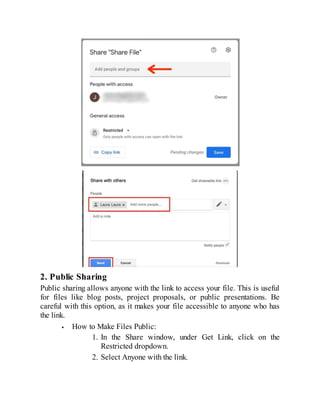
2. Public Sharing
Publicsharing allows anyone with the link to access your file. This is useful
for files like blog posts, project proposals, or public presentations. Be
careful with this option, as it makes your file accessible to anyone who has
the link.
How to Make Files Public:
1. In the Share window, under Get Link, click on the
Restricted dropdown.
2. Select Anyone with the link.
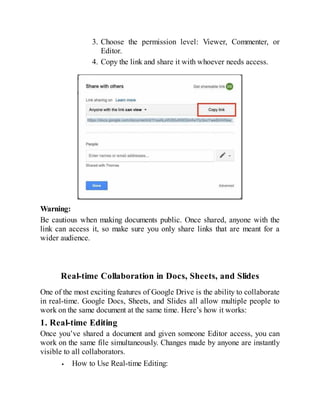
47.
3. Choose thepermission level: Viewer, Commenter, or
Editor.
4. Copy the link and share it with whoever needs access.
Warning:
Be cautious when making documents public. Once shared, anyone with the
link can access it, so make sure you only share links that are meant for a
wider audience.
Real-time Collaboration in Docs, Sheets, and Slides
One of the most exciting features of Google Drive is the ability to collaborate
in real-time. Google Docs, Sheets, and Slides all allow multiple people to
work on the same document at the same time. Here’s how it works:
1. Real-time Editing
Once you’ve shared a document and given someone Editor access, you can
work on the same file simultaneously. Changes made by anyone are instantly
visible to all collaborators.
How to Use Real-time Editing:
48.
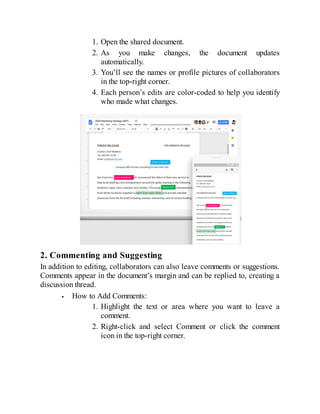
1. Open theshared document.
2. As you make changes, the document updates
automatically.
3. You’ll see the names or profile pictures of collaborators
in the top-right corner.
4. Each person’s edits are color-coded to help you identify
who made what changes.
2. Commenting and Suggesting
In addition to editing, collaborators can also leave comments or suggestions.
Comments appear in the document’s margin and can be replied to, creating a
discussion thread.
How to Add Comments:
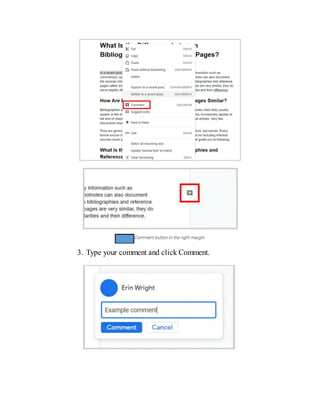
1. Highlight the text or area where you want to leave a
comment.
2. Right-click and select Comment or click the comment
icon in the top-right corner.
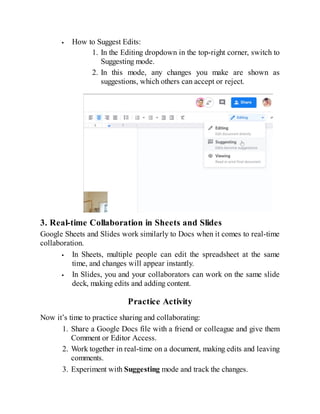
How to SuggestEdits:
1. In the Editing dropdown in the top-right corner, switch to
Suggesting mode.
2. In this mode, any changes you make are shown as
suggestions, which others can accept or reject.
3. Real-time Collaboration in Sheets and Slides
Google Sheets and Slides work similarly to Docs when it comes to real-time
collaboration.
In Sheets, multiple people can edit the spreadsheet at the same
time, and changes will appear instantly.
In Slides, you and your collaborators can work on the same slide
deck, making edits and adding content.
Practice Activity
Now it’s time to practice sharing and collaborating:
1. Share a Google Docs file with a friend or colleague and give them
Comment or Editor Access.
2. Work together in real-time on a document, making edits and leaving
comments.
3. Experiment with Suggesting mode and track the changes.
51.
4. Create apublic document and share the link with someone to view.
Key Takeaways
Google Drive gives you flexible sharing options: View, Comment,
and Edit permissions.
You can choose between Private and Public sharing, depending on
how widely you want your file to be accessible.
Real-time collaboration in Docs, Sheets, and Slides allows for
seamless teamwork, with instant updates and easy feedback.
52.
N
Chapter 6: Creatingand Editing Documents
ow that you’ve learned how to navigate Google Drive and understand its
sharing and collaboration features, it's time to dive into creating and
editing your documents. Google Drive provides three powerful tools for
document creation: Google Docs, Google Sheets, and Google Slides. In this
chapter, we will explore each of these tools, how to create new files, and
how to use and customize templates to make your work easier and more
efficient.
Introduction to Google Docs, Sheets, and Slides
Google Docs, Sheets, and Slides are the core tools that make Google Drive a
powerful, cloud-based productivity suite. Let’s break down what each tool is
used for and how they can serve your needs:
1. Google Docs
Google Docs is an online word processor that allows you to create and edit
text documents. It’s ideal for writing essays, reports, articles, or any other
document that involves text. Docs also supports a variety of formatting
options, including text styles, bullet points, tables, and images, making it a
versatile tool for all kinds of writing tasks.
Key Features:
Real-time collaboration
Easy text formatting
Image and table insertion
Commenting and suggestions
2. Google Sheets
Google Sheets is a spreadsheet application that allows you to organize,
analyze, and manipulate data. Whether you're working on a budget, keeping
track of inventory, or analyzing survey results, Sheets provides powerful
53.
tools like formulas,charts, and pivot tables to help you manage and
understand your data.
Key Features:
Data entry and organization
Built-in formulas and functions
Pivot tables and charts
Real-time collaboration
3. Google Slides
Google Slides is a presentation tool that helps you create professional-
looking slide decks. Whether you're preparing for a meeting, a classroom
presentation, or a public speech, Slides allows you to create visually
engaging presentations with text, images, transitions, and animations.
Key Features:
Multiple slide layouts
Easy image and video embedding
Animations and transitions
Real-time collaboration
Creating New Files from Google Drive
Now that you understand what Docs, Sheets, and Slides are, let’s learn how
to create new files in Google Drive. Google Drive makes it easy to start any
of these files directly from the Drive interface.
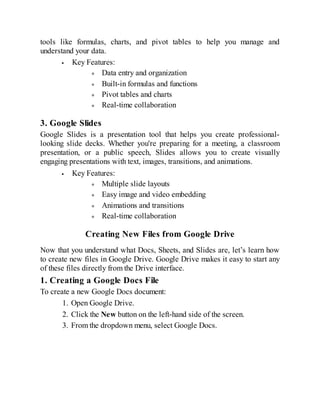
1. Creating a Google Docs File
To create a new Google Docs document:
1. Open Google Drive.
2. Click the New button on the left-hand side of the screen.
3. From the dropdown menu, select Google Docs.
54.
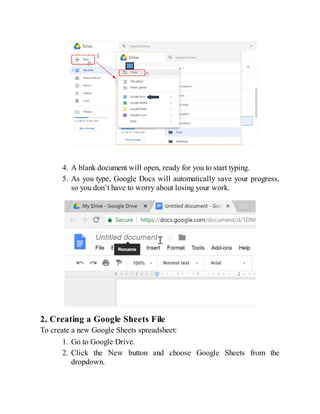
4. A blankdocument will open, ready for you to start typing.
5. As you type, Google Docs will automatically save your progress,
so you don’t have to worry about losing your work.
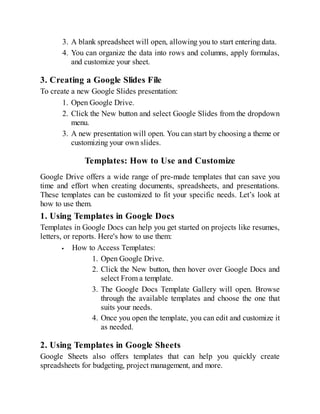
2. Creating a Google Sheets File
To create a new Google Sheets spreadsheet:
1. Go to Google Drive.
2. Click the New button and choose Google Sheets from the
dropdown.
55.
3. A blankspreadsheet will open, allowing you to start entering data.
4. You can organize the data into rows and columns, apply formulas,
and customize your sheet.
3. Creating a Google Slides File
To create a new Google Slides presentation:
1. Open Google Drive.
2. Click the New button and select Google Slides from the dropdown
menu.
3. A new presentation will open. You can start by choosing a theme or
customizing your own slides.
Templates: How to Use and Customize
Google Drive offers a wide range of pre-made templates that can save you
time and effort when creating documents, spreadsheets, and presentations.
These templates can be customized to fit your specific needs. Let’s look at
how to use them.
1. Using Templates in Google Docs
Templates in Google Docs can help you get started on projects like resumes,
letters, or reports. Here's how to use them:
How to Access Templates:
1. Open Google Drive.
2. Click the New button, then hover over Google Docs and
select From a template.
3. The Google Docs Template Gallery will open. Browse
through the available templates and choose the one that
suits your needs.
4. Once you open the template, you can edit and customize it
as needed.
2. Using Templates in Google Sheets
Google Sheets also offers templates that can help you quickly create
spreadsheets for budgeting, project management, and more.
56.
How to AccessTemplates in Sheets:
1. Open Google Drive and click the New button.
2. Hover over Google Sheets and select From a template.
3. The Template Gallery will show several options. Select
one to get started.
4. After selecting a template, you can begin entering your
own data and adjust the layout to your needs.
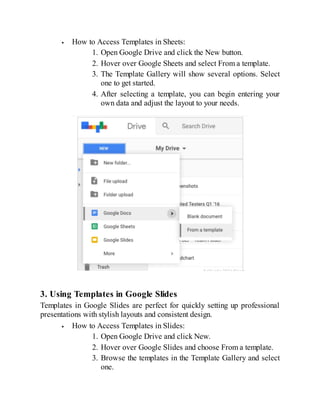
3. Using Templates in Google Slides
Templates in Google Slides are perfect for quickly setting up professional
presentations with stylish layouts and consistent design.
How to Access Templates in Slides:
1. Open Google Drive and click New.
2. Hover over Google Slides and choose From a template.
3. Browse the templates in the Template Gallery and select
one.
57.
4. After selecting,you can customize each slide with your
content, colors, and images.
4. Customizing Templates
Once you’ve selected a template, customizing it to your specific needs is
easy. You can adjust the text, add images, change the colors, and more. For
example, if you’re using a resume template in Google Docs, replace the
placeholder text with your information. In Sheets, you can change the
categories, add formulas, and adjust the design. In Slides, you can change
fonts, add new slides, or adjust transitions.
Customizing Templates in Google Docs
1. Open Google Drive
Log in to your Google Drive account and locate the folder where
you'd like to save your customized template.
2. Create a New Document from a Template
Click the ‘+ New’ button in the top-left corner.
Select Google Docs > From a template from the
dropdown menu.
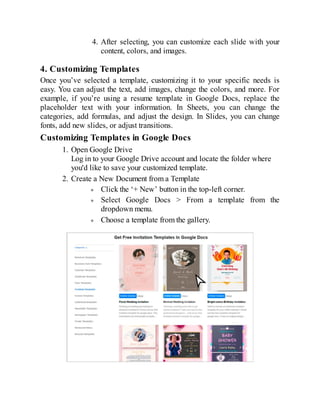
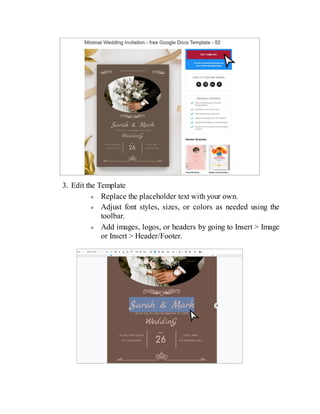
Choose a template from the gallery.
58.
3. Edit theTemplate
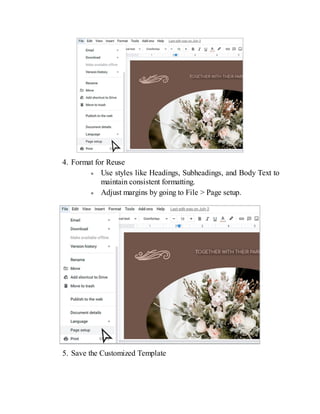
Replace the placeholder text with your own.
Adjust font styles, sizes, or colors as needed using the
toolbar.
Add images, logos, or headers by going to Insert > Image
or Insert > Header/Footer.
59.
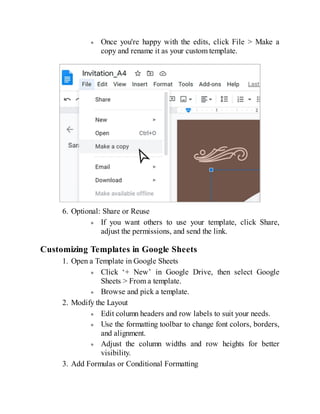
4. Format forReuse
Use styles like Headings, Subheadings, and Body Text to
maintain consistent formatting.
Adjust margins by going to File > Page setup.
5. Save the Customized Template
60.
Once you're happywith the edits, click File > Make a
copy and rename it as your custom template.
6. Optional: Share or Reuse
If you want others to use your template, click Share,
adjust the permissions, and send the link.
Customizing Templates in Google Sheets
1. Open a Template in Google Sheets
Click ‘+ New’ in Google Drive, then select Google
Sheets > From a template.
Browse and pick a template.
2. Modify the Layout
Edit column headers and row labels to suit your needs.
Use the formatting toolbar to change font colors, borders,
and alignment.
Adjust the column widths and row heights for better
visibility.
3. Add Formulas or Conditional Formatting
61.
Input formulas asneeded for calculations.
Apply conditional formatting via Format > Conditional
formatting to highlight specific data.
4. Rename Sheets or Add New Ones
Right-click on a sheet tab and select Rename.
To add another sheet, click the + icon at the bottom-left
corner.
5. Save and Reuse
Save your customized template by clicking File > Make a
copy.
Rename the file appropriately.
6. Optional: Share with Others
Use the Share button and adjust permissions if you want
others to access or edit the template.
Customizing Templates in Google Slides
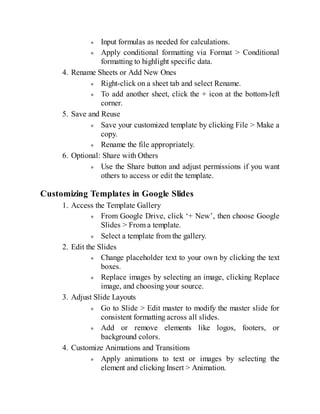
1. Access the Template Gallery
From Google Drive, click ‘+ New’, then choose Google
Slides > From a template.
Select a template from the gallery.
2. Edit the Slides
Change placeholder text to your own by clicking the text
boxes.
Replace images by selecting an image, clicking Replace
image, and choosing your source.
3. Adjust Slide Layouts
Go to Slide > Edit master to modify the master slide for
consistent formatting across all slides.
Add or remove elements like logos, footers, or
background colors.
4. Customize Animations and Transitions
Apply animations to text or images by selecting the
element and clicking Insert > Animation.
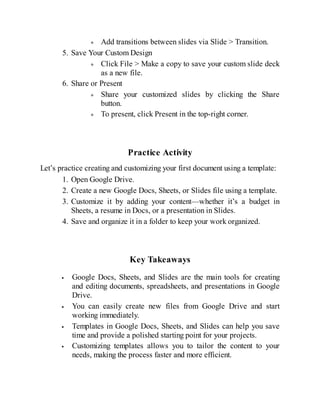
62.
Add transitions betweenslides via Slide > Transition.
5. Save Your Custom Design
Click File > Make a copy to save your custom slide deck
as a new file.
6. Share or Present
Share your customized slides by clicking the Share
button.
To present, click Present in the top-right corner.
Practice Activity
Let’s practice creating and customizing your first document using a template:
1. Open Google Drive.
2. Create a new Google Docs, Sheets, or Slides file using a template.
3. Customize it by adding your content—whether it’s a budget in
Sheets, a resume in Docs, or a presentation in Slides.
4. Save and organize it in a folder to keep your work organized.
Key Takeaways
Google Docs, Sheets, and Slides are the main tools for creating
and editing documents, spreadsheets, and presentations in Google
Drive.
You can easily create new files from Google Drive and start
working immediately.
Templates in Google Docs, Sheets, and Slides can help you save
time and provide a polished starting point for your projects.
Customizing templates allows you to tailor the content to your
needs, making the process faster and more efficient.
N
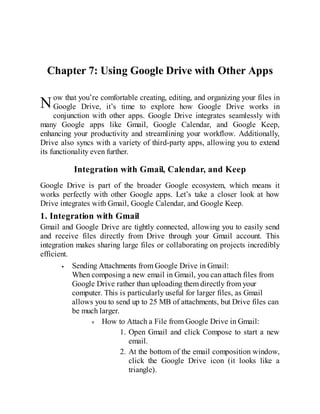
Chapter 7: UsingGoogle Drive with Other Apps
ow that you’re comfortable creating, editing, and organizing your files in
Google Drive, it’s time to explore how Google Drive works in
conjunction with other apps. Google Drive integrates seamlessly with
many Google apps like Gmail, Google Calendar, and Google Keep,
enhancing your productivity and streamlining your workflow. Additionally,
Drive also syncs with a variety of third-party apps, allowing you to extend
its functionality even further.
Integration with Gmail, Calendar, and Keep
Google Drive is part of the broader Google ecosystem, which means it
works perfectly with other Google apps. Let’s take a closer look at how
Drive integrates with Gmail, Google Calendar, and Google Keep.
1. Integration with Gmail
Gmail and Google Drive are tightly connected, allowing you to easily send
and receive files directly from Drive through your Gmail account. This
integration makes sharing large files or collaborating on projects incredibly
efficient.
Sending Attachments from Google Drive in Gmail:
When composing a new email in Gmail, you can attach files from
Google Drive rather than uploading them directly from your
computer. This is particularly useful for larger files, as Gmail
allows you to send up to 25 MB of attachments, but Drive files can
be much larger.
How to Attach a File from Google Drive in Gmail:
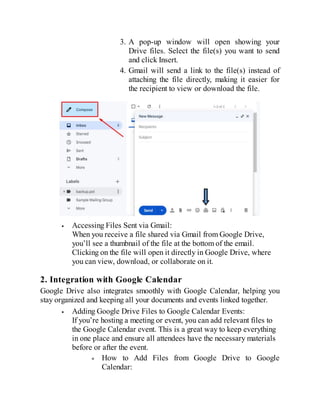
1. Open Gmail and click Compose to start a new
email.
2. At the bottom of the email composition window,
click the Google Drive icon (it looks like a
triangle).
65.
3. A pop-upwindow will open showing your
Drive files. Select the file(s) you want to send
and click Insert.
4. Gmail will send a link to the file(s) instead of
attaching the file directly, making it easier for
the recipient to view or download the file.
Accessing Files Sent via Gmail:
When you receive a file shared via Gmail from Google Drive,
you’ll see a thumbnail of the file at the bottom of the email.
Clicking on the file will open it directly in Google Drive, where
you can view, download, or collaborate on it.
2. Integration with Google Calendar
Google Drive also integrates smoothly with Google Calendar, helping you
stay organized and keeping all your documents and events linked together.
Adding Google Drive Files to Google Calendar Events:
If you’re hosting a meeting or event, you can add relevant files to
the Google Calendar event. This is a great way to keep everything
in one place and ensure all attendees have the necessary materials
before or after the event.
How to Add Files from Google Drive to Google
Calendar:
66.
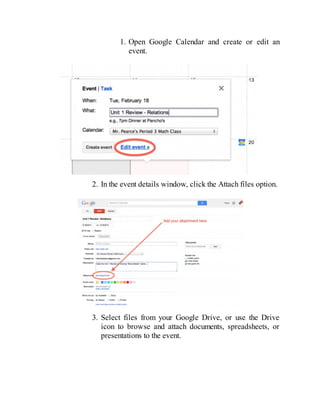
1. Open GoogleCalendar and create or edit an
event.
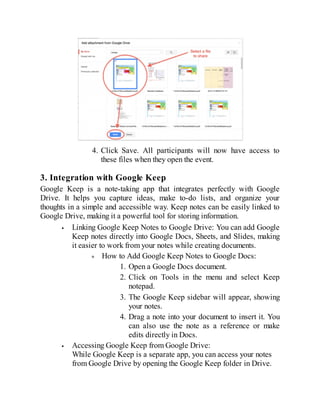
2. In the event details window, click the Attach files option.
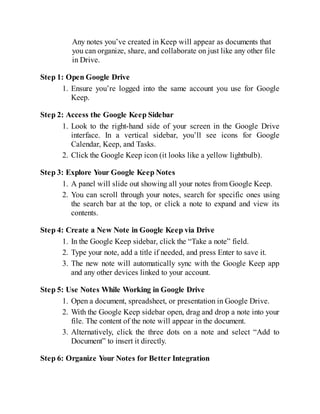
3. Select files from your Google Drive, or use the Drive
icon to browse and attach documents, spreadsheets, or
presentations to the event.
67.
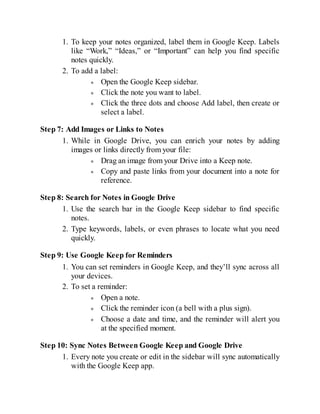
4. Click Save.All participants will now have access to
these files when they open the event.
3. Integration with Google Keep
Google Keep is a note-taking app that integrates perfectly with Google
Drive. It helps you capture ideas, make to-do lists, and organize your
thoughts in a simple and accessible way. Keep notes can be easily linked to
Google Drive, making it a powerful tool for storing information.
Linking Google Keep Notes to Google Drive: You can add Google
Keep notes directly into Google Docs, Sheets, and Slides, making
it easier to work from your notes while creating documents.
How to Add Google Keep Notes to Google Docs:
1. Open a Google Docs document.
2. Click on Tools in the menu and select Keep
notepad.
3. The Google Keep sidebar will appear, showing
your notes.
4. Drag a note into your document to insert it. You
can also use the note as a reference or make
edits directly in Docs.
Accessing Google Keep from Google Drive:
While Google Keep is a separate app, you can access your notes
from Google Drive by opening the Google Keep folder in Drive.
68.
Any notes you’vecreated in Keep will appear as documents that
you can organize, share, and collaborate on just like any other file
in Drive.
Step 1: Open Google Drive
1. Ensure you’re logged into the same account you use for Google
Keep.
Step 2: Access the Google Keep Sidebar
1. Look to the right-hand side of your screen in the Google Drive
interface. In a vertical sidebar, you’ll see icons for Google
Calendar, Keep, and Tasks.
2. Click the Google Keep icon (it looks like a yellow lightbulb).
Step 3: Explore Your Google Keep Notes
1. A panel will slide out showing all your notes from Google Keep.
2. You can scroll through your notes, search for specific ones using
the search bar at the top, or click a note to expand and view its
contents.
Step 4: Create a New Note in Google Keep via Drive
1. In the Google Keep sidebar, click the “Take a note” field.
2. Type your note, add a title if needed, and press Enter to save it.
3. The new note will automatically sync with the Google Keep app
and any other devices linked to your account.
Step 5: Use Notes While Working in Google Drive
1. Open a document, spreadsheet, or presentation in Google Drive.
2. With the Google Keep sidebar open, drag and drop a note into your
file. The content of the note will appear in the document.
3. Alternatively, click the three dots on a note and select “Add to
Document” to insert it directly.
Step 6: Organize Your Notes for Better Integration
69.
1. To keepyour notes organized, label them in Google Keep. Labels
like “Work,” “Ideas,” or “Important” can help you find specific
notes quickly.
2. To add a label:
Open the Google Keep sidebar.
Click the note you want to label.
Click the three dots and choose Add label, then create or
select a label.
Step 7: Add Images or Links to Notes
1. While in Google Drive, you can enrich your notes by adding
images or links directly from your file:
Drag an image from your Drive into a Keep note.
Copy and paste links from your document into a note for
reference.
Step 8: Search for Notes in Google Drive
1. Use the search bar in the Google Keep sidebar to find specific
notes.
2. Type keywords, labels, or even phrases to locate what you need
quickly.
Step 9: Use Google Keep for Reminders
1. You can set reminders in Google Keep, and they’ll sync across all
your devices.
2. To set a reminder:
Open a note.
Click the reminder icon (a bell with a plus sign).
Choose a date and time, and the reminder will alert you
at the specified moment.
Step 10: Sync Notes Between Google Keep and Google Drive
1. Every note you create or edit in the sidebar will sync automatically
with the Google Keep app.
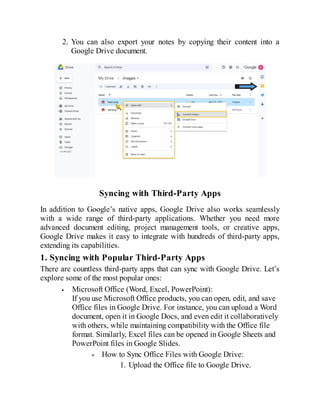
70.
2. You canalso export your notes by copying their content into a
Google Drive document.
Syncing with Third-Party Apps
In addition to Google’s native apps, Google Drive also works seamlessly
with a wide range of third-party applications. Whether you need more
advanced document editing, project management tools, or creative apps,
Google Drive makes it easy to integrate with hundreds of third-party apps,
extending its capabilities.
1. Syncing with Popular Third-Party Apps
There are countless third-party apps that can sync with Google Drive. Let’s
explore some of the most popular ones:
Microsoft Office (Word, Excel, PowerPoint):
If you use Microsoft Office products, you can open, edit, and save
Office files in Google Drive. For instance, you can upload a Word
document, open it in Google Docs, and even edit it collaboratively
with others, while maintaining compatibility with the Office file
format. Similarly, Excel files can be opened in Google Sheets and
PowerPoint files in Google Slides.
How to Sync Office Files with Google Drive:
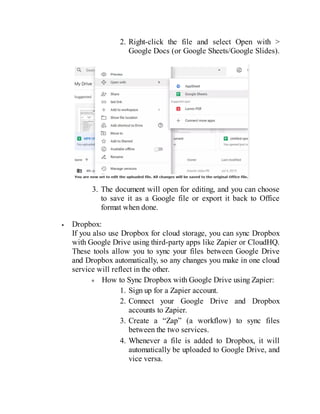
1. Upload the Office file to Google Drive.
71.
2. Right-click thefile and select Open with >
Google Docs (or Google Sheets/Google Slides).
3. The document will open for editing, and you can choose
to save it as a Google file or export it back to Office
format when done.
Dropbox:
If you also use Dropbox for cloud storage, you can sync Dropbox
with Google Drive using third-party apps like Zapier or CloudHQ.
These tools allow you to sync your files between Google Drive
and Dropbox automatically, so any changes you make in one cloud
service will reflect in the other.
How to Sync Dropbox with Google Drive using Zapier:
1. Sign up for a Zapier account.
2. Connect your Google Drive and Dropbox
accounts to Zapier.
3. Create a “Zap” (a workflow) to sync files
between the two services.
4. Whenever a file is added to Dropbox, it will
automatically be uploaded to Google Drive, and
vice versa.
72.
2. Using GoogleDrive with Project Management Tools
Many project management tools, such as Trello, Asana, and Monday.com,
offer integrations with Google Drive. These integrations help streamline
collaboration by linking your project tasks directly with Google Drive files,
ensuring all your documents are right alongside your project management
workflow.
How to Sync Google Drive with Trello:
1. In Trello, create or edit a card on a board.
2. Click Attachment and select Google Drive.
3. You can then choose a file from Drive to attach to the
card, ensuring team members can access the most current
version of the file.
Practice Activity
Let’s practice using Google Drive with Gmail and Google Calendar:
1. Open your Gmail account and compose an email. Attach a file from
Google Drive as described earlier.
2. Now, open Google Calendar, create a new event and attach a
Google Drive file to the event.
3. Share the event with someone and ensure the file is accessible to
all participants.
Key Takeaways
Gmail and Google Drive work together seamlessly to allow you to
send large files directly from Drive.
Google Calendar can store your Drive files, making it easier to
share resources during events.
Google Keep helps organize your notes and can be easily
integrated into your documents.
Third-party apps can expand the functionality of Google Drive,
syncing your files across multiple platforms and increasing your
productivity.
73.
I
Chapter 8: AdvancedSearch and Filters
n the previous chapters, we’ve covered the basics of uploading,
organizing, and sharing files in Google Drive. But as your Drive starts to
fill up with more documents, images, and other files, it’s essential to know
how to find what you need quickly and efficiently. That’s where advanced
search and filters come in. Google Drive’s powerful search tools are
designed to help you locate files with ease, even in the most crowded
folders.
Let’s explore how you can harness these features to streamline your
workflow and save time.
How to Search Efficiently
Google Drive offers a robust search feature that helps you locate files by
name, type, owner, or even content within the files themselves. The key to
efficient searching is knowing how to use the search bar and apply the right
search operators.
1. Basic Search: Using the Search Bar
At the top of Google Drive, you’ll notice a Search bar. This is your primary
tool for finding files. You can simply type keywords, file names, or document
content into this search box to quickly locate the item you're looking for. But
there’s more to it than just typing a name.
Example of Basic Search:
If you’re looking for a document titled "Annual Budget 2024,"
simply type that phrase into the search bar, and Google Drive will
pull up relevant documents.
74.
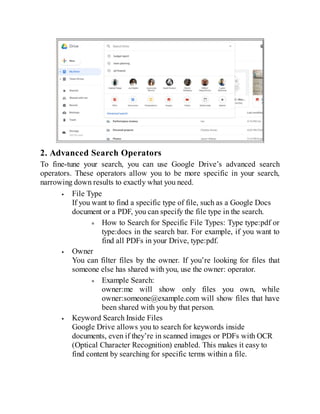
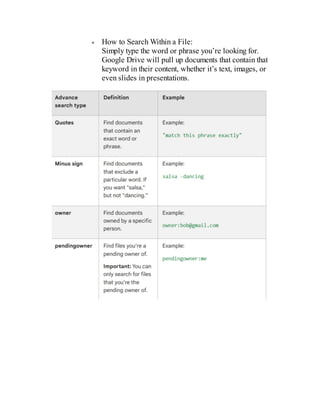
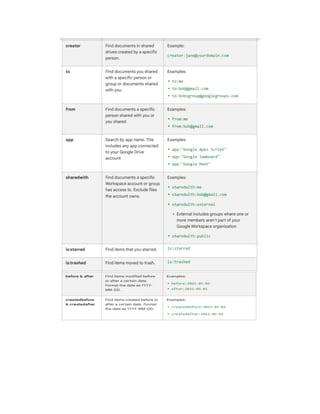
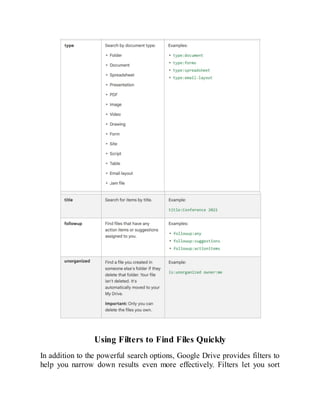
2. Advanced SearchOperators
To fine-tune your search, you can use Google Drive’s advanced search
operators. These operators allow you to be more specific in your search,
narrowing down results to exactly what you need.
File Type
If you want to find a specific type of file, such as a Google Docs
document or a PDF, you can specify the file type in the search.
How to Search for Specific File Types: Type type:pdf or
type:docs in the search bar. For example, if you want to
find all PDFs in your Drive, type:pdf.
Owner
You can filter files by the owner. If you’re looking for files that
someone else has shared with you, use the owner: operator.
Example Search:
owner:me will show only files you own, while
owner:someone@example.com will show files that have
been shared with you by that person.
Keyword Search Inside Files
Google Drive allows you to search for keywords inside
documents, even if they’re in scanned images or PDFs with OCR
(Optical Character Recognition) enabled. This makes it easy to
find content by searching for specific terms within a file.
75.
How to SearchWithin a File:
Simply type the word or phrase you’re looking for.
Google Drive will pull up documents that contain that
keyword in their content, whether it’s text, images, or
even slides in presentations.
77.
Using Filters toFind Files Quickly
In addition to the powerful search options, Google Drive provides filters to
help you narrow down results even more effectively. Filters let you sort
78.
through your filesby specific attributes like file type, owner, modification
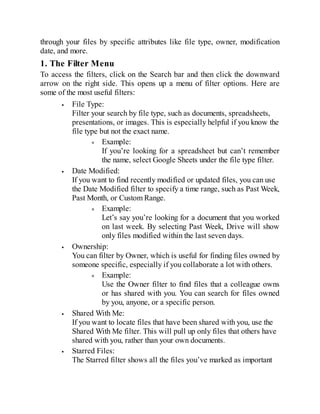
date, and more.
1. The Filter Menu
To access the filters, click on the Search bar and then click the downward
arrow on the right side. This opens up a menu of filter options. Here are
some of the most useful filters:
File Type:
Filter your search by file type, such as documents, spreadsheets,
presentations, or images. This is especially helpful if you know the
file type but not the exact name.
Example:
If you’re looking for a spreadsheet but can’t remember
the name, select Google Sheets under the file type filter.
Date Modified:
If you want to find recently modified or updated files, you can use
the Date Modified filter to specify a time range, such as Past Week,
Past Month, or Custom Range.
Example:
Let’s say you’re looking for a document that you worked
on last week. By selecting Past Week, Drive will show
only files modified within the last seven days.
Ownership:
You can filter by Owner, which is useful for finding files owned by
someone specific, especially if you collaborate a lot with others.
Example:
Use the Owner filter to find files that a colleague owns
or has shared with you. You can search for files owned
by you, anyone, or a specific person.
Shared With Me:
If you want to locate files that have been shared with you, use the
Shared With Me filter. This will pull up only files that others have
shared with you, rather than your own documents.
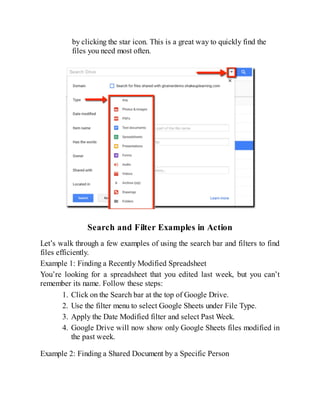
Starred Files:
The Starred filter shows all the files you’ve marked as important
79.
by clicking thestar icon. This is a great way to quickly find the
files you need most often.
Search and Filter Examples in Action
Let’s walk through a few examples of using the search bar and filters to find
files efficiently.
Example 1: Finding a Recently Modified Spreadsheet
You’re looking for a spreadsheet that you edited last week, but you can’t
remember its name. Follow these steps:
1. Click on the Search bar at the top of Google Drive.
2. Use the filter menu to select Google Sheets under File Type.
3. Apply the Date Modified filter and select Past Week.
4. Google Drive will now show only Google Sheets files modified in
the past week.
Example 2: Finding a Shared Document by a Specific Person
80.
You need tofind a document that was shared with you by a colleague. Here’s
how to do it:
1. Open the Search bar in Google Drive.
2. Type in a keyword you remember from the document (e.g.,
“Budget”).
3. Use the Owner filter to search for files Owned by
someone@example.com.
4. This will display only the documents owned by your colleague,
making it easy to find the shared file.
Practice Activity
Now that you know how to search and apply filters in Google Drive, let’s put
it into practice:
1. Try searching for a file you recently worked on by typing in a
keyword in the search bar.
2. Use filters to narrow down your search by file type or date
modified.
3. Find a file shared with you by someone else by using the Shared
with Me filter.
Key Takeaways
Use advanced search operators to search for files by type, owner,
or keyword inside documents.
The filter menu allows you to sort and narrow your search by file
type, modification date, ownership, and more.
Filters can help you find files more efficiently, saving time and
effort when working with large numbers of documents.
81.
Chapter 9: FileManagement Tips
As your Google Drive grows with more documents, images, and other files,
managing and keeping everything organized becomes crucial. Whether you're
handling personal files or collaborating on business projects, efficient file
management can save you time and ensure that you can easily find, access,
and share your content. In this chapter, we’ll explore some valuable tips for
managing your Google Drive files, including how to archive, star, and
prioritize files, and how to manage your trash and recovery options.
Archiving, Starred Items, and Priority Files
Google Drive offers several powerful features to help you manage your files.
These features allow you to keep your workspace organized while also
providing easy access to the files that matter most.
1. Archiving Files
While Google Drive doesn’t have a traditional “Archive” feature like email
platforms, you can use folders and organization strategies to mimic this.
Archiving refers to the practice of storing files that are not currently in use
but may need to be accessed later. You can create an “Archive” folder or
move old documents into specific folders that you create for this purpose.
How to Archive Files:
Create an “Archive” folder in your Google Drive.
Move older or less frequently accessed files into this
folder.
You can use the Search bar or Filters to locate these files
when needed.
You can also right-click a file or folder and select Move
to, then choose your “Archive” folder.
Archiving keeps your active files organized while still allowing you to
access older content whenever you need it.
82.
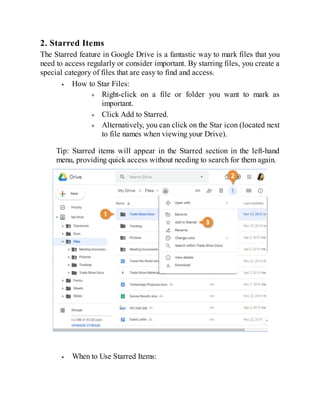
2. Starred Items
TheStarred feature in Google Drive is a fantastic way to mark files that you
need to access regularly or consider important. By starring files, you create a
special category of files that are easy to find and access.
How to Star Files:
Right-click on a file or folder you want to mark as
important.
Click Add to Starred.
Alternatively, you can click on the Star icon (located next
to file names when viewing your Drive).
Tip: Starred items will appear in the Starred section in the left-hand
menu, providing quick access without needing to search for them again.
When to Use Starred Items:
83.
Mark files orfolders that you use regularly, such as
project files or documents that need frequent updates.
This is especially useful when working with multiple
teams or managing personal and professional documents
in the same Drive.
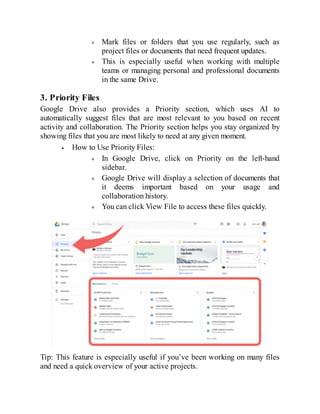
3. Priority Files
Google Drive also provides a Priority section, which uses AI to
automatically suggest files that are most relevant to you based on recent
activity and collaboration. The Priority section helps you stay organized by
showing files that you are most likely to need at any given moment.
How to Use Priority Files:
In Google Drive, click on Priority on the left-hand
sidebar.
Google Drive will display a selection of documents that
it deems important based on your usage and
collaboration history.
You can click View File to access these files quickly.
Tip: This feature is especially useful if you’ve been working on many files
and need a quick overview of your active projects.
84.
Trash and RecoveryOptions
Accidents happen. Files get deleted, and sometimes, you need to recover
them. Luckily, Google Drive has a built-in Trash feature that allows you to
restore deleted files, preventing permanent loss.
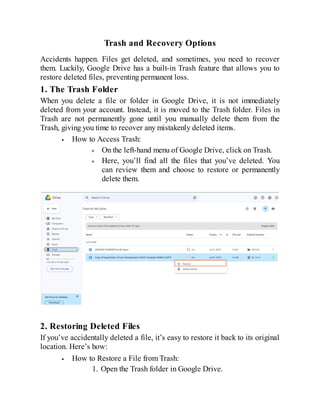
1. The Trash Folder
When you delete a file or folder in Google Drive, it is not immediately
deleted from your account. Instead, it is moved to the Trash folder. Files in
Trash are not permanently gone until you manually delete them from the
Trash, giving you time to recover any mistakenly deleted items.
How to Access Trash:
On the left-hand menu of Google Drive, click on Trash.
Here, you’ll find all the files that you’ve deleted. You
can review them and choose to restore or permanently
delete them.
2. Restoring Deleted Files
If you’ve accidentally deleted a file, it’s easy to restore it back to its original
location. Here’s how:
How to Restore a File from Trash:
1. Open the Trash folder in Google Drive.
85.
2. Right-click onthe file you want to recover.
3. Select Restore. The file will be returned to its original
location in your Drive.
3. Permanently Deleting Files
Files in Trash are automatically deleted after 30 days, but you can choose to
delete them permanently earlier if you’re sure you no longer need them.
How to Permanently Delete Files from Trash:
1. Open the Trash folder.
2. Right-click on the file and select Delete Forever.
3. If you want to delete all files in Trash, click on the Empty
Trash button at the top.
Important: Once files are permanently deleted from the Trash, they
cannot be recovered.
4. Recovering Files After 30 Days
If you accidentally deleted a file more than 30 days ago and it’s no longer in
the Trash, there may still be a chance to recover it. Google Drive allows you
to contact support for assistance in retrieving files that have been removed
from Trash but not yet permanently deleted from Google’s servers.
How to Contact Google Support:
1. Go to the Google Drive Help page.
2. Look for the option to contact support and request file
recovery.
3. Provide the details of the file and the date it was deleted.
File Management Best Practices
Now that we’ve covered archiving, starred items, and trash/recovery
options, here are some best practices to follow to keep your Google Drive
well-organized and easy to navigate:
1. Use Folders to Categorize Files
86.
Instead of dumpingall your files into one big folder, create a logical folder
structure. For example, if you’re managing a business, you can create
separate folders for Projects, Invoices, Contracts, and so on. Within those
folders, you can use subfolders for further organization.
2. Regularly Clean Up Your Drive
Take some time every few weeks to review your files. Move older files to
archives, delete duplicates, and organize cluttered folders. A clutter-free
Google Drive makes it easier to locate and manage your current files.
3. Keep Sensitive Files Secure
For sensitive files, you may want to consider using Google Drive’s Security
Features to restrict access and control who can view, comment on, or edit
your documents. You can set permissions carefully to avoid unauthorized
access.
Practice Activity
Now that you’ve learned about archiving, starred items, trash, and recovery
options, let’s put your knowledge to the test:
1. Archive an old file by moving it into a dedicated archive folder.
2. Star a file you use frequently so that it’s easy to access.
3. Delete a file and then recover it from the Trash.
4. Use the Priority section to find a file you’re working on today.
Key Takeaways
Archiving helps you organize older files without deleting them.
Starred items are perfect for marking files you frequently access.
The Trash folder holds deleted files for recovery, while
Permanently Deleting files ensures they are removed forever.
Google Drive offers an easy-to-use recovery system for restoring
deleted files, even after they’ve been moved to Trash.
A
Chapter 10: Time-SavingTricks
s you continue to work with Google Drive, one of the most valuable
skills you can develop is learning to use features that make your
workflow faster and more efficient. In this chapter, we’ll explore some
time-saving tricks that will help you save clicks, reduce the time spent
searching for files, and work more efficiently. We’ll cover keyboard
shortcuts and how to use Offline Mode to access your files even when you
don’t have an internet connection.
Keyboard Shortcuts
Google Drive offers a variety of keyboard shortcuts that can help you
navigate and perform tasks much faster than using a mouse or touchpad. Once
you get the hang of these shortcuts, you’ll be able to move through your files
and folders quickly, saving you time and making you feel like a pro.
Common Google Drive Shortcuts
Here are some essential shortcuts that every Google Drive user should know:
New File:
Windows: Shift + T (Google Docs), Shift + S (Google
Sheets), Shift + P (Google Slides)
Mac: Shift + T, Shift + S, Shift + P
These shortcuts allow you to quickly create a new
document in Google Docs, Sheets, or Slides directly
from your Google Drive without clicking any buttons.
Open a File:
Windows: Enter
Mac: Enter
To open a file in Google Drive, simply highlight it and
press the Enter key on your keyboard.
Move to Folder:
89.
Windows: Shift +Z
Mac: Shift + Z
This shortcut will allow you to quickly move a selected
file or folder to another location within Google Drive.
Search:
Windows: Ctrl + /
Mac: Command + /
Pressing this shortcut will immediately focus the search
bar in Google Drive, allowing you to search for files
quickly without using the mouse.
Select Multiple Files:
Windows: Hold Ctrl and click each file you want to
select
Mac: Hold Command and click each file
This is useful when you want to perform the same action
(like deleting or moving) on multiple files at once.
Delete a File:
Windows: Delete
Mac: Delete
Highlight the file you wish to delete and press the Delete
key to send it to Trash.
Rename a File:
Windows: N
Mac: N
Select a file and press N to rename it without having to
right-click.
Accessing the Full List of Shortcuts
Google Drive also allows you to view a full list of keyboard shortcuts
directly from within the application:
1. Press Shift + ? (Windows/Mac) to open a list of all available
shortcuts for Google Drive.
2. You can search for specific shortcuts or browse through categories
like navigation, file management, and viewing files.
90.
Tip: Take afew minutes each day to practice a couple of shortcuts. Over
time, they will become second nature, and you’ll notice a significant boost in
your productivity.
Offline Mode: Accessing Files Without the Internet
One of the most powerful features of Google Drive is the ability to access
your files even when you don’t have an internet connection. This is
incredibly useful when you're traveling or in areas with unstable internet
service. Setting up Offline Mode allows you to access and edit your Google
Docs, Sheets, Slides, and other files offline, and when you're back online, the
changes will automatically sync.
Setting Up Offline Mode
Here’s how to set up Offline Mode for Google Drive on your device:
1. Using Google Chrome (offline mode only works on the Chrome
browser):
Open Google Chrome on your computer and navigate to
Google Drive.
Make sure you’re signed in to your Google account.
In the top-left corner of Google Drive, click on the
Settings icon (gear icon).
Select Settings from the drop-down menu.
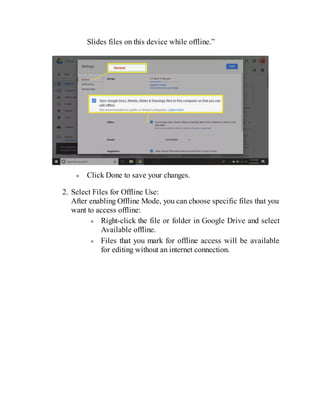
In the Settings window, check the box next to Offline that says,
“Create, open, and edit your recent Google Docs, Sheets, and
91.
Slides files onthis device while offline.”
Click Done to save your changes.
2. Select Files for Offline Use:
After enabling Offline Mode, you can choose specific files that you
want to access offline:
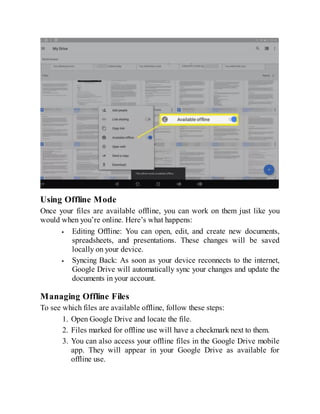
Right-click the file or folder in Google Drive and select
Available offline.
Files that you mark for offline access will be available
for editing without an internet connection.
92.
Using Offline Mode
Onceyour files are available offline, you can work on them just like you
would when you’re online. Here’s what happens:
Editing Offline: You can open, edit, and create new documents,
spreadsheets, and presentations. These changes will be saved
locally on your device.
Syncing Back: As soon as your device reconnects to the internet,
Google Drive will automatically sync your changes and update the
documents in your account.
Managing Offline Files
To see which files are available offline, follow these steps:
1. Open Google Drive and locate the file.
2. Files marked for offline use will have a checkmark next to them.
3. You can also access your offline files in the Google Drive mobile
app. They will appear in your Google Drive as available for
offline use.
93.
Time-Saving Tips forOffline Mode
Download Files in Advance: If you know you’ll be traveling or in
a location without a reliable internet connection, download your
important files ahead of time. This ensures that you have access to
them when needed.
Limit Internet Usage: When you're working offline, limit your
internet usage to avoid using data for unnecessary tasks. Focus on
downloading and working on files, and when you get back online,
sync everything at once.
Create Templates: If you frequently work on similar documents,
consider creating templates for Docs, Sheets, or Slides. Once
created, these files will automatically be available offline once
you enable Offline Mode.
Accessing Offline Files on Mobile: You can also enable offline
access for mobile devices. This feature works on the Google
Drive app for both Android and iOS.
Practice Activity
Let’s practice some of the time-saving tricks we’ve covered:
1. Set up Offline Mode for your Google Drive.
2. Select a few files you regularly need and mark them for offline use.
3. Try using a keyboard shortcut to create a new Google Docs file and
open an existing one.
4. Experiment with moving files around using the Move to Folder
keyboard shortcut.
Key Takeaways
Keyboard Shortcuts allow you to navigate Google Drive and
manage files quickly. Practicing a few shortcuts each day can
significantly boost your productivity.
Offline Mode is perfect for accessing and editing files when you
don’t have an internet connection. Once you’re back online,
Google Drive will automatically sync your changes.
94.
By mastering thesetime-saving tricks, you can navigate and manage your
files in Google Drive much more efficiently.
95.
G
Chapter 11: TeamCollaboration Best Practices
oogle Drive isn’t just for individual file storage—it's also an excellent
tool for collaborating with teams. Whether you're working on a project
with a group of colleagues or collaborating with a team of writers,
Google Drive offers powerful tools for sharing and managing files. In this
chapter, we’ll cover how to set up Shared Drives for teams, as well as best
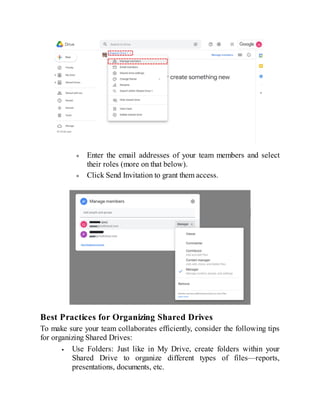
practices for managing shared files, ownership, and roles. These practices
will help ensure your team works efficiently and securely, with everyone
having access to the right files.
Setting Up Shared Drives for Teams
Shared Drives (formerly known as Team Drives) in Google Drive are a great
way to store and organize files that are intended for team collaboration.
Unlike files stored in My Drive, files in Shared Drives are owned by the
team, not an individual, which makes managing permissions easier and more
secure. Let’s walk through the steps to set up a Shared Drive for your team.
Steps to Create a Shared Drive
1. Open Google Drive
Open Google Drive on your desktop or mobile device and make
sure you’re logged in with your Google account.
2. Navigate to Shared Drives
In the left-hand menu, locate and click on the Shared Drives option.
This will open the section where all of your team drives are stored.
96.
3. Create aNew Shared Drive
On the Shared Drives page, click the New button (located
on the upper left).
Give your Shared Drive a name. It could be something
like “Marketing Team” or “Project X” depending on your
team's focus.
Click Create to finalize the creation of your Shared
Drive.
4. Add Team Members
After your Shared Drive is created, you can add team members to
it.
Click on the new Shared Drive and then click Manage
Members.
97.
Enter the emailaddresses of your team members and select
their roles (more on that below).
Click Send Invitation to grant them access.
Best Practices for Organizing Shared Drives
To make sure your team collaborates efficiently, consider the following tips
for organizing Shared Drives:
Use Folders: Just like in My Drive, create folders within your
Shared Drive to organize different types of files—reports,
presentations, documents, etc.
98.
Label Files: Useconsistent file names and labels to make it easy
for everyone to find what they need.
Set Permissions Carefully: Restrict access to sensitive files by
setting appropriate permissions for each member (more on this
below).
Managing Shared Files: Ownership and Roles
In a Shared Drive, managing file ownership and roles is essential for keeping
everything organized and ensuring that everyone has the appropriate access.
Let’s dive into the details of ownership and roles in a Shared Drive.
File Ownership in Shared Drives
One of the most powerful features of Shared Drives is that files and folders
are owned by the team, not individuals. This means that when a team member
leaves, their files won’t be lost, as ownership remains with the team.
However, there are still cases when you may need to assign ownership of
specific files.
Changing File Ownership: To change the owner of a file within a
Shared Drive, follow these steps:
1. Right-click on the file you wish to transfer ownership of.
2. Select Share from the context menu.
3. In the sharing window, find the person to whom you wish
to transfer ownership.
4. Click the Drop-down arrow next to their name and select
Make Owner.
5. Click Done to finalize the change.
99.
Managing Roles inShared Drives
Shared Drives offer different roles for team members, allowing you to
control what they can and can’t do. Here are the roles available and what
each one can do:
Manager:
A Manager has full control over the Shared Drive. They can
manage members, edit files, add and delete files, and change
settings.
Content Manager:
A Content Manager can edit, add, and delete files, but they cannot
manage members or change settings of the Shared Drive.
Contributor:
A Contributor can edit and add files, but they cannot delete files or
change settings. They’re ideal for people who need to work on
content but shouldn’t have full access to administrative controls.
Commenter:
A Commenter can only view and leave comments on the files
100.
within the SharedDrive. They cannot edit the files or add new
ones.
Viewer:
A Viewer has read-only access to files. They can view the
documents and download them, but they cannot edit or comment.
Assigning Roles to Team Members
To assign or change the role of a team member:
1. Go to your Shared Drive.
2. Click the Manage Members button.
3. Find the member you want to change the role for and click on the
drop-down menu next to their name.
4. Select the appropriate role.
5. Click Done to save changes.
Best Practices for Managing Permissions
Here are some tips for managing shared files and permissions efficiently:
Limit Administrative Access: Only give Manager roles to trusted
individuals who need full control over the Shared Drive.
Use Viewer and Commenter Roles: When sharing final drafts or
completed work, assign team members Viewer or Commenter
roles to limit the risk of accidental edits.
101.
Keep File OwnershipClear: When assigning ownership of a file,
ensure that the person who needs to manage that file is the owner.
Regularly Review Permissions: Periodically review the roles and
permissions in your Shared Drive to ensure that everyone has the
appropriate level of access.
Real-Life Collaboration Example
Let’s consider a scenario where your marketing team needs to collaborate on
a new campaign. You’ve created a Marketing Team Shared Drive and added
all the necessary members, each with the appropriate roles.
Managers handle the organization of the drive and file structure.
Content Managers are responsible for adding, updating, and
deleting campaign materials.
Contributors create specific content, like blog posts and social
media graphics.
Viewers may include stakeholders who only need to view the
campaign’s progress without making any changes.
By clearly defining roles and permissions, everyone knows exactly what they
can do, ensuring smooth and effective collaboration.
Key Takeaways
Shared Drives offer a powerful way to collaborate with teams,
with files owned by the team, not individuals.
Proper file ownership and role management ensure that everyone
has the appropriate level of access, and files are well-organized.
Regularly reviewing permissions and roles will help maintain
security and prevent confusion.
102.
I
Chapter 12: MaintainingSecurity and Privacy
n this digital age, security and privacy are paramount concerns when it
comes to cloud storage. Google Drive is designed with robust security
features to protect your data, but it's essential for users to understand how
to manage these settings properly. In this chapter, we’ll cover how Google
Drive keeps your data safe, and how you can take further steps to manage
security settings, including using two-step verification and reviewing activity
logs.
How Google Drive Keeps Your Data Safe
Google Drive takes multiple layers of security to protect your files from
unauthorized access and potential threats. Let’s dive into some of the key
security features that keep your data safe.
1. Encryption
Google Drive uses encryption to protect the files you upload, ensuring that
they remain secure both in transit and while stored.
In Transit: When you upload or download files, Google uses
HTTPS to ensure that your data is encrypted while being
transferred.
At Rest: Files stored on Google’s servers are encrypted with
advanced algorithms. This ensures that even if someone gains
unauthorized access to Google’s servers, they won’t be able to
read your files without the proper decryption keys.
2. Advanced Security for Google Accounts
Your Google Drive account is secured by your Google account’s login
credentials, which include your password. Google also employs machine
learning and AI-based monitoring systems to detect and prevent suspicious
login attempts or abnormal activity. Google Drive works seamlessly with
103.
other Google serviceslike Gmail and Google Calendar, ensuring all your
Google data is protected under one unified security system.
3. Virus Scanning
Google Drive scans all files that are uploaded for malware and viruses.
When you upload a file, it undergoes a scan to ensure that it is safe. If any
malicious content is detected, Google may block access to the file until you
take corrective action.
Supported File Types: Google Drive scans common file types like
documents, spreadsheets, and presentations, but does not scan
executable files (.exe) or other potentially harmful formats.
4. File Access Controls
Google Drive provides users with granular control over who can access and
edit their files. You can set file permissions to control whether others can
view, comment, or edit files. This access control ensures that only authorized
individuals can interact with your files.
Managing Security Settings (Two-Step Verification, Activity
Logs)
While Google provides excellent built-in security features, there are
additional measures you can take to enhance the security of your Google
Drive and your Google account. Let’s explore how you can manage these
security settings.
Two-Step Verification: Adding an Extra Layer of Protection
Two-step verification (2SV), also known as two-factor authentication (2FA),
adds an extra layer of security to your account. It ensures that even if
someone gets hold of your password, they won’t be able to access your
account without the second form of verification.
Steps to Enable Two-Step Verification
1. Go to Your Google Account Settings
Open Google Drive and click on your profile icon in the top-right
corner. Select Manage your Google Account from the drop-down
menu.
104.
2. Navigate toSecurity Settings
In the navigation menu on the left, click on Security.
3. Enable Two-Step Verification
Under the Signing in to Google section, click on 2-Step Verification
and follow the prompts to set it up.
4. Choose Your Verification Method
You’ll be asked to choose a second form of verification. The
options include:
Google prompts: Google will send a prompt to your
phone for approval.
Authenticator App: Use an app like Google Authenticator
to generate time-based one-time passwords.
Text Message: Google will send a code via SMS that you
can enter.
105.
5. Complete Setup
Aftercompleting the setup, your Google Drive and other Google
services will require the second step of verification whenever you
log in from a new device or location.
Benefits of Two-Step Verification
Improved Security: Even if your password is compromised, an
attacker will still need the second verification method to access
your account.
106.
Protection on AllDevices: Once enabled, two-step verification
protects your entire Google account, including Drive, Gmail, and
other services linked to your Google account.
Activity Logs: Monitoring Account Activity
To further enhance your account’s security, Google Drive provides activity
logs that allow you to review the actions taken on your files and account.
This can be particularly useful if you suspect unauthorized access or if you
want to ensure that your account remains secure.
Accessing Activity Logs
1. Go to Google Drive
Open Google Drive and click on the My Drive section.
2. Click on the “i” Icon (Information Panel)
In the top-right corner, you’ll find an information panel represented
by an “i” icon. Clicking on this opens a side panel that displays
your file activity.
3. View File Activity
The activity panel shows you a detailed list of actions taken on
each file in your Google Drive. This includes who accessed the
file, what changes they made, and when the changes were made.
107.
Reviewing Activity forSecurity Purposes
Unauthorized Access: If you notice unfamiliar activity, such as
files being accessed or edited by someone you don’t recognize,
you can take immediate action. This may include changing
passwords, reviewing permissions, or contacting Google support.
Collaboration Review: If files are shared with others, this log
allows you to track who made changes, which is useful for
managing team collaboration.
Using Google’s Activity Dashboard for Docs, Sheets, and
Slides
For documents, spreadsheets, and presentations in Google Docs, Sheets, and
Slides, you can also view detailed version histories to track changes over
time.
Version History: You can revert to an earlier version of the file if
necessary, restoring it to a point before any unwanted changes
were made.
108.
Additional Security Featuresto Consider
Beyond two-step verification and activity logs, Google Drive offers several
additional security features to help keep your data safe:
Sign-in Alerts: Google will notify you whenever your account is
signed into from a new device or location, helping you stay aware
of any suspicious activity.
Account Recovery: Set up recovery options, such as a backup
email or phone number, in case you lose access to your account.
109.
Key Takeaways
Google Driveprovides robust built-in security features, such as
encryption, virus scanning, and advanced monitoring tools, to
ensure your data remains safe.
Two-Step Verification adds an extra layer of protection, making it
more difficult for unauthorized users to access your Google Drive.
Activity Logs give you insights into who has accessed and edited
your files, helping you monitor account security.
Regularly reviewing your security settings and maintaining good
practices like using strong passwords and checking activity logs
will help keep your Google Drive secure.
G
Chapter 13: Freevs. Paid Plans
oogle Drive offers both free and paid storage options, catering to
different needs based on the amount of data you want to store and the
features you require. In this chapter, we will explore the differences
between Google Drive’s free and paid plans, and we will also provide some
tips on how to optimize your free storage so you can get the most out of your
Google Drive experience.
Google Drive Storage Plans Comparison
Google Drive provides flexible storage options to suit users ranging from
casual users who only need basic storage to professionals who require larger
capacity. Here’s an overview of the plans available:
1. Google Drive’s Free Plan (15GB)
Google offers a free plan that comes with 15GB of storage. This free plan
can be used across various Google services, including Google Drive, Gmail,
and Google Photos. It’s ideal for users who store basic documents,
spreadsheets, and a moderate number of photos and videos. However, once
the storage limit is reached, users must either upgrade to a paid plan or
manage their storage by deleting files or transferring them elsewhere.
Key Features of the Free Plan:
15GB Storage: The 15GB is shared across Gmail, Google Drive,
and Google Photos. If you send or receive large attachments in
Gmail or upload photos to Google Photos, this storage is deducted
from the 15GB total.
Access to Google Apps: With the free plan, you still have access
to all the core Google apps, such as Google Docs, Sheets, Slides,
and Google Meet, with full collaboration features.
Cloud Sync: You can sync files across multiple devices and access
your content from anywhere with an internet connection.
112.
2. Google OnePaid Plans
If you require more than 15GB of storage, Google Drive offers paid plans
through Google One, Google’s subscription service that provides additional
storage and benefits across Google’s ecosystem. These plans give you more
storage for documents, emails, photos, videos, and backups.
Google One Pricing Plans:
100GB Plan: $1.99/month
Ideal for individuals who need extra storage for documents and
multimedia files but don’t require massive amounts of space.
200GB Plan: $2.99/month
Suitable for families or those with large multimedia libraries such
as videos, photos, or other heavy files.
2TB Plan: $9.99/month
Best for power users, small businesses, or those with a vast
amount of data. The 2TB plan is also useful for backup purposes
and saving extensive multimedia files.
Higher Plans:
Google One offers plans that scale up to 10TB, 20TB, and 30TB,
priced accordingly. These plans are aimed at enterprises or users
with significant storage needs.
Benefits of Google One Paid Plans:
Additional Storage: More storage allows for a larger number of
files, including high-resolution photos and videos, backups, and
more.
Family Sharing: You can share your plan with up to 5 family
members, allowing everyone to enjoy the additional storage.
Google Support: Access to premium Google support, where you
can get help from Google experts with any technical issues you
encounter.
Extras and Discounts: Google One members also receive special
discounts on Google products and services, such as Google Store
purchases.
113.
How to OptimizeFree Storage
If you’re on the free plan or simply want to make the most out of your 15GB
of storage, there are several strategies you can implement to optimize your
space. Below are some tips and tricks to help you make the most of your free
storage on Google Drive.
1. Delete Unnecessary Files and Emails
One of the easiest ways to free up space is by going through your Google
Drive and Gmail account to delete unnecessary files.
Google Drive: Review files stored on Google Drive and remove
any you no longer need. This includes old documents, images,
videos, or other file types that take up space.
Gmail: Your Gmail inbox also takes up space. Delete old emails,
especially those with large attachments like photos or PDFs. You
114.
can search foremails with attachments by using the search bar and
typing “has:attachment.”
Consider using the Gmail Search Filters to identify and
delete large emails. Try searching for terms like
“size:5MB” to locate emails larger than 5MB and clean
up unnecessary attachments.
2. Optimize Google Photos
By default, photos uploaded to Google Photos are stored in their original
quality and count against your 15GB limit. However, Google offers a
solution to help you save space by uploading photos at a lower quality.
Storage Saver (formerly High Quality): Choose the Storage Saver
option in Google Photos to automatically compress your photos
and videos. This will significantly reduce their file sizes while
retaining decent quality, allowing you to store more content within
your 15GB limit.
Google Photos Archive: If you have a collection of old photos that
you no longer need access to, consider downloading and archiving
them to an external drive or another cloud service, and then delete
them from Google Photos.
115.
3. Use GoogleDrive’s File Compression
You can use file compression to reduce the size of certain files (such as large
PDF documents or image files). Tools like WinZip or 7-Zip can compress
files before uploading them to Google Drive, effectively saving you space.
4. Review Your Google Drive Storage Usage
Google provides a detailed overview of your storage usage, showing you
exactly where your space is being used across Drive, Gmail, and Google
Photos. You can access this overview by visiting Google Drive's Storage
Management section.
To access it, go to Google Drive > Storage in the left sidebar,
where you’ll see a breakdown of the files using up your space.
Consider removing or backing up any files that are no longer
needed.
5. Store Files Elsewhere
If you find that you consistently run out of storage, consider transferring some
files to alternative cloud services or external storage devices to free up
space. Services like Dropbox or OneDrive can be good alternatives for file
storage. You can also back up larger files to an external hard drive or USB
drive.
Key Takeaways
Google Drive’s free plan offers 15GB of storage, which is ideal
for light users or those with minimal file storage needs.
For more storage, Google offers Google One paid plans, which
provide larger storage capacities along with additional benefits
116.
such as enhancedcustomer support and family sharing.
If you’re using the free plan, you can optimize your storage by
regularly deleting unnecessary files, reducing the quality of photos,
compressing files, and utilizing other cloud services or external
storage.
117.
Chapter 14: TroubleshootingCommon Issues
While Google Drive is a powerful tool for managing and storing files, it can
sometimes present challenges. Understanding the most common issues and
knowing how to resolve them will help you maintain a smooth experience
with Google Drive. In this chapter, we'll walk through common problems
such as file upload errors, syncing issues, and others, along with practical
solutions.
File Not Uploading?
One of the most frustrating issues users encounter is when they try to upload
files to Google Drive, but they don’t seem to go through. Here are a few
possible causes and solutions to resolve the problem.
1. Insufficient Storage Space
If you’ve run out of storage space on your Google Drive, new files won’t
upload. You’ll see an error message saying that the upload has failed or
cannot complete. Here’s how to fix it:
Check Your Storage: Visit the Google Drive Storage Page to check
how much space you have left. If you're close to your limit,
consider deleting unnecessary files, emails, or photos, or
upgrading to a paid plan for more storage.
2. File Size Limitations
Google Drive has a file size limit for uploads. Files larger than 5TB are not
supported, but smaller files can sometimes still cause issues if they exceed a

certain size or contain unusual file types.
Solution: If your file is larger than 5TB, try compressing it into
smaller parts or check the file format. If it's a video or large image,
use compression tools to reduce its size.
3. Internet Connection Issues
118.
A weak orintermittent internet connection is another common cause of failed
uploads.
Solution: Ensure that your internet connection is stable. Try
uploading the file when your internet connection is stronger or test
your connection using a speed test tool.
4. Browser Cache or Extensions
Sometimes, the browser’s cache or certain extensions might interfere with
Google Drive’s performance.
Solution: Clear your browser cache or try uploading your files in
an incognito window. If you have browser extensions that could be
interfering, try disabling them temporarily.
Problems with Syncing
Syncing problems can occur when your files aren’t updating across devices,
or you see outdated files on one device. Here are some common syncing
issues and how to resolve them.
1. Google Drive Desktop App Syncing Issues
The desktop Google Drive app syncs files between your computer and the
cloud. If it’s not syncing properly, you may see the "Sync Pending" message
or some files not updating.
119.
Solution:
Check if theGoogle Drive app is running and signed in.
Restart the app by exiting it completely and opening it
again.
Check for file conflicts. If there are two files with the
same name, Google Drive will struggle to sync them. You
can rename or move the conflicting files to resolve the
issue.
2. Google Drive Mobile App Not Syncing
If you’re using the Google Drive app on your mobile device and your files
aren’t syncing, the issue could be with the app’s sync settings or your
device’s connection.
Solution:
Ensure the Google Drive app has the necessary
permissions to sync files in the background.
Check your mobile data or Wi-Fi connection to ensure
it’s stable.
Log out and back into your account in the Google Drive
mobile app.
Make sure your app is up to date by visiting the app store
and checking for updates.
Other Common Issues and Solutions
1. Files Are Stuck in "Processing" or "Pending" Status
Sometimes, files you upload may get stuck in the “processing” or “pending”
stage, meaning they haven’t completed uploading. This often happens with
videos or large files.
Solution:
Wait a little longer. Sometimes, Google Drive may take
extra time to process larger files, especially videos.
If the issue persists, try uploading the file again after
restarting your browser or device.
120.
Reduce the filesize if it’s too large.
2. Google Drive Not Opening or Loading
It can be frustrating when Google Drive won’t load, or you receive an error
message such as “Google Drive is down”.
Solution:
Check Google’s status: Visit the Google Workspace
Status Dashboard to see if there’s an ongoing issue with
Google Drive.
Clear your browser’s cache or try a different browser.
Update Google Drive if you are using the app on a
desktop or mobile device.
3. "Quota Exceeded" Error
If you see the "Quota Exceeded" message while trying to upload files, it
usually means the owner of the file you’re trying to access has exceeded their
available Google Drive quota.
Solution:
Contact the file owner and ask them to free up space or
upgrade their Google Drive storage.
121.
If the issueis with a file you own, consider freeing up
space by removing files that you no longer need.
4. "Access Denied" or "Permission Issues"
When trying to open or edit a shared file, you might encounter the “Access
Denied” message.
Solution:
Check if you are signed into the correct Google account
that has the necessary permissions to access the file.
Contact the file owner to ensure they’ve granted you the
correct permissions to view or edit the document.
5. File Not Showing in Google Drive Search Results
It’s possible that after uploading a file, it doesn’t show up in Google Drive’s
search results.
Solution:
Check the file’s privacy settings. If the file is in a shared
folder, it might not appear in your personal search unless
you are granted access.
Make sure you are searching for the file using the correct
keywords or file type. Sometimes, incorrectly typed file
names or tags can make it harder to find files.
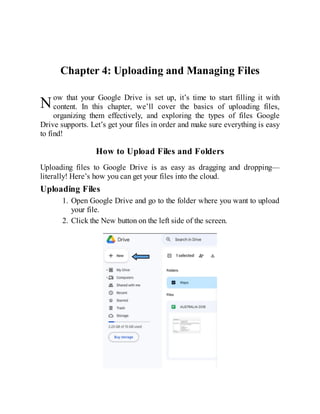
6. Google Drive Not Syncing on Mac or Windows PC
On both Mac and Windows, if Google Drive isn’t syncing, it could be due to
settings or app issues.
Solution:
Ensure the Google Drive desktop app is running in the
background.
Check the sync folder and ensure the files are in the
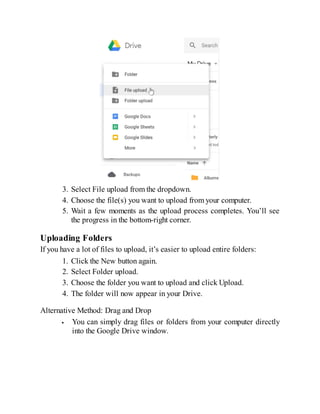
folder you’ve set for synchronization.
If needed, reinstall the Google Drive app to fix any
syncing issues.
122.
Key Takeaways
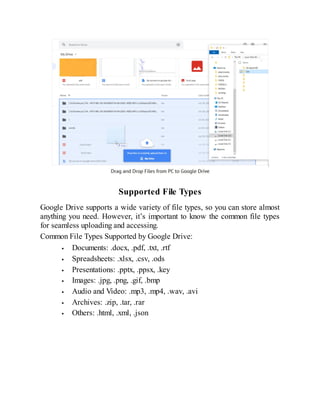
Common issueswith Google Drive include problems with
uploading files, syncing across devices, and accessing files.
Many syncing issues can be resolved by checking your internet
connection, restarting the app, and reviewing file and storage
settings.
If you encounter persistent problems, always check Google’s status
page for ongoing service interruptions or outages.
Keeping your app and browser updated, and performing regular
checks on your file permissions, can also prevent many common
issues from occurring.
123.
Chapter 15: PlanningEvents with Google Drive
Planning events, whether they’re family gatherings, weddings, or corporate
meetings, can be a lot to manage. Google Drive provides a simple, effective
way to keep all your event details in one place and collaborate with others.
Here’s how to organize and plan your next big event using Google Drive.
1. Creating Shared Folders for Event Documents
A great place to start is by creating a dedicated folder for your event. This
folder can house all the important documents, spreadsheets, images, and files
you need for your event. For example, if you’re planning a wedding, your
shared folder could contain:
Guest List Spreadsheet: Track who is invited, RSVP responses,
and meal preferences.
Venue and Vendor Information: Store contracts, contact info, and
important event details.
Event Timelines: Use Google Docs or Sheets to create schedules
for different parts of the event.
To create a shared folder, simply:
1. Go to Google Drive and click "New" in the upper left corner.
2. Choose "Folder" and give your folder a name, like “Wedding
Plans” or “Birthday Bash.”
3. Right-click the folder and select "Share" to invite collaborators via
email, allowing them to add files, make edits, or comment.
2. Using Google Sheets for Budgeting and Planning
A useful tool for event planning is Google Sheets. You can create detailed
event budgets, track expenses, and even manage guest lists. For example,
create columns for:
124.
Name of Attendees
Invited?(Yes/No)
Meal Preference
RSVP Status
Gift Contributions
This simple, yet powerful, tool helps you stay on top of your event details.
You can even use Google Sheets templates for event planning if you want a
head start.
3. Collaborative Google Docs for Invitations and Speeches
Collaborate with friends, family, or colleagues by using Google Docs to draft
event invitations, speeches, or any written materials. Share the document
with the people involved and allow them to add suggestions, edits, or
comments in real time. You can even store the final draft of speeches or
scripts that will be delivered at the event.
4. Organizing and Sharing Event Photos
After your event is over, you can upload all your event photos to Google
Drive to keep them organized. Create folders by date or event type (e.g.,
“Wedding Photos,” “Company Retreat,” “Family Reunion”). You can also
share the link with your guests to let them access the photos anytime. Google
Drive supports unlimited storage for photos up to a certain resolution,
making it an ideal place to store high-quality images.
Organizing Photo Albums or Recipes
Google Drive is also great for organizing personal content like photos and
recipes. Whether you’re creating digital photo albums or compiling a family
recipe book, Google Drive helps keep everything in one accessible, easy-to-
organize location.
1. Creating Digital Photo Albums
Instead of printing and creating physical photo albums, why not organize and
store your memories digitally? Google Drive allows you to upload your
125.
photos, categorize theminto folders, and share them with family and friends.
You can create albums for different occasions, such as:
Vacations
Holidays
Family Celebrations
Milestone Events (e.g., birthdays, anniversaries)
To make it even more organized, you can use Google Slides to create a
slideshow presentation of your favorite photos. You can even add captions,
music, and transitions to make your albums more interactive and fun.
2. Organizing and Sharing Recipes
Another fun and useful way to use Google Drive is for recipe organization. If
you love cooking or baking, Google Drive is a fantastic place to store your
favorite recipes and create your own digital cookbook. Here’s how you can
organize recipes in Google Drive:
Create a Recipe Folder: Start by creating a folder titled “My
Recipe Collection.”
Subfolders for Categories: Inside the main folder, create
subfolders based on recipe categories, such as “Appetizers,”
“Main Dishes,” and “Desserts.”
Use Google Docs for Recipe Entries: Each recipe can have its
own Google Docs file where you list ingredients, instructions,
cooking tips, and even photos. You can include links to other
recipes, meal plans, or even YouTube tutorials.
For easier access, you can also use Google Sheets to create a master recipe
list with links to each recipe document.
3. Sharing Recipes and Photos with Others
Google Drive allows you to easily share your recipe collection or photo
albums with others. If you have family or friends who love your recipes, you
can invite them to access and even add their own recipes to the collection.
Simply share the folder with others, and they can upload photos or recipe
files they want to share.
126.
Key Takeaways
Event Planning:Google Drive is an excellent tool for organizing
and planning events. Create shared folders, collaborate on
documents and budgets, and store photos for easy access after the
event.
Photo Albums: Digital photo albums on Google Drive make it easy
to categorize and share memories without cluttering your space.
You can even create slideshows with Google Slides for a more
interactive experience.
Recipes: Use Google Drive to organize your favorite recipes and
build a digital cookbook that you can share with others. Google
Docs and Sheets can be your best friends when it comes to recipe
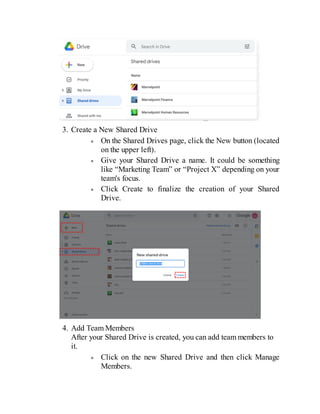
storage and organization.