Copyright 2019 www.Coursenvy.com
Facebook Business Manager
You can manage ad accounts, Facebook business pages, and the people who work on them — all in
one place! Business Manager is a Facebook tool that helps organize and manage your business.
You just need a personal Facebook profile to create a Business Manager account. You will use
your personal Facebook username and password to sign into Business Manager.
https://business.facebook.com
Copyright 2019 www.Coursenvy.com
Do I Need a Business Manager?
➢ Do you need more than one Ad account?
You need to create separate ad accounts for every client or business you serve. Plus you can pay
for ads with different payment methods and organize reporting by varying websites/accounts.
➢ Do you need to request access to Pages or Ad accounts?
If you have clients, you can request access to their Pages and Ad accounts to become an analyst,
advertiser, or admin.
Copyright 2019 www.Coursenvy.com
Do I Need a Business Manager?
➢ Do you need to assign permissions to people working together?
You can allow specific, role-based access to Ad accounts, Pages, and other assets that your
business manages… as well as easily see who's working on what.
➢ Do you need business-level insights and reporting?
You can see the performance of your ads across different Ad accounts and get reports of the
assets and people your business is responsible for.
Copyright 2019 www.Coursenvy.com
YES, You Need a Business Manager!
If you answered YES to any of these questions, it is time to set up your free Facebook Business
Manager account.
Whether if you are a business with multiple brands and websites OR if you are an ad agency with
multiple clients… I suggest everybody with more than one asset and/or employee use a Facebook
Business Manager account.
Copyright 2019 www.Coursenvy.com
One Ad Account Per Website
The main reason I tell clients to convert to a Facebook Business Manager is because they have
more than one website. You need a separate Facebook Pixel for each website. Remember, ONE
Pixel per Ad account, and ONE ad account per website (you don’t want to mix reporting). In order
to create multiple ad accounts and pixels, you need to create a Business Manager account.
The benefits of using multiple ad accounts:
➢ Create separate Ad accounts for each client or business you manage
➢ Run different ad campaigns simultaneously
➢ Pay for ads with different payment methods (i.e. varying business credit cards)
➢ View insights for individual ad campaigns
Copyright 2019 www.Coursenvy.com
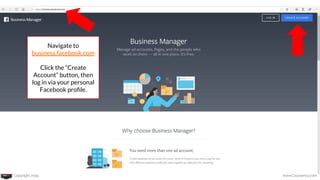
Navigate to
business.facebook.com
Click the “Create
Account” button, then
log in via your personal
Facebook profile.
Copyright 2019 www.Coursenvy.com
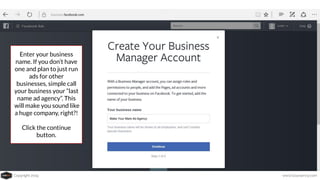
Enter your business
name. If you don’t have
one and plan to just run
ads for other
businesses, simple call
your business your “last
name ad agency”. This
will make you sound like
a huge company, right?!
Click the continue
button.
Copyright 2019 www.Coursenvy.com
Complete your Business Profile
➢ Enter your Business Name & Email Address.
➢ Click Next. Enter your Business Details (Address, Phone Number, and Website).
➢ Click Submit. An email with the subject Confirm your business will be sent to the business
email address you entered.
➢ Click the Confirm Now button in the email to receive full access to the account.
➢ Once confirmed, you have successfully created a Business Manager Account and can
proceed to adding your Facebook Page, Ad Account, employees, and other assets!
Copyright 2019 www.Coursenvy.com
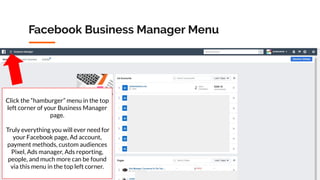
Facebook Business Manager Menu
Click the “hamburger” menu in the top
left corner of your Business Manager
page.
Truly everything you will ever need for
your Facebook page, Ad account,
payment methods, custom audiences
Pixel, Ads manager, Ads reporting,
people, and much more can be found
via this menu in the top left corner.
Copyright 2019 www.Coursenvy.com
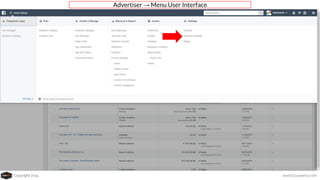
Advertiser → Menu User Interface
Copyright 2019 www.Coursenvy.com
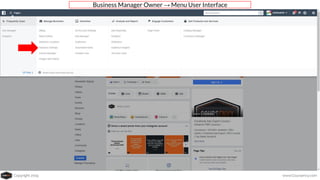
Business Manager Owner → Menu User Interface
Copyright 2019 www.Coursenvy.com
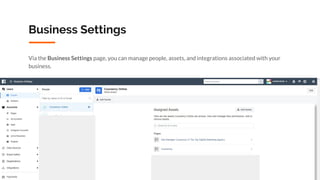
Business Settings
Via the Business Settings page, you can manage people, assets, and integrations associated with your
business.
Copyright 2019 www.Coursenvy.com
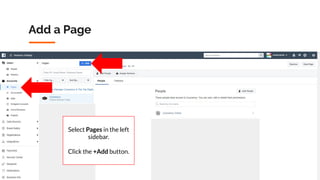
Add a Page
Select Pages in the left
sidebar.
Click the +Add button.
Copyright 2019 www.Coursenvy.com
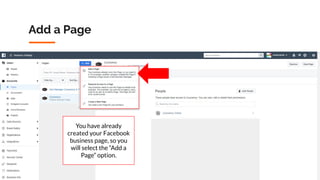
Add a Page
You have already
created your Facebook
business page, so you
will select the “Add a
Page” option.
Copyright 2019 www.Coursenvy.com
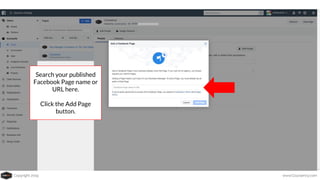
Search your published
Facebook Page name or
URL here.
Click the Add Page
button.
Copyright 2019 www.Coursenvy.com
Add a Page - Step by Step
1. Navigate to your Business Setting page. Click the Pages option in the left sidebar under
Accounts.
2. Click the +Add button. In the dropdown menu, select “Add a Page” (assuming you have a
Facebook Page created for your business already!)
3. Enter the name of your Facebook Business Page, select it, and click the Add Page button.
4. A popup will immediately appear with the following statement: “Since you’re already Page
admin on this Page, your request was approved automatically.” Click the Close button.
5. Have you linked your Instagram Account to your Facebook Page? If not… connect your
Instagram Account to your Facebook Page: https://www.facebook.com/business/help/898752960195806
Copyright 2019 www.Coursenvy.com
Connect an Instagram Account to a Facebook Page
1. Go to your Facebook Page.
2. Select Settings at the top of your Page.
3. Select Instagram in the left sidebar.
4. To add an existing Instagram account to your Page, Select Log in.
5. Enter your Instagram account's Username and Password, and select Log in.
Copyright 2019 www.Coursenvy.com
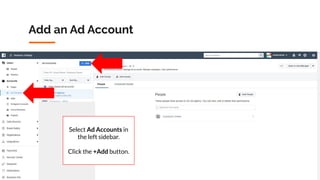
Add an Ad Account
Select Ad Accounts in
the left sidebar.
Click the +Add button.
Copyright 2019 www.Coursenvy.com
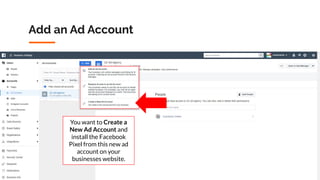
Add an Ad Account
You want to Create a
New Ad Account and
install the Facebook
Pixel from this new ad
account on your
businesses website.
Copyright 2019 www.Coursenvy.com
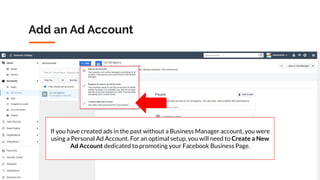
Add an Ad Account
If you have created ads in the past without a Business Manager account, you were
using a Personal Ad Account. For an optimal setup, you will need to Create a New
Ad Account dedicated to promoting your Facebook Business Page.
Copyright 2019 www.Coursenvy.com
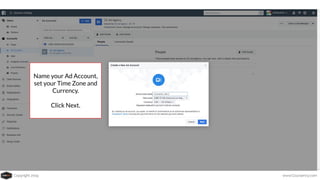
Name your Ad Account,
set your Time Zone and
Currency.
Click Next.
Copyright 2019 www.Coursenvy.com
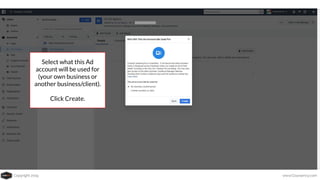
Select what this Ad
account will be used for
(your own business or
another business/client).
Click Create.
Copyright 2019 www.Coursenvy.com
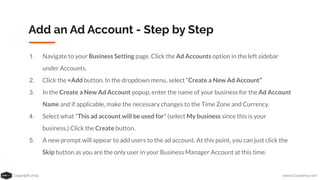
Add an Ad Account - Step by Step
1. Navigate to your Business Setting page. Click the Ad Accounts option in the left sidebar
under Accounts.
2. Click the +Add button. In the dropdown menu, select “Create a New Ad Account”
3. In the Create a New Ad Account popup, enter the name of your business for the Ad Account
Name and if applicable, make the necessary changes to the Time Zone and Currency.
4. Select what "This ad account will be used for" (select My business since this is your
business.) Click the Create button.
5. A new prompt will appear to add users to the ad account. At this point, you can just click the
Skip button as you are the only user in your Business Manager Account at this time.
Copyright 2019 www.Coursenvy.com
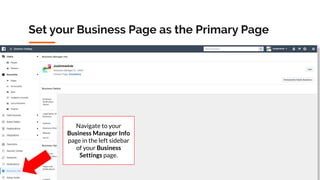
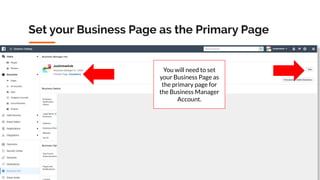
Set your Business Page as the Primary Page
Navigate to your
Business Manager Info
page in the left sidebar
of your Business
Settings page.
Copyright 2019 www.Coursenvy.com
Set your Business Page as the Primary Page
You will need to set
your Business Page as
the primary page for
the Business Manager
Account.
Copyright 2019 www.Coursenvy.com
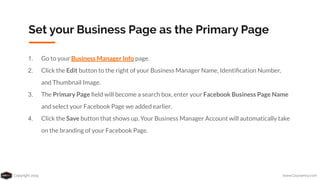
Set your Business Page as the Primary Page
1. Go to your Business Manager Info page.
2. Click the Edit button to the right of your Business Manager Name, Identification Number,
and Thumbnail Image.
3. The Primary Page field will become a search box, enter your Facebook Business Page Name
and select your Facebook Page we added earlier.
4. Click the Save button that shows up. Your Business Manager Account will automatically take
on the branding of your Facebook Page.
Copyright 2019 www.Coursenvy.com
Install Your Facebook Pixel on Your Website
This is a crucial step so you can have Facebook track the people who visit your website, then you
can create audiences of these visitors which you can RETARGET in the future with Facebook and
Instagram ads (i.e. a “warm audience”)!
Installing your Facebook Pixel requires access to your websites code, therefore you should link up
with your website developer to provide them with this info. Follow our courses Facebook Pixel
lecture for step by step instructions on installing your Facebook Pixel, or use the link below:
How to Create and Install a Facebook Pixel: https://www.facebook.com/business/help/952192354843755
Copyright 2019 www.Coursenvy.com
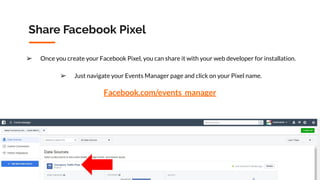
Share Facebook Pixel
➢ Once you create your Facebook Pixel, you can share it with your web developer for installation.
➢ Just navigate your Events Manager page and click on your Pixel name.
Facebook.com/events_manager
Copyright 2019 www.Coursenvy.com
Share Facebook Pixel
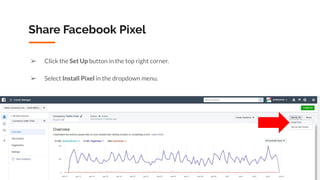
➢ Click the Set Up button in the top right corner.
➢ Select Install Pixel in the dropdown menu.
Copyright 2019 www.Coursenvy.com
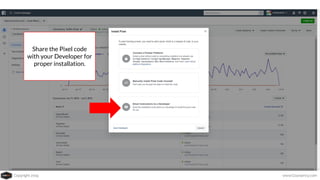
Share the Pixel code
with your Developer for
proper installation.
Copyright 2019 www.Coursenvy.com
Get Access to a Client’s
Facebook Business Page
& Ad Account
Copyright 2019 www.Coursenvy.com
How to Gain Access to Client’s Assets
Step #1 is to have your Client complete everything you have read up to this point!
Your client needs a Facebook Business Manager account too!
How to Give a Partner Access to Assets in Your Business Manager:
https://www.facebook.com/business/help/1717412048538897
Copyright 2019 www.Coursenvy.com
How to Gain Access to Client’s Assets
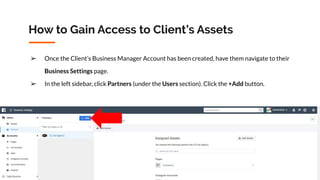
➢ Once the Client’s Business Manager Account has been created, have them navigate to their
Business Settings page.
➢ In the left sidebar, click Partners (under the Users section). Click the +Add button.
Copyright 2019 www.Coursenvy.com
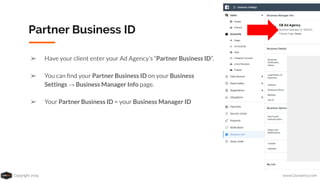
Partner Business ID
➢ Have your client enter your Ad Agency’s “Partner Business ID”.
➢ You can find your Partner Business ID on your Business
Settings → Business Manager Info page.
➢ Your Partner Business ID = your Business Manager ID
Copyright 2019 www.Coursenvy.com
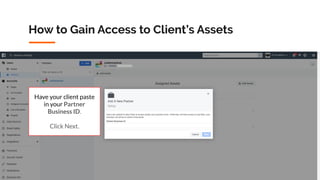
How to Gain Access to Client’s Assets
Have your client paste
in your Partner
Business ID.
Click Next.
Copyright 2019 www.Coursenvy.com
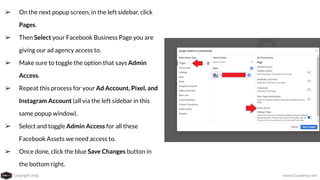
➢ On the next popup screen, in the left sidebar, click
Pages.
➢ Then Select your Facebook Business Page you are
giving our ad agency access to.
➢ Make sure to toggle the option that says Admin
Access.
➢ Repeat this process for your Ad Account, Pixel, and
Instagram Account (all via the left sidebar in this
same popup window).
➢ Select and toggle Admin Access for all these
Facebook Assets we need access to.
➢ Once done, click the blue Save Changes button in
the bottom right.
Copyright 2019 www.Coursenvy.com
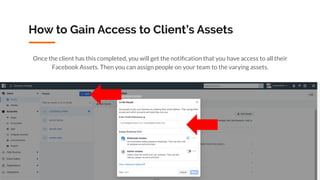
How to Gain Access to Client’s Assets
Once the client has this completed, you will get the notification that you have access to all their
Facebook Assets. Then you can assign people on your team to the varying assets.
Copyright 2019 www.Coursenvy.com
Update Your Billing Info
For all the Facebook Ads campaigns you run for your client, they will get billed directly from
Facebook. To insure the ad account has the correct billing information, please have them follow
the steps below:
1. Login to your Facebook Business Manager.
2. Go to the Payment Settings page.
3. In the Payment Method section, click Add Payment Method.
4. Choose the payment method you want to add, fill in your information and then click
Continue. Follow any additional instructions to add your payment method.
5. The payment method will be saved to your account.
Copyright 2019 www.Coursenvy.com

The Complete Facebook Business Manager Guide

  • 1.
    Copyright 2019 www.Coursenvy.com FacebookBusiness Manager You can manage ad accounts, Facebook business pages, and the people who work on them — all in one place! Business Manager is a Facebook tool that helps organize and manage your business. You just need a personal Facebook profile to create a Business Manager account. You will use your personal Facebook username and password to sign into Business Manager. https://business.facebook.com
  • 2.
    Copyright 2019 www.Coursenvy.com DoI Need a Business Manager? ➢ Do you need more than one Ad account? You need to create separate ad accounts for every client or business you serve. Plus you can pay for ads with different payment methods and organize reporting by varying websites/accounts. ➢ Do you need to request access to Pages or Ad accounts? If you have clients, you can request access to their Pages and Ad accounts to become an analyst, advertiser, or admin.
  • 3.
    Copyright 2019 www.Coursenvy.com DoI Need a Business Manager? ➢ Do you need to assign permissions to people working together? You can allow specific, role-based access to Ad accounts, Pages, and other assets that your business manages… as well as easily see who's working on what. ➢ Do you need business-level insights and reporting? You can see the performance of your ads across different Ad accounts and get reports of the assets and people your business is responsible for.
  • 4.
    Copyright 2019 www.Coursenvy.com YES,You Need a Business Manager! If you answered YES to any of these questions, it is time to set up your free Facebook Business Manager account. Whether if you are a business with multiple brands and websites OR if you are an ad agency with multiple clients… I suggest everybody with more than one asset and/or employee use a Facebook Business Manager account.
  • 5.
    Copyright 2019 www.Coursenvy.com OneAd Account Per Website The main reason I tell clients to convert to a Facebook Business Manager is because they have more than one website. You need a separate Facebook Pixel for each website. Remember, ONE Pixel per Ad account, and ONE ad account per website (you don’t want to mix reporting). In order to create multiple ad accounts and pixels, you need to create a Business Manager account. The benefits of using multiple ad accounts: ➢ Create separate Ad accounts for each client or business you manage ➢ Run different ad campaigns simultaneously ➢ Pay for ads with different payment methods (i.e. varying business credit cards) ➢ View insights for individual ad campaigns
  • 6.
    Copyright 2019 www.Coursenvy.com Navigateto business.facebook.com Click the “Create Account” button, then log in via your personal Facebook profile.
  • 7.
    Copyright 2019 www.Coursenvy.com Enteryour business name. If you don’t have one and plan to just run ads for other businesses, simple call your business your “last name ad agency”. This will make you sound like a huge company, right?! Click the continue button.
  • 8.
    Copyright 2019 www.Coursenvy.com Completeyour Business Profile ➢ Enter your Business Name & Email Address. ➢ Click Next. Enter your Business Details (Address, Phone Number, and Website). ➢ Click Submit. An email with the subject Confirm your business will be sent to the business email address you entered. ➢ Click the Confirm Now button in the email to receive full access to the account. ➢ Once confirmed, you have successfully created a Business Manager Account and can proceed to adding your Facebook Page, Ad Account, employees, and other assets!
  • 9.
    Copyright 2019 www.Coursenvy.com FacebookBusiness Manager Menu Click the “hamburger” menu in the top left corner of your Business Manager page. Truly everything you will ever need for your Facebook page, Ad account, payment methods, custom audiences Pixel, Ads manager, Ads reporting, people, and much more can be found via this menu in the top left corner.
  • 10.
  • 11.
    Copyright 2019 www.Coursenvy.com BusinessManager Owner → Menu User Interface
  • 12.
    Copyright 2019 www.Coursenvy.com BusinessSettings Via the Business Settings page, you can manage people, assets, and integrations associated with your business.
  • 13.
    Copyright 2019 www.Coursenvy.com Adda Page Select Pages in the left sidebar. Click the +Add button.
  • 14.
    Copyright 2019 www.Coursenvy.com Adda Page You have already created your Facebook business page, so you will select the “Add a Page” option.
  • 15.
    Copyright 2019 www.Coursenvy.com Searchyour published Facebook Page name or URL here. Click the Add Page button.
  • 16.
    Copyright 2019 www.Coursenvy.com Adda Page - Step by Step 1. Navigate to your Business Setting page. Click the Pages option in the left sidebar under Accounts. 2. Click the +Add button. In the dropdown menu, select “Add a Page” (assuming you have a Facebook Page created for your business already!) 3. Enter the name of your Facebook Business Page, select it, and click the Add Page button. 4. A popup will immediately appear with the following statement: “Since you’re already Page admin on this Page, your request was approved automatically.” Click the Close button. 5. Have you linked your Instagram Account to your Facebook Page? If not… connect your Instagram Account to your Facebook Page: https://www.facebook.com/business/help/898752960195806
  • 17.
    Copyright 2019 www.Coursenvy.com Connectan Instagram Account to a Facebook Page 1. Go to your Facebook Page. 2. Select Settings at the top of your Page. 3. Select Instagram in the left sidebar. 4. To add an existing Instagram account to your Page, Select Log in. 5. Enter your Instagram account's Username and Password, and select Log in.
  • 18.
    Copyright 2019 www.Coursenvy.com Addan Ad Account Select Ad Accounts in the left sidebar. Click the +Add button.
  • 19.
    Copyright 2019 www.Coursenvy.com Addan Ad Account You want to Create a New Ad Account and install the Facebook Pixel from this new ad account on your businesses website.
  • 20.
    Copyright 2019 www.Coursenvy.com Addan Ad Account If you have created ads in the past without a Business Manager account, you were using a Personal Ad Account. For an optimal setup, you will need to Create a New Ad Account dedicated to promoting your Facebook Business Page.
  • 21.
    Copyright 2019 www.Coursenvy.com Nameyour Ad Account, set your Time Zone and Currency. Click Next.
  • 22.
    Copyright 2019 www.Coursenvy.com Selectwhat this Ad account will be used for (your own business or another business/client). Click Create.
  • 23.
    Copyright 2019 www.Coursenvy.com Addan Ad Account - Step by Step 1. Navigate to your Business Setting page. Click the Ad Accounts option in the left sidebar under Accounts. 2. Click the +Add button. In the dropdown menu, select “Create a New Ad Account” 3. In the Create a New Ad Account popup, enter the name of your business for the Ad Account Name and if applicable, make the necessary changes to the Time Zone and Currency. 4. Select what "This ad account will be used for" (select My business since this is your business.) Click the Create button. 5. A new prompt will appear to add users to the ad account. At this point, you can just click the Skip button as you are the only user in your Business Manager Account at this time.
  • 24.
    Copyright 2019 www.Coursenvy.com Setyour Business Page as the Primary Page Navigate to your Business Manager Info page in the left sidebar of your Business Settings page.
  • 25.
    Copyright 2019 www.Coursenvy.com Setyour Business Page as the Primary Page You will need to set your Business Page as the primary page for the Business Manager Account.
  • 26.
    Copyright 2019 www.Coursenvy.com Setyour Business Page as the Primary Page 1. Go to your Business Manager Info page. 2. Click the Edit button to the right of your Business Manager Name, Identification Number, and Thumbnail Image. 3. The Primary Page field will become a search box, enter your Facebook Business Page Name and select your Facebook Page we added earlier. 4. Click the Save button that shows up. Your Business Manager Account will automatically take on the branding of your Facebook Page.
  • 27.
    Copyright 2019 www.Coursenvy.com InstallYour Facebook Pixel on Your Website This is a crucial step so you can have Facebook track the people who visit your website, then you can create audiences of these visitors which you can RETARGET in the future with Facebook and Instagram ads (i.e. a “warm audience”)! Installing your Facebook Pixel requires access to your websites code, therefore you should link up with your website developer to provide them with this info. Follow our courses Facebook Pixel lecture for step by step instructions on installing your Facebook Pixel, or use the link below: How to Create and Install a Facebook Pixel: https://www.facebook.com/business/help/952192354843755
  • 28.
    Copyright 2019 www.Coursenvy.com ShareFacebook Pixel ➢ Once you create your Facebook Pixel, you can share it with your web developer for installation. ➢ Just navigate your Events Manager page and click on your Pixel name. Facebook.com/events_manager
  • 29.
    Copyright 2019 www.Coursenvy.com ShareFacebook Pixel ➢ Click the Set Up button in the top right corner. ➢ Select Install Pixel in the dropdown menu.
  • 30.
    Copyright 2019 www.Coursenvy.com Sharethe Pixel code with your Developer for proper installation.
  • 31.
    Copyright 2019 www.Coursenvy.com GetAccess to a Client’s Facebook Business Page & Ad Account
  • 32.
    Copyright 2019 www.Coursenvy.com Howto Gain Access to Client’s Assets Step #1 is to have your Client complete everything you have read up to this point! Your client needs a Facebook Business Manager account too! How to Give a Partner Access to Assets in Your Business Manager: https://www.facebook.com/business/help/1717412048538897
  • 33.
    Copyright 2019 www.Coursenvy.com Howto Gain Access to Client’s Assets ➢ Once the Client’s Business Manager Account has been created, have them navigate to their Business Settings page. ➢ In the left sidebar, click Partners (under the Users section). Click the +Add button.
  • 34.
    Copyright 2019 www.Coursenvy.com PartnerBusiness ID ➢ Have your client enter your Ad Agency’s “Partner Business ID”. ➢ You can find your Partner Business ID on your Business Settings → Business Manager Info page. ➢ Your Partner Business ID = your Business Manager ID
  • 35.
    Copyright 2019 www.Coursenvy.com Howto Gain Access to Client’s Assets Have your client paste in your Partner Business ID. Click Next.
  • 36.
    Copyright 2019 www.Coursenvy.com ➢On the next popup screen, in the left sidebar, click Pages. ➢ Then Select your Facebook Business Page you are giving our ad agency access to. ➢ Make sure to toggle the option that says Admin Access. ➢ Repeat this process for your Ad Account, Pixel, and Instagram Account (all via the left sidebar in this same popup window). ➢ Select and toggle Admin Access for all these Facebook Assets we need access to. ➢ Once done, click the blue Save Changes button in the bottom right.
  • 37.
    Copyright 2019 www.Coursenvy.com Howto Gain Access to Client’s Assets Once the client has this completed, you will get the notification that you have access to all their Facebook Assets. Then you can assign people on your team to the varying assets.
  • 38.
    Copyright 2019 www.Coursenvy.com UpdateYour Billing Info For all the Facebook Ads campaigns you run for your client, they will get billed directly from Facebook. To insure the ad account has the correct billing information, please have them follow the steps below: 1. Login to your Facebook Business Manager. 2. Go to the Payment Settings page. 3. In the Payment Method section, click Add Payment Method. 4. Choose the payment method you want to add, fill in your information and then click Continue. Follow any additional instructions to add your payment method. 5. The payment method will be saved to your account.
  • 39.