INTRODUCTION
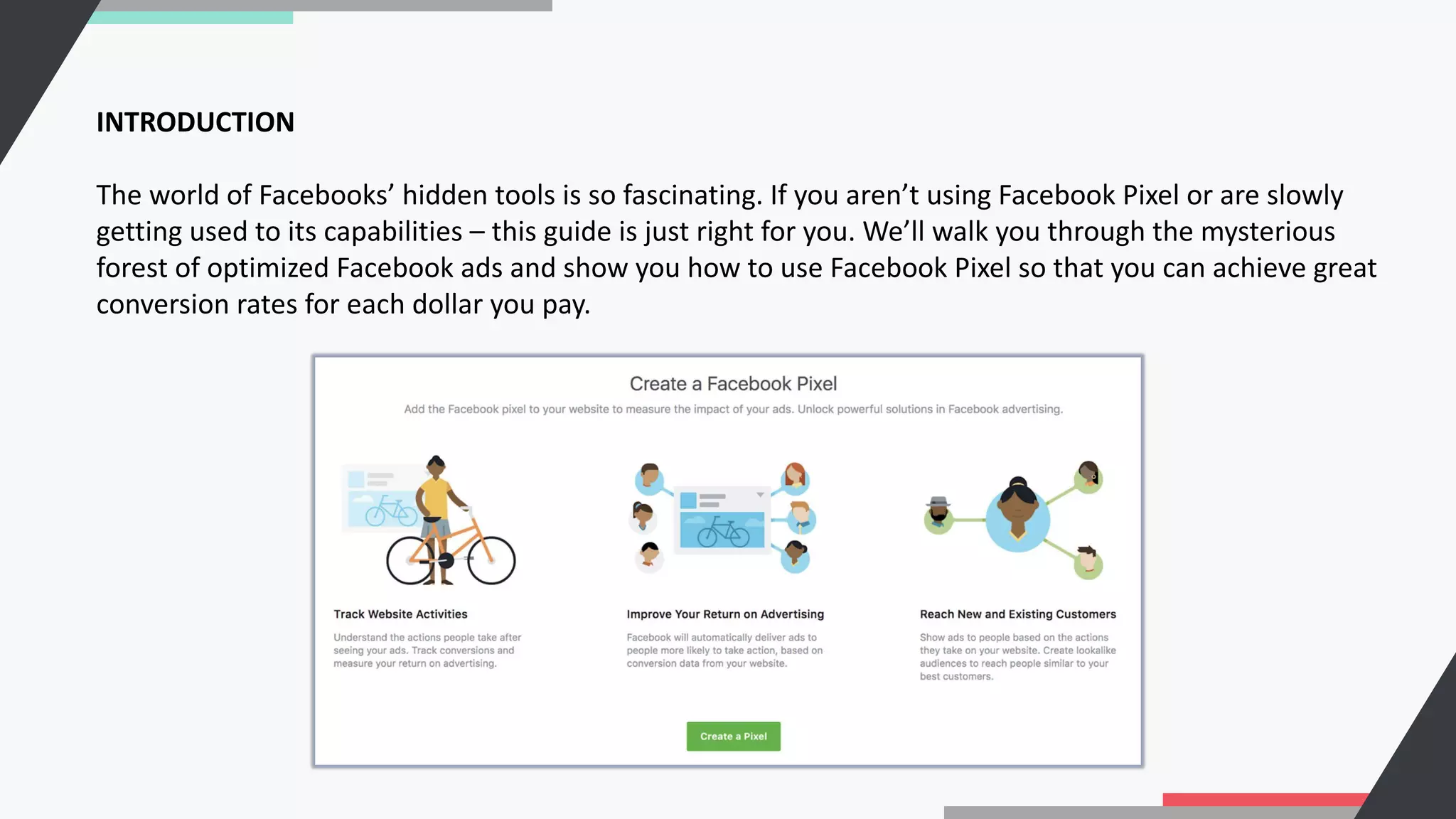
The world of Facebooks’ hidden tools is so fascinating. If you aren’t using Facebook Pixel or are slowly
getting used to its capabilities – this guide is just right for you. We’ll walk you through the mysterious
forest of optimized Facebook ads and show you how to use Facebook Pixel so that you can achieve great
conversion rates for each dollar you pay.
WHAT IS FACEBOOK PIXEL?
Technically speaking Facebook Pixel is a code that you place on your website. The concept is very
similar to the google analyCcs code. Pixel gathers data to opCmize Facebook Ads, improve conversion
rates, creates lookalike audiences and most importantly to retarget to people who have performed
specific acCons on your website.
You absolutely don’t need to be a developer to be able to successfully use it. Moreover, you don’t
even need to understand what those digits and symbols inside the code mean.
WHAT ARE THE BENEFITS OF FACEBOOK PIXEL?
To sum up Facebook Pixel benefits in a shortlist:
1. OpCmize ads delivery to people who are more likely to take acCon
2. Create Custom Audiences from website visitors
3. Learn about your website traffic
Every business owner and social media marketer wants to improve ROI. Facebook Pixel ensures
that your ads are seen by people who are more likely to convert. It helps you to accomplish beRer
results due to data it gathers from your website to create beNer audiences and target them more
efficiently.
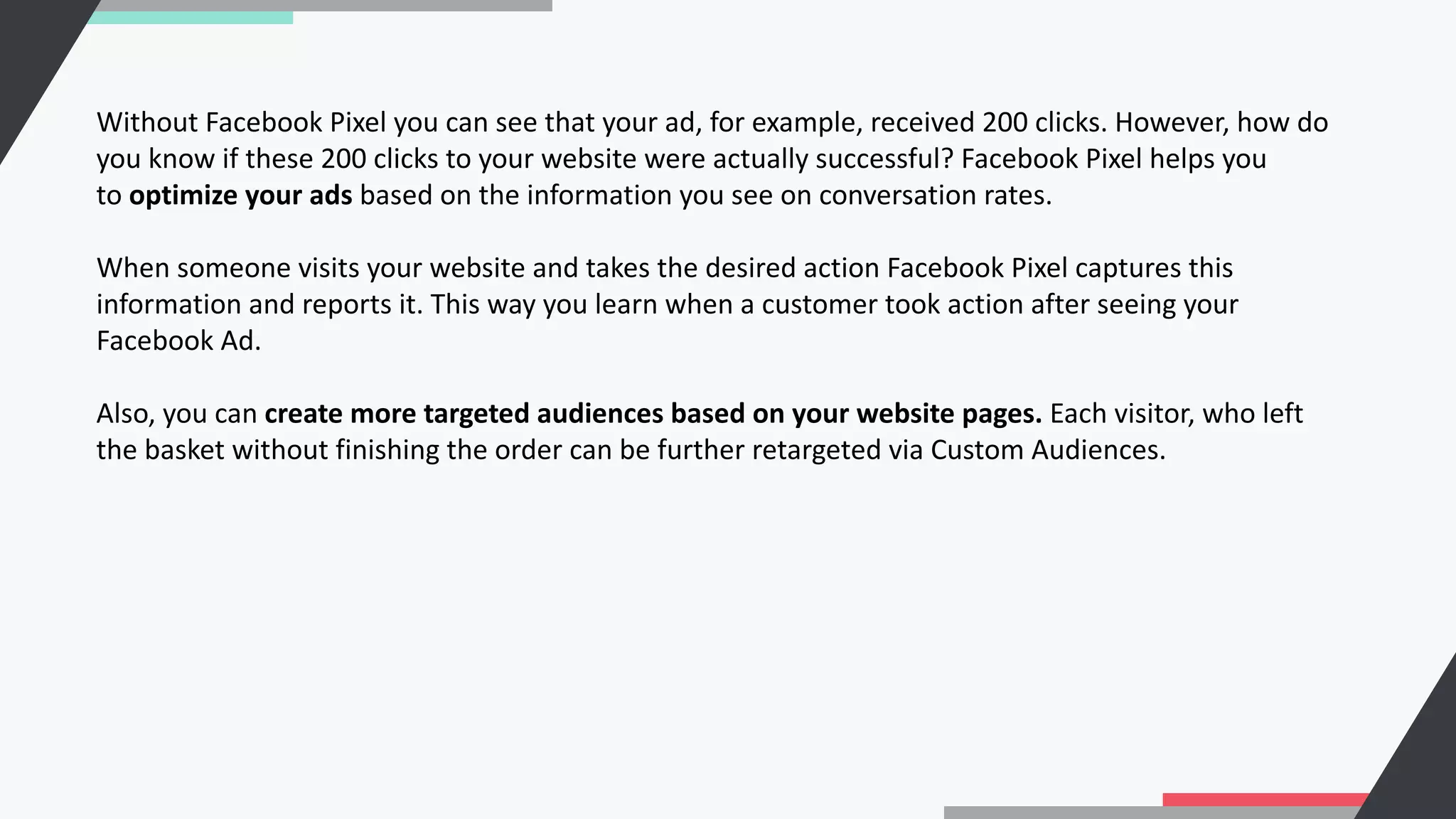
Without Facebook Pixel you can see that your ad, for example, received 200 clicks. However, how do
you know if these 200 clicks to your website were actually successful? Facebook Pixel helps you
to optimize your ads based on the information you see on conversation rates.
When someone visits your website and takes the desired action Facebook Pixel captures this
information and reports it. This way you learn when a customer took action after seeing your
Facebook Ad.
Also, you can create more targeted audiences based on your website pages. Each visitor, who left
the basket without finishing the order can be further retargeted via Custom Audiences.
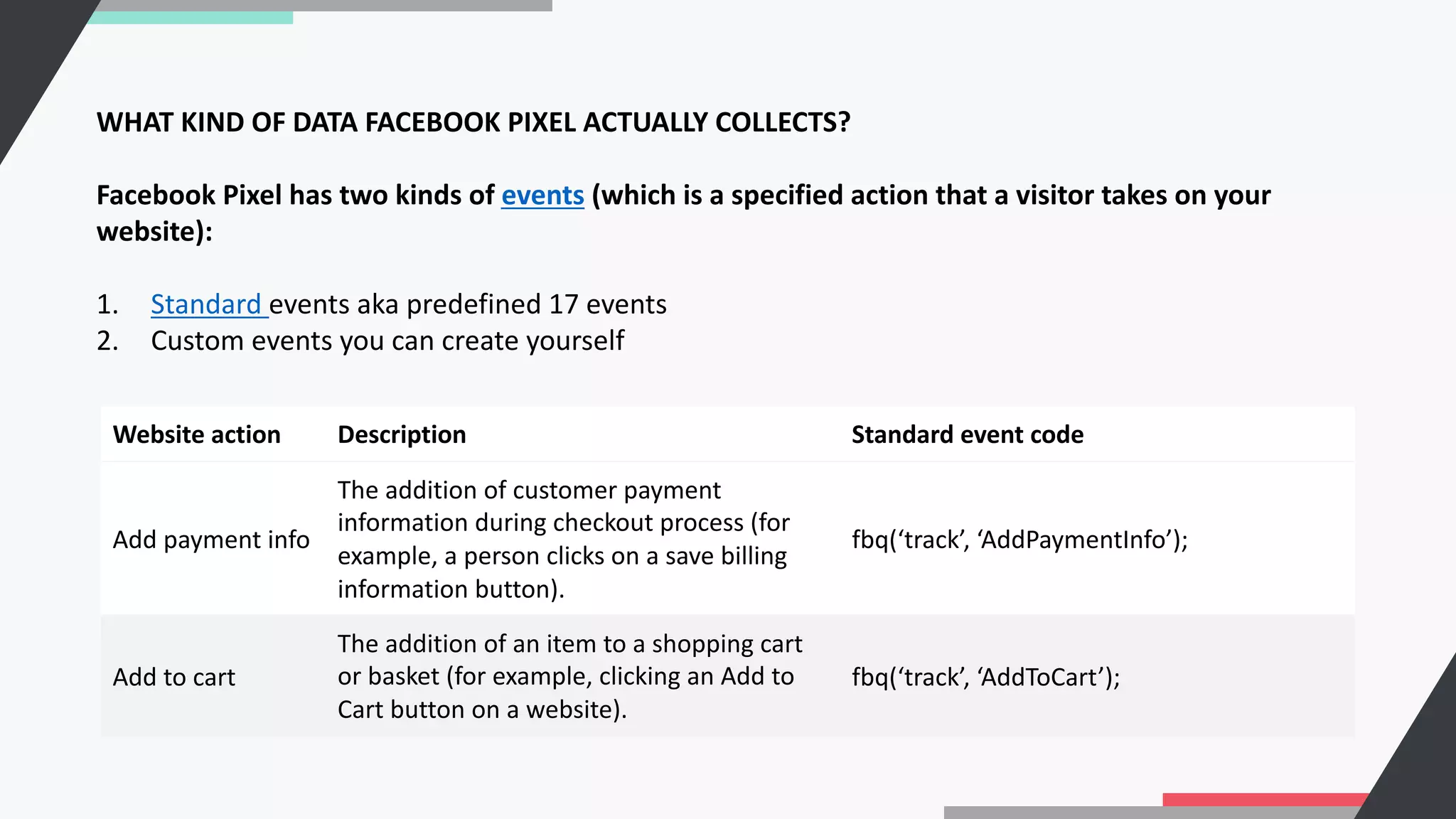
WHAT KIND OF DATA FACEBOOK PIXEL ACTUALLY COLLECTS?
Facebook Pixel has two kinds of events (which is a specified action that a visitor takes on your
website):
1. Standard events aka predefined 17 events
2. Custom events you can create yourself
Website action Description Standard event code
Add payment info
The addition of customer payment
information during checkout process (for
example, a person clicks on a save billing
information button).
fbq(‘track’, ‘AddPaymentInfo’);
Add to cart
The addition of an item to a shopping cart
or basket (for example, clicking an Add to
Cart button on a website).
fbq(‘track’, ‘AddToCart’);
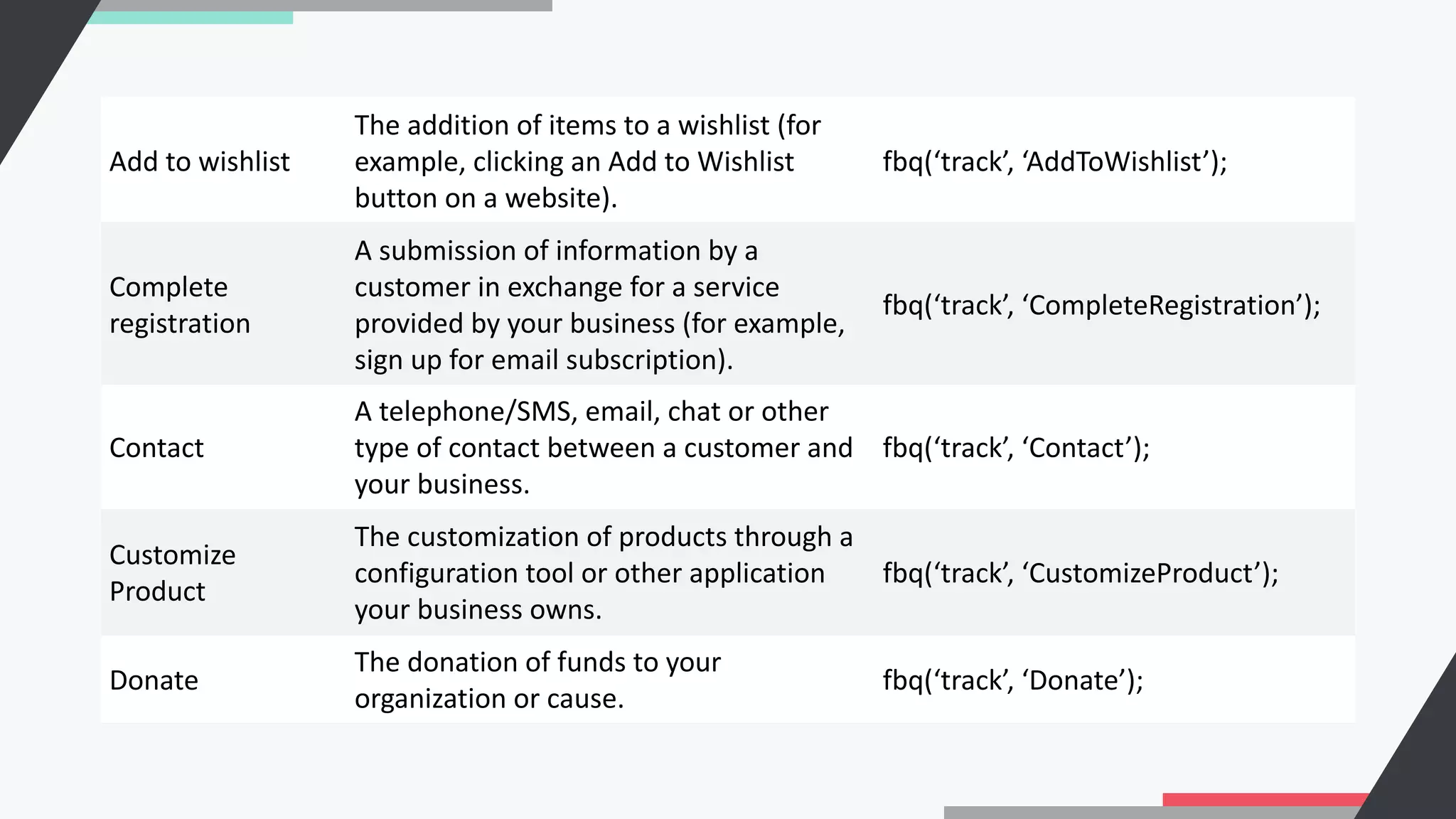
Add to wishlist
The addition of items to a wishlist (for
example, clicking an Add to Wishlist
button on a website).
fbq(‘track’, ‘AddToWishlist’);
Complete
registration
A submission of information by a
customer in exchange for a service
provided by your business (for example,
sign up for email subscription).
fbq(‘track’, ‘CompleteRegistration’);
Contact
A telephone/SMS, email, chat or other
type of contact between a customer and
your business.
fbq(‘track’, ‘Contact’);
Customize
Product
The customization of products through a
configuration tool or other application
your business owns.
fbq(‘track’, ‘CustomizeProduct’);
Donate
The donation of funds to your
organization or cause.
fbq(‘track’, ‘Donate’);
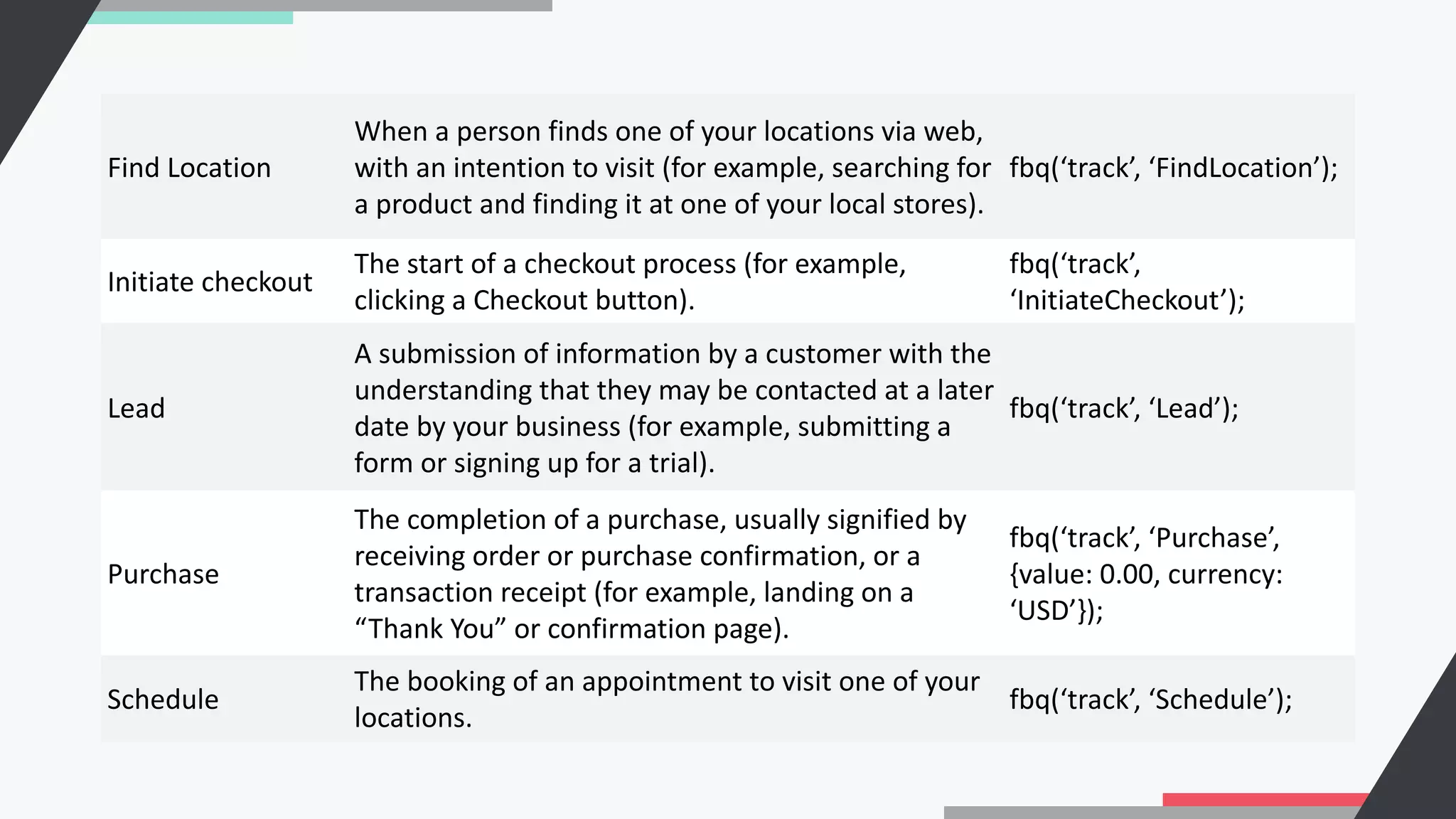
Find Location
When a person finds one of your locations via web,
with an intention to visit (for example, searching for
a product and finding it at one of your local stores).
fbq(‘track’, ‘FindLocation’);
Initiate checkout
The start of a checkout process (for example,
clicking a Checkout button).
fbq(‘track’,
‘InitiateCheckout’);
Lead
A submission of information by a customer with the
understanding that they may be contacted at a later
date by your business (for example, submitting a
form or signing up for a trial).
fbq(‘track’, ‘Lead’);
Purchase
The completion of a purchase, usually signified by
receiving order or purchase confirmation, or a
transaction receipt (for example, landing on a
“Thank You” or confirmation page).
fbq(‘track’, ‘Purchase’,
{value: 0.00, currency:
‘USD’});
Schedule
The booking of an appointment to visit one of your
locations.
fbq(‘track’, ‘Schedule’);
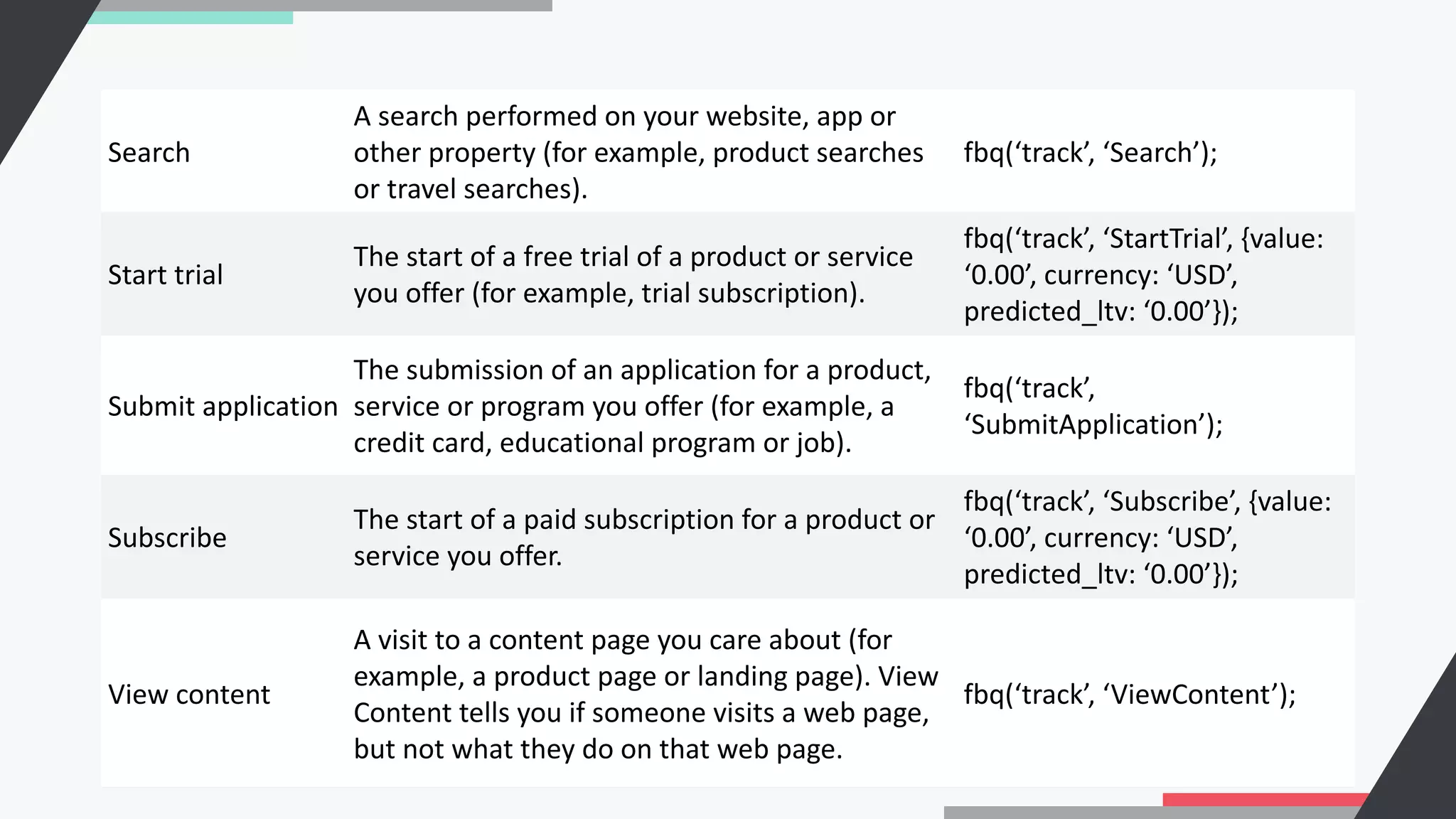
Search
A search performed on your website, app or
other property (for example, product searches
or travel searches).
fbq(‘track’, ‘Search’);
Start trial
The start of a free trial of a product or service
you offer (for example, trial subscription).
fbq(‘track’, ‘StartTrial’, {value:
‘0.00’, currency: ‘USD’,
predicted_ltv: ‘0.00’});
Submit application
The submission of an application for a product,
service or program you offer (for example, a
credit card, educational program or job).
fbq(‘track’,
‘SubmitApplication’);
Subscribe
The start of a paid subscription for a product or
service you offer.
fbq(‘track’, ‘Subscribe’, {value:
‘0.00’, currency: ‘USD’,
predicted_ltv: ‘0.00’});
View content
A visit to a content page you care about (for
example, a product page or landing page). View
Content tells you if someone visits a web page,
but not what they do on that web page.
fbq(‘track’, ‘ViewContent’);
(Table via https://business.facebook.com/business/help/402791146561655?id=1205376682832142)
Custom events are used in case you need specific actions taken by your website visitors that aren’t
available in the standard events list. These custom events can be used/created via custom audiences
for ad optimization. You can learn more about custom events in this Facebook Help’s article.
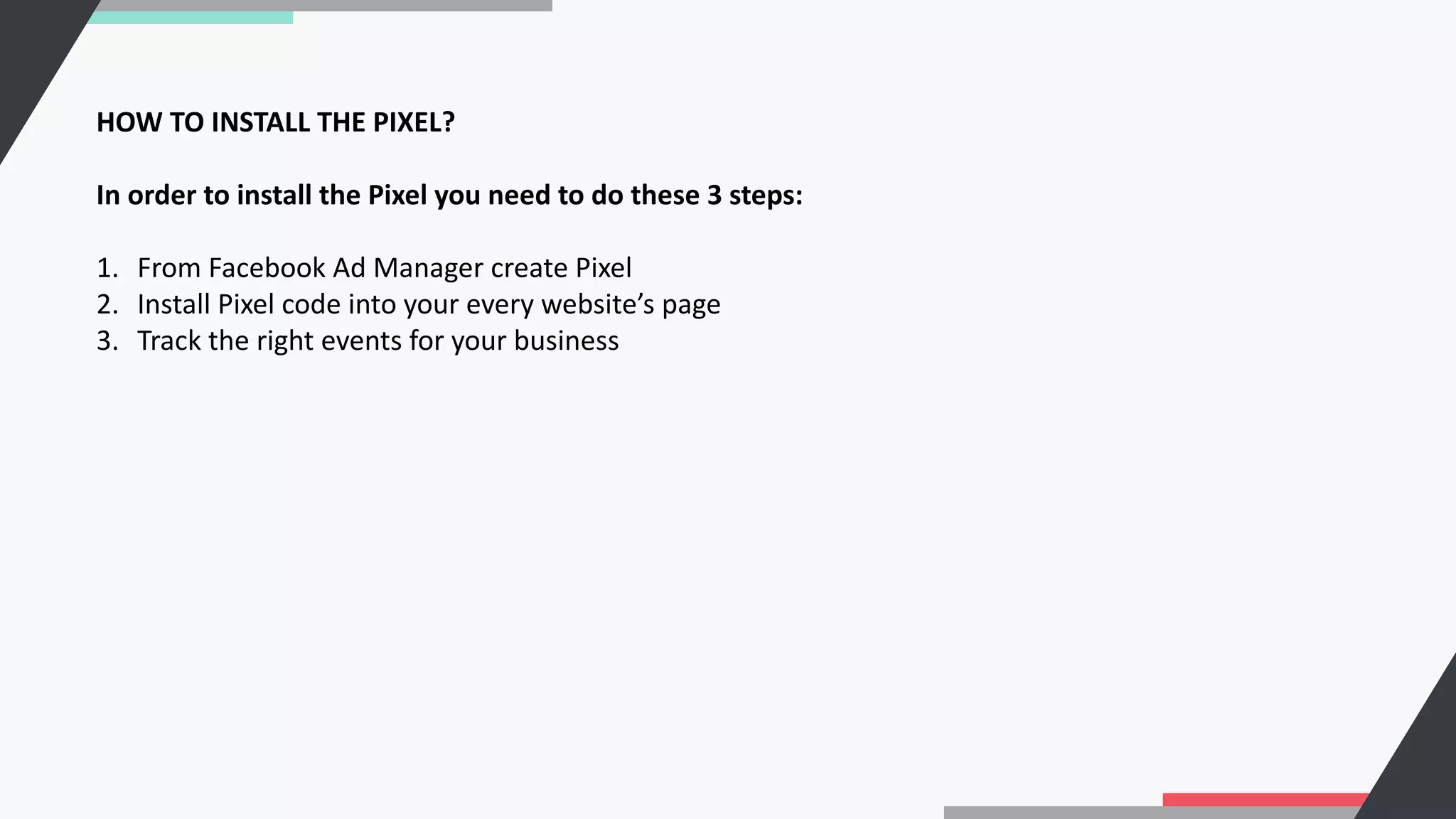
HOW TO INSTALL THE PIXEL?
In order to install the Pixel you need to do these 3 steps:
1. From Facebook Ad Manager create Pixel
2. Install Pixel code into your every website’s page
3. Track the right events for your business
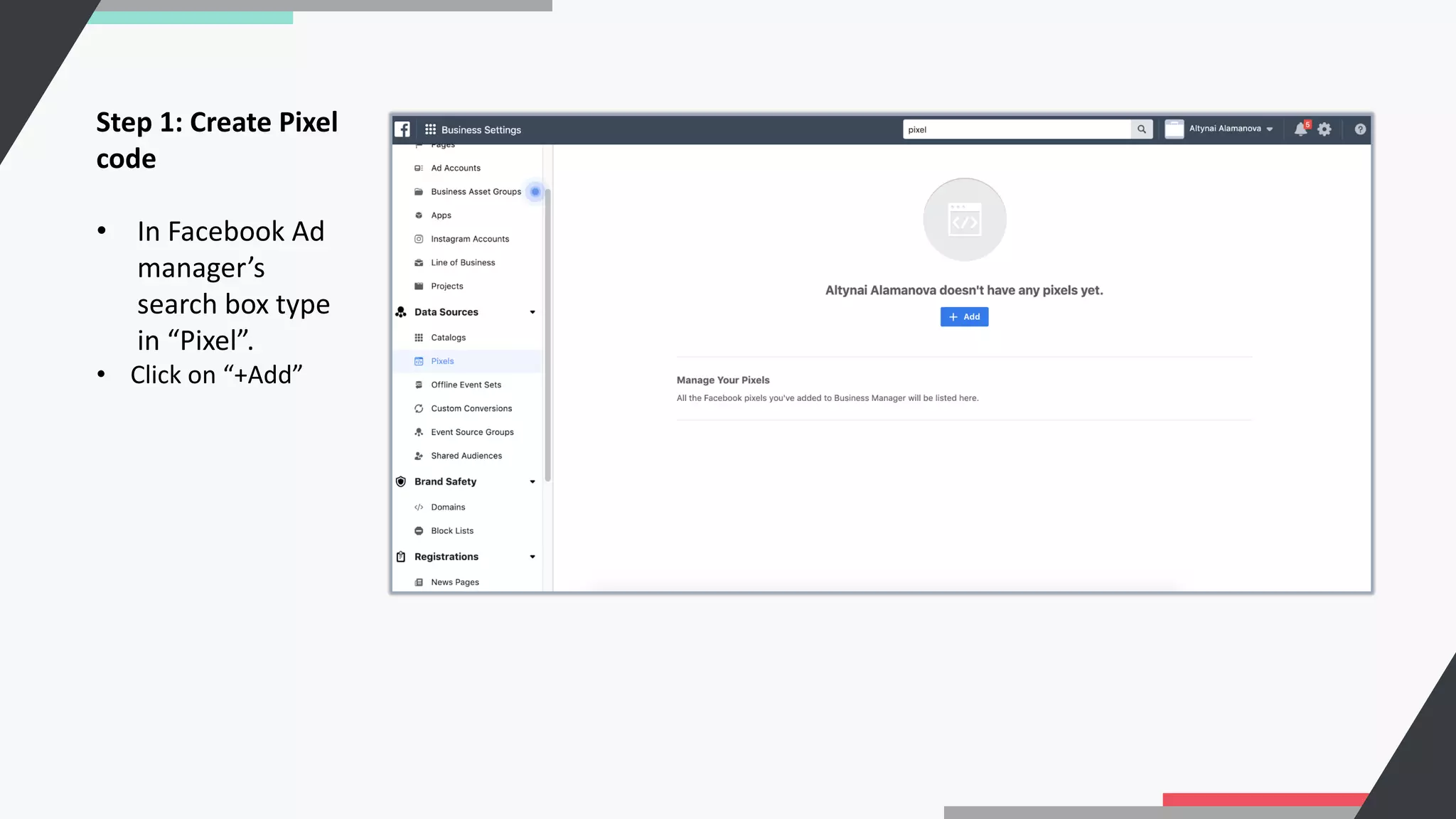
Step 1: Create Pixel
code
• In Facebook Ad
manager’s
search box type
in “Pixel”.
• Click on “+Add”
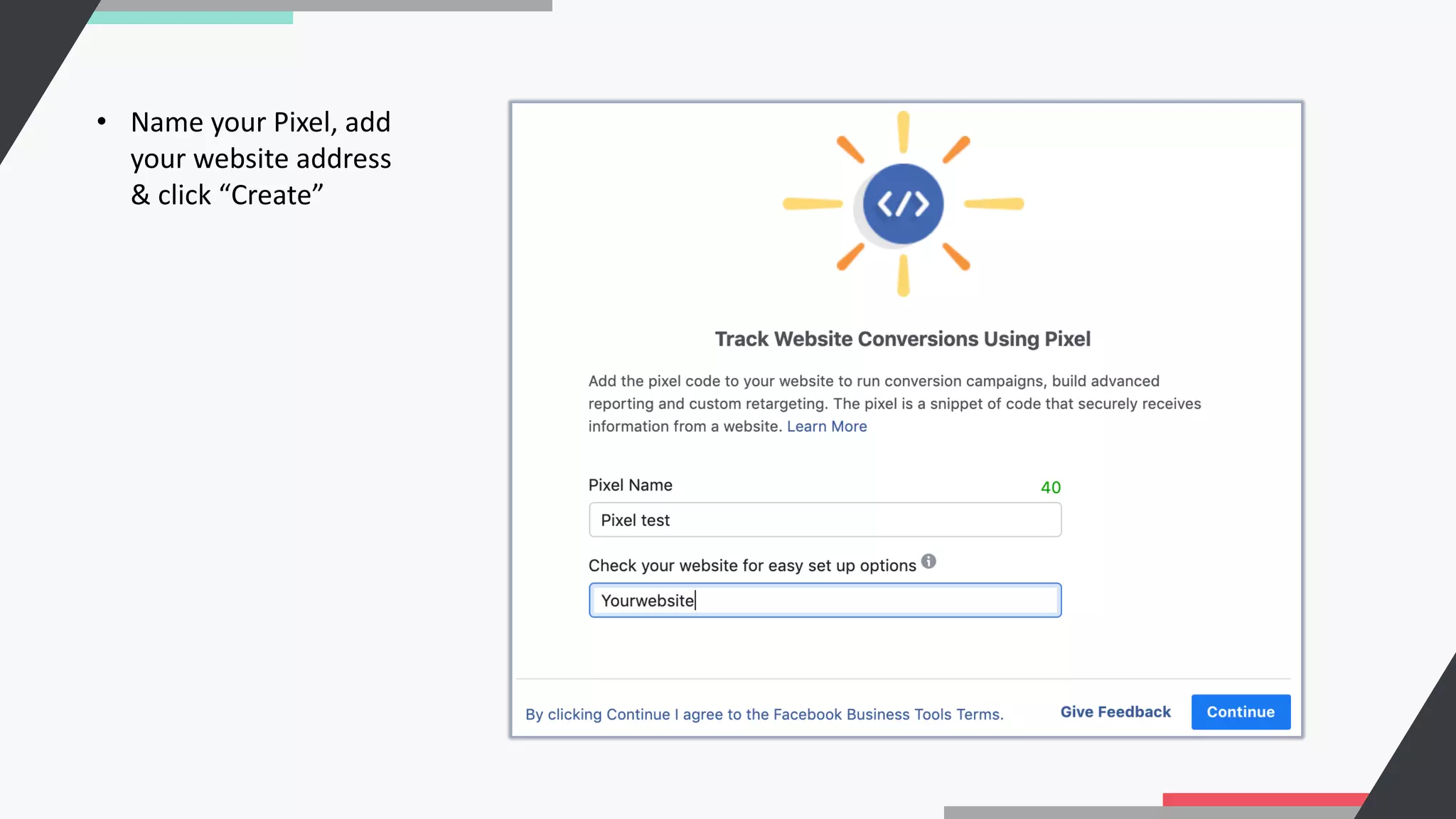
• Name your Pixel, add
your website address
& click “Create”
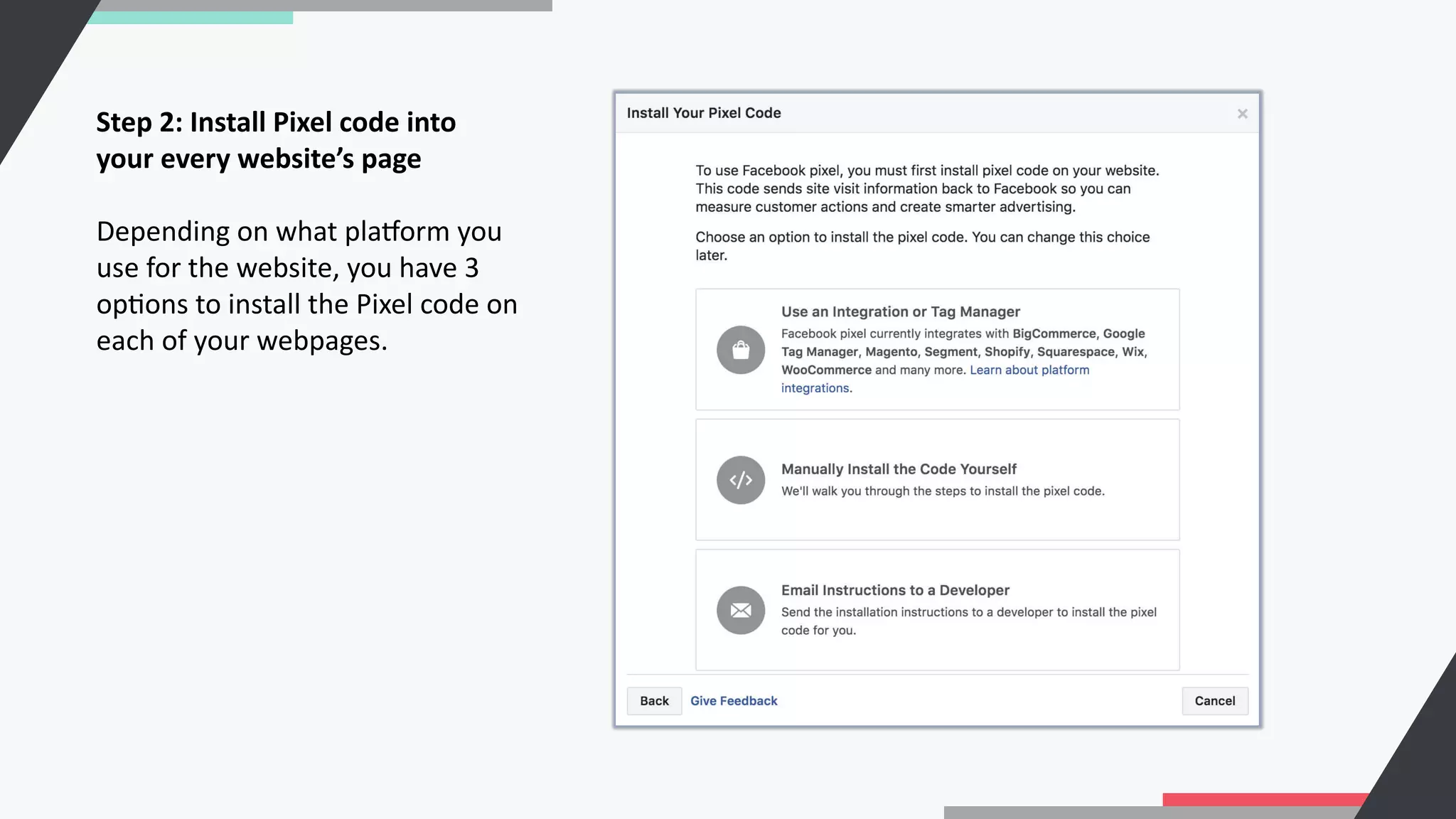
Step 2: Install Pixel code into
your every website’s page
Depending on what plaporm you
use for the website, you have 3
opCons to install the Pixel code on
each of your webpages.
♦ If you have WordPress, Shopify or Google Tag Manager you can use this Help arCcle to install Pixel
code.
♦ If you have a developer in your team you can send him a detailed, automaCcally generated an
email with instrucCons to follow. To do this simply add his/her email at the top bar and click send.
♦ If the above opCons don’t apply there is a 3rd method of installing the code manually. It is not as
complicated as you might think. And as I previously said, you don’t need to be a developer to
successfully install it.
• Click on Manually Install the code yourself
• Copy+paste the code into every website page under <head>
Placing the code within your <head> tags reduces the chances of browsers or third-party code
blocking the pixel’s execu:on. It also executes the code sooner, increasing the chance that your
visitors are tracked before they leave your page.
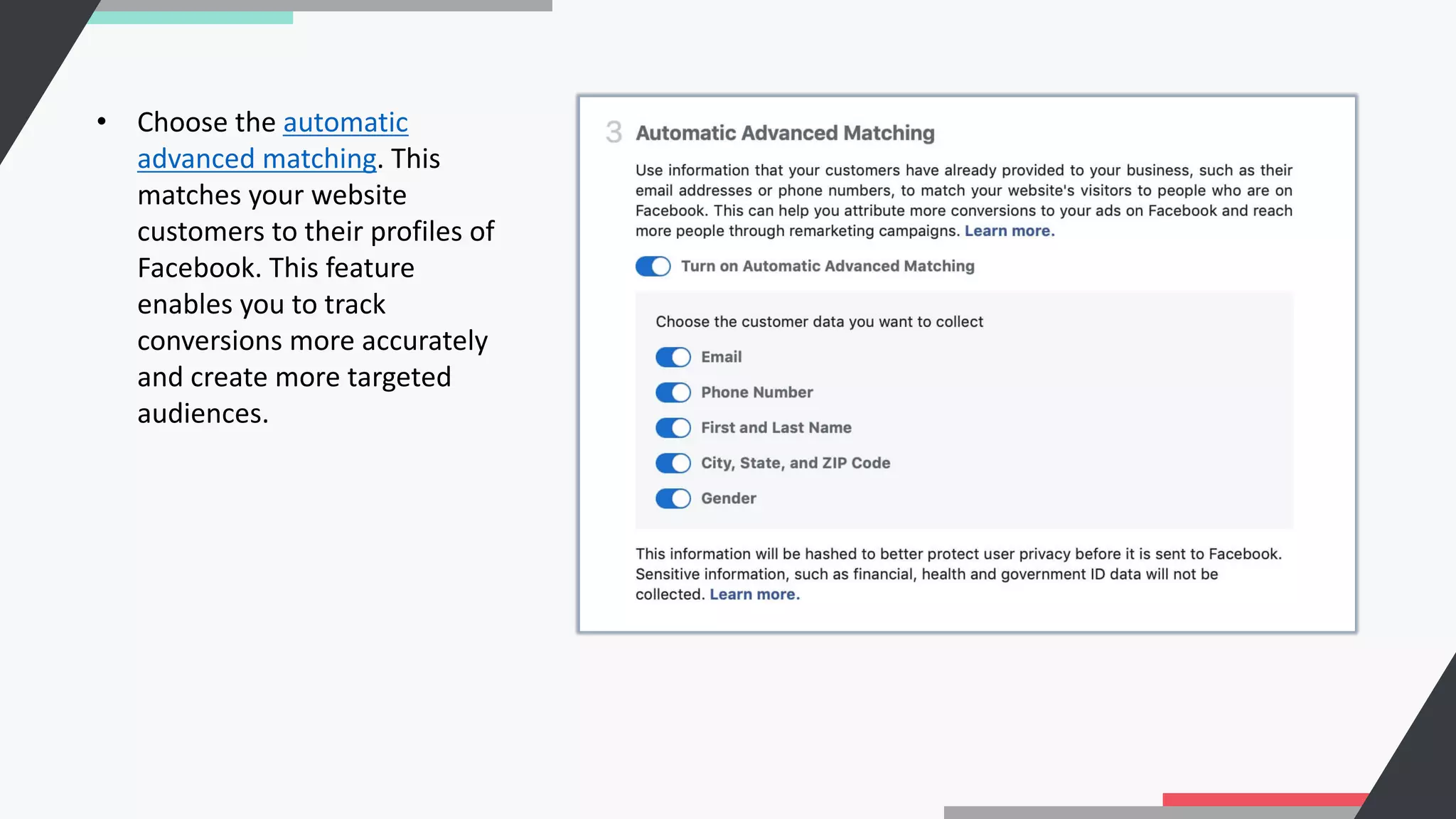
• Choose the automatic
advanced matching. This
matches your website
customers to their profiles of
Facebook. This feature
enables you to track
conversions more accurately
and create more targeted
audiences.
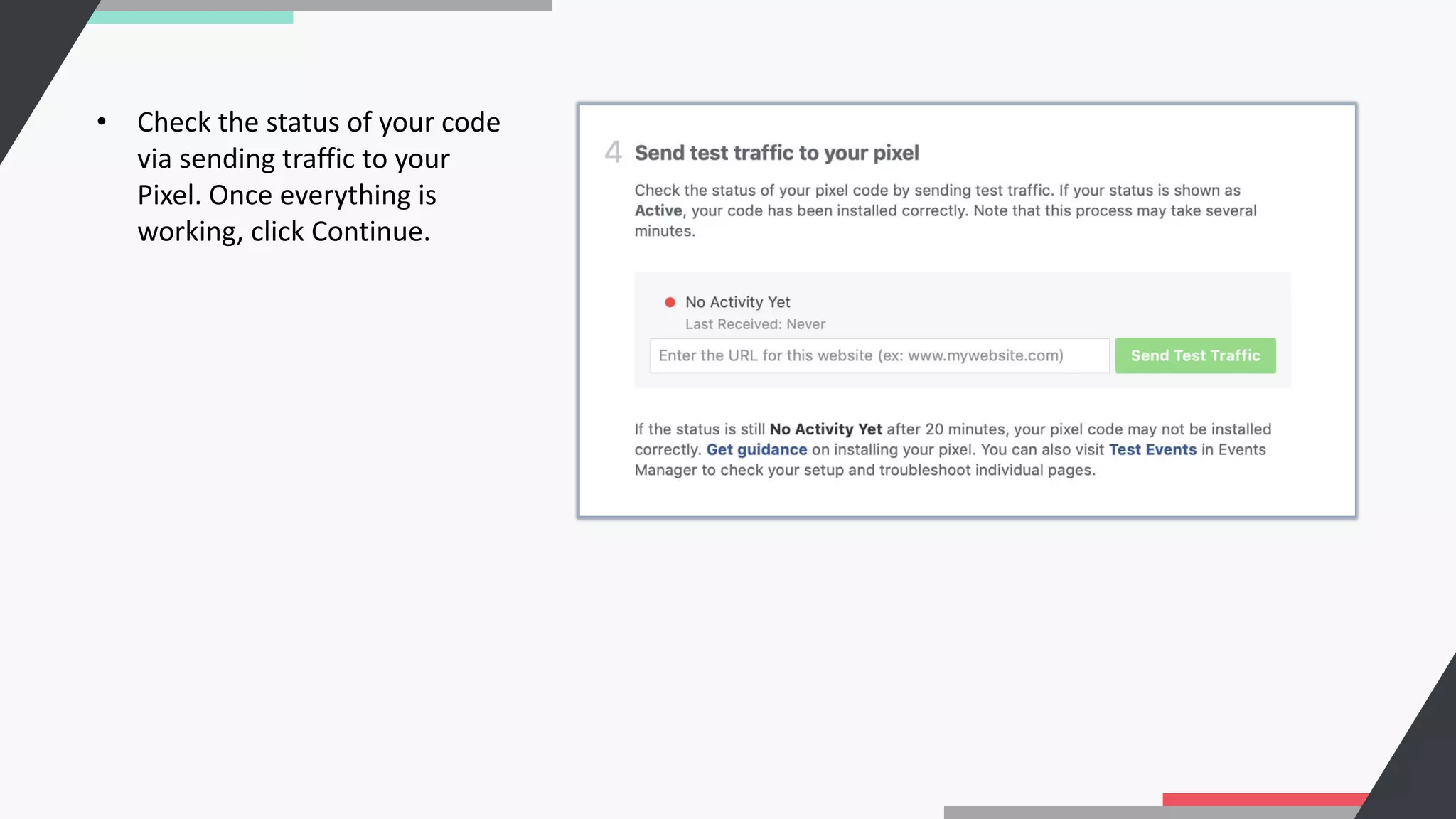
• Check the status of your code
via sending traffic to your
Pixel. Once everything is
working, click Continue.
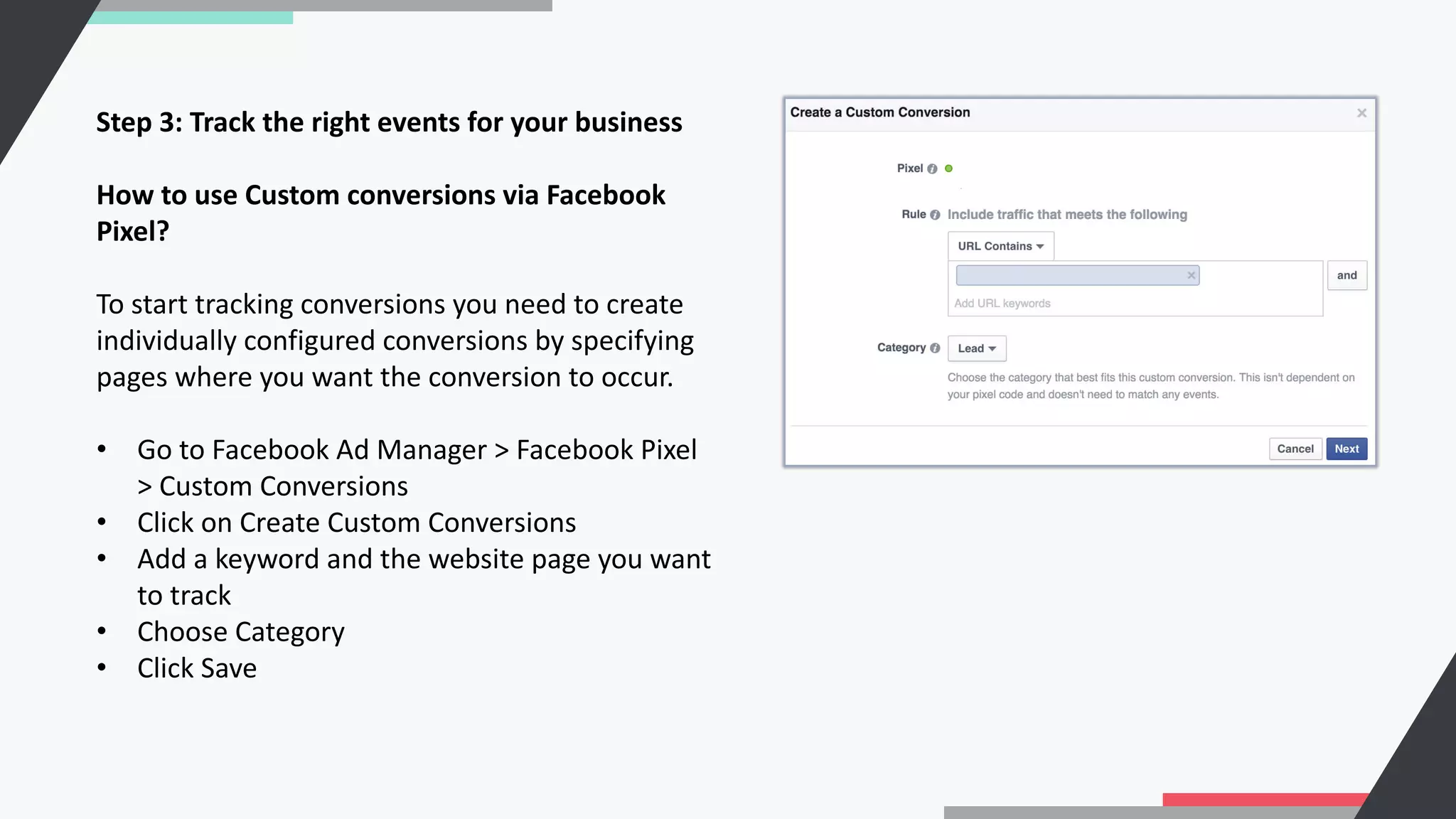
Step 3: Track the right events for your business
How to use Custom conversions via Facebook
Pixel?
To start tracking conversions you need to create
individually configured conversions by specifying
pages where you want the conversion to occur.
• Go to Facebook Ad Manager > Facebook Pixel
> Custom Conversions
• Click on Create Custom Conversions
• Add a keyword and the website page you want
to track
• Choose Category
• Click Save
How to create customized audiences for retargeting?
A customized audience is people who have already had a touch with your brand. Facebook Pixel
enables you to retarget to those audiences who are more likely to perform the desired actions. It
matches your website’s viewers to their Facebook accounts and shows them ads in social media
itself.
A website is a targeting parameter that, with the help of the Facebook pixel, compares people who
visit your website with people on Facebook.
To create a custom Pixel audience:
• Click the Audiences tab in Ads Manager.
• Click Tools and select Audiences.
• Click Create an audience in the upper left.
• Select the Custom Audience.
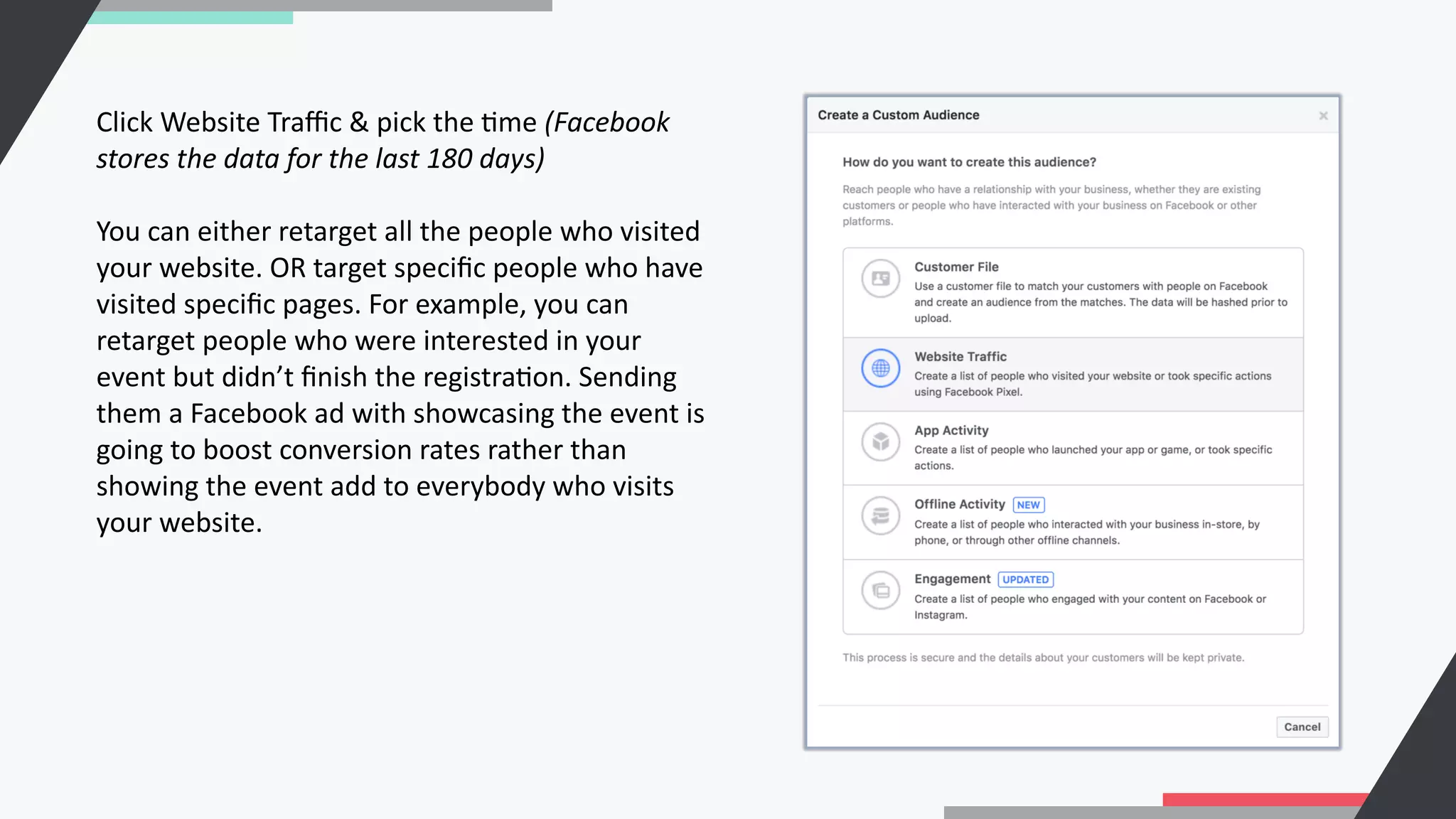
Click Website Traffic & pick the Cme (Facebook
stores the data for the last 180 days)
You can either retarget all the people who visited
your website. OR target specific people who have
visited specific pages. For example, you can
retarget people who were interested in your
event but didn’t finish the registraCon. Sending
them a Facebook ad with showcasing the event is
going to boost conversion rates rather than
showing the event add to everybody who visits
your website.
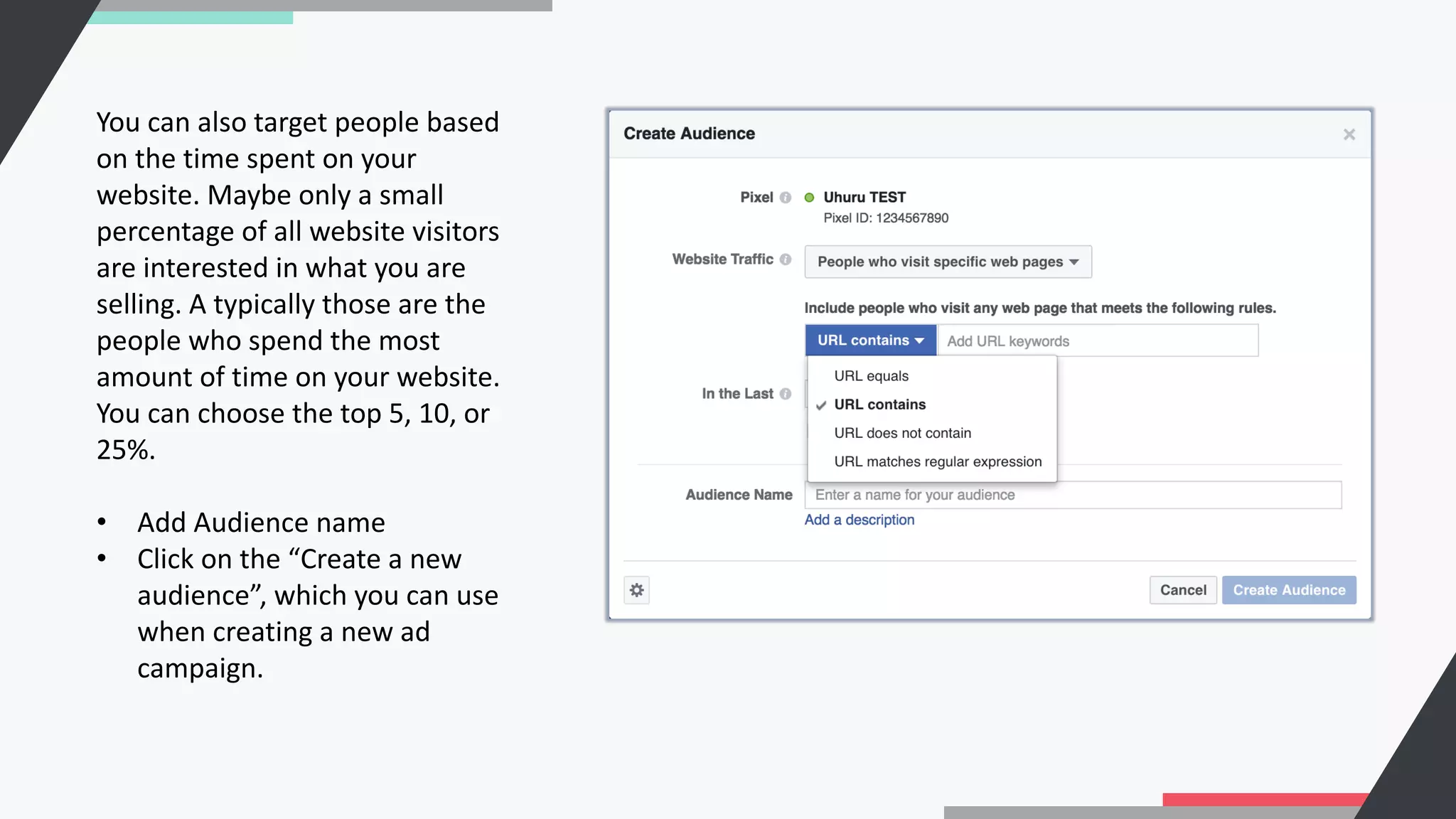
You can also target people based
on the time spent on your
website. Maybe only a small
percentage of all website visitors
are interested in what you are
selling. A typically those are the
people who spend the most
amount of time on your website.
You can choose the top 5, 10, or
25%.
• Add Audience name
• Click on the “Create a new
audience”, which you can use
when creating a new ad
campaign.
To wrap this long guide up,
Facebook Pixel is a powerful tool that improves your ads conversion rates, by retargeCng to people
who are more likely to convert. By simply installing the Pixel code into your website, it is able to
gather data for you to opCmize social media adverCsing by creaCng custom audiences and custom
conversions.
In today’s guide, we’ve shown you the basics of using Facebook Pixel and its capabiliCes. Now you
can use all this informaCon to achieve great results and boost ROI.
Sociality.io
All in one social media management platform.
Learn more at Sociality.io

How to use Facebook Pixel?

  • 2.
    INTRODUCTION The world ofFacebooks’ hidden tools is so fascinating. If you aren’t using Facebook Pixel or are slowly getting used to its capabilities – this guide is just right for you. We’ll walk you through the mysterious forest of optimized Facebook ads and show you how to use Facebook Pixel so that you can achieve great conversion rates for each dollar you pay.
  • 3.
    WHAT IS FACEBOOKPIXEL? Technically speaking Facebook Pixel is a code that you place on your website. The concept is very similar to the google analyCcs code. Pixel gathers data to opCmize Facebook Ads, improve conversion rates, creates lookalike audiences and most importantly to retarget to people who have performed specific acCons on your website. You absolutely don’t need to be a developer to be able to successfully use it. Moreover, you don’t even need to understand what those digits and symbols inside the code mean.
  • 4.
    WHAT ARE THEBENEFITS OF FACEBOOK PIXEL? To sum up Facebook Pixel benefits in a shortlist: 1. OpCmize ads delivery to people who are more likely to take acCon 2. Create Custom Audiences from website visitors 3. Learn about your website traffic Every business owner and social media marketer wants to improve ROI. Facebook Pixel ensures that your ads are seen by people who are more likely to convert. It helps you to accomplish beRer results due to data it gathers from your website to create beNer audiences and target them more efficiently.
  • 5.
    Without Facebook Pixelyou can see that your ad, for example, received 200 clicks. However, how do you know if these 200 clicks to your website were actually successful? Facebook Pixel helps you to optimize your ads based on the information you see on conversation rates. When someone visits your website and takes the desired action Facebook Pixel captures this information and reports it. This way you learn when a customer took action after seeing your Facebook Ad. Also, you can create more targeted audiences based on your website pages. Each visitor, who left the basket without finishing the order can be further retargeted via Custom Audiences.
  • 6.
    WHAT KIND OFDATA FACEBOOK PIXEL ACTUALLY COLLECTS? Facebook Pixel has two kinds of events (which is a specified action that a visitor takes on your website): 1. Standard events aka predefined 17 events 2. Custom events you can create yourself Website action Description Standard event code Add payment info The addition of customer payment information during checkout process (for example, a person clicks on a save billing information button). fbq(‘track’, ‘AddPaymentInfo’); Add to cart The addition of an item to a shopping cart or basket (for example, clicking an Add to Cart button on a website). fbq(‘track’, ‘AddToCart’);
  • 7.
    Add to wishlist Theaddition of items to a wishlist (for example, clicking an Add to Wishlist button on a website). fbq(‘track’, ‘AddToWishlist’); Complete registration A submission of information by a customer in exchange for a service provided by your business (for example, sign up for email subscription). fbq(‘track’, ‘CompleteRegistration’); Contact A telephone/SMS, email, chat or other type of contact between a customer and your business. fbq(‘track’, ‘Contact’); Customize Product The customization of products through a configuration tool or other application your business owns. fbq(‘track’, ‘CustomizeProduct’); Donate The donation of funds to your organization or cause. fbq(‘track’, ‘Donate’);
  • 8.
    Find Location When aperson finds one of your locations via web, with an intention to visit (for example, searching for a product and finding it at one of your local stores). fbq(‘track’, ‘FindLocation’); Initiate checkout The start of a checkout process (for example, clicking a Checkout button). fbq(‘track’, ‘InitiateCheckout’); Lead A submission of information by a customer with the understanding that they may be contacted at a later date by your business (for example, submitting a form or signing up for a trial). fbq(‘track’, ‘Lead’); Purchase The completion of a purchase, usually signified by receiving order or purchase confirmation, or a transaction receipt (for example, landing on a “Thank You” or confirmation page). fbq(‘track’, ‘Purchase’, {value: 0.00, currency: ‘USD’}); Schedule The booking of an appointment to visit one of your locations. fbq(‘track’, ‘Schedule’);
  • 9.
    Search A search performedon your website, app or other property (for example, product searches or travel searches). fbq(‘track’, ‘Search’); Start trial The start of a free trial of a product or service you offer (for example, trial subscription). fbq(‘track’, ‘StartTrial’, {value: ‘0.00’, currency: ‘USD’, predicted_ltv: ‘0.00’}); Submit application The submission of an application for a product, service or program you offer (for example, a credit card, educational program or job). fbq(‘track’, ‘SubmitApplication’); Subscribe The start of a paid subscription for a product or service you offer. fbq(‘track’, ‘Subscribe’, {value: ‘0.00’, currency: ‘USD’, predicted_ltv: ‘0.00’}); View content A visit to a content page you care about (for example, a product page or landing page). View Content tells you if someone visits a web page, but not what they do on that web page. fbq(‘track’, ‘ViewContent’);
  • 10.
    (Table via https://business.facebook.com/business/help/402791146561655?id=1205376682832142) Customevents are used in case you need specific actions taken by your website visitors that aren’t available in the standard events list. These custom events can be used/created via custom audiences for ad optimization. You can learn more about custom events in this Facebook Help’s article.
  • 11.
    HOW TO INSTALLTHE PIXEL? In order to install the Pixel you need to do these 3 steps: 1. From Facebook Ad Manager create Pixel 2. Install Pixel code into your every website’s page 3. Track the right events for your business
  • 12.
    Step 1: CreatePixel code • In Facebook Ad manager’s search box type in “Pixel”. • Click on “+Add”
  • 13.
    • Name yourPixel, add your website address & click “Create”
  • 14.
    Step 2: InstallPixel code into your every website’s page Depending on what plaporm you use for the website, you have 3 opCons to install the Pixel code on each of your webpages.
  • 15.
    ♦ If youhave WordPress, Shopify or Google Tag Manager you can use this Help arCcle to install Pixel code. ♦ If you have a developer in your team you can send him a detailed, automaCcally generated an email with instrucCons to follow. To do this simply add his/her email at the top bar and click send. ♦ If the above opCons don’t apply there is a 3rd method of installing the code manually. It is not as complicated as you might think. And as I previously said, you don’t need to be a developer to successfully install it. • Click on Manually Install the code yourself • Copy+paste the code into every website page under <head> Placing the code within your <head> tags reduces the chances of browsers or third-party code blocking the pixel’s execu:on. It also executes the code sooner, increasing the chance that your visitors are tracked before they leave your page.
  • 16.
    • Choose theautomatic advanced matching. This matches your website customers to their profiles of Facebook. This feature enables you to track conversions more accurately and create more targeted audiences.
  • 17.
    • Check thestatus of your code via sending traffic to your Pixel. Once everything is working, click Continue.
  • 18.
    Step 3: Trackthe right events for your business How to use Custom conversions via Facebook Pixel? To start tracking conversions you need to create individually configured conversions by specifying pages where you want the conversion to occur. • Go to Facebook Ad Manager > Facebook Pixel > Custom Conversions • Click on Create Custom Conversions • Add a keyword and the website page you want to track • Choose Category • Click Save
  • 19.
    How to createcustomized audiences for retargeting? A customized audience is people who have already had a touch with your brand. Facebook Pixel enables you to retarget to those audiences who are more likely to perform the desired actions. It matches your website’s viewers to their Facebook accounts and shows them ads in social media itself. A website is a targeting parameter that, with the help of the Facebook pixel, compares people who visit your website with people on Facebook. To create a custom Pixel audience: • Click the Audiences tab in Ads Manager. • Click Tools and select Audiences. • Click Create an audience in the upper left. • Select the Custom Audience.
  • 20.
    Click Website Traffic& pick the Cme (Facebook stores the data for the last 180 days) You can either retarget all the people who visited your website. OR target specific people who have visited specific pages. For example, you can retarget people who were interested in your event but didn’t finish the registraCon. Sending them a Facebook ad with showcasing the event is going to boost conversion rates rather than showing the event add to everybody who visits your website.
  • 21.
    You can alsotarget people based on the time spent on your website. Maybe only a small percentage of all website visitors are interested in what you are selling. A typically those are the people who spend the most amount of time on your website. You can choose the top 5, 10, or 25%. • Add Audience name • Click on the “Create a new audience”, which you can use when creating a new ad campaign.
  • 22.
    To wrap thislong guide up, Facebook Pixel is a powerful tool that improves your ads conversion rates, by retargeCng to people who are more likely to convert. By simply installing the Pixel code into your website, it is able to gather data for you to opCmize social media adverCsing by creaCng custom audiences and custom conversions. In today’s guide, we’ve shown you the basics of using Facebook Pixel and its capabiliCes. Now you can use all this informaCon to achieve great results and boost ROI.
  • 23.
    Sociality.io All in onesocial media management platform. Learn more at Sociality.io