Xcode Release Notes
Contents 
Xcode Release Notes 6 
Xcode 6 Release Notes 6 
New Features 6 
Notes 11 
Known Issues 13 
Deprecations 19 
Release Notes Updates 19 
Release Notes History 19 
Xcode 6 Release Notes 21 
New Features 21 
Notes 25 
Known Issues 28 
Deprecations 33 
Xcode 5 Release Notes 35 
Xcode 5.1.1 Release Notes 35 
Resolved Issues 35 
Xcode 5.1 Release Notes 36 
New Features 36 
Changes 38 
Known Issues 39 
Resolved Issues 41 
Deprecations 41 
Xcode 5.0.2 Release Notes 42 
Known Issues 42 
Resolved Issues 42 
Xcode 5.0.1 Release Notes 43 
New Features 43 
Known Issues 43 
Resolved Issues 47 
Notes 48 
Xcode 5.0 Release Notes 50 
2014-09-07 | Copyright © 2014 Apple Inc. All Rights Reserved. 
2
Known Issues 50 
Changes 54 
Notes 54 
Xcode 4 Release Notes 56 
Xcode 4.6.3 Release Notes 56 
Resolved Issues 56 
Xcode 4.6.2 Release Notes 56 
Changes 56 
Resolved Issues 56 
New Issues 57 
Known Issues 57 
Xcode 4.6.1 Release Notes 58 
New Features 58 
Resolved Issues 58 
Known Issues 58 
Xcode 4.6 Release Notes 59 
New Features 59 
Enhancements 59 
Changes 60 
Xcode 4.5.2 Release Notes 60 
Resolved Issues 60 
Xcode 4.5.1 Release Notes 61 
Enhancements 61 
Resolved Issues 61 
Xcode 4.5 Release Notes 62 
New Features 62 
Enhancements 62 
Changes 63 
New Issues 65 
Known Issues 66 
Xcode 4.4.1 Release Notes 67 
Changes 67 
Resolved Issues 68 
Known Issues 68 
Xcode 4.4 Release Notes 69 
New Features 69 
Enhancements 69 
Resolved Issues 70 
2014-09-07 | Copyright © 2014 Apple Inc. All Rights Reserved. 
3 
Contents
New Issues 70 
Xcode 4.3 Release Notes 72 
Resolved Issues 72 
Known Issues 72 
Xcode 4.2 Release Notes 74 
Installation 74 
Xcode 74 
Interface Builder 75 
Instruments 75 
iOS Simulator 76 
Xcode 4.1 Developer Preview 1 Release Notes 76 
New Features 76 
Enhancements 77 
Changes 77 
New Issues 78 
Known Issues 78 
Xcode 4.0 GM Seed Release Notes 78 
Resolved Issues 78 
New Issues 79 
Known Issues 79 
Xcode 4.0 Developer Preview 6 Release Notes 80 
New Features 80 
Enhancements 80 
Resolved Issues 81 
New Issues 81 
Known Issues 82 
Xcode 4.0 Developer Preview 5 Release Notes 83 
New Features 83 
Enhancements 84 
Changes 85 
Resolved Issues 85 
New Issues 86 
Known Issues 86 
Xcode 4.0 Developer Preview 4 Release Notes 88 
New Features 88 
Resolved Issues 89 
Known Issues 90 
Xcode 4.0 Developer Preview 3 Release Notes 91 
About Xcode 4 Developer Preview 3 91 
2014-09-07 | Copyright © 2014 Apple Inc. All Rights Reserved. 
4 
Contents
New Features 93 
Known issues in Xcode 4 Developer Preview 3 94 
Issues Resolved in Xcode 4 Developer Preview 3 96 
Issues Resolved in Xcode 4 Developer Preview 2 98 
Functionality No Longer Supported in Xcode 99 
Xcode 4.0 Developer Preview 2 Release Notes 100 
About Xcode 4 Developer Preview 2 100 
Known issues in Xcode 4 Developer Preview 2 101 
Issues Resolved in Xcode 4 Developer Preview 2 103 
Functionality No Longer Supported in Xcode 104 
Xcode 4.0 Developer Preview 1 Release Notes 105 
General 105 
Major Changes in Xcode 4 106 
Known Missing Functionality in This Release 117 
Known Problems in This Release 117 
Functionality No Longer Supported in Xcode 119 
Document Revision History 120 
2014-09-07 | Copyright © 2014 Apple Inc. All Rights Reserved. 
5 
Contents
These are the main websites where you can obtain Xcode development support: 
● developer.apple.com: The Apple Developer website is the best source of official up-to-date technical 
documentation on iOS, OS X, and Safari development. 
● developer.apple.com/xcode/: The Xcode homepage is on the Apple Developer website. 
● devforums.apple.com: Apple Developer Forums has a dedicated Developer Forum for Xcode. 
Use bugreport.apple.com to communicate issues with Apple. Include detailed information about the issue, 
including the system and developer tools version information, and any relevant crash logs or console messages. 
To send comments or feedback on the Xcode toolset to Apple, use xcode-feedback@group.apple.com. 
Xcode 6 Release Notes 
New Features 
Swift Language 
Swift is a new object-oriented programming language for iOS development. Swift is modern, powerful, 
expressive, and easy to use. 
Note: Swift development for OS X requires the OS X version 10.10 SDK, available in beta at the time 
of this release. For more information, see Swift Support for OS X (page 11). 
● Access all of the Cocoa Touch frameworks with Swift. 
● Swift code is compiled and optimized by the advanced LLVM compiler to create high-performance apps. 
● Swift provides increased type safety with type inference, restricts direct access to pointers, and automatically 
manages memory using ARC to make it easy for you to use Swift and create secure, stable software. Other 
features related to language safety include mandatory variable initialization, automatic bounds checking 
to prevent overflows, conditionals that break by default, and elimination of pointers to direct memory by 
default. 
2014-09-07 | Copyright © 2014 Apple Inc. All Rights Reserved. 
6 
Xcode Release Notes
Xcode Release Notes 
Xcode 6 Release Notes 
● Write, debug, and maintain less code, with an easy to write and read syntax and no headers to maintain. 
● Swift includes optionals, generics, closures, tuples, and other modern language features. Inspired by and 
improving upon Objective-C, Swift code feels natural to read and write. 
● Use Swift interactively to experiment with your ideas and see instant results. 
● Swift is a complete replacement for both the C and Objective-C languages. Swift provides full object-oriented 
features, and includes low-level language primitives such as types, flow control, and operators. 
Xcode 6 Features supporting Swift 
● Playgrounds are an interactive development environment allowing you to experiment with Swift for 
prototyping, testing ideas, and so forth. Some uses for playgrounds include: 
Designing a new algorithm and watching its results every step of the way 
Experimenting with new API or trying out new Swift syntax 
Creating new tests and then verifying that they work before promoting them into your test suite 
● You can open select documentation in a playground to learn from the tutorial in a graphically rich, 
interactive environment. 
● The debugging console in Xcode includes an interactive version of the Swift language called the 
read-eval-print loop (REPL) built into LLDB. Use Swift syntax to evaluate and interact with your running 
app, or write new code to see how it works in a script-like environment. REPL is available from within the 
Xcode console or by using LLDB from within Terminal when attached to a running process. 
● The Xcode documentation viewer shows Quick Help or reference documentation in the language of your 
choice—Objective-C, Swift, or both. 
● Xcode synthesizes a Swift view of the SDK API when using jump-to-definition for SDK content from Swift 
code. The synthesized interface shows how the API is imported into Swift, and it retains all the comments 
from the original SDK headers. 
Additional Feature Enhancements for Xcode 6 IDE 
Testing 
● The XCTest framework supports performance measurement capabilities enabling you to quantify each 
part of an application. Xcode runs your performance tests and allows you to define a baseline performance 
metric. Each subsequent test run compares performance and displays the change over time. 
● New APIs in the XCTest framework allow testing code that executes asynchronously. You can now create 
tests for network operations, file I/O, and other system interactions that execute using asynchronous calls. 
2014-09-07 | Copyright © 2014 Apple Inc. All Rights Reserved. 
7
Xcode Release Notes 
Xcode 6 Release Notes 
Interface Builder 
● Interface Builder uses live rendering to display your custom objects at design time exactly as they appear 
when your app is run. When you update the code for a custom view, the Interface Builder design canvas 
updates automatically with the new look you just typed into the source editor, with no need to build and 
run. 
● Size classes for iOS 8 enable designing a single universal storyboard with customized layouts for both 
iPhone and iPad. With size classes you can define common views and constraints once, and then add 
variations for each supported form factor. iOS Simulator and asset catalogs fully support size classes as 
well. 
● Interface Builder renders embedded custom iOS fonts during design time, giving a more accurate preview 
of how the finished app will look, with correct dimensions. 
● Find and search is supported in .xib and .storyboard files when using Interface Builder. 
● The preview editor includes the ability to present multiple previews and zooming. 
Asset Catalogs 
● Size classes, JPEG, PDF, template images, and alignment rectangles are now supported by asset catalogs. 
Debugger 
● Using the view debugger, a single button click pauses your running app and “explodes” the paused UI 
into a 3D rendering, separating each layer of a stack of views. Using the view debugger makes it easy to 
see why an image may be clipped and invisible, and the order of the graphical elements becomes clear. 
By selecting any view, you can inspect the details by jumping to the relevant code in the assistant editor 
source view. The view debugger also displays Auto Layout constraints, making areas where conflicts cause 
problems findable. 
● The debug navigator queue debugger is enhanced to record and display recently executed blocks, as well 
as enqueued blocks. You can use it to see where your enqueued blocks are and to examine the details of 
what’s been set up to execute. 
● Debug gauges provide at-a-glance information about resource usage while debugging, calling the 
developer’s attention to previously unknown problems. 
Two new gauges, Network Activity and File Activity, visually highlight spikes in input/output activity 
while your app is running. 
The iCloud gauge is updated with support for the new Documents in the Cloud and CloudKit features 
that provide access to files outside the app-specific container. 
2014-09-07 | Copyright © 2014 Apple Inc. All Rights Reserved. 
8
Xcode Release Notes 
Xcode 6 Release Notes 
GPU Tools 
● Metal provides a new, low-overhead GPU graphics and compute API as well as a shading language for 
iOS. The Metal shader compiler adds support for precompiling Metal shaders in Xcode. The GPU frame 
debugger and shader profiler supports debugging and profiling Metal-based games and apps. 
SpriteKit 
● The SpriteKit level designer enhances SpriteKit use and provides improved display of SpriteKit variables 
when debugging. 
● SpriteKit and SceneKit are now enhanced to work together and are supported on iOS. 
Extensions and Frameworks 
● You can add an extension target to any iOS or Mac app to expand your app’s functionality to other apps 
in the OS. 
● iOS developers can now create dynamic frameworks. 
iOS Simulator 
● New iOS Simulator configurations allow you to keep data and configuration settings grouped together. 
Run one configuration for one version of an app, with its own data, and another configuration for a different 
app version. 
Localization 
● Xcode can package your localizable strings into the industry-standard XLIFF format for localization. 
● Xcode automatically generates the base language .strings file directly from your source code. 
● While designing in Interface Builder, the preview assistant can show how the interface appears in other 
languages. 
● Xcode can use a locale to run your app in iOS Simulator or directly on devices, as it would appear to 
customers in other countries. 
Compiler 
● Profile Guided Optimization (PGO) works with the LLVM optimizer and XCTest tests to profile the most 
actively used parts of your application. You can also exercise your app manually to generate an optimization 
profile. PGO uses the profile to further optimize your app, targeting the areas that most need optimization, 
improving performance beyond what setting optimization options alone can achieve. 
● Developers can define modules for their own Objective-C code, which makes sharing frameworks across 
all their projects easier. 
2014-09-07 | Copyright © 2014 Apple Inc. All Rights Reserved. 
9
Xcode Release Notes 
Xcode 6 Release Notes 
Instruments 
● The new Instruments user interface makes configuring your performance tuning session easier and improves 
control. The new template chooser allows you to choose your device and target as well as the starting 
point for your profiling session. The track view allows direct click-and-drag to set the time filter range. The 
toolbar takes up less space to let you focus on the task at hand. The tracks of recorded data are given 
more space, and configuration for how data is collected and viewed is managed in a unified inspector 
area. 
● You can profile any test or test suite, which is useful for analyzing memory leaks in a functional test or 
time profiling a performance test to see why it has regressed. 
● Simulator configurations are now treated like devices by Instruments, making it easy to launch or attach 
to processes in the simulator. 
● Counters and Events instruments have been combined into a more powerful Counters instrument and 
made easier to configure. It can track individual CPU events, and you can specify formulas to measure 
event aggregates, ratios, and more. iOS developers on 64-bit devices can now use Counters to fine-tune 
apps. 
● Instruments supports Swift, displaying Swift symbols in stack traces and Swift types in Allocations. You 
can also use Instruments to profile app extensions. 
Xcode Server 
● Triggers allow you to make more complex integration scenarios by configuring server-side rules to launch 
custom scripts before or after the execution of an Xcode scheme. 
● Xcode Server supports the new Xcode performance-testing features, making it easy for a team to share a 
group of devices and Macs for continual performance testing. 
● Issues are now tracked per integration and allow delta tracking, so that you can see when an issue appeared 
or when it or was fixed, and by whom. 
● Configuration options in Xcode Server give development teams greater control over the execution of bots. 
New settings for integration intervals, grouping of bots, and iOS Simulator configurations make Xcode 
bots more powerful. The new reports UI includes bot-level statistics, the number of successful integrations, 
and commit and test addition tracking. 
2014-09-07 | Copyright © 2014 Apple Inc. All Rights Reserved. 
10
Xcode Release Notes 
Xcode 6 Release Notes 
Notes 
Swift Support for OS X 
● A future version of Xcode to be released along with OS X Yosemite will add Swift support for OS X, including 
playgrounds and REPL. Xcode 6.0 only supports Swift for iOS projects and playgrounds. A beta release of 
Xcode with Swift support for both OS X and iOS is available at developer.apple.com/xcode/downloads/ 
Swift Language 
● If you encounter an API method for which the return value is incorrectly considered non-nullable, or a 
property that is incorrectly considered non-nullable, please file a radar and include the tag “#IUO” in the 
subject line. You can work around the problem by immediately wrapping the result in an optional: 
var fooOpt: NSFoo? = object.reallyMightReturnNil() 
if let foo = fooOpt { … } 
Please be sure to file bugs about these cases. Please do not file feature requests about APIs that are still 
marked as T!, we know about them. 
Xcode Features for Swift 
● Refactoring for Swift is not available. 
● Xcode does not support building static libraries that include Swift code. (17181019) 
Compiler 
● The libc++ headers in Xcode 6 include a change to make std::pair have a trivial constructor. This fix 
is important for performance and compliance with the C++ standard, but it changes the ABI for C++ code 
using std::pair. 
This issue does not affect the libc++ library installed on OS X and iOS systems because that library does 
not expose any uses of std::pair in its API. It is only a concern for your own code and any third-party 
libraries that you link with. As long as all of the code is built with the same version of libc++, there will 
be no problem. 
If you need to maintain binary compatibility with a previous version of libc++, you can opt into keeping 
the old ABI by building with the _LIBCPP_TRIVIAL_PAIR_COPY_CTOR macro defined to zero, that is, 
by adding -D_LIBCPP_TRIVIAL_PAIR_COPY_CTOR=0 to the compiler options. (15474572) 
2014-09-07 | Copyright © 2014 Apple Inc. All Rights Reserved. 
11
Xcode Release Notes 
Xcode 6 Release Notes 
Build System 
● Xcode will no longer pass options in the build setting OTHER_LDFLAGS to libtool when building static 
libraries, nor will it pass options in OTHER_LIBTOOLFLAGS to the Mach-O linker when building any other 
kind of product. Previously all options in both settings would be passed to both tools. Make sure that 
options are in the correct build setting for the product type, static library, or other component being built. 
(4285249) 
● Bundles (including frameworks, applications, and other bundles) which are added to a Copy Files build 
phase to embed the bundle in the current target's product will have their Headers and PrivateHeaders 
directories removed when they are copied. This is done to help ensure that header content in embedded 
bundles is not accidentally shipped to end users. This does not affect such items which are already in Copy 
Files build phases in existing projects. This change affects any file or directory inside the item being copied 
which is named exactly Headers or PrivateHeaders. 
To have a target opt out of this behavior, set the build setting 
REMOVE_HEADERS_FROM_EMBEDDED_BUNDLES to YES. To have an existing target opt in to this behavior, 
remove and then re-add the desired file references to the Copy Files build phase in question. 
Find Navigator 
● When using a regular expression in the Find navigator, it is now possible for a match to span multiple 
lines. The metacharacter “.” still excludes newlines, but a character class may include every character, for 
example, “[Dd]”. (11393323) 
● When using a regular expression in the Find navigator, the “1” syntax is no longer supported in the 
replacement string. To refer to a captured group, use the syntax “$123”. 
With this change, you can now insert a digit after the tenth captured group and beyond by escaping the 
digit, for example, “$102.” Likewise, when finding text using patterns, you can insert a digit after the 
tenth pattern. (11836632) 
Launch Screens 
● XIBs and Storyboards can now be used as launch screens. Applications take advantage of this feature to 
provide a single launch screen that adapts to different screen sizes using constraints and size classes. These 
launch screens are suppored on iOS 8.0 and later. 
Applications targeting iOS 7.x or prior releases need to also supply traditional launch PNGs via an asset 
catalog. Without launch PNGs for iOS 7 and earlier, applications will run in the retina 3.5” compatibility 
mode on retina 4” displays. (18000959) 
Frameworks on iOS 
● Embedded frameworks and dylibs are supported only on iOS 8 and later. 
2014-09-07 | Copyright © 2014 Apple Inc. All Rights Reserved. 
12
Xcode Release Notes 
Xcode 6 Release Notes 
If your app deploys to prior iOS releases, turn off auto-linking. Load the frameworks or dylibs using 
dlopen() after performing an OS version check. (18140501) 
Hardware IO Tools 
● The Hardware IO Tools for Xcode package, available at developer.apple.com, now includes the following 
apps: 
Printer Simulator 
HomeKit Accessory Simulator 
(17014426, 17014426, 17738621) 
● These three apps have been removed from the Hardware IO Tools for Xcode package download for this 
release: 
Apple Bluetooth Guidelines Validation 
Bluetooth Explorer 
PacketLogger 
(18162817) 
Xcode Server 
● Xcode can now configure bots to authenticate with source control repositories using SSH keys. (16512381) 
● Xcode Server prunes older integration data based on available disk space. (16535845) 
Xcodebuild 
● xcodebuild now supports the id option for iOS simulator destination specifiers. In Xcode 5 this option 
was only available for iOS device destination specifiers. (17398965) 
Known Issues 
Swift Language 
● The relational operator == may not work on enum values if the enum is declared in another file. 
Use !(x != .Value) instead of (x == .Value). (18073705) 
● Properties of values typed as AnyObject may not be directly assigned to. 
Cast the value of type 'AnyObject' to the intended type, store it in a separate value, then assign it directly 
to the properties of that value. For example: 
2014-09-07 | Copyright © 2014 Apple Inc. All Rights Reserved. 
13
Xcode Release Notes 
Xcode 6 Release Notes 
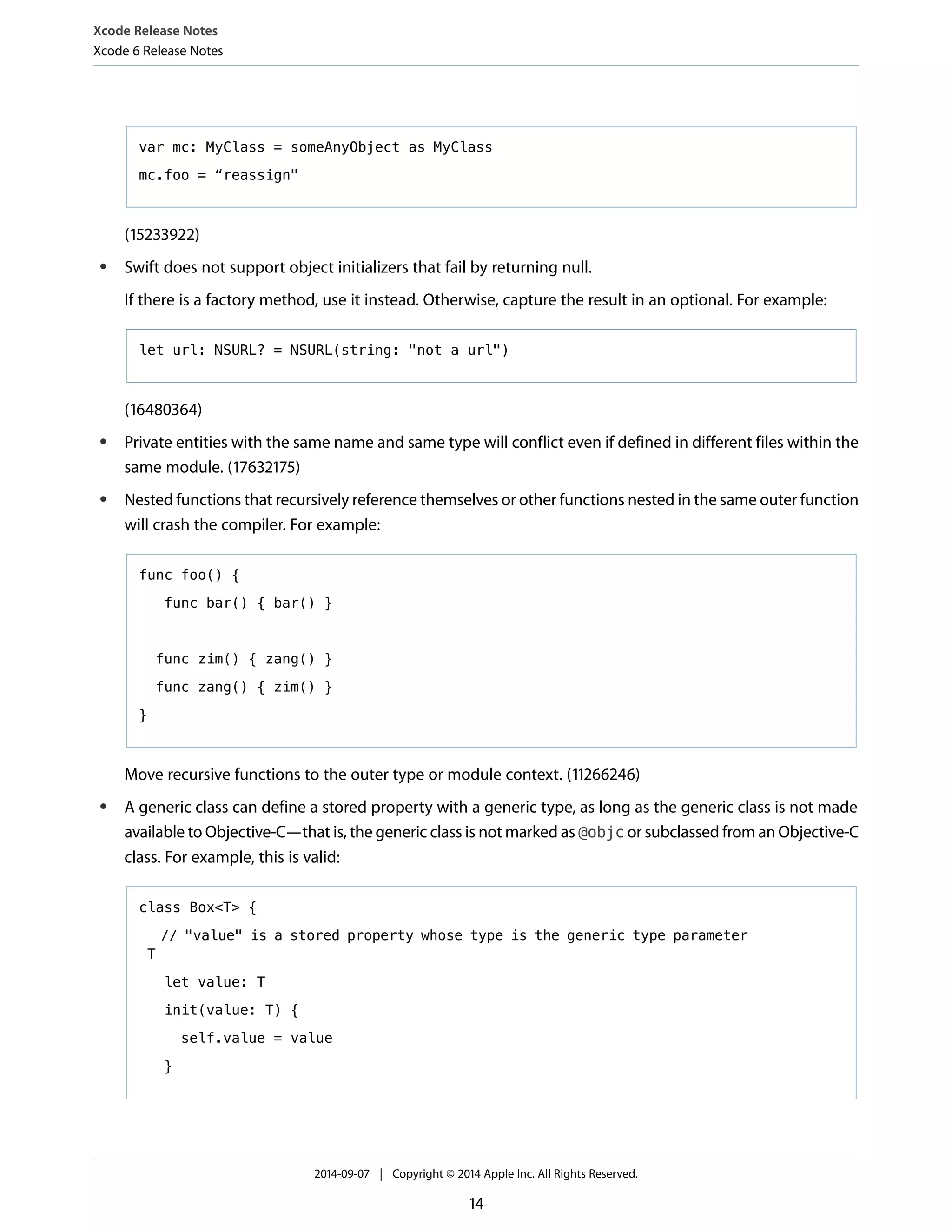
var mc: MyClass = someAnyObject as MyClass 
mc.foo = “reassign" 
(15233922) 
● Swift does not support object initializers that fail by returning null. 
If there is a factory method, use it instead. Otherwise, capture the result in an optional. For example: 
let url: NSURL? = NSURL(string: "not a url") 
(16480364) 
● Private entities with the same name and same type will conflict even if defined in different files within the 
same module. (17632175) 
● Nested functions that recursively reference themselves or other functions nested in the same outer function 
will crash the compiler. For example: 
func foo() { 
func bar() { bar() } 
func zim() { zang() } 
func zang() { zim() } 
} 
Move recursive functions to the outer type or module context. (11266246) 
● A generic class can define a stored property with a generic type, as long as the generic class is not made 
available to Objective-C—that is, the generic class is not marked as @objc or subclassed from an Objective-C 
class. For example, this is valid: 
class Box<T> { 
// "value" is a stored property whose type is the generic type parameter 
T 
let value: T 
init(value: T) { 
self.value = value 
} 
2014-09-07 | Copyright © 2014 Apple Inc. All Rights Reserved. 
14
Xcode Release Notes 
Xcode 6 Release Notes 
} 
If you need to make such a class available to Objective-C, use an array for storage: 
@objc class ObjCBox<T> { 
let _value: T[] 
var value: T { return _value[0] } 
} 
(16737510) 
● Using a Swift Dictionary with Int64 or UInt64 types as keys will cause traps on 32-bit platforms when 
attempting to insert a key whose value is not representable by an Int32. 
Use NSNumber as the key type. (18113807) 
Playgrounds 
● In Playgrounds, println() ignores the Printable conformance of user-defined types. (16562388) 
● iOS playgrounds do not support displaying animated views with the XCPShowView() XCPlayground 
API. (17848651) 
Compiler 
● ARM and ARM64 code that uses the float16_t type may fail when trying to link C++ code compiled with 
an older compiler. In previous versions of the compiler, float16_t was defined as uint16_t. float16_t 
is now defined as __fp16. (15506420) 
Debugger 
● View Memory for Swift data structures in the debugger may show memory location zero. 
Pass the structure to a function expecting a reference to an UnsafePointer<Void>, and print it within 
the function. Enter this address as the memory location to view. (17818703) 
Interface Builder 
● If you set a Swift subclass of NSValueTransformer as a binding’s value transformer, the XIB or storyboard 
will contain an invalid reference to the class and the binding will not work properly at runtime. 
Either enter a mangled class name into the Value Transformer field, or add the @objc(…) attribute 
to the NSValueTransformer subclass. (17495784) 
2014-09-07 | Copyright © 2014 Apple Inc. All Rights Reserved. 
15
● Interface Builder does not support connecting to an outlet in a Swift file when the outlet type is a protocol. 
Declare the outlet type as AnyObject or NSObject, connect objects to the outlet using Interface Builder, 
then change the outlet type back to the protocol. (17023935) 
● After porting a custom class from Objective-C to Swift, any references to the class in a XIB or storyboard 
needs to be updated manually. 
Select each reference, clear the Class field in the Custom Class inspector, save, and reenter the class 
name. (17153630) 
● Interface Builder only shows custom geometry overrides (for example, -intrinsicContentSize) in a 
designable subclass in iOS documents. (17024838) 
Localization 
● A storyboard or XIB will not localize correctly if all of the following three conditions are true: 
The storyboard or XIB uses size classes. 
The base localization and the build target are set to Universal. 
The build targets iOS 7.0. 
You can work around this issue by adding a ~iphone and a ~ipad variant of each strings file used by the 
affected storyboards and XIBs. Automate this operation with a build phase by doing the following. 
1. Select the application target in the project editor, then go to the Build Phases tab. 
2. Add a new Run Script phase with the following contents: 
# Go to the app bundle. 
cd "${BUILT_PRODUCTS_DIR}/${UNLOCALIZED_RESOURCES_FOLDER_PATH}" 
for f in "$PWD"/*.lproj/*.strings; do 
# If the .strings file name doesn't already specify a device... 
name=$(basename "$f" .strings) 
if [[ "${name%%~iphone}" == "$name" && "${name%%~ipad}" == "$name" 
]]; then 
# If there is a corresponding .nib in Base.lproj... 
if [[ -e "Base.lproj/$name~iphone.nib" ]]; then 
# Symlink the device-qualified file name to the unqualified 
file. 
ln -sf "$f" "${f/%.strings/~iphone.strings}" 
fi 
Xcode Release Notes 
Xcode 6 Release Notes 
2014-09-07 | Copyright © 2014 Apple Inc. All Rights Reserved. 
16
# Do likewise for iPad. 
if [[ -e "Base.lproj/$name~ipad.nib" ]]; then 
ln -sf "$f" "${f/%.strings/~ipad.strings}" 
fi 
Xcode Release Notes 
Xcode 6 Release Notes 
fi 
done 
(18087788) 
App Extensions 
● Signed OS X App Extensions may emit dyld warnings and fail to launch. 
Ensure that the same team ID is set for both the app extension and the containing app. (17711503) 
● Creating an iOS Document Picker extension with the File Provider enabled does not add the containing 
app to the resulting app group. 
Add the containing app to the app group manually. (16871267) 
Asset Catalogs 
● If a project's only asset is in an asset catalog, the build will fail with the error “.../Contents/Resources" 
does not exist.” 
Add at least one non-asset catalog resource to your project. (17848595) 
Refactoring 
● The refactoring engine does not detect when an Objective-C class has a Swift subclass. 
When doing Objective-C refactoring, any changes needed in Swift subclasses will need to be made by 
hand. (16465974) 
Building 
● Incremental builds of app extensions that use Swift fail with a code signing error. 
Choose Product > Clean and then build again to workaround this issue. (17589793) 
● A mixed Swift and Objective-C project may not rebuild fully after a header is changed. 
Choose Product > Clean and then build again to workaround this issue. (17963128) 
2014-09-07 | Copyright © 2014 Apple Inc. All Rights Reserved. 
17
Xcode Release Notes 
Xcode 6 Release Notes 
Build System 
● The build step which embeds the Swift standard libraries in a bundle only runs for application product 
types, and only if the application itself, independent of any embedded content, contains Swift source files. 
When building an application that does not contain Swift source files but embeds other content (like 
frameworks, XPC services, app extensions, and so on) that does contain Swift code, you must set the build 
setting Embedded Content Contains Swift Code (EMBEDDED_CONTENT_CONTAINS_SWIFT). That way the 
Swift libraries will be included in the application. (17757566) 
Xcode Server 
● After upgrading to Xcode 6, users need to rejoin their ADC development team in OS X Server. (17789478) 
iOS Simulator 
● Renaming Xcode.app after running any of the Xcode tools in that bundle may cause iOS simulator to be 
no longer be available. 
Either rename Xcode.app back to what it was when first launched or restart your Mac. (16646772) 
● Testing on iOS simulator may produce an error indicating that the application could not be installed or 
launched. 
Re-run testing or start another integration. (17733855) 
Source Control 
● Opening the Source Control menu in Xcode when a project references a working copy that is not checked 
out sometimes causes crashes. 
Delete the .xccheckout file within the project. (17905354) 
● When updating a Subversion working copy with local modifications and an incoming change modifies 
the open project file (project.pbxproj), the status icons for the files modified before the update may not 
appear until Xcode is relaunched. 
Restart Xcode. (18122757) 
Testing 
● The XCTest class file template allows creation of a test class using Swift as the implementation language 
for OS X projects. However, Xcode version 6.0 does not support Swift development for OS X. Attempting 
to build a Swift test class in an OS X test target with Xcode 6.0 results in a compiler error. (18107068) 
● Dead code stripping may remove public declarations needed for test class implementations from Swift 
application targets. 
2014-09-07 | Copyright © 2014 Apple Inc. All Rights Reserved. 
18
Xcode Release Notes 
Release Notes Updates 
Turn off dead code stripping in configurations where you are building tests. (18173029) 
● XCTest test classes written in Objective-C cannot import the Swift generated interfaces header 
($(PRODUCT_MODULE_NAME)-Swift.h) for application targets, and cannot be used to test code that 
requires this header. 
Write test classes for Swift code with Swift. Test classes written in Objective-C for framework targets can 
access the Swift generated interfaces by importing the framework module using @import 
FrameworkName;. (16931027) 
Check Release Notes Updates for the latest release note listings. 
Deprecations 
Carbon Tools 
● Tools that support Carbon development are deprecated with Xcode 6. These include: BuildStrings, 
GetFileInfo, SplitForks, ResMerger, UnRezWack, MergePef, RezWack, SetFile, RezDet, CpMac, DeRez, MvMac, 
and Rez. (10344338) 
OCUnit and SenTestingKit.framework 
● OCUnit and the SenTestingKit framework are deprecated and will be removed from a future release of 
Xcode. Source code using OCUnit will generate warnings while being compiled. Developers should migrate 
to XCTest by using Edit > Refactor > Convert to XCTest. For more information, see Testing with Xcode . 
Release Notes Updates 
Xcode Release Notes can be updated after a release is distributed. You can check for the most up-to-date version 
of Xcode Release Notes at the Apple Developer website: https://developer.apple.com/library/etc/redirect/xcode/re-lease_ 
notes. 
Revision: XC6 - XRN2 
Release Notes History 
Prior editions of Xcode Release Notes per release are combined into chapters organized by major revision for 
easy searching. 
● Xcode 6 Release Notes (page 21) 
2014-09-07 | Copyright © 2014 Apple Inc. All Rights Reserved. 
19
Xcode Release Notes 
Release Notes History 
● Xcode 5 Release Notes (page 35) 
● Xcode 4 Release Notes (page 56) 
2014-09-07 | Copyright © 2014 Apple Inc. All Rights Reserved. 
20
Xcode 6 Release Notes 
New Features 
Swift Language 
Swift is a new object-oriented programming language for iOS development. Swift is modern, powerful, 
expressive, and easy to use. 
Note: Swift development for OS X requires the OS X version 10.10 SDK, available in beta at the time 
of this release. For more information, see Swift Support for OS X (page 11). 
● Access all of the Cocoa Touch frameworks with Swift. 
● Swift code is compiled and optimized by the advanced LLVM compiler to create high-performance apps. 
● Swift provides increased type safety with type inference, restricts direct access to pointers, and automatically 
manages memory using ARC to make it easy for you to use Swift and create secure, stable software. Other 
features related to language safety include mandatory variable initialization, automatic bounds checking 
to prevent overflows, conditionals that break by default, and elimination of pointers to direct memory by 
default. 
● Write, debug, and maintain less code, with an easy to write and read syntax and no headers to maintain. 
● Swift includes optionals, generics, closures, tuples, and other modern language features. Inspired by and 
improving upon Objective-C, Swift code feels natural to read and write. 
● Use Swift interactively to experiment with your ideas and see instant results. 
● Swift is a complete replacement for both the C and Objective-C languages. Swift provides full object-oriented 
features, and includes low-level language primitives such as types, flow control, and operators. 
Xcode 6 Features supporting Swift 
● Playgrounds are an interactive development environment allowing you to experiment with Swift for 
prototyping, testing ideas, and so forth. Some uses for playgrounds include: 
Designing a new algorithm and watching its results every step of the way 
2014-09-07 | Copyright © 2014 Apple Inc. All Rights Reserved. 
21 
Xcode 6 Release Notes
Xcode 6 Release Notes 
Experimenting with new API or trying out new Swift syntax 
Creating new tests and then verifying that they work before promoting them into your test suite 
● You can open select documentation in a playground to learn from the tutorial in a graphically rich, 
interactive environment. 
● The debugging console in Xcode includes an interactive version of the Swift language called the 
read-eval-print loop (REPL) built into LLDB. Use Swift syntax to evaluate and interact with your running 
app, or write new code to see how it works in a script-like environment. REPL is available from within the 
Xcode console or by using LLDB from within Terminal when attached to a running process. 
● The Xcode documentation viewer shows Quick Help or reference documentation in the language of your 
choice—Objective-C, Swift, or both. 
● Xcode synthesizes a Swift view of the SDK API when using jump-to-definition for SDK content from Swift 
code. The synthesized interface shows how the API is imported into Swift, and it retains all the comments 
from the original SDK headers. 
Additional Feature Enhancements for Xcode 6 IDE 
Testing 
● The XCTest framework supports performance measurement capabilities enabling you to quantify each 
part of an application. Xcode runs your performance tests and allows you to define a baseline performance 
metric. Each subsequent test run compares performance and displays the change over time. 
● New APIs in the XCTest framework allow testing code that executes asynchronously. You can now create 
tests for network operations, file I/O, and other system interactions that execute using asynchronous calls. 
Interface Builder 
● Interface Builder uses live rendering to display your custom objects at design time exactly as they appear 
when your app is run. When you update the code for a custom view, the Interface Builder design canvas 
updates automatically with the new look you just typed into the source editor, with no need to build and 
run. 
● Size classes for iOS 8 enable designing a single universal storyboard with customized layouts for both 
iPhone and iPad. With size classes you can define common views and constraints once, and then add 
variations for each supported form factor. iOS Simulator and asset catalogs fully support size classes as 
well. 
● Interface Builder renders embedded custom iOS fonts during design time, giving a more accurate preview 
of how the finished app will look, with correct dimensions. 
2014-09-07 | Copyright © 2014 Apple Inc. All Rights Reserved. 
22
Xcode 6 Release Notes 
● Find and search is supported in .xib and .storyboard files when using Interface Builder. 
● The preview editor includes the ability to present multiple previews and zooming. 
Asset Catalogs 
● Size classes, JPEG, PDF, template images, and alignment rectangles are now supported by asset catalogs. 
Debugger 
● Using the view debugger, a single button click pauses your running app and “explodes” the paused UI 
into a 3D rendering, separating each layer of a stack of views. Using the view debugger makes it easy to 
see why an image may be clipped and invisible, and the order of the graphical elements becomes clear. 
By selecting any view, you can inspect the details by jumping to the relevant code in the assistant editor 
source view. The view debugger also displays Auto Layout constraints, making areas where conflicts cause 
problems findable. 
● The debug navigator queue debugger is enhanced to record and display recently executed blocks, as well 
as enqueued blocks. You can use it to see where your enqueued blocks are and to examine the details of 
what’s been set up to execute. 
● Debug gauges provide at-a-glance information about resource usage while debugging, calling the 
developer’s attention to previously unknown problems. 
Two new gauges, Network Activity and File Activity, visually highlight spikes in input/output activity 
while your app is running. 
The iCloud gauge is updated with support for the new Documents in the Cloud and CloudKit features 
that provide access to files outside the app-specific container. 
GPU Tools 
● Metal provides a new, low-overhead GPU graphics and compute API as well as a shading language for 
iOS. The Metal shader compiler adds support for precompiling Metal shaders in Xcode. The GPU frame 
debugger and shader profiler supports debugging and profiling Metal-based games and apps. 
SpriteKit 
● The SpriteKit level designer enhances SpriteKit use and provides improved display of SpriteKit variables 
when debugging. 
● SpriteKit and SceneKit are now enhanced to work together and are supported on iOS. 
2014-09-07 | Copyright © 2014 Apple Inc. All Rights Reserved. 
23
Xcode 6 Release Notes 
Extensions and Frameworks 
● You can add an extension target to any iOS or Mac app to expand your app’s functionality to other apps 
in the OS. 
● iOS developers can now create dynamic frameworks. 
iOS Simulator 
● New iOS Simulator configurations allow you to keep data and configuration settings grouped together. 
Run one configuration for one version of an app, with its own data, and another configuration for a different 
app version. 
Localization 
● Xcode can package your localizable strings into the industry-standard XLIFF format for localization. 
● Xcode automatically generates the base language .strings file directly from your source code. 
● While designing in Interface Builder, the preview assistant can show how the interface appears in other 
languages. 
● Xcode can use a locale to run your app in iOS Simulator or directly on devices, as it would appear to 
customers in other countries. 
Compiler 
● Profile Guided Optimization (PGO) works with the LLVM optimizer and XCTest tests to profile the most 
actively used parts of your application. You can also exercise your app manually to generate an optimization 
profile. PGO uses the profile to further optimize your app, targeting the areas that most need optimization, 
improving performance beyond what setting optimization options alone can achieve. 
● Developers can define modules for their own Objective-C code, which makes sharing frameworks across 
all their projects easier. 
Instruments 
● The new Instruments user interface makes configuring your performance tuning session easier and improves 
control. The new template chooser allows you to choose your device and target as well as the starting 
point for your profiling session. The track view allows direct click-and-drag to set the time filter range. The 
toolbar takes up less space to let you focus on the task at hand. The tracks of recorded data are given 
more space, and configuration for how data is collected and viewed is managed in a unified inspector 
area. 
● You can profile any test or test suite, which is useful for analyzing memory leaks in a functional test or 
time profiling a performance test to see why it has regressed. 
2014-09-07 | Copyright © 2014 Apple Inc. All Rights Reserved. 
24
Xcode 6 Release Notes 
● Simulator configurations are now treated like devices by Instruments, making it easy to launch or attach 
to processes in the simulator. 
● Counters and Events instruments have been combined into a more powerful Counters instrument and 
made easier to configure. It can track individual CPU events, and you can specify formulas to measure 
event aggregates, ratios, and more. iOS developers on 64-bit devices can now use Counters to fine-tune 
apps. 
● Instruments supports Swift, displaying Swift symbols in stack traces and Swift types in Allocations. You 
can also use Instruments to profile app extensions. 
Xcode Server 
● Triggers allow you to make more complex integration scenarios by configuring server-side rules to launch 
custom scripts before or after the execution of an Xcode scheme. 
● Xcode Server supports the new Xcode performance-testing features, making it easy for a team to share a 
group of devices and Macs for continual performance testing. 
● Issues are now tracked per integration and allow delta tracking, so that you can see when an issue appeared 
or when it or was fixed, and by whom. 
● Configuration options in Xcode Server give development teams greater control over the execution of bots. 
New settings for integration intervals, grouping of bots, and iOS Simulator configurations make Xcode 
bots more powerful. The new reports UI includes bot-level statistics, the number of successful integrations, 
and commit and test addition tracking. 
Notes 
Swift Support for OS X 
● A future version of Xcode to be released along with OS X Yosemite will add Swift support for OS X, including 
playgrounds and REPL. Xcode 6.0 only supports Swift for iOS projects and playgrounds. A beta release of 
Xcode with Swift support for both OS X and iOS is available at developer.apple.com/xcode/downloads/ 
Swift Language 
● If you encounter an API method for which the return value is incorrectly considered non-nullable, or a 
property that is incorrectly considered non-nullable, please file a radar and include the tag “#IUO” in the 
subject line. You can work around the problem by immediately wrapping the result in an optional: 
var fooOpt: NSFoo? = object.reallyMightReturnNil() 
if let foo = fooOpt { … } 
2014-09-07 | Copyright © 2014 Apple Inc. All Rights Reserved. 
25
Xcode 6 Release Notes 
Please be sure to file bugs about these cases. Please do not file feature requests about APIs that are still 
marked as T!, we know about them. 
Xcode Features for Swift 
● Refactoring for Swift is not available. 
● Xcode does not support building static libraries that include Swift code. (17181019) 
Compiler 
● The libc++ headers in Xcode 6 include a change to make std::pair have a trivial constructor. This fix 
is important for performance and compliance with the C++ standard, but it changes the ABI for C++ code 
using std::pair. 
This issue does not affect the libc++ library installed on OS X and iOS systems because that library does 
not expose any uses of std::pair in its API. It is only a concern for your own code and any third-party 
libraries that you link with. As long as all of the code is built with the same version of libc++, there will 
be no problem. 
If you need to maintain binary compatibility with a previous version of libc++, you can opt into keeping 
the old ABI by building with the _LIBCPP_TRIVIAL_PAIR_COPY_CTOR macro defined to zero, that is, 
by adding -D_LIBCPP_TRIVIAL_PAIR_COPY_CTOR=0 to the compiler options. (15474572) 
Build System 
● Xcode will no longer pass options in the build setting OTHER_LDFLAGS to libtool when building static 
libraries, nor will it pass options in OTHER_LIBTOOLFLAGS to the Mach-O linker when building any other 
kind of product. Previously all options in both settings would be passed to both tools. Make sure that 
options are in the correct build setting for the product type, static library, or other component being built. 
(4285249) 
● Bundles (including frameworks, applications, and other bundles) which are added to a Copy Files build 
phase to embed the bundle in the current target's product will have their Headers and PrivateHeaders 
directories removed when they are copied. This is done to help ensure that header content in embedded 
bundles is not accidentally shipped to end users. This does not affect such items which are already in Copy 
Files build phases in existing projects. This change affects any file or directory inside the item being copied 
which is named exactly Headers or PrivateHeaders. 
To have a target opt out of this behavior, set the build setting 
REMOVE_HEADERS_FROM_EMBEDDED_BUNDLES to YES. To have an existing target opt in to this behavior, 
remove and then re-add the desired file references to the Copy Files build phase in question. 
2014-09-07 | Copyright © 2014 Apple Inc. All Rights Reserved. 
26
Xcode 6 Release Notes 
Find Navigator 
● When using a regular expression in the Find navigator, it is now possible for a match to span multiple 
lines. The metacharacter “.” still excludes newlines, but a character class may include every character, for 
example, “[Dd]”. (11393323) 
● When using a regular expression in the Find navigator, the “1” syntax is no longer supported in the 
replacement string. To refer to a captured group, use the syntax “$123”. 
With this change, you can now insert a digit after the tenth captured group and beyond by escaping the 
digit, for example, “$102.” Likewise, when finding text using patterns, you can insert a digit after the 
tenth pattern. (11836632) 
Launch Screens 
● XIBs and Storyboards can now be used as launch screens. Applications take advantage of this feature to 
provide a single launch screen that adapts to different screen sizes using constraints and size classes. These 
launch screens are suppored on iOS 8.0 and later. 
Applications targeting iOS 7.x or prior releases need to also supply traditional launch PNGs via an asset 
catalog. Without launch PNGs for iOS 7 and earlier, applications will run in the retina 3.5” compatibility 
mode on retina 4” displays. (18000959) 
Frameworks on iOS 
● Embedded frameworks and dylibs are supported only on iOS 8 and later. 
If your app deploys to prior iOS releases, turn off auto-linking. Load the frameworks or dylibs using 
dlopen() after performing an OS version check. (18140501) 
Hardware IO Tools 
● The Hardware IO Tools for Xcode package, available at developer.apple.com, now includes the following 
apps: 
Printer Simulator 
HomeKit Accessory Simulator 
(17014426, 17014426, 17738621) 
● These three apps have been removed from the Hardware IO Tools for Xcode package download for this 
release: 
Apple Bluetooth Guidelines Validation 
Bluetooth Explorer 
PacketLogger 
2014-09-07 | Copyright © 2014 Apple Inc. All Rights Reserved. 
27
Xcode 6 Release Notes 
(18162817) 
Xcode Server 
● Xcode can now configure bots to authenticate with source control repositories using SSH keys. (16512381) 
● Xcode Server prunes older integration data based on available disk space. (16535845) 
Xcodebuild 
● xcodebuild now supports the id option for iOS simulator destination specifiers. In Xcode 5 this option 
was only available for iOS device destination specifiers. (17398965) 
Known Issues 
Swift Language 
● The relational operator == may not work on enum values if the enum is declared in another file. 
Use !(x != .Value) instead of (x == .Value). (18073705) 
● Properties of values typed as AnyObject may not be directly assigned to. 
Cast the value of type 'AnyObject' to the intended type, store it in a separate value, then assign it directly 
to the properties of that value. For example: 
var mc: MyClass = someAnyObject as MyClass 
mc.foo = “reassign" 
(15233922) 
● Swift does not support object initializers that fail by returning null. 
If there is a factory method, use it instead. Otherwise, capture the result in an optional. For example: 
let url: NSURL? = NSURL(string: "not a url") 
(16480364) 
● Private entities with the same name and same type will conflict even if defined in different files within the 
same module. (17632175) 
● Nested functions that recursively reference themselves or other functions nested in the same outer function 
will crash the compiler. For example: 
2014-09-07 | Copyright © 2014 Apple Inc. All Rights Reserved. 
28
Xcode 6 Release Notes 
func foo() { 
func bar() { bar() } 
func zim() { zang() } 
func zang() { zim() } 
} 
Move recursive functions to the outer type or module context. (11266246) 
● A generic class can define a stored property with a generic type, as long as the generic class is not made 
available to Objective-C—that is, the generic class is not marked as @objc or subclassed from an Objective-C 
class. For example, this is valid: 
class Box<T> { 
// "value" is a stored property whose type is the generic type parameter 
T 
let value: T 
init(value: T) { 
self.value = value 
} 
} 
If you need to make such a class available to Objective-C, use an array for storage: 
@objc class ObjCBox<T> { 
let _value: T[] 
var value: T { return _value[0] } 
} 
(16737510) 
● Using a Swift Dictionary with Int64 or UInt64 types as keys will cause traps on 32-bit platforms when 
attempting to insert a key whose value is not representable by an Int32. 
Use NSNumber as the key type. (18113807) 
Playgrounds 
● In Playgrounds, println() ignores the Printable conformance of user-defined types. (16562388) 
2014-09-07 | Copyright © 2014 Apple Inc. All Rights Reserved. 
29
Xcode 6 Release Notes 
● iOS playgrounds do not support displaying animated views with the XCPShowView()XCPlayground 
API. (17848651) 
Compiler 
● ARM and ARM64 code that uses the float16_t type may fail when trying to link C++ code compiled with 
an older compiler. In previous versions of the compiler, float16_t was defined as uint16_t. float16_t 
is now defined as __fp16. (15506420) 
Debugger 
● View Memory for Swift data structures in the debugger may show memory location zero. 
Pass the structure to a function expecting a reference to an UnsafePointer<Void>, and print it within 
the function. Enter this address as the memory location to view. (17818703) 
Interface Builder 
● If you set a Swift subclass of NSValueTransformer as a binding’s value transformer, the XIB or storyboard 
will contain an invalid reference to the class and the binding will not work properly at runtime. 
Either enter a mangled class name into the Value Transformer field, or add the @objc(…) attribute 
to the NSValueTransformer subclass. (17495784) 
● Interface Builder does not support connecting to an outlet in a Swift file when the outlet type is a protocol. 
Declare the outlet type as AnyObject or NSObject, connect objects to the outlet using Interface Builder, 
then change the outlet type back to the protocol. (17023935) 
● After porting a custom class from Objective-C to Swift, any references to the class in a XIB or storyboard 
needs to be updated manually. 
Select each reference, clear the Class field in the Custom Class inspector, save, and reenter the class 
name. (17153630) 
● Interface Builder only shows custom geometry overrides (for example, -intrinsicContentSize) in a 
designable subclass in iOS documents. (17024838) 
Localization 
● A storyboard or XIB will not localize correctly if all of the following three conditions are true: 
The storyboard or XIB uses size classes. 
The base localization and the build target are set to Universal. 
The build targets iOS 7.0. 
2014-09-07 | Copyright © 2014 Apple Inc. All Rights Reserved. 
30
Xcode 6 Release Notes 
You can work around this issue by adding a ~iphone and a ~ipad variant of each strings file used by the 
affected storyboards and XIBs. Automate this operation with a build phase by doing the following. 
1. Select the application target in the project editor, then go to the Build Phases tab. 
2. Add a new Run Script phase with the following contents: 
# Go to the app bundle. 
cd "${BUILT_PRODUCTS_DIR}/${UNLOCALIZED_RESOURCES_FOLDER_PATH}" 
for f in "$PWD"/*.lproj/*.strings; do 
# If the .strings file name doesn't already specify a device... 
name=$(basename "$f" .strings) 
if [[ "${name%%~iphone}" == "$name" && "${name%%~ipad}" == "$name" 
]]; then 
# If there is a corresponding .nib in Base.lproj... 
if [[ -e "Base.lproj/$name~iphone.nib" ]]; then 
# Symlink the device-qualified file name to the unqualified 
file. 
ln -sf "$f" "${f/%.strings/~iphone.strings}" 
fi 
# Do likewise for iPad. 
if [[ -e "Base.lproj/$name~ipad.nib" ]]; then 
ln -sf "$f" "${f/%.strings/~ipad.strings}" 
fi 
fi 
done 
(18087788) 
App Extensions 
● Signed OS X App Extensions may emit dyld warnings and fail to launch. 
Ensure that the same team ID is set for both the app extension and the containing app. (17711503) 
● Creating an iOS Document Picker extension with the File Provider enabled does not add the containing 
app to the resulting app group. 
Add the containing app to the app group manually. (16871267) 
2014-09-07 | Copyright © 2014 Apple Inc. All Rights Reserved. 
31
Xcode 6 Release Notes 
Asset Catalogs 
● If a project's only asset is in an asset catalog, the build will fail with the error “.../Contents/Resources" 
does not exist.” 
Add at least one non-asset catalog resource to your project. (17848595) 
Refactoring 
● The refactoring engine does not detect when an Objective-C class has a Swift subclass. 
When doing Objective-C refactoring, any changes needed in Swift subclasses will need to be made by 
hand. (16465974) 
Building 
● Incremental builds of app extensions that use Swift fail with a code signing error. 
Choose Product > Clean and then build again to workaround this issue. (17589793) 
● A mixed Swift and Objective-C project may not rebuild fully after a header is changed. 
Choose Product > Clean and then build again to workaround this issue. (17963128) 
Build System 
● The build step which embeds the Swift standard libraries in a bundle only runs for application product 
types, and only if the application itself, independent of any embedded content, contains Swift source files. 
When building an application that does not contain Swift source files but embeds other content (like 
frameworks, XPC services, app extensions, and so on) that does contain Swift code, you must set the build 
setting Embedded Content Contains Swift Code (EMBEDDED_CONTENT_CONTAINS_SWIFT). That way the 
Swift libraries will be included in the application. (17757566) 
Xcode Server 
● After upgrading to Xcode 6, users need to rejoin their ADC development team in OS X Server. (17789478) 
iOS Simulator 
● Renaming Xcode.app after running any of the Xcode tools in that bundle may cause iOS simulator to be 
no longer be available. 
Either rename Xcode.app back to what it was when first launched or restart your Mac. (16646772) 
● Testing on iOS simulator may produce an error indicating that the application could not be installed or 
launched. 
2014-09-07 | Copyright © 2014 Apple Inc. All Rights Reserved. 
32
Xcode 6 Release Notes 
Re-run testing or start another integration. (17733855) 
Source Control 
● Opening the Source Control menu in Xcode when a project references a working copy that is not checked 
out sometimes causes crashes. 
Delete the .xccheckout file within the project. (17905354) 
● When updating a Subversion working copy with local modifications and an incoming change modifies 
the open project file (project.pbxproj), the status icons for the files modified before the update may not 
appear until Xcode is relaunched. 
Restart Xcode. (18122757) 
Testing 
● The XCTest class file template allows creation of a test class using Swift as the implementation language 
for OS X projects. However, Xcode version 6.0 does not support Swift development for OS X. Attempting 
to build a Swift test class in an OS X test target with Xcode 6.0 results in a compiler error. (18107068) 
● Dead code stripping may remove public declarations needed for test class implementations from Swift 
application targets. 
Turn off dead code stripping in configurations where you are building tests. (18173029) 
● XCTest test classes written in Objective-C cannot import the Swift generated interfaces header 
($(PRODUCT_MODULE_NAME)-Swift.h) for application targets, and cannot be used to test code that 
requires this header. 
Write test classes for Swift code with Swift. Test classes written in Objective-C for framework targets can 
access the Swift generated interfaces by importing the framework module using @import 
FrameworkName;. (16931027) 
Check Release Notes Updates for the latest release note listings. 
Deprecations 
Carbon Tools 
● Tools that support Carbon development are deprecated with Xcode 6. These include: BuildStrings, 
GetFileInfo, SplitForks, ResMerger, UnRezWack, MergePef, RezWack, SetFile, RezDet, CpMac, DeRez, MvMac, 
and Rez. (10344338) 
2014-09-07 | Copyright © 2014 Apple Inc. All Rights Reserved. 
33
Xcode 6 Release Notes 
OCUnit and SenTestingKit.framework 
● OCUnit and the SenTestingKit framework are deprecated and will be removed from a future release of 
Xcode. Source code using OCUnit will generate warnings while being compiled. Developers should migrate 
to XCTest by using Edit > Refactor > Convert to XCTest. For more information, see Testing with Xcode . 
2014-09-07 | Copyright © 2014 Apple Inc. All Rights Reserved. 
34
Xcode 5.1.1 Release Notes 
Resolved Issues 
Build System 
● Updated compiler options logic allows "Enforce Strict Aliasing" to be set to off with the -Ofast flag 
(16368909) 
● Errors when using xcodebuild -parallelizeTargets option or equivalent Xcode build setting 
(16420957) 
Compiler 
● Crash in compiled code when using ARC and C++ (16368824) 
● Compiler error when using the -fsanitize=undefined-trap and 
-fsanitize-undefined-trap-on-error options (16387418) 
● Crash in compiled code when targeting iOS 5.1.1 (16485980) 
● Compiler crashes when compiling C++ initializers and other situations (16438726, 16368865) 
Linker 
● Crashes and errors in the linker related to LTO, dead stripping, and branch out of range (16368534, 16368564, 
16368631) 
Debugging 
● Xcode crash when debugging (16369101) 
● Issue where some objects would not display in the Quick Look display on the first try (16368930) 
● Inconsistent behaviors in the UIView Quick Look display (16368999) 
● Problem with Quick Look for UIImageView (16489265) 
● Xcode crash with multiple debugging sessions (16369025) 
2014-09-07 | Copyright © 2014 Apple Inc. All Rights Reserved. 
35 
Xcode 5 Release Notes
Xcode 5 Release Notes 
Xcode 5.1 Release Notes 
Testing 
● Compiler error after converting a project from OCUnit to XCTest (16387456) 
Xcode Server 
● Issue where Xcode Server sometimes incorrectly claims that the version of OS X Server is incompatible 
(16436893) 
Xcode 5.1 Release Notes 
New Features 
Debugging 
● Quick Look can be implemented for developer defined classes 
When an instance of a custom class is viewed with Quick Look in the debugger variables view or a data 
tip, the debugger presents it using a method named -debugQuickLookObject defined in the class 
implementation. For details on how to use this capability, see Quick Look for Custom Types in the Xcode 
Debugger . (12723736) 
● Log breakpoint actions now print out the logical value of expressions. 
For example, a log breakpoint action such as "myString = @myString@" now prints the value of 
myString, rather than the pointer value. (13211695) 
Editing User Interfaces 
● Interface Builder documents can contain specific information about new features they use and the OS 
versions they require, allowing previous versions of Xcode to display better warning messages when trying 
to open such documents. (7659982) 
● Building interfaces in Interface Builder using auto layout offers the full suite of possible constraint types: 
aspect ratios, proportional sizes and positions, cross attribute alignments, and a new constraint inspector 
with features for editing nearly all properties of a constraint. 
● The Interface Builder constraint Attributes inspector shows a constraint's items and attributes and allows 
editing of the attributes. This feature enables the ability to create cross-attribute constraints such as 
view1.centerY = view2.bottom. (13739009) 
2014-09-07 | Copyright © 2014 Apple Inc. All Rights Reserved. 
36
Xcode 5 Release Notes 
Xcode 5.1 Release Notes 
● You can use Interface Builder to edit the relation of any type of constraint, including alignment constraints 
(for instance, view1.leading <= view2.leading) and equal size constraints (for instance, view1.width 
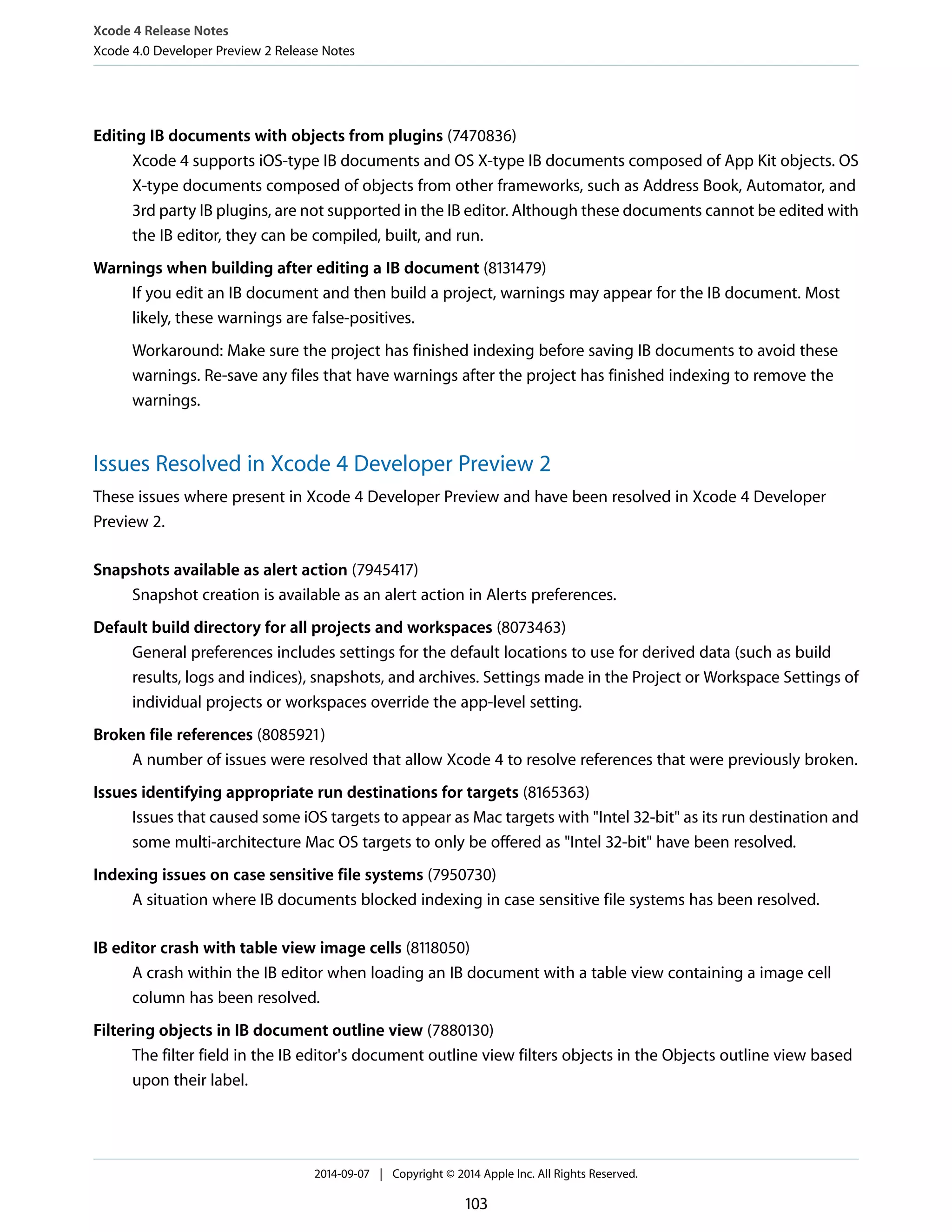
>= view2.width). (14721954) 
● You can create aspect ratio and proportional sizing constraints and edit the multiplier of constraints in 
Interface Builder. The multiplier can be a decimal number (for example, 0.5), a fraction (for example, 1/2), 
or an aspect ratio (for example, 1:2). (11935843) 
● Constraints attached to ambiguous views in Interface Builder are drawn orange only in the axis with 
ambiguity. This makes it faster to identify a potential problem in the canvas. (15114120) 
● The Interface Builder canvas now displays overlay scrollers when appropriate, based on the “Show scroll 
bar” setting in the General pane in System Preferences. (10069033) 
● The Interface Builder inspector now has support for: 
NSTableView - floatsGroupRows property (9617000) 
UISegmentedControl - apportionsSegmentWidthsByContent property (9950528) 
UITableView - sectionIndexBackgroundColor property (14776025) 
Setting “Detail” button type for prototype UITableViewCell - editingAccessoryType property 
(15039987) 
Instruments and Symbolication 
● Instruments now finds symbols much more reliably. 
If symbols aren't showing up automatically, try the following: 
● When Spotlight indexing is disabled for Xcode derived data, such as when using /tmp, add a global 
list of additional search paths configured in the Instruments preferences. 
● The context menu for an address now includes the option “Symbolicate with DSYM” to add a specific 
symbol file. 
● Use the File menu Symbols command to see a more detailed list of the state of individual executables 
and libraries. 
Green lights indicate the presence of symbols and source information. 
Yellow lights indicate libraries with some symbols but can still benefit from locating a dSYM. 
Red lights indicate situations that prevented symbolication. (14269449) 
● The instruments command-line tool now supports specifying the simulator SDK and device type using 
the -w flag. To see a list of the supported simulator configurations as well as attached devices, execute 
instruments -s devices in a Terminal window. (14996865) 
2014-09-07 | Copyright © 2014 Apple Inc. All Rights Reserved. 
37
Xcode 5 Release Notes 
Xcode 5.1 Release Notes 
Scripted installation 
● Installing Device Support 
Run from the command-line, Xcode.app takes the new command-line argument, -installComponents. 
When Xcode is run from a command-line script with this option, it installs the required device support 
packages and then quits. (15127411) 
General 
● Emoji and other Unicode surrogate pairs are supported in scheme settings and in project files. (14837623, 
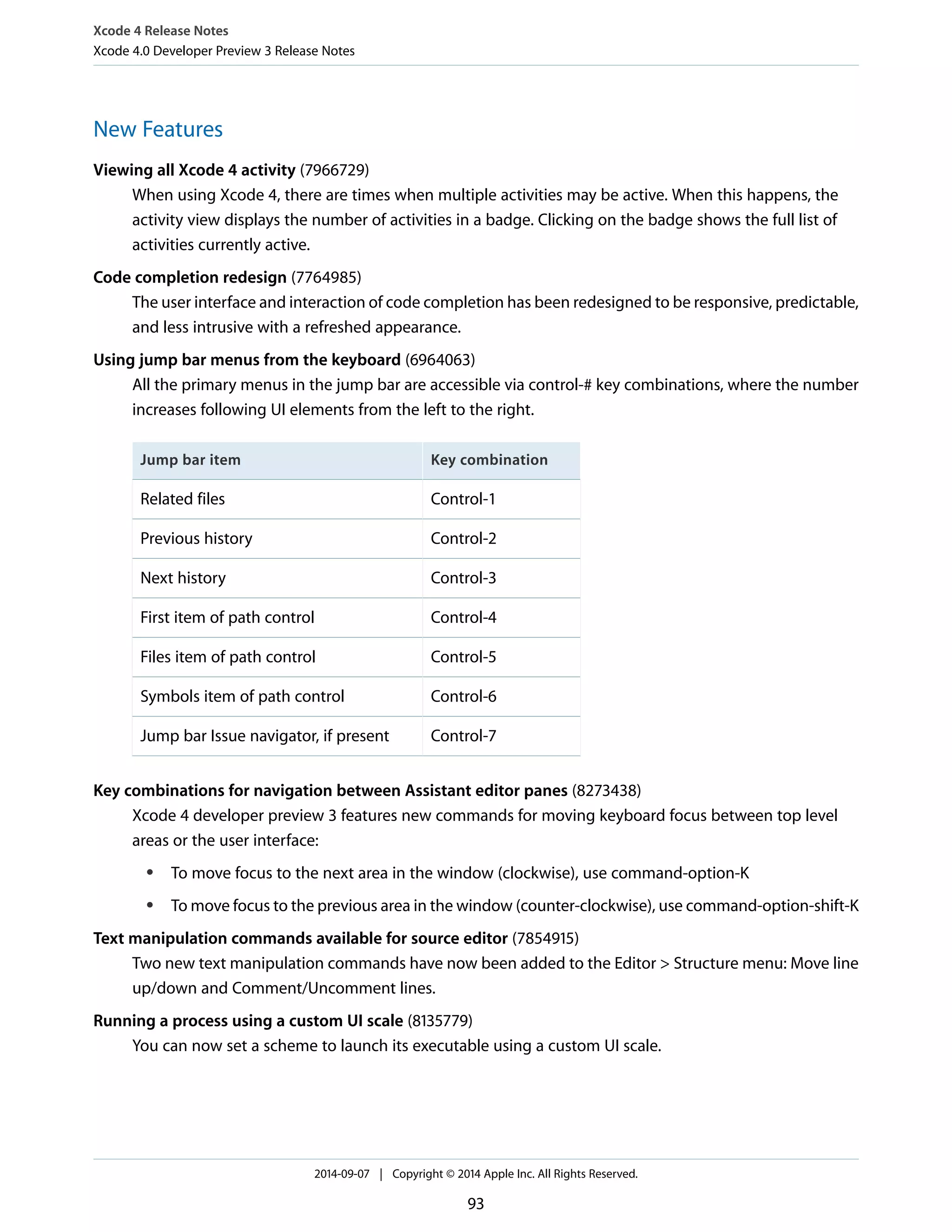
13827044) 
Changes 
Building 
● Arm64 is now included in the “Standard architectures” setting. 
Xcode 5.0 introduced support for building 64-bit iOS applications but it was not enabled by default. To 
enable the option of building 64-bit in Xcode 5.0, an architectures setting was provided: “Standard 
Architectures Including 64-Bit” (ARCHS_STANDARD_INCLUDING_64_BIT). 
With the introduction of Xcode 5.1, arm64 is included in the default "Standard architecture” build setting. 
This results in projects using the default setting automatically building for arm64 along with the standard 
32-bit architectures. 
Note: Be aware of the following architectures issues when opening your existing projects in 
Xcode 5.1: 
● When building for all architectures, remove any explicit architectures setting and use the 
default Standard Architectures setting. For projects that were previously opted-in using 
“Standard Architectures Including 64-Bit”, switch back to the “Standard architectures” setting. 
● When opening an existing project for the first time, Xcode 5.1 may display a warning about 
the use of the Xcode 5.0 architectures setting. Selecting the warning provides a workflow 
to revise the setting. 
● Projects not able to support 64-bit need to specifically set the architectures build setting 
to $(ARCHS_STANDARD_32_BIT). 
● Projects configured to use ”Standard Architectures Including 64-bit” will be converted to “Standard 
Architectures $(ARCHS_STANDARD). 
2014-09-07 | Copyright © 2014 Apple Inc. All Rights Reserved. 
38
Xcode 5 Release Notes 
Xcode 5.1 Release Notes 
Compiler 
● As of Apple LLVM compiler version 5.1 (clang-502) and later, the optimization level -O4 no longer implies 
link time optimization (LTO). In order to build with LTO explicitly use the -flto option in addition to the 
optimization level flag. (15633276) 
● The Apple LLVM compiler in Xcode 5.1 treats unrecognized command-line options as errors. This issue 
has been seen when building both Python native extensions and Ruby Gems, where some invalid compiler 
options are currently specified. 
Projects using invalid compiler options will need to be changed to remove those options. To help ease 
that transition, the compiler will temporarily accept an option to downgrade the error to a warning: 
-Wno-error=unused-command-line-argument-hard-error-in-future 
Note: This option will not be supported in the future. 
To workaround this issue, set the ARCHFLAGS environment variable to downgrade the error to a warning. 
For example, you can install a Python native extension with: 
$ ARCHFLAGS=-Wno-error=unused-command-line-argument-hard-error-in-future 
easy_install ExtensionName 
Similarly, you can install a Ruby Gem with: 
$ ARCHFLAGS=-Wno-error=unused-command-line-argument-hard-error-in-future gem 
install GemName (16214764) 
Testing 
● The gcov tool for code coverage testing has been reimplemented. The new version uses the llvm-cov 
tool from the LLVM project. It is functionally equivalent to the old version for all significant features. The 
location of gcov within Xcode has also moved, use xcrun to invoke it. If you find problems, please file bug 
reports. For this release, you can still use the old version of gcov from GCC, which is available as gcov-4.2. 
(11919694) 
Known Issues 
Editing User Interfaces 
● Custom views added to a stack view in Interface Builder can get stuck in a “misplaced views” (inconsistent) 
state. 
As a workaround, set a placeholder intrinsic size for the custom view with appropriate content hugging 
and compression resistance priorities. (15778653) 
2014-09-07 | Copyright © 2014 Apple Inc. All Rights Reserved. 
39
Xcode 5 Release Notes 
Xcode 5.1 Release Notes 
Testing 
● Automated tests run in iOS Simulator may fail with an error similar to this: 
Test target [test name] encountered an error (Test process exited with code -1) 
Attempt recovery by quitting and restarting the simulator. (15929053) 
Xcode Server 
● Continuous integration features (bots) of Xcode 5.1 require OS X Server v3.1 (or a version of OS X Server 
3.1 beta) or later. (16225068) 
● If there are old copies of Xcode on the server host, Xcode Server sometimes shows all the simulators. Only 
attempt to use simulators appropriate for use with Xcode 5.1. (15465692, 15153869) 
● Xcode Server will offer All Devices or All Simulators even if there are none that fit the criteria for the project. 
If you select an inappropriate device or simulator, you may get an error similar to: 
xcodebuild: error: No destinations were specified with the -destination flag 
which were valid for the specified scheme <scheme_name>. 
To prevent this from happening, specify only valid devices or simulators for your project. (15465222) 
● Sometimes when you’re attempting to create a new local repository on OS X Server through Xcode, Xcode 
may display an error message similar to: 
xcode-select: note: no developer tools were found at '/Applications/Xcode.app', 
requesting install. Choose an option in the dialog to download the command line 
developer tools. 
To resolve this problem, follow the prompts in the dialog displayed on the OS X Server host system. 
(15475078 & 15486464) 
● Sometimes after upgrading to Xcode 5.1 and OS X Server 3.1, the first time you add a server you may see 
an error similar to: 
“<Server> is running a version of OS X Server that cannot be used with this 
version of Xcode.” 
Quit and restart Xcode one time to clear this message. (16217715) 
iOS Simulator 
● Performance issues can arise when running apps within the iOS Simulator on OS X Mavericks with a 
simulated OS version of iOS 6.1 or earlier. 
A workaround is to disable timer coalescing while using the iOS 6.1 or earlier simulator by executing the 
following command in a Terminal window: 
sudo sysctl -w kern.timer.coalescing_enabled=0 (15501929) 
2014-09-07 | Copyright © 2014 Apple Inc. All Rights Reserved. 
40
Xcode 5 Release Notes 
Xcode 5.1 Release Notes 
● iOS Simulator sometimes stops responding to hardware keyboard. 
Quitting and relaunching the simulator usually corrects this. (14642684) 
Debugger 
● Quick Look for UIView and UIColor variable types may not always work correctly. 
You can capture variables of these types as id rather than UIView or UIColor. 16065049 
General 
● When validating multiple applications in sequence using the Xcode Organizer, erroneous warnings about 
bundle IDs may be emitted. 
If these warnings occur, quit & relaunch Xcode in between validations. (15113664) 
● Executables created by Xcode 5.1 may crash on OS X v10.5. (15852259) 
Resolved Issues 
Testing 
● The XCTAssertEqual macro (formerly STAssertEquals using OCUnit) correctly compares scalar values 
of different types without casting, for example, int and NSInteger. It can no longer accept nonscalar 
types, such as structs, for comparison. (14435933) 
General 
● OS X apps that require a provisioning profile, such as those using iCloud, now build, are code-signed 
correctly, and launch. (15841159) 
Deprecations 
● OCUnit and the SenTestingKit framework are deprecated and will be removed from a future release of 
Xcode. Source code using OCUnit generates warnings while being compiled in Xcode 5.1. 
Migrate to XCTest by using the “Edit > Refactor > Convert to XCTest…” menu command. . 
● The ATS framework is deprecated. Source code using ATS APIs will generate warnings while being compiled. 
For version 10.8, there will be no loss of functionality but there could be areas where performance will 
suffer. 
Replace all ATS code (including ATSUI) with CoreText. ATS functionality will be removed in future OS X 
releases. More information about this change is available in Core Text Programming Guide . 
2014-09-07 | Copyright © 2014 Apple Inc. All Rights Reserved. 
41
Xcode 5 Release Notes 
Xcode 5.0.2 Release Notes 
Known Issues 
The following known issues are noted for Xcode 5.0.2 in addition to what has been listed for Xcode 5.0.1. 
Editing User Interfaces 
● In iOS 7 Interface Builder documents, when a vertical spacing constraint is created between a view that is 
flush with the top or bottom layout guide, a constraint between the guide’s top edge and the view’s 
bottom edge may be created instead of from the guide’s bottom edge to the view’s top edge. 
Move the view 1pt down (if to the top layout guide) or up (if to the bottom layout guide), create the 
vertical spacing constraint, then change the constraint’s constant from 1 to 0. 14627548 
Performance Measurement and Analysis 
● The message “Could Not Start Script : Target app is not frontmost” may be displayed when attempting to 
capture a UI Automation script in Instruments against the iOS 7 Simulator. 
If this occurs, close the trace document and create a new one. 15387075 
Resolved Issues 
Debugging 
● LLDB now correctly displays structs in simulator processes. 14496092 
● Debugging an application on a device running iOS 6.x caused the application to crash with 
EXC_BAD_ACCESS. 15310896 
iOS Simulator 
● After installation of Xcode, the iOS 7.0.3 simulator would hang on first launch for a period of time (eventually 
launching). 15368009 
● Running UIAutomation from the Instruments GUI or from the /usr/bin/instruments command line 
would hang. 15367995 
General 
● Launching a 64-bit application on a device from Xcode multiple times caused the device to stop responding 
(and required a soft-reset). 15338361 
2014-09-07 | Copyright © 2014 Apple Inc. All Rights Reserved. 
42
Xcode 5 Release Notes 
Xcode 5.0.1 Release Notes 
New Features 
Accessing Help and Documentation 
● The documentation window now has a navigator area that contains a library browser and the bookmarks 
list. You can show the current document in the library browser using either the Editor > “Reveal in Library” 
menu item or by selecting the contextual menu "Reveal in Library.” 12116524 
Known Issues 
Building 
● New application targets created in Xcode 5 will crash on launch on iOS 5. 
Turn off Base Localization if your app targets iOS 5. 13979280 
● Building a project from inside VMWare that is accessible via a VMWare shared folder can cause the compiler 
to crash. 
Use AFP to share files instead. 14251948 
Continuous Integration with OS X Server 
● Communicating with a remote SVN repository over HTTPS can fail with an error similar to “Error validating 
server certificate for server name .” 
Edit the file /Library/Server/Xcode/Config/xcsbuildd.plist and change 
the TrustSelfSignedSSLCertificates key from false to true. 
Then, from a Terminal window, run: sudo killall xcsbuildd. 14639890 
● SSH access permissions for remote repositories created from within Xcode are limited to only the user 
that created them, by default. The permissions for these hosted repositories cannot be changed from 
within Xcode. 
The permissions can be changed for a hosted repository in Server.app by visiting the Xcode service—under 
the repositories tab, double click the repository and change the access settings. 15193716 
Editing User Interfaces 
● If you open a read-only xib or storyboard file that was last saved with an older version of Xcode, you might 
not be able to quit Xcode. 
2014-09-07 | Copyright © 2014 Apple Inc. All Rights Reserved. 
43
Xcode 5 Release Notes 
Xcode 5.0.1 Release Notes 
You must first close the xib or storyboard file using control+command+W or by using the File > Close 
filename menu command. 14715366 
● You cannot drag a placeholder object from the Interface Builder object library into the outline. 
Drag the placeholder object into the canvas background. 13731313 
● Sometimes when editing UITableViews in Auto Layout documents set to open in Xcode 4.6, an error 
message is displayed which says “Failed to automatically update constraints.” 
Upgrade your document to Xcode 5 format using the “Opens in” option in the file inspector. After 
performing the desired edits, you can downgrade back to the Xcode 4.6 format if necessary. 14680132 
● In some instances, number formatters created in Interface Builder with “Currency” style will not display 
the localized currency symbol at runtime. 
In Interface Builder, switch the number formatter’s “Behavior” from OS X 10.4+ Default to OS X 
10.4+ Custom, then back to OS X 10.4+ Default. 14378988 
● Xib files containing an instance of QCView from Quartz Composer fail to build, and cannot be processed 
by ibtool. 
Replace the instance of QCView on the canvas with an instance of custom view from the library and set 
its custom class to “QCView” in the identity inspector. 14991302 
● The UIAAlert defaultButton and cancelButton functions will fail for some two-button alerts when 
targeting iOS 7. 14649998 
Auto Layout: Runtime 
● In some cases the “Update Frames” command does not resize top-level views or windows. 
Use the “Update All Frames” menu item. 13716892 
● Constraints owned by the clip view of a scroll view in Interface Builder, where the document view is a 
custom view, are removed at runtime. 
Create outlets to each of the constraints you want to keep and re-add them to the clip view at runtime. 
15115315 
Asset Catalog 
● After importing images from a project into an image catalog, storyboards and xib files have broken image 
file references. 
The image names in Interface Builder are listed as image-name.png and should be shortened to 
image-name to repair the broken reference. 14042186 
2014-09-07 | Copyright © 2014 Apple Inc. All Rights Reserved. 
44
Xcode 5 Release Notes 
Xcode 5.0.1 Release Notes 
Localization 
● Projects and targets which have only strings files as localized resources cannot be converted to use 
Base Localization. (The behavior you observe is that after checking the “Use Base Localization” checkbox 
in the project editor, the conversion sheet does not present any files to be converted and clicking the 
Finish button results in the checkbox becoming unchecked.) 
To convert to using Base Localization, a project or target must contain one non-strings resource enabled 
for localization. In the project navigator, select a resource you intend to localize (for example, an Interface 
Builder document or an image), then open the file inspector. In the Localization slice, click the Localize 
button and select the localization to add. Once complete, the conversion workflow displays the file and 
enables the checkbox. 15160454 
Objective-C Runtime 
● In the 32-bit iOS 7.0 simulator, manually calling objc_msgSend_stret() with a nil receiver can corrupt 
the stack pointer. 
Ensure that the receiver is non-nil before calling objc_msgSend_stret(). 14753273 
Debugging 
● Watchpoints set on a variable from Xcode’s UI using the contextual menu in the variables view don’t work 
for some variables—for example, self. When this is the case you’ll notice that the watchpoint is not being 
hit when you would expect. 
To work around this issue, use the console in Xcode to create a watchpoint at the lldb> prompt with the 
command watchpoint set variable <variable-name>. 12658775 
● When ending the debug session of an app on an iOS 5 device, the error message “Lost Connection” may 
be displayed. 
Dismiss the error pop-up. It is spurious and does not indicate any problem debugging your app or 
connecting to the device. 14871460 
● If an application on an iOS device is paused in the debugger within the method 
-application:didFinishLaunchingWithOptions:, the debugging session must be stopped before 
building and relaunching the same application with a different build configuration. 
If the application is not stopped first, the device can enter a state where it will no longer launch applications. 
If the device enters this state, it must be rebooted in order to be used for development again. 14851115 
● If an iOS app running in the simulator is detached, a relaunch of the same app from Xcode will result in a 
black screen in iOS Simulator even though the new instance of the app is launched. 
Terminate the app in the simulator, or relaunch it a second time. 14648784 
2014-09-07 | Copyright © 2014 Apple Inc. All Rights Reserved. 
45
Xcode 5 Release Notes 
Xcode 5.0.1 Release Notes 
Debugging: Open GL 
● The OpenGL ES frame debugger fails to display texture mip-levels for textures that are not texture-complete. 
14852587 
Performance Measurement and Analysis 
● The Allocations instrument can only attach to processes on devices running iOS 7. 
Processes must be started by Instruments for earlier versions of iOS. 14065257 
● When attaching with the Allocations instrument to a process running on an iOS 7 device, the target process 
may crash and the recording in the Allocations instrument then stops immediately. When attaching with 
Allocations to a process on an iOS 6 or earlier device, the target process should continue to run but no 
data will be collected in Allocations. 
Launch with Xcode and then attach with Instruments or transfer to Instruments by clicking “Profile in 
Instruments,” using the memory gauge in the debug navigator. 14828459 
Testing 
● XCTest does not support iOS 6 destinations. 
Xcode does not prevent you from using XCTest with iOS 6 destinations, resulting in undefined behavior. 
14075515 
Account Management 
● Sometimes after requesting a signing identity from the Member Center, Xcode does not install the 
corresponding certificate in the keychain. 
To work around this issue, perform the following steps: 
1. View the Accounts section of Xcode’s preferences 
2. Select the account or team that corresponds to the signing identity 
3. Click “View Details” 
4. Click the Refresh button at the lower-left of the details sheet 14197131 
Source Control 
● Xcode may have trouble connecting to repositories if credential information has changed after the repository 
was added in the Accounts preferences. In certain cases, Xcode displays a failure when connecting to a 
repository while it is actually attempting to connect in the background. 
If you encounter a repository connection problem, remove and re-add the repository with the updated 
credential information. This will restore access to the repository. 13955597 
2014-09-07 | Copyright © 2014 Apple Inc. All Rights Reserved. 
46
Xcode 5 Release Notes 
Xcode 5.0.1 Release Notes 
iOS Simulator 
● After switching the minimum deployment target of an application from iOS 7.0 to a release prior to iOS 
7.0, building and running the application may fail with the message “iOS Simulator failed to install the 
application.” 
To resolve this issue go to the iOS Simulator home screen. Remove the application by clicking and holding 
the application icon, and then choosing to delete the application by tapping the hovering “X” button. 
13917023 
● The Mac hardware keyboard may not function for iOS Simulator when first launched. 
Relaunch the simulator. 13315258 
● StoreKit (In-App purchases) will not work in the Simulator. 13962338 
General 
● When playing video via the Quicklook framework on an iPhone simulator, the video view appears black, 
but audio continues to play fine. 13871109 
Resolved Issues 
Editing User Interfaces 
● Views without an autoresizing mask in Interface Builder documents did not open correctly. 14969450 
● When loading nibs at runtime with scroll views built with Xcode 5, constraints between the clip view and 
its document view were not handled properly. 14097019 
Accounts 
● Creating distribution signing assets caused Xcode to crash. 13956010 
OpenGL 
● Launching an app using OpenGL on more than a single device failed. 14836639 
Source Control 
● Subversion URLs caused errors with variable username usage. 14825641 
● Using HTTPS and a git repository with a self-signed certificate failed. 14060992 
If you are interacting with a hosted git repository on OS X Server using HTTPS and are presented with a 
certificate dialog, to use the git repository: 
1. Click “Show Certificate” on the bottom-left of the dialog 
2014-09-07 | Copyright © 2014 Apple Inc. All Rights Reserved. 
47
Xcode 5 Release Notes 
Xcode 5.0.1 Release Notes 
2. Check the “Always Trust” checkbox 
3. Click “Continue” 
You are now able to use the git repository in Xcode. 
Notes 
Accessing Help and Documentation 
● Xcode 5 does not support downloading additional doc sets. Additional doc sets can be added manually 
by installing them at ~/Library/Developer/Shared/Documentation/DocSets/. 
Once installed, doc sets are found and loaded by Xcode 5. If Xcode is running while the doc set is installed, 
quit and relaunch Xcode. 14930443 
Building: Deployment Compatibility 
● iOS 64-bit compatible applications are only supported with a minimum deployment target of iOS 5.1.1 or 
above. 15190445 
Account Management 
● The provisioning profiles list in the Organizer is now located in the Accounts tab of Xcode's preferences. 
To view them, select the relevant Apple ID account and tap View Details. 13950944 
Deprecations 
● Xcode 5 does not support use of the LLVM-GCC compiler and the GDB debugger. 14857582 
● Garbage collection is a deprecated technology in OS X Mountain Lion and later. Xcode 5 is scheduled to 
be the last release of the Xcode developer tools to support building, debugging, or profiling Mac apps 
that use garbage collection. 
It is recommended that any projects using GC employ Xcode’s migration tool to convert to ARC (Automatic 
Reference Counting). For more information about transitioning to ARC, see Transitioning to ARC Release 
Notes . 14406894 
● The CVS and RCS source control tools have been removed from Xcode 5. 11968433 
● The CPlusTest unit testing framework has been removed from Xcode 5. To write unit tests for C++ code, 
use the new XCTest framework and create Objective-C++ (.mm) test case subclasses. 8273037 
● SenTestingKit and OCUnit are deprecated. Use the migrator to move to XCTest. 14857574 
2014-09-07 | Copyright © 2014 Apple Inc. All Rights Reserved. 
48
Xcode 5 Release Notes 
Xcode 5.0.1 Release Notes 
Continuous Integration with OS X Server 
Installing Xcode on OS X Server 
● To ensure that OS X Server is configured to use Xcode 5.0.1, follow these steps to install Xcode: 
1. Open the App Store and update OS X Mavericks 
2. Download Xcode 5.0.1 and OS X Server 
3. Quit Xcode and Server 
4. Install Xcode 5.0.1 
5. Install OS X Server 
6. Open Server 
7. Select the Xcode service, then click Choose and select Xcode 5.0.1 
Reporting Bugs 
● When reporting a Continuous Integration bug, enter the following command in Terminal, then attach the 
output to the bug report. 
sudo /Applications/Server.app/Contents/ServerRoot/usr/sbin/serverloggather 
Communication between Xcode and Server 
Communication between Xcode and the Xcode service is currently over HTTP port 80. 
● For accessing local Git repositories hosted by the Xcode service: 
Git+SSH: 22 
HTTP: 80 
HTTPS: 443 
● For accessing remote SVN or Git repositories not hosted by the Xcode service: 
Git: 9418 
Git+SSH: 22 
SVN: 3690 (anonymous access only) 
SVN+SSH: 22 
HTTP (Git + SVN): 80 
HTTPS (Git + SVN): 443 
● For joining a server to an Apple Developer Team: 
2014-09-07 | Copyright © 2014 Apple Inc. All Rights Reserved. 
49
Xcode 5 Release Notes 
Xcode 5.0 Release Notes 
HTTPS (SSL): 443 
Command Line Tools 
● Command line shims are included with OS X Mavericks. If Xcode is installed, the shims use the tools within 
Xcode. Otherwise, the tools delivered in the Command Line Developer Tools package are used. The 
Command Line Developer Tools package can be installed on demand using xcode-select --install 
or by trying to use any command line developer tool in Terminal. 
On OS X Mavericks, Command Line Developer Tools are updated using Software Update. On OS X Mountain 
Lion, continue to use the Downloads preferences in Xcode to update the Command Line Developer Tools. 
On OS X Mavericks, xcode-select provides the --reset flag to revert to using the default search paths. 
The Command Line Developer tools package has been updated to include xcrun. xcrun adds support 
for the following: 
1. The --show-sdk-path option queries SDK paths 
2. Improved xcrun performance 
3. More robust support for the DEVELOPER_DIR environment variable 
Set DEVELOPER_DIR to either a copy of Xcode or /Library/Developer CommandLineTools 
when Command Line Tools for OS X Mavericks is installed 
4. xcrun passes the SDK provided to subcommands in the SDKROOT environment variable when used 
with --sdk. 15190491 
Xcode 5.0 Release Notes 
Known Issues 
Compiling: LLVM 
● Building a project from inside VMWare that is accessible via a VMWare shared folder can cause the compiler 
to crash. 
● Use AFP to share files instead. 14251948 
● In the 32-bit iOS 7.0 simulator, manually calling objc_msgSend_stret() with a nil receiver can corrupt 
the stack pointer. 
● Ensure that the receiver is non-nil before calling objc_msgSend_stret(). 14753273 
2014-09-07 | Copyright © 2014 Apple Inc. All Rights Reserved. 
50
Xcode 5 Release Notes 
Xcode 5.0 Release Notes 
Building 
● New application targets created in Xcode 5 will crash on launch on iOS 5. 
● Turn off base localization if your app targets iOS 5. 13979280 
Editing User Interfaces 
● If you open a read-only xib or storyboard that was last saved with an older version of Xcode, you might 
not be able to quit Xcode. 
● You must first close the file using ctrl+cmd+w or by going to File > Close <filename>. 14715366 
● In some instances, number formatters created in Interface Builder with “Currency” style will not display 
the localized currency symbol at runtime. 
● In IB, switch the number formatter's “Behavior” from “OS X 10.4+ Default” to “OS X 10.4+ Custom,” 
then back to “OS X 10.4+ Default.” 14378988 
● When loading nibs at runtime using scroll views built with Xcode 5, constraints between the clip view and 
its document view will be removed. This only affects constraints between the clip view and the document 
view, which are usually constraints such as H:|-[documentView]-| and V:|-[documentView]-|. 
● Add the constraints at runtime. 14097019 
● UIAAlert’s defaultButton and cancelButton functions will fail for some two button alerts when 
targeting iOS 7. 14649998 
● After importing images from a project into a image catalog, storyboards and xib files have broken image 
references. 
● The image names in Interface Builder are listed as image-name.png and should be shortened to 
image-name to repair the broken reference. 14042186 
● You cannot drag a Placeholder object from the library into the outline. 
● Drag the Placeholder object into the canvas background. 13731313 
Autolayout: Runtime 
● In some cases “Update Frames” will not resize top level views or windows. 
● Use the “Update All Frames” menu item. 13716892 
● Sometimes when editing UITableViews in Auto Layout documents set to open in Xcode 4.6, you get an 
error message saying “Failed to automatically update constraints.” 
● Upgrade your document to the Xcode 5 format using the “Opens in” option in the File inspector. After 
performing the desired edits, you can downgrade back to the Xcode 4.6 format if necessary. 14680132 
2014-09-07 | Copyright © 2014 Apple Inc. All Rights Reserved. 
51
Xcode 5 Release Notes 
Xcode 5.0 Release Notes 
Performance Measurement and Analysis 
● Scripts running under the Automation instrument sometime fail to detect applications running inside the 
iOS 6 simulator environment. 
● Relaunch the simulator application and run the script again. 14447965 
● The Allocations instrument can only attach to processes on devices running iOS 7. Processes must be 
started by Instruments on iOS versions prior to iOS 7. 14065257 
● When attaching to a process running on an iOS 7 device with the Allocations instrument, the process may 
crash and the recording in the Allocations instrument then stops immediately. When attaching to a process 
on an iOS 6 or earlier device with the Allocations instrument, the process continues to run but no data 
will be collected in Allocations. 
● Launch with Xcode and then attach with Instruments. Alternatively, transfer to Instruments by clicking 
“Profile in Instruments” in the debug memory gauge. 14828459 
Debugging 
● When ending the debug session of an app on an iOS 5 device, the error message, "lost connection" may 
be displayed. 
● Dismiss the error pop-up: It does not indicate any problem debugging your app or connecting to the 
device. 14871460 
● Watchpoints set from the Xcode UI using the contextual menu on a variable in the variables view don’t 
work for some variables , for instance 'self'. When this is the case, the watchpoint won’t be hit when 
you expect. 
● To work around this issue, use the console in Xcode to create a watchpoint at the lldb prompt with 
the command 'watchpoint set variable <variable-name>'. 12658775 
Debugging: OpenGL 
● The OpenGL ES frame debugger does not display texture mip-levels for textures that are not 
texture-complete. 14852587 
● Simultaneously launching an iOS app which uses OpenGL from Xcode on more than a single device may 
not work. 
● Launch on one device at a time. 14836639 
Unit Testing 
● XCTest does not support iOS 6 destinations. Xcode does not prevent you from using XCTest with iOS 6 
destinations, resulting in undefined behavior. 14075515 
2014-09-07 | Copyright © 2014 Apple Inc. All Rights Reserved. 
52
Xcode 5 Release Notes 
Xcode 5.0 Release Notes 
Source Control 
● Xcode may have trouble connecting to repositories if credential information has changed after the repository 
was added in Accounts preferences. In certain cases, Xcode displays a failure when connecting to a 
repository while it is attempting to connect in the background. 
● If you encounter a repository connection problem, remove and re-add the repository with the updated 
credential information. This will restore access to the repository. 13955597 
● Xcode 5 requires consistent usage of Subversion URLs: Either always include the (same) username or do 
not include one for a given repository. 14825641 
iOS Simulator 
● If an iOS app is detached, relaunching the same app from Xcode will result in a black screen in the Simulator 
even though the new app is launched. 
● Terminate the app in the Simulator or relaunch it for the second time. 14648784 
● After switching the minimum deployment target of an application from iOS 7.0 to a release prior to iOS 
7.0, building and running the application may fail with the message “iOS Simulator failed to install the 
application.” 
● Go to the iOS home screen, click and hold the application icon, then tap the hovering “X” button to 
delete the application. 13917023 
● StoreKit (In-App purchases) will not work in the Simulator. 13962338 
● When playing video via the Quicklook framework on an iPhone simulator, the video view appears black, 
but audio continues to play fine. 13871109 
● The Mac hardware keyboard may not work for iOS Simulator on first launch. 
● Relaunch the simulator. 13315258 
Account Management 
● Xcode sometimes crashes if you request to create distribution signing assets during distribution of a Mac 
app. 
● Create the distribution signing assets using the Member Center. 13956010 
● Xcode sometimes does not install the corresponding certificate in the Keychain after requesting a signing 
identity from the Member Center. 
Workaround: 
1. View the Accounts section of Xcode’s preferences. 
2. Select the account/team that corresponds to the signing identity. 
3. Click “View Details.” 
2014-09-07 | Copyright © 2014 Apple Inc. All Rights Reserved. 
53
Xcode 5 Release Notes 
Xcode 5.0 Release Notes 
4. Click the Refresh button at the lower-left of the details sheet. 14197131 
Changes 
General 
● The provisioning profiles list in the Organizer is now located in the Accounts tab of Xcode's preferences. 
To view them, select the relevant Apple ID account and click View Details. 13950944 
● 64-bit compatible applications are only supported with a minimum deployment target of iOS 6 or later. 
14730546 
● Xcode 5 does not support using the LLVM-GCC compiler or the GDB debugger. 14857582 
Unit Testing 
● The CPlusTest unit testing framework has been removed from Xcode 5. To write unit tests for C++ code, 
use the new XCTest framework and create Objective-C++ (.mm) test case subclasses. 8273037 
● SenTestingKit and OCUnit are deprecated. Use the migrator to move to XCTest. 14857574 
Source Control 
● The CVS and RCS source control tools have been removed from Xcode 5. 11968433 
Notes 
Doc Sets 
● Xcode 5 does not support downloading additional doc sets. 
Additional doc sets can be added manually by installing them at ~/Library/Developer/Shared/ 
Documentation/DocSets/ 
Once installed, doc sets are found and loaded by Xcode 5. If Xcode is running while the doc set is installed, 
quit and relaunch Xcode. 14930443 
Garbage Collection Support 
● Xcode 5 ending support for OS X garbage collection. 
2014-09-07 | Copyright © 2014 Apple Inc. All Rights Reserved. 
54
Xcode 5 Release Notes 
Xcode 5.0 Release Notes 
Garbage collection is a deprecated technology in OS X Mountain Lion and later. Xcode 5 is scheduled to 
be the last release of the Xcode developer tools to support building, debugging, or profiling Mac apps 
that use garbage collection. It is recommended that any projects using GC employ the Xcode migration 
tool to convert to ARC (Automatic Reference Counting.) More information about transitioning to ARC is 
available at: Transitioning to ARC Release Notes . 14406894 
Continuous Integration Support 
● Continuous integration features (bots) require OS X Server for OS X Mavericks. Mac Developer Program 
members can download the latest developer preview of OS X Mavericks from the Mac Dev Center. 14949282 
2014-09-07 | Copyright © 2014 Apple Inc. All Rights Reserved. 
55
Xcode 4.6.3 Release Notes 
Resolved Issues 
Debugging: LLDB 
● Hang when debugging in iOS Simulator on OS X 10.8.4. 13722320 
Xcode 4.6.2 Release Notes 
Changes 
Building: Kernel Extensions 
● Kernel extensions (kexts) built with Xcode 4.6.1 and 4.6.2 fail to load on OS X 10.6 and 10.7, and this error 
message appears in the console: 
kernel: kxld: The Mach-O file is malformed: Invalid segment type in 
MH_KEXT_BUNDLE kext: 42 
To build kexts that load on OS X 10.6 and 10.7, on the targets that build the kexts, set the OS X Deployment 
Target build setting to OS X 10.6. 13645170 
Resolved Issues 
General 
● Implemented stability fixes. 13518419, 13518436, 13518436, 13518526, 13611415 
2014-09-07 | Copyright © 2014 Apple Inc. All Rights Reserved. 
56 
Xcode 4 Release Notes
Xcode 4 Release Notes 
Xcode 4.6.2 Release Notes 
New Issues 
Code Signing: Kernel Extensions 
● If you build code signed kexts on OS X 10.8.3 (you turn on code signing in the target that builds the kext), 
that kext fails to load on OS X 10.7.x and earlier, and this error message appears in the console: 
kernel: kxld: The Mach-O file is malformed: Invalid segment type in 
MH_KEXT_BUNDLE kext: 29 
Workarounds: 
● To build an unsigned kext that loads in OS X 10.7.x and earlier, in the target that builds the kext, set 
the Code Signing Identity build setting to Don’t Code Sign. 
If you need to build signed and unsigned versions of the kext, you can have in your project separate 
targets that build the same kext, one configured to code sign the kext and the other configured not 
to sign it. 
● To build a signed kext that loads in OS X 10.7.x and earlier, code sign the kext on a Mac running OS 
X 10.8.2 or earlier. 13428950 
Known Issues 
Building 
● When building a product previously built with Xcode 4.6.1 or earlier, the build fails with an error similar 
to this one: 
PCH file built from a different branch ((clang-425.0.27)) than the compiler 
((clang-425.0.28)) 
To address this issue, choose Product > Clean before building your product. 13663167 
2014-09-07 | Copyright © 2014 Apple Inc. All Rights Reserved. 
57
Xcode 4 Release Notes 
Xcode 4.6.1 Release Notes 
New Features 
General 
● SDKs: 
OS X SDK 10.8.3 (13130441) 
Resolved Issues 
Compiling 
● Crash on launch on OS X v10.6 with apps using ARC built with Xcode 4.6. (13129783) 
Accessing Help and Documentation 
● Documentation doc set update fails with the message: 
Install path <path_1> points to a different documentation package <path_2> 
than expected <path_3> 
13292012. 
Known Issues 
Accessing Help and Documentation 
● More than one Xcode doc set listed in the Documentation organizer. 13207501 
To address this issue delete any Xcode doc set whose version number is earlier than 509.12 from Documentation 
preferences: 
1. Open the Xcode preferences window, and click the Downloads button to display Downloads preferences. 
2. Click the Documentation button. 
3. Select an Xcode doc set (titled “Xcode ...”). 
4. Reveal the doc set info by clicking the Show Doc Set Info button (to the left of the + button). 
2014-09-07 | Copyright © 2014 Apple Inc. All Rights Reserved. 
58
Xcode 4 Release Notes 
Xcode 4.6 Release Notes 
5. If the version of the doc set is earlier than 509.12, delete the doc set by clicking the Remove (–) button. 
Xcode 4.6 Release Notes 
New Features 
General 
● SDKs: 
● OS X SDK 10.8 
● iOS SDK 6.1 
● Device support (added): 
● iPad mini 
● iPad with Retina display (4th generation) 
Enhancements 
Compiling: 
● LLVM: New compiler warnings to help find subtle behavioral bugs when using automatic release counting 
(ARC) and weak references. 
● LLVM: Support for the C++11 user defined literals and unrestricted unions. 
● LLVM: Advanced optimization to merge disjoint stack objects and to reduce the size of allocated stack 
memory. 
● LLVM: The Type-Based Alias Analysis (TBAA) code optimization is enabled by default. 
You can disable this optimization with the llvm -fno-strict-aliasing option. 
In Xcode projects, the Enforce Strict Aliasing build setting controls this capability. 
● LLVM: Support for Microsoft-style inline assembly for i386 and x86_64. 
● LLVM: Static analyzer supports deeper cross-function analysis of C++ and Objective-C code. 
● otool: Support for disassembly of Intel AVX instructions. 
● otool: Precisely decodes all instructions and skips over data entries in text segments. 
2014-09-07 | Copyright © 2014 Apple Inc. All Rights Reserved. 
59
Xcode 4 Release Notes 
Xcode 4.5.2 Release Notes 
Debugging 
● Xcode UI: Inspects elements of NSArray and NSDictionary objects. 
● LLDB: Reads metadata from the Objective-C runtime. 
● LLDB: Improves support for stepping over inlined functions. 
● LLDB: Prints function argument information in backtraces by default. 
● LLDB: Supports “thread return,” the temporary breakpoint command, and a variety of aliases to add 
common GDB shortcuts. 
Changes 
General 
● DEPRECATED: LLVM-GCC compiler and GDB debugger. 
Xcode 4.6 is the last release to include the LLVM-GCC compiler and the GDB debugger. 
Use the LLVM compiler and the LLDB debugger, and file reports at https://bugreport.apple.com for issues 
that require the use of LLVM-GCC or GDB. 
● DEPRECATED: Package Maker app. 
Use the productbuild command to create installer packages 
● DEPRECATED: ATS.framework (OS X SDK 10.8). 
The use of the ATS API produces compilation warnings. 
In OS X v10.8 there is no loss of functionality, but there could be areas where performance degrades. 
Replace ATS code (including ATSUI) with Core Text calls (see Core Text Programming Guide for details). 
Xcode 4.5.2 Release Notes 
Resolved Issues 
General 
● Fixed Xcode app and LLDB debugger crashes reported on Xcode 4.5. 12482521, 12482518, 12481393, 
12481829, 12481363, 12481302, 12481396, 12482364, 12514294, 12364375, 12481322, 12481370, 12481398, 
12481373, 12489094, 12483605, 12481863, 12482083, 12482540, 12481426, 12482542, 12481390, 12482362, 
12481885 
2014-09-07 | Copyright © 2014 Apple Inc. All Rights Reserved. 
60
Xcode 4 Release Notes 
Xcode 4.5.1 Release Notes 
Editing User Interfaces 
● Improved stability when editing storyboards and using Auto Layout. 12482514, 12482536, 12482526, 
12482548 
Debugging 
● Fixed an LLDB memory leak. 12483722 
● Improved behavior when quitting iOS Simulator directly. 12481405 
Distributing Apps 
● Fixed occasional Xcode hang when submitting an app to the iOS App Store. 12482847 
Xcode 4.5.1 Release Notes 
Enhancements 
General 
● Improved the responsiveness of the Open Quickly dialog. 12251666 
● Improved performance switching between tabs in the Xcode app. 12364395 
Debugging 
● Improved stability and responsiveness running apps on a simulator. 12388056, 12364385, 12364295 
Resolved Issues 
Editing User Interfaces 
● Crashes while editing user interface documents. 12364019, 12389062, 12388854, 12389040, 10261299 
Editing Property Lists 
● Issues adding keys to property list files. 12377407 
Debugging 
● Debug console doesn’t display all input characters. 12364400 
2014-09-07 | Copyright © 2014 Apple Inc. All Rights Reserved. 
61
Xcode 4 Release Notes 
Xcode 4.5 Release Notes 
Source Control 
● Issues interacting with working copies known by the Xcode app. 12364258, 12389205, 12389198 
Xcode 4.5 Release Notes 
New Features 
Editing User Interfaces 
● The Interface Builder canvas includes a new button to toggle between iPhone screen layouts. When you 
click the button, Xcode resizes full-screen views to match the selected iPhone screen size. When the top 
level views are resized, Xcode uses the resizing rules specified by layout constraints or springs and struts 
in the size inspector to reflow the contained views. 12290237 
Use this button to toggle between layouts and ensure that the resizing rules you define work as expected 
on both the new Retina 4 screen and previous screen sizes. 
Editing User Interfaces: Storyboards 
● Storyboards now support view controller containment. You can add child view controllers to a parent 
view controller in a storyboard. At runtime, when the viewDidLoad method is called on the parent 
controller, its view hierarchy (composed of the view hierarchies of its child controllers) is already loaded. 
9630246 
To add a view controller as the child of another view controller: 
1. Add a container view from the Object library. 
2. Connect the container view to the child view controller with an embed segue. 
Enhancements 
General 
● When Xcode autocreates schemes, it now adds the new schemes in project order (within the workspace) 
and target order (within each project). 7996506 
Editing User Interfaces: Storyboards 
● You can now specify that modal segues be presented without animation. 10384049 
2014-09-07 | Copyright © 2014 Apple Inc. All Rights Reserved. 
62
Xcode 4 Release Notes 
Xcode 4.5 Release Notes 
● You can now create unwind segues that allow transitioning to existing instances of scenes in a storyboard. 
9211697. 
With earlier releases of Xcode, you may have implemented unwind segues programmatically. See iOS SDK 
Usage (page $@) for details. 
iOS SDK Usage 
● When your app runs on iOS 6.0 or later, in the shouldPerformSegueWithIdentifier:sender: method 
of your UIViewController subclass, you can decide whether to trigger a segue with a specific identifier, 
which you set in the segue’s Attributes inspector. 9447109 
Source Control: Subversion 
● When you update your Subversion-managed project, Xcode now automatically applies the update if there 
are no conflicts. 11913482 
To see changes from the repository before applying them, choose File > Source Control > Update while 
holding down the Control key. 
Changes 
General: iOS 
● This version of Xcode does not generate armv6 binaries. 12282156 
● The minimum deployment target is iOS 4.3. 12282166 
● In this Xcode release, Auto Layout is turned on for new user interface documents (storyboards and nib 
files). Because Auto Layout requires iOS 6.0, using such user interface documents on earlier iOS releases 
results in a crash or other undefined behavior. 12289644 
For your app to run on earlier iOS releases, turn off Auto Layout in its user interface documents. 
Distributing Apps: IOS 
● This release of Xcode doesn’t allow submitting to the App Store apps with iOS Deployment Target set to 
iOS releases earlier than iOS 4.3. The validation process fails with the message “This bundle is invalid. The 
key UIRequiredDeviceCapabilities in the Info.plist may not contain values that would prevent this application 
from running on devices that were supported by previous versions.” 12309358 
Set the app’s iOS Deployment Target to iOS 4.3 or later. 
2014-09-07 | Copyright © 2014 Apple Inc. All Rights Reserved. 
63
Xcode 4 Release Notes 
Xcode 4.5 Release Notes 
Creating Projects 
● Projects created using this Xcode release use the new libc++ implementation of the standard C++ library. 
The libc++ library is available only on iOS 5.0 and later and OS X 10.7 and later. 12221787 
To enable deployment on earlier releases of iOS and OS X in your project, set the C++ Standard Library 
build setting to libstdc++ (Gnu C++ standard library). 
Managing Devices 
● Uploading app data files to an iOS device works correctly on OS X v10.7 and v10.8. 12017933 
Source Control 
● RCS and CVS are deprecated in this Xcode release. 12252058 
Installing 
● Starting in Xcode 4.3, the Xcode.app file package contains all the Xcode developer tools. The man pages 
for the command-line tools Xcode uses are also placed in this package. However, these man pages are 
not included in the places searched by the man command. To access these man pages, you must add them 
to the index of man pages used by the man command. 10658081 
To add the Xcode man pages to the man-page index: 
1. Construct MANPATH for the Xcode.app package you’re using by executing these shell commands: 
#!/bin/tcsh 
set xcodeManPathsTmp=/tmp/Xcode 
# Expect to find Xcode.app in /Applications 
find /Applications/Xcode.app -name man >! $xcodeManPathsTmp 
sudo cp $xcodeManPathsTmp /etc/manpaths.d 
2. Set the MANPATH environment variable in your command shell: 
● C-Shell 
Edit /etc/csh.login by adding this line before the <code>if ( -x 
/usr/libexec/path_helper ) then line: 
setenv MANPATH "" 
● Bourne Shell 
2014-09-07 | Copyright © 2014 Apple Inc. All Rights Reserved. 
64
Xcode 4 Release Notes 
Xcode 4.5 Release Notes 
Edit /etc/profile by adding this line before the if [ -x /usr/libexec/path_helper 
]; then line: 
export MANPATH="" 
The path_helper command adds the paths in the manpaths.d file to the PATH and MANPATH 
environment variables. 
Alternative: Edit the shell startup files in your home directory to execute this command: 
/usr/libexec/path_helper -s 
3. Open a new shell window, and verify that MANPATH lists the paths to the Xcode.app package you’re 
using. 
4. Index the man pages by executing this shell command: 
sudo /usr/libexec/makewhatis 
New Issues 
Editing User Interfaces 
● When you add a gesture recognizer in a storyboard, it mistakenly overrides the system-supplied gesture 
recognizers for the target view. For example, adding a tap gesture recognizer to a table view results in a 
table view that does not scroll. 12200238 
Disconnect the gesture recognizer in the storyboard, and apply it in code. 
Performance Measurement and Analysis: Instruments 
● A UI automation script being run with a simulator target in Instruments fails if your Mac contains multiple 
copies of Xcode and the Xcode install path is not set up correctly. 12288632 
Determine the path to the running Xcode instance by executing this shell command: 
$ xcode-select --print-path 
If the returned path doesn’t point to the running Xcode instance, execute this shell command: 
2014-09-07 | Copyright © 2014 Apple Inc. All Rights Reserved. 
65
Xcode 4 Release Notes 
Xcode 4.5 Release Notes 
$ xcode-select -switch <path_to_the_Xcode_package> 
● In the command, <path_to_the_Xcode_package> is the path to the Xcode.app package you’re 
using—for example, /Applications/Xcode.app. 
Known Issues 
General 
● Xcode may not show any windows when it’s launched. This happens when you download Xcode from 
https://developer.apple.com and the “Close windows when quitting an application” preference in System 
Preferences is unselected. 11865559 
Switch to another app and relaunch Xcode. 
Editing Core Data Models 
● MobileMe syncing support is deprecated. However, the syncable property is still set to YES by default 
in the User Info Dictionary for entities and properties, but the model editor doesn’t show this setting. 
10787672 
To explicitly set syncable to NO for an entity or a property, add a key-value pair in your User Info Dictionary: 
1. Select the entity or property for which you want to turn off synching on a model file. 
2. In the User Info section in the Data Model inspector, add this key-value pair: 
key "com.apple.syncservices.Syncable" 
value "NO" 
Editing Source Code 
● Text and font rendering on OS X v10.8 is optimized for Retina display. On a non–Retina display running 
OS X v10.8, some font configurations can appear blurry in Xcode. 11486875 
Switch back to non–Retina display optimized text and font appearance in Xcode by entering this command 
in Terminal: 
defaults write com.apple.dt.Xcode 
NSFontDefaultScreenFontSubstitutionEnabled -bool YES 
2014-09-07 | Copyright © 2014 Apple Inc. All Rights Reserved. 
66
Xcode 4 Release Notes 
Xcode 4.4.1 Release Notes 
Localization 
● When you select the Use Base Internationalization option in the project editor, Xcode generates strings 
files for each your project’s user interface documents. 11462724 
To resynchronize your strings files with new content from your user interface documents, use the 
--generate-strings-file option of the ibtool command to produce new strings files. Then, manually 
merge the new files into your existing localized strings. 
Autolayout: Runtime 
● At runtime, when adding subviews to a split view while loading both views from nib files, you may see 
log messages about unsatisfiable constraints because of autoresizing mask constraints on the split view 
panes. These are benign log messages because a split view automatically fixes the problem after adding 
the subview. 11614767 
In your code, before adding the subview to the split view, send 
setTranslatesAutoresizingMaskIntoConstraints:NO to the subview. 
Debugging: LLDB 
● The po, print, and expression commands cannot access enumerators directly. You must use the name 
of the enumeration. 11485295 
For example, if your code contains enum MyEnum { e1, e2 };, LLDB emits an error if you type print 
e1. Instead, type print MyEnum::e1. 
Xcode 4.4.1 Release Notes 
Changes 
Distributing Apps 
● Xcode no longer preserves an app’s designated requirements when you submit it to the App Store. 
12006125 
Some apps where prevented from submission because of designated requirements. 
2014-09-07 | Copyright © 2014 Apple Inc. All Rights Reserved. 
67
Xcode 4 Release Notes 
Xcode 4.4.1 Release Notes 
Resolved Issues 
Debugging 
● After quitting iOS Simulator directly, Xcode continues to show the process launched on the simulator as 
running. 11998376 
Editing Source Code 
● Xcode doesn’t offer code completion in Objective-C++ files. 12006547 
Compiling: LLVM 
● The LLDB debugger gets the wrong address for some variables. 12006552 
● When compiling an Objective-C++ file in C++11 with vectors under automatic reference counting (ARC), 
the LLVM compiler generates incorrect code. 12006560 
● Objective-C code compiled under ARC and optimized for size may crash at runtime. 12006567 
Unit Testing 
● Xcode becomes unresponsive while running unit tests. 12017975 
Known Issues 
Managing Devices 
● Uploading app data files to an iOS device may not work. 12017933 
● On OS X v10.8, duplicate the .xcappdata file, and upload the duplicate. 
● On OS X v10.7 there is no workaround to this issue. 
2014-09-07 | Copyright © 2014 Apple Inc. All Rights Reserved. 
68
Xcode 4 Release Notes 
Xcode 4.4 Release Notes 
New Features 
General 
● You can drag file, directory, and group icons from the jump bar to the project navigator, a Finder window, 
and other apps. 7452760 
● The Use Base Internationalization setting in the project editor works only on Mac products for deployment 
on OS X v.10.8 and later. Xcode must also be running on OS X v.10.8 or later. This setting is not supported 
on iOS projects. 11712855 
Editing Source Code 
● The source editor can remove trailing whitespace at the end of a line after you have edited it. You control 
this behavior with the “Automatically trim trailing whitespace” option in Text Editing preferences. 2535591 
● When the “Automatically insert closing braces” option in Text Editing preference is turned on, as you type 
an opening parenthesis, brace, or quotation mark, the source editor adds the corresponding closing 
character. When the “Enable type-over completions” option is turned on, the editor adds the closing 
character in a state in which you can type over the character. This feature reduces the appearance of 
duplicate closing characters, such as when you type both the open and close characters quickly. 3780948 
Press Tab to jump over the closing character. 
Compiling: ARM 
● LLVM integrated assembler for ARM. This new assembler improves compilation times for iOS products, 
and provides better user level diagnostics for ARM assembly code. This assembler uses only Unified 
Assembly Language (UAL) assembly code; therefore, you may need to update projects that use manually 
generated assembly code. 9136376 
Use the clang-no-integrated-as command-line option in projects with substantial Divided Syntax 
assembly code while transitioning to UAL. 
Enhancements 
Editing Source Code 
● During a code completion interaction, Xcode gives higher priority to completions you have used recently. 
9790948 
2014-09-07 | Copyright © 2014 Apple Inc. All Rights Reserved. 
69
Xcode 4 Release Notes 
Xcode 4.4 Release Notes 
Editing Property Lists 
● You can view and modify the root object of a custom property list file. 8635494 
Creating Projects 
● When creating a project, you can choose whether to add it to a workspace or create a standalone project. 
8032086 
Resolved Issues 
Editing User Interfaces 
● When you hold down Option and place the pointer over views in the canvas, the distance values are not 
obscured by other elements, such as the resizing handles. 8204499 
File System 
● You can rename a file just by changing the case of one of the letters in its filename, even on a 
case-insensitive file system. 7846036 
New Issues 
General 
● A failure to rebuild precompiled header (PCH) files causes syntax highlighting, code completion, and 
Command+click navigation to behave incorrectly. 11538640 
Delete the PCH index folder. 
● Xcode may not show any windows when it’s launched. This happens when you download Xcode from 
https://developer.apple.com and the “Close windows when quitting an application” preference in System 
Preferences is unselected. 11865559 
Switch to another app and relaunch Xcode. 
Editing Source Code 
● Text and font rendering on OS X v10.8 is optimized for Retina display. On a non–Retina display running 
OS X v.10.8, some font configurations can appear blurry in Xcode. 11486875 
Switch back to non–Retina display optimized text and font appearance in Xcode by entering this command 
in Terminal: 
2014-09-07 | Copyright © 2014 Apple Inc. All Rights Reserved. 
70
Xcode 4 Release Notes 
Xcode 4.4 Release Notes 
defaults write com.apple.dt.Xcode 
NSFontDefaultScreenFontSubstitutionEnabled -bool YES 
Editing Core Data Models 
● MobileMe syncing support is deprecated. However, the syncable property is still set to YES by default 
in the User Info Dictionary for entities and properties, but the model editor doesn’t show this setting. 
10787672 
To explicitly set syncable to NO for an entity or a property, add a key/value pair in your User Info Dictionary: 
1. Select the entity or property for which you want to turn off synching on a model file. 
2. In the User Info section in the Data Model inspector, add this key/value pair: 
key "com.apple.syncservices.Syncable" 
value "NO" 
Localization 
● When you select the Use Base Internationalization option in the project editor, Xcode generates strings 
files for each your project’s user interface documents. 11462724 
To resynchronize your strings files with new content from your user interface documents, use the 
--generate-strings-file option of the ibtool command to produce new strings files. Then, manually 
merge the new files into your existing localized strings. 
Debugging: LLDB 
● The po, print, and expression commands cannot access enumerators directly. You must use the name 
of the enumeration. 11485295 
For example, if your code contains enum MyEnum { e1, e2 };, LLDB emits an error if you type print 
e1. Instead type, print MyEnum::e1. 
Autolayout: Runtime 
● At runtime, when adding subviews to a split view while loading both views from nib files, you may see 
log messages about unsatisfiable constraints because of autoresizing mask constraints on the split view 
panes. These are benign log messages because a split view automatically fixes the problem after adding 
the subview. 11614767 
In your code, before adding the subview to the split view, send 
setTranslatesAutoresizingMaskIntoConstraints:NO to the subview. 
2014-09-07 | Copyright © 2014 Apple Inc. All Rights Reserved. 
71
Xcode 4 Release Notes 
Xcode 4.3 Release Notes 
Resolved Issues 
General 
● Xcode crashes when dragging tabs in full-screen mode. 9987358 
● Xcode crashes when opening multiple workspaces that contain the same folder reference (blue folder). 
10079252 
Installing 
● Installing Xcode on OS X v10.7.3 or later breaks the Xcode 4.3 Instruments app. 10619572 
Editing User Interfaces 
● After enabling autolayout in a nib file, the wrong constraints are applied. 8201103 
● When resizing views that use autolayout, Xcode applies constraints to the descendants of the view being 
resized, but not to its siblings and ancestors. 9450655 
● Xcode doesn’t allow constraints with negative values. 9717632 
● When you create a user constraint, Xcode removes redundant constrains, which is not always desirable. 
9794979 
● You cannot add width and height constraints to top-level views. 9877773 
Building 
● Xcode imports incorrect header in projects containing targets that produce different header files with the 
same name. 8201103 
● A build may hang if Xcode encounters a build error and the “Continue building after errors” option in 
general preferences is turned on. 10642885 
Known Issues 
General 
● The App Store app cannot install Xcode in the /Applications directory because there are beta releases 
of Xcode in that directory. 
Do not install beta releases of Xcode in the /Applications directory. 10824869 
2014-09-07 | Copyright © 2014 Apple Inc. All Rights Reserved. 
72
Xcode 4 Release Notes 
Xcode 4.3 Release Notes 
iOS SDK Support 
● Xcode cannot launch your app on a device for debugging after you install the iOS 3.x device debugging 
support component. 
Unplug and plug-in your device to your Mac, and ensure that you build your app for the armv6 architecture. 
10538662 
Editing Source Code 
● Xcode doesn’t show code-completion suggestions when there are mismatched braces. 
Turn on the “Automatically insert closing "}"” option in text editing preferences to reduce the number of 
mismatched braces. 10775381 
Debugging 
● Some debugger commands and log expressions in breakpoints fail when using the LLDB debugger because 
Xcode uses the wrong frame when executing the debugger command or evaluating the log expression. 
If you know what thread the the debugger command or log expression must run relative to, add a 
breakpoint action that sets the current frame to the appropriate one before the breakpoint action with 
the problem. 10426977 
Debugging: LLDB 
● The variables pane in the debug area does’t display correctly the child values of variables with dynamic 
types (Objective-C object pointers and virtual C++ pointers). 
Use the console pane in the debug area: enter the commands frame variable *self or frame 
variable *this to the values.10658091 
● LLDB cannot be used to debug apps on devices running iOS 3.x or iOS 4.x. 
Set GDB instead of LLDB as the debugger in the scheme that builds your app. 10776590 
Performance Measurement and Analysis 
● When there are more than one Xcode releases installed on your Mac, Xcode 4.3 may not find your app’s 
symbols when displaying crash reports and the trace data for instruments. 
To enable Instruments to find your app’s symbols when displaying trace data: 
1. In Instruments, choose File > Re-symbolicate Document. 
2. Search for you app’s name, and locate it in your app’s build directory, such as 
~/Library/Developer/Xcode/DerivedData/<MyApp>. 10552213 
2014-09-07 | Copyright © 2014 Apple Inc. All Rights Reserved. 
73
Xcode 4 Release Notes 
Xcode 4.2 Release Notes 
● You cannot run System Time Profile from the Instruments icon in the Dock by Control-clicking the icon 
and choosing System Time Profile. 
Control-click the Instruments icon in the Dock, and select the Allow Tracing of Any Process option. 10755622 
Source Control and Snapshots 
● When Xcode attempts to authenticate Subversion repositories that require approval of a server certificate, 
one or more svn processes hangs. 
Authenticate the server in Terminal. 10042297 
Xcode 4.2 Release Notes 
Installation 
● You can install Xcode 4.2 for OS X v10.6 Snow Leopard only if you have purchased an earlier release of 
Xcode. 
Install or update Xcode through the Purchases or Updates panes. 
● If you purchased Xcode from the Mac App Store, the Install Xcode app is on the volume on which you 
installed Xcode. 
To install Xcode 4.2 on another volume, you must delete all copies of the Install Xcode app from your file 
system. 
Xcode 
● In Xcode 4.2 with iOS 5, support for running and debugging applications in the iOS 4.3 Simulator and on 
devices with iOS versions older than 4.2 is optional and installed only on demand. In addition, this support 
is no longer shipped as part of the core tools packaging, and is instead made available for download and 
installation through the "Downloads" pane of the Xcode Preferences panel. A valid iOS developer ADC 
account is required to obtain this content. 
To obtain the iOS 4.3 Simulator, choose More Simulators from the Run Destinations popup in the main 
toolbar. This item presents the Downloads pane of the Preferences and includes UI to initiate the installation 
of the simulator. 
To obtain iOS device support for pre-iOS 4.2 devices, connect a device and activate it for development in 
the Organizer. Xcode prompts you to initiate the download of the device support components. 
2014-09-07 | Copyright © 2014 Apple Inc. All Rights Reserved. 
74
Xcode 4 Release Notes 
Xcode 4.2 Release Notes 
If Xcode 4.2 in iOS 5 is installed over a previous Xcode 4.2 beta or over Xcode 4.1, the iOS 4.3 Simulator 
and device support from the previous install will already be present, and the additional components will 
display as "Installed" in the Downloads pane of the Xcode Preferences. 
The installation packages for the downloaded components are stored in ~Library/Developer/Xcode. 
When a new version of Xcode (beta or GM) is installed, subsequent requests to install these components 
use the local packages without requiring a new download. 
● In some cases, Xcode 4.2 Organizer does not display a device that is in restore mode. As a workaround 
you can use iTunes to restore. 
● In iOS 5, iOS Simulator is not compatible with previous releases of the iCloud Developer Seed for OS X. It 
is highly recommended that you update to the latest iCloud Developer Seed to ensure compatibility. 
● The iOS 5 SDK supports both iOS 4.3 and iOS 5.0 simulators. 
● Be sure to quit any running Xcode before starting the uninstall-devtools script. 
● The Network Link Conditioner daemon cannot be launched after installing the Networking Link Conditioner 
preference pane without first rebooting the system. As a result, the tool will not function without a system 
reboot. 
If you do not want to reboot the system, you can issue the following command from Terminal instead: 
sudo launchctl load 
/system/library/launchdaemons/com.apple.networklinkconditioner.plist 
● If you are using multiple tabs in Xcode 4.2, some behaviors that are dependent on the Run Generates 
Output and Run Completes events may not get triggered. This bug will be fixed in future versions. 
Interface Builder 
● When initiating a refactoring rename operation from the declaration of a property, any Interface Builder 
files that refer to that property will not be updated correctly. Instead, perform the rename operation on 
a usage of the property, or an associated @synthesize statement. 
● In Xcode 4.2, when copying views (either a single view or multiple views), both the user defined constraints 
on the selected view and the user defined constraints between the views are copied to the pasteboard. 
● When developing Mac apps, changing the segment style of an NSSegmentedControl object to Automatic 
might crash in documents using Cocoa Auto Layout. To workaround the issue use an explicit segment 
style such as Round or Textured, and at runtime, change the segment style to automatic using the 
setSegmentStyle: method. 
Instruments 
● There is a known issue with the Profile action from Xcode 4.2. After a build in which no source files have 
changed, Instruments will be unable to gather symbols for the target application. 
2014-09-07 | Copyright © 2014 Apple Inc. All Rights Reserved. 
75
Xcode 4 Release Notes 
Xcode 4.1 Developer Preview 1 Release Notes 
This affects projects where both: 
1. The Release configuration is selected for the Profile action. (default) 
2. The Strip Linked Product build setting is set to "Yes”, or a custom Run Script build phase strips the 
product. (non-default) 
The workaround is to do any one of the following: 
1. Perform a "Clean" on the product before initiating the Profile action. 
2. Do a Clean of the product and temporarily set the Strip Linked Product build setting to "No" while 
Profiling. 
3. Set the configuration of the Profile action to Debug. 
4. Run successive profiles directly from within Instruments when you do not need to rebuild. 
● When developing Mac apps, using the GC Monitor template in Instruments may cause Instruments to 
crash. To workaround the problem please consider migrating your application to ARC. 
iOS Simulator 
● When running Mac OS 10.7, Location Services are not functional in iOS simulator when simulating iOS 4.3 
and earlier. This issue is not present when running Mac OS 10.6 or when simulating iOS 5.0. 
Xcode 4.1 Developer Preview 1 Release Notes 
New Features 
Editing Nib Files 
● You can create and edit view-based NSTableView instances. 
Just drag an NSView subclass (usually NSTableCellView) from the Object library into each table column. 
After connecting the datasource and delegate outlets, implement at least these methods: 
● – (NSInteger)numberOfRowsInTableView:(NSTableView *)tableView 
● – (id)tableView:(NSTableView *)tableView 
objectValueForTableColumn:(NSTableColumn *)tableColumn row:(NSInteger)row 
You can bind the objectValue property of an NSTableCellView instance in Interface Builder. You can 
also make action connections from a cell to the cell’s owner, which is usually the table view’s delegate. 
2014-09-07 | Copyright © 2014 Apple Inc. All Rights Reserved. 
76
Xcode 4 Release Notes 
Xcode 4.1 Developer Preview 1 Release Notes 
By assigning identifiers to the view cells, you can use the NSTableView method 
–makeViewForIdentifier:owner: in the implementation of the table-view delegate method 
–viewForTableColumn:row:. 7465869 
Enhancements 
General 
● If Xcode or xcodebuild fail to launch: 
● Hold down Shift while launching Xcode 
● Use the xcodebuild -clearPlugInCache option. 9013457 
Editing Nib Files 
● Building products that require Interface Builder 3 plug-ins may fail because the ibtool command-line 
tool is unable to locate the required ibplugin plug-in. 
If you have the Xcode 3 toolset installed on your computer, load the plug-in using the Interface Builder 3 
preferences window. Otherwise, use this command: 
defaults write com.apple.InterfaceBuilder3 "IBKnownPluginPaths.3.2.7" -dict-add 
"<plug.in.identifier.string>" "<path_to_ibplugin>" 
8920581 
Changes 
Building: xcodebuild 
● The xcodebuild -activetarget option is not supported. 8361726 
Performance Measurement and Analysis 
● MallocDebug is replaced by the Allocations and Leaks instruments, and the libgmalloc (GuardMalloc) 
and leaks command-line tools. 4388187 
2014-09-07 | Copyright © 2014 Apple Inc. All Rights Reserved. 
77
Xcode 4 Release Notes 
Xcode 4.0 GM Seed Release Notes 
New Issues 
Performance Measurement and Analysis 
● When using the OS X Core Data template, Instruments may hang or stop tracing. 9031942 
● When you profile an application running in iOS Simulator, Instruments collects no data. 
To have Instruments collect data, click the Instruments icon in the Dock after it starts recording. 8909180 
Known Issues 
General 
● Nib files with explicit Xcode 3 file types open in the source editor instead of in Interface Builder. 
Set the file type of the nib file in the Identity and Type inspector to “Default,” deselect it in the project 
navigator, and select it again. 8028406 
Editing Nib Files 
● Xcode disallows dragging objects in the Interface Builder canvas to the Object library. 8656363 
Unit Testing 
● Projects that use the Xcode 3 unit-testing tools cannot use the Xcode 4 unit-testing infrastructure. 
To use unit testing in your Xcode 3 projects, set the Test After Build build setting to No. 8803198 
Xcode 4.0 GM Seed Release Notes 
Resolved Issues 
Editing Nib Files 
● Refactoring: Xcode refactors Cocoa bindings. 8423815 
Source Control and Snapshots 
● On a project with no snapshots, new snapshots appear in the projects organizer. 8774085 
2014-09-07 | Copyright © 2014 Apple Inc. All Rights Reserved. 
78
Xcode 4 Release Notes 
Xcode 4.0 GM Seed Release Notes 
Performance Measurement and Analysis 
● Xcode 4.0 Developer Preview 6 installs a set of kernel extension with a version number of 9999, which 
hinders their upgrade. 
Before installing Xcode 4.0 GM Seed, perform these actions: 
● In Terminal, execute these commands: 
sudo rm -rf 
/System/Library/Extensions/AppleProfileFamily.kext/Contents/PlugIns/AppleIntelPenrynProfile.kext 
sudo rm -rf 
/System/Library/Extensions/AppleProfileFamily.kext/Contents/PlugIns/AppleIntelNehalemProfile.kext 
sudo touch /System/Library/Extensions 
● Install Xcode. 
● Restart your computer. 8844127 
New Issues 
Editing Nib Files 
● Xcode disallows dragging objects in the Interface Builder canvas to the Object library. 8656363 
Unit Testing 
● The unit-test command-line tools in /Developer/Tools are deprecated. 
To use unit testing in your Xcode 3 projects, set the Test After Build build setting to NO. 8803198 
Known Issues 
General 
● Interface Builder files with explicit Xcode 3 file types open in the source editor instead of in Interface 
Builder. 
Set the file type of the Interface Builder file in the Identity and Type inspector to “Default,” deselect it in 
the project navigator, and select it again. 8028406 
● The task log viewer is empty when you select the last build task of a project or workspace in the log 
navigator and the viewer is set to show only recent operations. 
Set the task log viewer to show all operations. 8350930 
2014-09-07 | Copyright © 2014 Apple Inc. All Rights Reserved. 
79
Xcode 4 Release Notes 
Xcode 4.0 Developer Preview 6 Release Notes 
Editing Nib Files 
● Xcode cannot edit OS X–type Interface Builder documents comprised of objects from frameworks other 
than AppKit. 
You can compile and run these documents, however. 7470836 
Xcode 4.0 Developer Preview 6 Release Notes 
New Features 
Performance Measurement and Analysis 
● There is new command-line tool for measuring an application’s performance without launching the 
Instruments application: iprofiler. After making the measurements, you can analyze them with 
Instruments. A new framework, DTPerformanceSession (located in 
/Library/Developer/4.0/Instruments/Frameworks) allows your application to create performance 
measurements of itself or other applications. 7773305 
Enhancements 
General 
● In the Manage Schemes dialog you can specify whether to create schemes automatically with the 
“Autocreate schemes” option. You may want to turn off automatic scheme creation in a large workspace, 
where automatic scheme creation produces too many schemes. This setting is shared with all the users 
of the workspace. 
You can have Xcode create schemes with the Autocreate Schemes Now button. 7952053 
● You can add an Xcode archive file (.xcarchive) to the archives organizer by double-clicking it in the 
Finder. 8791305 
● You can use a workspace-relative location for derived data. 8242521 
Task Information and Alerts 
● Enhancements to the execution of alert scripts: 
● The scripts can access the Xcode user environment variables. 
● The value of the PWD environment variable is a path to the directory that contains the current project 
or workspace. 
2014-09-07 | Copyright © 2014 Apple Inc. All Rights Reserved. 
80
Xcode 4 Release Notes 
Xcode 4.0 Developer Preview 6 Release Notes 
● The new XcodeAlertAffectedPaths environment variable contains a colon-separated list of full 
paths to the affected files. This variable replaces the IDEAlertAffectedURLs environment variable. 
8748528 
Resolved Issues 
General 
● Xcode doesn’t strip newline characters from the scripts in Run Script scheme actions. 8230045 
● Duplicating a scheme doesn’t result in a new scheme with broken target references. 8335950 
● When the active scheme is a unit-test scheme, clicking Run in the toolbar doesn’t produce an unknown 
error dialog. 8642393 
Refactoring 
● Editing nib files: The Rename transformation renames action methods in Interface Builder documents 
when the action’s target is the first responder or the method is declared in a category, protocol, or a 
superclass of the given class. 8500272 
● Source Control and Snapshots: Xcode creates a snapshot of your workspace before performing a refactoring 
transformation. 7816256 
Comparing Versions of a File 
● After you create a branch and switch to it in the repositories organizer, using the commit dialog or the 
version editor doesn’t cause an assertion failure. 8383245 
Source Control and Snapshots 
● Xcode recognize SCP-based URLs (such as git@example.com:/myrepositoryname.git) for Git 
repositories in the repositories organizer. 8044145 
Building 
● After you change General preferences > Build Location, Xcode uses the new build location. 7965261 
New Issues 
Performance Measurement and Analysis 
● Multicore and Dispatch templates are not working. 8717719 
2014-09-07 | Copyright © 2014 Apple Inc. All Rights Reserved. 
81
Xcode 4 Release Notes 
Xcode 4.0 Developer Preview 6 Release Notes 
● Time Profiler and System Trace don’t work after installing Xcode 4.0 Developer Preview 6. 
Restart your computer. 8829655 
● If your computer contains more than one release of Xcode, the Dock time profiler doesn’t work correctly. 
Add the Instruments application in the appropriate Xcode release to the Dock and restart your computer. 
8830062 
Known Issues 
General 
● Interface Builder files with explicit Xcode 3 file types open in the source editor instead of in Interface 
Builder. 
Set the file type of the Interface Builder file in the Identity and Type inspector to “Default,” deselect it in 
the project navigator, and select it again. 8028406 
● The task log viewer is empty when you select the last build task of a project or workspace in the log 
navigator and the viewer is set to show only recent operations. 
Set the task log viewer to show all operations. 8350930 
Editing Nib Files 
● Xcode cannot edit OS X–type Interface Builder documents comprised of objects from frameworks other 
than AppKit. 
You can compile and run these documents, however. 7470836 
● Refactoring: Xcode does not refactor Cocoa bindings. 8423815 
Searching 
● Search navigator: Xcode may crash in the replace preview dialog of the search navigator when all the 
found instances are selected and you click Replace. 8091532 
2014-09-07 | Copyright © 2014 Apple Inc. All Rights Reserved. 
82
Xcode 4 Release Notes 
Xcode 4.0 Developer Preview 5 Release Notes 
New Features 
General 
● The build action in the scheme dialog allows you to choose which targets should be built for each scheme 
action. 8025069 
● Each scheme action specifies the build configuration to use when Xcode performs that action as part of 
a build. Setting up a scheme with scheme actions that use particular build configurations allows you to, 
for example, set up a scheme that runs the product with the Debug configuration but profiles it with the 
Release configuration. 8090845 
● The Build and Archive command archives the products of the targets selected in the active scheme for 
archival, including their dSYM files. You submit your products to iTunes Connect using these archives. You 
can also use them to symbolicate crash logs. 7696041 
● The post-action scripts of archive scheme actions have access to information about the just-built archive 
in their environment: 
● ARCHIVE_PATH: The path to the archive. 
● ARCHIVE_PRODUCTS_PATH: The installation location for the archived product. 
● ARCHIVE_DSYMS_PATH: The path to the product’s dSYM files. 8423449 
● Xcode detects and enforces implicit build dependencies between targets when you build a scheme. You 
can turn this off per scheme in a scheme’s build action. 7879553 
● When the active scheme is a unit-test scheme, clicking Run in the toolbar produces an unknown error 
dialog. 
To run unit tests, choose Product > Test. 8642393 
● Fix-it is not supported in iOS application projects created using the new project dialog. The iOS project 
templates have the compiler set to LLVM-GCC, which does not support Fix-it. 
After creating an iOS project, set the compiler to LLVM 2.0. 8607314 
Editing Core Data Models 
● You can create NSManagedObject subclasses from entities in a Core Data data model. 7484772 
Refactoring 
● The Extract transformation is supported. 7711619 
2014-09-07 | Copyright © 2014 Apple Inc. All Rights Reserved. 
83
Xcode 4 Release Notes 
Xcode 4.0 Developer Preview 5 Release Notes 
Compiling: LLVM 2.0 
● Blocks:Goto statements within blocks are allowed when the target is within the block. 7549164 
● Objective-C: Fixes bugs in exception handling present in LLVM 1.5. 8160285 
● You can declare instance variables in class implementations and extensions (iOS and 64-bit OS X). 7538989 
Analyzing OpenGL ES Performance 
● The OpenGL ES Performance Detective identifies graphics bottlenecks in your iOS applications. It is located 
in <Xcode>/Applications/Graphics Tools. 8208239 
● Runs of the OpenGL ES Analyzer instrument can be saved in Instruments traces. 7993423 
● The OpenGL ES Analyzer instrument supports extended filtering of the OpenGL ES trace. 7976717 
● The OpenGL ES Analyzer instrument provides single-frame navigation, which allows you to focus all 
instruments on a specific OpenGL frame, and to step backward and forward in the trace frame by frame. 
8552970 
Enhancements 
General 
● You can access the values of the build settings of the target being built through environment variables 
and launch arguments. When you create custom executables (by changing the value of the Executable 
setting in Run and Profile scheme actions), you can specify the target against which to expand the 
environment variables and launch arguments. 7546808 
Editing Nib Files 
● Xcode suggests key path completions in the bindings inspector as you type. To take advantage of this 
feature, specify the class of object being managed by your controller in the attributes inspector. 
Xcode uses the project’s symbol index to generate the key path completions. 8176168 
Editing Source Code 
● There’s an additional gesture to jump to a symbol definition in the source editor: holding down the 
Command key. When you hold down Command, Xcode represents the symbol under the pointer as a 
hyperlink; you can move the pointer between symbols until Xcode highlights the one you want to act on. 
You can then click the symbol to jump to its definition. Other modifies keys behave as expected. 8459719 
2014-09-07 | Copyright © 2014 Apple Inc. All Rights Reserved. 
84
Xcode 4 Release Notes 
Xcode 4.0 Developer Preview 5 Release Notes 
Task Information and Alerts 
● The activity viewer presents more detailed information about scheme-related tasks, such as building a 
product. 7982481 
Changes 
Editing Nib Files 
● Hidden views are invisible in the Interface Builder canvas (they used to be partially visible in Interface 
Builder 3, part of Xcode 3). 
To work with these views, select them in the jump bar or the outline view. 8059339 
Building: xcodebuild 
● The xcodebuild -activetarget option is no longer supported. 8361726 
Resolved Issues 
General 
● In General preferences, you can specify that Xcode ask you where to open a file you click or double-click 
while holding down an modifier key in a navigator. 8476034 
● Xcode automatically creates schemes for all targets in a project when you open an Xcode 3.x–based project. 
It doesn’t skip targets that other targets depend on. 
You can delete or hide schemes you don’t need in the manage schemes dialog. 8016676 
● Setting General preferences > Build Location > “Shared subfolder” to an absolute path doesn’t generate 
an assertion failure when opening projects. 8368913 
Editing Nib Files 
● Many performance problems with making connections are resolved. In particular, the performance of 
connecting to the First Responder has been drastically improved. 8280101 
● You can create an Interface Builder–to–source connection even the target source code is folded. 8472539 
Editing Core Data Model Files 
● When you create NSManagedObject subclasses from entities in a Core Data data model, Xcode ask for 
confirmation before overwriting existing files. 8506607 
2014-09-07 | Copyright © 2014 Apple Inc. All Rights Reserved. 
85
Xcode 4 Release Notes 
Xcode 4.0 Developer Preview 5 Release Notes 
Editing Source Code 
● Breakpoints and message bubbles appear in the source editor even when code is folded above them. 
7192871 
Compiling: LLVM 2.0 
● C++: Several bugs related to using blocks are fixed. 6182276 
Analyzing OpenGL ES Performance 
● API statistics in the OpenGL ES Analyzer instrument are computed correctly. 8549379 
Help and Documentation Content 
● The list of help topics in a help book appears, as expected, when accessing help books in the documentation 
organizer. 8430699 
New Issues 
Comparing Versions of a File 
● After you create a branch and switch to it in the repositories organizer, using the commit dialog or the 
version editor causes an assertion failure. 
Restart Xcode after creating a branch and switching to it. 8383245 
Known Issues 
General 
● Interface Builder files with explicit Xcode 3 file types open in the source editor instead of in Interface 
Builder. 
Set the file type of the Interface Builder file in the Identity and Type inspector to “Default,” deselect it in 
the project navigator, and select it again. 8028406 
● The task log viewer is empty when you select the last build task of a project or workspace in the log 
navigator and the viewer is set to show only recent operations. 
Set the task log viewer to show all operations. 8350930 
2014-09-07 | Copyright © 2014 Apple Inc. All Rights Reserved. 
86
Xcode 4 Release Notes 
Xcode 4.0 Developer Preview 5 Release Notes 
Editing Nib Files 
● Xcode cannot edit OS X–type Interface Builder documents comprised of objects from frameworks other 
than AppKit. 
You can compile and run these documents, however. 7470836 
● Refactoring: Xcode does not refactor Cocoa bindings. 8423815 
Searching 
● Search navigator: Xcode may crash in the replace preview dialog of the search navigator when all the 
found instances are selected and you click Replace. 8091532 
Refactoring 
● Xcode does not create a snapshot of your workspace before performing a refactoring transformation. 
Create manual snapshots before performing refactoring transformations. 7816256 
● Editing nib files: The Rename transformation may not work properly action methods in Interface Builder 
documents when the action’s target is the first responder or the method is declared in a category, protocol, 
or a superclass of the given class. 8500272 
Source Control and Snapshots 
● Xcode doesn’t recognize SCP-based URLs for Git repositories in the Repositories organizer. 
Use the SSH-based URLs. For example, instead of git@example.com:/myrepositoryname.git use 
ssh://git@example.com/myrepositoryname.git. 8044145 
Building 
● Xcode doesn’t use a new build location after you change General preferences > Build Location. 
Close and reopen open projects and workspaces after changing the build location. 7965261 
Help and Documentation Content 
● These help books are not listed on the Xcode Application Help page (Help > Xcode Application Help): 
Interface Builder Help , Task and Session Log Viewer Help , Symbol Navigator Help , and Xcode Concepts . 
Search for these titles in the Help menu or in the search navigator in the documentation organizer. 
8481951,8518802 
2014-09-07 | Copyright © 2014 Apple Inc. All Rights Reserved. 
87
Xcode 4 Release Notes 
Xcode 4.0 Developer Preview 4 Release Notes 
New Features 
General 
● There is no distinction between “launch” schemes and “distribution” schemes. All schemes are capable of 
launching and archiving a product. 8429398 
● The project navigator identifies read-only files with a lock icon. Click the lock to unlock the file. Xcode can 
unlock files with no “write” permission and files locked from the Finder. You can also invoke a custom 
script to unlock files through the “Unlocking file” alert in Alerts preferences. 8135771 
Source Control and Snapshots 
● You can preview the files modified in a snapshot before restoring it using the version editor. 7494111 
● When using Git as as your source control repository, you can discard changes to project packages 
(.xcodeproj files) through the Source Control item in the project navigator’s shortcut menu. 7480525 
● Xcode offers to place new projects under source control in a local Git repository in the project directory. 
8407608 
Accessing Help and Documentation 
● You can access Quick Help for a suggested completion from the code completion list. To display Quick 
Help for the selected suggestion, click the question mark icon on the suggestion or choose Help > Quick 
Help. 8172782 
Compiling: LLVM2.0 
● Objective-C: Adds support for instance variables in class implementations and class extensions (iOS and 
64-bit OS X). 
● Objective-C: Adds default automatic synthesis of properties (iOS and 64-bit OS X). You don’t need the 
@synthesize directive in the implementation sections for the compiler to synthesize accessors for declared 
properties. 
However, to access such properties in dealloc and finalize methods, you must use the dot notation; 
for example: self.property. 7885001 
2014-09-07 | Copyright © 2014 Apple Inc. All Rights Reserved. 
88
Xcode 4 Release Notes 
Xcode 4.0 Developer Preview 4 Release Notes 
Resolved Issues 
Editing Nib Files 
● When inserting an outlet or action with Connect to Source Code, Xcode adds the counterparts for the 
connection: 
For actions: 
● When dragging to a header file: Xcode adds the implementation and interface. 
● When dragging to an implementation file: Xcode adds the implementation. 
For outlets: 
● When dragging to a header file to insert a property outlet: Xcode adds the instance variable declaration, 
the @synthesize directive, and the release call in the dealloc method. 
● When dragging to a header file to insert an instance variable outlet, Xcode adds the instance variable 
declaration, and the release call in the dealloc method. 8082047 
Editing Source Code 
● Xcode shows a preview of the suggested completion in the code completion list. To accept the entire 
completion, press Return. To accept only the highlighted part of the completion (identified with a dotted 
underline), press Tab. 8321987 
Refactoring 
● You can refactor Interface Builder and Core Data model files. 7474053 
● After selecting an entire word in the source editor, Xcode was not always able to perform refactoring 
transformations. 8349889 
● You can perform refactoring transformations on key-value coding and Core Data methods. 8224495 
● You can rename classes, protocols, and other top-level constructs only when the new name is not in use 
by another construct of the same type. 8313803 
● Xcode notifies you of refactoring errors and warnings in the workspace window. 8128957 
Compiling 
● Catching exceptions in optimized fragile-ABI Objective-C code no longer resets modifications to local 
variables. 8160285 
● Eliminated crash in Objective-C exception rethrow. 8144203 
● Fixed bugs in blocks in C++ and Objective-C++ code. 
2014-09-07 | Copyright © 2014 Apple Inc. All Rights Reserved. 
89
Xcode 4 Release Notes 
Xcode 4.0 Developer Preview 4 Release Notes 
Known Issues 
General 
● Interface Builder files with explicit Xcode 3 file types open in the source editor instead of in Interface 
Builder. 
Set the file type of the Interface Builder file in the Identity and Type inspector to “Default,” deselect it in 
the project navigator, and select it again. 8028406 
● Absolute paths in General preferences > Build Location > “Shared subfolder” generate an assertion failure 
when opening projects. 
Specify a relative path for “Shared subfolder” in General preferences, or set Build Location to the 
recommended value. 8368913 
● The task log viewer is empty when you select the last build task of a project or workspace in the log 
navigator and the viewer is set to show only recent operations. 
Set the task log viewer to show all operations. 8350930 
● The Extract transformation is not supported. 7711619 
Searching 
● Search navigator: Xcode may crash in the replace preview dialog of the search navigator when all the 
found instances are selected and you click Replace. 8091532 
Editing Core Data Model Files 
● When you create NSManagedObject subclasses from entities in a Core Data data model, Xcode overwrites 
existing files without a confirmation dialog. 8506607 
Editing Nib Files 
● Refactoring: Xcode does not refactor Cocoa bindings. 8423815 
● Xcode cannot edit OS X–type Interface Builder documents comprised of objects from frameworks other 
than AppKit. 
You can compile and run these documents, however. 7470836 
● Hidden views are invisible in the Interface Builder canvas. 
To work with these views, select them in the jump bar or the outline view. 8059339 
2014-09-07 | Copyright © 2014 Apple Inc. All Rights Reserved. 
90
Xcode 4 Release Notes 
Xcode 4.0 Developer Preview 3 Release Notes 
Refactoring 
● Xcode does not create a snapshot of your workspace before performing a refactoring transformation. 
Create manual snapshots before performing refactoring transformations. 7816256 
● Editing nib files: The Rename transformation may not work properly action methods in Interface Builder 
documents when the action’s target is the first responder or the method is declared in a category, protocol, 
or a superclass of the given class. 8500272 
Building 
● Xcode doesn’t use a new build location after you change General preferences > Build Location. 
Close and reopen open projects and workspaces after changing the build location. 7965261 
Source Control and Snapshots 
● Xcode doesn’t recognize SCP-based URLs for Git repositories in the Repositories organizer. 
Use the SSH-based URLs. For example, instead of git@example.com:/myrepositoryname.git use 
ssh://git@example.com/myrepositoryname.git. 8044145 
Help and Documentation Content 
● These help books are not listed on the Xcode Application Help page (Help > Xcode Application Help): 
Interface Builder Help , Task and Session Log Viewer Help , Symbol Navigator Help , and Xcode Concepts . 
Search for these titles in the Help menu or in the search navigator in the documentation organizer. 
8481951,8518802 
● The list of help topics in a help book doesn’t appear when accessing help books in the documentation 
organizer, instead the book’s first help topic appears. 
Use the jump bar to navigate to the other help topics in the book. 8430699 
Xcode 4.0 Developer Preview 3 Release Notes 
About Xcode 4 Developer Preview 3 
Supported Configurations 
Xcode 4 developer preview 3 requires OS X v10.6.4. It does not install or run on earlier versions of OS X. 
2014-09-07 | Copyright © 2014 Apple Inc. All Rights Reserved. 
91
Xcode 4 Release Notes 
Xcode 4.0 Developer Preview 3 Release Notes 
Xcode supports universal development for iOS 4.1 and 3.2 and OS X v10.5 and later. It does not support 
development for iOS 3.1 or earlier or OS X v10.4 or earlier. 
Installation 
Xcode 4 developer preview 3 is installed by default into the /Xcode4 directory and does not conflict with an 
existing installation of Xcode 3.2. 
Important: Several features of Xcode 4, such as the Snapshot mechanism, support for the Git SCM system, 
and System Trace instrumentation in Instruments, require tools that are installed by the System Tools 
package. This package is installed by default in Xcode 4 developer preview 3. 
The installer optionally installs Unix tools into /usr, so conventional makefile-based and config-based builds 
operate correctly. Use the xcode-select command-line utility to set the default toolset for command-line 
builds. If you choose this option when installing Xcode 4, Xcode 4 Unix tools replace the Xcode 3.2 Unix tools 
in /usr. This does not effect the functionality of any Xcode 3.2 installations. 
Project File Format Compatibility and Versioning 
Xcode 4 reads and builds projects created in Xcode 2.1 through 3.2.3. Projects created and edited with Xcode 
4 can be opened and built on Xcode 3.2 through 3.2.3. 
Important: Once a project or workspace has been opened with Xcode 4 developer preview 3, do not use 
that project or workspace with previous Xcode 4 developer previews. 
Technical Support and Learning Resources 
Apple offers a number of resources where you can get Xcode development support: 
● http://developer.apple.com: The Apple Developer website is the best source for up-to-date technical 
documentation on iOS and OS X. 
● http://developer.apple.com/technologies/tools/: The Xcode home page on the Apple Developer website 
provides information on the developer tools. 
● http://devforums.apple.com: The Apple Developer Forums feature a dedicated Developer Forum for Xcode 
4 developer previews. 
Use http://bugreport.apple.com to communicate issues with Apple. Include detailed information of the issue, 
including the system and developer tools version information, and any relevant crash logs or console messages. 
To send comments or feedback on the Xcode Tools suite to Apple, use xcode-feedback@group.apple.com. 
2014-09-07 | Copyright © 2014 Apple Inc. All Rights Reserved. 
92
Xcode 4 Release Notes 
Xcode 4.0 Developer Preview 3 Release Notes 
New Features 
Viewing all Xcode 4 activity (7966729) 
When using Xcode 4, there are times when multiple activities may be active. When this happens, the 
activity view displays the number of activities in a badge. Clicking on the badge shows the full list of 
activities currently active. 
Code completion redesign (7764985) 
The user interface and interaction of code completion has been redesigned to be responsive, predictable, 
and less intrusive with a refreshed appearance. 
Using jump bar menus from the keyboard (6964063) 
All the primary menus in the jump bar are accessible via control-# key combinations, where the number 
increases following UI elements from the left to the right. 
Jump bar item Key combination 
Related files Control-1 
Previous history Control-2 
Next history Control-3 
First item of path control Control-4 
Files item of path control Control-5 
Symbols item of path control Control-6 
Jump bar Issue navigator, if present Control-7 
Key combinations for navigation between Assistant editor panes (8273438) 
Xcode 4 developer preview 3 features new commands for moving keyboard focus between top level 
areas or the user interface: 
● To move focus to the next area in the window (clockwise), use command-option-K 
● To move focus to the previous area in the window (counter-clockwise), use command-option-shift-K 
Text manipulation commands available for source editor (7854915) 
Two new text manipulation commands have now been added to the Editor > Structure menu: Move line 
up/down and Comment/Uncomment lines. 
Running a process using a custom UI scale (8135779) 
You can now set a scheme to launch its executable using a custom UI scale. 
2014-09-07 | Copyright © 2014 Apple Inc. All Rights Reserved. 
93
Xcode 4 Release Notes 
Xcode 4.0 Developer Preview 3 Release Notes 
Preferences for controlling build products location (8281332) 
Preferences for specifying where build products should be placed by default have been added. A shared 
subfolder can now be specified to make all projects place their build products in the same directory. 
These preferences can be overridden for a project or workspace in File > Project Settings/Workspace 
Settings. 
Editing IB documents that include objects from frameworks outside of App Kit (7493346) 
With Xcode 4 developer preview 3, you can edit documents that contain objects from frameworks outside 
of App Kit. Note that editing documents containing Automator objects is not currently supported. 
Effects attributes of objects in IB editor (7470883) 
Properties modified using the Effects inspector in Interface Builder 3 are now editable in the IB editor in 
Xcode 4. 
Preliminary support for the Rename refactoring transformation (8372774) 
The Rename refactoring transformation is now available. It is invoked via the Edit menu or the contextual 
menu in the source editor. 
Support for Refactoring operations in Xcode 4 developer preview 3 is preliminary. These issues are 
outstanding: 
● Transformations other than Rename are not supported. (7711619) 
● Errors and warnings generated by the refactoring engine are not visible in the UI. (8128957) 
● Refactoring does not yet work with nib and Core Data model files. Changes to these files must be 
made manually. (7474053) 
● Xcode does not yet take a snapshot of your workspace before refactoring source files. These must 
be created manually, if desired. (7816256) 
● Renaming KVC/Core Data methods and related files is not yet available. Such changes must be 
made manually, if desired. (8224495) 
● The refactoring engine does not yet disallow renaming classes, protocols, and other top-level 
constructs if the requested name is already used by a construct of the same type. (8313803) 
● Selecting a file in the jump bar that is not one of the files being changed by refactoring leads to a 
crash. (8337919) 
Known issues in Xcode 4 Developer Preview 3 
Xcode 4 developer preview 3 is pre-release software. File bugs at http://bugreport.apple.com for performance 
and stability issues, data loss or file corruption, missing or unimplemented features, behavioral or aesthetic 
issues, and feature and enhancement requests. Provide as much context as possible, especially crash logs or 
samples, detailed Steps to Reproduce, and projects or workspaces when possible. 
2014-09-07 | Copyright © 2014 Apple Inc. All Rights Reserved. 
94
Xcode 4 Release Notes 
Xcode 4.0 Developer Preview 3 Release Notes 
These problems are already known in this release: 
Documentation organizer requires updated documentation (8354991) 
After installing Xcode 4 developer preview 3 over a previous Xcode 4 developer preview, the 
Documentation organizer may not show the documentation you are looking for. 
Workaround: In the Documentation preferences, press the Get button next to Xcode 4.0 Developer Tools 
Library. This downloads the latest version of that documentation set. 
Connect to source code from IB documents does not insert counterparts (8082047) 
When inserting an outlet or action using connect to source code in IB documents, the counterparts for 
the connection are not added. 
● Actions: When dragging to a header file, the implementation is not inserted. 
● Outlets: When dragging to a header to insert a property outlet, the needed instance variable, 
@synthesize, and release call in dealloc are not added. 
Warnings when building after editing a IB document (8131479) 
If you edit an IB document and then build a project, false-positive warnings may appear for the IB 
document. 
Workaround: Make sure the project has finished indexing before saving IB documents to avoid these 
warnings. Re-save any files that have warnings after the project has finished indexing to remove the 
warnings. 
Hidden property makes views disappear in IB editor (8059339) 
Views marked as hidden are completely invisible in the Interface Builder editor. 
Workaround: To work with these views, selected them in the Jump Bar or document outline view. 
Syntax coloring and code sense features can fail in some files (8360261) 
Some source files may not get full syntax coloring, code completion, and fix-it hints. Also, Jump to 
Definition may not work. 
Workaround: Save the file to index it. 
IB documents appear as source (8028406) 
IB documents with explicit Xcode 3 file types open in the Source editor instead of the Interface Builder 
editor. 
Workaround: Set the file type for the selected file in the Type and Identity inspector's File Type field to 
Default, then close and re-open the document. 
Last build log restored from previous session appears empty (8350930) 
When you open a workspace or project that has been built before, the information about the last build 
is shown in the Log navigator. If you load this log, it may appear empty if you have the log viewer's scope 
bar set to show Recent log entries only. 
Workaround: Switch to showing All log content. 
2014-09-07 | Copyright © 2014 Apple Inc. All Rights Reserved. 
95
Xcode 4 Release Notes 
Xcode 4.0 Developer Preview 3 Release Notes 
Shared build location preference requires a path relative to the derived data location (8368913) 
If you choose to have all projects and workspaces build into a common subfolder using the Build Location 
setting in General preferences, you must specify a relative subpath within the derived data folder. 
Specifying an absolute path is not a valid choice, but the UI does not signal this as an error. Instead, when 
you open projects, Xcode shows an assertion failure. 
Workaround: specify a relative path for the build location or to change back to the default settings. 
Editing IB documents with objects from plugins (7470836) 
Xcode 4 supports iOS-type IB documents and OS X-type IB documents composed of App Kit objects. OS 
X-type documents composed of objects from other frameworks, such as Address Book, Automator, and 
3rd party IB plugins, are not supported in the IB editor. Although these documents cannot be edited with 
the IB editor, they can be compiled, built, and run. 
SCP-style URLs for Git repositories are not supported (8044145) 
The Repositories organizer does not support SCP-style URLs when configuring Git repositories. Use the 
ssh:// style of URL to refer to a repository you wish to clone. 
For example, the URL git@example.com:/myrepositoryname.git should be provided as 
ssh://git@example.com/myrepositoryname.git. 
Crash when replacing all search results. (8091532) 
In the Search Navigator's Preview sheet, replacing results when all search results are selected can cause 
Xcode to crash. 
Changes to the build products location do not take effect while a project is open. (7965261) 
After changing the location where build products are placed, any open projects or workspaces must be 
closed and re-opened before the change takes effect. 
Issues Resolved in Xcode 4 Developer Preview 3 
These issues where present in Xcode 4 developer preview 2 or earlier and have been resolved in Xcode 4 
developer preview 3. 
iOS applications run with Instruments launch in iPad Simulator (8203761) 
Running an iOS 4 application with Instruments in the iOS simulator now results in the Simulator launching 
in iPhone device mode. 
Out-of-sync selections in data model files (8289611) 
Adding entities and attributes to data model files no longer leads to selection becoming out-of-sync until 
the document was reloaded. 
Data models edited in previous Xcode 4 developer preview (8320417) 
Data models edited with previous Xcode 4 developer previews need to revert changes due to possible 
data corruption. 
2014-09-07 | Copyright © 2014 Apple Inc. All Rights Reserved. 
96
Xcode 4 Release Notes 
Xcode 4.0 Developer Preview 3 Release Notes 
Console output from iOS Simulator applications (8201210) 
Console output to standard out from iOS applications running in the iOS simulator appear as expected. 
Deleting top level objects in IB documents (8114740) 
Top level objects in IB documents can now be directly deleted from the canvas and dock. 
Changing object attributes doesn't properly resize objects to fit (7600085) 
An object changes size automatically when modifying an attribute that requires the change. Using Editor 
> Size to Fit to workaround is no longer needed. 
Connect to source code for IB documents now supports outlet collections (8045078) 
When making connections to source code in IB documents, connecting to outlet collections is now 
supported. 
Support for editing accessibility values for iOS objects (7986412) 
The IB editor now supports editing accessibility values for iOS objects. 
Navigator filter results don't update as the items to filter changed (7722840) 
Filtering in navigators now produces live results. For example, when filtering the contents of the Project 
navigator by SCM status, the list of items updates as the SCM status of individual files changes. 
Workspace window and tab state lost if Xcode is force quit or quits unexpectedly. (7773437) 
The layout of a workspace window including the open tabs, navigator and inspector positioning and 
visibility, selected navigator rows, current document, and editor mode are normally all saved when Xcode 
4 quits or the workspace is closed. In Xcode 4 developer preview 3, state is also be saved periodically 
while you work and navigate between files. 
Projects claim to use multiple SDKs (8128405) 
The project navigator no longer claims projects with multiple targets use multiple SDKs when all targets 
use the same SDK. 
Issues opening projects with cyclic references (8226072) 
An issue with opening projects with cyclic references (A->B, B->A) has been resolved. 
Persistence of IB editor's object dock mode (8232638) 
The IB editor's dock now persists its mode when switching between documents. 
Textual filter settings in navigators stuck (8183815) 
The text for navigator filtering stays cleared. 
Version editor jump bar out of sync with file shown (8198690) 
At times the jump bar in the Version editor was out of sync with the document shown. 
The source editor shows a full contextual menu (7473795) 
Some items that had been missing from the source editor contextual menu have now been added. 
Syntax coloring of shell scripts and xcconfig files (7600899) 
Shell scripts and xcconfig files support syntax coloring in Xcode's source code editor. 
2014-09-07 | Copyright © 2014 Apple Inc. All Rights Reserved. 
97
Xcode 4 Release Notes 
Xcode 4.0 Developer Preview 3 Release Notes 
Issues Resolved in Xcode 4 Developer Preview 2 
These issues where present in Xcode 4 developer preview and have been resolved in Xcode 4 developer preview 
2. 
Snapshots available as alert action (7945417) 
Snapshot creation is available as an alert action in Alerts preferences. 
Default build directory for all projects and workspaces (8073463) 
General preferences includes settings for the default locations to use for derived data (such as build 
results, logs and indices), snapshots, and archives. Settings made in the Project or Workspace Settings of 
individual projects or workspaces override the app-level setting. 
Broken file references (8085921) 
A number of issues were resolved that allow Xcode 4 to resolve references that were previously broken. 
Issues identifying appropriate run destinations for targets (8165363) 
Issues that caused some iOS targets to appear as Mac targets with "Intel 32-bit" as its run destination and 
some multi-architecture Mac OS targets to only be offered as "Intel 32-bit" have been resolved. 
Indexing issues on case sensitive file systems (7950730) 
A situation where IB documents blocked indexing in case sensitive file systems has been resolved. 
IB editor crash with table view image cells (8118050) 
A crash within the IB editor when loading an IB document with a table view containing a image cell 
column has been resolved. 
Filtering objects in IB document outline view (7880130) 
The filter field in the IB editor's document outline view filters objects in the Objects outline view based 
upon their label. 
Speed improvements when dragging objects in IB documents (8088222) 
Dragging objects in Interface Builder documents is improved and does not pause. 
Options when connecting to source code from IB documents (8095283) 
When connecting to source code to insert an outlet or action, the configuration panel includes options 
for outlets and actions, such as retain/assign for property outlets. 
IB editor requires IBAction return type 
Previous releases of Interface Builder accepted many method signatures as valid actions. The IB editor in 
Xcode 4 strictly identifies IBActions and only accepts methods with return types explicitly tagged as - 
(IBAction). 
Manually defined actions and outlets need to be defined in source 
Actions and outlets defined manually in previous releases of Interface Builder's inspectors and library but 
not redefined in source code are not recognized by Xcode 4. 
2014-09-07 | Copyright © 2014 Apple Inc. All Rights Reserved. 
98
Xcode 4 Release Notes 
Xcode 4.0 Developer Preview 3 Release Notes 
Functionality No Longer Supported in Xcode 
The following features and functionality have been removed from Xcode. When substitute functionality is 
available, it is noted. 
● Layout modes 
● Class Browser. Use the Symbol Navigator and Class Navigation menu in the Editor. 
● Active Target/Configuration/Architecture/SDK/Executable toolbar items and Project menu entries. Configure 
a Launch Scheme for a particular combination of target/configuration/architecture/SDK/executable that 
is useful to you using the Scheme toolbar popup. 
● Bookmarks 
● Favorites bar 
● Detail views 
● Class model 
● Touch an individual file 
● Recent Files menu item in the File menu. The Navigation buttons have a list of recent files. Also, use the 
filter in the Project Navigator to show all recently-viewed files in the project or workspace. 
● Support for External Editors 
● Worksheet (Control-R) execution of shell script commands in text documents 
● Predictive Compilation (generally replaced by Fix-It Hints) 
● Fix and Continue 
● Breakpoint navigation menu in Navigator bar 
● Editing and compiling AppleScript .scpt files 
● Perforce and CVS source code management 
● Dock Icon Menu of open Xcode windows (in Snow Leopard, press and hold on the Dock tile to see all 
Xcode windows) 
● Editing Carbon nib files. Xcode 4 supports building Carbon xib and nib files; use Interface Builder 3.2 to 
edit them. 
2014-09-07 | Copyright © 2014 Apple Inc. All Rights Reserved. 
99
Xcode 4 Release Notes 
Xcode 4.0 Developer Preview 2 Release Notes 
About Xcode 4 Developer Preview 2 
Supported Configurations 
Xcode 4 Developer Preview 2 requires OS X v10.6.4. It does not install or run on earlier versions of OS X. 
Xcode supports universal development for iOS 4 and 3.2 and OS X v10.5 and later. It does not support 
development for iOS 3.1 or earlier or OS X v10.4 or earlier. 
Installation 
Xcode 4 Developer Preview 2 is installed by default into the /Xcode4 directory and does not conflict with an 
existing installation of Xcode 3.2. 
Important: Several features of Xcode 4, such as the Snapshot mechanism, support for the Git SCM system, 
and System Trace instrumentation in Instruments, require tools that are installed by the System Tools 
package. You must check the System Tools check box when installing Xcode 4 in order to use the these 
features. It is recommended that you restart your Mac after installing System Tools. 
The installer optionally installs Unix tools into /usr, so conventional makefile-based and config-based builds 
operate correctly. Use the xcode-select command-line utility to set the default toolset for command-line 
builds. If you choose this option when installing Xcode 4, Xcode 4 Unix tools replace the Xcode 3.2 Unix tools 
in /usr. This does not effect the functionality of any Xcode 3.2 installations. 
Project File Format Compatibility and Versioning 
Xcode 4 reads and builds projects created in Xcode 2.1 through 3.2.3. Projects created with Xcode 4 can be 
opened and built on Xcode 3.2 through 3.2.3. 
Opening and building a project in Xcode 4 does not upgrade or alter it. Changes you make to a project in 
Xcode 4 are compatible with earlier versions of Xcode. 
Technical Support and Learning Resources 
Apple offers a number of resources where you can get Xcode development support: 
● http://developer.apple.com: The Apple Developer website is the best source for up-to-date technical 
documentation on iOS and OS X. 
2014-09-07 | Copyright © 2014 Apple Inc. All Rights Reserved. 
100
Xcode 4 Release Notes 
Xcode 4.0 Developer Preview 2 Release Notes 
● http://developer.apple.com/technologies/tools/: The Xcode home page on the Apple Developer website 
provides information on the developer tools. 
● http://devforums.apple.com: The Apple Developer Forums feature a dedicated Developer Forum for Xcode 
4 Developer Previews. 
Use http://bugreport.apple.com to communicate issues with Apple. Include detailed information of the issue, 
including the system and developer tools version information, and any relevant crash logs or console messages. 
To send comments or feedback on the Xcode Tools suite to Apple, use xcode-feedback@group.apple.com. 
Known issues in Xcode 4 Developer Preview 2 
Xcode 4 Developer Preview is pre-release software. File bugs at http://bugreport.apple.com for performance 
and stability issues, data loss or file corruption, missing or unimplemented features, behavioral or aesthetic 
issues, and feature and enhancement requests. Provide as much context as possible, especially crash logs or 
samples, detailed Steps to Reproduce, and projects or workspaces when possible. 
These problems are already known in this release: 
Installer packages visible on Xcode 4 Developer Preview 2 disk image (8209023) 
When mounting the Xcode 4 Developer Preview 2 disk image, a Packages folder is visible. Installing 
packages from within this folder is not supported. Use the Xcode and iOS SDK package to install Xcode 
4 Developer Preview 2. 
iOS applications run with Instruments launch in iPad Simulator (8203761) 
Running an iOS 4 application with Instruments in the iOS simulator results in the Simulator launching in 
iPad device mode instead of iPhone device mode. 
Console output from iOS Simulator applications (8201210) 
Console output to standard out from iOS applications running in the iOS simulator does not appear until 
each call is new-line terminated or the application is quit. 
SCP-style URLs for Git repositories are not supported (8044145) 
The Repositories organizer does not support SCP-style URLs when configuring Git repositories. Use the 
ssh:// style of URL to refer to a repository you wish to clone. 
For example, the URL git@mycompanyname.beanstalkapp.com:/myrepositoryname.git should 
be provided as ssh://git@mycompanyname.beanstalkapp.com/myrepositoryname.git. 
Version editor Jump Bar out of sync with file shown (8198690) 
At times the Jump Bar in the Version editor is out of sync with the document shown. 
Workaround: Navigate away from and back to the file in the Version editor to refresh the data. 
2014-09-07 | Copyright © 2014 Apple Inc. All Rights Reserved. 
101
Xcode 4 Release Notes 
Xcode 4.0 Developer Preview 2 Release Notes 
Documentation organizer requires updated documentation (8205933) 
Documentation viewed in the organizer may be missing its table of contents or its contents are not 
navigable via the Jump Bar. 
Workaround: Download the latest documentation, go to the Documentation preferences and click Check 
and Install Now. 
Crash when making connections using connections HUD (8197402) 
Control-clicking an element and attempting to drag a connection crashes Xcode then next time any file 
is saved. 
Workaround: Use the connections inspector or connect-to-code with the Assistant editor to make 
connections. 
Effects attributes of objects in IB editor (7470883) 
Properties modified using the Effects inspector in Interface Builder 3 are not editable in Xcode 4. 
Attributes on objects in IB documents require size-to-fit (7600085) 
Some changes to attributes of objects in IB files require that the object is properly sized-to-fit after making 
the change, but these objects do not automatically size-to-fit. 
Workaround: Select the control in the design canvas and choose Editor > Size to Fit. 
Outlet collections for connect to source code from IB documents (8045078) 
When making connections to source code in Interface Builder documents, connecting to outlet collections 
is not supported. 
Connect to source code from IB documents does not insert counterparts (8082047) 
When inserting an outlet or action using connect to source code in IB documents, the counterparts for 
the connection are not added. 
● Actions: When dragging to a header file, the implementation is not inserted. 
● Outlets: When dragging to a header to insert a property outlet, the needed instance variable, 
@synthesize, and release call in dealloc are not added. 
Hidden property makes views disappear in IB editor (8059339) 
Views marked as hidden are completely invisible in the Interface Builder editor. 
Workaround: To work with these views, selected them in the Jump Bar or document outline view. 
IB documents appear as source (8028406) 
IB documents with explicit Xcode 3 file types open in the Source editor instead of the Interface Builder 
editor. 
Workaround: Reset the file type for the selected file in the "Type and Identity" file inspector's "File Type" 
pop up button to "Default," then close and re-open the document. 
2014-09-07 | Copyright © 2014 Apple Inc. All Rights Reserved. 
102
Xcode 4 Release Notes 
Xcode 4.0 Developer Preview 2 Release Notes 
Editing IB documents with objects from plugins (7470836) 
Xcode 4 supports iOS-type IB documents and OS X-type IB documents composed of App Kit objects. OS 
X-type documents composed of objects from other frameworks, such as Address Book, Automator, and 
3rd party IB plugins, are not supported in the IB editor. Although these documents cannot be edited with 
the IB editor, they can be compiled, built, and run. 
Warnings when building after editing a IB document (8131479) 
If you edit an IB document and then build a project, warnings may appear for the IB document. Most 
likely, these warnings are false-positives. 
Workaround: Make sure the project has finished indexing before saving IB documents to avoid these 
warnings. Re-save any files that have warnings after the project has finished indexing to remove the 
warnings. 
Issues Resolved in Xcode 4 Developer Preview 2 
These issues where present in Xcode 4 Developer Preview and have been resolved in Xcode 4 Developer 
Preview 2. 
Snapshots available as alert action (7945417) 
Snapshot creation is available as an alert action in Alerts preferences. 
Default build directory for all projects and workspaces (8073463) 
General preferences includes settings for the default locations to use for derived data (such as build 
results, logs and indices), snapshots, and archives. Settings made in the Project or Workspace Settings of 
individual projects or workspaces override the app-level setting. 
Broken file references (8085921) 
A number of issues were resolved that allow Xcode 4 to resolve references that were previously broken. 
Issues identifying appropriate run destinations for targets (8165363) 
Issues that caused some iOS targets to appear as Mac targets with "Intel 32-bit" as its run destination and 
some multi-architecture Mac OS targets to only be offered as "Intel 32-bit" have been resolved. 
Indexing issues on case sensitive file systems (7950730) 
A situation where IB documents blocked indexing in case sensitive file systems has been resolved. 
IB editor crash with table view image cells (8118050) 
A crash within the IB editor when loading an IB document with a table view containing a image cell 
column has been resolved. 
Filtering objects in IB document outline view (7880130) 
The filter field in the IB editor's document outline view filters objects in the Objects outline view based 
upon their label. 
2014-09-07 | Copyright © 2014 Apple Inc. All Rights Reserved. 
103
Xcode 4 Release Notes 
Xcode 4.0 Developer Preview 2 Release Notes 
Speed improvements when dragging objects in IB documents (8088222) 
Dragging objects in Interface Builder documents is improved and does not pause. 
Options when connecting to source code from IB documents (8095283) 
When connecting to source code to insert an outlet or action, the configuration panel includes options 
for outlets and actions, such as retain/assign for property outlets. 
IB editor requires IBAction return type 
Previous releases of Interface Builder accepted many method signatures as valid actions. The IB editor in 
Xcode 4 strictly identifies IBActions and only accepts methods with return types explicitly tagged as - 
(IBAction). 
Manually defined actions and outlets need to be defined in source 
Actions and outlets defined manually in previous releases of Interface Builder's inspectors and library but 
not redefined in source code are not recognized by Xcode 4. 
Functionality No Longer Supported in Xcode 
The following features and functionality have been removed from Xcode. When substitute functionality is 
available, it is noted. 
● Layout modes 
● Class Browser. Use the Symbol Navigator and Class Navigation menu in the Editor. 
● Active Target/Configuration/Architecture/SDK/Executable toolbar items and Project menu entries. Configure 
a Launch Scheme for a particular combination of target/configuration/architecture/SDK/executable that 
is useful to you using the Scheme toolbar popup. 
● Bookmarks 
● Favorites bar 
● Detail views 
● Class model 
● Touch an individual file 
● Recent Files menu item in the File menu. The Navigation buttons have a list of recent files. Also, use the 
filter in the Project Navigator to show all recently-viewed files in the project or workspace. 
● Support for External Editors 
● Worksheet (Control-R) execution of shell script commands in text documents 
● Predictive Compilation (generally replaced by Fix-It Hints) 
● Fix and Continue 
● Breakpoint navigation menu in Navigator bar 
2014-09-07 | Copyright © 2014 Apple Inc. All Rights Reserved. 
104
Xcode 4 Release Notes 
Xcode 4.0 Developer Preview 1 Release Notes 
● Editing and compiling AppleScript .scpt files 
● Perforce and CVS source code management 
● Dock Icon Menu of open Xcode windows (in Snow Leopard, press and hold on the Dock tile to see all 
Xcode windows) 
● Editing Carbon nib files. Xcode 4 supports building Carbon xib and nib files; use Interface Builder 3.2 to 
edit them. 
Xcode 4.0 Developer Preview 1 Release Notes 
Xcode 4 is a major version of the Xcode toolset. It requires OS X v10.6.3 and does not run on previous versions 
of OS X. 
Important: These Release Notes cover important information for transitioning from Xcode 3.2 to Xcode 
4. To learn more about changes in the development workflow, read Xcode 4 User Guide. 
The following Release Notes pertain to the WWDC 2010 Developer Preview of Xcode 4 only. 
General 
● Supported Configurations 
Xcode 4 runs on OS X v10.6.3. It does not install or run on earlier versions of OS X. Xcode supports universal 
development for iPhone OS 4 and 3.2 and OS X v10.4 and later. It does not support development for OS 
X v10.3 or earlier or iPhone OS 3.1 or earlier. 
● Xcode Installation 
Xcode 4 Developer Preview is installed by default into the /Xcode4 directory and does not conflict with 
an existing installation of Xcode 3.2. 
Important: Several features of Xcode 4, such as the Snapshot mechanism, support for the git SCM 
system, and System Trace instrumentation in Instruments require tools that are installed by the System 
Tools package. You must check the System Tools check box when installing Xcode 4 in order to use 
the these features. It is recommended that you restart your Mac after installing System Tools. 
The installer optionally installs Unix tools into /usr, so conventional makefile-based and config-based 
builds operate correctly. Use the xcode-select command-line utility to set the default toolset for 
command-line builds. If you choose this option when installing Xcode 4, Xcode 4 Unix tools replace the 
Xcode 3.2 Unix tools in /usr. This does not effect the functionality of any Xcode 3.2 installations. 
● Project File Format Compatibility and Versioning 
2014-09-07 | Copyright © 2014 Apple Inc. All Rights Reserved. 
105
Xcode 4 Release Notes 
Xcode 4.0 Developer Preview 1 Release Notes 
Xcode 4 reads and builds projects created in Xcode 2.1 through 3.2.3. Projects created with Xcode 4 can 
be opened and built on Xcode 3.2 through 3.2.3. 
Opening and building a project in Xcode 4 does not upgrade or alter it. Changes you make to a project 
in Xcode 4 are compatible with earlier versions of Xcode. 
User-specific project information for Xcode 4 is stored in new files in the .xcodeproj project wrapper. 
Xcode 4 ignores and rarely alters the information in Xcode 3.2’s per-user .pbxuser files. 
● User Preferences from Xcode 3.2 
For the most part, Xcode 4 neither migrates nor interferes with your user settings from Xcode 3.2, with 
some exceptions. 
General, Code Sense, Building, Distributed Builds, Debugging, Key Bindings, File Types, Source Trees, and 
Documentation preferences from Xcode 3.3 are ignored; similar Xcode 4 functionality starts with Xcode 
4 defaults. Changing settings in Xcode 4 does not affect your continued use of Xcode 3.2. 
Text Editing, Fonts and Colors, Indentation, and SCM preferences are copied from Xcode 3.2 preferences. 
Changes made to these preferences with Xcode 4 are not copied back to Xcode 3.2. 
Major Changes in Xcode 4 
● Workflow 
The Default, Compact, and All-in-One layouts have been replaced by a single Xcode window layout that 
accommodates everything from a single source file to a multiple interrelated project workspace. Source 
files, Xcode projects, Interface Builder xibs & nibs, data models, and other files are viewed and edited in 
the Editor area of the window. 
The left side of the Xcode 4 window shows one of several navigators. The project aviator contains a list of 
files or projects, and functions like the Groups and Files tree of an Xcode 3.2 project. Other navigators 
show lists of project symbols; current issues, such as build errors and warnings; results of cross-file Find 
operations; logs from operations such as building, debugging, or SCM transactions; current breakpoints 
set in code; or the debug information for the current process. You select an item from the navigator to 
show its contents for viewing or editing in the Editor. 
Most navigators have a Filter area at the bottom of the navigator that lets you narrow down the contents 
it displays. This resembles the function of the Filter field in Xcode 3.2’s Detail view. In the project navigator, 
additional scope buttons allow you to show only recently–accessed files, only currently–modified files, or 
only files that have interesting SCM status. 
A Utility area on the right shows information about items selected in the navigator or current editor. The 
top portion of the Utility area features inspectors for the selected item in the navigator or editor. There 
may be several separate inspectors. The leftmost one usually shows the information about the selected 
2014-09-07 | Copyright © 2014 Apple Inc. All Rights Reserved. 
106
Xcode 4 Release Notes 
Xcode 4.0 Developer Preview 1 Release Notes 
file, while others may show information about the selection within that file. At the bottom of the Utility 
area is a Library with parts that can be added to a project or file, including file templates, text macros, 
Interface Builder objects, and media files. 
The navigator and utility areas are opened with the editor in the middle or closed to allow the editor to 
occupy the entire window. 
The Xcode window supports window tabs, which span the navigator, editor, and Utility areas. Create new 
tabs for editing different files, or have separate tabs for file navigation, searching, and debugging if you 
choose. 
You can show multiple editors at the same time, stacked vertically or horizontally. The Assistant editor 
automatically associates the contents of two editors; for example, the Assistant editor can always show 
the header file when editing a source file or the source files when browsing through a build log. 
The same project or workspace can be open in multiple windows simultaneously. 
● Workspaces 
The main Xcode window contains a workspace. A workspace can be as simple as a single text file or as 
complex as several dozen interrelated projects. If you open a single project in Xcode 4, it opens as its own 
workspace. You can create a dedicated workspace that contains multiple files and projects and store its 
workspace configuration in a separate .xcworkspace file. 
Each workspace manages editing, navigation, building and launching, indexing, snapshots, and SCM for 
the files and projects in it. In most cases these Xcode 4 workspace functions supersede the behavior of 
the same project in Xcode 3.2. In some cases, the settings of the Xcode 3.2 project are copied into the 
Xcode 4 workspace. Changes you make to those settings are isolated to that workspace and do not interfere 
when the same project is opened in another workspace or in Xcode 3.2. 
● Project Management and Editing 
Projects are displayed and edited in the project navigator. The project navigator contains any number or 
projects, files, or folder references. Add new projects to a workspace with the + button in the Filter area 
at the bottom of the navigator. 
Within a project, files, groups, and folder references behave just as in Xcode 3.2. Add files to a project with 
File > New > New File..., with the + button in the Filter area, or by dragging them into the project navigator 
from the Finder or the Library. 
Project Settings that are found in the Project Inspector in Xcode 3.2 are now located in the Project editor 
in Xcode 4. The Info tab sets project-wide information (add or delete configurations and localizations, set 
Deployment Target defaults for all targets) and the Build Settings tab lets you set Project-level Build 
Settings. 
Targets are not displayed in the project navigator, but instead are available in the project editor. Add or 
delete targets here, as well as edit target contents. The tabs in the Target Editor are similar to the tabs in 
the Target Inspector in Xcode 3.2. The Info tab lets you see and change the contents of the target’s Info.plist 
2014-09-07 | Copyright © 2014 Apple Inc. All Rights Reserved. 
107
Xcode 4 Release Notes 
Xcode 4.0 Developer Preview 1 Release Notes 
file visually; the Build tab edits the target’s Build Settings; and the Build Rules tab edits the Build Rules for 
the target. Add, rearrange, and delete Build Phases, and add or remove target members from Build Phases 
with drag and drop. Target Dependencies are set in the Build Dependencies build phase. Per-file Compile 
Flags are set in a column in the Compile Sources build phase. Header Role (project, public, private) is set 
by dragging header files into subdivisions of the Copy Headers build phase. 
Structural commands on the Project—adding targets, configurations, build phases, localizations—are now 
located in the Editor menu instead of the Project menu as in Xcode 3.2. 
The Build Settings tabs for both the Project and Target editors are significantly improved from Xcode 3.2. 
The Build Settings grid now essentially treats Configuration as a build setting condition, so you see values 
in all configurations simultaneously. The Levels mode also shows Default, Project, and Target settings in 
columns, so you see exactly where a build setting value comes from. Select multiple targets and see the 
settings in those targets side-by-side. 
The Build Settings grid has a Basic scope, which shows only the most commonly used settings for a project 
or target (along with all settings defined at that level). The All scope shows all settings. The filter field filters 
the build setting list. Build setting names and values are returned as Find Results in the search navigator. 
Changes made in the project editor are stored in the project, not in the workspace. They take effect in any 
workspace that has that project as a member and also take effect if the project is reopened in Xcode 3.2. 
● Navigation 
The Jump Bar across the top of the Editor shows the logical path to the item in the editor. Each part of 
the path is a pull-down menu to navigate to any other item at that level; the rightmost part allows navigation 
within the Editor. For source files, for example, this replaces the function pop-up in Xcode 3.2. 
The Navigation popup menu button at the left of the Navigation Arrows allows direct navigation to other 
files. Its submenus list Recent Files, Unsaved Files, Counterparts, class relationships including Superclass, 
Siblings, Subclasses, and Categories, and Includes and Included By. These take the place of the buttons in 
the editor Navigation Bar in Xcode 3.2. 
A split-button control in the toolbar switches among Standard Editor, Assistant Editor, and Version Editor 
in the Editor area. The Standard Editor shows one editor. The Assistant Editor shows an editor split between 
two different files; change whether this is horizontal or vertically split with View >Editor > Change Split 
Orientation (command-shift-0). 
Holding down the option key when navigating to a different file using the Standard Editor’s Jump Bar 
opens both the current and the selected file in the Assistant Editor. 
The second view in the Assistant Editor tracks the file or selection in the main view. For source files, the 
second view shows the main counterpart (header or source file) for the file in the main view. For the Log 
Editor, the second view shows the source file location corresponding to the selected error or warning. For 
Interface Builder files, the second view shows the header file for the objects selected in the main view. 
2014-09-07 | Copyright © 2014 Apple Inc. All Rights Reserved. 
108
Xcode 4 Release Notes 
Xcode 4.0 Developer Preview 1 Release Notes 
The first item in the Jump Bar for an Assistant Editor shows a list of Assistant Categories that lets you 
control how it tracks the main editor. Choosing Manual allows you to disengage the split editor to show 
any file, even a different part of the same file. 
The Open Quickly command allows you to open any known file by name, or to the file that defines the 
given symbol. If a filename is selected, Open Quickly enters that filename so that pressing Enter jumps 
directly there. Typing the initial letters (or just the capital letters in) a file name or symbol lists all matches; 
use the arrow keys or mouse to select a file to open. 
Within a file, the Navigate menu in the main menu bar provides navigation commands specific to the 
editor’s document type. 
● Editors 
Xcode 4 includes editors for project files, source code, Interface Builder files, Property List files, Data Model 
files, Scripting Definitions, and Rich Text files. PDF files are viewable but not editable. HTML and XML files 
can be edited as text; there is no HTML viewer. All other documents are displayed as previews as in the 
Finder. In addition, a context menu on every file reference allows it to be opened using a Hex Editor to 
view and edit the raw file contents. 
Editors for different document types each have custom commands in the Navigate and Editor menus to 
act on the information in that document type. The terminal item of the Jump Bar allows you to navigate 
within the document. 
● Editing Source Code 
The Source Code Editor supports the major editor functionality of the Xcode 3.2 editor: automatic indenting 
and formatting, Code Sense code completion with text macro support, code folding, and Code Focus block 
highlighting. Navigation features in the Source Editor are generally unchanged from Xcode 3.2: 
command-double click jumps to the symbol’s definition, option-double click shows the Quick Help for a 
function, etc. 
When your target is set to use the LLVM compiler, the source code editor scans your source text as you 
type. Syntax errors are marked with a wavy red underscore or a caret at the position of the error, and a 
symbol in the gutter. Clicking the symbol advises you on the potential syntax error and in many cases 
offer to repair it automatically. 
Similarly, Edit All in Scope uses information from the LLVM compiler to correctly determine the scope of 
identifiers to mass-replace. 
● Editing Interface Files 
Interface Builder xib and nib files are edited directly in the Xcode editor—the Interface Builder application 
has been completely integrated into Xcode. When you select an Interface Builder file, the file’s objects 
appear in a sidebar in the editor, and the objects themselves appear on a canvas when selected. The 
Interface Builder inspectors and Library are available in the Utility area to the right of the canvas. Instantiate 
new objects in your IB file by dragging them directly from the Library in the Utility Area onto the canvas. 
2014-09-07 | Copyright © 2014 Apple Inc. All Rights Reserved. 
109
Xcode 4 Release Notes 
Xcode 4.0 Developer Preview 1 Release Notes 
Interface Builder files are automatically associated with the project that contains them, so there is no need 
to synchronize these files and projects between Xcode and IB. Connections are made in the usual way, by 
using the connections inspector or by control-dragging from one object to another. 
When editing an Interface Builder file with the Assistant Editor, selecting an object opens the object’s 
corresponding class header in the second pane. Drag connections directly from the object to declarations 
in the header file. 
Xib/nib-wide properties are edited in the File Inspector for the nib. 
● Editing Data Models 
Data model files are edited directly in the Xcode editor. The sidebar shows the list of elements in the 
model. Using buttons at the bottom of the main editor, choose to display the model in graphic form (as 
in Xcode 3.2) or in a table view that you sort, search, and filter. 
Attributes of selected data model objects are edited using the Model tab of the Inspector in the Utility 
Area to the right of the Editor. 
● Editing Property Lists 
Property list files are edited directly in the Xcode editor, just as in Xcode 3.2. For known property list types, 
the Key panel shows a descriptive name of the key instead of the key’s literal text; toggle this view using 
the Show Raw Keys/Values item in the Editor menu. The raw key value is also available in the QuickHelp 
inspector. 
● Building 
The separate Build and Run menus in Xcode 3.2 have been consolidated into a single Product menu. There 
are separate commands for Build, Analyze, and Test. The Run command builds if necessary, then executes; 
Run without Building runs the last built product even if there are unbuilt changes. 
The Active Target, Configuration, SDK, Architecture, and Executable concepts have been consolidated and 
their individual menu and toolbar items removed. Xcode 4 manages building and launching with schemes. 
When you open a project, Xcode automatically creates schemes based on the targets, build configurations, 
and executables in your project. Schemes are used by Xcode 4 and are ignored by Xcode 3.2. 
A launch scheme contains instructions for building one or more targets and its dependencies, then either 
running tests against the build products or launching an executable. This allows you to encapsulate the 
logic of your development cycle in a single package and invoke it simply by clicking Run, rather than 
having to set several different switches in the Overview menu every time you shift development modes. 
All schemes are listed in the Schemes popup in the toolbar (in place of the Overview popup in Xcode 3.2). 
To build and run, you choose a scheme (and, optionally, a destination that specifies a particular device or 
architecture supported by that scheme), choose to Enable or Disable Breakpoints, and then click Run. 
Xcode builds the targets of the scheme in the Build Configuration designated by that scheme, optionally 
runs Unit Tests on the results, then launches a designated executable with or without breakpoints enabled 
2014-09-07 | Copyright © 2014 Apple Inc. All Rights Reserved. 
110
Xcode 4 Release Notes 
Xcode 4.0 Developer Preview 1 Release Notes 
in order to execute the build product. To build for a different SDK or device, to launch with a different set 
of environment variables or command-line arguments, or to build a different configuration or different 
set of targets requires only picking a different scheme from the same menu. 
The Edit Active Scheme item in the Schemes popup allows you to set the attributes of the Build Action of 
the scheme (configuration and target list), the Test Action (which targets to build and execute for unit 
testing), and the Launch Action (what debugger to run, under which performance tool, with what runtime 
settings). The Manage Schemes menu item allows you to create new schemes, remove unused ones, and 
reorder schemes in the menu. If a scheme is not relevant to your workflow, delete it or uncheck it and it 
is longer shown in the menu. 
All schemes are stored on a per-user basis in the project or workspace unless the Shared box is checked. 
Shared schemes are made available to all users of that project or workspace. Use the Container popup to 
determine which project or workspace the scheme is saved in. 
Once Xcode has determined the targets and dependencies, the build configuration, the architecture and 
SDK from the choice of Launch Scheme and Destination, building proceeds normally. Xcode builds the 
designated targets in dependency order, using the build settings determined by the build configuration, 
for the architectures supported by the destination. It processes the build phases of each target to copy 
resources, compile sources, link binaries with frameworks, and run shell scripts as needed. 
The progress of the build is shown in the Activity View in the Xcode 4 toolbar and build steps are recorded 
in a Build Log in the log navigator. Xcode 4 keeps a progressive record of build logs so you can see the 
results of previous builds. Selecting a build log in the log navigator opens the log in the Standard Editor, 
where you expand, search, or filter its results using the scope bar and filter buttons. Selecting a build step 
or issue in the log and switching to the assistant editor shows the corresponding build file in the assistant 
pane. 
If you care only about build issues and not about the build steps, show the issue navigator. It shows a 
concise phrasing of each issue, and selecting it navigates the primary editor to the location of the issue. 
The Filter field is used to show only specific types of issues. Use the jump bar the top right of the editor 
pane to navigate among current issues. 
● Build Locations 
Xcode 4 does not have application-level settings for build directories (that contain intermediate files and 
build products). Instead, each project or workspace has a Build Location that sets a common directory for 
all the projects it contains. By default the build location is a unique directory in 
~/Library/Developer/Xcode/DerivedData/ and each project in the workspace has a separate folder 
in that directory. This means that when you build projects with the same name in two different workspaces 
(for example, a branch and trunk of the same project), its precompiled headers, indexes, and build products 
do not conflict with one another. 
2014-09-07 | Copyright © 2014 Apple Inc. All Rights Reserved. 
111
Xcode 4 Release Notes 
Xcode 4.0 Developer Preview 1 Release Notes 
Set the Build Locations in the sheet invoked by Project Settings or Workspace Settings in the File menu. 
The paths set in the Settings sheet control the default values for $(OBJROOT) and $(SYMROOT) (Build 
Products Path and Intermediate Build Files Path, respectively) when building projects. Any build settings 
derived from these are affected by the workspace-wide Build Location. 
The common Precompiled Headers Cache Path $(CACHE_ROOT) is now within the project or workspace 
Build Locations. When using LLVM compiler 2.0, the size of precompiled headers is significantly smaller, 
and the size and speed advantages of sharing them are less significant. 
● Build Tools 
Xcode 4 contains an updated version of the LLVM compiler (LLVM compiler 2.0) which directly supports 
compilation of C++ and Objective-C++ code without falling back to llvm-gcc. New projects created in 
Xcode 4 are configured to use LLVM compiler 2.0. 
In this Developer Preview, C++ support in the LLVM compiler 2.0 is not available for iPhone OS. 
llvm-gcc4.2 is now the default system compiler in Xcode 4. Existing projects that don’t have an explicit 
Compiler Version set and thus build with gcc4.2 on Xcode 3.2 build with llvm-gcc4.2 on Xcode 4. 
GCC 4.0 has been removed from Xcode 4. If your project has an explicit Compiler Version of gcc 4.0, you 
need to change it in order to build with Xcode 4. 
● Running and Debugging 
The active Scheme controls what happens when you choose Run from the Products menu or click the Run 
button. With a Launch scheme, the Build and Launch actions of the scheme are performed; for a Distribution 
scheme, the Build and Archive actions are performed. Choose to Build (without Running), Run (without 
Building), or Build and Test with the menu items in the Product menu. 
As in Xcode 3.2, Xcode always launches executable code by attaching a debugger to it. When you choose 
to launch with breakpoints deactivated, this adds negligible launch time and no measurable performance 
impact until the program is interrupted or traps into the debugger. Deactivate breakpoints with the Product 
menu item, with the button in the toolbar, or as a default in the Scheme Editor. 
In Xcode 4, the gdb debugger and the new lldb debugger are available. 
Additional tabs in the Launch step of the Launch Action allow you to designate launch arguments and 
environment variables to be used when launching, as well as a set of diagnostic controls for memory 
management and logging. For example, create a launch action that always runs your executable under 
Malloc Debug by checking the appropriate check box. 
Launching a process reveals the Debugger Area under the Editor. Show or hide this at any time from the 
View menu. The Debugger Area has a Variables view and a Console view. 
The Variables view has a Filter bar with a popup to choose to show all symbols, only symbols in the local 
scope, or an Auto mode that shows values relevant at the current program location. A filter field allows 
you to narrow down to specific symbols of interest. 
2014-09-07 | Copyright © 2014 Apple Inc. All Rights Reserved. 
112
Xcode 4 Release Notes 
Xcode 4.0 Developer Preview 1 Release Notes 
Values are shown in outline form with the identifier, type, raw value, and formatted value in a single line, 
rather than a multicolumn display. During execution, updated values are displayed in blue. A contextual 
menu on each value allows you to control its display, print its value to the Console, or open the backing 
memory for it in a hex editor. 
The Console shows interaction with the debugger or the program’s Standard Input and/or Standard Output. 
Transcripts of debug sessions are stored in the log navigator and is shown in the main editor area. Xcode 
4 keeps a record of debug logs so you can see the proceedings of previous debug sessions. 
The Debugger Bar at the top of the panel has the step controls for program execution, as well as a path 
control showing the context of the current program counter by thread and stack frame. Stack frames are 
identified with distinctive icons to identify user, system, framework, and kernel code. 
The Breakpoints navigator shows all breakpoints set in all projects in the workspace. Breakpoints are 
imported from project user files in Xcode projects added to the workspace, but are stored in workspace 
user files in Xcode 4. Changes you make to breakpoints in Xcode 4 are not available to other users or 
workspaces and do not appear when the project is opened in Xcode 3.2. 
Click the breakpoint symbol in the breakpoint navigator to enable or disable it; double-click it to set the 
breakpoint condition, action, and options. 
The debug navigator shows all active threads in the process. The Stack Compression slider at the bottom 
reveals or hides redundant or irrelevant stack frames in all threads; the button hides running threads with 
no frames in your code. Any Memory Viewers you have opened on locations or variables also appear in 
the debug navigator. 
Breakpoints, the Program Counter bar, Data Tips, and In-Editor Controls appear in the source editor while 
debugging just as in Xcode 3.2. 
● Debugging Tools 
The lldb debugger is new in Xcode 4 and is still under development. While it offers basic functionality 
in this Developer Preview, it is not fully featured. See the LLVM project page at http://lldb.llvm.org for 
more information on lldb. 
● Packaging and Distribution 
Similar to Launch Schemes, a Distribution Scheme is a plan for building one or more targets and running 
unit tests, but instead of executing the build product, a Distribution Scheme designates an operation for 
archiving and distributing it. You generally use a Distribution Scheme at milestones in product development, 
such as posting a nightly build, seeding a preview copy, or shipping your final release. 
A Distribution Scheme has Build and Test actions just like a Launch Scheme, but also has an Archive action 
that packages the build products in a designated manner. Like Launch Schemes, each action has pre-action 
and post-action scripts to perform useful tasks at that phase of the operation. 
The Archive step of a Distribution Scheme allows you to choose to archive an application alone, or to 
package all build products for the scheme into a single disk image (.dmg) file. 
2014-09-07 | Copyright © 2014 Apple Inc. All Rights Reserved. 
113
Xcode 4 Release Notes 
Xcode 4.0 Developer Preview 1 Release Notes 
● Indexing 
Xcode 4 has an entirely new mechanism for indexing files in a workspace. An index is created for the entire 
workspace, so references across projects are resolved. 
The indexer now uses the LLVM compiler 2.0 to parse source files. This results in improved performance 
and higher accuracy; most importantly, the interpretation of symbols for indexing more closely matches 
the interpretation of syntax at compile time. 
The index is stored in the Index subdirectory of the workspace’s unique directory in 
~/Library/Developer/Xcode/DerivedData. Manage this information (including deleting the index 
and other derived data of an orphaned project) in the Organizer. 
Indexing is done in the background; the Activity View indicates when indexing is being performed. Until 
the index is ready, some functions that require the index may not be available (for example, Open Quickly); 
others may have degraded performance (for example, syntax coloring of system symbols). When the index 
is complete these features become available immediately. 
● Snapshots 
The Snapshots feature has been reimplemented to be faster and more reliable. Note that you must install 
the System Tools in the Xcode 4 installer in order to use snapshots. 
Create a snapshot manually or automatically before a Find and Replace operation. The Settings sheet (File 
 Project Settings) allows you to designate the storage location of the snapshot backing store. 
● SCM 
Configuration of SCM repositories is done in the Organizer instead of a preference pane. If you open a 
project or workspace that was checked out of an SCM system using the command line or another tool, 
Xcode automatically configures the SCM repository support for that project or workspace. 
Support for git has been added and support for Subversion has been enhanced to support annotations. 
The git tools are installed when you check the System Tools check box in the Xcode 4 installer. Perforce 
and CVS Source Code Management systems are no longer supported. 
SCM status is shown as a badge in the project navigator, using the conventional set of mnemonics (U for 
updated in repository, M for locally modified, A for locally added, D for locally deleted, I for ignored, R for 
replaced in the Repository). Badges propagate up to the highest container so you see the SCM status of 
the whole workspace regardless of the disclosure level. An asterisk badge on a container means its contents 
have mixed status. Detailed SCM status is also available in the SCM area of the File Inspector. 
Selecting any file under SCM control and clicking the Version Editor brings up that file in a side-by-side 
view. Clicking the Timeline icon in the center column shows a visual timeline of all repository versions; 
use the sliders to control which side shows which version. If one side is your working copy, you merge 
changes to it from any repository version using the Version Editor. In Xcode 4, the working copy of a file 
is on the left. 
2014-09-07 | Copyright © 2014 Apple Inc. All Rights Reserved. 
114
Xcode 4 Release Notes 
Xcode 4.0 Developer Preview 1 Release Notes 
Buttons under the Version Editor allow you to show a file comparison and timeline; change logs for the 
file; or individual change annotations (“blame”) for each line of the file. 
SCM commands are now in the Source Control submenu of the File menu, rather than in a separate SCM 
menu. The SCM sheet allows you to select individual files for a given SCM action, and preview the differences 
before you confirm the action. 
Update and commit operations are recorded in the log navigator. By selecting a log you see the individual 
steps of that operation in the Log Editor. 
● Searching 
The find navigator searches the entire workspace. It shows Find Results in text files, property lists, data 
models, and build settings in projects and targets. 
The magnifying glass icon in the Search field reveals a list of recent searches. Choose Show Find Options 
to set Textual or Regular Expression search style, whether the search result must contain or match exactly 
the search term, whether to match or ignore case, and what subset of the workspace or project to search. 
● Status and Activity 
An Activity View in the center of the toolbar shows a progress indicator for ongoing activities, and the 
names of background activities (indexing, checking SCM status) that are also being performed. The Activity 
View displays “Welcome to Xcode” when Xcode is idle. 
● Alerts 
The Alerts preference pane allows you to specify actions that occur when certain operations are initiated 
or completed. You use this to tailor your workflow, for example, to always show the latest Build Log when 
you start a build. Triggers include starting and stopping building, testing, launching, searching, or restoring 
a device; actions include playing sounds, bouncing the dock icon, or executing a script. 
● Organizer 
The Xcode Organizer is no longer an arbitrary container for files and folders; that functionality has been 
moved to the Workspace. It is still the window where you manage iPhone, iPod Touch, and iPad devices. 
In addition, SCM Repository Management has moved from the Preferences pane to the Organizer, and 
Developer Documentation has moved from its own window into the Organizer. 
The Organizer also has a new section for Archives, which provides access to the archived applications and 
disk images created by Distribution Schemes. 
● Key Bindings 
Because Xcode 4 has a different menu structure, many Xcode 3.2 menu commands no longer exist in 
Xcode 4. Some of their menu key bindings have been reassigned to new functions in Xcode 4, and the 
key bindings of other menu items have been changed to be consistent. 
Key Xcode 3.2 Meaning Xcode 4 Meaning 
Binding 
2014-09-07 | Copyright © 2014 Apple Inc. All Rights Reserved. 
115
Xcode 4 Release Notes 
Xcode 4.0 Developer Preview 1 Release Notes 
B Show Breakpoints Edit and Build Scheme 
B Show Model Browser Build and Analyze 
C Copy Style Commit 
D Add Bookmark Duplicate 
Jump to Definition (equivalent of 
-double-click) 
D Open Quickly (nowO) 
D Open This Quickly (nowO) Unassigned 
E Toggle Editor Use Selection for Replace (wasE) 
E Use Selection for Replace (nowE) Edit All In Scope (was)T 
F Find in Detail Find and Replace 
I Get Info/Show Inspector (now1) Step Into (wasI) 
J Refactor Jump to Line (wasL) 
L Go to Line (moved to) J Reveal in Navigator 
N New Empty File New Workspace 
O Step Over (nowP) Open Quickly (wasD) 
O Organizer (now2) Open This Quickly (wasD) 
P Print Step Out (was)T 
R Console Run without Building (wasR) 
R Clear Console Edit Scheme and Run 
T Show Fonts Test 
T Step Out (nowP) Test Without Building 
U Ungroup Update 
V Paste Style Special Paste 
W Close Project Close Current File (was)W 
Y Build and Debug – Breakpoints On Enable/Disable Breakpoints (was) 
2014-09-07 | Copyright © 2014 Apple Inc. All Rights Reserved. 
116
Xcode 4 Release Notes 
Xcode 4.0 Developer Preview 1 Release Notes 
Y Debug – Breakpoints On Pause (wasP) 
0 Project Hide Navigator 
Known Missing Functionality in This Release 
This Developer Release of Xcode 4 does not implement the following features. 
● New Untitled File 
● Compile, Preprocess, Show Assembly Code 
● Distributed Builds 
● Refactoring 
● Specific functionality for Test action in Launch Schemes and Distribution Schemes 
● Replace in Selected Text 
● Duplicate for files, folders, and targets 
● Key binding sets for other editors 
● User Script menu or editor 
● xed 
● Target editing for External (makefile) targets 
● Editing .nib or .xib files that require custom plug-ins at build time 
● Target Membership inspector 
● Connections to custom actions and outlets in iPad interface builder files. Use the Connect to Source Code 
feature to make these connections. 
● Searching in Interface Builder files 
● Creating custom or placeholder objects in iPad Interface Builder documents. Copy and paste an existing 
placeholder from another document. 
● Debugging with lldb works with iPhone and iPad apps in the simulator, but not on the device 
Known Problems in This Release 
Xcode 4 Developer Preview is pre-release software. Please file bugs at http://bugreport.apple.com for 
performance and stability issues, data loss or file corruption, missing or unimplemented features, behavioral 
or aesthetic issues, and feature and enhancement requests. Provide as much context as possible, especially 
crash logs or samples, detailed Steps to Reproduce, and projects or workspaces when possible. 
These problems are already known in this release: 
2014-09-07 | Copyright © 2014 Apple Inc. All Rights Reserved. 
117
Xcode 4 Release Notes 
Xcode 4.0 Developer Preview 1 Release Notes 
● Duplicating a Localization in the project editor may not work if the project is under SCM control. 
● Following a link in the Documentation Viewer may cause a crash if the linked document is expected to 
be in the local documentation set but is missing. 8017277 
● Clicking a Find Result of a build setting opens the containing project or target, but does not scroll to and 
select the actual found setting. 7749874 
● Canceling a build may leave the spinning Progress indicator in the Build item in the log navigator. 7735752 
● Reveal in Navigator selects the file in the project navigator, but may not scroll it into view. 8003741 
● Most definitions in Xcode’s scripting dictionary are currently unimplemented. 7948823 
● The Editor  Add Build Phase menu items are not enabled unless you select a file in a current build phase. 
Use the Add Build Phase button in the editor. 
● The Relative to Build Folder, Relative to Developer Folder, Relative to Build Products, and Relative to Path 
(source tree) reference styles are not shown correctly in the File Inspector and cannot be set in the File 
Inspector. Values set correctly in existing projects work correctly. Dragging build products between projects 
in a workspace may not create build product references correctly. 
● Locked files are generally not handled. The File Inspector usually gives an indication of file locked state, 
but no attempt is made to prevent or warn about operations on locked files. 7338327 
● Adding or moving files in a project may not add them to the correct build phase. After adding a file, you 
should check the target build phase to ensure the file is built by the desired target(s) correctly. 
● Build files in the Compile Sources phase are displayed in alphabetical order and you cannot change the 
order. If you add a new file, the build files are saved to the project file in alphabetical order and built in 
that order. If order is important to building or linking that target, this may cause the build to fail. 
● “Open These Results As Transcript Text File” is not working. 8041039 
● Disk images created by a Distribution Scheme are not showing up in the Organizer. 
● Deleting projects from a workspace may not correctly update schemes that rely on that project’s targets. 
You may wish to delete and recreate schemes after deleting projects from a workspace. 7901251 
● In certain circumstances, opening a workspace opens it in two independent windows. 7336838 
● Arguments and environment variables for a Launch action cannot be reordered. 7909498 
● If you see XML text instead of the Interface Builder editor for an Interface Builder file, open the Inspector 
area and set the File Type to “Default,” then close and re-open the document. 
● Interface Builder objects are not automatically resized to fit their containers after certain operations. Choose 
Size to Fit from the Editor menu to ensure objects are the correct size. 
● Views marked “hidden” in an Interface Builder document are not shown in the Interface Builder editor. 
Choose them from the Jump Bar or Document Outline view. 
2014-09-07 | Copyright © 2014 Apple Inc. All Rights Reserved. 
118
Xcode 4 Release Notes 
Xcode 4.0 Developer Preview 1 Release Notes 
Functionality No Longer Supported in Xcode 
The following features and functionality have been removed from Xcode. When substitute functionality is 
available, it is noted. 
● Layout modes 
● Class Browser. Use the symbol navigator and Class Navigation menu in the Editor. 
● Active Target/Configuration/Architecture/SDK/Executable toolbar items and Project menu entries. Configure 
a Launch Scheme for a particular combination of target/configuration/architecture/SDK/executable that 
is useful to you using the Scheme toolbar popup. 
● Bookmarks 
● Favorites bar 
● Detail views 
● Class model 
● Touch an individual file 
● Recent Files menu item in the File menu. The Navigation buttons have a list of recent files. Also, use the 
filter in the project navigator to show all recently-viewed files in the project or workspace. 
● Support for External Editors 
● Worksheet (Control-R) execution of shell script commands in text documents 
● Predictive Compilation (generally replaced by Fix-It Hints) 
● Fix and Continue 
● Breakpoint navigation menu in the jump bar 
● Editing and compiling AppleScript .scpt files 
● Perforce and CVS source code management 
● Dock Icon Menu of open Xcode windows (in Snow Leopard, press and hold on the Dock tile to see all 
Xcode windows) 
● Editing Carbon nib files. Xcode 4 supports building Carbon xib and nib files; use Interface Builder 3.2 to 
edit them. 
2014-09-07 | Copyright © 2014 Apple Inc. All Rights Reserved. 
119
Document Revision History 
This table describes the changes to Xcode Release Notes . 
Date Notes 
2014-09-07 Updated for Xcode 6. 
2014-04-10 Updated for Xcode 5.1.1. 
2014-03-10 Includes Xcode 5.1 notes 
2014-09-07 | Copyright © 2014 Apple Inc. All Rights Reserved. 
120
Apple Inc. 
Copyright © 2014 Apple Inc. 
All rights reserved. 
No part of this publication may be reproduced, 
stored in a retrieval system, or transmitted, in any 
form or by any means, mechanical, electronic, 
photocopying, recording, or otherwise, without 
prior written permission of Apple Inc., with the 
following exceptions: Any person is hereby 
authorized to store documentation on a single 
computer or device for personal use only and to 
print copies of documentation for personal use 
provided that the documentation contains 
Apple’s copyright notice. 
No licenses, express or implied, are granted with 
respect to any of the technology described in this 
document. Apple retains all intellectual property 
rights associated with the technology described 
in this document. This document is intended to 
assist application developers to develop 
applications only for Apple-branded products. 
Apple Inc. 
1 Infinite Loop 
Cupertino, CA 95014 
408-996-1010 
Draft copy. Trademarks go here. 
APPLE MAKES NO WARRANTY OR REPRESENTATION, 
EITHER EXPRESS OR IMPLIED, WITH RESPECT TO THIS 
DOCUMENT, ITS QUALITY, ACCURACY, 
MERCHANTABILITY, OR FITNESS FOR A PARTICULAR 
PURPOSE. AS A RESULT, THIS DOCUMENT IS PROVIDED 
“AS IS,” AND YOU, THE READER, ARE ASSUMING THE 
ENTIRE RISK AS TO ITS QUALITY AND ACCURACY. 
IN NO EVENT WILL APPLE BE LIABLE FOR DIRECT, 
INDIRECT, SPECIAL, INCIDENTAL, OR CONSEQUENTIAL 
DAMAGES RESULTING FROM ANY DEFECT, ERROR OR 
INACCURACY IN THIS DOCUMENT, even if advised of 
the possibility of such damages. 
Some jurisdictions do not allow the exclusion of 
implied warranties or liability, so the above exclusion 
may not apply to you.

Xcode 6 release_notes

  • 1.
  • 2.
    Contents Xcode ReleaseNotes 6 Xcode 6 Release Notes 6 New Features 6 Notes 11 Known Issues 13 Deprecations 19 Release Notes Updates 19 Release Notes History 19 Xcode 6 Release Notes 21 Xcode 6 Release Notes 21 New Features 21 Notes 25 Known Issues 28 Deprecations 33 Xcode 5 Release Notes 35 Xcode 5.1.1 Release Notes 35 Resolved Issues 35 Xcode 5.1 Release Notes 36 New Features 36 Changes 38 Known Issues 39 Resolved Issues 41 Deprecations 41 Xcode 5.0.2 Release Notes 42 Known Issues 42 Resolved Issues 42 Xcode 5.0.1 Release Notes 43 New Features 43 Known Issues 43 Resolved Issues 47 Notes 48 Xcode 5.0 Release Notes 50 2014-09-07 | Copyright © 2014 Apple Inc. All Rights Reserved. 2
  • 3.
    Known Issues 50 Changes 54 Notes 54 Xcode 4 Release Notes 56 Xcode 4.6.3 Release Notes 56 Resolved Issues 56 Xcode 4.6.2 Release Notes 56 Changes 56 Resolved Issues 56 New Issues 57 Known Issues 57 Xcode 4.6.1 Release Notes 58 New Features 58 Resolved Issues 58 Known Issues 58 Xcode 4.6 Release Notes 59 New Features 59 Enhancements 59 Changes 60 Xcode 4.5.2 Release Notes 60 Resolved Issues 60 Xcode 4.5.1 Release Notes 61 Enhancements 61 Resolved Issues 61 Xcode 4.5 Release Notes 62 New Features 62 Enhancements 62 Changes 63 New Issues 65 Known Issues 66 Xcode 4.4.1 Release Notes 67 Changes 67 Resolved Issues 68 Known Issues 68 Xcode 4.4 Release Notes 69 New Features 69 Enhancements 69 Resolved Issues 70 2014-09-07 | Copyright © 2014 Apple Inc. All Rights Reserved. 3 Contents
  • 4.
    New Issues 70 Xcode 4.3 Release Notes 72 Resolved Issues 72 Known Issues 72 Xcode 4.2 Release Notes 74 Installation 74 Xcode 74 Interface Builder 75 Instruments 75 iOS Simulator 76 Xcode 4.1 Developer Preview 1 Release Notes 76 New Features 76 Enhancements 77 Changes 77 New Issues 78 Known Issues 78 Xcode 4.0 GM Seed Release Notes 78 Resolved Issues 78 New Issues 79 Known Issues 79 Xcode 4.0 Developer Preview 6 Release Notes 80 New Features 80 Enhancements 80 Resolved Issues 81 New Issues 81 Known Issues 82 Xcode 4.0 Developer Preview 5 Release Notes 83 New Features 83 Enhancements 84 Changes 85 Resolved Issues 85 New Issues 86 Known Issues 86 Xcode 4.0 Developer Preview 4 Release Notes 88 New Features 88 Resolved Issues 89 Known Issues 90 Xcode 4.0 Developer Preview 3 Release Notes 91 About Xcode 4 Developer Preview 3 91 2014-09-07 | Copyright © 2014 Apple Inc. All Rights Reserved. 4 Contents
  • 5.
    New Features 93 Known issues in Xcode 4 Developer Preview 3 94 Issues Resolved in Xcode 4 Developer Preview 3 96 Issues Resolved in Xcode 4 Developer Preview 2 98 Functionality No Longer Supported in Xcode 99 Xcode 4.0 Developer Preview 2 Release Notes 100 About Xcode 4 Developer Preview 2 100 Known issues in Xcode 4 Developer Preview 2 101 Issues Resolved in Xcode 4 Developer Preview 2 103 Functionality No Longer Supported in Xcode 104 Xcode 4.0 Developer Preview 1 Release Notes 105 General 105 Major Changes in Xcode 4 106 Known Missing Functionality in This Release 117 Known Problems in This Release 117 Functionality No Longer Supported in Xcode 119 Document Revision History 120 2014-09-07 | Copyright © 2014 Apple Inc. All Rights Reserved. 5 Contents
  • 6.
    These are themain websites where you can obtain Xcode development support: ● developer.apple.com: The Apple Developer website is the best source of official up-to-date technical documentation on iOS, OS X, and Safari development. ● developer.apple.com/xcode/: The Xcode homepage is on the Apple Developer website. ● devforums.apple.com: Apple Developer Forums has a dedicated Developer Forum for Xcode. Use bugreport.apple.com to communicate issues with Apple. Include detailed information about the issue, including the system and developer tools version information, and any relevant crash logs or console messages. To send comments or feedback on the Xcode toolset to Apple, use xcode-feedback@group.apple.com. Xcode 6 Release Notes New Features Swift Language Swift is a new object-oriented programming language for iOS development. Swift is modern, powerful, expressive, and easy to use. Note: Swift development for OS X requires the OS X version 10.10 SDK, available in beta at the time of this release. For more information, see Swift Support for OS X (page 11). ● Access all of the Cocoa Touch frameworks with Swift. ● Swift code is compiled and optimized by the advanced LLVM compiler to create high-performance apps. ● Swift provides increased type safety with type inference, restricts direct access to pointers, and automatically manages memory using ARC to make it easy for you to use Swift and create secure, stable software. Other features related to language safety include mandatory variable initialization, automatic bounds checking to prevent overflows, conditionals that break by default, and elimination of pointers to direct memory by default. 2014-09-07 | Copyright © 2014 Apple Inc. All Rights Reserved. 6 Xcode Release Notes
  • 7.
    Xcode Release Notes Xcode 6 Release Notes ● Write, debug, and maintain less code, with an easy to write and read syntax and no headers to maintain. ● Swift includes optionals, generics, closures, tuples, and other modern language features. Inspired by and improving upon Objective-C, Swift code feels natural to read and write. ● Use Swift interactively to experiment with your ideas and see instant results. ● Swift is a complete replacement for both the C and Objective-C languages. Swift provides full object-oriented features, and includes low-level language primitives such as types, flow control, and operators. Xcode 6 Features supporting Swift ● Playgrounds are an interactive development environment allowing you to experiment with Swift for prototyping, testing ideas, and so forth. Some uses for playgrounds include: Designing a new algorithm and watching its results every step of the way Experimenting with new API or trying out new Swift syntax Creating new tests and then verifying that they work before promoting them into your test suite ● You can open select documentation in a playground to learn from the tutorial in a graphically rich, interactive environment. ● The debugging console in Xcode includes an interactive version of the Swift language called the read-eval-print loop (REPL) built into LLDB. Use Swift syntax to evaluate and interact with your running app, or write new code to see how it works in a script-like environment. REPL is available from within the Xcode console or by using LLDB from within Terminal when attached to a running process. ● The Xcode documentation viewer shows Quick Help or reference documentation in the language of your choice—Objective-C, Swift, or both. ● Xcode synthesizes a Swift view of the SDK API when using jump-to-definition for SDK content from Swift code. The synthesized interface shows how the API is imported into Swift, and it retains all the comments from the original SDK headers. Additional Feature Enhancements for Xcode 6 IDE Testing ● The XCTest framework supports performance measurement capabilities enabling you to quantify each part of an application. Xcode runs your performance tests and allows you to define a baseline performance metric. Each subsequent test run compares performance and displays the change over time. ● New APIs in the XCTest framework allow testing code that executes asynchronously. You can now create tests for network operations, file I/O, and other system interactions that execute using asynchronous calls. 2014-09-07 | Copyright © 2014 Apple Inc. All Rights Reserved. 7
  • 8.
    Xcode Release Notes Xcode 6 Release Notes Interface Builder ● Interface Builder uses live rendering to display your custom objects at design time exactly as they appear when your app is run. When you update the code for a custom view, the Interface Builder design canvas updates automatically with the new look you just typed into the source editor, with no need to build and run. ● Size classes for iOS 8 enable designing a single universal storyboard with customized layouts for both iPhone and iPad. With size classes you can define common views and constraints once, and then add variations for each supported form factor. iOS Simulator and asset catalogs fully support size classes as well. ● Interface Builder renders embedded custom iOS fonts during design time, giving a more accurate preview of how the finished app will look, with correct dimensions. ● Find and search is supported in .xib and .storyboard files when using Interface Builder. ● The preview editor includes the ability to present multiple previews and zooming. Asset Catalogs ● Size classes, JPEG, PDF, template images, and alignment rectangles are now supported by asset catalogs. Debugger ● Using the view debugger, a single button click pauses your running app and “explodes” the paused UI into a 3D rendering, separating each layer of a stack of views. Using the view debugger makes it easy to see why an image may be clipped and invisible, and the order of the graphical elements becomes clear. By selecting any view, you can inspect the details by jumping to the relevant code in the assistant editor source view. The view debugger also displays Auto Layout constraints, making areas where conflicts cause problems findable. ● The debug navigator queue debugger is enhanced to record and display recently executed blocks, as well as enqueued blocks. You can use it to see where your enqueued blocks are and to examine the details of what’s been set up to execute. ● Debug gauges provide at-a-glance information about resource usage while debugging, calling the developer’s attention to previously unknown problems. Two new gauges, Network Activity and File Activity, visually highlight spikes in input/output activity while your app is running. The iCloud gauge is updated with support for the new Documents in the Cloud and CloudKit features that provide access to files outside the app-specific container. 2014-09-07 | Copyright © 2014 Apple Inc. All Rights Reserved. 8
  • 9.
    Xcode Release Notes Xcode 6 Release Notes GPU Tools ● Metal provides a new, low-overhead GPU graphics and compute API as well as a shading language for iOS. The Metal shader compiler adds support for precompiling Metal shaders in Xcode. The GPU frame debugger and shader profiler supports debugging and profiling Metal-based games and apps. SpriteKit ● The SpriteKit level designer enhances SpriteKit use and provides improved display of SpriteKit variables when debugging. ● SpriteKit and SceneKit are now enhanced to work together and are supported on iOS. Extensions and Frameworks ● You can add an extension target to any iOS or Mac app to expand your app’s functionality to other apps in the OS. ● iOS developers can now create dynamic frameworks. iOS Simulator ● New iOS Simulator configurations allow you to keep data and configuration settings grouped together. Run one configuration for one version of an app, with its own data, and another configuration for a different app version. Localization ● Xcode can package your localizable strings into the industry-standard XLIFF format for localization. ● Xcode automatically generates the base language .strings file directly from your source code. ● While designing in Interface Builder, the preview assistant can show how the interface appears in other languages. ● Xcode can use a locale to run your app in iOS Simulator or directly on devices, as it would appear to customers in other countries. Compiler ● Profile Guided Optimization (PGO) works with the LLVM optimizer and XCTest tests to profile the most actively used parts of your application. You can also exercise your app manually to generate an optimization profile. PGO uses the profile to further optimize your app, targeting the areas that most need optimization, improving performance beyond what setting optimization options alone can achieve. ● Developers can define modules for their own Objective-C code, which makes sharing frameworks across all their projects easier. 2014-09-07 | Copyright © 2014 Apple Inc. All Rights Reserved. 9
  • 10.
    Xcode Release Notes Xcode 6 Release Notes Instruments ● The new Instruments user interface makes configuring your performance tuning session easier and improves control. The new template chooser allows you to choose your device and target as well as the starting point for your profiling session. The track view allows direct click-and-drag to set the time filter range. The toolbar takes up less space to let you focus on the task at hand. The tracks of recorded data are given more space, and configuration for how data is collected and viewed is managed in a unified inspector area. ● You can profile any test or test suite, which is useful for analyzing memory leaks in a functional test or time profiling a performance test to see why it has regressed. ● Simulator configurations are now treated like devices by Instruments, making it easy to launch or attach to processes in the simulator. ● Counters and Events instruments have been combined into a more powerful Counters instrument and made easier to configure. It can track individual CPU events, and you can specify formulas to measure event aggregates, ratios, and more. iOS developers on 64-bit devices can now use Counters to fine-tune apps. ● Instruments supports Swift, displaying Swift symbols in stack traces and Swift types in Allocations. You can also use Instruments to profile app extensions. Xcode Server ● Triggers allow you to make more complex integration scenarios by configuring server-side rules to launch custom scripts before or after the execution of an Xcode scheme. ● Xcode Server supports the new Xcode performance-testing features, making it easy for a team to share a group of devices and Macs for continual performance testing. ● Issues are now tracked per integration and allow delta tracking, so that you can see when an issue appeared or when it or was fixed, and by whom. ● Configuration options in Xcode Server give development teams greater control over the execution of bots. New settings for integration intervals, grouping of bots, and iOS Simulator configurations make Xcode bots more powerful. The new reports UI includes bot-level statistics, the number of successful integrations, and commit and test addition tracking. 2014-09-07 | Copyright © 2014 Apple Inc. All Rights Reserved. 10
  • 11.
    Xcode Release Notes Xcode 6 Release Notes Notes Swift Support for OS X ● A future version of Xcode to be released along with OS X Yosemite will add Swift support for OS X, including playgrounds and REPL. Xcode 6.0 only supports Swift for iOS projects and playgrounds. A beta release of Xcode with Swift support for both OS X and iOS is available at developer.apple.com/xcode/downloads/ Swift Language ● If you encounter an API method for which the return value is incorrectly considered non-nullable, or a property that is incorrectly considered non-nullable, please file a radar and include the tag “#IUO” in the subject line. You can work around the problem by immediately wrapping the result in an optional: var fooOpt: NSFoo? = object.reallyMightReturnNil() if let foo = fooOpt { … } Please be sure to file bugs about these cases. Please do not file feature requests about APIs that are still marked as T!, we know about them. Xcode Features for Swift ● Refactoring for Swift is not available. ● Xcode does not support building static libraries that include Swift code. (17181019) Compiler ● The libc++ headers in Xcode 6 include a change to make std::pair have a trivial constructor. This fix is important for performance and compliance with the C++ standard, but it changes the ABI for C++ code using std::pair. This issue does not affect the libc++ library installed on OS X and iOS systems because that library does not expose any uses of std::pair in its API. It is only a concern for your own code and any third-party libraries that you link with. As long as all of the code is built with the same version of libc++, there will be no problem. If you need to maintain binary compatibility with a previous version of libc++, you can opt into keeping the old ABI by building with the _LIBCPP_TRIVIAL_PAIR_COPY_CTOR macro defined to zero, that is, by adding -D_LIBCPP_TRIVIAL_PAIR_COPY_CTOR=0 to the compiler options. (15474572) 2014-09-07 | Copyright © 2014 Apple Inc. All Rights Reserved. 11
  • 12.
    Xcode Release Notes Xcode 6 Release Notes Build System ● Xcode will no longer pass options in the build setting OTHER_LDFLAGS to libtool when building static libraries, nor will it pass options in OTHER_LIBTOOLFLAGS to the Mach-O linker when building any other kind of product. Previously all options in both settings would be passed to both tools. Make sure that options are in the correct build setting for the product type, static library, or other component being built. (4285249) ● Bundles (including frameworks, applications, and other bundles) which are added to a Copy Files build phase to embed the bundle in the current target's product will have their Headers and PrivateHeaders directories removed when they are copied. This is done to help ensure that header content in embedded bundles is not accidentally shipped to end users. This does not affect such items which are already in Copy Files build phases in existing projects. This change affects any file or directory inside the item being copied which is named exactly Headers or PrivateHeaders. To have a target opt out of this behavior, set the build setting REMOVE_HEADERS_FROM_EMBEDDED_BUNDLES to YES. To have an existing target opt in to this behavior, remove and then re-add the desired file references to the Copy Files build phase in question. Find Navigator ● When using a regular expression in the Find navigator, it is now possible for a match to span multiple lines. The metacharacter “.” still excludes newlines, but a character class may include every character, for example, “[Dd]”. (11393323) ● When using a regular expression in the Find navigator, the “1” syntax is no longer supported in the replacement string. To refer to a captured group, use the syntax “$123”. With this change, you can now insert a digit after the tenth captured group and beyond by escaping the digit, for example, “$102.” Likewise, when finding text using patterns, you can insert a digit after the tenth pattern. (11836632) Launch Screens ● XIBs and Storyboards can now be used as launch screens. Applications take advantage of this feature to provide a single launch screen that adapts to different screen sizes using constraints and size classes. These launch screens are suppored on iOS 8.0 and later. Applications targeting iOS 7.x or prior releases need to also supply traditional launch PNGs via an asset catalog. Without launch PNGs for iOS 7 and earlier, applications will run in the retina 3.5” compatibility mode on retina 4” displays. (18000959) Frameworks on iOS ● Embedded frameworks and dylibs are supported only on iOS 8 and later. 2014-09-07 | Copyright © 2014 Apple Inc. All Rights Reserved. 12
  • 13.
    Xcode Release Notes Xcode 6 Release Notes If your app deploys to prior iOS releases, turn off auto-linking. Load the frameworks or dylibs using dlopen() after performing an OS version check. (18140501) Hardware IO Tools ● The Hardware IO Tools for Xcode package, available at developer.apple.com, now includes the following apps: Printer Simulator HomeKit Accessory Simulator (17014426, 17014426, 17738621) ● These three apps have been removed from the Hardware IO Tools for Xcode package download for this release: Apple Bluetooth Guidelines Validation Bluetooth Explorer PacketLogger (18162817) Xcode Server ● Xcode can now configure bots to authenticate with source control repositories using SSH keys. (16512381) ● Xcode Server prunes older integration data based on available disk space. (16535845) Xcodebuild ● xcodebuild now supports the id option for iOS simulator destination specifiers. In Xcode 5 this option was only available for iOS device destination specifiers. (17398965) Known Issues Swift Language ● The relational operator == may not work on enum values if the enum is declared in another file. Use !(x != .Value) instead of (x == .Value). (18073705) ● Properties of values typed as AnyObject may not be directly assigned to. Cast the value of type 'AnyObject' to the intended type, store it in a separate value, then assign it directly to the properties of that value. For example: 2014-09-07 | Copyright © 2014 Apple Inc. All Rights Reserved. 13
  • 14.
    Xcode Release Notes Xcode 6 Release Notes var mc: MyClass = someAnyObject as MyClass mc.foo = “reassign" (15233922) ● Swift does not support object initializers that fail by returning null. If there is a factory method, use it instead. Otherwise, capture the result in an optional. For example: let url: NSURL? = NSURL(string: "not a url") (16480364) ● Private entities with the same name and same type will conflict even if defined in different files within the same module. (17632175) ● Nested functions that recursively reference themselves or other functions nested in the same outer function will crash the compiler. For example: func foo() { func bar() { bar() } func zim() { zang() } func zang() { zim() } } Move recursive functions to the outer type or module context. (11266246) ● A generic class can define a stored property with a generic type, as long as the generic class is not made available to Objective-C—that is, the generic class is not marked as @objc or subclassed from an Objective-C class. For example, this is valid: class Box<T> { // "value" is a stored property whose type is the generic type parameter T let value: T init(value: T) { self.value = value } 2014-09-07 | Copyright © 2014 Apple Inc. All Rights Reserved. 14
  • 15.
    Xcode Release Notes Xcode 6 Release Notes } If you need to make such a class available to Objective-C, use an array for storage: @objc class ObjCBox<T> { let _value: T[] var value: T { return _value[0] } } (16737510) ● Using a Swift Dictionary with Int64 or UInt64 types as keys will cause traps on 32-bit platforms when attempting to insert a key whose value is not representable by an Int32. Use NSNumber as the key type. (18113807) Playgrounds ● In Playgrounds, println() ignores the Printable conformance of user-defined types. (16562388) ● iOS playgrounds do not support displaying animated views with the XCPShowView() XCPlayground API. (17848651) Compiler ● ARM and ARM64 code that uses the float16_t type may fail when trying to link C++ code compiled with an older compiler. In previous versions of the compiler, float16_t was defined as uint16_t. float16_t is now defined as __fp16. (15506420) Debugger ● View Memory for Swift data structures in the debugger may show memory location zero. Pass the structure to a function expecting a reference to an UnsafePointer<Void>, and print it within the function. Enter this address as the memory location to view. (17818703) Interface Builder ● If you set a Swift subclass of NSValueTransformer as a binding’s value transformer, the XIB or storyboard will contain an invalid reference to the class and the binding will not work properly at runtime. Either enter a mangled class name into the Value Transformer field, or add the @objc(…) attribute to the NSValueTransformer subclass. (17495784) 2014-09-07 | Copyright © 2014 Apple Inc. All Rights Reserved. 15
  • 16.
    ● Interface Builderdoes not support connecting to an outlet in a Swift file when the outlet type is a protocol. Declare the outlet type as AnyObject or NSObject, connect objects to the outlet using Interface Builder, then change the outlet type back to the protocol. (17023935) ● After porting a custom class from Objective-C to Swift, any references to the class in a XIB or storyboard needs to be updated manually. Select each reference, clear the Class field in the Custom Class inspector, save, and reenter the class name. (17153630) ● Interface Builder only shows custom geometry overrides (for example, -intrinsicContentSize) in a designable subclass in iOS documents. (17024838) Localization ● A storyboard or XIB will not localize correctly if all of the following three conditions are true: The storyboard or XIB uses size classes. The base localization and the build target are set to Universal. The build targets iOS 7.0. You can work around this issue by adding a ~iphone and a ~ipad variant of each strings file used by the affected storyboards and XIBs. Automate this operation with a build phase by doing the following. 1. Select the application target in the project editor, then go to the Build Phases tab. 2. Add a new Run Script phase with the following contents: # Go to the app bundle. cd "${BUILT_PRODUCTS_DIR}/${UNLOCALIZED_RESOURCES_FOLDER_PATH}" for f in "$PWD"/*.lproj/*.strings; do # If the .strings file name doesn't already specify a device... name=$(basename "$f" .strings) if [[ "${name%%~iphone}" == "$name" && "${name%%~ipad}" == "$name" ]]; then # If there is a corresponding .nib in Base.lproj... if [[ -e "Base.lproj/$name~iphone.nib" ]]; then # Symlink the device-qualified file name to the unqualified file. ln -sf "$f" "${f/%.strings/~iphone.strings}" fi Xcode Release Notes Xcode 6 Release Notes 2014-09-07 | Copyright © 2014 Apple Inc. All Rights Reserved. 16
  • 17.
    # Do likewisefor iPad. if [[ -e "Base.lproj/$name~ipad.nib" ]]; then ln -sf "$f" "${f/%.strings/~ipad.strings}" fi Xcode Release Notes Xcode 6 Release Notes fi done (18087788) App Extensions ● Signed OS X App Extensions may emit dyld warnings and fail to launch. Ensure that the same team ID is set for both the app extension and the containing app. (17711503) ● Creating an iOS Document Picker extension with the File Provider enabled does not add the containing app to the resulting app group. Add the containing app to the app group manually. (16871267) Asset Catalogs ● If a project's only asset is in an asset catalog, the build will fail with the error “.../Contents/Resources" does not exist.” Add at least one non-asset catalog resource to your project. (17848595) Refactoring ● The refactoring engine does not detect when an Objective-C class has a Swift subclass. When doing Objective-C refactoring, any changes needed in Swift subclasses will need to be made by hand. (16465974) Building ● Incremental builds of app extensions that use Swift fail with a code signing error. Choose Product > Clean and then build again to workaround this issue. (17589793) ● A mixed Swift and Objective-C project may not rebuild fully after a header is changed. Choose Product > Clean and then build again to workaround this issue. (17963128) 2014-09-07 | Copyright © 2014 Apple Inc. All Rights Reserved. 17
  • 18.
    Xcode Release Notes Xcode 6 Release Notes Build System ● The build step which embeds the Swift standard libraries in a bundle only runs for application product types, and only if the application itself, independent of any embedded content, contains Swift source files. When building an application that does not contain Swift source files but embeds other content (like frameworks, XPC services, app extensions, and so on) that does contain Swift code, you must set the build setting Embedded Content Contains Swift Code (EMBEDDED_CONTENT_CONTAINS_SWIFT). That way the Swift libraries will be included in the application. (17757566) Xcode Server ● After upgrading to Xcode 6, users need to rejoin their ADC development team in OS X Server. (17789478) iOS Simulator ● Renaming Xcode.app after running any of the Xcode tools in that bundle may cause iOS simulator to be no longer be available. Either rename Xcode.app back to what it was when first launched or restart your Mac. (16646772) ● Testing on iOS simulator may produce an error indicating that the application could not be installed or launched. Re-run testing or start another integration. (17733855) Source Control ● Opening the Source Control menu in Xcode when a project references a working copy that is not checked out sometimes causes crashes. Delete the .xccheckout file within the project. (17905354) ● When updating a Subversion working copy with local modifications and an incoming change modifies the open project file (project.pbxproj), the status icons for the files modified before the update may not appear until Xcode is relaunched. Restart Xcode. (18122757) Testing ● The XCTest class file template allows creation of a test class using Swift as the implementation language for OS X projects. However, Xcode version 6.0 does not support Swift development for OS X. Attempting to build a Swift test class in an OS X test target with Xcode 6.0 results in a compiler error. (18107068) ● Dead code stripping may remove public declarations needed for test class implementations from Swift application targets. 2014-09-07 | Copyright © 2014 Apple Inc. All Rights Reserved. 18
  • 19.
    Xcode Release Notes Release Notes Updates Turn off dead code stripping in configurations where you are building tests. (18173029) ● XCTest test classes written in Objective-C cannot import the Swift generated interfaces header ($(PRODUCT_MODULE_NAME)-Swift.h) for application targets, and cannot be used to test code that requires this header. Write test classes for Swift code with Swift. Test classes written in Objective-C for framework targets can access the Swift generated interfaces by importing the framework module using @import FrameworkName;. (16931027) Check Release Notes Updates for the latest release note listings. Deprecations Carbon Tools ● Tools that support Carbon development are deprecated with Xcode 6. These include: BuildStrings, GetFileInfo, SplitForks, ResMerger, UnRezWack, MergePef, RezWack, SetFile, RezDet, CpMac, DeRez, MvMac, and Rez. (10344338) OCUnit and SenTestingKit.framework ● OCUnit and the SenTestingKit framework are deprecated and will be removed from a future release of Xcode. Source code using OCUnit will generate warnings while being compiled. Developers should migrate to XCTest by using Edit > Refactor > Convert to XCTest. For more information, see Testing with Xcode . Release Notes Updates Xcode Release Notes can be updated after a release is distributed. You can check for the most up-to-date version of Xcode Release Notes at the Apple Developer website: https://developer.apple.com/library/etc/redirect/xcode/re-lease_ notes. Revision: XC6 - XRN2 Release Notes History Prior editions of Xcode Release Notes per release are combined into chapters organized by major revision for easy searching. ● Xcode 6 Release Notes (page 21) 2014-09-07 | Copyright © 2014 Apple Inc. All Rights Reserved. 19
  • 20.
    Xcode Release Notes Release Notes History ● Xcode 5 Release Notes (page 35) ● Xcode 4 Release Notes (page 56) 2014-09-07 | Copyright © 2014 Apple Inc. All Rights Reserved. 20
  • 21.
    Xcode 6 ReleaseNotes New Features Swift Language Swift is a new object-oriented programming language for iOS development. Swift is modern, powerful, expressive, and easy to use. Note: Swift development for OS X requires the OS X version 10.10 SDK, available in beta at the time of this release. For more information, see Swift Support for OS X (page 11). ● Access all of the Cocoa Touch frameworks with Swift. ● Swift code is compiled and optimized by the advanced LLVM compiler to create high-performance apps. ● Swift provides increased type safety with type inference, restricts direct access to pointers, and automatically manages memory using ARC to make it easy for you to use Swift and create secure, stable software. Other features related to language safety include mandatory variable initialization, automatic bounds checking to prevent overflows, conditionals that break by default, and elimination of pointers to direct memory by default. ● Write, debug, and maintain less code, with an easy to write and read syntax and no headers to maintain. ● Swift includes optionals, generics, closures, tuples, and other modern language features. Inspired by and improving upon Objective-C, Swift code feels natural to read and write. ● Use Swift interactively to experiment with your ideas and see instant results. ● Swift is a complete replacement for both the C and Objective-C languages. Swift provides full object-oriented features, and includes low-level language primitives such as types, flow control, and operators. Xcode 6 Features supporting Swift ● Playgrounds are an interactive development environment allowing you to experiment with Swift for prototyping, testing ideas, and so forth. Some uses for playgrounds include: Designing a new algorithm and watching its results every step of the way 2014-09-07 | Copyright © 2014 Apple Inc. All Rights Reserved. 21 Xcode 6 Release Notes
  • 22.
    Xcode 6 ReleaseNotes Xcode 6 Release Notes Experimenting with new API or trying out new Swift syntax Creating new tests and then verifying that they work before promoting them into your test suite ● You can open select documentation in a playground to learn from the tutorial in a graphically rich, interactive environment. ● The debugging console in Xcode includes an interactive version of the Swift language called the read-eval-print loop (REPL) built into LLDB. Use Swift syntax to evaluate and interact with your running app, or write new code to see how it works in a script-like environment. REPL is available from within the Xcode console or by using LLDB from within Terminal when attached to a running process. ● The Xcode documentation viewer shows Quick Help or reference documentation in the language of your choice—Objective-C, Swift, or both. ● Xcode synthesizes a Swift view of the SDK API when using jump-to-definition for SDK content from Swift code. The synthesized interface shows how the API is imported into Swift, and it retains all the comments from the original SDK headers. Additional Feature Enhancements for Xcode 6 IDE Testing ● The XCTest framework supports performance measurement capabilities enabling you to quantify each part of an application. Xcode runs your performance tests and allows you to define a baseline performance metric. Each subsequent test run compares performance and displays the change over time. ● New APIs in the XCTest framework allow testing code that executes asynchronously. You can now create tests for network operations, file I/O, and other system interactions that execute using asynchronous calls. Interface Builder ● Interface Builder uses live rendering to display your custom objects at design time exactly as they appear when your app is run. When you update the code for a custom view, the Interface Builder design canvas updates automatically with the new look you just typed into the source editor, with no need to build and run. ● Size classes for iOS 8 enable designing a single universal storyboard with customized layouts for both iPhone and iPad. With size classes you can define common views and constraints once, and then add variations for each supported form factor. iOS Simulator and asset catalogs fully support size classes as well. ● Interface Builder renders embedded custom iOS fonts during design time, giving a more accurate preview of how the finished app will look, with correct dimensions. 2014-09-07 | Copyright © 2014 Apple Inc. All Rights Reserved. 22
  • 23.
    Xcode 6 ReleaseNotes Xcode 6 Release Notes ● Find and search is supported in .xib and .storyboard files when using Interface Builder. ● The preview editor includes the ability to present multiple previews and zooming. Asset Catalogs ● Size classes, JPEG, PDF, template images, and alignment rectangles are now supported by asset catalogs. Debugger ● Using the view debugger, a single button click pauses your running app and “explodes” the paused UI into a 3D rendering, separating each layer of a stack of views. Using the view debugger makes it easy to see why an image may be clipped and invisible, and the order of the graphical elements becomes clear. By selecting any view, you can inspect the details by jumping to the relevant code in the assistant editor source view. The view debugger also displays Auto Layout constraints, making areas where conflicts cause problems findable. ● The debug navigator queue debugger is enhanced to record and display recently executed blocks, as well as enqueued blocks. You can use it to see where your enqueued blocks are and to examine the details of what’s been set up to execute. ● Debug gauges provide at-a-glance information about resource usage while debugging, calling the developer’s attention to previously unknown problems. Two new gauges, Network Activity and File Activity, visually highlight spikes in input/output activity while your app is running. The iCloud gauge is updated with support for the new Documents in the Cloud and CloudKit features that provide access to files outside the app-specific container. GPU Tools ● Metal provides a new, low-overhead GPU graphics and compute API as well as a shading language for iOS. The Metal shader compiler adds support for precompiling Metal shaders in Xcode. The GPU frame debugger and shader profiler supports debugging and profiling Metal-based games and apps. SpriteKit ● The SpriteKit level designer enhances SpriteKit use and provides improved display of SpriteKit variables when debugging. ● SpriteKit and SceneKit are now enhanced to work together and are supported on iOS. 2014-09-07 | Copyright © 2014 Apple Inc. All Rights Reserved. 23
  • 24.
    Xcode 6 ReleaseNotes Xcode 6 Release Notes Extensions and Frameworks ● You can add an extension target to any iOS or Mac app to expand your app’s functionality to other apps in the OS. ● iOS developers can now create dynamic frameworks. iOS Simulator ● New iOS Simulator configurations allow you to keep data and configuration settings grouped together. Run one configuration for one version of an app, with its own data, and another configuration for a different app version. Localization ● Xcode can package your localizable strings into the industry-standard XLIFF format for localization. ● Xcode automatically generates the base language .strings file directly from your source code. ● While designing in Interface Builder, the preview assistant can show how the interface appears in other languages. ● Xcode can use a locale to run your app in iOS Simulator or directly on devices, as it would appear to customers in other countries. Compiler ● Profile Guided Optimization (PGO) works with the LLVM optimizer and XCTest tests to profile the most actively used parts of your application. You can also exercise your app manually to generate an optimization profile. PGO uses the profile to further optimize your app, targeting the areas that most need optimization, improving performance beyond what setting optimization options alone can achieve. ● Developers can define modules for their own Objective-C code, which makes sharing frameworks across all their projects easier. Instruments ● The new Instruments user interface makes configuring your performance tuning session easier and improves control. The new template chooser allows you to choose your device and target as well as the starting point for your profiling session. The track view allows direct click-and-drag to set the time filter range. The toolbar takes up less space to let you focus on the task at hand. The tracks of recorded data are given more space, and configuration for how data is collected and viewed is managed in a unified inspector area. ● You can profile any test or test suite, which is useful for analyzing memory leaks in a functional test or time profiling a performance test to see why it has regressed. 2014-09-07 | Copyright © 2014 Apple Inc. All Rights Reserved. 24
  • 25.
    Xcode 6 ReleaseNotes Xcode 6 Release Notes ● Simulator configurations are now treated like devices by Instruments, making it easy to launch or attach to processes in the simulator. ● Counters and Events instruments have been combined into a more powerful Counters instrument and made easier to configure. It can track individual CPU events, and you can specify formulas to measure event aggregates, ratios, and more. iOS developers on 64-bit devices can now use Counters to fine-tune apps. ● Instruments supports Swift, displaying Swift symbols in stack traces and Swift types in Allocations. You can also use Instruments to profile app extensions. Xcode Server ● Triggers allow you to make more complex integration scenarios by configuring server-side rules to launch custom scripts before or after the execution of an Xcode scheme. ● Xcode Server supports the new Xcode performance-testing features, making it easy for a team to share a group of devices and Macs for continual performance testing. ● Issues are now tracked per integration and allow delta tracking, so that you can see when an issue appeared or when it or was fixed, and by whom. ● Configuration options in Xcode Server give development teams greater control over the execution of bots. New settings for integration intervals, grouping of bots, and iOS Simulator configurations make Xcode bots more powerful. The new reports UI includes bot-level statistics, the number of successful integrations, and commit and test addition tracking. Notes Swift Support for OS X ● A future version of Xcode to be released along with OS X Yosemite will add Swift support for OS X, including playgrounds and REPL. Xcode 6.0 only supports Swift for iOS projects and playgrounds. A beta release of Xcode with Swift support for both OS X and iOS is available at developer.apple.com/xcode/downloads/ Swift Language ● If you encounter an API method for which the return value is incorrectly considered non-nullable, or a property that is incorrectly considered non-nullable, please file a radar and include the tag “#IUO” in the subject line. You can work around the problem by immediately wrapping the result in an optional: var fooOpt: NSFoo? = object.reallyMightReturnNil() if let foo = fooOpt { … } 2014-09-07 | Copyright © 2014 Apple Inc. All Rights Reserved. 25
  • 26.
    Xcode 6 ReleaseNotes Xcode 6 Release Notes Please be sure to file bugs about these cases. Please do not file feature requests about APIs that are still marked as T!, we know about them. Xcode Features for Swift ● Refactoring for Swift is not available. ● Xcode does not support building static libraries that include Swift code. (17181019) Compiler ● The libc++ headers in Xcode 6 include a change to make std::pair have a trivial constructor. This fix is important for performance and compliance with the C++ standard, but it changes the ABI for C++ code using std::pair. This issue does not affect the libc++ library installed on OS X and iOS systems because that library does not expose any uses of std::pair in its API. It is only a concern for your own code and any third-party libraries that you link with. As long as all of the code is built with the same version of libc++, there will be no problem. If you need to maintain binary compatibility with a previous version of libc++, you can opt into keeping the old ABI by building with the _LIBCPP_TRIVIAL_PAIR_COPY_CTOR macro defined to zero, that is, by adding -D_LIBCPP_TRIVIAL_PAIR_COPY_CTOR=0 to the compiler options. (15474572) Build System ● Xcode will no longer pass options in the build setting OTHER_LDFLAGS to libtool when building static libraries, nor will it pass options in OTHER_LIBTOOLFLAGS to the Mach-O linker when building any other kind of product. Previously all options in both settings would be passed to both tools. Make sure that options are in the correct build setting for the product type, static library, or other component being built. (4285249) ● Bundles (including frameworks, applications, and other bundles) which are added to a Copy Files build phase to embed the bundle in the current target's product will have their Headers and PrivateHeaders directories removed when they are copied. This is done to help ensure that header content in embedded bundles is not accidentally shipped to end users. This does not affect such items which are already in Copy Files build phases in existing projects. This change affects any file or directory inside the item being copied which is named exactly Headers or PrivateHeaders. To have a target opt out of this behavior, set the build setting REMOVE_HEADERS_FROM_EMBEDDED_BUNDLES to YES. To have an existing target opt in to this behavior, remove and then re-add the desired file references to the Copy Files build phase in question. 2014-09-07 | Copyright © 2014 Apple Inc. All Rights Reserved. 26
  • 27.
    Xcode 6 ReleaseNotes Xcode 6 Release Notes Find Navigator ● When using a regular expression in the Find navigator, it is now possible for a match to span multiple lines. The metacharacter “.” still excludes newlines, but a character class may include every character, for example, “[Dd]”. (11393323) ● When using a regular expression in the Find navigator, the “1” syntax is no longer supported in the replacement string. To refer to a captured group, use the syntax “$123”. With this change, you can now insert a digit after the tenth captured group and beyond by escaping the digit, for example, “$102.” Likewise, when finding text using patterns, you can insert a digit after the tenth pattern. (11836632) Launch Screens ● XIBs and Storyboards can now be used as launch screens. Applications take advantage of this feature to provide a single launch screen that adapts to different screen sizes using constraints and size classes. These launch screens are suppored on iOS 8.0 and later. Applications targeting iOS 7.x or prior releases need to also supply traditional launch PNGs via an asset catalog. Without launch PNGs for iOS 7 and earlier, applications will run in the retina 3.5” compatibility mode on retina 4” displays. (18000959) Frameworks on iOS ● Embedded frameworks and dylibs are supported only on iOS 8 and later. If your app deploys to prior iOS releases, turn off auto-linking. Load the frameworks or dylibs using dlopen() after performing an OS version check. (18140501) Hardware IO Tools ● The Hardware IO Tools for Xcode package, available at developer.apple.com, now includes the following apps: Printer Simulator HomeKit Accessory Simulator (17014426, 17014426, 17738621) ● These three apps have been removed from the Hardware IO Tools for Xcode package download for this release: Apple Bluetooth Guidelines Validation Bluetooth Explorer PacketLogger 2014-09-07 | Copyright © 2014 Apple Inc. All Rights Reserved. 27
  • 28.
    Xcode 6 ReleaseNotes Xcode 6 Release Notes (18162817) Xcode Server ● Xcode can now configure bots to authenticate with source control repositories using SSH keys. (16512381) ● Xcode Server prunes older integration data based on available disk space. (16535845) Xcodebuild ● xcodebuild now supports the id option for iOS simulator destination specifiers. In Xcode 5 this option was only available for iOS device destination specifiers. (17398965) Known Issues Swift Language ● The relational operator == may not work on enum values if the enum is declared in another file. Use !(x != .Value) instead of (x == .Value). (18073705) ● Properties of values typed as AnyObject may not be directly assigned to. Cast the value of type 'AnyObject' to the intended type, store it in a separate value, then assign it directly to the properties of that value. For example: var mc: MyClass = someAnyObject as MyClass mc.foo = “reassign" (15233922) ● Swift does not support object initializers that fail by returning null. If there is a factory method, use it instead. Otherwise, capture the result in an optional. For example: let url: NSURL? = NSURL(string: "not a url") (16480364) ● Private entities with the same name and same type will conflict even if defined in different files within the same module. (17632175) ● Nested functions that recursively reference themselves or other functions nested in the same outer function will crash the compiler. For example: 2014-09-07 | Copyright © 2014 Apple Inc. All Rights Reserved. 28
  • 29.
    Xcode 6 ReleaseNotes Xcode 6 Release Notes func foo() { func bar() { bar() } func zim() { zang() } func zang() { zim() } } Move recursive functions to the outer type or module context. (11266246) ● A generic class can define a stored property with a generic type, as long as the generic class is not made available to Objective-C—that is, the generic class is not marked as @objc or subclassed from an Objective-C class. For example, this is valid: class Box<T> { // "value" is a stored property whose type is the generic type parameter T let value: T init(value: T) { self.value = value } } If you need to make such a class available to Objective-C, use an array for storage: @objc class ObjCBox<T> { let _value: T[] var value: T { return _value[0] } } (16737510) ● Using a Swift Dictionary with Int64 or UInt64 types as keys will cause traps on 32-bit platforms when attempting to insert a key whose value is not representable by an Int32. Use NSNumber as the key type. (18113807) Playgrounds ● In Playgrounds, println() ignores the Printable conformance of user-defined types. (16562388) 2014-09-07 | Copyright © 2014 Apple Inc. All Rights Reserved. 29
  • 30.
    Xcode 6 ReleaseNotes Xcode 6 Release Notes ● iOS playgrounds do not support displaying animated views with the XCPShowView()XCPlayground API. (17848651) Compiler ● ARM and ARM64 code that uses the float16_t type may fail when trying to link C++ code compiled with an older compiler. In previous versions of the compiler, float16_t was defined as uint16_t. float16_t is now defined as __fp16. (15506420) Debugger ● View Memory for Swift data structures in the debugger may show memory location zero. Pass the structure to a function expecting a reference to an UnsafePointer<Void>, and print it within the function. Enter this address as the memory location to view. (17818703) Interface Builder ● If you set a Swift subclass of NSValueTransformer as a binding’s value transformer, the XIB or storyboard will contain an invalid reference to the class and the binding will not work properly at runtime. Either enter a mangled class name into the Value Transformer field, or add the @objc(…) attribute to the NSValueTransformer subclass. (17495784) ● Interface Builder does not support connecting to an outlet in a Swift file when the outlet type is a protocol. Declare the outlet type as AnyObject or NSObject, connect objects to the outlet using Interface Builder, then change the outlet type back to the protocol. (17023935) ● After porting a custom class from Objective-C to Swift, any references to the class in a XIB or storyboard needs to be updated manually. Select each reference, clear the Class field in the Custom Class inspector, save, and reenter the class name. (17153630) ● Interface Builder only shows custom geometry overrides (for example, -intrinsicContentSize) in a designable subclass in iOS documents. (17024838) Localization ● A storyboard or XIB will not localize correctly if all of the following three conditions are true: The storyboard or XIB uses size classes. The base localization and the build target are set to Universal. The build targets iOS 7.0. 2014-09-07 | Copyright © 2014 Apple Inc. All Rights Reserved. 30
  • 31.
    Xcode 6 ReleaseNotes Xcode 6 Release Notes You can work around this issue by adding a ~iphone and a ~ipad variant of each strings file used by the affected storyboards and XIBs. Automate this operation with a build phase by doing the following. 1. Select the application target in the project editor, then go to the Build Phases tab. 2. Add a new Run Script phase with the following contents: # Go to the app bundle. cd "${BUILT_PRODUCTS_DIR}/${UNLOCALIZED_RESOURCES_FOLDER_PATH}" for f in "$PWD"/*.lproj/*.strings; do # If the .strings file name doesn't already specify a device... name=$(basename "$f" .strings) if [[ "${name%%~iphone}" == "$name" && "${name%%~ipad}" == "$name" ]]; then # If there is a corresponding .nib in Base.lproj... if [[ -e "Base.lproj/$name~iphone.nib" ]]; then # Symlink the device-qualified file name to the unqualified file. ln -sf "$f" "${f/%.strings/~iphone.strings}" fi # Do likewise for iPad. if [[ -e "Base.lproj/$name~ipad.nib" ]]; then ln -sf "$f" "${f/%.strings/~ipad.strings}" fi fi done (18087788) App Extensions ● Signed OS X App Extensions may emit dyld warnings and fail to launch. Ensure that the same team ID is set for both the app extension and the containing app. (17711503) ● Creating an iOS Document Picker extension with the File Provider enabled does not add the containing app to the resulting app group. Add the containing app to the app group manually. (16871267) 2014-09-07 | Copyright © 2014 Apple Inc. All Rights Reserved. 31
  • 32.
    Xcode 6 ReleaseNotes Xcode 6 Release Notes Asset Catalogs ● If a project's only asset is in an asset catalog, the build will fail with the error “.../Contents/Resources" does not exist.” Add at least one non-asset catalog resource to your project. (17848595) Refactoring ● The refactoring engine does not detect when an Objective-C class has a Swift subclass. When doing Objective-C refactoring, any changes needed in Swift subclasses will need to be made by hand. (16465974) Building ● Incremental builds of app extensions that use Swift fail with a code signing error. Choose Product > Clean and then build again to workaround this issue. (17589793) ● A mixed Swift and Objective-C project may not rebuild fully after a header is changed. Choose Product > Clean and then build again to workaround this issue. (17963128) Build System ● The build step which embeds the Swift standard libraries in a bundle only runs for application product types, and only if the application itself, independent of any embedded content, contains Swift source files. When building an application that does not contain Swift source files but embeds other content (like frameworks, XPC services, app extensions, and so on) that does contain Swift code, you must set the build setting Embedded Content Contains Swift Code (EMBEDDED_CONTENT_CONTAINS_SWIFT). That way the Swift libraries will be included in the application. (17757566) Xcode Server ● After upgrading to Xcode 6, users need to rejoin their ADC development team in OS X Server. (17789478) iOS Simulator ● Renaming Xcode.app after running any of the Xcode tools in that bundle may cause iOS simulator to be no longer be available. Either rename Xcode.app back to what it was when first launched or restart your Mac. (16646772) ● Testing on iOS simulator may produce an error indicating that the application could not be installed or launched. 2014-09-07 | Copyright © 2014 Apple Inc. All Rights Reserved. 32
  • 33.
    Xcode 6 ReleaseNotes Xcode 6 Release Notes Re-run testing or start another integration. (17733855) Source Control ● Opening the Source Control menu in Xcode when a project references a working copy that is not checked out sometimes causes crashes. Delete the .xccheckout file within the project. (17905354) ● When updating a Subversion working copy with local modifications and an incoming change modifies the open project file (project.pbxproj), the status icons for the files modified before the update may not appear until Xcode is relaunched. Restart Xcode. (18122757) Testing ● The XCTest class file template allows creation of a test class using Swift as the implementation language for OS X projects. However, Xcode version 6.0 does not support Swift development for OS X. Attempting to build a Swift test class in an OS X test target with Xcode 6.0 results in a compiler error. (18107068) ● Dead code stripping may remove public declarations needed for test class implementations from Swift application targets. Turn off dead code stripping in configurations where you are building tests. (18173029) ● XCTest test classes written in Objective-C cannot import the Swift generated interfaces header ($(PRODUCT_MODULE_NAME)-Swift.h) for application targets, and cannot be used to test code that requires this header. Write test classes for Swift code with Swift. Test classes written in Objective-C for framework targets can access the Swift generated interfaces by importing the framework module using @import FrameworkName;. (16931027) Check Release Notes Updates for the latest release note listings. Deprecations Carbon Tools ● Tools that support Carbon development are deprecated with Xcode 6. These include: BuildStrings, GetFileInfo, SplitForks, ResMerger, UnRezWack, MergePef, RezWack, SetFile, RezDet, CpMac, DeRez, MvMac, and Rez. (10344338) 2014-09-07 | Copyright © 2014 Apple Inc. All Rights Reserved. 33
  • 34.
    Xcode 6 ReleaseNotes Xcode 6 Release Notes OCUnit and SenTestingKit.framework ● OCUnit and the SenTestingKit framework are deprecated and will be removed from a future release of Xcode. Source code using OCUnit will generate warnings while being compiled. Developers should migrate to XCTest by using Edit > Refactor > Convert to XCTest. For more information, see Testing with Xcode . 2014-09-07 | Copyright © 2014 Apple Inc. All Rights Reserved. 34
  • 35.
    Xcode 5.1.1 ReleaseNotes Resolved Issues Build System ● Updated compiler options logic allows "Enforce Strict Aliasing" to be set to off with the -Ofast flag (16368909) ● Errors when using xcodebuild -parallelizeTargets option or equivalent Xcode build setting (16420957) Compiler ● Crash in compiled code when using ARC and C++ (16368824) ● Compiler error when using the -fsanitize=undefined-trap and -fsanitize-undefined-trap-on-error options (16387418) ● Crash in compiled code when targeting iOS 5.1.1 (16485980) ● Compiler crashes when compiling C++ initializers and other situations (16438726, 16368865) Linker ● Crashes and errors in the linker related to LTO, dead stripping, and branch out of range (16368534, 16368564, 16368631) Debugging ● Xcode crash when debugging (16369101) ● Issue where some objects would not display in the Quick Look display on the first try (16368930) ● Inconsistent behaviors in the UIView Quick Look display (16368999) ● Problem with Quick Look for UIImageView (16489265) ● Xcode crash with multiple debugging sessions (16369025) 2014-09-07 | Copyright © 2014 Apple Inc. All Rights Reserved. 35 Xcode 5 Release Notes
  • 36.
    Xcode 5 ReleaseNotes Xcode 5.1 Release Notes Testing ● Compiler error after converting a project from OCUnit to XCTest (16387456) Xcode Server ● Issue where Xcode Server sometimes incorrectly claims that the version of OS X Server is incompatible (16436893) Xcode 5.1 Release Notes New Features Debugging ● Quick Look can be implemented for developer defined classes When an instance of a custom class is viewed with Quick Look in the debugger variables view or a data tip, the debugger presents it using a method named -debugQuickLookObject defined in the class implementation. For details on how to use this capability, see Quick Look for Custom Types in the Xcode Debugger . (12723736) ● Log breakpoint actions now print out the logical value of expressions. For example, a log breakpoint action such as "myString = @myString@" now prints the value of myString, rather than the pointer value. (13211695) Editing User Interfaces ● Interface Builder documents can contain specific information about new features they use and the OS versions they require, allowing previous versions of Xcode to display better warning messages when trying to open such documents. (7659982) ● Building interfaces in Interface Builder using auto layout offers the full suite of possible constraint types: aspect ratios, proportional sizes and positions, cross attribute alignments, and a new constraint inspector with features for editing nearly all properties of a constraint. ● The Interface Builder constraint Attributes inspector shows a constraint's items and attributes and allows editing of the attributes. This feature enables the ability to create cross-attribute constraints such as view1.centerY = view2.bottom. (13739009) 2014-09-07 | Copyright © 2014 Apple Inc. All Rights Reserved. 36
  • 37.
    Xcode 5 ReleaseNotes Xcode 5.1 Release Notes ● You can use Interface Builder to edit the relation of any type of constraint, including alignment constraints (for instance, view1.leading <= view2.leading) and equal size constraints (for instance, view1.width >= view2.width). (14721954) ● You can create aspect ratio and proportional sizing constraints and edit the multiplier of constraints in Interface Builder. The multiplier can be a decimal number (for example, 0.5), a fraction (for example, 1/2), or an aspect ratio (for example, 1:2). (11935843) ● Constraints attached to ambiguous views in Interface Builder are drawn orange only in the axis with ambiguity. This makes it faster to identify a potential problem in the canvas. (15114120) ● The Interface Builder canvas now displays overlay scrollers when appropriate, based on the “Show scroll bar” setting in the General pane in System Preferences. (10069033) ● The Interface Builder inspector now has support for: NSTableView - floatsGroupRows property (9617000) UISegmentedControl - apportionsSegmentWidthsByContent property (9950528) UITableView - sectionIndexBackgroundColor property (14776025) Setting “Detail” button type for prototype UITableViewCell - editingAccessoryType property (15039987) Instruments and Symbolication ● Instruments now finds symbols much more reliably. If symbols aren't showing up automatically, try the following: ● When Spotlight indexing is disabled for Xcode derived data, such as when using /tmp, add a global list of additional search paths configured in the Instruments preferences. ● The context menu for an address now includes the option “Symbolicate with DSYM” to add a specific symbol file. ● Use the File menu Symbols command to see a more detailed list of the state of individual executables and libraries. Green lights indicate the presence of symbols and source information. Yellow lights indicate libraries with some symbols but can still benefit from locating a dSYM. Red lights indicate situations that prevented symbolication. (14269449) ● The instruments command-line tool now supports specifying the simulator SDK and device type using the -w flag. To see a list of the supported simulator configurations as well as attached devices, execute instruments -s devices in a Terminal window. (14996865) 2014-09-07 | Copyright © 2014 Apple Inc. All Rights Reserved. 37
  • 38.
    Xcode 5 ReleaseNotes Xcode 5.1 Release Notes Scripted installation ● Installing Device Support Run from the command-line, Xcode.app takes the new command-line argument, -installComponents. When Xcode is run from a command-line script with this option, it installs the required device support packages and then quits. (15127411) General ● Emoji and other Unicode surrogate pairs are supported in scheme settings and in project files. (14837623, 13827044) Changes Building ● Arm64 is now included in the “Standard architectures” setting. Xcode 5.0 introduced support for building 64-bit iOS applications but it was not enabled by default. To enable the option of building 64-bit in Xcode 5.0, an architectures setting was provided: “Standard Architectures Including 64-Bit” (ARCHS_STANDARD_INCLUDING_64_BIT). With the introduction of Xcode 5.1, arm64 is included in the default "Standard architecture” build setting. This results in projects using the default setting automatically building for arm64 along with the standard 32-bit architectures. Note: Be aware of the following architectures issues when opening your existing projects in Xcode 5.1: ● When building for all architectures, remove any explicit architectures setting and use the default Standard Architectures setting. For projects that were previously opted-in using “Standard Architectures Including 64-Bit”, switch back to the “Standard architectures” setting. ● When opening an existing project for the first time, Xcode 5.1 may display a warning about the use of the Xcode 5.0 architectures setting. Selecting the warning provides a workflow to revise the setting. ● Projects not able to support 64-bit need to specifically set the architectures build setting to $(ARCHS_STANDARD_32_BIT). ● Projects configured to use ”Standard Architectures Including 64-bit” will be converted to “Standard Architectures $(ARCHS_STANDARD). 2014-09-07 | Copyright © 2014 Apple Inc. All Rights Reserved. 38
  • 39.
    Xcode 5 ReleaseNotes Xcode 5.1 Release Notes Compiler ● As of Apple LLVM compiler version 5.1 (clang-502) and later, the optimization level -O4 no longer implies link time optimization (LTO). In order to build with LTO explicitly use the -flto option in addition to the optimization level flag. (15633276) ● The Apple LLVM compiler in Xcode 5.1 treats unrecognized command-line options as errors. This issue has been seen when building both Python native extensions and Ruby Gems, where some invalid compiler options are currently specified. Projects using invalid compiler options will need to be changed to remove those options. To help ease that transition, the compiler will temporarily accept an option to downgrade the error to a warning: -Wno-error=unused-command-line-argument-hard-error-in-future Note: This option will not be supported in the future. To workaround this issue, set the ARCHFLAGS environment variable to downgrade the error to a warning. For example, you can install a Python native extension with: $ ARCHFLAGS=-Wno-error=unused-command-line-argument-hard-error-in-future easy_install ExtensionName Similarly, you can install a Ruby Gem with: $ ARCHFLAGS=-Wno-error=unused-command-line-argument-hard-error-in-future gem install GemName (16214764) Testing ● The gcov tool for code coverage testing has been reimplemented. The new version uses the llvm-cov tool from the LLVM project. It is functionally equivalent to the old version for all significant features. The location of gcov within Xcode has also moved, use xcrun to invoke it. If you find problems, please file bug reports. For this release, you can still use the old version of gcov from GCC, which is available as gcov-4.2. (11919694) Known Issues Editing User Interfaces ● Custom views added to a stack view in Interface Builder can get stuck in a “misplaced views” (inconsistent) state. As a workaround, set a placeholder intrinsic size for the custom view with appropriate content hugging and compression resistance priorities. (15778653) 2014-09-07 | Copyright © 2014 Apple Inc. All Rights Reserved. 39
  • 40.
    Xcode 5 ReleaseNotes Xcode 5.1 Release Notes Testing ● Automated tests run in iOS Simulator may fail with an error similar to this: Test target [test name] encountered an error (Test process exited with code -1) Attempt recovery by quitting and restarting the simulator. (15929053) Xcode Server ● Continuous integration features (bots) of Xcode 5.1 require OS X Server v3.1 (or a version of OS X Server 3.1 beta) or later. (16225068) ● If there are old copies of Xcode on the server host, Xcode Server sometimes shows all the simulators. Only attempt to use simulators appropriate for use with Xcode 5.1. (15465692, 15153869) ● Xcode Server will offer All Devices or All Simulators even if there are none that fit the criteria for the project. If you select an inappropriate device or simulator, you may get an error similar to: xcodebuild: error: No destinations were specified with the -destination flag which were valid for the specified scheme <scheme_name>. To prevent this from happening, specify only valid devices or simulators for your project. (15465222) ● Sometimes when you’re attempting to create a new local repository on OS X Server through Xcode, Xcode may display an error message similar to: xcode-select: note: no developer tools were found at '/Applications/Xcode.app', requesting install. Choose an option in the dialog to download the command line developer tools. To resolve this problem, follow the prompts in the dialog displayed on the OS X Server host system. (15475078 & 15486464) ● Sometimes after upgrading to Xcode 5.1 and OS X Server 3.1, the first time you add a server you may see an error similar to: “<Server> is running a version of OS X Server that cannot be used with this version of Xcode.” Quit and restart Xcode one time to clear this message. (16217715) iOS Simulator ● Performance issues can arise when running apps within the iOS Simulator on OS X Mavericks with a simulated OS version of iOS 6.1 or earlier. A workaround is to disable timer coalescing while using the iOS 6.1 or earlier simulator by executing the following command in a Terminal window: sudo sysctl -w kern.timer.coalescing_enabled=0 (15501929) 2014-09-07 | Copyright © 2014 Apple Inc. All Rights Reserved. 40
  • 41.
    Xcode 5 ReleaseNotes Xcode 5.1 Release Notes ● iOS Simulator sometimes stops responding to hardware keyboard. Quitting and relaunching the simulator usually corrects this. (14642684) Debugger ● Quick Look for UIView and UIColor variable types may not always work correctly. You can capture variables of these types as id rather than UIView or UIColor. 16065049 General ● When validating multiple applications in sequence using the Xcode Organizer, erroneous warnings about bundle IDs may be emitted. If these warnings occur, quit & relaunch Xcode in between validations. (15113664) ● Executables created by Xcode 5.1 may crash on OS X v10.5. (15852259) Resolved Issues Testing ● The XCTAssertEqual macro (formerly STAssertEquals using OCUnit) correctly compares scalar values of different types without casting, for example, int and NSInteger. It can no longer accept nonscalar types, such as structs, for comparison. (14435933) General ● OS X apps that require a provisioning profile, such as those using iCloud, now build, are code-signed correctly, and launch. (15841159) Deprecations ● OCUnit and the SenTestingKit framework are deprecated and will be removed from a future release of Xcode. Source code using OCUnit generates warnings while being compiled in Xcode 5.1. Migrate to XCTest by using the “Edit > Refactor > Convert to XCTest…” menu command. . ● The ATS framework is deprecated. Source code using ATS APIs will generate warnings while being compiled. For version 10.8, there will be no loss of functionality but there could be areas where performance will suffer. Replace all ATS code (including ATSUI) with CoreText. ATS functionality will be removed in future OS X releases. More information about this change is available in Core Text Programming Guide . 2014-09-07 | Copyright © 2014 Apple Inc. All Rights Reserved. 41
  • 42.
    Xcode 5 ReleaseNotes Xcode 5.0.2 Release Notes Xcode 5.0.2 Release Notes Known Issues The following known issues are noted for Xcode 5.0.2 in addition to what has been listed for Xcode 5.0.1. Editing User Interfaces ● In iOS 7 Interface Builder documents, when a vertical spacing constraint is created between a view that is flush with the top or bottom layout guide, a constraint between the guide’s top edge and the view’s bottom edge may be created instead of from the guide’s bottom edge to the view’s top edge. Move the view 1pt down (if to the top layout guide) or up (if to the bottom layout guide), create the vertical spacing constraint, then change the constraint’s constant from 1 to 0. 14627548 Performance Measurement and Analysis ● The message “Could Not Start Script : Target app is not frontmost” may be displayed when attempting to capture a UI Automation script in Instruments against the iOS 7 Simulator. If this occurs, close the trace document and create a new one. 15387075 Resolved Issues Debugging ● LLDB now correctly displays structs in simulator processes. 14496092 ● Debugging an application on a device running iOS 6.x caused the application to crash with EXC_BAD_ACCESS. 15310896 iOS Simulator ● After installation of Xcode, the iOS 7.0.3 simulator would hang on first launch for a period of time (eventually launching). 15368009 ● Running UIAutomation from the Instruments GUI or from the /usr/bin/instruments command line would hang. 15367995 General ● Launching a 64-bit application on a device from Xcode multiple times caused the device to stop responding (and required a soft-reset). 15338361 2014-09-07 | Copyright © 2014 Apple Inc. All Rights Reserved. 42
  • 43.
    Xcode 5 ReleaseNotes Xcode 5.0.1 Release Notes Xcode 5.0.1 Release Notes New Features Accessing Help and Documentation ● The documentation window now has a navigator area that contains a library browser and the bookmarks list. You can show the current document in the library browser using either the Editor > “Reveal in Library” menu item or by selecting the contextual menu "Reveal in Library.” 12116524 Known Issues Building ● New application targets created in Xcode 5 will crash on launch on iOS 5. Turn off Base Localization if your app targets iOS 5. 13979280 ● Building a project from inside VMWare that is accessible via a VMWare shared folder can cause the compiler to crash. Use AFP to share files instead. 14251948 Continuous Integration with OS X Server ● Communicating with a remote SVN repository over HTTPS can fail with an error similar to “Error validating server certificate for server name .” Edit the file /Library/Server/Xcode/Config/xcsbuildd.plist and change the TrustSelfSignedSSLCertificates key from false to true. Then, from a Terminal window, run: sudo killall xcsbuildd. 14639890 ● SSH access permissions for remote repositories created from within Xcode are limited to only the user that created them, by default. The permissions for these hosted repositories cannot be changed from within Xcode. The permissions can be changed for a hosted repository in Server.app by visiting the Xcode service—under the repositories tab, double click the repository and change the access settings. 15193716 Editing User Interfaces ● If you open a read-only xib or storyboard file that was last saved with an older version of Xcode, you might not be able to quit Xcode. 2014-09-07 | Copyright © 2014 Apple Inc. All Rights Reserved. 43
  • 44.
    Xcode 5 ReleaseNotes Xcode 5.0.1 Release Notes You must first close the xib or storyboard file using control+command+W or by using the File > Close filename menu command. 14715366 ● You cannot drag a placeholder object from the Interface Builder object library into the outline. Drag the placeholder object into the canvas background. 13731313 ● Sometimes when editing UITableViews in Auto Layout documents set to open in Xcode 4.6, an error message is displayed which says “Failed to automatically update constraints.” Upgrade your document to Xcode 5 format using the “Opens in” option in the file inspector. After performing the desired edits, you can downgrade back to the Xcode 4.6 format if necessary. 14680132 ● In some instances, number formatters created in Interface Builder with “Currency” style will not display the localized currency symbol at runtime. In Interface Builder, switch the number formatter’s “Behavior” from OS X 10.4+ Default to OS X 10.4+ Custom, then back to OS X 10.4+ Default. 14378988 ● Xib files containing an instance of QCView from Quartz Composer fail to build, and cannot be processed by ibtool. Replace the instance of QCView on the canvas with an instance of custom view from the library and set its custom class to “QCView” in the identity inspector. 14991302 ● The UIAAlert defaultButton and cancelButton functions will fail for some two-button alerts when targeting iOS 7. 14649998 Auto Layout: Runtime ● In some cases the “Update Frames” command does not resize top-level views or windows. Use the “Update All Frames” menu item. 13716892 ● Constraints owned by the clip view of a scroll view in Interface Builder, where the document view is a custom view, are removed at runtime. Create outlets to each of the constraints you want to keep and re-add them to the clip view at runtime. 15115315 Asset Catalog ● After importing images from a project into an image catalog, storyboards and xib files have broken image file references. The image names in Interface Builder are listed as image-name.png and should be shortened to image-name to repair the broken reference. 14042186 2014-09-07 | Copyright © 2014 Apple Inc. All Rights Reserved. 44
  • 45.
    Xcode 5 ReleaseNotes Xcode 5.0.1 Release Notes Localization ● Projects and targets which have only strings files as localized resources cannot be converted to use Base Localization. (The behavior you observe is that after checking the “Use Base Localization” checkbox in the project editor, the conversion sheet does not present any files to be converted and clicking the Finish button results in the checkbox becoming unchecked.) To convert to using Base Localization, a project or target must contain one non-strings resource enabled for localization. In the project navigator, select a resource you intend to localize (for example, an Interface Builder document or an image), then open the file inspector. In the Localization slice, click the Localize button and select the localization to add. Once complete, the conversion workflow displays the file and enables the checkbox. 15160454 Objective-C Runtime ● In the 32-bit iOS 7.0 simulator, manually calling objc_msgSend_stret() with a nil receiver can corrupt the stack pointer. Ensure that the receiver is non-nil before calling objc_msgSend_stret(). 14753273 Debugging ● Watchpoints set on a variable from Xcode’s UI using the contextual menu in the variables view don’t work for some variables—for example, self. When this is the case you’ll notice that the watchpoint is not being hit when you would expect. To work around this issue, use the console in Xcode to create a watchpoint at the lldb> prompt with the command watchpoint set variable <variable-name>. 12658775 ● When ending the debug session of an app on an iOS 5 device, the error message “Lost Connection” may be displayed. Dismiss the error pop-up. It is spurious and does not indicate any problem debugging your app or connecting to the device. 14871460 ● If an application on an iOS device is paused in the debugger within the method -application:didFinishLaunchingWithOptions:, the debugging session must be stopped before building and relaunching the same application with a different build configuration. If the application is not stopped first, the device can enter a state where it will no longer launch applications. If the device enters this state, it must be rebooted in order to be used for development again. 14851115 ● If an iOS app running in the simulator is detached, a relaunch of the same app from Xcode will result in a black screen in iOS Simulator even though the new instance of the app is launched. Terminate the app in the simulator, or relaunch it a second time. 14648784 2014-09-07 | Copyright © 2014 Apple Inc. All Rights Reserved. 45
  • 46.
    Xcode 5 ReleaseNotes Xcode 5.0.1 Release Notes Debugging: Open GL ● The OpenGL ES frame debugger fails to display texture mip-levels for textures that are not texture-complete. 14852587 Performance Measurement and Analysis ● The Allocations instrument can only attach to processes on devices running iOS 7. Processes must be started by Instruments for earlier versions of iOS. 14065257 ● When attaching with the Allocations instrument to a process running on an iOS 7 device, the target process may crash and the recording in the Allocations instrument then stops immediately. When attaching with Allocations to a process on an iOS 6 or earlier device, the target process should continue to run but no data will be collected in Allocations. Launch with Xcode and then attach with Instruments or transfer to Instruments by clicking “Profile in Instruments,” using the memory gauge in the debug navigator. 14828459 Testing ● XCTest does not support iOS 6 destinations. Xcode does not prevent you from using XCTest with iOS 6 destinations, resulting in undefined behavior. 14075515 Account Management ● Sometimes after requesting a signing identity from the Member Center, Xcode does not install the corresponding certificate in the keychain. To work around this issue, perform the following steps: 1. View the Accounts section of Xcode’s preferences 2. Select the account or team that corresponds to the signing identity 3. Click “View Details” 4. Click the Refresh button at the lower-left of the details sheet 14197131 Source Control ● Xcode may have trouble connecting to repositories if credential information has changed after the repository was added in the Accounts preferences. In certain cases, Xcode displays a failure when connecting to a repository while it is actually attempting to connect in the background. If you encounter a repository connection problem, remove and re-add the repository with the updated credential information. This will restore access to the repository. 13955597 2014-09-07 | Copyright © 2014 Apple Inc. All Rights Reserved. 46
  • 47.
    Xcode 5 ReleaseNotes Xcode 5.0.1 Release Notes iOS Simulator ● After switching the minimum deployment target of an application from iOS 7.0 to a release prior to iOS 7.0, building and running the application may fail with the message “iOS Simulator failed to install the application.” To resolve this issue go to the iOS Simulator home screen. Remove the application by clicking and holding the application icon, and then choosing to delete the application by tapping the hovering “X” button. 13917023 ● The Mac hardware keyboard may not function for iOS Simulator when first launched. Relaunch the simulator. 13315258 ● StoreKit (In-App purchases) will not work in the Simulator. 13962338 General ● When playing video via the Quicklook framework on an iPhone simulator, the video view appears black, but audio continues to play fine. 13871109 Resolved Issues Editing User Interfaces ● Views without an autoresizing mask in Interface Builder documents did not open correctly. 14969450 ● When loading nibs at runtime with scroll views built with Xcode 5, constraints between the clip view and its document view were not handled properly. 14097019 Accounts ● Creating distribution signing assets caused Xcode to crash. 13956010 OpenGL ● Launching an app using OpenGL on more than a single device failed. 14836639 Source Control ● Subversion URLs caused errors with variable username usage. 14825641 ● Using HTTPS and a git repository with a self-signed certificate failed. 14060992 If you are interacting with a hosted git repository on OS X Server using HTTPS and are presented with a certificate dialog, to use the git repository: 1. Click “Show Certificate” on the bottom-left of the dialog 2014-09-07 | Copyright © 2014 Apple Inc. All Rights Reserved. 47
  • 48.
    Xcode 5 ReleaseNotes Xcode 5.0.1 Release Notes 2. Check the “Always Trust” checkbox 3. Click “Continue” You are now able to use the git repository in Xcode. Notes Accessing Help and Documentation ● Xcode 5 does not support downloading additional doc sets. Additional doc sets can be added manually by installing them at ~/Library/Developer/Shared/Documentation/DocSets/. Once installed, doc sets are found and loaded by Xcode 5. If Xcode is running while the doc set is installed, quit and relaunch Xcode. 14930443 Building: Deployment Compatibility ● iOS 64-bit compatible applications are only supported with a minimum deployment target of iOS 5.1.1 or above. 15190445 Account Management ● The provisioning profiles list in the Organizer is now located in the Accounts tab of Xcode's preferences. To view them, select the relevant Apple ID account and tap View Details. 13950944 Deprecations ● Xcode 5 does not support use of the LLVM-GCC compiler and the GDB debugger. 14857582 ● Garbage collection is a deprecated technology in OS X Mountain Lion and later. Xcode 5 is scheduled to be the last release of the Xcode developer tools to support building, debugging, or profiling Mac apps that use garbage collection. It is recommended that any projects using GC employ Xcode’s migration tool to convert to ARC (Automatic Reference Counting). For more information about transitioning to ARC, see Transitioning to ARC Release Notes . 14406894 ● The CVS and RCS source control tools have been removed from Xcode 5. 11968433 ● The CPlusTest unit testing framework has been removed from Xcode 5. To write unit tests for C++ code, use the new XCTest framework and create Objective-C++ (.mm) test case subclasses. 8273037 ● SenTestingKit and OCUnit are deprecated. Use the migrator to move to XCTest. 14857574 2014-09-07 | Copyright © 2014 Apple Inc. All Rights Reserved. 48
  • 49.
    Xcode 5 ReleaseNotes Xcode 5.0.1 Release Notes Continuous Integration with OS X Server Installing Xcode on OS X Server ● To ensure that OS X Server is configured to use Xcode 5.0.1, follow these steps to install Xcode: 1. Open the App Store and update OS X Mavericks 2. Download Xcode 5.0.1 and OS X Server 3. Quit Xcode and Server 4. Install Xcode 5.0.1 5. Install OS X Server 6. Open Server 7. Select the Xcode service, then click Choose and select Xcode 5.0.1 Reporting Bugs ● When reporting a Continuous Integration bug, enter the following command in Terminal, then attach the output to the bug report. sudo /Applications/Server.app/Contents/ServerRoot/usr/sbin/serverloggather Communication between Xcode and Server Communication between Xcode and the Xcode service is currently over HTTP port 80. ● For accessing local Git repositories hosted by the Xcode service: Git+SSH: 22 HTTP: 80 HTTPS: 443 ● For accessing remote SVN or Git repositories not hosted by the Xcode service: Git: 9418 Git+SSH: 22 SVN: 3690 (anonymous access only) SVN+SSH: 22 HTTP (Git + SVN): 80 HTTPS (Git + SVN): 443 ● For joining a server to an Apple Developer Team: 2014-09-07 | Copyright © 2014 Apple Inc. All Rights Reserved. 49
  • 50.
    Xcode 5 ReleaseNotes Xcode 5.0 Release Notes HTTPS (SSL): 443 Command Line Tools ● Command line shims are included with OS X Mavericks. If Xcode is installed, the shims use the tools within Xcode. Otherwise, the tools delivered in the Command Line Developer Tools package are used. The Command Line Developer Tools package can be installed on demand using xcode-select --install or by trying to use any command line developer tool in Terminal. On OS X Mavericks, Command Line Developer Tools are updated using Software Update. On OS X Mountain Lion, continue to use the Downloads preferences in Xcode to update the Command Line Developer Tools. On OS X Mavericks, xcode-select provides the --reset flag to revert to using the default search paths. The Command Line Developer tools package has been updated to include xcrun. xcrun adds support for the following: 1. The --show-sdk-path option queries SDK paths 2. Improved xcrun performance 3. More robust support for the DEVELOPER_DIR environment variable Set DEVELOPER_DIR to either a copy of Xcode or /Library/Developer CommandLineTools when Command Line Tools for OS X Mavericks is installed 4. xcrun passes the SDK provided to subcommands in the SDKROOT environment variable when used with --sdk. 15190491 Xcode 5.0 Release Notes Known Issues Compiling: LLVM ● Building a project from inside VMWare that is accessible via a VMWare shared folder can cause the compiler to crash. ● Use AFP to share files instead. 14251948 ● In the 32-bit iOS 7.0 simulator, manually calling objc_msgSend_stret() with a nil receiver can corrupt the stack pointer. ● Ensure that the receiver is non-nil before calling objc_msgSend_stret(). 14753273 2014-09-07 | Copyright © 2014 Apple Inc. All Rights Reserved. 50
  • 51.
    Xcode 5 ReleaseNotes Xcode 5.0 Release Notes Building ● New application targets created in Xcode 5 will crash on launch on iOS 5. ● Turn off base localization if your app targets iOS 5. 13979280 Editing User Interfaces ● If you open a read-only xib or storyboard that was last saved with an older version of Xcode, you might not be able to quit Xcode. ● You must first close the file using ctrl+cmd+w or by going to File > Close <filename>. 14715366 ● In some instances, number formatters created in Interface Builder with “Currency” style will not display the localized currency symbol at runtime. ● In IB, switch the number formatter's “Behavior” from “OS X 10.4+ Default” to “OS X 10.4+ Custom,” then back to “OS X 10.4+ Default.” 14378988 ● When loading nibs at runtime using scroll views built with Xcode 5, constraints between the clip view and its document view will be removed. This only affects constraints between the clip view and the document view, which are usually constraints such as H:|-[documentView]-| and V:|-[documentView]-|. ● Add the constraints at runtime. 14097019 ● UIAAlert’s defaultButton and cancelButton functions will fail for some two button alerts when targeting iOS 7. 14649998 ● After importing images from a project into a image catalog, storyboards and xib files have broken image references. ● The image names in Interface Builder are listed as image-name.png and should be shortened to image-name to repair the broken reference. 14042186 ● You cannot drag a Placeholder object from the library into the outline. ● Drag the Placeholder object into the canvas background. 13731313 Autolayout: Runtime ● In some cases “Update Frames” will not resize top level views or windows. ● Use the “Update All Frames” menu item. 13716892 ● Sometimes when editing UITableViews in Auto Layout documents set to open in Xcode 4.6, you get an error message saying “Failed to automatically update constraints.” ● Upgrade your document to the Xcode 5 format using the “Opens in” option in the File inspector. After performing the desired edits, you can downgrade back to the Xcode 4.6 format if necessary. 14680132 2014-09-07 | Copyright © 2014 Apple Inc. All Rights Reserved. 51
  • 52.
    Xcode 5 ReleaseNotes Xcode 5.0 Release Notes Performance Measurement and Analysis ● Scripts running under the Automation instrument sometime fail to detect applications running inside the iOS 6 simulator environment. ● Relaunch the simulator application and run the script again. 14447965 ● The Allocations instrument can only attach to processes on devices running iOS 7. Processes must be started by Instruments on iOS versions prior to iOS 7. 14065257 ● When attaching to a process running on an iOS 7 device with the Allocations instrument, the process may crash and the recording in the Allocations instrument then stops immediately. When attaching to a process on an iOS 6 or earlier device with the Allocations instrument, the process continues to run but no data will be collected in Allocations. ● Launch with Xcode and then attach with Instruments. Alternatively, transfer to Instruments by clicking “Profile in Instruments” in the debug memory gauge. 14828459 Debugging ● When ending the debug session of an app on an iOS 5 device, the error message, "lost connection" may be displayed. ● Dismiss the error pop-up: It does not indicate any problem debugging your app or connecting to the device. 14871460 ● Watchpoints set from the Xcode UI using the contextual menu on a variable in the variables view don’t work for some variables , for instance 'self'. When this is the case, the watchpoint won’t be hit when you expect. ● To work around this issue, use the console in Xcode to create a watchpoint at the lldb prompt with the command 'watchpoint set variable <variable-name>'. 12658775 Debugging: OpenGL ● The OpenGL ES frame debugger does not display texture mip-levels for textures that are not texture-complete. 14852587 ● Simultaneously launching an iOS app which uses OpenGL from Xcode on more than a single device may not work. ● Launch on one device at a time. 14836639 Unit Testing ● XCTest does not support iOS 6 destinations. Xcode does not prevent you from using XCTest with iOS 6 destinations, resulting in undefined behavior. 14075515 2014-09-07 | Copyright © 2014 Apple Inc. All Rights Reserved. 52
  • 53.
    Xcode 5 ReleaseNotes Xcode 5.0 Release Notes Source Control ● Xcode may have trouble connecting to repositories if credential information has changed after the repository was added in Accounts preferences. In certain cases, Xcode displays a failure when connecting to a repository while it is attempting to connect in the background. ● If you encounter a repository connection problem, remove and re-add the repository with the updated credential information. This will restore access to the repository. 13955597 ● Xcode 5 requires consistent usage of Subversion URLs: Either always include the (same) username or do not include one for a given repository. 14825641 iOS Simulator ● If an iOS app is detached, relaunching the same app from Xcode will result in a black screen in the Simulator even though the new app is launched. ● Terminate the app in the Simulator or relaunch it for the second time. 14648784 ● After switching the minimum deployment target of an application from iOS 7.0 to a release prior to iOS 7.0, building and running the application may fail with the message “iOS Simulator failed to install the application.” ● Go to the iOS home screen, click and hold the application icon, then tap the hovering “X” button to delete the application. 13917023 ● StoreKit (In-App purchases) will not work in the Simulator. 13962338 ● When playing video via the Quicklook framework on an iPhone simulator, the video view appears black, but audio continues to play fine. 13871109 ● The Mac hardware keyboard may not work for iOS Simulator on first launch. ● Relaunch the simulator. 13315258 Account Management ● Xcode sometimes crashes if you request to create distribution signing assets during distribution of a Mac app. ● Create the distribution signing assets using the Member Center. 13956010 ● Xcode sometimes does not install the corresponding certificate in the Keychain after requesting a signing identity from the Member Center. Workaround: 1. View the Accounts section of Xcode’s preferences. 2. Select the account/team that corresponds to the signing identity. 3. Click “View Details.” 2014-09-07 | Copyright © 2014 Apple Inc. All Rights Reserved. 53
  • 54.
    Xcode 5 ReleaseNotes Xcode 5.0 Release Notes 4. Click the Refresh button at the lower-left of the details sheet. 14197131 Changes General ● The provisioning profiles list in the Organizer is now located in the Accounts tab of Xcode's preferences. To view them, select the relevant Apple ID account and click View Details. 13950944 ● 64-bit compatible applications are only supported with a minimum deployment target of iOS 6 or later. 14730546 ● Xcode 5 does not support using the LLVM-GCC compiler or the GDB debugger. 14857582 Unit Testing ● The CPlusTest unit testing framework has been removed from Xcode 5. To write unit tests for C++ code, use the new XCTest framework and create Objective-C++ (.mm) test case subclasses. 8273037 ● SenTestingKit and OCUnit are deprecated. Use the migrator to move to XCTest. 14857574 Source Control ● The CVS and RCS source control tools have been removed from Xcode 5. 11968433 Notes Doc Sets ● Xcode 5 does not support downloading additional doc sets. Additional doc sets can be added manually by installing them at ~/Library/Developer/Shared/ Documentation/DocSets/ Once installed, doc sets are found and loaded by Xcode 5. If Xcode is running while the doc set is installed, quit and relaunch Xcode. 14930443 Garbage Collection Support ● Xcode 5 ending support for OS X garbage collection. 2014-09-07 | Copyright © 2014 Apple Inc. All Rights Reserved. 54
  • 55.
    Xcode 5 ReleaseNotes Xcode 5.0 Release Notes Garbage collection is a deprecated technology in OS X Mountain Lion and later. Xcode 5 is scheduled to be the last release of the Xcode developer tools to support building, debugging, or profiling Mac apps that use garbage collection. It is recommended that any projects using GC employ the Xcode migration tool to convert to ARC (Automatic Reference Counting.) More information about transitioning to ARC is available at: Transitioning to ARC Release Notes . 14406894 Continuous Integration Support ● Continuous integration features (bots) require OS X Server for OS X Mavericks. Mac Developer Program members can download the latest developer preview of OS X Mavericks from the Mac Dev Center. 14949282 2014-09-07 | Copyright © 2014 Apple Inc. All Rights Reserved. 55
  • 56.
    Xcode 4.6.3 ReleaseNotes Resolved Issues Debugging: LLDB ● Hang when debugging in iOS Simulator on OS X 10.8.4. 13722320 Xcode 4.6.2 Release Notes Changes Building: Kernel Extensions ● Kernel extensions (kexts) built with Xcode 4.6.1 and 4.6.2 fail to load on OS X 10.6 and 10.7, and this error message appears in the console: kernel: kxld: The Mach-O file is malformed: Invalid segment type in MH_KEXT_BUNDLE kext: 42 To build kexts that load on OS X 10.6 and 10.7, on the targets that build the kexts, set the OS X Deployment Target build setting to OS X 10.6. 13645170 Resolved Issues General ● Implemented stability fixes. 13518419, 13518436, 13518436, 13518526, 13611415 2014-09-07 | Copyright © 2014 Apple Inc. All Rights Reserved. 56 Xcode 4 Release Notes
  • 57.
    Xcode 4 ReleaseNotes Xcode 4.6.2 Release Notes New Issues Code Signing: Kernel Extensions ● If you build code signed kexts on OS X 10.8.3 (you turn on code signing in the target that builds the kext), that kext fails to load on OS X 10.7.x and earlier, and this error message appears in the console: kernel: kxld: The Mach-O file is malformed: Invalid segment type in MH_KEXT_BUNDLE kext: 29 Workarounds: ● To build an unsigned kext that loads in OS X 10.7.x and earlier, in the target that builds the kext, set the Code Signing Identity build setting to Don’t Code Sign. If you need to build signed and unsigned versions of the kext, you can have in your project separate targets that build the same kext, one configured to code sign the kext and the other configured not to sign it. ● To build a signed kext that loads in OS X 10.7.x and earlier, code sign the kext on a Mac running OS X 10.8.2 or earlier. 13428950 Known Issues Building ● When building a product previously built with Xcode 4.6.1 or earlier, the build fails with an error similar to this one: PCH file built from a different branch ((clang-425.0.27)) than the compiler ((clang-425.0.28)) To address this issue, choose Product > Clean before building your product. 13663167 2014-09-07 | Copyright © 2014 Apple Inc. All Rights Reserved. 57
  • 58.
    Xcode 4 ReleaseNotes Xcode 4.6.1 Release Notes Xcode 4.6.1 Release Notes New Features General ● SDKs: OS X SDK 10.8.3 (13130441) Resolved Issues Compiling ● Crash on launch on OS X v10.6 with apps using ARC built with Xcode 4.6. (13129783) Accessing Help and Documentation ● Documentation doc set update fails with the message: Install path <path_1> points to a different documentation package <path_2> than expected <path_3> 13292012. Known Issues Accessing Help and Documentation ● More than one Xcode doc set listed in the Documentation organizer. 13207501 To address this issue delete any Xcode doc set whose version number is earlier than 509.12 from Documentation preferences: 1. Open the Xcode preferences window, and click the Downloads button to display Downloads preferences. 2. Click the Documentation button. 3. Select an Xcode doc set (titled “Xcode ...”). 4. Reveal the doc set info by clicking the Show Doc Set Info button (to the left of the + button). 2014-09-07 | Copyright © 2014 Apple Inc. All Rights Reserved. 58
  • 59.
    Xcode 4 ReleaseNotes Xcode 4.6 Release Notes 5. If the version of the doc set is earlier than 509.12, delete the doc set by clicking the Remove (–) button. Xcode 4.6 Release Notes New Features General ● SDKs: ● OS X SDK 10.8 ● iOS SDK 6.1 ● Device support (added): ● iPad mini ● iPad with Retina display (4th generation) Enhancements Compiling: ● LLVM: New compiler warnings to help find subtle behavioral bugs when using automatic release counting (ARC) and weak references. ● LLVM: Support for the C++11 user defined literals and unrestricted unions. ● LLVM: Advanced optimization to merge disjoint stack objects and to reduce the size of allocated stack memory. ● LLVM: The Type-Based Alias Analysis (TBAA) code optimization is enabled by default. You can disable this optimization with the llvm -fno-strict-aliasing option. In Xcode projects, the Enforce Strict Aliasing build setting controls this capability. ● LLVM: Support for Microsoft-style inline assembly for i386 and x86_64. ● LLVM: Static analyzer supports deeper cross-function analysis of C++ and Objective-C code. ● otool: Support for disassembly of Intel AVX instructions. ● otool: Precisely decodes all instructions and skips over data entries in text segments. 2014-09-07 | Copyright © 2014 Apple Inc. All Rights Reserved. 59
  • 60.
    Xcode 4 ReleaseNotes Xcode 4.5.2 Release Notes Debugging ● Xcode UI: Inspects elements of NSArray and NSDictionary objects. ● LLDB: Reads metadata from the Objective-C runtime. ● LLDB: Improves support for stepping over inlined functions. ● LLDB: Prints function argument information in backtraces by default. ● LLDB: Supports “thread return,” the temporary breakpoint command, and a variety of aliases to add common GDB shortcuts. Changes General ● DEPRECATED: LLVM-GCC compiler and GDB debugger. Xcode 4.6 is the last release to include the LLVM-GCC compiler and the GDB debugger. Use the LLVM compiler and the LLDB debugger, and file reports at https://bugreport.apple.com for issues that require the use of LLVM-GCC or GDB. ● DEPRECATED: Package Maker app. Use the productbuild command to create installer packages ● DEPRECATED: ATS.framework (OS X SDK 10.8). The use of the ATS API produces compilation warnings. In OS X v10.8 there is no loss of functionality, but there could be areas where performance degrades. Replace ATS code (including ATSUI) with Core Text calls (see Core Text Programming Guide for details). Xcode 4.5.2 Release Notes Resolved Issues General ● Fixed Xcode app and LLDB debugger crashes reported on Xcode 4.5. 12482521, 12482518, 12481393, 12481829, 12481363, 12481302, 12481396, 12482364, 12514294, 12364375, 12481322, 12481370, 12481398, 12481373, 12489094, 12483605, 12481863, 12482083, 12482540, 12481426, 12482542, 12481390, 12482362, 12481885 2014-09-07 | Copyright © 2014 Apple Inc. All Rights Reserved. 60
  • 61.
    Xcode 4 ReleaseNotes Xcode 4.5.1 Release Notes Editing User Interfaces ● Improved stability when editing storyboards and using Auto Layout. 12482514, 12482536, 12482526, 12482548 Debugging ● Fixed an LLDB memory leak. 12483722 ● Improved behavior when quitting iOS Simulator directly. 12481405 Distributing Apps ● Fixed occasional Xcode hang when submitting an app to the iOS App Store. 12482847 Xcode 4.5.1 Release Notes Enhancements General ● Improved the responsiveness of the Open Quickly dialog. 12251666 ● Improved performance switching between tabs in the Xcode app. 12364395 Debugging ● Improved stability and responsiveness running apps on a simulator. 12388056, 12364385, 12364295 Resolved Issues Editing User Interfaces ● Crashes while editing user interface documents. 12364019, 12389062, 12388854, 12389040, 10261299 Editing Property Lists ● Issues adding keys to property list files. 12377407 Debugging ● Debug console doesn’t display all input characters. 12364400 2014-09-07 | Copyright © 2014 Apple Inc. All Rights Reserved. 61
  • 62.
    Xcode 4 ReleaseNotes Xcode 4.5 Release Notes Source Control ● Issues interacting with working copies known by the Xcode app. 12364258, 12389205, 12389198 Xcode 4.5 Release Notes New Features Editing User Interfaces ● The Interface Builder canvas includes a new button to toggle between iPhone screen layouts. When you click the button, Xcode resizes full-screen views to match the selected iPhone screen size. When the top level views are resized, Xcode uses the resizing rules specified by layout constraints or springs and struts in the size inspector to reflow the contained views. 12290237 Use this button to toggle between layouts and ensure that the resizing rules you define work as expected on both the new Retina 4 screen and previous screen sizes. Editing User Interfaces: Storyboards ● Storyboards now support view controller containment. You can add child view controllers to a parent view controller in a storyboard. At runtime, when the viewDidLoad method is called on the parent controller, its view hierarchy (composed of the view hierarchies of its child controllers) is already loaded. 9630246 To add a view controller as the child of another view controller: 1. Add a container view from the Object library. 2. Connect the container view to the child view controller with an embed segue. Enhancements General ● When Xcode autocreates schemes, it now adds the new schemes in project order (within the workspace) and target order (within each project). 7996506 Editing User Interfaces: Storyboards ● You can now specify that modal segues be presented without animation. 10384049 2014-09-07 | Copyright © 2014 Apple Inc. All Rights Reserved. 62
  • 63.
    Xcode 4 ReleaseNotes Xcode 4.5 Release Notes ● You can now create unwind segues that allow transitioning to existing instances of scenes in a storyboard. 9211697. With earlier releases of Xcode, you may have implemented unwind segues programmatically. See iOS SDK Usage (page $@) for details. iOS SDK Usage ● When your app runs on iOS 6.0 or later, in the shouldPerformSegueWithIdentifier:sender: method of your UIViewController subclass, you can decide whether to trigger a segue with a specific identifier, which you set in the segue’s Attributes inspector. 9447109 Source Control: Subversion ● When you update your Subversion-managed project, Xcode now automatically applies the update if there are no conflicts. 11913482 To see changes from the repository before applying them, choose File > Source Control > Update while holding down the Control key. Changes General: iOS ● This version of Xcode does not generate armv6 binaries. 12282156 ● The minimum deployment target is iOS 4.3. 12282166 ● In this Xcode release, Auto Layout is turned on for new user interface documents (storyboards and nib files). Because Auto Layout requires iOS 6.0, using such user interface documents on earlier iOS releases results in a crash or other undefined behavior. 12289644 For your app to run on earlier iOS releases, turn off Auto Layout in its user interface documents. Distributing Apps: IOS ● This release of Xcode doesn’t allow submitting to the App Store apps with iOS Deployment Target set to iOS releases earlier than iOS 4.3. The validation process fails with the message “This bundle is invalid. The key UIRequiredDeviceCapabilities in the Info.plist may not contain values that would prevent this application from running on devices that were supported by previous versions.” 12309358 Set the app’s iOS Deployment Target to iOS 4.3 or later. 2014-09-07 | Copyright © 2014 Apple Inc. All Rights Reserved. 63
  • 64.
    Xcode 4 ReleaseNotes Xcode 4.5 Release Notes Creating Projects ● Projects created using this Xcode release use the new libc++ implementation of the standard C++ library. The libc++ library is available only on iOS 5.0 and later and OS X 10.7 and later. 12221787 To enable deployment on earlier releases of iOS and OS X in your project, set the C++ Standard Library build setting to libstdc++ (Gnu C++ standard library). Managing Devices ● Uploading app data files to an iOS device works correctly on OS X v10.7 and v10.8. 12017933 Source Control ● RCS and CVS are deprecated in this Xcode release. 12252058 Installing ● Starting in Xcode 4.3, the Xcode.app file package contains all the Xcode developer tools. The man pages for the command-line tools Xcode uses are also placed in this package. However, these man pages are not included in the places searched by the man command. To access these man pages, you must add them to the index of man pages used by the man command. 10658081 To add the Xcode man pages to the man-page index: 1. Construct MANPATH for the Xcode.app package you’re using by executing these shell commands: #!/bin/tcsh set xcodeManPathsTmp=/tmp/Xcode # Expect to find Xcode.app in /Applications find /Applications/Xcode.app -name man >! $xcodeManPathsTmp sudo cp $xcodeManPathsTmp /etc/manpaths.d 2. Set the MANPATH environment variable in your command shell: ● C-Shell Edit /etc/csh.login by adding this line before the <code>if ( -x /usr/libexec/path_helper ) then line: setenv MANPATH "" ● Bourne Shell 2014-09-07 | Copyright © 2014 Apple Inc. All Rights Reserved. 64
  • 65.
    Xcode 4 ReleaseNotes Xcode 4.5 Release Notes Edit /etc/profile by adding this line before the if [ -x /usr/libexec/path_helper ]; then line: export MANPATH="" The path_helper command adds the paths in the manpaths.d file to the PATH and MANPATH environment variables. Alternative: Edit the shell startup files in your home directory to execute this command: /usr/libexec/path_helper -s 3. Open a new shell window, and verify that MANPATH lists the paths to the Xcode.app package you’re using. 4. Index the man pages by executing this shell command: sudo /usr/libexec/makewhatis New Issues Editing User Interfaces ● When you add a gesture recognizer in a storyboard, it mistakenly overrides the system-supplied gesture recognizers for the target view. For example, adding a tap gesture recognizer to a table view results in a table view that does not scroll. 12200238 Disconnect the gesture recognizer in the storyboard, and apply it in code. Performance Measurement and Analysis: Instruments ● A UI automation script being run with a simulator target in Instruments fails if your Mac contains multiple copies of Xcode and the Xcode install path is not set up correctly. 12288632 Determine the path to the running Xcode instance by executing this shell command: $ xcode-select --print-path If the returned path doesn’t point to the running Xcode instance, execute this shell command: 2014-09-07 | Copyright © 2014 Apple Inc. All Rights Reserved. 65
  • 66.
    Xcode 4 ReleaseNotes Xcode 4.5 Release Notes $ xcode-select -switch <path_to_the_Xcode_package> ● In the command, <path_to_the_Xcode_package> is the path to the Xcode.app package you’re using—for example, /Applications/Xcode.app. Known Issues General ● Xcode may not show any windows when it’s launched. This happens when you download Xcode from https://developer.apple.com and the “Close windows when quitting an application” preference in System Preferences is unselected. 11865559 Switch to another app and relaunch Xcode. Editing Core Data Models ● MobileMe syncing support is deprecated. However, the syncable property is still set to YES by default in the User Info Dictionary for entities and properties, but the model editor doesn’t show this setting. 10787672 To explicitly set syncable to NO for an entity or a property, add a key-value pair in your User Info Dictionary: 1. Select the entity or property for which you want to turn off synching on a model file. 2. In the User Info section in the Data Model inspector, add this key-value pair: key "com.apple.syncservices.Syncable" value "NO" Editing Source Code ● Text and font rendering on OS X v10.8 is optimized for Retina display. On a non–Retina display running OS X v10.8, some font configurations can appear blurry in Xcode. 11486875 Switch back to non–Retina display optimized text and font appearance in Xcode by entering this command in Terminal: defaults write com.apple.dt.Xcode NSFontDefaultScreenFontSubstitutionEnabled -bool YES 2014-09-07 | Copyright © 2014 Apple Inc. All Rights Reserved. 66
  • 67.
    Xcode 4 ReleaseNotes Xcode 4.4.1 Release Notes Localization ● When you select the Use Base Internationalization option in the project editor, Xcode generates strings files for each your project’s user interface documents. 11462724 To resynchronize your strings files with new content from your user interface documents, use the --generate-strings-file option of the ibtool command to produce new strings files. Then, manually merge the new files into your existing localized strings. Autolayout: Runtime ● At runtime, when adding subviews to a split view while loading both views from nib files, you may see log messages about unsatisfiable constraints because of autoresizing mask constraints on the split view panes. These are benign log messages because a split view automatically fixes the problem after adding the subview. 11614767 In your code, before adding the subview to the split view, send setTranslatesAutoresizingMaskIntoConstraints:NO to the subview. Debugging: LLDB ● The po, print, and expression commands cannot access enumerators directly. You must use the name of the enumeration. 11485295 For example, if your code contains enum MyEnum { e1, e2 };, LLDB emits an error if you type print e1. Instead, type print MyEnum::e1. Xcode 4.4.1 Release Notes Changes Distributing Apps ● Xcode no longer preserves an app’s designated requirements when you submit it to the App Store. 12006125 Some apps where prevented from submission because of designated requirements. 2014-09-07 | Copyright © 2014 Apple Inc. All Rights Reserved. 67
  • 68.
    Xcode 4 ReleaseNotes Xcode 4.4.1 Release Notes Resolved Issues Debugging ● After quitting iOS Simulator directly, Xcode continues to show the process launched on the simulator as running. 11998376 Editing Source Code ● Xcode doesn’t offer code completion in Objective-C++ files. 12006547 Compiling: LLVM ● The LLDB debugger gets the wrong address for some variables. 12006552 ● When compiling an Objective-C++ file in C++11 with vectors under automatic reference counting (ARC), the LLVM compiler generates incorrect code. 12006560 ● Objective-C code compiled under ARC and optimized for size may crash at runtime. 12006567 Unit Testing ● Xcode becomes unresponsive while running unit tests. 12017975 Known Issues Managing Devices ● Uploading app data files to an iOS device may not work. 12017933 ● On OS X v10.8, duplicate the .xcappdata file, and upload the duplicate. ● On OS X v10.7 there is no workaround to this issue. 2014-09-07 | Copyright © 2014 Apple Inc. All Rights Reserved. 68
  • 69.
    Xcode 4 ReleaseNotes Xcode 4.4 Release Notes Xcode 4.4 Release Notes New Features General ● You can drag file, directory, and group icons from the jump bar to the project navigator, a Finder window, and other apps. 7452760 ● The Use Base Internationalization setting in the project editor works only on Mac products for deployment on OS X v.10.8 and later. Xcode must also be running on OS X v.10.8 or later. This setting is not supported on iOS projects. 11712855 Editing Source Code ● The source editor can remove trailing whitespace at the end of a line after you have edited it. You control this behavior with the “Automatically trim trailing whitespace” option in Text Editing preferences. 2535591 ● When the “Automatically insert closing braces” option in Text Editing preference is turned on, as you type an opening parenthesis, brace, or quotation mark, the source editor adds the corresponding closing character. When the “Enable type-over completions” option is turned on, the editor adds the closing character in a state in which you can type over the character. This feature reduces the appearance of duplicate closing characters, such as when you type both the open and close characters quickly. 3780948 Press Tab to jump over the closing character. Compiling: ARM ● LLVM integrated assembler for ARM. This new assembler improves compilation times for iOS products, and provides better user level diagnostics for ARM assembly code. This assembler uses only Unified Assembly Language (UAL) assembly code; therefore, you may need to update projects that use manually generated assembly code. 9136376 Use the clang-no-integrated-as command-line option in projects with substantial Divided Syntax assembly code while transitioning to UAL. Enhancements Editing Source Code ● During a code completion interaction, Xcode gives higher priority to completions you have used recently. 9790948 2014-09-07 | Copyright © 2014 Apple Inc. All Rights Reserved. 69
  • 70.
    Xcode 4 ReleaseNotes Xcode 4.4 Release Notes Editing Property Lists ● You can view and modify the root object of a custom property list file. 8635494 Creating Projects ● When creating a project, you can choose whether to add it to a workspace or create a standalone project. 8032086 Resolved Issues Editing User Interfaces ● When you hold down Option and place the pointer over views in the canvas, the distance values are not obscured by other elements, such as the resizing handles. 8204499 File System ● You can rename a file just by changing the case of one of the letters in its filename, even on a case-insensitive file system. 7846036 New Issues General ● A failure to rebuild precompiled header (PCH) files causes syntax highlighting, code completion, and Command+click navigation to behave incorrectly. 11538640 Delete the PCH index folder. ● Xcode may not show any windows when it’s launched. This happens when you download Xcode from https://developer.apple.com and the “Close windows when quitting an application” preference in System Preferences is unselected. 11865559 Switch to another app and relaunch Xcode. Editing Source Code ● Text and font rendering on OS X v10.8 is optimized for Retina display. On a non–Retina display running OS X v.10.8, some font configurations can appear blurry in Xcode. 11486875 Switch back to non–Retina display optimized text and font appearance in Xcode by entering this command in Terminal: 2014-09-07 | Copyright © 2014 Apple Inc. All Rights Reserved. 70
  • 71.
    Xcode 4 ReleaseNotes Xcode 4.4 Release Notes defaults write com.apple.dt.Xcode NSFontDefaultScreenFontSubstitutionEnabled -bool YES Editing Core Data Models ● MobileMe syncing support is deprecated. However, the syncable property is still set to YES by default in the User Info Dictionary for entities and properties, but the model editor doesn’t show this setting. 10787672 To explicitly set syncable to NO for an entity or a property, add a key/value pair in your User Info Dictionary: 1. Select the entity or property for which you want to turn off synching on a model file. 2. In the User Info section in the Data Model inspector, add this key/value pair: key "com.apple.syncservices.Syncable" value "NO" Localization ● When you select the Use Base Internationalization option in the project editor, Xcode generates strings files for each your project’s user interface documents. 11462724 To resynchronize your strings files with new content from your user interface documents, use the --generate-strings-file option of the ibtool command to produce new strings files. Then, manually merge the new files into your existing localized strings. Debugging: LLDB ● The po, print, and expression commands cannot access enumerators directly. You must use the name of the enumeration. 11485295 For example, if your code contains enum MyEnum { e1, e2 };, LLDB emits an error if you type print e1. Instead type, print MyEnum::e1. Autolayout: Runtime ● At runtime, when adding subviews to a split view while loading both views from nib files, you may see log messages about unsatisfiable constraints because of autoresizing mask constraints on the split view panes. These are benign log messages because a split view automatically fixes the problem after adding the subview. 11614767 In your code, before adding the subview to the split view, send setTranslatesAutoresizingMaskIntoConstraints:NO to the subview. 2014-09-07 | Copyright © 2014 Apple Inc. All Rights Reserved. 71
  • 72.
    Xcode 4 ReleaseNotes Xcode 4.3 Release Notes Xcode 4.3 Release Notes Resolved Issues General ● Xcode crashes when dragging tabs in full-screen mode. 9987358 ● Xcode crashes when opening multiple workspaces that contain the same folder reference (blue folder). 10079252 Installing ● Installing Xcode on OS X v10.7.3 or later breaks the Xcode 4.3 Instruments app. 10619572 Editing User Interfaces ● After enabling autolayout in a nib file, the wrong constraints are applied. 8201103 ● When resizing views that use autolayout, Xcode applies constraints to the descendants of the view being resized, but not to its siblings and ancestors. 9450655 ● Xcode doesn’t allow constraints with negative values. 9717632 ● When you create a user constraint, Xcode removes redundant constrains, which is not always desirable. 9794979 ● You cannot add width and height constraints to top-level views. 9877773 Building ● Xcode imports incorrect header in projects containing targets that produce different header files with the same name. 8201103 ● A build may hang if Xcode encounters a build error and the “Continue building after errors” option in general preferences is turned on. 10642885 Known Issues General ● The App Store app cannot install Xcode in the /Applications directory because there are beta releases of Xcode in that directory. Do not install beta releases of Xcode in the /Applications directory. 10824869 2014-09-07 | Copyright © 2014 Apple Inc. All Rights Reserved. 72
  • 73.
    Xcode 4 ReleaseNotes Xcode 4.3 Release Notes iOS SDK Support ● Xcode cannot launch your app on a device for debugging after you install the iOS 3.x device debugging support component. Unplug and plug-in your device to your Mac, and ensure that you build your app for the armv6 architecture. 10538662 Editing Source Code ● Xcode doesn’t show code-completion suggestions when there are mismatched braces. Turn on the “Automatically insert closing "}"” option in text editing preferences to reduce the number of mismatched braces. 10775381 Debugging ● Some debugger commands and log expressions in breakpoints fail when using the LLDB debugger because Xcode uses the wrong frame when executing the debugger command or evaluating the log expression. If you know what thread the the debugger command or log expression must run relative to, add a breakpoint action that sets the current frame to the appropriate one before the breakpoint action with the problem. 10426977 Debugging: LLDB ● The variables pane in the debug area does’t display correctly the child values of variables with dynamic types (Objective-C object pointers and virtual C++ pointers). Use the console pane in the debug area: enter the commands frame variable *self or frame variable *this to the values.10658091 ● LLDB cannot be used to debug apps on devices running iOS 3.x or iOS 4.x. Set GDB instead of LLDB as the debugger in the scheme that builds your app. 10776590 Performance Measurement and Analysis ● When there are more than one Xcode releases installed on your Mac, Xcode 4.3 may not find your app’s symbols when displaying crash reports and the trace data for instruments. To enable Instruments to find your app’s symbols when displaying trace data: 1. In Instruments, choose File > Re-symbolicate Document. 2. Search for you app’s name, and locate it in your app’s build directory, such as ~/Library/Developer/Xcode/DerivedData/<MyApp>. 10552213 2014-09-07 | Copyright © 2014 Apple Inc. All Rights Reserved. 73
  • 74.
    Xcode 4 ReleaseNotes Xcode 4.2 Release Notes ● You cannot run System Time Profile from the Instruments icon in the Dock by Control-clicking the icon and choosing System Time Profile. Control-click the Instruments icon in the Dock, and select the Allow Tracing of Any Process option. 10755622 Source Control and Snapshots ● When Xcode attempts to authenticate Subversion repositories that require approval of a server certificate, one or more svn processes hangs. Authenticate the server in Terminal. 10042297 Xcode 4.2 Release Notes Installation ● You can install Xcode 4.2 for OS X v10.6 Snow Leopard only if you have purchased an earlier release of Xcode. Install or update Xcode through the Purchases or Updates panes. ● If you purchased Xcode from the Mac App Store, the Install Xcode app is on the volume on which you installed Xcode. To install Xcode 4.2 on another volume, you must delete all copies of the Install Xcode app from your file system. Xcode ● In Xcode 4.2 with iOS 5, support for running and debugging applications in the iOS 4.3 Simulator and on devices with iOS versions older than 4.2 is optional and installed only on demand. In addition, this support is no longer shipped as part of the core tools packaging, and is instead made available for download and installation through the "Downloads" pane of the Xcode Preferences panel. A valid iOS developer ADC account is required to obtain this content. To obtain the iOS 4.3 Simulator, choose More Simulators from the Run Destinations popup in the main toolbar. This item presents the Downloads pane of the Preferences and includes UI to initiate the installation of the simulator. To obtain iOS device support for pre-iOS 4.2 devices, connect a device and activate it for development in the Organizer. Xcode prompts you to initiate the download of the device support components. 2014-09-07 | Copyright © 2014 Apple Inc. All Rights Reserved. 74
  • 75.
    Xcode 4 ReleaseNotes Xcode 4.2 Release Notes If Xcode 4.2 in iOS 5 is installed over a previous Xcode 4.2 beta or over Xcode 4.1, the iOS 4.3 Simulator and device support from the previous install will already be present, and the additional components will display as "Installed" in the Downloads pane of the Xcode Preferences. The installation packages for the downloaded components are stored in ~Library/Developer/Xcode. When a new version of Xcode (beta or GM) is installed, subsequent requests to install these components use the local packages without requiring a new download. ● In some cases, Xcode 4.2 Organizer does not display a device that is in restore mode. As a workaround you can use iTunes to restore. ● In iOS 5, iOS Simulator is not compatible with previous releases of the iCloud Developer Seed for OS X. It is highly recommended that you update to the latest iCloud Developer Seed to ensure compatibility. ● The iOS 5 SDK supports both iOS 4.3 and iOS 5.0 simulators. ● Be sure to quit any running Xcode before starting the uninstall-devtools script. ● The Network Link Conditioner daemon cannot be launched after installing the Networking Link Conditioner preference pane without first rebooting the system. As a result, the tool will not function without a system reboot. If you do not want to reboot the system, you can issue the following command from Terminal instead: sudo launchctl load /system/library/launchdaemons/com.apple.networklinkconditioner.plist ● If you are using multiple tabs in Xcode 4.2, some behaviors that are dependent on the Run Generates Output and Run Completes events may not get triggered. This bug will be fixed in future versions. Interface Builder ● When initiating a refactoring rename operation from the declaration of a property, any Interface Builder files that refer to that property will not be updated correctly. Instead, perform the rename operation on a usage of the property, or an associated @synthesize statement. ● In Xcode 4.2, when copying views (either a single view or multiple views), both the user defined constraints on the selected view and the user defined constraints between the views are copied to the pasteboard. ● When developing Mac apps, changing the segment style of an NSSegmentedControl object to Automatic might crash in documents using Cocoa Auto Layout. To workaround the issue use an explicit segment style such as Round or Textured, and at runtime, change the segment style to automatic using the setSegmentStyle: method. Instruments ● There is a known issue with the Profile action from Xcode 4.2. After a build in which no source files have changed, Instruments will be unable to gather symbols for the target application. 2014-09-07 | Copyright © 2014 Apple Inc. All Rights Reserved. 75
  • 76.
    Xcode 4 ReleaseNotes Xcode 4.1 Developer Preview 1 Release Notes This affects projects where both: 1. The Release configuration is selected for the Profile action. (default) 2. The Strip Linked Product build setting is set to "Yes”, or a custom Run Script build phase strips the product. (non-default) The workaround is to do any one of the following: 1. Perform a "Clean" on the product before initiating the Profile action. 2. Do a Clean of the product and temporarily set the Strip Linked Product build setting to "No" while Profiling. 3. Set the configuration of the Profile action to Debug. 4. Run successive profiles directly from within Instruments when you do not need to rebuild. ● When developing Mac apps, using the GC Monitor template in Instruments may cause Instruments to crash. To workaround the problem please consider migrating your application to ARC. iOS Simulator ● When running Mac OS 10.7, Location Services are not functional in iOS simulator when simulating iOS 4.3 and earlier. This issue is not present when running Mac OS 10.6 or when simulating iOS 5.0. Xcode 4.1 Developer Preview 1 Release Notes New Features Editing Nib Files ● You can create and edit view-based NSTableView instances. Just drag an NSView subclass (usually NSTableCellView) from the Object library into each table column. After connecting the datasource and delegate outlets, implement at least these methods: ● – (NSInteger)numberOfRowsInTableView:(NSTableView *)tableView ● – (id)tableView:(NSTableView *)tableView objectValueForTableColumn:(NSTableColumn *)tableColumn row:(NSInteger)row You can bind the objectValue property of an NSTableCellView instance in Interface Builder. You can also make action connections from a cell to the cell’s owner, which is usually the table view’s delegate. 2014-09-07 | Copyright © 2014 Apple Inc. All Rights Reserved. 76
  • 77.
    Xcode 4 ReleaseNotes Xcode 4.1 Developer Preview 1 Release Notes By assigning identifiers to the view cells, you can use the NSTableView method –makeViewForIdentifier:owner: in the implementation of the table-view delegate method –viewForTableColumn:row:. 7465869 Enhancements General ● If Xcode or xcodebuild fail to launch: ● Hold down Shift while launching Xcode ● Use the xcodebuild -clearPlugInCache option. 9013457 Editing Nib Files ● Building products that require Interface Builder 3 plug-ins may fail because the ibtool command-line tool is unable to locate the required ibplugin plug-in. If you have the Xcode 3 toolset installed on your computer, load the plug-in using the Interface Builder 3 preferences window. Otherwise, use this command: defaults write com.apple.InterfaceBuilder3 "IBKnownPluginPaths.3.2.7" -dict-add "<plug.in.identifier.string>" "<path_to_ibplugin>" 8920581 Changes Building: xcodebuild ● The xcodebuild -activetarget option is not supported. 8361726 Performance Measurement and Analysis ● MallocDebug is replaced by the Allocations and Leaks instruments, and the libgmalloc (GuardMalloc) and leaks command-line tools. 4388187 2014-09-07 | Copyright © 2014 Apple Inc. All Rights Reserved. 77
  • 78.
    Xcode 4 ReleaseNotes Xcode 4.0 GM Seed Release Notes New Issues Performance Measurement and Analysis ● When using the OS X Core Data template, Instruments may hang or stop tracing. 9031942 ● When you profile an application running in iOS Simulator, Instruments collects no data. To have Instruments collect data, click the Instruments icon in the Dock after it starts recording. 8909180 Known Issues General ● Nib files with explicit Xcode 3 file types open in the source editor instead of in Interface Builder. Set the file type of the nib file in the Identity and Type inspector to “Default,” deselect it in the project navigator, and select it again. 8028406 Editing Nib Files ● Xcode disallows dragging objects in the Interface Builder canvas to the Object library. 8656363 Unit Testing ● Projects that use the Xcode 3 unit-testing tools cannot use the Xcode 4 unit-testing infrastructure. To use unit testing in your Xcode 3 projects, set the Test After Build build setting to No. 8803198 Xcode 4.0 GM Seed Release Notes Resolved Issues Editing Nib Files ● Refactoring: Xcode refactors Cocoa bindings. 8423815 Source Control and Snapshots ● On a project with no snapshots, new snapshots appear in the projects organizer. 8774085 2014-09-07 | Copyright © 2014 Apple Inc. All Rights Reserved. 78
  • 79.
    Xcode 4 ReleaseNotes Xcode 4.0 GM Seed Release Notes Performance Measurement and Analysis ● Xcode 4.0 Developer Preview 6 installs a set of kernel extension with a version number of 9999, which hinders their upgrade. Before installing Xcode 4.0 GM Seed, perform these actions: ● In Terminal, execute these commands: sudo rm -rf /System/Library/Extensions/AppleProfileFamily.kext/Contents/PlugIns/AppleIntelPenrynProfile.kext sudo rm -rf /System/Library/Extensions/AppleProfileFamily.kext/Contents/PlugIns/AppleIntelNehalemProfile.kext sudo touch /System/Library/Extensions ● Install Xcode. ● Restart your computer. 8844127 New Issues Editing Nib Files ● Xcode disallows dragging objects in the Interface Builder canvas to the Object library. 8656363 Unit Testing ● The unit-test command-line tools in /Developer/Tools are deprecated. To use unit testing in your Xcode 3 projects, set the Test After Build build setting to NO. 8803198 Known Issues General ● Interface Builder files with explicit Xcode 3 file types open in the source editor instead of in Interface Builder. Set the file type of the Interface Builder file in the Identity and Type inspector to “Default,” deselect it in the project navigator, and select it again. 8028406 ● The task log viewer is empty when you select the last build task of a project or workspace in the log navigator and the viewer is set to show only recent operations. Set the task log viewer to show all operations. 8350930 2014-09-07 | Copyright © 2014 Apple Inc. All Rights Reserved. 79
  • 80.
    Xcode 4 ReleaseNotes Xcode 4.0 Developer Preview 6 Release Notes Editing Nib Files ● Xcode cannot edit OS X–type Interface Builder documents comprised of objects from frameworks other than AppKit. You can compile and run these documents, however. 7470836 Xcode 4.0 Developer Preview 6 Release Notes New Features Performance Measurement and Analysis ● There is new command-line tool for measuring an application’s performance without launching the Instruments application: iprofiler. After making the measurements, you can analyze them with Instruments. A new framework, DTPerformanceSession (located in /Library/Developer/4.0/Instruments/Frameworks) allows your application to create performance measurements of itself or other applications. 7773305 Enhancements General ● In the Manage Schemes dialog you can specify whether to create schemes automatically with the “Autocreate schemes” option. You may want to turn off automatic scheme creation in a large workspace, where automatic scheme creation produces too many schemes. This setting is shared with all the users of the workspace. You can have Xcode create schemes with the Autocreate Schemes Now button. 7952053 ● You can add an Xcode archive file (.xcarchive) to the archives organizer by double-clicking it in the Finder. 8791305 ● You can use a workspace-relative location for derived data. 8242521 Task Information and Alerts ● Enhancements to the execution of alert scripts: ● The scripts can access the Xcode user environment variables. ● The value of the PWD environment variable is a path to the directory that contains the current project or workspace. 2014-09-07 | Copyright © 2014 Apple Inc. All Rights Reserved. 80
  • 81.
    Xcode 4 ReleaseNotes Xcode 4.0 Developer Preview 6 Release Notes ● The new XcodeAlertAffectedPaths environment variable contains a colon-separated list of full paths to the affected files. This variable replaces the IDEAlertAffectedURLs environment variable. 8748528 Resolved Issues General ● Xcode doesn’t strip newline characters from the scripts in Run Script scheme actions. 8230045 ● Duplicating a scheme doesn’t result in a new scheme with broken target references. 8335950 ● When the active scheme is a unit-test scheme, clicking Run in the toolbar doesn’t produce an unknown error dialog. 8642393 Refactoring ● Editing nib files: The Rename transformation renames action methods in Interface Builder documents when the action’s target is the first responder or the method is declared in a category, protocol, or a superclass of the given class. 8500272 ● Source Control and Snapshots: Xcode creates a snapshot of your workspace before performing a refactoring transformation. 7816256 Comparing Versions of a File ● After you create a branch and switch to it in the repositories organizer, using the commit dialog or the version editor doesn’t cause an assertion failure. 8383245 Source Control and Snapshots ● Xcode recognize SCP-based URLs (such as git@example.com:/myrepositoryname.git) for Git repositories in the repositories organizer. 8044145 Building ● After you change General preferences > Build Location, Xcode uses the new build location. 7965261 New Issues Performance Measurement and Analysis ● Multicore and Dispatch templates are not working. 8717719 2014-09-07 | Copyright © 2014 Apple Inc. All Rights Reserved. 81
  • 82.
    Xcode 4 ReleaseNotes Xcode 4.0 Developer Preview 6 Release Notes ● Time Profiler and System Trace don’t work after installing Xcode 4.0 Developer Preview 6. Restart your computer. 8829655 ● If your computer contains more than one release of Xcode, the Dock time profiler doesn’t work correctly. Add the Instruments application in the appropriate Xcode release to the Dock and restart your computer. 8830062 Known Issues General ● Interface Builder files with explicit Xcode 3 file types open in the source editor instead of in Interface Builder. Set the file type of the Interface Builder file in the Identity and Type inspector to “Default,” deselect it in the project navigator, and select it again. 8028406 ● The task log viewer is empty when you select the last build task of a project or workspace in the log navigator and the viewer is set to show only recent operations. Set the task log viewer to show all operations. 8350930 Editing Nib Files ● Xcode cannot edit OS X–type Interface Builder documents comprised of objects from frameworks other than AppKit. You can compile and run these documents, however. 7470836 ● Refactoring: Xcode does not refactor Cocoa bindings. 8423815 Searching ● Search navigator: Xcode may crash in the replace preview dialog of the search navigator when all the found instances are selected and you click Replace. 8091532 2014-09-07 | Copyright © 2014 Apple Inc. All Rights Reserved. 82
  • 83.
    Xcode 4 ReleaseNotes Xcode 4.0 Developer Preview 5 Release Notes Xcode 4.0 Developer Preview 5 Release Notes New Features General ● The build action in the scheme dialog allows you to choose which targets should be built for each scheme action. 8025069 ● Each scheme action specifies the build configuration to use when Xcode performs that action as part of a build. Setting up a scheme with scheme actions that use particular build configurations allows you to, for example, set up a scheme that runs the product with the Debug configuration but profiles it with the Release configuration. 8090845 ● The Build and Archive command archives the products of the targets selected in the active scheme for archival, including their dSYM files. You submit your products to iTunes Connect using these archives. You can also use them to symbolicate crash logs. 7696041 ● The post-action scripts of archive scheme actions have access to information about the just-built archive in their environment: ● ARCHIVE_PATH: The path to the archive. ● ARCHIVE_PRODUCTS_PATH: The installation location for the archived product. ● ARCHIVE_DSYMS_PATH: The path to the product’s dSYM files. 8423449 ● Xcode detects and enforces implicit build dependencies between targets when you build a scheme. You can turn this off per scheme in a scheme’s build action. 7879553 ● When the active scheme is a unit-test scheme, clicking Run in the toolbar produces an unknown error dialog. To run unit tests, choose Product > Test. 8642393 ● Fix-it is not supported in iOS application projects created using the new project dialog. The iOS project templates have the compiler set to LLVM-GCC, which does not support Fix-it. After creating an iOS project, set the compiler to LLVM 2.0. 8607314 Editing Core Data Models ● You can create NSManagedObject subclasses from entities in a Core Data data model. 7484772 Refactoring ● The Extract transformation is supported. 7711619 2014-09-07 | Copyright © 2014 Apple Inc. All Rights Reserved. 83
  • 84.
    Xcode 4 ReleaseNotes Xcode 4.0 Developer Preview 5 Release Notes Compiling: LLVM 2.0 ● Blocks:Goto statements within blocks are allowed when the target is within the block. 7549164 ● Objective-C: Fixes bugs in exception handling present in LLVM 1.5. 8160285 ● You can declare instance variables in class implementations and extensions (iOS and 64-bit OS X). 7538989 Analyzing OpenGL ES Performance ● The OpenGL ES Performance Detective identifies graphics bottlenecks in your iOS applications. It is located in <Xcode>/Applications/Graphics Tools. 8208239 ● Runs of the OpenGL ES Analyzer instrument can be saved in Instruments traces. 7993423 ● The OpenGL ES Analyzer instrument supports extended filtering of the OpenGL ES trace. 7976717 ● The OpenGL ES Analyzer instrument provides single-frame navigation, which allows you to focus all instruments on a specific OpenGL frame, and to step backward and forward in the trace frame by frame. 8552970 Enhancements General ● You can access the values of the build settings of the target being built through environment variables and launch arguments. When you create custom executables (by changing the value of the Executable setting in Run and Profile scheme actions), you can specify the target against which to expand the environment variables and launch arguments. 7546808 Editing Nib Files ● Xcode suggests key path completions in the bindings inspector as you type. To take advantage of this feature, specify the class of object being managed by your controller in the attributes inspector. Xcode uses the project’s symbol index to generate the key path completions. 8176168 Editing Source Code ● There’s an additional gesture to jump to a symbol definition in the source editor: holding down the Command key. When you hold down Command, Xcode represents the symbol under the pointer as a hyperlink; you can move the pointer between symbols until Xcode highlights the one you want to act on. You can then click the symbol to jump to its definition. Other modifies keys behave as expected. 8459719 2014-09-07 | Copyright © 2014 Apple Inc. All Rights Reserved. 84
  • 85.
    Xcode 4 ReleaseNotes Xcode 4.0 Developer Preview 5 Release Notes Task Information and Alerts ● The activity viewer presents more detailed information about scheme-related tasks, such as building a product. 7982481 Changes Editing Nib Files ● Hidden views are invisible in the Interface Builder canvas (they used to be partially visible in Interface Builder 3, part of Xcode 3). To work with these views, select them in the jump bar or the outline view. 8059339 Building: xcodebuild ● The xcodebuild -activetarget option is no longer supported. 8361726 Resolved Issues General ● In General preferences, you can specify that Xcode ask you where to open a file you click or double-click while holding down an modifier key in a navigator. 8476034 ● Xcode automatically creates schemes for all targets in a project when you open an Xcode 3.x–based project. It doesn’t skip targets that other targets depend on. You can delete or hide schemes you don’t need in the manage schemes dialog. 8016676 ● Setting General preferences > Build Location > “Shared subfolder” to an absolute path doesn’t generate an assertion failure when opening projects. 8368913 Editing Nib Files ● Many performance problems with making connections are resolved. In particular, the performance of connecting to the First Responder has been drastically improved. 8280101 ● You can create an Interface Builder–to–source connection even the target source code is folded. 8472539 Editing Core Data Model Files ● When you create NSManagedObject subclasses from entities in a Core Data data model, Xcode ask for confirmation before overwriting existing files. 8506607 2014-09-07 | Copyright © 2014 Apple Inc. All Rights Reserved. 85
  • 86.
    Xcode 4 ReleaseNotes Xcode 4.0 Developer Preview 5 Release Notes Editing Source Code ● Breakpoints and message bubbles appear in the source editor even when code is folded above them. 7192871 Compiling: LLVM 2.0 ● C++: Several bugs related to using blocks are fixed. 6182276 Analyzing OpenGL ES Performance ● API statistics in the OpenGL ES Analyzer instrument are computed correctly. 8549379 Help and Documentation Content ● The list of help topics in a help book appears, as expected, when accessing help books in the documentation organizer. 8430699 New Issues Comparing Versions of a File ● After you create a branch and switch to it in the repositories organizer, using the commit dialog or the version editor causes an assertion failure. Restart Xcode after creating a branch and switching to it. 8383245 Known Issues General ● Interface Builder files with explicit Xcode 3 file types open in the source editor instead of in Interface Builder. Set the file type of the Interface Builder file in the Identity and Type inspector to “Default,” deselect it in the project navigator, and select it again. 8028406 ● The task log viewer is empty when you select the last build task of a project or workspace in the log navigator and the viewer is set to show only recent operations. Set the task log viewer to show all operations. 8350930 2014-09-07 | Copyright © 2014 Apple Inc. All Rights Reserved. 86
  • 87.
    Xcode 4 ReleaseNotes Xcode 4.0 Developer Preview 5 Release Notes Editing Nib Files ● Xcode cannot edit OS X–type Interface Builder documents comprised of objects from frameworks other than AppKit. You can compile and run these documents, however. 7470836 ● Refactoring: Xcode does not refactor Cocoa bindings. 8423815 Searching ● Search navigator: Xcode may crash in the replace preview dialog of the search navigator when all the found instances are selected and you click Replace. 8091532 Refactoring ● Xcode does not create a snapshot of your workspace before performing a refactoring transformation. Create manual snapshots before performing refactoring transformations. 7816256 ● Editing nib files: The Rename transformation may not work properly action methods in Interface Builder documents when the action’s target is the first responder or the method is declared in a category, protocol, or a superclass of the given class. 8500272 Source Control and Snapshots ● Xcode doesn’t recognize SCP-based URLs for Git repositories in the Repositories organizer. Use the SSH-based URLs. For example, instead of git@example.com:/myrepositoryname.git use ssh://git@example.com/myrepositoryname.git. 8044145 Building ● Xcode doesn’t use a new build location after you change General preferences > Build Location. Close and reopen open projects and workspaces after changing the build location. 7965261 Help and Documentation Content ● These help books are not listed on the Xcode Application Help page (Help > Xcode Application Help): Interface Builder Help , Task and Session Log Viewer Help , Symbol Navigator Help , and Xcode Concepts . Search for these titles in the Help menu or in the search navigator in the documentation organizer. 8481951,8518802 2014-09-07 | Copyright © 2014 Apple Inc. All Rights Reserved. 87
  • 88.
    Xcode 4 ReleaseNotes Xcode 4.0 Developer Preview 4 Release Notes Xcode 4.0 Developer Preview 4 Release Notes New Features General ● There is no distinction between “launch” schemes and “distribution” schemes. All schemes are capable of launching and archiving a product. 8429398 ● The project navigator identifies read-only files with a lock icon. Click the lock to unlock the file. Xcode can unlock files with no “write” permission and files locked from the Finder. You can also invoke a custom script to unlock files through the “Unlocking file” alert in Alerts preferences. 8135771 Source Control and Snapshots ● You can preview the files modified in a snapshot before restoring it using the version editor. 7494111 ● When using Git as as your source control repository, you can discard changes to project packages (.xcodeproj files) through the Source Control item in the project navigator’s shortcut menu. 7480525 ● Xcode offers to place new projects under source control in a local Git repository in the project directory. 8407608 Accessing Help and Documentation ● You can access Quick Help for a suggested completion from the code completion list. To display Quick Help for the selected suggestion, click the question mark icon on the suggestion or choose Help > Quick Help. 8172782 Compiling: LLVM2.0 ● Objective-C: Adds support for instance variables in class implementations and class extensions (iOS and 64-bit OS X). ● Objective-C: Adds default automatic synthesis of properties (iOS and 64-bit OS X). You don’t need the @synthesize directive in the implementation sections for the compiler to synthesize accessors for declared properties. However, to access such properties in dealloc and finalize methods, you must use the dot notation; for example: self.property. 7885001 2014-09-07 | Copyright © 2014 Apple Inc. All Rights Reserved. 88
  • 89.
    Xcode 4 ReleaseNotes Xcode 4.0 Developer Preview 4 Release Notes Resolved Issues Editing Nib Files ● When inserting an outlet or action with Connect to Source Code, Xcode adds the counterparts for the connection: For actions: ● When dragging to a header file: Xcode adds the implementation and interface. ● When dragging to an implementation file: Xcode adds the implementation. For outlets: ● When dragging to a header file to insert a property outlet: Xcode adds the instance variable declaration, the @synthesize directive, and the release call in the dealloc method. ● When dragging to a header file to insert an instance variable outlet, Xcode adds the instance variable declaration, and the release call in the dealloc method. 8082047 Editing Source Code ● Xcode shows a preview of the suggested completion in the code completion list. To accept the entire completion, press Return. To accept only the highlighted part of the completion (identified with a dotted underline), press Tab. 8321987 Refactoring ● You can refactor Interface Builder and Core Data model files. 7474053 ● After selecting an entire word in the source editor, Xcode was not always able to perform refactoring transformations. 8349889 ● You can perform refactoring transformations on key-value coding and Core Data methods. 8224495 ● You can rename classes, protocols, and other top-level constructs only when the new name is not in use by another construct of the same type. 8313803 ● Xcode notifies you of refactoring errors and warnings in the workspace window. 8128957 Compiling ● Catching exceptions in optimized fragile-ABI Objective-C code no longer resets modifications to local variables. 8160285 ● Eliminated crash in Objective-C exception rethrow. 8144203 ● Fixed bugs in blocks in C++ and Objective-C++ code. 2014-09-07 | Copyright © 2014 Apple Inc. All Rights Reserved. 89
  • 90.
    Xcode 4 ReleaseNotes Xcode 4.0 Developer Preview 4 Release Notes Known Issues General ● Interface Builder files with explicit Xcode 3 file types open in the source editor instead of in Interface Builder. Set the file type of the Interface Builder file in the Identity and Type inspector to “Default,” deselect it in the project navigator, and select it again. 8028406 ● Absolute paths in General preferences > Build Location > “Shared subfolder” generate an assertion failure when opening projects. Specify a relative path for “Shared subfolder” in General preferences, or set Build Location to the recommended value. 8368913 ● The task log viewer is empty when you select the last build task of a project or workspace in the log navigator and the viewer is set to show only recent operations. Set the task log viewer to show all operations. 8350930 ● The Extract transformation is not supported. 7711619 Searching ● Search navigator: Xcode may crash in the replace preview dialog of the search navigator when all the found instances are selected and you click Replace. 8091532 Editing Core Data Model Files ● When you create NSManagedObject subclasses from entities in a Core Data data model, Xcode overwrites existing files without a confirmation dialog. 8506607 Editing Nib Files ● Refactoring: Xcode does not refactor Cocoa bindings. 8423815 ● Xcode cannot edit OS X–type Interface Builder documents comprised of objects from frameworks other than AppKit. You can compile and run these documents, however. 7470836 ● Hidden views are invisible in the Interface Builder canvas. To work with these views, select them in the jump bar or the outline view. 8059339 2014-09-07 | Copyright © 2014 Apple Inc. All Rights Reserved. 90
  • 91.
    Xcode 4 ReleaseNotes Xcode 4.0 Developer Preview 3 Release Notes Refactoring ● Xcode does not create a snapshot of your workspace before performing a refactoring transformation. Create manual snapshots before performing refactoring transformations. 7816256 ● Editing nib files: The Rename transformation may not work properly action methods in Interface Builder documents when the action’s target is the first responder or the method is declared in a category, protocol, or a superclass of the given class. 8500272 Building ● Xcode doesn’t use a new build location after you change General preferences > Build Location. Close and reopen open projects and workspaces after changing the build location. 7965261 Source Control and Snapshots ● Xcode doesn’t recognize SCP-based URLs for Git repositories in the Repositories organizer. Use the SSH-based URLs. For example, instead of git@example.com:/myrepositoryname.git use ssh://git@example.com/myrepositoryname.git. 8044145 Help and Documentation Content ● These help books are not listed on the Xcode Application Help page (Help > Xcode Application Help): Interface Builder Help , Task and Session Log Viewer Help , Symbol Navigator Help , and Xcode Concepts . Search for these titles in the Help menu or in the search navigator in the documentation organizer. 8481951,8518802 ● The list of help topics in a help book doesn’t appear when accessing help books in the documentation organizer, instead the book’s first help topic appears. Use the jump bar to navigate to the other help topics in the book. 8430699 Xcode 4.0 Developer Preview 3 Release Notes About Xcode 4 Developer Preview 3 Supported Configurations Xcode 4 developer preview 3 requires OS X v10.6.4. It does not install or run on earlier versions of OS X. 2014-09-07 | Copyright © 2014 Apple Inc. All Rights Reserved. 91
  • 92.
    Xcode 4 ReleaseNotes Xcode 4.0 Developer Preview 3 Release Notes Xcode supports universal development for iOS 4.1 and 3.2 and OS X v10.5 and later. It does not support development for iOS 3.1 or earlier or OS X v10.4 or earlier. Installation Xcode 4 developer preview 3 is installed by default into the /Xcode4 directory and does not conflict with an existing installation of Xcode 3.2. Important: Several features of Xcode 4, such as the Snapshot mechanism, support for the Git SCM system, and System Trace instrumentation in Instruments, require tools that are installed by the System Tools package. This package is installed by default in Xcode 4 developer preview 3. The installer optionally installs Unix tools into /usr, so conventional makefile-based and config-based builds operate correctly. Use the xcode-select command-line utility to set the default toolset for command-line builds. If you choose this option when installing Xcode 4, Xcode 4 Unix tools replace the Xcode 3.2 Unix tools in /usr. This does not effect the functionality of any Xcode 3.2 installations. Project File Format Compatibility and Versioning Xcode 4 reads and builds projects created in Xcode 2.1 through 3.2.3. Projects created and edited with Xcode 4 can be opened and built on Xcode 3.2 through 3.2.3. Important: Once a project or workspace has been opened with Xcode 4 developer preview 3, do not use that project or workspace with previous Xcode 4 developer previews. Technical Support and Learning Resources Apple offers a number of resources where you can get Xcode development support: ● http://developer.apple.com: The Apple Developer website is the best source for up-to-date technical documentation on iOS and OS X. ● http://developer.apple.com/technologies/tools/: The Xcode home page on the Apple Developer website provides information on the developer tools. ● http://devforums.apple.com: The Apple Developer Forums feature a dedicated Developer Forum for Xcode 4 developer previews. Use http://bugreport.apple.com to communicate issues with Apple. Include detailed information of the issue, including the system and developer tools version information, and any relevant crash logs or console messages. To send comments or feedback on the Xcode Tools suite to Apple, use xcode-feedback@group.apple.com. 2014-09-07 | Copyright © 2014 Apple Inc. All Rights Reserved. 92
  • 93.
    Xcode 4 ReleaseNotes Xcode 4.0 Developer Preview 3 Release Notes New Features Viewing all Xcode 4 activity (7966729) When using Xcode 4, there are times when multiple activities may be active. When this happens, the activity view displays the number of activities in a badge. Clicking on the badge shows the full list of activities currently active. Code completion redesign (7764985) The user interface and interaction of code completion has been redesigned to be responsive, predictable, and less intrusive with a refreshed appearance. Using jump bar menus from the keyboard (6964063) All the primary menus in the jump bar are accessible via control-# key combinations, where the number increases following UI elements from the left to the right. Jump bar item Key combination Related files Control-1 Previous history Control-2 Next history Control-3 First item of path control Control-4 Files item of path control Control-5 Symbols item of path control Control-6 Jump bar Issue navigator, if present Control-7 Key combinations for navigation between Assistant editor panes (8273438) Xcode 4 developer preview 3 features new commands for moving keyboard focus between top level areas or the user interface: ● To move focus to the next area in the window (clockwise), use command-option-K ● To move focus to the previous area in the window (counter-clockwise), use command-option-shift-K Text manipulation commands available for source editor (7854915) Two new text manipulation commands have now been added to the Editor > Structure menu: Move line up/down and Comment/Uncomment lines. Running a process using a custom UI scale (8135779) You can now set a scheme to launch its executable using a custom UI scale. 2014-09-07 | Copyright © 2014 Apple Inc. All Rights Reserved. 93
  • 94.
    Xcode 4 ReleaseNotes Xcode 4.0 Developer Preview 3 Release Notes Preferences for controlling build products location (8281332) Preferences for specifying where build products should be placed by default have been added. A shared subfolder can now be specified to make all projects place their build products in the same directory. These preferences can be overridden for a project or workspace in File > Project Settings/Workspace Settings. Editing IB documents that include objects from frameworks outside of App Kit (7493346) With Xcode 4 developer preview 3, you can edit documents that contain objects from frameworks outside of App Kit. Note that editing documents containing Automator objects is not currently supported. Effects attributes of objects in IB editor (7470883) Properties modified using the Effects inspector in Interface Builder 3 are now editable in the IB editor in Xcode 4. Preliminary support for the Rename refactoring transformation (8372774) The Rename refactoring transformation is now available. It is invoked via the Edit menu or the contextual menu in the source editor. Support for Refactoring operations in Xcode 4 developer preview 3 is preliminary. These issues are outstanding: ● Transformations other than Rename are not supported. (7711619) ● Errors and warnings generated by the refactoring engine are not visible in the UI. (8128957) ● Refactoring does not yet work with nib and Core Data model files. Changes to these files must be made manually. (7474053) ● Xcode does not yet take a snapshot of your workspace before refactoring source files. These must be created manually, if desired. (7816256) ● Renaming KVC/Core Data methods and related files is not yet available. Such changes must be made manually, if desired. (8224495) ● The refactoring engine does not yet disallow renaming classes, protocols, and other top-level constructs if the requested name is already used by a construct of the same type. (8313803) ● Selecting a file in the jump bar that is not one of the files being changed by refactoring leads to a crash. (8337919) Known issues in Xcode 4 Developer Preview 3 Xcode 4 developer preview 3 is pre-release software. File bugs at http://bugreport.apple.com for performance and stability issues, data loss or file corruption, missing or unimplemented features, behavioral or aesthetic issues, and feature and enhancement requests. Provide as much context as possible, especially crash logs or samples, detailed Steps to Reproduce, and projects or workspaces when possible. 2014-09-07 | Copyright © 2014 Apple Inc. All Rights Reserved. 94
  • 95.
    Xcode 4 ReleaseNotes Xcode 4.0 Developer Preview 3 Release Notes These problems are already known in this release: Documentation organizer requires updated documentation (8354991) After installing Xcode 4 developer preview 3 over a previous Xcode 4 developer preview, the Documentation organizer may not show the documentation you are looking for. Workaround: In the Documentation preferences, press the Get button next to Xcode 4.0 Developer Tools Library. This downloads the latest version of that documentation set. Connect to source code from IB documents does not insert counterparts (8082047) When inserting an outlet or action using connect to source code in IB documents, the counterparts for the connection are not added. ● Actions: When dragging to a header file, the implementation is not inserted. ● Outlets: When dragging to a header to insert a property outlet, the needed instance variable, @synthesize, and release call in dealloc are not added. Warnings when building after editing a IB document (8131479) If you edit an IB document and then build a project, false-positive warnings may appear for the IB document. Workaround: Make sure the project has finished indexing before saving IB documents to avoid these warnings. Re-save any files that have warnings after the project has finished indexing to remove the warnings. Hidden property makes views disappear in IB editor (8059339) Views marked as hidden are completely invisible in the Interface Builder editor. Workaround: To work with these views, selected them in the Jump Bar or document outline view. Syntax coloring and code sense features can fail in some files (8360261) Some source files may not get full syntax coloring, code completion, and fix-it hints. Also, Jump to Definition may not work. Workaround: Save the file to index it. IB documents appear as source (8028406) IB documents with explicit Xcode 3 file types open in the Source editor instead of the Interface Builder editor. Workaround: Set the file type for the selected file in the Type and Identity inspector's File Type field to Default, then close and re-open the document. Last build log restored from previous session appears empty (8350930) When you open a workspace or project that has been built before, the information about the last build is shown in the Log navigator. If you load this log, it may appear empty if you have the log viewer's scope bar set to show Recent log entries only. Workaround: Switch to showing All log content. 2014-09-07 | Copyright © 2014 Apple Inc. All Rights Reserved. 95
  • 96.
    Xcode 4 ReleaseNotes Xcode 4.0 Developer Preview 3 Release Notes Shared build location preference requires a path relative to the derived data location (8368913) If you choose to have all projects and workspaces build into a common subfolder using the Build Location setting in General preferences, you must specify a relative subpath within the derived data folder. Specifying an absolute path is not a valid choice, but the UI does not signal this as an error. Instead, when you open projects, Xcode shows an assertion failure. Workaround: specify a relative path for the build location or to change back to the default settings. Editing IB documents with objects from plugins (7470836) Xcode 4 supports iOS-type IB documents and OS X-type IB documents composed of App Kit objects. OS X-type documents composed of objects from other frameworks, such as Address Book, Automator, and 3rd party IB plugins, are not supported in the IB editor. Although these documents cannot be edited with the IB editor, they can be compiled, built, and run. SCP-style URLs for Git repositories are not supported (8044145) The Repositories organizer does not support SCP-style URLs when configuring Git repositories. Use the ssh:// style of URL to refer to a repository you wish to clone. For example, the URL git@example.com:/myrepositoryname.git should be provided as ssh://git@example.com/myrepositoryname.git. Crash when replacing all search results. (8091532) In the Search Navigator's Preview sheet, replacing results when all search results are selected can cause Xcode to crash. Changes to the build products location do not take effect while a project is open. (7965261) After changing the location where build products are placed, any open projects or workspaces must be closed and re-opened before the change takes effect. Issues Resolved in Xcode 4 Developer Preview 3 These issues where present in Xcode 4 developer preview 2 or earlier and have been resolved in Xcode 4 developer preview 3. iOS applications run with Instruments launch in iPad Simulator (8203761) Running an iOS 4 application with Instruments in the iOS simulator now results in the Simulator launching in iPhone device mode. Out-of-sync selections in data model files (8289611) Adding entities and attributes to data model files no longer leads to selection becoming out-of-sync until the document was reloaded. Data models edited in previous Xcode 4 developer preview (8320417) Data models edited with previous Xcode 4 developer previews need to revert changes due to possible data corruption. 2014-09-07 | Copyright © 2014 Apple Inc. All Rights Reserved. 96
  • 97.
    Xcode 4 ReleaseNotes Xcode 4.0 Developer Preview 3 Release Notes Console output from iOS Simulator applications (8201210) Console output to standard out from iOS applications running in the iOS simulator appear as expected. Deleting top level objects in IB documents (8114740) Top level objects in IB documents can now be directly deleted from the canvas and dock. Changing object attributes doesn't properly resize objects to fit (7600085) An object changes size automatically when modifying an attribute that requires the change. Using Editor > Size to Fit to workaround is no longer needed. Connect to source code for IB documents now supports outlet collections (8045078) When making connections to source code in IB documents, connecting to outlet collections is now supported. Support for editing accessibility values for iOS objects (7986412) The IB editor now supports editing accessibility values for iOS objects. Navigator filter results don't update as the items to filter changed (7722840) Filtering in navigators now produces live results. For example, when filtering the contents of the Project navigator by SCM status, the list of items updates as the SCM status of individual files changes. Workspace window and tab state lost if Xcode is force quit or quits unexpectedly. (7773437) The layout of a workspace window including the open tabs, navigator and inspector positioning and visibility, selected navigator rows, current document, and editor mode are normally all saved when Xcode 4 quits or the workspace is closed. In Xcode 4 developer preview 3, state is also be saved periodically while you work and navigate between files. Projects claim to use multiple SDKs (8128405) The project navigator no longer claims projects with multiple targets use multiple SDKs when all targets use the same SDK. Issues opening projects with cyclic references (8226072) An issue with opening projects with cyclic references (A->B, B->A) has been resolved. Persistence of IB editor's object dock mode (8232638) The IB editor's dock now persists its mode when switching between documents. Textual filter settings in navigators stuck (8183815) The text for navigator filtering stays cleared. Version editor jump bar out of sync with file shown (8198690) At times the jump bar in the Version editor was out of sync with the document shown. The source editor shows a full contextual menu (7473795) Some items that had been missing from the source editor contextual menu have now been added. Syntax coloring of shell scripts and xcconfig files (7600899) Shell scripts and xcconfig files support syntax coloring in Xcode's source code editor. 2014-09-07 | Copyright © 2014 Apple Inc. All Rights Reserved. 97
  • 98.
    Xcode 4 ReleaseNotes Xcode 4.0 Developer Preview 3 Release Notes Issues Resolved in Xcode 4 Developer Preview 2 These issues where present in Xcode 4 developer preview and have been resolved in Xcode 4 developer preview 2. Snapshots available as alert action (7945417) Snapshot creation is available as an alert action in Alerts preferences. Default build directory for all projects and workspaces (8073463) General preferences includes settings for the default locations to use for derived data (such as build results, logs and indices), snapshots, and archives. Settings made in the Project or Workspace Settings of individual projects or workspaces override the app-level setting. Broken file references (8085921) A number of issues were resolved that allow Xcode 4 to resolve references that were previously broken. Issues identifying appropriate run destinations for targets (8165363) Issues that caused some iOS targets to appear as Mac targets with "Intel 32-bit" as its run destination and some multi-architecture Mac OS targets to only be offered as "Intel 32-bit" have been resolved. Indexing issues on case sensitive file systems (7950730) A situation where IB documents blocked indexing in case sensitive file systems has been resolved. IB editor crash with table view image cells (8118050) A crash within the IB editor when loading an IB document with a table view containing a image cell column has been resolved. Filtering objects in IB document outline view (7880130) The filter field in the IB editor's document outline view filters objects in the Objects outline view based upon their label. Speed improvements when dragging objects in IB documents (8088222) Dragging objects in Interface Builder documents is improved and does not pause. Options when connecting to source code from IB documents (8095283) When connecting to source code to insert an outlet or action, the configuration panel includes options for outlets and actions, such as retain/assign for property outlets. IB editor requires IBAction return type Previous releases of Interface Builder accepted many method signatures as valid actions. The IB editor in Xcode 4 strictly identifies IBActions and only accepts methods with return types explicitly tagged as - (IBAction). Manually defined actions and outlets need to be defined in source Actions and outlets defined manually in previous releases of Interface Builder's inspectors and library but not redefined in source code are not recognized by Xcode 4. 2014-09-07 | Copyright © 2014 Apple Inc. All Rights Reserved. 98
  • 99.
    Xcode 4 ReleaseNotes Xcode 4.0 Developer Preview 3 Release Notes Functionality No Longer Supported in Xcode The following features and functionality have been removed from Xcode. When substitute functionality is available, it is noted. ● Layout modes ● Class Browser. Use the Symbol Navigator and Class Navigation menu in the Editor. ● Active Target/Configuration/Architecture/SDK/Executable toolbar items and Project menu entries. Configure a Launch Scheme for a particular combination of target/configuration/architecture/SDK/executable that is useful to you using the Scheme toolbar popup. ● Bookmarks ● Favorites bar ● Detail views ● Class model ● Touch an individual file ● Recent Files menu item in the File menu. The Navigation buttons have a list of recent files. Also, use the filter in the Project Navigator to show all recently-viewed files in the project or workspace. ● Support for External Editors ● Worksheet (Control-R) execution of shell script commands in text documents ● Predictive Compilation (generally replaced by Fix-It Hints) ● Fix and Continue ● Breakpoint navigation menu in Navigator bar ● Editing and compiling AppleScript .scpt files ● Perforce and CVS source code management ● Dock Icon Menu of open Xcode windows (in Snow Leopard, press and hold on the Dock tile to see all Xcode windows) ● Editing Carbon nib files. Xcode 4 supports building Carbon xib and nib files; use Interface Builder 3.2 to edit them. 2014-09-07 | Copyright © 2014 Apple Inc. All Rights Reserved. 99
  • 100.
    Xcode 4 ReleaseNotes Xcode 4.0 Developer Preview 2 Release Notes Xcode 4.0 Developer Preview 2 Release Notes About Xcode 4 Developer Preview 2 Supported Configurations Xcode 4 Developer Preview 2 requires OS X v10.6.4. It does not install or run on earlier versions of OS X. Xcode supports universal development for iOS 4 and 3.2 and OS X v10.5 and later. It does not support development for iOS 3.1 or earlier or OS X v10.4 or earlier. Installation Xcode 4 Developer Preview 2 is installed by default into the /Xcode4 directory and does not conflict with an existing installation of Xcode 3.2. Important: Several features of Xcode 4, such as the Snapshot mechanism, support for the Git SCM system, and System Trace instrumentation in Instruments, require tools that are installed by the System Tools package. You must check the System Tools check box when installing Xcode 4 in order to use the these features. It is recommended that you restart your Mac after installing System Tools. The installer optionally installs Unix tools into /usr, so conventional makefile-based and config-based builds operate correctly. Use the xcode-select command-line utility to set the default toolset for command-line builds. If you choose this option when installing Xcode 4, Xcode 4 Unix tools replace the Xcode 3.2 Unix tools in /usr. This does not effect the functionality of any Xcode 3.2 installations. Project File Format Compatibility and Versioning Xcode 4 reads and builds projects created in Xcode 2.1 through 3.2.3. Projects created with Xcode 4 can be opened and built on Xcode 3.2 through 3.2.3. Opening and building a project in Xcode 4 does not upgrade or alter it. Changes you make to a project in Xcode 4 are compatible with earlier versions of Xcode. Technical Support and Learning Resources Apple offers a number of resources where you can get Xcode development support: ● http://developer.apple.com: The Apple Developer website is the best source for up-to-date technical documentation on iOS and OS X. 2014-09-07 | Copyright © 2014 Apple Inc. All Rights Reserved. 100
  • 101.
    Xcode 4 ReleaseNotes Xcode 4.0 Developer Preview 2 Release Notes ● http://developer.apple.com/technologies/tools/: The Xcode home page on the Apple Developer website provides information on the developer tools. ● http://devforums.apple.com: The Apple Developer Forums feature a dedicated Developer Forum for Xcode 4 Developer Previews. Use http://bugreport.apple.com to communicate issues with Apple. Include detailed information of the issue, including the system and developer tools version information, and any relevant crash logs or console messages. To send comments or feedback on the Xcode Tools suite to Apple, use xcode-feedback@group.apple.com. Known issues in Xcode 4 Developer Preview 2 Xcode 4 Developer Preview is pre-release software. File bugs at http://bugreport.apple.com for performance and stability issues, data loss or file corruption, missing or unimplemented features, behavioral or aesthetic issues, and feature and enhancement requests. Provide as much context as possible, especially crash logs or samples, detailed Steps to Reproduce, and projects or workspaces when possible. These problems are already known in this release: Installer packages visible on Xcode 4 Developer Preview 2 disk image (8209023) When mounting the Xcode 4 Developer Preview 2 disk image, a Packages folder is visible. Installing packages from within this folder is not supported. Use the Xcode and iOS SDK package to install Xcode 4 Developer Preview 2. iOS applications run with Instruments launch in iPad Simulator (8203761) Running an iOS 4 application with Instruments in the iOS simulator results in the Simulator launching in iPad device mode instead of iPhone device mode. Console output from iOS Simulator applications (8201210) Console output to standard out from iOS applications running in the iOS simulator does not appear until each call is new-line terminated or the application is quit. SCP-style URLs for Git repositories are not supported (8044145) The Repositories organizer does not support SCP-style URLs when configuring Git repositories. Use the ssh:// style of URL to refer to a repository you wish to clone. For example, the URL git@mycompanyname.beanstalkapp.com:/myrepositoryname.git should be provided as ssh://git@mycompanyname.beanstalkapp.com/myrepositoryname.git. Version editor Jump Bar out of sync with file shown (8198690) At times the Jump Bar in the Version editor is out of sync with the document shown. Workaround: Navigate away from and back to the file in the Version editor to refresh the data. 2014-09-07 | Copyright © 2014 Apple Inc. All Rights Reserved. 101
  • 102.
    Xcode 4 ReleaseNotes Xcode 4.0 Developer Preview 2 Release Notes Documentation organizer requires updated documentation (8205933) Documentation viewed in the organizer may be missing its table of contents or its contents are not navigable via the Jump Bar. Workaround: Download the latest documentation, go to the Documentation preferences and click Check and Install Now. Crash when making connections using connections HUD (8197402) Control-clicking an element and attempting to drag a connection crashes Xcode then next time any file is saved. Workaround: Use the connections inspector or connect-to-code with the Assistant editor to make connections. Effects attributes of objects in IB editor (7470883) Properties modified using the Effects inspector in Interface Builder 3 are not editable in Xcode 4. Attributes on objects in IB documents require size-to-fit (7600085) Some changes to attributes of objects in IB files require that the object is properly sized-to-fit after making the change, but these objects do not automatically size-to-fit. Workaround: Select the control in the design canvas and choose Editor > Size to Fit. Outlet collections for connect to source code from IB documents (8045078) When making connections to source code in Interface Builder documents, connecting to outlet collections is not supported. Connect to source code from IB documents does not insert counterparts (8082047) When inserting an outlet or action using connect to source code in IB documents, the counterparts for the connection are not added. ● Actions: When dragging to a header file, the implementation is not inserted. ● Outlets: When dragging to a header to insert a property outlet, the needed instance variable, @synthesize, and release call in dealloc are not added. Hidden property makes views disappear in IB editor (8059339) Views marked as hidden are completely invisible in the Interface Builder editor. Workaround: To work with these views, selected them in the Jump Bar or document outline view. IB documents appear as source (8028406) IB documents with explicit Xcode 3 file types open in the Source editor instead of the Interface Builder editor. Workaround: Reset the file type for the selected file in the "Type and Identity" file inspector's "File Type" pop up button to "Default," then close and re-open the document. 2014-09-07 | Copyright © 2014 Apple Inc. All Rights Reserved. 102
  • 103.
    Xcode 4 ReleaseNotes Xcode 4.0 Developer Preview 2 Release Notes Editing IB documents with objects from plugins (7470836) Xcode 4 supports iOS-type IB documents and OS X-type IB documents composed of App Kit objects. OS X-type documents composed of objects from other frameworks, such as Address Book, Automator, and 3rd party IB plugins, are not supported in the IB editor. Although these documents cannot be edited with the IB editor, they can be compiled, built, and run. Warnings when building after editing a IB document (8131479) If you edit an IB document and then build a project, warnings may appear for the IB document. Most likely, these warnings are false-positives. Workaround: Make sure the project has finished indexing before saving IB documents to avoid these warnings. Re-save any files that have warnings after the project has finished indexing to remove the warnings. Issues Resolved in Xcode 4 Developer Preview 2 These issues where present in Xcode 4 Developer Preview and have been resolved in Xcode 4 Developer Preview 2. Snapshots available as alert action (7945417) Snapshot creation is available as an alert action in Alerts preferences. Default build directory for all projects and workspaces (8073463) General preferences includes settings for the default locations to use for derived data (such as build results, logs and indices), snapshots, and archives. Settings made in the Project or Workspace Settings of individual projects or workspaces override the app-level setting. Broken file references (8085921) A number of issues were resolved that allow Xcode 4 to resolve references that were previously broken. Issues identifying appropriate run destinations for targets (8165363) Issues that caused some iOS targets to appear as Mac targets with "Intel 32-bit" as its run destination and some multi-architecture Mac OS targets to only be offered as "Intel 32-bit" have been resolved. Indexing issues on case sensitive file systems (7950730) A situation where IB documents blocked indexing in case sensitive file systems has been resolved. IB editor crash with table view image cells (8118050) A crash within the IB editor when loading an IB document with a table view containing a image cell column has been resolved. Filtering objects in IB document outline view (7880130) The filter field in the IB editor's document outline view filters objects in the Objects outline view based upon their label. 2014-09-07 | Copyright © 2014 Apple Inc. All Rights Reserved. 103
  • 104.
    Xcode 4 ReleaseNotes Xcode 4.0 Developer Preview 2 Release Notes Speed improvements when dragging objects in IB documents (8088222) Dragging objects in Interface Builder documents is improved and does not pause. Options when connecting to source code from IB documents (8095283) When connecting to source code to insert an outlet or action, the configuration panel includes options for outlets and actions, such as retain/assign for property outlets. IB editor requires IBAction return type Previous releases of Interface Builder accepted many method signatures as valid actions. The IB editor in Xcode 4 strictly identifies IBActions and only accepts methods with return types explicitly tagged as - (IBAction). Manually defined actions and outlets need to be defined in source Actions and outlets defined manually in previous releases of Interface Builder's inspectors and library but not redefined in source code are not recognized by Xcode 4. Functionality No Longer Supported in Xcode The following features and functionality have been removed from Xcode. When substitute functionality is available, it is noted. ● Layout modes ● Class Browser. Use the Symbol Navigator and Class Navigation menu in the Editor. ● Active Target/Configuration/Architecture/SDK/Executable toolbar items and Project menu entries. Configure a Launch Scheme for a particular combination of target/configuration/architecture/SDK/executable that is useful to you using the Scheme toolbar popup. ● Bookmarks ● Favorites bar ● Detail views ● Class model ● Touch an individual file ● Recent Files menu item in the File menu. The Navigation buttons have a list of recent files. Also, use the filter in the Project Navigator to show all recently-viewed files in the project or workspace. ● Support for External Editors ● Worksheet (Control-R) execution of shell script commands in text documents ● Predictive Compilation (generally replaced by Fix-It Hints) ● Fix and Continue ● Breakpoint navigation menu in Navigator bar 2014-09-07 | Copyright © 2014 Apple Inc. All Rights Reserved. 104
  • 105.
    Xcode 4 ReleaseNotes Xcode 4.0 Developer Preview 1 Release Notes ● Editing and compiling AppleScript .scpt files ● Perforce and CVS source code management ● Dock Icon Menu of open Xcode windows (in Snow Leopard, press and hold on the Dock tile to see all Xcode windows) ● Editing Carbon nib files. Xcode 4 supports building Carbon xib and nib files; use Interface Builder 3.2 to edit them. Xcode 4.0 Developer Preview 1 Release Notes Xcode 4 is a major version of the Xcode toolset. It requires OS X v10.6.3 and does not run on previous versions of OS X. Important: These Release Notes cover important information for transitioning from Xcode 3.2 to Xcode 4. To learn more about changes in the development workflow, read Xcode 4 User Guide. The following Release Notes pertain to the WWDC 2010 Developer Preview of Xcode 4 only. General ● Supported Configurations Xcode 4 runs on OS X v10.6.3. It does not install or run on earlier versions of OS X. Xcode supports universal development for iPhone OS 4 and 3.2 and OS X v10.4 and later. It does not support development for OS X v10.3 or earlier or iPhone OS 3.1 or earlier. ● Xcode Installation Xcode 4 Developer Preview is installed by default into the /Xcode4 directory and does not conflict with an existing installation of Xcode 3.2. Important: Several features of Xcode 4, such as the Snapshot mechanism, support for the git SCM system, and System Trace instrumentation in Instruments require tools that are installed by the System Tools package. You must check the System Tools check box when installing Xcode 4 in order to use the these features. It is recommended that you restart your Mac after installing System Tools. The installer optionally installs Unix tools into /usr, so conventional makefile-based and config-based builds operate correctly. Use the xcode-select command-line utility to set the default toolset for command-line builds. If you choose this option when installing Xcode 4, Xcode 4 Unix tools replace the Xcode 3.2 Unix tools in /usr. This does not effect the functionality of any Xcode 3.2 installations. ● Project File Format Compatibility and Versioning 2014-09-07 | Copyright © 2014 Apple Inc. All Rights Reserved. 105
  • 106.
    Xcode 4 ReleaseNotes Xcode 4.0 Developer Preview 1 Release Notes Xcode 4 reads and builds projects created in Xcode 2.1 through 3.2.3. Projects created with Xcode 4 can be opened and built on Xcode 3.2 through 3.2.3. Opening and building a project in Xcode 4 does not upgrade or alter it. Changes you make to a project in Xcode 4 are compatible with earlier versions of Xcode. User-specific project information for Xcode 4 is stored in new files in the .xcodeproj project wrapper. Xcode 4 ignores and rarely alters the information in Xcode 3.2’s per-user .pbxuser files. ● User Preferences from Xcode 3.2 For the most part, Xcode 4 neither migrates nor interferes with your user settings from Xcode 3.2, with some exceptions. General, Code Sense, Building, Distributed Builds, Debugging, Key Bindings, File Types, Source Trees, and Documentation preferences from Xcode 3.3 are ignored; similar Xcode 4 functionality starts with Xcode 4 defaults. Changing settings in Xcode 4 does not affect your continued use of Xcode 3.2. Text Editing, Fonts and Colors, Indentation, and SCM preferences are copied from Xcode 3.2 preferences. Changes made to these preferences with Xcode 4 are not copied back to Xcode 3.2. Major Changes in Xcode 4 ● Workflow The Default, Compact, and All-in-One layouts have been replaced by a single Xcode window layout that accommodates everything from a single source file to a multiple interrelated project workspace. Source files, Xcode projects, Interface Builder xibs & nibs, data models, and other files are viewed and edited in the Editor area of the window. The left side of the Xcode 4 window shows one of several navigators. The project aviator contains a list of files or projects, and functions like the Groups and Files tree of an Xcode 3.2 project. Other navigators show lists of project symbols; current issues, such as build errors and warnings; results of cross-file Find operations; logs from operations such as building, debugging, or SCM transactions; current breakpoints set in code; or the debug information for the current process. You select an item from the navigator to show its contents for viewing or editing in the Editor. Most navigators have a Filter area at the bottom of the navigator that lets you narrow down the contents it displays. This resembles the function of the Filter field in Xcode 3.2’s Detail view. In the project navigator, additional scope buttons allow you to show only recently–accessed files, only currently–modified files, or only files that have interesting SCM status. A Utility area on the right shows information about items selected in the navigator or current editor. The top portion of the Utility area features inspectors for the selected item in the navigator or editor. There may be several separate inspectors. The leftmost one usually shows the information about the selected 2014-09-07 | Copyright © 2014 Apple Inc. All Rights Reserved. 106
  • 107.
    Xcode 4 ReleaseNotes Xcode 4.0 Developer Preview 1 Release Notes file, while others may show information about the selection within that file. At the bottom of the Utility area is a Library with parts that can be added to a project or file, including file templates, text macros, Interface Builder objects, and media files. The navigator and utility areas are opened with the editor in the middle or closed to allow the editor to occupy the entire window. The Xcode window supports window tabs, which span the navigator, editor, and Utility areas. Create new tabs for editing different files, or have separate tabs for file navigation, searching, and debugging if you choose. You can show multiple editors at the same time, stacked vertically or horizontally. The Assistant editor automatically associates the contents of two editors; for example, the Assistant editor can always show the header file when editing a source file or the source files when browsing through a build log. The same project or workspace can be open in multiple windows simultaneously. ● Workspaces The main Xcode window contains a workspace. A workspace can be as simple as a single text file or as complex as several dozen interrelated projects. If you open a single project in Xcode 4, it opens as its own workspace. You can create a dedicated workspace that contains multiple files and projects and store its workspace configuration in a separate .xcworkspace file. Each workspace manages editing, navigation, building and launching, indexing, snapshots, and SCM for the files and projects in it. In most cases these Xcode 4 workspace functions supersede the behavior of the same project in Xcode 3.2. In some cases, the settings of the Xcode 3.2 project are copied into the Xcode 4 workspace. Changes you make to those settings are isolated to that workspace and do not interfere when the same project is opened in another workspace or in Xcode 3.2. ● Project Management and Editing Projects are displayed and edited in the project navigator. The project navigator contains any number or projects, files, or folder references. Add new projects to a workspace with the + button in the Filter area at the bottom of the navigator. Within a project, files, groups, and folder references behave just as in Xcode 3.2. Add files to a project with File > New > New File..., with the + button in the Filter area, or by dragging them into the project navigator from the Finder or the Library. Project Settings that are found in the Project Inspector in Xcode 3.2 are now located in the Project editor in Xcode 4. The Info tab sets project-wide information (add or delete configurations and localizations, set Deployment Target defaults for all targets) and the Build Settings tab lets you set Project-level Build Settings. Targets are not displayed in the project navigator, but instead are available in the project editor. Add or delete targets here, as well as edit target contents. The tabs in the Target Editor are similar to the tabs in the Target Inspector in Xcode 3.2. The Info tab lets you see and change the contents of the target’s Info.plist 2014-09-07 | Copyright © 2014 Apple Inc. All Rights Reserved. 107
  • 108.
    Xcode 4 ReleaseNotes Xcode 4.0 Developer Preview 1 Release Notes file visually; the Build tab edits the target’s Build Settings; and the Build Rules tab edits the Build Rules for the target. Add, rearrange, and delete Build Phases, and add or remove target members from Build Phases with drag and drop. Target Dependencies are set in the Build Dependencies build phase. Per-file Compile Flags are set in a column in the Compile Sources build phase. Header Role (project, public, private) is set by dragging header files into subdivisions of the Copy Headers build phase. Structural commands on the Project—adding targets, configurations, build phases, localizations—are now located in the Editor menu instead of the Project menu as in Xcode 3.2. The Build Settings tabs for both the Project and Target editors are significantly improved from Xcode 3.2. The Build Settings grid now essentially treats Configuration as a build setting condition, so you see values in all configurations simultaneously. The Levels mode also shows Default, Project, and Target settings in columns, so you see exactly where a build setting value comes from. Select multiple targets and see the settings in those targets side-by-side. The Build Settings grid has a Basic scope, which shows only the most commonly used settings for a project or target (along with all settings defined at that level). The All scope shows all settings. The filter field filters the build setting list. Build setting names and values are returned as Find Results in the search navigator. Changes made in the project editor are stored in the project, not in the workspace. They take effect in any workspace that has that project as a member and also take effect if the project is reopened in Xcode 3.2. ● Navigation The Jump Bar across the top of the Editor shows the logical path to the item in the editor. Each part of the path is a pull-down menu to navigate to any other item at that level; the rightmost part allows navigation within the Editor. For source files, for example, this replaces the function pop-up in Xcode 3.2. The Navigation popup menu button at the left of the Navigation Arrows allows direct navigation to other files. Its submenus list Recent Files, Unsaved Files, Counterparts, class relationships including Superclass, Siblings, Subclasses, and Categories, and Includes and Included By. These take the place of the buttons in the editor Navigation Bar in Xcode 3.2. A split-button control in the toolbar switches among Standard Editor, Assistant Editor, and Version Editor in the Editor area. The Standard Editor shows one editor. The Assistant Editor shows an editor split between two different files; change whether this is horizontal or vertically split with View >Editor > Change Split Orientation (command-shift-0). Holding down the option key when navigating to a different file using the Standard Editor’s Jump Bar opens both the current and the selected file in the Assistant Editor. The second view in the Assistant Editor tracks the file or selection in the main view. For source files, the second view shows the main counterpart (header or source file) for the file in the main view. For the Log Editor, the second view shows the source file location corresponding to the selected error or warning. For Interface Builder files, the second view shows the header file for the objects selected in the main view. 2014-09-07 | Copyright © 2014 Apple Inc. All Rights Reserved. 108
  • 109.
    Xcode 4 ReleaseNotes Xcode 4.0 Developer Preview 1 Release Notes The first item in the Jump Bar for an Assistant Editor shows a list of Assistant Categories that lets you control how it tracks the main editor. Choosing Manual allows you to disengage the split editor to show any file, even a different part of the same file. The Open Quickly command allows you to open any known file by name, or to the file that defines the given symbol. If a filename is selected, Open Quickly enters that filename so that pressing Enter jumps directly there. Typing the initial letters (or just the capital letters in) a file name or symbol lists all matches; use the arrow keys or mouse to select a file to open. Within a file, the Navigate menu in the main menu bar provides navigation commands specific to the editor’s document type. ● Editors Xcode 4 includes editors for project files, source code, Interface Builder files, Property List files, Data Model files, Scripting Definitions, and Rich Text files. PDF files are viewable but not editable. HTML and XML files can be edited as text; there is no HTML viewer. All other documents are displayed as previews as in the Finder. In addition, a context menu on every file reference allows it to be opened using a Hex Editor to view and edit the raw file contents. Editors for different document types each have custom commands in the Navigate and Editor menus to act on the information in that document type. The terminal item of the Jump Bar allows you to navigate within the document. ● Editing Source Code The Source Code Editor supports the major editor functionality of the Xcode 3.2 editor: automatic indenting and formatting, Code Sense code completion with text macro support, code folding, and Code Focus block highlighting. Navigation features in the Source Editor are generally unchanged from Xcode 3.2: command-double click jumps to the symbol’s definition, option-double click shows the Quick Help for a function, etc. When your target is set to use the LLVM compiler, the source code editor scans your source text as you type. Syntax errors are marked with a wavy red underscore or a caret at the position of the error, and a symbol in the gutter. Clicking the symbol advises you on the potential syntax error and in many cases offer to repair it automatically. Similarly, Edit All in Scope uses information from the LLVM compiler to correctly determine the scope of identifiers to mass-replace. ● Editing Interface Files Interface Builder xib and nib files are edited directly in the Xcode editor—the Interface Builder application has been completely integrated into Xcode. When you select an Interface Builder file, the file’s objects appear in a sidebar in the editor, and the objects themselves appear on a canvas when selected. The Interface Builder inspectors and Library are available in the Utility area to the right of the canvas. Instantiate new objects in your IB file by dragging them directly from the Library in the Utility Area onto the canvas. 2014-09-07 | Copyright © 2014 Apple Inc. All Rights Reserved. 109
  • 110.
    Xcode 4 ReleaseNotes Xcode 4.0 Developer Preview 1 Release Notes Interface Builder files are automatically associated with the project that contains them, so there is no need to synchronize these files and projects between Xcode and IB. Connections are made in the usual way, by using the connections inspector or by control-dragging from one object to another. When editing an Interface Builder file with the Assistant Editor, selecting an object opens the object’s corresponding class header in the second pane. Drag connections directly from the object to declarations in the header file. Xib/nib-wide properties are edited in the File Inspector for the nib. ● Editing Data Models Data model files are edited directly in the Xcode editor. The sidebar shows the list of elements in the model. Using buttons at the bottom of the main editor, choose to display the model in graphic form (as in Xcode 3.2) or in a table view that you sort, search, and filter. Attributes of selected data model objects are edited using the Model tab of the Inspector in the Utility Area to the right of the Editor. ● Editing Property Lists Property list files are edited directly in the Xcode editor, just as in Xcode 3.2. For known property list types, the Key panel shows a descriptive name of the key instead of the key’s literal text; toggle this view using the Show Raw Keys/Values item in the Editor menu. The raw key value is also available in the QuickHelp inspector. ● Building The separate Build and Run menus in Xcode 3.2 have been consolidated into a single Product menu. There are separate commands for Build, Analyze, and Test. The Run command builds if necessary, then executes; Run without Building runs the last built product even if there are unbuilt changes. The Active Target, Configuration, SDK, Architecture, and Executable concepts have been consolidated and their individual menu and toolbar items removed. Xcode 4 manages building and launching with schemes. When you open a project, Xcode automatically creates schemes based on the targets, build configurations, and executables in your project. Schemes are used by Xcode 4 and are ignored by Xcode 3.2. A launch scheme contains instructions for building one or more targets and its dependencies, then either running tests against the build products or launching an executable. This allows you to encapsulate the logic of your development cycle in a single package and invoke it simply by clicking Run, rather than having to set several different switches in the Overview menu every time you shift development modes. All schemes are listed in the Schemes popup in the toolbar (in place of the Overview popup in Xcode 3.2). To build and run, you choose a scheme (and, optionally, a destination that specifies a particular device or architecture supported by that scheme), choose to Enable or Disable Breakpoints, and then click Run. Xcode builds the targets of the scheme in the Build Configuration designated by that scheme, optionally runs Unit Tests on the results, then launches a designated executable with or without breakpoints enabled 2014-09-07 | Copyright © 2014 Apple Inc. All Rights Reserved. 110
  • 111.
    Xcode 4 ReleaseNotes Xcode 4.0 Developer Preview 1 Release Notes in order to execute the build product. To build for a different SDK or device, to launch with a different set of environment variables or command-line arguments, or to build a different configuration or different set of targets requires only picking a different scheme from the same menu. The Edit Active Scheme item in the Schemes popup allows you to set the attributes of the Build Action of the scheme (configuration and target list), the Test Action (which targets to build and execute for unit testing), and the Launch Action (what debugger to run, under which performance tool, with what runtime settings). The Manage Schemes menu item allows you to create new schemes, remove unused ones, and reorder schemes in the menu. If a scheme is not relevant to your workflow, delete it or uncheck it and it is longer shown in the menu. All schemes are stored on a per-user basis in the project or workspace unless the Shared box is checked. Shared schemes are made available to all users of that project or workspace. Use the Container popup to determine which project or workspace the scheme is saved in. Once Xcode has determined the targets and dependencies, the build configuration, the architecture and SDK from the choice of Launch Scheme and Destination, building proceeds normally. Xcode builds the designated targets in dependency order, using the build settings determined by the build configuration, for the architectures supported by the destination. It processes the build phases of each target to copy resources, compile sources, link binaries with frameworks, and run shell scripts as needed. The progress of the build is shown in the Activity View in the Xcode 4 toolbar and build steps are recorded in a Build Log in the log navigator. Xcode 4 keeps a progressive record of build logs so you can see the results of previous builds. Selecting a build log in the log navigator opens the log in the Standard Editor, where you expand, search, or filter its results using the scope bar and filter buttons. Selecting a build step or issue in the log and switching to the assistant editor shows the corresponding build file in the assistant pane. If you care only about build issues and not about the build steps, show the issue navigator. It shows a concise phrasing of each issue, and selecting it navigates the primary editor to the location of the issue. The Filter field is used to show only specific types of issues. Use the jump bar the top right of the editor pane to navigate among current issues. ● Build Locations Xcode 4 does not have application-level settings for build directories (that contain intermediate files and build products). Instead, each project or workspace has a Build Location that sets a common directory for all the projects it contains. By default the build location is a unique directory in ~/Library/Developer/Xcode/DerivedData/ and each project in the workspace has a separate folder in that directory. This means that when you build projects with the same name in two different workspaces (for example, a branch and trunk of the same project), its precompiled headers, indexes, and build products do not conflict with one another. 2014-09-07 | Copyright © 2014 Apple Inc. All Rights Reserved. 111
  • 112.
    Xcode 4 ReleaseNotes Xcode 4.0 Developer Preview 1 Release Notes Set the Build Locations in the sheet invoked by Project Settings or Workspace Settings in the File menu. The paths set in the Settings sheet control the default values for $(OBJROOT) and $(SYMROOT) (Build Products Path and Intermediate Build Files Path, respectively) when building projects. Any build settings derived from these are affected by the workspace-wide Build Location. The common Precompiled Headers Cache Path $(CACHE_ROOT) is now within the project or workspace Build Locations. When using LLVM compiler 2.0, the size of precompiled headers is significantly smaller, and the size and speed advantages of sharing them are less significant. ● Build Tools Xcode 4 contains an updated version of the LLVM compiler (LLVM compiler 2.0) which directly supports compilation of C++ and Objective-C++ code without falling back to llvm-gcc. New projects created in Xcode 4 are configured to use LLVM compiler 2.0. In this Developer Preview, C++ support in the LLVM compiler 2.0 is not available for iPhone OS. llvm-gcc4.2 is now the default system compiler in Xcode 4. Existing projects that don’t have an explicit Compiler Version set and thus build with gcc4.2 on Xcode 3.2 build with llvm-gcc4.2 on Xcode 4. GCC 4.0 has been removed from Xcode 4. If your project has an explicit Compiler Version of gcc 4.0, you need to change it in order to build with Xcode 4. ● Running and Debugging The active Scheme controls what happens when you choose Run from the Products menu or click the Run button. With a Launch scheme, the Build and Launch actions of the scheme are performed; for a Distribution scheme, the Build and Archive actions are performed. Choose to Build (without Running), Run (without Building), or Build and Test with the menu items in the Product menu. As in Xcode 3.2, Xcode always launches executable code by attaching a debugger to it. When you choose to launch with breakpoints deactivated, this adds negligible launch time and no measurable performance impact until the program is interrupted or traps into the debugger. Deactivate breakpoints with the Product menu item, with the button in the toolbar, or as a default in the Scheme Editor. In Xcode 4, the gdb debugger and the new lldb debugger are available. Additional tabs in the Launch step of the Launch Action allow you to designate launch arguments and environment variables to be used when launching, as well as a set of diagnostic controls for memory management and logging. For example, create a launch action that always runs your executable under Malloc Debug by checking the appropriate check box. Launching a process reveals the Debugger Area under the Editor. Show or hide this at any time from the View menu. The Debugger Area has a Variables view and a Console view. The Variables view has a Filter bar with a popup to choose to show all symbols, only symbols in the local scope, or an Auto mode that shows values relevant at the current program location. A filter field allows you to narrow down to specific symbols of interest. 2014-09-07 | Copyright © 2014 Apple Inc. All Rights Reserved. 112
  • 113.
    Xcode 4 ReleaseNotes Xcode 4.0 Developer Preview 1 Release Notes Values are shown in outline form with the identifier, type, raw value, and formatted value in a single line, rather than a multicolumn display. During execution, updated values are displayed in blue. A contextual menu on each value allows you to control its display, print its value to the Console, or open the backing memory for it in a hex editor. The Console shows interaction with the debugger or the program’s Standard Input and/or Standard Output. Transcripts of debug sessions are stored in the log navigator and is shown in the main editor area. Xcode 4 keeps a record of debug logs so you can see the proceedings of previous debug sessions. The Debugger Bar at the top of the panel has the step controls for program execution, as well as a path control showing the context of the current program counter by thread and stack frame. Stack frames are identified with distinctive icons to identify user, system, framework, and kernel code. The Breakpoints navigator shows all breakpoints set in all projects in the workspace. Breakpoints are imported from project user files in Xcode projects added to the workspace, but are stored in workspace user files in Xcode 4. Changes you make to breakpoints in Xcode 4 are not available to other users or workspaces and do not appear when the project is opened in Xcode 3.2. Click the breakpoint symbol in the breakpoint navigator to enable or disable it; double-click it to set the breakpoint condition, action, and options. The debug navigator shows all active threads in the process. The Stack Compression slider at the bottom reveals or hides redundant or irrelevant stack frames in all threads; the button hides running threads with no frames in your code. Any Memory Viewers you have opened on locations or variables also appear in the debug navigator. Breakpoints, the Program Counter bar, Data Tips, and In-Editor Controls appear in the source editor while debugging just as in Xcode 3.2. ● Debugging Tools The lldb debugger is new in Xcode 4 and is still under development. While it offers basic functionality in this Developer Preview, it is not fully featured. See the LLVM project page at http://lldb.llvm.org for more information on lldb. ● Packaging and Distribution Similar to Launch Schemes, a Distribution Scheme is a plan for building one or more targets and running unit tests, but instead of executing the build product, a Distribution Scheme designates an operation for archiving and distributing it. You generally use a Distribution Scheme at milestones in product development, such as posting a nightly build, seeding a preview copy, or shipping your final release. A Distribution Scheme has Build and Test actions just like a Launch Scheme, but also has an Archive action that packages the build products in a designated manner. Like Launch Schemes, each action has pre-action and post-action scripts to perform useful tasks at that phase of the operation. The Archive step of a Distribution Scheme allows you to choose to archive an application alone, or to package all build products for the scheme into a single disk image (.dmg) file. 2014-09-07 | Copyright © 2014 Apple Inc. All Rights Reserved. 113
  • 114.
    Xcode 4 ReleaseNotes Xcode 4.0 Developer Preview 1 Release Notes ● Indexing Xcode 4 has an entirely new mechanism for indexing files in a workspace. An index is created for the entire workspace, so references across projects are resolved. The indexer now uses the LLVM compiler 2.0 to parse source files. This results in improved performance and higher accuracy; most importantly, the interpretation of symbols for indexing more closely matches the interpretation of syntax at compile time. The index is stored in the Index subdirectory of the workspace’s unique directory in ~/Library/Developer/Xcode/DerivedData. Manage this information (including deleting the index and other derived data of an orphaned project) in the Organizer. Indexing is done in the background; the Activity View indicates when indexing is being performed. Until the index is ready, some functions that require the index may not be available (for example, Open Quickly); others may have degraded performance (for example, syntax coloring of system symbols). When the index is complete these features become available immediately. ● Snapshots The Snapshots feature has been reimplemented to be faster and more reliable. Note that you must install the System Tools in the Xcode 4 installer in order to use snapshots. Create a snapshot manually or automatically before a Find and Replace operation. The Settings sheet (File Project Settings) allows you to designate the storage location of the snapshot backing store. ● SCM Configuration of SCM repositories is done in the Organizer instead of a preference pane. If you open a project or workspace that was checked out of an SCM system using the command line or another tool, Xcode automatically configures the SCM repository support for that project or workspace. Support for git has been added and support for Subversion has been enhanced to support annotations. The git tools are installed when you check the System Tools check box in the Xcode 4 installer. Perforce and CVS Source Code Management systems are no longer supported. SCM status is shown as a badge in the project navigator, using the conventional set of mnemonics (U for updated in repository, M for locally modified, A for locally added, D for locally deleted, I for ignored, R for replaced in the Repository). Badges propagate up to the highest container so you see the SCM status of the whole workspace regardless of the disclosure level. An asterisk badge on a container means its contents have mixed status. Detailed SCM status is also available in the SCM area of the File Inspector. Selecting any file under SCM control and clicking the Version Editor brings up that file in a side-by-side view. Clicking the Timeline icon in the center column shows a visual timeline of all repository versions; use the sliders to control which side shows which version. If one side is your working copy, you merge changes to it from any repository version using the Version Editor. In Xcode 4, the working copy of a file is on the left. 2014-09-07 | Copyright © 2014 Apple Inc. All Rights Reserved. 114
  • 115.
    Xcode 4 ReleaseNotes Xcode 4.0 Developer Preview 1 Release Notes Buttons under the Version Editor allow you to show a file comparison and timeline; change logs for the file; or individual change annotations (“blame”) for each line of the file. SCM commands are now in the Source Control submenu of the File menu, rather than in a separate SCM menu. The SCM sheet allows you to select individual files for a given SCM action, and preview the differences before you confirm the action. Update and commit operations are recorded in the log navigator. By selecting a log you see the individual steps of that operation in the Log Editor. ● Searching The find navigator searches the entire workspace. It shows Find Results in text files, property lists, data models, and build settings in projects and targets. The magnifying glass icon in the Search field reveals a list of recent searches. Choose Show Find Options to set Textual or Regular Expression search style, whether the search result must contain or match exactly the search term, whether to match or ignore case, and what subset of the workspace or project to search. ● Status and Activity An Activity View in the center of the toolbar shows a progress indicator for ongoing activities, and the names of background activities (indexing, checking SCM status) that are also being performed. The Activity View displays “Welcome to Xcode” when Xcode is idle. ● Alerts The Alerts preference pane allows you to specify actions that occur when certain operations are initiated or completed. You use this to tailor your workflow, for example, to always show the latest Build Log when you start a build. Triggers include starting and stopping building, testing, launching, searching, or restoring a device; actions include playing sounds, bouncing the dock icon, or executing a script. ● Organizer The Xcode Organizer is no longer an arbitrary container for files and folders; that functionality has been moved to the Workspace. It is still the window where you manage iPhone, iPod Touch, and iPad devices. In addition, SCM Repository Management has moved from the Preferences pane to the Organizer, and Developer Documentation has moved from its own window into the Organizer. The Organizer also has a new section for Archives, which provides access to the archived applications and disk images created by Distribution Schemes. ● Key Bindings Because Xcode 4 has a different menu structure, many Xcode 3.2 menu commands no longer exist in Xcode 4. Some of their menu key bindings have been reassigned to new functions in Xcode 4, and the key bindings of other menu items have been changed to be consistent. Key Xcode 3.2 Meaning Xcode 4 Meaning Binding 2014-09-07 | Copyright © 2014 Apple Inc. All Rights Reserved. 115
  • 116.
    Xcode 4 ReleaseNotes Xcode 4.0 Developer Preview 1 Release Notes B Show Breakpoints Edit and Build Scheme B Show Model Browser Build and Analyze C Copy Style Commit D Add Bookmark Duplicate Jump to Definition (equivalent of -double-click) D Open Quickly (nowO) D Open This Quickly (nowO) Unassigned E Toggle Editor Use Selection for Replace (wasE) E Use Selection for Replace (nowE) Edit All In Scope (was)T F Find in Detail Find and Replace I Get Info/Show Inspector (now1) Step Into (wasI) J Refactor Jump to Line (wasL) L Go to Line (moved to) J Reveal in Navigator N New Empty File New Workspace O Step Over (nowP) Open Quickly (wasD) O Organizer (now2) Open This Quickly (wasD) P Print Step Out (was)T R Console Run without Building (wasR) R Clear Console Edit Scheme and Run T Show Fonts Test T Step Out (nowP) Test Without Building U Ungroup Update V Paste Style Special Paste W Close Project Close Current File (was)W Y Build and Debug – Breakpoints On Enable/Disable Breakpoints (was) 2014-09-07 | Copyright © 2014 Apple Inc. All Rights Reserved. 116
  • 117.
    Xcode 4 ReleaseNotes Xcode 4.0 Developer Preview 1 Release Notes Y Debug – Breakpoints On Pause (wasP) 0 Project Hide Navigator Known Missing Functionality in This Release This Developer Release of Xcode 4 does not implement the following features. ● New Untitled File ● Compile, Preprocess, Show Assembly Code ● Distributed Builds ● Refactoring ● Specific functionality for Test action in Launch Schemes and Distribution Schemes ● Replace in Selected Text ● Duplicate for files, folders, and targets ● Key binding sets for other editors ● User Script menu or editor ● xed ● Target editing for External (makefile) targets ● Editing .nib or .xib files that require custom plug-ins at build time ● Target Membership inspector ● Connections to custom actions and outlets in iPad interface builder files. Use the Connect to Source Code feature to make these connections. ● Searching in Interface Builder files ● Creating custom or placeholder objects in iPad Interface Builder documents. Copy and paste an existing placeholder from another document. ● Debugging with lldb works with iPhone and iPad apps in the simulator, but not on the device Known Problems in This Release Xcode 4 Developer Preview is pre-release software. Please file bugs at http://bugreport.apple.com for performance and stability issues, data loss or file corruption, missing or unimplemented features, behavioral or aesthetic issues, and feature and enhancement requests. Provide as much context as possible, especially crash logs or samples, detailed Steps to Reproduce, and projects or workspaces when possible. These problems are already known in this release: 2014-09-07 | Copyright © 2014 Apple Inc. All Rights Reserved. 117
  • 118.
    Xcode 4 ReleaseNotes Xcode 4.0 Developer Preview 1 Release Notes ● Duplicating a Localization in the project editor may not work if the project is under SCM control. ● Following a link in the Documentation Viewer may cause a crash if the linked document is expected to be in the local documentation set but is missing. 8017277 ● Clicking a Find Result of a build setting opens the containing project or target, but does not scroll to and select the actual found setting. 7749874 ● Canceling a build may leave the spinning Progress indicator in the Build item in the log navigator. 7735752 ● Reveal in Navigator selects the file in the project navigator, but may not scroll it into view. 8003741 ● Most definitions in Xcode’s scripting dictionary are currently unimplemented. 7948823 ● The Editor Add Build Phase menu items are not enabled unless you select a file in a current build phase. Use the Add Build Phase button in the editor. ● The Relative to Build Folder, Relative to Developer Folder, Relative to Build Products, and Relative to Path (source tree) reference styles are not shown correctly in the File Inspector and cannot be set in the File Inspector. Values set correctly in existing projects work correctly. Dragging build products between projects in a workspace may not create build product references correctly. ● Locked files are generally not handled. The File Inspector usually gives an indication of file locked state, but no attempt is made to prevent or warn about operations on locked files. 7338327 ● Adding or moving files in a project may not add them to the correct build phase. After adding a file, you should check the target build phase to ensure the file is built by the desired target(s) correctly. ● Build files in the Compile Sources phase are displayed in alphabetical order and you cannot change the order. If you add a new file, the build files are saved to the project file in alphabetical order and built in that order. If order is important to building or linking that target, this may cause the build to fail. ● “Open These Results As Transcript Text File” is not working. 8041039 ● Disk images created by a Distribution Scheme are not showing up in the Organizer. ● Deleting projects from a workspace may not correctly update schemes that rely on that project’s targets. You may wish to delete and recreate schemes after deleting projects from a workspace. 7901251 ● In certain circumstances, opening a workspace opens it in two independent windows. 7336838 ● Arguments and environment variables for a Launch action cannot be reordered. 7909498 ● If you see XML text instead of the Interface Builder editor for an Interface Builder file, open the Inspector area and set the File Type to “Default,” then close and re-open the document. ● Interface Builder objects are not automatically resized to fit their containers after certain operations. Choose Size to Fit from the Editor menu to ensure objects are the correct size. ● Views marked “hidden” in an Interface Builder document are not shown in the Interface Builder editor. Choose them from the Jump Bar or Document Outline view. 2014-09-07 | Copyright © 2014 Apple Inc. All Rights Reserved. 118
  • 119.
    Xcode 4 ReleaseNotes Xcode 4.0 Developer Preview 1 Release Notes Functionality No Longer Supported in Xcode The following features and functionality have been removed from Xcode. When substitute functionality is available, it is noted. ● Layout modes ● Class Browser. Use the symbol navigator and Class Navigation menu in the Editor. ● Active Target/Configuration/Architecture/SDK/Executable toolbar items and Project menu entries. Configure a Launch Scheme for a particular combination of target/configuration/architecture/SDK/executable that is useful to you using the Scheme toolbar popup. ● Bookmarks ● Favorites bar ● Detail views ● Class model ● Touch an individual file ● Recent Files menu item in the File menu. The Navigation buttons have a list of recent files. Also, use the filter in the project navigator to show all recently-viewed files in the project or workspace. ● Support for External Editors ● Worksheet (Control-R) execution of shell script commands in text documents ● Predictive Compilation (generally replaced by Fix-It Hints) ● Fix and Continue ● Breakpoint navigation menu in the jump bar ● Editing and compiling AppleScript .scpt files ● Perforce and CVS source code management ● Dock Icon Menu of open Xcode windows (in Snow Leopard, press and hold on the Dock tile to see all Xcode windows) ● Editing Carbon nib files. Xcode 4 supports building Carbon xib and nib files; use Interface Builder 3.2 to edit them. 2014-09-07 | Copyright © 2014 Apple Inc. All Rights Reserved. 119
  • 120.
    Document Revision History This table describes the changes to Xcode Release Notes . Date Notes 2014-09-07 Updated for Xcode 6. 2014-04-10 Updated for Xcode 5.1.1. 2014-03-10 Includes Xcode 5.1 notes 2014-09-07 | Copyright © 2014 Apple Inc. All Rights Reserved. 120
  • 121.
    Apple Inc. Copyright© 2014 Apple Inc. All rights reserved. No part of this publication may be reproduced, stored in a retrieval system, or transmitted, in any form or by any means, mechanical, electronic, photocopying, recording, or otherwise, without prior written permission of Apple Inc., with the following exceptions: Any person is hereby authorized to store documentation on a single computer or device for personal use only and to print copies of documentation for personal use provided that the documentation contains Apple’s copyright notice. No licenses, express or implied, are granted with respect to any of the technology described in this document. Apple retains all intellectual property rights associated with the technology described in this document. This document is intended to assist application developers to develop applications only for Apple-branded products. Apple Inc. 1 Infinite Loop Cupertino, CA 95014 408-996-1010 Draft copy. Trademarks go here. APPLE MAKES NO WARRANTY OR REPRESENTATION, EITHER EXPRESS OR IMPLIED, WITH RESPECT TO THIS DOCUMENT, ITS QUALITY, ACCURACY, MERCHANTABILITY, OR FITNESS FOR A PARTICULAR PURPOSE. AS A RESULT, THIS DOCUMENT IS PROVIDED “AS IS,” AND YOU, THE READER, ARE ASSUMING THE ENTIRE RISK AS TO ITS QUALITY AND ACCURACY. IN NO EVENT WILL APPLE BE LIABLE FOR DIRECT, INDIRECT, SPECIAL, INCIDENTAL, OR CONSEQUENTIAL DAMAGES RESULTING FROM ANY DEFECT, ERROR OR INACCURACY IN THIS DOCUMENT, even if advised of the possibility of such damages. Some jurisdictions do not allow the exclusion of implied warranties or liability, so the above exclusion may not apply to you.