Author
             Lawrence Garvin, WSUS MVP


WSUS Reporting Made Easier
                            April 2012
WSUS Reporting Made Easier

 Updates Report
 Computers Reports
 Synchronization Report
 Custom Reporting
WSUS Report Categories: Updates, Computers

   WSUS report types
      » Summary, Detailed, Tabular

   WSUS report filtering options
   Review report layout
   Functionality & examples of “Approved Updates
    Report”
   Hyperlinks available in the report layouts
Documentation
WSUS Operations Guide


 © 2012 Microsoft. Available at:
 http://technet.microsoft.com/enus/library/dd939846(WS.10).aspx.
Report Types
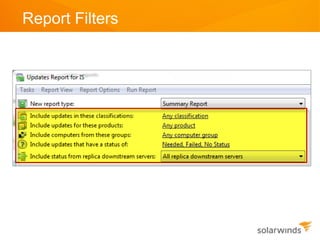
Report Filters

 Update Classifications
 Product Categories
 Computer Target Groups
 Update Status
 Include/Exclude Replica Server Clients
 Approved Updates
Report Filters
Report Filters
Report Filters
Report Filters
Report Filters
Report Filters
Report Filters
Report Layout
Status Summary
Report Layout
Status Summary – Navigation Pane (Updates Report)
Report Layout

Status Summary – Navigation Pane (Computers Report)
Report Layout

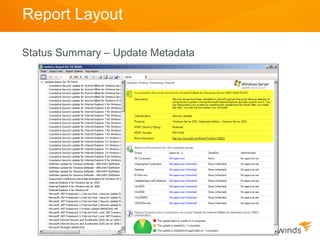
Status Summary – Update Metadata
Report Layout
Status Summary – Approval Summary (For selected
groups)
Report Layout

Status Summary – Summary Status (For selected updates)
Report Layout

Status Summary – Computer Information
Report Layout
Status Summary – Summary Status (For selected
computers)
Report Layout

Detailed Status

 Two page report
   » Page 1: Summary Status page
      • Same page as Summary Status report

   » Page 2: Detailed Status report
      • For Updates Report: a detailed listing by computer name for each
        update

      • For Computers Report: a detailed listing by update for each
        computer
Report Layout

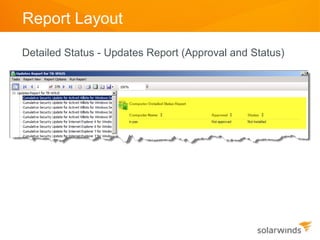
Detailed Status - Updates Report (Approval and Status)


                                                   - View 1 -
Report Layout

Detailed Status - Updates Report (Approval and Status)


                                                   - View 2 -
Report Layout

Detailed Status – Computers Report (Approval and Status)
Report Layout

 Tabular Status

 Provides counts for:
    » Needed

    » Installed/Not Applicable

    » Failed

    » Not Status

    » Updates presented are based on the filtering criteria selected in
      Report Options

 All four columns of counts are always presented
Report Layout
Tabular Status – Updates Report


                                  - View 1 -
Report Layout

Tabular Status – Updates Report


                                  - View 2 -
Report Layout

Tabular Status – Computers Report
Report Layout

Approved Updates – Updates Report (Group: All Computers)
Report Layout

Approved Updates – Updates Report (Group: Desktop)
Report Layout

Approved Updates – Computers Report (Group: All Computers)
Report Layout

Approved Updates – Computers Report (Group: Desktop)
Report Layout

Approved Updates – Change to Summary Report
Report Layout

Approved Updates – Change to Detailed Report
Report Layout
Approved Updates – Computer Report (Group: Desktop, for all
updates)
Report Layout

Detailed Status – Hyperlinks (Updates)
Report Layout

Detailed Status – Hyperlinks (Computers)
Report Layout

Detailed Status – Hyperlinks (Approval State)
Report Layout

Detailed Status – Hyperlinks (Installation Status)
Report Layout

Running Update Detailed Status Report from Updates List
Report Layout

Running Computer Detailed Status Report from Computer List
Synchronization & Custom Reporting
 Synchronization Reports
 Custom Reporting
   » Components required to use custom reporting
   » Connecting SQL Server® Management Studio to the WSUS
     database
   » A tour through the views available for reporting
Synchronization Report
 Selected for specified date or date range

 Report provides:
    » Number of New, Revised, and Expired Updates

    » Listing of New, Revised, and Expired Updates

    » Hyperlinks from Updates to Update Status Report

 Approvals can be created from hyperlinks in the Update
  Status Report
Synchronization Report

Report Options
Synchronization Report

Synchronization Summary
Synchronization Report

New/Revised/Expired Updates


      Synchronization
       Report
Documentation- Custom Reporting
WSUS Operations Guide


    © 2012 Microsoft. Available at http://technet.microsoft.com/en-us/library/dd939891(WS.10).aspx.
Documentation – Custom Reporting
WSUS Operations Guide


   © 2012 Microsoft. Available at http://msdn.microsoft.com/en-us/library/bb410149(VS.85).aspx.
Requirements
To do custom reporting
 Have query capability to WSUS database
    » SQL Server Management Studio

 Understand how to use PUBLIC_VIEWS
    » Basic knowledge of T-SQL and SQL Server

 Install and use Report Builder 2.0
    » Visual Studio 2008 also has these tools

 Deploy SQL Server Reporting Services
    » SSRS is available in SQL Express Advanced Services
Connectivity

To the WSUS Database

 SQL Server (Workgroup/Standard/Enterprise)
   » SQL Server Management Studio

 Windows® Internal Database
   » SQLCMD.exe or SQL Server Management Studio Express

   » Named Pipes
      • .pipeMSSQL$MICROSOFT##SSEEsqlquery

   » Local ONLY

 SQL Server Express Edition?? (EMail me!)
Tools

SQL Server Management Studio Express


      Synchronization
       Report
Access

To the WSUS Public Views

 All public views are located in the PUBLIC_VIEWS
  namespace
 Local Administrators have access by default
 Read-only to the PublicViewAccess database role
 Additional users must be added to database role
Familiarity

     With the WSUS Public Views

PUBLIC_VIEWS.vCategory                  PUBLIC_VIEWS.vSupportedInventory

PUBLIC_VIEWS.vCategoryText              PUBLIC_VIEWS.vUpdate

PUBLIC_VIEWS.vClassification            PUBLIC_VIEWS.vUpdateAdditionalInfoUrl

PUBLIC_VIEWS.vClassificationText        PUBLIC_VIEWS.vUpdateApproval

PUBLIC_VIEWS.vComputerGroupMembership   PUBLIC_VIEWS.vUpdateEffectiveApprovalPerComputer

PUBLIC_VIEWS.vComputerInventory         PUBLIC_VIEWS.vUpdateInCategory

PUBLIC_VIEWS.vComputerTarget            PUBLIC_VIEWS.vUpdateInstallationInfo

PUBLIC_VIEWS.vComputerTargetGroup       PUBLIC_VIEWS.vUpdateInstallationInfoBasic

PUBLIC_VIEWS.vDownstreamServer          PUBLIC_VIEWS.vUpdateText

PUBLIC_VIEWS.vLanguage                  PUBLIC_VIEWS.fnUpdateInstallationStateMap
Documentation - Views
WSUS Operations Guide


      © 2012 Microsoft. Available at: http://msdn.microsoft.com/en-us/library/bb410149(VS.85).aspx.
Code Example

 Update summaries for unassigned computers

The following query gets update summaries for all Security Updates
across all the computers in the Unassigned Computers group.
DECLARE @unassignedGroup uniqueidentifier
'B73CA6ED-5727-47F3-84DE-015E03F6A88A'

SELECT u.UpdateId, u.DefaultTitle, usc.State, COUNT(*)
FROM PUBLIC_VIEWS.vUpdate AS u
JOIN PUBLIC_VIEWS.vUpdateInstallationInfo AS usc
  ON u.UpdateId = usc.UpdateId
WHERE usc.ComputerTargetId IN (
        SELECT ComputerTargetId FROM PUBLIC_VIEWS.vComputerGroupMembership
        WHERE ComputerTargetGroupID = @unassignedGroup
        )
GROUP BY u.UpdateID, u.DefaultTitle, usc.State
Code Example

Update Summaries for unassigned computers (Results)
Building Custom Reports

for Publishing

 Report Builder 2.0
    » System Requirements
       • Desktop:
          » Windows XP® SP3
          » Windows Vista® SP1
          » Windows 7
       • Server:
          » Windows Server® 2003 SP2
          » Windows Server 2008
       • .NET Framework v3.5
Building Custom Reports

for Publishing
Building Custom Reports

for Publishing
 Report Builder 2.0
   » Product Information / Training / Download
      • http://www.microsoft.com/sqlserver/2008/en/us/report-b
Summary

 Update Reports

 Computer Reports

 Synchronization Report

 Custom Reporting
Helpful Resources
 Learn how to extend WSUS to report on      3rd
    party application patch compliance with
           SolarWinds Patch Manager


          Watch Video                        Test Drive Live Demo


       Ask Our Community                Download 30-day Free Trial


                  Click any of the links above


                              - Slide 62 -
Author: Lawrence Garvin, WSUS MVP


                                                Thank You!


     Feedback or Questions
Lawrence.Garvin@solarwinds.com

How-To: WSUS Reporting Made Easier