Window 7 Installation
As a technician you must be able to know the
variations or options in installing an operating
system that is compatible with the hardware
requirement of a personal computer. Another
operating system available in the market now is the
Windows 7 version. Now, take a tour through the
procedures in installing a Windows 7 operating
system. I believe, the procedures will be very easy
for you.
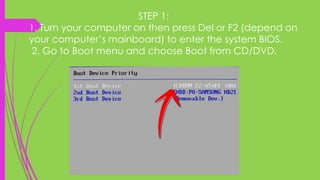
STEP 1:
1. Turn your computer on then press Del or F2 (depend on
your computer’s mainboard) to enter the system BIOS.
2. Go to Boot menu and choose Boot from CD/DVD.
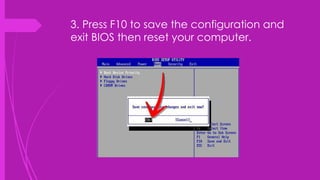
3. Press F10 to save the configuration and
exit BIOS then reset your computer.
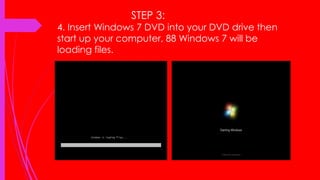
STEP 3:
4. Insert Windows 7 DVD into your DVD drive then
start up your computer, 88 Windows 7 will be
loading files.
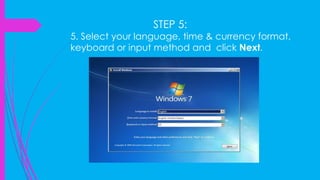
STEP 5:
5. Select your language, time & currency format,
keyboard or input method and click Next.
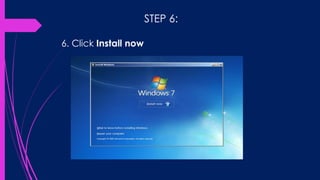
STEP 6:
6. Click Install now
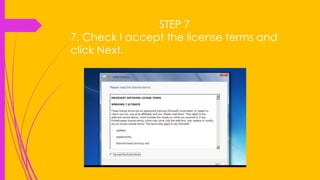
STEP 7
7. Check I accept the license terms and
click Next.
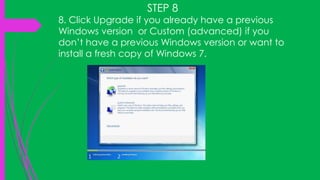
STEP 8
8. Click Upgrade if you already have a previous
Windows version or Custom (advanced) if you
don’t have a previous Windows version or want to
install a fresh copy of Windows 7.
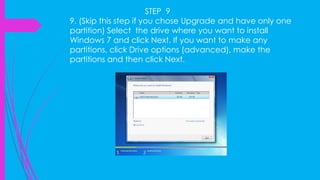
STEP 9
9. (Skip this step if you chose Upgrade and have only one
partition) Select the drive where you want to install
Windows 7 and click Next. If you want to make any
partitions, click Drive options (advanced), make the
partitions and then click Next.
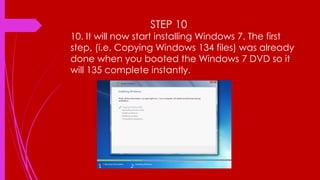
STEP 10
10. It will now start installing Windows 7. The first
step, (i.e. Copying Windows 134 files) was already
done when you booted the Windows 7 DVD so it
will 135 complete instantly.
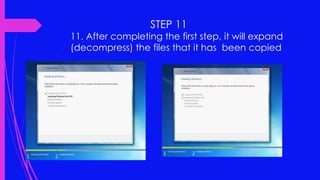
STEP 11
11. After completing the first step, it will expand
(decompress) the files that it has been copied
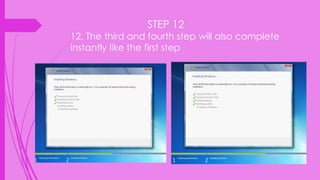
STEP 12
12. The third and fourth step will also complete
instantly like the first step
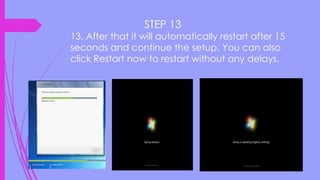
STEP 13
13. After that it will automatically restart after 15
seconds and continue the setup. You can also
click Restart now to restart without any delays.
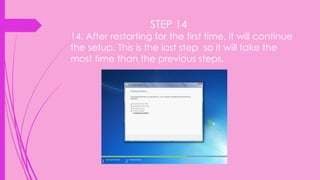
STEP 14
14. After restarting for the first time, it will continue
the setup. This is the last step so it will take the
most time than the previous steps.
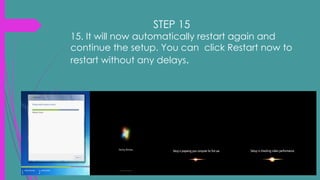
STEP 15
15. It will now automatically restart again and
continue the setup. You can click Restart now to
restart without any delays.
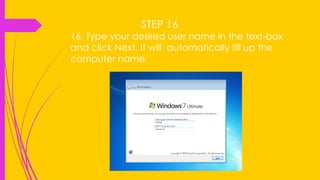
STEP 16
16. Type your desired user name in the text-box
and click Next. It will automatically fill up the
computer name.
STEP 17
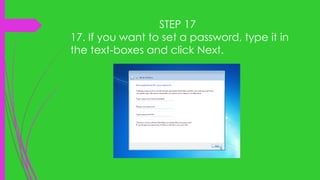
17. If you want to set a password, type it in
the text-boxes and click Next.
STEP 18
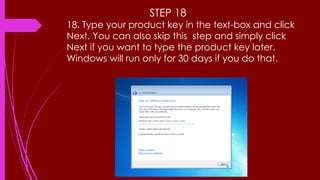
18. Type your product key in the text-box and click
Next. You can also skip this step and simply click
Next if you want to type the product key later.
Windows will run only for 30 days if you do that.
STEP 19
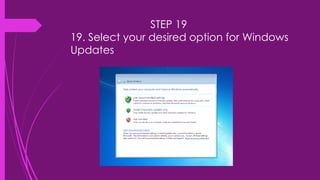
19. Select your desired option for Windows
Updates
STEP 20
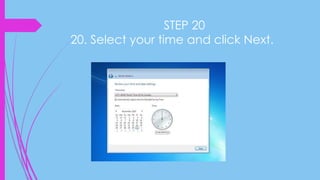
20. Select your time and click Next.
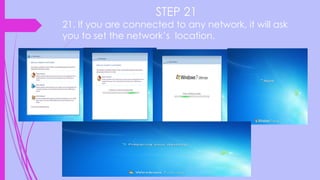
STEP 21
21. If you are connected to any network, it will ask
you to set the network’s location.

Activity no 1 cuadero

  • 1.
    Window 7 Installation Asa technician you must be able to know the variations or options in installing an operating system that is compatible with the hardware requirement of a personal computer. Another operating system available in the market now is the Windows 7 version. Now, take a tour through the procedures in installing a Windows 7 operating system. I believe, the procedures will be very easy for you.
  • 2.
    STEP 1: 1. Turnyour computer on then press Del or F2 (depend on your computer’s mainboard) to enter the system BIOS. 2. Go to Boot menu and choose Boot from CD/DVD.
  • 3.
    3. Press F10to save the configuration and exit BIOS then reset your computer.
  • 4.
    STEP 3: 4. InsertWindows 7 DVD into your DVD drive then start up your computer, 88 Windows 7 will be loading files.
  • 5.
    STEP 5: 5. Selectyour language, time & currency format, keyboard or input method and click Next.
  • 6.
    STEP 6: 6. ClickInstall now
  • 7.
    STEP 7 7. CheckI accept the license terms and click Next.
  • 8.
    STEP 8 8. ClickUpgrade if you already have a previous Windows version or Custom (advanced) if you don’t have a previous Windows version or want to install a fresh copy of Windows 7.
  • 9.
    STEP 9 9. (Skipthis step if you chose Upgrade and have only one partition) Select the drive where you want to install Windows 7 and click Next. If you want to make any partitions, click Drive options (advanced), make the partitions and then click Next.
  • 10.
    STEP 10 10. Itwill now start installing Windows 7. The first step, (i.e. Copying Windows 134 files) was already done when you booted the Windows 7 DVD so it will 135 complete instantly.
  • 11.
    STEP 11 11. Aftercompleting the first step, it will expand (decompress) the files that it has been copied
  • 12.
    STEP 12 12. Thethird and fourth step will also complete instantly like the first step
  • 13.
    STEP 13 13. Afterthat it will automatically restart after 15 seconds and continue the setup. You can also click Restart now to restart without any delays.
  • 14.
    STEP 14 14. Afterrestarting for the first time, it will continue the setup. This is the last step so it will take the most time than the previous steps.
  • 15.
    STEP 15 15. Itwill now automatically restart again and continue the setup. You can click Restart now to restart without any delays.
  • 16.
    STEP 16 16. Typeyour desired user name in the text-box and click Next. It will automatically fill up the computer name.
  • 17.
    STEP 17 17. Ifyou want to set a password, type it in the text-boxes and click Next.
  • 18.
    STEP 18 18. Typeyour product key in the text-box and click Next. You can also skip this step and simply click Next if you want to type the product key later. Windows will run only for 30 days if you do that.
  • 19.
    STEP 19 19. Selectyour desired option for Windows Updates
  • 20.
    STEP 20 20. Selectyour time and click Next.
  • 21.
    STEP 21 21. Ifyou are connected to any network, it will ask you to set the network’s location.