Good Afternoon
                 *Prepared by *
     Kiran H B| Axapta Technical Consultant
17/10/2012
                                 HBK
                                 VId:1.0


New in AXAPTA 2012


Microsoft Dynamics AX2012


     www.levtechconsulting.com
MICROSOFT DYNAMICS AX 2012
AGENDA:

 what’s new
 new features
 Comparison between
  AX2009 and AX2012
AX2012              System Requirement

Processor - Processor Speed of 1.1 GHz or higher
           (Ax2012 not support on Itanium 64bit Processor)
Ram      - 6 GB or more for Server computers
          4 GB for Client computers
Monitor - VGA1024*768 or higher resolution


Ax2012 can operate on IPV4 or IPV6 (bandwidth should be
100Mbps)


.
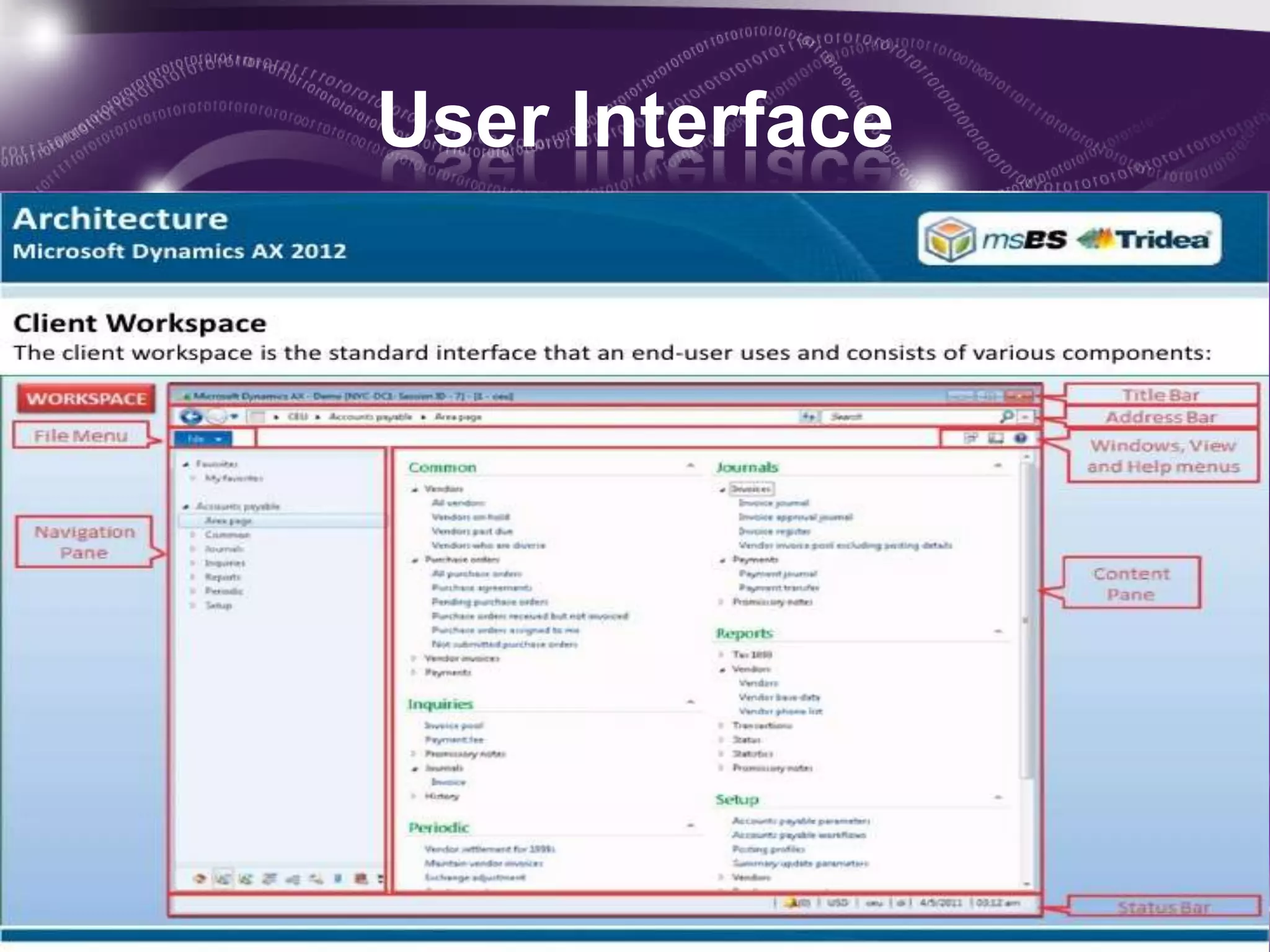
User Interface
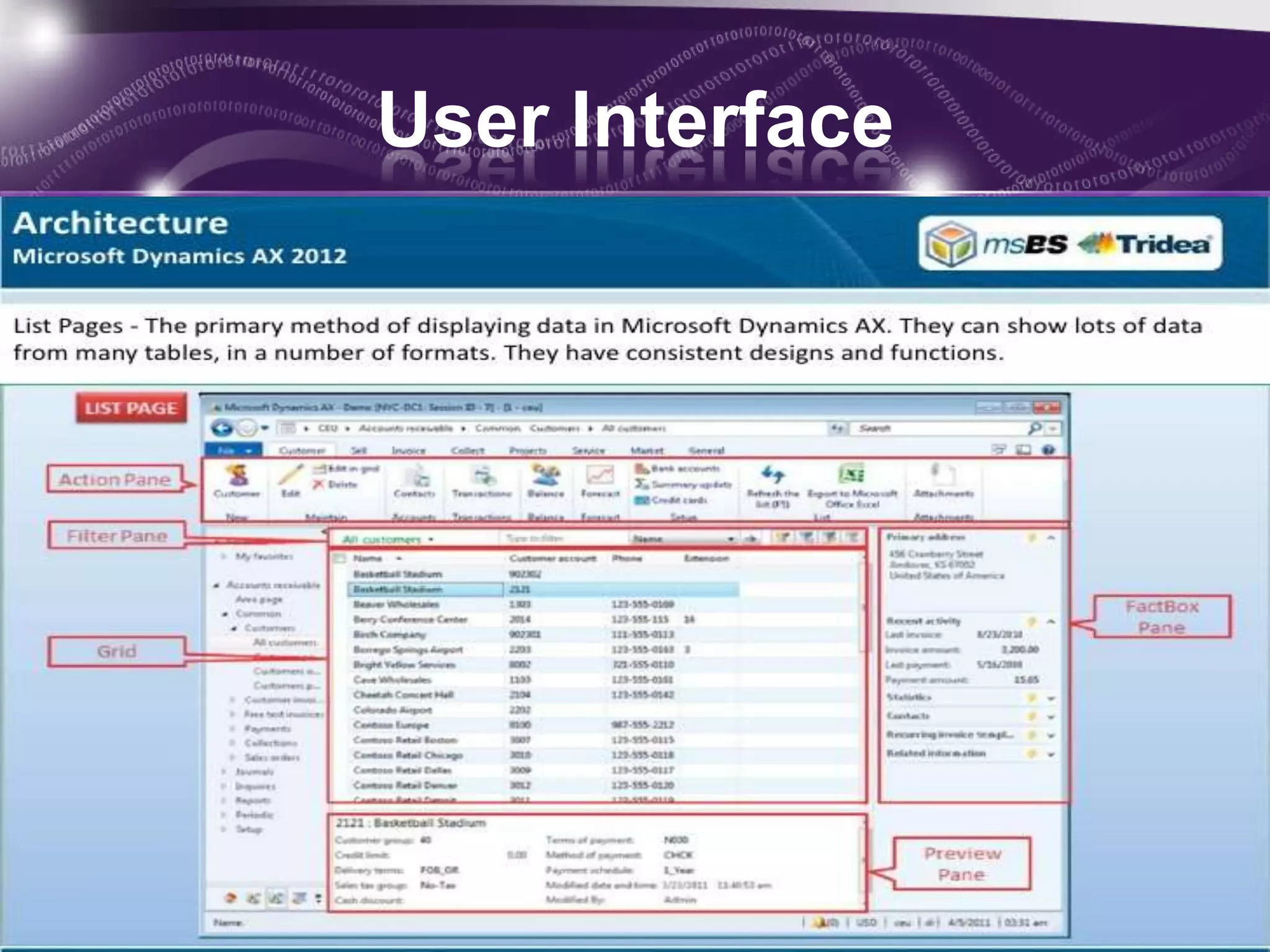
User Interface
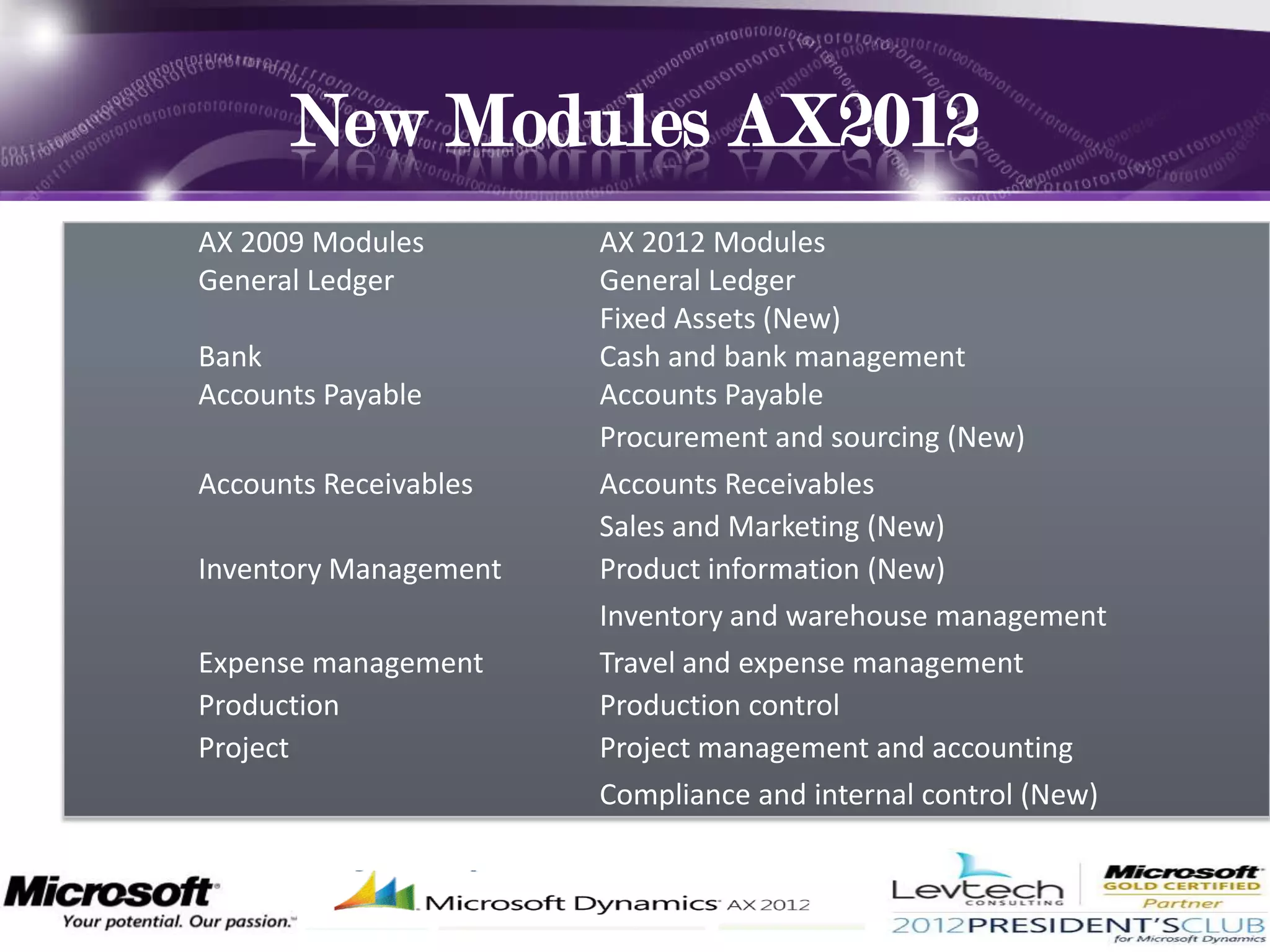
New Modules AX2012
    AX 2009 Modules        AX 2012 Modules
.   General Ledger         General Ledger
                           Fixed Assets (New)
    Bank                   Cash and bank management
    Accounts Payable       Accounts Payable
                           Procurement and sourcing (New)
    Accounts Receivables   Accounts Receivables
                           Sales and Marketing (New)
    Inventory Management   Product information (New)
                           Inventory and warehouse management
    Expense management     Travel and expense management
    Production             Production control
    Project                Project management and accounting
                           Compliance and internal control (New)
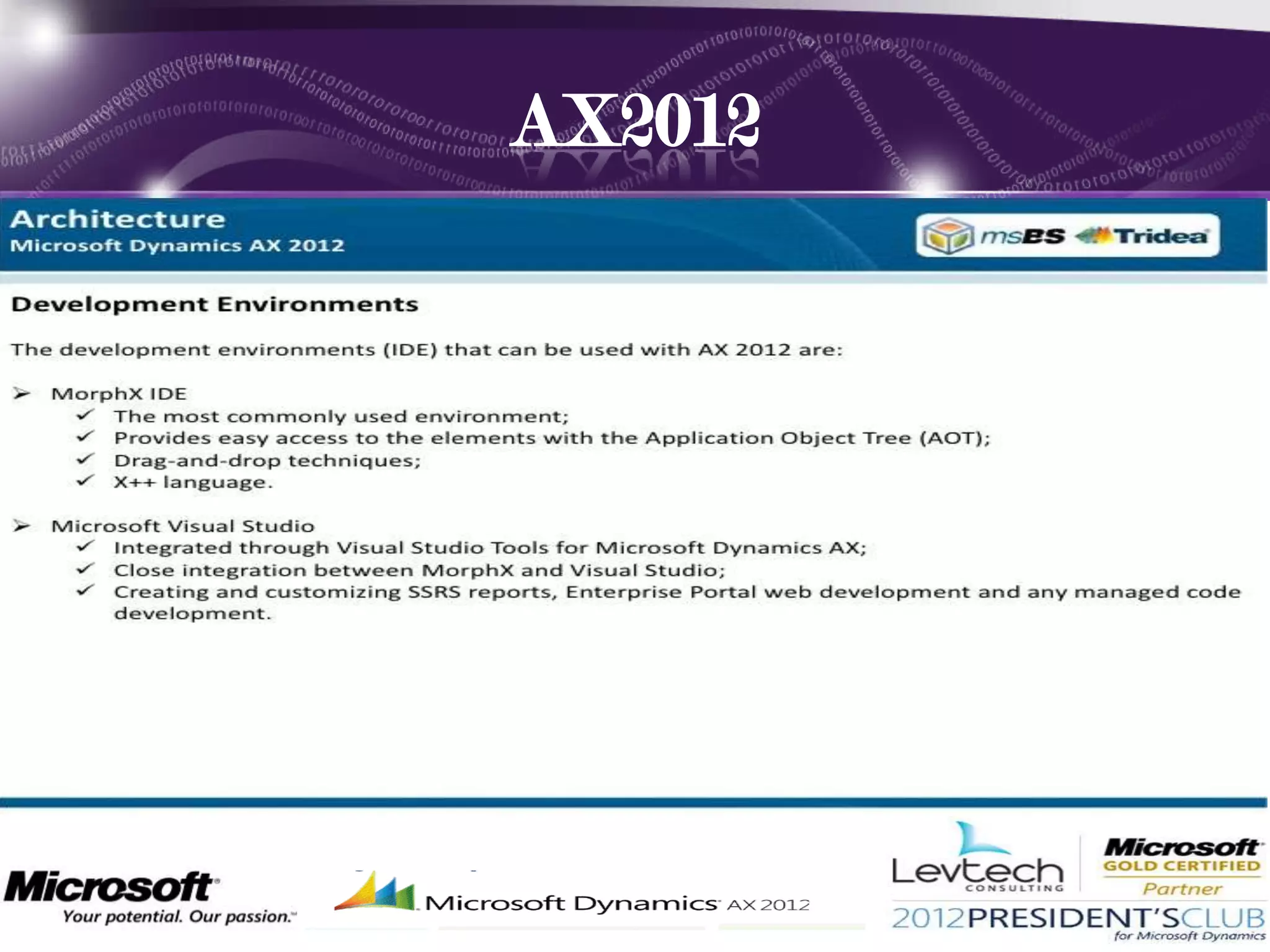
AX2012
• Click to add text
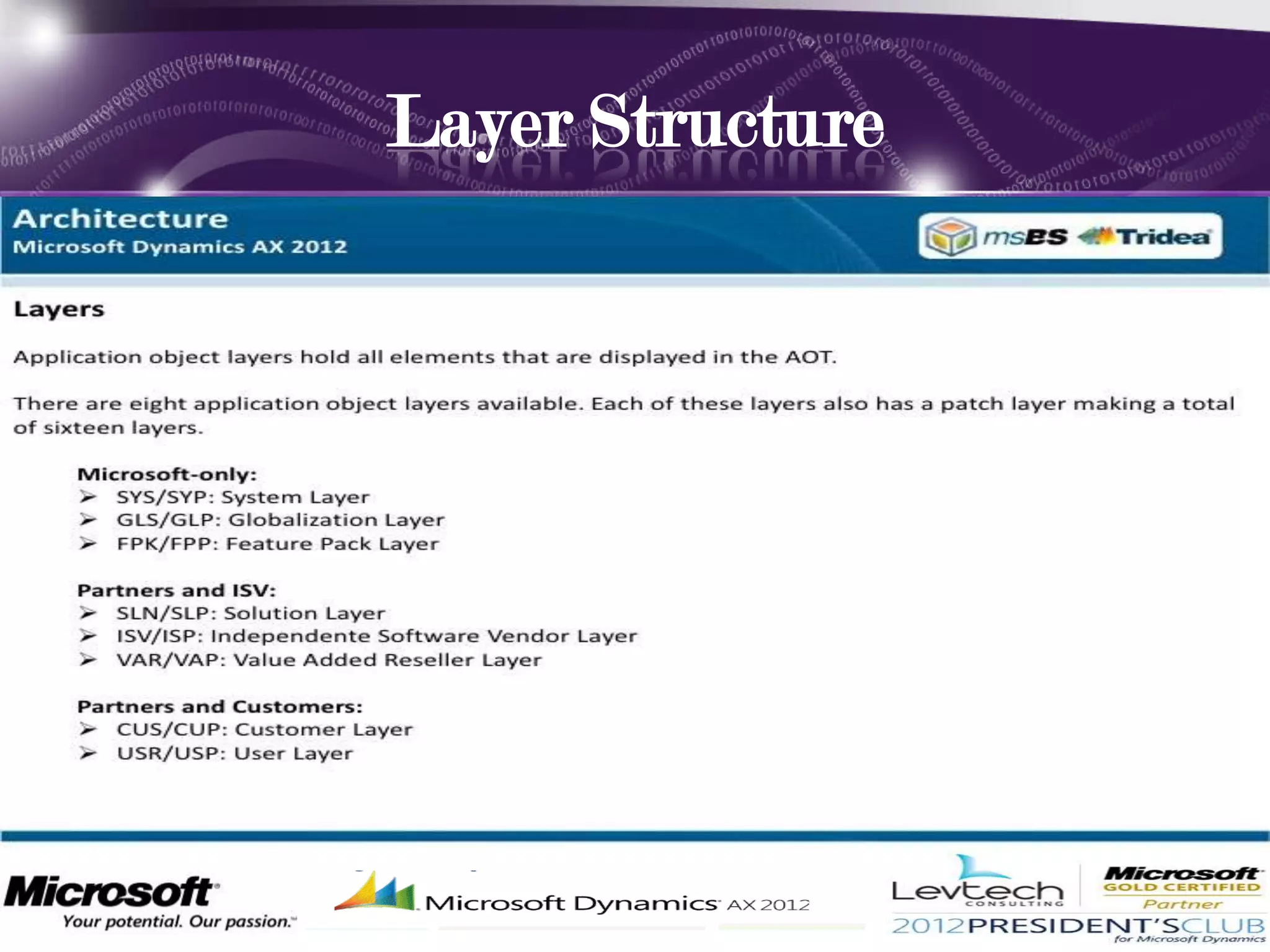
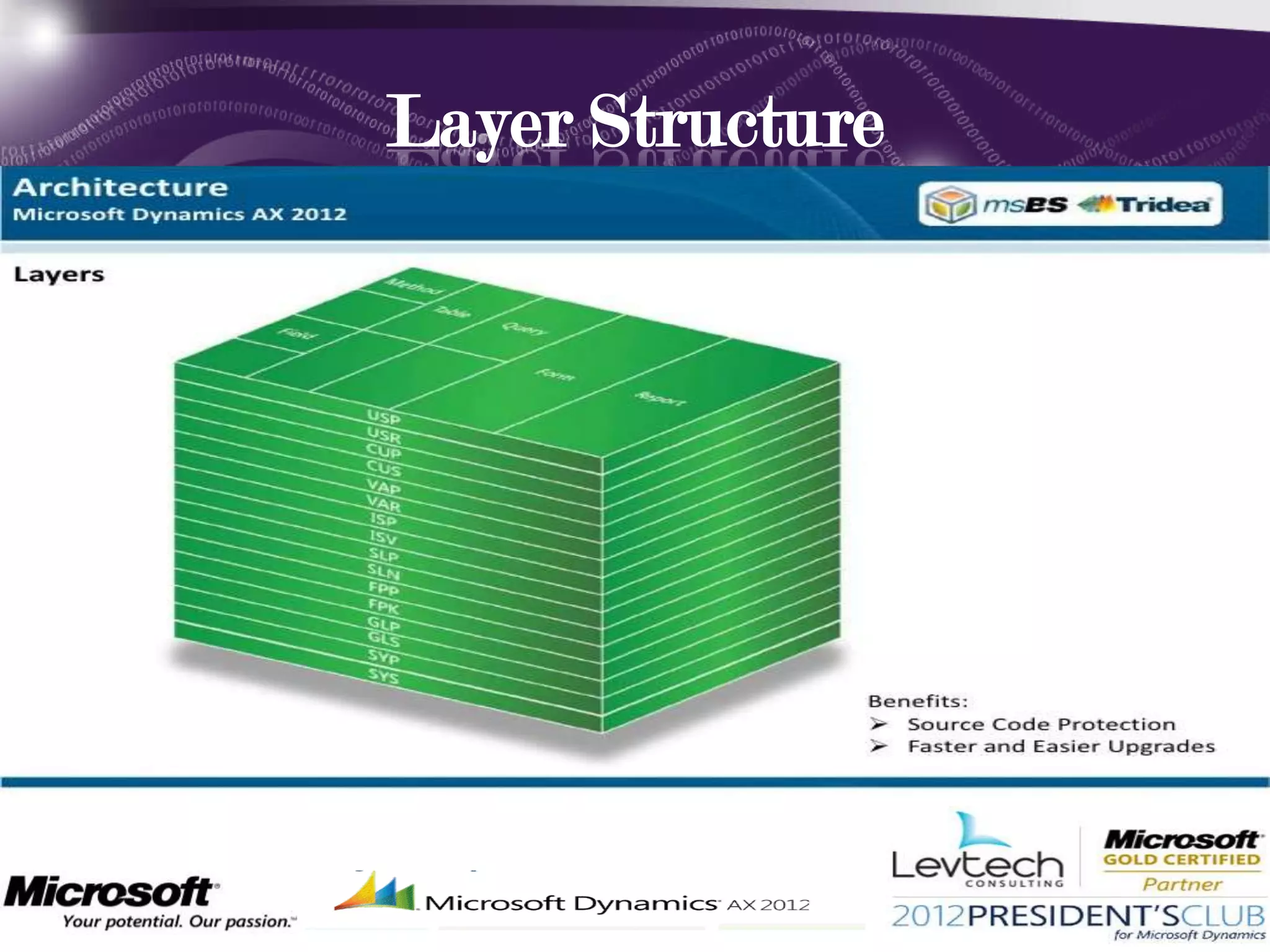
Layer Structure
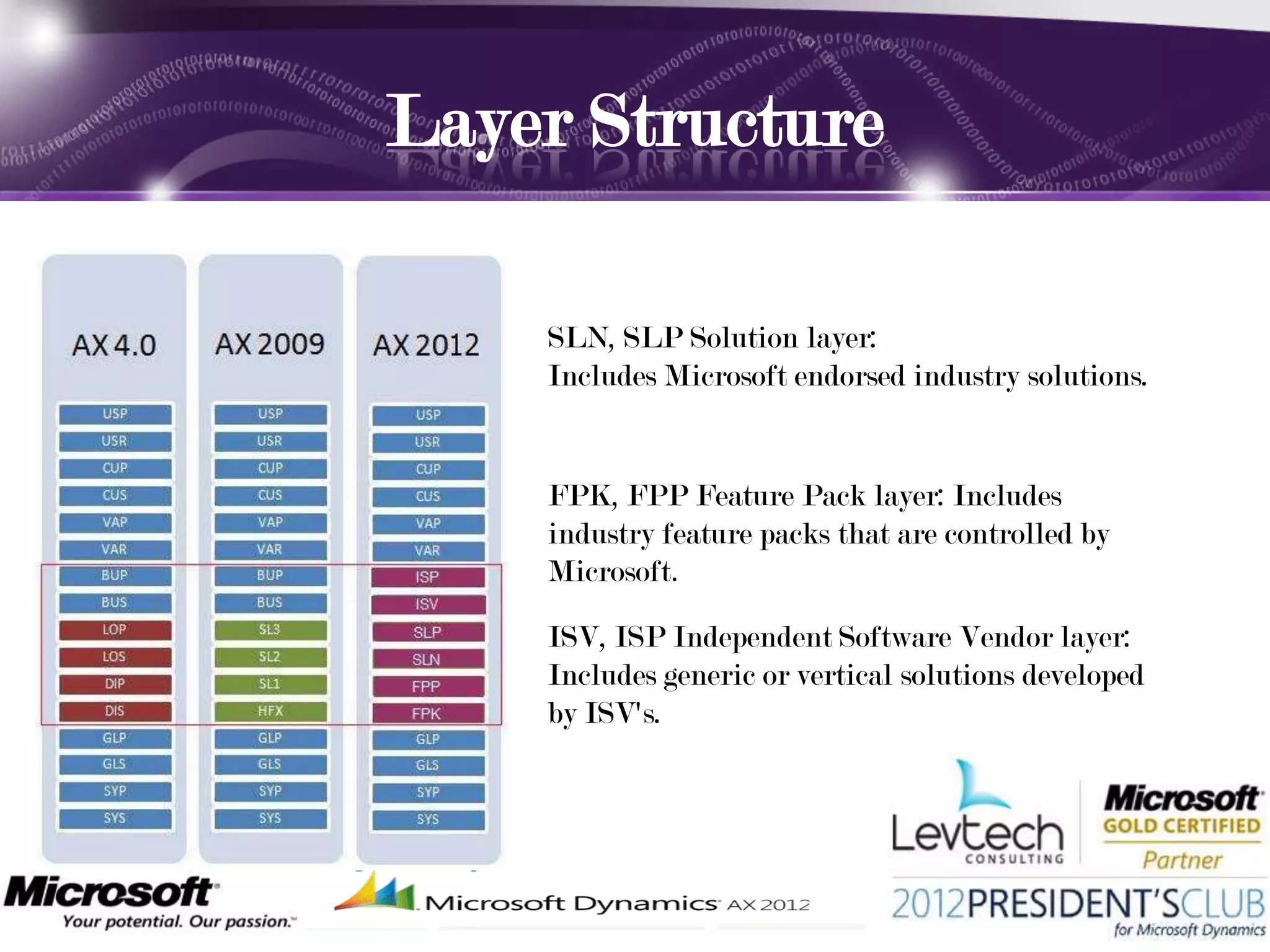
Layer Structure

    SLN, SLP Solution layer:
    Includes Microsoft endorsed industry solutions.


    FPK, FPP Feature Pack layer: Includes
    industry feature packs that are controlled by
    Microsoft.

    ISV, ISP Independent Software Vendor layer:
    Includes generic or vertical solutions developed
    by ISV's.
Layer Structure
• Click to add text
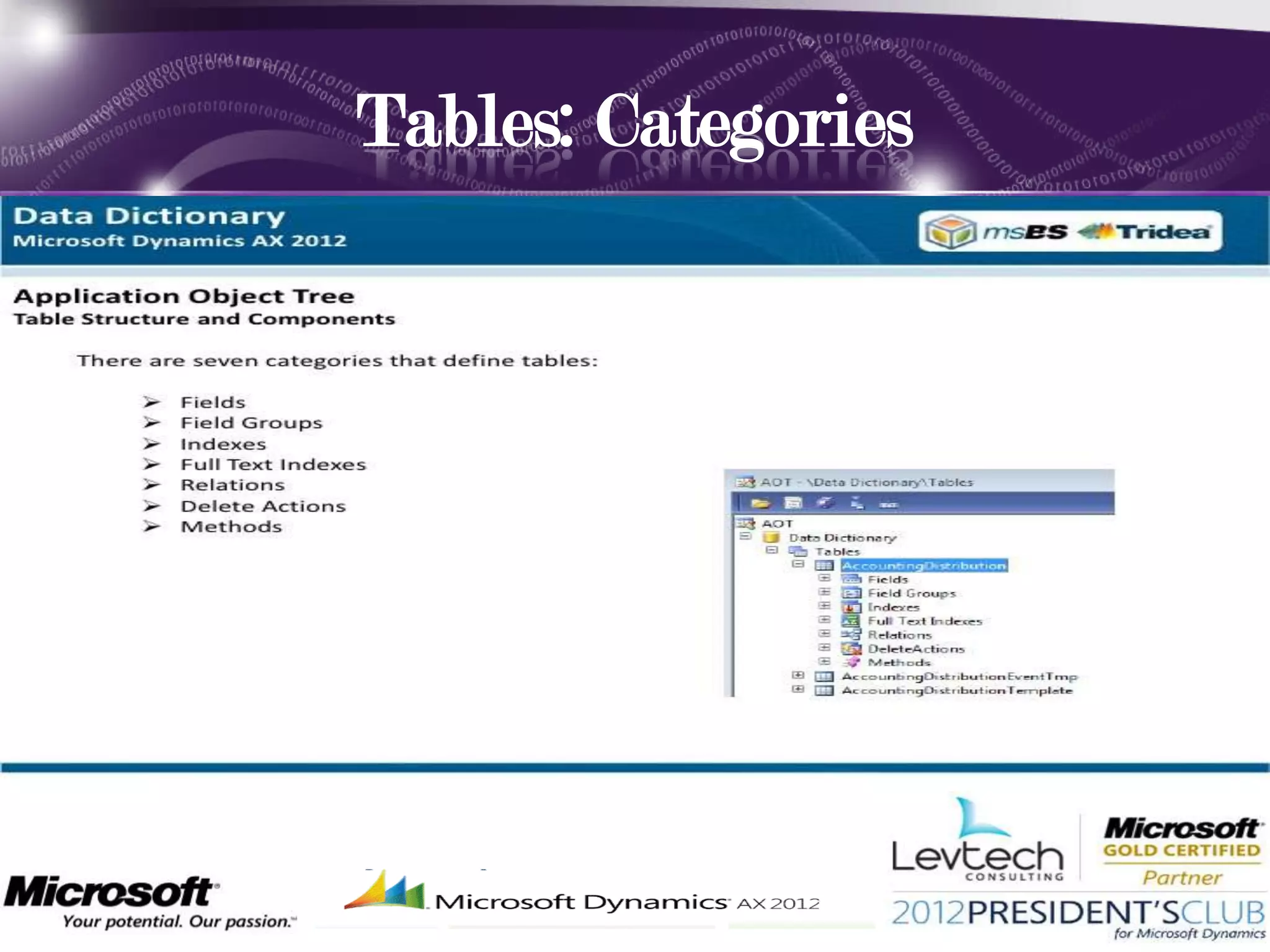
Tables: Categories
• Click to add text
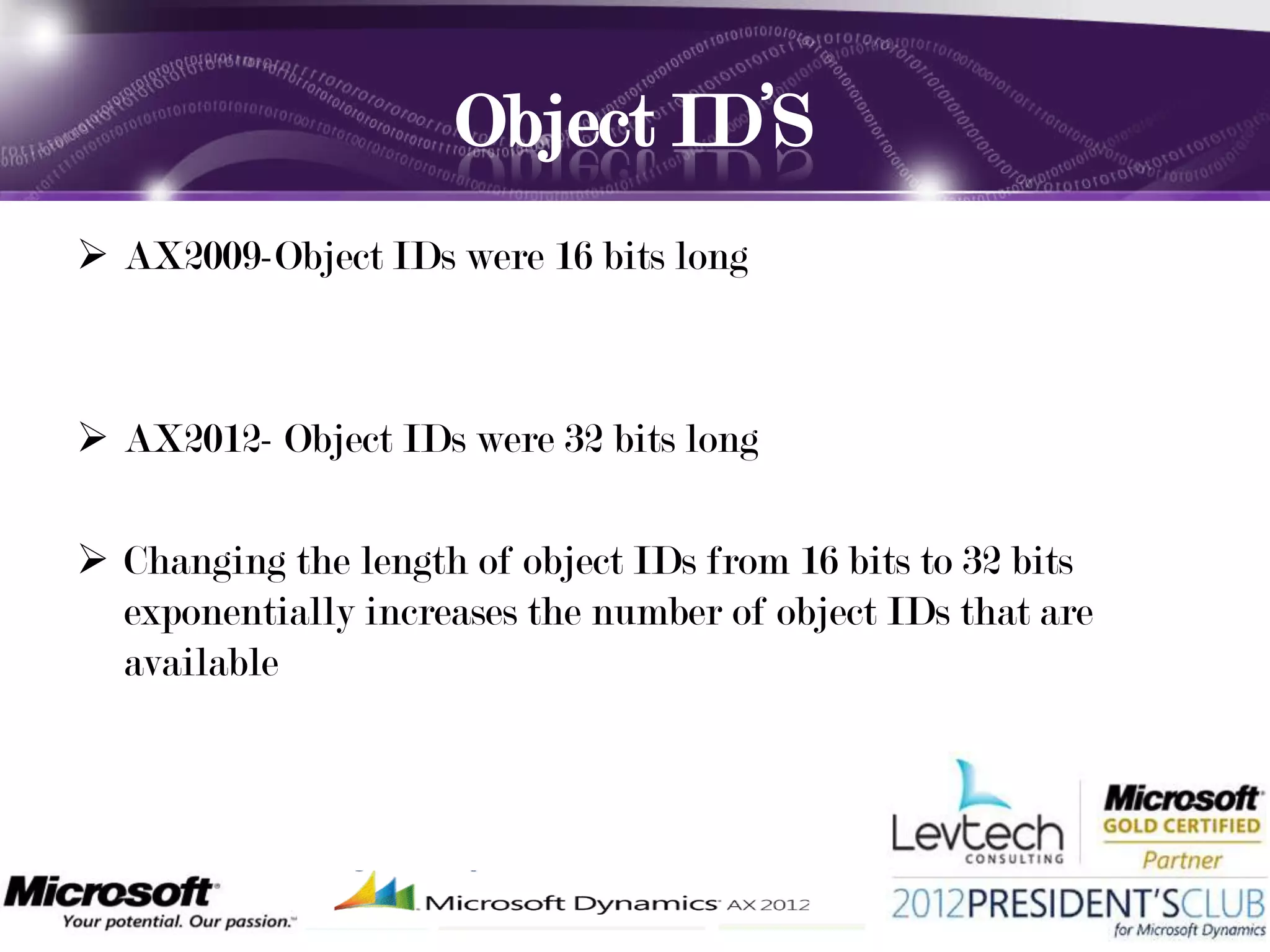
Object ID’S
 AX2009-Object IDs were 16 bits long


 AX2012- Object IDs were 32 bits long

 Changing the length of object IDs from 16 bits to 32 bits
  exponentially increases the number of object IDs that are
  available
how to delete a layer ?

           Axutill :command-line tool
     Axutil delete /layer:usr /db:MicrosoftDynamicsAx
•   The AxUtil Command-Line Utility and PowerShell Cmdlets
•   AxUtil is a command-line utility that you can use to import and export .axmodel files into the SQL
    Server model store. You can also use AxUtil to delete one or more models
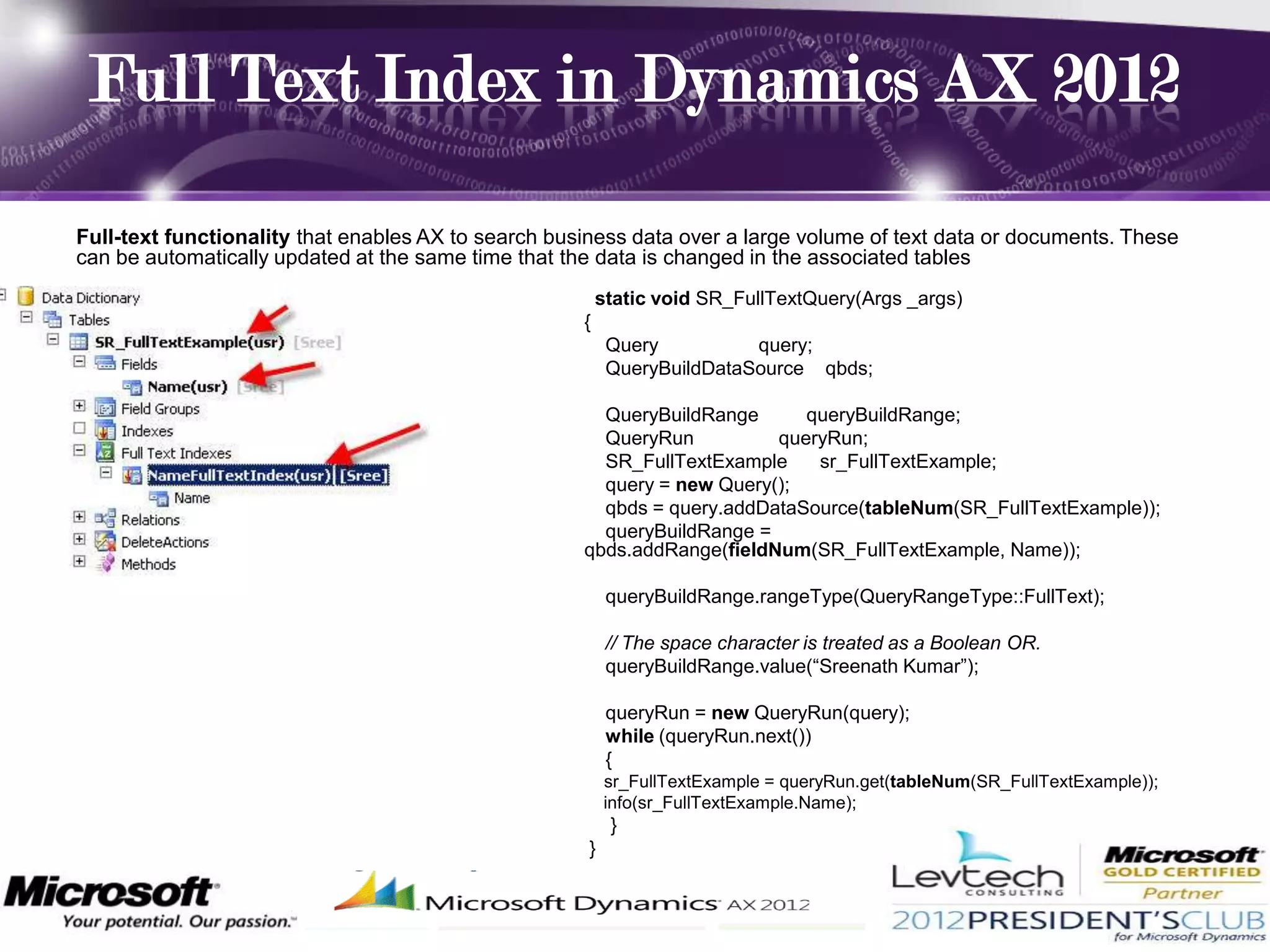
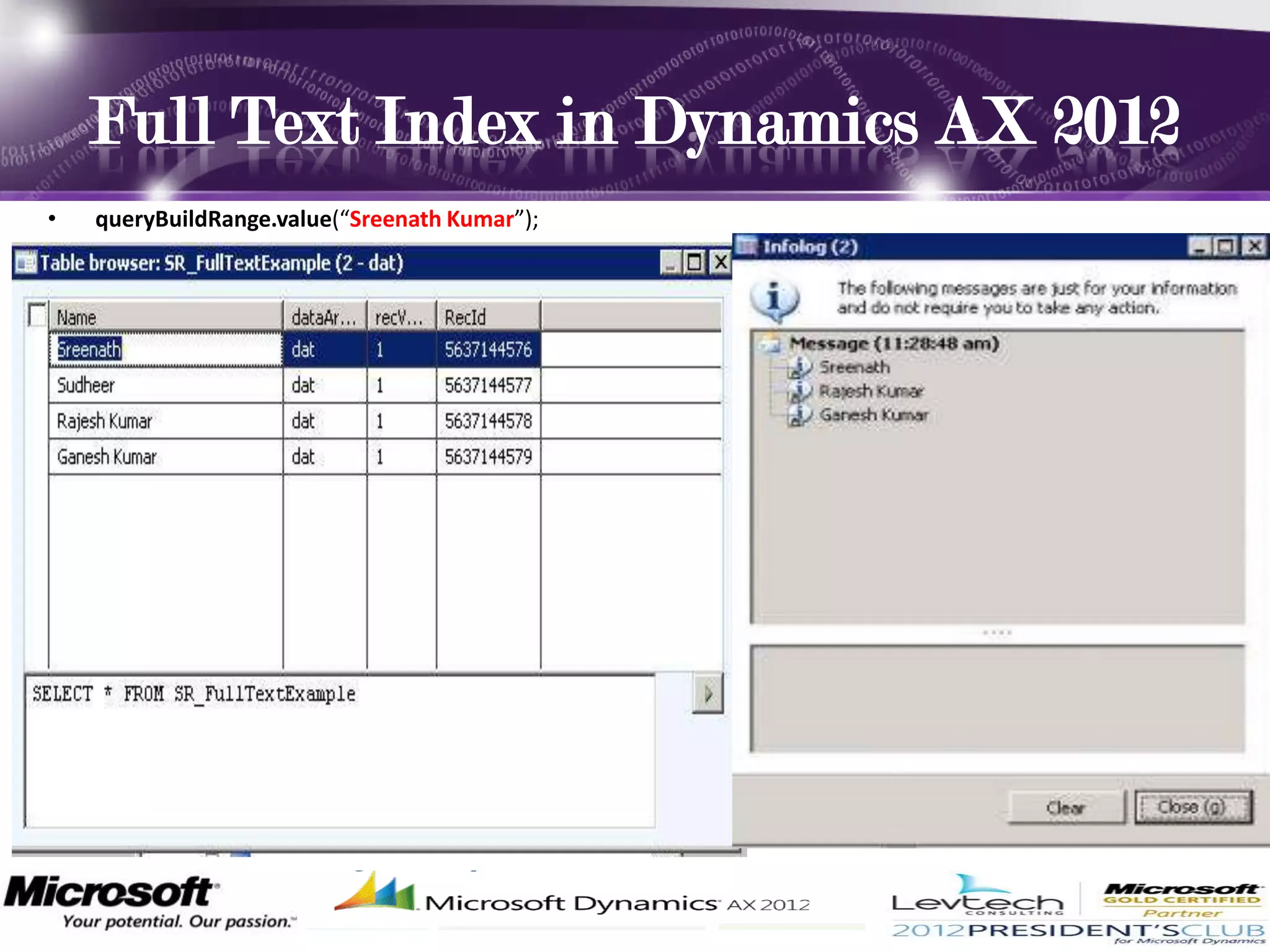
Full Text Index in Dynamics AX 2012

Full-text functionality that enables AX to search business data over a large volume of text data or documents. These
can be automatically updated at the same time that the data is changed in the associated tables
                                                         static void SR_FullTextQuery(Args _args)
                                                     {
                                                          Query          query;
                                                          QueryBuildDataSource qbds;

                                                       QueryBuildRange      queryBuildRange;
                                                       QueryRun          queryRun;
                                                       SR_FullTextExample    sr_FullTextExample;
                                                       query = new Query();
                                                       qbds = query.addDataSource(tableNum(SR_FullTextExample));
                                                       queryBuildRange =
                                                     qbds.addRange(fieldNum(SR_FullTextExample, Name));

                                                          queryBuildRange.rangeType(QueryRangeType::FullText);

                                                          // The space character is treated as a Boolean OR.
                                                          queryBuildRange.value(“Sreenath Kumar”);

                                                          queryRun = new QueryRun(query);
                                                          while (queryRun.next())
                                                          {
                                                         sr_FullTextExample = queryRun.get(tableNum(SR_FullTextExample));
                                                         info(sr_FullTextExample.Name);
                                                          }
                                                     }
Full Text Index in Dynamics AX 2012
•   queryBuildRange.value(“Sreenath Kumar”);
Parts
 .

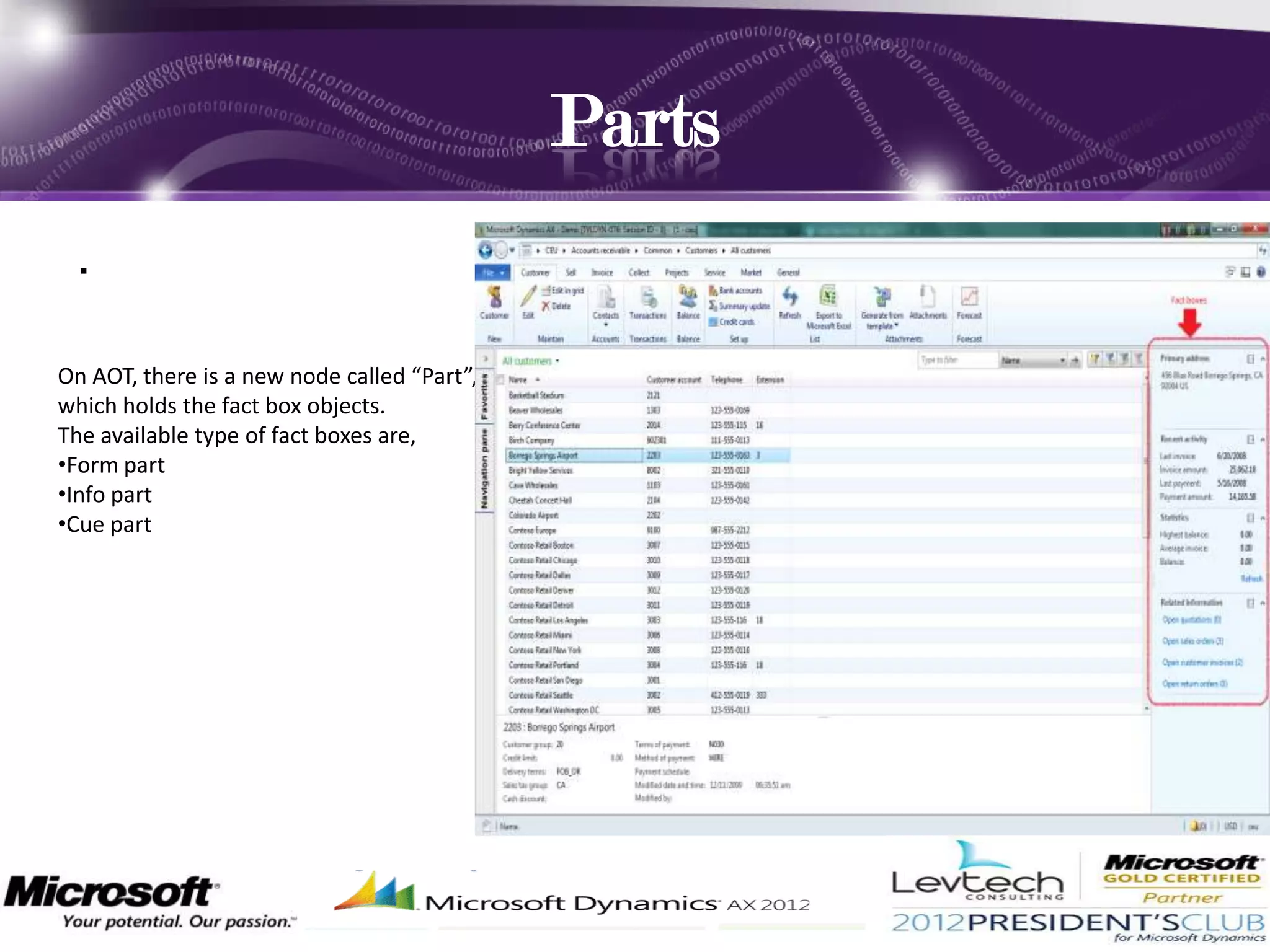
On AOT, there is a new node called “Part”,
which holds the fact box objects.
The available type of fact boxes are,
•Form part
•Info part
•Cue part
Surrogate keys in AX 2012

The surrogate key in database terms refers to a field that also uniquely
identifies a record, but isn't a natural selector. When looking at Ax, this is the
RecID.
A surrogate key is a system generated value that acts as the primary key of a
table. This value is typically used instead of a set of fields called the natural key
which would typically act as the primary key of a table. Microsoft Dynamics AX
2012 uses RecId as the surrogate key.
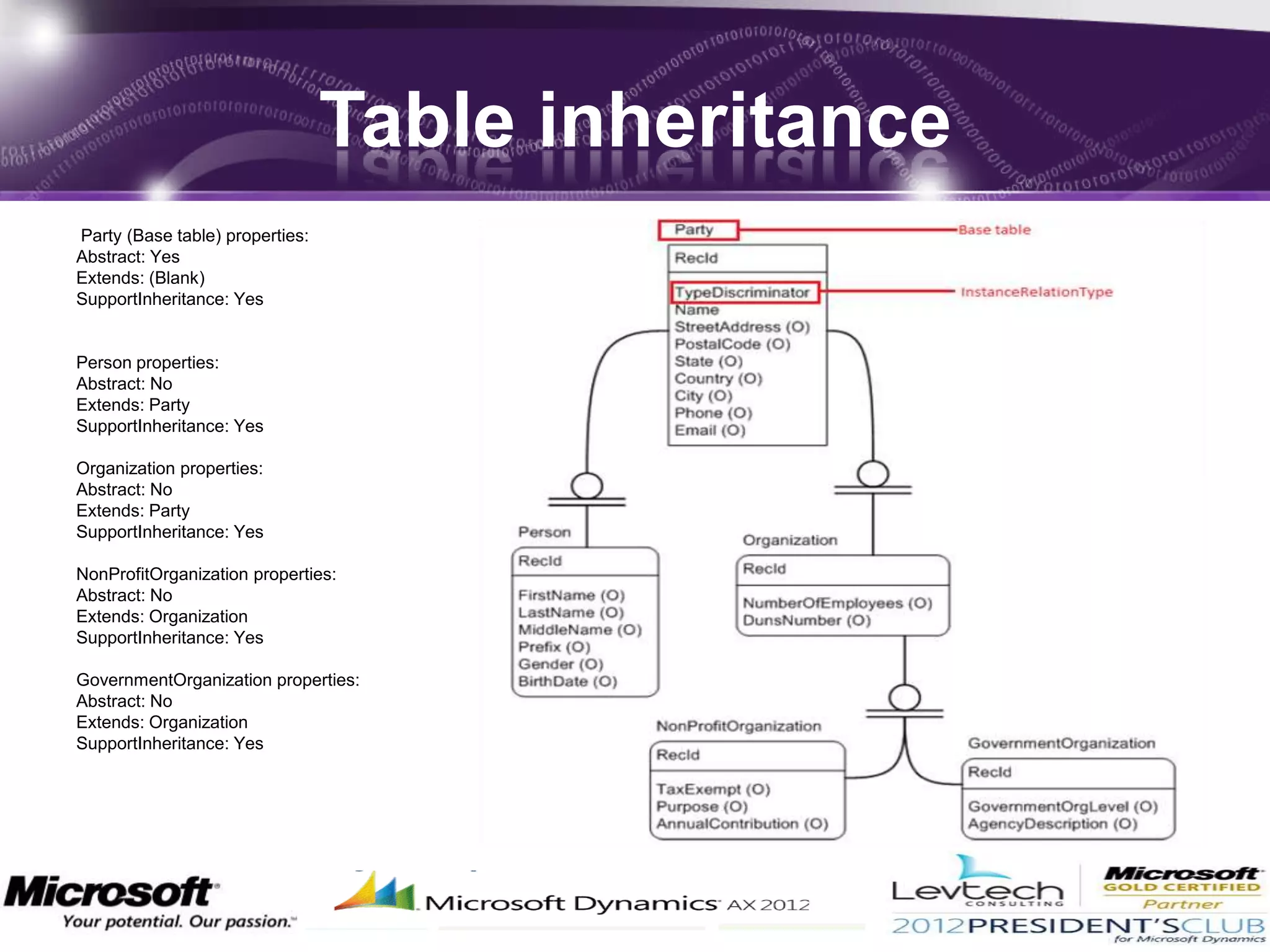
Table Inheritance- AX2012
No Table Inheritance –AX2009
Just as an X++ class can inherit from another class, a table can inherit from another
table. A table that inherits from the base table is called a derived table. the terms parent
table and child table are used to describe foreign key relationships, not inheritance
Table inheritance
Party (Base table) properties:
Abstract: Yes
Extends: (Blank)
SupportInheritance: Yes


Person properties:
Abstract: No
Extends: Party
SupportInheritance: Yes

Organization properties:
Abstract: No
Extends: Party
SupportInheritance: Yes

NonProfitOrganization properties:
Abstract: No
Extends: Organization
SupportInheritance: Yes

GovernmentOrganization properties:
Abstract: No
Extends: Organization
SupportInheritance: Yes
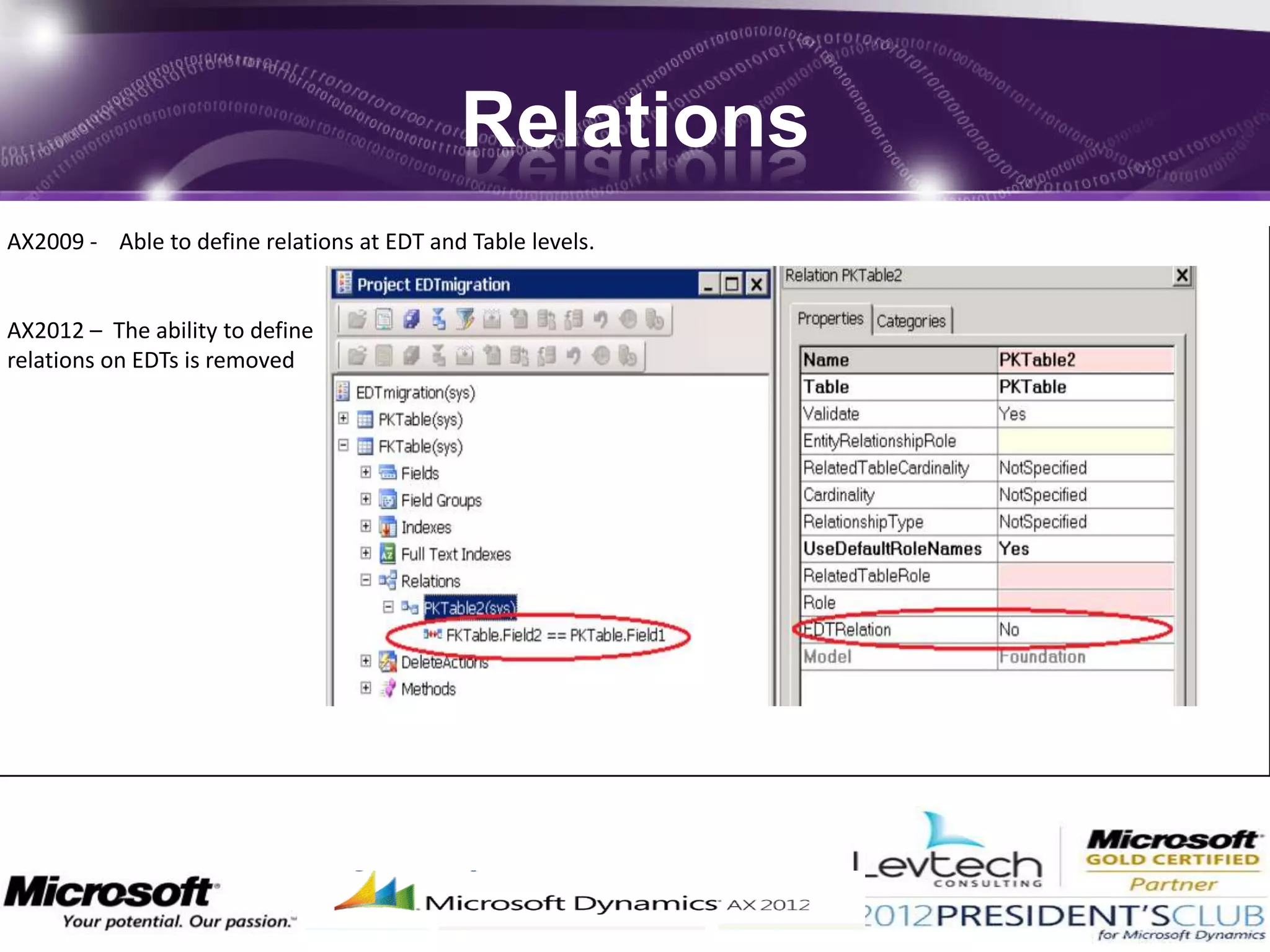
Relations
AX2009 - Able to define relations at EDT and Table levels.


AX2012 – The ability to define
relations on EDTs is removed
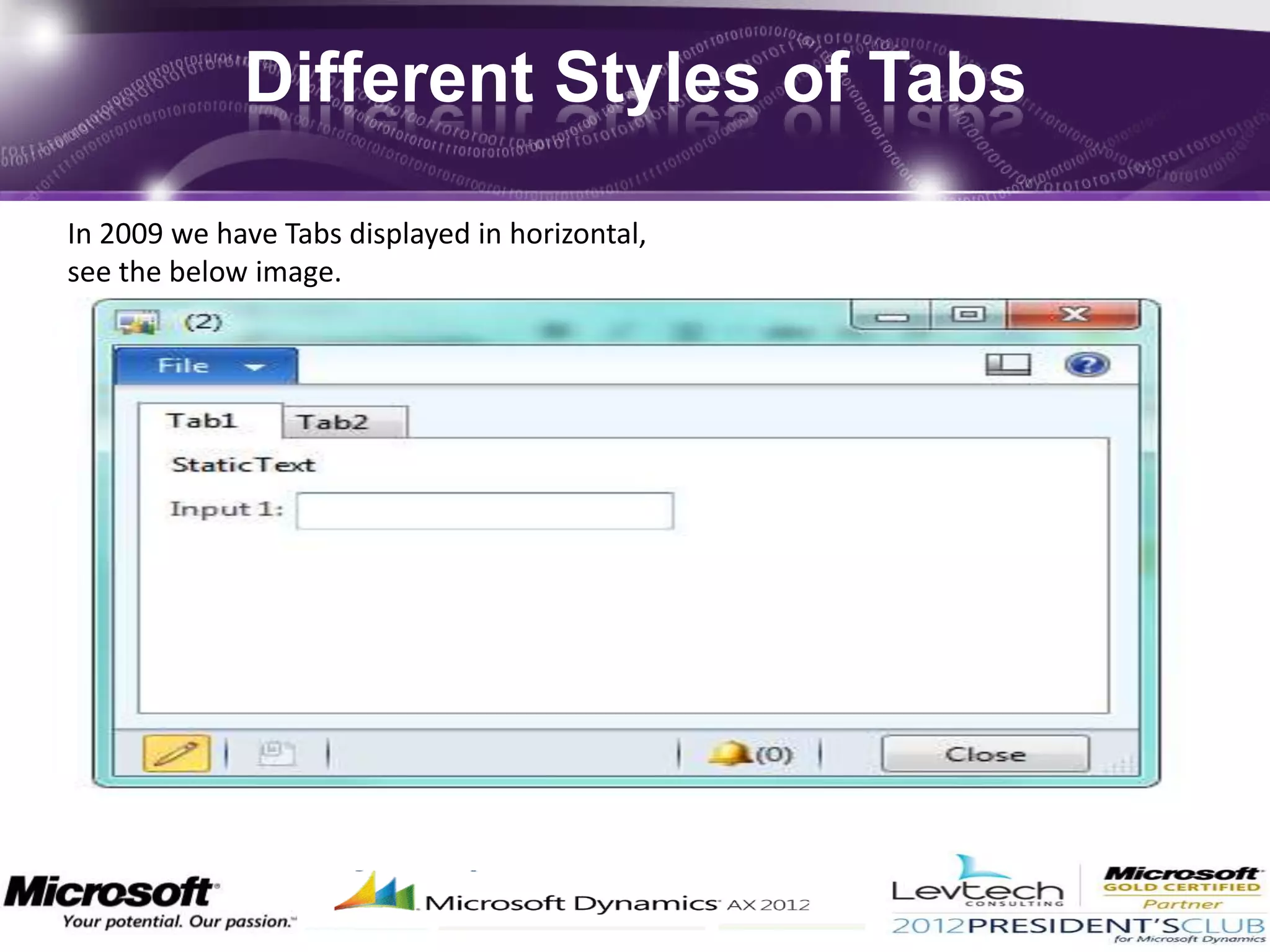
Different Styles of Tabs

In 2009 we have Tabs displayed in horizontal,
see the below image.
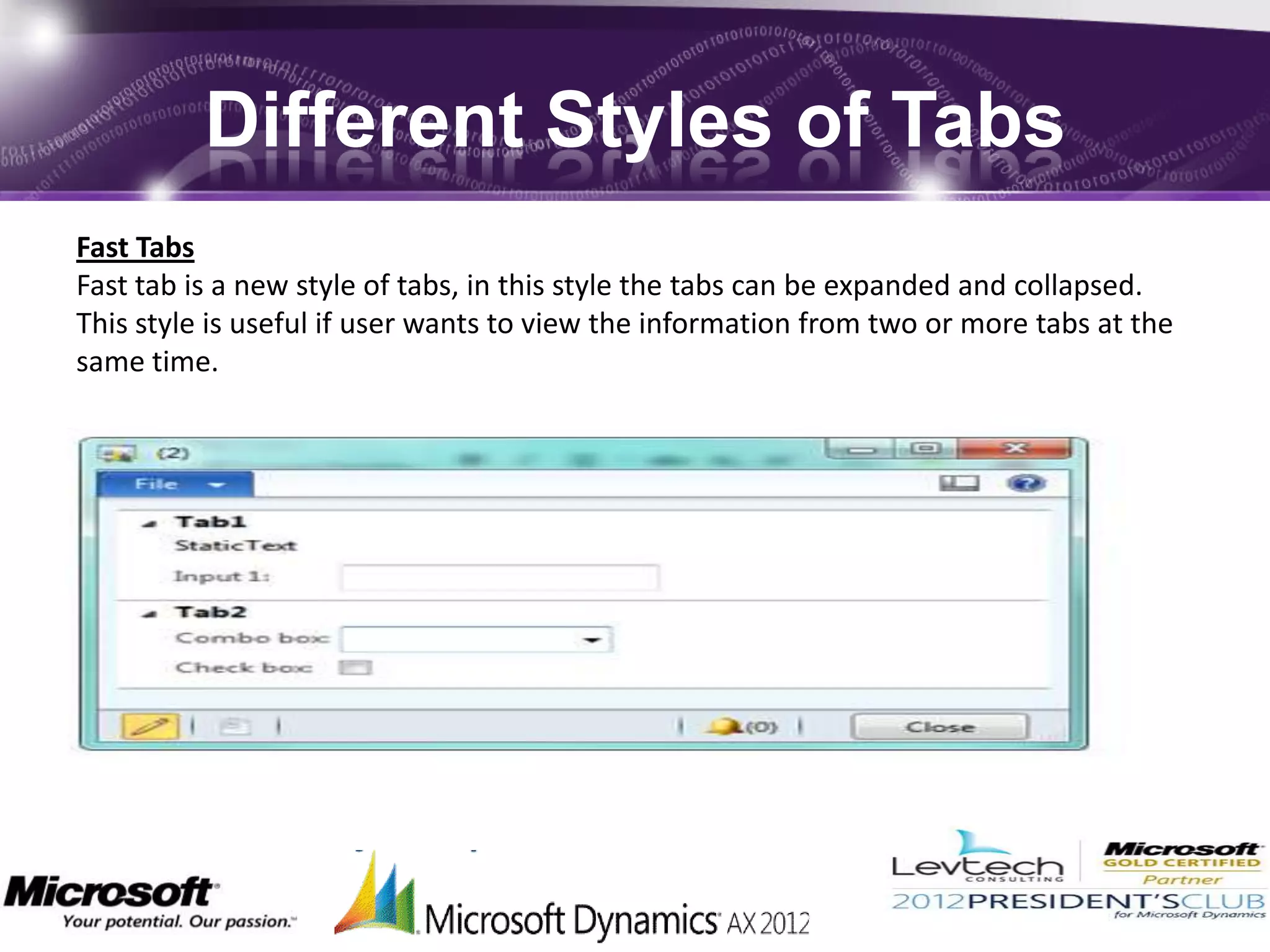
Different Styles of Tabs
Fast Tabs
Fast tab is a new style of tabs, in this style the tabs can be expanded and collapsed.
This style is useful if user wants to view the information from two or more tabs at the
same time.
Different Styles of Tabs
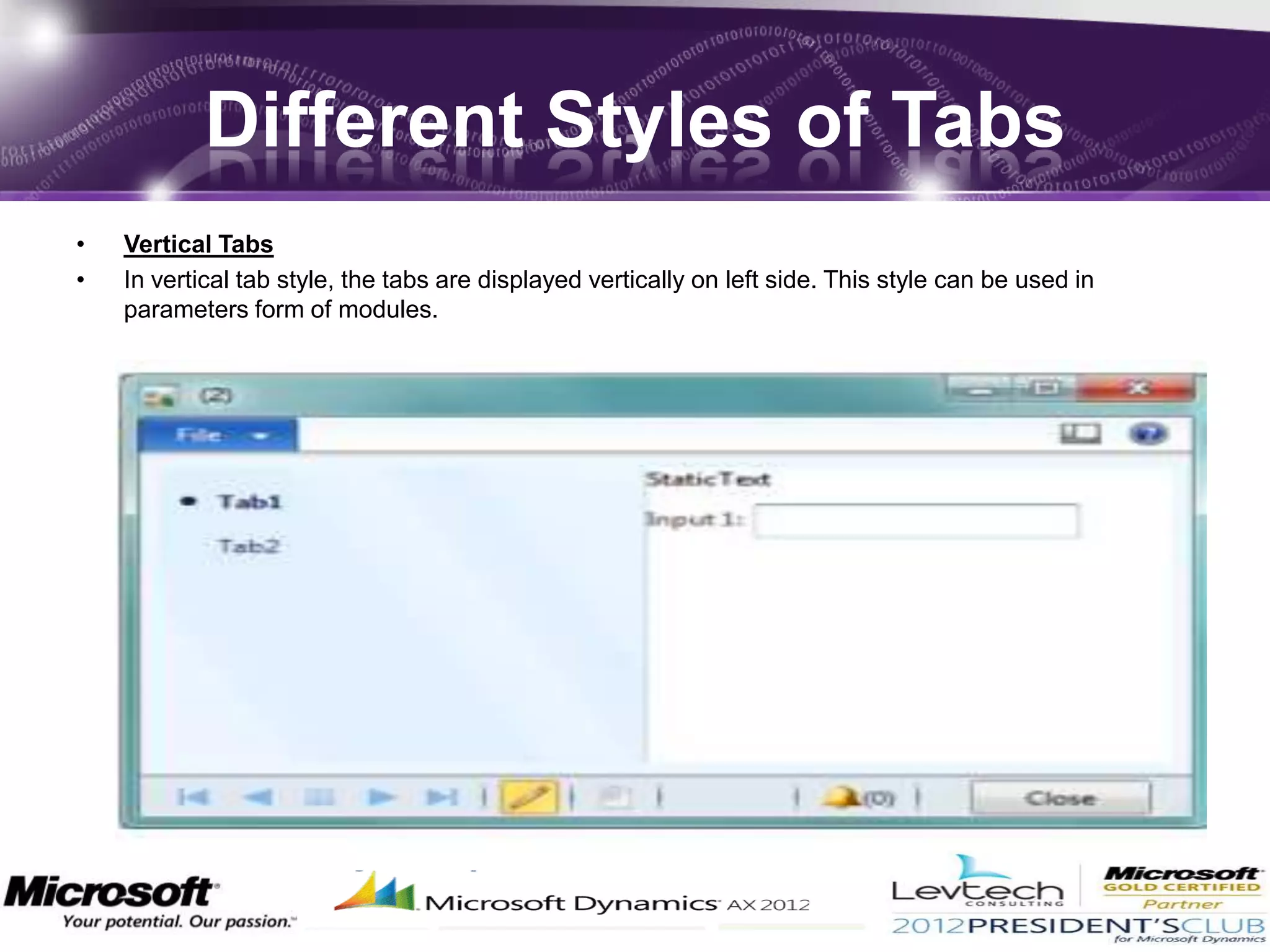
•   Vertical Tabs
•   In vertical tab style, the tabs are displayed vertically on left side. This style can be used in
    parameters form of modules.
Different Styles of Tabs
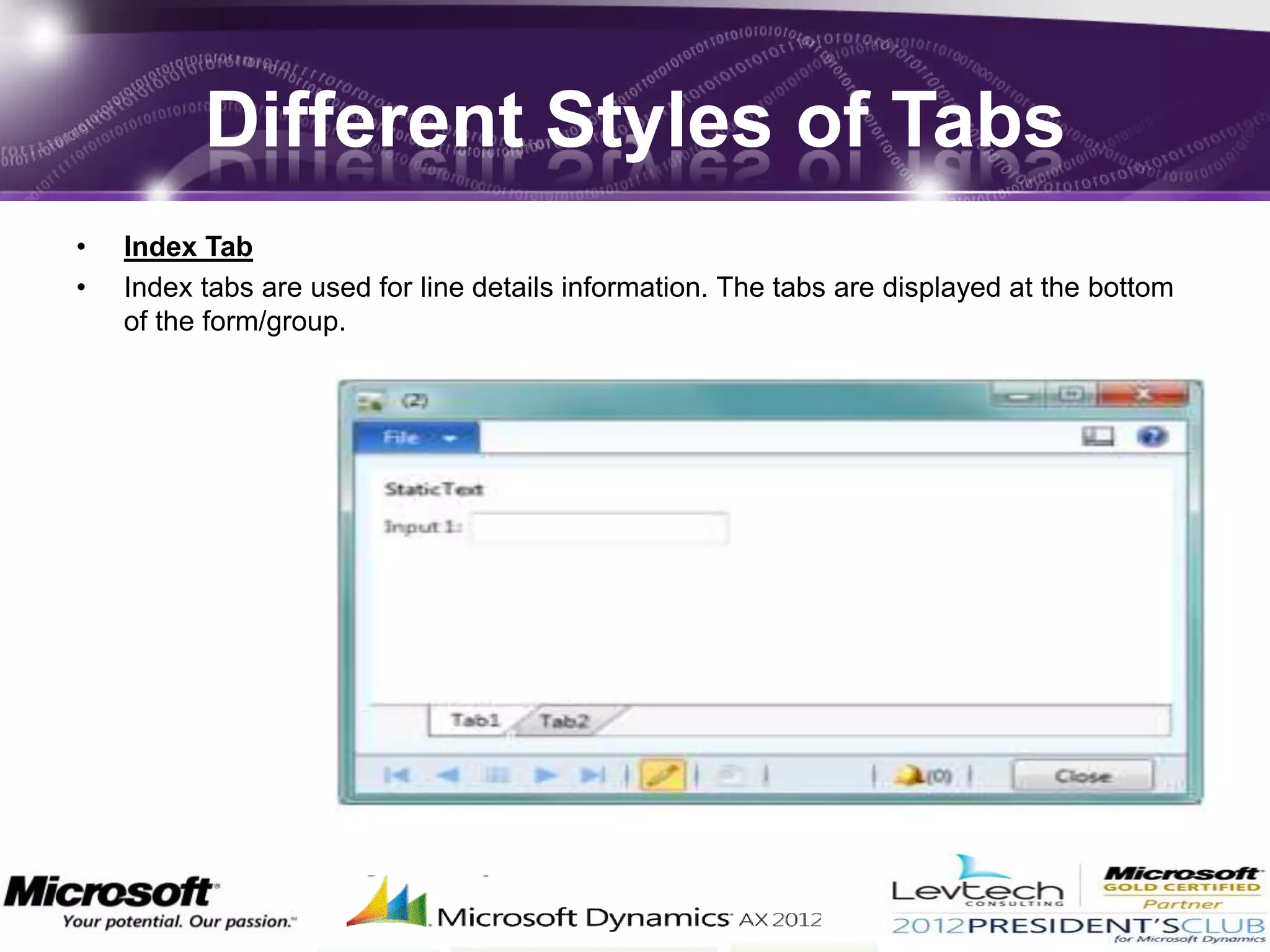
•   Index Tab
•   Index tabs are used for line details information. The tabs are displayed at the bottom
    of the form/group.
?’s
Please
Thank
 You

whats New in axapta 2012

  • 1.
    Good Afternoon *Prepared by * Kiran H B| Axapta Technical Consultant
  • 2.
    17/10/2012 HBK VId:1.0 New in AXAPTA 2012 Microsoft Dynamics AX2012 www.levtechconsulting.com
  • 3.
    MICROSOFT DYNAMICS AX2012 AGENDA:  what’s new  new features  Comparison between AX2009 and AX2012
  • 4.
    AX2012 System Requirement Processor - Processor Speed of 1.1 GHz or higher (Ax2012 not support on Itanium 64bit Processor) Ram - 6 GB or more for Server computers 4 GB for Client computers Monitor - VGA1024*768 or higher resolution Ax2012 can operate on IPV4 or IPV6 (bandwidth should be 100Mbps) .
  • 5.
  • 6.
  • 7.
    New Modules AX2012 AX 2009 Modules AX 2012 Modules . General Ledger General Ledger Fixed Assets (New) Bank Cash and bank management Accounts Payable Accounts Payable Procurement and sourcing (New) Accounts Receivables Accounts Receivables Sales and Marketing (New) Inventory Management Product information (New) Inventory and warehouse management Expense management Travel and expense management Production Production control Project Project management and accounting Compliance and internal control (New)
  • 8.
  • 9.
  • 10.
    Layer Structure SLN, SLP Solution layer: Includes Microsoft endorsed industry solutions. FPK, FPP Feature Pack layer: Includes industry feature packs that are controlled by Microsoft. ISV, ISP Independent Software Vendor layer: Includes generic or vertical solutions developed by ISV's.
  • 11.
  • 12.
  • 13.
    Object ID’S  AX2009-ObjectIDs were 16 bits long  AX2012- Object IDs were 32 bits long  Changing the length of object IDs from 16 bits to 32 bits exponentially increases the number of object IDs that are available
  • 14.
    how to deletea layer ? Axutill :command-line tool Axutil delete /layer:usr /db:MicrosoftDynamicsAx • The AxUtil Command-Line Utility and PowerShell Cmdlets • AxUtil is a command-line utility that you can use to import and export .axmodel files into the SQL Server model store. You can also use AxUtil to delete one or more models
  • 15.
    Full Text Indexin Dynamics AX 2012 Full-text functionality that enables AX to search business data over a large volume of text data or documents. These can be automatically updated at the same time that the data is changed in the associated tables static void SR_FullTextQuery(Args _args) { Query query; QueryBuildDataSource qbds; QueryBuildRange queryBuildRange; QueryRun queryRun; SR_FullTextExample sr_FullTextExample; query = new Query(); qbds = query.addDataSource(tableNum(SR_FullTextExample)); queryBuildRange = qbds.addRange(fieldNum(SR_FullTextExample, Name)); queryBuildRange.rangeType(QueryRangeType::FullText); // The space character is treated as a Boolean OR. queryBuildRange.value(“Sreenath Kumar”); queryRun = new QueryRun(query); while (queryRun.next()) { sr_FullTextExample = queryRun.get(tableNum(SR_FullTextExample)); info(sr_FullTextExample.Name); } }
  • 16.
    Full Text Indexin Dynamics AX 2012 • queryBuildRange.value(“Sreenath Kumar”);
  • 17.
    Parts . On AOT,there is a new node called “Part”, which holds the fact box objects. The available type of fact boxes are, •Form part •Info part •Cue part
  • 18.
    Surrogate keys inAX 2012 The surrogate key in database terms refers to a field that also uniquely identifies a record, but isn't a natural selector. When looking at Ax, this is the RecID. A surrogate key is a system generated value that acts as the primary key of a table. This value is typically used instead of a set of fields called the natural key which would typically act as the primary key of a table. Microsoft Dynamics AX 2012 uses RecId as the surrogate key.
  • 19.
    Table Inheritance- AX2012 NoTable Inheritance –AX2009 Just as an X++ class can inherit from another class, a table can inherit from another table. A table that inherits from the base table is called a derived table. the terms parent table and child table are used to describe foreign key relationships, not inheritance
  • 20.
    Table inheritance Party (Basetable) properties: Abstract: Yes Extends: (Blank) SupportInheritance: Yes Person properties: Abstract: No Extends: Party SupportInheritance: Yes Organization properties: Abstract: No Extends: Party SupportInheritance: Yes NonProfitOrganization properties: Abstract: No Extends: Organization SupportInheritance: Yes GovernmentOrganization properties: Abstract: No Extends: Organization SupportInheritance: Yes
  • 21.
    Relations AX2009 - Ableto define relations at EDT and Table levels. AX2012 – The ability to define relations on EDTs is removed
  • 22.
    Different Styles ofTabs In 2009 we have Tabs displayed in horizontal, see the below image.
  • 23.
    Different Styles ofTabs Fast Tabs Fast tab is a new style of tabs, in this style the tabs can be expanded and collapsed. This style is useful if user wants to view the information from two or more tabs at the same time.
  • 24.
    Different Styles ofTabs • Vertical Tabs • In vertical tab style, the tabs are displayed vertically on left side. This style can be used in parameters form of modules.
  • 25.
    Different Styles ofTabs • Index Tab • Index tabs are used for line details information. The tabs are displayed at the bottom of the form/group.
  • 26.
  • 27.

Editor's Notes

  • #27 Picture background with textured caption(Intermediate)To reproduce the textured shape effects on this slide, do the following:On the Home tab, in the Slides group, click Layout, and then click Blank.Also on the Home tab, in the Drawing group, click Shapes, and then under Rectangles click Rectangle.On the slide, drag to draw a rectangle.Select the rectangle. Under DrawingTools, on the Format tab, in the Size group, enter 5” into the Height box and 4” into the Width box.Also on the Format tab, in the ShapeStyles group, click the FormatShape dialog box launcher. In the FormatShape dialog box, click Fill in the left pane, in the Fill pane, click Picture or texture fill, and then do the following:Click the button next to Textures and then click and then click Pink Tissue Paper (fourth row).In the Transparency box, enter 20%.Also in the FormatPicture dialog box, click LineColor in the left pane, and in the LineColor pane select Noline.Also in the FormatPicture dialog box, click PictureColor in the left pane, and in the PictureColor pane, under Recolor, click the button next to Presets, and then click Orange, Accent color 6 Dark (second row).Also in the FormatPicture dialog box, click Glow and Soft Edges in the left pane, and then in the Glow and Soft Edges pane, do the following:Under Glow, click the button next to Presets, and then click No Glow.Under SoftEdges, in the Size box enter 5 pt.On the Home tab, in the Drawing group, click Shapes, and then under Rectangles click Rectangle.On the slide, drag to draw a rectangle.Select the second rectangle. Under DrawingTools, on the Format tab, in the ShapeStyles group, click ShapeFill, point to Gradient, and click MoreGradients. In the FormatShape dialog box, click Fill in the left pane, in the Fill pane, select Gradient fill, and then do the following:In the Type list, select Linear.In the Angle box, enter 90°.Under Gradient stops, click Add gradient stops or Remove gradient stops until two stops appear in the slider.Also under Gradientstops, customize the gradient stops as follows:Select the first stop in the slider, and then do the following:In the Position box, enter 0%.Click the button next to Color, and then under ThemeColors click Black, Text 1 (first row).In the Transparency box, enter 100%.Select the last stop in the slider, and then do the following:In the Position box, enter 100%.Click the button next to Color, and then under ThemeColors click Black, Text 1 (first row).In the Transparency box, enter 50%.Also in the FormatPicture dialog box, click Glow and Soft Edges in the left pane, and then in the Glow and Soft Edges pane, under SoftEdges, in the Size box enter 5 pt.Also in the FormatPicture dialog box, click Size in the left pane, in the Size pane, under Size and rotate, enter 5” into the Height box and 4” into the Width box.Press and hold CTRL, and then select both rectangles. On the Home tab, in the Drawing group, click Arrange, point to Align, and then do the following:Click AlignSelectedObjects.Click AlignCenter.Click AlignMiddle.To reproduce the clip art effects on this slide, do the following:On the Insert tab, in the Images group, click ClipArt. In the ClipArt pane, do the following:In the Search for box, enter 00322861.wmf.In the Results should be list, select All media file types.Select Include Office.com content.Click Go.Double-click the thumbnail of the clip art to insert it onto the slide.Select the clip art. Under PictureTools, on the Format tab, in the Size group, enter 0.56” into the Height box and 2” into the Width box.Also on the Format tab, in the Arrange group, click Group, and then click Ungroup to convert the clip art to a Microsoft Office drawing object.On the Home tab, in the Edit group, click Select, and then click Selection Pane. In the Selection and Visibility pane, select Autoshape and press DELETE.Select the ungrouped clip art. Under DrawingTools, on the Format tab, in the ShapeStyles group, click the FormatObject dialog box launcher. In the FormatShape dialog box, click Fill in the left pane, in the Fill pane click Solidfill, and then under FillColor, do the following:in the Color box, enter Black, Text 1.In the Transparency box, enter 80%.Position the ungrouped clip art over the bottom half of the transparent rectangle.Select the ungrouped clip art. On the Home tab, in the Clipboard group, click the arrow to the right of Copy, and then click Duplicate.Select the second ungrouped clip art. On the Home tab, in the Drawing group, click Arrange, point to Rotate, and then click MoreRotationOptions. In the FormatShape dialog box, click Size in the left pane, in the Size pane, under Size and rotate, in the Rotation box enter 180°.Position the second ungrouped clip art over the top half of the transparent rectangle.To reproduce the text effects on this slide, do the following:On the Insert tab, in the Text group, click TextBox.On the slide, drag to draw a text box.Enter text in the text box, and then select the text. On the Home tab, in the Font group, select Constantiafrom the Font list, select 36 pt. from the FontSize list, and then select White, Background 1 from the FontColor list.Also on the Home tab, in the Paragraph group, click Center.Press and hold CTRL, and then select the textured rectangle, the transparent rectangle, both ungrouped clip art, and the text box. On the Home tab, in the Drawing group, click Arrange, point to Align, and then do the following:Click AlignSelectedObjects.Click AlignCenter.Press and hold CTRL, and then select both rectangles and the text box. On the Home tab, in the Drawing group, click Arrange, point to Align, and then click AlignMiddle.To reproduce the picture background on this slide, do the following:On the Design tab, in the Background group, click BackgroundStyles, and then click FormatBackground.In the FormatBackground dialog box, click Fill in the left pane, in the Fill pane, click Picture or texture fill, and then under Insert from click File. In the Insert Picture dialog box, select a picture and then click Insert.
  • #28 Picture background with textured caption(Intermediate)To reproduce the textured shape effects on this slide, do the following:On the Home tab, in the Slides group, click Layout, and then click Blank.Also on the Home tab, in the Drawing group, click Shapes, and then under Rectangles click Rectangle.On the slide, drag to draw a rectangle.Select the rectangle. Under DrawingTools, on the Format tab, in the Size group, enter 5” into the Height box and 4” into the Width box.Also on the Format tab, in the ShapeStyles group, click the FormatShape dialog box launcher. In the FormatShape dialog box, click Fill in the left pane, in the Fill pane, click Picture or texture fill, and then do the following:Click the button next to Textures and then click and then click Pink Tissue Paper (fourth row).In the Transparency box, enter 20%.Also in the FormatPicture dialog box, click LineColor in the left pane, and in the LineColor pane select Noline.Also in the FormatPicture dialog box, click PictureColor in the left pane, and in the PictureColor pane, under Recolor, click the button next to Presets, and then click Orange, Accent color 6 Dark (second row).Also in the FormatPicture dialog box, click Glow and Soft Edges in the left pane, and then in the Glow and Soft Edges pane, do the following:Under Glow, click the button next to Presets, and then click No Glow.Under SoftEdges, in the Size box enter 5 pt.On the Home tab, in the Drawing group, click Shapes, and then under Rectangles click Rectangle.On the slide, drag to draw a rectangle.Select the second rectangle. Under DrawingTools, on the Format tab, in the ShapeStyles group, click ShapeFill, point to Gradient, and click MoreGradients. In the FormatShape dialog box, click Fill in the left pane, in the Fill pane, select Gradient fill, and then do the following:In the Type list, select Linear.In the Angle box, enter 90°.Under Gradient stops, click Add gradient stops or Remove gradient stops until two stops appear in the slider.Also under Gradientstops, customize the gradient stops as follows:Select the first stop in the slider, and then do the following:In the Position box, enter 0%.Click the button next to Color, and then under ThemeColors click Black, Text 1 (first row).In the Transparency box, enter 100%.Select the last stop in the slider, and then do the following:In the Position box, enter 100%.Click the button next to Color, and then under ThemeColors click Black, Text 1 (first row).In the Transparency box, enter 50%.Also in the FormatPicture dialog box, click Glow and Soft Edges in the left pane, and then in the Glow and Soft Edges pane, under SoftEdges, in the Size box enter 5 pt.Also in the FormatPicture dialog box, click Size in the left pane, in the Size pane, under Size and rotate, enter 5” into the Height box and 4” into the Width box.Press and hold CTRL, and then select both rectangles. On the Home tab, in the Drawing group, click Arrange, point to Align, and then do the following:Click AlignSelectedObjects.Click AlignCenter.Click AlignMiddle.To reproduce the clip art effects on this slide, do the following:On the Insert tab, in the Images group, click ClipArt. In the ClipArt pane, do the following:In the Search for box, enter 00322861.wmf.In the Results should be list, select All media file types.Select Include Office.com content.Click Go.Double-click the thumbnail of the clip art to insert it onto the slide.Select the clip art. Under PictureTools, on the Format tab, in the Size group, enter 0.56” into the Height box and 2” into the Width box.Also on the Format tab, in the Arrange group, click Group, and then click Ungroup to convert the clip art to a Microsoft Office drawing object.On the Home tab, in the Edit group, click Select, and then click Selection Pane. In the Selection and Visibility pane, select Autoshape and press DELETE.Select the ungrouped clip art. Under DrawingTools, on the Format tab, in the ShapeStyles group, click the FormatObject dialog box launcher. In the FormatShape dialog box, click Fill in the left pane, in the Fill pane click Solidfill, and then under FillColor, do the following:in the Color box, enter Black, Text 1.In the Transparency box, enter 80%.Position the ungrouped clip art over the bottom half of the transparent rectangle.Select the ungrouped clip art. On the Home tab, in the Clipboard group, click the arrow to the right of Copy, and then click Duplicate.Select the second ungrouped clip art. On the Home tab, in the Drawing group, click Arrange, point to Rotate, and then click MoreRotationOptions. In the FormatShape dialog box, click Size in the left pane, in the Size pane, under Size and rotate, in the Rotation box enter 180°.Position the second ungrouped clip art over the top half of the transparent rectangle.To reproduce the text effects on this slide, do the following:On the Insert tab, in the Text group, click TextBox.On the slide, drag to draw a text box.Enter text in the text box, and then select the text. On the Home tab, in the Font group, select Constantiafrom the Font list, select 36 pt. from the FontSize list, and then select White, Background 1 from the FontColor list.Also on the Home tab, in the Paragraph group, click Center.Press and hold CTRL, and then select the textured rectangle, the transparent rectangle, both ungrouped clip art, and the text box. On the Home tab, in the Drawing group, click Arrange, point to Align, and then do the following:Click AlignSelectedObjects.Click AlignCenter.Press and hold CTRL, and then select both rectangles and the text box. On the Home tab, in the Drawing group, click Arrange, point to Align, and then click AlignMiddle.To reproduce the picture background on this slide, do the following:On the Design tab, in the Background group, click BackgroundStyles, and then click FormatBackground.In the FormatBackground dialog box, click Fill in the left pane, in the Fill pane, click Picture or texture fill, and then under Insert from click File. In the Insert Picture dialog box, select a picture and then click Insert.