Standard lookups are system-generated forms that use a grid to list related records. They provide a consistent experience and are easier to maintain when fields change. EDT lookups allow complex form layouts but have performance overhead. Runtime lookups query data but require code updates for changes. Enum lookups filter values in unbound controls. Standard lookups should be used whenever possible, while EDT and runtime lookups are for complex scenarios, and enum lookups for unbound controls.
Muhammad Anas Khan
Overview
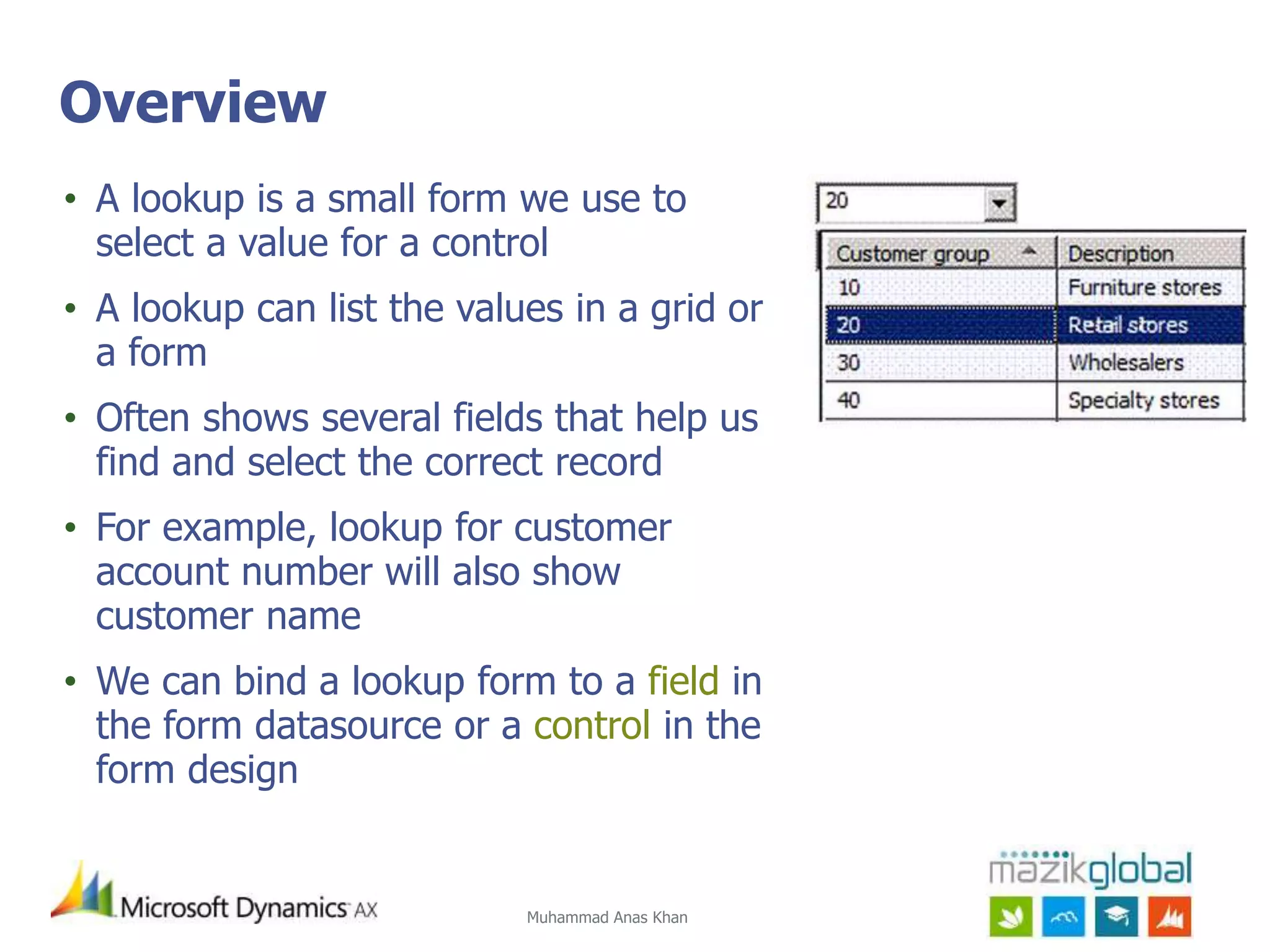
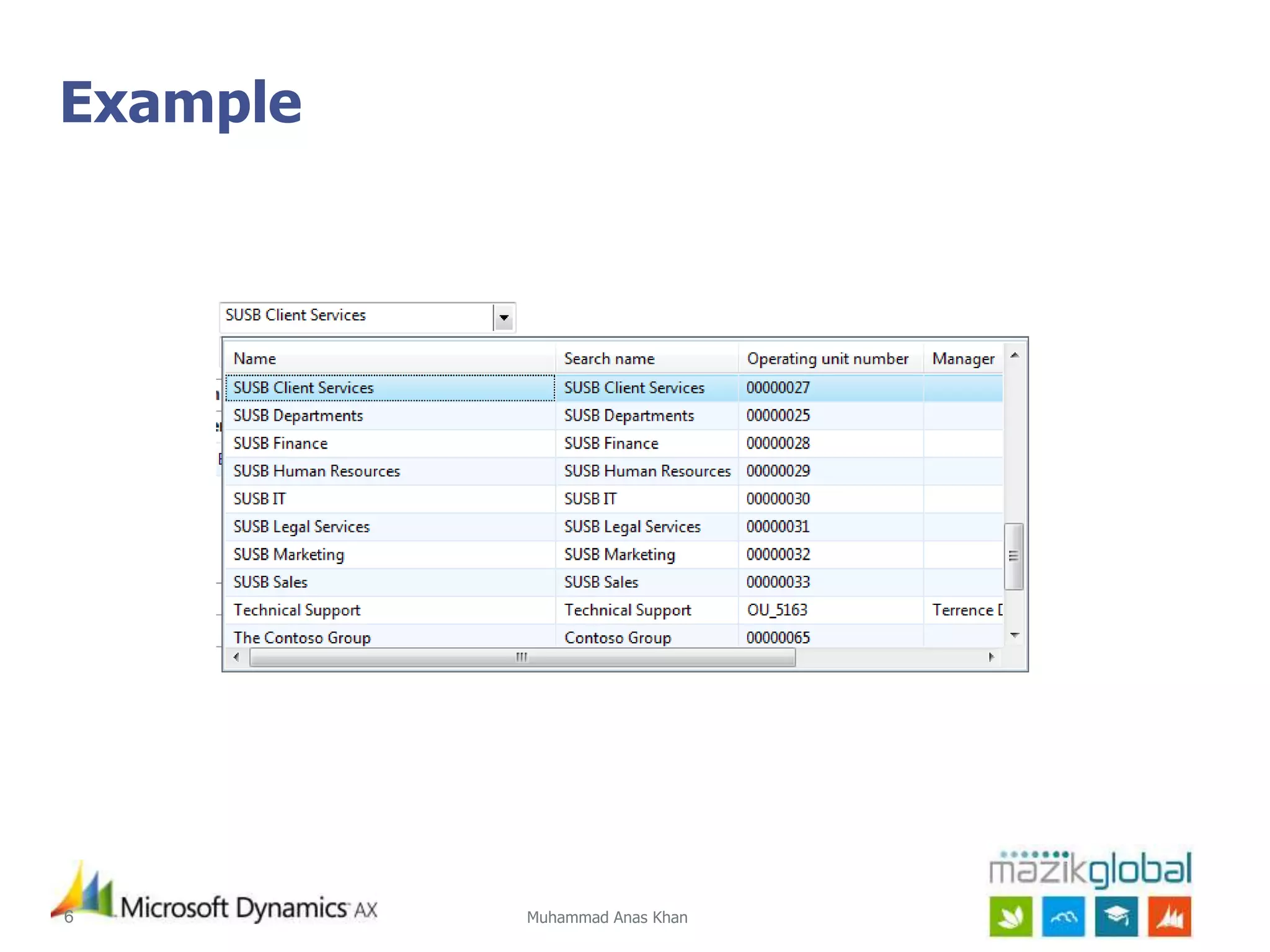
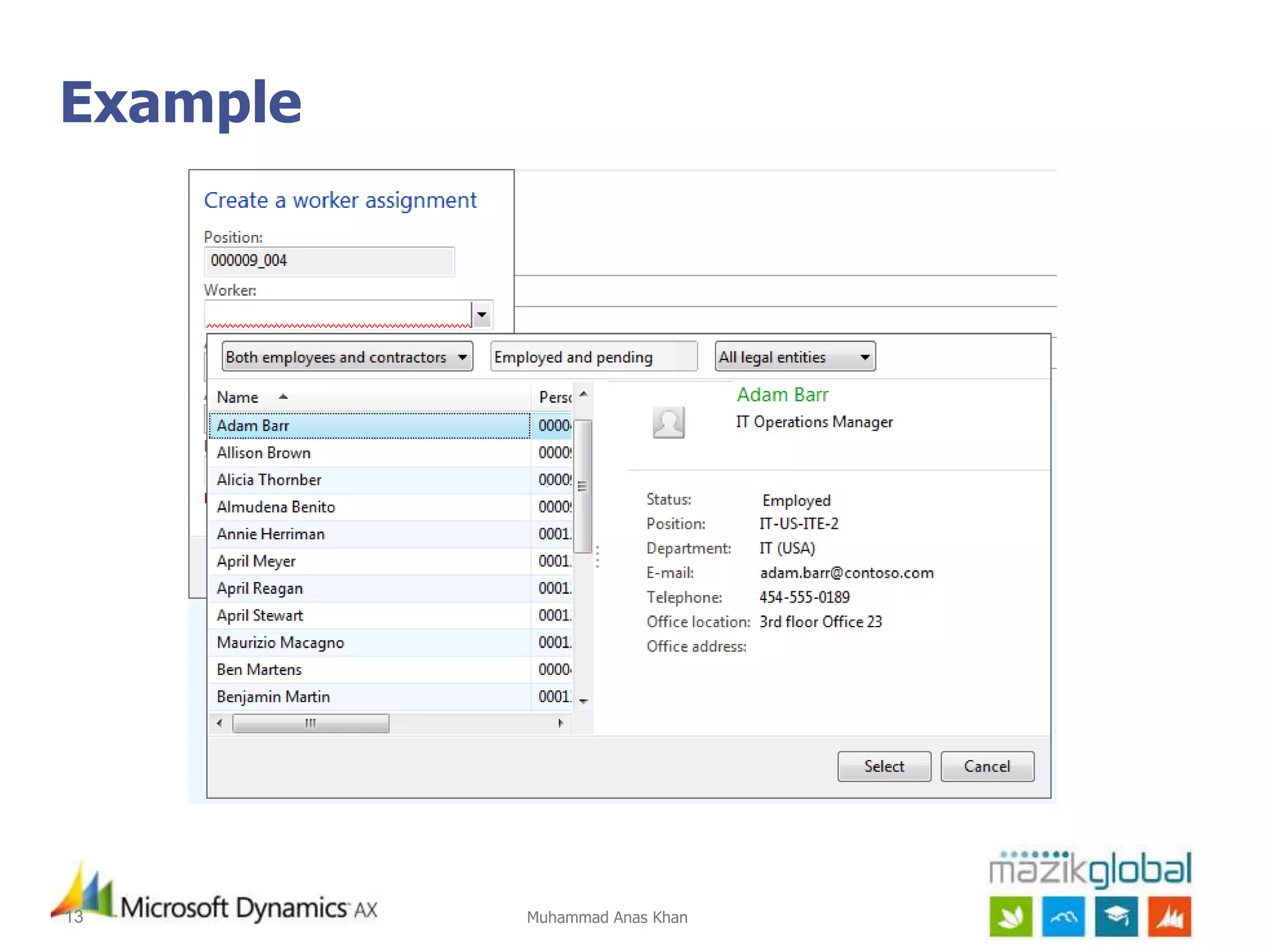
•A lookup is a small form we use to
select a value for a control
• A lookup can list the values in a grid or
a form
• Often shows several fields that help us
find and select the correct record
• For example, lookup for customer
account number will also show
customer name
• We can bind a lookup form to a field in
the form datasource or a control in the
form design
3.
Muhammad Anas Khan3
Controls
•Following are the controls which can be bound to a
lookup form:
– DateEdit
– GuidEdit
– Int64Edit
– IntEdit
– RealEdit
– ReferenceGroup
– StringEdit
– TimeEdit
4.
Muhammad Anas Khan4
Typesof Lookup Forms
• Standard Lookup Forms
• EDT Lookup Forms
• Runtime Lookup Forms
• Enum Lookup (Not exactly a lookup form)
Muhammad Anas Khan
Insight
•A standard lookup form is a system generated form
• To add a standard lookup form:
– you bind a control to a field
– from the main table of the form data source
– that references the ID of a record in related table
• It uses a grid to list the records
• Field displayed in the control is dictated by the AutoIdentification field
group of the related table
8.
Muhammad Anas Khan
Insight
•Fields appearing in the lookup form are specified by a field group or
another set of fields from the related table
– Lookup bound to surrogate/natural foreign key
• shows fields in the AutoLookup field group by default
• shows fields used in TitleField1, TitleField2 properties of the table if AutoLookup is empty
• shows the first natural key of the table if AutoLookup, TitleField1, TitleField2 all are empty
• Use it whenever possible because:
– Consistent experience across forms
– Easier to maintain as lookup forms get synced with field groups changes
9.
Muhammad Anas Khan
LabActivity
• In AOT, navigate to
– Forms>>Form>>Data Sources>>Table>>Fields
• Open Fields node in a new window
• In the AOT that shows the form, navigate to
– Designs>>Design
• Drag the field1 from the Fields list to the Design node of the form
• As a consequence, a control will be added to the Design node
• Check the properties of the newly added control
• Following above steps you will successfully build a standard lookup
form
10.
Muhammad Anas Khan
LabActivity
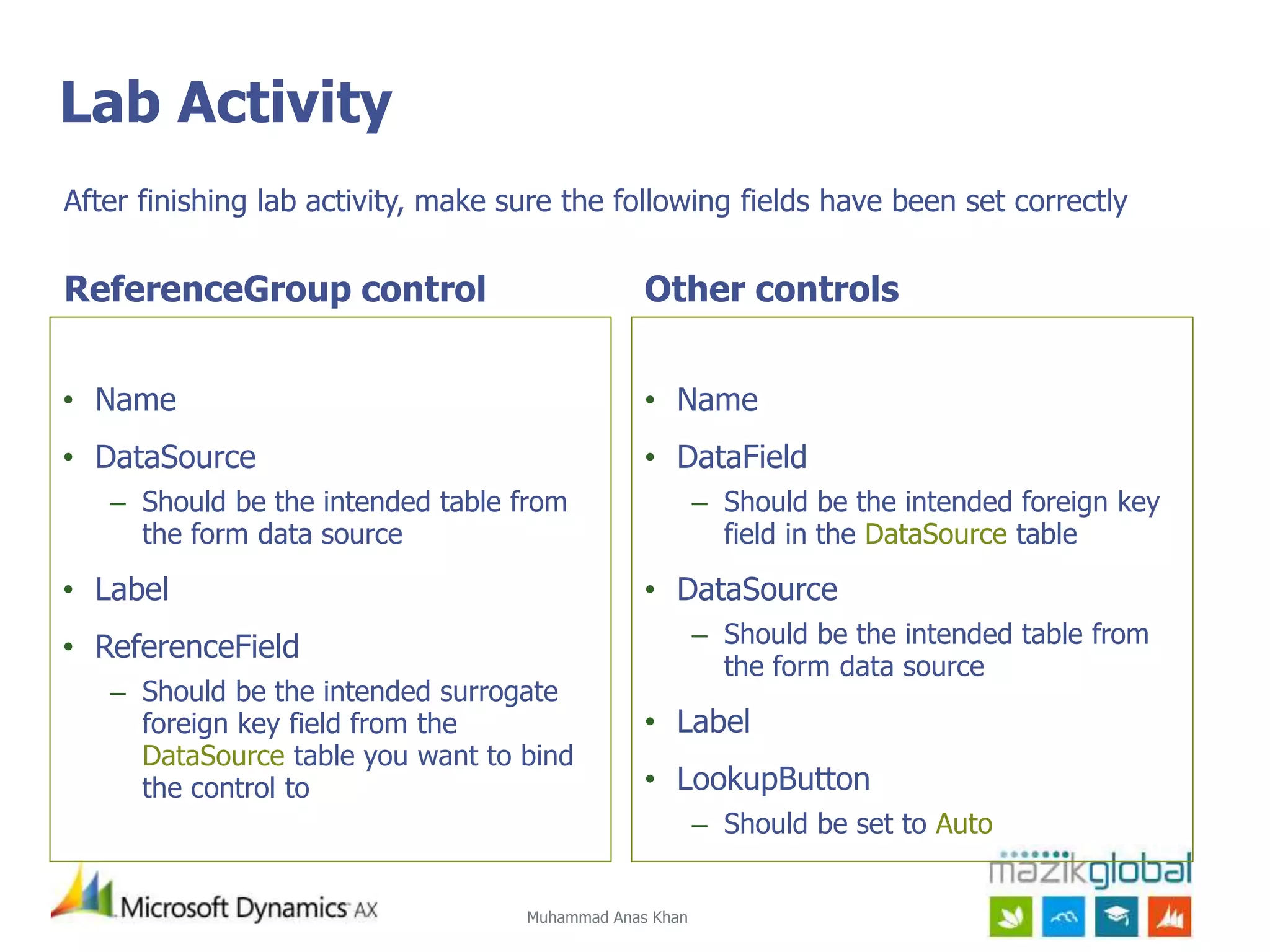
ReferenceGroup control
• Name
• DataSource
– Should be the intended table from
the form data source
• Label
• ReferenceField
– Should be the intended surrogate
foreign key field from the
DataSource table you want to bind
the control to
Other controls
• Name
• DataField
– Should be the intended foreign key
field in the DataSource table
• DataSource
– Should be the intended table from
the form data source
• Label
• LookupButton
– Should be set to Auto
After finishing lab activity, make sure the following fields have been set correctly
Muhammad Anas Khan
Insight
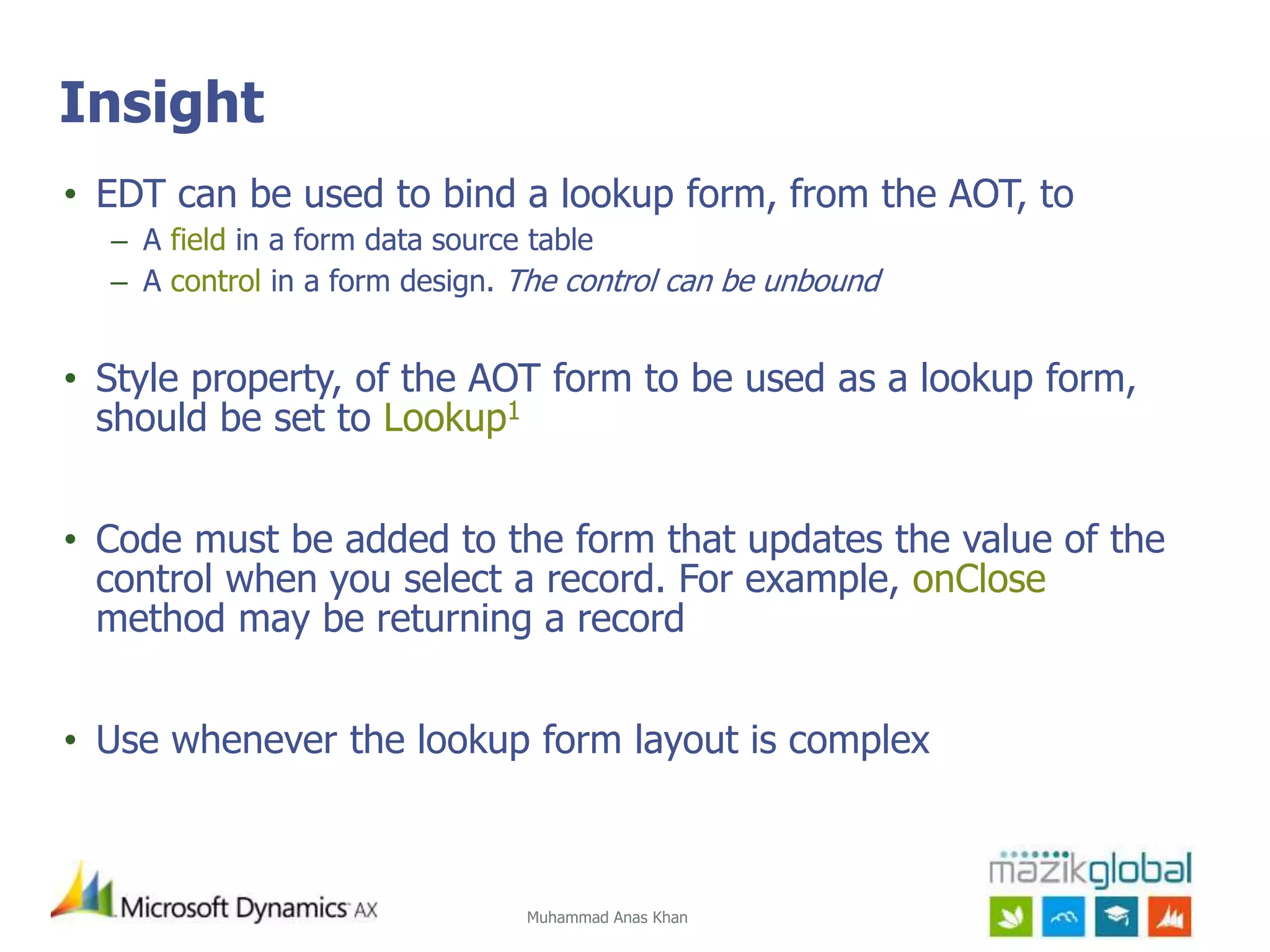
•EDT can be used to bind a lookup form, from the AOT, to
– A field in a form data source table
– A control in a form design. The control can be unbound
• Style property, of the AOT form to be used as a lookup form,
should be set to Lookup1
• Code must be added to the form that updates the value of the
control when you select a record. For example, onClose
method may be returning a record
• Use whenever the lookup form layout is complex
15.
Muhammad Anas Khan
LabActivity
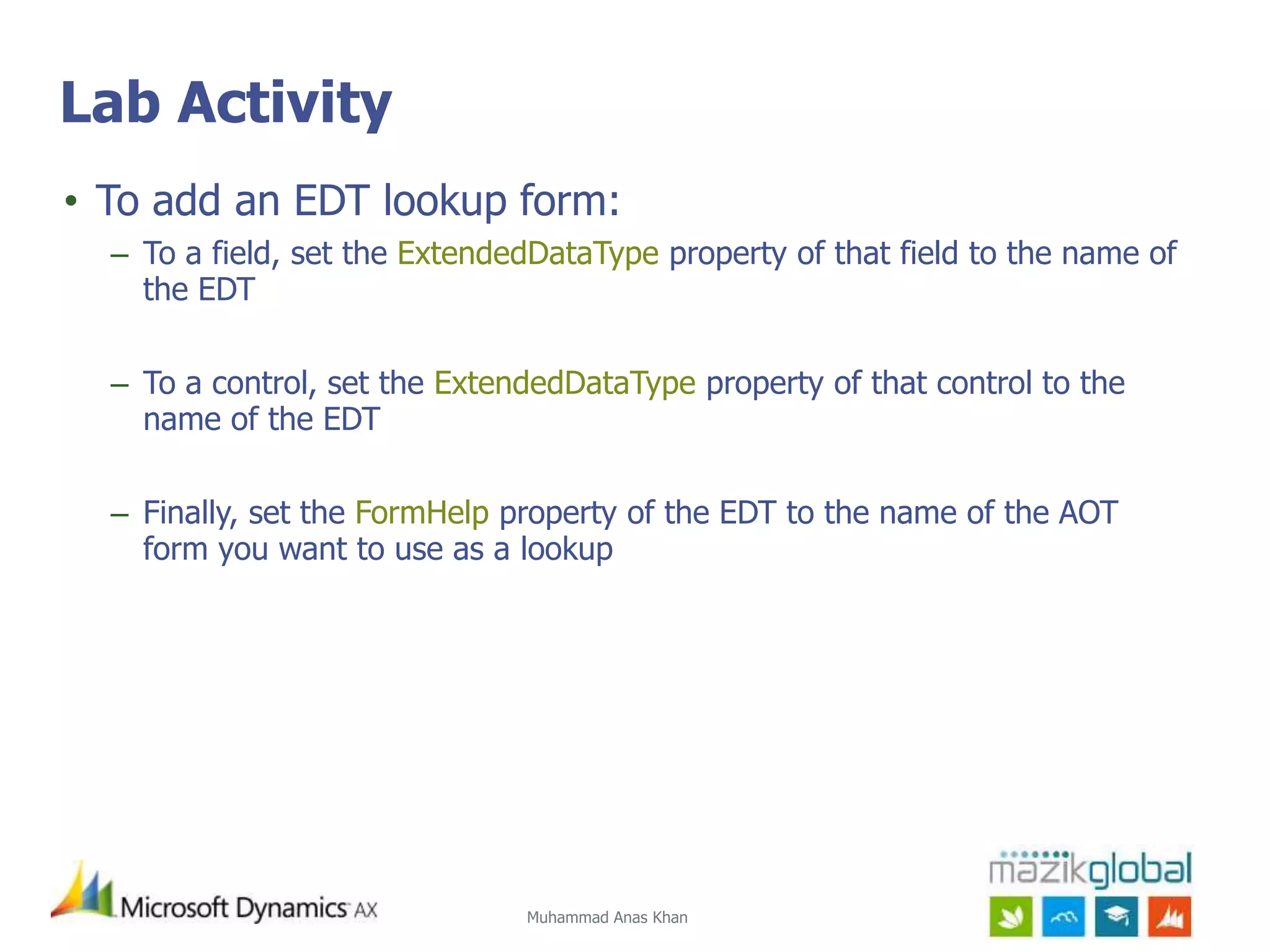
• To add an EDT lookup form:
– To a field, set the ExtendedDataType property of that field to the name of
the EDT
– To a control, set the ExtendedDataType property of that control to the
name of the EDT
– Finally, set the FormHelp property of the EDT to the name of the AOT
form you want to use as a lookup
Muhammad Anas Khan
Insight
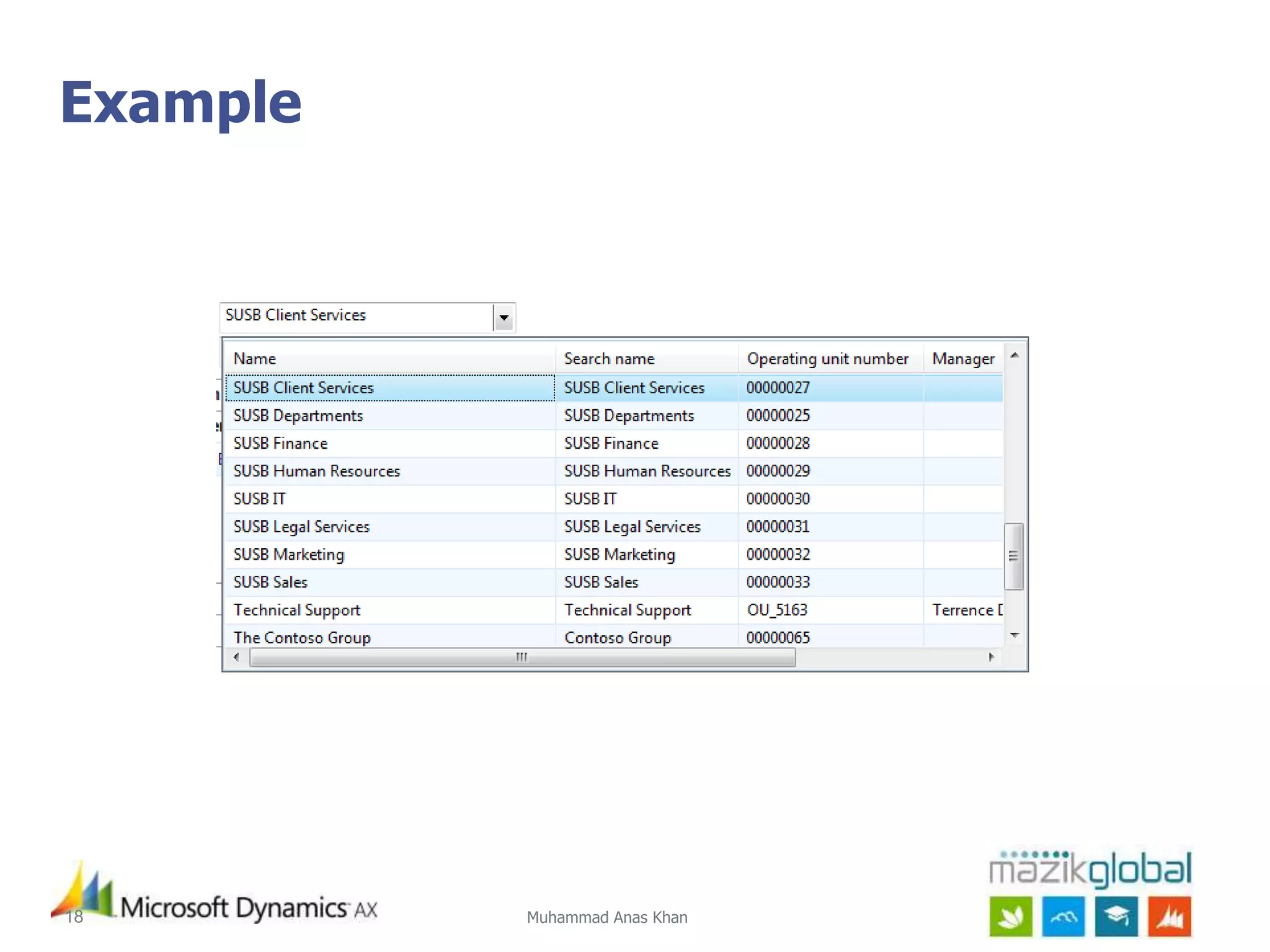
•It is a custom form you create with X++ code
• It can be added to a field in the form data source or a control in the
form design
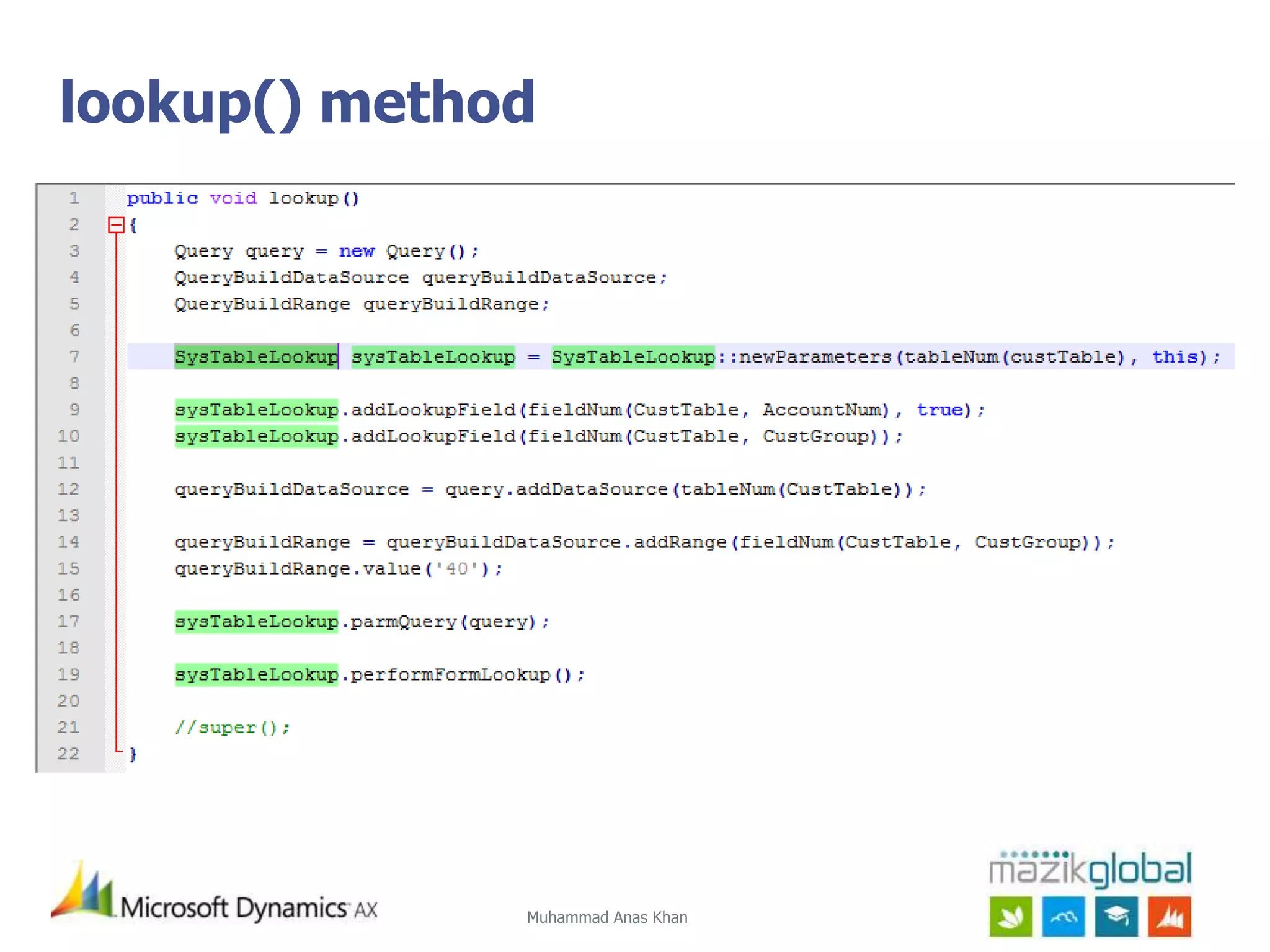
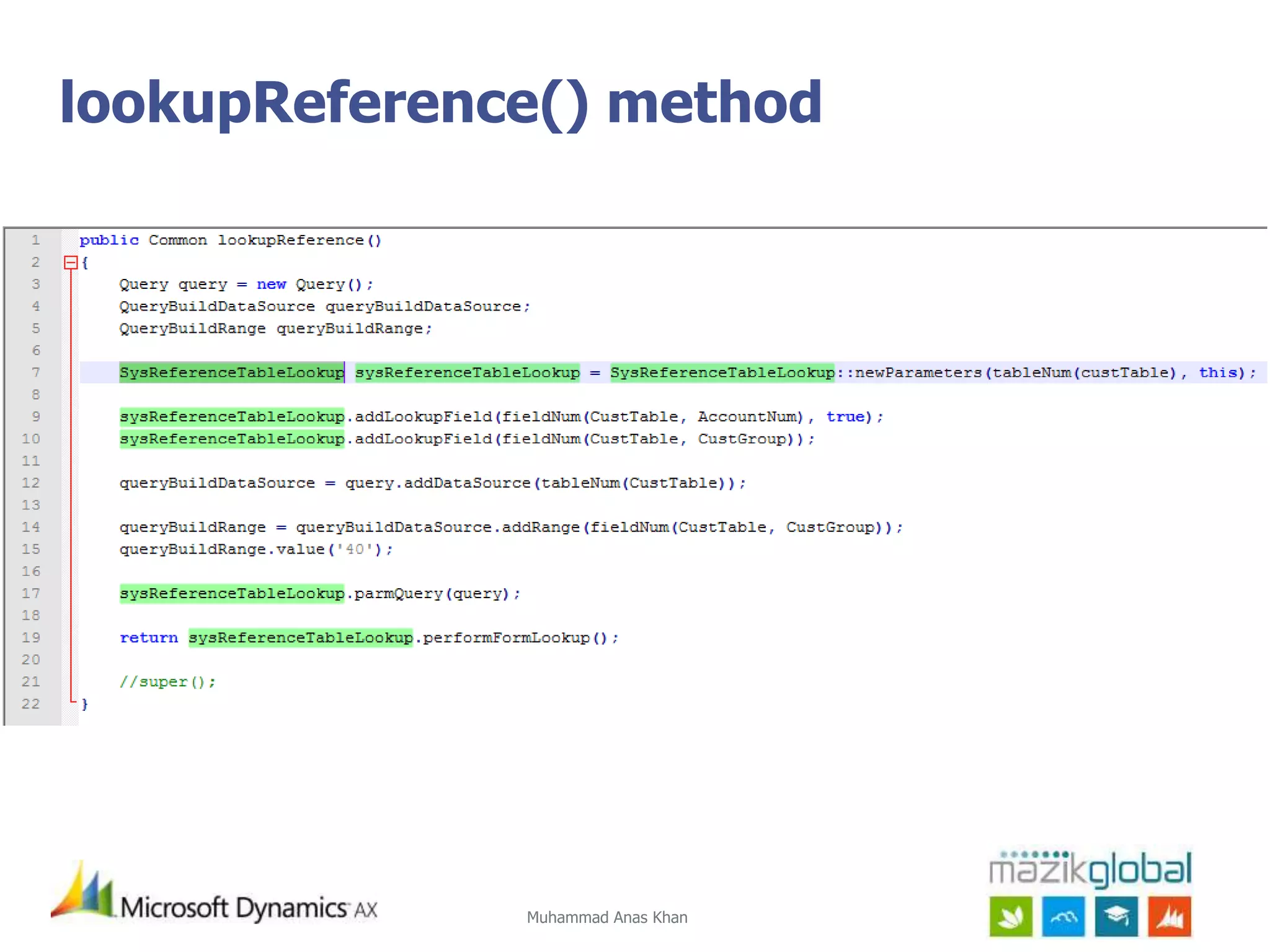
• To add a runtime lookup form to a field, override lookup or
lookupReference method
• To add a runtime lookup form to a control, override lookup or
lookupReference method
• Difficult to maintain because changes to the lookup require updates to
the X++ code. Therefore use only when you need it
• Runtime lookup has higher precedence over standard and EDT lookups
Muhammad Anas Khan
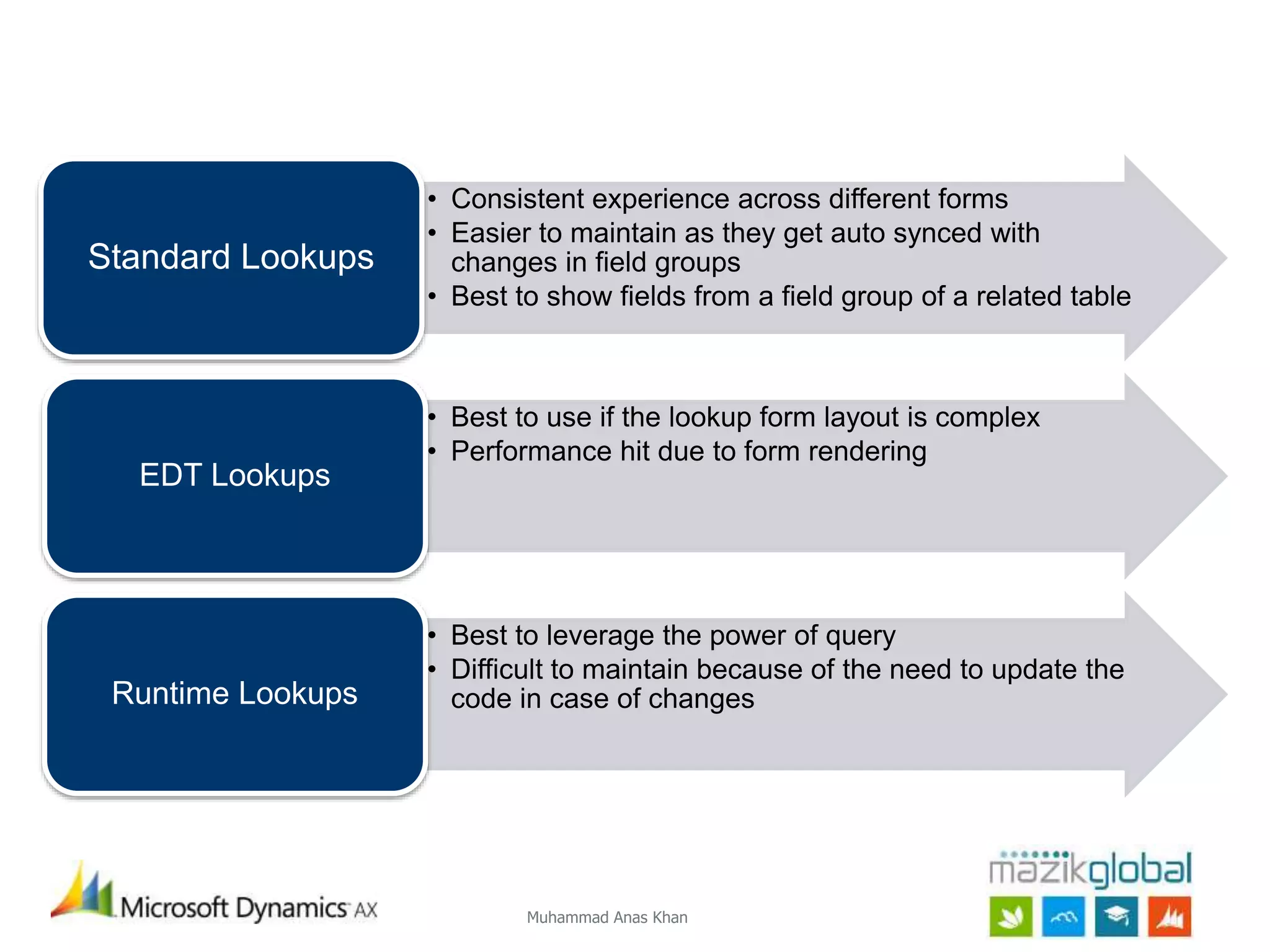
•Consistent experience across different forms
• Easier to maintain as they get auto synced with
changes in field groups
• Best to show fields from a field group of a related table
Standard Lookups
• Best to use if the lookup form layout is complex
• Performance hit due to form rendering
EDT Lookups
• Best to leverage the power of query
• Difficult to maintain because of the need to update the
code in case of changesRuntime Lookups








![Vibe Coding vs. Spec-Driven Development [Free Meetup]](https://cdn.slidesharecdn.com/ss_thumbnails/vibecodingvsspecdrivendevelopment-251209105622-43f455e7-thumbnail.jpg?width=640&height=640&fit=bounds)


