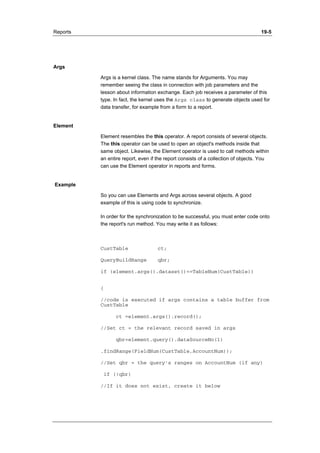
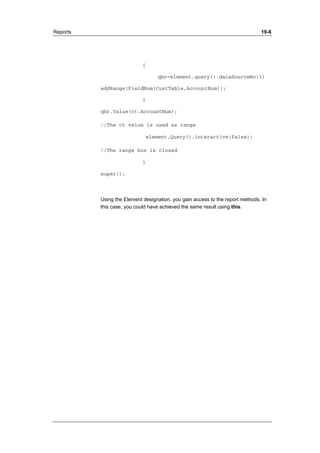
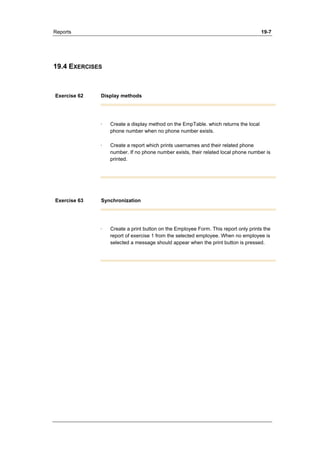
X++ Advanced
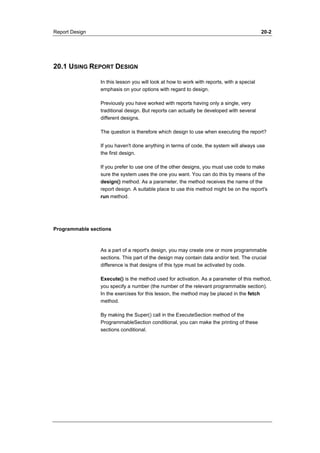
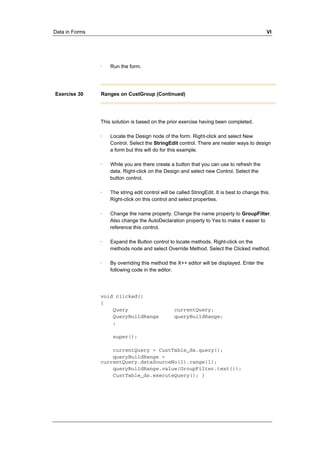
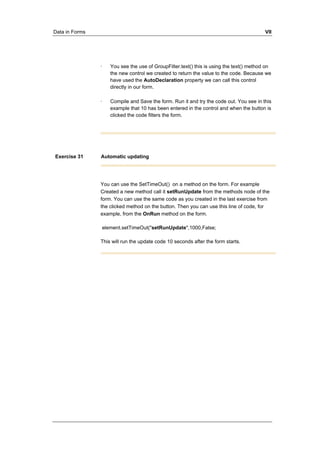
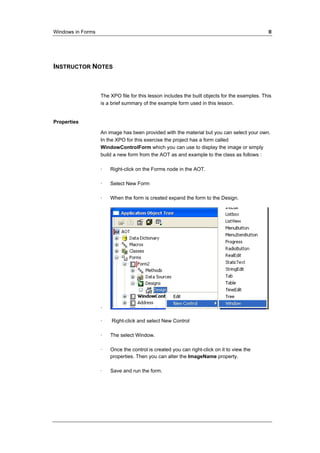
X++ Advanced
Disclaimer: 
This material is for informational purposes only. Microsoft Business 
Solutions ApS disclaims all warranties and conditions with regard to 
use of the material for other purposes. Microsoft Business Solutions 
ApS shall not, at any time, be liable for any special, direct, indirect or 
consequential damages, whether in an action of contract, negligence or 
other action arising out of or in connection with the use or performance 
of the material. Nothing herein should be construed as constituting any 
kind of warranty. 
Copyright Notice: 
Copyright © 2002 Microsoft Business Solutions ApS, Denmark. 
Trademark Notice: 
Microsoft, Great Plains, bCentral and Microsoft Windows 2000 are 
either registered trademarks or trademarks of Microsoft Corporation or 
Microsoft Business Solutions Corporation in the United States and/or 
other countries. Microsoft Business Solutions Corporation and Microsoft 
Business Solutions ApS are wholly owned subsidiaries of Microsoft 
Corporation. Navision is a registered trademark of Microsoft Business 
Solutions ApS in the United States and/or other countries. The names 
of actual companies and products mentioned herein may be the 
trademarks of their respective owners. No part of this document may be 
reproduced or transmitted in any form or by any means, whole or in part 
without the prior written permission of Microsoft Business Solutions 
ApS. Information in this document is subject to change without notice. 
Any rights not expressly granted herein are reserved. 
.
TABLE OF CONTENTS 
LESSON 1. 
INTRODUCTION TO X++ ADVANCED 1-1 
1.1 Introduction 1-2 
LESSON 2. 
DEVELOPMENT TOOLS 2-1 
2.1 Introduction to Development Tools 2-1 
2.2 Recap of the Development Environment 2-2 
2.3 Available Tools 2-4 
2.4 Exercises 2-11 
LESSON 3. 
CLASSES 3-1 
3.1 What is a Class? 3-1 
3.2 Standard Methods 3-2 
3.3 Object Methods 3-4 
3.4 Class Methods 3-5 
3.5 Main 3-6 
3.6 Tables 3-7 
3.7 Overview 3-8 
3.8 Exercises 3-9 
LESSON 4.
DATA RETURN 4-1 
4.1 Using Data Return 4-2 
4.2 Exercises 4-3 
LESSON 5. 
INHERITANCE 5-1 
5.1 What Is Inheritance? 5-2 
5.2 How Does Inheritance Work? 5-3 
5.3 Overriding, Overloading and Inheritance 5-5 
5.4 Constructor Controlled Inheritance 5-7 
5.5 Job Aid 5-9 
5.6 Exercises 5-10 
LESSON 6. 
POLYMORPHISM 6-1 
6.1 Polymorphism 6-2 
6.2 Exercises 6-4 
LESSON 7. 
MAPS 7-1 
7.1 The Purpose of Maps 7-2 
7.2 Structure 7-3 
7.3 Calling Methods 7-4 
7.4 Job Aid 7-5 
7.5 Exercises 7-6 
LESSON 8.
INFORMATION EXCHANGE 8-1 
8.1 Using Information Exchange 8-2 
8.2 The Args Class 8-3 
8.3 Args Objects 8-4 
8.4 Exercises 8-5 
LESSON 9. 
DATA IN FORMS 9-1 
9.1 Data in Forms 9-2 
9.2 Exercises 9-12 
LESSON 10. 
WINDOWS IN FORMS 10-1 
10.1 Windows in Forms 10-1 
10.2 Exercises 10-4 
LESSON 11. 
LOOKUP FORMS 11-1 
11.1 Using Lookup 11-2 
11.2 Lookup Forms 11-3 
11.3 Exercises 11-5 
LESSON 12. 
LIST VIEWS 12-1 
12.1 Using List Views 12-2 
12.2 Exercises 12-3
LESSON 13. 
TREE STRUCTURE 13-1 
13.1 Using Tree Structures 13-2 
13.2 Kernel Classes 13-3 
13.3 Methods 13-4 
13.4 Data 13-5 
13.5 Exercises 13-6 
LESSON 14. 
TEMPORARY TABLES 14-1 
14.1 Temporary Table Function 14-2 
14.2 Purpose of Temporary Tables 14-3 
14.3 Use 14-4 
14.4 Exercises 14-5 
LESSON 15. 
VALIDATION TECHNIQUES 15-1 
15.1 Validation Methods 15-2 
15.2 Delete Actions (Review) 15-3 
15.3 Table Validation Methods 15-4 
15.4 Validation Sequences 15-6 
15.5 Exercises 15-8 
LESSON 16. 
QUERIES 16-1 
16.1 What is a Query? 16-2
16.2 Execution 16-3 
16.3 Kernel Class Query, One Table 16-4 
16.4 Join 16-5 
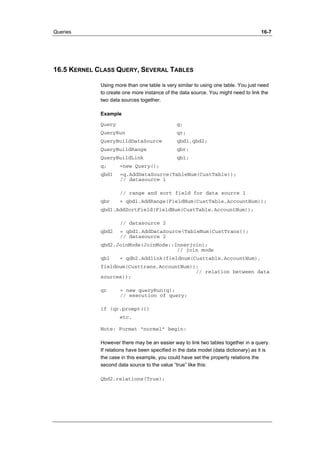
16.5 Kernel Class Query, Several Tables 16-7 
16.6 General 16-9 
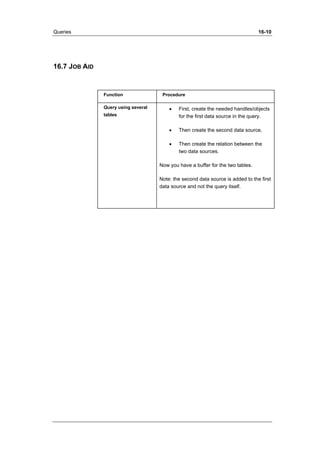
16.7 Job Aid 16-10 
16.8 Exercises 16-11 
LESSON 17. 
USING SYSTEM, X AND DICT. CLASSES 17-2 
17.1 Using System Classes 17-3 
17.2 X-Classes 17-4 
17.3 The Global Class 17-8 
17.4 Using Dict Classes 17-9 
17.5 Exercises 17-10 
LESSON 18. 
MACROS 18-1 
18.1 Macros 18-2 
18.2 Macros vs. Methods 18-4 
18.3 Macro Types 18-5 
18.4 Job Aid 18-6 
18.5 Exercises 18-7 
LESSON 19. 
REPORTS 19-1
19.1 Reports, Args, and Element 19-2 
19.2 Display Methods 19-3 
19.3 Synchronization 19-4 
19.4 Exercises 19-7 
LESSON 20. 
REPORT DESIGN 20-1 
20.1 Using Report Design 20-2 
20.2 Exercises 20-3 
LESSON 21. 
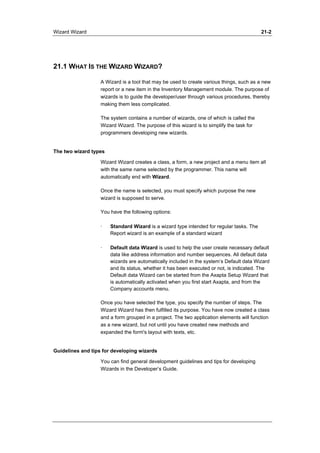
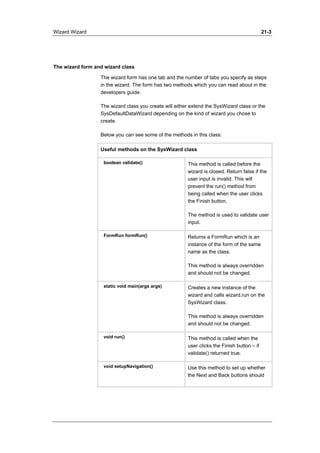
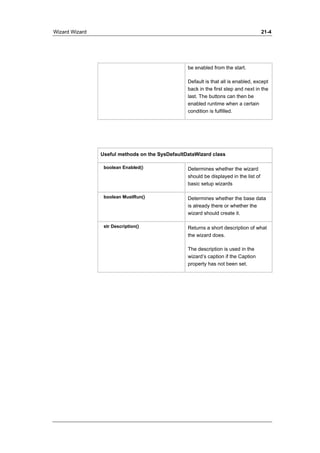
WIZARD WIZARD 21-1 
21.1 What Is the Wizard Wizard? 21-2 
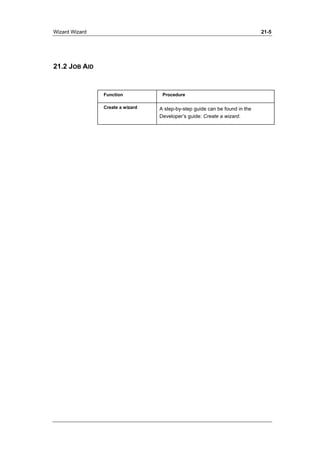
21.2 Job Aid 21-5 
21.3 Exercises 21-6 
APPENDIX A. 
INTRODUCTION TO X++ ADVANCED I 
General Information II 
Before You Start the Class: IV 
Beginning the Course V 
APPENDIX B. 
DEVELOPMENT TOOLS I 
Development Tools II 
Exercise Solutions III
APPENDIX C. 
CLASSES I 
Instructor Notes II 
Exercise Solutions III 
APPENDIX D. 
DATA RETURN I 
Instructor Notes II 
Exercise Solutions III 
APPENDIX E. 
INHERITANCE I 
Exercise Solutions II 
APPENDIX F. 
POLYMORPHISM I 
Exercise Solutions II 
APPENDIX G. 
MAPS I 
Exercise Solutions II 
APPENDIX H. 
INFORMATION EXCHANGE I 
Instructor Notes II 
Exercise Solutions III 
APPENDIX I.
DATA IN FORMS I 
Instructor Note II 
Exercise Solutions III 
APPENDIX J. 
WINDOWS IN FORMS I 
Instructor Notes II 
Exercise Solutions VII 
APPENDIX K. 
LOOKUP FORMS I 
instructor Notes II 
Exercise Solutions III 
APPENDIX L. 
LIST VIEWS I 
Instructor Notes II 
Exercise Solutions III 
APPENDIX M. 
TREE STRUCTURE I 
instructor Notes II 
Exercise Solutions III 
APPENDIX N. 
TEMPORARY TABLES I 
Temporary Tables II 
Exercise Solutions III
APPENDIX O. 
VALIDATION TECHNIQUES I 
Instructor Notes II 
Exercise Solutions III 
APPENDIX P. 
QUERIES I 
Instructor Notes II 
Exercise Solutions III 
APPENDIX Q. 
USING SYSTEM, X AND DICT. CLASSES I 
Instructor Notes II 
Exercise Solutions III 
APPENDIX R. 
MACROS I 
Instructor Notes II 
Exercise Solutions III 
APPENDIX S. 
REPORTS I 
Instructor Notes II 
Exercise Solutions III 
APPENDIX T. 
REPORT DESIGN I 
Instructor Notes II
Exercise Solutions III 
APPENDIX U. 
WIZARD WIZARD I 
Instructor Notes II 
Exercise Solutions III
Lesson 1. 
Introduction to X++ Advanced 
DocID: AX-300-ILT-072-v01.00-ENUS
Introduction to X++ Advanced 1-2 
1.1 INTRODUCTION 
This is the third course in Microsoft® Business Solutions–Axapta® 
development suite. The course covers advanced programming in X++. 
Purpose 
This course expands on the knowledge introduced in the online courses: 
MorphX Essentials and X++ Basics. The course provides you with an in-depth 
knowledge relating to X++ Programming. You will go deeper into the 
world of objects and classes and will be introduced to the concepts of 
polymorphism, overloading and inheritance. This course will go through 
different advanced programming features, you will learn about form 
controls, validation techniques, static and dynamic methods, report 
templates, how to use macros within MorphX, how to make your own 
wizards and much more. 
Prerequisites 
Successful completion of the MorphX Essentials and the X++Basic online 
courses. 
It is highly recommended that you have worked with the X++ language and 
MorphX for 3-6 month before this class. 
General 
This course is comprised of a series of lessons, each explaining a range of 
specific subjects and functionalities which belong together in Axapta. All 
lessons are developed in relation to common business logic, and the 
subjects and functionalities are presented within the perspective of the 
usual business procedures familiar to most users. 
This material is a supplement to the instructor’s explanations during the 
course and not tailored for individual studies without tutoring. 
In the beginning of each lesson you will find a brief overview of the lesson 
and a list of objectives, informing you what subjects and functionalities you 
will get to know in the specific lesson. In each lesson there will be 
examples; the examples make it easier for you to refer the theoretical 
aspects of the course to how Axapta works outside classroom training. At 
the end of each lesson you will find exercises. The exercises are designed 
to give you a hands-on experience with the functionality described.
Development Tools 2-1 
Lesson 2. 
Development Tools 
At the end of this lesson, you are expected to be 
able to: 
Know the development environment 
Know about the different development tools in 
Axapta 
Use the tools described 
DocID: AX-300-ILT-037-v01.00-ENUS
Development Tools 2-1 
2.1 INTRODUCTION TO DEVELOPMENT TOOLS 
The following lesson describes the development tools available in Microsoft 
Axapta. The lesson starts with a short recap of the MorphX development 
environment and then moves on to the different tools you can use to make 
your repeated tasks easier to complete. We will see where the tools are 
located and how they work. 
The following are the tools described in this lesson: 
The MorphXplorer 
The debugger 
The trace 
The cross-reference 
The table browser 
The Find functionality 
The Compare tool 
The table definition tool 
Tutorials
Development Tools 2-2 
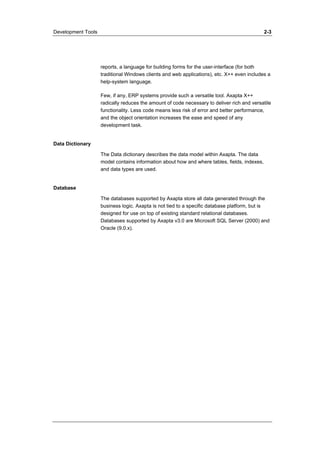
2.2 RECAP OF THE DEVELOPMENT ENVIRONMENT 
The Axapta development environment is an integrated toolbox combining 
different functions, such as designing, editing, data storing, compiling, and 
debugging within one common environment. The development environment 
within Axapta can be divided into 3 main areas, IntelliMorph (user 
interfaces/presentation), MorphX Development Suite (business logic and 
data dictionary) and data storing (databases). 
IntelliMorph 
IntelliMorph is the technology that 
controls the user interface in Axapta. 
The user interface is how the 
functionality of the application is 
presented or displayed to the user. 
The same functionality can be 
displayed on multiple platforms or 
devices using the same application 
code, for example, via the Web or via 
Mobile devices. 
IntelliMorph controls the layout of the 
user interface and makes it hassle-free 
to modify forms, reports and 
menus. 
MorphX Development Suite 
MorphX Development Suite is 
designed as a multipurpose toolbox 
for developing ERP applications. MorphX Development Suite enables 
system administrators and programmers to add new, and modify existing 
Axapta functionality. MorphX Development Suite is the environment that 
handles the business logic and the design of the data model. 
Business Logic 
When complex requirements call for new business logic, Axapta’s own 
object-oriented language, X++, can be used. X++ uses object-oriented 
programming principles such as encapsulation, inheritance, classes, 
objects and methods. The language has Java-like syntax. The X++ 
language serves many purposes. It’s a database language, a scripting 
language to create the interface to the database, a language for building
Development Tools 2-3 
reports, a language for building forms for the user-interface (for both 
traditional Windows clients and web applications), etc. X++ even includes a 
help-system language. 
Few, if any, ERP systems provide such a versatile tool. Axapta X++ 
radically reduces the amount of code necessary to deliver rich and versatile 
functionality. Less code means less risk of error and better performance, 
and the object orientation increases the ease and speed of any 
development task. 
Data Dictionary 
The Data dictionary describes the data model within Axapta. The data 
model contains information about how and where tables, fields, indexes, 
and data types are used. 
Database 
The databases supported by Axapta store all data generated through the 
business logic. Axapta is not tied to a specific database platform, but is 
designed for use on top of existing standard relational databases. 
Databases supported by Axapta v3.0 are Microsoft SQL Server (2000) and 
Oracle (9.0.x).
Development Tools 2-4 
2.3 AVAILABLE TOOLS 
The Integrated development environment 
Axapta has its own integrated Development Environment (IDE) which is a 
programming environment consisting of a code editor, a debugger, a 
compiler, and a graphical user interface (GUI) builder. The commands in 
the IDE are very similar to the development environment in the Microsoft 
Visual Studio. 
The Visual MorphXplorer 
Through the development of a system, you will often need to display the 
relation between your tables and classes. Axapta has a tool that makes this 
possible, the Visual MorphXplorer. To activate the Visual MorphXplorer go 
to the Tools menu on the menu bar, select the development section, and 
choose Visual MorphXplorer. To add new tables or classes, right-click the 
client area of the window. To see the tables or classes related to an 
element, right-click the element and choose the appropriate option. 
You can depict the relations between tables with this information: 
· The current table’s 1:n relations. 
· The current table’s n:1 relations. 
· The classes that use the current table. 
· The maps that the current table is a part of. 
In a class visualization diagram you can depict: 
· What classes the current class uses. 
· What classes the current class is being used by. 
· The current class’ super class. 
· The current class’ sub classes. 
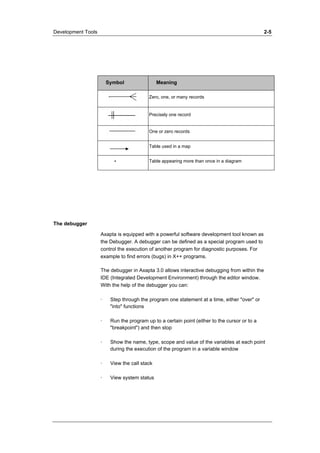
UML Notation used in Visual MorphXplorer 
We use UML notation to show how tables are related to each other. The 
table below describes the symbols used:
Development Tools 2-5 
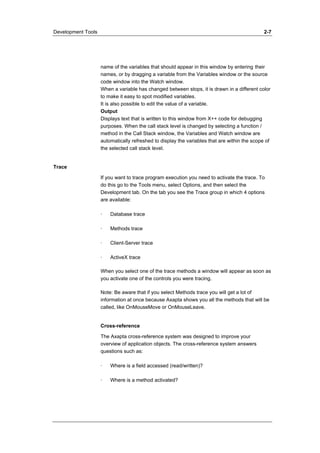
Symbol Meaning 
Zero, one, or many records 
Precisely one record 
One or zero records 
Table used in a map 
* Table appearing more than once in a diagram 
The debugger 
Axapta is equipped with a powerful software development tool known as 
the Debugger. A debugger can be defined as a special program used to 
control the execution of another program for diagnostic purposes. For 
example to find errors (bugs) in X++ programs. 
The debugger in Axapta 3.0 allows interactive debugging from within the 
IDE (Integrated Development Environment) through the editor window. 
With the help of the debugger you can: 
· Step through the program one statement at a time, either "over" or 
"into" functions 
· Run the program up to a certain point (either to the cursor or to a 
"breakpoint") and then stop 
· Show the name, type, scope and value of the variables at each point 
during the execution of the program in a variable window 
· View the call stack 
· View system status
Development Tools 2-6 
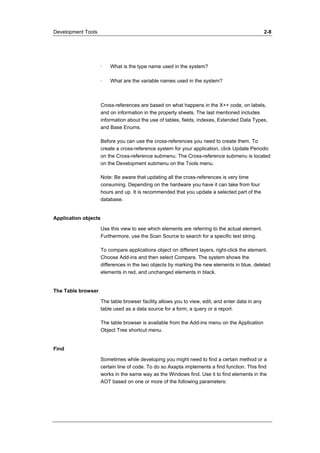
· Display line numbers in your code 
To activate the debugger go to the Tools menu, select Options and then 
select the Development tab. Set the debug mode: 
No: The debugger is never activated. 
Always: The debugger is activated when X++ code is executed. 
On Breakpoint: The debugger is activated only when a breakpoint in the 
X++ code is encountered. 
Breakpoint 
Breakpoints can be set to interrupt the execution of the X++ program at 
specific points. To set a breakpoint, position the cursor at the point you 
wish to break the execution and then click the breakpoint toggle button 
( ) or press F9. The line color changes to red, indicating breakpoint at 
this position. Next in order is to execute the program to the breakpoint you 
just added by clicking the go button ( ) or pressing F5. This makes the 
program run until it reaches the next breakpoint. 
A conditional breakpoint feature has not yet been introduced in the 3.0 
debugger but is expected to appear in next release. 
The Debugger window is divided into four windows: 
Variables 
Displays the value of the variables that are within the scope of the current 
call stack level. When a variable has changed between stops, it is drawn in 
a different color to make it easy to spot modified variables. 
It is also possible to edit the value of a variable. 
Call Stack 
Displays the stack of function / method calls, allowing the user to see which 
function / method called the one that is currently being debugged. 
A function / method on the call stack can be selected to change the call 
stack level. This means that the source code for the selected function / 
method is displayed in the source code window. 
Watch 
Displays a user-defined range of variables. It is possible to choose the
Development Tools 2-7 
name of the variables that should appear in this window by entering their 
names, or by dragging a variable from the Variables window or the source 
code window into the Watch window. 
When a variable has changed between stops, it is drawn in a different color 
to make it easy to spot modified variables. 
It is also possible to edit the value of a variable. 
Output 
Displays text that is written to this window from X++ code for debugging 
purposes. When the call stack level is changed by selecting a function / 
method in the Call Stack window, the Variables and Watch window are 
automatically refreshed to display the variables that are within the scope of 
the selected call stack level. 
Trace 
If you want to trace program execution you need to activate the trace. To 
do this go to the Tools menu, select Options, and then select the 
Development tab. On the tab you see the Trace group in which 4 options 
are available: 
· Database trace 
· Methods trace 
· Client-Server trace 
· ActiveX trace 
When you select one of the trace methods a window will appear as soon as 
you activate one of the controls you were tracing. 
Note: Be aware that if you select Methods trace you will get a lot of 
information at once because Axapta shows you all the methods that will be 
called, like OnMouseMove or OnMouseLeave. 
Cross-reference 
The Axapta cross-reference system was designed to improve your 
overview of application objects. The cross-reference system answers 
questions such as: 
· Where is a field accessed (read/written)? 
· Where is a method activated?
Development Tools 2-8 
· What is the type name used in the system? 
· What are the variable names used in the system? 
Cross-references are based on what happens in the X++ code, on labels, 
and on information in the property sheets. The last mentioned includes 
information about the use of tables, fields, indexes, Extended Data Types, 
and Base Enums. 
Before you can use the cross-references you need to create them. To 
create a cross-reference system for your application, click Update Periodic 
on the Cross-reference submenu. The Cross-reference submenu is located 
on the Development submenu on the Tools menu. 
Note: Be aware that updating all the cross-references is very time 
consuming. Depending on the hardware you have it can take from four 
hours and up. It is recommended that you update a selected part of the 
database. 
Application objects 
Use this view to see which elements are referring to the actual element. 
Furthermore, use the Scan Source to search for a specific text string. 
To compare applications object on different layers, right-click the element. 
Choose Add-ins and then select Compare. The system shows the 
differences in the two objects by marking the new elements in blue, deleted 
elements in red, and unchanged elements in black. 
The Table browser 
The table browser facility allows you to view, edit, and enter data in any 
table used as a data source for a form, a query or a report. 
The table browser is available from the Add-ins menu on the Application 
Object Tree shortcut menu. 
Find 
Sometimes while developing you might need to find a certain method or a 
certain line of code. To do so Axapta implements a find function. This find 
works in the same way as the Windows find. Use it to find elements in the 
AOT based on one or more of the following parameters:
Development Tools 2-9 
· Name 
· A certain text 
· A specific date 
· Elements created by a certain person 
· If you want to search all notes or just on methods 
· The type of element 
· The layer in which the element is placed 
· The size 
· Where the element is run (server/client) 
The Filter tab is used for advanced filtering of the search result. Write X++ 
code in the Source field. The code is evaluated for each node that is found 
and should return a Boolean that is true if the node is to be included in the 
search result and false if it should not be included. 
Compare 
Under Add-ins there is yet another powerful tool, the compare tool. The 
Compare layers function can be used as an alternative to the Create 
upgrade project. The Compare layers function compares any two layers 
and creates a project with the objects that are different from one layer to 
another. As opposed to the Create upgrade project, duplicates are not 
deleted. Consequently, the Compare layers function may also be useful as 
a general tool, for example to give an overview of modifications made in a 
certain layer. Properties as well as X++ source code are compared.
Development Tools 2-10 
Table definition 
Use the Table definitions tool to get information about a table. To do this 
select the table, right-click and choose Add-ins -> Table definition. After this 
you have the opportunity to set sorting and ranges. 
Tutorials 
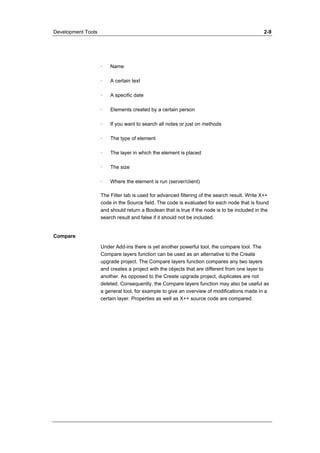
AOD reference Cross-reference 
Axapta includes a number of tutorials to show you the solution to some 
common tasks and to demonstrate the use of common controls. The 
tutorials are implemented as forms and classes. They are prefixed 
"tutorial_" and can be found below the Forms and Classes node in the 
Application Object Tree. 
Find 
Update Cross- 
Application 
Hierarchy Tree 
Application 
Object Tree 
Used by 
Visual 
MorphXplorer 
Code Explorer 
Compare 
Other 
One 
Find and Used by maps 
replace 
Open new 
window...
Development Tools 2-11 
2.4 EXERCISES 
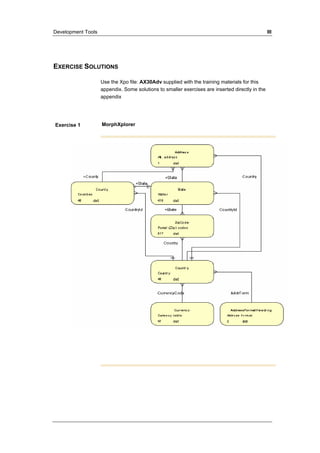
Exercise 1 MorphXplorer 
Show the relations between the tables and maps: 
• Address 
• Country 
• County 
• State 
• ZipCode 
• Currency 
• AddressFormatHeading 
• AddressMap 
Be sure that all relations are shown 
Exercise 2 Debugger 
Try to debug the code created in the Create Dialog example from 
the X++ Basic course, Communicating with user, Communication 
tools. 
static void AXPDialogWField(Args _args) 
{
Development Tools 2-12 
Dialog d1; 
DialogGroup dg1; 
DialogField df1, df2; 
; 
// To bring the window to the top 
Window 36, 12 at 10,10; 
d1 = new Dialog("Criteria"); 
dg1 = d1.addGroup("Customer"); 
df1 = d1.addField(TypeId(Custaccount), "Account Number"); 
dg1.columns(2); 
// df2 = d1.addField(TypeId(AccountName), "Name"); 
if (d1.run()) 
print df1.value(); 
pause; 
} 
Exercise 3 Debugger 
Place a breakpoint at the init method of the Form VendTable 
void init() 
{ 
super();
Development Tools 2-13 
Æ TaxVATNumTable::enableLookupVatNum(SalesTax_VatNum); 
} 
Open the Vendor Table Dialog and follow the code step by step. 
Exercise 4 Table browser 
Use the Table browser to examine the tables from Zipcode. Try to enter 
some fields or delete some. 
Exercise 5 Find compare 
1. Try to change a line of code, add a line of code and delete a line of code 
in the ABCBase class methods then compare the new class with the 
original from the sys layer. 
2. Which layers are affected if you delete the ABCBase class? 
Exercise 6 Table definition 
Use the Table definitions to get a view of the table Zipcode
AX-300-ILT-032-v01.00-ENUS 
Lesson 3. 
Classes 
At the end of this lesson, you are expected to be 
able to: 
Understand the concept of a class. 
Design, create and manage classes and 
methods.
Classes 3-1 
3.1 WHAT IS A CLASS? 
In the preceding lesson you tried creating an object with an associated 
object handle of the type Dialog. Dialog is the name of the class you want 
to use. 
A class can be seen as a baking form or a blueprint drawing. You use it 
each time you create an object or an object handle. Using a single class, 
we can create an unlimited number of objects and object handles. 
Class Content 
As mentioned, a class is used to design objects and object handles. Thus 
the class contains all the properties an object is to have in form of methods 
and variables. 
Class Declaration 
After creation this method appears as follows: 
public class Class_name 
{ 
//This is where you declare all variables 
//that each object is to contain 
//for instance: 
str text; 
} 
In the Class Declaration the name of the class is specified and variables 
that are used in the entire object are declared. Moreover, you can use it to 
specify inheritance, this is described in the lesson “inheritance”. It is not 
possible to assign values to the variables in Class Declaration. It is best 
practice to use uppercase for the first letter in a class name.
Classes 3-2 
3.2 STANDARD METHODS 
When a new class is created it automatically contains the following 3 
standard methods 
New 
After creation the “New” method appears as follows: 
void New() 
{ 
} 
You use it each time you create/instantiate an object. Using this method, 
you may assign values to an object's variables, as in the Dialog class. If 
you declared a text variable named "text" in the ClassDeclaration, you can 
now use new to enter a value in this variable. You can do this as follows: 
void New(str _text) 
{ 
text = _text; 
} 
_text is a local text variable that belongs to the individual method. 
void indicates that the method returns no value. This topic will be explored 
further later on. 
Finalize 
When an object is terminated, that is, no longer connected to an object 
handle, the object ’dies’ and gets garbage collected. 
If you want to terminate the object yourself, the method you use is called 
finalize. 
It is possible to terminate other objects by stating this in the finalize 
method . 
You can also terminate an object by setting the object handle to = Null
Classes 3-3 
Example 
StopWatch sw; //You create an object handle of the stopwatch type 
sw = new stopWatch(); //You create an object of the stopwatch type 
and link it to the object handle 
sw = Null; // The object is terminated if there are no other 
object handles pointing to the object 
Or 
sw.finalize(); // The object is terminated, even though there are 
other object handles pointing to the object. If the finalize 
command contains code, the code will also be executed
Classes 3-4 
3.3 OBJECT METHODS 
You can create your own methods that execute your own code. 
void testMethod() 
{ 
print ”This is a test method”; 
pause; 
} 
The new method is embedded in each object that is created from this class. 
It can be called as follows: 
objectHandleName.testMethod(); 
If an object method calls another object method on the same object, the 
objectHandleName is replaced with this (a pointer pointing at the object 
itself). Object methods are also referred to as dynamic methods.
Classes 3-5 
3.4 CLASS METHODS 
In the same way an object has a set of methods, it is also possible to 
create methods belonging to the class. You can do this using the keyword 
static. 
If you were to write the method above as a class method, it would look like 
this: 
static void test_method() 
{ 
print ”this is a test method”; 
pause; 
} 
and could be opened as follows: 
Classname::test_method(); 
Class methods are also referred to as static methods, and unlike dynamic 
methods, you do not need to instantiate an object before using a static 
method. Notice that it is not possible to use member variables in a static 
method. 
Static methods are widely used in Axapta, since we often just want to work 
with data stored in tables and therefore do not need to instantiate member 
attributes.
Classes 3-6 
3.5 MAIN 
As in jobs, which is what you have been using most of the time, you have 
the option of executing a certain class method directly from a menu option. 
The method is called Main() and may be written as follows: 
Static void Main(Args _args) 
{ 
} 
The Method should do nothing else than create an instance of the object 
itself and then call the necessary member methods. 
Using Args, you are able to transfer data to the method, if needed. Args 
will be covered in greater detail later. 
You can also execute this method by highlighting the class in the AOT and 
selecting Open from the right-click menu or the tool bar.
Classes 3-7 
3.6 TABLES 
A table can also be considered as an independent class when seen from a 
programming point of view. 
You can address fields and methods on tables. Methods can be called from 
other objects or from the same table. 
To be able to enter, update and delete records in tables you must create a 
table buffer. 
Tables differ from classes in the following manner: 
Room for a table buffer is automatically assigned (for classes, you use 
new). 
A table cannot be inherited from other tables. 
Table fields are public; they may be referred to from everywhere. 
Table fields can be referred to directly, for example in a report. 
(Variables in methods can only be referred to by return of values). 
static void AXPSelectFromTable(Args _args) 
{ 
// create buffer 
Custtable ct; 
; 
// fill data 
select ct; 
print ct.Name; 
pause; 
} 
Inheritance from other tables is not possible, but all tables are compatible 
with the Common table and its fields.
Classes 3-8 
3.7 OVERVIEW 
A class is not an object. Think of a class as a blueprint that defines how an 
object will behave when it is created from the specification declared by the 
class. Concrete objects are obtained by instantiating a previously defined 
class. You can instantiate many objects from one class definition, just as 
you can construct many houses all the same from an architect's drawing. 
Classes are fundamental when working with object oriented programming, 
because they can be reused when an object needs to have similar behavior 
as a formerly instantiated object.
Classes 3-9 
3.8 EXERCISES 
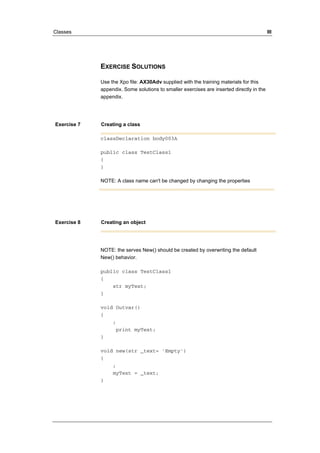
Exercise 7 Creating a class 
Create a new class and call it TestClass1. 
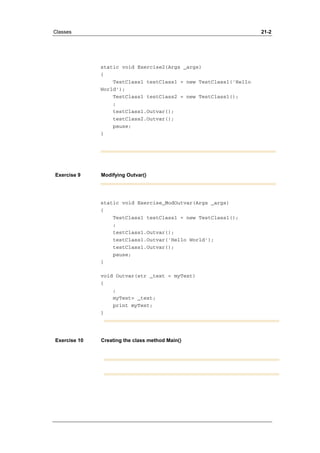
Exercise 8 Creating an object 
· Edit TestClass1 to have a text variable embedded in all objects 
created from this class. Declare the variable in the ClassDeclaration() 
method. 
· New() serves to enter a value in the variable each time an object is 
created. If no value is specified, New() must set the variable content to 
’Empty’. 
· Create an object method called Outvar() to output the variable content 
to the screen. 
· Create a job, and output a text from TextClass1. 
Exercise 9 Modifying Outvar() 
· Edit Outvar() so that it allows you to enter a new value in the text by 
giving arguments to the method Outvar(). 
· Use the job from the previous exercise to test whether Outvar() work 
as intended. 
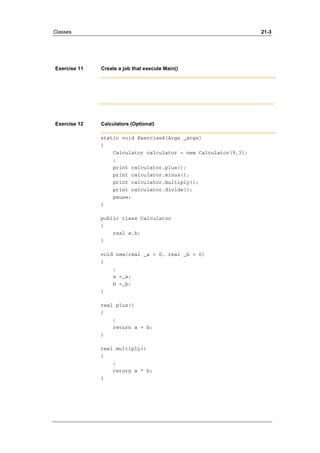
Exercise 10 Creating the class method Main()
Classes 3-10 
· Create the class method Main(), and enter code in it to have it output a 
line to the screen, for example ’just testing’. 
· Test it by activating Open on the tool bar or in the menu. 
Exercise 11 Create a job that execute Main() 
Now create a job that execute Main() in TestClass1 
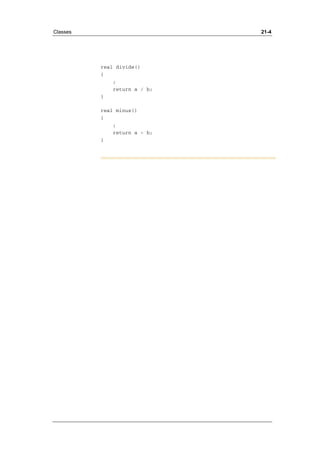
Exercise 12 Calculators (Optional) 
· Create a class that functions as a primitive calculator. 
· The class is to contain a new method that may receive the two 
numbers the calculator will be using for its calculations. 
· Each mathematical operation (+,-,* and /) must have an object method 
that calculates a value based on the two numbers received in the new 
method. 
· Output the result of the calculation from your "calculator." 
· Create a job that can test the calculator, too.
Lesson 4. 
Data Return 
At the end of this lesson, you are expected to be 
able to: 
Use methods that returns data. 
Write methods that returns data. 
Doc ID: AX-300-ILT-068-v01.00-ENUS
Data Return 4-2 
4.1 USING DATA RETURN 
So far, you have been working with methods that receive data when you 
open them. But you have yet to use methods that return data. 
Up to now, all methods you have written have specified void. Void indicates 
that there is no return value. As an example of a method that returns data, 
you could use the class method GetTickCount() from the WinAPI class. 
GetTickCount() returns an integer that is the number of thousands of 
seconds that the system has been running. 
If you want to create a method yourself that can return data, you must 
remember two things. Instead of using void, you must specify which data 
type you want returned. Here the possibilities are endless. All forms of data 
types may be returned, as well as database buffers and objects. You also 
have the option of specifying any type. This means that the method can 
return several different data types. 
In addition to this specification, you must also enter a command called 
return and specify what you want returned. Return must always be placed 
at the end, as this command concludes the method. 
Example: 
You can create a method that receives integers and returns the value 
multiplied by two. 
int Double(int number) 
{ 
return number*2; //No lines 
following return are executed. 
}
Data Return 4-3 
4.2 EXERCISES 
Exercise 13 Calculator 
Create a class that functions as a primitive calculator. 
The class is to contain a new method that may receive the two numbers the 
calculator will be using for its calculations. 
Each mathematical operation (+,-,* and /) is to have an object method that 
calculates a value based on the two numbers received in the new method. 
Get the results of the calculation returned as data without having them 
printed out by the ’calculator’. 
Then create a job that can test the calculator and output the mathematical 
results. 
Exercise 14 Using WinAPI::GetTickCount 
Create a new job that uses and prints out the number of thousands of 
seconds the system has been running. 
Exercise 15 Return a database buffer 
Create a new class or use the class from your last lesson. Create a new 
class method. This method must be able to receive a customer account 
number and return the entire record for the relevant customer in a database 
buffer. 
Then create a job that opens the method with a given account number and 
finally prints out the customer's name. If you experience problems, you may 
want to review the lesson covering select.
Data Return 4-4 
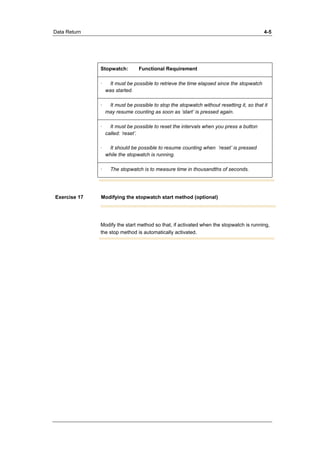
Exercise 16 Create a stopwatch 
The purpose of this exercise is to demonstrate some of the advantages of 
object-oriented programming. Let's say you want to develop a stopwatch. 
To make it work, you need an interface, a form containing buttons and 
displays, and the actual clockworks, a class. The point is that you may 
develop these two elements separately without having to know exactly how 
the elements are constructed internally. Knowing the information to be 
transferred between the elements is sufficient. 
Your Part of the Exercise: 
Your part of the exercise is to develop the actual "clockworks." The 
“outlook” of the stopwatch will be a form with buttons and displays. The 
form is to use a class, the clockworks, from which it may create an object. 
The class should have four object methods corresponding to the ’start’, 
’stop’, ’reset’ and ’display time’ buttons on the form. In order to make this 
work, however, it is important that we agree on the following: 
· The name of the class 
· The name of the methods 
· What parameters the methods are to receive and return. 
This data can be completed in the template below (this template can 
actually be used every time you create a class) : 
Class Name: 
Method Name Parameters Return Value 
The remaining aspects of coding the class and methods are up to you, as 
long as they meet the functional requirements below:
Data Return 4-5 
Stopwatch: Functional Requirement 
· It must be possible to retrieve the time elapsed since the stopwatch 
was started. 
· It must be possible to stop the stopwatch without resetting it, so that it 
may resume counting as soon as ’start’ is pressed again. 
· It must be possible to reset the intervals when you press a button 
called: ’reset’. 
· It should be possible to resume counting when ’reset’ is pressed 
while the stopwatch is running. 
· The stopwatch is to measure time in thousandths of seconds. 
Exercise 17 Modifying the stopwatch start method (optional) 
Modify the start method so that, if activated when the stopwatch is running, 
the stop method is automatically activated.
Lesson 5. 
Inheritance 
At the end of this lesson, you are expected to be 
able to: 
Understand the principles of inheritance. 
Use inheritance between classes. 
Understand and manage overriding and 
overloading of methods. 
DocID: AX-300-ILT-033-v01.00-ENUS
Inheritance 5-2 
5.1 WHAT IS INHERITANCE? 
In an earlier course (MorphX Essentials online course), you were 
introduced to extended data types. You saw how one or more extended 
data types could inherit properties from an overlying extended data type. 
The same principle applies to classes. 
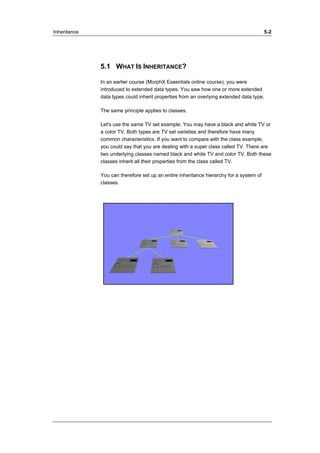
Let's use the same TV set example. You may have a black and white TV or 
a color TV. Both types are TV set varieties and therefore have many 
common characteristics. If you want to compare with the class example, 
you could say that you are dealing with a super class called TV. There are 
two underlying classes named black and white TV and color TV. Both these 
classes inherit all their properties from the class called TV. 
You can therefore set up an entire inheritance hierarchy for a system of 
classes.
Inheritance 5-3 
5.2 HOW DOES INHERITANCE WORK? 
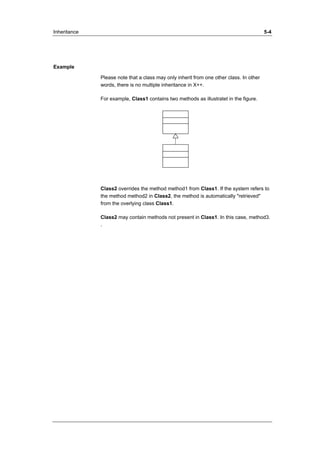
Let's use an example. We have two classes. Class1 and Class2. Class2 
inherits Class1. 
This means that the class declaration method contains the extends 
command and appears as follows: 
Example 
public class Class2 extends Class1 
{} 
This is visualized in UML as: 
The following now applies: 
Objects created from Class2 have the same methods and variables as 
Class1. 
Objects created from Class2 may have variables and methods that do not 
exist in Class1. 
Objects created from Class2 may have methods from Class1 that are 
overridden, that is, overwritten or altered, in Class2. 
If you compare an object to a TV set once more, you could say that a TV 
stemming from an inherited class will have the same methods -- buttons on 
the remote control -- as a TV stemming from the class from which the 
properties are being inherited. 
The TV from the inherited class may even have more methods. Finally, 
some of the inherited methods may have been altered.
Inheritance 5-4 
Example 
Please note that a class may only inherit from one other class. In other 
words, there is no multiple inheritance in X++. 
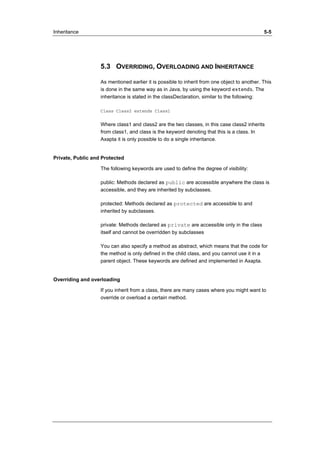
For example, Class1 contains two methods as illustratet in the figure. 
Class2 overrides the method method1 from Class1. If the system refers to 
the method method2 in Class2, the method is automatically "retrieved" 
from the overlying class Class1. 
Class2 may contain methods not present in Class1. In this case, method3. 
.
Inheritance 5-5 
5.3 OVERRIDING, OVERLOADING AND INHERITANCE 
As mentioned earlier it is possible to inherit from one object to another. This 
is done in the same way as in Java, by using the keyword extends. The 
inheritance is stated in the classDeclaration, similar to the following: 
Class Class2 extends Class1 
Where class1 and class2 are the two classes, in this case class2 inherits 
from class1, and class is the keyword denoting that this is a class. In 
Axapta it is only possible to do a single inheritance. 
Private, Public and Protected 
The following keywords are used to define the degree of visibility: 
public: Methods declared as public are accessible anywhere the class is 
accessible, and they are inherited by subclasses. 
protected: Methods declared as protected are accessible to and 
inherited by subclasses. 
private: Methods declared as private are accessible only in the class 
itself and cannot be overridden by subclasses 
You can also specify a method as abstract, which means that the code for 
the method is only defined in the child class, and you cannot use it in a 
parent object. These keywords are defined and implemented in Axapta. 
Overriding and overloading 
If you inherit from a class, there are many cases where you might want to 
override or overload a certain method.
Inheritance 5-6 
Example 
Vehicle 
-Wheels 
+numWheels(in ax) 
MotorBike 
+sideWagon() 
+numWheels(in ax) 
Car 
+numDoor() 
+numWheels(in ax) 
Truck 
+numWheels(in f,b = 2) 
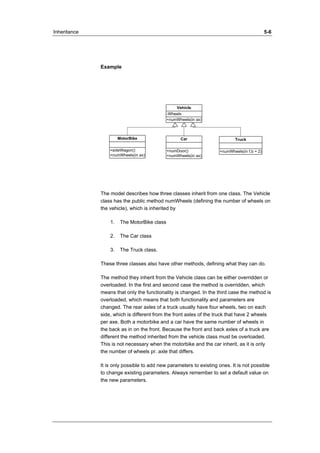
The model describes how three classes inherit from one class. The Vehicle 
class has the public method numWheels (defining the number of wheels on 
the vehicle), which is inherited by 
1. The MotorBike class 
2. The Car class 
3. The Truck class. 
These three classes also have other methods, defining what they can do. 
The method they inherit from the Vehicle class can be either overridden or 
overloaded. In the first and second case the method is overridden, which 
means that only the functionality is changed. In the third case the method is 
overloaded, which means that both functionality and parameters are 
changed. The rear axles of a truck usually have four wheels, two on each 
side, which is different from the front axles of the truck that have 2 wheels 
per axe. Both a motorbike and a car have the same number of wheels in 
the back as in on the front. Because the front and back axles of a truck are 
different the method inherited from the vehicle class must be overloaded. 
This is not necessary when the motorbike and the car inherit, as it is only 
the number of wheels pr. axle that differs. 
It is only possible to add new parameters to existing ones. It is not possible 
to change existing parameters. Always remember to set a default value on 
the new parameters.
Inheritance 5-7 
5.4 CONSTRUCTOR CONTROLLED INHERITANCE 
Inheritance is a very powerful tool in object-oriented programming since it 
allows you to use already existing and tested classes and prevents you 
from writing redundant code. Child classes can inherit methods from the 
parent and use them as they are, override them or even overload them. To 
use a child class, you create a handle for it and instantiate the object. But 
this is not always sufficient. Sometimes you do not know exactly which 
child class to work with. 
Example 
A vehicle company has just built a very advanced vehicle creation factory. 
They can produce motorbikes, cars, and trucks. Now they need a program, 
which can be used to control which type of vehicle is being produced. 
The solution to this problem lies in the vehicle class structure created 
earlier. In order to use this class structure the following code must be 
placed in a construct method on the parent class: 
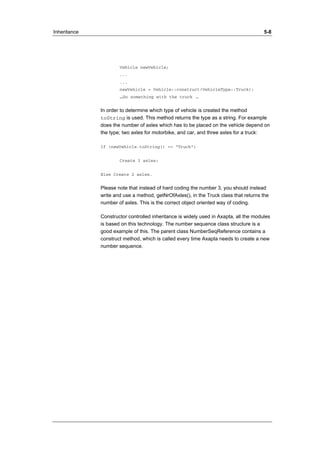
static Vehicle construct(VehicleType _type) 
{ 
switch (_type) 
{ 
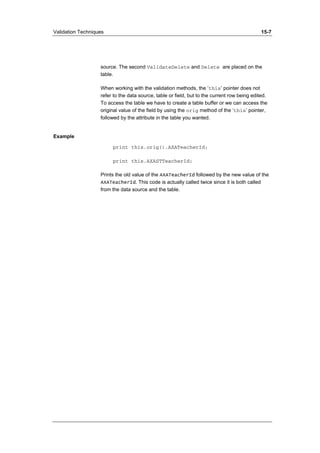
case vehicleType::Truck : return new Truck(); 
case vehicleType::Car : return new Car(); 
case vehicleType::MotorBike :return new MotorBike() 
default : error(‘Wrong type’); 
} 
return 0; 
} 
If the factory should create a truck, simply use the following code:
Inheritance 5-8 
Vehicle newVehicle; 
... 
... 
newVehicle = Vehicle::construct(VehicleType::Truck); 
…Do something with the truck … 
In order to determine which type of vehicle is created the method 
toString is used. This method returns the type as a string. For example 
does the number of axles which has to be placed on the vehicle depend on 
the type; two axles for motorbike, and car, and three axles for a truck: 
If (newVehicle.toString() == “Truck”) 
Create 3 axles; 
Else Create 2 axles. 
Please note that instead of hard coding the number 3, you should instead 
write and use a method, getNrOfAxles(), in the Truck class that returns the 
number of axles. This is the correct object oriented way of coding. 
Constructor controlled inheritance is widely used in Axapta, all the modules 
is based on this technology. The number sequence class structure is a 
good example of this. The parent class NumberSeqReference contains a 
construct method, which is called every time Axapta needs to create a new 
number sequence.
Inheritance 5-9 
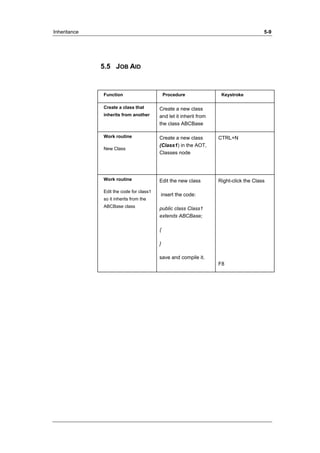
5.5 JOB AID 
Function Procedure Keystroke 
Create a class that 
inherits from another 
Create a new class 
and let it inherit from 
the class ABCBase 
Work routine 
New Class 
Create a new class 
(Class1) in the AOT, 
Classes node 
CTRL+N 
Work routine 
Edit the code for class1 
so it inherits from the 
ABCBase class 
Edit the new class 
insert the code: 
public class Class1 
extends ABCBase; 
{ 
} 
save and compile it. 
Right-click the Class 
F8
Inheritance 5-10 
5.6 EXERCISES 
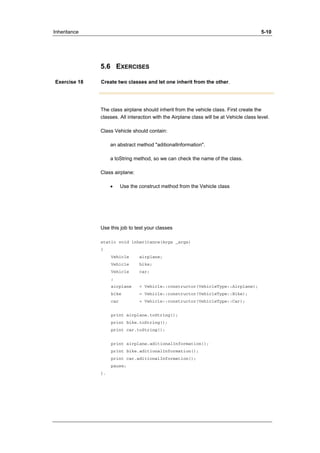
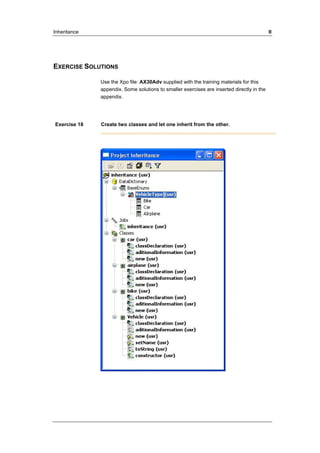
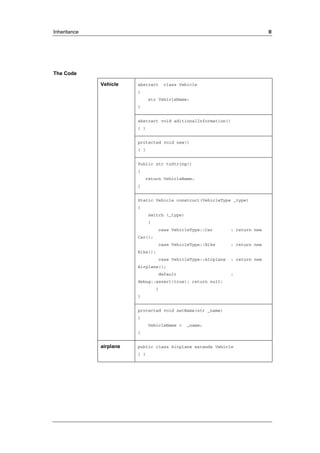
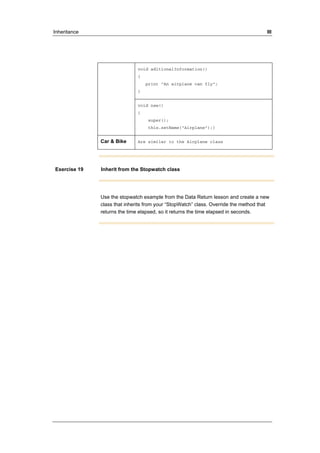
Exercise 18 Create two classes and let one inherit from the other. 
The class airplane should inherit from the vehicle class. First create the 
classes. All interaction with the Airplane class will be at Vehicle class level. 
Class Vehicle should contain: 
an abstract method "aditionalInformation". 
a toString method, so we can check the name of the class. 
Class airplane: 
• Use the construct method from the Vehicle class 
Use this job to test your classes 
static void inheritance(Args _args) 
{ 
Vehicle airplane; 
Vehicle bike; 
Vehicle car; 
; 
airplane = Vehicle::constructor(VehicleType::Airplane); 
bike = Vehicle::constructor(VehicleType::Bike); 
car = Vehicle::constructor(VehicleType::Car); 
print airplane.toString(); 
print bike.toString(); 
print car.toString(); 
print airplane.aditionalInformation(); 
print bike.aditionalInformation(); 
print car.aditionalInformation(); 
pause; 
}.
Inheritance 5-11 
Exercise 19 Inherit from the Stopwatch 
Use the stopwatch example from the Data Return lesson and create a new 
class that inherits from your “StopWatch” class. Override the method that 
returns the time elapsed, so it returns the time elapsed divided by 1000 (the 
time in seconds).
Polymorphism 6-1 
Lesson 6. 
Polymorphism 
At the end of this lesson, you are expected to be 
able to: 
Understand the principles of polymorphism. 
Apply polymorphism. 
AX-300-ILT-034-v01.00-ENUS
Polymorphism 6-2 
6.1 POLYMORPHISM 
When a method has several forms 
The work polymorphism is derived from Greek and means “many forms”. 
When you work with inherited classes and a method exists in several 
versions, you have the option of using polymorphic. 
Example: 
Like in the previous lesson, you have two classes: Class1 and Class2, 
where Class2 inherits from Class1. 
Now you will create an object from Class2, but using an object handle from 
Class1. 
Class1 K = new Class2(); 
What are the results of this? 
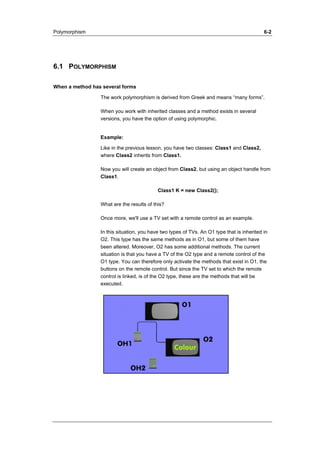
Once more, we'll use a TV set with a remote control as an example. 
In this situation, you have two types of TVs. An O1 type that is inherited in 
O2. This type has the same methods as in O1, but some of them have 
been altered. Moreover, O2 has some additional methods. The current 
situation is that you have a TV of the O2 type and a remote control of the 
O1 type. You can therefore only activate the methods that exist in O1, the 
buttons on the remote control. But since the TV set to which the remote 
control is linked, is of the O2 type, these are the methods that will be 
executed.
Polymorphism 6-3 
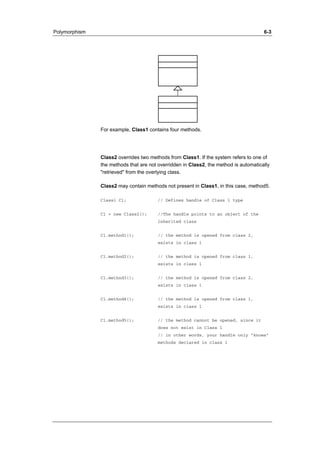
For example, Class1 contains four methods. 
Class2 overrides two methods from Class1. If the system refers to one of 
the methods that are not overridden in Class2, the method is automatically 
"retrieved" from the overlying class. 
Class2 may contain methods not present in Class1, in this case, method5. 
Class1 C1; // Defines handle of Class 1 type 
C1 = new Class2(); //The handle points to an object of the 
inherited class 
C1.method1(); // the method is opened from class 2, 
exists in class 1 
C1.method2(); // the method is opened from class 1, 
exists in class 1 
C1.method3(); // the method is opened from class 2, 
exists in class 1 
C1.method4(); // the method is opened from class 1, 
exists in class 1 
C1.method5(); // the method cannot be opened, since it 
does not exist in Class 1 
// in other words, your handle only "knows" 
methods declared in class 1
Polymorphism 6-4 
6.2 EXERCISES 
Exercise 20 Using polymorphism 
· Edit the form that executed your stopwatch (lesson Data return) so that 
it creates an object of your ’second stopwatch’ but uses an object handle 
from your original stopwatch. 
Exercise 21 Using polymorphism (Optional) 
1 Create a new class using a class method that can test stopwatch 
objects. It should work in the following way: 
The method receives an object handle created from your original stopwatch 
class. This object handle is linked to an object created from your original 
class or the class that inherited this class (The class that displays the time 
in seconds). 
The method will then do the following: 
· Activate the stopwatch object start method. 
· Pause until the user prompts the system to continue. 
· Activate the stopwatch object stop method. 
· Activate the stopwatch object printout time method. 
2 Once the class with the new method is written, a new job is created 
where the object and an object handle is created and entered in the 
method, which is then executed. 
This exercise serves to illustrate the concept of polymorphism, as your test 
method works well whether it receives a stopwatch object handle linked to 
an object of both of the stopwatch types.
Maps 7-1 
Lesson 7. 
Maps 
At the end of this lesson, you are expected to be 
able to: 
Understand the purpose of the maps feature. 
Create and use maps. 
DocID: AX-300-ILT-035-v01.00-ENUS
Maps 7-2 
7.1 THE PURPOSE OF MAPS 
As previously seen, a table cannot inherit properties from another table 
(with the exception of Common). So the question is: If two tables are 
almost identical, is it necessary to create methods that are virtually the 
same for each of these tables? 
No, and this is where maps enter the picture. You could say that maps 
compensate for the fact that tables cannot inherit properties from one 
another. Maps is located in the AOT under Data Dictionary. Even though a 
map resembles a table at first glance, the critical difference is that, it does 
not contain data but functions rather as a library of methods intended to be 
shared by several tables.
Maps 7-3 
7.2 STRUCTURE 
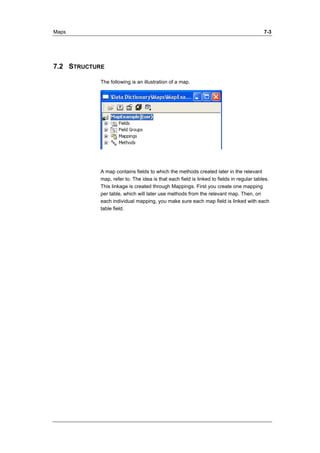
The following is an illustration of a map. 
A map contains fields to which the methods created later in the relevant 
map, refer to. The idea is that each field is linked to fields in regular tables. 
This linkage is created through Mappings. First you create one mapping 
per table, which will later use methods from the relevant map. Then, on 
each individual mapping, you make sure each map field is linked with each 
table field.
Maps 7-4 
7.3 CALLING METHODS 
If you want to activate a method located on a map, you might think you 
should be able to do this by simply specifying the table name followed by 
the name of the desired method. However, it is not as simple as that. A 
table may be linked to several different maps, which is also why it is 
necessary to specify the name of the map where the method is located. 
You call the method as follows: 
Table.Map::Method(); 
Please note that even though this example uses ’::’before the name of the 
method, it is actually dynamic.
Maps 7-5 
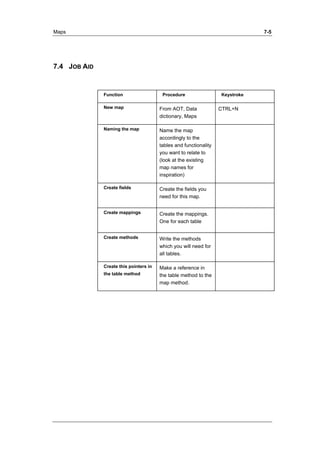
7.4 JOB AID 
Function Procedure Keystroke 
New map From AOT, Data 
dictionary, Maps 
CTRL+N 
Naming the map Name the map 
accordingly to the 
tables and functionality 
you want to relate to 
(look at the existing 
map names for 
inspiration) 
Create fields 
Create the fields you 
need for this map. 
Create mappings 
Create the mappings. 
One for each table 
Create methods Write the methods 
which you will need for 
all tables. 
Create this pointers in 
the table method 
Make a reference in 
the table method to the 
map method.
Maps 7-6 
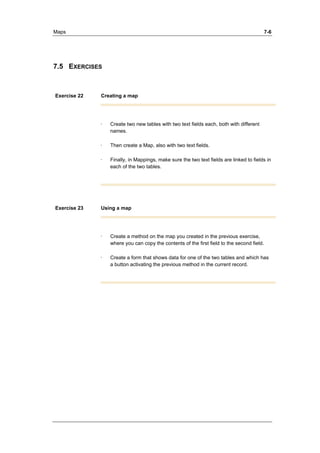
7.5 EXERCISES 
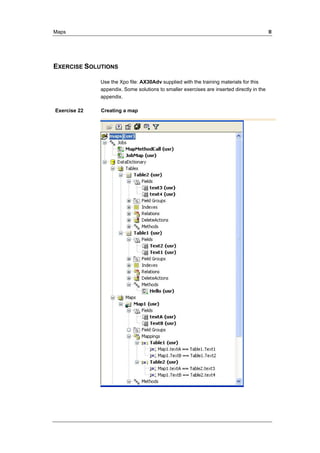
Exercise 22 Creating a map 
· Create two new tables with two text fields each, both with different 
names. 
· Then create a Map, also with two text fields. 
· Finally, in Mappings, make sure the two text fields are linked to fields in 
each of the two tables. 
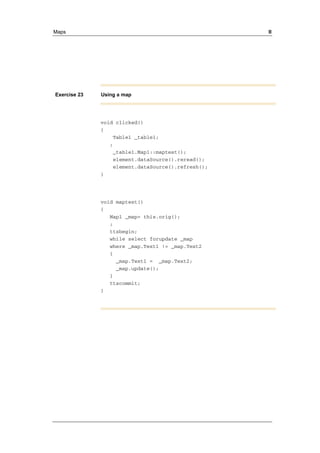
Exercise 23 Using a map 
· Create a method on the map you created in the previous exercise, 
where you can copy the contents of the first field to the second field. 
· Create a form that shows data for one of the two tables and which has 
a button activating the previous method in the current record.
Information Exchange 8-1 
Lesson 8. 
Information Exchange 
At the end of this lesson, you are expected to be 
able to: 
Understand how application elements can 
activate each other 
Understand how information can be exchanged 
between application elements 
Be familiar with methods from the Args class. 
AX-300-ILT-049-v01.00-ENUS
Information Exchange 8-2 
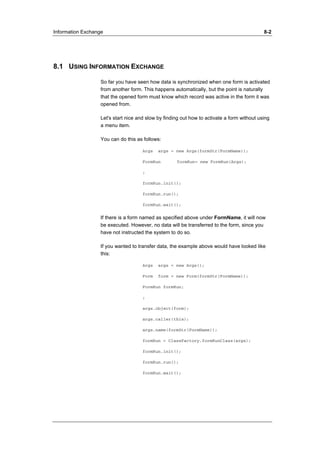
8.1 USING INFORMATION EXCHANGE 
So far you have seen how data is synchronized when one form is activated 
from another form. This happens automatically, but the point is naturally 
that the opened form must know which record was active in the form it was 
opened from. 
Let's start nice and slow by finding out how to activate a form without using 
a menu item. 
You can do this as follows: 
Args args = new Args(formStr(FormName)); 
FormRun formRun= new FormRun(Args); 
; 
formRun.init(); 
formRun.run(); 
formRun.wait(); 
If there is a form named as specified above under FormName, it will now 
be executed. However, no data will be transferred to the form, since you 
have not instructed the system to do so. 
If you wanted to transfer data, the example above would have looked like 
this: 
Args args = new Args(); 
Form form = new Form(formStr(FormName)); 
FormRun formRun; 
; 
args.object(form); 
args.caller(this); 
args.name(formStr(FormName)); 
formRun = ClassFactory.formRunClass(args); 
formRun.init(); 
formRun.run(); 
formRun.wait();
Information Exchange 8-3 
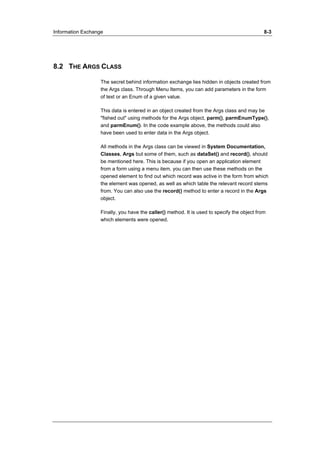
8.2 THE ARGS CLASS 
The secret behind information exchange lies hidden in objects created from 
the Args class. Through Menu Items, you can add parameters in the form 
of text or an Enum of a given value. 
This data is entered in an object created from the Args class and may be 
"fished out" using methods for the Args object, parm(), parmEnumType(), 
and parmEnum(). In the code example above, the methods could also 
have been used to enter data in the Args object. 
All methods in the Args class can be viewed in System Documentation, 
Classes, Args but some of them, such as dataSet() and record(), should 
be mentioned here. This is because if you open an application element 
from a form using a menu item, you can then use these methods on the 
opened element to find out which record was active in the form from which 
the element was opened, as well as which table the relevant record stems 
from. You can also use the record() method to enter a record in the Args 
object. 
Finally, you have the caller() method. It is used to specify the object from 
which elements were opened.
Information Exchange 8-4 
8.3 ARGS OBJECTS 
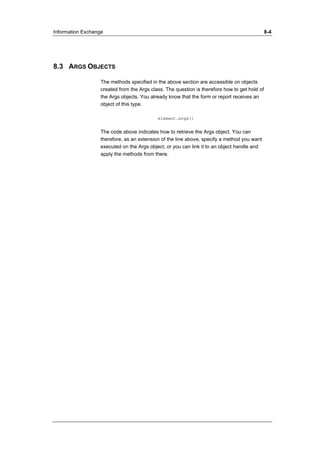
The methods specified in the above section are accessible on objects 
created from the Args class. The question is therefore how to get hold of 
the Args objects. You already know that the form or report receives an 
object of this type. 
element.args() 
The code above indicates how to retrieve the Args object. You can 
therefore, as an extension of the line above, specify a method you want 
executed on the Args object, or you can link it to an object handle and 
apply the methods from there.
Information Exchange 8-5 
8.4 EXERCISES 
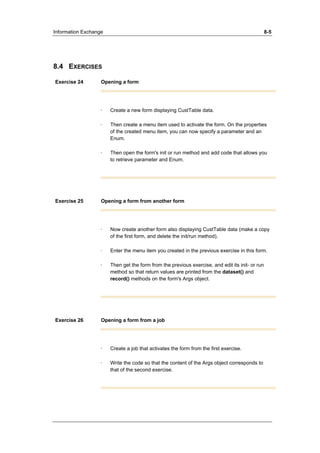
Exercise 24 Opening a form 
· Create a new form displaying CustTable data. 
· Then create a menu item used to activate the form. On the properties 
of the created menu item, you can now specify a parameter and an 
Enum. 
· Then open the form's init or run method and add code that allows you 
to retrieve parameter and Enum. 
Exercise 25 Opening a form from another form 
· Now create another form also displaying CustTable data (make a copy 
of the first form, and delete the init/run method). 
· Enter the menu item you created in the previous exercise in this form. 
· Then get the form from the previous exercise, and edit its init- or run 
method so that return values are printed from the dataset() and 
record() methods on the form's Args object. 
Exercise 26 Opening a form from a job 
· Create a job that activates the form from the first exercise. 
· Write the code so that the content of the Args object corresponds to 
that of the second exercise.
Information Exchange 8-6 
Exercise 27 Closing Form1 from Form2 (Optional Exercise) 
In the second exercise you activated a form from another form. 
· Create a button on the activated form that can be used to close the 
form it was called from.
Data in Forms 9-1 
Lesson 9. 
Data in Forms 
At the end of this lesson, you are expected to be 
able to: 
Understand how you select and enter data in 
forms. 
Understand how queries function on forms 
Call a method on a form automatically 
AX-300-ILT-050-v01.00-ENUS
Data in Forms 9-2 
9.1 DATA IN FORMS 
At this point, you have probably developed a large number of forms for 
displaying data from various tables. Some of these forms displayed all 
records in a table, while other forms only included an extract of the table 
content (synchronized forms). You probably did not worry much about how 
the data was selected as the system took care of this automatically. In this 
lesson we explore how to manipulate the handling and display of data in 
forms. 
Queries on forms 
The data contents of a table can be influenced using a query linked to the 
relevant form. Forms that are linked to one or more tables also contain 
queries. The queries may not be as visible as in a report when you are 
looking at the tree structure of a form, but that it is actually the same. 
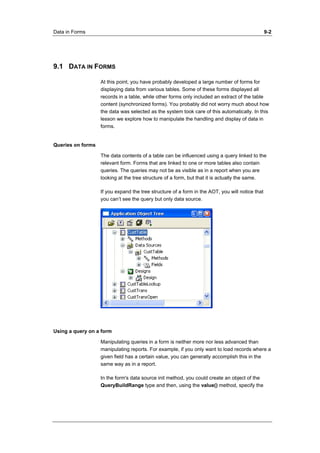
If you expand the tree structure of a form in the AOT, you will notice that 
you can’t see the query but only data source. 
Using a query on a form 
Manipulating queries in a form is neither more nor less advanced than 
manipulating reports. For example, if you only want to load records where a 
given field has a certain value, you can generally accomplish this in the 
same way as in a report. 
In the form's data source init method, you could create an object of the 
QueryBuildRange type and then, using the value() method, specify the
Data in Forms 9-3 
field value for which you want ranges. 
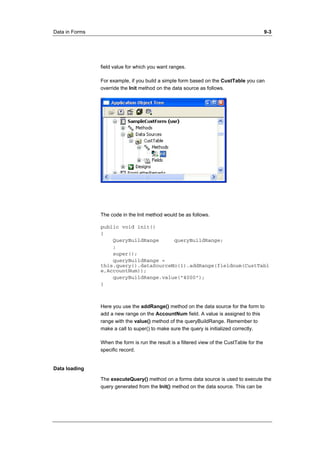
For example, if you build a simple form based on the CustTable you can 
override the Init method on the data source as follows. 
The code in the Init method would be as follows. 
public void init() 
{ 
QueryBuildRange queryBuildRange; 
; 
super(); 
queryBuildRange = 
this.query().dataSourceNo(1).addRange(fieldnum(CustTabl 
e,AccountNum)); 
queryBuildRange.value("4000"); 
} 
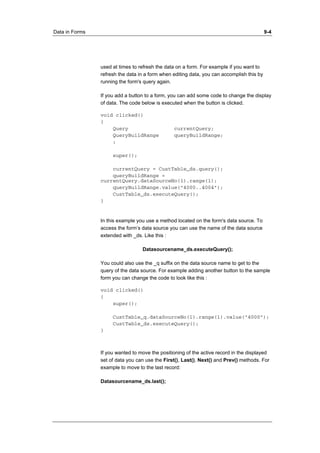
Here you use the addRange() method on the data source for the form to 
add a new range on the AccountNum field. A value is assigned to this 
range with the value() method of the queryBuildRange. Remember to 
make a call to super() to make sure the query is initialized correctly. 
When the form is run the result is a filtered view of the CustTable for the 
specific record. 
Data loading 
The executeQuery() method on a forms data source is used to execute the 
query generated from the Init() method on the data source. This can be
Data in Forms 9-4 
used at times to refresh the data on a form. For example if you want to 
refresh the data in a form when editing data, you can accomplish this by 
running the form's query again. 
If you add a button to a form, you can add some code to change the display 
of data. The code below is executed when the button is clicked. 
void clicked() 
{ 
Query currentQuery; 
QueryBuildRange queryBuildRange; 
; 
super(); 
currentQuery = CustTable_ds.query(); 
queryBuildRange = 
currentQuery.dataSourceNo(1).range(1); 
queryBuildRange.value("4000..4004"); 
CustTable_ds.executeQuery(); 
} 
In this example you use a method located on the form's data source. To 
access the form’s data source you can use the name of the data source 
extended with _ds. Like this : 
Datasourcename_ds.executeQuery(); 
You could also use the _q suffix on the data source name to get to the 
query of the data source. For example adding another button to the sample 
form you can change the code to look like this : 
void clicked() 
{ 
super(); 
CustTable_q.dataSourceNo(1).range(1).value("4000"); 
CustTable_ds.executeQuery(); 
} 
If you wanted to move the positioning of the active record in the displayed 
set of data you can use the First(), Last(), Next() and Prev() methods. For 
example to move to the last record: 
Datasourcename_ds.last();
Data in Forms 9-5 
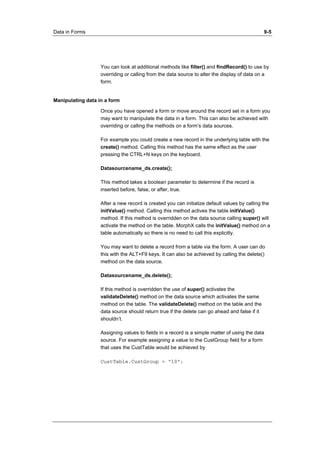
You can look at additional methods like filter() and findRecord() to use by 
overriding or calling from the data source to alter the display of data on a 
form. 
Manipulating data in a form 
Once you have opened a form or move around the record set in a form you 
may want to manipulate the data in a form. This can also be achieved with 
overriding or calling the methods on a form’s data sources. 
For example you could create a new record in the underlying table with the 
create() method. Calling this method has the same effect as the user 
pressing the CTRL+N keys on the keyboard. 
Datasourcename_ds.create(); 
This method takes a boolean parameter to determine if the record is 
inserted before, false, or after, true. 
After a new record is created you can initialize default values by calling the 
initValue() method. Calling this method actives the table initValue() 
method. If this method is overridden on the data source calling super() will 
activate the method on the table. MorphX calls the initValue() method on a 
table automatically so there is no need to call this explicitly. 
You may want to delete a record from a table via the form. A user can do 
this with the ALT+F9 keys. It can also be achieved by calling the delete() 
method on the data source. 
Datasourcename_ds.delete(); 
If this method is overridden the use of super() activates the 
validateDelete() method on the data source which activates the same 
method on the table. The validateDelete() method on the table and the 
data source should return true if the delete can go ahead and false if it 
shouldn’t. 
Assigning values to fields in a record is a simple matter of using the data 
source. For example assigning a value to the CustGroup field for a form 
that uses the CustTable would be achieved by 
CustTable.CustGroup = “10”;
Data in Forms 9-6 
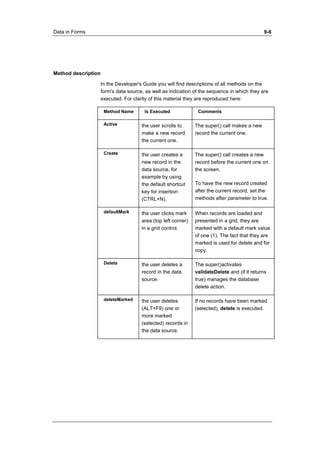
Method description 
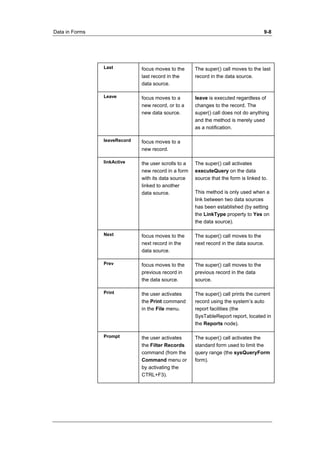
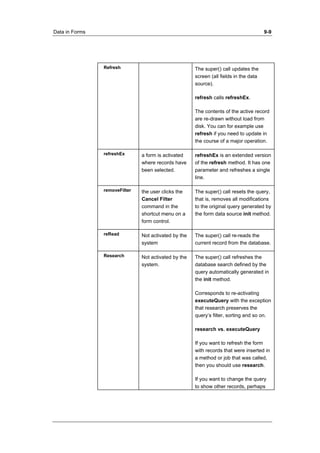
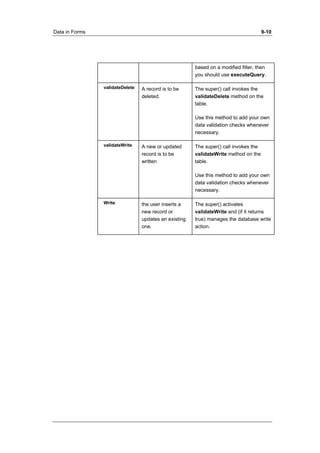
In the Developer's Guide you will find descriptions of all methods on the 
form's data source, as well as indication of the sequence in which they are 
executed. For clarity of this material they are reproduced here: 
Method Name Is Executed Comments 
Active the user scrolls to 
make a new record 
the current one. 
The super() call makes a new 
record the current one. 
Create the user creates a 
new record in the 
data source, for 
example by using 
the default shortcut 
key for insertion 
(CTRL+N). 
The super() call creates a new 
record before the current one on 
the screen. 
To have the new record created 
after the current record, set the 
methods after parameter to true. 
defaultMark the user clicks mark 
area (top left corner) 
in a grid control. 
When records are loaded and 
presented in a grid, they are 
marked with a default mark value 
of one (1). The fact that they are 
marked is used for delete and for 
copy. 
Delete the user deletes a 
record in the data 
source. 
The super()activates 
validateDelete and (if it returns 
true) manages the database 
delete action. 
deleteMarked the user deletes 
(ALT+F9) one or 
more marked 
(selected) records in 
the data source. 
If no records have been marked 
(selected), delete is executed.
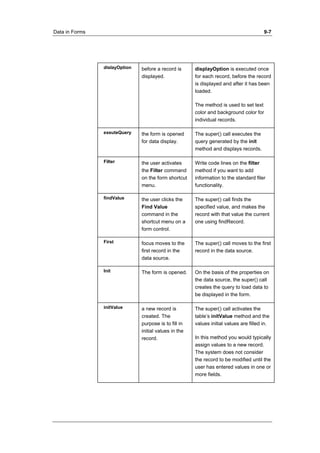
Data in Forms 9-7 
dislayOption before a record is 
displayed. 
displayOption is executed once 
for each record, before the record 
is displayed and after it has been 
loaded. 
The method is used to set text 
color and background color for 
individual records. 
exeuteQuery the form is opened 
for data display. 
The super() call executes the 
query generated by the init 
method and displays records. 
Filter the user activates 
the Filter command 
on the form shortcut 
menu. 
Write code lines on the filter 
method if you want to add 
information to the standard filer 
functionality. 
findValue the user clicks the 
Find Value 
command in the 
shortcut menu on a 
form control. 
The super() call finds the 
specified value, and makes the 
record with that value the current 
one using findRecord. 
First focus moves to the 
first record in the 
data source. 
The super() call moves to the first 
record in the data source. 
Init The form is opened. On the basis of the properties on 
the data source, the super() call 
creates the query to load data to 
be displayed in the form. 
initValue a new record is 
created. The 
purpose is to fill in 
initial values in the 
record. 
The super() call activates the 
table’s initValue method and the 
values initial values are filled in. 
In this method you would typically 
assign values to a new record. 
The system does not consider 
the record to be modified until the 
user has entered values in one or 
more fields.
Data in Forms 9-8 
Last focus moves to the 
last record in the 
data source. 
The super() call moves to the last 
record in the data source. 
Leave focus moves to a 
new record, or to a 
new data source. 
leave is executed regardless of 
changes to the record. The 
super() call does not do anything 
and the method is merely used 
as a notification. 
leaveRecord focus moves to a 
new record. 
linkActive the user scrolls to a 
new record in a form 
with its data source 
linked to another 
data source. 
The super() call activates 
executeQuery on the data 
source that the form is linked to. 
This method is only used when a 
link between two data sources 
has been established (by setting 
the LinkType property to Yes on 
the data source). 
Next focus moves to the 
next record in the 
data source. 
The super() call moves to the 
next record in the data source. 
Prev focus moves to the 
previous record in 
the data source. 
The super() call moves to the 
previous record in the data 
source. 
Print the user activates 
the Print command 
in the File menu. 
The super() call prints the current 
record using the system’s auto 
report facilities (the 
SysTableReport report, located in 
the Reports node). 
Prompt the user activates 
the Filter Records 
command (from the 
Command menu or 
by activating the 
CTRL+F3). 
The super() call activates the 
standard form used to limit the 
query range (the sysQueryForm 
form).
Data in Forms 9-9 
Refresh The super() call updates the 
screen (all fields in the data 
source). 
refresh calls refreshEx. 
The contents of the active record 
are re-drawn without load from 
disk. You can for example use 
refresh if you need to update in 
the course of a major operation. 
refreshEx a form is activated 
where records have 
been selected. 
refreshEx is an extended version 
of the refresh method. It has one 
parameter and refreshes a single 
line. 
removeFilter the user clicks the 
Cancel Filter 
command in the 
shortcut menu on a 
form control. 
The super() call resets the query, 
that is, removes all modifications 
to the original query generated by 
the form data source init method. 
reRead Not activated by the 
system 
The super() call re-reads the 
current record from the database. 
Research Not activated by the 
system. 
The super() call refreshes the 
database search defined by the 
query automatically generated in 
the init method. 
Corresponds to re-activating 
executeQuery with the exception 
that research preserves the 
query’s filter, sorting and so on. 
research vs. executeQuery 
If you want to refresh the form 
with records that were inserted in 
a method or job that was called, 
then you should use research. 
If you want to change the query 
to show other records, perhaps
Data in Forms 9-10 
based on a modified filter, then 
you should use executeQuery. 
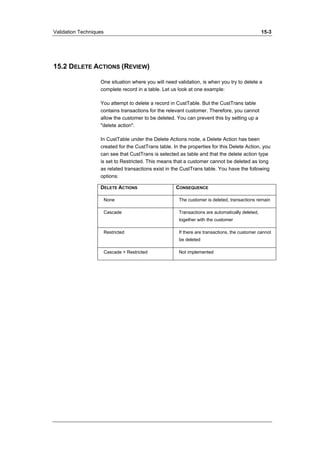
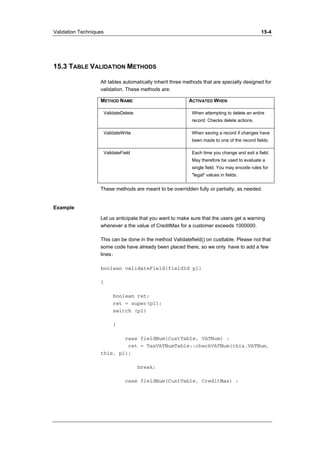
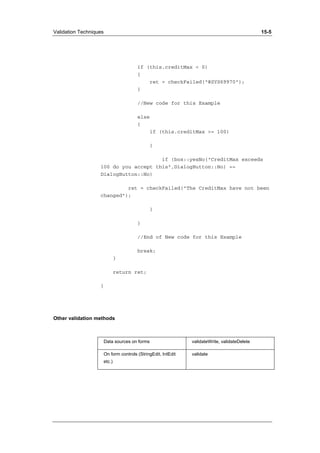
validateDelete A record is to be 
deleted. 
The super() call invokes the 
validateDelete method on the 
table. 
Use this method to add your own 
data validation checks whenever 
necessary. 
validateWrite A new or updated 
record is to be 
written 
The super() call invokes the 
validateWrite method on the 
table. 
Use this method to add your own 
data validation checks whenever 
necessary. 
Write the user inserts a 
new record or 
updates an existing 
one. 
The super() activates 
validateWrite and (if it returns 
true) manages the database write 
action.
Data in Forms 9-11 
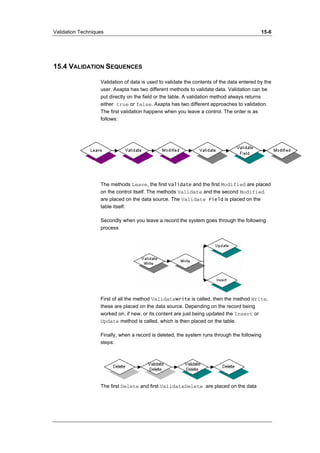
Validation sequence of data 
The validation of data entered on a form happens in a defined sequence 
once the user has modified data in a form control. (Refer to Validation 
Techniques Lesson). 
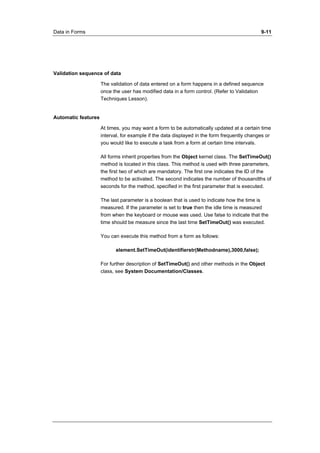
Automatic features 
At times, you may want a form to be automatically updated at a certain time 
interval, for example if the data displayed in the form frequently changes or 
you would like to execute a task from a form at certain time intervals. 
All forms inherit properties from the Object kernel class. The SetTimeOut() 
method is located in this class. This method is used with three parameters, 
the first two of which are mandatory. The first one indicates the ID of the 
method to be activated. The second indicates the number of thousandths of 
seconds for the method, specified in the first parameter that is executed. 
The last parameter is a boolean that is used to indicate how the time is 
measured. If the parameter is set to true then the idle time is measured 
from when the keyboard or mouse was used. Use false to indicate that the 
time should be measure since the last time SetTimeOut() was executed. 
You can execute this method from a form as follows: 
element.SetTimeOut(identifierstr(Methodname),3000,false); 
For further description of SetTimeOut() and other methods in the Object 
class, see System Documentation/Classes.
Data in Forms 9-12 
9.2 EXERCISES 
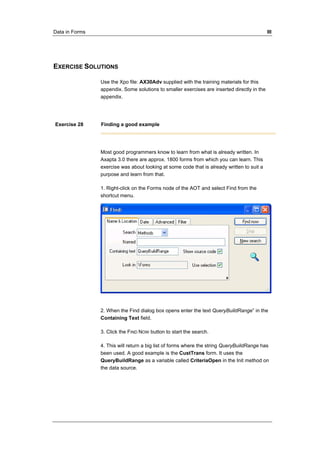
Exercise 28 Finding a good example 
Use the Find tool to find a form using an object of the QueryBuildRange 
type. 
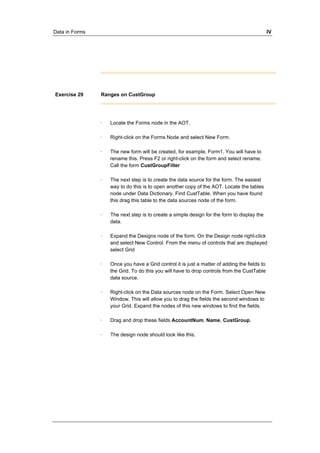
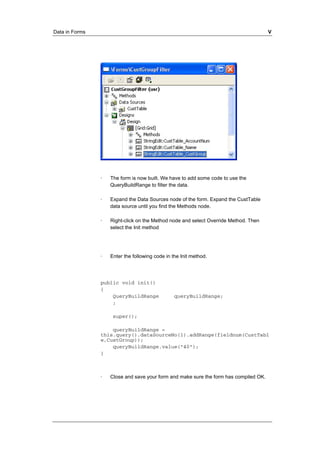
Exercise 29 Ranges on CustGroup 
Create a form displaying data from CustTable in a grid a range set on the 
CustGroup field so that only customers in group 40 are displayed. 
Exercise 30 Ranges on CustGroup (Continued) 
· Create a text field in the form from the previous exercise. You will be 
using the field to specify a certain customer group so that only records 
containing the same customer group are displayed in the form. 
· To that end, create a button that updates the content of the form when 
activated.
Data in Forms 9-13 
Exercise 31 Automatic updating 
· Finally, readjust the form so that updating takes place automatically 
every second. 
· To check whether the updating actually occurs as often as expected, 
you must also insert a data field that displays the number of updates 
performed since the form was opened.
Windows in Forms 10-1 
Lesson 10. 
Windows in Forms 
At the end of this lesson, you are expected to be 
able to: 
Use the Window form controls 
Use methods on the Window Form Controls 
AX-300-ILT-051-v01.00-ENUS
Windows in Forms 10-1 
10.1 WINDOWS IN FORMS 
In the preceding section we looked at form controls. Window is one of 
them. An object of this type derives from the FormWindowControl kernel 
class. It has several purposes, but in this lesson you will focus on using it to 
display images. 
Properties 
If the image you want to display is saved in a file, the easiest way to load 
the image would be to use the property called ImageName. Here you can 
specify the path and name of the file you want to load. 
Alternatively, you can use DataSource and DataField in properties. If so, 
you enter data source name and field name containing path and file name 
there. 
Finally, in properties, you also have the option of specifying a method name 
in DataMethod, which returns the path and file name. A new method can 
be created on a table, data source or from the form objects to display. An 
example or a method would look like this on a table if the table has a field 
called FileName. 
display Filename displayImage() 
{ 
return this.Filename; 
} 
Methods 
Another way to load an image would be to use the ImageName() and 
UpdateWindow() methods, both of which are located on the object. 
Example 
If you create a new form with a window control and set the name property 
to ImageWindow and also set the AutoDeclaration property to Yes then 
you can load an image on the form with the following code, for example, 
from the clicked method of a button. 
void clicked() 
{
Windows in Forms 10-2 
super(); 
ImageWindow.imageName("C:tempImagesimg10- 
paraglider.jpg"); 
ImageWindow.updateWindow(); 
} 
If you haven’t set the AutoDeclaration property then your code will have to 
access the control via the full path via the form design. 
void clicked() 
{ 
FormWindowControl imageDisplay; 
; 
super(); 
imageDisplay = 
element.design().control(control::imageWindow); 
imageDisplay.imageName("C:tempImagesimg10- 
paraglider.jpg"); 
imageDisplay.updateWindow(); 
} 
If you want these methods to be executed each time you change records, 
the methods can be placed in the active() method on the form's data 
source. 
Database stored images 
Up to this point we have been relying on the image being stored in the file 
system. If this is to work for all users of the system then the static image 
files will have to be stored in a common shared network location. What if 
you want to make use of an image stored in the database? 
You can do this easily with the use of a container field on a table. To 
display the image you can then make use of the MorphX Image class to
Windows in Forms 10-3 
load data from a field or any container and use the Image() method on the 
window control to use this data. For example this code segment makes use 
of a window control called imageWindow. 
void displayImage() 
{ 
Image logoImage; 
; 
//This relies on the imageWindow control being set 
to AutoDeclaration. 
//windowsControlImage is the table of the data 
source. 
//displayimage is the field on the table. 
element.lock(); 
logoImage = new Image(); 
logoImage.setData(windowsControlImage.displayimage); 
imageWindow.image(logoImage); 
imageWindow.widthValue(logoimage.width()); 
imageWindow.heightValue(logoimage.height()); 
element.resetSize(); 
element.unLock(); 
}
Windows in Forms 10-4 
10.2 EXERCISES 
Exercise 32 Using properties 
· Create a new table with two text fields. One of the fields is intended for 
image ID, while the other must be long enough to accommodate both a 
path and a file name. 
· Then create a form using the table above as data source and 
containing the two fields and a window whose properties are set such 
that the image specified in field no. 2 is displayed there. 
Exercise 33 Using methods 
Now alter the form so that the loading of the image is no longer managed 
by the properties above, but rather by methods placed under the form's 
data source. 
Exercise 34 Selecting a file 
Add code to the form so that it is no longer necessary to enter a path and 
file name in field no. 2. Instead, the form may have a button that activates a 
file selection function where path and file name are automatically entered in 
the field. (You may want to refer to the SysImportDialog form.) 
Exercise 35 Using a stored image 
Reference to Appendix
Lookup Forms 11-1 
Lesson 11. 
Lookup Forms 
At the end of this lesson, you are expected to be 
able to: 
Know about Lookups for Forms. 
Program customized Lookup forms. 
AX-300-ILT-052-v01.00-ENUS
Lookup Forms 11-2 
11.1 USING LOOKUP 
When a table field refers to a field in another table, you have the option of 
performing lookups while in the field. 
Typically, several other fields are displayed on the list of possible values 
from the field that is being referred to. We know that two of the fields stem 
from the table properties TitleField1 and TitleField2. 
In addition to this option, an extra field is added to the list each time an 
index is created in the reference table. This field is the first component of 
the index. 
Naturally, it would be very time-consuming to create indexes in tables just 
because the fields represented in their first components will be used in a 
list during a lookup. We can only conclude, therefore, that there must be a 
better way.
Lookup Forms 11-3 
11.2 LOOKUP FORMS 
What we need is a form that is specially designed with the desired fields 
that are to function in the same way as the lists described above. 
You shouldn't have any trouble with the design, but two questions remain: 
· How can you open the form from a certain field? 
· And how do you get the form to return data from a given record field 
that you select? 
Building on the form you are opening from 
The most complicated part of creating the lookup form takes place on the 
form from which you open another element. First, create a field here 
containing a button that activates the field's Lookup method. You create 
this button by setting the field property named LookupButton to Always. 
Lookup() on the field is activated when the system performs a lookup. 
According to Best Practices, the most correct way is to create a new 
method on the table you perform the lookup on. Thus, the only code to be 
placed in lookup() is a call of the new method on the table. 
As mentioned above, the new method on the form must activate the form 
from which data are collected. This code will look like the one you saw in 
the lesson Information Exchange, except for the fact that the run() and 
wait() methods on the FormRun object are not used. Instead, they are 
replaced by a method from the FormStringControl object called 
PerformFormLookup(). This method is to receive the FormRun object. 
For an example of the code, see the Accountnum field in the 
LedgerJournalTransDaily form. 
This code example gives you an idea of what you can do. 
FormRun newlookup; 
Args argForm = new Args() 
; 
argForm.name(formstr(myLookupForm)); 
argForm.caller(this); 
newlookup = ClassFactory.formRunClass(argForm);
Lookup Forms 11-4 
newlookup.init(); 
this.performFormLookup(newlookup); 
Building on the form that is opened 
On the form you are calling, the selectMode() method is used together with 
a parameter that is the object handle linked to the field form that is to be 
returned. This can be placed in either the form's init or run methods after 
the call to super(). 
element.SelectMode(field name);
Lookup Forms 11-5 
11.3 EXERCISES 
Exercise 36 New table with lookup form 
· Create a table containing ID, first and last names for technicians 
performing tasks in customers' locations. 
· You must therefore also create a field in CustTable for technician IDs. 
You cannot setup any reference here. 
· Then create the lookup form from the Technician table. You want to 
sort the technicians according to their first names. 
· Finally, make sure you enter the necessary code. 
Exercise 37 Filtration 
The preceding exercise now gets a bit more advanced. 
· In the technician table you are to insert an extra field that specifies the 
customer group. The result should be that during lookups only 
technicians in the same group as the relevant customer will be 
displayed.
List Views 12-1 
AX-300-ILT-040-v01.00-ENUS 
Lesson 12. 
List Views 
At the end of this lesson, you are expected to be 
able to: 
List views in forms 
Create menus in forms.
List Views 12-2 
12.1 USING LIST VIEWS 
List View is a control type that can contain various types of data that do not 
necessarily originate from a table. For the same reason, List View requires 
code to populate the data in control. 
Data can be entered using the add() method, but this method only serves 
to insert text. 
You also have the option of entering objects of the FormListItem type 
using the addItem() method. 
The way the data are presented in list view depends on the settings for the 
property by the name of View Type. 
Drag and Drop 
The ability of a user to drag and drop data is an important concept to 
windows environment. ListView controls have the ability to utilize drag and 
drop but this requires some code to handle the manipulation of the lists. 
To utilize drag and drop on the ListView set the DragDrop property on the 
list to Manual. You can then add code to override methods like Drop(). 
Menus 
You can create menus that are activated by right-clicking in the form. 
For the form's design and underlying controls, you will find the context() 
method. By entering code strings on this method, where you create an 
object of the Popup Menu class, and finally use the draw() method to 
activate the menu. 
See the SysDateLookup form for a complete example.
List Views 12-3 
12.2 EXERCISES 
Exercise 38 Creating a List View 
Create a form with a list view containing account numbers for all clients in 
CustTable. 
Exercise 39 Dragging and dropping between List Views 
Create an additional list view in the form from the first exercise, and add 
code that allows you to drag account numbers from the first list view and 
drop them into the new list view, so that they are moved there. 
Exercise 40 Menu 
Extend the functionality of the second list view so that you can open a 
menu containing two items by right-clicking. The first item allows you to 
delete the last transaction, while the second item lets you delete all 
transactions at once.
Tree Structure 13-1 
Lesson 13. 
Tree Structure 
At the end of this lesson, you are expected to be 
able to: 
Create forms containing tree structures. 
Understand the programming required by tree 
structures. 
AX-300-ILT-041-v01.00-ENUS
Tree Structure 13-2 
13.1 USING TREE STRUCTURES 
In the prior Axapta development courses, you have spent most of your time 
working on projects and the AOT. You may not have thought about it, but 
you are actually dealing with data represented in a tree structure in both 
cases. In this lesson, we will look at how you can present data like that in a 
form.
Tree Structure 13-3 
13.2 KERNEL CLASSES 
To create tree structures in forms, you must use methods located in two of 
the system's kernel classes. 
FormTreeControl and FormTreeItem. 
FormTreeControl is the class whose object is the form control containing 
the tree. While objects are created from the FormTreeItem class, the 
nodes are in the tree.
Tree Structure 13-4 
13.3 METHODS 
In this lesson you will be introduced only to the most important kernel class 
methods mentioned on the preceding page. For a complete description of 
the two classes, go to System Documentation, Classes. 
The add() method, which is used to create the tree, is located in the 
FormTreeControl kernel class. It must have at least three parameters: 
root = controlname.add(0,0,’text’); 
The script above shows how to create the root of the tree. The method 
returns an integer that is saved in a variable here labeled root. You will 
need the root variable when building branches on the tree. 
You can add a branch to the tree in the following manner: 
item = new FormTreeItem(’Text’); 
l1 = controlname.AddItem(root,0,item); 
The l1 variable has the same function as root. This is what you use when 
you want to add another level of branches.
Tree Structure 13-5 
13.4 DATA 
On each tree node you may also place data of any type. You can do this 
either using new() on FormTreeItem on the method's fourth parameter or 
the data() method once the object has been created. You also use data() 
to return data on the node. 
You may want to load data each time you change tree node. If so, you 
must enter code for this purpose in the selectionChanged() method on the 
form's FormTreeControl object.
Tree Structure 13-6 
13.5 EXERCISES 
Exercise 41 Creating a form with a tree structure 
Create a form with a tree structure using the company name (can be 
retrieved from the CompanyInfo table) as its root and all customer groups 
of the business as branches. The form is not going to have a data source. 
Instead, create a method on the form that handles data loading. You must 
be able to activate this method using a button on the form. 
Exercise 42 Expanding the tree structure 
Now adapt the above form so that the tree also contains customers 
associated with each of the customer groups and transactions for each 
customer. 
Exercise 43 Fields 
Enter fields in the form displaying data on the customer transactions, 
including account number, vouchers, data, and amount, so that the fields 
are completed when a transaction is selected in the tree. When no 
transaction is selected, the fields are to be hidden.
Temporary Tables 14-1 
Lesson 14. 
Temporary Tables 
At the end of this lesson, you are expected to be 
able to: 
Determine when it is beneficial to use temporary 
tables. 
Use temporary tables in connection with forms. 
AX-300-ILT-042-v01.00-ENUS
Temporary Tables 14-2 
14.1 TEMPORARY TABLE FUNCTION 
Temporary tables may be used in many contexts. The distinguishing 
feature of a temporary table is that the Temporary property is set to Yes. 
This entails that data placed in such a table, as opposed to data placed in a 
regular table, is only saved temporarily. 
In a 3-tier environment, temporary tables are instantiated where data is first 
accessed. Meaning the first insert determines whether a table lives on the 
client or on the server.
Temporary Tables 14-3 
14.2 PURPOSE OF TEMPORARY TABLES 
The purpose of temporary tables is to save a collection of data, for instance 
for display in a form or a report. Since the quantity of data is not going to be 
used in other contexts and is saved in various other tables, there is no 
reason to save it. 
The system already contains several tables of this type. They are not hard 
to find, as their names all start with tmp. Later, when completing exercises 
using temporary tables, you can either use one of the existing tables or 
create a new one containing the fields you need.
Temporary Tables 14-4 
14.3 USE 
In general, you use temporary tables in much the same way as you use 
regular tables. The crucial difference is that the data is deleted when there 
is no longer a table buffer attached. 
If you want to use a temporary table in a form, you will have to insert the 
table in the form's data source. 
Then you enter data into the table (buffer) using the form's init method. At 
the end of the form's init method you must transfer the table buffer to the 
form's data source, in order to avoid erasing data. 
DatasourceName.SetTmpData(TableBufferName); 
The same applies if you want to use a temporary table in a report. 
However, in addition to the init method, you must also enter code in the 
report's fetch method. Here, you use the send() method (a method on the 
report). This method transfers data to the report's design. For a more 
detailed description of these and other methods on reports, see the 
Developer's Guide. 
Best practice 
• A temporary table should live on the tier where it is used. 
• If a temporary table is used on several tiers, the table should live 
on the tier where the largest number of inserts and updates is 
performed.
Temporary Tables 14-5 
14.4 EXERCISES 
Exercise 44 Temporary table in a job 
· The purpose of this exercise is to demonstrate when you need a 
temporary table. Create a job that allows you to output customer data 
on screen using print and pause. The output must contain the account 
number, name, and number of customer transactions and should be 
set up so that the customers are output in a sequence analogous with 
the transaction number. 
Exercise 45 Temporary table in a class 
· Create a class with two methods, each one holding half the code from 
the job above. One method enters data in the temporary table, while 
the other retrieves it. 
· Did everything go as expected? 
Exercise 46 Temporary table in a form 
· Present the data from the first exercise in the same order in a grid on a 
form.
Temporary Tables 14-6 
Exercise 47 Temporary table in a report 
· Output the above data in a report. (Tip: You may want to look at the 
Cheque report code.) 
Exercise 48 Temporary table for spool file administration - Optional 
· You are going to display all files with the extension ’spl’ on c: in a form. 
· Create the form so that it updates itself automatically every 30 
seconds. 
· Finally, allow the user the option of selecting the files he or she wants 
to delete, and create a button for activating the delete function.
Validation Techniques 15-1 
Lesson 15. 
Validation Techniques 
At the end of this lesson, you are expected to be 
able to: 
Understand the purpose of validation techniques. 
Recognize where validation techniques are used 
in Axapta. 
Use the validation techniques in Axapta. 
ID AX-300-ILT-043-v01.00-ENUS
Validation Techniques 15-2 
15.1 VALIDATION METHODS 
Overview 
When you enter, alter or delete data, it may be necessary to check or 
validate whether the change is OK. You may already have looked at Delete 
Actions, which perform a validation whenever somebody tries to delete an 
entire record from a table. 
To ensure that the user does not enter the wrong type of data in a specific 
field, you should validate – which means check the content of the entered 
data. You can also use validation to give the user the message that you 
cannot honor his request. For example if a user wants to book a meeting 
room, which is already booked. 
Because of the rather complex architecture of Axapta, you will have to 
consider which validation method you want to use, where to run it 
(Client/server) and on which element to place it on. 
.
Validation Techniques 15-3 
15.2 DELETE ACTIONS (REVIEW) 
One situation where you will need validation, is when you try to delete a 
complete record in a table. Let us look at one example: 
You attempt to delete a record in CustTable. But the CustTrans table 
contains transactions for the relevant customer. Therefore, you cannot 
allow the customer to be deleted. You can prevent this by setting up a 
"delete action". 
In CustTable under the Delete Actions node, a Delete Action has been 
created for the CustTrans table. In the properties for this Delete Action, you 
can see that CustTrans is selected as table and that the delete action type 
is set to Restricted. This means that a customer cannot be deleted as long 
as related transactions exist in the CustTrans table. You have the following 
options: 
DELETE ACTIONS CONSEQUENCE 
None The customer is deleted, transactions remain 
Cascade Transactions are automatically deleted, 
together with the customer 
Restricted If there are transactions, the customer cannot 
be deleted 
Cascade + Restricted Not implemented
Validation Techniques 15-4 
15.3 TABLE VALIDATION METHODS 
All tables automatically inherit three methods that are specially designed for 
validation. These methods are: 
METHOD NAME ACTIVATED WHEN 
ValidateDelete When attempting to delete an entire 
record. Checks delete actions. 
ValidateWrite When saving a record if changes have 
been made to one of the record fields. 
ValidateField Each time you change and exit a field. 
May therefore be used to evaluate a 
single field. You may encode rules for 
"legal" values in fields. 
These methods are meant to be overridden fully or partially, as needed. 
Example 
Let us anticipate that you want to make sure that the users get a warning 
whenever a the value of CreditMax for a customer exceeds 1000000. 
This can be done in the method Validatefield() on custtable. Please not that 
some code have already been placed there, so we only have to add a few 
lines: 
boolean validateField(fieldId p1) 
{ 
boolean ret; 
ret = super(p1); 
switch (p1) 
{ 
case fieldNum(CustTable, VATNum) : 
ret = TaxVATNumTable::checkVATNum(this.VATNum, 
this, p1); 
break; 
case fieldNum(CustTable, CreditMax) :
Validation Techniques 15-5 
if (this.creditMax < 0) 
{ 
ret = checkFailed("@SYS69970"); 
} 
//New code for this Example 
else 
{ 
if (this.creditMax >= 100) 
{ 
if (box::yesNo("CreditMax exceeds 
100 do you accept this",DialogButton::No) == 
DialogButton::No) 
ret = checkFailed("The CreditMax have not been 
changed"); 
} 
} 
//End of New code for this Example 
break; 
} 
return ret; 
} 
Other validation methods 
Data sources on forms validateWrite, validateDelete 
On form controls (StringEdit, IntEdit 
etc.) 
validate
Validation Techniques 15-6 
15.4 VALIDATION SEQUENCES 
Validation of data is used to validate the contents of the data entered by the 
user. Axapta has two different methods to validate data. Validation can be 
put directly on the field or the table. A validation method always returns 
either true or false. Axapta has two different approaches to validation. 
The first validation happens when you leave a control. The order is as 
follows: 
The methods Leave, the first Validate and the first Modified are placed 
on the control itself. The methods Validate and the second Modified 
are placed on the data source. The Validate Field is placed on the 
table itself. 
Secondly when you leave a record the system goes through the following 
process 
First of all the method ValidateWrite is called, then the method Write, 
these are placed on the data source. Depending on the record being 
worked on, if new, or its content are just being updated the Insert or 
Update method is called, which is then placed on the table. 
Finally, when a record is deleted, the system runs through the following 
steps: 
The first Delete and first ValidateDelete are placed on the data
Validation Techniques 15-7 
source. The second ValidateDelete and Delete are placed on the 
table. 
When working with the validation methods, the ‘this’ pointer does not 
refer to the data source, table or field, but to the current row being edited. 
To access the table we have to create a table buffer or we can access the 
original value of the field by using the orig method of the ‘this’ pointer, 
followed by the attribute in the table you wanted. 
Example 
print this.orig().AXATeacherId; 
print this.AXASTTeacherId; 
Prints the old value of the AXATeacherId followed by the new value of the 
AXATeacherId. This code is actually called twice since it is both called 
from the data source and the table.
Validation Techniques 15-8 
15.5 EXERCISES 
Exercise 49 Validate on the table BankGroup. 
Create a validate method for the BankGroup table. The following additional 
validation requirement must be made: 
The first letter of a BankGroupId may only be used once. So if a 
bankgroupId "MyBankgroup" is used, "MySometingElse" may not be used, 
Because the "M" is already used.
Queries 16-1 
AX-300-ILT-044-v01.00-ENUS 
Lesson 16. 
Queries 
At the end of this lesson, you are expected to be 
able to: 
Understand the query element 
Understand where queries can be used 
Create queries
Queries 16-2 
16.1 WHAT IS A QUERY? 
A query is an application element found in the AOT, just like reports and 
forms. It can be viewed as a definition of a data search. 
You might already have tried to perform a data search using select 
combined with while. Queries are a better option, as they grant the user 
who will employ them at a later stage, much greater freedom with regard to 
specification of ranges and sorting order. 
A Query Example: 
In principle, a query consists of one or more data sources (tables to be 
searched) and a set of methods that are executed when the query is run. In 
this example, CustTable serves as data source, data is to be sorted after 
the Name field and restricted on the AccountNum field. 
As previously mentioned, the advantage is that the user may modify this 
setup when running the job.
Queries 16-3 
16.2 EXECUTION 
A query is not particularly interesting in itself, in that it cannot do anything 
but search through selected data in a given order. It does not get exciting 
until you write a string of code that uses and executes our query. 
To do this, we must create an object based on a kernel class called 
QueryRun. This object is attached to an object of the Query type created 
from the query above called Test. This code may be written as follows: 
Example 
CustTable ct; 
Query q =new Query('Test'); 
//This is where you create your query (test) for an 
object 
QueryRun qr=new QueryRun(q); 
//This is where you create an object of the QueryRun 
type. 
if (qr.prompt()) //this is where you start and have 
"true" 
//returned- 
//if you click OK. 
{ 
while (qr.next()) //next() changes record 
and returns //’true’- 
{ //provided that a record exists. 
ct= qr.get(TableNum(CustTable)); 
print ct.Name; 
//get() returns the content of a record - 
} //in the specified table. 
} 
pause; 
If two tables had been placed under data sources in the query above, it 
would have been necessary to use get() twice inside the loop if data were 
to be retrieved from another table.
Queries 16-4 
16.3 KERNEL CLASS QUERY, ONE TABLE 
As seen above, an existing query from the AOT can be run using the kernel 
classes QueryRun and Query. 
There are some kernel classes that may be used in connection with 
queries. In fact, it was not necessary to create the query above in the AOT 
in advance; you could also have created it in the code by simply using 
some of the kernel classes. 
This structure would appear as follows: 
Example 
Query q; 
QueryRun qr; 
QueryBuildDataSource qbd; 
QueryBuildRange qbr; 
q; =new Query(); 
qbd =q.AddDataSource(TableNum(CustTable)); 
// Add data source here 
qbr =qbd.AddRange(FieldNum(CustTable,AccountNum)); 
//Add range here 
qbd.AddSortField(FieldNum(CustTable,Name)); 
// Add sorting field here 
qr = new queryRun(q); 
// execution of query; 
etc. 
The example above uses the QueryBuildDataSource and 
QueryBuildRange kernel classes. We simply create two new objects out 
of these classes and end up with a query object ready to be executed. 
Moreover, these classes have several useful methods. The Value() method 
located in the QueryBuildRange class serves as an example. This method 
can be used to enter data in the range fields, as well as retrieving values 
from the fields.
Queries 16-5 
16.4 JOIN 
Use join to link tables to each other in a search. The command is used 
almost as select, as almost the same subcommands are available to both 
commands. 
The following example shows how you can search for transactions 
attached to the individual customer: 
Example 
CustTable CT; 
CustTrans CTR; 
While select AccountNum,Name 
From CT 
Order by AccountNum 
Join* from CTR 
Where(CTR.AccountNum==CT.AccountNum) 
{ 
//For example code for printing data 
} 
It is important to specify the where statement correctly after join, because 
it is responsible for how the data is linked. 
Join works differently according to the command preceding it. 
The following table describes the options. 
Command Description 
Inner Customer is only selected if any 
attached transactions exist. 
All his transactions are selected. If 
nothing else is specified before join in 
the code, inner is automatically used.
Queries 16-6 
Outer Customer is selected no matter 
whether any transactions are attached 
to him or not. 
All his transactions are selected. 
Exists Customer is only selected if 
transactions are attached to him, but 
only one attached transaction is 
selected. 
Notexists Customer is only selected if no 
transactions are attached to him. 
No transactions are selected.
Queries 16-7 
16.5 KERNEL CLASS QUERY, SEVERAL TABLES 
Using more than one table is very similar to using one table. You just need 
to create one more instance of the data source. You might need to link the 
two data sources together. 
Example 
Query q; 
QueryRun qr; 
QueryBuildDataSource qbd1,qbd2; 
QueryBuildRange qbr; 
QueryBuildLink qbl; 
q; =new Query(); 
qbd1 =q.AddDataSource(TableNum(CustTable)); 
// datasource 1 
// range and sort field for data source 1 
qbr = qbd1.AddRange(FieldNum(CustTable,AccountNum)); 
qbd1.AddSortField(FieldNum(CustTable,AccountNum)); 
// datasource 2 
qbd2 = qbd1.AddDataSource(TableNum(CustTrans)); 
// datasource 2 
qbd2.JoinMode(JoinMode::Innerjoin); 
// join mode 
qbl = qdb2.Addlink(fieldnum(Custtable,AccountNum), 
fieldnum(Custtrans,AccountNum)); 
// relation between data 
sources)); 
qr = new queryRun(q); 
// execution of query; 
if (qr.prompt()) 
etc. 
Note: Format “normal” begin: 
However there may be an easier way to link two tables together in a query. 
If relations have been specified in the data model (data dictionary) as it is 
the case in this example, you could have set the property relations the 
second data source to the value “true” like this: 
Qbd2.relations(True);
Queries 16-8 
In that case you will not need to use the class 
“QueryBuildLink”. 
Note: Format “normal” End:
Queries 16-9 
16.6 GENERAL 
It is not very common to build up a query from scratch, as shown above. 
The only reason it was done here is to show how easy it really is. The 
advantage of partially designing queries and other application elements in 
this way is that the design may be modified when the job is executed, 
which makes the system much more flexible
Queries 16-10 
16.7 JOB AID 
Function Procedure 
Query using several 
tables 
• First, create the needed handles/objects 
for the first data source in the query. 
• Then create the second data source, 
• Then create the relation between the 
two data sources. 
Now you have a buffer for the two tables. 
Note: the second data source is added to the first 
data source and not the query itself.
Queries 16-11 
16.8 EXERCISES 
Exercise 50 Running a query 
· Build a query in the AOT for the purpose of searching through the 
Customer table and the Customer Transaction table. Sort the query on 
Customer name or ID. 
· Then create a job that uses this query to print the amount of sales 
orders to the related customer. 
static void Exercise1(Args _args) 
{ 
QueryRun queryExercise = new 
QueryRun(queryStr(QueryExercise)); 
CustTable custTable; 
CustTrans custTrans; 
AmountMST amountMST=0; 
Name name=""; 
; 
if (queryExercise. ????????) 
{ 
//the query is sorted by Customer. 
while (queryExercise. ????????) 
{ 
custTable = ???????? 
custTrans = ???????? 
if (name != custTable.Name) 
{ 
print custTable.Name+" "+ 
num2str(amountMST,10,2,2,1); 
//start calculating for the next 
customer. 
name = custTable.Name; 
amountMST = 0; 
} 
//increase the total amout of sales orders 
amountMST += custTrans.AmountMST; 
} 
} 
pause; 
}
Queries 16-12 
Exercise 51 Building a query 
· Create a job that prints all customer names by generating a query on 
the custtable. . (Do not use a query from the AOT, but rather a query 
generated automatically by the job) 
Exercise 52 Build a complex query 
· Redo the previous exercise, but create the query in X++ as well (Do 
not use a query from the AOT).
Using System, X and Dict. Classes 17-2 
Lesson 17. 
Using System, X and Dict. 
Classes 
At the end of this lesson, you are expected to be 
able to: 
Understand how to use System Classes 
Understand what X-Classes is 
Understand when to use X-Classes 
Understand the purpose of Dict. Classes 
Manage the use of methods on Dict. Classes 
Doc-ID: AX-300-ILT-045-v01.00-ENUS
Using System, X and Dict. Classes 17-3 
Doc-ID: AX-300-ILT-045-v01.00-ENUS 
17.1 USING SYSTEM CLASSES 
A system class is an interface to functionality defined in MorphX, for 
example to create, or run a form.
Using System, X and Dict. Classes 17-4 
Doc-ID: AX-300-ILT-045-v01.00-ENUS 
17.2 X-CLASSES 
In the node Classes under the node System Documentation you will find 
the X-Classes. The X-Classes provide you with a variety of methods to 
execute forms, reports, queries, create tables and so on. When you try to 
open the X-Classes you will not open the code, but instead a file displaying 
information about the specific method or class. 
X-CLASS SYSTEM CLASS DESCRIPTION 
xApplication Application Returning information 
concerning Company, System 
date, etc. 
Methods can be overridden. 
XclassFactory ClassFactory Used when you want to run 
Forms, Reports, and Queries. 
Methods can be overridden. 
Xcompany Company Returning Company 
information. 
Methods can be overridden. 
Xinfo Info Used to display information, 
warning and error-messages to 
the user. 
Methods can be overridden. 
Xrecord When you are creating a new 
table, the table inherits its 
methods from this class. 
Methods cannot be 
overridden. 
Xref Used to update x-references, 
when compiling an object. 
Xsession Session Returns information concerning 
logindate, logintime, userID, 
etc. 
Methods can be overridden.
Using System, X and Dict. Classes 17-5 
Doc-ID: AX-300-ILT-045-v01.00-ENUS 
XClassFactory 
An example of an X Class is the xClassFactory class which contains 
methods for running forms, queries, and reports. Use this class to overwrite 
the functionality of the execution of forms, reports and queries. For 
example you can show an info box with the name of the form, every time a 
form is run.
Using System, X and Dict. Classes 17-6 
Doc-ID: AX-300-ILT-045-v01.00-ENUS 
XInfoClass and Infolog 
If you as a user execute a job, for example posting a journal, this will lead 
to the generation of several dialog boxes where you will have to click OK 
every time you want to continue. This can be avoided by using the infolog 
functionality. 
Infolog is the name of an object handle generated by the system, and 
attached to an object instantiated from the XInfo class. 
To use the infolog 
The method error() uses infolog. Other methods using the infolog are for 
example checkfailed() from the Global class, and the 
checkAllowPosting() method. 
But infolog can also be used directly. Infolog has the method add(), which 
is used to insert lines that the user will see as messages. The following text 
describes the syntax of the add() method: 
Infolog.add(Exception::<Value>,<Text>); 
The value of the exception specifies how the message is presented (Info, 
Error, Warning, and so on). The text specifies the text line that is included 
in the message. 
Note: Infolog.add() is only used in situations where Info(), Warning(), 
Error(), Checkfailed() are inadequate. For example when using the 
exception Break(). 
If the above described code line was executed in a job, a message would 
appear in a window. If add() was used more than once, a corresponding 
number of messages would appear in the same window. 
If you want to delete the content of the window, use the method clear(): 
Infolog.clear(); 
You can also cut or copy lines from the window using the methods cut() 
and copy(). These methods return a container, that includes the cut or 
copied lines. 
Infolog
Using System, X and Dict. Classes 17-7 
Doc-ID: AX-300-ILT-045-v01.00-ENUS 
Example of use 
You want to copy 2., 3., and 4. line to a container variable called c. 
C = infolog.copy(2,4) 
If you want to insert the variable in a window, use the method view(). 
Infolog.view(c); 
The view() method can be used as an alternative to the add() method, that 
only inserts one line at a time. 
Prefix 
If a job generates more than one message, these will be grouped in the 
window with a common heading. To specify what the text in the heading, 
use the function SetPrefix(). 
If you want to print two lines with a common heading: ‘Result’, during a job, 
the code will look as follows: 
SetPrefix(‘Result’); 
Infolog.add(Exception::info,’Testline1’); 
Infolog.add(Exception::info,’Testline2’);
Using System, X and Dict. Classes 17-8 
Doc-ID: AX-300-ILT-045-v01.00-ENUS 
17.3 THE GLOBAL CLASS 
The global class is the class that holds the standard functions used in the 
X++ development environment. If you want to add or change methods to 
the global scope of Axapta you can do this in the global class. 
Note 
Changes to fundamental classes should be made with caution since they 
will be reflected throughout the entire application.
Using System, X and Dict. Classes 17-9 
Doc-ID: AX-300-ILT-045-v01.00-ENUS 
17.4 USING DICT CLASSES 
Under kernel classes, you will find a number of classes whose names start 
with Dict, which is short for Dictionary. These classes function as 
information registers for some of the system's application elements. 
There are a total of 10 of these classes, each of which can be used to 
retrieve information regarding tables, fields, or classes. 
Example 
You need to determine how many values a certain Base Enum may take 
on. One way to solve this problem would be to go into the AOT and look it 
up. But what if this happened to a user who don’t have access to the AOT? 
There is a class called DictEnum. When you create an object of this class 
with new() as a parameter, it is possible to receive the ID of the Base Enum 
you want to examine. You may then use the values() method that returns 
the number of elements on the relevant Base Enum.
Using System, X and Dict. Classes 17-10 
Doc-ID: AX-300-ILT-045-v01.00-ENUS 
17.5 EXERCISES 
Exercise 53 Viewing Dict classes 
Open System Documentation/Classes to locate the 10 Dict classes. 
Based on their names and methods, you should have no problems 
determining their purpose. 
Exercise 54 Testing DictClass 
Create a tool that allows the user to select a certain class and then receive 
information on its number of static and dynamic methods and their names. 
Exercise 55 Testing DictTable 
Create a clean-up tool that allows the user to delete all records in all tables 
carrying the recId selected by the user. 
Exercise 56 Modify formRunClass 
Modify the formRunClass method in the ClassFactory class so that when 
we open the Students form a message will be displayed.
Using System, X and Dict. Classes 17-11 
Doc-ID: AX-300-ILT-045-v01.00-ENUS 
Exercise 57 X Classes 
Create a job that can display the name of the current user
Macros 18-1 
AX-300-ILT-046-v01.00-ENUS 
Lesson 18. 
Macros 
At the end of this lesson, you are expected to be 
able to: 
Understand the purpose of using macros. 
Know the types of macro that are available. 
Understand the syntax of macros.
Macros 18-2 
18.1 MACROS 
A macro typically contains lines of X++ code that can be useful in several 
places. The advantage of defining such lines as a macro is that the 
maintenance is done in one place only. 
It is a preprocessor capability of the X++ compiler. Everywhere the macro 
is used in the code it will be replaced with the definition of the macro. You 
will not see this happen in the code but it is the way the X++ compiler deals 
with macros. 
A simple macro contains a string. The behavior is similar to the normal 
string only it is a static piece of code, so it can't be changed dynamically. 
The macro begins with # 
Example: 
#define.text("hello world'); 
; 
print #text; 
When a macro is used in a lot of different places, it can be handy to place 
the macro in a macro library (see macro node in AOT tree) 
A macro can also contain some code. The value 'a' is incremented with the 
value text. This is of course impossible. But the X++ compiler will not 
compile the line a+="Text"; When the define is included in the code 
(remove "//"). A compile error will occur. 
Example 
int a; 
//#define.debug("1"); 
; 
a = 9; 
#if.debug 
a +="text"; 
#endif 
Macros are handy for debugging the code. Encapsulate your print 
statement with macros and you can remove all print statements just by 
removing the define.
Macros 18-3 
See the Developer’s Guide for all macro commands. 
It is also possible to make macro functions. 
int a; 
str b; 
//#define.debug("1") 
#LOCALMACRO.test 
#if.empty(%1) 
print "empty value"; 
#endif 
#if.debug 
%1 +="test"; 
#endif 
#ENDMACRO 
; 
a = 9; 
b = "hello world'; 
#test(a) 
#test(b) 
#test 
The above example uses a %1. This is the notation for parameters in a 
macro function. The second parameter contains %2, etc. It is possible to do 
checks on the parameters. 
Note 
If the macro function contains compile error, the compiler shows only error 
on the lines of code that use the macro function
Macros 18-4 
18.2 MACROS VS. METHODS 
Based on the description above, it may be hard to see what the real 
difference is between macros and methods. But they have quite a few 
different properties that are important to know about: 
· A macro is nothing but a string of text. 
· As opposed to methods, a macro cannot be translated independently. 
· If the code of a macro is altered, all application elements using it must 
be recompiled before the changes take effect. 
· Variables declared in a macro, are not embedded. 
· When using a macro, you must place a # before its name.
Macros 18-5 
18.3 MACRO TYPES 
Whether you are dealing with a macro that operates as a constant or an 
entire string of code, there are three types of macros: 
· Global macros. Macros of this type are created separately in the AOT 
under the Macros node. System users will then have free access to 
macros of this type, irrespective of the method in which it is used. 
· Local macros on methods. As opposed to a global macro, there may 
be times when you want to use a macro in connection with a single 
method. If that is the case, you create the macro on the relevant 
method. Thus, you won't be able to access this macro from other 
system locations. 
· Local macros in libraries. Rather than placing the macros locally, as 
in a single method, you can also choose to group them in a library. The 
advantage of doing so is that macros that are related to one another 
can be gathered in one place. Macro libraries are created in the same 
place as local macros. To distinguish between macro libraries and local 
macros, the names of macro libraries are spelled out only in upper 
case. 
Examples 
For examples of how to encode macros, please see the Developer's Guide.
Macros 18-6 
18.4 JOB AID 
Function Procedure Keystroke 
Create a macro 
Create a new macro 
Create a new macro 
from the Macro node 
in the AOT 
Ctrl+N or right-click 
and select new macro 
Work routine 
Open the macro 
Open the new macro 
so you can edit it 
Right-click and select 
edit 
Work routine 
Write your code 
Define the system path 
For an example open 
some of the existing 
macros. 
Save 
CTRL+F3 
Ctrl+S
Macros 18-7 
18.5 EXERCISES 
Exercise 58 Local macro in a job 
· Create a new job. The job must contain a macro constant and a local 
macro that is able to output first and last name on the screen — print 
and pause. 
· The job is to output the macro constant and use the other local macro. 
Exercise 59 Global macros 
· Now create a global macro that can receive and output a text string. 
· Then test the macro in a job. 
· What happens if you alter the macro after it has been entered in the 
job? 
Exercise 60 Macro library 
· Create a macro library with one local macro that is able to receive 
three numbers and output the sum of these. 
· Test it in a job. 
· Now edit the macro so that it still works when opened with only two 
parameters.
Macros 18-8 
Exercise 61 Calculation macro 
· Copy the macro from the previous exercise, but adapt it so that it 
receives two numbers and a third parameter +, -, x or ÷. Depending on 
the third parameter, the macro will output the sum of the two numbers, 
subtracted, multiplied, or divided by one another.
Reports 19-1 
Lesson 19. 
Reports 
At the end of this lesson, you are expected to be 
able to: 
Be familiar with the Element operator. 
Develop more advanced reports. 
Use a display method in a report. 
Use the Args object and the Element 
operator to synchronize a report with a 
form. 
DocID: AX-300-ILT-067-v01.00-ENUS
Reports 19-2 
19.1 REPORTS, ARGS, AND ELEMENT 
In a previous course you looked at how to develop a report. However, you 
have yet to experiment with coding in reports. That's what you'll be doing in 
this lesson. Coding in reports is also a good opportunity to use Args and 
Element.
Reports 19-3 
19.2 DISPLAY METHODS 
Display methods can be used successfully in reports in connection with 
direct lookups in the database and/or calculations. It is important to look at 
where to locate these. 
You have the following options: 
· Under the report's design methods, a logo, for example, may appear. 
· Under the table methods used by the data source of the report. 
If you are using the table methods, the table label must be specified under 
properties in the field using the display method (in the same way as for 
forms). 
Example 
Check the Developer’s guide for an Example showing how to use a display 
method.
Reports 19-4 
19.3 SYNCHRONIZATION 
In connection with forms, you have seen that two forms may be 
synchronized with one another without requiring any code. From Axapta, 
you may also synchronize a report with a form. 
Example 
Let's look at an arbitrary report searching through CustTable. It must be 
synchronizable with a form displaying customers, so that if the report is 
activated from a form containing data from CustTable, only the customer of 
the relevant record will be included in the report. This can be done in 
several ways: If you alter the report properties so that Autojoin is set to Yes 
as shown below, the report will be synchronized. 
Example of synchronization using coding 
In the section on queries you looked at the kernel class called 
QueryBuildRange. It is used for the generation of objects that are employed 
in queries. Moreover, it contains the value() method, which you can use to 
enter range values. But in order to get this to work, you must look at the 
two tools called Args and Element.
Reports 19-5 
Args 
Args is a kernel class. The name stands for Arguments. You may 
remember seeing the class in connection with job parameters and the 
lesson about information exchange. Each job receives a parameter of this 
type. In fact, the kernel uses the Args class to generate objects used for 
data transfer, for example from a form to a report. 
Element 
Element resembles the this operator. A report consists of several objects. 
The this operator can be used to open an object's methods inside that 
same object. Likewise, the Element operator is used to call methods within 
an entire report, even if the report consists of a collection of objects. You 
can use the Element operator in reports and forms. 
Example 
So you can use Elements and Args across several objects. A good 
example of this is using code to synchronize. 
In order for the synchronization to be successful, you must enter code onto 
the report's run method. You may write it as follows: 
CustTable ct; 
QueryBuildRange qbr; 
if (element.args().dataset()==TableNum(CustTable)) 
{ 
//code is executed if args contains a table buffer from 
CustTable 
ct =element.args().record(); 
//Set ct = the relevant record saved in args 
qbr=element.query().dataSourceNo(1) 
.findRange(FieldNum(CustTable,AccountNum)); 
//Set qbr = the query's ranges on AccountNum (if any) 
if (!qbr) 
//If it does not exist, create it below
Reports 19-6 
{ 
qbr=element.query().dataSourceNo(1) 
addRange(FieldNum(CustTable,AccountNum)); 
} 
qbr.Value(ct.AccountNum); 
//The ct value is used as range 
element.Query().interactive(false); 
//The range box is closed 
} 
super(); 
Using the Element designation, you gain access to the report methods. In 
this case, you could have achieved the same result using this.
Reports 19-7 
19.4 EXERCISES 
Exercise 62 Display methods 
· Create a display method on the EmpTable. which returns the local 
phone number when no phone number exists. 
· Create a report which prints usernames and their related phone 
number. If no phone number exists, their related local phone number is 
printed. 
Exercise 63 Synchronization 
· Create a print button on the Employee Form. This report only prints the 
report of exercise 1 from the selected employee. When no employee is 
selected a message should appear when the print button is pressed.
Report Design 20-1 
Lesson 20. 
Report Design 
At the end of this lesson, you are expected to be 
able to: 
Present and use reports with several designs. 
AX-300-ILT-047-v01.00-ENUS
Report Design 20-2 
20.1 USING REPORT DESIGN 
In this lesson you will look at how to work with reports, with a special 
emphasis on your options with regard to design. 
Previously you have worked with reports having only a single, very 
traditional design. But reports can actually be developed with several 
different designs. 
The question is therefore which design to use when executing the report? 
If you haven't done anything in terms of code, the system will always use 
the first design. 
If you prefer to use one of the other designs, you must use code to make 
sure the system uses the one you want. You can do this by means of the 
design() method. As a parameter, the method receives the name of the 
report design. A suitable place to use this method might be on the report's 
run method. 
Programmable sections 
As a part of a report's design, you may create one or more programmable 
sections. This part of the design may contain data and/or text. The crucial 
difference is that designs of this type must be activated by code. 
Execute() is the method used for activation. As a parameter of this method, 
you specify a number (the number of the relevant programmable section). 
In the exercises for this lesson, the method may be placed in the fetch 
method. 
By making the Super() call in the ExecuteSection method of the 
ProgrammableSection conditional, you can make the printing of these 
sections conditional.
Report Design 20-3 
20.2 EXERCISES 
Exercise 64 Report with two designs 
Create a report with two designs. 
The report is to contain data from the employee table. The idea is that the 
report may be activated either from the employee form or from the main 
menu. 
If the report is activated from the main menu: 
The design must be constructed as a list where the selected employees are 
listed with ID, name, and phone number in descending order. 
If the report is activated by clicking a button on the employee form: 
Only data for the relevant employee will be output, but in a design where 
the data fill the entire page. 
Exercise 65 Report without data source 
Create a report without data source, but with a programmable section 
containing a control of the Integer type. 
Create an integer variable in the report's classDeclation method. 
Finally, create a loop in the report's fetch method where the variable 
declared above is counted from 1 to 10. For each round, the report's 
programmable section should be activated and the variable output. In this 
way, the report will fill 10 lines. 
This exercise may not appear to be particularly meaningful, however if you 
implement the next exercise it will show you how this function may be put 
to constructive use.
Report Design 20-4 
Exercise 66 Absence report – Optional 
You now want to record the employees' absences. This requires a new 
table with the following fields: Employee ID, Start Date, and End Date. 
Then create a form using the new table as data source. 
The hardest part of this exercise is the absence report, where employee 
absence is to be output for a selected month. 
The report has a matrix-like design that looks like this: 
January 1999 1 2 3 4 5 6 7 
etc. 
ARN XX XX 
FJO XX XX XX 
IGS XX XX 
KBU XX
Wizard Wizard 21-1 
Lesson 21. 
Wizard Wizard 
At the end of this lesson, you are expected to be 
able to: 
Understand the purpose of the Wizard Wizard. 
Understand how to use the Wizard Wizard. 
AX-300-ILT-048-v01.00-ENUS
Wizard Wizard 21-2 
21.1 WHAT IS THE WIZARD WIZARD? 
A Wizard is a tool that may be used to create various things, such as a new 
report or a new item in the Inventory Management module. The purpose of 
wizards is to guide the developer/user through various procedures, thereby 
making them less complicated. 
The system contains a number of wizards, one of which is called the 
Wizard Wizard. The purpose of this wizard is to simplify the task for 
programmers developing new wizards. 
The two wizard types 
Wizard Wizard creates a class, a form, a new project and a menu item all 
with the same name selected by the programmer. This name will 
automatically end with Wizard. 
Once the name is selected, you must specify which purpose the new 
wizard is supposed to serve. 
You have the following options: 
· Standard Wizard is a wizard type intended for regular tasks. The 
Report wizard is an example of a standard wizard 
· Default data Wizard is used to help the user create necessary default 
data like address information and number sequences. All default data 
wizards are automatically included in the system’s Default data Wizard 
and its status, whether it has been executed or not, is indicated. The 
Default data Wizard can be started from the Axapta Setup Wizard that 
is automatically activated when you first start Axapta, and from the 
Company accounts menu. 
Once you have selected the type, you specify the number of steps. The 
Wizard Wizard has then fulfilled its purpose. You have now created a class 
and a form grouped in a project. The two application elements will function 
as a new wizard, but not until you have created new methods and 
expanded the form's layout with texts, etc. 
Guidelines and tips for developing wizards 
You can find general development guidelines and tips for developing 
Wizards in the Developer’s Guide.
Wizard Wizard 21-3 
The wizard form and wizard class 
The wizard form has one tab and the number of tabs you specify as steps 
in the wizard. The form has two methods which you can read about in the 
developers guide. 
The wizard class you create will either extend the SysWizard class or the 
SysDefaultDataWizard depending on the kind of wizard you chose to 
create. 
Below you can see some of the methods in this class: 
Useful methods on the SysWizard class 
boolean validate() 
This method is called before the 
wizard is closed. Return false if the 
user input is invalid. This will 
prevent the run() method from 
being called when the user clicks 
the Finish button. 
The method is used to validate user 
input. 
FormRun formRun() 
Returns a FormRun which is an 
instance of the form of the same 
name as the class. 
This method is always overridden 
and should not be changed. 
static void main(args args) 
Creates a new instance of the 
wizard and calls wizard.run on the 
SysWizard class. 
This method is always overridden 
and should not be changed. 
void run() 
This method is called when the 
user clicks the Finish button – if 
validate() returned true. 
void setupNavigation() 
Use this method to set up whether 
the Next and Back buttons should
Wizard Wizard 21-4 
be enabled from the start. 
Default is that all is enabled, except 
back in the first step and next in the 
last. The buttons can then be 
enabled runtime when a certain 
condition is fulfilled. 
Useful methods on the SysDefaultDataWizard class 
boolean Enabled() 
Determines whether the wizard 
should be displayed in the list of 
basic setup wizards 
boolean MustRun() 
Determines whether the base data 
is already there or whether the 
wizard should create it. 
str Description() 
Returns a short description of what 
the wizard does. 
The description is used in the 
wizard’s caption if the Caption 
property has not been set.
Wizard Wizard 21-5 
21.2 JOB AID 
Function Procedure 
Create a wizard A step-by-step guide can be found in the 
Developer’s guide: Create a wizard.
Wizard Wizard 21-6 
21.3 EXERCISES 
Exercise 67 New wizard 
· You will be creating a new wizard to be used for developing list 
images. You must therefore be familiar with the following kernel 
classes: Form, FormBuildDataSource, FormBuildDesign, 
FormBuildGridControl, and FormBuildStringControl. 
· To test some of these methods in practice, you must create a job able 
to create a form that contains data from custtable and which includes 
a grid with the AccountNum and Name fields. 
Exercise 68 Create a wizard 
· Now use the Wizard Wizard to create the basic part of the new wizard. 
· Then make the necessary adjustments to the class and the form, to 
ensure that the new wizard will function as intended. 
· There should be four steps where the user may specify names on the 
form, as well as which table and fields he or she wants to use.
Introduction to X++ Advanced I 
Appendix A. 
Introduction to X++ Advanced 
This appendix contains: 
Guidelines for instructors prior to and starting the 
course 
Information about the requirements for the 
course, for example, equipment, prerequisites 
Notes to instructors for Lesson 1 (Introduction) 
DocID: AX-300-APP-069-v01.00-ENUS
Introduction to X++ Advanced II 
GENERAL INFORMATION 
Prerequisites 
• Successful completion of the General Axapta Application Test and 
X++Basic online course. 
It is highly recommended that you have worked with the X++ language 
and MorphX Development environment for at least 3-6 month before 
this class. 
· Access to an Axapta installation with a clean (that is, without additional 
transactions or any other alterations) demo data file imported into it. 
· Basic programming skills are a MUST. Try not to get side tracked by 
such topics, or you will not complete the course in the designated time. 
Perhaps even refer participants to other courses covering such topics – 
as well as additional areas of training in the Axapta curriculum. Have 
several copies of your curriculum handy for participants who want to 
know more… 
Note 
It cannot be emphasized strongly enough to enforce these prerequisites! 
Course prerequisites are important for gaining the most from this course (or 
any course). Learners need to experience some success – it gets very de-motivating 
to continuously run into problems and rely on the instructor (or 
other participants). Participants lacking the necessary prerequisites for a 
particular course may be dismissed from the classroom at their own 
expense, at the discretion of the instructor. Please communicate this 
message clearly with NSC participants. 
Every country must strive to make the learning experience as productive 
and efficient as possible. Screening students to insure a common starting 
basis for this class (and other classes) is an effective way to optimize the 
time spent in the classroom. The centrally determined prerequisites are set 
with this in mind. 
This course requires a successfully passed test in order to register and you 
can monitor that every potential participant meets this criteria via the e- 
Academy client. The Training responsible person in each NTR has 
received access to this client, along with instructions on how to use it.
Introduction to X++ Advanced III 
Please contact this person in your NTR or Michael Aksglæde (Project 
Manager for e-Academy), if you experience problems with this client. 
In addition to these prerequisites, it is also recommended that participants 
have completed the “Essentials” online courses and the General Microsoft 
Axapta Application Workshop. However they are not compulsory, and 
hence not a prerequisite for this course. 
Although not prerequisites, the training development team strongly 
recommends these courses as this course was developed with these 
courses in mind as recommended preparation. Hence, you could say that 
knowledge equivalent to these courses is a prerequisite (successful 
completion of the General Microsoft Axapta Application Test is satisfactory 
evidence of this).
Introduction to X++ Advanced IV 
BEFORE YOU START THE CLASS: 
Pre course 
Before the course, you need to: 
· Thoroughly familiarize yourself with the training material. Read the 
material and appendices, paying particular attention to the guidelines 
to instructors. 
· Inform participants what to bring (see Equipment below for more 
information). 
Equipment required 
· One flipchart with white board markers 
· Whiteboard and whiteboard markers 
· It is also a good idea to bring some small rewards (for example, small 
items from Navision Web Shop, marketing posters, pens etc) as 
incentives for participants 
· A projector for the instructor to utilize and provide demos in Axapta, 
when necessary. 
Note 
For information regarding course schedule, target audience, related 
certification, and so on, please consult the Axapta Training Guide V3.0 - 
available on the e-Academy site on Base Camp.
Introduction to X++ Advanced V 
BEGINNING THE COURSE 
Use the Xpo file: AX30Adv supplied with the training materials for this 
course. Some solutions to smaller exercises are inserted directly in the 
appendix. 
The Xpo file contains exercise solutions. Each grouped under the name of 
the lesson, the uniq number within the doc ID(refer to the first page of each 
lesson), the version number and in some cases also the exercise number. 
Example ax30_47_ReportDesign ( where ax30 means Axapta version 3.0 
Adv stands for X++ Advanced, 47 is the unique number from the doc ID 
and Report Design is the name of the lesson). 
The solutions in this xpo file are suggested ways of approaching the 
exercises. 
The training development team at the Vedbæk campus is always interested 
in hearing your comments and feedback. Also, if you make changes or 
additions to the xpo file, or any of the material, we would like you to share it 
with us and your colleagues in NTRs. Please send your feedback or input 
for this course to: Pernille Halberg at phalberg@microsoft.com.
Development Tools I 
Appendix B. 
Development Tools 
This appendix contains: 
· Notes and guidelines to instructors 
· Solutions to exercises 
DocID: AX-300-APP-023-v01.00-ENUS
Development Tools II 
DEVELOPMENT TOOLS 
Time Topic What to do/say Medium 
Introduction Introduce lesson objectives 
Tutorials Show a tutorial, get a class dialog 
What is the purpose of these tutorials? name an example 
where they would come in handy 
Axapta 
dialog 
Review Any problems encountered? dialog
Development Tools III 
EXERCISE SOLUTIONS 
Use the Xpo file: AX30Adv supplied with the training materials for this 
appendix. Some solutions to smaller exercises are inserted directly in the 
appendix 
Exercise 1 MorphXplorer
Development Tools IV 
Exercise 2 Debugger 
No solution needed 
Exercise 3 System Trace 
No solution needed (remember to Select Method trace under tools, 
options, development, trace.) 
Exercise 4 Find compare 
No solution needed 
Exercise 5 Table browser 
The changed method 
void new() 
{ 
; 
//rem changed line 
} 
Exercise 6 Table definition 
No solution needed.
Classes I 
Appendix C. 
Classes 
This appendix contains: 
· Notes and guidelines to instructors 
· Solutions to exercises 
DocID: AX-300-APP-019-v01.00-ENUS
Classes II 
INSTRUCTOR NOTES 
Time Topic What to do/say Medium 
Introduction Introduce lesson objectives 
Comprehension/ 
Visualization 
Question to start with 
Have you ever heard the expressions… 
Exercise 1 Create a new class (5 min) the participants can try out the 
new class wizard either here or in a later exercise 
Review Any problems encountered? dialog
Classes III 
EXERCISE SOLUTIONS 
Use the Xpo file: AX30Adv supplied with the training materials for this 
appendix. Some solutions to smaller exercises are inserted directly in the 
appendix. 
Exercise 7 Creating a class 
classDeclaration body003A 
public class TestClass1 
{ 
} 
NOTE: A class name can't be changed by changing the properties 
Exercise 8 Creating an object 
NOTE: the serves New() should be created by overwriting the default 
New() behavior. 
public class TestClass1 
{ 
str myText; 
} 
void Outvar() 
{ 
; 
print myText; 
} 
void new(str _text= 'Empty') 
{ 
; 
myText = _text; 
}
Classes 21-2 
static void Exercise2(Args _args) 
{ 
TestClass1 testClass1 = new TestClass1('Hello 
World'); 
TestClass1 testClass2 = new TestClass1(); 
; 
testClass1.Outvar(); 
testClass2.Outvar(); 
pause; 
} 
Exercise 9 Modifying Outvar() 
static void Exercise_ModOutvar(Args _args) 
{ 
TestClass1 testClass1 = new TestClass1(); 
; 
testClass1.Outvar(); 
testClass1.Outvar('Hello World'); 
testClass1.Outvar(); 
pause; 
} 
void Outvar(str _text = myText) 
{ 
; 
myText= _text; 
print myText; 
} 
Exercise 10 Creating the class method Main()
Classes 21-3 
Exercise 11 Create a job that execute Main() 
Exercise 12 Calculators (Optional) 
static void Exercise4(Args _args) 
{ 
Calculator calculator = new Calculator(9,3); 
; 
print calculator.plus(); 
print calculator.minus(); 
print calculator.multiply(); 
print calculator.divide(); 
pause; 
} 
public class Calculator 
{ 
real a,b; 
} 
void new(real _a = 0, real _b = 0) 
{ 
; 
a =_a; 
b =_b; 
} 
real plus() 
{ 
; 
return a + b; 
} 
real multiply() 
{ 
; 
return a * b; 
}
Classes 21-4 
real divide() 
{ 
; 
return a / b; 
} 
real minus() 
{ 
; 
return a - b; 
}
Appendix D. 
Data Return 
This appendix contains: 
· Notes and guidelines to instructors 
· Solutions to exercises 
DocID: AX-300-APP-065-v01.00-ENUS
Data Return II 
INSTRUCTOR NOTES 
Time Topic What to do/say Medium 
Introduction Introduce lesson objectives 
Exercises Note that there have been created two sets of solutions for 
the stopwatch exercises, if you find one of them better than 
the other please notify HQ and we will correct it so that only 
one solution exist in the xpo file. 
Review Any problems encountered? dialog
Data Return III 
EXERCISE SOLUTIONS 
Use the Xpo file: AX30Adv supplied with the training materials for this 
appendix. Some solutions to smaller exercises are inserted directly in the 
appendix. 
Exercise 13 Calculator 
Exercise 14 Using WinAPI::GetTickCount 
Exercise 15 Return a database buffer 
Exercise 16 Create a stopwatch 
Exercise 17 Modifying the stopwatch start method (optional)
Inheritance I 
Appendix E. 
Inheritance 
This appendix contains: 
· Notes and guidelines to instructors 
· Solutions to exercises 
DocID: AX-100-APP-001-v01.00-ENUS
Inheritance II 
EXERCISE SOLUTIONS 
Use the Xpo file: AX30Adv supplied with the training materials for this 
appendix. Some solutions to smaller exercises are inserted directly in the 
appendix. 
Exercise 18 Create two classes and let one inherit from the other.
Inheritance II 
The Code 
abstract class Vehicle 
{ 
str VehicleName; 
} 
abstract void aditionalInformation() 
{ } 
protected void new() 
{ } 
Public str toString() 
{ 
return VehicleName; 
} 
Static Vehicle construct(VehicleType _type) 
{ 
switch (_type) 
{ 
case VehicleType::Car : return new 
Car(); 
case VehicleType::Bike : return new 
Bike(); 
case VehicleType::AIrplane : return new 
Airplane(); 
default : 
debug::assert(true); return null; 
} 
} 
Vehicle 
protected void setName(str _name) 
{ 
VehicleName = _name; 
} 
airplane public class Airplane extends Vehicle 
{ }
Inheritance III 
void aditionalInformation() 
{ 
print "An airplane can fly"; 
} 
void new() 
{ 
super(); 
this.setName("Airplane");} 
Car & Bike Are similar to the Airplane class 
Exercise 19 Inherit from the Stopwatch class 
Use the stopwatch example from the Data Return lesson and create a new 
class that inherits from your “StopWatch” class. Override the method that 
returns the time elapsed, so it returns the time elapsed in seconds.
Polymorphism I 
Appendix F. 
Polymorphism 
This appendix contains: 
· Notes and guidelines to instructors 
· Solutions to exercises 
DocID: AX-300-APP-020-v01.00-ENUS
Polymorphism II 
EXERCISE SOLUTIONS 
Use the Xpo file: AX30Adv supplied with the training materials for this 
appendix. Some solutions to smaller exercises are inserted directly in the 
appendix. 
Exercise 20 Using Polymorphism 
Exercise 21 Using Polymorphism (Optional)
Maps I 
Appendix G. 
Maps 
This appendix contains: 
· Notes and guidelines to instructors 
· Solutions to exercises 
DocID: AX-300-APP-021-v01.00-ENUS
Maps II 
EXERCISE SOLUTIONS 
Use the Xpo file: AX30Adv supplied with the training materials for this 
appendix. Some solutions to smaller exercises are inserted directly in the 
appendix. 
Exercise 22 Creating a map
Maps II 
Exercise 23 Using a map 
void clicked() 
{ 
Table1 _table1; 
; 
_table1.Map1::maptest(); 
element.dataSource().reread(); 
element.dataSource().refresh(); 
} 
void maptest() 
{ 
Map1 _map= this.orig(); 
; 
ttsbegin; 
while select forupdate _map 
where _map.Text1 != _map.Text2 
{ 
_map.Text1 = _map.Text2; 
_map.update(); 
} 
ttscommit; 
}
Information Exchange I 
Appendix H. 
Information Exchange 
This appendix contains: 
· Notes and guidelines to instructors 
· Solutions to exercises 
AX-300-APP-033-v01.00-ENUS
Information Exchange II 
INSTRUCTOR NOTES 
Time Topic What to do/say Medium 
Introduction Introduce lesson objectives 
Comprehension/ 
Visualization 
Question to start with 
Have you ever heard the expressions… 
Exercise 1 
Exercise 2… 
Review Any problems encountered? dialog
Information Exchange III 
EXERCISE SOLUTIONS 
Use the Xpo file: AX30Adv supplied with the training materials for this 
appendix. Some solutions to smaller exercises are inserted directly in the 
appendix. 
Exercise 24 Opening a form 
Exercise 25 Opening a form from another form 
Exercise 26 Opening a form from a job 
Exercise 27 Closing Form1 from Form2 (Optional Exercise)
Data in Forms I 
Appendix I. 
Data in Forms 
This appendix contains: 
· Notes and guidelines to instructors 
· Solutions to exercises 
AX-300-APP-034-v01.00-ENUS
Data in Forms II 
INSTRUCTOR NOTE 
The xpo file for this lesson includes the built objects for the examples. This 
is a brief summary of the example form used in this lesson. 
Using a query on a form 
You can view the Init() method on SampleCustForm supplied for this 
lesson. 
Data loading 
The example for using the ExecuteQuery() method can be see on the 
button titled Example2 on the SampleCustForm. 
Examples of the use of the First(), Last(), Next() and Prev() and be see 
from the overridden clicked methods of the menu buttons added to the 
sample form. An example of using the Filter() and FindRecord() methods 
can also be found on the list of menu buttons on this form. 
Data manipulation 
A button has been added to the Data Manipulation menu button to show 
and example of calling the create() method. 
The InitValue() method on the SampleCustForm has been extended to 
show an example of using this method. 
An example of calling the delete() method has been made on the menu 
button titled “Delete Record”. Also to highlight the use of the 
validateDelete() method this method has been overridden on the data 
source.
Data in Forms III 
EXERCISE SOLUTIONS 
Use the Xpo file: AX30Adv supplied with the training materials for this 
appendix. Some solutions to smaller exercises are inserted directly in the 
appendix. 
Exercise 28 Finding a good example 
Most good programmers know to learn from what is already written. In 
Axapta 3.0 there are approx. 1800 forms from which you can learn. This 
exercise was about looking at some code that is already written to suit a 
purpose and learn from that. 
1. Right-click on the Forms node of the AOT and select Find from the 
shortcut menu. 
2. When the Find dialog box opens enter the text QueryBuildRange” in the 
Containing Text field. 
3. Click the FIND NOW button to start the search. 
4. This will return a big list of forms where the string QueryBuildRange has 
been used. A good example is the CustTrans form. It uses the 
QueryBuildRange as a variable called CriteriaOpen in the Init method on 
the data source.
Data in Forms IV 
Exercise 29 Ranges on CustGroup 
· Locate the Forms node in the AOT. 
· Right-click on the Forms Node and select New Form. 
· The new form will be created, for example, Form1. You will have to 
rename this. Press F2 or right-click on the form and select rename. 
Call the form CustGroupFilter 
· The next step is to create the data source for the form. The easiest 
way to do this is to open another copy of the AOT. Locate the tables 
node under Data Dictionary. Find CustTable. When you have found 
this drag this table to the data sources node of the form. 
· The next step is to create a simple design for the form to display the 
data. 
· Expand the Designs node of the form. On the Design node right-click 
and select New Control. From the menu of controls that are displayed 
select Grid 
· Once you have a Grid control it is just a matter of adding the fields to 
the Grid. To do this you will have to drop controls from the CustTable 
data source. 
· Right-click on the Data sources node on the Form. Select Open New 
Window. This will allow you to drag the fields the second windows to 
your Grid. Expand the nodes of this new windows to find the fields. 
· Drag and drop these fields AccountNum, Name, CustGroup. 
· The design node should look like this.
Data in Forms V 
· The form is now built. We have to add some code to use the 
QueryBuildRange to filter the data. 
· Expand the Data Sources node of the form. Expand the CustTable 
data source until you find the Methods node. 
· Right-click on the Method node and select Override Method. Then 
select the Init method 
· Enter the following code in the Init method. 
public void init() 
{ 
QueryBuildRange queryBuildRange; 
; 
super(); 
queryBuildRange = 
this.query().dataSourceNo(1).addRange(fieldnum(CustTabl 
e,CustGroup)); 
queryBuildRange.value("40"); 
} 
· Close and save your form and make sure the form has compiled OK.
Data in Forms VI 
· Run the form. 
Exercise 30 Ranges on CustGroup (Continued) 
This solution is based on the prior exercise having been completed. 
· Locate the Design node of the form. Right-click and select New 
Control. Select the StringEdit control. There are neater ways to design 
a form but this will do for this example. 
· While you are there create a button that you can use to refresh the 
data. Right-click on the Design and select new Control. Select the 
button control. 
· The string edit control will be called StringEdit. It is best to change this. 
Right-click on this control and select properties. 
· Change the name property. Change the name property to GroupFilter. 
Also change the AutoDeclaration property to Yes to make it easier to 
reference this control. 
· Expand the Button control to locate methods. Right-click on the 
methods node and select Override Method. Select the Clicked method. 
· By overriding this method the X++ editor will be displayed. Enter the 
following code in the editor. 
void clicked() 
{ 
Query currentQuery; 
QueryBuildRange queryBuildRange; 
; 
super(); 
currentQuery = CustTable_ds.query(); 
queryBuildRange = 
currentQuery.dataSourceNo(1).range(1); 
queryBuildRange.value(GroupFilter.text()); 
CustTable_ds.executeQuery(); }
Data in Forms VII 
· You see the use of GroupFilter.text() this is using the text() method on 
the new control we created to return the value to the code. Because we 
have used the AutoDeclaration property we can call this control 
directly in our form. 
· Compile and Save the form. Run it and try the code out. You see in this 
example that 10 has been entered in the control and when the button is 
clicked the code filters the form. 
Exercise 31 Automatic updating 
You can use the SetTimeOut() on a method on the form. For example 
Created a new method call it setRunUpdate from the methods node of the 
form. You can use the same code as you created in the last exercise from 
the clicked method on the button. Then you can use this line of code, for 
example, from the OnRun method on the form. 
element.setTimeOut("setRunUpdate",1000,False; 
This will run the update code 10 seconds after the form starts.
Windows in Forms I 
Appendix J. 
Windows in Forms 
This appendix contains: 
· Notes and guidelines to instructors 
· Solutions to exercises 
AX-300-APP-035-v01.00-ENUS
Windows in Forms II 
INSTRUCTOR NOTES 
The XPO file for this lesson includes the built objects for the examples. This 
is a brief summary of the example form used in this lesson. 
Properties 
An image has been provided with the material but you can select your own. 
In the XPO for this exercise the project has a form called 
WindowControlForm which you can use to display the image or simply 
build a new form from the AOT as and example to the class as follows : 
· Right-click on the Forms node in the AOT. 
· Select New Form 
· When the form is created expand the form to the Design. 
· 
· Right-click and select New Control 
· The select Window. 
· Once the control is created you can right-click on it to view the 
properties. Then you can alter the ImageName property. 
· Save and run the form.
Windows in Forms III 
To use the DataSource and DataField properties you will need a table. 
One is provided in the XPO for this manual or create one yourself. You can 
use the extended data type of filename. To create a table to use the 
properties : 
· Right-click on the table node of the AOT. 
· Select New Table. 
· Position two AOT windows side by side so that you can locate the 
FileName extended data type 
Once this is done you can either use the Table Browser by right-clicking the 
new table. Select Add-ins then Table Browser. Press CTRL+N to create a 
new record and type in the path to the image you want to display. 
Alternatively build a form and enter the data from a new form. 
To show the use of the DataMethod property a display method has been 
created on the WindowsControlImage sample table. The code looks as 
follows. 
display Filename displayImage() 
{ 
return this.Filename; 
} 
If you use this property make sure you also set the DataSource property.
Windows in Forms IV 
Methods 
To make use of methods on the window to example buttons have been add 
to the WindowControlForm sample form. Two examples are provided on to 
highlight the different ways to access the methods on the control depending 
on the use of the AutoDeclaration property on the control. 
With AutoDeclaration = Yes. 
void clicked() 
{ 
super(); 
ImageWindow.imageName("C:tempImagesimg10- 
paraglider.jpg"); 
ImageWindow.updateWindow(); 
} 
With AutoDeclaration = No (default). 
void clicked() 
{ 
FormWindowControl imageDisplay; 
; 
super(); 
imageDisplay = 
element.design().control(control::imageWindow); 
imageDisplay.imageName("C:tempImagesimg10- 
paraglider.jpg"); 
imageDisplay.updateWindow(); 
}
Windows in Forms V 
Database stored images 
On the sample form WindowControlFrom three buttons have been added 
along with a method on the form. This relies on a container field existing in 
the underlying table. A good example of using this is the standard 
CompanyLogo form. 
The first button titled “Store Image” uses this code on the overridden 
clicked method. 
void clicked() 
{ 
str filename; 
FileNameFilter filter = ['All files','*.*']; 
Bindata binData = new BinData(); 
super(); 
filename = 
Winapi::getOpenFileName(element.hWnd(),filter,'', 
"Select Image to Display", '',''); 
if (filename) 
{ 
if (binData.loadFile(filename)) 
{ 
WindowsControlImage.displayImage = 
binData.getData(); 
} 
element.displayImage(); 
} 
} 
The second button “Load Image from Table” calls a new method on the 
form to display the image from the table field. 
void clicked() 
{ 
super(); 
//Make a call to the method to display the image. 
This is on the form. 
element.displayImage(); 
} 
The third button “Remove Image” clears the data from the field. 
void clicked() 
{ 
super();
Windows in Forms VI 
windowscontrolimage.displayImage = ConNull(); 
windowscontrolimage.update(); 
element.displayImage(); 
} 
The code from the method to retrieve the image from the field and display it 
makes use if the Image system class. 
void displayImage() 
{ 
Image logoImage; 
; 
//This relies on the imageWindow control being set 
to AutoDeclaration. 
//windowsControlImage is the table of the 
datasource. 
//displayimage is the field on the table. 
try 
{ 
element.lock(); 
if (windowsControlImage.displayimage) 
{ 
logoImage = new Image(); 
logoImage.setData(windowsControlImage.displayimage); 
imageWindow.image(logoImage); 
imageWindow.widthValue(logoimage.width()); 
imageWindow.heightValue(logoimage.height()); 
} 
else 
{ 
imageWindow.imageResource(0); 
imageWindow.widthValue(32); 
imageWindow.heightValue(32); 
} 
element.resetSize(); 
element.unLock(); 
} 
catch (EXCEPTION::Warning) 
{ 
error(StrFmt("@SYS19312", 
windowsControlImage.displayimage)); 
} 
}
Windows in Forms VII 
EXERCISE SOLUTIONS 
Use the Xpo file: AX30Adv supplied with the training materials for this 
appendix. Some solutions to smaller exercises are inserted directly in the 
appendix. 
Exercise 32 Using properties 
· Create a new table from the AOT node. 
· Rename the table by pressing F2 or right-click and select rename. Call 
the table WindowsImages 
· Locate the field node. Right-click the field node and create a new 
string. Call this field ImageID 
· Create a new string field. Call this field ImageName. 
· Change the StringSize property of the ImageName field to a length 
that will accept a path name and long file name. 
· Now Create a new form from the forms node of the AOT. Call the form 
WindowsImages 
· Add the new table as the data source for this form. 
· The next step is to add a new control to the design of the form. Expand 
the Designs node and right-click on the Design node. Select New 
Control and select the Window control. 
· Drag the ImageID and the ImageName fields from the Data source 
onto the design. 
· Right-click on the Window control and change the DataSource 
property to the data source WindowsImages. Also change the 
DataField property to ImageName. 
· Save the form and run it by right-clicking on the form name and 
selecting open. 
· Enter some data in the fields with a path and name to a valid image.
Windows in Forms VIII 
Exercise 33 Using methods 
NOTE : This solution relies on exercise the exercise Using Properties being 
completed. 
· Create a new method on the data source of the form. To do this find 
the Data sources node. Expand the WindowsImages node. 
· From the methods node right-click and select New Method. 
· Call the method returnFileName and add the following code 
display FileName returnFileName() 
{ 
return WindowsImages.ImageName; 
} 
· Note the method has to be a display method and return the FileName 
data type. 
· Find the Window control on the design. 
· Right-click on this and find the properties. Change the DataSource 
property to the data source WindowsImages and the DataMethod to 
the new method returnFileName. 
· Save and run the form.
Windows in Forms IX 
Exercise 34 Selecting a file 
NOTE : This solution relies on exercise Using Properties being completed. 
· Locate the Design node on the form WindowsImages. 
· Add a new button to the form. 
· Expand the nodes of the button. 
· Right-click on the Method node and select Override Method. Select the 
Clicked method. Here we can write some code on the method to use 
the Windows API calls in Axapta WinAPI. 
· Add the following code to the method when the editor is displayed or 
double-click on the method to edit it. 
void clicked() 
{ 
str filename; 
FileNameFilter filter = ['All files','*.*']; 
; 
super(); 
filename = 
Winapi::getOpenFileName(element.hWnd(),filter,'', 
"Select Image to Display", '',''); 
if (filename) 
{ 
WindowsImages.ImageName = filename; 
} 
} 
· Save and compile the form then run it. Click the new button and select 
a file. 
Exercise 35 Using a stored image
Windows in Forms X 
NOTE : This solution relies on the prior exercise being completed. 
· Add a new field to the table of type container. 
· Call the field ImageData. 
· There is a small issue with changing the underlying table that a form is 
based on as the new field won’t be picked up in the data sources 
assigned to the form. To get around this issue, save the form. Then 
right-click and select the restore option. The new file will be available in 
the data source. 
· You will have to change some properties of the Window control to 
make it easier to code again. Right-click on the Window control and 
change the properties. Name to WindowImage and Auto Declaration to 
es. 
· So that you have two examples of the code right-click on the button 
created in exercise 3. Select the duplicate option. You will now have 
two buttons on the form and the code on the clicked method will have 
been copied as well. 
· Change the code on the new button to retrieve the binary data from the 
selected image and use the Image class to load it into the control. 
void clicked() 
{ 
str filename; 
FileNameFilter filter = ['All files','*.*']; 
Bindata binData = new BinData(); 
Image logoImage; 
; 
super(); 
filename = 
Winapi::getOpenFileName(element.hWnd(),filter,'', 
"Select Image to Display", '',''); 
if (filename) 
{ 
if (binData.loadFile(filename)) 
{ 
WindowsImages.ImageData = 
binData.getData(); 
}
Windows in Forms XI 
element.lock(); 
logoImage = new Image(); 
logoImage.setData(WindowsImages.ImageData); 
windowImage.image(logoImage); 
windowImage.widthValue(logoimage.width()); 
windowImage.heightValue(logoimage.height()); 
element.resetSize(); 
element.unLock(); 
} 
} 
· The additional code needed to display the image would be best on a 
separate form method as that it could be called from different places on 
the form but it is all place together for ease of the exercise.
Lookup Forms I 
Appendix K. 
Lookup Forms 
This appendix contains: 
· Notes and guidelines to instructors 
· Solutions to exercises 
AX-300-APP-036-v01.00-ENUS
Lookup Forms II 
INSTRUCTOR NOTES
Lookup Forms III 
EXERCISE SOLUTIONS 
Use the Xpo file: AX30Adv supplied with the training materials for this 
appendix. Some solutions to smaller exercises are inserted directly in the 
appendix. This is a brief summary of the example form used in this lesson. 
Exercise 36 New table with lookup form 
· Create a new table called Technicians. 
· Expand the table to add new fields. Add an integer called ID, and two 
strings called FirstName and LastName. Save the table. 
· Locate the CustTable. Expand the fields node and right-click and 
create a new field. Call this field TechnicianID. Save the table. 
· Create a new form from the Forms node of the AOT. 
· Call the form Technicians. 
· Create a Design for the form of a simple Grid. Add the three field from 
the Table ID, FirstName and LastName. 
· Locate the CustTable form in the AOT. Modify the design to add the 
new field TechnicianID to the Overview tab grid. 
· Expand this new control to find the methods nodes. Right-click and 
select Override Method. Select the Lookup method. 
· Add some code to the method to perform the look up. This code uses 
the FormRun class which is needed to be passed to a method called 
performFormLookup. 
public void lookup() 
{ 
FormRun newPopup; 
Args argForm = new Args() 
; 
argForm.name(formstr(Technicians));
Lookup Forms IV 
argForm.caller(this); 
newPopup = ClassFactory.formRunClass(argForm); 
newPopup.init(); 
this.performFormLookup(newPopup); 
} 
· Now this will pop up the new lookup by using the performFormLookup 
method on the control. The next step is to modify the called form to be 
able to return a value. 
· Override the run method on the Technicians form. Add the following 
line of code to return the value. You still need to call super() as you still 
want the form to run. 
public void run() 
{ 
super(); 
element.selectMode(element.control(control::Technicians 
_ID)); 
} 
· Save you objects then try them out. You will have to enter some data in 
the Technicians table but you can do this from the form. 
Exercise 37 Filtering data 
NOTE : This exercise builds on the prior exercise. 
· Add the new field to the Technicians table. Base it on the 
CustGroupId extended data type. 
· Extend the code added for the lookup form in the prior exercise. This 
passes the Customer Group from the CustTable You will just need to 
add one line, for example:
Lookup Forms V 
….. 
argForm.caller(this); 
argForm.parm(CustTable.CustGroup); 
newPopup = ClassFactory.formRunClass(argForm); 
….. 
· Locate the Technicians form. Expand the Data source node to find the 
methods node. Right-click and select Override Method, select the Init 
method. Add the following code to method. This makes use of the args 
class pass to the form from the calling form to filter the popup form for 
the CustGroupId. 
public void init() 
{ 
QueryBuildRange queryBuildRange; 
; 
super(); 
queryBuildRange = 
this.query().dataSourceNo(1).addRange(fieldnum(Technici 
ans,CustGroupId)); 
queryBuildRange.value(element.args().parm()); 
} 
· The trick here is the use of the Args class calling the parm method to 
retrieve the data sent from the calling form. 
· Add you own error check to the code.
List Views I 
Appendix L. 
List Views 
This appendix contains: 
· Notes and guidelines to instructors 
· Solutions to exercises 
DocID: AX-300-APP-024-v01.00-ENUS
List Views II 
INSTRUCTOR NOTES 
A good example of the usage of list controls are the tutorial forms 
Tutorial_Form_ListControl and Tutorial_Form_ListControl_CheckBox. 
To see and example of creating a menu you can view the form 
Tutorial_PopupMenu. 
Time Topic What to do/say Medium 
Introduction Introduce lesson objectives 
Comprehension/ 
Visualization 
Question to start with 
Have you ever heard the expressions… 
Exercise 1 
Exercise 2 
Exercise 3 
Review Any problems encountered? dialog
List Views III 
EXERCISE SOLUTIONS 
Use the Xpo file: AX30Adv supplied with the training materials for this 
appendix. Some solutions to smaller exercises are inserted directly in the 
appendix. This is a brief summary of the example form used in this lesson. 
Exercise 38 Creating a List View 
· Create a new form from the AOT. Call the form ListExample. 
· Locate the Designs node of the form. Expand the Design. 
· Right-click on the Design node and select New Control. Select 
ListView. 
· Axapta will set the AutoDeclaration property of this control to yes so 
that you can code against it. 
· The next step is to create some code to load up the data. 
· Locate the Form methods. Right-click and select override method. 
Select the Run method. 
· Add the following code to Run method. 
public void run() 
{ 
CustTable _custTable; 
; 
super(); 
while select * from _custtable 
{ 
ListView.add(_custtable.Name); 
} 
ListView.viewType(1);
List Views IV 
} 
· This is very simple code to loop through the CustTable to select the 
data and add to the ListView control. 
· The call to the viewType() method displays the format of the list. 
Exercise 39 Dragging and dropping between List Views 
NOTE : This solution assumes that you have completed the prior exercise. 
· Create a new form from the AOT. Call the form ListExample. 
· Locate the Designs node of the form. Expand the Design. 
· Right-click on the Design node and select New Control. Select 
ListView. 
· Axapta will set the AutoDeclaration property of this control to yes so 
that you can code against it. 
· Add a second new Control. Select ListView. This new list will be called 
ListView1 
· There are some variables that will be used latter in the form which 
should be added to the form classDeclaration. 
public class FormRun extends ObjectRun 
{ 
FormListControl _list; 
FormListControl _list2; 
} 
· The next step is to create some code to load up the data. 
· Locate the Form methods. Right-click and select override method.
List Views V 
Select the Run method. 
· Add the following code to Run method. 
public void run() 
{ 
_list = element.control(control::listview); 
_list2 = element.control(control::listview1); 
this.fillList(); 
_list.viewType(1); 
_list2.viewType(1); 
} 
· This code relies on some new methods being created on the form 
fillList(), insertListItem_1(), insertListItem_2(). 
· The code for fillList() should look like this. This method is used to load 
up the data to the first list. 
void fillList() 
{ 
CustTable _custTable; 
int i = 0; 
; 
while select * from _custtable 
order by accountNum 
{ 
element.insertListItem_1(_custtable.Name,i); 
i++; 
} 
} 
· The code for insertListItem_1() should look list this. This method is 
used add items to the first list control.
List Views VI 
int insertListItem_1(Str s, int i) 
{ 
int idx; 
FormListItem item; 
item = new FormListItem(s,i); 
item.idx(i); 
idx = _list.addItem(item); 
return idx; 
} 
· The code for insertListItem_2() should look list this. This method is 
used add items to the first list control. 
int insertListItem_2(Str s, int i) 
{ 
int idx; 
FormListItem item; 
item = new FormListItem(s,i); 
item.idx(i); 
idx = _list2.addItem(item); 
return idx; 
} 
· The code to handle the drag-and-drop will be place in the overridded 
method drop() of each list control. To do this locate the methods node 
under the ListView control. 
· Right-click on methods node and select Override Method. Select the 
Drop() method.
List Views VII 
· Edit the code to enter this code. This code is using the input 
parameters of the dragSource control and finding the selected item. It 
then inserts the item to the list and deletes the item from the source 
list. 
void drop(FormControl dragSource, FormDrag dragMode, 
int x, int y) 
{ 
FormListControl _sourcelist; 
int idx; 
; 
_sourcelist = dragSource; 
idx = 
_sourcelist.getNextItem(FormListNEXT::SELECTED); 
element.insertListItem_1(_sourcelist.getItem(idx).text( 
),idx); 
_sourcelist.delete(idx); 
} 
· There is a property on a ListView called SingleSelection which 
determines if the user is allowed to select more that one item from the 
list. The code above will only add the first item. You can add a loop to 
handle list. 
Exercise 40 Menu 
NOTE : This solution assumes that you have completed the prior exercise. 
· On the second ListView control override the method context. Add the 
following code to add the menu.
List Views VIII 
public void context() 
{ 
int i, selectedMenu; 
FormStaticTextControl text; 
PopupMenu _listmenu = new 
PopupMenu(element.hWnd()); 
int _listdelete = 
_listmenu.insertItem('Delete Item'); 
int _listdeleteAll = 
_listmenu.insertItem('Delete All'); 
; 
selectedMenu = _listmenu.draw(); 
switch (selectedMenu) 
{ 
case -1: 
break; 
case _listdelete: 
_list2.delete(_list2.getNextItem(FormListNEXT::SELECTED 
)); 
break; 
case _listdeleteAll: 
_list2.deleteAll(); 
break; 
} 
} 
·
Tree Structure 
Appendix M. 
Tree Structure 
This appendix contains: 
· Notes and guidelines to instructors 
· Solutions to exercises 
DocID: AX-300-APP-025-v01.00-ENUS
Tree Structure II 
INSTRUCTOR NOTES 
Time Topic What to do/say Medium 
Introduction Introduce lesson objectives 
Comprehension/ 
Visualization 
Question to start with 
Have you ever heard the expressions… 
Exercise 1 
Exercise 2 
Exercise 3 
Review Any problems encountered? Dialog
Tree Structure III 
EXERCISE SOLUTIONS 
Use the Xpo file: AX30Adv supplied with the training materials for this 
appendix. Some solutions to smaller exercises are inserted directly in the 
appendix. 
Exercise 41 Creating a form with a tree structure 
Exercise 42 Expanding the tree structure 
Exercise 43 Fields
Temporary Tables I 
Appendix N. 
Temporary Tables 
This appendix contains: 
· Notes and guidelines to instructors 
· Solutions to exercises 
DocID: AX-300-APP-026-v01.00-ENUS
Temporary Tables II 
TEMPORARY TABLES 
Time Topic What to do/say Medium 
5 Introduction Introduce lesson objectives PPT 
10 Comprehension/ 
Visualization 
Temp tables 
Purpose 
Use 
Temp. tables and Views, do the view still exist when the 
temp tables is closed? 
Dialog 
Axapta 
5 Questions Q: Where are temporary tables created? 
A: Temporary tables are created as files in the local file 
system. 
Q: Does it have any impact where you declare your 
table? (server& client) 
A: it does not matter where, on the server or on the client, 
a temporary table is declared. Even when you write code 
like server static <tmptable>::createTable() 
that instantiates a table, the table still becomes a client 
temporary table if the first record is inserted from client 
code. 
If a temporary table has a new dataset (setTmpData), the 
temporary table will afterwards be with the temporary 
table that provided its data. (ref. Dev Guide) 
dialog 
20-40 Exercises 4 + 1 optional Axapta 
Review Any problems encountered? dialog
Temporary Tables III 
EXERCISE SOLUTIONS 
Use the Xpo file: AX30Adv supplied with the training materials for this 
appendix. Some solutions to smaller exercises are inserted directly in the 
appendix. 
Exercise 44 Temporary table in a job 
Exercise 45 Temporary table in a class 
Exercise 46 Temporary table in a form 
Exercise 47 Temporary table in a report 
Exercise 48 Temporary table for spool file administration - Optional
Validation Techniques I 
Appendix O. 
Validation Techniques 
This appendix contains: 
· Notes and guidelines to instructors 
· Solutions to exercises 
DocID: AX-300-APP-027-v01.00-ENUS
Validation Techniques II 
INSTRUCTOR NOTES 
Time Topic What to do/say Medium 
Introduction Introduce lesson objectives 
Comprehension/ 
Visualization 
Question to start with 
Have you ever heard the expressions… 
Exercise 1 
Review Any problems encountered? dialog
Validation Techniques III 
EXERCISE SOLUTIONS 
Use the Xpo file: AX30Adv supplied with the training materials for this 
appendix. Some solutions to smaller exercises are inserted directly in the 
appendix. 
Exercise 49 Validate on the table BankGroup 
public boolean validateField(fieldId _fieldIdToCheck) 
{ 
boolean ret; 
BankGroup _bankgroup; 
BankGroupId _bankgroupId = 
substr(this.BankGroupId,1,1)+"*"; 
//First use the standard validation 
ret = super(_fieldIdToCheck); 
//Second make your additional validation 
if (ret==true) 
{ 
switch (_fieldIdToCheck) 
{ 
//performance issue: only query when the 
BankGroupId is changed 
case fieldnum(BankGroup,BankGroupId): 
select firstonly _bankgroup 
where _bankgroup.BankGroupId like 
_bankgroupId 
&& _bankgroup.RecId != this.RecId; 
if (_bankgroup) 
{ 
info("First letter already used"); 
ret = false; 
} 
} 
} 
return ret; 
}
Queries I 
Appendix P. 
Queries 
This appendix contains: 
· Notes and guidelines to instructors 
· Solutions to exercises 
DocID: AX-300-APP-028-v01.00-ENUS
Queries II 
INSTRUCTOR NOTES 
Time Topic What to do/say Medium 
Introduction Introduce lesson objectives 
Comprehension/ 
Visualization 
Demo Show the new Query dialog Axapta 
Dialog 
Exercise 1 
Exercise 2 
Exercise 3 
Review Any problems encountered? dialog
Queries III 
EXERCISE SOLUTIONS 
Use the Xpo file: AX30Adv supplied with the training materials for this 
appendix. Some solutions to smaller exercises are inserted directly in the 
appendix. 
Exercise 50 Running an AOT query 
The code 
static void Exercise1(Args _args) 
{ 
QueryRun _queryExercise = new 
QueryRun(queryStr(QueryExercise)); 
CustTable _custTable; 
CustTrans _custTrans; 
AmountMST _amountMST=0; 
Name _name=""; 
; 
if (_queryExercise.prompt()) 
{ 
//the query is sorted by Customer.
Queries IV 
while (_queryExercise.next()) 
{ 
_custTable = 
_queryExercise.get(tablenum(CustTable)); 
_custTrans = _queryExercise. 
get(tablenum(CustTrans)); 
if (_name != _custTable.Name) 
{ 
print _custTable.Name+" "+ 
num2str(_amountMST,10,2,2,1); 
//start calculating for the next 
customer. 
_name = _custTable.Name; 
_amountMST = 0; 
} 
//increase the total amount of sales orders 
_amountMST += _custTrans.AmountMST; 
} 
} 
pause; 
} 
Exercise 51 Building a query 
static void Exercise2(Args _args) 
{ 
CustTable _custTable; 
Query q = new Query(); 
QueryBuildDataSource qbd; 
QueryRun _queryExercise; 
; 
qbd = q.addDataSource(TableNum(CustTable)); 
qbd.addSortField(FieldNum(CustTable,Name)); 
//no additional ranges are added 
_queryExercise = new QueryRun(q); 
if (_queryExercise.prompt()) 
{ 
while (_queryExercise.next()) 
{ 
_custTable = _queryExercise.getNo(1);
Queries V 
print _custTable.Name; 
} 
} 
pause; 
} 
Exercise 52 Build a complex query 
static void Exercise3(Args _args) 
{ 
CustTable _custTable; 
CustTrans _custTrans; 
Query q = new Query(); 
QueryBuildDataSource qbdCustTable; 
QueryBuildDataSource qbdCustTrans; 
QueryRun _queryExercise; 
Name _name; 
AmountMST _amountMST; 
; 
//add the first data source. 
qbdCustTable = q.addDataSource(TableNum(CustTable)); 
qbdCustTable.addSortField(FieldNum(CustTable,Name)); 
//add the second data source. 
qbdCustTrans = 
qbdCustTable.addDataSource(TableNum(CustTrans)); 
//declare the relation between the two data sources. 
qbdCustTrans.joinMode(JoinMode::InnerJoin); 
qbdCustTrans.addLink(fieldnum(CustTable,AccountNum), 
fieldnum(CustTrans,AccountNum)); 
_queryExercise = new QueryRun(q); 
if (_queryExercise.prompt()) 
{ 
//the query is sorted by Customer.
Queries VI 
while (_queryExercise.next()) 
{ 
_custTable = _queryExercise.getNo(1); 
_custTrans = _queryExercise.getNo(2); 
if (_name != _custTable.Name) 
{ 
print _custTable.Name+" "+ 
num2str(_amountMST,10,2,2,1); 
//start calculating for the next 
customer. 
_name = _custTable.Name; 
_amountMST = 0; 
} 
//increase the total amount of sales orders 
_amountMST += _custTrans.AmountMST; 
} 
} 
pause; 
}
Using System, X and Dict. Classes I 
Appendix Q. 
Using System, X and Dict. 
Classes 
This appendix contains: 
· Notes and guidelines to instructors 
· Solutions to exercises 
DocID: AX-300-APP-029-v01.00-ENUS
Using System, X and Dict. Classes II 
INSTRUCTOR NOTES 
Time Topic What to do/say Medium 
Introduction Introduce lesson objectives 
Comprehension/ 
Visualization 
Question to start with 
Have you ever heard the expressions… 
Exercise 1 
Exercise 2…. 
Review Any problems encountered? dialog
Using System, X and Dict. Classes III 
EXERCISE SOLUTIONS 
Use the Xpo file: AX30Adv supplied with the training materials for this 
appendix. Some solutions to smaller exercises are inserted directly in the 
appendix. 
Exercise 53 Viewing Dict classes 
Exercise 54 Testing DictClass 
Exercise 55 Testing DictTable 
Exercise 56 Modify FormRunClass 
Exercise 57 X Classes
Macros I 
Appendix R. 
Macros 
This appendix contains: 
· Notes and guidelines to instructors 
· Solutions to exercises 
DocID: AX-300-APP-030-v01.00-ENUS
Macros II 
INSTRUCTOR NOTES 
Time Topic What to do/say Medium 
Introduction Introduce lesson objectives 
Comprehension/ 
Visualization 
Question to start with 
Have you ever heard the expressions… 
Exercise 1 
Exercise 2…. 
Review Any problems encountered? dialog
Macros III 
EXERCISE SOLUTIONS 
Use the Xpo file: AX30Adv supplied with the training materials for this 
appendix. Some solutions to smaller exercises are inserted directly in the 
appendix. 
Exercise 58 Local macro in a job 
Exercise 59 Global macros 
Exercise 60 Macro library 
Exercise 61 Calculation macro
Reports I 
Appendix S. 
Reports 
This appendix contains: 
· Notes and guidelines to instructors 
· Solutions to exercises 
DocID: AX-300-APP-064-v01.00-ENUS
Reports II 
INSTRUCTOR NOTES 
Time Topic What to do/say Medium 
Introduction Introduce lesson objectives 
Comprehension/ 
Visualization 
Question to start with 
Have you ever heard the expressions… 
Exercise 1 
Exercise 2 
Review Any problems encountered? dialog
Reports III 
EXERCISE SOLUTIONS 
Use the Xpo file: AX30Adv supplied with the training materials for this 
appendix. Some solutions to smaller exercises are inserted directly in the 
appendix. 
Exercise 62 Display methods 
The display method on the table 
display str showPhone() 
{ 
if (this.Phone) 
{ 
return this.Phone; 
} 
else 
{ 
return this.PhoneLocal; 
} 
} 
FieldString : Control properties ( the text field in the report): 
Table: EMPTable 
DataMethod: Showphone 
Exercise 63 Synchronization 
Overwrite the run method of the report generated in exercise 1. 
public void run() 
{ 
EmplTable _emplTable;
Reports IV 
QueryBuildRange _qbr; 
//activate this code only when it is called from the 
Employee Form 
if (element.args().dataset()==TableNum(EmplTable)) 
{ 
_emplTable = element.args().record(); 
_qbr = element.query().dataSourceNo(1). 
findRange(FieldNum(EmplTable,EmplId)); 
if (!_qbr) 
{ 
info("ERROR"); 
} 
else 
{ 
_qbr.value(_emplTable.EmplId); 
} 
} 
super(); 
}
Report Design I 
Appendix T. 
Report Design 
This appendix contains: 
· Notes and guidelines to instructors 
· Solutions to exercises 
DocID: AX-300-APP-031-v01.00-ENUS
Report Design II 
INSTRUCTOR NOTES 
Time Topic What to do/say Medium 
Introduction Introduce lesson objectives 
Comprehension/ 
Visualization 
Question to start with 
Have you ever heard the expressions… 
Exercise 1 
Exercise 2 
Review Any problems encountered? dialog
Report Design III 
EXERCISE SOLUTIONS 
Use the Xpo file: AX30Adv supplied with the training materials for this 
appendix. Some solutions to smaller exercises are inserted directly in the 
appendix. 
Exercise 64 Report with two designs 
Exercise 65 Report without data source 
Exercise 66 Absence report - Optional
Wizard Wizard I 
Appendix U. 
Wizard Wizard 
This appendix contains: 
· Notes and guidelines to instructors 
· Solutions to exercises 
DocID: AX-300-APP-032-v01.00-ENUS
Wizard Wizard II 
INSTRUCTOR NOTES
Wizard Wizard III 
EXERCISE SOLUTIONS 
Use the Xpo file: AX30Adv supplied with the training materials for this 
appendix. Some solutions to smaller exercises are inserted directly in the 
appendix. 
Exercise 67 New wizard 
Exercise 68 Create a wizard

X++ advanced course

  • 1.
  • 2.
  • 3.
    Disclaimer: This materialis for informational purposes only. Microsoft Business Solutions ApS disclaims all warranties and conditions with regard to use of the material for other purposes. Microsoft Business Solutions ApS shall not, at any time, be liable for any special, direct, indirect or consequential damages, whether in an action of contract, negligence or other action arising out of or in connection with the use or performance of the material. Nothing herein should be construed as constituting any kind of warranty. Copyright Notice: Copyright © 2002 Microsoft Business Solutions ApS, Denmark. Trademark Notice: Microsoft, Great Plains, bCentral and Microsoft Windows 2000 are either registered trademarks or trademarks of Microsoft Corporation or Microsoft Business Solutions Corporation in the United States and/or other countries. Microsoft Business Solutions Corporation and Microsoft Business Solutions ApS are wholly owned subsidiaries of Microsoft Corporation. Navision is a registered trademark of Microsoft Business Solutions ApS in the United States and/or other countries. The names of actual companies and products mentioned herein may be the trademarks of their respective owners. No part of this document may be reproduced or transmitted in any form or by any means, whole or in part without the prior written permission of Microsoft Business Solutions ApS. Information in this document is subject to change without notice. Any rights not expressly granted herein are reserved. .
  • 4.
    TABLE OF CONTENTS LESSON 1. INTRODUCTION TO X++ ADVANCED 1-1 1.1 Introduction 1-2 LESSON 2. DEVELOPMENT TOOLS 2-1 2.1 Introduction to Development Tools 2-1 2.2 Recap of the Development Environment 2-2 2.3 Available Tools 2-4 2.4 Exercises 2-11 LESSON 3. CLASSES 3-1 3.1 What is a Class? 3-1 3.2 Standard Methods 3-2 3.3 Object Methods 3-4 3.4 Class Methods 3-5 3.5 Main 3-6 3.6 Tables 3-7 3.7 Overview 3-8 3.8 Exercises 3-9 LESSON 4.
  • 5.
    DATA RETURN 4-1 4.1 Using Data Return 4-2 4.2 Exercises 4-3 LESSON 5. INHERITANCE 5-1 5.1 What Is Inheritance? 5-2 5.2 How Does Inheritance Work? 5-3 5.3 Overriding, Overloading and Inheritance 5-5 5.4 Constructor Controlled Inheritance 5-7 5.5 Job Aid 5-9 5.6 Exercises 5-10 LESSON 6. POLYMORPHISM 6-1 6.1 Polymorphism 6-2 6.2 Exercises 6-4 LESSON 7. MAPS 7-1 7.1 The Purpose of Maps 7-2 7.2 Structure 7-3 7.3 Calling Methods 7-4 7.4 Job Aid 7-5 7.5 Exercises 7-6 LESSON 8.
  • 6.
    INFORMATION EXCHANGE 8-1 8.1 Using Information Exchange 8-2 8.2 The Args Class 8-3 8.3 Args Objects 8-4 8.4 Exercises 8-5 LESSON 9. DATA IN FORMS 9-1 9.1 Data in Forms 9-2 9.2 Exercises 9-12 LESSON 10. WINDOWS IN FORMS 10-1 10.1 Windows in Forms 10-1 10.2 Exercises 10-4 LESSON 11. LOOKUP FORMS 11-1 11.1 Using Lookup 11-2 11.2 Lookup Forms 11-3 11.3 Exercises 11-5 LESSON 12. LIST VIEWS 12-1 12.1 Using List Views 12-2 12.2 Exercises 12-3
  • 7.
    LESSON 13. TREESTRUCTURE 13-1 13.1 Using Tree Structures 13-2 13.2 Kernel Classes 13-3 13.3 Methods 13-4 13.4 Data 13-5 13.5 Exercises 13-6 LESSON 14. TEMPORARY TABLES 14-1 14.1 Temporary Table Function 14-2 14.2 Purpose of Temporary Tables 14-3 14.3 Use 14-4 14.4 Exercises 14-5 LESSON 15. VALIDATION TECHNIQUES 15-1 15.1 Validation Methods 15-2 15.2 Delete Actions (Review) 15-3 15.3 Table Validation Methods 15-4 15.4 Validation Sequences 15-6 15.5 Exercises 15-8 LESSON 16. QUERIES 16-1 16.1 What is a Query? 16-2
  • 8.
    16.2 Execution 16-3 16.3 Kernel Class Query, One Table 16-4 16.4 Join 16-5 16.5 Kernel Class Query, Several Tables 16-7 16.6 General 16-9 16.7 Job Aid 16-10 16.8 Exercises 16-11 LESSON 17. USING SYSTEM, X AND DICT. CLASSES 17-2 17.1 Using System Classes 17-3 17.2 X-Classes 17-4 17.3 The Global Class 17-8 17.4 Using Dict Classes 17-9 17.5 Exercises 17-10 LESSON 18. MACROS 18-1 18.1 Macros 18-2 18.2 Macros vs. Methods 18-4 18.3 Macro Types 18-5 18.4 Job Aid 18-6 18.5 Exercises 18-7 LESSON 19. REPORTS 19-1
  • 9.
    19.1 Reports, Args,and Element 19-2 19.2 Display Methods 19-3 19.3 Synchronization 19-4 19.4 Exercises 19-7 LESSON 20. REPORT DESIGN 20-1 20.1 Using Report Design 20-2 20.2 Exercises 20-3 LESSON 21. WIZARD WIZARD 21-1 21.1 What Is the Wizard Wizard? 21-2 21.2 Job Aid 21-5 21.3 Exercises 21-6 APPENDIX A. INTRODUCTION TO X++ ADVANCED I General Information II Before You Start the Class: IV Beginning the Course V APPENDIX B. DEVELOPMENT TOOLS I Development Tools II Exercise Solutions III
  • 10.
    APPENDIX C. CLASSESI Instructor Notes II Exercise Solutions III APPENDIX D. DATA RETURN I Instructor Notes II Exercise Solutions III APPENDIX E. INHERITANCE I Exercise Solutions II APPENDIX F. POLYMORPHISM I Exercise Solutions II APPENDIX G. MAPS I Exercise Solutions II APPENDIX H. INFORMATION EXCHANGE I Instructor Notes II Exercise Solutions III APPENDIX I.
  • 11.
    DATA IN FORMSI Instructor Note II Exercise Solutions III APPENDIX J. WINDOWS IN FORMS I Instructor Notes II Exercise Solutions VII APPENDIX K. LOOKUP FORMS I instructor Notes II Exercise Solutions III APPENDIX L. LIST VIEWS I Instructor Notes II Exercise Solutions III APPENDIX M. TREE STRUCTURE I instructor Notes II Exercise Solutions III APPENDIX N. TEMPORARY TABLES I Temporary Tables II Exercise Solutions III
  • 12.
    APPENDIX O. VALIDATIONTECHNIQUES I Instructor Notes II Exercise Solutions III APPENDIX P. QUERIES I Instructor Notes II Exercise Solutions III APPENDIX Q. USING SYSTEM, X AND DICT. CLASSES I Instructor Notes II Exercise Solutions III APPENDIX R. MACROS I Instructor Notes II Exercise Solutions III APPENDIX S. REPORTS I Instructor Notes II Exercise Solutions III APPENDIX T. REPORT DESIGN I Instructor Notes II
  • 13.
    Exercise Solutions III APPENDIX U. WIZARD WIZARD I Instructor Notes II Exercise Solutions III
  • 14.
    Lesson 1. Introductionto X++ Advanced DocID: AX-300-ILT-072-v01.00-ENUS
  • 15.
    Introduction to X++Advanced 1-2 1.1 INTRODUCTION This is the third course in Microsoft® Business Solutions–Axapta® development suite. The course covers advanced programming in X++. Purpose This course expands on the knowledge introduced in the online courses: MorphX Essentials and X++ Basics. The course provides you with an in-depth knowledge relating to X++ Programming. You will go deeper into the world of objects and classes and will be introduced to the concepts of polymorphism, overloading and inheritance. This course will go through different advanced programming features, you will learn about form controls, validation techniques, static and dynamic methods, report templates, how to use macros within MorphX, how to make your own wizards and much more. Prerequisites Successful completion of the MorphX Essentials and the X++Basic online courses. It is highly recommended that you have worked with the X++ language and MorphX for 3-6 month before this class. General This course is comprised of a series of lessons, each explaining a range of specific subjects and functionalities which belong together in Axapta. All lessons are developed in relation to common business logic, and the subjects and functionalities are presented within the perspective of the usual business procedures familiar to most users. This material is a supplement to the instructor’s explanations during the course and not tailored for individual studies without tutoring. In the beginning of each lesson you will find a brief overview of the lesson and a list of objectives, informing you what subjects and functionalities you will get to know in the specific lesson. In each lesson there will be examples; the examples make it easier for you to refer the theoretical aspects of the course to how Axapta works outside classroom training. At the end of each lesson you will find exercises. The exercises are designed to give you a hands-on experience with the functionality described.
  • 16.
    Development Tools 2-1 Lesson 2. Development Tools At the end of this lesson, you are expected to be able to: Know the development environment Know about the different development tools in Axapta Use the tools described DocID: AX-300-ILT-037-v01.00-ENUS
  • 17.
    Development Tools 2-1 2.1 INTRODUCTION TO DEVELOPMENT TOOLS The following lesson describes the development tools available in Microsoft Axapta. The lesson starts with a short recap of the MorphX development environment and then moves on to the different tools you can use to make your repeated tasks easier to complete. We will see where the tools are located and how they work. The following are the tools described in this lesson: The MorphXplorer The debugger The trace The cross-reference The table browser The Find functionality The Compare tool The table definition tool Tutorials
  • 18.
    Development Tools 2-2 2.2 RECAP OF THE DEVELOPMENT ENVIRONMENT The Axapta development environment is an integrated toolbox combining different functions, such as designing, editing, data storing, compiling, and debugging within one common environment. The development environment within Axapta can be divided into 3 main areas, IntelliMorph (user interfaces/presentation), MorphX Development Suite (business logic and data dictionary) and data storing (databases). IntelliMorph IntelliMorph is the technology that controls the user interface in Axapta. The user interface is how the functionality of the application is presented or displayed to the user. The same functionality can be displayed on multiple platforms or devices using the same application code, for example, via the Web or via Mobile devices. IntelliMorph controls the layout of the user interface and makes it hassle-free to modify forms, reports and menus. MorphX Development Suite MorphX Development Suite is designed as a multipurpose toolbox for developing ERP applications. MorphX Development Suite enables system administrators and programmers to add new, and modify existing Axapta functionality. MorphX Development Suite is the environment that handles the business logic and the design of the data model. Business Logic When complex requirements call for new business logic, Axapta’s own object-oriented language, X++, can be used. X++ uses object-oriented programming principles such as encapsulation, inheritance, classes, objects and methods. The language has Java-like syntax. The X++ language serves many purposes. It’s a database language, a scripting language to create the interface to the database, a language for building
  • 19.
    Development Tools 2-3 reports, a language for building forms for the user-interface (for both traditional Windows clients and web applications), etc. X++ even includes a help-system language. Few, if any, ERP systems provide such a versatile tool. Axapta X++ radically reduces the amount of code necessary to deliver rich and versatile functionality. Less code means less risk of error and better performance, and the object orientation increases the ease and speed of any development task. Data Dictionary The Data dictionary describes the data model within Axapta. The data model contains information about how and where tables, fields, indexes, and data types are used. Database The databases supported by Axapta store all data generated through the business logic. Axapta is not tied to a specific database platform, but is designed for use on top of existing standard relational databases. Databases supported by Axapta v3.0 are Microsoft SQL Server (2000) and Oracle (9.0.x).
  • 20.
    Development Tools 2-4 2.3 AVAILABLE TOOLS The Integrated development environment Axapta has its own integrated Development Environment (IDE) which is a programming environment consisting of a code editor, a debugger, a compiler, and a graphical user interface (GUI) builder. The commands in the IDE are very similar to the development environment in the Microsoft Visual Studio. The Visual MorphXplorer Through the development of a system, you will often need to display the relation between your tables and classes. Axapta has a tool that makes this possible, the Visual MorphXplorer. To activate the Visual MorphXplorer go to the Tools menu on the menu bar, select the development section, and choose Visual MorphXplorer. To add new tables or classes, right-click the client area of the window. To see the tables or classes related to an element, right-click the element and choose the appropriate option. You can depict the relations between tables with this information: · The current table’s 1:n relations. · The current table’s n:1 relations. · The classes that use the current table. · The maps that the current table is a part of. In a class visualization diagram you can depict: · What classes the current class uses. · What classes the current class is being used by. · The current class’ super class. · The current class’ sub classes. UML Notation used in Visual MorphXplorer We use UML notation to show how tables are related to each other. The table below describes the symbols used:
  • 21.
    Development Tools 2-5 Symbol Meaning Zero, one, or many records Precisely one record One or zero records Table used in a map * Table appearing more than once in a diagram The debugger Axapta is equipped with a powerful software development tool known as the Debugger. A debugger can be defined as a special program used to control the execution of another program for diagnostic purposes. For example to find errors (bugs) in X++ programs. The debugger in Axapta 3.0 allows interactive debugging from within the IDE (Integrated Development Environment) through the editor window. With the help of the debugger you can: · Step through the program one statement at a time, either "over" or "into" functions · Run the program up to a certain point (either to the cursor or to a "breakpoint") and then stop · Show the name, type, scope and value of the variables at each point during the execution of the program in a variable window · View the call stack · View system status
  • 22.
    Development Tools 2-6 · Display line numbers in your code To activate the debugger go to the Tools menu, select Options and then select the Development tab. Set the debug mode: No: The debugger is never activated. Always: The debugger is activated when X++ code is executed. On Breakpoint: The debugger is activated only when a breakpoint in the X++ code is encountered. Breakpoint Breakpoints can be set to interrupt the execution of the X++ program at specific points. To set a breakpoint, position the cursor at the point you wish to break the execution and then click the breakpoint toggle button ( ) or press F9. The line color changes to red, indicating breakpoint at this position. Next in order is to execute the program to the breakpoint you just added by clicking the go button ( ) or pressing F5. This makes the program run until it reaches the next breakpoint. A conditional breakpoint feature has not yet been introduced in the 3.0 debugger but is expected to appear in next release. The Debugger window is divided into four windows: Variables Displays the value of the variables that are within the scope of the current call stack level. When a variable has changed between stops, it is drawn in a different color to make it easy to spot modified variables. It is also possible to edit the value of a variable. Call Stack Displays the stack of function / method calls, allowing the user to see which function / method called the one that is currently being debugged. A function / method on the call stack can be selected to change the call stack level. This means that the source code for the selected function / method is displayed in the source code window. Watch Displays a user-defined range of variables. It is possible to choose the
  • 23.
    Development Tools 2-7 name of the variables that should appear in this window by entering their names, or by dragging a variable from the Variables window or the source code window into the Watch window. When a variable has changed between stops, it is drawn in a different color to make it easy to spot modified variables. It is also possible to edit the value of a variable. Output Displays text that is written to this window from X++ code for debugging purposes. When the call stack level is changed by selecting a function / method in the Call Stack window, the Variables and Watch window are automatically refreshed to display the variables that are within the scope of the selected call stack level. Trace If you want to trace program execution you need to activate the trace. To do this go to the Tools menu, select Options, and then select the Development tab. On the tab you see the Trace group in which 4 options are available: · Database trace · Methods trace · Client-Server trace · ActiveX trace When you select one of the trace methods a window will appear as soon as you activate one of the controls you were tracing. Note: Be aware that if you select Methods trace you will get a lot of information at once because Axapta shows you all the methods that will be called, like OnMouseMove or OnMouseLeave. Cross-reference The Axapta cross-reference system was designed to improve your overview of application objects. The cross-reference system answers questions such as: · Where is a field accessed (read/written)? · Where is a method activated?
  • 24.
    Development Tools 2-8 · What is the type name used in the system? · What are the variable names used in the system? Cross-references are based on what happens in the X++ code, on labels, and on information in the property sheets. The last mentioned includes information about the use of tables, fields, indexes, Extended Data Types, and Base Enums. Before you can use the cross-references you need to create them. To create a cross-reference system for your application, click Update Periodic on the Cross-reference submenu. The Cross-reference submenu is located on the Development submenu on the Tools menu. Note: Be aware that updating all the cross-references is very time consuming. Depending on the hardware you have it can take from four hours and up. It is recommended that you update a selected part of the database. Application objects Use this view to see which elements are referring to the actual element. Furthermore, use the Scan Source to search for a specific text string. To compare applications object on different layers, right-click the element. Choose Add-ins and then select Compare. The system shows the differences in the two objects by marking the new elements in blue, deleted elements in red, and unchanged elements in black. The Table browser The table browser facility allows you to view, edit, and enter data in any table used as a data source for a form, a query or a report. The table browser is available from the Add-ins menu on the Application Object Tree shortcut menu. Find Sometimes while developing you might need to find a certain method or a certain line of code. To do so Axapta implements a find function. This find works in the same way as the Windows find. Use it to find elements in the AOT based on one or more of the following parameters:
  • 25.
    Development Tools 2-9 · Name · A certain text · A specific date · Elements created by a certain person · If you want to search all notes or just on methods · The type of element · The layer in which the element is placed · The size · Where the element is run (server/client) The Filter tab is used for advanced filtering of the search result. Write X++ code in the Source field. The code is evaluated for each node that is found and should return a Boolean that is true if the node is to be included in the search result and false if it should not be included. Compare Under Add-ins there is yet another powerful tool, the compare tool. The Compare layers function can be used as an alternative to the Create upgrade project. The Compare layers function compares any two layers and creates a project with the objects that are different from one layer to another. As opposed to the Create upgrade project, duplicates are not deleted. Consequently, the Compare layers function may also be useful as a general tool, for example to give an overview of modifications made in a certain layer. Properties as well as X++ source code are compared.
  • 26.
    Development Tools 2-10 Table definition Use the Table definitions tool to get information about a table. To do this select the table, right-click and choose Add-ins -> Table definition. After this you have the opportunity to set sorting and ranges. Tutorials AOD reference Cross-reference Axapta includes a number of tutorials to show you the solution to some common tasks and to demonstrate the use of common controls. The tutorials are implemented as forms and classes. They are prefixed "tutorial_" and can be found below the Forms and Classes node in the Application Object Tree. Find Update Cross- Application Hierarchy Tree Application Object Tree Used by Visual MorphXplorer Code Explorer Compare Other One Find and Used by maps replace Open new window...
  • 27.
    Development Tools 2-11 2.4 EXERCISES Exercise 1 MorphXplorer Show the relations between the tables and maps: • Address • Country • County • State • ZipCode • Currency • AddressFormatHeading • AddressMap Be sure that all relations are shown Exercise 2 Debugger Try to debug the code created in the Create Dialog example from the X++ Basic course, Communicating with user, Communication tools. static void AXPDialogWField(Args _args) {
  • 28.
    Development Tools 2-12 Dialog d1; DialogGroup dg1; DialogField df1, df2; ; // To bring the window to the top Window 36, 12 at 10,10; d1 = new Dialog("Criteria"); dg1 = d1.addGroup("Customer"); df1 = d1.addField(TypeId(Custaccount), "Account Number"); dg1.columns(2); // df2 = d1.addField(TypeId(AccountName), "Name"); if (d1.run()) print df1.value(); pause; } Exercise 3 Debugger Place a breakpoint at the init method of the Form VendTable void init() { super();
  • 29.
    Development Tools 2-13 Æ TaxVATNumTable::enableLookupVatNum(SalesTax_VatNum); } Open the Vendor Table Dialog and follow the code step by step. Exercise 4 Table browser Use the Table browser to examine the tables from Zipcode. Try to enter some fields or delete some. Exercise 5 Find compare 1. Try to change a line of code, add a line of code and delete a line of code in the ABCBase class methods then compare the new class with the original from the sys layer. 2. Which layers are affected if you delete the ABCBase class? Exercise 6 Table definition Use the Table definitions to get a view of the table Zipcode
  • 30.
    AX-300-ILT-032-v01.00-ENUS Lesson 3. Classes At the end of this lesson, you are expected to be able to: Understand the concept of a class. Design, create and manage classes and methods.
  • 31.
    Classes 3-1 3.1WHAT IS A CLASS? In the preceding lesson you tried creating an object with an associated object handle of the type Dialog. Dialog is the name of the class you want to use. A class can be seen as a baking form or a blueprint drawing. You use it each time you create an object or an object handle. Using a single class, we can create an unlimited number of objects and object handles. Class Content As mentioned, a class is used to design objects and object handles. Thus the class contains all the properties an object is to have in form of methods and variables. Class Declaration After creation this method appears as follows: public class Class_name { //This is where you declare all variables //that each object is to contain //for instance: str text; } In the Class Declaration the name of the class is specified and variables that are used in the entire object are declared. Moreover, you can use it to specify inheritance, this is described in the lesson “inheritance”. It is not possible to assign values to the variables in Class Declaration. It is best practice to use uppercase for the first letter in a class name.
  • 32.
    Classes 3-2 3.2STANDARD METHODS When a new class is created it automatically contains the following 3 standard methods New After creation the “New” method appears as follows: void New() { } You use it each time you create/instantiate an object. Using this method, you may assign values to an object's variables, as in the Dialog class. If you declared a text variable named "text" in the ClassDeclaration, you can now use new to enter a value in this variable. You can do this as follows: void New(str _text) { text = _text; } _text is a local text variable that belongs to the individual method. void indicates that the method returns no value. This topic will be explored further later on. Finalize When an object is terminated, that is, no longer connected to an object handle, the object ’dies’ and gets garbage collected. If you want to terminate the object yourself, the method you use is called finalize. It is possible to terminate other objects by stating this in the finalize method . You can also terminate an object by setting the object handle to = Null
  • 33.
    Classes 3-3 Example StopWatch sw; //You create an object handle of the stopwatch type sw = new stopWatch(); //You create an object of the stopwatch type and link it to the object handle sw = Null; // The object is terminated if there are no other object handles pointing to the object Or sw.finalize(); // The object is terminated, even though there are other object handles pointing to the object. If the finalize command contains code, the code will also be executed
  • 34.
    Classes 3-4 3.3OBJECT METHODS You can create your own methods that execute your own code. void testMethod() { print ”This is a test method”; pause; } The new method is embedded in each object that is created from this class. It can be called as follows: objectHandleName.testMethod(); If an object method calls another object method on the same object, the objectHandleName is replaced with this (a pointer pointing at the object itself). Object methods are also referred to as dynamic methods.
  • 35.
    Classes 3-5 3.4CLASS METHODS In the same way an object has a set of methods, it is also possible to create methods belonging to the class. You can do this using the keyword static. If you were to write the method above as a class method, it would look like this: static void test_method() { print ”this is a test method”; pause; } and could be opened as follows: Classname::test_method(); Class methods are also referred to as static methods, and unlike dynamic methods, you do not need to instantiate an object before using a static method. Notice that it is not possible to use member variables in a static method. Static methods are widely used in Axapta, since we often just want to work with data stored in tables and therefore do not need to instantiate member attributes.
  • 36.
    Classes 3-6 3.5MAIN As in jobs, which is what you have been using most of the time, you have the option of executing a certain class method directly from a menu option. The method is called Main() and may be written as follows: Static void Main(Args _args) { } The Method should do nothing else than create an instance of the object itself and then call the necessary member methods. Using Args, you are able to transfer data to the method, if needed. Args will be covered in greater detail later. You can also execute this method by highlighting the class in the AOT and selecting Open from the right-click menu or the tool bar.
  • 37.
    Classes 3-7 3.6TABLES A table can also be considered as an independent class when seen from a programming point of view. You can address fields and methods on tables. Methods can be called from other objects or from the same table. To be able to enter, update and delete records in tables you must create a table buffer. Tables differ from classes in the following manner: Room for a table buffer is automatically assigned (for classes, you use new). A table cannot be inherited from other tables. Table fields are public; they may be referred to from everywhere. Table fields can be referred to directly, for example in a report. (Variables in methods can only be referred to by return of values). static void AXPSelectFromTable(Args _args) { // create buffer Custtable ct; ; // fill data select ct; print ct.Name; pause; } Inheritance from other tables is not possible, but all tables are compatible with the Common table and its fields.
  • 38.
    Classes 3-8 3.7OVERVIEW A class is not an object. Think of a class as a blueprint that defines how an object will behave when it is created from the specification declared by the class. Concrete objects are obtained by instantiating a previously defined class. You can instantiate many objects from one class definition, just as you can construct many houses all the same from an architect's drawing. Classes are fundamental when working with object oriented programming, because they can be reused when an object needs to have similar behavior as a formerly instantiated object.
  • 39.
    Classes 3-9 3.8EXERCISES Exercise 7 Creating a class Create a new class and call it TestClass1. Exercise 8 Creating an object · Edit TestClass1 to have a text variable embedded in all objects created from this class. Declare the variable in the ClassDeclaration() method. · New() serves to enter a value in the variable each time an object is created. If no value is specified, New() must set the variable content to ’Empty’. · Create an object method called Outvar() to output the variable content to the screen. · Create a job, and output a text from TextClass1. Exercise 9 Modifying Outvar() · Edit Outvar() so that it allows you to enter a new value in the text by giving arguments to the method Outvar(). · Use the job from the previous exercise to test whether Outvar() work as intended. Exercise 10 Creating the class method Main()
  • 40.
    Classes 3-10 ·Create the class method Main(), and enter code in it to have it output a line to the screen, for example ’just testing’. · Test it by activating Open on the tool bar or in the menu. Exercise 11 Create a job that execute Main() Now create a job that execute Main() in TestClass1 Exercise 12 Calculators (Optional) · Create a class that functions as a primitive calculator. · The class is to contain a new method that may receive the two numbers the calculator will be using for its calculations. · Each mathematical operation (+,-,* and /) must have an object method that calculates a value based on the two numbers received in the new method. · Output the result of the calculation from your "calculator." · Create a job that can test the calculator, too.
  • 41.
    Lesson 4. DataReturn At the end of this lesson, you are expected to be able to: Use methods that returns data. Write methods that returns data. Doc ID: AX-300-ILT-068-v01.00-ENUS
  • 42.
    Data Return 4-2 4.1 USING DATA RETURN So far, you have been working with methods that receive data when you open them. But you have yet to use methods that return data. Up to now, all methods you have written have specified void. Void indicates that there is no return value. As an example of a method that returns data, you could use the class method GetTickCount() from the WinAPI class. GetTickCount() returns an integer that is the number of thousands of seconds that the system has been running. If you want to create a method yourself that can return data, you must remember two things. Instead of using void, you must specify which data type you want returned. Here the possibilities are endless. All forms of data types may be returned, as well as database buffers and objects. You also have the option of specifying any type. This means that the method can return several different data types. In addition to this specification, you must also enter a command called return and specify what you want returned. Return must always be placed at the end, as this command concludes the method. Example: You can create a method that receives integers and returns the value multiplied by two. int Double(int number) { return number*2; //No lines following return are executed. }
  • 43.
    Data Return 4-3 4.2 EXERCISES Exercise 13 Calculator Create a class that functions as a primitive calculator. The class is to contain a new method that may receive the two numbers the calculator will be using for its calculations. Each mathematical operation (+,-,* and /) is to have an object method that calculates a value based on the two numbers received in the new method. Get the results of the calculation returned as data without having them printed out by the ’calculator’. Then create a job that can test the calculator and output the mathematical results. Exercise 14 Using WinAPI::GetTickCount Create a new job that uses and prints out the number of thousands of seconds the system has been running. Exercise 15 Return a database buffer Create a new class or use the class from your last lesson. Create a new class method. This method must be able to receive a customer account number and return the entire record for the relevant customer in a database buffer. Then create a job that opens the method with a given account number and finally prints out the customer's name. If you experience problems, you may want to review the lesson covering select.
  • 44.
    Data Return 4-4 Exercise 16 Create a stopwatch The purpose of this exercise is to demonstrate some of the advantages of object-oriented programming. Let's say you want to develop a stopwatch. To make it work, you need an interface, a form containing buttons and displays, and the actual clockworks, a class. The point is that you may develop these two elements separately without having to know exactly how the elements are constructed internally. Knowing the information to be transferred between the elements is sufficient. Your Part of the Exercise: Your part of the exercise is to develop the actual "clockworks." The “outlook” of the stopwatch will be a form with buttons and displays. The form is to use a class, the clockworks, from which it may create an object. The class should have four object methods corresponding to the ’start’, ’stop’, ’reset’ and ’display time’ buttons on the form. In order to make this work, however, it is important that we agree on the following: · The name of the class · The name of the methods · What parameters the methods are to receive and return. This data can be completed in the template below (this template can actually be used every time you create a class) : Class Name: Method Name Parameters Return Value The remaining aspects of coding the class and methods are up to you, as long as they meet the functional requirements below:
  • 45.
    Data Return 4-5 Stopwatch: Functional Requirement · It must be possible to retrieve the time elapsed since the stopwatch was started. · It must be possible to stop the stopwatch without resetting it, so that it may resume counting as soon as ’start’ is pressed again. · It must be possible to reset the intervals when you press a button called: ’reset’. · It should be possible to resume counting when ’reset’ is pressed while the stopwatch is running. · The stopwatch is to measure time in thousandths of seconds. Exercise 17 Modifying the stopwatch start method (optional) Modify the start method so that, if activated when the stopwatch is running, the stop method is automatically activated.
  • 46.
    Lesson 5. Inheritance At the end of this lesson, you are expected to be able to: Understand the principles of inheritance. Use inheritance between classes. Understand and manage overriding and overloading of methods. DocID: AX-300-ILT-033-v01.00-ENUS
  • 47.
    Inheritance 5-2 5.1WHAT IS INHERITANCE? In an earlier course (MorphX Essentials online course), you were introduced to extended data types. You saw how one or more extended data types could inherit properties from an overlying extended data type. The same principle applies to classes. Let's use the same TV set example. You may have a black and white TV or a color TV. Both types are TV set varieties and therefore have many common characteristics. If you want to compare with the class example, you could say that you are dealing with a super class called TV. There are two underlying classes named black and white TV and color TV. Both these classes inherit all their properties from the class called TV. You can therefore set up an entire inheritance hierarchy for a system of classes.
  • 48.
    Inheritance 5-3 5.2HOW DOES INHERITANCE WORK? Let's use an example. We have two classes. Class1 and Class2. Class2 inherits Class1. This means that the class declaration method contains the extends command and appears as follows: Example public class Class2 extends Class1 {} This is visualized in UML as: The following now applies: Objects created from Class2 have the same methods and variables as Class1. Objects created from Class2 may have variables and methods that do not exist in Class1. Objects created from Class2 may have methods from Class1 that are overridden, that is, overwritten or altered, in Class2. If you compare an object to a TV set once more, you could say that a TV stemming from an inherited class will have the same methods -- buttons on the remote control -- as a TV stemming from the class from which the properties are being inherited. The TV from the inherited class may even have more methods. Finally, some of the inherited methods may have been altered.
  • 49.
    Inheritance 5-4 Example Please note that a class may only inherit from one other class. In other words, there is no multiple inheritance in X++. For example, Class1 contains two methods as illustratet in the figure. Class2 overrides the method method1 from Class1. If the system refers to the method method2 in Class2, the method is automatically "retrieved" from the overlying class Class1. Class2 may contain methods not present in Class1. In this case, method3. .
  • 50.
    Inheritance 5-5 5.3OVERRIDING, OVERLOADING AND INHERITANCE As mentioned earlier it is possible to inherit from one object to another. This is done in the same way as in Java, by using the keyword extends. The inheritance is stated in the classDeclaration, similar to the following: Class Class2 extends Class1 Where class1 and class2 are the two classes, in this case class2 inherits from class1, and class is the keyword denoting that this is a class. In Axapta it is only possible to do a single inheritance. Private, Public and Protected The following keywords are used to define the degree of visibility: public: Methods declared as public are accessible anywhere the class is accessible, and they are inherited by subclasses. protected: Methods declared as protected are accessible to and inherited by subclasses. private: Methods declared as private are accessible only in the class itself and cannot be overridden by subclasses You can also specify a method as abstract, which means that the code for the method is only defined in the child class, and you cannot use it in a parent object. These keywords are defined and implemented in Axapta. Overriding and overloading If you inherit from a class, there are many cases where you might want to override or overload a certain method.
  • 51.
    Inheritance 5-6 Example Vehicle -Wheels +numWheels(in ax) MotorBike +sideWagon() +numWheels(in ax) Car +numDoor() +numWheels(in ax) Truck +numWheels(in f,b = 2) The model describes how three classes inherit from one class. The Vehicle class has the public method numWheels (defining the number of wheels on the vehicle), which is inherited by 1. The MotorBike class 2. The Car class 3. The Truck class. These three classes also have other methods, defining what they can do. The method they inherit from the Vehicle class can be either overridden or overloaded. In the first and second case the method is overridden, which means that only the functionality is changed. In the third case the method is overloaded, which means that both functionality and parameters are changed. The rear axles of a truck usually have four wheels, two on each side, which is different from the front axles of the truck that have 2 wheels per axe. Both a motorbike and a car have the same number of wheels in the back as in on the front. Because the front and back axles of a truck are different the method inherited from the vehicle class must be overloaded. This is not necessary when the motorbike and the car inherit, as it is only the number of wheels pr. axle that differs. It is only possible to add new parameters to existing ones. It is not possible to change existing parameters. Always remember to set a default value on the new parameters.
  • 52.
    Inheritance 5-7 5.4CONSTRUCTOR CONTROLLED INHERITANCE Inheritance is a very powerful tool in object-oriented programming since it allows you to use already existing and tested classes and prevents you from writing redundant code. Child classes can inherit methods from the parent and use them as they are, override them or even overload them. To use a child class, you create a handle for it and instantiate the object. But this is not always sufficient. Sometimes you do not know exactly which child class to work with. Example A vehicle company has just built a very advanced vehicle creation factory. They can produce motorbikes, cars, and trucks. Now they need a program, which can be used to control which type of vehicle is being produced. The solution to this problem lies in the vehicle class structure created earlier. In order to use this class structure the following code must be placed in a construct method on the parent class: static Vehicle construct(VehicleType _type) { switch (_type) { case vehicleType::Truck : return new Truck(); case vehicleType::Car : return new Car(); case vehicleType::MotorBike :return new MotorBike() default : error(‘Wrong type’); } return 0; } If the factory should create a truck, simply use the following code:
  • 53.
    Inheritance 5-8 VehiclenewVehicle; ... ... newVehicle = Vehicle::construct(VehicleType::Truck); …Do something with the truck … In order to determine which type of vehicle is created the method toString is used. This method returns the type as a string. For example does the number of axles which has to be placed on the vehicle depend on the type; two axles for motorbike, and car, and three axles for a truck: If (newVehicle.toString() == “Truck”) Create 3 axles; Else Create 2 axles. Please note that instead of hard coding the number 3, you should instead write and use a method, getNrOfAxles(), in the Truck class that returns the number of axles. This is the correct object oriented way of coding. Constructor controlled inheritance is widely used in Axapta, all the modules is based on this technology. The number sequence class structure is a good example of this. The parent class NumberSeqReference contains a construct method, which is called every time Axapta needs to create a new number sequence.
  • 54.
    Inheritance 5-9 5.5JOB AID Function Procedure Keystroke Create a class that inherits from another Create a new class and let it inherit from the class ABCBase Work routine New Class Create a new class (Class1) in the AOT, Classes node CTRL+N Work routine Edit the code for class1 so it inherits from the ABCBase class Edit the new class insert the code: public class Class1 extends ABCBase; { } save and compile it. Right-click the Class F8
  • 55.
    Inheritance 5-10 5.6EXERCISES Exercise 18 Create two classes and let one inherit from the other. The class airplane should inherit from the vehicle class. First create the classes. All interaction with the Airplane class will be at Vehicle class level. Class Vehicle should contain: an abstract method "aditionalInformation". a toString method, so we can check the name of the class. Class airplane: • Use the construct method from the Vehicle class Use this job to test your classes static void inheritance(Args _args) { Vehicle airplane; Vehicle bike; Vehicle car; ; airplane = Vehicle::constructor(VehicleType::Airplane); bike = Vehicle::constructor(VehicleType::Bike); car = Vehicle::constructor(VehicleType::Car); print airplane.toString(); print bike.toString(); print car.toString(); print airplane.aditionalInformation(); print bike.aditionalInformation(); print car.aditionalInformation(); pause; }.
  • 56.
    Inheritance 5-11 Exercise19 Inherit from the Stopwatch Use the stopwatch example from the Data Return lesson and create a new class that inherits from your “StopWatch” class. Override the method that returns the time elapsed, so it returns the time elapsed divided by 1000 (the time in seconds).
  • 57.
    Polymorphism 6-1 Lesson6. Polymorphism At the end of this lesson, you are expected to be able to: Understand the principles of polymorphism. Apply polymorphism. AX-300-ILT-034-v01.00-ENUS
  • 58.
    Polymorphism 6-2 6.1POLYMORPHISM When a method has several forms The work polymorphism is derived from Greek and means “many forms”. When you work with inherited classes and a method exists in several versions, you have the option of using polymorphic. Example: Like in the previous lesson, you have two classes: Class1 and Class2, where Class2 inherits from Class1. Now you will create an object from Class2, but using an object handle from Class1. Class1 K = new Class2(); What are the results of this? Once more, we'll use a TV set with a remote control as an example. In this situation, you have two types of TVs. An O1 type that is inherited in O2. This type has the same methods as in O1, but some of them have been altered. Moreover, O2 has some additional methods. The current situation is that you have a TV of the O2 type and a remote control of the O1 type. You can therefore only activate the methods that exist in O1, the buttons on the remote control. But since the TV set to which the remote control is linked, is of the O2 type, these are the methods that will be executed.
  • 59.
    Polymorphism 6-3 Forexample, Class1 contains four methods. Class2 overrides two methods from Class1. If the system refers to one of the methods that are not overridden in Class2, the method is automatically "retrieved" from the overlying class. Class2 may contain methods not present in Class1, in this case, method5. Class1 C1; // Defines handle of Class 1 type C1 = new Class2(); //The handle points to an object of the inherited class C1.method1(); // the method is opened from class 2, exists in class 1 C1.method2(); // the method is opened from class 1, exists in class 1 C1.method3(); // the method is opened from class 2, exists in class 1 C1.method4(); // the method is opened from class 1, exists in class 1 C1.method5(); // the method cannot be opened, since it does not exist in Class 1 // in other words, your handle only "knows" methods declared in class 1
  • 60.
    Polymorphism 6-4 6.2EXERCISES Exercise 20 Using polymorphism · Edit the form that executed your stopwatch (lesson Data return) so that it creates an object of your ’second stopwatch’ but uses an object handle from your original stopwatch. Exercise 21 Using polymorphism (Optional) 1 Create a new class using a class method that can test stopwatch objects. It should work in the following way: The method receives an object handle created from your original stopwatch class. This object handle is linked to an object created from your original class or the class that inherited this class (The class that displays the time in seconds). The method will then do the following: · Activate the stopwatch object start method. · Pause until the user prompts the system to continue. · Activate the stopwatch object stop method. · Activate the stopwatch object printout time method. 2 Once the class with the new method is written, a new job is created where the object and an object handle is created and entered in the method, which is then executed. This exercise serves to illustrate the concept of polymorphism, as your test method works well whether it receives a stopwatch object handle linked to an object of both of the stopwatch types.
  • 61.
    Maps 7-1 Lesson7. Maps At the end of this lesson, you are expected to be able to: Understand the purpose of the maps feature. Create and use maps. DocID: AX-300-ILT-035-v01.00-ENUS
  • 62.
    Maps 7-2 7.1THE PURPOSE OF MAPS As previously seen, a table cannot inherit properties from another table (with the exception of Common). So the question is: If two tables are almost identical, is it necessary to create methods that are virtually the same for each of these tables? No, and this is where maps enter the picture. You could say that maps compensate for the fact that tables cannot inherit properties from one another. Maps is located in the AOT under Data Dictionary. Even though a map resembles a table at first glance, the critical difference is that, it does not contain data but functions rather as a library of methods intended to be shared by several tables.
  • 63.
    Maps 7-3 7.2STRUCTURE The following is an illustration of a map. A map contains fields to which the methods created later in the relevant map, refer to. The idea is that each field is linked to fields in regular tables. This linkage is created through Mappings. First you create one mapping per table, which will later use methods from the relevant map. Then, on each individual mapping, you make sure each map field is linked with each table field.
  • 64.
    Maps 7-4 7.3CALLING METHODS If you want to activate a method located on a map, you might think you should be able to do this by simply specifying the table name followed by the name of the desired method. However, it is not as simple as that. A table may be linked to several different maps, which is also why it is necessary to specify the name of the map where the method is located. You call the method as follows: Table.Map::Method(); Please note that even though this example uses ’::’before the name of the method, it is actually dynamic.
  • 65.
    Maps 7-5 7.4JOB AID Function Procedure Keystroke New map From AOT, Data dictionary, Maps CTRL+N Naming the map Name the map accordingly to the tables and functionality you want to relate to (look at the existing map names for inspiration) Create fields Create the fields you need for this map. Create mappings Create the mappings. One for each table Create methods Write the methods which you will need for all tables. Create this pointers in the table method Make a reference in the table method to the map method.
  • 66.
    Maps 7-6 7.5EXERCISES Exercise 22 Creating a map · Create two new tables with two text fields each, both with different names. · Then create a Map, also with two text fields. · Finally, in Mappings, make sure the two text fields are linked to fields in each of the two tables. Exercise 23 Using a map · Create a method on the map you created in the previous exercise, where you can copy the contents of the first field to the second field. · Create a form that shows data for one of the two tables and which has a button activating the previous method in the current record.
  • 67.
    Information Exchange 8-1 Lesson 8. Information Exchange At the end of this lesson, you are expected to be able to: Understand how application elements can activate each other Understand how information can be exchanged between application elements Be familiar with methods from the Args class. AX-300-ILT-049-v01.00-ENUS
  • 68.
    Information Exchange 8-2 8.1 USING INFORMATION EXCHANGE So far you have seen how data is synchronized when one form is activated from another form. This happens automatically, but the point is naturally that the opened form must know which record was active in the form it was opened from. Let's start nice and slow by finding out how to activate a form without using a menu item. You can do this as follows: Args args = new Args(formStr(FormName)); FormRun formRun= new FormRun(Args); ; formRun.init(); formRun.run(); formRun.wait(); If there is a form named as specified above under FormName, it will now be executed. However, no data will be transferred to the form, since you have not instructed the system to do so. If you wanted to transfer data, the example above would have looked like this: Args args = new Args(); Form form = new Form(formStr(FormName)); FormRun formRun; ; args.object(form); args.caller(this); args.name(formStr(FormName)); formRun = ClassFactory.formRunClass(args); formRun.init(); formRun.run(); formRun.wait();
  • 69.
    Information Exchange 8-3 8.2 THE ARGS CLASS The secret behind information exchange lies hidden in objects created from the Args class. Through Menu Items, you can add parameters in the form of text or an Enum of a given value. This data is entered in an object created from the Args class and may be "fished out" using methods for the Args object, parm(), parmEnumType(), and parmEnum(). In the code example above, the methods could also have been used to enter data in the Args object. All methods in the Args class can be viewed in System Documentation, Classes, Args but some of them, such as dataSet() and record(), should be mentioned here. This is because if you open an application element from a form using a menu item, you can then use these methods on the opened element to find out which record was active in the form from which the element was opened, as well as which table the relevant record stems from. You can also use the record() method to enter a record in the Args object. Finally, you have the caller() method. It is used to specify the object from which elements were opened.
  • 70.
    Information Exchange 8-4 8.3 ARGS OBJECTS The methods specified in the above section are accessible on objects created from the Args class. The question is therefore how to get hold of the Args objects. You already know that the form or report receives an object of this type. element.args() The code above indicates how to retrieve the Args object. You can therefore, as an extension of the line above, specify a method you want executed on the Args object, or you can link it to an object handle and apply the methods from there.
  • 71.
    Information Exchange 8-5 8.4 EXERCISES Exercise 24 Opening a form · Create a new form displaying CustTable data. · Then create a menu item used to activate the form. On the properties of the created menu item, you can now specify a parameter and an Enum. · Then open the form's init or run method and add code that allows you to retrieve parameter and Enum. Exercise 25 Opening a form from another form · Now create another form also displaying CustTable data (make a copy of the first form, and delete the init/run method). · Enter the menu item you created in the previous exercise in this form. · Then get the form from the previous exercise, and edit its init- or run method so that return values are printed from the dataset() and record() methods on the form's Args object. Exercise 26 Opening a form from a job · Create a job that activates the form from the first exercise. · Write the code so that the content of the Args object corresponds to that of the second exercise.
  • 72.
    Information Exchange 8-6 Exercise 27 Closing Form1 from Form2 (Optional Exercise) In the second exercise you activated a form from another form. · Create a button on the activated form that can be used to close the form it was called from.
  • 73.
    Data in Forms9-1 Lesson 9. Data in Forms At the end of this lesson, you are expected to be able to: Understand how you select and enter data in forms. Understand how queries function on forms Call a method on a form automatically AX-300-ILT-050-v01.00-ENUS
  • 74.
    Data in Forms9-2 9.1 DATA IN FORMS At this point, you have probably developed a large number of forms for displaying data from various tables. Some of these forms displayed all records in a table, while other forms only included an extract of the table content (synchronized forms). You probably did not worry much about how the data was selected as the system took care of this automatically. In this lesson we explore how to manipulate the handling and display of data in forms. Queries on forms The data contents of a table can be influenced using a query linked to the relevant form. Forms that are linked to one or more tables also contain queries. The queries may not be as visible as in a report when you are looking at the tree structure of a form, but that it is actually the same. If you expand the tree structure of a form in the AOT, you will notice that you can’t see the query but only data source. Using a query on a form Manipulating queries in a form is neither more nor less advanced than manipulating reports. For example, if you only want to load records where a given field has a certain value, you can generally accomplish this in the same way as in a report. In the form's data source init method, you could create an object of the QueryBuildRange type and then, using the value() method, specify the
  • 75.
    Data in Forms9-3 field value for which you want ranges. For example, if you build a simple form based on the CustTable you can override the Init method on the data source as follows. The code in the Init method would be as follows. public void init() { QueryBuildRange queryBuildRange; ; super(); queryBuildRange = this.query().dataSourceNo(1).addRange(fieldnum(CustTabl e,AccountNum)); queryBuildRange.value("4000"); } Here you use the addRange() method on the data source for the form to add a new range on the AccountNum field. A value is assigned to this range with the value() method of the queryBuildRange. Remember to make a call to super() to make sure the query is initialized correctly. When the form is run the result is a filtered view of the CustTable for the specific record. Data loading The executeQuery() method on a forms data source is used to execute the query generated from the Init() method on the data source. This can be
  • 76.
    Data in Forms9-4 used at times to refresh the data on a form. For example if you want to refresh the data in a form when editing data, you can accomplish this by running the form's query again. If you add a button to a form, you can add some code to change the display of data. The code below is executed when the button is clicked. void clicked() { Query currentQuery; QueryBuildRange queryBuildRange; ; super(); currentQuery = CustTable_ds.query(); queryBuildRange = currentQuery.dataSourceNo(1).range(1); queryBuildRange.value("4000..4004"); CustTable_ds.executeQuery(); } In this example you use a method located on the form's data source. To access the form’s data source you can use the name of the data source extended with _ds. Like this : Datasourcename_ds.executeQuery(); You could also use the _q suffix on the data source name to get to the query of the data source. For example adding another button to the sample form you can change the code to look like this : void clicked() { super(); CustTable_q.dataSourceNo(1).range(1).value("4000"); CustTable_ds.executeQuery(); } If you wanted to move the positioning of the active record in the displayed set of data you can use the First(), Last(), Next() and Prev() methods. For example to move to the last record: Datasourcename_ds.last();
  • 77.
    Data in Forms9-5 You can look at additional methods like filter() and findRecord() to use by overriding or calling from the data source to alter the display of data on a form. Manipulating data in a form Once you have opened a form or move around the record set in a form you may want to manipulate the data in a form. This can also be achieved with overriding or calling the methods on a form’s data sources. For example you could create a new record in the underlying table with the create() method. Calling this method has the same effect as the user pressing the CTRL+N keys on the keyboard. Datasourcename_ds.create(); This method takes a boolean parameter to determine if the record is inserted before, false, or after, true. After a new record is created you can initialize default values by calling the initValue() method. Calling this method actives the table initValue() method. If this method is overridden on the data source calling super() will activate the method on the table. MorphX calls the initValue() method on a table automatically so there is no need to call this explicitly. You may want to delete a record from a table via the form. A user can do this with the ALT+F9 keys. It can also be achieved by calling the delete() method on the data source. Datasourcename_ds.delete(); If this method is overridden the use of super() activates the validateDelete() method on the data source which activates the same method on the table. The validateDelete() method on the table and the data source should return true if the delete can go ahead and false if it shouldn’t. Assigning values to fields in a record is a simple matter of using the data source. For example assigning a value to the CustGroup field for a form that uses the CustTable would be achieved by CustTable.CustGroup = “10”;
  • 78.
    Data in Forms9-6 Method description In the Developer's Guide you will find descriptions of all methods on the form's data source, as well as indication of the sequence in which they are executed. For clarity of this material they are reproduced here: Method Name Is Executed Comments Active the user scrolls to make a new record the current one. The super() call makes a new record the current one. Create the user creates a new record in the data source, for example by using the default shortcut key for insertion (CTRL+N). The super() call creates a new record before the current one on the screen. To have the new record created after the current record, set the methods after parameter to true. defaultMark the user clicks mark area (top left corner) in a grid control. When records are loaded and presented in a grid, they are marked with a default mark value of one (1). The fact that they are marked is used for delete and for copy. Delete the user deletes a record in the data source. The super()activates validateDelete and (if it returns true) manages the database delete action. deleteMarked the user deletes (ALT+F9) one or more marked (selected) records in the data source. If no records have been marked (selected), delete is executed.
  • 79.
    Data in Forms9-7 dislayOption before a record is displayed. displayOption is executed once for each record, before the record is displayed and after it has been loaded. The method is used to set text color and background color for individual records. exeuteQuery the form is opened for data display. The super() call executes the query generated by the init method and displays records. Filter the user activates the Filter command on the form shortcut menu. Write code lines on the filter method if you want to add information to the standard filer functionality. findValue the user clicks the Find Value command in the shortcut menu on a form control. The super() call finds the specified value, and makes the record with that value the current one using findRecord. First focus moves to the first record in the data source. The super() call moves to the first record in the data source. Init The form is opened. On the basis of the properties on the data source, the super() call creates the query to load data to be displayed in the form. initValue a new record is created. The purpose is to fill in initial values in the record. The super() call activates the table’s initValue method and the values initial values are filled in. In this method you would typically assign values to a new record. The system does not consider the record to be modified until the user has entered values in one or more fields.
  • 80.
    Data in Forms9-8 Last focus moves to the last record in the data source. The super() call moves to the last record in the data source. Leave focus moves to a new record, or to a new data source. leave is executed regardless of changes to the record. The super() call does not do anything and the method is merely used as a notification. leaveRecord focus moves to a new record. linkActive the user scrolls to a new record in a form with its data source linked to another data source. The super() call activates executeQuery on the data source that the form is linked to. This method is only used when a link between two data sources has been established (by setting the LinkType property to Yes on the data source). Next focus moves to the next record in the data source. The super() call moves to the next record in the data source. Prev focus moves to the previous record in the data source. The super() call moves to the previous record in the data source. Print the user activates the Print command in the File menu. The super() call prints the current record using the system’s auto report facilities (the SysTableReport report, located in the Reports node). Prompt the user activates the Filter Records command (from the Command menu or by activating the CTRL+F3). The super() call activates the standard form used to limit the query range (the sysQueryForm form).
  • 81.
    Data in Forms9-9 Refresh The super() call updates the screen (all fields in the data source). refresh calls refreshEx. The contents of the active record are re-drawn without load from disk. You can for example use refresh if you need to update in the course of a major operation. refreshEx a form is activated where records have been selected. refreshEx is an extended version of the refresh method. It has one parameter and refreshes a single line. removeFilter the user clicks the Cancel Filter command in the shortcut menu on a form control. The super() call resets the query, that is, removes all modifications to the original query generated by the form data source init method. reRead Not activated by the system The super() call re-reads the current record from the database. Research Not activated by the system. The super() call refreshes the database search defined by the query automatically generated in the init method. Corresponds to re-activating executeQuery with the exception that research preserves the query’s filter, sorting and so on. research vs. executeQuery If you want to refresh the form with records that were inserted in a method or job that was called, then you should use research. If you want to change the query to show other records, perhaps
  • 82.
    Data in Forms9-10 based on a modified filter, then you should use executeQuery. validateDelete A record is to be deleted. The super() call invokes the validateDelete method on the table. Use this method to add your own data validation checks whenever necessary. validateWrite A new or updated record is to be written The super() call invokes the validateWrite method on the table. Use this method to add your own data validation checks whenever necessary. Write the user inserts a new record or updates an existing one. The super() activates validateWrite and (if it returns true) manages the database write action.
  • 83.
    Data in Forms9-11 Validation sequence of data The validation of data entered on a form happens in a defined sequence once the user has modified data in a form control. (Refer to Validation Techniques Lesson). Automatic features At times, you may want a form to be automatically updated at a certain time interval, for example if the data displayed in the form frequently changes or you would like to execute a task from a form at certain time intervals. All forms inherit properties from the Object kernel class. The SetTimeOut() method is located in this class. This method is used with three parameters, the first two of which are mandatory. The first one indicates the ID of the method to be activated. The second indicates the number of thousandths of seconds for the method, specified in the first parameter that is executed. The last parameter is a boolean that is used to indicate how the time is measured. If the parameter is set to true then the idle time is measured from when the keyboard or mouse was used. Use false to indicate that the time should be measure since the last time SetTimeOut() was executed. You can execute this method from a form as follows: element.SetTimeOut(identifierstr(Methodname),3000,false); For further description of SetTimeOut() and other methods in the Object class, see System Documentation/Classes.
  • 84.
    Data in Forms9-12 9.2 EXERCISES Exercise 28 Finding a good example Use the Find tool to find a form using an object of the QueryBuildRange type. Exercise 29 Ranges on CustGroup Create a form displaying data from CustTable in a grid a range set on the CustGroup field so that only customers in group 40 are displayed. Exercise 30 Ranges on CustGroup (Continued) · Create a text field in the form from the previous exercise. You will be using the field to specify a certain customer group so that only records containing the same customer group are displayed in the form. · To that end, create a button that updates the content of the form when activated.
  • 85.
    Data in Forms9-13 Exercise 31 Automatic updating · Finally, readjust the form so that updating takes place automatically every second. · To check whether the updating actually occurs as often as expected, you must also insert a data field that displays the number of updates performed since the form was opened.
  • 86.
    Windows in Forms10-1 Lesson 10. Windows in Forms At the end of this lesson, you are expected to be able to: Use the Window form controls Use methods on the Window Form Controls AX-300-ILT-051-v01.00-ENUS
  • 87.
    Windows in Forms10-1 10.1 WINDOWS IN FORMS In the preceding section we looked at form controls. Window is one of them. An object of this type derives from the FormWindowControl kernel class. It has several purposes, but in this lesson you will focus on using it to display images. Properties If the image you want to display is saved in a file, the easiest way to load the image would be to use the property called ImageName. Here you can specify the path and name of the file you want to load. Alternatively, you can use DataSource and DataField in properties. If so, you enter data source name and field name containing path and file name there. Finally, in properties, you also have the option of specifying a method name in DataMethod, which returns the path and file name. A new method can be created on a table, data source or from the form objects to display. An example or a method would look like this on a table if the table has a field called FileName. display Filename displayImage() { return this.Filename; } Methods Another way to load an image would be to use the ImageName() and UpdateWindow() methods, both of which are located on the object. Example If you create a new form with a window control and set the name property to ImageWindow and also set the AutoDeclaration property to Yes then you can load an image on the form with the following code, for example, from the clicked method of a button. void clicked() {
  • 88.
    Windows in Forms10-2 super(); ImageWindow.imageName("C:tempImagesimg10- paraglider.jpg"); ImageWindow.updateWindow(); } If you haven’t set the AutoDeclaration property then your code will have to access the control via the full path via the form design. void clicked() { FormWindowControl imageDisplay; ; super(); imageDisplay = element.design().control(control::imageWindow); imageDisplay.imageName("C:tempImagesimg10- paraglider.jpg"); imageDisplay.updateWindow(); } If you want these methods to be executed each time you change records, the methods can be placed in the active() method on the form's data source. Database stored images Up to this point we have been relying on the image being stored in the file system. If this is to work for all users of the system then the static image files will have to be stored in a common shared network location. What if you want to make use of an image stored in the database? You can do this easily with the use of a container field on a table. To display the image you can then make use of the MorphX Image class to
  • 89.
    Windows in Forms10-3 load data from a field or any container and use the Image() method on the window control to use this data. For example this code segment makes use of a window control called imageWindow. void displayImage() { Image logoImage; ; //This relies on the imageWindow control being set to AutoDeclaration. //windowsControlImage is the table of the data source. //displayimage is the field on the table. element.lock(); logoImage = new Image(); logoImage.setData(windowsControlImage.displayimage); imageWindow.image(logoImage); imageWindow.widthValue(logoimage.width()); imageWindow.heightValue(logoimage.height()); element.resetSize(); element.unLock(); }
  • 90.
    Windows in Forms10-4 10.2 EXERCISES Exercise 32 Using properties · Create a new table with two text fields. One of the fields is intended for image ID, while the other must be long enough to accommodate both a path and a file name. · Then create a form using the table above as data source and containing the two fields and a window whose properties are set such that the image specified in field no. 2 is displayed there. Exercise 33 Using methods Now alter the form so that the loading of the image is no longer managed by the properties above, but rather by methods placed under the form's data source. Exercise 34 Selecting a file Add code to the form so that it is no longer necessary to enter a path and file name in field no. 2. Instead, the form may have a button that activates a file selection function where path and file name are automatically entered in the field. (You may want to refer to the SysImportDialog form.) Exercise 35 Using a stored image Reference to Appendix
  • 91.
    Lookup Forms 11-1 Lesson 11. Lookup Forms At the end of this lesson, you are expected to be able to: Know about Lookups for Forms. Program customized Lookup forms. AX-300-ILT-052-v01.00-ENUS
  • 92.
    Lookup Forms 11-2 11.1 USING LOOKUP When a table field refers to a field in another table, you have the option of performing lookups while in the field. Typically, several other fields are displayed on the list of possible values from the field that is being referred to. We know that two of the fields stem from the table properties TitleField1 and TitleField2. In addition to this option, an extra field is added to the list each time an index is created in the reference table. This field is the first component of the index. Naturally, it would be very time-consuming to create indexes in tables just because the fields represented in their first components will be used in a list during a lookup. We can only conclude, therefore, that there must be a better way.
  • 93.
    Lookup Forms 11-3 11.2 LOOKUP FORMS What we need is a form that is specially designed with the desired fields that are to function in the same way as the lists described above. You shouldn't have any trouble with the design, but two questions remain: · How can you open the form from a certain field? · And how do you get the form to return data from a given record field that you select? Building on the form you are opening from The most complicated part of creating the lookup form takes place on the form from which you open another element. First, create a field here containing a button that activates the field's Lookup method. You create this button by setting the field property named LookupButton to Always. Lookup() on the field is activated when the system performs a lookup. According to Best Practices, the most correct way is to create a new method on the table you perform the lookup on. Thus, the only code to be placed in lookup() is a call of the new method on the table. As mentioned above, the new method on the form must activate the form from which data are collected. This code will look like the one you saw in the lesson Information Exchange, except for the fact that the run() and wait() methods on the FormRun object are not used. Instead, they are replaced by a method from the FormStringControl object called PerformFormLookup(). This method is to receive the FormRun object. For an example of the code, see the Accountnum field in the LedgerJournalTransDaily form. This code example gives you an idea of what you can do. FormRun newlookup; Args argForm = new Args() ; argForm.name(formstr(myLookupForm)); argForm.caller(this); newlookup = ClassFactory.formRunClass(argForm);
  • 94.
    Lookup Forms 11-4 newlookup.init(); this.performFormLookup(newlookup); Building on the form that is opened On the form you are calling, the selectMode() method is used together with a parameter that is the object handle linked to the field form that is to be returned. This can be placed in either the form's init or run methods after the call to super(). element.SelectMode(field name);
  • 95.
    Lookup Forms 11-5 11.3 EXERCISES Exercise 36 New table with lookup form · Create a table containing ID, first and last names for technicians performing tasks in customers' locations. · You must therefore also create a field in CustTable for technician IDs. You cannot setup any reference here. · Then create the lookup form from the Technician table. You want to sort the technicians according to their first names. · Finally, make sure you enter the necessary code. Exercise 37 Filtration The preceding exercise now gets a bit more advanced. · In the technician table you are to insert an extra field that specifies the customer group. The result should be that during lookups only technicians in the same group as the relevant customer will be displayed.
  • 96.
    List Views 12-1 AX-300-ILT-040-v01.00-ENUS Lesson 12. List Views At the end of this lesson, you are expected to be able to: List views in forms Create menus in forms.
  • 97.
    List Views 12-2 12.1 USING LIST VIEWS List View is a control type that can contain various types of data that do not necessarily originate from a table. For the same reason, List View requires code to populate the data in control. Data can be entered using the add() method, but this method only serves to insert text. You also have the option of entering objects of the FormListItem type using the addItem() method. The way the data are presented in list view depends on the settings for the property by the name of View Type. Drag and Drop The ability of a user to drag and drop data is an important concept to windows environment. ListView controls have the ability to utilize drag and drop but this requires some code to handle the manipulation of the lists. To utilize drag and drop on the ListView set the DragDrop property on the list to Manual. You can then add code to override methods like Drop(). Menus You can create menus that are activated by right-clicking in the form. For the form's design and underlying controls, you will find the context() method. By entering code strings on this method, where you create an object of the Popup Menu class, and finally use the draw() method to activate the menu. See the SysDateLookup form for a complete example.
  • 98.
    List Views 12-3 12.2 EXERCISES Exercise 38 Creating a List View Create a form with a list view containing account numbers for all clients in CustTable. Exercise 39 Dragging and dropping between List Views Create an additional list view in the form from the first exercise, and add code that allows you to drag account numbers from the first list view and drop them into the new list view, so that they are moved there. Exercise 40 Menu Extend the functionality of the second list view so that you can open a menu containing two items by right-clicking. The first item allows you to delete the last transaction, while the second item lets you delete all transactions at once.
  • 99.
    Tree Structure 13-1 Lesson 13. Tree Structure At the end of this lesson, you are expected to be able to: Create forms containing tree structures. Understand the programming required by tree structures. AX-300-ILT-041-v01.00-ENUS
  • 100.
    Tree Structure 13-2 13.1 USING TREE STRUCTURES In the prior Axapta development courses, you have spent most of your time working on projects and the AOT. You may not have thought about it, but you are actually dealing with data represented in a tree structure in both cases. In this lesson, we will look at how you can present data like that in a form.
  • 101.
    Tree Structure 13-3 13.2 KERNEL CLASSES To create tree structures in forms, you must use methods located in two of the system's kernel classes. FormTreeControl and FormTreeItem. FormTreeControl is the class whose object is the form control containing the tree. While objects are created from the FormTreeItem class, the nodes are in the tree.
  • 102.
    Tree Structure 13-4 13.3 METHODS In this lesson you will be introduced only to the most important kernel class methods mentioned on the preceding page. For a complete description of the two classes, go to System Documentation, Classes. The add() method, which is used to create the tree, is located in the FormTreeControl kernel class. It must have at least three parameters: root = controlname.add(0,0,’text’); The script above shows how to create the root of the tree. The method returns an integer that is saved in a variable here labeled root. You will need the root variable when building branches on the tree. You can add a branch to the tree in the following manner: item = new FormTreeItem(’Text’); l1 = controlname.AddItem(root,0,item); The l1 variable has the same function as root. This is what you use when you want to add another level of branches.
  • 103.
    Tree Structure 13-5 13.4 DATA On each tree node you may also place data of any type. You can do this either using new() on FormTreeItem on the method's fourth parameter or the data() method once the object has been created. You also use data() to return data on the node. You may want to load data each time you change tree node. If so, you must enter code for this purpose in the selectionChanged() method on the form's FormTreeControl object.
  • 104.
    Tree Structure 13-6 13.5 EXERCISES Exercise 41 Creating a form with a tree structure Create a form with a tree structure using the company name (can be retrieved from the CompanyInfo table) as its root and all customer groups of the business as branches. The form is not going to have a data source. Instead, create a method on the form that handles data loading. You must be able to activate this method using a button on the form. Exercise 42 Expanding the tree structure Now adapt the above form so that the tree also contains customers associated with each of the customer groups and transactions for each customer. Exercise 43 Fields Enter fields in the form displaying data on the customer transactions, including account number, vouchers, data, and amount, so that the fields are completed when a transaction is selected in the tree. When no transaction is selected, the fields are to be hidden.
  • 105.
    Temporary Tables 14-1 Lesson 14. Temporary Tables At the end of this lesson, you are expected to be able to: Determine when it is beneficial to use temporary tables. Use temporary tables in connection with forms. AX-300-ILT-042-v01.00-ENUS
  • 106.
    Temporary Tables 14-2 14.1 TEMPORARY TABLE FUNCTION Temporary tables may be used in many contexts. The distinguishing feature of a temporary table is that the Temporary property is set to Yes. This entails that data placed in such a table, as opposed to data placed in a regular table, is only saved temporarily. In a 3-tier environment, temporary tables are instantiated where data is first accessed. Meaning the first insert determines whether a table lives on the client or on the server.
  • 107.
    Temporary Tables 14-3 14.2 PURPOSE OF TEMPORARY TABLES The purpose of temporary tables is to save a collection of data, for instance for display in a form or a report. Since the quantity of data is not going to be used in other contexts and is saved in various other tables, there is no reason to save it. The system already contains several tables of this type. They are not hard to find, as their names all start with tmp. Later, when completing exercises using temporary tables, you can either use one of the existing tables or create a new one containing the fields you need.
  • 108.
    Temporary Tables 14-4 14.3 USE In general, you use temporary tables in much the same way as you use regular tables. The crucial difference is that the data is deleted when there is no longer a table buffer attached. If you want to use a temporary table in a form, you will have to insert the table in the form's data source. Then you enter data into the table (buffer) using the form's init method. At the end of the form's init method you must transfer the table buffer to the form's data source, in order to avoid erasing data. DatasourceName.SetTmpData(TableBufferName); The same applies if you want to use a temporary table in a report. However, in addition to the init method, you must also enter code in the report's fetch method. Here, you use the send() method (a method on the report). This method transfers data to the report's design. For a more detailed description of these and other methods on reports, see the Developer's Guide. Best practice • A temporary table should live on the tier where it is used. • If a temporary table is used on several tiers, the table should live on the tier where the largest number of inserts and updates is performed.
  • 109.
    Temporary Tables 14-5 14.4 EXERCISES Exercise 44 Temporary table in a job · The purpose of this exercise is to demonstrate when you need a temporary table. Create a job that allows you to output customer data on screen using print and pause. The output must contain the account number, name, and number of customer transactions and should be set up so that the customers are output in a sequence analogous with the transaction number. Exercise 45 Temporary table in a class · Create a class with two methods, each one holding half the code from the job above. One method enters data in the temporary table, while the other retrieves it. · Did everything go as expected? Exercise 46 Temporary table in a form · Present the data from the first exercise in the same order in a grid on a form.
  • 110.
    Temporary Tables 14-6 Exercise 47 Temporary table in a report · Output the above data in a report. (Tip: You may want to look at the Cheque report code.) Exercise 48 Temporary table for spool file administration - Optional · You are going to display all files with the extension ’spl’ on c: in a form. · Create the form so that it updates itself automatically every 30 seconds. · Finally, allow the user the option of selecting the files he or she wants to delete, and create a button for activating the delete function.
  • 111.
    Validation Techniques 15-1 Lesson 15. Validation Techniques At the end of this lesson, you are expected to be able to: Understand the purpose of validation techniques. Recognize where validation techniques are used in Axapta. Use the validation techniques in Axapta. ID AX-300-ILT-043-v01.00-ENUS
  • 112.
    Validation Techniques 15-2 15.1 VALIDATION METHODS Overview When you enter, alter or delete data, it may be necessary to check or validate whether the change is OK. You may already have looked at Delete Actions, which perform a validation whenever somebody tries to delete an entire record from a table. To ensure that the user does not enter the wrong type of data in a specific field, you should validate – which means check the content of the entered data. You can also use validation to give the user the message that you cannot honor his request. For example if a user wants to book a meeting room, which is already booked. Because of the rather complex architecture of Axapta, you will have to consider which validation method you want to use, where to run it (Client/server) and on which element to place it on. .
  • 113.
    Validation Techniques 15-3 15.2 DELETE ACTIONS (REVIEW) One situation where you will need validation, is when you try to delete a complete record in a table. Let us look at one example: You attempt to delete a record in CustTable. But the CustTrans table contains transactions for the relevant customer. Therefore, you cannot allow the customer to be deleted. You can prevent this by setting up a "delete action". In CustTable under the Delete Actions node, a Delete Action has been created for the CustTrans table. In the properties for this Delete Action, you can see that CustTrans is selected as table and that the delete action type is set to Restricted. This means that a customer cannot be deleted as long as related transactions exist in the CustTrans table. You have the following options: DELETE ACTIONS CONSEQUENCE None The customer is deleted, transactions remain Cascade Transactions are automatically deleted, together with the customer Restricted If there are transactions, the customer cannot be deleted Cascade + Restricted Not implemented
  • 114.
    Validation Techniques 15-4 15.3 TABLE VALIDATION METHODS All tables automatically inherit three methods that are specially designed for validation. These methods are: METHOD NAME ACTIVATED WHEN ValidateDelete When attempting to delete an entire record. Checks delete actions. ValidateWrite When saving a record if changes have been made to one of the record fields. ValidateField Each time you change and exit a field. May therefore be used to evaluate a single field. You may encode rules for "legal" values in fields. These methods are meant to be overridden fully or partially, as needed. Example Let us anticipate that you want to make sure that the users get a warning whenever a the value of CreditMax for a customer exceeds 1000000. This can be done in the method Validatefield() on custtable. Please not that some code have already been placed there, so we only have to add a few lines: boolean validateField(fieldId p1) { boolean ret; ret = super(p1); switch (p1) { case fieldNum(CustTable, VATNum) : ret = TaxVATNumTable::checkVATNum(this.VATNum, this, p1); break; case fieldNum(CustTable, CreditMax) :
  • 115.
    Validation Techniques 15-5 if (this.creditMax < 0) { ret = checkFailed("@SYS69970"); } //New code for this Example else { if (this.creditMax >= 100) { if (box::yesNo("CreditMax exceeds 100 do you accept this",DialogButton::No) == DialogButton::No) ret = checkFailed("The CreditMax have not been changed"); } } //End of New code for this Example break; } return ret; } Other validation methods Data sources on forms validateWrite, validateDelete On form controls (StringEdit, IntEdit etc.) validate
  • 116.
    Validation Techniques 15-6 15.4 VALIDATION SEQUENCES Validation of data is used to validate the contents of the data entered by the user. Axapta has two different methods to validate data. Validation can be put directly on the field or the table. A validation method always returns either true or false. Axapta has two different approaches to validation. The first validation happens when you leave a control. The order is as follows: The methods Leave, the first Validate and the first Modified are placed on the control itself. The methods Validate and the second Modified are placed on the data source. The Validate Field is placed on the table itself. Secondly when you leave a record the system goes through the following process First of all the method ValidateWrite is called, then the method Write, these are placed on the data source. Depending on the record being worked on, if new, or its content are just being updated the Insert or Update method is called, which is then placed on the table. Finally, when a record is deleted, the system runs through the following steps: The first Delete and first ValidateDelete are placed on the data
  • 117.
    Validation Techniques 15-7 source. The second ValidateDelete and Delete are placed on the table. When working with the validation methods, the ‘this’ pointer does not refer to the data source, table or field, but to the current row being edited. To access the table we have to create a table buffer or we can access the original value of the field by using the orig method of the ‘this’ pointer, followed by the attribute in the table you wanted. Example print this.orig().AXATeacherId; print this.AXASTTeacherId; Prints the old value of the AXATeacherId followed by the new value of the AXATeacherId. This code is actually called twice since it is both called from the data source and the table.
  • 118.
    Validation Techniques 15-8 15.5 EXERCISES Exercise 49 Validate on the table BankGroup. Create a validate method for the BankGroup table. The following additional validation requirement must be made: The first letter of a BankGroupId may only be used once. So if a bankgroupId "MyBankgroup" is used, "MySometingElse" may not be used, Because the "M" is already used.
  • 119.
    Queries 16-1 AX-300-ILT-044-v01.00-ENUS Lesson 16. Queries At the end of this lesson, you are expected to be able to: Understand the query element Understand where queries can be used Create queries
  • 120.
    Queries 16-2 16.1WHAT IS A QUERY? A query is an application element found in the AOT, just like reports and forms. It can be viewed as a definition of a data search. You might already have tried to perform a data search using select combined with while. Queries are a better option, as they grant the user who will employ them at a later stage, much greater freedom with regard to specification of ranges and sorting order. A Query Example: In principle, a query consists of one or more data sources (tables to be searched) and a set of methods that are executed when the query is run. In this example, CustTable serves as data source, data is to be sorted after the Name field and restricted on the AccountNum field. As previously mentioned, the advantage is that the user may modify this setup when running the job.
  • 121.
    Queries 16-3 16.2EXECUTION A query is not particularly interesting in itself, in that it cannot do anything but search through selected data in a given order. It does not get exciting until you write a string of code that uses and executes our query. To do this, we must create an object based on a kernel class called QueryRun. This object is attached to an object of the Query type created from the query above called Test. This code may be written as follows: Example CustTable ct; Query q =new Query('Test'); //This is where you create your query (test) for an object QueryRun qr=new QueryRun(q); //This is where you create an object of the QueryRun type. if (qr.prompt()) //this is where you start and have "true" //returned- //if you click OK. { while (qr.next()) //next() changes record and returns //’true’- { //provided that a record exists. ct= qr.get(TableNum(CustTable)); print ct.Name; //get() returns the content of a record - } //in the specified table. } pause; If two tables had been placed under data sources in the query above, it would have been necessary to use get() twice inside the loop if data were to be retrieved from another table.
  • 122.
    Queries 16-4 16.3KERNEL CLASS QUERY, ONE TABLE As seen above, an existing query from the AOT can be run using the kernel classes QueryRun and Query. There are some kernel classes that may be used in connection with queries. In fact, it was not necessary to create the query above in the AOT in advance; you could also have created it in the code by simply using some of the kernel classes. This structure would appear as follows: Example Query q; QueryRun qr; QueryBuildDataSource qbd; QueryBuildRange qbr; q; =new Query(); qbd =q.AddDataSource(TableNum(CustTable)); // Add data source here qbr =qbd.AddRange(FieldNum(CustTable,AccountNum)); //Add range here qbd.AddSortField(FieldNum(CustTable,Name)); // Add sorting field here qr = new queryRun(q); // execution of query; etc. The example above uses the QueryBuildDataSource and QueryBuildRange kernel classes. We simply create two new objects out of these classes and end up with a query object ready to be executed. Moreover, these classes have several useful methods. The Value() method located in the QueryBuildRange class serves as an example. This method can be used to enter data in the range fields, as well as retrieving values from the fields.
  • 123.
    Queries 16-5 16.4JOIN Use join to link tables to each other in a search. The command is used almost as select, as almost the same subcommands are available to both commands. The following example shows how you can search for transactions attached to the individual customer: Example CustTable CT; CustTrans CTR; While select AccountNum,Name From CT Order by AccountNum Join* from CTR Where(CTR.AccountNum==CT.AccountNum) { //For example code for printing data } It is important to specify the where statement correctly after join, because it is responsible for how the data is linked. Join works differently according to the command preceding it. The following table describes the options. Command Description Inner Customer is only selected if any attached transactions exist. All his transactions are selected. If nothing else is specified before join in the code, inner is automatically used.
  • 124.
    Queries 16-6 OuterCustomer is selected no matter whether any transactions are attached to him or not. All his transactions are selected. Exists Customer is only selected if transactions are attached to him, but only one attached transaction is selected. Notexists Customer is only selected if no transactions are attached to him. No transactions are selected.
  • 125.
    Queries 16-7 16.5KERNEL CLASS QUERY, SEVERAL TABLES Using more than one table is very similar to using one table. You just need to create one more instance of the data source. You might need to link the two data sources together. Example Query q; QueryRun qr; QueryBuildDataSource qbd1,qbd2; QueryBuildRange qbr; QueryBuildLink qbl; q; =new Query(); qbd1 =q.AddDataSource(TableNum(CustTable)); // datasource 1 // range and sort field for data source 1 qbr = qbd1.AddRange(FieldNum(CustTable,AccountNum)); qbd1.AddSortField(FieldNum(CustTable,AccountNum)); // datasource 2 qbd2 = qbd1.AddDataSource(TableNum(CustTrans)); // datasource 2 qbd2.JoinMode(JoinMode::Innerjoin); // join mode qbl = qdb2.Addlink(fieldnum(Custtable,AccountNum), fieldnum(Custtrans,AccountNum)); // relation between data sources)); qr = new queryRun(q); // execution of query; if (qr.prompt()) etc. Note: Format “normal” begin: However there may be an easier way to link two tables together in a query. If relations have been specified in the data model (data dictionary) as it is the case in this example, you could have set the property relations the second data source to the value “true” like this: Qbd2.relations(True);
  • 126.
    Queries 16-8 Inthat case you will not need to use the class “QueryBuildLink”. Note: Format “normal” End:
  • 127.
    Queries 16-9 16.6GENERAL It is not very common to build up a query from scratch, as shown above. The only reason it was done here is to show how easy it really is. The advantage of partially designing queries and other application elements in this way is that the design may be modified when the job is executed, which makes the system much more flexible
  • 128.
    Queries 16-10 16.7JOB AID Function Procedure Query using several tables • First, create the needed handles/objects for the first data source in the query. • Then create the second data source, • Then create the relation between the two data sources. Now you have a buffer for the two tables. Note: the second data source is added to the first data source and not the query itself.
  • 129.
    Queries 16-11 16.8EXERCISES Exercise 50 Running a query · Build a query in the AOT for the purpose of searching through the Customer table and the Customer Transaction table. Sort the query on Customer name or ID. · Then create a job that uses this query to print the amount of sales orders to the related customer. static void Exercise1(Args _args) { QueryRun queryExercise = new QueryRun(queryStr(QueryExercise)); CustTable custTable; CustTrans custTrans; AmountMST amountMST=0; Name name=""; ; if (queryExercise. ????????) { //the query is sorted by Customer. while (queryExercise. ????????) { custTable = ???????? custTrans = ???????? if (name != custTable.Name) { print custTable.Name+" "+ num2str(amountMST,10,2,2,1); //start calculating for the next customer. name = custTable.Name; amountMST = 0; } //increase the total amout of sales orders amountMST += custTrans.AmountMST; } } pause; }
  • 130.
    Queries 16-12 Exercise51 Building a query · Create a job that prints all customer names by generating a query on the custtable. . (Do not use a query from the AOT, but rather a query generated automatically by the job) Exercise 52 Build a complex query · Redo the previous exercise, but create the query in X++ as well (Do not use a query from the AOT).
  • 131.
    Using System, Xand Dict. Classes 17-2 Lesson 17. Using System, X and Dict. Classes At the end of this lesson, you are expected to be able to: Understand how to use System Classes Understand what X-Classes is Understand when to use X-Classes Understand the purpose of Dict. Classes Manage the use of methods on Dict. Classes Doc-ID: AX-300-ILT-045-v01.00-ENUS
  • 132.
    Using System, Xand Dict. Classes 17-3 Doc-ID: AX-300-ILT-045-v01.00-ENUS 17.1 USING SYSTEM CLASSES A system class is an interface to functionality defined in MorphX, for example to create, or run a form.
  • 133.
    Using System, Xand Dict. Classes 17-4 Doc-ID: AX-300-ILT-045-v01.00-ENUS 17.2 X-CLASSES In the node Classes under the node System Documentation you will find the X-Classes. The X-Classes provide you with a variety of methods to execute forms, reports, queries, create tables and so on. When you try to open the X-Classes you will not open the code, but instead a file displaying information about the specific method or class. X-CLASS SYSTEM CLASS DESCRIPTION xApplication Application Returning information concerning Company, System date, etc. Methods can be overridden. XclassFactory ClassFactory Used when you want to run Forms, Reports, and Queries. Methods can be overridden. Xcompany Company Returning Company information. Methods can be overridden. Xinfo Info Used to display information, warning and error-messages to the user. Methods can be overridden. Xrecord When you are creating a new table, the table inherits its methods from this class. Methods cannot be overridden. Xref Used to update x-references, when compiling an object. Xsession Session Returns information concerning logindate, logintime, userID, etc. Methods can be overridden.
  • 134.
    Using System, Xand Dict. Classes 17-5 Doc-ID: AX-300-ILT-045-v01.00-ENUS XClassFactory An example of an X Class is the xClassFactory class which contains methods for running forms, queries, and reports. Use this class to overwrite the functionality of the execution of forms, reports and queries. For example you can show an info box with the name of the form, every time a form is run.
  • 135.
    Using System, Xand Dict. Classes 17-6 Doc-ID: AX-300-ILT-045-v01.00-ENUS XInfoClass and Infolog If you as a user execute a job, for example posting a journal, this will lead to the generation of several dialog boxes where you will have to click OK every time you want to continue. This can be avoided by using the infolog functionality. Infolog is the name of an object handle generated by the system, and attached to an object instantiated from the XInfo class. To use the infolog The method error() uses infolog. Other methods using the infolog are for example checkfailed() from the Global class, and the checkAllowPosting() method. But infolog can also be used directly. Infolog has the method add(), which is used to insert lines that the user will see as messages. The following text describes the syntax of the add() method: Infolog.add(Exception::<Value>,<Text>); The value of the exception specifies how the message is presented (Info, Error, Warning, and so on). The text specifies the text line that is included in the message. Note: Infolog.add() is only used in situations where Info(), Warning(), Error(), Checkfailed() are inadequate. For example when using the exception Break(). If the above described code line was executed in a job, a message would appear in a window. If add() was used more than once, a corresponding number of messages would appear in the same window. If you want to delete the content of the window, use the method clear(): Infolog.clear(); You can also cut or copy lines from the window using the methods cut() and copy(). These methods return a container, that includes the cut or copied lines. Infolog
  • 136.
    Using System, Xand Dict. Classes 17-7 Doc-ID: AX-300-ILT-045-v01.00-ENUS Example of use You want to copy 2., 3., and 4. line to a container variable called c. C = infolog.copy(2,4) If you want to insert the variable in a window, use the method view(). Infolog.view(c); The view() method can be used as an alternative to the add() method, that only inserts one line at a time. Prefix If a job generates more than one message, these will be grouped in the window with a common heading. To specify what the text in the heading, use the function SetPrefix(). If you want to print two lines with a common heading: ‘Result’, during a job, the code will look as follows: SetPrefix(‘Result’); Infolog.add(Exception::info,’Testline1’); Infolog.add(Exception::info,’Testline2’);
  • 137.
    Using System, Xand Dict. Classes 17-8 Doc-ID: AX-300-ILT-045-v01.00-ENUS 17.3 THE GLOBAL CLASS The global class is the class that holds the standard functions used in the X++ development environment. If you want to add or change methods to the global scope of Axapta you can do this in the global class. Note Changes to fundamental classes should be made with caution since they will be reflected throughout the entire application.
  • 138.
    Using System, Xand Dict. Classes 17-9 Doc-ID: AX-300-ILT-045-v01.00-ENUS 17.4 USING DICT CLASSES Under kernel classes, you will find a number of classes whose names start with Dict, which is short for Dictionary. These classes function as information registers for some of the system's application elements. There are a total of 10 of these classes, each of which can be used to retrieve information regarding tables, fields, or classes. Example You need to determine how many values a certain Base Enum may take on. One way to solve this problem would be to go into the AOT and look it up. But what if this happened to a user who don’t have access to the AOT? There is a class called DictEnum. When you create an object of this class with new() as a parameter, it is possible to receive the ID of the Base Enum you want to examine. You may then use the values() method that returns the number of elements on the relevant Base Enum.
  • 139.
    Using System, Xand Dict. Classes 17-10 Doc-ID: AX-300-ILT-045-v01.00-ENUS 17.5 EXERCISES Exercise 53 Viewing Dict classes Open System Documentation/Classes to locate the 10 Dict classes. Based on their names and methods, you should have no problems determining their purpose. Exercise 54 Testing DictClass Create a tool that allows the user to select a certain class and then receive information on its number of static and dynamic methods and their names. Exercise 55 Testing DictTable Create a clean-up tool that allows the user to delete all records in all tables carrying the recId selected by the user. Exercise 56 Modify formRunClass Modify the formRunClass method in the ClassFactory class so that when we open the Students form a message will be displayed.
  • 140.
    Using System, Xand Dict. Classes 17-11 Doc-ID: AX-300-ILT-045-v01.00-ENUS Exercise 57 X Classes Create a job that can display the name of the current user
  • 141.
    Macros 18-1 AX-300-ILT-046-v01.00-ENUS Lesson 18. Macros At the end of this lesson, you are expected to be able to: Understand the purpose of using macros. Know the types of macro that are available. Understand the syntax of macros.
  • 142.
    Macros 18-2 18.1MACROS A macro typically contains lines of X++ code that can be useful in several places. The advantage of defining such lines as a macro is that the maintenance is done in one place only. It is a preprocessor capability of the X++ compiler. Everywhere the macro is used in the code it will be replaced with the definition of the macro. You will not see this happen in the code but it is the way the X++ compiler deals with macros. A simple macro contains a string. The behavior is similar to the normal string only it is a static piece of code, so it can't be changed dynamically. The macro begins with # Example: #define.text("hello world'); ; print #text; When a macro is used in a lot of different places, it can be handy to place the macro in a macro library (see macro node in AOT tree) A macro can also contain some code. The value 'a' is incremented with the value text. This is of course impossible. But the X++ compiler will not compile the line a+="Text"; When the define is included in the code (remove "//"). A compile error will occur. Example int a; //#define.debug("1"); ; a = 9; #if.debug a +="text"; #endif Macros are handy for debugging the code. Encapsulate your print statement with macros and you can remove all print statements just by removing the define.
  • 143.
    Macros 18-3 Seethe Developer’s Guide for all macro commands. It is also possible to make macro functions. int a; str b; //#define.debug("1") #LOCALMACRO.test #if.empty(%1) print "empty value"; #endif #if.debug %1 +="test"; #endif #ENDMACRO ; a = 9; b = "hello world'; #test(a) #test(b) #test The above example uses a %1. This is the notation for parameters in a macro function. The second parameter contains %2, etc. It is possible to do checks on the parameters. Note If the macro function contains compile error, the compiler shows only error on the lines of code that use the macro function
  • 144.
    Macros 18-4 18.2MACROS VS. METHODS Based on the description above, it may be hard to see what the real difference is between macros and methods. But they have quite a few different properties that are important to know about: · A macro is nothing but a string of text. · As opposed to methods, a macro cannot be translated independently. · If the code of a macro is altered, all application elements using it must be recompiled before the changes take effect. · Variables declared in a macro, are not embedded. · When using a macro, you must place a # before its name.
  • 145.
    Macros 18-5 18.3MACRO TYPES Whether you are dealing with a macro that operates as a constant or an entire string of code, there are three types of macros: · Global macros. Macros of this type are created separately in the AOT under the Macros node. System users will then have free access to macros of this type, irrespective of the method in which it is used. · Local macros on methods. As opposed to a global macro, there may be times when you want to use a macro in connection with a single method. If that is the case, you create the macro on the relevant method. Thus, you won't be able to access this macro from other system locations. · Local macros in libraries. Rather than placing the macros locally, as in a single method, you can also choose to group them in a library. The advantage of doing so is that macros that are related to one another can be gathered in one place. Macro libraries are created in the same place as local macros. To distinguish between macro libraries and local macros, the names of macro libraries are spelled out only in upper case. Examples For examples of how to encode macros, please see the Developer's Guide.
  • 146.
    Macros 18-6 18.4JOB AID Function Procedure Keystroke Create a macro Create a new macro Create a new macro from the Macro node in the AOT Ctrl+N or right-click and select new macro Work routine Open the macro Open the new macro so you can edit it Right-click and select edit Work routine Write your code Define the system path For an example open some of the existing macros. Save CTRL+F3 Ctrl+S
  • 147.
    Macros 18-7 18.5EXERCISES Exercise 58 Local macro in a job · Create a new job. The job must contain a macro constant and a local macro that is able to output first and last name on the screen — print and pause. · The job is to output the macro constant and use the other local macro. Exercise 59 Global macros · Now create a global macro that can receive and output a text string. · Then test the macro in a job. · What happens if you alter the macro after it has been entered in the job? Exercise 60 Macro library · Create a macro library with one local macro that is able to receive three numbers and output the sum of these. · Test it in a job. · Now edit the macro so that it still works when opened with only two parameters.
  • 148.
    Macros 18-8 Exercise61 Calculation macro · Copy the macro from the previous exercise, but adapt it so that it receives two numbers and a third parameter +, -, x or ÷. Depending on the third parameter, the macro will output the sum of the two numbers, subtracted, multiplied, or divided by one another.
  • 149.
    Reports 19-1 Lesson19. Reports At the end of this lesson, you are expected to be able to: Be familiar with the Element operator. Develop more advanced reports. Use a display method in a report. Use the Args object and the Element operator to synchronize a report with a form. DocID: AX-300-ILT-067-v01.00-ENUS
  • 150.
    Reports 19-2 19.1REPORTS, ARGS, AND ELEMENT In a previous course you looked at how to develop a report. However, you have yet to experiment with coding in reports. That's what you'll be doing in this lesson. Coding in reports is also a good opportunity to use Args and Element.
  • 151.
    Reports 19-3 19.2DISPLAY METHODS Display methods can be used successfully in reports in connection with direct lookups in the database and/or calculations. It is important to look at where to locate these. You have the following options: · Under the report's design methods, a logo, for example, may appear. · Under the table methods used by the data source of the report. If you are using the table methods, the table label must be specified under properties in the field using the display method (in the same way as for forms). Example Check the Developer’s guide for an Example showing how to use a display method.
  • 152.
    Reports 19-4 19.3SYNCHRONIZATION In connection with forms, you have seen that two forms may be synchronized with one another without requiring any code. From Axapta, you may also synchronize a report with a form. Example Let's look at an arbitrary report searching through CustTable. It must be synchronizable with a form displaying customers, so that if the report is activated from a form containing data from CustTable, only the customer of the relevant record will be included in the report. This can be done in several ways: If you alter the report properties so that Autojoin is set to Yes as shown below, the report will be synchronized. Example of synchronization using coding In the section on queries you looked at the kernel class called QueryBuildRange. It is used for the generation of objects that are employed in queries. Moreover, it contains the value() method, which you can use to enter range values. But in order to get this to work, you must look at the two tools called Args and Element.
  • 153.
    Reports 19-5 Args Args is a kernel class. The name stands for Arguments. You may remember seeing the class in connection with job parameters and the lesson about information exchange. Each job receives a parameter of this type. In fact, the kernel uses the Args class to generate objects used for data transfer, for example from a form to a report. Element Element resembles the this operator. A report consists of several objects. The this operator can be used to open an object's methods inside that same object. Likewise, the Element operator is used to call methods within an entire report, even if the report consists of a collection of objects. You can use the Element operator in reports and forms. Example So you can use Elements and Args across several objects. A good example of this is using code to synchronize. In order for the synchronization to be successful, you must enter code onto the report's run method. You may write it as follows: CustTable ct; QueryBuildRange qbr; if (element.args().dataset()==TableNum(CustTable)) { //code is executed if args contains a table buffer from CustTable ct =element.args().record(); //Set ct = the relevant record saved in args qbr=element.query().dataSourceNo(1) .findRange(FieldNum(CustTable,AccountNum)); //Set qbr = the query's ranges on AccountNum (if any) if (!qbr) //If it does not exist, create it below
  • 154.
    Reports 19-6 { qbr=element.query().dataSourceNo(1) addRange(FieldNum(CustTable,AccountNum)); } qbr.Value(ct.AccountNum); //The ct value is used as range element.Query().interactive(false); //The range box is closed } super(); Using the Element designation, you gain access to the report methods. In this case, you could have achieved the same result using this.
  • 155.
    Reports 19-7 19.4EXERCISES Exercise 62 Display methods · Create a display method on the EmpTable. which returns the local phone number when no phone number exists. · Create a report which prints usernames and their related phone number. If no phone number exists, their related local phone number is printed. Exercise 63 Synchronization · Create a print button on the Employee Form. This report only prints the report of exercise 1 from the selected employee. When no employee is selected a message should appear when the print button is pressed.
  • 156.
    Report Design 20-1 Lesson 20. Report Design At the end of this lesson, you are expected to be able to: Present and use reports with several designs. AX-300-ILT-047-v01.00-ENUS
  • 157.
    Report Design 20-2 20.1 USING REPORT DESIGN In this lesson you will look at how to work with reports, with a special emphasis on your options with regard to design. Previously you have worked with reports having only a single, very traditional design. But reports can actually be developed with several different designs. The question is therefore which design to use when executing the report? If you haven't done anything in terms of code, the system will always use the first design. If you prefer to use one of the other designs, you must use code to make sure the system uses the one you want. You can do this by means of the design() method. As a parameter, the method receives the name of the report design. A suitable place to use this method might be on the report's run method. Programmable sections As a part of a report's design, you may create one or more programmable sections. This part of the design may contain data and/or text. The crucial difference is that designs of this type must be activated by code. Execute() is the method used for activation. As a parameter of this method, you specify a number (the number of the relevant programmable section). In the exercises for this lesson, the method may be placed in the fetch method. By making the Super() call in the ExecuteSection method of the ProgrammableSection conditional, you can make the printing of these sections conditional.
  • 158.
    Report Design 20-3 20.2 EXERCISES Exercise 64 Report with two designs Create a report with two designs. The report is to contain data from the employee table. The idea is that the report may be activated either from the employee form or from the main menu. If the report is activated from the main menu: The design must be constructed as a list where the selected employees are listed with ID, name, and phone number in descending order. If the report is activated by clicking a button on the employee form: Only data for the relevant employee will be output, but in a design where the data fill the entire page. Exercise 65 Report without data source Create a report without data source, but with a programmable section containing a control of the Integer type. Create an integer variable in the report's classDeclation method. Finally, create a loop in the report's fetch method where the variable declared above is counted from 1 to 10. For each round, the report's programmable section should be activated and the variable output. In this way, the report will fill 10 lines. This exercise may not appear to be particularly meaningful, however if you implement the next exercise it will show you how this function may be put to constructive use.
  • 159.
    Report Design 20-4 Exercise 66 Absence report – Optional You now want to record the employees' absences. This requires a new table with the following fields: Employee ID, Start Date, and End Date. Then create a form using the new table as data source. The hardest part of this exercise is the absence report, where employee absence is to be output for a selected month. The report has a matrix-like design that looks like this: January 1999 1 2 3 4 5 6 7 etc. ARN XX XX FJO XX XX XX IGS XX XX KBU XX
  • 160.
    Wizard Wizard 21-1 Lesson 21. Wizard Wizard At the end of this lesson, you are expected to be able to: Understand the purpose of the Wizard Wizard. Understand how to use the Wizard Wizard. AX-300-ILT-048-v01.00-ENUS
  • 161.
    Wizard Wizard 21-2 21.1 WHAT IS THE WIZARD WIZARD? A Wizard is a tool that may be used to create various things, such as a new report or a new item in the Inventory Management module. The purpose of wizards is to guide the developer/user through various procedures, thereby making them less complicated. The system contains a number of wizards, one of which is called the Wizard Wizard. The purpose of this wizard is to simplify the task for programmers developing new wizards. The two wizard types Wizard Wizard creates a class, a form, a new project and a menu item all with the same name selected by the programmer. This name will automatically end with Wizard. Once the name is selected, you must specify which purpose the new wizard is supposed to serve. You have the following options: · Standard Wizard is a wizard type intended for regular tasks. The Report wizard is an example of a standard wizard · Default data Wizard is used to help the user create necessary default data like address information and number sequences. All default data wizards are automatically included in the system’s Default data Wizard and its status, whether it has been executed or not, is indicated. The Default data Wizard can be started from the Axapta Setup Wizard that is automatically activated when you first start Axapta, and from the Company accounts menu. Once you have selected the type, you specify the number of steps. The Wizard Wizard has then fulfilled its purpose. You have now created a class and a form grouped in a project. The two application elements will function as a new wizard, but not until you have created new methods and expanded the form's layout with texts, etc. Guidelines and tips for developing wizards You can find general development guidelines and tips for developing Wizards in the Developer’s Guide.
  • 162.
    Wizard Wizard 21-3 The wizard form and wizard class The wizard form has one tab and the number of tabs you specify as steps in the wizard. The form has two methods which you can read about in the developers guide. The wizard class you create will either extend the SysWizard class or the SysDefaultDataWizard depending on the kind of wizard you chose to create. Below you can see some of the methods in this class: Useful methods on the SysWizard class boolean validate() This method is called before the wizard is closed. Return false if the user input is invalid. This will prevent the run() method from being called when the user clicks the Finish button. The method is used to validate user input. FormRun formRun() Returns a FormRun which is an instance of the form of the same name as the class. This method is always overridden and should not be changed. static void main(args args) Creates a new instance of the wizard and calls wizard.run on the SysWizard class. This method is always overridden and should not be changed. void run() This method is called when the user clicks the Finish button – if validate() returned true. void setupNavigation() Use this method to set up whether the Next and Back buttons should
  • 163.
    Wizard Wizard 21-4 be enabled from the start. Default is that all is enabled, except back in the first step and next in the last. The buttons can then be enabled runtime when a certain condition is fulfilled. Useful methods on the SysDefaultDataWizard class boolean Enabled() Determines whether the wizard should be displayed in the list of basic setup wizards boolean MustRun() Determines whether the base data is already there or whether the wizard should create it. str Description() Returns a short description of what the wizard does. The description is used in the wizard’s caption if the Caption property has not been set.
  • 164.
    Wizard Wizard 21-5 21.2 JOB AID Function Procedure Create a wizard A step-by-step guide can be found in the Developer’s guide: Create a wizard.
  • 165.
    Wizard Wizard 21-6 21.3 EXERCISES Exercise 67 New wizard · You will be creating a new wizard to be used for developing list images. You must therefore be familiar with the following kernel classes: Form, FormBuildDataSource, FormBuildDesign, FormBuildGridControl, and FormBuildStringControl. · To test some of these methods in practice, you must create a job able to create a form that contains data from custtable and which includes a grid with the AccountNum and Name fields. Exercise 68 Create a wizard · Now use the Wizard Wizard to create the basic part of the new wizard. · Then make the necessary adjustments to the class and the form, to ensure that the new wizard will function as intended. · There should be four steps where the user may specify names on the form, as well as which table and fields he or she wants to use.
  • 166.
    Introduction to X++Advanced I Appendix A. Introduction to X++ Advanced This appendix contains: Guidelines for instructors prior to and starting the course Information about the requirements for the course, for example, equipment, prerequisites Notes to instructors for Lesson 1 (Introduction) DocID: AX-300-APP-069-v01.00-ENUS
  • 167.
    Introduction to X++Advanced II GENERAL INFORMATION Prerequisites • Successful completion of the General Axapta Application Test and X++Basic online course. It is highly recommended that you have worked with the X++ language and MorphX Development environment for at least 3-6 month before this class. · Access to an Axapta installation with a clean (that is, without additional transactions or any other alterations) demo data file imported into it. · Basic programming skills are a MUST. Try not to get side tracked by such topics, or you will not complete the course in the designated time. Perhaps even refer participants to other courses covering such topics – as well as additional areas of training in the Axapta curriculum. Have several copies of your curriculum handy for participants who want to know more… Note It cannot be emphasized strongly enough to enforce these prerequisites! Course prerequisites are important for gaining the most from this course (or any course). Learners need to experience some success – it gets very de-motivating to continuously run into problems and rely on the instructor (or other participants). Participants lacking the necessary prerequisites for a particular course may be dismissed from the classroom at their own expense, at the discretion of the instructor. Please communicate this message clearly with NSC participants. Every country must strive to make the learning experience as productive and efficient as possible. Screening students to insure a common starting basis for this class (and other classes) is an effective way to optimize the time spent in the classroom. The centrally determined prerequisites are set with this in mind. This course requires a successfully passed test in order to register and you can monitor that every potential participant meets this criteria via the e- Academy client. The Training responsible person in each NTR has received access to this client, along with instructions on how to use it.
  • 168.
    Introduction to X++Advanced III Please contact this person in your NTR or Michael Aksglæde (Project Manager for e-Academy), if you experience problems with this client. In addition to these prerequisites, it is also recommended that participants have completed the “Essentials” online courses and the General Microsoft Axapta Application Workshop. However they are not compulsory, and hence not a prerequisite for this course. Although not prerequisites, the training development team strongly recommends these courses as this course was developed with these courses in mind as recommended preparation. Hence, you could say that knowledge equivalent to these courses is a prerequisite (successful completion of the General Microsoft Axapta Application Test is satisfactory evidence of this).
  • 169.
    Introduction to X++Advanced IV BEFORE YOU START THE CLASS: Pre course Before the course, you need to: · Thoroughly familiarize yourself with the training material. Read the material and appendices, paying particular attention to the guidelines to instructors. · Inform participants what to bring (see Equipment below for more information). Equipment required · One flipchart with white board markers · Whiteboard and whiteboard markers · It is also a good idea to bring some small rewards (for example, small items from Navision Web Shop, marketing posters, pens etc) as incentives for participants · A projector for the instructor to utilize and provide demos in Axapta, when necessary. Note For information regarding course schedule, target audience, related certification, and so on, please consult the Axapta Training Guide V3.0 - available on the e-Academy site on Base Camp.
  • 170.
    Introduction to X++Advanced V BEGINNING THE COURSE Use the Xpo file: AX30Adv supplied with the training materials for this course. Some solutions to smaller exercises are inserted directly in the appendix. The Xpo file contains exercise solutions. Each grouped under the name of the lesson, the uniq number within the doc ID(refer to the first page of each lesson), the version number and in some cases also the exercise number. Example ax30_47_ReportDesign ( where ax30 means Axapta version 3.0 Adv stands for X++ Advanced, 47 is the unique number from the doc ID and Report Design is the name of the lesson). The solutions in this xpo file are suggested ways of approaching the exercises. The training development team at the Vedbæk campus is always interested in hearing your comments and feedback. Also, if you make changes or additions to the xpo file, or any of the material, we would like you to share it with us and your colleagues in NTRs. Please send your feedback or input for this course to: Pernille Halberg at phalberg@microsoft.com.
  • 171.
    Development Tools I Appendix B. Development Tools This appendix contains: · Notes and guidelines to instructors · Solutions to exercises DocID: AX-300-APP-023-v01.00-ENUS
  • 172.
    Development Tools II DEVELOPMENT TOOLS Time Topic What to do/say Medium Introduction Introduce lesson objectives Tutorials Show a tutorial, get a class dialog What is the purpose of these tutorials? name an example where they would come in handy Axapta dialog Review Any problems encountered? dialog
  • 173.
    Development Tools III EXERCISE SOLUTIONS Use the Xpo file: AX30Adv supplied with the training materials for this appendix. Some solutions to smaller exercises are inserted directly in the appendix Exercise 1 MorphXplorer
  • 174.
    Development Tools IV Exercise 2 Debugger No solution needed Exercise 3 System Trace No solution needed (remember to Select Method trace under tools, options, development, trace.) Exercise 4 Find compare No solution needed Exercise 5 Table browser The changed method void new() { ; //rem changed line } Exercise 6 Table definition No solution needed.
  • 175.
    Classes I AppendixC. Classes This appendix contains: · Notes and guidelines to instructors · Solutions to exercises DocID: AX-300-APP-019-v01.00-ENUS
  • 176.
    Classes II INSTRUCTORNOTES Time Topic What to do/say Medium Introduction Introduce lesson objectives Comprehension/ Visualization Question to start with Have you ever heard the expressions… Exercise 1 Create a new class (5 min) the participants can try out the new class wizard either here or in a later exercise Review Any problems encountered? dialog
  • 177.
    Classes III EXERCISESOLUTIONS Use the Xpo file: AX30Adv supplied with the training materials for this appendix. Some solutions to smaller exercises are inserted directly in the appendix. Exercise 7 Creating a class classDeclaration body003A public class TestClass1 { } NOTE: A class name can't be changed by changing the properties Exercise 8 Creating an object NOTE: the serves New() should be created by overwriting the default New() behavior. public class TestClass1 { str myText; } void Outvar() { ; print myText; } void new(str _text= 'Empty') { ; myText = _text; }
  • 178.
    Classes 21-2 staticvoid Exercise2(Args _args) { TestClass1 testClass1 = new TestClass1('Hello World'); TestClass1 testClass2 = new TestClass1(); ; testClass1.Outvar(); testClass2.Outvar(); pause; } Exercise 9 Modifying Outvar() static void Exercise_ModOutvar(Args _args) { TestClass1 testClass1 = new TestClass1(); ; testClass1.Outvar(); testClass1.Outvar('Hello World'); testClass1.Outvar(); pause; } void Outvar(str _text = myText) { ; myText= _text; print myText; } Exercise 10 Creating the class method Main()
  • 179.
    Classes 21-3 Exercise11 Create a job that execute Main() Exercise 12 Calculators (Optional) static void Exercise4(Args _args) { Calculator calculator = new Calculator(9,3); ; print calculator.plus(); print calculator.minus(); print calculator.multiply(); print calculator.divide(); pause; } public class Calculator { real a,b; } void new(real _a = 0, real _b = 0) { ; a =_a; b =_b; } real plus() { ; return a + b; } real multiply() { ; return a * b; }
  • 180.
    Classes 21-4 realdivide() { ; return a / b; } real minus() { ; return a - b; }
  • 181.
    Appendix D. DataReturn This appendix contains: · Notes and guidelines to instructors · Solutions to exercises DocID: AX-300-APP-065-v01.00-ENUS
  • 182.
    Data Return II INSTRUCTOR NOTES Time Topic What to do/say Medium Introduction Introduce lesson objectives Exercises Note that there have been created two sets of solutions for the stopwatch exercises, if you find one of them better than the other please notify HQ and we will correct it so that only one solution exist in the xpo file. Review Any problems encountered? dialog
  • 183.
    Data Return III EXERCISE SOLUTIONS Use the Xpo file: AX30Adv supplied with the training materials for this appendix. Some solutions to smaller exercises are inserted directly in the appendix. Exercise 13 Calculator Exercise 14 Using WinAPI::GetTickCount Exercise 15 Return a database buffer Exercise 16 Create a stopwatch Exercise 17 Modifying the stopwatch start method (optional)
  • 184.
    Inheritance I AppendixE. Inheritance This appendix contains: · Notes and guidelines to instructors · Solutions to exercises DocID: AX-100-APP-001-v01.00-ENUS
  • 185.
    Inheritance II EXERCISESOLUTIONS Use the Xpo file: AX30Adv supplied with the training materials for this appendix. Some solutions to smaller exercises are inserted directly in the appendix. Exercise 18 Create two classes and let one inherit from the other.
  • 186.
    Inheritance II TheCode abstract class Vehicle { str VehicleName; } abstract void aditionalInformation() { } protected void new() { } Public str toString() { return VehicleName; } Static Vehicle construct(VehicleType _type) { switch (_type) { case VehicleType::Car : return new Car(); case VehicleType::Bike : return new Bike(); case VehicleType::AIrplane : return new Airplane(); default : debug::assert(true); return null; } } Vehicle protected void setName(str _name) { VehicleName = _name; } airplane public class Airplane extends Vehicle { }
  • 187.
    Inheritance III voidaditionalInformation() { print "An airplane can fly"; } void new() { super(); this.setName("Airplane");} Car & Bike Are similar to the Airplane class Exercise 19 Inherit from the Stopwatch class Use the stopwatch example from the Data Return lesson and create a new class that inherits from your “StopWatch” class. Override the method that returns the time elapsed, so it returns the time elapsed in seconds.
  • 188.
    Polymorphism I AppendixF. Polymorphism This appendix contains: · Notes and guidelines to instructors · Solutions to exercises DocID: AX-300-APP-020-v01.00-ENUS
  • 189.
    Polymorphism II EXERCISESOLUTIONS Use the Xpo file: AX30Adv supplied with the training materials for this appendix. Some solutions to smaller exercises are inserted directly in the appendix. Exercise 20 Using Polymorphism Exercise 21 Using Polymorphism (Optional)
  • 190.
    Maps I AppendixG. Maps This appendix contains: · Notes and guidelines to instructors · Solutions to exercises DocID: AX-300-APP-021-v01.00-ENUS
  • 191.
    Maps II EXERCISESOLUTIONS Use the Xpo file: AX30Adv supplied with the training materials for this appendix. Some solutions to smaller exercises are inserted directly in the appendix. Exercise 22 Creating a map
  • 192.
    Maps II Exercise23 Using a map void clicked() { Table1 _table1; ; _table1.Map1::maptest(); element.dataSource().reread(); element.dataSource().refresh(); } void maptest() { Map1 _map= this.orig(); ; ttsbegin; while select forupdate _map where _map.Text1 != _map.Text2 { _map.Text1 = _map.Text2; _map.update(); } ttscommit; }
  • 193.
    Information Exchange I Appendix H. Information Exchange This appendix contains: · Notes and guidelines to instructors · Solutions to exercises AX-300-APP-033-v01.00-ENUS
  • 194.
    Information Exchange II INSTRUCTOR NOTES Time Topic What to do/say Medium Introduction Introduce lesson objectives Comprehension/ Visualization Question to start with Have you ever heard the expressions… Exercise 1 Exercise 2… Review Any problems encountered? dialog
  • 195.
    Information Exchange III EXERCISE SOLUTIONS Use the Xpo file: AX30Adv supplied with the training materials for this appendix. Some solutions to smaller exercises are inserted directly in the appendix. Exercise 24 Opening a form Exercise 25 Opening a form from another form Exercise 26 Opening a form from a job Exercise 27 Closing Form1 from Form2 (Optional Exercise)
  • 196.
    Data in FormsI Appendix I. Data in Forms This appendix contains: · Notes and guidelines to instructors · Solutions to exercises AX-300-APP-034-v01.00-ENUS
  • 197.
    Data in FormsII INSTRUCTOR NOTE The xpo file for this lesson includes the built objects for the examples. This is a brief summary of the example form used in this lesson. Using a query on a form You can view the Init() method on SampleCustForm supplied for this lesson. Data loading The example for using the ExecuteQuery() method can be see on the button titled Example2 on the SampleCustForm. Examples of the use of the First(), Last(), Next() and Prev() and be see from the overridden clicked methods of the menu buttons added to the sample form. An example of using the Filter() and FindRecord() methods can also be found on the list of menu buttons on this form. Data manipulation A button has been added to the Data Manipulation menu button to show and example of calling the create() method. The InitValue() method on the SampleCustForm has been extended to show an example of using this method. An example of calling the delete() method has been made on the menu button titled “Delete Record”. Also to highlight the use of the validateDelete() method this method has been overridden on the data source.
  • 198.
    Data in FormsIII EXERCISE SOLUTIONS Use the Xpo file: AX30Adv supplied with the training materials for this appendix. Some solutions to smaller exercises are inserted directly in the appendix. Exercise 28 Finding a good example Most good programmers know to learn from what is already written. In Axapta 3.0 there are approx. 1800 forms from which you can learn. This exercise was about looking at some code that is already written to suit a purpose and learn from that. 1. Right-click on the Forms node of the AOT and select Find from the shortcut menu. 2. When the Find dialog box opens enter the text QueryBuildRange” in the Containing Text field. 3. Click the FIND NOW button to start the search. 4. This will return a big list of forms where the string QueryBuildRange has been used. A good example is the CustTrans form. It uses the QueryBuildRange as a variable called CriteriaOpen in the Init method on the data source.
  • 199.
    Data in FormsIV Exercise 29 Ranges on CustGroup · Locate the Forms node in the AOT. · Right-click on the Forms Node and select New Form. · The new form will be created, for example, Form1. You will have to rename this. Press F2 or right-click on the form and select rename. Call the form CustGroupFilter · The next step is to create the data source for the form. The easiest way to do this is to open another copy of the AOT. Locate the tables node under Data Dictionary. Find CustTable. When you have found this drag this table to the data sources node of the form. · The next step is to create a simple design for the form to display the data. · Expand the Designs node of the form. On the Design node right-click and select New Control. From the menu of controls that are displayed select Grid · Once you have a Grid control it is just a matter of adding the fields to the Grid. To do this you will have to drop controls from the CustTable data source. · Right-click on the Data sources node on the Form. Select Open New Window. This will allow you to drag the fields the second windows to your Grid. Expand the nodes of this new windows to find the fields. · Drag and drop these fields AccountNum, Name, CustGroup. · The design node should look like this.
  • 200.
    Data in FormsV · The form is now built. We have to add some code to use the QueryBuildRange to filter the data. · Expand the Data Sources node of the form. Expand the CustTable data source until you find the Methods node. · Right-click on the Method node and select Override Method. Then select the Init method · Enter the following code in the Init method. public void init() { QueryBuildRange queryBuildRange; ; super(); queryBuildRange = this.query().dataSourceNo(1).addRange(fieldnum(CustTabl e,CustGroup)); queryBuildRange.value("40"); } · Close and save your form and make sure the form has compiled OK.
  • 201.
    Data in FormsVI · Run the form. Exercise 30 Ranges on CustGroup (Continued) This solution is based on the prior exercise having been completed. · Locate the Design node of the form. Right-click and select New Control. Select the StringEdit control. There are neater ways to design a form but this will do for this example. · While you are there create a button that you can use to refresh the data. Right-click on the Design and select new Control. Select the button control. · The string edit control will be called StringEdit. It is best to change this. Right-click on this control and select properties. · Change the name property. Change the name property to GroupFilter. Also change the AutoDeclaration property to Yes to make it easier to reference this control. · Expand the Button control to locate methods. Right-click on the methods node and select Override Method. Select the Clicked method. · By overriding this method the X++ editor will be displayed. Enter the following code in the editor. void clicked() { Query currentQuery; QueryBuildRange queryBuildRange; ; super(); currentQuery = CustTable_ds.query(); queryBuildRange = currentQuery.dataSourceNo(1).range(1); queryBuildRange.value(GroupFilter.text()); CustTable_ds.executeQuery(); }
  • 202.
    Data in FormsVII · You see the use of GroupFilter.text() this is using the text() method on the new control we created to return the value to the code. Because we have used the AutoDeclaration property we can call this control directly in our form. · Compile and Save the form. Run it and try the code out. You see in this example that 10 has been entered in the control and when the button is clicked the code filters the form. Exercise 31 Automatic updating You can use the SetTimeOut() on a method on the form. For example Created a new method call it setRunUpdate from the methods node of the form. You can use the same code as you created in the last exercise from the clicked method on the button. Then you can use this line of code, for example, from the OnRun method on the form. element.setTimeOut("setRunUpdate",1000,False; This will run the update code 10 seconds after the form starts.
  • 203.
    Windows in FormsI Appendix J. Windows in Forms This appendix contains: · Notes and guidelines to instructors · Solutions to exercises AX-300-APP-035-v01.00-ENUS
  • 204.
    Windows in FormsII INSTRUCTOR NOTES The XPO file for this lesson includes the built objects for the examples. This is a brief summary of the example form used in this lesson. Properties An image has been provided with the material but you can select your own. In the XPO for this exercise the project has a form called WindowControlForm which you can use to display the image or simply build a new form from the AOT as and example to the class as follows : · Right-click on the Forms node in the AOT. · Select New Form · When the form is created expand the form to the Design. · · Right-click and select New Control · The select Window. · Once the control is created you can right-click on it to view the properties. Then you can alter the ImageName property. · Save and run the form.
  • 205.
    Windows in FormsIII To use the DataSource and DataField properties you will need a table. One is provided in the XPO for this manual or create one yourself. You can use the extended data type of filename. To create a table to use the properties : · Right-click on the table node of the AOT. · Select New Table. · Position two AOT windows side by side so that you can locate the FileName extended data type Once this is done you can either use the Table Browser by right-clicking the new table. Select Add-ins then Table Browser. Press CTRL+N to create a new record and type in the path to the image you want to display. Alternatively build a form and enter the data from a new form. To show the use of the DataMethod property a display method has been created on the WindowsControlImage sample table. The code looks as follows. display Filename displayImage() { return this.Filename; } If you use this property make sure you also set the DataSource property.
  • 206.
    Windows in FormsIV Methods To make use of methods on the window to example buttons have been add to the WindowControlForm sample form. Two examples are provided on to highlight the different ways to access the methods on the control depending on the use of the AutoDeclaration property on the control. With AutoDeclaration = Yes. void clicked() { super(); ImageWindow.imageName("C:tempImagesimg10- paraglider.jpg"); ImageWindow.updateWindow(); } With AutoDeclaration = No (default). void clicked() { FormWindowControl imageDisplay; ; super(); imageDisplay = element.design().control(control::imageWindow); imageDisplay.imageName("C:tempImagesimg10- paraglider.jpg"); imageDisplay.updateWindow(); }
  • 207.
    Windows in FormsV Database stored images On the sample form WindowControlFrom three buttons have been added along with a method on the form. This relies on a container field existing in the underlying table. A good example of using this is the standard CompanyLogo form. The first button titled “Store Image” uses this code on the overridden clicked method. void clicked() { str filename; FileNameFilter filter = ['All files','*.*']; Bindata binData = new BinData(); super(); filename = Winapi::getOpenFileName(element.hWnd(),filter,'', "Select Image to Display", '',''); if (filename) { if (binData.loadFile(filename)) { WindowsControlImage.displayImage = binData.getData(); } element.displayImage(); } } The second button “Load Image from Table” calls a new method on the form to display the image from the table field. void clicked() { super(); //Make a call to the method to display the image. This is on the form. element.displayImage(); } The third button “Remove Image” clears the data from the field. void clicked() { super();
  • 208.
    Windows in FormsVI windowscontrolimage.displayImage = ConNull(); windowscontrolimage.update(); element.displayImage(); } The code from the method to retrieve the image from the field and display it makes use if the Image system class. void displayImage() { Image logoImage; ; //This relies on the imageWindow control being set to AutoDeclaration. //windowsControlImage is the table of the datasource. //displayimage is the field on the table. try { element.lock(); if (windowsControlImage.displayimage) { logoImage = new Image(); logoImage.setData(windowsControlImage.displayimage); imageWindow.image(logoImage); imageWindow.widthValue(logoimage.width()); imageWindow.heightValue(logoimage.height()); } else { imageWindow.imageResource(0); imageWindow.widthValue(32); imageWindow.heightValue(32); } element.resetSize(); element.unLock(); } catch (EXCEPTION::Warning) { error(StrFmt("@SYS19312", windowsControlImage.displayimage)); } }
  • 209.
    Windows in FormsVII EXERCISE SOLUTIONS Use the Xpo file: AX30Adv supplied with the training materials for this appendix. Some solutions to smaller exercises are inserted directly in the appendix. Exercise 32 Using properties · Create a new table from the AOT node. · Rename the table by pressing F2 or right-click and select rename. Call the table WindowsImages · Locate the field node. Right-click the field node and create a new string. Call this field ImageID · Create a new string field. Call this field ImageName. · Change the StringSize property of the ImageName field to a length that will accept a path name and long file name. · Now Create a new form from the forms node of the AOT. Call the form WindowsImages · Add the new table as the data source for this form. · The next step is to add a new control to the design of the form. Expand the Designs node and right-click on the Design node. Select New Control and select the Window control. · Drag the ImageID and the ImageName fields from the Data source onto the design. · Right-click on the Window control and change the DataSource property to the data source WindowsImages. Also change the DataField property to ImageName. · Save the form and run it by right-clicking on the form name and selecting open. · Enter some data in the fields with a path and name to a valid image.
  • 210.
    Windows in FormsVIII Exercise 33 Using methods NOTE : This solution relies on exercise the exercise Using Properties being completed. · Create a new method on the data source of the form. To do this find the Data sources node. Expand the WindowsImages node. · From the methods node right-click and select New Method. · Call the method returnFileName and add the following code display FileName returnFileName() { return WindowsImages.ImageName; } · Note the method has to be a display method and return the FileName data type. · Find the Window control on the design. · Right-click on this and find the properties. Change the DataSource property to the data source WindowsImages and the DataMethod to the new method returnFileName. · Save and run the form.
  • 211.
    Windows in FormsIX Exercise 34 Selecting a file NOTE : This solution relies on exercise Using Properties being completed. · Locate the Design node on the form WindowsImages. · Add a new button to the form. · Expand the nodes of the button. · Right-click on the Method node and select Override Method. Select the Clicked method. Here we can write some code on the method to use the Windows API calls in Axapta WinAPI. · Add the following code to the method when the editor is displayed or double-click on the method to edit it. void clicked() { str filename; FileNameFilter filter = ['All files','*.*']; ; super(); filename = Winapi::getOpenFileName(element.hWnd(),filter,'', "Select Image to Display", '',''); if (filename) { WindowsImages.ImageName = filename; } } · Save and compile the form then run it. Click the new button and select a file. Exercise 35 Using a stored image
  • 212.
    Windows in FormsX NOTE : This solution relies on the prior exercise being completed. · Add a new field to the table of type container. · Call the field ImageData. · There is a small issue with changing the underlying table that a form is based on as the new field won’t be picked up in the data sources assigned to the form. To get around this issue, save the form. Then right-click and select the restore option. The new file will be available in the data source. · You will have to change some properties of the Window control to make it easier to code again. Right-click on the Window control and change the properties. Name to WindowImage and Auto Declaration to es. · So that you have two examples of the code right-click on the button created in exercise 3. Select the duplicate option. You will now have two buttons on the form and the code on the clicked method will have been copied as well. · Change the code on the new button to retrieve the binary data from the selected image and use the Image class to load it into the control. void clicked() { str filename; FileNameFilter filter = ['All files','*.*']; Bindata binData = new BinData(); Image logoImage; ; super(); filename = Winapi::getOpenFileName(element.hWnd(),filter,'', "Select Image to Display", '',''); if (filename) { if (binData.loadFile(filename)) { WindowsImages.ImageData = binData.getData(); }
  • 213.
    Windows in FormsXI element.lock(); logoImage = new Image(); logoImage.setData(WindowsImages.ImageData); windowImage.image(logoImage); windowImage.widthValue(logoimage.width()); windowImage.heightValue(logoimage.height()); element.resetSize(); element.unLock(); } } · The additional code needed to display the image would be best on a separate form method as that it could be called from different places on the form but it is all place together for ease of the exercise.
  • 214.
    Lookup Forms I Appendix K. Lookup Forms This appendix contains: · Notes and guidelines to instructors · Solutions to exercises AX-300-APP-036-v01.00-ENUS
  • 215.
    Lookup Forms II INSTRUCTOR NOTES
  • 216.
    Lookup Forms III EXERCISE SOLUTIONS Use the Xpo file: AX30Adv supplied with the training materials for this appendix. Some solutions to smaller exercises are inserted directly in the appendix. This is a brief summary of the example form used in this lesson. Exercise 36 New table with lookup form · Create a new table called Technicians. · Expand the table to add new fields. Add an integer called ID, and two strings called FirstName and LastName. Save the table. · Locate the CustTable. Expand the fields node and right-click and create a new field. Call this field TechnicianID. Save the table. · Create a new form from the Forms node of the AOT. · Call the form Technicians. · Create a Design for the form of a simple Grid. Add the three field from the Table ID, FirstName and LastName. · Locate the CustTable form in the AOT. Modify the design to add the new field TechnicianID to the Overview tab grid. · Expand this new control to find the methods nodes. Right-click and select Override Method. Select the Lookup method. · Add some code to the method to perform the look up. This code uses the FormRun class which is needed to be passed to a method called performFormLookup. public void lookup() { FormRun newPopup; Args argForm = new Args() ; argForm.name(formstr(Technicians));
  • 217.
    Lookup Forms IV argForm.caller(this); newPopup = ClassFactory.formRunClass(argForm); newPopup.init(); this.performFormLookup(newPopup); } · Now this will pop up the new lookup by using the performFormLookup method on the control. The next step is to modify the called form to be able to return a value. · Override the run method on the Technicians form. Add the following line of code to return the value. You still need to call super() as you still want the form to run. public void run() { super(); element.selectMode(element.control(control::Technicians _ID)); } · Save you objects then try them out. You will have to enter some data in the Technicians table but you can do this from the form. Exercise 37 Filtering data NOTE : This exercise builds on the prior exercise. · Add the new field to the Technicians table. Base it on the CustGroupId extended data type. · Extend the code added for the lookup form in the prior exercise. This passes the Customer Group from the CustTable You will just need to add one line, for example:
  • 218.
    Lookup Forms V ….. argForm.caller(this); argForm.parm(CustTable.CustGroup); newPopup = ClassFactory.formRunClass(argForm); ….. · Locate the Technicians form. Expand the Data source node to find the methods node. Right-click and select Override Method, select the Init method. Add the following code to method. This makes use of the args class pass to the form from the calling form to filter the popup form for the CustGroupId. public void init() { QueryBuildRange queryBuildRange; ; super(); queryBuildRange = this.query().dataSourceNo(1).addRange(fieldnum(Technici ans,CustGroupId)); queryBuildRange.value(element.args().parm()); } · The trick here is the use of the Args class calling the parm method to retrieve the data sent from the calling form. · Add you own error check to the code.
  • 219.
    List Views I Appendix L. List Views This appendix contains: · Notes and guidelines to instructors · Solutions to exercises DocID: AX-300-APP-024-v01.00-ENUS
  • 220.
    List Views II INSTRUCTOR NOTES A good example of the usage of list controls are the tutorial forms Tutorial_Form_ListControl and Tutorial_Form_ListControl_CheckBox. To see and example of creating a menu you can view the form Tutorial_PopupMenu. Time Topic What to do/say Medium Introduction Introduce lesson objectives Comprehension/ Visualization Question to start with Have you ever heard the expressions… Exercise 1 Exercise 2 Exercise 3 Review Any problems encountered? dialog
  • 221.
    List Views III EXERCISE SOLUTIONS Use the Xpo file: AX30Adv supplied with the training materials for this appendix. Some solutions to smaller exercises are inserted directly in the appendix. This is a brief summary of the example form used in this lesson. Exercise 38 Creating a List View · Create a new form from the AOT. Call the form ListExample. · Locate the Designs node of the form. Expand the Design. · Right-click on the Design node and select New Control. Select ListView. · Axapta will set the AutoDeclaration property of this control to yes so that you can code against it. · The next step is to create some code to load up the data. · Locate the Form methods. Right-click and select override method. Select the Run method. · Add the following code to Run method. public void run() { CustTable _custTable; ; super(); while select * from _custtable { ListView.add(_custtable.Name); } ListView.viewType(1);
  • 222.
    List Views IV } · This is very simple code to loop through the CustTable to select the data and add to the ListView control. · The call to the viewType() method displays the format of the list. Exercise 39 Dragging and dropping between List Views NOTE : This solution assumes that you have completed the prior exercise. · Create a new form from the AOT. Call the form ListExample. · Locate the Designs node of the form. Expand the Design. · Right-click on the Design node and select New Control. Select ListView. · Axapta will set the AutoDeclaration property of this control to yes so that you can code against it. · Add a second new Control. Select ListView. This new list will be called ListView1 · There are some variables that will be used latter in the form which should be added to the form classDeclaration. public class FormRun extends ObjectRun { FormListControl _list; FormListControl _list2; } · The next step is to create some code to load up the data. · Locate the Form methods. Right-click and select override method.
  • 223.
    List Views V Select the Run method. · Add the following code to Run method. public void run() { _list = element.control(control::listview); _list2 = element.control(control::listview1); this.fillList(); _list.viewType(1); _list2.viewType(1); } · This code relies on some new methods being created on the form fillList(), insertListItem_1(), insertListItem_2(). · The code for fillList() should look like this. This method is used to load up the data to the first list. void fillList() { CustTable _custTable; int i = 0; ; while select * from _custtable order by accountNum { element.insertListItem_1(_custtable.Name,i); i++; } } · The code for insertListItem_1() should look list this. This method is used add items to the first list control.
  • 224.
    List Views VI int insertListItem_1(Str s, int i) { int idx; FormListItem item; item = new FormListItem(s,i); item.idx(i); idx = _list.addItem(item); return idx; } · The code for insertListItem_2() should look list this. This method is used add items to the first list control. int insertListItem_2(Str s, int i) { int idx; FormListItem item; item = new FormListItem(s,i); item.idx(i); idx = _list2.addItem(item); return idx; } · The code to handle the drag-and-drop will be place in the overridded method drop() of each list control. To do this locate the methods node under the ListView control. · Right-click on methods node and select Override Method. Select the Drop() method.
  • 225.
    List Views VII · Edit the code to enter this code. This code is using the input parameters of the dragSource control and finding the selected item. It then inserts the item to the list and deletes the item from the source list. void drop(FormControl dragSource, FormDrag dragMode, int x, int y) { FormListControl _sourcelist; int idx; ; _sourcelist = dragSource; idx = _sourcelist.getNextItem(FormListNEXT::SELECTED); element.insertListItem_1(_sourcelist.getItem(idx).text( ),idx); _sourcelist.delete(idx); } · There is a property on a ListView called SingleSelection which determines if the user is allowed to select more that one item from the list. The code above will only add the first item. You can add a loop to handle list. Exercise 40 Menu NOTE : This solution assumes that you have completed the prior exercise. · On the second ListView control override the method context. Add the following code to add the menu.
  • 226.
    List Views VIII public void context() { int i, selectedMenu; FormStaticTextControl text; PopupMenu _listmenu = new PopupMenu(element.hWnd()); int _listdelete = _listmenu.insertItem('Delete Item'); int _listdeleteAll = _listmenu.insertItem('Delete All'); ; selectedMenu = _listmenu.draw(); switch (selectedMenu) { case -1: break; case _listdelete: _list2.delete(_list2.getNextItem(FormListNEXT::SELECTED )); break; case _listdeleteAll: _list2.deleteAll(); break; } } ·
  • 227.
    Tree Structure AppendixM. Tree Structure This appendix contains: · Notes and guidelines to instructors · Solutions to exercises DocID: AX-300-APP-025-v01.00-ENUS
  • 228.
    Tree Structure II INSTRUCTOR NOTES Time Topic What to do/say Medium Introduction Introduce lesson objectives Comprehension/ Visualization Question to start with Have you ever heard the expressions… Exercise 1 Exercise 2 Exercise 3 Review Any problems encountered? Dialog
  • 229.
    Tree Structure III EXERCISE SOLUTIONS Use the Xpo file: AX30Adv supplied with the training materials for this appendix. Some solutions to smaller exercises are inserted directly in the appendix. Exercise 41 Creating a form with a tree structure Exercise 42 Expanding the tree structure Exercise 43 Fields
  • 230.
    Temporary Tables I Appendix N. Temporary Tables This appendix contains: · Notes and guidelines to instructors · Solutions to exercises DocID: AX-300-APP-026-v01.00-ENUS
  • 231.
    Temporary Tables II TEMPORARY TABLES Time Topic What to do/say Medium 5 Introduction Introduce lesson objectives PPT 10 Comprehension/ Visualization Temp tables Purpose Use Temp. tables and Views, do the view still exist when the temp tables is closed? Dialog Axapta 5 Questions Q: Where are temporary tables created? A: Temporary tables are created as files in the local file system. Q: Does it have any impact where you declare your table? (server& client) A: it does not matter where, on the server or on the client, a temporary table is declared. Even when you write code like server static <tmptable>::createTable() that instantiates a table, the table still becomes a client temporary table if the first record is inserted from client code. If a temporary table has a new dataset (setTmpData), the temporary table will afterwards be with the temporary table that provided its data. (ref. Dev Guide) dialog 20-40 Exercises 4 + 1 optional Axapta Review Any problems encountered? dialog
  • 232.
    Temporary Tables III EXERCISE SOLUTIONS Use the Xpo file: AX30Adv supplied with the training materials for this appendix. Some solutions to smaller exercises are inserted directly in the appendix. Exercise 44 Temporary table in a job Exercise 45 Temporary table in a class Exercise 46 Temporary table in a form Exercise 47 Temporary table in a report Exercise 48 Temporary table for spool file administration - Optional
  • 233.
    Validation Techniques I Appendix O. Validation Techniques This appendix contains: · Notes and guidelines to instructors · Solutions to exercises DocID: AX-300-APP-027-v01.00-ENUS
  • 234.
    Validation Techniques II INSTRUCTOR NOTES Time Topic What to do/say Medium Introduction Introduce lesson objectives Comprehension/ Visualization Question to start with Have you ever heard the expressions… Exercise 1 Review Any problems encountered? dialog
  • 235.
    Validation Techniques III EXERCISE SOLUTIONS Use the Xpo file: AX30Adv supplied with the training materials for this appendix. Some solutions to smaller exercises are inserted directly in the appendix. Exercise 49 Validate on the table BankGroup public boolean validateField(fieldId _fieldIdToCheck) { boolean ret; BankGroup _bankgroup; BankGroupId _bankgroupId = substr(this.BankGroupId,1,1)+"*"; //First use the standard validation ret = super(_fieldIdToCheck); //Second make your additional validation if (ret==true) { switch (_fieldIdToCheck) { //performance issue: only query when the BankGroupId is changed case fieldnum(BankGroup,BankGroupId): select firstonly _bankgroup where _bankgroup.BankGroupId like _bankgroupId && _bankgroup.RecId != this.RecId; if (_bankgroup) { info("First letter already used"); ret = false; } } } return ret; }
  • 236.
    Queries I AppendixP. Queries This appendix contains: · Notes and guidelines to instructors · Solutions to exercises DocID: AX-300-APP-028-v01.00-ENUS
  • 237.
    Queries II INSTRUCTORNOTES Time Topic What to do/say Medium Introduction Introduce lesson objectives Comprehension/ Visualization Demo Show the new Query dialog Axapta Dialog Exercise 1 Exercise 2 Exercise 3 Review Any problems encountered? dialog
  • 238.
    Queries III EXERCISESOLUTIONS Use the Xpo file: AX30Adv supplied with the training materials for this appendix. Some solutions to smaller exercises are inserted directly in the appendix. Exercise 50 Running an AOT query The code static void Exercise1(Args _args) { QueryRun _queryExercise = new QueryRun(queryStr(QueryExercise)); CustTable _custTable; CustTrans _custTrans; AmountMST _amountMST=0; Name _name=""; ; if (_queryExercise.prompt()) { //the query is sorted by Customer.
  • 239.
    Queries IV while(_queryExercise.next()) { _custTable = _queryExercise.get(tablenum(CustTable)); _custTrans = _queryExercise. get(tablenum(CustTrans)); if (_name != _custTable.Name) { print _custTable.Name+" "+ num2str(_amountMST,10,2,2,1); //start calculating for the next customer. _name = _custTable.Name; _amountMST = 0; } //increase the total amount of sales orders _amountMST += _custTrans.AmountMST; } } pause; } Exercise 51 Building a query static void Exercise2(Args _args) { CustTable _custTable; Query q = new Query(); QueryBuildDataSource qbd; QueryRun _queryExercise; ; qbd = q.addDataSource(TableNum(CustTable)); qbd.addSortField(FieldNum(CustTable,Name)); //no additional ranges are added _queryExercise = new QueryRun(q); if (_queryExercise.prompt()) { while (_queryExercise.next()) { _custTable = _queryExercise.getNo(1);
  • 240.
    Queries V print_custTable.Name; } } pause; } Exercise 52 Build a complex query static void Exercise3(Args _args) { CustTable _custTable; CustTrans _custTrans; Query q = new Query(); QueryBuildDataSource qbdCustTable; QueryBuildDataSource qbdCustTrans; QueryRun _queryExercise; Name _name; AmountMST _amountMST; ; //add the first data source. qbdCustTable = q.addDataSource(TableNum(CustTable)); qbdCustTable.addSortField(FieldNum(CustTable,Name)); //add the second data source. qbdCustTrans = qbdCustTable.addDataSource(TableNum(CustTrans)); //declare the relation between the two data sources. qbdCustTrans.joinMode(JoinMode::InnerJoin); qbdCustTrans.addLink(fieldnum(CustTable,AccountNum), fieldnum(CustTrans,AccountNum)); _queryExercise = new QueryRun(q); if (_queryExercise.prompt()) { //the query is sorted by Customer.
  • 241.
    Queries VI while(_queryExercise.next()) { _custTable = _queryExercise.getNo(1); _custTrans = _queryExercise.getNo(2); if (_name != _custTable.Name) { print _custTable.Name+" "+ num2str(_amountMST,10,2,2,1); //start calculating for the next customer. _name = _custTable.Name; _amountMST = 0; } //increase the total amount of sales orders _amountMST += _custTrans.AmountMST; } } pause; }
  • 242.
    Using System, Xand Dict. Classes I Appendix Q. Using System, X and Dict. Classes This appendix contains: · Notes and guidelines to instructors · Solutions to exercises DocID: AX-300-APP-029-v01.00-ENUS
  • 243.
    Using System, Xand Dict. Classes II INSTRUCTOR NOTES Time Topic What to do/say Medium Introduction Introduce lesson objectives Comprehension/ Visualization Question to start with Have you ever heard the expressions… Exercise 1 Exercise 2…. Review Any problems encountered? dialog
  • 244.
    Using System, Xand Dict. Classes III EXERCISE SOLUTIONS Use the Xpo file: AX30Adv supplied with the training materials for this appendix. Some solutions to smaller exercises are inserted directly in the appendix. Exercise 53 Viewing Dict classes Exercise 54 Testing DictClass Exercise 55 Testing DictTable Exercise 56 Modify FormRunClass Exercise 57 X Classes
  • 245.
    Macros I AppendixR. Macros This appendix contains: · Notes and guidelines to instructors · Solutions to exercises DocID: AX-300-APP-030-v01.00-ENUS
  • 246.
    Macros II INSTRUCTORNOTES Time Topic What to do/say Medium Introduction Introduce lesson objectives Comprehension/ Visualization Question to start with Have you ever heard the expressions… Exercise 1 Exercise 2…. Review Any problems encountered? dialog
  • 247.
    Macros III EXERCISESOLUTIONS Use the Xpo file: AX30Adv supplied with the training materials for this appendix. Some solutions to smaller exercises are inserted directly in the appendix. Exercise 58 Local macro in a job Exercise 59 Global macros Exercise 60 Macro library Exercise 61 Calculation macro
  • 248.
    Reports I AppendixS. Reports This appendix contains: · Notes and guidelines to instructors · Solutions to exercises DocID: AX-300-APP-064-v01.00-ENUS
  • 249.
    Reports II INSTRUCTORNOTES Time Topic What to do/say Medium Introduction Introduce lesson objectives Comprehension/ Visualization Question to start with Have you ever heard the expressions… Exercise 1 Exercise 2 Review Any problems encountered? dialog
  • 250.
    Reports III EXERCISESOLUTIONS Use the Xpo file: AX30Adv supplied with the training materials for this appendix. Some solutions to smaller exercises are inserted directly in the appendix. Exercise 62 Display methods The display method on the table display str showPhone() { if (this.Phone) { return this.Phone; } else { return this.PhoneLocal; } } FieldString : Control properties ( the text field in the report): Table: EMPTable DataMethod: Showphone Exercise 63 Synchronization Overwrite the run method of the report generated in exercise 1. public void run() { EmplTable _emplTable;
  • 251.
    Reports IV QueryBuildRange_qbr; //activate this code only when it is called from the Employee Form if (element.args().dataset()==TableNum(EmplTable)) { _emplTable = element.args().record(); _qbr = element.query().dataSourceNo(1). findRange(FieldNum(EmplTable,EmplId)); if (!_qbr) { info("ERROR"); } else { _qbr.value(_emplTable.EmplId); } } super(); }
  • 252.
    Report Design I Appendix T. Report Design This appendix contains: · Notes and guidelines to instructors · Solutions to exercises DocID: AX-300-APP-031-v01.00-ENUS
  • 253.
    Report Design II INSTRUCTOR NOTES Time Topic What to do/say Medium Introduction Introduce lesson objectives Comprehension/ Visualization Question to start with Have you ever heard the expressions… Exercise 1 Exercise 2 Review Any problems encountered? dialog
  • 254.
    Report Design III EXERCISE SOLUTIONS Use the Xpo file: AX30Adv supplied with the training materials for this appendix. Some solutions to smaller exercises are inserted directly in the appendix. Exercise 64 Report with two designs Exercise 65 Report without data source Exercise 66 Absence report - Optional
  • 255.
    Wizard Wizard I Appendix U. Wizard Wizard This appendix contains: · Notes and guidelines to instructors · Solutions to exercises DocID: AX-300-APP-032-v01.00-ENUS
  • 256.
    Wizard Wizard II INSTRUCTOR NOTES
  • 257.
    Wizard Wizard III EXERCISE SOLUTIONS Use the Xpo file: AX30Adv supplied with the training materials for this appendix. Some solutions to smaller exercises are inserted directly in the appendix. Exercise 67 New wizard Exercise 68 Create a wizard