Websites for Nonprofits
Introductions
Elissa Thomas, Stephen Eggers, Abby Nafziger
HandsOn Tech AmeriCorp VISTA
Serving at NPower NW
vistastaff@npowernw.org
Introductions

Name
Organization
My biggest challenge for my nonprofit's website is
________________________
My biggest success for my nonprofit's website is
________________________
How websites work

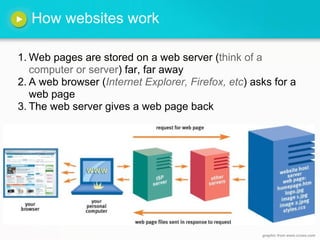
1. Web pages are stored on a web server (think of a
   computer or server) far, far away
2. A web browser (Internet Explorer, Firefox, etc) asks for a
   web page
3. The web server gives a web page back


                                                     graphic from www.ccseo.com
Vocab (for your records)
Web site: a collection of web pages, documents and multi-media files that are stored
on a server on the Internet called a host server.

Web page: a simple text file that contains text and HTML tags that describe how the
text and images are formatted on your screen.

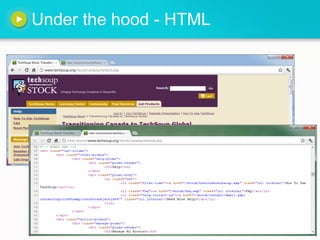
HTML: a set of HTML tags are simple instructions that tell a web browser how a web
page should look. The tags tell the browser to do things like change the font size or
color, or arrange things in columns.

Web browser: (like Internet Explorer, Firefox, Chrome) interprets HTML tags and
decides how to format the text and images.

Web server: delivers web pages to web browsers over the Internet when called on.

Domain name: the location of a website and its files on the Internet.

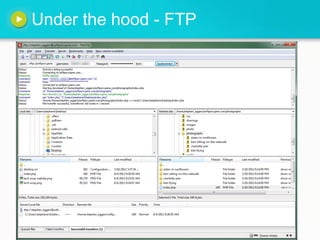
File transfer protocol (FTP): used to transfer files over the Internet.

Web Content Management System (CMS): software or tool that allows a user to
publish content online, usually with an intuitive interface, often using a web browser.
Under the hood - HTML
Under the hood - FTP
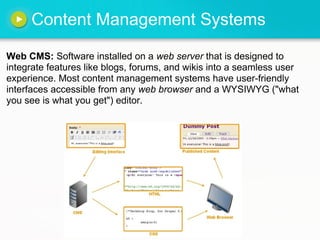
Content Management Systems

Web CMS: Software installed on a web server that is designed to
integrate features like blogs, forums, and wikis into a seamless user
experience. Most content management systems have user-friendly
interfaces accessible from any web browser and a WYSIWYG ("what
you see is what you get") editor.
CMS's we won't cover today

These frameworks generally require a consultant to
configure
CMS's we will cover

These frameworks have a gentle learning curve. Easy to
use, but also powerful
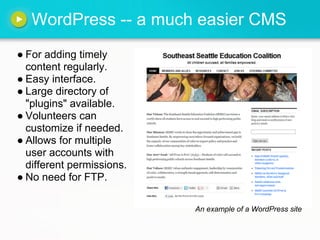
WordPress -- a much easier CMS
ā— For adding timely
  content regularly.
ā— Easy interface.
ā— Large directory of
  "plugins" available.
ā— Volunteers can
  customize if needed.
ā— Allows for multiple
  user accounts with
  different permissions.
ā— No need for FTP.

                           An example of a WordPress site
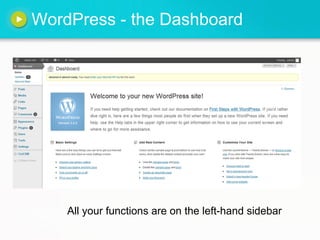
WordPress - the Dashboard


    All your functions are on the left-hand sidebar
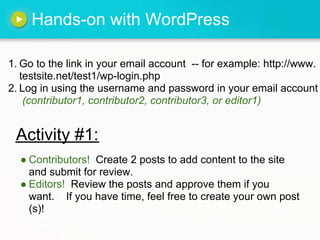
Hands-on with WordPress

1. Go to the link in your email account -- for example: http://www.
   testsite.net/test1/wp-login.php
2. Log in using the username and password in your email account
    (contributor1, contributor2, contributor3, or editor1)


 Activity #1:
  ā— Contributors! Create 2 posts to add content to the site
    and submit for review.
  ā— Editors! Review the posts and approve them if you
    want. If you have time, feel free to create your own post
    (s)!
More hands-on with WordPress

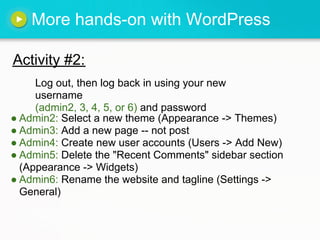
Activity #2:
     Log out, then log back in using your new
     username
     (admin2, 3, 4, 5, or 6) and password
ā— Admin2: Select a new theme (Appearance -> Themes)
ā— Admin3: Add a new page -- not post
ā— Admin4: Create new user accounts (Users -> Add New)
ā— Admin5: Delete the "Recent Comments" sidebar section
  (Appearance -> Widgets)
ā— Admin6: Rename the website and tagline (Settings ->
  General)
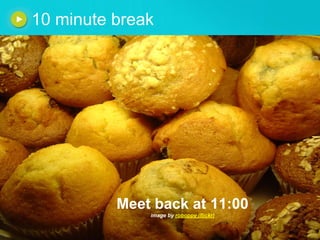
10 minute break


          Meet back at 11:00
              image by roboppy (flickr)
Best Practices

1. Simple, accessible design with easy page navigation
2. Nonprofit mission is readily apparent to website
   visitors example
3. Action links are prominently displayed on your home page
   (Subscribe to Newsletter, Volunteer, Donate) example
4. Contact page, preferably with staff pictures example
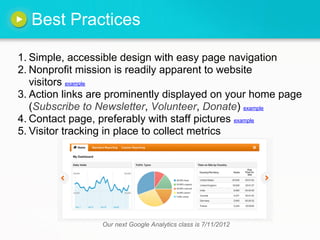
5. Visitor tracking in place to collect metrics


                 Our next Google Analytics class is 7/11/2012
Depending on goals, some extras ...

1. Improve your site's search engine optimization (class: 7/18)
2. Social media icons are on home page
3. A news section or blog provides updates example
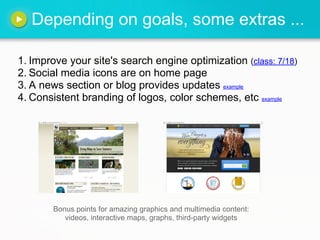
4. Consistent branding of logos, color schemes, etc example


       Bonus points for amazing graphics and multimedia content:
          videos, interactive maps, graphs, third-party widgets
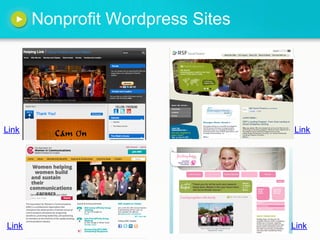
Nonprofit Wordpress Sites


Link                               Link


Link                               Link
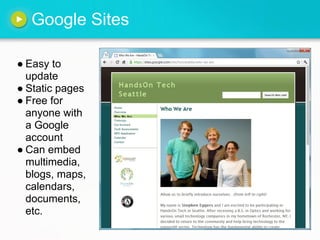
Google Sites

ā— Easy to
  update
ā— Static pages
ā— Free for
  anyone with
  a Google
  account
ā— Can embed
  multimedia,
  blogs, maps,
  calendars,
  documents,
  etc.
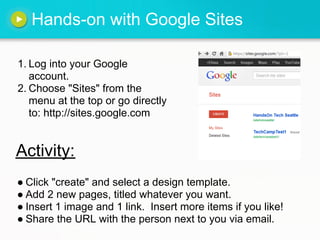
Hands-on with Google Sites

1. Log into your Google
   account.
2. Choose "Sites" from the
   menu at the top or go directly
   to: http://sites.google.com


Activity:
ā— Click "create" and select a design template.
ā— Add 2 new pages, titled whatever you want.
ā— Insert 1 image and 1 link. Insert more items if you like!
ā— Share the URL with the person next to you via email.
Resources
ā— TechSoup.org section on web building
ā— NTEN's websites section
ā— Idealware websites section
ā— NPower Northwest's Knowledge Center
ā— WordPress.org and WordPress.com
ā— Google Sites tutorial (and another)
ā— 11 website design best practices for nonprofits
ā— How to create web content that works
ā— Principles for an effective nonprofit website
ā— DreamHost -- free web hosting for nonprofits
Any questions?


                                                                   Is that it?!


photo by http://www.flickr.com/photos/plasticrevolver/164351244/

Websites for Nonprofits

  • 1.
  • 2.
    Introductions Elissa Thomas, StephenEggers, Abby Nafziger HandsOn Tech AmeriCorp VISTA Serving at NPower NW vistastaff@npowernw.org
  • 3.
    Introductions Name Organization My biggest challengefor my nonprofit's website is ________________________ My biggest success for my nonprofit's website is ________________________
  • 4.
    How websites work 1.Web pages are stored on a web server (think of a computer or server) far, far away 2. A web browser (Internet Explorer, Firefox, etc) asks for a web page 3. The web server gives a web page back graphic from www.ccseo.com
  • 5.
    Vocab (for yourrecords) Web site: a collection of web pages, documents and multi-media files that are stored on a server on the Internet called a host server. Web page: a simple text file that contains text and HTML tags that describe how the text and images are formatted on your screen. HTML: a set of HTML tags are simple instructions that tell a web browser how a web page should look. The tags tell the browser to do things like change the font size or color, or arrange things in columns. Web browser: (like Internet Explorer, Firefox, Chrome) interprets HTML tags and decides how to format the text and images. Web server: delivers web pages to web browsers over the Internet when called on. Domain name: the location of a website and its files on the Internet. File transfer protocol (FTP): used to transfer files over the Internet. Web Content Management System (CMS): software or tool that allows a user to publish content online, usually with an intuitive interface, often using a web browser.
  • 6.
  • 7.
  • 8.
    Content Management Systems WebCMS: Software installed on a web server that is designed to integrate features like blogs, forums, and wikis into a seamless user experience. Most content management systems have user-friendly interfaces accessible from any web browser and a WYSIWYG ("what you see is what you get") editor.
  • 9.
    CMS's we won'tcover today These frameworks generally require a consultant to configure
  • 10.
    CMS's we willcover These frameworks have a gentle learning curve. Easy to use, but also powerful
  • 11.
    WordPress -- amuch easier CMS ā— For adding timely content regularly. ā— Easy interface. ā— Large directory of "plugins" available. ā— Volunteers can customize if needed. ā— Allows for multiple user accounts with different permissions. ā— No need for FTP. An example of a WordPress site
  • 12.
    WordPress - theDashboard All your functions are on the left-hand sidebar
  • 13.
    Hands-on with WordPress 1.Go to the link in your email account -- for example: http://www. testsite.net/test1/wp-login.php 2. Log in using the username and password in your email account (contributor1, contributor2, contributor3, or editor1) Activity #1: ā— Contributors! Create 2 posts to add content to the site and submit for review. ā— Editors! Review the posts and approve them if you want. If you have time, feel free to create your own post (s)!
  • 14.
    More hands-on withWordPress Activity #2: Log out, then log back in using your new username (admin2, 3, 4, 5, or 6) and password ā— Admin2: Select a new theme (Appearance -> Themes) ā— Admin3: Add a new page -- not post ā— Admin4: Create new user accounts (Users -> Add New) ā— Admin5: Delete the "Recent Comments" sidebar section (Appearance -> Widgets) ā— Admin6: Rename the website and tagline (Settings -> General)
  • 15.
    10 minute break Meet back at 11:00 image by roboppy (flickr)
  • 16.
    Best Practices 1. Simple,accessible design with easy page navigation 2. Nonprofit mission is readily apparent to website visitors example 3. Action links are prominently displayed on your home page (Subscribe to Newsletter, Volunteer, Donate) example 4. Contact page, preferably with staff pictures example 5. Visitor tracking in place to collect metrics Our next Google Analytics class is 7/11/2012
  • 17.
    Depending on goals,some extras ... 1. Improve your site's search engine optimization (class: 7/18) 2. Social media icons are on home page 3. A news section or blog provides updates example 4. Consistent branding of logos, color schemes, etc example Bonus points for amazing graphics and multimedia content: videos, interactive maps, graphs, third-party widgets
  • 18.
  • 19.
    Google Sites ā— Easyto update ā— Static pages ā— Free for anyone with a Google account ā— Can embed multimedia, blogs, maps, calendars, documents, etc.
  • 20.
    Hands-on with GoogleSites 1. Log into your Google account. 2. Choose "Sites" from the menu at the top or go directly to: http://sites.google.com Activity: ā— Click "create" and select a design template. ā— Add 2 new pages, titled whatever you want. ā— Insert 1 image and 1 link. Insert more items if you like! ā— Share the URL with the person next to you via email.
  • 21.
    Resources ā— TechSoup.org sectionon web building ā— NTEN's websites section ā— Idealware websites section ā— NPower Northwest's Knowledge Center ā— WordPress.org and WordPress.com ā— Google Sites tutorial (and another) ā— 11 website design best practices for nonprofits ā— How to create web content that works ā— Principles for an effective nonprofit website ā— DreamHost -- free web hosting for nonprofits
  • 22.
    Any questions? Is that it?! photo by http://www.flickr.com/photos/plasticrevolver/164351244/