Designing a Web Site with
Wordpress: An Overview


Amy Goodloe
© 2011 All rights reserved.
Preface

 What follows are notes for a presentation I shared with
  colleagues at the PWR Digital Composition Workshop on
  August 10th, 2011.

 These notes are part of a larger project I’m working on on
  the topic of the rhetoric of web design, so please keep
  that in mind as you move further along in the
  presentation.

 The target audience includes anyone who wants to
  design a class web site with Wordpress, but many of the
  principles I cover apply to any type of web site.
PART 1:
Anatomy of a Wordpress site
applies to wordpress.com as well as self-hosted
Wordpress Components

 (1) Architecture
      - set by CMS
 (2) Design
     - set by theme
  designer, mostly
     - with some input by you
 (3) Content
      - all yours
(1) Architecture

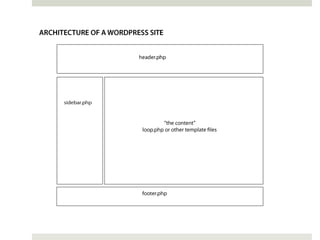
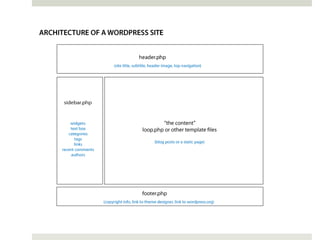
 CMS makes use of templates written in PHP

 templates provide layout by assembling all the
  parts “on the fly” (dynamic)
      - parts: header, content, sidebar(s), footer

 knowledgeable user can customize templates

 most web sites follow a similar architecture to that
  used by Wordpress
(2) Design

 Controlled by theme: PHP templates + CSS

 PHP Templates
  - header, content, sidebar, footer
  - index, posts, page, archives, & more

 CSS
  -   “cascading style sheet” (defines how HTML elements will
      appear)
  -   controls colors, font type, font size, heading level
      formatting, spacing, backgrounds, link styles, and much
      more
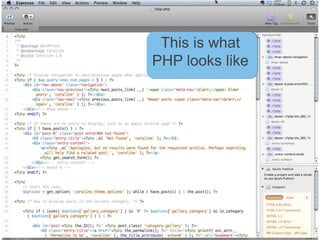
This is what
PHP looks like
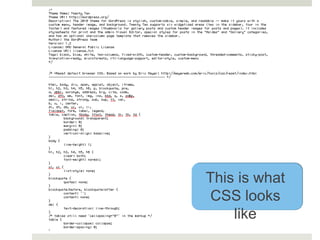
This is what
 CSS looks
    like
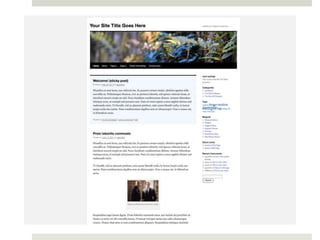
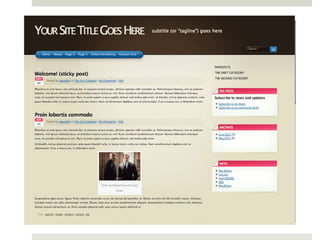
To illustrate what themes do:


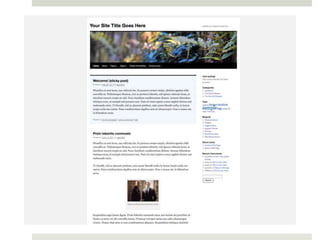
The next slide shows a “demo”
Wordpress blog with the default
theme, Twenty Ten, activated.
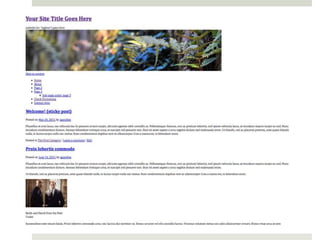
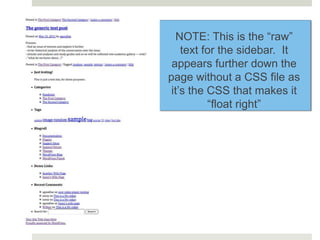
And now, the same web
site with the CSS disabled.
WARNING!
Naked web site coming
        up.
NOTE: This is the “raw”
    text for the sidebar. It
 appears further down the
page without a CSS file as
 it’s the CSS that makes it
          “float right”
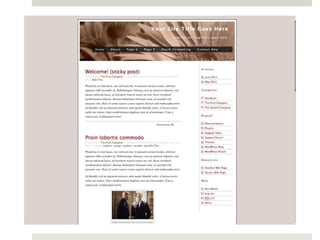
Next up...

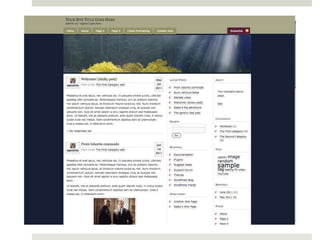
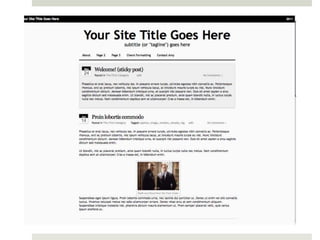
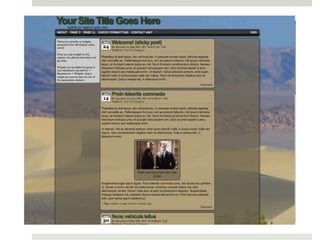
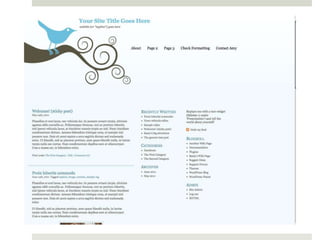
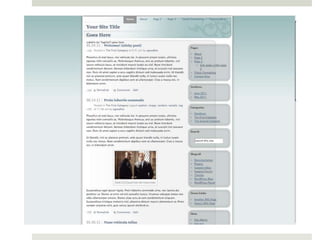
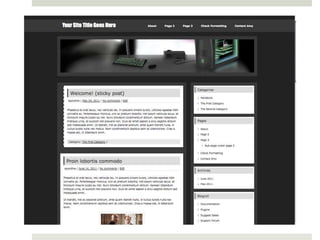
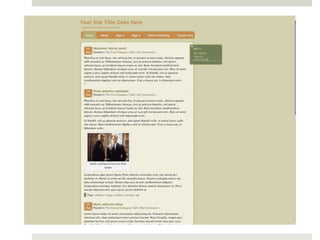
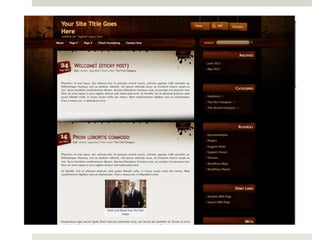
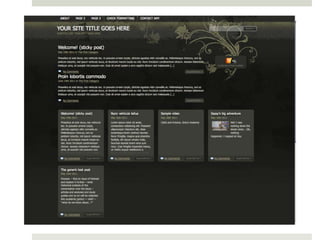
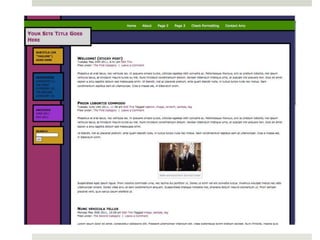
  A trip through a variety of
themes, to see how they each
change the look and feel of the
              site.
As you view each, consider:

• How does the theme impact the
  message?

• What does the theme say about
  the site’s content?

• ... about the designer?
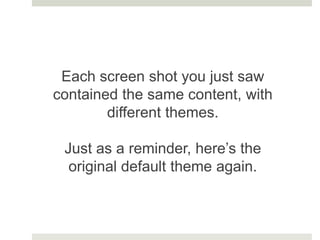
Each screen shot you just saw
contained the same content, with
        different themes.

 Just as a reminder, here’s the
  original default theme again.
(3) Content

The content is all yours!
   Text you write in posts, pages, and text widgets
   Content you embed
    (images, videos, slideshows, etc.)
   Links you provide in the sidebar
   Categories and tags you create to organize
    material
KEY POINT: Content is separate from
architecture and design.

  If you change those (by picking a new
  theme), you’ll change how your content
  appears.

  But you won’t change the content itself.
The separation of content from design
and layout is what enabled the Web 2.0
               revolution.


     Now anyone can be a web
 author, without needing to be a web
              designer.
But we’re not exactly at “web writing
      for dummies” level yet.

Apps that take too much control over
 the design and layout simply aren’t
              popular

     (like Microsoft Front Page... yuck!)
Wordpress soared above all the
other options because it still allows
    you a fair degree of choice

 The software is open source, so
you’re free to tinker with it... a little
             bit or a lot!
You don’t have to understand how to
  build a web site from scratch in
       HTML, PHP, and CSS.

 But you might find it helpful to learn
   a few HTML and CSS basics.

(CSS modification is not an option on the free version of
                    wordpress.com)
To apply HTML formatting to a piece
of text, you put codes around the text
       inside of angle brackets.

The code before the passage says
“start doing x” and the code after it
says “stop doing x” (as indicated by
                the / )
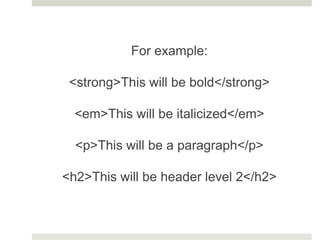
For example:

 <strong>This will be bold</strong>

  <em>This will be italicized</em>

  <p>This will be a paragraph</p>

<h2>This will be header level 2</h2>
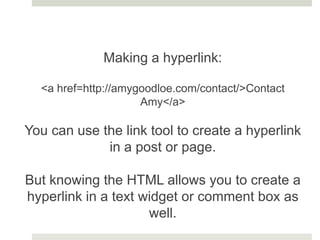
Making a hyperlink:

  <a href=http://amygoodloe.com/contact/>Contact
                     Amy</a>

You can use the link tool to create a hyperlink
             in a post or page.

But knowing the HTML allows you to create a
hyperlink in a text widget or comment box as
                     well.
If HTML seems too
complicated, that’s perfectly fine.
        Ignore it for now.

Later knowing the basics of HTML
 will come in handy, especially for
         troubleshooting.
PART 2:
Design Considerations
what can you do within the constraints of Wordpress?
Architecture: Header

Can’t change:
  basic framework
  exact layout and formatting

Can change:
  title, subtitle, content of top navigation
   menu, etc.
Architecture: Content

Can change:
  what goes in posts and pages
    text, formatting, images, links, etc.
  subject lines, date published, visibility
  what displays on main page (recent posts or
   page)

Can’t change:
  meta data included in each post (function of
   theme)
Architecture: Sidebar

Can change:
  placement and settings for widgets
  sometimes also number and placement of
   sidebars

Can’t change:
  what the widgets can and can’t do
Architecture: Footer

Can’t change:
  Standard text included on footer

Can change:
  Some themes allow you to add your own
   custom text
  Some also have footer widgets enabled
Design

 Controlled by theme
   may have custom options

 With access to CSS, you can make many
  changes, both on the site as a whole and in
  individual posts and pages
   FYI: free wordpress.com does not give access
    to CSS, but pwrfaculty.net does
More to come!

 More on the theme of design, coming soon...
PART 3:
Rhetorical Considerations
it always comes back to audience
Priority #1: Your Audience

readability and usability first
   who are your target readers?
   what are their reading habits?

 Principle: the less motivated a reader is to
  read your content, the easier you should
  make it find
Site Navigation

 What goes on the page menu?
   should it have drop-downs?
 What goes on the sidebar menus?
   placement and labels impact meaning
 Can visitors search the site?
 If students can post entries, is it clear to
  them how to log in?
Categories

 By design, blog posts go into categories, but there
  are many creative ways to use them
   Tip: Try to limit yourself to one category per post
    and let tags do the rest of the work

 How to organize your info? Give yourself room to
  grow.
   Tip: Nancy has students suggest new categories

 You simply won’t get the categories right the first
  time!
Tags

 Tags are keywords associated with content
  that show up on individual posts
 More importantly, tags can be displayed in a
  Tag Cloud in the sidebar
 What is the rhetorical purpose of a Tag
  Cloud?
What is the rhetorical purpose?

 Every element of your web site has a
  rhetorical purpose
   The question is: are you paying attention to that
    purpose?
   If you ask students to design web sites, make
    sure they pay attention
Consider the rhetorical purpose of:

  subject lines
  categories
  tags
  formatting
  header images
  file names
  the theme’s design elements
Examples

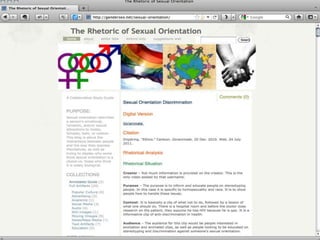
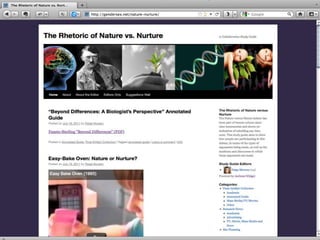
 The slides that follow feature screen shots of
  a variety of web sites designed by my
  students and me, which we discussed in the
  workshop.
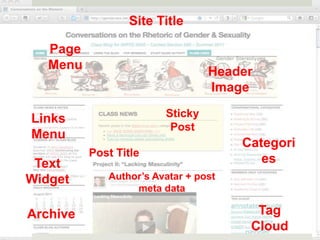
 The first example provides an “anatomy
  lesson” in how to build a class blog.
Site Title

   Page
   Menu
                                 Header
                                 Image

Links                   Sticky
                         Post
Menu
                                      Categori
          Post Title
 Text                                    es
Widget       Author’s Avatar + post
                  meta data

Archive                                 Tag
                                       Cloud
COPYRIGHT NOTICE

All the material on these slides is the sole
     property of Amy Goodloe © 2011
            all rights reserved


     Do not use without permission!
Under development!

 I will continue working on these presentation notes
  and may also add an audio voiceover in the
  future.

 If you have any questions or comments, please
  feel free to contact me at:

          http://amygoodloe.com/contact

Overview of Using Wordpress for Web Site Design

  • 1.
    Designing a WebSite with Wordpress: An Overview Amy Goodloe © 2011 All rights reserved.
  • 2.
    Preface  What followsare notes for a presentation I shared with colleagues at the PWR Digital Composition Workshop on August 10th, 2011.  These notes are part of a larger project I’m working on on the topic of the rhetoric of web design, so please keep that in mind as you move further along in the presentation.  The target audience includes anyone who wants to design a class web site with Wordpress, but many of the principles I cover apply to any type of web site.
  • 3.
    PART 1: Anatomy ofa Wordpress site applies to wordpress.com as well as self-hosted
  • 4.
    Wordpress Components (1)Architecture - set by CMS (2) Design - set by theme designer, mostly - with some input by you (3) Content - all yours
  • 5.
    (1) Architecture  CMSmakes use of templates written in PHP  templates provide layout by assembling all the parts “on the fly” (dynamic) - parts: header, content, sidebar(s), footer  knowledgeable user can customize templates  most web sites follow a similar architecture to that used by Wordpress
  • 8.
    (2) Design  Controlledby theme: PHP templates + CSS  PHP Templates - header, content, sidebar, footer - index, posts, page, archives, & more  CSS - “cascading style sheet” (defines how HTML elements will appear) - controls colors, font type, font size, heading level formatting, spacing, backgrounds, link styles, and much more
  • 9.
    This is what PHPlooks like
  • 10.
    This is what CSS looks like
  • 11.
    To illustrate whatthemes do: The next slide shows a “demo” Wordpress blog with the default theme, Twenty Ten, activated.
  • 13.
    And now, thesame web site with the CSS disabled.
  • 14.
  • 16.
    NOTE: This isthe “raw” text for the sidebar. It appears further down the page without a CSS file as it’s the CSS that makes it “float right”
  • 17.
    Next up... A trip through a variety of themes, to see how they each change the look and feel of the site.
  • 18.
    As you vieweach, consider: • How does the theme impact the message? • What does the theme say about the site’s content? • ... about the designer?
  • 31.
    Each screen shotyou just saw contained the same content, with different themes. Just as a reminder, here’s the original default theme again.
  • 33.
    (3) Content The contentis all yours!  Text you write in posts, pages, and text widgets  Content you embed (images, videos, slideshows, etc.)  Links you provide in the sidebar  Categories and tags you create to organize material
  • 34.
    KEY POINT: Contentis separate from architecture and design.  If you change those (by picking a new theme), you’ll change how your content appears.  But you won’t change the content itself.
  • 35.
    The separation ofcontent from design and layout is what enabled the Web 2.0 revolution. Now anyone can be a web author, without needing to be a web designer.
  • 36.
    But we’re notexactly at “web writing for dummies” level yet. Apps that take too much control over the design and layout simply aren’t popular (like Microsoft Front Page... yuck!)
  • 37.
    Wordpress soared aboveall the other options because it still allows you a fair degree of choice The software is open source, so you’re free to tinker with it... a little bit or a lot!
  • 38.
    You don’t haveto understand how to build a web site from scratch in HTML, PHP, and CSS. But you might find it helpful to learn a few HTML and CSS basics. (CSS modification is not an option on the free version of wordpress.com)
  • 39.
    To apply HTMLformatting to a piece of text, you put codes around the text inside of angle brackets. The code before the passage says “start doing x” and the code after it says “stop doing x” (as indicated by the / )
  • 40.
    For example: <strong>Thiswill be bold</strong> <em>This will be italicized</em> <p>This will be a paragraph</p> <h2>This will be header level 2</h2>
  • 41.
    Making a hyperlink: <a href=http://amygoodloe.com/contact/>Contact Amy</a> You can use the link tool to create a hyperlink in a post or page. But knowing the HTML allows you to create a hyperlink in a text widget or comment box as well.
  • 42.
    If HTML seemstoo complicated, that’s perfectly fine. Ignore it for now. Later knowing the basics of HTML will come in handy, especially for troubleshooting.
  • 43.
    PART 2: Design Considerations whatcan you do within the constraints of Wordpress?
  • 44.
    Architecture: Header Can’t change:  basic framework  exact layout and formatting Can change:  title, subtitle, content of top navigation menu, etc.
  • 45.
    Architecture: Content Can change:  what goes in posts and pages  text, formatting, images, links, etc.  subject lines, date published, visibility  what displays on main page (recent posts or page) Can’t change:  meta data included in each post (function of theme)
  • 46.
    Architecture: Sidebar Can change:  placement and settings for widgets  sometimes also number and placement of sidebars Can’t change:  what the widgets can and can’t do
  • 47.
    Architecture: Footer Can’t change:  Standard text included on footer Can change:  Some themes allow you to add your own custom text  Some also have footer widgets enabled
  • 48.
    Design  Controlled bytheme  may have custom options  With access to CSS, you can make many changes, both on the site as a whole and in individual posts and pages  FYI: free wordpress.com does not give access to CSS, but pwrfaculty.net does
  • 49.
    More to come! More on the theme of design, coming soon...
  • 50.
    PART 3: Rhetorical Considerations italways comes back to audience
  • 51.
    Priority #1: YourAudience readability and usability first  who are your target readers?  what are their reading habits?  Principle: the less motivated a reader is to read your content, the easier you should make it find
  • 52.
    Site Navigation  Whatgoes on the page menu?  should it have drop-downs?  What goes on the sidebar menus?  placement and labels impact meaning  Can visitors search the site?  If students can post entries, is it clear to them how to log in?
  • 53.
    Categories  By design,blog posts go into categories, but there are many creative ways to use them  Tip: Try to limit yourself to one category per post and let tags do the rest of the work  How to organize your info? Give yourself room to grow.  Tip: Nancy has students suggest new categories  You simply won’t get the categories right the first time!
  • 54.
    Tags  Tags arekeywords associated with content that show up on individual posts  More importantly, tags can be displayed in a Tag Cloud in the sidebar  What is the rhetorical purpose of a Tag Cloud?
  • 55.
    What is therhetorical purpose?  Every element of your web site has a rhetorical purpose  The question is: are you paying attention to that purpose?  If you ask students to design web sites, make sure they pay attention
  • 56.
    Consider the rhetoricalpurpose of:  subject lines  categories  tags  formatting  header images  file names  the theme’s design elements
  • 57.
    Examples  The slidesthat follow feature screen shots of a variety of web sites designed by my students and me, which we discussed in the workshop.  The first example provides an “anatomy lesson” in how to build a class blog.
  • 58.
    Site Title Page Menu Header Image Links Sticky Post Menu Categori Post Title Text es Widget Author’s Avatar + post meta data Archive Tag Cloud
  • 66.
    COPYRIGHT NOTICE All thematerial on these slides is the sole property of Amy Goodloe © 2011 all rights reserved Do not use without permission!
  • 67.
    Under development!  Iwill continue working on these presentation notes and may also add an audio voiceover in the future.  If you have any questions or comments, please feel free to contact me at: http://amygoodloe.com/contact

Editor's Notes

  • #3 Understanding the anatomy helps you understand how web sites are structure in general, which improves your understanding of how to READ the webAlso helps you understand (and set reasonable expectations for) what your web site can – and can’t – look like(helpful to learn terminology to better understand how web pages are structured and how you can influence that structure, based on your rhetorical purpose)
  • #4 (helpful to learn terminology to better understand how web pages are structured and how you can influence that structure, based on your rhetorical purpose)Wordpress site has three components:architecture:  established by a set of PHP templates      - header, content, sidebar, footer     - pretty much remains the same no matter what (similar to web site design outside of WP)          (with some options for customizing page templates and others)          -- show illustration of architecturedesign:  established by the theme you select- a theme is a customized set of templates plus a style sheet- style sheet controls:     - font, layout, color, design          *(show &quot;naked&quot; test site)          *(show test site with variety of themes)content:  whatyouput in it     - whatyouput in your blog posts and on yourpages     - also categories, tags, links, images, videos, files, etc.     - difference from Dreamweaversite: contentwithinpagegenerated &quot;on the fly&quot; (PHP)          (youdon&apos;thave to design every single page &amp; youcaneasilychangelayoutwithoutchangingcontent)          (contentmanaged by a database)
  • #5 PHP: Hypertext PreprocessorPHP is a scripting language that automates the assembly of web pages (so you don’t have to repeat content on each page)
  • #6 Wondering what PHP looks like?
  • #7 design:  established by the theme you select- a theme is a customized set of templates plus a style sheet- style sheet controls:     - font, layout, color, design          *(show &quot;naked&quot; test site)          *(show test site with variety of themes)
  • #8 Coraline loop – the part that shows up on all pagesYes, it’s a bit scary looking. It should be. NOT for the faint of heart.(Used to tell people to give it a try, but then hadsome spectacular failures and decided that this is for a certain type of person – not worth the bother if you don’t want to design web sites for a living)
  • #9 This is the CSS for Twenty Ten
  • #10 (I did select a different header from among the ones that come with the theme)Don’t use the default header: signals newbie!(problem with web design for clients: they might like the default, but I’m embarrassed to put that in a portfolio)
  • #11 Default theme on a new blog with some generic content. All demos will be of same content, just changing themes.
  • #13 Same site, with the CSS disabled.
  • #14 This is the sidebar... not on the side!
  • #16 What impression do you get of the designer’s trustworthiness? mood? tone? seriousness?
  • #18 Back to the default.
  • #19 content:  what you put in it     - what you put in your blog posts and on your pages     - also categories, tags, links, images, videos, files, etc.     - difference from Dreamweaver site: content within page generated &quot;on the fly&quot; (PHP)          (you don&apos;t have to design every single page &amp; you can easily change layout without changing content)          (content managed by a database)
  • #20 Content is stored in a database and can be called up at any point and organized different ways.
  • #21 Just happened to be the need for blogging software that started it all: that’s why the blog paradigm is still with us, even though it doesn’t always work best for a site’s purpose.
  • #22 Note:  you can customize pretty much every aspect of a Wordpress site, depending on your level of skill with PHP and CSS     (it&apos;s open source -- the WP folks won&apos;t mind!)     (in every app, there&apos;s a piece of code that tells the computer what to do, but usually you can&apos;t get to that and tinker with it; with an open source app, you can.  so if you don&apos;t like the way something looks, you can figure out what piece of code controls it and change it.  you can do this with WP template files, theme files, and even plugins.)That&apos;s why you can&apos;t always tell that a site is run by Wordpress     (designers choose it for the database, set of functions, plus available themes and plugins)So it&apos;s good for you to know that WP is that flexible, in case you ever do want to do extensive customizations     (and if you do, ask me for some tips!  I&apos;ve edited WP files, theme files, and plugin files, both PHP and CSS)     (if you see something on one of my sites and want to know how I did it, just ask!)
  • #26 If you end up with a post that’s one giant link, or all bold, etc.
  • #30 -sidebar:     - can sometimes change:  number of sidebars, placement, visibility on certain pages          (some themes allow you to select different sidebars for different parts of the site)     - can usually change:  which widgets to use and in what order; the title for the widget; how the widget functions          *(show widgets in action)     - can&apos;t change:  what the available widgets can and can&apos;t do;           (wide range of WP plugins are available to offer additional widgets, but which ones you have access to depends on what the administrator of your site has selected)     
  • #31 footer:     - can sometimes change:  copyright text and other footer content (depends on theme); some themes also offer widgets that are used on the footer rather than sidebar     *(show image of footer widgets)
  • #32 design- largely controlled by the theme you choose- some themes offer &quot;easy&quot; customization options     (for more control, need to edit the CSS and theme templates)- CSS controls formatting elements (font, size, spacing, alignment, text color, links, images, etc.)     - easiest customization (in theory) is color (such as colors of links, a-link, v-link, hover and text)     - also header levels     - font and text size usually not too hard either          *(show example of CSS sheet area that controls color and font)- TIP: to see how different themes control formatting, use a &quot;check formatting&quot; page          *(show sample check formatting page for several themes)- but you can make a few formatting choices within posts and pages     (bold, italics, heading levels, alignment, and a few more with inline CSS)          *(show example of inline CSS)
  • #33 most important rhetorical consideration:  not what you think looks prettiest, but how you want your readers to interact with the site     -- who are those readers     -- what are their web reading habits          - do you want invent new names for things (like categories) or use existing names?  depends on how you want to &quot;train&quot; readers 
  • #34 - follow the conventional structure of web sites, unless you have a good reason for confounding users&apos; expectations     -- horizontal menu:  pages or sections; with home to the left and contact to the right     -- vertical menu